3 |
10 | 4 | SECTION_1 5 |
6 |7 | SECTION_2 8 |
9 |11 |
12 |
13 | CONTINUE 14 |
15 |
16 |
17 |
18 |
This part of the instruction is not yet translated or does not exist. 3 | You can help building the website by participating on Github.
4 | -------------------------------------------------------------------------------- /include/descriptions-de/not_translated.html: -------------------------------------------------------------------------------- 1 |Dieser Teil der Anleitung wurde entwender noch nicht in Ihre Sprache übersetzt oder noch nicht erstellt. 3 | Sie können helfen, diese Website zu erstellen. Infos auf Github.
4 | 5 | -------------------------------------------------------------------------------- /include/descriptions-en/gpgtools_m.html: -------------------------------------------------------------------------------- 1 |GPGTools is a sofware-package, that contains GnuPG. Download and install it. 3 | Always choose the preset standard-options. After the installation, you can close all installation windows.
4 | 5 | -------------------------------------------------------------------------------- /include/descriptions-en/mailvelope_introduction.html: -------------------------------------------------------------------------------- 1 |Mailvelope is for all users who want to read their mails directly in the web browser. 3 | Mailvelope is preconfigured for all common Mailproviders. So there shouldn't be problems with Gmail, Outlook, Yahoo! Mail, GMX, Posteo and some others. 4 | -------------------------------------------------------------------------------- /include/descriptions-en/gpg4win.html: -------------------------------------------------------------------------------- 1 |
GPG4Win is a software package that includes GnuPG. 3 | Download and install it, 4 | choosing default options whenever asked. After it is installed, you can close any windows that it creates.
5 | 6 | -------------------------------------------------------------------------------- /DEPLOY.md: -------------------------------------------------------------------------------- 1 | # Deploying an update to howtopgp.jugendhackt.de: 2 | 3 | Add the remote repository: 4 | 5 | git remote add heroku git@heroku.com:howtopgp.git 6 | 7 | Push the local git repo to the server: 8 | 9 | git push heroku master 10 | 11 | *Your ssh key must be registered by [ByteHamster](https://github.com/ByteHamster).* -------------------------------------------------------------------------------- /include/descriptions-de/mailvelope_introduction.html: -------------------------------------------------------------------------------- 1 |Mailvelope ist für alle geeignet, die ihre Emails direkt im Browser abrufen möchten. 3 | Mailvelope ist bereits für alle gängigen Emailprovider vorkonfiguriert, wenn du also Gmail, 4 | Outlook, Yahoo! Mail, GMX, Posteo, oder ähnliches verwendst, solltest du keine Probleme mit Mailvelope haben.
5 | -------------------------------------------------------------------------------- /include/descriptions-de/gpg4win.html: -------------------------------------------------------------------------------- 1 |GPG4Win ist ein Software-Paket, das GnuPG enthält. Lade es herunter, 4 | installiere es und wähle dabei immer die vorgeschlagenen Standard-Optionen. Nachdem es installiert wurde, 5 | kannst du alle Fenster schließen, die es geöffnet hat.
6 | 7 | -------------------------------------------------------------------------------- /include/descriptions-de/gpgtools_m.html: -------------------------------------------------------------------------------- 1 |GPGTools ist ein Software-Paket, das GnuPG enthält. Lade es herunter, 4 | installiere es und wähle dabei immer die vorgeschlagenen Standard-Optionen. Nachdem es installiert wurde, 5 | kannst du alle Fenster schließen, die es geöffnet hat.
6 | 7 | -------------------------------------------------------------------------------- /include/descriptions-de/mailvelope_install_firefox.html: -------------------------------------------------------------------------------- 1 |Als nächstes musst du das Mailvelope-Plugin für deinen Browser installieren.
3 | Hier
4 | kannst du das Plugin für deinen Browser herunterladen.
5 | Klicke bei beiden Sicherheitsfragen auf "Akzeptieren" bzw. "Installieren".
In general, the terms GnuPG, GPG, GNU Privacy Guard, OpenPGP and PGP are used interchangeably. 3 | Technically, OpenPGP (Pretty Good Privacy) is the encryption standard, and GNU Privacy Guard (often shortened to GPG or GnuPG) 4 | is the program that implements the standard. Enigmail is a plug-in program for your email program that provides an interface for GnuPG.
5 | 6 | -------------------------------------------------------------------------------- /include/descriptions-en/apg_install.html: -------------------------------------------------------------------------------- 1 |To use PGP on your Android device you need to download the APG app. 3 | You can download the app here 4 | from the Google Play Store, or 5 | here from the F-Droid app repository.
6 | -------------------------------------------------------------------------------- /include/descriptions-de/mailvelope_install_chrome.html: -------------------------------------------------------------------------------- 1 |Als nächstes musst du das Mailvelope-Plugin in deinem Chrome-Browser installieren. Hier findest du den Downloadlink:
2 | Google Chrome.
3 | Dieser Link führt dich zum Google Chrome Webstore. Klicke auf  in der oberen, rechten Ecke.
Die Begriffe GnuPG, GPG, GNU Privacy Guard, OpenPGP und PGP werden oft verwendet, 4 | um das gleiche zu bezeichnen. Technisch gesehen, ist OpenPGP (Pretty Good Privacy) 5 | der Verschlüsselungsstandard und GNU Privacy Guard (abgekürzt GPG oder GnuPG) das Programm, 6 | das diesen Standard umsetzt. Enigmail ist eine Erweiterung für dein E-Mail-Programm und fungiert als Schnittstelle zu GnuPG.
7 | 8 | -------------------------------------------------------------------------------- /include/descriptions-de/apg_install.html: -------------------------------------------------------------------------------- 1 |Um PGP auf deinem Android nutzen zu können, musst du dir die APG-App herunterladen. 3 | Du kannst dir die App hier 4 | hier aus dem Google Play Store herunterladen, oder alternativ 5 | hier aus dem F-Droid App Repository.
6 | -------------------------------------------------------------------------------- /include/descriptions-de/apg_k9.html: -------------------------------------------------------------------------------- 1 |Um APG optimal nutzen zu können empfehlen wir den Open-Source Mailclient K9-Mail. Lade die App 3 | hier aus dem Google Play Store herunter, 4 | oder alternativ hier aus dem F-Droid App Repository.
5 |Öffne die K9-Mail App und folge dem Einrichtungsdialog.
6 | -------------------------------------------------------------------------------- /include/descriptions-en/apg_k9.html: -------------------------------------------------------------------------------- 1 |The easiest way to encryt your E-Mails whith the APG app is to use the the open-source mailclient K9-Mail. 3 | You can download it here 4 | from the Google Play Store, or here 5 | from the F-Droid app repository.
6 |Open the K9-Mail App and follow the set up dialog.
7 | -------------------------------------------------------------------------------- /include/descriptions-en/apg_install_technical.html: -------------------------------------------------------------------------------- 1 |To use PGP on your Android device you need to download the APG app. 3 | You can download the app here 4 | from the Google Play Store, or 5 | here from the F-Droid app repository.
6 |APG is an open-source implementation of OpenPGP. The app is licenced under the GPL3 licence
7 | -------------------------------------------------------------------------------- /include/descriptions-en/mailvelope_install_firefox.html: -------------------------------------------------------------------------------- 1 |Next, you have to install the Mailvelope plugin in your browser. You can get the version for Mozilla Firefox
3 | here. Accept both security questions with "Allow" and "Install".
4 | After the installation process has been completed, you can find a new icon with a lock on it in your toolbar, in the upper right corner. Click it to open the Mailvelope main menu.
5 |
6 |
--------------------------------------------------------------------------------
/include/startpage.html:
--------------------------------------------------------------------------------
1 |
4 | SECTION_1 5 |
6 |7 | SECTION_2 8 |
9 |Um APG möglichst einfach nutzen zu können empfehlen wir die E-Mail App K9-Mail. Mit der App kannst du deine 3 | E-Mails auf deinem Android Gerät abrufen. Lade die App 4 | hier aus dem Google Play Store herunter, 5 | oder alternativ hier aus dem F-Droid App Repository.
6 |Öffne die K9-Mail App und folge dem Einrichtungsdialog.
7 | -------------------------------------------------------------------------------- /include/descriptions-de/mailvelope_install.html: -------------------------------------------------------------------------------- 1 |Als nächstes musst du das Mailvelope-Plugin für deinen Browser installieren. Hier findest du die Downloads für Firefox und den Chrome-Browser:
2 | Mozilla Firefox,
3 | Google Chrome.
4 | Dieser Link führt dich zum Google Chrome Webstore. Klicke auf in der oberen, rechten Ecke.
The easiest way to encryt your E-Mails whith the APG app is to use the the open-source mailclient K9-Mail. With this app 3 | you can read your e-mails on your android device. 4 | You can download it here 5 | from the Google Play Store, or here 6 | from the F-Droid app repository.
7 |Open the K9-Mail App and follow the set up dialog.
8 | -------------------------------------------------------------------------------- /include/descriptions-en/apg_create_keys.html: -------------------------------------------------------------------------------- 1 |Open the APG app and press the  button. Fill the textfields out the textfields with your personal data and of a strong passphrase.
3 | Your passphrase should be at least 12 character and should contain at leat one small and one capital letter, one number and one special character.
4 | Do not not forget your password or you have to do it all agin. Choose a keylenght of 4096. Now press on the "save" button in the upper right corner. You now have created your own pgp keypair.
button. Fill the textfields out the textfields with your personal data and of a strong passphrase.
3 | Your passphrase should be at least 12 character and should contain at leat one small and one capital letter, one number and one special character.
4 | Do not not forget your password or you have to do it all agin. Choose a keylenght of 4096. Now press on the "save" button in the upper right corner. You now have created your own pgp keypair.
Um PGP auf deinem Android nutzen zu können, musst du dir die APG-App herunterladen. 3 | Du kannst dir die App hier 4 | aus dem Google Play Store herunterladen, oder alternativ 5 | hier aus dem F-Droid App Repository.
6 |APG ist eine OpenPGP Implementation und ist Open-Source. Die App steht unter GPL3 Lizenz.
7 | -------------------------------------------------------------------------------- /include/descriptions-en/mailvelope_install.html: -------------------------------------------------------------------------------- 1 |Next, you have to install the Mailvelope plugin in your browser. You can get the version for
3 | Mozilla Firefox here.
4 | For the Google Chrome Version click here.
5 | This will bring you to the Google Chrome Webstore. Click on the in the upper-right corner.
Jetzt kannst du Edward eine verschlüsselte Mail senden mit deinem öffentlichen Schlüssel senden. 3 | Damit du diesen später an die E-Mail anhängen kannst, musst du ihn ersteinmal exportieren. 4 | Tippe auf deinen eigenen Kontakt und dann auf die das Icon, mit den drei Quadraten und wähle "Export to file". 5 | Merke dir den Dateipfad. Jetzt kannst du die Mail an Edward schreiben. 6 | Gehe in die K9-Mailapp und verfasse eine E-Mail an edward-de@gsg.org mit dem Betreff "Verschlüsselungstest". 7 | Und setze Hacken bei Sign und Encrypt.
8 | 9 | -------------------------------------------------------------------------------- /include/descriptions-de/apg_create_keys.html: -------------------------------------------------------------------------------- 1 |Öffne die APG-App und tippe auf den Button. Fülle die Felder mit deinen Daten aus und überlege dir eine starke Passphrase.
3 | Deine Passphrase sollte mindestens 12 Zeichen lang sein und mindestens je einen Kleinbuchstaben und Großbuchstaben und mindestens eine Zahl oder ein Satzzeichen enthalten.
4 | Vergiss das Passwort nicht, sonst ist diese gesamte Arbeit umsonst! Wähle eine als Keylänge 4096. Wenn du fertig bist, tippe auf den "save" Button in der oberen rechten Ecke. Nun hast du dir dein PGP-Schlüsselpaar erstellt.
In your email program's menu, select Add-ons (it may be in the Tools section). 3 | Make sure Extensions is selected on the left. Do you see Enigmail? If so, skip this step.
4 |If not, search "Enigmail" with the search bar in the upper right. You can take it from here. Restart your email program when you are done.
5 | 6 | 7 | 8 |
8 |  9 |
9 |  10 |
11 |
--------------------------------------------------------------------------------
/include/descriptions-en/apg_k9_technical.html:
--------------------------------------------------------------------------------
1 |
10 |
11 |
--------------------------------------------------------------------------------
/include/descriptions-en/apg_k9_technical.html:
--------------------------------------------------------------------------------
1 | The easiest way to encryt your E-Mails whith the APG app is to use the the open-source mailclient K9-Mail, because APG has a K9-Mail integration. 3 | You can download it here 4 | from the Google Play Store, or here 5 | from the F-Droid app repository.
6 |The K9 mailclient is licenced under the Apache 2.0 licence and is a community developement projekt.
7 |Open the K9-Mail App and follow the set up dialog.
8 | -------------------------------------------------------------------------------- /include/descriptions-en/mailvelope_install_chrome.html: -------------------------------------------------------------------------------- 1 |Next, you have to install the Mailvelope plugin in your browser. You can get the version for
3 | Google Chrome here.
4 | This link will bring you to the Google Chrome Webstore. Click on the
5 | in the upper-right corner. When the confirmation prompt appears, click Install.
6 | After installation, a lock icon is displayed in the main Google Chrome toolbar. Click it to open the Mailvelope main menu.
Klicke im Menü deines E-Mail-Programmes auf Add-ons (es könnte auch im Untermenü Extras sein). 3 | Vergewissere dich, dass auf der linken Seite Erweiterungen ausgewählt ist. Kannst du Enigmail sehen? 4 | Wenn ja, dann überspringe diesen Schritt.
5 | 6 |Wenn nicht, suche "Enigmail" mit Hilfe der Suchleiste oben rechts. Installiere es und starte dein E-Mail-Programm anschließend neu.
7 | 8 |
9 |
10 |
11 |
12 |
--------------------------------------------------------------------------------
/include/descriptions-en/thunderbird_install_l.html:
--------------------------------------------------------------------------------
1 | Most GNU/Linux operating systems come with GnuPG installed on them, so you do not have to download it. 2 | Before configuring GnuPG though, you'll need the IceDove desktop email program installed on your computer. 3 | Most GNU/Linux distributions have IceDove installed already, though it may be under the alternate name "Thunderbird." 4 | Email programs are another way to access the same email accounts you can access in a browser (like Gmail), but provide extra features.
5 |Open your email program and follow the wizard (step-by-step walkthrough) that sets it up with your email account.
7 | -------------------------------------------------------------------------------- /include/descriptions-en/thunderbird_install_w.html: -------------------------------------------------------------------------------- 1 |To get started, you'll need the IceDove desktop email program installed on your computer.
2 | For your system, IceDove may be known by the alternate name "Thunderbird." Email programs are
3 | another way to access the same email accounts you can access in a browser (like Gmail), but provide extra features.
4 |
5 | If you do not have Thunderbird/Icedove yet download and install it now.
6 |
Open your email program and follow the wizard (step-by-step walkthrough) that sets it up with your email account.
10 | 11 | -------------------------------------------------------------------------------- /include/descriptions-de/apg_k9_technical.html: -------------------------------------------------------------------------------- 1 |Um APG optimal nutzen zu können empfehlen wir den Open-Source Mailclient K9-Mail, da APG eine K9 Integration besitzt. Lade die App 3 | hier aus dem Google Play Store herunter, 4 | oder alternativ hier aus dem F-Droid App Repository.
5 |Der K9-Mailclient steht unter Apache 2.0 Lizenz und wird von der Community weiter entwickelt. 6 | K9-Mail unterstüzt IMAP, POP3 und Exchange 2003/2007.
7 |Öffne die K9-Mail App und richte dein Mailkonto ein, indem du dem Einrichtungsdialog folgst.
8 | -------------------------------------------------------------------------------- /include/descriptions-en/public_private_key_simple.html: -------------------------------------------------------------------------------- 1 |To use PGP, you'll need a public key and a private key (known together as a keypair). 2 | Each is a long string of randomly generated numbers and letters that are unique to you. 3 | Your public and private keys are linked together by a special mathematical function.
4 | 5 |Your public key isn't like a physical key, because it is stored in the open in an online 6 | directory called a keyserver. People download it and use it to encrypt emails they send to you. 7 | You can think of the keyserver as phonebook, where people who want to send you an encrypted email look up your public key.
8 | 9 |Your private key is more like a physical key, because you keep it to yourself (on your computer). 10 | You use your private key to decode encrypted emails other people send to you.
11 | 12 | -------------------------------------------------------------------------------- /include/descriptions-en/mailvelope_requirements.html: -------------------------------------------------------------------------------- 1 | 7 | Mozilla Firefox
8 |
7 | Mozilla Firefox
8 |  11 | Google Chrome
12 |
13 |
14 |
11 | Google Chrome
12 |
13 |
14 | Not sure what Browser to install? Read 15 | this article 16 | to get more information about advantages and disadvantages of both browsers.
17 | -------------------------------------------------------------------------------- /include/descriptions-de/keyserver.html: -------------------------------------------------------------------------------- 1 |Wähle Enigmail → Schlüssel verwalten... im Menü aus.
2 |Rechtsklicke auf deinen Schlüssel und klicke dann auf "Auf Schlüssel-Server hochladen...". Wähle dazu den voreingestellten Schlüsselserver im Pop-up.
3 |Jetzt kann jemand, der dir eine verschlüsselte Nachricht übermitteln möchte, deinen Schlüssel vom Internet herunterladen.
4 | 5 |E-Mail-Programme sind neben Webmail eine weitere Möglichkeit, auf E-Mail-Konten zuzugreifen. Sie funktionieren ähnlich, bieten aber mehr Funktionen und können mehrere Mailkonten gleichzeitig verwalten.
3 | In dieser Anleitung wird das freie Programm Thunderbird verwendet.
4 | Wenn du Thunderbird noch nicht installiert hast, kannst du es hier herunterladen.
5 | Führe dann den Installationsassistenten aus.
Öffne Thunderbird und folge dem Assistenten, der es für dein E-Mail-Konto konfiguriert. Wenn es dabei Schwierigkeiten gibt, erkundige dich bei deinem E-Mail-Anbieter nach den benötigten Angaben. Große Anbieter haben dafür in der Regel Anleitungen auf ihrer Website.
9 | -------------------------------------------------------------------------------- /include/descriptions-de/thunderbird_install_l.html: -------------------------------------------------------------------------------- 1 |Auf den meisten GNU/Linux-Systemen ist GnuPG bereits installiert, also musst du es nicht herunterladen. 2 | Bevor du GnuPG konfigurierst, brauchst du jedoch ein E-Mail-Programm. E-Mail-Programme sind neben Webmail eine weitere Möglichkeit, auf E-Mail-Konten zuzugreifen. Sie funktionieren ähnlich, bieten aber mehr Funktionen und können mehrere Mailkonten gleichzeitig verwalten. Bei den meisten GNU/Linux-Distributionen kann man eine Version des freien Programms Thunderbird (bzw. Icedove) installieren, wenn sie nicht bereits installiert ist.
3 | 4 |Öffne dein E-Mail-Programm und folge dem Assistenten, der es für dein E-Mail-Konto konfiguriert. Wenn es dabei Schwierigkeiten gibt, erkundige dich bei deinem E-Mail-Anbieter nach den benötigten Angaben. Große Anbieter haben dafür in der Regel Anleitungen auf ihrer Website.
6 | -------------------------------------------------------------------------------- /README.md: -------------------------------------------------------------------------------- 1 | # [HowToPGP](http://howtopgp.jugendhackt.de/) 2 | 3 | A [Jugend hackt](http://jugendhackt.de/) project. 4 | 5 | We want to explain [PGP-encryption](http://de.wikipedia.org/wiki/Pretty_Good_Privacy) 6 | simple and understandable for everyone. PGP is a very secure way to encrypt your e-mails, but is it not that easy to install and to use. Only by teaching a wide range of people how to use encryption, we are able to stop mass surveillance. 7 | 8 | 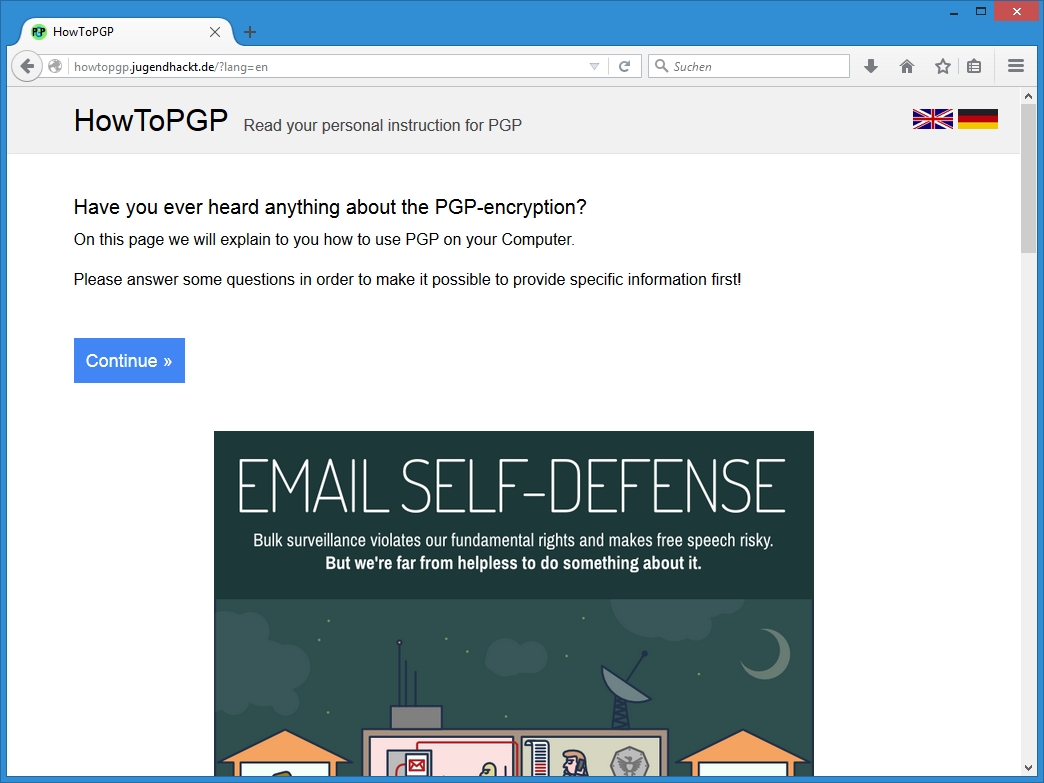 9 | 10 | **Read your personal instruction for PGP** 11 | 12 | 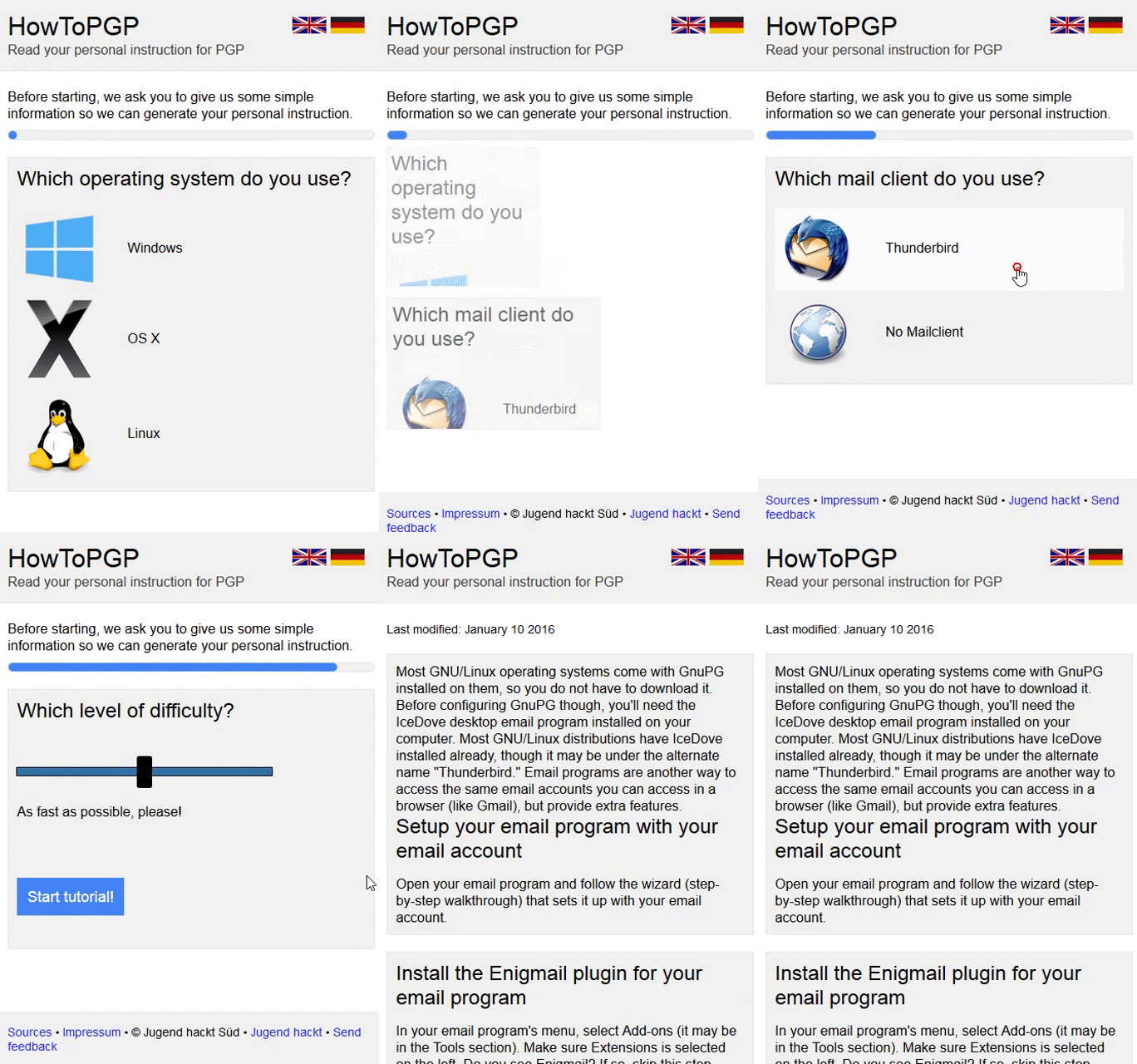 13 | 14 | **Our website is currently available in English and German, contact us if you speak another language and want to help us make this tool accessible to more people. Especially a plain language translation would be real great.** 15 | 16 | -------------------------------------------------------------------------------- /include/descriptions-de/public_private_key_simple.html: -------------------------------------------------------------------------------- 1 |Um PGP zu verwenden, benötigt man einen öffentlichen und einen privaten Schlüssel (beide bilden ein Schlüsselpaar). 2 | Jeder Schlüssel ist eine sehr große Zahl und ist einzigartig. Beide Schlüssel sind mit einer speziellen mathematischen Funktion verbunden.
3 | 4 |Dein öffentlicher Schlüssel ist nicht wie ein Hausschlüssel, da er im Internet auf einem Schlüsselserver gespeichert wird. 5 | Die Leute können ihn so herunterladen und ihn benutzen, wenn sie dir verschlüsselte E-Mails verschicken. 6 | Man kann sich den Schlüsselserver wie ein Telefonbuch vorstellen, von wo Leute, die dir eine Verschlüsselte E-Mail schicken möchten, 7 | deinen öffentlichen Schlüssel herunterladen können.
8 | 9 |Dein privater Schlüssel ist eher wie ein Hausschlüssel, weil ihn niemand außer dir besitzen darf. 10 | Der private Schlüssel wird eingesetzt, wenn du E-Mails entschlüsselst.
11 | 12 | -------------------------------------------------------------------------------- /include/descriptions-de/mailvelope_requirements.html: -------------------------------------------------------------------------------- 1 |
7 | Mozilla Firefox
8 |
11 | Google Chrome
12 |
13 |
14 | Du bist dir unsicher, welchen der beiden Browser du installieren sollst? 15 | In 16 | diesem Artikel von Chip Praxistipps findest du mehr Informationen zu den 17 | Vor- und Nachteilen der beiden Internentbrowser.
18 | -------------------------------------------------------------------------------- /include/descriptions-en/keyserver.html: -------------------------------------------------------------------------------- 1 |In your email program's menu, select Enigmail → Key Management.
3 |Right click on your key and select "Upload Public Keys to Keyserver". Use the default keyserver in the popup.
4 |Now someone who wants to send you an encrypted message can download your public key from the Internet. 5 | There are multiple keyservers that you can select from the menu when you upload, but they are all copies of each other, 6 | so it does not matter which one you use. However, it sometimes takes a few hours for them to match each other when a new key is uploaded.
7 | 8 |ENIGMAIL_HOWTO
5 | Free Software Foundation 6 | (Attribution-ShareAlike 4.0 International) 7 |Nach der Installation kannst du das Mailvelope Hauptmenü über, das in deiner Browsertoolbar erschienene Sicherheitsschlossicon erreichen. Danach musst du dir ein Schlüsselpaar erstellen. Hierfür klickst du in im Mailvelope Hauptmenü auf „Optionen“. Nun solltest du ein Fenster mit der Überschrift „Einrichtung“, ansonsten erreichst du dieses Fenster über „Schlüsselverwaltung“, „Einrichtung“. Klicke hier auf den den blauen Button mit der Aufschrift „Schlüssel erstellen“.
In den ersten beiden Felder des folgenden Fenster gibst du deinen Namen (oder einen Pseudonym) und deine E-Mailadresse ein. Nun musst du dir ein starkes Passwort ausdenken. Dein Passwort
3 | sollte mindestens 12 Zeichen lang sein und mindestens je einen Kleinbuchstaben und Großbuchstaben und mindestens eine Zahl oder ein Satzzeichen enthalten. Vergiss das Passwort nicht, sonst ist diese gesamte Arbeit umsonst! Wiederhole dein Passwort im nächsten Feld um Tippfehler im Passwort zu vermeiden und drücke auf „Senden“.
 5 |
--------------------------------------------------------------------------------
/include/descriptions-en/mailvelope_create_keys.html:
--------------------------------------------------------------------------------
1 |
5 |
--------------------------------------------------------------------------------
/include/descriptions-en/mailvelope_create_keys.html:
--------------------------------------------------------------------------------
1 | Nach der Installation kannst du das Mailvelope Hauptmenü über, das in deiner Browsertoolbar erschienene Sicherheitsschlossicon erreichen. Danach musst du dir ein Schlüsselpaar erstellen. Hierfür klickst du in im Mailvelope Hauptmenü auf „Optionen“. Nun solltest du ein Fenster mit der Überschrift „Einrichtung“, ansonsten erreichst du dieses Fenster über „Schlüsselverwaltung“, „Einrichtung“. Klicke hier auf den den blauen Button mit der Aufschrift „Schlüssel erstellen“.
In den ersten beiden Felder des folgenden Fenster gibst du deinen Namen (oder einen Pseudonym) und deine E-Mailadresse ein. Nun musst du dir ein starkes Passwort ausdenken. Dein Passwort
3 | sollte mindestens 12 Zeichen lang sein und mindestens je einen Kleinbuchstaben und Großbuchstaben und mindestens eine Zahl oder ein Satzzeichen enthalten. Vergiss das Passwort nicht, sonst ist diese gesamte Arbeit umsonst! Wiederhole dein Passwort im nächsten Feld um Tippfehler im Passwort zu vermeiden und drücke auf „Senden“.
5 |
--------------------------------------------------------------------------------
/include/descriptions-de/apg_keyserver.html:
--------------------------------------------------------------------------------
1 | Du befindest dich nun in deinem Adressbuch. Bis jetzt hast du nur einen Kontakt - dich selbst. Damit deine Kommunikationsparter dir verschlüsselte Mails schreiben können, müssen sie 3 | deinen öffentlichen Key haben. Der einfachste Weg anderen deinen öffentlichen Schlüssel zukommen zu lassen ist, ihn auf einen Keyserver hochzuladen. 4 | Um dies zu tun tippe auf deinen Kontakt, auf den Pfeilbutton oben in der Kopfzeile und anschließend auf "Upload to key server". Mache das am besten für alle drei Keyserver.
5 |Wenn du den öffenlichen Schlüssel einer anderen Person suchst, findest du diesen oft auf einem dieser Keyserver. Öffne die APG-App und tippe auf das Icon, 6 | mit dem Plus und dem Männchen. Um den Schlüssel von edward-de@fsf.org zu importieren, gebe seine E-Mailadresse in das Suchfeld ein. Nun solltest du einen 7 | Eintrag mit dem Namen Edward the GPG Bot finden. Um zu überprüfen, dass sich dabei auch um Edward handelt, vergleiche Edwards Fingerabdruck (C09A61E8) mit den 8 | letzen Stellen der langen bunten Buchstabenkombination in diesem Eintrag. Nachdem du dies überprüft hast, tippe auf den Eintag und danach auf dem blauen 9 | Button unten mit der Aufschrit "Import selected keys". Jetzt solltest du eine grüne Meldung bekommen - "1 Key successfully imported". Edward wird dir jetzt 10 | in deiner Kontaktliste angezeigt.
11 | -------------------------------------------------------------------------------- /js/angular-cookies.min.js: -------------------------------------------------------------------------------- 1 | /* 2 | AngularJS v1.5.0 3 | (c) 2010-2016 Google, Inc. http://angularjs.org 4 | License: MIT 5 | */ 6 | (function(p,c,n){'use strict';function l(b,a,g){var d=g.baseHref(),k=b[0];return function(b,e,f){var g,h;f=f||{};h=f.expires;g=c.isDefined(f.path)?f.path:d;c.isUndefined(e)&&(h="Thu, 01 Jan 1970 00:00:00 GMT",e="");c.isString(h)&&(h=new Date(h));e=encodeURIComponent(b)+"="+encodeURIComponent(e);e=e+(g?";path="+g:"")+(f.domain?";domain="+f.domain:"");e+=h?";expires="+h.toUTCString():"";e+=f.secure?";secure":"";f=e.length+1;4096Public-key cryptography, also known as asymmetric cryptography, requires two separate keys, 4 | one of which is private and one of which is public. Although different, the two parts of this key 5 | pair are mathematically linked. The public key is used, for example, to encrypt plaintext or to verify a 6 | digital signature; whereas the private key is used for the opposite operation, in these examples to 7 | decrypt ciphertext or to create a digital signature. The term "asymmetric" stems from the use of different 8 | keys to perform these opposite functions, each the inverse of the other – as contrasted with conventional 9 | ("symmetric") cryptography which relies on the same key to perform both.
10 | 11 |Mathematically a public key is based on the two large prime numbers, along with an auxiliary value. 12 | The prime numbers must be kept secret. Anyone can use the public key to encrypt a message, but with 13 | currently published methods, if the public key is large enough, only someone with knowledge of the 14 | prime numbers can feasibly decode the message.
15 | 16 |Your public key isn't like a physical key, because it is stored in the open in an online directory 17 | called a keyserver. People download it and use it, along with PGP, to encrypt emails they send to you. 18 | You can think of the keyserver as phonebook, where people who want to send you an encrypted email look up your public key.
19 | 20 |Your private key is more like a physical key, because you keep it to yourself (on your computer). 21 | You use your private key to decode encrypted emails other people send to you.
22 | 23 | -------------------------------------------------------------------------------- /include/descriptions-de/enigmail_create_keys.html: -------------------------------------------------------------------------------- 1 |Der Enigmail-Assistent startet möglicherweise automatisch, falls nicht, wähle Enigmail → 3 | Enigmail-Assistent im Menü deines E-Mail-Programms aus. Du musst den Text im nächsten Fenster 4 | nicht unbedingt lesen, wenn du nicht willst, aber es ist eine gute Idee, die Texte der späteren 5 | Schritte des Assistenten zu lesen. Nutze die Standard-Optionen, außer bei folgenden Punkten:
6 | 7 |Im Schritt "Verschlüsselung", wähle "Verschlüssele alle meine Nachrichten, weil mir meine Privatsphäre wichtig ist"
8 |Im Schritt "Unterschreiben", wähle "Meine Nachrichten sollen nicht standardmäßig unterschrieben werden"
9 |Im Schritt "Schlüsselauswahl", wähle "Ich möchte ein neues Schlüsselpaar erzeugen"
10 |Im Schritt "OpenPGP-Schlüssel erzeugen" solltest du ein starkes Passwort verwenden! Dein Passwort 11 | sollte mindestens 12 Zeichen lang sein und mindestens je einen Kleinbuchstaben und Großbuchstaben und 12 | mindestens eine Zahl oder ein Satzzeichen enthalten. Vergiss das Passwort nicht, sonst ist diese gesamte Arbeit umsonst!
13 | 14 | 15 |Das Programm wird einige Minuten brauchen, um den nächsten Schritt "Schlüsselerzeugung" abzuschließen. 16 | Während du wartest, solltest du etwas anderes mit deinem Computer tun, wie einen Film anschauen oder 17 | im Web surfen. Je mehr du deinen Computer in dieser Zeit nutzt, desto schneller wird der Schlüssel generiert.
18 | 19 |Wenn der Schritt "Enigmail-Bestätigung" kommt, klicke auf "Zertifikat erzeugen" und speichere es an 20 | einem sicheren Ort auf deinem Computer (wir empfehlen einen Ordner namens "Widerrufszertifikat" in deinem Home-Verzeichnis).
21 | 22 | -------------------------------------------------------------------------------- /include/descriptions-de/public_private_key_technical.html: -------------------------------------------------------------------------------- 1 |PGP ist ein asymmetrisches Verschlüsselungsverfahren, also ein kryptographisches Verfahren, um mit einem
3 | öffentlichen Schlüssel einen Klartext in einen Geheimtext umzuwandeln, aus dem der Klartext mit einem
4 | geheimen Schlüssel wieder gewonnen werden kann.
5 |
6 | Um PGP zu verwenden, benötigt man einen öffentlichen und einen privaten Schlüssel (beide bilden ein Schlüsselpaar).
7 | Jeder Schlüssel ist eine sehr große Zahl und ist einzigartig. Beide Schlüssel sind mit einer mathematischen Funktion verbunden.
8 |
9 | Funktionen, bei denen eine Richtung leicht, die andere schwierig zu berechnen ist, bezeichnet man als Einwegfunktionen
10 | (engl. one-way function). Beispielsweise ist nach aktuellem Wissensstand die Faktorisierung einer großen Zahl,
11 | also ihre Zerlegung in ihre Primfaktoren, sehr aufwändig, während das Erzeugen einer Zahl durch Multiplikation
12 | von Primzahlen recht einfach ist. Spezielle Einwegfunktionen sind Falltürfunktionen (engl. trapdoor one-way function),
13 | die mit Hilfe einer Zusatzinformation auch rückwärts leicht zu berechnen sind. Bei PGP ist dein öffentlicher Schlüssel die Falltüre.
14 |
Dein öffentlicher Schlüssel ist nicht wie ein Hausschlüssel, da er im Internet auf einem Schlüsselserver 17 | gespeichert wird. Die Leute können ihn so herunterladen und ihn benutzen, wenn sie dir verschlüsselte 18 | E-Mails verschicken. Man kann sich den Schlüsselserver wie ein Telefonbuch vorstellen, von wo Leute, 19 | die dir eine Verschlüsselte E-Mail schicken möchten, deinen öffentlichen Schlüssel herunterladen können.
20 | 21 |Dein privater Schlüssel ist eher wie ein Hausschlüssel, weil ihn niemand außer dir besitzen darf. 22 | Der private Schlüssel wird eingesetzt, wenn du E-Mails entschlüsselst.
23 | 24 | -------------------------------------------------------------------------------- /CONTRIBUTING.md: -------------------------------------------------------------------------------- 1 | # Coutributing to the HowToPGP project 2 | 3 | We are always happy about [pull requests](https://github.com/Jugendhackt/HowToPGP/pulls) from everyone! 4 | 5 | No matter what kind of contribution - large or small. If you want to help but you are not sure what to add, here is a small list of features that realy would bring the projekt foreward. 6 | You can also look at the [issue page](https://github.com/Jugendhackt/HowToPGP/issues) for more ideas. 7 | 8 | ##Instructions 9 | 10 | The aim of our project is to cover as many systems as possible, so new instructions are always an great improvement. There are also 11 | instructions that are not completed yet. You can help by completing the Android and the Mailvelpoe instructions. 12 | 13 | The instruction text files can be found in [HowToPGP/include/descriptions-lang](https://github.com/Jugendhackt/HowToPGP/tree/master/include). 14 | Please orientate at the exsiting instructions. Name the files like that: __client_instructionpart_os_level.html__ for example __thunderbird_install_l_technical.html__. 15 | Add the .html files in [here](https://github.com/Jugendhackt/HowToPGP/blob/master/page.appcache). 16 | 17 | ##Translation 18 | 19 | We want to make this website aviable in multible languages. At the moment our Website is aviable in English and German. Sometimes there are 20 | parts of the instruction that are not translated in one of this languages. Just look for files that exists in the descriptions-de folder but not in 21 | the descriptions-en folder or vice versa. A very big improvement would be a translation in new language. For a translation in a new language create a new folder in 22 | [HowToPGP/include/](https://github.com/Jugendhackt/HowToPGP/tree/master/include) and name it __descriptions-lang__. Please do not translate the 23 | name of the files. For a translation of the mainpage add a new .json file in [HowToPGP/locale/](https://github.com/Jugendhackt/HowToPGP/tree/master/locale) and name it 24 | __lang.json__. 25 | -------------------------------------------------------------------------------- /locale/en.json: -------------------------------------------------------------------------------- 1 | { 2 | "FIREFOX": "Firefox", 3 | "PAGE_TITLE": "HowToPGP", 4 | "WINDOWS": "Windows", 5 | "QUESTION_BROWSER": "Which browser?", 6 | "KEYS_TRUE": "I already use PGP on my computer", 7 | "KEYS_FALSE": "I am new to PGP", 8 | "SOURCES": "Sources", 9 | "QUESTIONS_DESCRIPTION": "Before starting, we ask you to give us some simple information so we can generate your personal instruction.", 10 | "CHROME": "Chrome", 11 | "INTERNETBROWSER": "No Mailclient", 12 | "QUESTION_KEYS": "Do you already have a PGP keypair?", 13 | "QUESTION_ONE": "Which operating system do you use?", 14 | "SECTION_2": "With this interactiv instruction we want to explain you, how to encrypt your e-mails with PGP to protect your communication and help stopping mass surveillance.The Enigmail Setup wizard should start automatically. If it does not, select Enigmail → Setup Wizard 3 | from your email program's menu. You do not need to read the text in the window that pops up unless you would like to, 4 | but it is good to read the text on the later screens of the wizard. Click "Next" with the default options selected, except in these instances:
5 | 6 |On the screen titled "Encryption," select "Encrypt all of my messages by default, because privacy is critical to me."
7 | 8 |On the screen titled "Signing," select "Don't sign my messages by default."
9 | 10 |On the screen titled "Key Selection," select "I want to create a new key pair for signing and encrypting my email."
11 | 12 |On the screen titled "Create Key," pick a strong password! Your password should be at least 12 characters and include at 13 | least one lower case and upper case letter and at least one number or punctuation symbol. Don't forget the password, or all this work will be wasted!
14 | 15 |The program will take a little while to finish the next step, the "Key Creation" screen. While you wait, do something else with your computer, 16 | like watching a movie or browsing the Web. The more you use the computer at this point, the faster the key creation will go.
17 | 18 |When the "Key Generation Completed" screen pops up, select Generate Certificate and choose to save it in a safe place on your computer 19 | (we recommend making a folder called "Revocation Certificate" in your home folder and keeping it there). You'll learn more about the revocation certificate in
20 | 21 | 22 |25 |
Everyone uses GnuPG a little differently, but it is important to follow some basic practices to keep your email secure. 3 | Not following them, you risk the privacy of the people you communicate with, as well as your own, and damage the Web of Trust.
4 | 5 |The more you can encrypt your messages, the better. If you only encrypt emails occasionally, 7 | each encrypted message could raise a red flag for surveillance systems. If all or most of your email is encrypted, 8 | people doing surveillance won't know where to start.
9 | 10 |That's not to say that only encrypting some of your email isn't helpful -- it is a great start and it makes bulk surveillance more difficult.
11 | 12 |Be wary of invalid keys!
13 |GnuPG makes email safer, but it is still important to watch out for invalid keys, which might have fallen into the wrong hands. 14 | Email encrypted with invalid keys might be readable by surveillance programs.
15 |In your email program, go back to the second email that Edward sent you. Because Edward encrypted it with your public key, 16 | it will have a message from Enigmail at the top, which most likely says "Enigmail: Part of this message encrypted."
17 | 18 |When using GnuPG, make a habit of glancing at that bar. 19 | The program will warn you there if you get an email encrypted 20 | with a key that can not be trusted.
21 | 22 |Remember when you created your keys and saved the revocation certificate that GnuPG made? it is time to copy that certificate 24 | onto the safest digital storage that you have -- the ideal thing is a flash drive, disk, or hard drive stored in a safe place in your home.
25 |If your private key ever gets lost or stolen, you'll need this certificate file to let people know that you are no longer using that keypair.
26 | 27 |Act swiftly if someone gets your private key
28 |If you lose your private key or someone else gets ahold of it (say, by stealing or cracking your computer), 29 | it is important to revoke it immediately before someone else uses it to read your encrypted email. 30 | This guide does not cover how to revoke a key, but you can follow the 31 | instructions on the GnuPG site. 32 | After you're done revoking, send an email to everyone with whom you usually use your key to make sure they know.
33 | 34 | -------------------------------------------------------------------------------- /index.html: -------------------------------------------------------------------------------- 1 | 2 | 3 | 4 |Schreibe eine neue E-Mail in Deinem E-Mail-Programm an edward-de@fsf.org. Schreibe "Verschlüsselungstest"
3 | oder etwas ähnliches in den Betreff und irgendetwas in den Text der Nachricht.
4 | Das Icon mit dem Schlüssel unten rechts im Fenster der E-Mail sollte gelb sein. Das bedeutet die Verschlüsselung
5 | ist aktiviert. Dies wird ab jetzt deine Standardeinstellung sein.
6 | Neben dem Schlüssel siehst du das Bild eines Stiftes. Das Anklicken dieses Symbols veranlasst Enigmail,
7 | eine spezielle eindeutige Unterschrift auf der Basis deines privaten Schlüssels zu deiner Nachricht hinzuzufügen.
8 | Dies ist ein anderes Verfahren als die Verschlüsselung, das du im Rahmen dieser Anleitung nicht benutzten musst.
9 | Drücke auf Senden. Enigmail wird eine Meldung "Nicht gefundene Empfänger" zeigen.
Um eine E-Mail an Edward zu verschlüsseln, benötigst du seinen öffentlichen Schlüssel, also muss
12 | Enigmail ihn jetzt von einem Schlüsselserver herunterladen. Klicke auf "Fehlende Schlüssel herunterladen",
13 | wähle den ersten (Schlüssel-ID C09A61E8) und klicke dann auf OK. Klicke im nächsten Pop-up-Fenster wieder auf OK.
14 |
15 | Jetzt bist du zurück beim Dialog "Nicht gefundene Empfänger". Wähle den Kasten vor Edwards Schlüssel an und
16 | klicke auf Absenden. Sollte die E-Mail nicht automatisch versendet werden, kannst du jetzt auf Senden drücken.
Da du die E-Mail mit Edwards öffentlichem Schlüssel verschlüsselt hast, braucht man Edwards privaten Schlüssel, 19 | um die E-Mail entschlüsseln zu können. Nur Edward besitzt seinen privaten Schlüssel, also kann niemand außer ihm — 20 | nicht einmal du — die E-Mail entschlüsseln.
21 | 22 |Wenn Edward deine E-Mail empfangen hat, entschlüsselt er sie mit seinem privaten Schlüssel. 31 | Dann wird er deinen öffentlichen Schlüssel verwenden (den du ihm in der Email geschickt hast), um seine Antwort an dich zu verschlüsseln.
32 |Edward braucht vermutlich zwei, drei Minuten, um zu antworten. In der Zwischenzeit du könntest schonmal bei "Nutze es richtig" weiter lesen.
33 |Wenn du Edwards E-Mail bekommst und sie öffnest, erkennt Enigmail automatisch, dass sie mit deinem 34 | öffentlichen Schlüssel verschlüsselt wurde, und wird dann deinen privaten Schlüssel benutzen, um sie zu entschlüsseln.
35 |Beachte die Leiste mit Informationen über Edwards Schlüssel, die über der Nachricht eingeblendet wird.
36 | 37 | -------------------------------------------------------------------------------- /js/angular-translate-storage-cookie.js: -------------------------------------------------------------------------------- 1 | /*! 2 | * angular-translate - v2.8.1 - 2015-10-01 3 | * 4 | * Copyright (c) 2015 The angular-translate team, Pascal Precht; Licensed MIT 5 | */ 6 | (function (root, factory) { 7 | if (typeof define === 'function' && define.amd) { 8 | // AMD. Register as an anonymous module unless amdModuleId is set 9 | define([], function () { 10 | return (factory()); 11 | }); 12 | } else if (typeof exports === 'object') { 13 | // Node. Does not work with strict CommonJS, but 14 | // only CommonJS-like environments that support module.exports, 15 | // like Node. 16 | module.exports = factory(); 17 | } else { 18 | factory(); 19 | } 20 | }(this, function () { 21 | 22 | angular.module('pascalprecht.translate') 23 | 24 | /** 25 | * @ngdoc object 26 | * @name pascalprecht.translate.$translateCookieStorage 27 | * @requires $cookieStore 28 | * 29 | * @description 30 | * Abstraction layer for cookieStore. This service is used when telling angular-translate 31 | * to use cookieStore as storage. 32 | * 33 | */ 34 | .factory('$translateCookieStorage', $translateCookieStorageFactory); 35 | 36 | function $translateCookieStorageFactory($cookieStore) { 37 | 38 | 'use strict'; 39 | 40 | var $translateCookieStorage = { 41 | 42 | /** 43 | * @ngdoc function 44 | * @name pascalprecht.translate.$translateCookieStorage#get 45 | * @methodOf pascalprecht.translate.$translateCookieStorage 46 | * 47 | * @description 48 | * Returns an item from cookieStorage by given name. 49 | * 50 | * @param {string} name Item name 51 | * @return {string} Value of item name 52 | */ 53 | get: function (name) { 54 | return $cookieStore.get(name); 55 | }, 56 | 57 | /** 58 | * @ngdoc function 59 | * @name pascalprecht.translate.$translateCookieStorage#set 60 | * @methodOf pascalprecht.translate.$translateCookieStorage 61 | * 62 | * @description 63 | * Sets an item in cookieStorage by given name. 64 | * 65 | * @deprecated use #put 66 | * 67 | * @param {string} name Item name 68 | * @param {string} value Item value 69 | */ 70 | set: function (name, value) { 71 | $cookieStore.put(name, value); 72 | }, 73 | 74 | /** 75 | * @ngdoc function 76 | * @name pascalprecht.translate.$translateCookieStorage#put 77 | * @methodOf pascalprecht.translate.$translateCookieStorage 78 | * 79 | * @description 80 | * Sets an item in cookieStorage by given name. 81 | * 82 | * @param {string} name Item name 83 | * @param {string} value Item value 84 | */ 85 | put: function (name, value) { 86 | $cookieStore.put(name, value); 87 | } 88 | }; 89 | 90 | return $translateCookieStorage; 91 | } 92 | $translateCookieStorageFactory.$inject = ['$cookieStore']; 93 | 94 | $translateCookieStorageFactory.displayName = '$translateCookieStorage'; 95 | return 'pascalprecht.translate'; 96 | 97 | })); 98 | -------------------------------------------------------------------------------- /include/questions.html: -------------------------------------------------------------------------------- 1 | {{"KEYS_FALSE"|translate}}
 {{"KEYS_TRUE"|translate}}
 {{"IE"|translate}}{{"FIREFOX"|translate}}{{"CHROME"|translate}}
 {{"THUNDERBIRD"|translate}}
 {{"INTERNETBROWSER"|translate}}
 {{"WINDOWS"|translate}}
 {{"MACOS"|translate}}
 {{"LINUX"|translate}}
 {{"ANDROID"|translate}}
Email encryption is a powerful technology, but it has a weakness; it requires a way to verify that a 3 | person's public key is actually theirs. Otherwise, there would be no way to stop an attacker from making 4 | an email address with your friend's name, creating keys to go with it and impersonating your friend. 5 | That's why the free software programmers that developed email encryption created keysigning and the Web of Trust.
6 | 7 |When you sign someone's key, you are publicly saying that you trust that it does belong to them and 8 | not an impostor. People who use your public key can see the number of signatures it has. Once you have 9 | used GnuPG for a long time, you may have hundreds of signatures. The Web of Trust is the constellation 10 | of all GnuPG users, connected to each other by chains of trust expressed through signatures, forming a 11 | giant network. The more signatures a key has, and the more signatures its signers' keys have, the more trustworthy that key is.
12 | 13 |People's public keys are usually identified by their key fingerprint, which is a string of digits like 14 | F357AA1A5B1FA42CFD9FE52A9FF2194CC09A61E8 (for Edward's key). You can see the fingerprint for your public key, 15 | and other public keys saved on your computer, by going to Enigmail → Key Management in your email program's menu, 16 | then right clicking on the key and choosing Key Properties. it is good practice to share your fingerprint wherever you 17 | share your email address, so that people can double-check that they have the correct public key when they download yours from a keyserver.
18 | 19 |You may also see public keys referred to by their key ID, which is simply the last 8 digits of the fingerprint, 20 | like C09A61E8 for Edward. The key ID is visible directly from the Key Management window. This key ID is like a 21 | person's first name (it is a useful shorthand but may not be unique to a given key), whereas the fingerprint 22 | actually identifies the key uniquely without the possibility of confusion. If you only have the key ID, you 23 | can still look up the key (as well as its fingerprint), like you did in Step 3, but if multiple options appear, 24 | you'll need the fingerprint of the person to whom are trying to communicate to verify which one to use.
25 | 26 | 27 |In your email program's menu, go to Enigmail → Key Management.
29 |Right click on Edward's public key and select Sign Key from the context menu.
30 |In the window that pops up, select "I will not answer" and click ok.
31 |Now you should be back at the Key Management menu. Select Keyserver → Upload Public Keys and hit ok.
32 |You've just effectively said "I trust that Edward's public key actually belongs to Edward." This does 33 | not mean much because Edward isn't a real person, but it is good practice.
34 | 35 | 36 | 37 |Before signing a real person's key, always make sure it actually belongs to them, and that they are 39 | who they say they are. Ask them to show you their ID (unless you trust them very highly) and their 40 | public key fingerprint -- not just the shorter public key ID, which could refer to another key as well. 41 | In Enigmail, answer honestly in the window that pops up and asks "How carefully have you verified that 42 | the key you are about to sign actually belongs to the person(s) named above?".
43 | 44 | -------------------------------------------------------------------------------- /js/angular-translate-loader-static-files.js: -------------------------------------------------------------------------------- 1 | /*! 2 | * angular-translate - v2.8.1 - 2015-10-01 3 | * 4 | * Copyright (c) 2015 The angular-translate team, Pascal Precht; Licensed MIT 5 | */ 6 | (function (root, factory) { 7 | if (typeof define === 'function' && define.amd) { 8 | // AMD. Register as an anonymous module unless amdModuleId is set 9 | define([], function () { 10 | return (factory()); 11 | }); 12 | } else if (typeof exports === 'object') { 13 | // Node. Does not work with strict CommonJS, but 14 | // only CommonJS-like environments that support module.exports, 15 | // like Node. 16 | module.exports = factory(); 17 | } else { 18 | factory(); 19 | } 20 | }(this, function () { 21 | 22 | angular.module('pascalprecht.translate') 23 | /** 24 | * @ngdoc object 25 | * @name pascalprecht.translate.$translateStaticFilesLoader 26 | * @requires $q 27 | * @requires $http 28 | * 29 | * @description 30 | * Creates a loading function for a typical static file url pattern: 31 | * "lang-en_US.json", "lang-de_DE.json", etc. Using this builder, 32 | * the response of these urls must be an object of key-value pairs. 33 | * 34 | * @param {object} options Options object, which gets prefix, suffix and key. 35 | */ 36 | .factory('$translateStaticFilesLoader', $translateStaticFilesLoader); 37 | 38 | function $translateStaticFilesLoader($q, $http) { 39 | 40 | 'use strict'; 41 | 42 | return function (options) { 43 | 44 | if (!options || (!angular.isArray(options.files) && (!angular.isString(options.prefix) || !angular.isString(options.suffix)))) { 45 | throw new Error('Couldn\'t load static files, no files and prefix or suffix specified!'); 46 | } 47 | 48 | if (!options.files) { 49 | options.files = [{ 50 | prefix: options.prefix, 51 | suffix: options.suffix 52 | }]; 53 | } 54 | 55 | var load = function (file) { 56 | if (!file || (!angular.isString(file.prefix) || !angular.isString(file.suffix))) { 57 | throw new Error('Couldn\'t load static file, no prefix or suffix specified!'); 58 | } 59 | 60 | return $http(angular.extend({ 61 | url: [ 62 | file.prefix, 63 | options.key, 64 | file.suffix 65 | ].join(''), 66 | method: 'GET', 67 | params: '' 68 | }, options.$http)) 69 | .then(function(result) { 70 | return result.data; 71 | }, function () { 72 | return $q.reject(options.key); 73 | }); 74 | }; 75 | 76 | var deferred = $q.defer(), 77 | promises = [], 78 | length = options.files.length; 79 | 80 | for (var i = 0; i < length; i++) { 81 | promises.push(load({ 82 | prefix: options.files[i].prefix, 83 | key: options.key, 84 | suffix: options.files[i].suffix 85 | })); 86 | } 87 | 88 | $q.all(promises) 89 | .then(function (data) { 90 | var length = data.length, 91 | mergedData = {}; 92 | 93 | for (var i = 0; i < length; i++) { 94 | for (var key in data[i]) { 95 | mergedData[key] = data[i][key]; 96 | } 97 | } 98 | 99 | deferred.resolve(mergedData); 100 | }, function (data) { 101 | deferred.reject(data); 102 | }); 103 | 104 | return deferred.promise; 105 | }; 106 | } 107 | $translateStaticFilesLoader.$inject = ['$q', '$http']; 108 | 109 | $translateStaticFilesLoader.displayName = '$translateStaticFilesLoader'; 110 | return 'pascalprecht.translate'; 111 | 112 | })); 113 | -------------------------------------------------------------------------------- /include/LiamsKey.html: -------------------------------------------------------------------------------- 1 | 2 | 7 | 8 | 9 | 10 |-----BEGIN PGP PUBLIC KEY BLOCK----- 15 | Version: GnuPG v2 16 | 17 | mQINBFV8JA8BEACpzfoFRqdSNK59F6IOZJc8ZTpYViaysmOIgPFvGFxnp4KH87/T 18 | beoN+z+2pGesnP8M4Weq7WrZq0GbfhAfWQTZwKV/gWczzGnGwIPWB0cwFdmH3WvP 19 | 3xVZj7drFgNjDkpL+30y0etapx/2mqPhKW7girMZdju56CxsendApCfxM8PRouxO 20 | nfVe5JonfuCDT3ue5HEPFOp7Hi0tYcBImbjIF5GxpkA8cTCRpA19jYig4vbYNdPF 21 | XlTVC1D7UH7m+YkiTEvqtGsv5VMA/AxdT80/MfO7dwiADAQOBgn/UGegRLW0zrTu 22 | jUfBhL+cwpLxJZ4VZJVRMg9hCTHyQlOnnCBttky9NIBevQHPqstypt55HXIwSW7C 23 | Sxa+JzoJo46/aU/ZU1K0ujjp8ruYzOfZbeQIfRBGaVwMc7OqKBVhPzvG08fNJ3AF 24 | R0RrUeCYpDT/xd4bSeaeygOoyXSerPm+7RHySnENeqAnQElcBKVJJbIVGJFKr1T/ 25 | qpQSFHnxBhKMT+TpKLEnropk3RWWbWdpN5OKzE/Ak/kF59HLAvH49oGMjdG6WgwK 26 | 60JPlvv1r6V/bDdCIpYENvEizFHjJpLqGlqsOWw5L6rTPM9CK2hIZHsluvo0zXy4 27 | A0b9Aho6BRW/WOl3rqf0HK80iDowuYlPJ15D9txHkRh8U4hclDdzGtTuuQARAQAB 28 | tCJMaWFtIFdhY2h0ZXIgPGxpYW0ud2FjaHRlckBnbXguZGU+iQI/BBMBCAApBQJV 29 | fCQPAhsjBQkJZgGABwsJCAcDAgEGFQgCCQoLBBYCAwECHgECF4AACgkQZB2MTtQq 30 | CRpqEg//Vqm/GWTWa6ep6Jbds00uRKNTeI25Uo5LcSL/IvpCqVrP9Uaq9eRxLRhA 31 | ator26GQPFKyUjwbL4psbvoju1iNaHBgIcCRq9lNeIFm0SRfP3FSpq6ig7Que1Eu 32 | 6W+hRZ8bdebneTApJpee6K52HCfTEkFOPiq147fPziGOK9Zau31o7K3uoIUB7mvV 33 | LdAhiB0HwEPwyUifCNybE2jZmxEqgNLj5nfTLBFOB5xZIvlGQGMzyBg5i8gAuDy+ 34 | 6S1+GVoaAjNd+dmITSljS5cD4yvT6JrwmaOiR+YbseqdwEXAb40HQbg/2uSdH8jo 35 | gFx5Uy2iFoJh4lY2K/LdGc7ygkZrRASfrCdmkqOj8XbHLwe5zLLT6hCiHM88YG4Z 36 | r+onELPxe/ngFI71snFO/WVlOT5bpQLXz0Z3V4JBLVH7dE1LrfbAjrH0of3JSLR0 37 | xoaymplmFC3sA/zHbyQzo7tyW92VIY12P5+w9byZyfKZps9bY4ZKVOZ5vIw5KKfY 38 | g/+YSncRKQ96HIGgm4/Wj95p6cvqnqyaahFHbzR/u/ehZ1S0qMnLeGRYbiNgBS+X 39 | WQi2+YCAjYhT8zz2IlAHrMdoTtplaCLwiJ8HyD0Nls9iRJaxAAda+s+ZtgeYrfW9 40 | 0cPLCBEaIZ0pcxi7iidIM+RyfFaA0wwv4CR0XopuIoVINYYmTnO5Ag0EVXwkDwEQ 41 | ALnUhDgillVDyg7/vJz81FJOJ057cTI0j7wRxrqFm5ZANRSVxVH8tUHqufIBaQLh 42 | J530ezN/XontU17uxv91kTXVz9kGm+unCN5z7+L08D7c60R7CWTemEU7poWfqmi+ 43 | 9VaFkjgm88Wpt5hnlyGJj6A6ulw38z7K2yftOgGlzmYXL5MNE8eKvGnFBnq9dFSt 44 | 2TAvHpX9oE9AeRPOb97XCSRfNMgqW7bO7o+J6aIISjoV6ZcG6NqOQulBXv5H1Kgd 45 | sYG7rmkrqOqpYNgOPkaYC0i9Pda48j+xgD24GYmzMzANvTtj55qPI1M9Vue34FOr 46 | 2ehWID0psgXZtSFJLXFSCUmr/rg/gOc4/YwbLXIoV801+dBolEX3I5+BwVLmhD2y 47 | H0EHN2IS31RCs+/ByIZDPwlQDMmel5kWm1RpqmVmTxm4PFRzY6zlG1zTtXHE7R8V 48 | 6+XOYSSJzN4yQG6x/iCGawiFR9gtSCOadQEkZy8wfPM2cw7Etefyu1arbkciorbJ 49 | vP4azpfDM0/iYSdIpr1tnrwclLoId6gGCshpG8r7IzsjL2xGHMqIQpiOua2JWITD 50 | tCG/H+RLSnVWVmMBzmYmjO65Cqsu+QXXARrpw6oQjGLsFl6ku4D2B6LjFP2/g89I 51 | 6Vn45nD9EU43jFIPp+G09Kihla+bg1kh7zUPDHqG8kgtABEBAAGJAiUEGAEIAA8F 52 | AlV8JA8CGwwFCQlmAYAACgkQZB2MTtQqCRr4NBAAlomEFbmZBPegITcGeZrpa7dR 53 | AF2ccEve6gnCkrgvjj9w1nJ9cgLt+dd30ewZcTJOl3XjHmMWnRMT/u/1MUyoHzKo 54 | G3nKtQcA8GAp6NMYgmdRrc8VK4L7EvNw56Tnb4j0MZfFlGM2Tx9BMCvvJqhGofFc 55 | grXgWNIyeM3tikvg10vSE/F19nblmL9b0rrBscWXsW5hsbBTPs/3crbyp38/Qu21 56 | ZYwA+IfBbdxTe2McH6S97eRK7mLZdYQYnkFFuri11d5uzZgqb7bymQgN/RduqUdX 57 | kskh8aXhhDl6drjEcdnybognsZcF/wo5VNwnZc0a+NBsGcVlCeqtvOzLBnN03+aX 58 | uBr5k5j+1g/q1pOjNh4kbf5+Jt5Gb5fJxXsdAHQyQQJO/SX9quurjxwWeZdBKdHL 59 | Lh7kz9GS4KpwqZNPiFWqWL529k7QSPLkDM8Mq4tARGISL/qYNj9L12ShHGfD7cJ5 60 | Jy2t+eWp6OqNjZbWUWJq8KLd90QwKofs2HCnvDhkVCpm0ZkmEXY+3IOTKLEWP54v 61 | 9aN3uTGbF4lok8OJ85tDT420I6eYPGPZ2h9ZyKD3GX05j8XEv9vdNfVjVz10sdvX 62 | fcO7nSr8vlv9dKMdAvEfN91/ZrGYK2OKVgKWPu7Qx7KNrEnZP8Ri/KrguNlRj9N6 63 | e4F2F9GctJbCG/cC4JM= 64 | =UO7r 65 | -----END PGP PUBLIC KEY BLOCK-----66 | 67 | 68 | -------------------------------------------------------------------------------- /include/NinasKey.html: -------------------------------------------------------------------------------- 1 | 2 | 7 | 8 | 9 | 10 |
15 | blobfisch@outlook.de
16 |
17 | -----BEGIN PGP PUBLIC KEY BLOCK-----
18 | Version: GnuPG v2.0.22 (MingW32)
19 |
20 | mQINBFR/h5cBEADJ68mUsVWGpd2fEhvsnWXzpN4VkHRFUoUvZGEtpmoISAZnMU+u
21 | I6T7I/K9t3b5KZZW10FFa4F06gcwW6oE3C+ZrBYYMgMeBDDm3TXstz3X4h/lKi3M
22 | CzP9gz6kDZnxDJD5SKxfRdyGgYgZNcID+HcsA5y4oUOwr1RSlNdFD4Ulk//kQ5XU
23 | IEZ17nZyvVLKOPLMv95/ECLnayyjHNInrN7nuO1oFp8yGQbtx0BE8CkA5NpmHPKR
24 | EQyZqr87LZtzqh63q6uG0mPOzmgrmUtvzodKKawi0kAAMhqdlBRZK5T0GG9u2Wlu
25 | khEemXZESqOPlUJziKqWRsmGZFazPnuzHvoGcnwlAZH6D+fQL53DOxegZIBX7NJZ
26 | HLhJnAfazxwsPUzT2qMJFnNyuB3at0Q8iJjTdWA+PGBQ4ZqcTQIQ215B9XzeYQAv
27 | 7ZrS5fed6fuz3iLitDXO3QP5SVsGvhi45bVeHSNEV9119CIO6IdEdcGvmjU9ZvSo
28 | +n1YZprjLSkRU/Q00LT5/L0RDZOB+syMAaFKMx2OFq8juJl6Z3cg84pKXgeyo9bS
29 | B3p0TlJx2kr+9I7Jja5OjwXw/m96xabot8TfrSmwSkfsNi6sGrIGBNfUwzBtHJsl
30 | Ci3xD+Pk9BNprifSH229WWDOPVSdUdrf+hZCZZYvX2sT3/nm7CQaoeRhAQARAQAB
31 | tCtOaW5hIFLDtmNrZWxlaW4gPG5pbmEtcm9lY2tlbGVpbkBwb3N0ZW8uZGU+iQI5
32 | BBMBAgAjBQJUf4eXAhsjBwsJCAcDAgEGFQgCCQoLBBYCAwECHgECF4AACgkQZAiw
33 | tkAbWORC8w/8DTJqkLbJAKXvn1rFExjwIAYMhFLNgtmG9n0rsJatAbCZoc4gKpm5
34 | MaGQr7eKG09crTV9AmkhwHnvqcX8A6k+0EZhTFYg+PJFrkEuZ7haap6wFMIZW8Ek
35 | HZ5X4vhmdHtc8jbARTG9o1phFc87bVaQ6OWjNZGnZfiNXhOmcHIGBoQxYHFzFGUb
36 | +yq2lPFdaeZOGI8xgjMJPRZb6q2KGMRlfzhEE8QOZ7mBNGRcNIpSQQfsDCl3vclI
37 | 2nFefsNiROfyk5HE34M9YPbNR6fAdBwvUk96LzS4a0lGbjryKJo0+7jyJx490DfI
38 | 5aPEqy3oF9sF8p84mr/SGbiDXEesIJ9EVkELxl0za0mts8wSNeuwq2cN4jd4/tGv
39 | /lBTkrxmK2FPnHpDDSMmmf3LxMOnBlkpZyXrg+eTbu99qjFbQSTyddscfkD0bRCx
40 | /IsgT+JylxcGtWMJoQKddhTPKFI4Qfk87XhhlrUeLXaPu2KFM0vT3pwC2dxJ0qC4
41 | 4VsKSJwLcec9R+z7gEnqrdDye36MGi9649LktCpLBllHsV5qhfhr3OzB3ITbzyud
42 | mt7oT4ms7R28e6UjZY0e7/sDA4S/elFqOAz0ZFapTCt9F7npwmhH4itnaY4vVzVl
43 | yc+cIaJzWvntAt7cmGWiPiRMesW+bTN+IHHPv8/ecUH0q+lDmGhMpRG5Ag0EVH+H
44 | lwEQANrG0prfe6t5j78bnzg5Tx827vThfunXWU2SsWJDFanQZDNW2ZqyK4ST3jnt
45 | u04L6zO6SjyPLNbpI15x1DGK8lhemmc9lnQMqCR/ip4n6H30HkzFfuCc/C1R1wvk
46 | qdGG8Ns0ayfDS7bgFovIJJBPRDgqtOCpBURJBTNetBTObMH2xHEYRl7Cl0wB7Wgz
47 | wxS1rvNjdsqSWcLbJdgt8CHlVdRb6WiAQIN16Yzn2GlJcVtqKn+08M23xc1V9FYe
48 | 6HpvA5nhshCb9XFSeb8am9Fj274NfHw/7M4gUpb6vlLc6RDi/BpU3t8YvjXWN57M
49 | ZY3oWRzLnj5ILwNqkUFpghIuSOlSBgDA8/GsyO0bPz+Jp+F0wuqL3SqwVbbO6Eml
50 | asZ/myGaX65CeWRpdbiZtFoDNHJ2p+scSbrW1nVVINtppwxYLbgTSsKHMTAqq/kF
51 | K5oEGnXQ0r/Ja8j6YCIJaw91yE+lyoPXjTYcrUOgbEroW0TA7NPUqkgL/92ieQYn
52 | Y0alaseKBfBIAowG04ijAACQIFIDhfPB0vxo8lF+oZh822wuzd8SdAVL5fM1S8N2
53 | KAxzDjN/EUuvnCR2ECId7soFbvYSW5heBr1svIGzhqgCHWN6yyLq3/eiv0BhdWzO
54 | 6D3zcKUX0yUbyFyr69UGzGVcgfCb6I0MMkrdf8bia3G5HYAHABEBAAGJAh8EGAEC
55 | AAkFAlR/h5cCGwwACgkQZAiwtkAbWORNIw//envEkQvUVpxO/1OoZ7CM233LHZfh
56 | zgPTfcOojIho0fiGG3FLzv4z1bHT3Nzur0he2QE2K1uv4uYAVzNyRTeI8mAiTwSH
57 | kMeaWqwM46zRl4OdfytaLWHAls/ySM2WZK3cSevMdDm727QfFZHuBJbNK2zJYEgL
58 | eAFQ4olR151CQFimGqZkE3Dn4/RyY4c7IxeOHdS1fyrNcpMB8n0YqvFNLLL70ItZ
59 | EQ79RIHarBCmmL4oMH6BP4MP6UHVYCOUhJWMjx4c4sRSiBCX6r326njyx3+cpfJV
60 | OpeYJV8Tsgmo8WVU0eK9czH4FwNvqUWa60iXnN67NcpBhl9TV+CqYA6L0Sgc9H10
61 | A7QPxoNMGYxoDr6moH47ST3HCVMZr72HmLfUemGyC2Q1GbsQG/IcEuGG50u+zcnH
62 | QcbD316Vg1tpRWxGPNgZq89wL8bSIEZVFZJch3WDW/dPhE/gAn/f6h0nrd3OjPHk
63 | iJ1Pc9fHxdX7CkRbxWUWrsgwQxlXBGVgAYx8r1MXsMhJirjDBp/KX6jEUnens6Ub
64 | UPo9pmZGqFuBnRicYQzRdaiRxMoTDaoYp9ywvoTnWBnaY7h9FrJezMgonfRY6mip
65 | 7Gj9BfP2Pwnc+b53Oj9I/9QVYYeii281Q41TUbcLIixINGQtvgKj8AetpXKMfUl5
66 | wgFf4+wonWuItKE=
67 | =xByR
68 | -----END PGP PUBLIC KEY BLOCK-----
69 | 70 | 71 | -------------------------------------------------------------------------------- /include/descriptions-de/using_it_right.html: -------------------------------------------------------------------------------- 1 |
Alle nutzen GnuPG ein wenig anders, aber es ist wichtig, ein paar wesentliche Regeln zu befolgen, 3 | um deine E-Mails zu sichern. Wenn du sie nicht befolgst, gefährdest du die Privatheit der Menschen, 4 | mit denen du kommunizierst, und deine eigene, und du beschädigst das Web of Trust.
5 | 6 |Je öfter du deine Nachrichten verschlüsselst, desto besser. Wenn du E-Mails nur hin und wieder verschlüsselt, 8 | könnte jede verschlüsselte Nachricht die Aufmerksamkeit der Überwachungssysteme wecken. Wenn alle oder die 9 | meisten deiner E-Mails verschlüsselt sind, wissen die Überwacher nicht, wo sie anfangen sollen.
10 | 11 |Das heißt nicht, dass es sinnlos ist, nur einige Nachrichten zu verschlüsseln -- es ist ein guter Start und macht Massenüberwachung schwieriger.
12 | 13 | 14 |Nimm dich vor ungültigen Schlüsseln in acht!
15 |GnuPG macht E-Mails sicherer, aber es ist immer noch wichtig, nach ungültigen Schlüsseln Ausschau 16 | zu halten, die in die falschen Hände gefallen sein könnten. E-Mails, die mit ungültigen Schlüsseln 17 | verschlüsselt worden sind, könnten von Überwachungsprogrammen gelesen werden.
18 |Gehe in deinem E-Mail-Programm zurück zur zweiten E-Mail, die dir Edward gesendet hat. Weil sie 19 | mit deinem Schlüssel verschlüsselt wurde, gibt es oben eine Leiste, die sagt, dass die E-Mail verschlüsselt ist.
20 | 21 |Wenn Du GnuPG benutzt, gewöhne es dir an, dass du auf diese Leiste schaust. Enigmail wird dich 22 | dort warnen, wenn Du eine E-Mail erhältst, die mit einem nicht vertrauenswürdigen Schlüssel verschlüsselt worden sind.
23 | 24 |Erinnerst du dich daran, als du deine Schlüssel erzeugt hast und das Widerrufszertifikat gespeichert 26 | hast, das GnuPG erzeugt hat? Nun ist es an der Zeit, das Zertifikat an den sichersten Ort zu kopieren, 27 | den du hast -- ideal ist ein Flashmedium oder eine Festplatte, die du an einem sicheren Ort in deinem Haus aufbewahrst.
28 |Sollte dein privater Schlüssel jemals gestohlen werden oder verloren gehen, brauchst du dieses Zertifikat, 29 | um anderen mitzuteilen, dass du dieses Schlüsselpaar nicht mehr benutzt.
30 | 31 |Reagiere schnell, wenn jemand deinen privaten Schlüssel bekommt
32 | 33 |Wenn du deinen privaten Schlüssel verlierst oder ihn jemand anders erhält (z.B. wenn jemand deinen 34 | Computer stiehlt oder sich unberechtigt Zugang verschafft), ist es wichtig, ihn sofort zurückzuziehen, 35 | bevor ihn jemand benutzt, um deine verschlüsselten E-Mails zu lesen. Wie dies geht, wird in dieser 36 | Anleitung nicht beschrieben, du kannst dies aber im Handbuch von GnuPG 37 | nachlesen. Wenn du mit dem Widerruf fertig bist, schicke eine E-Mail an alle, mit denen du normalerweise deinen Schlüssel benutzt, um sie zu informieren.
38 | 39 |Füge als erstes deinen Schlüssel-Fingerabdruck zu deiner E-Mail-Signatur hinzu. Dann schreibe an mindestens fünf deiner 41 | Freunde eine E-Mail, um ihnen mitzuteilen, dass du gerade GnuPG eingerichtet hast, und um den Fingerabdruck deines öffentlichen 42 | Schlüssels bekanntzugeben. Verlinke auf diese Anleitung und bitte sie, deinem Beispiel zu folgen. Vergiss nicht, dass es eine 43 | tolle Infografik gibt, die du weitergeben kannst.
44 | 45 |Schreibe den Fingerabdruck deines öffentlichen Schlüssels überall hin, wo jemand deine E-Mail-Adresse sieht: deine 46 | Profile in sozialen Netzwerken, Blog, Webseiten oder Visitenkarten. Wir müssen unsere Kultur so verändern, dass wir 47 | den Eindruck haben, dass etwas fehlt, wenn wir eine E-Mail-Adresse ohne einen Schlüssel-Fingerabdruck sehen.
48 | 49 | -------------------------------------------------------------------------------- /include/descriptions-de/web_of_trust.html: -------------------------------------------------------------------------------- 1 |E-Mail-Verschlüsselung ist zwar eine leistungsfähige Technologie, sie hat aber eine Schwäche: 3 | Sie benötigt eine Methode zur Überprüfung, ob ein öffentlicher Schlüssel tatsächlich der angegebenen 4 | Person gehört. Ansonsten gäbe es keine Möglichkeit, eine Angreiferin davon abzuhalten, Schlüssel mit 5 | dem Namen deines Freundes zu erstellen und sich als dein Freund auszugeben. Aus diesem Grund haben die 6 | Programmierer freier Software, die E-Mail-Verschlüsselung erfunden haben, Signaturen und das Web of Trust erfunden.
7 | 8 |Wenn du den Schlüssel von jemandem signierst, dann sagst du öffentlich, dass du glaubst, dass der 9 | Schlüssel tatsächlich dieser Person gehört und nicht einem Betrüger. Leute, die deinen öffentlichen 10 | Schlüssel benutzen, können sehen, wie viele Signaturen er erhalten hat. Wenn du GnuPG einige Jahre 11 | lang verwendet hast, kannst du hunderte Signaturen haben. Das Web of Trust ist eine Konstellation 12 | aller GnuPG-Nutzer, die durch Signaturenketten zu einem riesigen Netz verbunden sind. Je mehr 13 | Signaturen ein Schlüssel hat und je mehr Signaturen die Schlüssel derjenigen, die unterschrieben 14 | haben, erhalten haben, desto vertrauenswürdiger ist dieser Schlüssel.
15 | 16 |Öffentliche Schlüssel werden normalerweise anhand ihres Fingerabdrucks identifiziert, 17 | einer Zeichenkette wie F357AA1A5B1FA42CFD9FE52A9FF2194CC09A61E8 (für Edwards Schlüssel). 18 | Sehen kannst du den Fingerabdruck deines öffentlichen Schlüssels – und anderer öffentlicher 19 | Schlüssel, die du gespeichert hast, indem du zu Enigmail → Schlüssel verwalten im Menü 20 | deines E-Mail-Programms gehst und dann mit der rechten Maustaste auf den Schlüssel klickst und 21 | die Schlüsseleigenschaften auswählst. Es ist sinnvoll, deinen Fingerabdruck immer weiterzugeben, 22 | wenn du anderen deine E-Mail-Adresse mitteilst, so dass diese Menschen kontrollieren können, 23 | ob sie deinen richtigen Schlüssel von einem Schlüsselserver herunterladen.
24 | 25 |Du wirst sehen, dass man sich auch über die Schlüssel-ID auf öffentliche Schlüssel bezieht, 26 | dabei handelt es sich einfach um die letzten 8 Zeichen des Fingerabdrucks, z.B. C09A61E8 für Edward. 27 | Die Schlüssel-ID ist direkt im Fenster Schlüssel verwalten sichtbar. Diese Schlüssel-ID ist wie 28 | der Vorname einer Person (es ist eine nützliche Abkürzung, aber ist vielleicht nicht eindeutig), 29 | während der Fingerabdruck tatsächlich den Schlüssel eindeutig und ohne Möglichkeit der Verwechslung 30 | identifiziert. Wenn du nur die Schlüssel-ID hast, kannst du den Schlüssel (und seinen Fingerabdruck) 31 | immer noch nachschlagen, wie du es in Schritt 3 getan hast, aber wenn mehrere Möglichkeiten auftauchen, 32 | brauchst du den Fingerabdruck der Person, mit der du kommunizieren willst, um zu klären, 33 | welchen Schlüssel du benutzen sollst.
34 | 35 |Gehe in deinem E-Mail-Programm zu Enigmail → Schlüssel verwalten.
37 |Klicke mit der rechten Maustaste auf Edwards öffentlichen Schlüssel und wähle "Unterschreiben" aus dem Kontextmenü aus.
38 |Im Pop-up-Fenster wähle "Keine Antwort" und klicke auf OK.
39 |Zurück in Enigmail-Schlüssel verwalten wähle Schlüssel-Server → Schlüssel hochladen und klicke auf OK.
40 |Du hast gerade gesagt, dass du darauf vertraust, dass Edwards Schlüssel tatsächlich Edward gehört. 41 | Dies bedeutet wenig, da Edward keine echte Person ist, es ist aber gute Praxis.
42 | 43 | 44 |Bevor du einen Schlüssel einer realen Person signierst, überprüfe stets, ob der Schlüssel ihr 46 | gehört und ob sie ist, wer sie behauptet zu sein. Frage sie nach ihrem Ausweis (außer du vertraust ihr sehr stark) 47 | und dem Fingerabdruck ihres öffentlichen Schlüssels -- nicht nur nach der kurzen Schlüssel-ID, die 48 | zusätzlich auch zu einem anderen Schlüssel gehören könnte. Antworte ehrlich auf die Frage 49 | "Haben Sie überprüft, ob dieser Schlüssel tatsächlich dem oben genannten Absender gehört?" in Enigmail..
50 | 51 | -------------------------------------------------------------------------------- /js/angular-translate-storage-local.js: -------------------------------------------------------------------------------- 1 | /*! 2 | * angular-translate - v2.8.1 - 2015-10-01 3 | * 4 | * Copyright (c) 2015 The angular-translate team, Pascal Precht; Licensed MIT 5 | */ 6 | (function (root, factory) { 7 | if (typeof define === 'function' && define.amd) { 8 | // AMD. Register as an anonymous module unless amdModuleId is set 9 | define([], function () { 10 | return (factory()); 11 | }); 12 | } else if (typeof exports === 'object') { 13 | // Node. Does not work with strict CommonJS, but 14 | // only CommonJS-like environments that support module.exports, 15 | // like Node. 16 | module.exports = factory(); 17 | } else { 18 | factory(); 19 | } 20 | }(this, function () { 21 | 22 | angular.module('pascalprecht.translate') 23 | 24 | /** 25 | * @ngdoc object 26 | * @name pascalprecht.translate.$translateLocalStorage 27 | * @requires $window 28 | * @requires $translateCookieStorage 29 | * 30 | * @description 31 | * Abstraction layer for localStorage. This service is used when telling angular-translate 32 | * to use localStorage as storage. 33 | * 34 | */ 35 | .factory('$translateLocalStorage', $translateLocalStorageFactory); 36 | 37 | function $translateLocalStorageFactory($window, $translateCookieStorage) { 38 | 39 | 'use strict'; 40 | 41 | // Setup adapter 42 | var localStorageAdapter = (function(){ 43 | var langKey; 44 | return { 45 | /** 46 | * @ngdoc function 47 | * @name pascalprecht.translate.$translateLocalStorage#get 48 | * @methodOf pascalprecht.translate.$translateLocalStorage 49 | * 50 | * @description 51 | * Returns an item from localStorage by given name. 52 | * 53 | * @param {string} name Item name 54 | * @return {string} Value of item name 55 | */ 56 | get: function (name) { 57 | if(!langKey) { 58 | langKey = $window.localStorage.getItem(name); 59 | } 60 | 61 | return langKey; 62 | }, 63 | /** 64 | * @ngdoc function 65 | * @name pascalprecht.translate.$translateLocalStorage#set 66 | * @methodOf pascalprecht.translate.$translateLocalStorage 67 | * 68 | * @description 69 | * Sets an item in localStorage by given name. 70 | * 71 | * @deprecated use #put 72 | * 73 | * @param {string} name Item name 74 | * @param {string} value Item value 75 | */ 76 | set: function (name, value) { 77 | langKey=value; 78 | $window.localStorage.setItem(name, value); 79 | }, 80 | /** 81 | * @ngdoc function 82 | * @name pascalprecht.translate.$translateLocalStorage#put 83 | * @methodOf pascalprecht.translate.$translateLocalStorage 84 | * 85 | * @description 86 | * Sets an item in localStorage by given name. 87 | * 88 | * @param {string} name Item name 89 | * @param {string} value Item value 90 | */ 91 | put: function (name, value) { 92 | langKey=value; 93 | $window.localStorage.setItem(name, value); 94 | } 95 | }; 96 | }()); 97 | 98 | var hasLocalStorageSupport = 'localStorage' in $window; 99 | if (hasLocalStorageSupport) { 100 | var testKey = 'pascalprecht.translate.storageTest'; 101 | try { 102 | // this check have to be wrapped within a try/catch because on 103 | // a SecurityError: Dom Exception 18 on iOS 104 | if ($window.localStorage !== null) { 105 | $window.localStorage.setItem(testKey, 'foo'); 106 | $window.localStorage.removeItem(testKey); 107 | hasLocalStorageSupport = true; 108 | } else { 109 | hasLocalStorageSupport = false; 110 | } 111 | } catch (e){ 112 | hasLocalStorageSupport = false; 113 | } 114 | } 115 | var $translateLocalStorage = hasLocalStorageSupport ? localStorageAdapter : $translateCookieStorage; 116 | return $translateLocalStorage; 117 | } 118 | $translateLocalStorageFactory.$inject = ['$window', '$translateCookieStorage']; 119 | 120 | $translateLocalStorageFactory.displayName = '$translateLocalStorageFactory'; 121 | return 'pascalprecht.translate'; 122 | 123 | })); 124 | -------------------------------------------------------------------------------- /include/descriptions-en/test_email.html: -------------------------------------------------------------------------------- 1 |Now you'll try a test correspondence with a computer program named Edward, which knows 3 | how to use encryption. Except where noted, these are the same steps you would follow when corresponding with a real, live person.
4 | 5 |This is a special step that you won't have to do when corresponding with real people. 7 | In your email program's menu, go to Enigmail → Key Management. You should see your key 8 | in the list that pops up. Right click on your key and select Send Public Keys by Email. 9 | This will create a new draft message, as if you had just hit the Write button.
10 | 11 |Address the message to edward-en@fsf.org. Put at least one word (whatever you want) in the subject and body of the email. do not send yet.
12 | 13 |There should be an icon of a yellow key in the bottom right of the composition window. 14 | This means that encryption is on, however, we want this first special message to Edward to be unencrypted. 15 | Click the key icon once to turn encryption off. The key should become grey, with a blue dot on it 16 | (to alert you that the setting has been changed from the default). Once encryption is off, hit Send.
17 | 18 |It may take two or three minutes for Edward to respond. In the meantime, you might want to 19 | skip ahead and check out the sectioon "Use it Well" section of this guide. Once he's responded, 20 | head to the next step. From here on, you'll be doing just the same thing as when corresponding with a real person.
21 | 22 |When you open Edward's reply, Enigmail may prompt you for your password before using your private key to decrypt it.
23 | 24 |Write a new email in your email program, addressed to edward-en@fsf.org. Make the subject 27 | "Encryption test" or something similar and write something in the body.
28 |The key in the bottom right of the window should be yellow, meaning encryption is on. This will be your default from now on.
29 |Next to the key, you'll notice an icon of a pencil. Clicking this tells Enigmail to add a 30 | special, unique signature to your message, generated using your private key. This is a separate 31 | feature from encryption, and you do not have to use it for this guide.
32 |Click Send. Enigmail will pop up a window that says "Recipients not valid, not trusted or not found."
33 | 34 |To encrypt an email to Edward, you need his public key, so now you'll have Enigmail download it from a keyserver. 35 | Click Download Missing Keys and use the default in the pop-up that asks you to choose a keyserver. 36 | Once it finds keys, check the first one (Key ID starting with C), then select ok. Select ok in the next pop-up.
37 | 38 |Now you are back at the "Recipients not valid, not trusted or not found" screen. Check the box in front of Edward's key and click Send.
39 | 40 |Since you encrypted this email with Edward's public key, Edward's private key is required to decrypt it. 41 | Edward is the only one with his private key, so no one except him — not even you — can decrypt it.
42 | 43 |Enigmail can not find Edward's key
44 | Close the pop-ups that have appeared since you clicked Send. Make sure you are connected to the Internet and try again.
45 | If that does not work, repeat the process, choosing a different keyserver when it asks you to pick one.
Even if you encrypted your email, the subject line is not encrypted, so do not put private information there. 49 | The sending and receiving addresses aren't encrypted either, so they could be read by a surveillance system. 50 | When you send attachments, Enigmail will give you an option of whether you want to encrypt them.
51 | 52 | 53 |When Edward receives your email, he will use his private key to decrypt it, then use your public key 55 | (which you sent him in your email to encrypt his reply to you.
56 |It may take two or three minutes for Edward to respond. In the meantime, you might want to skip ahead 57 | and check out the "Use it Well" section of this guide.
58 |When you receive Edward's email and open it, Enigmail will automatically detect that it is encrypted 59 | with your public key, and then it will use your private key to decrypt it.
60 |Notice the bar that Enigmail shows you above the message, with information about the status of Edward's key.
61 | 62 | -------------------------------------------------------------------------------- /css/style.css: -------------------------------------------------------------------------------- 1 | * { 2 | margin: 0px; 3 | padding: 0px; 4 | font-family: "Helvetica", Arial, sans-serif; 5 | color: #000000; 6 | box-sizing: border-box; 7 | } 8 | body { 9 | margin: 0 auto; 10 | overflow-y: scroll; 11 | height: 100%; 12 | } 13 | html { 14 | background: #ffffff; 15 | height: 100%; 16 | } 17 | div#title { 18 | border-bottom: 1px solid #e5e5e5; 19 | background-color: #f1f1f1; 20 | padding: 15px 0px; 21 | margin-bottom: 20px; 22 | } 23 | div#title h1 { 24 | font-size: 30px; 25 | font-weight: normal; 26 | text-align: left; 27 | margin-right: 15px; 28 | display: inline-block; 29 | cursor: pointer; 30 | margin-top: 0; 31 | margin-bottom: 0; 32 | } 33 | div#title span { 34 | font-size: 16px; 35 | color: #444; 36 | display: inline-block; 37 | } 38 | #language { 39 | padding: 22px; 40 | right: 0px; 41 | top: 0px; 42 | position: absolute; 43 | } 44 | #language input { 45 | height: 20px; 46 | margin-left: 5px; 47 | } 48 | #language input:hover { 49 | opacity: 0.5; 50 | } 51 | .content-box { 52 | width: 900px; 53 | margin: 0 auto; 54 | padding: 0px 10px; 55 | } 56 | @media screen and (max-width: 900px) { 57 | .content-box { 58 | width: 100% !important; 59 | } 60 | #contentwrapper { 61 | padding-bottom: 100px !important; 62 | } 63 | } 64 | a { 65 | text-decoration: none; 66 | color: #2222ff; 67 | border-radius: 0px; 68 | cursor: pointer; 69 | } 70 | a:hover { 71 | text-decoration: underline; 72 | } 73 | img, a img { 74 | border: none; 75 | } 76 | *:focus { 77 | outline: none; 78 | } 79 | *::-moz-focus-inner { 80 | border: 0; 81 | } 82 | a.button { 83 | text-decoration: none; 84 | text-align: center; 85 | padding: 12px; 86 | margin-top: 15px; 87 | color: white!important; 88 | font-size: 18px; 89 | background-color: #4285f4; 90 | transition: all 0.1s ease-in-out; 91 | } 92 | a.button:hover { 93 | background-color: #2163D0; 94 | } 95 | #footer { 96 | margin-top: 15px; 97 | font-size: 14px; 98 | padding: 15px 0px; 99 | border-top: 1px solid #e5e5e5; 100 | background-color: #f1f1f1; 101 | position: absolute; 102 | bottom: 0; 103 | right: 0; 104 | left: 0; 105 | } 106 | .mainpage #section1 { 107 | font-size: 20px; 108 | margin-bottom: 10px; 109 | margin-top: 40px; 110 | } 111 | #main_img { 112 | margin: 0px auto; 113 | width: 600px; 114 | display: block; 115 | } 116 | @media screen and (max-width: 780px) { 117 | #main_img { 118 | width: 100%; 119 | } 120 | } 121 | #contentwrapper { 122 | min-height: 100%; 123 | position: relative; 124 | padding-bottom: 67px; 125 | } 126 | .text_block { 127 | margin-top: 20px; 128 | padding: 10px; 129 | border: 1px solid #e5e5e5; 130 | background-color: #f1f1f1; 131 | } 132 | .question > h2 { 133 | font-weight: normal; 134 | margin-bottom: 20px; 135 | } 136 | .question > div { 137 | transition: all 0.1s ease-in-out; 138 | background-color: #f1f1f1; 139 | cursor: pointer; 140 | padding: 5px; 141 | } 142 | .question > div:hover { 143 | background-color: #fcfcfc; 144 | } 145 | .question > div > img { 146 | width: 50px; 147 | margin-right: 20px; 148 | vertical-align: middle; 149 | } 150 | #input_range { 151 | width: 300px; 152 | max-width: 100%; 153 | margin-top: 30px; 154 | } 155 | #last_modified { 156 | font-size: 14px; 157 | } 158 | .description_block > h2 { 159 | font-weight: normal; 160 | margin-bottom: 15px; 161 | margin-top: 5px; 162 | } 163 | .description_block p.notice { 164 | padding: 10px; 165 | margin-top: 10px; 166 | margin-left: 10px; 167 | border-left: 5px solid #ccc; 168 | } 169 | .description_block p.important { 170 | padding: 10px; 171 | margin: 10px; 172 | margin-right: 0px; 173 | border-left: 5px solid #CE0A0A; 174 | } 175 | .description_block img.inline { 176 | display: inline-block; 177 | vertical-align: middle; 178 | } 179 | .description_block ul { 180 | margin-top: 10px; 181 | margin-bottom: 10px; 182 | } 183 | .description_block li { 184 | margin-left: 20px; 185 | margin-bottom: 5px; 186 | } 187 | .progress-bar { 188 | background-color: #4285f4; 189 | } 190 | .progress-bar > b{ 191 | padding-left: 5px; 192 | } 193 | .animate-container.ng-enter, .animate-container.ng-leave { 194 | -webkit-transition: 0.5s ease all; 195 | -moz-transition: 0.5s ease all; 196 | -ms-transition: 0.5s ease all; 197 | -o-transition: 0.5s ease all; 198 | transition: 0.5s ease all; 199 | position: relative; 200 | } 201 | .animate-container.ng-enter { 202 | opacity: 0; 203 | top: 999px; 204 | } 205 | .animate-container.ng-enter.ng-enter-active { 206 | opacity:1; 207 | top: 0px; 208 | } 209 | .animate-container.ng-leave { 210 | opacity:1; 211 | top: 0px; 212 | } 213 | .animate-container.ng-leave.ng-leave-active { 214 | opacity:0; 215 | top: 999px; 216 | } 217 | -------------------------------------------------------------------------------- /js/site.js: -------------------------------------------------------------------------------- 1 | var app = angular.module('HowToApp', ["ui.bootstrap", 'ngAnimate', 'ngCookies', 'pascalprecht.translate']); 2 | 3 | app.config(['$translateProvider', function ($translateProvider) { 4 | var supported_languages = ['en', 'de']; 5 | $translateProvider.registerAvailableLanguageKeys(supported_languages, { 6 | 'en_*': 'en', 7 | 'de_*': 'de' 8 | }) 9 | $translateProvider.useStaticFilesLoader({ 10 | prefix: 'locale/', 11 | suffix: '.json' 12 | }); 13 | $translateProvider.determinePreferredLanguage(); 14 | // set preferred language to english in case an unsupported or invalid 15 | // language was determined. 16 | if (supported_languages.indexOf($translateProvider.preferredLanguage()) < 0) { 17 | $translateProvider.preferredLanguage("en"); 18 | } 19 | $translateProvider.fallbackLanguage("en"); 20 | $translateProvider.useLocalStorage(); 21 | $translateProvider.useSanitizeValueStrategy('sanitizeParameters'); 22 | }]); 23 | 24 | app.controller('MainController', ['$translate', '$scope', '$location', function ($translate, $scope, $location) { 25 | $scope.changeLanguage = function (langKey) { 26 | $translate.use(langKey); 27 | }; 28 | $scope.getPartial = function (path) { 29 | return 'include/descriptions-'+$translate.use()+'/'+path+'.html'; 30 | } 31 | $scope.setProgress = function(percent, speed) { 32 | if(!speed) { 33 | speed = 1; 34 | } 35 | $scope.progress = percent; 36 | } 37 | 38 | $scope.showQuestion = function(next) { 39 | if(next == "client") { 40 | $scope.setProgress(25); 41 | } else if(next == "browser") { 42 | $scope.setProgress(50); 43 | } else if(next == "keys") { 44 | $scope.setProgress(75); 45 | } else if(next == "level") { 46 | $scope.setProgress(95); 47 | } else { 48 | $scope.setProgress(0); 49 | next = "os"; 50 | } 51 | $scope.question = next; 52 | $scope.content_include = "questions"; 53 | $location.path("/" + next); 54 | } 55 | 56 | $scope.selectOS = function(os) { 57 | $scope.os = os; 58 | if (os == "android") { 59 | $scope.showQuestion("keys"); 60 | } else{ 61 | $scope.showQuestion("client"); 62 | } 63 | } 64 | 65 | $scope.selectKeys = function(keys) { 66 | $scope.keys = keys; 67 | $scope.showQuestion("level"); 68 | } 69 | 70 | $scope.selectClient = function(client) { 71 | $scope.client = client; 72 | if (client == "browser") { 73 | $scope.showQuestion("browser"); 74 | } else { 75 | $scope.showQuestion("keys"); 76 | } 77 | } 78 | 79 | $scope.selectBrowser = function(browser) { 80 | $scope.browser = browser; 81 | $scope.showQuestion("keys"); 82 | } 83 | 84 | $scope.submitQuestions = function(difficulty) { 85 | $scope.difficulty = difficulty; 86 | $scope.setProgress (100, 0.5); 87 | $scope.content_include = "snippets"; 88 | $location.path("/result"); 89 | } 90 | 91 | $scope.showStartPage = function() { 92 | $location.path(""); 93 | $scope.content_include = "startpage"; 94 | $scope.os = ""; 95 | $scope.client = ""; 96 | $scope.browser = ""; 97 | $scope.keys = ""; 98 | $scope.difficulty = 2; 99 | $scope.progress = 0; 100 | } 101 | 102 | $scope.showQuestions = function() { 103 | $scope.showQuestion("os"); 104 | } 105 | $scope.showImpressum = function() { 106 | $scope.content_include = "impressum"; 107 | } 108 | $scope.showSources = function() { 109 | $scope.content_include = "sources"; 110 | } 111 | $scope.getLanguageImageUrl = function(lang) { 112 | return 'image/'+lang+'_flag.png' 113 | } 114 | $scope.getLocalizedImageUrl = function(prefix) { 115 | return 'image/'+prefix+$translate.use()+'.png' 116 | } 117 | 118 | $scope.handlePath = function() { 119 | var question = $location.path().substr(1); 120 | var valid = false; 121 | switch (question) { 122 | case "os": 123 | valid = true; 124 | break; 125 | case "client": 126 | valid = ($scope.os); 127 | break; 128 | case "browser": 129 | valid = ($scope.os && $scope.client == "browser"); 130 | break; 131 | case "keys": 132 | valid = ($scope.os && ($scope.os == "android" || $scope.client)); 133 | break; 134 | case "level": 135 | valid = ($scope.os && ($scope.os == "android" || $scope.client) && $scope.keys); 136 | break; 137 | case "result": 138 | if ($scope.os && ($scope.os == "android" || $scope.client) && $scope.keys) { 139 | $scope.content_include = "snippets"; 140 | return; 141 | } 142 | } 143 | 144 | if (!valid) { 145 | // no matching path, start from the beginning 146 | $scope.showStartPage(); 147 | } else { 148 | $scope.showQuestion(question); 149 | } 150 | } 151 | 152 | $scope.$on('$locationChangeSuccess', function() { 153 | $scope.handlePath(); 154 | }); 155 | 156 | $scope.languages = ["en", "de"]; 157 | $scope.textblock_classes = "description_block text_block"; 158 | $scope.handlePath(); 159 | }]); 160 | -------------------------------------------------------------------------------- /include/impressum.html: -------------------------------------------------------------------------------- 1 |VEREINSADRESSE
5 | Open Knowledge Foundation Deutschland e.V.
6 | Singerstr. 109
7 | 10179 Berlin
8 | Deutschland
Vereinsregister Nr: VR 30468 B
10 | Steuernummer: 27/674/52428
11 | VAT: DE278022128
E-Mail: info@okfn.de
13 | Telefon: +030-57703666-2
15 |
DATENSCHUTZERKLÄRUNG
16 |Die Open Knowledge Foundation Deutschland e.V., Singerstr. 109, 10179 Berlin Deutschland (nachfolgend als „Open 17 | Knowledge Foundation“ oder „wir“ bezeichnet) betreibt die im Internet unter https://howtopgp.jugendhackt.de und 18 | den jeweils dazu gehörenden Unterverzeichnissen abrufbare Internetseite (nachfolgend die „Website“).
19 |Die Open Knowledge Foundation möchte Ihnen mit dieser Datenschutzerklärung erläutern, welche Daten in welcher 20 | Form verarbeitet werden, wenn Sie unsere Website besuchen. Hiermit kommen wir zugleich unserer 21 | Informationspflicht gem. Art. 13 Datenschutz-Grundverordnung (DS-GVO) Ihnen gegenüber nach.
22 |I. Verantwortlicher und Kontaktmöglichkeiten des Datenschutzbeauftragten
23 | Die datenschutzrechtlich Verantwortliche für die auf unserer Website stattfindenden Datenverarbeitungen ist die
24 |
Open Knowledge Foundation Deutschland e.V.
26 | Singerstr. 109
27 | 10179 Berlin
28 | Deutschland
29 | E-Mail: info@okfn.de
Telefon: +49 30 57703666 0
31 | Fax: +49 30 57703666 9
Unser Datenschutzbeauftragter ist erreichbar unter:
33 | Open Knowledge Foundation Deutschland e.V.
34 | – Datenschutzbeauftragter –
35 | Singerstr. 109
36 | 10179 Berlin
37 | Deutschland
38 | E-Mail: datenschutz@okfn.de
II. Personenbezogene Daten, Zwecke und Rechtsgrundlage der Datenverarbeitung
40 |1. Personenbezogene Daten
41 |Nach der DS-GVO sind personenbezogene Daten „alle Informationen, die sich auf eine identifizierte oder 42 | identifizierbare natürliche Person (im Folgenden „betroffene Person“) beziehen; als identifizierbar wird eine 43 | natürliche Person angesehen, die direkt oder indirekt, insbesondere mittels Zuordnung zu einer Kennung wie einem 44 | Namen, zu einer Kennnummer, zu Standortdaten, zu einer Online-Kennung oder zu einem oder mehreren besonderen 45 | Merkmalen identifiziert werden kann, die Ausdruck der physischen, physiologischen, genetischen, psychischen, 46 | wirtschaftlichen, kulturellen oder sozialen Identität dieser natürlichen Person sind.
47 |2. Allgemeine Nutzung der Website
48 |Wir erheben und speichern im Zuge Ihres Besuchs auf unserer Website keine personenbezogenen Daten.
49 |Unbeschadet der vorstehenden grundsätzlichen Gegebenheiten registriert aber der Webserver unseres Hosters 50 | automatisch Zugriffe auf die Websites und dabei insbesondere Ihre IP-Adresse. Ihre IP-Adresse wird jedoch nicht 51 | gespeichert.
52 |Zudem legt unser Hoster zur Erhaltung der Systemsicherheit sog. Logfiles an. Diese Logfiles enthalten die 53 | folgenden Informationen:
54 |Diese Informationen bleiben für uns anonym. Ein Rückschluss auf eine Person ist somit nicht möglich.
62 |Nehmen Sie unter der auf unserer Website angegebenen E-Mail-Adresse Kontakt zu uns auf, teilen Sie uns zumindest 63 | Ihre E-Mail-Adresse mit, sowie gegebenenfalls weitere Informationen, die Sie in Ihrer E-Mail preisgeben. Damit 64 | wir Ihr Anliegen bearbeiten können, müssen wir diese Daten verarbeiten.
65 |3. Zwecke und Rechtsgrundlage der Datenverarbeitung
66 |Die Verarbeitung Ihrer IP-Adresse während des Verbindungsaufbaus erfolgt, damit wir Ihnen unsere Website zur 67 | Verfügung stellen können. Sie basiert auf Art. 6 Abs. 1 lit. f) DS-GVO. Unser berechtigtes Interesse besteht im 68 | genannten Zweck.
69 |Die Verarbeitung im Rahmen einer Kontaktaufnahme erfolgt, damit wir Ihre Anfrage bearbeiten und beantworten 70 | könne. Die Rechtsgrundlage ist Art. 6 Abs. 1 lit. f) DS-GVO. Unser berechtigtes Interesse liegt im soeben 71 | genannten Zweck.
72 |III. Empfänger der Daten
73 | Innerhalb unseres Unternehmens haben jeweils die Abteilungen auf Ihre Daten Zugriff, die für die Bearbeitung der
74 | Anliegen zuständig sind. Zudem setzen wir externe Dienstleister ein, soweit wir Leistungen nicht oder nicht
75 | sinnvoll selbst vornehmen können. Diese externen Dienstleister sind dabei vor allem Anbieter von
76 | IT-Dienstleistungen und Telekommunikationsdienste.
Eine Übermittlung in Drittstaaten findet grundsätzlich nicht und nur dann statt, soweit sie zur Ausführung Ihrer 78 | Aufträge erforderlich ist, gesetzlich vorgeschrieben ist oder Sie uns Ihre Einwilligung hierzu erteilt 79 | haben.
80 |IV. Speicherdauer
81 | Unsere Logfiles werden 14 Tage gespeichert. Ihre E-Mails und Kontaktaufnahmen speichern wir so lange, wie es zur
82 | Bearbeitung Ihrer Anfrage erforderlich ist.
V. Betroffenenrechte
84 | Die Datenschutz-Grundverordnung garantiert Ihnen gewisse Rechte, die Sie uns gegenüber – soweit die gesetzlichen
85 | Voraussetzungen vorliegen – geltend machen können.
VI. Pflicht zur Bereitstellung von Daten
124 | Sie haben keine vertragliche oder gesetzliche Pflicht uns personenbezogene Daten bereitzustellen. Allerdings
125 | sind wir ohne die von Ihnen mitgeteilten Daten nicht in der Lage, Ihnen unsere Services anzubieten.
VII. Bestehen von automatisierten Entscheidungsfindungen (einschließlich Profiling)
127 | Wir verwenden keine automatisierten Entscheidungsfindungen, die Ihnen gegenüber rechtliche Wirkungen entfaltet
128 | oder Sie beeinträchtigt.
Wenn Sie Anmerkungen oder Fragen haben:
131 |Wir treffen alle erdenklichen Vorkehrungen zum Schutz und zur Sicherheit Ihrer Daten. Ihre Fragen und Kommentare 132 | zum Datenschutz sind uns willkommen, schreiben Sie einfach eine Mail an info@okfn.de. 133 |
134 |Berlin, November 2018
135 | 136 |CONTACT_US
140 | Nina • 141 | Liam 142 |