"
36 | ]
37 | },
38 | {
39 | "cell_type": "markdown",
40 | "metadata": {},
41 | "source": [
42 | "## Download Data Sets\n",
43 | "\n",
44 | " 1. Download the zipped data set from our [Google drive location](https://drive.google.com/file/d/1GOwI3vlmpiEhbFVIEoAPCrJkPdfIxPhD/view?usp=sharing)\n",
45 | " \n",
46 | "\n",
47 | " \n",
48 | " 2. Unzip the data directory \n",
49 | " "
50 | ]
51 | },
52 | {
53 | "cell_type": "markdown",
54 | "metadata": {},
55 | "source": [
56 | "## Roadmap\n",
57 | "\n",
58 | " 1. Load and inspect data sets\n",
59 | " - mineral occurence point data sets with *geopandas*\n",
60 | " - gravity, magnetic and radiometric data sets with *rasterio*\n",
61 | " 1. Combine data sets to build a labeled Npixel, Nlayers array for model training\n",
62 | " - inspect differences between proximal vs. distal to mineralisation pixels \n",
63 | " 1. Train a random forest classifier and apply to all pixels, visualise results\n",
64 | " - evaluate performance with a randomly selected testing subset\n",
65 | " - repeat with stratified classes \n",
66 | " 1. Develop a checkerboard data selection procedure, train and evaluate models\n",
67 | " - discuss effects of spatially separated testing data \n",
68 | " 1. Investigate occurence holdout models with a spatially clustered approach\n",
69 | " \n",
70 | "---"
71 | ]
72 | },
73 | {
74 | "cell_type": "code",
75 | "execution_count": null,
76 | "metadata": {},
77 | "outputs": [],
78 | "source": [
79 | "# import key packages\n"
80 | ]
81 | }
82 | ],
83 | "metadata": {
84 | "interpreter": {
85 | "hash": "ddde3c07babc53dc58854aefe2e9e24c72c5582b4a554f17e28720a9890a9216"
86 | },
87 | "kernelspec": {
88 | "display_name": "Python 3 (ipykernel)",
89 | "language": "python",
90 | "name": "python3"
91 | },
92 | "language_info": {
93 | "codemirror_mode": {
94 | "name": "ipython",
95 | "version": 3
96 | },
97 | "file_extension": ".py",
98 | "mimetype": "text/x-python",
99 | "name": "python",
100 | "nbconvert_exporter": "python",
101 | "pygments_lexer": "ipython3",
102 | "version": "3.8.5"
103 | }
104 | },
105 | "nbformat": 4,
106 | "nbformat_minor": 4
107 | }
108 |
--------------------------------------------------------------------------------
/README.md:
--------------------------------------------------------------------------------
1 | 
2 |
3 |
4 | # Geospatial ML Challenges: A prospectivity analysis example
5 |
6 |
7 | The [Transform 2022 Schedule](https://docs.google.com/spreadsheets/d/e/2PACX-1vTnJ_cTd3Y5nQPoxM-BNTHq96SobJxTliofmqLxBMFnASpKTE9JxmPoqxEnFYPLUw2ZrIiQS8o_wunC/pubhtml)
8 |
9 | Instructors:
10 | [Thomas Ostersen](https://www.linkedin.com/in/thomasostersen/) and
11 | [Tom Carmichael](https://www.linkedin.com/in/thomas-carmichael-b0761242/)
12 |
13 | ## BEFORE THE TUTORIAL
14 |
15 | Make sure you've done these things **before the tutorial on Monday**:
16 |
17 | 1. Sign-up for the [Software Underground Slack](https://softwareunderground.org/slack)
18 | 1. Join the channel `t22-mon-ml-models`. This is where **all communication will
19 | happen**.
20 | 1. Set up your computer ([instructions below](#setup)). We will not have time to
21 | solve many computer issues during the tutorial so make sure you do this
22 | ahead of time. If you need any help, ask at the `t22-mon-ml-models` channel on
23 | Slack.
24 |
25 | ## About
26 |
27 | In this tutorial we’ll run a fairly basic random forest prospectivity analysis
28 | workflow applied to tin-tungsten (Sn-W) deposits in northeastern Tasmania. We'll
29 | use open data sets provided by Mineral Resources Tasmania and Geoscience Australia,
30 | all of which are available to download from our public [Google Drive](https://drive.google.com/file/d/1ahrYZlvnrZuSdDrwEbhajFrofC3VQPek/view?usp=sharing). The roadmap for the tutorial is as follows:
31 |
32 | - Load and inspect data sets
33 | - mineral occurrence point data sets with *geopandas*
34 | - gravity, magnetic and radiometric data sets with *rasterio*
35 | - Combine data sets to build a labeled Npixel, Nlayers array for model training
36 | - inspect differences between proximal vs. distal to mineralisation pixels
37 | - Train a random forest classifier and apply to all pixels, visualise results
38 | - evaluate performance with a randomly selected testing subset
39 | - repeat with stratified classes
40 | - Develop a checkerboard data selection procedure, train and evaluate models
41 | - discuss effects of spatially separated testing data
42 | - Investigate occurrence holdout models with a spatially clustered approach
43 |
44 | ## Prerequisites
45 |
46 | - Knowledge of Python is assumed and all coding will be done within a Jupyter notebook
47 | - We'll use [numpy](https://numpy.org/) for data handling and [matplotlib](https://matplotlib.org/) for data visualisation
48 | - Point data sets are handled with [geopandas](https://geopandas.org/), a [pandas](https://pandas.pydata.org/)-like library for vector GIS processing
49 | - [Rasterio](https://rasterio.readthedocs.io/) is used to read and write gridded raster data sets
50 | - The [scikit-learn](https://scikit-learn.org/stable/) implementation of the [random forest](https://scikit-learn.org/stable/modules/generated/sklearn.ensemble.RandomForestClassifier.html) algorithm is used for all modelling
51 | - Class stratification in modelling procedures use the [imbalanced-learn](https://imbalanced-learn.org/stable/) library
52 |
53 | ## Youtube Video
54 |
55 | A full recording of the tutorial is available on YouTube here:
56 |
57 | [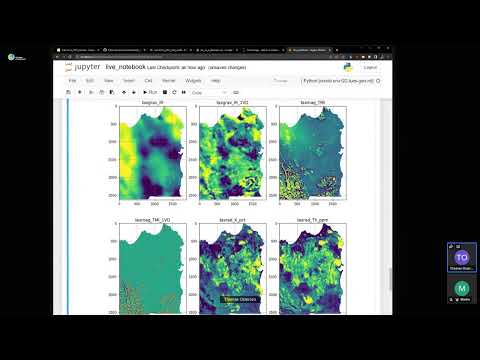](https://www.youtube.com/watch?v=C4YvnLMzYDc)
58 |
59 | ---
60 | ## Setup
61 |
62 | There are a few things you'll need to follow the tutorial:
63 |
64 | 1. A working Python installation ([Anaconda](https://www.anaconda.com/) or Miniconda)
65 | 2. The Geospatial ML tutorial *conda environment* installed
66 | 3. A web browser that works with Jupyter notebooks (basically anything except Internet Explorer)
67 |
68 | To get things setup, please do the following.
69 |
70 | **Windows users:** When you see "*terminal*" in the instructions,
71 | this means the "*Anaconda Prompt*" program for you.
72 |
73 | ### Step 1
74 |
75 | **Install a Python distribution:**
76 |
77 | In this tutorial we will be using the [Anaconda](https://www.anaconda.com/)
78 | Python distribution along with the `conda` package manager. If you already have
79 | Anaconda or Miniconda installed, you can skip this step.
80 |
81 | If not, please follow Matt Hall's video tutorial from Transform2020: [youtube instructions](https://www.youtube.com/playlist?list=PLgLft9vxdduAW-jmhYqXvtfGYJS6v2FjM)
82 |
83 |
84 | ### Step 2
85 |
86 | **Create the `t22-mon-ml-models` conda environment:**
87 |
88 | 1. Download the `environment.yml` file from
89 | [here](https://drive.google.com/file/d/1asIZ_M77MbhcL-8sYqwPzWsURleHqBSd/view?usp=sharing)
90 | 1. Open a terminal (*Anaconda Prompt* if you are running Windows). The
91 | following steps should be done in the terminal
92 | 1. Navigate to the folder that has the downloaded environment file
93 | 1. Create the conda environment by running `conda env create --file environment.yml`
94 | (this will download and install all of the packages used in the tutorial)
95 |
96 | ### Step 3
97 |
98 | 1. Download the zipped data set from our public [Google drive](https://drive.google.com/file/d/1ahrYZlvnrZuSdDrwEbhajFrofC3VQPek/view?usp=sharing), this shoud look like the following screenshot
99 |
100 |
101 |
102 | 2. Once downloaded, unzip the data set and copy it to your working directory of choice
103 |
104 | ### Step 4
105 |
106 | **Start JupyterLab:**
107 |
108 | 1. **Windows users:** Make sure you set a default browser that is **not Internet Explorer**.
109 | 1. Activate the conda environment: `conda activate t22-mon-ml-models`
110 | 1. Start the JupyterLab server: `jupyter lab`
111 | 1. Jupyter should open in your default web browser. We'll start from here in the
112 | tutorial and create a new notebook together.
113 |
114 | ### IF EVERYTHING ELSE FAILS
115 |
116 | If you really can't get things to work on your computer,
117 | you can run the code online through Google Colab (you will need a Google account).
118 | A starter notebook that installs all the tutorial dependencies and downloads the tutorial data can be found here:
119 |
120 | https://colab.research.google.com/drive/1jAW8A4hDdFn4An3I3jtVJiTxzNn08oRU?usp=sharing
121 |
122 | To save a copy of the Colab notebook to your own account, click on the
123 | "Open in playground mode" and then "Save to Drive".
124 | You might be interested in
125 | [this tutorial](https://transform2020.sched.com/event/c7Jn/tutorial-using-python-subsurface-tools-no-install-required)
126 | for an overview of Google Colab.
127 |
128 | ---
129 |
130 | ## Acknowledgements
131 |
132 | This tutorial borrowed HEAVILY from Santiago Soler, Andrea Balza Morales and Agustina Pesce's superb [Harmonica tutorial](https://www.youtube.com/watch?v=0bxZcCAr6bw) from Transform2021, also documented on github here: https://github.com/fatiando/transform21.
133 |
134 |
135 | ## Data License
136 |
137 | All data presented in this tutorial were derived from open data sets made available through [Mineral Resources Tasmania](https://www.mrt.tas.gov.au/) and [Geoscience Australia](https://www.ga.gov.au/).
138 |
139 | **LICENSE CONDITIONS**
140 |
141 | By exporting this data you accept and comply with the terms and conditions set out below:
142 |
143 | [Creative Commons Attribution 3.0 Australia](https://creativecommons.org/licenses/by/3.0/au/)
144 |
145 |
146 |
147 | You are free to:
148 |
149 | - **Share** — copy and redistribute the material in any medium or format
150 | - **Adapt** — remix, transform, and build upon the material for any purpose, even commercially.
151 |
152 | Under the following terms:
153 |
154 | - **Attribution** — You must give appropriate credit, provide a link to the license, and indicate if changes were made. You may do so in any reasonable manner, but not in any way that suggests the licensor endorses you or your use. “
155 |
--------------------------------------------------------------------------------
/.ipynb_checkpoints/README-checkpoint.md:
--------------------------------------------------------------------------------
1 | 
2 |
3 |
4 | # Geospatial ML Challenges: A prospectivity analysis example
5 |
6 |
7 | The [Transform 2022 Schedule](https://docs.google.com/spreadsheets/d/e/2PACX-1vTnJ_cTd3Y5nQPoxM-BNTHq96SobJxTliofmqLxBMFnASpKTE9JxmPoqxEnFYPLUw2ZrIiQS8o_wunC/pubhtml)
8 |
9 | Instructors:
10 | [Thomas Ostersen](https://www.linkedin.com/in/thomasostersen/) and
11 | [Tom Carmichael](https://www.linkedin.com/in/thomas-carmichael-b0761242/)
12 |
13 |
14 | ## BEFORE THE TUTORIAL
15 |
16 | Make sure you've done these things **before the tutorial on Monday**:
17 |
18 | 1. Sign-up for the [Software Underground Slack](https://softwareunderground.org/slack)
19 | 1. Join the channel `t22-mon-ml-models`. This is where **all communication will
20 | happen**.
21 | 1. Set up your computer ([instructions below](#setup)). We will not have time to
22 | solve many computer issues during the tutorial so make sure you do this
23 | ahead of time. If you need any help, ask at the `t22-mon-ml-models` channel on
24 | Slack.
25 |
26 | ## About
27 |
28 | In this tutorial we’ll run a fairly basic random forest prospectivity analysis
29 | workflow applied to tin-tungsten (Sn-W) deposits in northeastern Tasmania. We'll
30 | use open data sets provided by Mineral Resources Tasmania and Geoscience Australia,
31 | all of which are available to download from our [Google Drive location](https://drive.google.com/file/d/1GOwI3vlmpiEhbFVIEoAPCrJkPdfIxPhD/view?usp=sharing). The roadmap for the tutorial is as follows:
32 |
33 | - Load and inspect data sets
34 | - mineral occurrence point data sets with *geopandas*
35 | - gravity, magnetic and radiometric data sets with *rasterio*
36 | - Combine data sets to build a labeled Npixel, Nlayers array for model training
37 | - inspect differences between proximal vs. distal to mineralisation pixels
38 | - Train a random forest classifier and apply to all pixels, visualise results
39 | - evaluate performance with a randomly selected testing subset
40 | - repeat with stratified classes
41 | - Develop a checkerboard data selection procedure, train and evaluate models
42 | - discuss effects of spatially separated testing data
43 | - Investigate occurrence holdout models with a spatially clustered approach
44 |
45 | ## Prerequisites
46 |
47 | - Knowledge of Python is assumed and all coding will be done within a Jupyter notebook
48 | - We'll use [numpy](https://numpy.org/) for data handling and [matplotlib](https://matplotlib.org/) for data visualisation
49 | - Point data sets are handled with [geopandas](https://geopandas.org/), a [pandas](https://pandas.pydata.org/)-like library for vector GIS processing
50 | - [Rasterio](https://rasterio.readthedocs.io/) is used to read and write gridded raster data sets
51 | - The [scikit-learn](https://scikit-learn.org/stable/) implementation of the [random forest](https://scikit-learn.org/stable/modules/generated/sklearn.ensemble.RandomForestClassifier.html) algorithm is used for all modelling
52 |
53 | ## Setup
54 |
55 | There are a few things you'll need to follow the tutorial:
56 |
57 | 1. A working Python installation ([Anaconda](https://www.anaconda.com/) or Miniconda)
58 | 2. The Geospatial ML tutorial *conda environment* installed
59 | 3. A web browser that works with Jupyter notebooks (basically anything except Internet Explorer)
60 |
61 | To get things setup, please do the following.
62 |
63 | **Windows users:** When you see "*terminal*" in the instructions,
64 | this means the "*Anaconda Prompt*" program for you.
65 |
66 | ### Step 1
67 |
68 | **Install a Python distribution:**
69 |
70 | In this tutorial we will be using the [Anaconda](https://www.anaconda.com/)
71 | Python distribution along with the `conda` package manager. If you already have
72 | Anaconda or Miniconda installed, you can skip this step.
73 |
74 | If not, please follow Matt Hall's video tutorial from Transform2020: [youtube instructions](https://www.youtube.com/playlist?list=PLgLft9vxdduAW-jmhYqXvtfGYJS6v2FjM)
75 |
76 | ### Step 2
77 |
78 | **Create the `t22-mon-ml-models` conda environment:**
79 |
80 | 1. Download the `environment.yml` file from
81 | [here](https://github.com/Solve-Geosolutions/transform_2022/environment.yml)
82 | (right-click and select "Save page as" or similar)
83 | 1. Make sure that the file is called `environment.yml`. Windows sometimes adds a
84 | `.txt` to the end, which you should remove.
85 | 1. Open a terminal (*Anaconda Prompt* if you are running Windows). The
86 | following steps should be done in the terminal.
87 | 1. Navigate to the folder that has the downloaded environment file
88 | (if you don't know how to do this, take a moment to read [the Software
89 | Carpentry lesson on the Unix shell](http://swcarpentry.github.io/shell-novice/)).
90 | 1. Create the conda environment by running `conda env create --file environment.yml`
91 | (this will download and install all of the packages used in the tutorial).
92 |
93 | ### Step 3
94 |
95 | **Verify that the installation works:**
96 |
97 | 1. Download the `test_install.py` script from
98 | [here](https://raw.githubusercontent.com/fatiando/transform21/master/test_install.py)
99 | 1. Open a terminal. The following steps should be done in the terminal.
100 | 1. Activate the environment: `conda activate t21-thurs-harmonica`
101 | 1. Navigate to the folder where you downloaded `test_install.py`
102 | 1. Run the test script: `python test_install.py`
103 | 1. You should this text in the terminal (the last part of the second line will depend on your system):
104 | ```
105 | Harmonica version: 0.2.1
106 | Downloading file 'south-africa-gravity.ast.xz' from 'https://github.com/fatiando/harmonica/raw/v0.2.0/data/south-africa-gravity.ast.xz' to '/home/USER/.cache/harmonica/v0.2.0'.
107 | ```
108 | 1. The following figure should pop up:
109 |
110 | [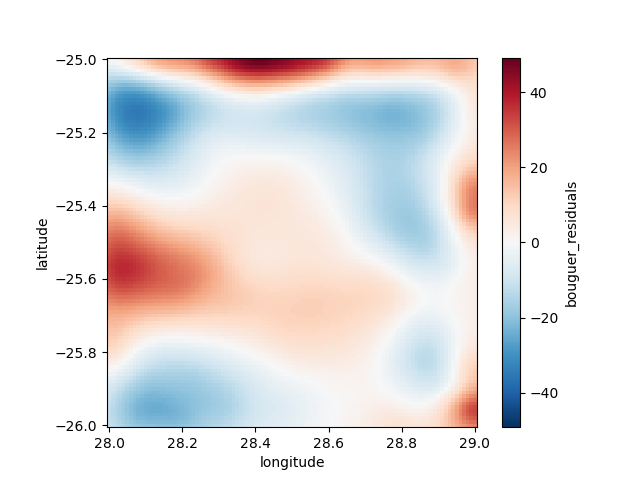](https://raw.githubusercontent.com/fatiando/transform21/master/test_install_output.png)
111 |
112 | If none of these commands gives an error, then your installation should be working.
113 | If you get any errors or the outputs look significantly different,
114 | please let us know on Slack at `#t21-thurs-harmonica`.
115 |
116 | ### Step 4
117 |
118 | **Start JupyterLab:**
119 |
120 | 1. **Windows users:** Make sure you set a default browser that is **not Internet Explorer**.
121 | 1. Activate the conda environment: `conda activate t21-thurs-harmonica`
122 | 1. Start the JupyterLab server: `jupyter lab`
123 | 1. Jupyter should open in your default web browser. We'll start from here in the
124 | tutorial and create a new notebook together.
125 |
126 | ### IF EVERYTHING ELSE FAILS
127 |
128 | If you really can't get things to work on your computer,
129 | you can run the code online through Google Colab (you will need a Google account).
130 | A starter notebook that installs Harmonica can be found here:
131 |
132 | https://swu.ng/t21-harmonica-colab
133 |
134 | To save a copy of the Colab notebook to your own account, click on the
135 | "Open in playground mode" and then "Save to Drive".
136 | You might be interested in
137 | [this tutorial](https://transform2020.sched.com/event/c7Jn/tutorial-using-python-subsurface-tools-no-install-required)
138 | for an overview of Google Colab.
139 |
140 | #### I don't have a Google account
141 |
142 | If you cannot use Google Colab, a second alternative option is to use to the
143 | Software Underground JupyterHub.
144 | You need to sign in with your Slack credentials on this website:
145 | https://jupyter-dev.softwareunderground.org/
146 |
147 | For more information about the login process, please read this:
148 | https://github.com/softwareunderground/jupyterhub-deployment/tree/first-deployment#login-process
149 |
150 | Once you are logged in, JupyterHub will ask you to choose a server
151 | configuration, please choose the `t21-thurs-harmonica` option.
152 | After JupyterHub sets up an instance for you, it will prompt a JupyterLab
153 | interface.
154 | In order to create a new notebook for running during the tutorial, please click
155 | the `Python [conda env:t21-thurs-harmonica]` button in the Launcher.
156 | It will create a new notebook running the `t21-thurs-harmonica` environment, so
157 | you don't need to install any dependency, they are already installed! 🎉
158 |
159 | > ⚠️ The Software Undeground JupyterHub instances are still in **experimental
160 | > phase**. You may expect some unwanted behaviour or sudden crushes. Use it
161 | > carefully and download the notebook every once in a while to have a backup.⚠️
162 |
163 | Thanks [Filippo Broggini](https://www.filippobroggini.com/) for setting this up!
164 |
165 | ## License
166 |
167 | This work is licensed under a
168 | [Creative Commons Attribution 4.0 International License][cc-by].
169 |
170 | [![CC BY 4.0][cc-by-image]][cc-by]
171 |
172 | [cc-by]: http://creativecommons.org/licenses/by/4.0/
173 | [cc-by-image]: https://i.creativecommons.org/l/by/4.0/88x31.png
--------------------------------------------------------------------------------
/assets/swung.svg:
--------------------------------------------------------------------------------
1 |
2 |
118 |
--------------------------------------------------------------------------------


 \n",
34 | "\n",
35 | "
\n",
34 | "\n",
35 | " \n",
47 | " \n",
48 | " 2. Unzip the data directory \n",
49 | " "
50 | ]
51 | },
52 | {
53 | "cell_type": "markdown",
54 | "metadata": {},
55 | "source": [
56 | "## Roadmap\n",
57 | "\n",
58 | " 1. Load and inspect data sets\n",
59 | " - mineral occurence point data sets with *geopandas*\n",
60 | " - gravity, magnetic and radiometric data sets with *rasterio*\n",
61 | " 1. Combine data sets to build a labeled Npixel, Nlayers array for model training\n",
62 | " - inspect differences between proximal vs. distal to mineralisation pixels \n",
63 | " 1. Train a random forest classifier and apply to all pixels, visualise results\n",
64 | " - evaluate performance with a randomly selected testing subset\n",
65 | " - repeat with stratified classes \n",
66 | " 1. Develop a checkerboard data selection procedure, train and evaluate models\n",
67 | " - discuss effects of spatially separated testing data \n",
68 | " 1. Investigate occurence holdout models with a spatially clustered approach\n",
69 | " \n",
70 | "---"
71 | ]
72 | },
73 | {
74 | "cell_type": "code",
75 | "execution_count": null,
76 | "metadata": {},
77 | "outputs": [],
78 | "source": [
79 | "# import key packages\n"
80 | ]
81 | }
82 | ],
83 | "metadata": {
84 | "interpreter": {
85 | "hash": "ddde3c07babc53dc58854aefe2e9e24c72c5582b4a554f17e28720a9890a9216"
86 | },
87 | "kernelspec": {
88 | "display_name": "Python 3 (ipykernel)",
89 | "language": "python",
90 | "name": "python3"
91 | },
92 | "language_info": {
93 | "codemirror_mode": {
94 | "name": "ipython",
95 | "version": 3
96 | },
97 | "file_extension": ".py",
98 | "mimetype": "text/x-python",
99 | "name": "python",
100 | "nbconvert_exporter": "python",
101 | "pygments_lexer": "ipython3",
102 | "version": "3.8.5"
103 | }
104 | },
105 | "nbformat": 4,
106 | "nbformat_minor": 4
107 | }
108 |
--------------------------------------------------------------------------------
/README.md:
--------------------------------------------------------------------------------
1 | 
2 |
3 |
4 | # Geospatial ML Challenges: A prospectivity analysis example
5 |
6 |
7 | The [Transform 2022 Schedule](https://docs.google.com/spreadsheets/d/e/2PACX-1vTnJ_cTd3Y5nQPoxM-BNTHq96SobJxTliofmqLxBMFnASpKTE9JxmPoqxEnFYPLUw2ZrIiQS8o_wunC/pubhtml)
8 |
9 | Instructors:
10 | [Thomas Ostersen](https://www.linkedin.com/in/thomasostersen/) and
11 | [Tom Carmichael](https://www.linkedin.com/in/thomas-carmichael-b0761242/)
12 |
13 | ## BEFORE THE TUTORIAL
14 |
15 | Make sure you've done these things **before the tutorial on Monday**:
16 |
17 | 1. Sign-up for the [Software Underground Slack](https://softwareunderground.org/slack)
18 | 1. Join the channel `t22-mon-ml-models`. This is where **all communication will
19 | happen**.
20 | 1. Set up your computer ([instructions below](#setup)). We will not have time to
21 | solve many computer issues during the tutorial so make sure you do this
22 | ahead of time. If you need any help, ask at the `t22-mon-ml-models` channel on
23 | Slack.
24 |
25 | ## About
26 |
27 | In this tutorial we’ll run a fairly basic random forest prospectivity analysis
28 | workflow applied to tin-tungsten (Sn-W) deposits in northeastern Tasmania. We'll
29 | use open data sets provided by Mineral Resources Tasmania and Geoscience Australia,
30 | all of which are available to download from our public [Google Drive](https://drive.google.com/file/d/1ahrYZlvnrZuSdDrwEbhajFrofC3VQPek/view?usp=sharing). The roadmap for the tutorial is as follows:
31 |
32 | - Load and inspect data sets
33 | - mineral occurrence point data sets with *geopandas*
34 | - gravity, magnetic and radiometric data sets with *rasterio*
35 | - Combine data sets to build a labeled Npixel, Nlayers array for model training
36 | - inspect differences between proximal vs. distal to mineralisation pixels
37 | - Train a random forest classifier and apply to all pixels, visualise results
38 | - evaluate performance with a randomly selected testing subset
39 | - repeat with stratified classes
40 | - Develop a checkerboard data selection procedure, train and evaluate models
41 | - discuss effects of spatially separated testing data
42 | - Investigate occurrence holdout models with a spatially clustered approach
43 |
44 | ## Prerequisites
45 |
46 | - Knowledge of Python is assumed and all coding will be done within a Jupyter notebook
47 | - We'll use [numpy](https://numpy.org/) for data handling and [matplotlib](https://matplotlib.org/) for data visualisation
48 | - Point data sets are handled with [geopandas](https://geopandas.org/), a [pandas](https://pandas.pydata.org/)-like library for vector GIS processing
49 | - [Rasterio](https://rasterio.readthedocs.io/) is used to read and write gridded raster data sets
50 | - The [scikit-learn](https://scikit-learn.org/stable/) implementation of the [random forest](https://scikit-learn.org/stable/modules/generated/sklearn.ensemble.RandomForestClassifier.html) algorithm is used for all modelling
51 | - Class stratification in modelling procedures use the [imbalanced-learn](https://imbalanced-learn.org/stable/) library
52 |
53 | ## Youtube Video
54 |
55 | A full recording of the tutorial is available on YouTube here:
56 |
57 | [](https://www.youtube.com/watch?v=C4YvnLMzYDc)
58 |
59 | ---
60 | ## Setup
61 |
62 | There are a few things you'll need to follow the tutorial:
63 |
64 | 1. A working Python installation ([Anaconda](https://www.anaconda.com/) or Miniconda)
65 | 2. The Geospatial ML tutorial *conda environment* installed
66 | 3. A web browser that works with Jupyter notebooks (basically anything except Internet Explorer)
67 |
68 | To get things setup, please do the following.
69 |
70 | **Windows users:** When you see "*terminal*" in the instructions,
71 | this means the "*Anaconda Prompt*" program for you.
72 |
73 | ### Step 1
74 |
75 | **Install a Python distribution:**
76 |
77 | In this tutorial we will be using the [Anaconda](https://www.anaconda.com/)
78 | Python distribution along with the `conda` package manager. If you already have
79 | Anaconda or Miniconda installed, you can skip this step.
80 |
81 | If not, please follow Matt Hall's video tutorial from Transform2020: [youtube instructions](https://www.youtube.com/playlist?list=PLgLft9vxdduAW-jmhYqXvtfGYJS6v2FjM)
82 |
83 |
84 | ### Step 2
85 |
86 | **Create the `t22-mon-ml-models` conda environment:**
87 |
88 | 1. Download the `environment.yml` file from
89 | [here](https://drive.google.com/file/d/1asIZ_M77MbhcL-8sYqwPzWsURleHqBSd/view?usp=sharing)
90 | 1. Open a terminal (*Anaconda Prompt* if you are running Windows). The
91 | following steps should be done in the terminal
92 | 1. Navigate to the folder that has the downloaded environment file
93 | 1. Create the conda environment by running `conda env create --file environment.yml`
94 | (this will download and install all of the packages used in the tutorial)
95 |
96 | ### Step 3
97 |
98 | 1. Download the zipped data set from our public [Google drive](https://drive.google.com/file/d/1ahrYZlvnrZuSdDrwEbhajFrofC3VQPek/view?usp=sharing), this shoud look like the following screenshot
99 |
100 |
\n",
47 | " \n",
48 | " 2. Unzip the data directory \n",
49 | " "
50 | ]
51 | },
52 | {
53 | "cell_type": "markdown",
54 | "metadata": {},
55 | "source": [
56 | "## Roadmap\n",
57 | "\n",
58 | " 1. Load and inspect data sets\n",
59 | " - mineral occurence point data sets with *geopandas*\n",
60 | " - gravity, magnetic and radiometric data sets with *rasterio*\n",
61 | " 1. Combine data sets to build a labeled Npixel, Nlayers array for model training\n",
62 | " - inspect differences between proximal vs. distal to mineralisation pixels \n",
63 | " 1. Train a random forest classifier and apply to all pixels, visualise results\n",
64 | " - evaluate performance with a randomly selected testing subset\n",
65 | " - repeat with stratified classes \n",
66 | " 1. Develop a checkerboard data selection procedure, train and evaluate models\n",
67 | " - discuss effects of spatially separated testing data \n",
68 | " 1. Investigate occurence holdout models with a spatially clustered approach\n",
69 | " \n",
70 | "---"
71 | ]
72 | },
73 | {
74 | "cell_type": "code",
75 | "execution_count": null,
76 | "metadata": {},
77 | "outputs": [],
78 | "source": [
79 | "# import key packages\n"
80 | ]
81 | }
82 | ],
83 | "metadata": {
84 | "interpreter": {
85 | "hash": "ddde3c07babc53dc58854aefe2e9e24c72c5582b4a554f17e28720a9890a9216"
86 | },
87 | "kernelspec": {
88 | "display_name": "Python 3 (ipykernel)",
89 | "language": "python",
90 | "name": "python3"
91 | },
92 | "language_info": {
93 | "codemirror_mode": {
94 | "name": "ipython",
95 | "version": 3
96 | },
97 | "file_extension": ".py",
98 | "mimetype": "text/x-python",
99 | "name": "python",
100 | "nbconvert_exporter": "python",
101 | "pygments_lexer": "ipython3",
102 | "version": "3.8.5"
103 | }
104 | },
105 | "nbformat": 4,
106 | "nbformat_minor": 4
107 | }
108 |
--------------------------------------------------------------------------------
/README.md:
--------------------------------------------------------------------------------
1 | 
2 |
3 |
4 | # Geospatial ML Challenges: A prospectivity analysis example
5 |
6 |
7 | The [Transform 2022 Schedule](https://docs.google.com/spreadsheets/d/e/2PACX-1vTnJ_cTd3Y5nQPoxM-BNTHq96SobJxTliofmqLxBMFnASpKTE9JxmPoqxEnFYPLUw2ZrIiQS8o_wunC/pubhtml)
8 |
9 | Instructors:
10 | [Thomas Ostersen](https://www.linkedin.com/in/thomasostersen/) and
11 | [Tom Carmichael](https://www.linkedin.com/in/thomas-carmichael-b0761242/)
12 |
13 | ## BEFORE THE TUTORIAL
14 |
15 | Make sure you've done these things **before the tutorial on Monday**:
16 |
17 | 1. Sign-up for the [Software Underground Slack](https://softwareunderground.org/slack)
18 | 1. Join the channel `t22-mon-ml-models`. This is where **all communication will
19 | happen**.
20 | 1. Set up your computer ([instructions below](#setup)). We will not have time to
21 | solve many computer issues during the tutorial so make sure you do this
22 | ahead of time. If you need any help, ask at the `t22-mon-ml-models` channel on
23 | Slack.
24 |
25 | ## About
26 |
27 | In this tutorial we’ll run a fairly basic random forest prospectivity analysis
28 | workflow applied to tin-tungsten (Sn-W) deposits in northeastern Tasmania. We'll
29 | use open data sets provided by Mineral Resources Tasmania and Geoscience Australia,
30 | all of which are available to download from our public [Google Drive](https://drive.google.com/file/d/1ahrYZlvnrZuSdDrwEbhajFrofC3VQPek/view?usp=sharing). The roadmap for the tutorial is as follows:
31 |
32 | - Load and inspect data sets
33 | - mineral occurrence point data sets with *geopandas*
34 | - gravity, magnetic and radiometric data sets with *rasterio*
35 | - Combine data sets to build a labeled Npixel, Nlayers array for model training
36 | - inspect differences between proximal vs. distal to mineralisation pixels
37 | - Train a random forest classifier and apply to all pixels, visualise results
38 | - evaluate performance with a randomly selected testing subset
39 | - repeat with stratified classes
40 | - Develop a checkerboard data selection procedure, train and evaluate models
41 | - discuss effects of spatially separated testing data
42 | - Investigate occurrence holdout models with a spatially clustered approach
43 |
44 | ## Prerequisites
45 |
46 | - Knowledge of Python is assumed and all coding will be done within a Jupyter notebook
47 | - We'll use [numpy](https://numpy.org/) for data handling and [matplotlib](https://matplotlib.org/) for data visualisation
48 | - Point data sets are handled with [geopandas](https://geopandas.org/), a [pandas](https://pandas.pydata.org/)-like library for vector GIS processing
49 | - [Rasterio](https://rasterio.readthedocs.io/) is used to read and write gridded raster data sets
50 | - The [scikit-learn](https://scikit-learn.org/stable/) implementation of the [random forest](https://scikit-learn.org/stable/modules/generated/sklearn.ensemble.RandomForestClassifier.html) algorithm is used for all modelling
51 | - Class stratification in modelling procedures use the [imbalanced-learn](https://imbalanced-learn.org/stable/) library
52 |
53 | ## Youtube Video
54 |
55 | A full recording of the tutorial is available on YouTube here:
56 |
57 | [](https://www.youtube.com/watch?v=C4YvnLMzYDc)
58 |
59 | ---
60 | ## Setup
61 |
62 | There are a few things you'll need to follow the tutorial:
63 |
64 | 1. A working Python installation ([Anaconda](https://www.anaconda.com/) or Miniconda)
65 | 2. The Geospatial ML tutorial *conda environment* installed
66 | 3. A web browser that works with Jupyter notebooks (basically anything except Internet Explorer)
67 |
68 | To get things setup, please do the following.
69 |
70 | **Windows users:** When you see "*terminal*" in the instructions,
71 | this means the "*Anaconda Prompt*" program for you.
72 |
73 | ### Step 1
74 |
75 | **Install a Python distribution:**
76 |
77 | In this tutorial we will be using the [Anaconda](https://www.anaconda.com/)
78 | Python distribution along with the `conda` package manager. If you already have
79 | Anaconda or Miniconda installed, you can skip this step.
80 |
81 | If not, please follow Matt Hall's video tutorial from Transform2020: [youtube instructions](https://www.youtube.com/playlist?list=PLgLft9vxdduAW-jmhYqXvtfGYJS6v2FjM)
82 |
83 |
84 | ### Step 2
85 |
86 | **Create the `t22-mon-ml-models` conda environment:**
87 |
88 | 1. Download the `environment.yml` file from
89 | [here](https://drive.google.com/file/d/1asIZ_M77MbhcL-8sYqwPzWsURleHqBSd/view?usp=sharing)
90 | 1. Open a terminal (*Anaconda Prompt* if you are running Windows). The
91 | following steps should be done in the terminal
92 | 1. Navigate to the folder that has the downloaded environment file
93 | 1. Create the conda environment by running `conda env create --file environment.yml`
94 | (this will download and install all of the packages used in the tutorial)
95 |
96 | ### Step 3
97 |
98 | 1. Download the zipped data set from our public [Google drive](https://drive.google.com/file/d/1ahrYZlvnrZuSdDrwEbhajFrofC3VQPek/view?usp=sharing), this shoud look like the following screenshot
99 |
100 |  101 |
102 | 2. Once downloaded, unzip the data set and copy it to your working directory of choice
103 |
104 | ### Step 4
105 |
106 | **Start JupyterLab:**
107 |
108 | 1. **Windows users:** Make sure you set a default browser that is **not Internet Explorer**.
109 | 1. Activate the conda environment: `conda activate t22-mon-ml-models`
110 | 1. Start the JupyterLab server: `jupyter lab`
111 | 1. Jupyter should open in your default web browser. We'll start from here in the
112 | tutorial and create a new notebook together.
113 |
114 | ### IF EVERYTHING ELSE FAILS
115 |
116 | If you really can't get things to work on your computer,
117 | you can run the code online through Google Colab (you will need a Google account).
118 | A starter notebook that installs all the tutorial dependencies and downloads the tutorial data can be found here:
119 |
120 | https://colab.research.google.com/drive/1jAW8A4hDdFn4An3I3jtVJiTxzNn08oRU?usp=sharing
121 |
122 | To save a copy of the Colab notebook to your own account, click on the
123 | "Open in playground mode" and then "Save to Drive".
124 | You might be interested in
125 | [this tutorial](https://transform2020.sched.com/event/c7Jn/tutorial-using-python-subsurface-tools-no-install-required)
126 | for an overview of Google Colab.
127 |
128 | ---
129 |
130 | ## Acknowledgements
131 |
132 | This tutorial borrowed HEAVILY from Santiago Soler, Andrea Balza Morales and Agustina Pesce's superb [Harmonica tutorial](https://www.youtube.com/watch?v=0bxZcCAr6bw) from Transform2021, also documented on github here: https://github.com/fatiando/transform21.
133 |
134 |
135 | ## Data License
136 |
137 | All data presented in this tutorial were derived from open data sets made available through [Mineral Resources Tasmania](https://www.mrt.tas.gov.au/) and [Geoscience Australia](https://www.ga.gov.au/).
138 |
139 | **LICENSE CONDITIONS**
140 |
141 | By exporting this data you accept and comply with the terms and conditions set out below:
142 |
143 | [Creative Commons Attribution 3.0 Australia](https://creativecommons.org/licenses/by/3.0/au/)
144 |
145 |
101 |
102 | 2. Once downloaded, unzip the data set and copy it to your working directory of choice
103 |
104 | ### Step 4
105 |
106 | **Start JupyterLab:**
107 |
108 | 1. **Windows users:** Make sure you set a default browser that is **not Internet Explorer**.
109 | 1. Activate the conda environment: `conda activate t22-mon-ml-models`
110 | 1. Start the JupyterLab server: `jupyter lab`
111 | 1. Jupyter should open in your default web browser. We'll start from here in the
112 | tutorial and create a new notebook together.
113 |
114 | ### IF EVERYTHING ELSE FAILS
115 |
116 | If you really can't get things to work on your computer,
117 | you can run the code online through Google Colab (you will need a Google account).
118 | A starter notebook that installs all the tutorial dependencies and downloads the tutorial data can be found here:
119 |
120 | https://colab.research.google.com/drive/1jAW8A4hDdFn4An3I3jtVJiTxzNn08oRU?usp=sharing
121 |
122 | To save a copy of the Colab notebook to your own account, click on the
123 | "Open in playground mode" and then "Save to Drive".
124 | You might be interested in
125 | [this tutorial](https://transform2020.sched.com/event/c7Jn/tutorial-using-python-subsurface-tools-no-install-required)
126 | for an overview of Google Colab.
127 |
128 | ---
129 |
130 | ## Acknowledgements
131 |
132 | This tutorial borrowed HEAVILY from Santiago Soler, Andrea Balza Morales and Agustina Pesce's superb [Harmonica tutorial](https://www.youtube.com/watch?v=0bxZcCAr6bw) from Transform2021, also documented on github here: https://github.com/fatiando/transform21.
133 |
134 |
135 | ## Data License
136 |
137 | All data presented in this tutorial were derived from open data sets made available through [Mineral Resources Tasmania](https://www.mrt.tas.gov.au/) and [Geoscience Australia](https://www.ga.gov.au/).
138 |
139 | **LICENSE CONDITIONS**
140 |
141 | By exporting this data you accept and comply with the terms and conditions set out below:
142 |
143 | [Creative Commons Attribution 3.0 Australia](https://creativecommons.org/licenses/by/3.0/au/)
144 |
145 |  146 |
147 | You are free to:
148 |
149 | - **Share** — copy and redistribute the material in any medium or format
150 | - **Adapt** — remix, transform, and build upon the material for any purpose, even commercially.
151 |
152 | Under the following terms:
153 |
154 | - **Attribution** — You must give appropriate credit, provide a link to the license, and indicate if changes were made. You may do so in any reasonable manner, but not in any way that suggests the licensor endorses you or your use. “
155 |
--------------------------------------------------------------------------------
/.ipynb_checkpoints/README-checkpoint.md:
--------------------------------------------------------------------------------
1 | 
2 |
3 |
4 | # Geospatial ML Challenges: A prospectivity analysis example
5 |
6 |
7 | The [Transform 2022 Schedule](https://docs.google.com/spreadsheets/d/e/2PACX-1vTnJ_cTd3Y5nQPoxM-BNTHq96SobJxTliofmqLxBMFnASpKTE9JxmPoqxEnFYPLUw2ZrIiQS8o_wunC/pubhtml)
8 |
9 | Instructors:
10 | [Thomas Ostersen](https://www.linkedin.com/in/thomasostersen/) and
11 | [Tom Carmichael](https://www.linkedin.com/in/thomas-carmichael-b0761242/)
12 |
13 |
14 | ## BEFORE THE TUTORIAL
15 |
16 | Make sure you've done these things **before the tutorial on Monday**:
17 |
18 | 1. Sign-up for the [Software Underground Slack](https://softwareunderground.org/slack)
19 | 1. Join the channel `t22-mon-ml-models`. This is where **all communication will
20 | happen**.
21 | 1. Set up your computer ([instructions below](#setup)). We will not have time to
22 | solve many computer issues during the tutorial so make sure you do this
23 | ahead of time. If you need any help, ask at the `t22-mon-ml-models` channel on
24 | Slack.
25 |
26 | ## About
27 |
28 | In this tutorial we’ll run a fairly basic random forest prospectivity analysis
29 | workflow applied to tin-tungsten (Sn-W) deposits in northeastern Tasmania. We'll
30 | use open data sets provided by Mineral Resources Tasmania and Geoscience Australia,
31 | all of which are available to download from our [Google Drive location](https://drive.google.com/file/d/1GOwI3vlmpiEhbFVIEoAPCrJkPdfIxPhD/view?usp=sharing). The roadmap for the tutorial is as follows:
32 |
33 | - Load and inspect data sets
34 | - mineral occurrence point data sets with *geopandas*
35 | - gravity, magnetic and radiometric data sets with *rasterio*
36 | - Combine data sets to build a labeled Npixel, Nlayers array for model training
37 | - inspect differences between proximal vs. distal to mineralisation pixels
38 | - Train a random forest classifier and apply to all pixels, visualise results
39 | - evaluate performance with a randomly selected testing subset
40 | - repeat with stratified classes
41 | - Develop a checkerboard data selection procedure, train and evaluate models
42 | - discuss effects of spatially separated testing data
43 | - Investigate occurrence holdout models with a spatially clustered approach
44 |
45 | ## Prerequisites
46 |
47 | - Knowledge of Python is assumed and all coding will be done within a Jupyter notebook
48 | - We'll use [numpy](https://numpy.org/) for data handling and [matplotlib](https://matplotlib.org/) for data visualisation
49 | - Point data sets are handled with [geopandas](https://geopandas.org/), a [pandas](https://pandas.pydata.org/)-like library for vector GIS processing
50 | - [Rasterio](https://rasterio.readthedocs.io/) is used to read and write gridded raster data sets
51 | - The [scikit-learn](https://scikit-learn.org/stable/) implementation of the [random forest](https://scikit-learn.org/stable/modules/generated/sklearn.ensemble.RandomForestClassifier.html) algorithm is used for all modelling
52 |
53 | ## Setup
54 |
55 | There are a few things you'll need to follow the tutorial:
56 |
57 | 1. A working Python installation ([Anaconda](https://www.anaconda.com/) or Miniconda)
58 | 2. The Geospatial ML tutorial *conda environment* installed
59 | 3. A web browser that works with Jupyter notebooks (basically anything except Internet Explorer)
60 |
61 | To get things setup, please do the following.
62 |
63 | **Windows users:** When you see "*terminal*" in the instructions,
64 | this means the "*Anaconda Prompt*" program for you.
65 |
66 | ### Step 1
67 |
68 | **Install a Python distribution:**
69 |
70 | In this tutorial we will be using the [Anaconda](https://www.anaconda.com/)
71 | Python distribution along with the `conda` package manager. If you already have
72 | Anaconda or Miniconda installed, you can skip this step.
73 |
74 | If not, please follow Matt Hall's video tutorial from Transform2020: [youtube instructions](https://www.youtube.com/playlist?list=PLgLft9vxdduAW-jmhYqXvtfGYJS6v2FjM)
75 |
76 | ### Step 2
77 |
78 | **Create the `t22-mon-ml-models` conda environment:**
79 |
80 | 1. Download the `environment.yml` file from
81 | [here](https://github.com/Solve-Geosolutions/transform_2022/environment.yml)
82 | (right-click and select "Save page as" or similar)
83 | 1. Make sure that the file is called `environment.yml`. Windows sometimes adds a
84 | `.txt` to the end, which you should remove.
85 | 1. Open a terminal (*Anaconda Prompt* if you are running Windows). The
86 | following steps should be done in the terminal.
87 | 1. Navigate to the folder that has the downloaded environment file
88 | (if you don't know how to do this, take a moment to read [the Software
89 | Carpentry lesson on the Unix shell](http://swcarpentry.github.io/shell-novice/)).
90 | 1. Create the conda environment by running `conda env create --file environment.yml`
91 | (this will download and install all of the packages used in the tutorial).
92 |
93 | ### Step 3
94 |
95 | **Verify that the installation works:**
96 |
97 | 1. Download the `test_install.py` script from
98 | [here](https://raw.githubusercontent.com/fatiando/transform21/master/test_install.py)
99 | 1. Open a terminal. The following steps should be done in the terminal.
100 | 1. Activate the environment: `conda activate t21-thurs-harmonica`
101 | 1. Navigate to the folder where you downloaded `test_install.py`
102 | 1. Run the test script: `python test_install.py`
103 | 1. You should this text in the terminal (the last part of the second line will depend on your system):
104 | ```
105 | Harmonica version: 0.2.1
106 | Downloading file 'south-africa-gravity.ast.xz' from 'https://github.com/fatiando/harmonica/raw/v0.2.0/data/south-africa-gravity.ast.xz' to '/home/USER/.cache/harmonica/v0.2.0'.
107 | ```
108 | 1. The following figure should pop up:
109 |
110 | [](https://raw.githubusercontent.com/fatiando/transform21/master/test_install_output.png)
111 |
112 | If none of these commands gives an error, then your installation should be working.
113 | If you get any errors or the outputs look significantly different,
114 | please let us know on Slack at `#t21-thurs-harmonica`.
115 |
116 | ### Step 4
117 |
118 | **Start JupyterLab:**
119 |
120 | 1. **Windows users:** Make sure you set a default browser that is **not Internet Explorer**.
121 | 1. Activate the conda environment: `conda activate t21-thurs-harmonica`
122 | 1. Start the JupyterLab server: `jupyter lab`
123 | 1. Jupyter should open in your default web browser. We'll start from here in the
124 | tutorial and create a new notebook together.
125 |
126 | ### IF EVERYTHING ELSE FAILS
127 |
128 | If you really can't get things to work on your computer,
129 | you can run the code online through Google Colab (you will need a Google account).
130 | A starter notebook that installs Harmonica can be found here:
131 |
132 | https://swu.ng/t21-harmonica-colab
133 |
134 | To save a copy of the Colab notebook to your own account, click on the
135 | "Open in playground mode" and then "Save to Drive".
136 | You might be interested in
137 | [this tutorial](https://transform2020.sched.com/event/c7Jn/tutorial-using-python-subsurface-tools-no-install-required)
138 | for an overview of Google Colab.
139 |
140 | #### I don't have a Google account
141 |
142 | If you cannot use Google Colab, a second alternative option is to use to the
143 | Software Underground JupyterHub.
144 | You need to sign in with your Slack credentials on this website:
145 | https://jupyter-dev.softwareunderground.org/
146 |
147 | For more information about the login process, please read this:
148 | https://github.com/softwareunderground/jupyterhub-deployment/tree/first-deployment#login-process
149 |
150 | Once you are logged in, JupyterHub will ask you to choose a server
151 | configuration, please choose the `t21-thurs-harmonica` option.
152 | After JupyterHub sets up an instance for you, it will prompt a JupyterLab
153 | interface.
154 | In order to create a new notebook for running during the tutorial, please click
155 | the `Python [conda env:t21-thurs-harmonica]` button in the Launcher.
156 | It will create a new notebook running the `t21-thurs-harmonica` environment, so
157 | you don't need to install any dependency, they are already installed! 🎉
158 |
159 | > ⚠️ The Software Undeground JupyterHub instances are still in **experimental
160 | > phase**. You may expect some unwanted behaviour or sudden crushes. Use it
161 | > carefully and download the notebook every once in a while to have a backup.⚠️
162 |
163 | Thanks [Filippo Broggini](https://www.filippobroggini.com/) for setting this up!
164 |
165 | ## License
166 |
167 | This work is licensed under a
168 | [Creative Commons Attribution 4.0 International License][cc-by].
169 |
170 | [![CC BY 4.0][cc-by-image]][cc-by]
171 |
172 | [cc-by]: http://creativecommons.org/licenses/by/4.0/
173 | [cc-by-image]: https://i.creativecommons.org/l/by/4.0/88x31.png
--------------------------------------------------------------------------------
/assets/swung.svg:
--------------------------------------------------------------------------------
1 |
2 |
118 |
--------------------------------------------------------------------------------
146 |
147 | You are free to:
148 |
149 | - **Share** — copy and redistribute the material in any medium or format
150 | - **Adapt** — remix, transform, and build upon the material for any purpose, even commercially.
151 |
152 | Under the following terms:
153 |
154 | - **Attribution** — You must give appropriate credit, provide a link to the license, and indicate if changes were made. You may do so in any reasonable manner, but not in any way that suggests the licensor endorses you or your use. “
155 |
--------------------------------------------------------------------------------
/.ipynb_checkpoints/README-checkpoint.md:
--------------------------------------------------------------------------------
1 | 
2 |
3 |
4 | # Geospatial ML Challenges: A prospectivity analysis example
5 |
6 |
7 | The [Transform 2022 Schedule](https://docs.google.com/spreadsheets/d/e/2PACX-1vTnJ_cTd3Y5nQPoxM-BNTHq96SobJxTliofmqLxBMFnASpKTE9JxmPoqxEnFYPLUw2ZrIiQS8o_wunC/pubhtml)
8 |
9 | Instructors:
10 | [Thomas Ostersen](https://www.linkedin.com/in/thomasostersen/) and
11 | [Tom Carmichael](https://www.linkedin.com/in/thomas-carmichael-b0761242/)
12 |
13 |
14 | ## BEFORE THE TUTORIAL
15 |
16 | Make sure you've done these things **before the tutorial on Monday**:
17 |
18 | 1. Sign-up for the [Software Underground Slack](https://softwareunderground.org/slack)
19 | 1. Join the channel `t22-mon-ml-models`. This is where **all communication will
20 | happen**.
21 | 1. Set up your computer ([instructions below](#setup)). We will not have time to
22 | solve many computer issues during the tutorial so make sure you do this
23 | ahead of time. If you need any help, ask at the `t22-mon-ml-models` channel on
24 | Slack.
25 |
26 | ## About
27 |
28 | In this tutorial we’ll run a fairly basic random forest prospectivity analysis
29 | workflow applied to tin-tungsten (Sn-W) deposits in northeastern Tasmania. We'll
30 | use open data sets provided by Mineral Resources Tasmania and Geoscience Australia,
31 | all of which are available to download from our [Google Drive location](https://drive.google.com/file/d/1GOwI3vlmpiEhbFVIEoAPCrJkPdfIxPhD/view?usp=sharing). The roadmap for the tutorial is as follows:
32 |
33 | - Load and inspect data sets
34 | - mineral occurrence point data sets with *geopandas*
35 | - gravity, magnetic and radiometric data sets with *rasterio*
36 | - Combine data sets to build a labeled Npixel, Nlayers array for model training
37 | - inspect differences between proximal vs. distal to mineralisation pixels
38 | - Train a random forest classifier and apply to all pixels, visualise results
39 | - evaluate performance with a randomly selected testing subset
40 | - repeat with stratified classes
41 | - Develop a checkerboard data selection procedure, train and evaluate models
42 | - discuss effects of spatially separated testing data
43 | - Investigate occurrence holdout models with a spatially clustered approach
44 |
45 | ## Prerequisites
46 |
47 | - Knowledge of Python is assumed and all coding will be done within a Jupyter notebook
48 | - We'll use [numpy](https://numpy.org/) for data handling and [matplotlib](https://matplotlib.org/) for data visualisation
49 | - Point data sets are handled with [geopandas](https://geopandas.org/), a [pandas](https://pandas.pydata.org/)-like library for vector GIS processing
50 | - [Rasterio](https://rasterio.readthedocs.io/) is used to read and write gridded raster data sets
51 | - The [scikit-learn](https://scikit-learn.org/stable/) implementation of the [random forest](https://scikit-learn.org/stable/modules/generated/sklearn.ensemble.RandomForestClassifier.html) algorithm is used for all modelling
52 |
53 | ## Setup
54 |
55 | There are a few things you'll need to follow the tutorial:
56 |
57 | 1. A working Python installation ([Anaconda](https://www.anaconda.com/) or Miniconda)
58 | 2. The Geospatial ML tutorial *conda environment* installed
59 | 3. A web browser that works with Jupyter notebooks (basically anything except Internet Explorer)
60 |
61 | To get things setup, please do the following.
62 |
63 | **Windows users:** When you see "*terminal*" in the instructions,
64 | this means the "*Anaconda Prompt*" program for you.
65 |
66 | ### Step 1
67 |
68 | **Install a Python distribution:**
69 |
70 | In this tutorial we will be using the [Anaconda](https://www.anaconda.com/)
71 | Python distribution along with the `conda` package manager. If you already have
72 | Anaconda or Miniconda installed, you can skip this step.
73 |
74 | If not, please follow Matt Hall's video tutorial from Transform2020: [youtube instructions](https://www.youtube.com/playlist?list=PLgLft9vxdduAW-jmhYqXvtfGYJS6v2FjM)
75 |
76 | ### Step 2
77 |
78 | **Create the `t22-mon-ml-models` conda environment:**
79 |
80 | 1. Download the `environment.yml` file from
81 | [here](https://github.com/Solve-Geosolutions/transform_2022/environment.yml)
82 | (right-click and select "Save page as" or similar)
83 | 1. Make sure that the file is called `environment.yml`. Windows sometimes adds a
84 | `.txt` to the end, which you should remove.
85 | 1. Open a terminal (*Anaconda Prompt* if you are running Windows). The
86 | following steps should be done in the terminal.
87 | 1. Navigate to the folder that has the downloaded environment file
88 | (if you don't know how to do this, take a moment to read [the Software
89 | Carpentry lesson on the Unix shell](http://swcarpentry.github.io/shell-novice/)).
90 | 1. Create the conda environment by running `conda env create --file environment.yml`
91 | (this will download and install all of the packages used in the tutorial).
92 |
93 | ### Step 3
94 |
95 | **Verify that the installation works:**
96 |
97 | 1. Download the `test_install.py` script from
98 | [here](https://raw.githubusercontent.com/fatiando/transform21/master/test_install.py)
99 | 1. Open a terminal. The following steps should be done in the terminal.
100 | 1. Activate the environment: `conda activate t21-thurs-harmonica`
101 | 1. Navigate to the folder where you downloaded `test_install.py`
102 | 1. Run the test script: `python test_install.py`
103 | 1. You should this text in the terminal (the last part of the second line will depend on your system):
104 | ```
105 | Harmonica version: 0.2.1
106 | Downloading file 'south-africa-gravity.ast.xz' from 'https://github.com/fatiando/harmonica/raw/v0.2.0/data/south-africa-gravity.ast.xz' to '/home/USER/.cache/harmonica/v0.2.0'.
107 | ```
108 | 1. The following figure should pop up:
109 |
110 | [](https://raw.githubusercontent.com/fatiando/transform21/master/test_install_output.png)
111 |
112 | If none of these commands gives an error, then your installation should be working.
113 | If you get any errors or the outputs look significantly different,
114 | please let us know on Slack at `#t21-thurs-harmonica`.
115 |
116 | ### Step 4
117 |
118 | **Start JupyterLab:**
119 |
120 | 1. **Windows users:** Make sure you set a default browser that is **not Internet Explorer**.
121 | 1. Activate the conda environment: `conda activate t21-thurs-harmonica`
122 | 1. Start the JupyterLab server: `jupyter lab`
123 | 1. Jupyter should open in your default web browser. We'll start from here in the
124 | tutorial and create a new notebook together.
125 |
126 | ### IF EVERYTHING ELSE FAILS
127 |
128 | If you really can't get things to work on your computer,
129 | you can run the code online through Google Colab (you will need a Google account).
130 | A starter notebook that installs Harmonica can be found here:
131 |
132 | https://swu.ng/t21-harmonica-colab
133 |
134 | To save a copy of the Colab notebook to your own account, click on the
135 | "Open in playground mode" and then "Save to Drive".
136 | You might be interested in
137 | [this tutorial](https://transform2020.sched.com/event/c7Jn/tutorial-using-python-subsurface-tools-no-install-required)
138 | for an overview of Google Colab.
139 |
140 | #### I don't have a Google account
141 |
142 | If you cannot use Google Colab, a second alternative option is to use to the
143 | Software Underground JupyterHub.
144 | You need to sign in with your Slack credentials on this website:
145 | https://jupyter-dev.softwareunderground.org/
146 |
147 | For more information about the login process, please read this:
148 | https://github.com/softwareunderground/jupyterhub-deployment/tree/first-deployment#login-process
149 |
150 | Once you are logged in, JupyterHub will ask you to choose a server
151 | configuration, please choose the `t21-thurs-harmonica` option.
152 | After JupyterHub sets up an instance for you, it will prompt a JupyterLab
153 | interface.
154 | In order to create a new notebook for running during the tutorial, please click
155 | the `Python [conda env:t21-thurs-harmonica]` button in the Launcher.
156 | It will create a new notebook running the `t21-thurs-harmonica` environment, so
157 | you don't need to install any dependency, they are already installed! 🎉
158 |
159 | > ⚠️ The Software Undeground JupyterHub instances are still in **experimental
160 | > phase**. You may expect some unwanted behaviour or sudden crushes. Use it
161 | > carefully and download the notebook every once in a while to have a backup.⚠️
162 |
163 | Thanks [Filippo Broggini](https://www.filippobroggini.com/) for setting this up!
164 |
165 | ## License
166 |
167 | This work is licensed under a
168 | [Creative Commons Attribution 4.0 International License][cc-by].
169 |
170 | [![CC BY 4.0][cc-by-image]][cc-by]
171 |
172 | [cc-by]: http://creativecommons.org/licenses/by/4.0/
173 | [cc-by-image]: https://i.creativecommons.org/l/by/4.0/88x31.png
--------------------------------------------------------------------------------
/assets/swung.svg:
--------------------------------------------------------------------------------
1 |
2 |
118 |
--------------------------------------------------------------------------------