├── requirements.txt
├── Dashboard_Sample.png
├── supermarkt_sales.xlsx
├── .streamlit
└── config.toml
├── README.md
└── app.py
/requirements.txt:
--------------------------------------------------------------------------------
1 | openpyxl
2 | pandas==2.0.1
3 | plotly==5.13.1
4 | streamlit==1.25.0
5 |
--------------------------------------------------------------------------------
/Dashboard_Sample.png:
--------------------------------------------------------------------------------
https://raw.githubusercontent.com/Sven-Bo/streamlit-sales-dashboard/HEAD/Dashboard_Sample.png
--------------------------------------------------------------------------------
/supermarkt_sales.xlsx:
--------------------------------------------------------------------------------
https://raw.githubusercontent.com/Sven-Bo/streamlit-sales-dashboard/HEAD/supermarkt_sales.xlsx
--------------------------------------------------------------------------------
/.streamlit/config.toml:
--------------------------------------------------------------------------------
1 | [theme]
2 | # Primary accent color for interactive elements.
3 | primaryColor = "#E694FF"
4 |
5 | # Background color for the main content area.
6 | backgroundColor = "#00172B"
7 |
8 | # Background color used for the sidebar and most interactive widgets.
9 | secondaryBackgroundColor = "#0083B8"
10 |
11 | # Color used for almost all text.
12 | textColor = "#FFF"
13 |
14 | # Font family for all text in the app, except code blocks. One of "sans serif", "serif", or "monospace".
15 | # Default: "sans serif"
16 | font = "sans serif"
17 |
--------------------------------------------------------------------------------
/README.md:
--------------------------------------------------------------------------------
1 |
2 | # Interactive Dashboard with Python – Streamlit
3 |
4 | Sales Dashboard built-in Python and the Streamlit library to visualize Excel data.
5 |
6 | ## Video Tutorial
7 | [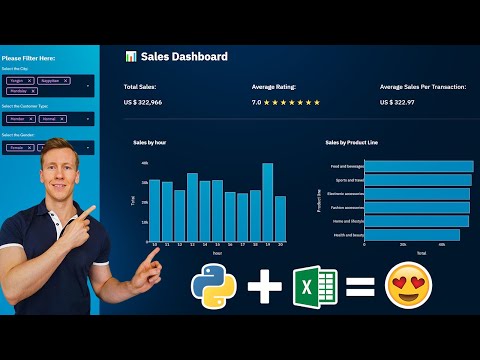](https://youtu.be/Sb0A9i6d320)
8 |
9 | ## Run the app
10 | ```Powershell
11 | # vanilla terminal
12 | streamlit run app.py
13 |
14 | # quit
15 | ctrl-c
16 | ```
17 |
18 | ## Demo
19 | Sales Dashboard: https://www.salesdashboard.pythonandvba.com/
20 |
21 | ## Screenshot
22 | 
23 |
24 |
25 |
26 | ## 🤓 Check Out My Excel Add-ins
27 | I've developed some handy Excel add-ins that you might find useful:
28 |
29 | - 📊 **[Dashboard Add-in](https://pythonandvba.com/grafly)**: Easily create interactive and visually appealing dashboards.
30 | - 🎨 **[Cartoon Charts Add-In](https://pythonandvba.com/cuteplots)**: Create engaging and fun cartoon-style charts.
31 | - 🤪 **[Emoji Add-in](https://pythonandvba.com/emojify)**: Add a touch of fun to your spreadsheets with emojis.
32 | - 🛠️ **[MyToolBelt Add-in](https://pythonandvba.com/mytoolbelt)**: A versatile toolbelt for Excel, featuring:
33 | - Creation of Pandas DataFrames and Jupyter Notebooks from Excel ranges
34 | - ChatGPT integration for advanced data analysis
35 | - And much more!
36 |
37 |
38 |
39 | ## 🤝 Connect with Me
40 | - 📺 **YouTube:** [CodingIsFun](https://youtube.com/c/CodingIsFun)
41 | - 🌐 **Website:** [PythonAndVBA](https://pythonandvba.com)
42 | - 💬 **Discord:** [Join our Community](https://pythonandvba.com/discord)
43 | - 💼 **LinkedIn:** [Sven Bosau](https://www.linkedin.com/in/sven-bosau/)
44 | - 📸 **Instagram:** [Follow me](https://www.instagram.com/sven_bosau/)
45 |
46 | ## ☕️ Support My Work
47 | Love my content and want to show appreciation? Why not [buy me a coffee](https://pythonandvba.com/coffee-donation) to fuel my creative engine? Your support means the world to me! 😊
48 |
49 | [](https://pythonandvba.com/coffee-donation)
50 |
51 | ## 💌 Feedback
52 | Got some thoughts or suggestions? Don't hesitate to reach out to me at contact@pythonandvba.com. I'd love to hear from you! 💡
53 | 
54 |
--------------------------------------------------------------------------------
/app.py:
--------------------------------------------------------------------------------
1 | # @Email: contact@pythonandvba.com
2 | # @Website: https://pythonandvba.com
3 | # @YouTube: https://youtube.com/c/CodingIsFun
4 | # @Project: Sales Dashboard w/ Streamlit
5 |
6 |
7 |
8 | import pandas as pd # pip install pandas openpyxl
9 | import plotly.express as px # pip install plotly-express
10 | import streamlit as st # pip install streamlit
11 |
12 | # emojis: https://www.webfx.com/tools/emoji-cheat-sheet/
13 | st.set_page_config(page_title="Sales Dashboard", page_icon=":bar_chart:", layout="wide")
14 |
15 | # ---- READ EXCEL ----
16 | @st.cache_data
17 | def get_data_from_excel():
18 | df = pd.read_excel(
19 | io="supermarkt_sales.xlsx",
20 | engine="openpyxl",
21 | sheet_name="Sales",
22 | skiprows=3,
23 | usecols="B:R",
24 | nrows=1000,
25 | )
26 | # Add 'hour' column to dataframe
27 | df["hour"] = pd.to_datetime(df["Time"], format="%H:%M:%S").dt.hour
28 | return df
29 |
30 | df = get_data_from_excel()
31 |
32 | # ---- SIDEBAR ----
33 | st.sidebar.header("Please Filter Here:")
34 | city = st.sidebar.multiselect(
35 | "Select the City:",
36 | options=df["City"].unique(),
37 | default=df["City"].unique()
38 | )
39 |
40 | customer_type = st.sidebar.multiselect(
41 | "Select the Customer Type:",
42 | options=df["Customer_type"].unique(),
43 | default=df["Customer_type"].unique(),
44 | )
45 |
46 | gender = st.sidebar.multiselect(
47 | "Select the Gender:",
48 | options=df["Gender"].unique(),
49 | default=df["Gender"].unique()
50 | )
51 |
52 | df_selection = df.query(
53 | "City == @city & Customer_type ==@customer_type & Gender == @gender"
54 | )
55 |
56 | # Check if the dataframe is empty:
57 | if df_selection.empty:
58 | st.warning("No data available based on the current filter settings!")
59 | st.stop() # This will halt the app from further execution.
60 |
61 | # ---- MAINPAGE ----
62 | st.title(":bar_chart: Sales Dashboard")
63 | st.markdown("##")
64 |
65 | # TOP KPI's
66 | total_sales = int(df_selection["Total"].sum())
67 | average_rating = round(df_selection["Rating"].mean(), 1)
68 | star_rating = ":star:" * int(round(average_rating, 0))
69 | average_sale_by_transaction = round(df_selection["Total"].mean(), 2)
70 |
71 | left_column, middle_column, right_column = st.columns(3)
72 | with left_column:
73 | st.subheader("Total Sales:")
74 | st.subheader(f"US $ {total_sales:,}")
75 | with middle_column:
76 | st.subheader("Average Rating:")
77 | st.subheader(f"{average_rating} {star_rating}")
78 | with right_column:
79 | st.subheader("Average Sales Per Transaction:")
80 | st.subheader(f"US $ {average_sale_by_transaction}")
81 |
82 | st.markdown("""---""")
83 |
84 | # SALES BY PRODUCT LINE [BAR CHART]
85 | sales_by_product_line = df_selection.groupby(by=["Product line"])[["Total"]].sum().sort_values(by="Total")
86 | fig_product_sales = px.bar(
87 | sales_by_product_line,
88 | x="Total",
89 | y=sales_by_product_line.index,
90 | orientation="h",
91 | title="Sales by Product Line",
92 | color_discrete_sequence=["#0083B8"] * len(sales_by_product_line),
93 | template="plotly_white",
94 | )
95 | fig_product_sales.update_layout(
96 | plot_bgcolor="rgba(0,0,0,0)",
97 | xaxis=(dict(showgrid=False))
98 | )
99 |
100 | # SALES BY HOUR [BAR CHART]
101 | sales_by_hour = df_selection.groupby(by=["hour"])[["Total"]].sum()
102 | fig_hourly_sales = px.bar(
103 | sales_by_hour,
104 | x=sales_by_hour.index,
105 | y="Total",
106 | title="Sales by hour",
107 | color_discrete_sequence=["#0083B8"] * len(sales_by_hour),
108 | template="plotly_white",
109 | )
110 | fig_hourly_sales.update_layout(
111 | xaxis=dict(tickmode="linear"),
112 | plot_bgcolor="rgba(0,0,0,0)",
113 | yaxis=(dict(showgrid=False)),
114 | )
115 |
116 |
117 | left_column, right_column = st.columns(2)
118 | left_column.plotly_chart(fig_hourly_sales, use_container_width=True)
119 | right_column.plotly_chart(fig_product_sales, use_container_width=True)
120 |
121 |
122 | # ---- HIDE STREAMLIT STYLE ----
123 | hide_st_style = """
124 |
129 | """
130 | st.markdown(hide_st_style, unsafe_allow_html=True)
131 |
--------------------------------------------------------------------------------