├── 3D
├── README.md
├── WebGL-3D-Cameras.md
├── WebGL-3D-Perspective.md
└── WebGL-Orthographic-3D.md
├── lighting
├── README.md
├── WebGL-3D-Point-Lighting.md
└── WebGL-3D-Directional-Lighting.md
├── techniques
├── README.md
├── WebGL-Text-Canvas-2D.md
├── WebGL-2D-Matrix-Stack.md
├── WebGL-Text-HTML.md
├── WebGL-2D-DrawImage.md
├── WebGL-Text-Using-a-Texture.md
└── WebGL-Text-Using-a-Glyph-Texture.md
├── fundamentals
├── README.md
├── WebGL-How-It-Works.md
├── WebGL-Shaders-and-GLSL.md
└── WebGL-Fundamentals.md
├── Helper-API-Docs
└── README.md
├── misc
├── README.md
├── WebGL-Animation.md
├── WebGL-and-Alpha.md
├── WebGL-3D-Textures.md
├── WebGL-Boilerplate.md
├── WebGL-2D-vs-3D-libraries.md
├── WebGL-Resizing-the-Canvas.md
├── WebGL-Using-2-or-More-Textures.md
├── WebGL-Setup-And-Installation.md
└── WebGL-Anti-Patterns.md
├── .gitignore
├── image-processing
├── README.md
├── WebGL-Image-Processing.md
└── WebGL-Image-Processing-Continued.md
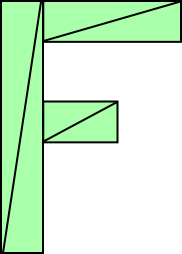
├── _book
└── .gitignore
├── Structure-and-Organization
├── README.md
├── WebGL-Scene-Graphs.md
├── WebGL-Less-Code-More-Fun.md
└── WebGL-Drawing-Multiple-Things.md
├── 2D-translation
├── README.md
├── WebGL-2D-Scale.md
├── WebGL-2D-Translation.md
└── WebGL-2D-Rotation.md
├── TWGL-A-tiny-WebGL-helper-library
└── README.md
├── 术语
└── README.md
├── README.md
└── SUMMARY.md
/3D/README.md:
--------------------------------------------------------------------------------
1 | # 3D
2 |
3 |
--------------------------------------------------------------------------------
/lighting/README.md:
--------------------------------------------------------------------------------
1 | # Lighting
2 |
3 |
--------------------------------------------------------------------------------
/techniques/README.md:
--------------------------------------------------------------------------------
1 | # Techniques
2 |
3 |
--------------------------------------------------------------------------------
/fundamentals/README.md:
--------------------------------------------------------------------------------
1 | # Fundamentals
2 |
3 |
--------------------------------------------------------------------------------
/3D/WebGL-3D-Cameras.md:
--------------------------------------------------------------------------------
1 | # WebGL 3D - Cameras
2 |
3 |
--------------------------------------------------------------------------------
/Helper-API-Docs/README.md:
--------------------------------------------------------------------------------
1 | # Helper API Docs
2 |
3 |
--------------------------------------------------------------------------------
/misc/README.md:
--------------------------------------------------------------------------------
1 | # Misc
2 |
3 | pre-multiplied alpha
--------------------------------------------------------------------------------
/.gitignore:
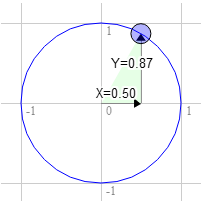
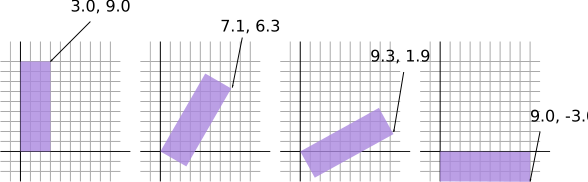
--------------------------------------------------------------------------------
1 | .DS_Store
2 | gitPush
3 | *.html
4 | _book/
5 |
--------------------------------------------------------------------------------
/image-processing/README.md:
--------------------------------------------------------------------------------
1 | # Image Processing
2 |
3 |
--------------------------------------------------------------------------------
/_book/.gitignore:
--------------------------------------------------------------------------------
1 | .DS_Store
2 | gitPush
3 | *.html
4 | _book/
5 |
--------------------------------------------------------------------------------
/techniques/WebGL-Text-Canvas-2D.md:
--------------------------------------------------------------------------------
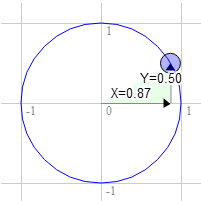
1 | # WebGL Text - Canvas 2D
2 |
3 |
--------------------------------------------------------------------------------
/lighting/WebGL-3D-Point-Lighting.md:
--------------------------------------------------------------------------------
1 | # WebGL 3D - Point Lighting
2 |
3 |
--------------------------------------------------------------------------------
/Structure-and-Organization/README.md:
--------------------------------------------------------------------------------
1 | # Structure and Organization
2 |
3 |
--------------------------------------------------------------------------------
/image-processing/WebGL-Image-Processing.md:
--------------------------------------------------------------------------------
1 | # WebGL Image Processing
2 |
3 |
--------------------------------------------------------------------------------
/2D-translation/README.md:
--------------------------------------------------------------------------------
1 | # 2D translation, rotation, scale, matrix math
2 |
3 |
--------------------------------------------------------------------------------
/Structure-and-Organization/WebGL-Scene-Graphs.md:
--------------------------------------------------------------------------------
1 | # WebGL - Scene Graphs
2 |
3 |
--------------------------------------------------------------------------------
/TWGL-A-tiny-WebGL-helper-library/README.md:
--------------------------------------------------------------------------------
1 | # TWGL, A tiny WebGL helper library
2 |
3 |
--------------------------------------------------------------------------------
/lighting/WebGL-3D-Directional-Lighting.md:
--------------------------------------------------------------------------------
1 | # WebGL 3D - Directional Lighting
2 |
3 |
--------------------------------------------------------------------------------
/Structure-and-Organization/WebGL-Less-Code-More-Fun.md:
--------------------------------------------------------------------------------
1 | # WebGL - Less Code, More Fun
2 |
3 |
--------------------------------------------------------------------------------
/image-processing/WebGL-Image-Processing-Continued.md:
--------------------------------------------------------------------------------
1 | # WebGL Image Processing Continued
2 |
3 |
--------------------------------------------------------------------------------
/Structure-and-Organization/WebGL-Drawing-Multiple-Things.md:
--------------------------------------------------------------------------------
1 | # WebGL - Drawing Multiple Things
2 |
3 |
--------------------------------------------------------------------------------
/misc/WebGL-Animation.md:
--------------------------------------------------------------------------------
https://raw.githubusercontent.com/W3cplus/webgl-fundamentals-zh/HEAD/misc/WebGL-Animation.md
--------------------------------------------------------------------------------
/misc/WebGL-and-Alpha.md:
--------------------------------------------------------------------------------
https://raw.githubusercontent.com/W3cplus/webgl-fundamentals-zh/HEAD/misc/WebGL-and-Alpha.md
--------------------------------------------------------------------------------
/misc/WebGL-3D-Textures.md:
--------------------------------------------------------------------------------
https://raw.githubusercontent.com/W3cplus/webgl-fundamentals-zh/HEAD/misc/WebGL-3D-Textures.md
--------------------------------------------------------------------------------
/misc/WebGL-Boilerplate.md:
--------------------------------------------------------------------------------
https://raw.githubusercontent.com/W3cplus/webgl-fundamentals-zh/HEAD/misc/WebGL-Boilerplate.md
--------------------------------------------------------------------------------
/misc/WebGL-2D-vs-3D-libraries.md:
--------------------------------------------------------------------------------
https://raw.githubusercontent.com/W3cplus/webgl-fundamentals-zh/HEAD/misc/WebGL-2D-vs-3D-libraries.md
--------------------------------------------------------------------------------
/misc/WebGL-Resizing-the-Canvas.md:
--------------------------------------------------------------------------------
https://raw.githubusercontent.com/W3cplus/webgl-fundamentals-zh/HEAD/misc/WebGL-Resizing-the-Canvas.md
--------------------------------------------------------------------------------
/misc/WebGL-Using-2-or-More-Textures.md:
--------------------------------------------------------------------------------
https://raw.githubusercontent.com/W3cplus/webgl-fundamentals-zh/HEAD/misc/WebGL-Using-2-or-More-Textures.md
--------------------------------------------------------------------------------
/术语/README.md:
--------------------------------------------------------------------------------
1 | # 术语
2 |
3 | ## 需要翻译的术语,在**每一章**第一次出现时,在括号中备注英文原文
4 |
5 | | 英文 | 中文 | 备注 |
6 | | ---- | ---- | ---- |
7 | | buffer | 缓冲区 |
8 | | clip space | 裁剪空间 |
9 | | culling | 背面剔除 | 名词译为“背面剔除”,动宾短语译为“剔除背面”。 |
10 | | depth buffer | 深度缓冲区 |
11 | | fragment shader | 片元着色器 |
12 | | orthographic | 正交 |
13 | | projection | 映射 |
14 | | perspective | 透视 |
15 | | rotation | 旋转 |
16 | | translation | 平移 |
17 | | scale | 缩放 |
18 | | vertex shader | 顶点着色器 |
19 |
20 | ## 保留不译
21 |
22 | - attribute
23 | - uniform
24 | - vary
25 |
26 | ## 需要严格遵守的大小写规范
27 |
28 | - WebGL
29 |
--------------------------------------------------------------------------------
/README.md:
--------------------------------------------------------------------------------
1 | # 简介
2 |
3 | ## WebGL Fundamentals
4 |
5 | 这是有关于WebGL的系列教程,根据英文版本[WebGL Fundamentals](http://webglfundamentals.org/)所译。
6 |
7 | **英文官网地址**:[WebGL Fundamentals](http://webglfundamentals.org)
8 |
9 | **Github地址**:[webgl-fundamentals](https://github.com/greggman/webgl-fundamentals)
10 |
11 | ## 中文版本
12 |
13 | ### 克隆项目
14 |
15 | 在你本地服务器目录下使用下面的命令,将项目克隆下来:
16 |
17 | git clone git@github.com:W3cplus/webgl-fundamentals-zh.git
18 |
19 | 或者:
20 |
21 | git clone https://github.com/W3cplus/webgl-fundamentals-zh.git
22 |
23 | ### 安装gitbook
24 |
25 | 在你本地需要先安装GitBook,如果你本地已安装了gitbook,可以忽略这个过程,如果没有安装,可以在你的命令终端执行:
26 |
27 | sudo npm install -g gitbook-cli
28 |
29 | 安装完gitbook之后执行下面的命令
30 |
31 | #通过cd命令进入到项目根目录下面
32 | cd webgl-fundamentals-zh
33 |
34 | #在webgl-fundamentals-zh目录下面执行下面的命令
35 | gitbook init
36 |
37 | #启动gitbook服务
38 | gitbook serve
39 |
40 | 执行完上面的命令之后,在浏览器的地址栏中输入[http://localhost:4000/](http://localhost:4000/)可以正常访问。
41 |
42 | ## 术语
43 |
44 | 有关于一些专业术语,可以查阅“术语”目录下的`README.md`。
45 |
46 | ## 翻译进度
47 |
48 | 翻译正在进行当中,其中各章节已认领:
49 |
50 | - @田淮仁:Fundamentals,Techniques
51 | - @Gloria:3D Lighting
52 | - @x_x:Image Processing和Misc
53 | - @Tail-Go: 2D transition
54 | - @二师兄:Structure and Organization
55 |
56 | @羡辙 大神会将对整个翻译质量做最后的审核。
--------------------------------------------------------------------------------
/SUMMARY.md:
--------------------------------------------------------------------------------
1 | # Summary
2 |
3 | * [简介](README.md)
4 | * [Fundamentals](fundamentals/README.md)
5 | * [WebGL Fundamentals](fundamentals/WebGL-Fundamentals.md)
6 | * [WebGL How It Works](fundamentals/WebGL-How-It-Works.md)
7 | * [WebGL Shaders and GLSL](fundamentals/WebGL-Shaders-and-GLSL.md)
8 | * [Image Processing](image-processing/README.md)
9 | * [WebGL Image Processing](image-processing/WebGL-Image-Processing.md)
10 | * [WebGL Image Processing Continued](image-processing/WebGL-Image-Processing-Continued.md)
11 | * [2D translation, rotation, scale, matrix math](2D-translation/README.md)
12 | * [WebGL 2D Translation](2D-translation/WebGL-2D-Translation.md)
13 | * [WebGL 2D Rotation](2D-translation/WebGL-2D-Rotation.md)
14 | * [WebGL 2D Scale](2D-translation/WebGL-2D-Scale.md)
15 | * [WebGL 2D Matrices](2D-translation/WebGL-2D-Matrices.md)
16 | * [3D](3D/README.md)
17 | * [WebGL - Orthographic 3D](3D/WebGL-Orthographic-3D.md)
18 | * [WebGL 3D Perspective](3D/WebGL-3D-Perspective.md)
19 | * [WebGL 3D - Cameras](3D/WebGL-3D-Cameras.md)
20 | * [Lighting](lighting/README.md)
21 | * [WebGL 3D - Directional Lighting](lighting/WebGL-3D-Directional-Lighting.md)
22 | * [WebGL 3D - Point Lighting](lighting/WebGL-3D-Point-Lighting.md)
23 | * [Structure and Organization](Structure-and-Organization/README.md)
24 | * [WebGL - Less Code, More Fun](Structure-and-Organization/WebGL-Less-Code-More-Fun.md)
25 | * [WebGL - Drawing Multiple Things](Structure-and-Organization/WebGL-Drawing-Multiple-Things.md)
26 | * [WebGL - Scene Graphs](Structure-and-Organization/WebGL-Scene-Graphs.md)
27 | * [Techniques](techniques/README.md)
28 | * [WebGL 2D - DrawImage](techniques/WebGL-2D-DrawImage.md)
29 | * [WebGL 2D - Matrix Stack](techniques/WebGL-2D-Matrix-Stack.md)
30 | * [WebGL Text - HTML](techniques/WebGL-Text-HTML.md)
31 | * [WebGL Text - Canvas 2D](techniques/WebGL-Text-Canvas-2D.md)
32 | * [WebGL Text - Using a Texture](techniques/WebGL-Text-Using-a-Texture.md)
33 | * [WebGL Text - Using a Glyph Texture](techniques/WebGL-Text-Using-a-Glyph-Texture.md)
34 | * [Misc](misc/README.md)
35 | * [WebGL Setup And Installation](misc/WebGL-Setup-And-Installation.md)
36 | * [WebGL Boilerplate](misc/WebGL-Boilerplate.md)
37 | * [WebGL Resizing the Canvas](misc/WebGL-Resizing-the-Canvas.md)
38 | * [WebGL - Animation](misc/WebGL-Animation.md)
39 | * [WebGL 3D - Textures](misc/WebGL-3D-Textures.md)
40 | * [WebGL Using 2 or More Textures](misc/WebGL-Using-2-or-More-Textures.md)
41 | * [WebGL and Alpha](misc/WebGL-and-Alpha.md)
42 | * [WebGL - 2D vs 3D libraries](misc/WebGL-2D-vs-3D-libraries.md)
43 | * [WebGL - Anti-Patterns](misc/WebGL-Anti-Patterns.md)
44 | * [Helper API Docs](Helper-API-Docs/README.md)
45 | * [TWGL, A tiny WebGL helper library](TWGL-A-tiny-WebGL-helper-library/README.md)
46 | * [术语](术语/README.md)
47 | * [github](https://github.com/greggman/webgl-fundamentals)
48 |
49 |
--------------------------------------------------------------------------------
/2D-translation/WebGL-2D-Scale.md:
--------------------------------------------------------------------------------
1 | # WebGL 2D 缩放(Scale)
2 |
3 | This post is a continuation of a series of posts about WebGL. The first started with fundamentals and the previous was about rotating geometry.
4 |
5 | 这篇教程是一系列关于 WebGL 的教程中的一篇。第一篇教程是 WebGL 基础,上一篇教程是 关于旋转几何体。
6 |
7 | Scaling is just as easy as translation.
8 |
9 | We multiply the position by our desired scale. Here are the changes from our previous sample.
10 |
11 | 缩放就像 平移 一样简单。我们只要用我们想要的比例去乘以几何体的坐标。下面的代码是从我们 之前的例子修改而来的。
12 |
13 | ```
14 |
36 | ```
37 |
38 | and we add the JavaScript needed to set the scale when we draw.
39 |
40 | 然后我们添加必要的 JavasScript 代码在我们进行绘制的时候去设置缩放。
41 |
42 | ```
43 | ...
44 | var scaleLocation = gl.getUniformLocation(program, "u_scale");
45 | ...
46 | var scale = [1, 1];
47 | ...
48 | // Draw the scene.
49 | function drawScene() {
50 | // Clear the canvas.
51 | gl.clear(gl.COLOR_BUFFER_BIT);
52 |
53 | // Set the translation.
54 | gl.uniform2fv(translationLocation, translation);
55 |
56 | // Set the rotation.
57 | gl.uniform2fv(rotationLocation, rotation);
58 |
59 | // Set the scale.
60 | gl.uniform2fv(scaleLocation, scale);
61 |
62 | // Draw the rectangle.
63 | gl.drawArrays(gl.TRIANGLES, 0, 18);
64 | }
65 | ```
66 |
67 | And now we have scale. Drag the sliders.
68 |
69 | 现在我们有了缩放。同样是通过拖动滑动器进行缩放。
70 |
71 |
72 |
73 | 点击这里在新窗口查看例子
74 |
75 | One thing to notice is that scaling by a negative value flips our geometry.
76 |
77 | 有一件需要注意的事情是设置一个负数的缩放比例会使得我们的几何体翻转。
78 |
79 | I hope these last 3 posts were helpful in understanding translation, rotation and scale. Next we'll go over the magic that is matrices that combines all 3 of these into a much simpler and often more useful form.
80 |
81 | 我希望这 3 篇文章可以帮助你去理解 平移、旋转、缩放。接下来我们将详细的讲述 具有魔力的矩阵,矩阵可以更加简单的把这三种变换组合在一起,而且通常还会是更加有用的形式。
82 |
83 | > ## Why an 'F'?
84 | >
85 | > The first time I saw someone use an 'F' was on a texture. The 'F' itself is not important. What is important is that you can tell its orientation from any direction. If we used a heart ❤ or a triangle △ for example we couldn't tell if it was flipped horizontally. A circle ○ would be even worse. A colored rectangle would arguably work with different colors on each corner but then you'd have to remember which corner was which. An F's orientation is instantly recognizable.
86 | >
87 | > 

88 | >
89 | > Any shape that you can tell the orientation of would work, I've just used 'F' ever since I was 'F'irst introduced to the idea.
90 | >
91 | > ## 为什么是 “F”?
92 | >
93 | > 我第一次看到某人使用 “F” 是在一个纹理上面。“F” 本身不是那么重要。重要的是你从任意方向都能知道它的指向。如果我们使用心形 ❤ 或者一个三角形 △ 作为例子,如果它们发生水平翻转那我们则无法得知他们的指向是否发生改变。使用圆 ⚪ 更加糟糕。一个为每个角都涂上不同颜色的矩形可以认为是胜任这个工作的,但我们得记住哪个角对应哪个颜色。一个 “F” 的指向可以很直观的识别出来。
94 | >
95 | > 

96 | >
97 | > 任何你可以一看就知道其指向的图形都能胜任这份工作。当我第一次了解到这个概念的时候,我开始使用 “F”。
98 |
--------------------------------------------------------------------------------
/2D-translation/WebGL-2D-Translation.md:
--------------------------------------------------------------------------------
1 | # WebGL 2D 平移(Translation)
2 |
3 | 在开始进入 3D 之前我们先在 2D 停留一段时间。请各位耐心听我说,这篇文章或许对一些同学来说极其浅显,但我还是会用一些篇幅由点到面地加以叙述。
4 |
5 | 这篇文章是由 WebGL Fundamentals 开始的一系列延续的内容。如果你还没有阅读过这一部分,我建议你至少先阅读第一部分,然后再回来这里。
6 |
7 | 平移(Translation)的本质是一些复杂的数学计算,平移的基本意义是“去移动”一些东西。我认为将一个句子从英语翻译(Translation)成日语也符合定义,但在这个情况下,我们只讨论移动(Translation)几何体。使用我们之前在第一篇教程中给出的示例代码你可以通过改变传递给 `setRectangle` 的参数很快地完成矩形的平移。这里给出一个基于之前例子的代码示例。
8 |
9 |
10 | ```
11 | // 首先让我们使用一些变量来存储矩形的宽度、高度和平移量
12 | var translation = [0, 0];
13 | var width = 100;
14 | var height = 30;
15 |
16 | // 然后让我们定义一个函数来重绘所有内容。
17 | // 在我们更新矩形的平移设置后我们可以调用这个函数进行重绘操作。
18 |
19 | // 绘制场景。
20 | function drawScene() {
21 | // 清除 canvas 的内容。
22 | gl.clear(gl.COLOR_BUFFER_BIT);
23 |
24 | // 设置一个矩形
25 | setRectangle(gl, translation[0], translation[1], width, height);
26 |
27 | // 绘制矩形。
28 | gl.drawArrays(gl.TRIANGLES, 0, 6);
29 | }
30 | ```
31 |
32 | 在下面的例子中,我将一对滑动器(slider)与平移的变量绑定在一起,它们会更新 `translation[0]` 和 `translation[1]` 并且每次它们发生改变时都会调用 `drawScene` 函数。通过拖动滑动器去平移矩形。
33 |
34 |
35 |
36 | 点击这里在新窗口查看例子
37 |
38 | 到目前为止,一切都好。但试想一下,假如现在我们想要对更加复杂的形状做同样的事情。
39 |
40 | 假设我们想要去绘制一个如下图所示的由 6 个三角形组成的字母“F”。
41 |
42 |
43 |
44 | 那么,接下来我们得将 `setRectangle` 函数改成像下面的代码那样。
45 |
46 | ```
47 | // 用表示字母“F”的顶点数组填充 buffer
48 | function setGeometry(gl, x, y) {
49 | var width = 100;
50 | var height = 150;
51 | var thickness = 30;
52 | gl.bufferData(
53 | gl.ARRAY_BUFFER,
54 | new Float32Array([
55 | // 左边的一列
56 | x, y,
57 | x + thickness, y,
58 | x, y + height,
59 | x, y + height,
60 | x + thickness, y,
61 | x + thickness, y + height,
62 |
63 | // 上边的一横
64 | x + thickness, y,
65 | x + width, y,
66 | x + thickness, y + thickness,
67 | x + thickness, y + thickness,
68 | x + width, y,
69 | x + width, y + thickness,
70 |
71 | // 中间的一横
72 | x + thickness, y + thickness * 2,
73 | x + width * 2 / 3, y + thickness * 2,
74 | x + thickness, y + thickness * 3,
75 | x + thickness, y + thickness * 3,
76 | x + width * 2 / 3, y + thickness * 2,
77 | x + width * 2 / 3, y + thickness * 3]),
78 | gl.STATIC_DRAW);
79 | }
80 | ```
81 |
82 | 你可以满怀希望的看到这段代码并不能很好的进行拓展。如果我们想要绘制一些有着成百上千条线段的非常复杂的几何体,我们必须写上一些很复杂的代码。除此之外,每一次绘制 JavaScript 都必须更新所有的顶点数据。
83 |
84 | 这里有一个相对简单的方法。只需要上传几何体然后在着色器中进行平移。
85 |
86 | 下面是新的着色器代码
87 |
88 | ```
89 |
104 | ```
105 |
106 | 我们将稍微重构一下代码。使得我们只需要设置一次几何体。
107 |
108 | ```
109 | // Fill the buffer with the values that define a letter 'F'.
110 | function setGeometry(gl) {
111 | gl.bufferData(
112 | gl.ARRAY_BUFFER,
113 | new Float32Array([
114 | // left column
115 | 0, 0,
116 | 30, 0,
117 | 0, 150,
118 | 0, 150,
119 | 30, 0,
120 | 30, 150,
121 |
122 | // top rung
123 | 30, 0,
124 | 100, 0,
125 | 30, 30,
126 | 30, 30,
127 | 100, 0,
128 | 100, 30,
129 |
130 | // middle rung
131 | 30, 60,
132 | 67, 60,
133 | 30, 90,
134 | 30, 90,
135 | 67, 60,
136 | 67, 90]),
137 | gl.STATIC_DRAW);
138 | }
139 | ```
140 |
141 | 然后我们只需要在我们绘制之前更新 `u_translation` 变量就能得到我们想要的平移效果。
142 |
143 | ```
144 | ...
145 | var translationLocation = gl.getUniformLocation(
146 | program, "u_translation");
147 | ...
148 | // Set Geometry.
149 | setGeometry(gl);
150 | ..
151 | // Draw scene.
152 | function drawScene() {
153 | // Clear the canvas.
154 | gl.clear(gl.COLOR_BUFFER_BIT);
155 |
156 | // Set the translation.
157 | gl.uniform2fv(translationLocation, translation);
158 |
159 | // Draw the rectangle.
160 | gl.drawArrays(gl.TRIANGLES, 0, 18);
161 | }
162 | ```
163 |
164 | 注意 `setGeometry` 函数只被调用一次。它不再在 `drawScene` 里面。
165 |
166 | 示例如下。再一次,通过拖动滑动器对几何形体进行平移。
167 |
168 |
169 |
170 | 点击这里在新窗口查看例子
171 |
172 | 现在当我们进行绘制的时候,WebGL 几乎帮我们完成所有的事情。我们所需要的事情只有设置平移变量然后请求绘制。即使我们的几何体有数以万计的顶点,主要的代码也会照常运行。
173 |
174 | 如果你想要,你可以比较一下上面提到的比较复杂的更新所有顶点的 JavaScript 版本和现在的版本。
175 |
176 | 我希望这个例子不会太平淡无奇。在 下一篇文章中我们将开始进入旋转(Rotation)。
177 |
--------------------------------------------------------------------------------
/misc/WebGL-Setup-And-Installation.md:
--------------------------------------------------------------------------------
1 | # WebGL Setup and Installation
2 | # WebGL的设置与安装
3 |
4 | Techincally you don't need anything other than a web browser to do WebGL development. Go to [jsfiddle.net][1] or [jsbin.com][2] or [codepen.io][3] and just start applying the lessons here.
5 |
6 | 从技术上讲,你仅仅需要一个网页浏览器做 WebGL 开发。可以到 [jsfiddle.net][1]、 [jsbin.com][2] 或者 [codepen.io][3] 应用这里的教程内容。
7 |
8 | On all of them you can reference external scripts by adding a tag pair if you want to use external scripts.
9 |
10 | 如果你想使用外部脚本,所有的内容你都可以通过引用外部脚本标签 <script src="..."> 来使用。
11 |
12 | Still, there are limits. WebGL has stronger restrictions than Canvas2D for loading images which means you can't easily access images from around the web for your WebGL work. On top of that it's just faster to work with everything local.
13 |
14 | 不过,这里有限制。WebGL 相对于 Canvas2D 在加载图片方面有更强的约束,这意味着你在 WebGL 开发中不能轻易的访问来自网络的图片。最重要的是,它与本地资源合作会更快。
15 |
16 | Let's assume you want to run and edit the samples on this site. The first thing you should do is download the site. [You can download it here][4].
17 |
18 | 让我们假设你想在这个网站运行和编辑示例代码。首先你应该下载这个网站。[你可以在这里下载][4]。
19 |
20 | ![download][5]
21 |
22 | Unzip the files into some folder.
23 | 在文件夹中解压文件。
24 |
25 | ## Using a small simple easy Web Server
26 | ## 使用一个简单的 Web 服务器
27 |
28 | Next up you should install a small web server. I know "web server" sounds scary but the truth is [web servers are actually extremely simple][6].
29 |
30 | 下一步你应该安装一个小的 web 服务器。我知道“web 服务器”听起来很吓人,但事实是 [web 服务器实际上非常简单][6]。
31 |
32 | If you're on Chrome here's a simple solution. [Here's a small chrome extension that's a web server][7].
33 |
34 | 如果你用 Chrome,有一个简单的解决方法。[这里有一个小的 Web 服务器 chrome 扩展][7]。
35 |
36 | ![chrome extension][8]
37 |
38 | Just point it at the folder where you unzipped the files and click one of the web server URLs.
39 |
40 | 只需点击解压了的文件夹中的文件,单击其中一个 web 服务器的 URL。
41 |
42 | If you're not on chrome or if you don't want to use the extension another way is to use [node.js][9]. Download it, install it, then open a command prompt / console / terminal window. If you're on Windows the installer will add a special "Node Command Prompt" so use that.
43 |
44 | 如果你不是使用 chrome 或者你不想使用扩展,另一种方法是使用 [node.js][9]。下载,安装,然后在命令窗口/控制台/终端窗口中打开 。如果你在 Windows 中安装,将会添加一个特需的 “Node Command Prompt” 以供使用。
45 |
46 | Then install the http-server by typing。
47 |
48 | 然后通过命令行输入安装 http-server。
49 |
50 | ```
51 | npm -g install http-server
52 | ```
53 |
54 | If you're on OSX use
55 | 如果你在 OSX 中使用
56 |
57 | ```
58 | sudo npm -g install http-server
59 | ```
60 |
61 | Once you've done that type
62 |
63 | 安装完成之后输入
64 |
65 | ```
66 | http-server path/to/folder/where/you/unzipped/files
67 | ```
68 |
69 | It should print something like
70 |
71 | 命令窗口应该打印出类似的东西
72 |
73 | ![http-server][10]
74 |
75 | Then in your browser go to http://localhost:8080.
76 |
77 | 然后在你的浏览器中输入 http://localhost:8080。
78 |
79 | If you don't specify a path then http-server will server the current folder.
80 |
81 | 如果你没有指定路径,http-server 将会在指向当前的文件夹。
82 |
83 | ## Using your Browsers Developer Tools
84 | ## 使用你的浏览器开发者工具
85 |
86 | Most browser have extensive developer tools built in.
87 | 大多数的浏览器都内置了开发者工具。
88 |
89 | ![developer tools][11]
90 |
91 | [Docs for Chrome's are here][12], [Firefox's are here][13].
92 | Chrome 的参考文档在这里,Firefox 的在这里。
93 |
94 | Learn how to use them. If nothing else always check the JavaScript console. If there is an issue it will often have an error message. Read the error message closely and you should get a clue where the issue is.
95 |
96 | 学习如果使用它们。如果没有其它的事一直检查 JavaScript 控制台。如果有问题,它会显示错误信息。仔细阅读错误信息,你会得到问题的线索。
97 |
98 | ![chrome console][14]
99 |
100 | ## WebGL Helpers
101 | ## WebGL 助手
102 |
103 | There are various WebGL Inspectors / Helpers. [Here's one for Chrome][15].
104 |
105 | 这里有各种各样的 WebGL 检验员/助手。[这个是 Chrome 的][15]。
106 |
107 | ![WebGL Inspectors / Helper][16]
108 |
109 | They may or may not be helpful. Most of them are designed for animated samples and will capture a frame and let you see all the WebGL calls that made that frame. That's great if you already have something working or if you had something working and it broke. But it's not so great if your issue is during initialization which they don't catch or if you're not using animation, as in drawing something every frame. Still they can be very useful. I'll often click on a draw call, and check the uniforms. If I see a bunch of NaN (NaN = Not a Number) then I can usually track down the code that set that uniform and find the bug.
110 |
111 | 他们可能会也可能不会有帮助。它们中的大多数是专为动画示例的,它们捕获并展示一个调用 WebGL 的框。如果你已经有了一些示例起效了或者有一些示例起效但又失败了,这很好。如果你的问题是在初始化过程中助手不能捕获框架或者是你在绘制框架时没有使用动画,这就不是很好了。但它们任然可以非常有用的。我经常会点击一个调用,以检查 uniforms。如果我看到一堆 NaN(NaN = Not a Number)我就可以跟踪代码,设置 uniform 并找出错误。
112 |
113 | ## Inspect the Code
114 | ## 检查代码
115 |
116 | Also always remember you can inspect the code. You can usually just pick view source
117 |
118 | 永远记住你可以检查代码。你可以选择只查看源码。
119 |
120 | ![helper][17]
121 |
122 | Even if you can't right click a page or if the source is in a separate file you can always view the source in the devtools
123 |
124 | 即使你不能右击页面或者源码是在一个单独的文件中,你仍然可以在开发者工具中查看源码。
125 |
126 | ![devtools][18]
127 |
128 | ## Get Started
129 | ## 开始
130 |
131 | Hopefully that helps you get started. [Now back to the lessons][19].
132 |
133 | 希望这有助于你开始。[现在回到教程][19]。
134 |
135 | [1]: https://jsfiddle.net/
136 | [2]: http://jsbin.com/
137 | [3]: http://codepen.io/
138 | [4]: https://github.com/greggman/webgl-fundamentals/
139 | [5]: http://webglfundamentals.org/webgl/lessons/resources/download-webglfundamentals.gif
140 | [6]: http://games.greggman.com/game/saving-and-loading-files-in-a-web-page/
141 | [7]: https://chrome.google.com/webstore/detail/web-server-for-chrome/ofhbbkphhbklhfoeikjpcbhemlocgigb?hl=en
142 | [8]: http://webglfundamentals.org/webgl/lessons/resources/chrome-webserver.png
143 | [9]: https://nodejs.org/en/
144 | [10]: http://webglfundamentals.org/webgl/lessons/resources/http-server-response.png
145 | [11]: http://webglfundamentals.org/webgl/lessons/resources/chrome-devtools.png
146 | [12]: https://developers.google.com/web/tools/chrome-devtools/
147 | [13]: https://developer.mozilla.org/en-US/docs/Tools
148 | [14]: http://webglfundamentals.org/webgl/lessons/resources/javascript-console.gif
149 | [15]: https://benvanik.github.io/WebGL-Inspector/
150 | [16]: https://benvanik.github.io/WebGL-Inspector/images/screenshots/1-Trace.gif
151 | [17]: http://webglfundamentals.org/webgl/lessons/resources/view-source.gif
152 | [18]: http://webglfundamentals.org/webgl/lessons/resources/devtools-source.gif
153 | [19]: http://webglfundamentals.org/
154 |
--------------------------------------------------------------------------------
/techniques/WebGL-2D-Matrix-Stack.md:
--------------------------------------------------------------------------------
1 | # 使用 WebGL 实现矩阵栈
2 |
3 | 上一篇文章讲解了 [WebGL 2D DrawImage][1]。如果你还没阅读它,我建议你先去查阅一下。
4 | 在上一篇文章中,我们使用 WebGL 去实现了 Canvas 2D 的 `drawImage` 方法。并且,可以去设置截取图片的大小和显示图片的大小。
5 | 我们还没有完成的,就是将图片按照任意一个点进行旋转,缩放。当然,我们可以添加更多的参数来实现这样的功能,比如,至少需要一个旋转中心点,旋转角度和 x,y 的缩放比。不过,幸运的是,这有一个更普遍,有用的方式。Canvas 2D API 使用的是一个矩阵栈,来实现上述功能。该矩阵栈具有的基本函数是 `save`,`restore`,`translate`,`rotate` 和 `scale`。
6 | 实现一个矩阵栈并不是很难。我们可以创建一个栈用来存放矩阵,使用的时候,就用函数去和栈顶的矩阵相乘。平移,旋转或缩放矩阵就是我们之前创建的。
7 | 下面是实现细节。
8 | 首先,有构造函数,`save` 函数,和 `restore` 函数。
9 |
10 | ```
11 | function MatrixStack() {
12 | this.stack = [];
13 |
14 | // 因为该栈是空的,所以需要设置一个初始的栈在里面
15 | this.restore();
16 | }
17 |
18 | // 弹出栈顶的元素,用来恢复到之前保存的矩阵
19 | MatrixStack.prototype.restore = function() {
20 | this.stack.pop();
21 | // 不能让栈为空
22 | if (this.stack.length < 1) {
23 | this.stack[0] = m4.identity();
24 | }
25 | };
26 |
27 | // 放置一个当前矩阵的副本到栈里
28 | MatrixStack.prototype.save = function() {
29 | this.stack.push(this.getCurrentMatrix());
30 | };
31 | ```
32 | 我们需要函数去获取和设置顶部的矩阵
33 | ```
34 | // 得到当前栈顶矩阵的副本
35 | MatrixStack.prototype.getCurrentMatrix = function() {
36 | return this.stack[this.stack.length - 1].slice();
37 | };
38 |
39 | // 让我们设置当前矩阵
40 | MatrixStack.prototype.setCurrentMatrix = function(m) {
41 | return this.stack[this.stack.length - 1] = m;
42 | };
43 | ```
44 | 最后,我们需要使用之前的矩阵函数去实现 `translate`,`rotate` 和 `scale` 函数。
45 |
46 | ```
47 | // 平移矩阵
48 | MatrixStack.prototype.translate = function(x, y, z) {
49 | var m = this.getCurrentMatrix();
50 | this.setCurrentMatrix(m4.translate(m, x, y, z));
51 | };
52 |
53 | // 绕 Z 轴旋转当前矩阵
54 | MatrixStack.prototype.rotateZ = function(angleInRadians) {
55 | var m = this.getCurrentMatrix();
56 | this.setCurrentMatrix(m4.zRotate(m, angleInRadians));
57 | };
58 |
59 | // 缩放矩阵
60 | MatrixStack.prototype.scale = function(x, y, z) {
61 | var m = this.getCurrentMatrix();
62 | this.setCurrentMatrix(m4.scale(m, x, y, z));
63 | };
64 | ```
65 | 这里需要提醒一点,我们使用的是 3D 数学矩阵函数,可以使用 0 来作为 Z 轴的默认平移值,1 作为 Z 轴的默认缩放值。但是,我发现,我已经习惯使用 Canvas 2D 的平面函数,导致经常忘了设置 Z 的参数,所以,为了防止运行错误,我们可以让 Z 轴参数变为可选参数。
66 |
67 | ```
68 | // 平移矩阵
69 | MatrixStack.prototype.translate = function(x, y, z) {
70 | if (z === undefined) {
71 | z = 0;
72 | }
73 | var m = this.getCurrentMatrix();
74 | this.setCurrentMatrix(m4.translate(m, x, y, z));
75 | };
76 |
77 | ...
78 |
79 | // 缩放矩阵
80 | MatrixStack.prototype.scale = function(x, y, z) {
81 | if (z === undefined) {
82 | z = 1;
83 | }
84 | var m = this.getCurrentMatrix();
85 | this.setCurrentMatrix(m4.scale(m, x, y, z));
86 | };
87 | ```
88 | 从[前一篇教程][2]中的 `drawImage`,我们可以找到下列代码
89 | ```
90 | // 该矩阵会从像素值转换到裁剪空间
91 | var matrix = m4.orthographic(0, gl.canvas.width, gl.canvas.height, 0, -1, 1);
92 |
93 | // 该矩阵会移动我们的单元格到 dstX,dstY
94 | matrix = m4.translate(matrix, dstX, dstY, 0);
95 |
96 | // 该矩阵会缩放我们 1 个单位的单元格
97 | // 1 个单位代表着 texWidth,texHeight 单位
98 | matrix = m4.scale(matrix, dstWidth, dstHeight, 1);
99 | ```
100 | 我们需要创建一个矩阵栈
101 |
102 | ```
103 | var matrixStack = new MatrixStack();
104 | ```
105 | 然后,乘以栈顶的矩阵
106 | ```
107 | // 该矩阵会从像素值转换到裁剪空间
108 | var matrix = m4.orthographic(0, gl.canvas.width, gl.canvas.height, 0, -1, 1);
109 |
110 | // 该矩阵会将原点移动到另外一个当前矩阵栈
111 | matrix = m4.multiply(matrix, matrixStack.getCurrentMatrix());
112 |
113 | // 该矩阵会移动我们的单元格到 dstX,dstY
114 | matrix = m4.translate(matrix, dstX, dstY, 0);
115 |
116 | // 该矩阵会缩放 1 个单位的单元格
117 | // 1 个单位代表着 texWidth,texHeight 单位
118 | matrix = m4.scale(matrix, dstWidth, dstHeight, 1);
119 | ```
120 | 现在,我们可以像 Canvas 2D API 一样去使用它了。
121 | 如果你不知道怎样去使用矩阵栈,你可以认为它就是移动和旋转原点。例如,在默认情况下,canvas 2D 的原点是 (0,0) 在左上角。
122 | 假设,我们现在移动该原点到 canvas 的中心,然后在 0,0 位置绘制图片,那么该图片会从 canvas 的中心开始绘制。
123 | 我们用[前一篇文章][3]的例子,然后画一张图。
124 | ```
125 | var textureInfo = loadImageAndCreateTextureInfo('resources/star.jpg');
126 |
127 | function draw(time) {
128 | gl.clear(gl.COLOR_BUFFER_BIT);
129 |
130 | matrixStack.save();
131 | matrixStack.translate(gl.canvas.width / 2, gl.canvas.height / 2);
132 | matrixStack.rotateZ(time);
133 |
134 | drawImage(
135 | textureInfo.texture,
136 | textureInfo.width,
137 | textureInfo.height,
138 | 0, 0);
139 |
140 | matrixStack.restore();
141 | }
142 | ```
143 | 结果是:
144 |
145 | ![定点旋转][4]
146 | [查看网页][5]
147 | 你可以看见,即使我们传递了 0,0 给 `drawImage` 函数,但后面使用了 `matrixStack.translate` 去移动原点到 canvas 的中心,所以,图片都会在中心进行绘制和旋转。
148 | 现在,让我们将旋转中心移动到图片的中心去。
149 |
150 | ```
151 | matrixStack.translate(gl.canvas.width / 2, gl.canvas.height / 2);
152 | matrixStack.rotateZ(time);
153 | matrixStack.translate(textureInfo.width / -2, textureInfo.height / -2);
154 | ```
155 | 现在,图片在 canvas 中心绕着其自身的中心旋转。
156 |
157 | ![中心旋转][6]
158 |
159 | [查看网页][7]
160 | 接下来,让我们在图片的四个角绘制一张图片。
161 |
162 | ```
163 | matrixStack.translate(gl.canvas.width / 2, gl.canvas.height / 2);
164 | matrixStack.rotateZ(time);
165 |
166 | matrixStack.save();
167 | {
168 | matrixStack.translate(textureInfo.width / -2, textureInfo.height / -2);
169 |
170 | drawImage(
171 | textureInfo.texture,
172 | textureInfo.width,
173 | textureInfo.height,
174 | 0, 0);
175 |
176 | }
177 | matrixStack.restore();
178 |
179 | matrixStack.save();
180 | {
181 | // We're at the center of the center image so go to the top/left corner
182 | matrixStack.translate(textureInfo.width / -2, textureInfo.height / -2);
183 | matrixStack.rotateZ(Math.sin(time * 2.2));
184 | matrixStack.scale(0.2, 0.2);
185 | // Now we want the bottom/right corner of the image we're about to draw
186 | matrixStack.translate(-textureInfo.width, -textureInfo.height);
187 |
188 | drawImage(
189 | textureInfo.texture,
190 | textureInfo.width,
191 | textureInfo.height,
192 | 0, 0);
193 |
194 | }
195 | matrixStack.restore();
196 |
197 | matrixStack.save();
198 | {
199 | // We're at the center of the center image so go to the top/right corner
200 | matrixStack.translate(textureInfo.width / 2, textureInfo.height / -2);
201 | matrixStack.rotateZ(Math.sin(time * 2.3));
202 | matrixStack.scale(0.2, 0.2);
203 | // Now we want the bottom/right corner of the image we're about to draw
204 | matrixStack.translate(0, -textureInfo.height);
205 |
206 | drawImage(
207 | textureInfo.texture,
208 | textureInfo.width,
209 | textureInfo.height,
210 | 0, 0);
211 |
212 | }
213 | matrixStack.restore();
214 |
215 | matrixStack.save();
216 | {
217 | // We're at the center of the center image so go to the bottom/left corner
218 | matrixStack.translate(textureInfo.width / -2, textureInfo.height / 2);
219 | matrixStack.rotateZ(Math.sin(time * 2.4));
220 | matrixStack.scale(0.2, 0.2);
221 | // Now we want the top/right corner of the image we're about to draw
222 | matrixStack.translate(-textureInfo.width, 0);
223 |
224 | drawImage(
225 | textureInfo.texture,
226 | textureInfo.width,
227 | textureInfo.height,
228 | 0, 0);
229 |
230 | }
231 | matrixStack.restore();
232 |
233 | matrixStack.save();
234 | {
235 | // We're at the center of the center image so go to the bottom/right corner
236 | matrixStack.translate(textureInfo.width / 2, textureInfo.height / 2);
237 | matrixStack.rotateZ(Math.sin(time * 2.5));
238 | matrixStack.scale(0.2, 0.2);
239 | // Now we want the top/left corner of the image we're about to draw
240 | matrixStack.translate(0, 0); // 0,0 means this line is not really doing anything
241 |
242 | drawImage(
243 | textureInfo.texture,
244 | textureInfo.width,
245 | textureInfo.height,
246 | 0, 0);
247 |
248 | }
249 | matrixStack.restore();
250 | ```
251 | 结果是:
252 |
253 | ![带子图片旋转][8]
254 |
255 | [查看网页][9]
256 | 如果你认为不同的矩阵栈函数,比如 `translate`,`rotateZ`,和 `scale` 是用来移动原点的,那么相似的,我也可以认为设置了旋转中心也是移动了原点,那么当我调用 `drawImage` 时,图片部分是相对于前面的原点吗?
257 | 换句话说,当我使用 400x300 的 canvas 画布,然后调用 `matrixStack.translate(220, 150)`。此时原点的位置在 200,150,并且接下来的都会相对于该点进行绘制。如果我们传入 0,0 参数去调用 `drawImage` ,这是图片相对于现在坐标的进行绘制。
258 |
259 | ![axis绘制坐标][10]
260 | 现在,我们想让旋转中心变为右下角。在这种情况下,原点的位置应该移到哪以至于,当我们调用 `drawImage` 时,我们想要的旋转中心点就是当前原点呢? 当前纹理的右下角的坐标是 `-textureWidth`,`-textureHeight`,所以,现在当我们调用 `drawImage`,使用 0,0参数时,当前纹理就会从这开始绘制并且该位置就是右下角,同样也是前一个坐标的原点。
261 | 无论我们对任意点做过怎样的处理,在被用于矩阵栈之前,这些处理不重要。我们已经对原点做了一系列操作,比如平移,缩放或者旋转,但在我们调用 `drawImage` 之前,原点现在的位置和处理操作是相关的。我们决定将当前原点移去哪,是相对于纹理绘制的位置,如果我们已经对原点的位置处理完了,那么最终的点就是新的起始点。
262 | 你可能注意到,该矩阵栈和我们[以前说的场景图表][12]很类似。一个场景图表包含一个节点树,我们可以遍历这颗树,然后用其父节点去和每个节点相乘。矩阵栈实际就是另外一种同样效果的高效替代版本
263 |
264 | [1]: http://webglfundamentals.org/webgl/lessons/webgl-2d-drawimage.html
265 | [2]: http://webglfundamentals.org/webgl/lessons/webgl-2d-drawimage.html
266 | [3]: http://webglfundamentals.org/webgl/lessons/webgl-2d-drawimage.html
267 | [4]: http://static.zybuluo.com/jimmythr/oiqizkh79clclsepsprxcz00/%E5%AE%9A%E7%82%B9%E6%97%8B%E8%BD%AC.gif
268 | [5]: http://webglfundamentals.org/webgl/webgl-2d-matrixstack-01.html
269 | [6]: http://static.zybuluo.com/jimmythr/k01zrn7m9stbzo9b8ueu3ch4/%E4%B8%AD%E5%BF%83%E6%97%8B%E8%BD%AC.gif
270 | [7]: http://webglfundamentals.org/webgl/webgl-2d-matrixstack-02.html
271 | [8]: http://static.zybuluo.com/jimmythr/9kr0i9zjfxk1w1pobfusabk3/%E5%B8%A6%E5%AD%90%E5%9B%BE%E7%89%87%E6%97%8B%E8%BD%AC.gif
272 | [9]: http://webglfundamentals.org/webgl/webgl-2d-matrixstack-03.html
273 | [10]: http://static.zybuluo.com/jimmythr/fvaovg0dx1oejnwjtw08dk8j/%E5%B1%8F%E5%B9%95%E5%BF%AB%E7%85%A7%202016-10-21%2009.30.40.png
274 | [11]: http://static.zybuluo.com/jimmythr/y6vhf3046mor0u5njho230uh/%E5%B1%8F%E5%B9%95%E5%BF%AB%E7%85%A7%202016-10-21%2009.30.52.png
275 | [12]: http://webglfundamentals.org/webgl/lessons/webgl-scene-graph.html
--------------------------------------------------------------------------------
/2D-translation/WebGL-2D-Rotation.md:
--------------------------------------------------------------------------------
1 | # WebGL 2D 旋转(Rotation)
2 |
3 | This post is a continuation of a series of posts about WebGL. The first started with fundamentals and the previous was about translating geometry.
4 |
5 | 这篇教程是一系列关于 WebGL 的教程中的一篇。第一篇教程是 WebGL 基础,上一篇教程是 关于平移几何体。
6 |
7 | I'm going to admit right up front I have no idea if how I explain this will make sense but what the heck, might as well try. First I want to introduce you to what's called a "unit circle". If you remember your junior high school math (don't go to sleep on me!) a circle has a radius. The radius of a circle is the distance from the center of the circle to the edge. A unit circle is a circle with a radius of 1.0.
8 |
9 | 在开始之前我要先承认一下我不知道该怎么通俗易懂的讲解这个内容,但不管怎么样,我都会尽力去做。首先我想给你介绍一下什么是“单位圆”。如果你还记得你初中数学(别去睡觉啊!)的内容——圆有半径。一个圆的半径是圆心到圆边的距离。单位圆是半径为 1.0 的圆。
10 |
11 | Here's a unit circle.
12 |
13 | 这里有个单位圆。
14 |
15 |
16 |
17 | Notice as you drag the blue handle around the circle the X and Y positions change. Those represent the position of that point on the circle. At the top Y is 1 and X is 0. On the right X is 1 and Y is 0.
18 |
19 | 注意当你拖动在圆上的蓝色控制器,X 和 Y 的值会跟着改变。它们表示这个点在圆上的位置。当这个点在圆的最上面时候 Y 是 1,X 是 0,在最右边的时候 X 是 1,Y 是 0。
20 |
21 | If you remember from basic 3rd grade math if you multiply something by 1 it stays the same. So 123 * 1 = 123. Pretty basic, right? Well, a unit circle, a circle with a radius of 1.0 is also a form of 1. It's a rotating 1. So you can multiply something by this unit circle and in a way it's kind of like multiplying by 1 except magic happens and things rotate.
22 |
23 | 如果你还记得在基础的三年级数学中把某个数乘以 1 之后这个数依然不变,比如 123 * 1 = 123。非常基础,对吧?那么,单位圆——半径为 1.0 的圆也是 1 的一种形式。它是旋转的 1。因此你可以将某个东西乘以这个单位圆,在某种程度上,这与乘以 1 有点类似,除了会发生一些神奇的事情以及事物旋转。
24 |
25 | We're going to take that X and Y value from any point on the unit circle and we'll multiply our geometry by them from our previous sample.
26 |
27 | 我们将从单位圆上的任意一点取得 X 和 Y 的值,然后我们将它们乘以我们 上一篇教程中示例 的几何体。
28 |
29 | Here are the updates to our shader.
30 |
31 | 下面是对我们着色器的更新。
32 |
33 | ```
34 |
54 | ```
55 |
56 | And we update the JavaScript so that we can pass those 2 values in.
57 |
58 | 然后我们更新 Javascript 代码使得我们可以传递那两个参数的值进去。
59 |
60 | ```
61 |
82 | ```
83 |
84 | And here's the result. Drag the handle on the circle to rotate or the sliders to translate.
85 |
86 | 下面是代码运行的结果。拖动圆上的控制器进行选择或者拖动滑动器进行平移。
87 |
88 |
89 |
90 | 点击这里在新窗口查看例子
91 |
92 | Why does it work? Well, look at the math.
93 |
94 | 为什么这段代码能运行?我们先来看一下数学公式。
95 |
96 | ```
97 | rotatedX = a_position.x * u_rotation.y + a_position.y * u_rotation.x;
98 | rotatedY = a_position.y * u_rotation.y - a_position.x * u_rotation.x;
99 | ```
100 |
101 | Let's say you have a rectangle and you want to rotate it. Before you start rotating it the top right corner is at 3.0, 9.0. Let's pick a point on the unit circle 30 degrees clockwise from 12 o'clock.
102 |
103 | 假设你有一个矩形,并且你想旋转它。在你开始旋转它之前,这个矩形右上角的位置为(3.0,9.0)。让我们选择一个在单位圆中从 12 点钟的位置顺时针偏移 30 度的点。
104 |
105 | 
106 |
107 | The position on the circle there is 0.50 and 0.87
108 |
109 | 在圆上这个点的位置为 0.50 和 0.87
110 |
111 | ```
112 | 3.0 * 0.87 + 9.0 * 0.50 = 7.1
113 | 9.0 * 0.87 - 3.0 * 0.50 = 6.3
114 | ```
115 |
116 | That's exactly where we need it to be
117 |
118 | 那刚好是我们所需要的位置
119 |
120 | 
121 |
122 | The same for 60 degrees clockwise
123 |
124 | 顺时针旋转 60 度也是如此
125 |
126 | 
127 |
128 | The position on the circle there is 0.87 and 0.50
129 |
130 | 这里在圆上的位置为 0.87 和 0.50
131 |
132 | ```
133 | 3.0 * 0.50 + 9.0 * 0.87 = 9.3
134 | 9.0 * 0.50 - 3.0 * 0.87 = 1.9
135 | ```
136 |
137 | You can see that as we rotate that point clockwise to the right the X value gets bigger and the Y gets smaller. If we kept going past 90 degrees X would start getting smaller again and Y would start getting bigger. That pattern gives us rotation.
138 |
139 | 你可以看到当我们顺时针向右旋转那个点时,X 的值变得越来越大而 Y 的值变得越来越小。如果我们继续选择超过 90 度,X 的值又开始变小而 Y 的值开始变大。这种模式给了我们旋转。
140 |
141 | There's another name for the points on a unit circle. They're called the sine and cosine. So for any given angle we can just look up the sine and cosine like this.
142 |
143 | 在单位圆上的点有另一个名字。它们被称为正弦和余弦。因为对任意给定的角度,我们可以像这样查找它的正弦和余弦。
144 |
145 | ```
146 | function printSineAndCosineForAnAngle(angleInDegrees) {
147 | var angleInRadians = angleInDegrees * Math.PI / 180;
148 | var s = Math.sin(angleInRadians);
149 | var c = Math.cos(angleInRadians);
150 | console.log("s = " + s + " c = " + c);
151 | }
152 | ```
153 |
154 | If you copy and paste the code into your JavaScript console and type `printSineAndCosignForAngle(30)` you see it prints `s = 0.49 c = 0.87` (note: I rounded off the numbers.)
155 |
156 | 如果你复制粘贴这段代码到你的 JavaScript 控制台并输入 `printSineAndCosignForAngle(30)` 你会看到它显示 `s = 0.49 c = 0.87` (注意:我去掉了数字的尾数)。
157 |
158 | If you put it all together you can rotate your geometry to any angle you desire. Just set the rotation to the sine and cosine of the angle you want to rotate to.
159 |
160 | 如果你将上面的代码整合在一起,你可以按你想要的角度去旋转一个几何体。只需要给 `rotation` (示例代码中的旋转变量)设置你想要旋转的角度的正弦和余弦。
161 |
162 | ```
163 | ...
164 | var angleInRadians = angleInDegrees * Math.PI / 180;
165 | rotation[0] = Math.sin(angleInRadians);
166 | rotation[1] = Math.cos(angleInRadians);
167 | ```
168 |
169 | Here's a version that just has an angle setting. Drag the sliders to translate or rotate.
170 |
171 | 如下是一个有角度设置版本的示例。通过拖动滑动器进行平移或旋转。
172 |
173 |
174 |
175 | 点击这里在新窗口查看例子
176 |
177 | I hope that made some sense. Next up a simpler one. Scale.
178 |
179 | 我希望这还是比较易懂的。接下来是比较简单的一个内容——缩放。
180 |
181 |
182 | > ## What are radians?
183 | >
184 | > Radians are a unit of measurement used with circles, rotation and angles. Just like we can measure distance in inches, yards, meters, etc we can measure angles in degrees or radians.
185 | >
186 | > You're probably aware that math with metric measurements is easier than math with imperial measurements. To go from inches to feet we divide by 12. To go from inches to yards we divide by 36. I don't know about you but I can't divide by 36 in my head. With metric it's much easier. To go from millimeters to centimeters we divide by 10. To go from millimeters to meters we divide by 1000. I **can** divide by 1000 in my head.
187 | >
188 | > Radians vs degrees are similar. Degrees make the math hard. Radians make the math easy. There are 360 degrees in a circle but there are only 2π radians. So a full turn is 2π radians. A half turn is 1π radian. A 1/4 turn, ie 90 degress is 1/2π radians. So if you want to rotate something 90 degrees just use `Math.PI * 0.5`. If you want to rotate it 45 degrees use `Math.PI * 0.25` etc.
189 | >
190 | > Nearly all math involving angles, circles or rotation works very simply if you start thinking in radians. So give it try. Use radians, not degrees except in UI displays.
191 |
192 | > ## 什么是弧度
193 | >
194 | > 弧度是一种用于圆、旋转和角度的测量单位。就像我们可以用英寸、码、米等来测量距离,我们也可以用角度或者弧度来测量一个角。
195 | >
196 | > 你很可能已经意识到在数学中使用公制单位要比使用英制单位要简单很多。从英寸到英尺我们需要除以 12。从英寸到码我们需要除以 36。我不知道你但我不会在脑海里心算除以 36。使用公制单位就要简单很多。从毫米到厘米我们除以 10。从毫米到米我们除以 1000。我 **可以** 心算除以 1000。
197 | >
198 | > 弧度和角度的比较跟这相似。角度使计算变得困难。弧度让计算变得简单。在一个圆中有360度但只有 2π 弧度。所以转一圈是 2π 弧度。半圈是 1π 弧度。四分之一圈,即 90 度是 1/2π 弧度。所以如果你想旋转某个东西 90 度你只需要使用 `Math.PI * 0.5`。以此类推,如果你想旋转 45 度就使用 `Math.PI * 0.25`。
199 | >
200 | > 几乎所有的计算都会涉及角度,如果你开始以弧度为单位进行思考,圆和旋转的原理会非常简单。所以去试一试。除了在用户界面显示时使用角度外,都使用弧度。
201 |
--------------------------------------------------------------------------------
/fundamentals/WebGL-How-It-Works.md:
--------------------------------------------------------------------------------
1 | # WebGL 工作原理
2 |
3 |
4 | 上一节我们主要讲解了[WebGL 的基础][1]。在开始之前,我们来了解一下WebGL 和你的 GPU 底层的工作原理。GPU 主要做了两件事。第一个是转换顶点(或者说 数据流)到裁剪平面中。第二个就是基于前一部分来渲染图像。
5 |
6 | 当你调用:
7 | ```
8 | gl.drawArrays(gl.TRIANGLE, 0, 9);
9 | ```
10 | 后面的 9 代表着“处理9个点”。所以,这里就有9个点被处理了。
11 |
12 | ![GPU process][2]
13 |
14 | 左边是你提供的数据,顶点着色器是你用 [GLSL][3] 写出来的函数。它会在每个顶点被处理时调用。该点的值经过相应的数学运算,转换成为裁剪坐标的值,并且赋值给特殊的变量 `gl_Position`。GPU 会获得该值并保存。
15 |
16 | 当你在画三角形时,前一个部分每次会渲染出3个点,GPU 就可以利用这3个点去画一个三角形。GPU 会找到这3个点在图上对应着的像素点,然后渲染出一个三角形。接着,对于每个像素点,GPU 会调用你的片元着色器,给相应的点加上颜色。片元着色器实际上是通过 gl_FragColor 给每个像素点设置颜色。
17 |
18 | 不过,在我们的例子中,片元着色器并没有区分每一个点的颜色值。当然,办法是有的。我们可以定义 “varyings” 将每一个颜色值通过顶点着色器赋给片元着色器。
19 |
20 | 看一个简单的例子,我们将从顶点着色器计算出的裁剪坐标值传递给片元着色器。
21 |
22 | 然后,画一个简单的三角形。我们修改[前面的例子][4]中的代码,将画 `F` 改为画一个三角形。
23 | ```
24 | // 将三角形的像素值存储在 buffer 中
25 | function setGeometry(gl) {
26 | gl.bufferData(
27 | gl.ARRAY_BUFFER,
28 | new Float32Array([
29 | 0,-100,
30 | 150, 125,
31 | -175, 100]),
32 | gl.STATIC_DRAW);
33 | }
34 | ```
35 | 我们只需要画三个点:
36 | ```
37 | // 画场景
38 | function drawScene() {
39 | ...
40 | // 画几何图形
41 | gl.drawArrays(gl.TRIANGLES,0,3);
42 | }
43 | ```
44 | 在顶点着色器中,我们声明一个 `varying` 将数据传递给片元着色器。
45 | ```
46 | varying vec4 v_color;
47 | ...
48 | void main() {
49 | // 使用 matrix 乘以该位置
50 | gl_Position = vec4((u_matrix * vec3(a_position,1)).xy,0,1);
51 |
52 | // 从 裁剪空间值 转换为 颜色空间值
53 | // 裁剪空间值的范围为 -1.0 到 +1.0
54 | // 颜色空间的值从 0.0 到 1.0
55 | v_color = gl_Position * 0.5 + 0.5;
56 | }
57 | ```
58 | 然后,我们在片元着色器中,声明一个一样的 `varying`。
59 | ```
60 | precision mediump float;
61 |
62 | varying vec4 v_color;
63 |
64 | void main() {
65 | gl_FragColor = v_color;
66 | }
67 | ```
68 |
69 | WebGL 会自动关联在顶点着色器和片元着色器存在的同名 varying。
70 |
71 |
72 | Here's the working version.
73 |
74 | 具体效果,可以[查看网页][5]。
75 |
76 | ![iamge][6]
77 |
78 | 上面例子中,我们可以移动,缩放并且旋转该三角形。注意,因为这个颜色是直接根据裁剪空间来的,而不是根据三角形上的点来的。所以,他们不会随三角形一起移动,而是固定在背景中。
79 |
80 | 想一想,我们只计算了3个点。所以,顶点着色器也只会调用3次,如果这样的话,我们也只能得出3种颜色,但是,我们的三角形却有很多颜色。这就是为什么我们需要一个 varying。
81 |
82 | 在上面的例子中,我们设置了3个点:
83 |
84 | ![vertices][7]
85 |
86 | 我们的顶点着色器使用一个模型去移动,旋转,放缩 并且转化为 裁剪坐标的值。上述变化的默认值分别是:
87 |
88 | - 平移为 200,150
89 | - 旋转为 0
90 | - 放缩为 1,1
91 |
92 | 所以,只有平移有点不同。前面给出的 backbuffer 是 400×300,我们的顶点着色器会将其传递给模型,然后计算出下面3个裁剪坐标。
93 |
94 | ![gl_position][8]
95 |
96 |
97 | 它同样会转换上述值到颜色空间,并且赋值给我们刚才声明的 varying v_color 变量中。
98 |
99 | ![v_color][9]
100 |
101 |
102 | 这三个值被写入 v_color 之后,会添加并且传递给片元着色器去渲染每个点的颜色。v_color 会插入在 v0,v1和v2 之间。
103 |
104 | 整个渲染过程,可以[查看具体网页][10]。
105 |
106 | ![v_color][11]
107 |
108 |
109 | 我们可以传递更多的数据给顶点着色器,同样,也可以传递给片元着色器。 如果我们想画一个矩形,就需要 2 个三角形,2个不同的颜色。在顶点着色器中,我们还需要另外一个 attribute 去传递更多的数据。那么片元着色器也会处理更多的数据。
110 |
111 | ```
112 | attribute vec2 a_position;
113 | attribute vec4 a_color;
114 | ...
115 | varying vec4 v_color;
116 |
117 | void main() {
118 | ...
119 | // 把 attribute 中的颜色值复制到 varying 中
120 | v_color = a_color;
121 | }
122 | ```
123 | 我们现在向 WebGL 提供需要用到的颜色。
124 |
125 | ```
126 | // 找到 vertex data 绑定的位置
127 | var positionLocation = gl.getAttribLocation(program,"a_position");
128 | var colorLocation = gl.getAttribLocation(program,"a_color");
129 | ...
130 | // 创建一个 buffer 去加载颜色值
131 | var buffer = gl.createBuffer();
132 | gl.bindBuffer(gl.ARRAY_BUFFER,buffer);
133 | gl.enableVertexAttribArray(colorLocation);
134 | gl.vertexAttribPointer(colorLocation,4,gl.FLOAT,false,0,0);
135 |
136 | // 设置颜色值
137 | setColors(gl);
138 | ...
139 |
140 | // 给 buffer 填充2个三角形需要用到的颜色值
141 | function setColors(gl) {
142 | // 随机选取2种颜色
143 | var r1 = Math.random();
144 | var b1 = Math.random();
145 | var g1 = Math.random();
146 |
147 | var r2 = Math.random();
148 | var b2 = Math.random();
149 | var g2 = Math.random();
150 |
151 | gl.bufferData(
152 | gl.ARRAY_BUFFER,
153 | new Float32Array(
154 | [ r1,b1,g1,1,
155 | r1,b1,g1,1,
156 | r1,b1,g1,1,
157 | r2,b2,g2,1,
158 | r2,b2,g2,1,
159 | r2,b2,g2,1]),
160 | gl.STATIC_DRAW);
161 | }
162 | ```
163 | [最终的结果][12].
164 |
165 | ![two_triangle][13]
166 |
167 |
168 | 注意,上面我们使用的是两个固定的颜色值。但是,我们是将值赋给 varying,所以,三角形中的颜色值是可以变化的。我们在上面给每个三角形的3个点设置的是相同的颜色值,如果我们设置不同的值,将会看到具体的差值。
169 | ```
170 | // 给 buffer 填充2个三角形需要用到的颜色值
171 | function setColors(gl) {
172 | // 给每个顶点设置不同的颜色
173 | gl.bufferData(
174 | gl.ARRAY_BUFFER,
175 | new Float32Array(
176 | [ Math.random(),Math.random(),Math.random(),1,
177 | Math.random(),Math.random(),Math.random(),1,
178 | Math.random(),Math.random(),Math.random(),1,
179 | Math.random(),Math.random(),Math.random(),1,
180 | Math.random(),Math.random(),Math.random(),1,
181 | Math.random(),Math.random(),Math.random(),1]),
182 | gl.STATIC_DRAW);
183 | }
184 | ```
185 | 现在,我们能看见[不一样的地方][14]。
186 |
187 | ![varying_color][15]
188 |
189 |
190 | 看起来和第一个例子差不多,但是我们了解了使用更多的 attribute 将数据由顶点着色器传递给片元着色器。如果你看了[图像处理的例子][16]的话,你会发现那里用了一个额外的 attribute 去传递纹理坐标。
191 |
192 | ## buffer 和 attribute 做了什么?
193 |
194 | Buffers 用来获取顶点和其他点的数据,并传输给 CPU。 `gl.createBuffer` 创建一个 buffer。 `gl.bindBuffer` 绑定需要处理的 buffer。`gl.bufferData` 将数据拷贝到指定的 buffer。
195 |
196 | 一旦数据在 buffer 中准备好了,我们就需要告诉 WebGL 如何将数据提取出来并且传递给顶点着色器's attributes。
197 |
198 | 为了完成上述过程,首先,我们先要了解 WebGL 把哪些位置赋值给了 attributes。比如,在上面的代码中:
199 |
200 | ```
201 | // 解析 vertex 数据的流向
202 | var positionLocation = gl.getAttribLocation(program,"a_position");
203 | var colorLocation = gl.getAttribLocation(program,"a_color");
204 | ```
205 |
206 | 一旦我们知道了 attribute 的相关位置,就需要调用2个命令。
207 |
208 | ```
209 | gl.enableVertexAttribArray(location);
210 | ```
211 | 这个命令告诉 WebGL,我们通过 buffer 提供的数据。
212 |
213 | ```
214 | gl.vertexAttribPointer(
215 | location,
216 | numComponents,
217 | typeOfData,
218 | normalizeFlag,
219 | strideToNextPieceOfData,
220 | offsetIntoBuffer);
221 | ```
222 |
223 | 这个命令让 WebGL 从刚才通过 `gl.bindBuffer` 绑定的 buffer 中提取数据。该 buffer 包含了每个顶点的组成部分(1 - 4),具体数据的类型是什么 (BYTE, FLOAT, INT, UNSIGNED_SHORT 等等),每个有效数据之间的步长是多少,真实数据在 buffer 中的偏移量是多少。
224 |
225 | 组成每个顶点的数据长度一般都是 1 到 4。
226 |
227 | 如果你使用一个单位大小的 buffer 的单一类型的数据的话,那么步长和偏移量总是 0。步长为 0 意味着 “每个步长包括了数据的类型和大小”。偏移量为 0 意味着数据从 buffer 的起始位开始。将他们设置为其他值而不是 0 来说, 会更复杂,尽管这样做在性能方面有些好处。不过,相对于复杂度来说,这并不值得,除非你是想让 WebGL 受它绝对的限制。
228 |
229 | 我希望上面解决了 buffers 和 attributes 怎样工作的问题。
230 |
231 | 下面,让我们接着学习 [shaders and GLSL][17]。
232 |
233 |
234 | ----------
235 | **补充**
236 |
237 | ## normalizeFlag 在 vertexAttribPointer 中代表什么?
238 |
239 | normalize flag 主要影响所有的非浮点类型。 如果你将它设置为 false, 那么类型的值还是保持不变。BYTE 的大小还是从 -128 到 127,UNSIGNED_BYTE 的大小从 0 到 255, SHORT 的大小从 -32768 到 32767 等等。
240 |
241 | 如果 normalize flag 设置为 true, 那么 BYTE (-128 到 127) 的大小变为 -1.0 到 +1.0,UNSIGNED_BYTE (0 到 255) 的大小变为 0.0 到 +1.0。 SHORT 的大小和 BYTE 一样也是 -1.0 到 +1.0, 不过他比 BYTE 的分辨率更高。
242 |
243 | 归一化数据最常用在颜色值上。颜色值基本上都是从 0.0 到 1.0。 使用浮点数去表达红色,绿色,蓝色和透明度,每个顶点的颜色会花掉 16 bytes 的大小。如果你有更复杂的几何图形的话,那累积下来就很大了。如果,你能用 UNSIGNED_BYTEs 去表达你的颜色值, 比如 0 代表 0.0, 255 代表 1.0。那么,你仅仅只需要 4 bytes 去表达每个点的颜色值,这节省了 75% 的大小。
244 |
245 | 我们来改写一下代码。当我们告诉 WebGL 怎样去提取颜色时,我们需要使用
246 |
247 | ```
248 | gl.vertexAttribPointer(colorLocation, 4, gl.UNSIGNED_BYTE, true, 0, 0);
249 | ```
250 |
251 | 然后, 当我们将颜色值填充到 buffer 里,我们需要使用
252 |
253 | ```
254 | // 填充 2 个三角颜色值到 buffer 里
255 | function setColors(gl) {
256 | // 选取 2 个随机颜色
257 | var r1 = Math.random() * 256; // 0 to 255.99999
258 | var b1 = Math.random() * 256; // these values
259 | var g1 = Math.random() * 256; // will be truncated
260 | var r2 = Math.random() * 256; // when stored in the
261 | var b2 = Math.random() * 256; // Uint8Array
262 | var g2 = Math.random() * 256;
263 |
264 | gl.bufferData(
265 | gl.ARRAY_BUFFER,
266 | new Uint8Array( // Uint8Array
267 | [ r1, b1, g1, 255,
268 | r1, b1, g1, 255,
269 | r1, b1, g1, 255,
270 | r2, b2, g2, 255,
271 | r2, b2, g2, 255,
272 | r2, b2, g2, 255]),
273 | gl.STATIC_DRAW);
274 | }
275 | ```
276 |
277 | 下面是个[实例][18]。
278 |
279 | ![unsigned_colors][19]
280 |
281 | 有问题? [在 stack overflow 上提问][20]。
282 | Issue/Bug? [在 github 上创建 issue][21]。
283 |
284 |
285 | [1]: http://webglfundamentals.org/webgl/lessons/webgl-fundamentals.html
286 | [2]: http://webglfundamentals.org/webgl/lessons/resources/vertex-shader-anim.gif
287 | [3]: http://webglfundamentals.org/webgl/lessons/webgl-shaders-and-glsl.html
288 | [4]: http://webglfundamentals.org/webgl/lessons/webgl-2d-matrices.html
289 | [5]: http://webglfundamentals.org/webgl/webgl-2d-triangle-with-position-for-color.html
290 | [6]: http://static.zybuluo.com/jimmythr/b8vlmbiy0lznx53xb83m0xu8/%E5%B1%8F%E5%B9%95%E5%BF%AB%E7%85%A7%202016-09-25%2019.25.05.png
291 | [7]: http://static.zybuluo.com/jimmythr/adw0jtqkxsnz4uvpa267qjlr/%E5%B1%8F%E5%B9%95%E5%BF%AB%E7%85%A7%202016-09-24%2010.17.12.png
292 | [8]: http://static.zybuluo.com/jimmythr/sauoxvxpqladbt4jz8nvz17g/%E5%B1%8F%E5%B9%95%E5%BF%AB%E7%85%A7%202016-09-24%2010.17.56.png
293 | [9]: http://static.zybuluo.com/jimmythr/pbbjikfwyyt4n6phle3ffyvr/%E5%B1%8F%E5%B9%95%E5%BF%AB%E7%85%A7%202016-09-24%2010.18.34.png
294 | [10]: http://webglfundamentals.org/webgl/lessons/resources/fragment-shader-anim.html
295 | [11]: http://static.zybuluo.com/jimmythr/b79tktap4oxyq449uytkjblu/%E5%B1%8F%E5%B9%95%E5%BF%AB%E7%85%A7%202016-09-25%2019.28.18.png
296 | [12]: http://webglfundamentals.org/webgl/webgl-2d-rectangle-with-2-colors.html
297 | [13]: http://static.zybuluo.com/jimmythr/thbg545hxy5sfvy16ay1080j/%E5%B1%8F%E5%B9%95%E5%BF%AB%E7%85%A7%202016-09-25%2019.29.32.png
298 | [14]: http://webglfundamentals.org/webgl/webgl-2d-rectangle-with-random-colors.html
299 | [15]: http://static.zybuluo.com/jimmythr/54juuw1l3lw5myhc9t258fgt/%E5%B1%8F%E5%B9%95%E5%BF%AB%E7%85%A7%202016-09-25%2019.30.25.png
300 | [16]: http://webglfundamentals.org/webgl/lessons/webgl-image-processing.html
301 | [17]: http://webglfundamentals.org/webgl/lessons/webgl-shaders-and-glsl.html
302 | [18]: http://webglfundamentals.org/webgl/webgl-2d-rectangle-with-2-byte-colors.html
303 | [19]: http://static.zybuluo.com/jimmythr/a9gcqxzknnp7fnh54ht8qpa5/%E5%B1%8F%E5%B9%95%E5%BF%AB%E7%85%A7%202016-09-25%2023.33.00.png
304 | [20]: http://stackoverflow.com/questions/tagged/webgl
305 | [21]: http://github.com/greggman/webgl-fundamentals/issues
--------------------------------------------------------------------------------
/techniques/WebGL-Text-HTML.md:
--------------------------------------------------------------------------------
1 | # WebGL 文本 - HTML
2 |
3 |
4 | This article is a continuation of previous WebGL articles. If you haven't read them I suggest you start there and work your way back.
5 |
6 | 该文章是接着前一篇文章继续讲解。如果你还没阅读[上一篇][1],我建议从那开始。
7 |
8 | A common question is "how to I draw text in WebGL". The first thing to ask yourself is what's your purpose in drawing the text. You're in a browser, the browser displays text. So your first answer should be to use HTML to display text.
9 |
10 | 先问一个常见的问题 “怎样在 WebGL 中绘制文本呢?”。首先,你需要问你自己,为什么要绘制文本。现在运行的环境是浏览器,并且,是由浏览器来显示文本的。所以,你第一个回答应该是使用 HTML 来展示文本。
11 |
12 | Let's do the easiest example first: You just want to draw some text over your WebGL. We might call this a text overlay. Basically this is text that stays in the same position.
13 |
14 | 我们先试一试最简单的办法:如果你仅仅是想在你的 WebGL 上写一些文字,那么我们可以把这个叫做文字浮层。本质上来说,文本还是在原来的位置。
15 |
16 | The simple way is to make an HTML element or elements and use CSS to make them overlap.
17 |
18 | 该方式就是用一个或多个的 HTML 元素,然后使用 CSS 去使他们浮动。
19 |
20 | For example: First make a container and put both a canvas and some HTML to be overlaid inside the container.
21 |
22 | 例如:首先,用一个容器,然后将 canvas 和 HTML 元素平铺在其中。
23 | ```
24 |
25 |
26 |
27 |
Time:
28 |
Angle:
29 |
30 |
31 | ```
32 | Next setup the CSS so that the canvas and the HTML overlap
33 |
34 | 然后,开始写 CSS,让 canvas 和 HTML 重叠。
35 | ```
36 | .container {
37 | position: relative;
38 | }
39 | #overlay {
40 | position: absolute;
41 | left: 10px;
42 | top: 10px;
43 | }
44 | ```
45 | Now look up those elements at init time and create or lookup the areas you want to change.
46 |
47 | 现在,在初始化时解析这些元素,然后创建或解析你想要改变的区域。
48 | ```
49 | // 解析我们想要改变的元素
50 | var timeElement = document.getElementById("time");
51 | var angleElement = document.getElementById("angle");
52 |
53 | // 为了节省浏览器加载时间,可以创建文本节点
54 | var timeNode = document.createTextNode("");
55 | var angleNode = document.createTextNode("");
56 |
57 | // 然后,将这些节点添加到指定位置
58 | timeElement.appendChild(timeNode);
59 | angleElement.appendChild(angleNode);
60 | ```
61 | Finally update the nodes when rendering
62 |
63 | 最后,在渲染的时候,更新指定节点
64 | ```
65 | function drawScene() {
66 | ...
67 |
68 | // 将旋转单位从弧度变为角度
69 | var angle = radToDeg(rotation[1]);
70 |
71 | // 只支持 0 - 360
72 | angle = angle % 360;
73 |
74 | // 设置指定节点
75 | angleNode.nodeValue = angle.toFixed(0); // no decimal place
76 | timeNode.nodeValue = clock.toFixed(2); // 2 decimal places
77 | ```
78 | And here's that example
79 |
80 | 下面是实例
81 |
82 | ![F_顺时针][2]
83 |
84 | [查看网页][3]
85 |
86 | Notice how I put spans inside the divs specifically for the parts I wanted to change. I'm making the assumption here that that's faster than just using the divs with no spans and saying something like
87 |
88 | 注意我是具体怎样将 `spans` 放到我想改变的部分的。我实际做了假设,这种方式比那种直接使用 div 和如下格式的方式更快
89 | ```
90 | timeNode.value = "Time " + clock.toFixed(2);
91 | ```
92 |
93 | Also I'm using text nodes by calling node = document.createTextNode() and later node.nodeValue = someMsg. I could also use someElement.innerHTML = someHTML. That would be more flexible because you could insert arbitrary HTML strings though it might be slightly slower since the browser has to create and destroy nodes each time you set it. Which is better is up to you.
94 |
95 | 同样,我通过调用 `node = document.createTextNode()` 来使用文本节点,然后使用 `node.nodeValue = someMsg`。我也能使用 `someElement.innerHTML = someHTML`。这种方式会更灵活,因为你可以插入任意的 HTML 字符串,尽管它可能会更慢,因为当你赋值时,浏览器需要去创建和销毁相应的节点。具体使用哪种,主要看你喜欢哪种。
96 |
97 | The important point to take way from the overlay technique is that WebGL runs in a browser. Remember to use the browser's features when appropriate. Lots of OpenGL programmers are used to having to render every part of their app 100% themselves from scratch but because WebGL runs in a browser it already has tons of features. Use them. This has lots of benefits. For example you can use CSS styling to easily give that overlay an interesting style.
98 |
99 | 使用浮层技术的关键点是因为 WebGL 是运行在浏览器当中。要因地制宜的使用浏览器合适的特性。很多 OpenGL 程序员已经习惯使用 WebGL 去渲染整个应用,这确实让人有点不快。不过,因为 WebGL 是运行在浏览器中的,所以,它具有很多 OpenGL 所没有的特性。合理的使用它们可以带来很多好处。比如,你可以使用 CSS 去设置一个吸引人的罩层。
100 |
101 | For example here's the same example but adding some style. The background is rounded, the letters have a glow around them. There's a red border. You get all that essentially for free by using HTML.
102 |
103 | 例如,这里和上个例子一样,但是添加了新的样式。该背景带上圆角和红色边框,并且字母,数字有发光的特效。你可以轻易使用 HTML 就可以完成核心的内容。
104 |
105 | ![模糊字体_顺时针][4]
106 |
107 | [查看网页][5]
108 |
109 | The next most common thing to want to do is position some text relative to something you're rendering. We can do that in HTML as well.
110 |
111 | 接下来,另外一个很普遍的特性,就是相对于你渲染的内容,确定文本的位置。
112 |
113 | In this case we'll again make a container with the canvas and another container for our moving HTML
114 |
115 | 这样的情况下,我们同样会使用一个容器去存放 canvas 和另外一个子容器。然后该自容器方便我们移动 HTML 内容。
116 | ```
117 |
121 | ```
122 | And we'll setup the CSS
123 |
124 | 然后,设置 CSS 样式
125 | ```
126 | .container {
127 | position: relative;
128 | overflow: none;
129 | width: 400px;
130 | height: 300px;
131 | }
132 |
133 | #divcontainer {
134 | position: absolute;
135 | left: 0px;
136 | top: 0px;
137 | width: 100%;
138 | height: 100%;
139 | z-index: 10;
140 | overflow: hidden;
141 |
142 | }
143 |
144 | .floating-div {
145 | position: absolute;
146 | }
147 | ```
148 | The position: absolute; part makes the #divcontainer be positioned in absolute terms relative to the first parent with another position: relative or position: absolute style. In this case that's the container that both the canvas and the #divcontainer are in.
149 |
150 | `position: absolute;` 部分会让 `#divcontainer` 相对于第一个使用 `position:relative` 或者 `position:absolute` 的父元素进行绝对定位。在这中情况下,canvas 和 #divcontainer 就在该容器中了。
151 |
152 | The left: 0px; top: 0px makes the #divcontainer align with everything. The z-index: 10 makes it float over the canvas. And the overflow: hidden makes its children get clipped.
153 |
154 | `left: 0px; top: 0px` 则是让 `#divcontainer` 和左上角对齐。`z-index: 10` 让其浮动在 canvas 上。并且 `overflow: hidden` 能让超出的子元素自动被裁剪隐藏。
155 |
156 | Finally .floating-div will be used for the positionable div we create.
157 |
158 | 最后 `.floating-div` 用来给我们创建的 div 进行定位。
159 |
160 | So now we need to look up the divcontainer, create a div and append it.
161 |
162 | 现在,我们需要找到 `divcontainer`,然后创建一个 `div` 并添加到里面。
163 | ```
164 | // 找到 divcontainer
165 | var divContainerElement = document.getElementById("divcontainer");
166 |
167 | // 创建一个 div 元素
168 | var div = document.createElement("div");
169 |
170 | // 添加 className
171 | div.className = "floating-div";
172 |
173 | // 给该元素创建一个文本节点
174 | var textNode = document.createTextNode("");
175 | div.appendChild(textNode);
176 |
177 | // 将 div 添加到 divcontainer
178 | divContainerElement.appendChild(div);
179 | ```
180 | Now we can position the div by setting its style.
181 |
182 | 下载我们可能通过设置它的样式来进行定位。
183 | ```
184 | div.style.left = Math.floor(x) + "px";
185 | div.style.top = Math.floor(y) + "px";
186 | textNode.nodeValue = clock.toFixed(2);
187 | ```
188 | Here's an example where we're just bounding the div around.
189 | 这里有一个例子,我们是 div 在容器内弹跳。
190 |
191 | ![bound_弹跳][6]
192 |
193 | [查看网页][7]
194 |
195 | So the next step is we want to place it relative to something in the 3D scene. How do we do that? We do it exactly how we asked the GPU to do it when we covered perspective projection.
196 |
197 | 所以,下一步我们想将它放置于 3D 场景里。那应该怎么做呢? 当我们完成一个透视的项目时,我们实际上是让 GPU 去实现这样的效果。
198 |
199 | Up through that example we learned how to use matrices, how to multiply them, and how to apply a projection matrix to convert them to clipspace. We pass all of that to our shader and it multiplies vertices in local space and converts them to clipspace. We can do all the math ourselves in JavaScript as well. Then we can multiply clipspace (-1 to +1) into pixels and use that to position the div.
200 |
201 | 通过上面的例子,我们学习了如何合适矩阵,如何去将他们积乘,如何提供一个项目矩阵去将它们转换为裁剪空间。我们将它们传递给着色器,然后它们在本地空间内去处理顶点并转换为裁剪空间。同样,我们自己在 JavaScript 中完成所有的数学计算。然后,我们可以放大裁剪坐标的值变为像素值,接着就可以使用相关内容去定位上面的 div 了。
202 |
203 | ```
204 | gl.drawArrays(...);
205 |
206 | // 我们通过计算一个矩阵,然后画一个 3D 的 F
207 |
208 | // 在 'F' 的本地空间内选择一点
209 | // X Y Z W
210 | var point = [100, 0, 0, 1]; // this is the front top right corner
211 |
212 | // 计算一个 F 的裁剪空间位置, 我们需要一个矩阵来作辅助
213 | var clipspace = m4.transformVector(matrix, point);
214 |
215 | // 用 X 和 Y 分别除以 W,就像 GPU 做的一样
216 | clipspace[0] /= clipspace[3];
217 | clipspace[1] /= clipspace[3];
218 |
219 | // 将裁剪空间的值转为像素值
220 | var pixelX = (clipspace[0] * 0.5 + 0.5) * gl.canvas.width;
221 | var pixelY = (clipspace[1] * -0.5 + 0.5) * gl.canvas.height;
222 |
223 | // 设置该 div 的具体位置
224 | div.style.left = Math.floor(pixelX) + "px";
225 | div.style.top = Math.floor(pixelY) + "px";
226 | textNode.nodeValue = clock.toFixed(2);
227 | ```
228 | And voila, the top left corner of our div is perfectly aligned with the top right front corner of the F.
229 |
230 | 看,现在 `div` 的左上角已经完美的固定在 F 字母的前右上角。
231 |
232 | ![fixed_前右上角][8]
233 |
234 | [查看网页][9]
235 |
236 | Of course if you want more text make more divs.
237 |
238 | 当然,如果你想要跟多的 div 也行
239 |
240 | ![more_fixed_div_固定][10]
241 |
242 | [查看网页][11]
243 |
244 | You can look at the source of that last example to see the details. One important point is I'm just guessing that creating, appending and removing HTML elements from the DOM is slow so the example above creates them and keeps them around. It hides any unused ones rather than removing them from the DOM. You'd have to profile to know if that's faster. That was just the method I chose.
245 |
246 | 你可以通过看最后一个例子的源码了解更多细节。一个很重要的点是,我只是假设从 DOM 中创建,添加和移除 HTML 元素非常慢。所以,在上面的例子中,我创建它们之后进行了缓存。我将不再使用的节点隐藏而不是将它们从 DOM 中删除。你需要具体测试才能知道,这是否更快。这仅仅只是我选择的办法。
247 |
248 | Hopefully it's clear how to use HTML for text. Next we'll cover using Canvas 2D for text.
249 |
250 | 希望上面已经说清楚了怎样使用 HTML 文本。下一节,[我们将讲解使用 Canvas 2D 文本][12]。
251 |
252 |
253 | [1]: http://webglfundamentals.org/webgl/lessons/webgl-3d-perspective.html
254 | [2]: http://static.zybuluo.com/jimmythr/lyv0d1thfeuej5ey66ovkrl2/F_%E9%A1%BA%E6%97%B6%E9%92%88.gif
255 | [3]: http://webglfundamentals.org/webgl/webgl-text-html-overlay.html
256 | [4]: http://static.zybuluo.com/jimmythr/xy58leqmsea9450w7meq54ns/%E6%A8%A1%E7%B3%8A%E5%AD%97%E4%BD%93_%E9%A1%BA%E6%97%B6%E9%92%88.gif
257 | [5]: http://webglfundamentals.org/webgl/webgl-text-html-overlay-styled.html
258 | [6]: http://static.zybuluo.com/jimmythr/1vht2pfp09w377lacwwx2wmh/bound_%E5%BC%B9%E8%B7%B3.gif
259 | [7]: http://webglfundamentals.org/webgl/webgl-text-html-bouncing-div.html
260 | [8]: http://static.zybuluo.com/jimmythr/9r6tdo68zqwe230io17fwzu2/%E5%B1%8F%E5%B9%95%E5%BF%AB%E7%85%A7%202016-10-26%2016.35.57.png
261 | [9]: http://webglfundamentals.org/webgl/webgl-text-html-div.html
262 | [10]: http://static.zybuluo.com/jimmythr/wvylxls6jxl3y6dvj3i6k2eh/%E5%B1%8F%E5%B9%95%E5%BF%AB%E7%85%A7%202016-10-26%2016.36.04.png
263 | [11]: http://webglfundamentals.org/webgl/webgl-text-html-divs.html
264 | [12]: http://webglfundamentals.org/webgl/lessons/webgl-text-canvas2d.html
265 |
--------------------------------------------------------------------------------
/techniques/WebGL-2D-DrawImage.md:
--------------------------------------------------------------------------------
1 | # 使用 WebGL 的 DrawImage
2 |
3 | 这篇文章是接着 [WebGL orthographic 3D][1] 讲解。如果你还没有阅读它,建议[你从那里开始][2]。你可以从 [WebGL 3D textures][3] 了解到纹理和纹理坐标是怎么工作的。
4 | 通常,你只需要一个函数去绘制图像,就可以做出大部分的 2D 游戏。当然,某些 2d 游戏可以利用线条来做出很棒的效果,不过,如果你只知道如果在屏幕上绘制 2D 图像的话,你同样可以写出很多 2d 游戏。
5 | Canvas 2D api 有一个很灵活的绘制图片的函数,叫做 `drawImage`。它有 3 个版本
6 | ```
7 | ctx.drawImage(image, dstX, dstY);
8 | ctx.drawImage(image, dstX, dstY, dstWidth, dstHeight);
9 | ctx.drawImage(image, srcX, srcY, srcWidth, srcHeight,
10 | dstX, dstY, dstWidth, dstHeight);
11 | ```
12 | 现在利用你所学过的知识,你现在如何在在 WebGL 中绘制图像呢?首先想到的应该就是,生成很多点进行绘制,和本系列的第一篇文章里介绍的一样。不过,把这些点交给 GPU 绘制,性能并不好 (虽然有办法让它变快)。
13 | 当然,这是 WebGL 的核心内容。通过创建一个着色器,然后利用这些着色器去解决你的问题。
14 | 让我们先看第一个版本:
15 | ```
16 | ctx.drawImage(image, x, y);
17 | ```
18 | 它将原始的图片的大小,画在了 x,y 的位置。为了实现一个相似的 WebGL 版的函数,我们可以上传很多点,代表着 x,y, x + width,y,x,y + height,和 x + width,y + height。当我们在不同点绘制不同的图像时,就可以生成相应的顶点集合。
19 | 通常的做法是,使用单元格。我们上传一个单位大小的单元格。然后使用矩阵,将该单元格通过放缩,移动到我们期望的位置。
20 | 请看代码。
21 | 首先,我们需要一个简单地顶点着色器
22 | ```
23 | attribute vec4 a_position;
24 | attribute vec2 a_texcoord;
25 |
26 | uniform mat4 u_matrix;
27 |
28 | varying vec2 v_texcoord;
29 |
30 | void main() {
31 | gl_Position = u_matrix * a_position;
32 | v_texcoord = a_texcoord;
33 | }
34 | ```
35 | 还需要一个简单的片元着色器
36 | ```
37 | precision mediump float;
38 |
39 | varying vec2 v_texcoord;
40 |
41 | uniform sampler2D texture;
42 |
43 | void main() {
44 | gl_FragColor = texture2D(texture, v_texcoord);
45 | }
46 | ```
47 | 接下来,就是上述的转换函数
48 | ```
49 | // 纹理并不像图片一样有自带的宽高,
50 | // 所以,我们需要传入匹配的宽高
51 | function drawImage(tex, texWidth, texHeight, dstX, dstY) {
52 | gl.bindTexture(gl.TEXTURE_2D, tex);
53 |
54 | // 该矩阵会将像素值转换为裁剪坐标的值
55 | var projectionMatrix = make2DProjection(canvas.width, canvas.height, 1);
56 |
57 | // 该矩阵会放缩我们的单元格
58 | // 1 个单位代表着 texWidth,texHeight 单位
59 | var scaleMatrix = makeScale(texWidth, texHeight, 1);
60 |
61 | // 该矩阵会移动我们的单元格到 dstX,dstY
62 | var translationMatrix = makeTranslation(dstX, dstY, 0);
63 |
64 | // 将他们积乘起来
65 | var matrix = matrixMultiply(scaleMatrix, translationMatrix);
66 | matrix = matrixMultiply(matrix, projectionMatrix);
67 |
68 | // 传入该矩阵
69 | gl.uniformMatrix4fv(matrixLocation, false, matrix);
70 |
71 | // 绘制该单元格(2 个三角形,6 个顶点)
72 | gl.drawArrays(gl.TRIANGLES, 0, 6);
73 | }
74 | ```
75 | 接着,将图片传给 `textures`。
76 | ```
77 | // 创建一个纹理信息 { width: w, height: h, texture: tex }
78 | // 该纹理起始值为 1x1 像素
79 | // 当图片加载完成时,起始值就会更新
80 | function loadImageAndCreateTextureInfo(url) {
81 | var tex = gl.createTexture();
82 | gl.bindTexture(gl.TEXTURE_2D, tex);
83 |
84 | // 然我们假设所有的图片大小没有 2 的幂
85 | gl.texParameteri(gl.TEXTURE_2D, gl.TEXTURE_WRAP_S, gl.CLAMP_TO_EDGE);
86 | gl.texParameteri(gl.TEXTURE_2D, gl.TEXTURE_WRAP_T, gl.CLAMP_TO_EDGE);
87 | gl.texParameteri(gl.TEXTURE_2D, gl.TEXTURE_MIN_FILTER, gl.LINEAR);
88 |
89 | var textureInfo = {
90 | width: 1, // 知道图片加载完成,我们才知道图片的大小
91 | height: 1,
92 | texture: tex,
93 | };
94 | var img = new Image();
95 | img.addEventListener('load', function() {
96 | textureInfo.width = img.width;
97 | textureInfo.height = img.height;
98 |
99 | gl.bindTexture(gl.TEXTURE_2D, textureInfo.texture);
100 | gl.texImage2D(gl.TEXTURE_2D, 0, gl.RGBA, gl.RGBA, gl.UNSIGNED_BYTE, img);
101 | });
102 |
103 | return textureInfo;
104 | }
105 |
106 | var textureInfos = [
107 | loadImageAndCreateTextureInfo('resources/star.jpg'),
108 | loadImageAndCreateTextureInfo('resources/leaves.jpg'),
109 | loadImageAndCreateTextureInfo('resources/keyboard.jpg'),
110 | ];
111 | ```
112 | 我们将这些图片随机画在幕布上。
113 | ```
114 | var drawInfos = [];
115 | var numToDraw = 9;
116 | var speed = 60;
117 | for (var ii = 0; ii < numToDraw; ++ii) {
118 | var drawInfo = {
119 | x: Math.random() * gl.canvas.width,
120 | y: Math.random() * gl.canvas.height,
121 | dx: Math.random() > 0.5 ? -1 : 1,
122 | dy: Math.random() > 0.5 ? -1 : 1,
123 | textureInfo: textureInfos[Math.random() * textureInfos.length | 0],
124 | };
125 | drawInfos.push(drawInfo);
126 | }
127 |
128 | function update(deltaTime) {
129 | drawInfos.forEach(function(drawInfo) {
130 | drawInfo.x += drawInfo.dx * speed * deltaTime;
131 | drawInfo.y += drawInfo.dy * speed * deltaTime;
132 | if (drawInfo.x < 0) {
133 | drawInfo.dx = 1;
134 | }
135 | if (drawInfo.x >= gl.canvas.width) {
136 | drawInfo.dx = -1;
137 | }
138 | if (drawInfo.y < 0) {
139 | drawInfo.dy = 1;
140 | }
141 | if (drawInfo.y >= gl.canvas.height) {
142 | drawInfo.dy = -1;
143 | }
144 | });
145 | }
146 |
147 | function draw() {
148 | gl.clear(gl.COLOR_BUFFER_BIT);
149 |
150 | drawInfos.forEach(function(drawInfo) {
151 | drawImage(
152 | drawInfo.textureInfo.texture,
153 | drawInfo.textureInfo.width,
154 | drawInfo.textureInfo.height,
155 | drawInfo.x,
156 | drawInfo.y);
157 | });
158 | }
159 |
160 | var then = 0;
161 | function render(time) {
162 | var now = time * 0.001;
163 | var deltaTime = Math.min(0.1, now - then);
164 | then = now;
165 |
166 | update(time);
167 | draw();
168 |
169 | requestAnimationFrame(render);
170 | }
171 | requestAnimationFrame(render);
172 | ```
173 | 你可以看到运行情况
174 |
175 | ![s_random_随即图二][4]
176 |
177 | [查看网页][5]
178 | 看一下第 2 个版本的 canvas `drawImage` 函数。
179 | ```
180 | ctx.drawImage(image, dstX, dstY, dstWidth, dstHeight);
181 | ```
182 | 这并没有什么不一样,我们只要使用 dstWidth 和 dstHeight 来代替 texWidth 和 texHeight。
183 | ```
184 | function drawImage(tex, texWidth, texHeight, dstX, dstY, dstWidth, dstHeight) {
185 | if (dstWidth === undefined) {
186 | dstWidth = texWidth;
187 | }
188 |
189 | if (dstHeight === undefined) {
190 | dstHeight = texHeight;
191 | }
192 |
193 | gl.bindTexture(gl.TEXTURE_2D, tex);
194 |
195 | // 该矩阵会将像素值转换为裁剪坐标的值
196 | var projectionMatrix = make2DProjection(canvas.width, canvas.height, 1);
197 |
198 | // 该矩阵会放缩我们的单元格
199 | // 1 个单位代表着 dstWidth,dstHeight 单位
200 | var scaleMatrix = makeScale(dstWidth, dstHeight, 1);
201 |
202 | // 该矩阵会移动我们的单元格到 dstX,dstY
203 | var translationMatrix = makeTranslation(dstX, dstY, 0);
204 |
205 | // 将他们积乘起来
206 | var matrix = matrixMultiply(scaleMatrix, translationMatrix);
207 | matrix = matrixMultiply(matrix, projectionMatrix);
208 |
209 | // 传入该矩阵
210 | gl.uniformMatrix4fv(matrixLocation, false, matrix);
211 |
212 | // 绘制该单元格(2 个三角形,6 个顶点)
213 | gl.drawArrays(gl.TRIANGLES, 0, 6);
214 | }
215 | ```
216 | 并且,上面的代码可以使用不同的尺寸。
217 |
218 | ![ss_random_photo.gif随机移动][6]
219 |
220 | [查看网页][7]
221 | 看起来挺简单的。那第 3 个版本的 canvas `drawImage` 是什么样的?
222 | ```
223 | ctx.drawImage(image, srcX, srcY, srcWidth, srcHeight,
224 | dstX, dstY, dstWidth, dstHeight);
225 | ```
226 | 为了能过获取纹理中的指定部分,我们需要处理一下纹理坐标。[这篇文章][8]已经讲解了纹理坐标的工作原理。在那片文章中,我们手动创建了纹理坐标,这看起来并不难。不过,这里我们可以动态的创建他们,就像上面我们使用矩阵处理顶点一样,我们可以使用另外一个矩阵来处理纹理坐标。
227 | 接着,在顶点着色器中添加一个纹理矩阵,然后将纹理坐标和该矩阵相乘。
228 |
229 | ```
230 | attribute vec4 a_position;
231 | attribute vec2 a_texcoord;
232 |
233 | uniform mat4 u_matrix;
234 | uniform mat4 u_textureMatrix;
235 |
236 | varying vec2 v_texcoord;
237 |
238 | void main() {
239 | gl_Position = u_matrix * a_position;
240 | v_texcoord = (u_textureMatrix * vec4(a_texcoord, 0, 1)).xy;
241 | }
242 | ```
243 | 现在,我们需要获得纹理矩阵的位置。
244 | ```
245 | var matrixLocation = gl.getUniformLocation(program, "u_matrix");
246 | var textureMatrixLocation = gl.getUniformLocation(program, "u_textureMatrix");
247 | ```
248 | 并且,在 `drawImage` 函数里,我们需要给该矩阵赋值,这样,它才能找到纹理中我们想要的那一个部分。实际上,纹理坐标也是一个有效的单元格,它的处理方式和我们处理上述 `positions` 类似。
249 | ```
250 | function drawImage(
251 | tex, texWidth, texHeight,
252 | srcX, srcY, srcWidth, srcHeight,
253 | dstX, dstY, dstWidth, dstHeight) {
254 | if (dstX === undefined) {
255 | dstX = srcX;
256 | }
257 | if (dstY === undefined) {
258 | dstY = srcY;
259 | }
260 | if (srcWidth === undefined) {
261 | srcWidth = texWidth;
262 | }
263 | if (srcHeight === undefined) {
264 | srcHeight = texHeight;
265 | }
266 | if (dstWidth === undefined) {
267 | dstWidth = srcWidth;
268 | }
269 | if (dstHeight === undefined) {
270 | dstHeight = srcHeight;
271 | }
272 |
273 | gl.bindTexture(gl.TEXTURE_2D, tex);
274 |
275 | // 该矩阵会将像素值转换为裁剪坐标的值
276 | var projectionMatrix = make2DProjection(canvas.width, canvas.height, 1);
277 |
278 | // 该矩阵会放缩我们的单元格
279 | // 1 个单位代表着 dstWidth,dstHeight 单位
280 | var scaleMatrix = makeScale(dstWidth, dstHeight, 1);
281 |
282 | // 该矩阵会移动我们的单元格到 dstX,dstY
283 | var translationMatrix = makeTranslation(dstX, dstY, 0);
284 |
285 | // 将他们积乘起来
286 | var matrix = matrixMultiply(scaleMatrix, translationMatrix);
287 | matrix = matrixMultiply(matrix, projectionMatrix);
288 |
289 | // 传入该矩阵
290 | gl.uniformMatrix4fv(matrixLocation, false, matrix);
291 |
292 | // 因为纹理坐标值的范围是从 0 到 1
293 | // 并且,它是以一个单元格为最小单位
294 | // 所以,我们可能通过缩放单元格的大小,来选择我们想要的纹理区域
295 | var texScaleMatrix = makeScale(srcWidth / texWidth, srcHeight / texHeight, 1);
296 | var texTranslationMatrix = makeTranslation(srcX / texWidth, srcY / texHeight, 0);
297 |
298 | // 将他们积乘起来
299 | var texMatrix = matrixMultiply(texScaleMatrix, texTranslationMatrix);
300 |
301 | // 传入该矩阵
302 | gl.uniformMatrix4fv(textureMatrixLocation, false, texMatrix);
303 |
304 | // 绘制该单元格(2 个三角形,6 个顶点)
305 | gl.drawArrays(gl.TRIANGLES, 0, 6);
306 | }
307 | ```
308 | 这里,我将上述代码更新了,这样就可以选择纹理的部分内容。
309 |
310 | ![scale_random_photo伸缩图][9]
311 |
312 | [查看网页][10]
313 | 不像 canvas 2D api 一样,我们的 WebGL 版的可以处理 canvas 不能处理的情况。
314 | 例如,我们可以给 `source` 或 `dest` 传入负的宽或高。负的 `srcWidth` 会相对于 `srcX` 的左边来获取像素内容。负的 `dstWidth` 会相当于 `dstX` 的左边来绘制像素。在 canvas 2D api 里,如果传入负值的haunted,会抛出错误或者发生不可描述的行为。
315 |
316 | ![rotate_random_photo 随机旋转图][11]
317 |
318 | [查看网页][12]
319 | 另外,因为我们使用的是矩阵,所有我们可以做[任何的矩阵运算][13]。
320 | 例如,我们可以让着纹理中心旋转纹理坐标
321 | 改变纹理的矩阵代码如下:
322 | ```
323 | // 其实就像 2d 投影的矩阵,只是它是在纹理空间而非裁剪空间中
324 | var texProjectionMatrix = makeScale(1 / texWidth, 1 / texHeight, 1);
325 |
326 | // 因为,我们使用了一个投影矩阵,将坐标值转化为像素值
327 | // 所以,放缩和平移是直接使用的像素单位
328 | var texMatrix = m4.scaling(1 / texWidth, 1 / texHeight, 1);
329 |
330 | // 我们需要选择一个基准点去旋转
331 | // 我们会将其移动他中间,接着旋转,然后往回移动
332 | var texMatrix = m4.translate(texMatrix, texWidth * 0.5, texHeight * 0.5, 0);
333 | var texMatrix = m4.zRotate(texMatrix, srcRotation);
334 | var texMatrix = m4.translate(texMatrix, texWidth * -0.5, texHeight * -0.5, 0);
335 |
336 | // 因为在像素空间中
337 | // 所以,缩放和移动使用的是像素单位
338 | var texMatrix = m4.translate(texMatrix, srcX, srcY, 0);
339 | var texMatrix = m4.scale(texMatrix, srcWidth, srcHeight, 1);
340 |
341 | // 设置纹理矩阵
342 | gl.uniformMatrix4fv(textureMatrixLocation, false, texMatrix);
343 | ```
344 |
345 | ![rotate_random_photo.随机旋转][14]
346 |
347 | [查看网页][15]
348 | 不过,这里有个问题,当图片在旋转时,我们能够看见残留的纹理边缘。因为它设置的是 `CLAMP_TO_EDGE`,所以,边缘会出现重复的现象。
349 | 我们可以通过,在着色器中,移除不在 [0,1] 返回之间的像素值,去修复该问题。`discard` 会立即终止着色器,从而不会再绘制像素。
350 | ```
351 | precision mediump float;
352 |
353 | varying vec2 v_texcoord;
354 |
355 | uniform sampler2D texture;
356 |
357 | void main() {
358 | if (v_texcoord.x < 0.0 ||
359 | v_texcoord.y < 0.0 ||
360 | v_texcoord.x > 1.0 ||
361 | v_texcoord.y > 1.0) {
362 | discard;
363 | }
364 | gl_FragColor = texture2D(texture, v_texcoord);
365 | }
366 | ```
367 | 现在,那些边缘模糊角便消失了。
368 |
369 | ![rotate_dual_random_photo消除模糊边角][16]
370 | [查看网页][17]
371 | 或许你想使用纯色,当纹理坐标超出了当前的纹理区域。
372 | ```
373 | precision mediump float;
374 |
375 | varying vec2 v_texcoord;
376 |
377 | uniform sampler2D texture;
378 |
379 | void main() {
380 | if (v_texcoord.x < 0.0 ||
381 | v_texcoord.y < 0.0 ||
382 | v_texcoord.x > 1.0 ||
383 | v_texcoord.y > 1.0) {
384 | gl_FragColor = vec4(0, 0, 1, 1); // blue
385 | return;
386 | }
387 | gl_FragColor = texture2D(texture, v_texcoord);
388 | }
389 | ```
390 |
391 | ![blue_random_photo蓝底图][18]
392 | 当然,创造性的使用着色器是没有限制的。
393 | 接下来,[我们将实践 canvas 2d's 的矩阵栈][19]
394 |
395 | ## 细小的优化
396 | 我其实并不推荐这个优化。不过,我想说的是如何创造性的思维,因为 WebGL 的本质其实就是你如果创造性的使用它提供的功能。
397 | 你可能已经注意到,我们使用单元格来表达我们的位置,这些单元格的位置,实际上是和我们的纹理坐标相匹配的。因为这样,我们就可以像使用纹理坐标一样,使用这里位置信息。
398 |
399 | ```
400 | attribute vec4 a_position;
401 | // attribute vec2 a_texcoord;
402 |
403 | uniform mat4 u_matrix;
404 | uniform mat4 u_textureMatrix;
405 |
406 | varying vec2 v_texcoord;
407 |
408 | void main() {
409 | gl_Position = u_matrix * a_position;
410 | v_texcoord = (u_textureMatrix * a_position).xy;
411 | }
412 | ```
413 | 我们现在可以将用来建立纹理坐标的代码删除,并且它还是可以像以前一样正常工作。
414 |
415 | ![blue_rotate_random_photo重叠图][20]
416 |
417 | [查看网页][21]
418 | [1]: http://webglfundamentals.org/webgl/lessons/webgl-3d-orthographic.html
419 | [2]: http://webglfundamentals.org/webgl/lessons/webgl-3d-orthographic.html
420 | [3]: http://webglfundamentals.org/webgl/lessons/webgl-3d-textures.html
421 | [4]: http://static.zybuluo.com/jimmythr/9t89y4icxy7lihfpkrn3n8kf/s_random_photo.gif
422 | [5]: http://webglfundamentals.org/webgl/webgl-2d-drawimage-01.html
423 | [6]: http://static.zybuluo.com/jimmythr/txeep3jcwbvj9d2zo8zv5n6l/ss_random_photo.gif
424 | [7]: http://webglfundamentals.org/webgl/webgl-2d-drawimage-02.html
425 | [8]: http://webglfundamentals.org/webgl/lessons/webgl-3d-textures.html
426 | [9]: http://static.zybuluo.com/jimmythr/k4bjawwpuwc0pvjpauf0c58r/scale_random_photo.gif
427 | [10]: http://webglfundamentals.org/webgl/webgl-2d-drawimage-03.html
428 | [11]: http://static.zybuluo.com/jimmythr/ce6ycw1z1jib7hl04g234wct/rotate_random_photo.gif
429 | [12]: http://webglfundamentals.org/webgl/webgl-2d-drawimage-04.html
430 | [13]: http://webglfundamentals.org/webgl/lessons/webgl-2d-matrices.html
431 | [14]: http://static.zybuluo.com/jimmythr/h9ca3mtg63o4i6omchhbkoty/rotate_random_photo.gif
432 | [15]: http://webglfundamentals.org/webgl/webgl-2d-drawimage-05.html
433 | [16]: http://static.zybuluo.com/jimmythr/gkloel26jibijnj3v0e2yd8x/rotate_dual_random_photo.gif
434 | [17]: http://webglfundamentals.org/webgl/webgl-2d-drawimage-07.html
435 | [18]: http://static.zybuluo.com/jimmythr/jb51jlsh8l0b8syhgrfnbeww/blue_random_photo.gif
436 | [19]: http://webglfundamentals.org/webgl/lessons/webgl-2d-matrix-stack.html
437 | [20]: http://static.zybuluo.com/jimmythr/f4tzaawfml3ykfxkbzgyk4wp/blue_rotate_random_photo.gif
438 | [21]: http://webglfundamentals.org/webgl/webgl-2d-drawimage-08.html
--------------------------------------------------------------------------------
/3D/WebGL-3D-Perspective.md:
--------------------------------------------------------------------------------
1 | # WebGL 3D Perspective
2 |
3 | # WebGL 3D 透视
4 |
5 | This post is a continuation of a series of posts about WebGL. The first started with fundamentals and the previous was about 3D Basics. If you haven't read those please view them first.
6 |
7 | 在这里,我们将继续学习WebGL。本文假定你已经对[WebGL基础][1],[3D基础][2]有所了解。如果你还未阅读过这些章节,请先移步到相应章节。
8 |
9 | In the last post we went over how to do 3D but that 3D didn't have any perspective. It was using what's called an "orthographic" view which has its uses but it's generally not what people want when they say "3D".
10 |
11 | 上一篇文章中,我们学习了如何实现3D,不过该“3D”不具有任何透视效果(perspective)。这种“3D”使用的是“正交(orthographic)”视图,正交视图其实也有其用武之地,但并不是用来呈现通常意义的“3D”的。
12 |
13 | Instead we need to add perspective. Just what is perspective? It's basically the feature that things that are further away appear smaller.
14 |
15 | 为了实现通常意义的“3D”,需要为其添加透视效果。那么问题来了,什么是透视?越远的物体看起来会越小,这种效果就是透视效果。
16 | ![透视示例][3]
17 |
18 | Looking at the example above we see that things further away are drawn smaller. Given our current sample one easy way to make it so that things that are further away appear smaller would be to divide the clip space X and Y by Z.
19 |
20 | 从上面的示例中可以看到,那些越远的物体会被绘制得越小。为了在目前样例中实现“越远的物体越小”,我们可以粗暴地将裁剪空间中顶点的X,Y坐标分别除以Z坐标。
21 |
22 | Think of it this way: If you have a line from (10, 15) to (20,15) it's 10 units long. In our current sample it would be drawn 10 pixels long. But if we divide by Z then for example if Z is 1
23 |
24 | 可以这样想:有一个从(10,15)到(20,15)长度为10单位的直线L。在目前的样例中,L的长度将会是10像素。如果除以值为1的Z坐标:
25 | $$10 / 1 = 10$$
26 | $$20 / 1 = 20$$
27 | $$abs(10-20) = 10$$
28 |
29 | it would be 10 pixels long, If Z is 2 it would be
30 |
31 | L的长度会是10像素,如果除以值为2的Z坐标:
32 | $$10 / 2 = 5$$
33 | $$20 / 2 = 10$$
34 | $$abs(5-10) = 5$$
35 |
36 | 5 pixels long. At Z = 3 it would be
37 |
38 | L的长度会是5像素。如果$Z=3$:
39 | $$10 / 3 = 3.333$$
40 | $$20 / 3 = 6.666$$
41 | $$abs(3.333-6.666) = 3.333$$
42 |
43 | You can see that as Z increases, as it gets further away, we'll end up drawing it smaller. If we divide in clip space we might get better results because Z will be a smaller number (-1 to +1). If we add a fudgeFactor to multiply Z before we divide we can adjust how much smaller things get for a given distance.
44 |
45 | 可以看到,随着Z的增长,物体越来越远,我们会将其绘制得越来越小。如果将除法运算放在裁剪空间中进行,结果会更加尽如人意,因为的Z坐标会是一个比较小的数值(-1 ~ +1)。还可以添加一个*fudgeFactor*(附加系数),然后乘以Z,如此一来,在做除法运算之前,就可以根据给定的距离调整缩小程度。
46 |
47 | Let's try it. First let's change the vertex shader to divide by Z after we've multiplied it by our "fudgeFactor".
48 |
49 | 来试一试吧。首先,修改顶点着色器,在Z坐标乘以“fudgeFactor”之后,顶点的X,Y坐标分别除以Z:
50 | ```html
51 |
66 | ```
67 |
68 | Note, because Z in clip space goes from -1 to +1 I added 1 to get zToDivideBy to go from 0 to +2 * fudgeFactor
69 |
70 | 注意,由于裁剪空间中的Z坐标范围为-1 ~ +1,我们需要在此基础上加1,使得*zToDivideBy*在0 ~ 2 * *fudgeFactor*之间。
71 |
72 | We also need to update the code to let us set the fudgeFactor.
73 |
74 | 我们需要设置*fudgeFactor*,所以再次修改代码:
75 | ```js
76 | ...
77 | var fudgeLocation = gl.getUniformLocation(program, "u_fudgeFactor");
78 |
79 | ...
80 | var fudgeFactor = 1;
81 | ...
82 | function drawScene() {
83 | ...
84 | // Set the fudgeFactor
85 | gl.uniform1f(fudgeLocation, fudgeFactor);
86 |
87 | // Draw the geometry.
88 | gl.drawArrays(gl.TRIANGLES, 0, 16 * 6);
89 | ```
90 |
91 | And here's the result.
92 |
93 | 得到结果:
94 |
95 | [点击这里在新窗口中打开][4]
96 |
97 | If it's not clear drag the "fudgeFactor" slider from 1.0 to 0.0 to see what things used to look like before we added our divide by Z code.
98 |
99 | 如果效果看起来不是很明显,你可以将“fudgeFactor”滑动条从1.0拖动至0.0来观察在添加除法因子之前的效果。
100 | ![正交3D vs 透视3D][5]
101 |
102 | It turns out WebGL takes the x,y,z,w value we assign to gl_Position in our vertex shader and divides it by w automatically.
103 |
104 | 在顶点着色器中,``gl_Position``接收具有x,y,z,w值的4维向量,之后,WebGL会自动将w作为除法因子进行除法运算。
105 |
106 | We can prove this very easily by changing the shader and instead of doing the division ourselves, put zToDivideBy in gl_Position.w.
107 |
108 | 不用手动进行除法运算,只需将``zToDivideBy``放在``gl_Position.w``的位置即可:
109 | ```html
110 |
125 | ```
126 |
127 | and see how it's exactly the same.
128 | 效果与之前一样:
129 |
130 | [点击这里在新窗口中打开][6]
131 |
132 | Why is the fact that WebGL automatically divides by W useful? Because now, using more matrix magic, we can just use yet another matrix to copy z to w.
133 |
134 | A Matrix like this
135 |
136 | WebGL会自动将W作为除法因子进行除法运算,这项特性很有用,因为现在我们可以使用矩阵来表达最终的结果。创建一个矩阵,实现将z的值复制到w。
137 |
138 | 上述矩阵:
139 | 1, 0, 0, 0,
140 | 0, 1, 0, 0,
141 | 0, 0, 1, 1,
142 | 0, 0, 0, 0,
143 |
144 | will copy z to w. You can look at each of those columns as
145 |
146 | which when simplified is
147 |
148 | 该矩阵将z的值复制到w。可以将每列看作:
149 | x_out = x_in * 1 +
150 | y_in * 0 +
151 | z_in * 0 +
152 | w_in * 0 ;
153 |
154 | y_out = x_in * 0 +
155 | y_in * 1 +
156 | z_in * 0 +
157 | w_in * 0 ;
158 |
159 | z_out = x_in * 0 +
160 | y_in * 0 +
161 | z_in * 1 +
162 | w_in * 0 ;
163 |
164 | w_out = x_in * 0 +
165 | y_in * 0 +
166 | z_in * 1 +
167 | w_in * 0 ;
168 |
169 | 化简后得:
170 | x_out = x_in;
171 | y_out = y_in;
172 | z_out = z_in;
173 | w_out = z_in;
174 |
175 | We can add the plus 1 we had before with this matrix since we know w_in is always 1.0.
176 |
177 | 由于w_in的初始值始终为1.0,所以我们需要修改矩阵右下角的值为1:
178 | 1, 0, 0, 0,
179 | 0, 1, 0, 0,
180 | 0, 0, 1, 1,
181 | 0, 0, 0, 1,
182 |
183 | that will change the W calculation to
184 |
185 | W的值将会变成:
186 | w_out = x_in * 0 +
187 | y_in * 0 +
188 | z_in * 1 +
189 | w_in * 1 ;
190 |
191 | and since we know w_in = 1.0 then that's really
192 |
193 | 由于w_in = 1.0,所以最终表达式为:
194 | w_out = z_in + 1;
195 |
196 | Finally we can work our fudgeFactor back in if the matrix is this
197 |
198 | which means
199 |
200 | 最后将“fudgeFactor”带入到矩阵中:
201 | 1, 0, 0, 0,
202 | 0, 1, 0, 0,
203 | 0, 0, 1, fudgeFactor,
204 | 0, 0, 0, 1,
205 |
206 | 与其等价的表达式为:
207 | w_out = x_in * 0 +
208 | y_in * 0 +
209 | z_in * fudgeFactor +
210 | w_in * 1 ;
211 |
212 |
213 | and simplified that's
214 |
215 | 化简后可得:
216 | w_out = z_in * fudgeFactor + 1;
217 |
218 |
219 | So, let's modify the program again to just use matrices.
220 |
221 | First let's put the vertex shader back. It's simple again
222 |
223 | 接下来,让我们尝试将上述矩阵应用到程序中。
224 |
225 | 首先,还原顶点着色器。代码又变得简洁了:
226 | ```html
227 |
236 | ```
237 |
238 | Next let's make a function to make our Z → W matrix.
239 |
240 | 然后,创建一个用于生成Z → W矩阵的函数:
241 | ```js
242 | function makeZToWMatrix(fudgeFactor) {
243 | return [
244 | 1, 0, 0, 0,
245 | 0, 1, 0, 0,
246 | 0, 0, 1, fudgeFactor,
247 | 0, 0, 0, 1,
248 | ];
249 | }
250 | ```
251 |
252 | and we'll change the code to use it.
253 |
254 | 在程序中应用该函数:
255 | ```js
256 | ...
257 | // Compute the matrices
258 | var zToWMatrix =
259 | makeZToWMatrix(fudgeFactor);
260 |
261 | ...
262 |
263 | // Multiply the matrices.
264 | var matrix = matrixMultiply(scaleMatrix, rotationZMatrix);
265 | matrix = matrixMultiply(matrix, rotationYMatrix);
266 | matrix = matrixMultiply(matrix, rotationXMatrix);
267 | matrix = matrixMultiply(matrix, translationMatrix);
268 | matrix = matrixMultiply(matrix, projectionMatrix);
269 | matrix = matrixMultiply(matrix, zToWMatrix);
270 |
271 | ...
272 |
273 | ```
274 |
275 | and note, again, it's exactly the same.
276 |
277 | 效果与之前一样:
278 |
279 | [点击这里在新窗口中打开][7]
280 |
281 |
282 | All that was basically just to show you that dividing by Z gives us perspective and that WebGL conveniently does this divide by Z for us.
283 |
284 | 到目前为止,本文基本上就是在告诉你两件事:1.将Z坐标相关值当作除法因子便可以实现透视效果,2.WebGL会自动为我们进行除法运算。
285 |
286 | But there are still some problems. For example if you set Z to around -100 you'll see something like the animation below
287 |
288 | 不过,现在的程序还存在一些问题。如果Z的值被设置为-100左右,你将会看到像下面动画中出现的状况:
289 | ![意外状况][8]
290 |
291 | What's going on? Why is the F disappearing early? Just like WebGL clips X and Y or +1 to -1 it also clips Z. What we're seeing here is where Z < -1.
292 |
293 | 发生了什么?“F”为什么会这么早消失?与X,Y坐标一样,WebGL同样会裁剪Z坐标。我们所看到的状况就是在裁剪空间内当Z < -1时的情况。
294 |
295 | I could go into detail about the math to fix it but you can derive it the same way we did 2D projection. We need to take Z, add some amount and scale some amount and we can make any range we want get remapped to the -1 to +1.
296 |
297 | 可以通过数学方法修正这个问题,不过,也可以使用[类似在2D映射中的方式][9]去解决。通过对Z先后做加法和乘法运算,我们就可以将任何范围内的数值映射到-1~+1之间。
298 |
299 | The cool thing is all of these steps can be done in 1 matrix. Even better, rather than a fudgeFactor we'll decide on a fieldOfView and compute the right values to make that happen.
300 |
301 | 上面的操作同样可以被合并到之前的矩阵中,是不是很酷?让我们来改进矩阵函数,使得其可以通过设置``fieldOfView``从而计算出``fudgeFactor``,而不是直接设置``fudgeFactor``。
302 |
303 | 下面是改进后的矩阵函数:
304 | ```js
305 | function makePerspective(fieldOfViewInRadians, aspect, near, far) {
306 | var f = Math.tan(Math.PI * 0.5 - 0.5 * fieldOfViewInRadians);
307 | var rangeInv = 1.0 / (near - far);
308 |
309 | return [
310 | f / aspect, 0, 0, 0,
311 | 0, f, 0, 0,
312 | 0, 0, (near + far) * rangeInv, -1,
313 | 0, 0, near * far * rangeInv * 2, 0
314 | ];
315 | };
316 | ```
317 |
318 | This matrix will do all our conversions for us. It will adjust the units so they are in clip space, it will do the math so that we can choose a field of view by angle and it will let us choose our Z-clipping space. It assumes there's an eye or camera at the origin (0, 0, 0) and given a zNear and a fieldOfView it computes what it would take so that stuff at zNear ends up at Z = -1 and stuff at zNear that is half of fieldOfView above or below the center ends up with Y = -1 and Y = 1 respectively. It computes what to use for X by just multiplying by the aspect passed in. We'd normally set this to the width / height of the display area. Finally, it figures out how much to scale things in Z so that stuff at zFar ends up at Z = 1.
319 |
320 | Here's a diagram of the matrix in action.
321 |
322 | 这个函数生成的矩阵会为我们处理好一切事情。比如,将坐标映射到裁剪空间,做一些数学运算使得我们可以调整视口角度和Z轴方向的裁剪范围。该矩阵假定,眼睛(或者说相机)处于原点(0,0,0)处,``zNear``以Z=-1为界限,其Y轴方向上的长度为``fieldOfView``的一半并且其中心点位于Y轴范围(+1~-1)的中央。至于X轴方向的数据,会对参数`` aspect``进行乘法运算得出。我们通常会将``aspect``设置为展示区域的宽高比``width / height``。最后,它会算出Z轴方向上的缩放比例,使得zFar不超过``Z = 1``。
323 |
324 | 下面是上述矩阵的行为图解:
325 |
326 | [点击这里在新窗口中打开][10]
327 |
328 | That shape that looks like a 4 sided cone the cubes are spinning in is called a "frustum". The matrix takes the space inside the frustum and converts that to clip space. zNear defines where things will get clipped in the front and zFar defines where things get clipped in the back. Set zNear to 23 and you'll see the front of the spinning cubes get clipped. Set zFar to 24 and you'll see the back of the cubes get clipped.
329 |
330 | 这些立方体所处的4面锥体叫做“截头锥体”。上述矩阵会将截头锥体内的空间转换为裁剪空间,``zNear``之前和``zFar``之后的物体都会被裁剪。让我们试一试,将``zNear``设置为23,你会看到立方体靠前部分会被裁剪。如果将``zFar``设置为24,立方体靠后部分也会被裁剪。
331 |
332 | There's just one problem left. This matrix assumes there's a viewer at 0,0,0 and it assumes it's looking in the negative Z direction and that positive Y is up. Our matrices up to this point have done things in a different way. To make this work we need to put our objects in front of the view.
333 |
334 | 到目前为止,我们的程序还剩下最后一个问题。上述矩阵其实假定观察者处于(0,0,0),视线的方向是Z轴负半轴方向,并且Y轴的负半轴是朝上的。上述假设是不是很奇怪。为了修正这个问题,我们需要将所有物体放置在视线前方。
335 |
336 | We could do that by moving our F. We were drawing at (45, 150, 0). Let's move it to (-150, 0, -360)
337 |
338 | 也就是说,我们可以将绘制在(45,150,0)的“F”移动至(-150,0,-360)。
339 |
340 | Now, to use it we just need to replace our old call to make2DProjection with a call to makePerspective
341 |
342 | 现在,只需要将原先的``make2DProjection``替换为``makePerspective``:
343 | ```js
344 | var aspect = canvas.clientWidth / canvas.clientHeight;
345 | var projectionMatrix =
346 | makePerspective(fieldOfViewRadians, aspect, 1, 2000);
347 | var translationMatrix =
348 | makeTranslation(translation[0], translation[1], translation[2]);
349 | var rotationXMatrix = makeXRotation(rotation[0]);
350 | var rotationYMatrix = makeYRotation(rotation[1]);
351 | var rotationZMatrix = makeZRotation(rotation[2]);
352 | var scaleMatrix = makeScale(scale[0], scale[1], scale[2]);
353 | ```
354 |
355 | And here it is.
356 |
357 | 终极效果:
358 |
359 | [点击这里在新窗口中打开][11]
360 |
361 | We're back to just a matrix multiply and we're getting both a field of view and we're able to choose our Z space. We're not done but this article is getting too long. Next up, cameras.
362 |
363 | 一路下来,又回到了1个矩阵的时代,该矩阵同时具有调整Z轴方向的空间大小和视口区域的能力。不过,还没有结束,由于文章已经过长,剩下的知识会被放在下一章节中详细讨论。下一篇文章,我们将讨论[WebGL 3D 相机][12]
364 |
365 |
366 |
367 |
368 |
369 |
370 |
371 |
372 | [1]: http://webglfundamentals.org/webgl/lessons/webgl-fundamentals.html
373 | [2]: http://webglfundamentals.org/webgl/lessons/webgl-3d-orthographic.html
374 | [3]: http://oc3wui92y.bkt.clouddn.com/SVG/webgl/perspective-example.svg
375 | [4]: http://webglfundamentals.org/webgl/webgl-3d-perspective.html
376 | [5]: http://oc3wui92y.bkt.clouddn.com/image/webgl/orthographic-vs-perspective.png
377 | [6]: http://webglfundamentals.org/webgl/resources/editor.html?url=/webgl/lessons/../webgl-3d-perspective-w.html
378 | [7]: http://webglfundamentals.org/webgl/webgl-3d-perspective-w-matrix.html
379 | [8]: http://oc3wui92y.bkt.clouddn.com/image/webgl/z-clipping.gif
380 | [9]: http://stackoverflow.com/a/28301213/128511
381 | [10]: http://webglfundamentals.org/webgl/frustum-diagram.html
382 | [11]: http://webglfundamentals.org/webgl/webgl-3d-perspective-matrix.html
383 | [12]: http://webglfundamentals.org/webgl/lessons/webgl-3d-camera.html
--------------------------------------------------------------------------------
/techniques/WebGL-Text-Using-a-Texture.md:
--------------------------------------------------------------------------------
1 | # webgl Text 文本
2 |
3 | ## WebGL Text - 纹理
4 | 该文章是很多关于 WebGL 的教程的一篇。上一篇,我们讲解了[如何使用 Canvas 2D 在 WebGL 幕布上来渲染文本][1]。如果你还没有阅读它,你可以在继续下面内容前先阅读以下。
5 | 在上一篇文章,我们基本了解了如果使用 2D Canvas 去在 WebGL 场景中绘制文本。那种办法可以正常工作,并且也很简单,但它也有一个限制,这些文本不能被其它 3D 对象捕获。现在,解决办法就是直接使用 WebGL 直接绘制文本。
6 | 最简单的办法就是在 WebGL 中创建文本纹理。实现的效果,你可以参照在 Photoshop 中或者其他绘图程序中,绘制一个图片并带上一些文字。
7 |
8 | ![绘图软件][2]
9 | 然后,做一些平面几何处理并展示它。这实际就是我在一些游戏中绘制文本的办法。例如在 Locoroco 中,只有 270 个字符串。它可以翻译为 17 中语言。我们有一个 Excel 表用来存放所有的语言版本和一个脚本,用来启动 Photoshop 并且产生纹理,每个语言中都有一个这样的脚本。
10 | 当然,你也可以在运行时生成这些纹理。因为,WebGL 在运行在浏览器环境中的,所以,我们可以依靠 Canvas 2D API 去生成我们的纹理。
11 | 参考前一篇文章中的例子,我们添加一个函数用来填充在 2D canvas 里填充文本。
12 | ```
13 | var textCtx = document.createElement("canvas").getContext("2d");
14 |
15 | // 将文本放在 canvas 的中间
16 | function makeTextCanvas(text, width, height) {
17 | textCtx.canvas.width = width;
18 | textCtx.canvas.height = height;
19 | textCtx.font = "20px monospace";
20 | textCtx.textAlign = "center";
21 | textCtx.textBaseline = "middle";
22 | textCtx.fillStyle = "black";
23 | textCtx.clearRect(0, 0, textCtx.canvas.width, textCtx.canvas.height);
24 | textCtx.fillText(text, width / 2, height / 2);
25 | return textCtx.canvas;
26 | }
27 | ```
28 | 现在,我们需要在 WebGL中,绘制两个不同的物体,'F' 和我们的文本。我将使用[一些辅助函数在前一篇文章提到过的][3]。如果那没有说清楚什么是 `programInfo`,`bufferInfo`等等,这里我们将具体的说明一下。
29 | 让我们创建 'F' 字幕和一个单元格。
30 | ```
31 | // 创建 'F' 数据
32 | var fBufferInfo = primitives.create3DFBufferInfo(gl);
33 | // 创建一个文本单元格
34 | var textBufferInfo = primitives.createPlaneBufferInfo(gl, 1, 1, 1, 1, m4.xRotation(Math.PI / 2));
35 | ```
36 | 一个单元格就是一个单位大小的正方形小格。该是原点为中心。`createPlaneBufferInfo` 在 xy 平面创造了一个面。我们传入一个矩阵去旋转并且得到一个 xy 平面的单元格。
37 | 接下来,创建两个着色器
38 |
39 | ```
40 | // 创建 GLSL 程序
41 | var fProgramInfo = createProgramInfo(gl, ["3d-vertex-shader", "3d-fragment-shader"]);
42 | var textProgramInfo = createProgramInfo(gl, ["text-vertex-shader", "text-fragment-shader"]);
43 | ```
44 | 然后,创建我们的文本纹理
45 | ```
46 | // 创建文本纹理
47 | var textCanvas = makeTextCanvas("Hello!", 100, 26);
48 | var textWidth = textCanvas.width;
49 | var textHeight = textCanvas.height;
50 | var textTex = gl.createTexture();
51 | gl.bindTexture(gl.TEXTURE_2D, textTex);
52 | gl.texImage2D(gl.TEXTURE_2D, 0, gl.RGBA, gl.RGBA, gl.UNSIGNED_BYTE, textCanvas);
53 | // make sure we can render it even if it's not a power of 2
54 | gl.texParameteri(gl.TEXTURE_2D, gl.TEXTURE_MIN_FILTER, gl.LINEAR);
55 | gl.texParameteri(gl.TEXTURE_2D, gl.TEXTURE_WRAP_S, gl.CLAMP_TO_EDGE);
56 | gl.texParameteri(gl.TEXTURE_2D, gl.TEXTURE_WRAP_T, gl.CLAMP_TO_EDGE);
57 | ```
58 | 给 'F' 字母和文本创建 `uniforms`
59 |
60 | ```
61 | var fUniforms = {
62 | u_matrix: m4.identity(),
63 | };
64 |
65 | var textUniforms = {
66 | u_matrix: m4.identity(),
67 | u_texture: textTex,
68 | };
69 | ```
70 | 现在,当我们给 F 计算矩阵时,我们会保存 F 的视图矩阵。
71 | ```
72 | var fViewMatrix = m4.translate(viewMatrix,
73 | translation[0] + xx * spread, translation[1] + yy * spread, translation[2]);
74 | fViewMatrix = m4.xRotate(fViewMatrix, rotation[0]);
75 | fViewMatrix = m4.yRotate(fViewMatrix, rotation[1] + yy * xx * 0.2);
76 | fViewMatrix = m4.zRotate(fViewMatrix, rotation[2] + now + (yy * 3 + xx) * 0.1);
77 | fViewMatrix = m4.scale(fViewMatrix, scale[0], scale[1], scale[2]);
78 | fViewMatrix = m4.translate(fViewMatrix, -50, -75, 0);
79 | ```
80 | 像下面一样,开始绘制 F
81 | ```
82 | gl.useProgram(fProgramInfo.program);
83 |
84 | webglUtils.setBuffersAndAttributes(gl, fProgramInfo, fBufferInfo);
85 |
86 | fUniforms.u_matrix = m4.multiply(projectionMatrix, fViewMatrix);
87 |
88 | webglUtils.setUniforms(fProgramInfo, fUniforms);
89 |
90 | // 画几何图形
91 | gl.drawElements(gl.TRIANGLES, fBufferInfo.numElements, gl.UNSIGNED_SHORT, 0);
92 | ```
93 | 对于文本而言,我们只需要以 F 为参考原点的位置。同样,我们需要去缩放我们的单元格去匹配纹理的面积。最后,我们需要通过投影矩阵进行放大。
94 |
95 | ```
96 | // 使用 'F' 视窗的位置,给文本作为参考
97 | var textMatrix = m4.translate(projectionMatrix,
98 | fViewMatrix[12], fViewMatrix[13], fViewMatrix[14]);
99 | // 将单元格缩放到合适的大小
100 | textMatrix = m4.scale(textMatrix, textWidth, textHeight, 1);
101 | ```
102 | 然后,渲染文本
103 | ```
104 | // 开始绘制文本
105 | gl.useProgram(textProgramInfo.program);
106 |
107 | webglUtils.setBuffersAndAttributes(gl, textProgramInfo, textBufferInfo);
108 |
109 | m4.copy(textMatrix, textUniforms.u_matrix);
110 | webglUtils.setUniforms(textProgramInfo, textUniforms);
111 |
112 | // 触发绘制文本
113 | gl.drawElements(gl.TRIANGLES, textBufferInfo.numElements, gl.UNSIGNED_SHORT, 0);
114 | ```
115 | 结果如下:
116 |
117 | ![rotate旋转文本][4]
118 |
119 | [查看网页][5]
120 | 你会注意到,有时,我们文本的一部分会覆盖到我们的 F 上。那是因为,我们实际上绘制的是一个单元格。canvas 的默认颜色为透明黑色 (0,0,0,0),并且,绘制单元格时,默认也是该颜色。我们可以混合像素来解决该问题。
121 | ```
122 | gl.enable(gl.BLEND);
123 | gl.blendFunc(gl.SRC_ALPHA, gl.ONE_MINUS_SRC_ALPHA);
124 | ```
125 | 通过上面的设置,可以使 WebGL 直接会取源像素(片元着色器中的颜色)然后将其和目标像素结合(canvas 中的颜色值)通过上面的 `blendFunc` 函数。我们将 `blend` 函数参数进行设置,`SRC_ALPHA` 作为源像素,`ONE_MINUS_SRC_ALPHA` 作为目标像素。
126 | ```
127 | result = dest * (1 - src_alpha) + src * src_alpha
128 | ```
129 | 例如,目标颜色是绿色 `0,1,0,1`,然后,源颜色是 `1,0,0,1` 我们可以得到:
130 |
131 | ```
132 | src = [1, 0, 0, 1]
133 | dst = [0, 1, 0, 1]
134 | src_alpha = src[3] // 这里是 1
135 | result = dst * (1 - src_alpha) + src * src_alpha
136 |
137 | // 等同于
138 | result = dst * 0 + src * 1
139 |
140 | // 等同于
141 | result = src
142 | ```
143 | 对于纹理部分的透明黑色 0,0,0,o0
144 |
145 | ```
146 | src = [0, 0, 0, 0]
147 | dst = [0, 1, 0, 1]
148 | src_alpha = src[3] // this is 0
149 | result = dst * (1 - src_alpha) + src * src_alpha
150 |
151 | // 等同于
152 | result = dst * 1 + src * 0
153 |
154 | // 等同于
155 | result = dst
156 | ```
157 | 下面是开启混合模式的结果。
158 |
159 | ![blend混合模式][6]
160 |
161 | [查看网页][7]
162 | 这看起来好一点了,但并不是最好的。如果你看仔细一点的话,会发现这个问题
163 |
164 | ![blend_issue_混合模式问题][8]
165 | 这怎么回事?我们现在正在绘制一个 F 然后才是文本,接着是下一个 F 然后是下一个的文本,依次重复。我们依旧使用的是[深度缓存][9],所以,当我们在绘制 F 的文本时,及时混合模式将某些像素放在背景颜色当中,但深度缓存依旧会更新。当我们绘制下一个 F 时,如果该 F 的部分在前一个文本的像素后面的话,该部分是不会被渲染的。
166 | 我们刚才讨论的就是在 GPU 3D 渲染中,最难的问题之一。
167 | **透明并不是完美的。**
168 | 最常用的解决透明渲染的办法是先将所有不透明的内容绘制上去,再将所有透明的元素通过在深度缓存中 z 的距离,在深度缓存更新完成后进行绘制。
169 | 首先,让我们先将绘制不透明内容(Fs)和透明内容(文本)分开。我们先申明一个变量去保存文本的位置。
170 | ```
171 | var textPositions = [];
172 | ```
173 | 在循环绘制 F 中,我们将这些绘制缓存起来
174 | ```
175 | var fViewMatrix = m4.translate(viewMatrix,
176 | translation[0] + xx * spread, translation[1] + yy * spread, translation[2]);
177 | fViewMatrix = m4.xRotate(fViewMatrix, rotation[0]);
178 | fViewMatrix = m4.yRotate(fViewMatrix, rotation[1] + yy * xx * 0.2);
179 | fViewMatrix = m4.zRotate(fViewMatrix, rotation[2] + now + (yy * 3 + xx) * 0.1);
180 | fViewMatrix = m4.scale(fViewMatrix, scale[0], scale[1], scale[2]);
181 | fViewMatrix = m4.translate(fViewMatrix, -50, -75, 0);
182 | // 保存 每个 f 的位置
183 | textPositions.push([fViewMatrix[12], fViewMatrix[13], fViewMatrix[14]]);
184 | ```
185 | 在我们开始绘制 'F' 之前,我们需要禁掉混合模式并且写入深度缓存中。
186 | ```
187 | gl.disable(gl.BLEND);
188 | gl.depthMask(true);
189 | ```
190 | 对于绘制文本,我们会打开混合模式并且关闭写入深度缓存。
191 | ```
192 | gl.enable(gl.BLEND);
193 | gl.blendFunc(gl.SRC_ALPHA, gl.ONE_MINUS_SRC_ALPHA);
194 | gl.depthMask(false);
195 | ```
196 | 然后通过我们上述保存的位置绘制文本
197 | ```
198 | // 开始绘制文本
199 | gl.useProgram(textProgramInfo.program);
200 |
201 | webglUtils.setBuffersAndAttributes(gl, textProgramInfo, textBufferInfo);
202 |
203 | textPositions.forEach(function(pos) {
204 | // 绘制文本
205 | // 使用 'F' 的视图位置来绘制文本
206 | var textMatrix = m4.translate(projectionMatrix, pos[0], pos[1], pos[2]);
207 | // 放缩 F 到合适的大小
208 | textMatrix = m4.scale(textMatrix, textWidth, textHeight, 1);
209 |
210 | m4.copy(textMatrix, textUniforms.u_matrix);
211 | webglUtils.setUniforms(textProgramInfo, textUniforms);
212 |
213 | // 绘制文本
214 | gl.drawElements(gl.TRIANGLES, textBufferInfo.numElements, gl.UNSIGNED_SHORT, 0);
215 | });
216 | ```
217 | 注意,我们已经将程序和属性的设置移到循环外,因为我们每次循环都只是画一样的内容,所以没必要每次循环都进行设置。
218 | 现在,它的工作样式为
219 |
220 | ![now_工作样式][10]
221 |
222 | [查看网页][11]
223 | 注意,这里我们没有像上面提到的将设置放在循环外。因为,在这种情况下,我们需要绘制不透明的文本,而绘制后的结果并不能有什么明显的区分,所以,如果我们区分放置后,我也会在其他文章里提及。
224 | 另外一个问题是,该文本会穿过本身的 ‘F’ 字母。这里并没有什么很特别的解决办法。如果你已经写了一个 MMO(多人在线游戏) 并且想让每个玩家的文本总是出现在头部并且不会被遮挡。你可以简单的将文本沿着 Y 轴方向移动几个单位,直到它总是现在玩家的前上方。
225 | 你也可以将其向着照相机的方向移动。为了找点乐子,我们可以简单的做一下。因为 ‘pos’ 是在视野空间中,这意味着它也是相对于眼睛的(眼睛的位置在 0,0,0 的视野空间位置)。
226 |
227 | ```
228 | // 因为 pos 是在视野空间中,这意味着它也是相对于眼睛的所能看到的空间的某个位置的
229 | // 所以,沿着矢量方向,将文本沿着眼睛的方向移动一定的距离
230 | var fromEye = m4.normalize(pos);
231 | var amountToMoveTowardEye = 150; // because the F is 150 units long
232 | var viewX = pos[0] - fromEye[0] * amountToMoveTowardEye;
233 | var viewY = pos[1] - fromEye[1] * amountToMoveTowardEye;
234 | var viewZ = pos[2] - fromEye[2] * amountToMoveTowardEye;
235 | var textMatrix = m4.translate(projectionMatrix, viewX, viewY, viewZ);
236 |
237 | var textMatrix = m4.translate(projectionMatrix, viewX, viewY, viewZ);
238 | // 将 F 字母缩放为合适大小
239 | textMatrix = m4.scale(textMatrix, textWidth, textHeight, 1);
240 | ```
241 | 结果为:
242 |
243 | ![move_眼睛方向][12]
244 |
245 | [查看网页][13]
246 | 可能你还会注意到,在文本的边缘会存在一些问题。
247 |
248 | ![edge_边缘][14]
249 | 该问题的原因主要是因为 Cavnas 2D API 只会产生自左乘的 alpha 值。当我们上传 cavnas 的内容给 纹理,WebGL总是会进行非自左乘的值,但是 Canvas 并不能做的很完美,因为自左乘的 alpha 是有损的。
250 | 为了解决这个问题,我们需要告诉 WebGL 使用`自左乘`模式
251 |
252 | ```
253 | gl.pixelStorei(gl.UNPACK_PREMULTIPLY_ALPHA_WEBGL, true);
254 | ```
255 | 设置之后,WebGL 会提供自左乘的 alpha 值给 `gl.texImage2D` 和 `gl.texSubImage2D`。 如果传递给 `gl.texImage2D` 的数据已经是自左乘的,并符合 Canvas 2D 的数据要求,那么 WebGL 会直接传递它,而不会做其它处理。
256 | 我们还需要改变混合设置的函数
257 | ```
258 | // gl.blendFunc(gl.SRC_ALPHA, gl.ONE_MINUS_SRC_ALPHA);
259 | gl.blendFunc(gl.ONE, gl.ONE_MINUS_SRC_ALPHA);
260 | ```
261 | 上面被注释掉的使用 `src` 的颜色值乘以 alpha。这就是 `SRC_ALPHA` 代表的意思。但是,现在我们的纹理数据已经乘以它的 alpha。那就是自左乘的意思。所以,我们不需要 GPU 去做乘法。将 WebGL 设置为 `ONE` 意味着会乘以 1。
262 |
263 | ![ONE_测试][15]
264 |
265 | [查看网页][16]
266 | 现在白色边缘就已经消失了。
267 | 如果你想将文本设置为固定大小,并且能够正确的区分,那怎么办?OK,如果你记得前文 [透视][17] 中提到过的透视矩阵,该会将我们的对象缩放 1/ -Z,让其看起来更小。所以,我们能够将文本缩放 -Z 倍为理想大小。
268 |
269 | ```
270 | ...
271 | // 因为 pos 是在视野空间中,这意味着它也是相对于眼睛的所能看到的空间的某个位置的
272 | // 所以,沿着矢量方向,将文本沿着眼睛的方向移动一定的距离
273 | var fromEye = normalize(pos);
274 | var amountToMoveTowardEye = 150; // because the F is 150 units long
275 | var viewX = pos[0] - fromEye[0] * amountToMoveTowardEye;
276 | var viewY = pos[1] - fromEye[1] * amountToMoveTowardEye;
277 | var viewZ = pos[2] - fromEye[2] * amountToMoveTowardEye;
278 | var desiredTextScale = -1 / gl.canvas.height; // 1x1 pixels
279 | var scale = viewZ * desiredTextScale;
280 |
281 | var textMatrix = m4.translate(projectionMatrix, viewX, viewY, viewZ);
282 | // 将 F 字母缩放为合适大小
283 | textMatrix = m4.scale(textMatrix, textWidth * scale, textHeight * scale, 1);
284 | ...
285 | ```
286 |
287 | ![scale_font文字缩放][18]
288 |
289 | [查看网页][19]
290 | 如果你想在每个 F 字母上绘制不同的文本,你应该对于每个 F 字母创建新的纹理并且仅仅更新对应 F 的文本 `uniforms`。
291 |
292 | ```
293 | // 给每个 F 字母创建新的纹理
294 | var textTextures = [
295 | "anna", // 0
296 | "colin", // 1
297 | "james", // 2
298 | "danny", // 3
299 | "kalin", // 4
300 | "hiro", // 5
301 | "eddie", // 6
302 | "shu", // 7
303 | "brian", // 8
304 | "tami", // 9
305 | "rick", // 10
306 | "gene", // 11
307 | "natalie",// 12,
308 | "evan", // 13,
309 | "sakura", // 14,
310 | "kai", // 15,
311 | ].map(function(name) {
312 | var textCanvas = makeTextCanvas(name, 100, 26);
313 | var textWidth = textCanvas.width;
314 | var textHeight = textCanvas.height;
315 | var textTex = gl.createTexture();
316 | gl.bindTexture(gl.TEXTURE_2D, textTex);
317 | gl.texImage2D(gl.TEXTURE_2D, 0, gl.RGBA, gl.RGBA, gl.UNSIGNED_BYTE, textCanvas);
318 | // 即使 TEXTURE_2D 不是 2 的幂,我们也要确保能渲染它
319 | gl.texParameteri(gl.TEXTURE_2D, gl.TEXTURE_MIN_FILTER, gl.LINEAR);
320 | gl.texParameteri(gl.TEXTURE_2D, gl.TEXTURE_WRAP_S, gl.CLAMP_TO_EDGE);
321 | gl.texParameteri(gl.TEXTURE_2D, gl.TEXTURE_WRAP_T, gl.CLAMP_TO_EDGE);
322 | return {
323 | texture: textTex,
324 | width: textWidth,
325 | height: textHeight,
326 | };
327 | });
328 | ```
329 | 然后,在渲染时间内,选择一个纹理
330 |
331 | ```
332 | textPositions.forEach(function(pos, ndx) {
333 |
334 | +// select a texture
335 | +var tex = textTextures[ndx];
336 |
337 | // scale the F to the size we need it.
338 | var textMatrix = m4.translate(projectionMatrix, viewX, viewY, viewZ);
339 | // scale the F to the size we need it.
340 | *textMatrix = m4.scale(textMatrix, tex.width * scale, tex.height * scale, 1);
341 | ```
342 | 然后,在绘制之间给纹理设置 uniform
343 | ```
344 | *textUniforms.u_texture = tex.texture;
345 | ```
346 |
347 | ![纹理_setting][20]
348 | [查看网页][21]
349 | 前面我们使用了黑色在 canvas 中绘制文本。如果我们使用白色的话,这应该会更有效。然后,我们可以拓展文本的颜色,使其能变为任意的颜色。
350 | 首先,我们将修改文本着色器去乘以一个颜色。
351 |
352 | ```
353 | varying vec2 v_texcoord;
354 |
355 | uniform sampler2D u_texture;
356 | uniform vec4 u_color;
357 |
358 | void main() {
359 | gl_FragColor = texture2D(u_texture, v_texcoord) * u_color;
360 | }
361 | ```
362 | 然后,当我们在 canvas 中绘制文本时,设置颜色为白色
363 | ```
364 | textCtx.fillStyle = "white";
365 | ```
366 | 接着,我们来弄一点其他的颜色
367 | ```
368 | // colors, 1 表示是对于每个 F 应用
369 | var colors = [
370 | [0.0, 0.0, 0.0, 1], // 0
371 | [1.0, 0.0, 0.0, 1], // 1
372 | [0.0, 1.0, 0.0, 1], // 2
373 | [1.0, 1.0, 0.0, 1], // 3
374 | [0.0, 0.0, 1.0, 1], // 4
375 | [1.0, 0.0, 1.0, 1], // 5
376 | [0.0, 1.0, 1.0, 1], // 6
377 | [0.5, 0.5, 0.5, 1], // 7
378 | [0.5, 0.0, 0.0, 1], // 8
379 | [0.0, 0.0, 0.0, 1], // 9
380 | [0.5, 5.0, 0.0, 1], // 10
381 | [0.0, 5.0, 0.0, 1], // 11
382 | [0.5, 0.0, 5.0, 1], // 12,
383 | [0.0, 0.0, 5.0, 1], // 13,
384 | [0.5, 5.0, 5.0, 1], // 14,
385 | [0.0, 5.0, 5.0, 1], // 15,
386 | ];
387 | ```
388 | 在绘制的时候,我们选择一个颜色值
389 | ```
390 | // 设置颜色 uniform
391 | textUniforms.u_color = colors[ndx];
392 | ```
393 | 颜色为:
394 |
395 | ![different_颜色][22]
396 |
397 | [查看网页][23]
398 | 这项技术实际上是大部分浏览器启用 GPU 加速时使用到的技术。浏览器会和 HTML 内容以及你所提供的样式一起生成纹理。并且,只要 HTML 内容不改变,他们可以再次重新渲染纹理当你滑动屏幕时。当然,如果你更新频率很高的话,那么这个技术的结果可能会有些慢,因为重新生成纹理并且重新提交他们到 GPU 相对来说是一个比较慢的操作。
399 | 在下一篇文章中,我们会探讨[另外一项技术][24]。它可能会更合适高频率更新的情况。
400 | ## Scaling Text without pixelation
401 |
402 | ## 非像素化放缩文本
403 | 你可能注意到在前面例子中,我们使用了固定大小的文本,当它靠近相机时,会变得像像素化(模糊)。那我们应该怎样解决呢?
404 | 老实说,在 3D 里面取缩放 2D 的文本不是很常见。在很多游戏或者 3D 编辑器中,你可以发现,不管离相机有多远或者多近,文本都是一样的大小。实际上,文本是使用 2D 绘制而非 3D 绘制,所以,即使某人或者某物在其他物体后面,比如你的队友在一堵墙后面,你依旧可以看到这个文本。
405 | 如果你确实想缩放 2D 文本在 3D 环境里。我确实不知道其他简单的办法。这是我一下能够想到的了。
406 |
407 | - 对于不同的分辨率,使用不同大小的纹理字体。接着,你就可以使用高清的纹理,当字体变得更大。这叫做 LOD(使用不同的分辨率层)
408 | - 另外一种方法可以使用具体每一帧文本精确的大小去渲染纹理。不过,那是相当的慢。
409 | - 还有一种办法是,使用几何图形来渲染 2D 文本。话句话说就是,不是直接使用纹理来渲染,而是将文本使用很多很多的三角形来渲染。这理论上是可以的,但它也有些问题,对于尺寸比较小的文本而言,它并不会渲染的很棒,而却对很大的文本来说,你会看见这些三角形。
410 | - 最后一种办法是使用一个特别的着色器,它能够[渲染曲线][25]。那听起来很棒,但是这已经超出我们现在所要阐述的内容。
411 |
412 |
413 | [1]: http://webglfundamentals.org/webgl/lessons/webgl-text-canvas2d.html
414 | [2]: http://webglfundamentals.org/webgl/lessons/resources/my-awesme-text.png
415 | [3]: http://webglfundamentals.org/webgl/lessons/webgl-drawing-multiple-things.html
416 | [4]: http://static.zybuluo.com/jimmythr/vce4nrk5xnmbdrwh5hofm68p/%E5%B1%8F%E5%B9%95%E5%BF%AB%E7%85%A7%202016-11-05%2013.25.43.png
417 | [5]: http://webglfundamentals.org/webgl/webgl-text-texture.html
418 | [6]: http://static.zybuluo.com/jimmythr/ljhki466pc2qa2typeupllmo/%E5%B1%8F%E5%B9%95%E5%BF%AB%E7%85%A7%202016-11-05%2014.02.55.png
419 | [7]: http://webglfundamentals.org/webgl/webgl-text-texture-enable-blend.html
420 | [8]: http://webglfundamentals.org/webgl/lessons/resources/text-zbuffer-issue.png
421 | [9]: http://webglfundamentals.org/webgl/lessons/webgl-3d-orthographic.html
422 | [10]: http://static.zybuluo.com/jimmythr/z6va7eog7qwa878cdmyl1oh1/%E5%B1%8F%E5%B9%95%E5%BF%AB%E7%85%A7%202016-11-10%2023.41.58.png
423 | [11]: http://webglfundamentals.org/webgl/webgl-text-texture-separate-opaque-from-transparent.html
424 | [12]: http://static.zybuluo.com/jimmythr/mmzklwvdq4vixhah37ndltff/%E5%B1%8F%E5%B9%95%E5%BF%AB%E7%85%A7%202016-11-11%2014.41.55.png
425 | [13]: http://webglfundamentals.org/webgl/webgl-text-texture-moved-toward-view.html
426 | [14]: http://webglfundamentals.org/webgl/lessons/resources/text-gray-outline.png
427 | [15]: http://static.zybuluo.com/jimmythr/eiqusgjgxfe4esw0fnox08af/%E5%B1%8F%E5%B9%95%E5%BF%AB%E7%85%A7%202016-11-11%2018.51.08.png
428 | [16]: http://webglfundamentals.org/webgl/webgl-text-texture-premultiplied-alpha.html
429 | [17]: http://webglfundamentals.org/webgl/lessons/webgl-3d-perspective.html
430 | [18]: http://static.zybuluo.com/jimmythr/vj2ft78vbad9a0hnx72ihvbs/%E5%B1%8F%E5%B9%95%E5%BF%AB%E7%85%A7%202016-11-11%2019.12.34.png
431 | [19]: http://webglfundamentals.org/webgl/webgl-text-texture-consistent-scale.html
432 | [20]: http://static.zybuluo.com/jimmythr/uzrq5jj4sob0g7fejvvg8i4g/%E5%B1%8F%E5%B9%95%E5%BF%AB%E7%85%A7%202016-11-11%2019.42.14.png
433 | [21]: http://webglfundamentals.org/webgl/webgl-text-texture-different-text.html
434 | [22]: http://static.zybuluo.com/jimmythr/dqbx8z81s9vw6mbq7a13p5y2/%E5%B1%8F%E5%B9%95%E5%BF%AB%E7%85%A7%202016-11-13%2022.20.51.png
435 | [23]: http://webglfundamentals.org/webgl/webgl-text-texture-different-colors.html
436 | [24]: http://webglfundamentals.org/webgl/lessons/webgl-text-glyphs.html
437 | [25]: http://research.microsoft.com/en-us/um/people/cloop/loopblinn05.pdf
--------------------------------------------------------------------------------
/techniques/WebGL-Text-Using-a-Glyph-Texture.md:
--------------------------------------------------------------------------------
1 | # WebGL Text - Using a Glyph Texture
2 |
3 | # WebGL 文本 - 使用字形纹理
4 |
5 | This post is a continuation of many articles about WebGL. The last one was about using textures for rendering text in WebGL. If you haven't read it you might want to check that out before continuing.
6 |
7 | 该文章是接着其他文章继续讲解 WebGL。这是最后一篇关于[在WebGL 中使用纹理去渲染文本][1]。如果你还没有看过前面的文章,建议先看看,然后再接着往下看。
8 |
9 | In the last article we went over how to use a texture to draw text in your WebGL scene. That technique is very common and it's great for things like in multi-player games where you want to put a name over an avatar. As that name rarely changes it's perfect.
10 |
11 | 在上一篇文章中,我们简单复习了[如何使用纹理在你的 WebGL 场景中绘制文本][2]。那个技术非常常见,并且对于某些场景来说特别适用,比如,在多人游戏中,你想将名字放在头像的上方。如果名字不是经常改变的话,这样做应该没啥毛病。
12 |
13 | Let's say you want to render a lot of text that changes often like a UI. Given the last example in the previous article an obvious solution is to make a texture for each letter. Let's change the last sample to do that.
14 |
15 | 如果说,你想去渲染很多容易改变的文字,感觉就像 UI 一样。在[上一篇文章][3]的例子中,显而易见的办法是给每一个字母创建一个 `texture`。接下来,我们来修改一下那个例子。
16 |
17 | ```
18 | var names = [
19 | "anna", // 0
20 | "colin", // 1
21 | "james", // 2
22 | "danny", // 3
23 | "kalin", // 4
24 | "hiro", // 5
25 | "eddie", // 6
26 | "shu", // 7
27 | "brian", // 8
28 | "tami", // 9
29 | "rick", // 10
30 | "gene", // 11
31 | "natalie",// 12,
32 | "evan", // 13,
33 | "sakura", // 14,
34 | "kai", // 15,
35 | ];
36 |
37 | // create text textures, one for each letter
38 | var textTextures = [
39 | "a", // 0
40 | "b", // 1
41 | "c", // 2
42 | "d", // 3
43 | "e", // 4
44 | "f", // 5
45 | "g", // 6
46 | "h", // 7
47 | "i", // 8
48 | "j", // 9
49 | "k", // 10
50 | "l", // 11
51 | "m", // 12,
52 | "n", // 13,
53 | "o", // 14,
54 | "p", // 14,
55 | "q", // 14,
56 | "r", // 14,
57 | "s", // 14,
58 | "t", // 14,
59 | "u", // 14,
60 | "v", // 14,
61 | "w", // 14,
62 | "x", // 14,
63 | "y", // 14,
64 | "z", // 14,
65 | ].map(function(name) {
66 | var textCanvas = makeTextCanvas(name, 10, 26);
67 | ```
68 |
69 | Then instead of rendering one quad for each name we'll render one quad for each letter in each name.
70 |
71 | 然后,我们不去给每个 `name` 渲染一个单元格,而是相对于名字中的每个字母渲染一个单元格。
72 |
73 | ```
74 | // 开始渲染文本
75 | // 因为每个字母使用同样的实行和同样的程序
76 | // 我们只要执行一次下列程序即可
77 | gl.useProgram(textProgramInfo.program);
78 | setBuffersAndAttributes(gl, textProgramInfo.attribSetters, textBufferInfo);
79 |
80 | textPositions.forEach(function(pos, ndx) {
81 | var name = names[ndx];
82 |
83 | // 对于每个字母
84 | for (var ii = 0; ii < name.length; ++ii) {
85 | var letter = name.charCodeAt(ii);
86 | var letterNdx = letter - "a".charCodeAt(0);
87 |
88 | // 选择某个字母的纹理
89 | var tex = textTextures[letterNdx];
90 |
91 | // 将 F 字母的位置传递给纹理
92 | // 因为 pos 是在视野空间的,这意味着,它是一个从眼睛到某个位置的矢量表示。
93 | // 所以,沿着该矢量的反方向(朝着眼睛)移动一定距离
94 | var fromEye = m4.normalize(pos);
95 | var amountToMoveTowardEye = 150; // because the F is 150 units long
96 | var viewX = pos[0] - fromEye[0] * amountToMoveTowardEye;
97 | var viewY = pos[1] - fromEye[1] * amountToMoveTowardEye;
98 | var viewZ = pos[2] - fromEye[2] * amountToMoveTowardEye;
99 | var desiredTextScale = -1 / gl.canvas.height; // 1x1 pixels
100 | var scale = viewZ * desiredTextScale;
101 |
102 | var textMatrix = m4.translate(projectionMatrix, viewX, viewY, viewZ);
103 | // 将 F 字母缩放到适合大小
104 | textMatrix = m4.scale(textMatrix, tex.width * scale, tex.height * scale, 1);
105 | +textMatrix = m4.translate(textMatrix, ii, 0, 0);
106 |
107 | // 设置 texture uniform
108 | m4.copy(textMatrix, textUniforms.u_matrix);
109 | textUniforms.u_texture = tex.texture;
110 | webglUtils.setUniforms(textProgramInfo, textUniforms);
111 |
112 | // 绘制文本
113 | gl.drawElements(gl.TRIANGLES, textBufferInfo.numElements, gl.UNSIGNED_SHORT, 0);
114 | }
115 | });
116 | ```
117 | And you can see it works
118 |
119 | 下面它就可以正常工作了
120 |
121 | ![webgl_text][4]
122 |
123 | [查看网页][5]
124 |
125 | Unfortunately it's SLOW. The example below doesn't show it but we're individually drawing 73 quads. We're computing 73 matrices and 292 matrix multiplies. A typical UI might easily have 1000 letters showing. That's way way too much work to get a reasonable framerate.
126 |
127 | 不幸的是它灰常的慢。从下面的例子中看不出,我们实际上独立渲染了 73 个单元格。我们需要计算 73 个矩阵和 292 个矩阵乘法。一个经典的 UI 一般都需要差不多 1000 个字母显示。不过,如果以上面那种方法来做的话,需要做很多很多的优化,才能得到合理的帧率。
128 |
129 | So to fix that the way this is usually done is to make a texture atlas that contains all the letters. We went over what a texture atlas is when we talked about texturing the 6 faces of a cube.
130 |
131 | 所以,为了解决这个痛点,通常的做法是使用一个能包含所有字母的纹理地图。我们在[设置立方体的 6 个面的纹理][6]时讲过纹理地图。
132 |
133 | Searching the web I found this simple open source font texture atlas
134 |
135 | 通过搜索,我发现了一个简单的[开源字体纹理地图][7]。
136 |
137 | ```
138 | var fontInfo = {
139 | letterHeight: 8,
140 | spaceWidth: 8,
141 | spacing: -1,
142 | textureWidth: 64,
143 | textureHeight: 40,
144 | glyphInfos: {
145 | 'a': { x: 0, y: 0, width: 8, },
146 | 'b': { x: 8, y: 0, width: 8, },
147 | 'c': { x: 16, y: 0, width: 8, },
148 | 'd': { x: 24, y: 0, width: 8, },
149 | 'e': { x: 32, y: 0, width: 8, },
150 | 'f': { x: 40, y: 0, width: 8, },
151 | 'g': { x: 48, y: 0, width: 8, },
152 | 'h': { x: 56, y: 0, width: 8, },
153 | 'i': { x: 0, y: 8, width: 8, },
154 | 'j': { x: 8, y: 8, width: 8, },
155 | 'k': { x: 16, y: 8, width: 8, },
156 | 'l': { x: 24, y: 8, width: 8, },
157 | 'm': { x: 32, y: 8, width: 8, },
158 | 'n': { x: 40, y: 8, width: 8, },
159 | 'o': { x: 48, y: 8, width: 8, },
160 | 'p': { x: 56, y: 8, width: 8, },
161 | 'q': { x: 0, y: 16, width: 8, },
162 | 'r': { x: 8, y: 16, width: 8, },
163 | 's': { x: 16, y: 16, width: 8, },
164 | 't': { x: 24, y: 16, width: 8, },
165 | 'u': { x: 32, y: 16, width: 8, },
166 | 'v': { x: 40, y: 16, width: 8, },
167 | 'w': { x: 48, y: 16, width: 8, },
168 | 'x': { x: 56, y: 16, width: 8, },
169 | 'y': { x: 0, y: 24, width: 8, },
170 | 'z': { x: 8, y: 24, width: 8, },
171 | '0': { x: 16, y: 24, width: 8, },
172 | '1': { x: 24, y: 24, width: 8, },
173 | '2': { x: 32, y: 24, width: 8, },
174 | '3': { x: 40, y: 24, width: 8, },
175 | '4': { x: 48, y: 24, width: 8, },
176 | '5': { x: 56, y: 24, width: 8, },
177 | '6': { x: 0, y: 32, width: 8, },
178 | '7': { x: 8, y: 32, width: 8, },
179 | '8': { x: 16, y: 32, width: 8, },
180 | '9': { x: 24, y: 32, width: 8, },
181 | '-': { x: 32, y: 32, width: 8, },
182 | '*': { x: 40, y: 32, width: 8, },
183 | '!': { x: 48, y: 32, width: 8, },
184 | '?': { x: 56, y: 32, width: 8, },
185 | },
186 | };
187 | ```
188 | And we'll load the image just like we loaded textures before
189 |
190 | 并且,我们将加载图片就像之前我们加载纹理一样。
191 |
192 | ```
193 | // 创建一个纹理
194 | var glyphTex = gl.createTexture();
195 | gl.bindTexture(gl.TEXTURE_2D, glyphTex);
196 | // 将 1x1 的蓝色像素填充在纹理中
197 | gl.texImage2D(gl.TEXTURE_2D, 0, gl.RGBA, 1, 1, 0, gl.RGBA, gl.UNSIGNED_BYTE,
198 | new Uint8Array([0, 0, 255, 255]));
199 | // 异步加载图片
200 | var image = new Image();
201 | image.src = "resources/8x8-font.png";
202 | image.addEventListener('load', function() {
203 | // 现在,指定的图片已经加载,然后将它复制给纹理
204 | gl.bindTexture(gl.TEXTURE_2D, glyphTex);
205 | gl.pixelStorei(gl.UNPACK_PREMULTIPLY_ALPHA_WEBGL, true);
206 | gl.texImage2D(gl.TEXTURE_2D, 0, gl.RGBA, gl.RGBA,gl.UNSIGNED_BYTE, image);
207 | gl.texParameteri(gl.TEXTURE_2D, gl.TEXTURE_WRAP_S, gl.CLAMP_TO_EDGE);
208 | gl.texParameteri(gl.TEXTURE_2D, gl.TEXTURE_WRAP_T, gl.CLAMP_TO_EDGE);
209 | gl.texParameteri(gl.TEXTURE_2D, gl.TEXTURE_MIN_FILTER, gl.NEAREST);
210 | gl.texParameteri(gl.TEXTURE_2D, gl.TEXTURE_MAG_FILTER, gl.NEAREST);
211 | });
212 | ```
213 | Now that we have a texture with glyphs in it we need to use it. To do that we'll build quad vertices on the fly for each glyph. Those vertices will use texture coordinates to select a particlar glyph
214 |
215 | 现在,我们已经有了一个包含字形的纹理,接着就可以使用它了。我们需要动态创建一个单元格纹理给每个字形内容。那些顶点将会使用纹理坐标去选择某个特定的字形。
216 |
217 | Given a string let's build the vertices
218 |
219 | 使用一个字符串去创建节点。
220 | ```
221 | function makeVerticesForString(fontInfo, s) {
222 | var len = s.length;
223 | var numVertices = len * 6;
224 | var positions = new Float32Array(numVertices * 2);
225 | var texcoords = new Float32Array(numVertices * 2);
226 | var offset = 0;
227 | var x = 0;
228 | var maxX = fontInfo.textureWidth;
229 | var maxY = fontInfo.textureHeight;
230 | for (var ii = 0; ii < len; ++ii) {
231 | var letter = s[ii];
232 | var glyphInfo = fontInfo.glyphInfos[letter];
233 | if (glyphInfo) {
234 | var x2 = x + glyphInfo.width;
235 | var u1 = glyphInfo.x / maxX;
236 | var v1 = (glyphInfo.y + fontInfo.letterHeight - 1) / maxY;
237 | var u2 = (glyphInfo.x + glyphInfo.width - 1) / maxX;
238 | var v2 = glyphInfo.y / maxY;
239 |
240 | // 每个字母配置 6 顶点
241 | positions[offset + 0] = x;
242 | positions[offset + 1] = 0;
243 | texcoords[offset + 0] = u1;
244 | texcoords[offset + 1] = v1;
245 |
246 | positions[offset + 2] = x2;
247 | positions[offset + 3] = 0;
248 | texcoords[offset + 2] = u2;
249 | texcoords[offset + 3] = v1;
250 |
251 | positions[offset + 4] = x;
252 | positions[offset + 5] = fontInfo.letterHeight;
253 | texcoords[offset + 4] = u1;
254 | texcoords[offset + 5] = v2;
255 |
256 | positions[offset + 6] = x;
257 | positions[offset + 7] = fontInfo.letterHeight;
258 | texcoords[offset + 6] = u1;
259 | texcoords[offset + 7] = v2;
260 |
261 | positions[offset + 8] = x2;
262 | positions[offset + 9] = 0;
263 | texcoords[offset + 8] = u2;
264 | texcoords[offset + 9] = v1;
265 |
266 | positions[offset + 10] = x2;
267 | positions[offset + 11] = fontInfo.letterHeight;
268 | texcoords[offset + 10] = u2;
269 | texcoords[offset + 11] = v2;
270 |
271 | x += glyphInfo.width + fontInfo.spacing;
272 | offset += 12;
273 | } else {
274 | // 不需要的字母就可以跳过
275 | x += fontInfo.spaceWidth;
276 | }
277 | }
278 |
279 | // 返回正在使用的 TypedArrays 部分内容
280 | return {
281 | arrays: {
282 | position: new Float32Array(positions.buffer, 0, offset),
283 | texcoord: new Float32Array(texcoords.buffer, 0, offset),
284 | },
285 | numVertices: offset / 2,
286 | };
287 | }
288 | ```
289 | To use it we'll manually create a bufferInfo. (See previous article if you don't remember what a bufferInfo is).
290 |
291 | 我们需要手动创建一个 `bufferInfo` 方便去使用上面的返回的结果。(如果你不清楚 bufferInfo 是什么,可以参考[前文][8])
292 |
293 | ```
294 | // 手动创建一个 bufferInfo
295 | var textBufferInfo = {
296 | attribs: {
297 | a_position: { buffer: gl.createBuffer(), numComponents: 2, },
298 | a_texcoord: { buffer: gl.createBuffer(), numComponents: 2, },
299 | },
300 | numElements: 0,
301 | };
302 | ```
303 | And then to render text we'll update the buffers. We'll also make the text dynamic
304 |
305 | 接着,我们需要更新 buffers 去渲染文本。同样我们将让文本动态的变化
306 | ```
307 | textPositions.forEach(function(pos, ndx) {
308 |
309 | var name = names[ndx];
310 | var s = name + ":" + pos[0].toFixed(0) + "," + pos[1].toFixed(0) + "," + pos[2].toFixed(0);
311 | var vertices = makeVerticesForString(fontInfo, s);
312 |
313 | // 更新 buffers
314 | textBufferInfo.attribs.a_position.numComponents = 2;
315 | gl.bindBuffer(gl.ARRAY_BUFFER, textBufferInfo.attribs.a_position.buffer);
316 | gl.bufferData(gl.ARRAY_BUFFER, vertices.arrays.position, gl.DYNAMIC_DRAW);
317 | gl.bindBuffer(gl.ARRAY_BUFFER, textBufferInfo.attribs.a_texcoord.buffer);
318 | gl.bufferData(gl.ARRAY_BUFFER, vertices.arrays.texcoord, gl.DYNAMIC_DRAW);
319 |
320 | // 将 F 的位置传给文本
321 |
322 | // 因为 pos 是在视野空间的,这意味着,它是一个从眼睛到某个位置的矢量表示。
323 | // 所以,沿着该矢量的反方向(朝着眼睛)移动一定距离
324 |
325 | var fromEye = m4.normalize(pos);
326 | var amountToMoveTowardEye = 150; // because the F is 150 units long
327 | var viewX = pos[0] - fromEye[0] * amountToMoveTowardEye;
328 | var viewY = pos[1] - fromEye[1] * amountToMoveTowardEye;
329 | var viewZ = pos[2] - fromEye[2] * amountToMoveTowardEye;
330 | var desiredTextScale = -1 / gl.canvas.height * 2; // 1x1 pixels
331 | var scale = viewZ * desiredTextScale;
332 |
333 | var textMatrix = m4.translate(projectionMatrix, viewX, viewY, viewZ);
334 | textMatrix = m4.scale(textMatrix, scale, scale, 1);
335 |
336 | m4.copy(textMatrix, textUniforms.u_matrix);
337 | webglUtils.setUniforms(textProgramInfo, textUniforms);
338 |
339 | // 渲染文本
340 | gl.drawArrays(gl.TRIANGLES, 0, vertices.numVertices);
341 | });
342 | ```
343 | And here's that
344 |
345 | 结果是:
346 |
347 | ![dynamic_text][9]
348 |
349 | [查看网页][10]
350 |
351 | That's the basic technique of using a texture atlas of glyphs. There are a few obvious things to add or ways to improve it.
352 |
353 | 这只是使用字形纹理地图的基本点。这还有很多工作可以去优化它。
354 |
355 | Reuse the same arrays.
356 |
357 | - 重用同样的数组
358 | Currently makeVerticesForString allocates new Float32Arrays each time it's called. That's probably going to eventually cause garbage collection hiccups. Re-using the same arrays would probably be better. You'd enlarge the array if it's not large enough and keep that size around
359 | 现在每次调用 `makeVerticesForString`,会分配新的 Float32Arrays。这最终可能会使垃圾回收装置过载。重用同样的数组可能会减轻上述的情况。如果这个数组不够大,你可以适当的扩大该数组的大小
360 |
361 |
362 |
363 | Add support for carriage return
364 |
365 | - 支持换行符
366 | Check for \n and go down a line when generating vertices. This would make it easy to make paragraphs of text.
367 | 当想要生成新的节点时,可以使用 `\n` 并且可以实现换行。这对于生成文本段落来说非常方便。
368 |
369 | Add support for all kinds of other formatting.
370 |
371 | - 支持其他文本格式'
372 | If you wanted to center the text or justify it you could add all that.
373 | 如果你想让文本居中或者任意调整它,这都可以加上。
374 |
375 | Add support for vertex colors.
376 |
377 | - 支持文本颜色值
378 | Then you could color the text different colors per letter. Of course you'd have to decide how to specify when to change colors.
379 | 接着,你可以针对于每个字母使用不用颜色做优化。当然,你也可以决定什么时候去改变颜色。
380 |
381 | Consider generating the glyph texture atlas at runtime using a 2D canvas
382 |
383 | - 考虑使用 2D canvas 动态生成字形纹理地图
384 |
385 | The other big issue which I'm not going to cover is that textures have a limited size but fonts are effectively unlimited. If you want to support all of Unicode so that you can handle Chinese and Japanese and Arabic and all the other languages, well, as of 2015 there are over 110,000 glyphs in Unicode! You can't fit all of those in textures. There just isn't enough room.
386 |
387 | 另外,还有一些其他的问题,这里,我并不打算提出来,主要是纹理有大小的限制但字体却多种多样。如果你想支持所有 Unicode 字体,这样,你就可以使用中文,日文,阿拉伯文以及其他的语言,当然,自 2015 起,Unicode 字体集里面已经有超过 110,000 的字形!不过,你不能用纹理来实现所有语言,因为并没有足够的空间可以使用。
388 |
389 | The way the OS and browsers handle this when they're GPU accelerated is by using a glyph texture cache. Like above they might put textures in a texture atlas but they probably make the area for each glpyh a fixed size. They keep the most recently used glyphs in the texture. If they need to draw a glyph that's not in the texture they replace the least recently used one with the new one they need. Of course if that glyph they are about to replace is still being referenced by a quad yet to be drawn then they need to draw with what they have before replacing the glyph.
390 |
391 |
392 | 操作系统和浏览器在GPU加速时,处理这种情况的方式是使用字形纹理缓存。像上面,他们可能会将多个纹理放在一个纹理地图中,但是他们可能会给每个地图设置一个固定大小。他们会将最近使用的字形缓存在纹理中。如果他们需要绘制一个新的字形,并且该字形并不在当前纹理中,则会将很少使用的某个字形替换为新的字形。当然,如果他们将要替换的字形,仍然被一个单元格引用,而且将要被回执,那么他们需要在替换之前绘制它。
393 |
394 | Another thing you can do, though I'm not recommending it, is combine this technique with the previous technique. You can render glyphs directly into another texture.
395 |
396 | 并且,你还可以使用另外一种方式来进行优化,尽管我不是很推荐它,就是将这项技术和[前一项技术][11]结合起来。你可以将字形直接渲染到另一个纹理。
397 |
398 | Yet one more way to draw text in WebGL is to actually use 3D text. The 'F' in all the samples above is a 3D letter. You'd make one for each letter. 3D letters are common for titles and movie logos but not much else.
399 |
400 | 还有一种在 WebGL 中绘制文本的方式就是使用 3D 文本。在所有例子中的 F 字母实际上就是一个 3D 字母。你可以给每一个字母设置 3D 属性。3D 字母对于标题和电影图标来说非常适合,不过,也不是很多。
401 |
402 | I hope that's covered text in WebGL.
403 |
404 | 我希望这已经讲清楚了 WebGL 中的文本。
405 |
406 |
407 | [1]: http://webglfundamentals.org/webgl/lessons/webgl-text-texture.html
408 | [2]: http://webglfundamentals.org/webgl/lessons/webgl-text-texture.html
409 | [3]: http://webglfundamentals.org/webgl/lessons/webgl-text-texture.html
410 | [4]: http://static.zybuluo.com/jimmythr/j5uqyudjbra9y113rl1sc6rh/%7B5702B36C-4A8D-43B4-A21D-684946A9246E%7D.png
411 | [5]: http://webglfundamentals.org/webgl/webgl-text-glyphs.html
412 | [6]: http://webglfundamentals.org/webgl/lessons/webgl-3d-textures.html#texture-atlas
413 | [7]: http://opengameart.org/content/8x8-font-chomps-wacky-worlds-beta
414 | [8]: http://webglfundamentals.org/webgl/lessons/webgl-drawing-multiple-things
415 | [9]: http://static.zybuluo.com/jimmythr/08gwb1uhrqkgki0jq7a2fcu4/dynamic.png
416 | [10]: http://webglfundamentals.org/webgl/webgl-text-glyphs-texture-atlas.html
417 | [11]: http://webglfundamentals.org/webgl/lessons/webgl-text-texture.html
--------------------------------------------------------------------------------
/fundamentals/WebGL-Shaders-and-GLSL.md:
--------------------------------------------------------------------------------
1 | # WebGL Shaders and GLSL
2 |
3 | # WebGL 着色器和 GLSL
4 |
5 | This is a continuation from WebGL Fundamentals. If you haven't read about how WebGL works you might want to read this first.
6 |
7 | 这篇文章是 [WebGL 基础][1]的续集。如果你还没有阅读过 WebGL 怎样工作的,你可以参考[这里][2]。
8 |
9 | We've talked about shaders and GLSL but haven't really given them any specific details. I think I was hoping it would be clear by example but let's try to make it clearer just in case.
10 |
11 | 我们已经了解了着色器和 GLSL,但还没对其进行详细的说明。我希望通过例子能够让大家清楚的了解它,不过,以防万一,我们还是更加仔细的去了解它。
12 |
13 | As mentioned in how it works WebGL requires 2 shaders every time you draw something. A vertex shader and a fragment shader. Each shader is a function. A vertex shader and fragment shader are linked together into a shader program (or just program). A typical WebGL app will have many shader programs.
14 |
15 | 在 [WebGL 的工作原理][3] 中,我们提到过,当你每次绘制图像时,WebGL 需要两个着色器。一个是顶点着色器,一个是片元着色器。顶点着色器和片元着色器在一个着色器程序中(或者称为 程序 )。一个典型的 WebGL app 会包含很多着色器程序。
16 |
17 | ## 顶点着色器
18 | A Vertex Shader's job is to generate clipspace coordinates. It always takes the form
19 |
20 | 顶点着色器的工作就是输出裁剪坐标。它的格式总是:
21 | ```
22 | void main() {
23 | gl_Position = doMathToMakeClipspaceCoordinates
24 | }
25 | ```
26 | Your shader is called once per vertex. Each time it's called you are required to set the the special global variable, gl_Position to some clipspace coordinates.
27 |
28 | 在计算每个顶点时,都会调用你的着色器。每次它被调用时,你需要设置特殊的全局变量,gl_Position 给某些裁剪坐标系。
29 |
30 | Vertex shaders need data. They can get that data in 3 ways.
31 | 顶点着色器需要有数据。它通常有 3 种方式可以得到数据。
32 |
33 | 1. [Attributes][4] (从 buffers 中拉取的数据)
34 | 2. [Uniforms][5] (在每一次绘制所有顶点时,保持不变的值)
35 | 3. [Textures][6] (从像素/纹理中获得的数据)
36 |
37 | ### Attributes
38 |
39 | The most common way is through buffers and attributes. How it works covered buffers and attributes. You create buffers,
40 |
41 | 最常用的方式是通过 buffers 和 attributes。 [WebGL 的工作原理][7]已经讲解了如何使用 buffers 和 attributes。首先创建 buffers,
42 | ```
43 | var buf = gl.createBuffer();
44 | ```
45 | put data in those buffers
46 |
47 | 然后将数据存放在 buffers 中
48 | ```
49 | gl.bindBuffer(gl.ARRAY_BUFFER, buf);
50 | gl.bufferData(gl.ARRAY_BUFFER, someData, gl.STATIC_DRAW);
51 | ```
52 | Then, given a shader program you made you look up the location of its attributes,
53 |
54 | 接着, 假设有一个你已经写好的着色器程序,该需要去解析 attributes 的位置,
55 | ```
56 | var positionLoc = gl.getAttribLocation(someShaderProgram, "a_position");
57 | ```
58 | then tell WebGL how to pull data out of those buffers and into the attribute
59 |
60 | 然后,告诉 WebGL 如何将数据从 buffers 中提取出来,并赋给 attribute
61 |
62 | ```
63 | // 从 buffer 中提取数据到 attribute
64 | gl.enableVertexAttribArray(positionLoc);
65 |
66 | var numComponents = 3; // (x, y, z)
67 | var type = gl.FLOAT;
68 | var normalize = false; // 设为默认值
69 | var offset = 0; // 从 buffer 的开始位置起
70 | var stride = 0; // 距下个顶点的步长
71 | // 0 = 参考类型和节点数设置正确的步长值
72 |
73 | gl.vertexAttribPointer(positionLoc, numComponents, type, false, stride, offset);
74 | ```
75 | In WebGL fundamentals we showed that we can do no math in the shader and just pass the data directly through.
76 |
77 | 在 [WebGL 基础][8]里,我们可以直接传递数据而不用在着色器中做任何数学运算。
78 | ```
79 | attribute vec4 a_position;
80 |
81 | void main() {
82 | gl_Position = a_position;
83 | }
84 | ```
85 | If we put clipspace vertices into our buffers it will work.
86 |
87 | 如果我们在 buffers 中设置裁剪系的顶点坐标,上面才能正常运行。
88 |
89 | Attributes can use float, vec2, vec3, vec4, mat2, mat3, and mat4 as types.
90 |
91 | Attributes 的类型可以取: float, vec2, vec3, vec4, mat2, mat3, 和 mat4。
92 |
93 | ### Uniforms
94 | For a vertex shader uniforms are values passed to the vertex shader that stay the same for all vertices in a draw call. As a very simple example we could add an offset to the vertex shader above
95 |
96 | 对于顶点着色器来说,uniforms 会传递给顶点着色器并且在一次绘制时,相对于所有的顶点保持不变。看一个简单的例子,我们给上面的顶点着色器加上一个偏移量
97 | ```
98 | attribute vec4 a_position;
99 | uniform vec4 u_offset;
100 |
101 | void main() {
102 | gl_Position = a_position + u_offset;
103 | }
104 | ```
105 | And now we could offset every vertex by a certain amount. First we'd look up the location of the uniform
106 |
107 | 现在,我们可以将每个顶点加以一定的偏移量。首先,我们需要解析 uniform 的位置。
108 | ```
109 | var offsetLoc = gl.getUniformLocation(someProgram, "u_offset");
110 | ```
111 | And then before drawing we'd set the uniform
112 |
113 | 然后,在绘制之前,我们需要设置 uniform 的值
114 | ```
115 | gl.uniform4fv(offsetLoc, [1, 0, 0, 0]); // 向右偏移半个屏幕
116 | ```
117 | Uniforms can be many types. For each type you have to call the corresponding function to set it.
118 |
119 | Uniform 有很多类型。对于不同的类型,你需要调用相应的函数去设置他。
120 |
121 | ```
122 | gl.uniform1f (floatUniformLoc, v); // 浮点类型
123 | gl.uniform1fv(floatUniformLoc, [v]); // 浮点数或浮点数组
124 | gl.uniform2f (vec2UniformLoc, v0, v1); // vec2 类型
125 | gl.uniform2fv(vec2UniformLoc, [v0, v1]); // vec2 或 vec2数组
126 | gl.uniform3f (vec3UniformLoc, v0, v1, v2); // vec3
127 | gl.uniform3fv(vec3UniformLoc, [v0, v1, v2]); // vec3 或 vec3数组
128 | gl.uniform4f (vec4UniformLoc, v0, v1, v2, v4); // vec4
129 | gl.uniform4fv(vec4UniformLoc, [v0, v1, v2, v4]); // vec4 或 vec4数组
130 |
131 | gl.uniformMatrix2fv(mat2UniformLoc, false, [ 4x element array ]) // mat2 或 mat2数组
132 | gl.uniformMatrix3fv(mat3UniformLoc, false, [ 9x element array ]) // mat3 或 mat3数组
133 | gl.uniformMatrix4fv(mat4UniformLoc, false, [ 16x element array ]) // mat4 或 mat4数组
134 |
135 | gl.uniform1i (intUniformLoc, v); // int
136 | gl.uniform1iv(intUniformLoc, [v]); // int 或 int数组
137 | gl.uniform2i (ivec2UniformLoc, v0, v1); // ivec2
138 | gl.uniform2iv(ivec2UniformLoc, [v0, v1]); // ivec2 或 ivec2数组
139 | gl.uniform3i (ivec3UniformLoc, v0, v1, v2); // ivec3
140 | gl.uniform3iv(ivec3UniformLoc, [v0, v1, v2]); // ivec3 或 ivec3数组
141 | gl.uniform4i (ivec4UniformLoc, v0, v1, v2, v4); // ivec4
142 | gl.uniform4iv(ivec4UniformLoc, [v0, v1, v2, v4]); // ivec4 或 ivec4数组
143 |
144 | gl.uniform1i (sampler2DUniformLoc, v); // sampler2D (纹理)
145 | gl.uniform1iv(sampler2DUniformLoc, [v]); // sampler2D 或 sampler2D数组
146 |
147 | gl.uniform1i (samplerCubeUniformLoc, v); // samplerCube (纹理)
148 | gl.uniform1iv(samplerCubeUniformLoc, [v]); // samplerCube 或 samplerCube数组
149 | ```
150 | There's also types bool, bvec2, bvec3, and bvec4. They use either the gl.uniform?f? or gl.uniform?i? functions.
151 |
152 | 另外,还有类型 book,bvec2,bvec3,和 bvec4。它们既可以使用 `gl.uniform?f?` 或者 `gl.uniform?i?` 方法。
153 |
154 | Note that for an array you can set all the uniforms of the array at once. For example
155 |
156 | 注意,对于数组而言,你可以一次性设置所有的 unifomrs。比如:
157 | ```
158 | // 在着色器中
159 | uniform vec2 u_someVec2[3];
160 |
161 | // 在 JavaScript 代码初始化时
162 | var someVec2Loc = gl.getUniformLocation(someProgram, "u_someVec2");
163 |
164 | // 在渲染时
165 | gl.uniform2fv(someVec2Loc, [1, 2, 3, 4, 5, 6]); // 设置完整的 u_someVec3 数组
166 | ```
167 | But if you want to set individual elements of the array you must look up the location of each element individually.
168 |
169 | 但如果你想分别设置数组中的元素值,那么你需要找到每个元素的位置。
170 |
171 | ```
172 | // 在 JavaScript 代码初始化时
173 | var someVec2Element0Loc = gl.getUniformLocation(someProgram, "u_someVec2[0]");
174 | var someVec2Element1Loc = gl.getUniformLocation(someProgram, "u_someVec2[1]");
175 | var someVec2Element2Loc = gl.getUniformLocation(someProgram, "u_someVec2[2]");
176 |
177 | // 在渲染时
178 | gl.uniform2fv(someVec2Element0Loc, [1, 2]); // set element 0
179 | gl.uniform2fv(someVec2Element1Loc, [3, 4]); // set element 1
180 | gl.uniform2fv(someVec2Element2Loc, [5, 6]); // set element 2
181 | ```
182 | Similarly if you create a struct
183 |
184 | 如果你创建了一个结构,情况类似:
185 | ```
186 | struct SomeStruct {
187 | bool active;
188 | vec2 someVec2;
189 | };
190 | uniform SomeStruct u_someThing;
191 | ```
192 | you have to look up each field individually
193 |
194 | 你需要解析每个字段
195 |
196 | ```
197 | var someThingActiveLoc = gl.getUniformLocation(someProgram, "u_someThing.active");
198 | var someThingSomeVec2Loc = gl.getUniformLocation(someProgram, "u_someThing.someVec2");
199 | ```
200 |
201 | ### Textures
202 | 请参考[片元着色器中的纹理][9]
203 |
204 | ## 片元着色器
205 | A Fragment Shader's job is to provide a color for the current pixel being rasterized. It always takes the form
206 |
207 | 一个片元着色器的工作是提供当前正渲染像素点的颜色。它的形式总为
208 | ```
209 | precision mediump float;
210 |
211 | void main() {
212 | gl_FragColor = doMathToMakeAColor;
213 | }
214 | ```
215 |
216 | Your fragment shader is called once per pixel. Each time it's called you are required to set the special global variable, gl_FragColor to some color.
217 |
218 | 在计算每个顶点时,都会调用你的着色器。每次它被调用时,你需要设置特殊的全局变量,gl_FragColor 去保存某些颜色。
219 |
220 | Fragment shaders need data. They can get data in 3 ways
221 |
222 | 片元着色器需要获得数据。它通常有 3 中方式可以获得:
223 |
224 | 1. [Uniforms][10] (在每一次绘制所有顶点时,保持不变的值)
225 | 2. [Textures][11] (从像素/纹理中获得的数据)
226 | 3. [Varyings][12] (从顶点着色器中获得数据并插入)
227 |
228 | ### Uniforms
229 | 请参考: [顶点着色器中的 Uniforms][13]
230 |
231 | ### Textures
232 | Getting a value from a texture in a shader we create a sampler2D uniform and use the GLSL function texture2D to extract a value from it.
233 |
234 | 我们创建一个 sampler2D uniform 从着色器中的纹理提取数据,并且使用 GLSL 的 texture2D 函数再从 uniform 从提取数据。
235 | ```
236 | precision mediump float;
237 |
238 | uniform sampler2D u_texture;
239 |
240 | void main() {
241 | vec2 texcoord = vec2(0.5, 0.5) // 得到纹理的中间值
242 | gl_FragColor = texture2D(u_texture, texcoord);
243 | }
244 | ```
245 | What data comes out of the texture is dependent on many settings. At a minimum we need to create and put data in the texture, for example
246 |
247 | 从纹理中提取哪些数据依赖很多设置项。但最少,我们应该创建并且将数据存放在纹理中,例如:
248 | ```
249 | var tex = gl.createTexture();
250 | gl.bindTexture(gl.TEXTURE_2D, tex);
251 | var level = 0;
252 | var width = 2;
253 | var height = 1;
254 | var data = new Uint8Array([255, 0, 0, 255, 0, 255, 0, 255]);
255 | gl.texImage2D(gl.TEXTURE_2D, level, gl.RGBA, width, height, 0, gl.RGBA, gl.UNSIGNED_BYTE, data);
256 | ```
257 | Then look up the uniform location in the shader program
258 | 然后,在着色器程序中找到 uniform 的位置。
259 | ```
260 | var someSamplerLoc = gl.getUniformLocation(someProgram, "u_texture");
261 | ```
262 | WebGL then requires you to bind it to a texture unit
263 |
264 | 接着, WebGL 需要你手动绑定一个纹理单位
265 | ```
266 | var unit = 5; // 选择一个纹理单位
267 | gl.activeTexture(gl.TEXTURE0 + unit);
268 | gl.bindTexture(gl.TEXTURE_2D, tex);
269 | ```
270 | And tell the shader which unit you bound the texture to
271 |
272 | 然后,告诉着色器你给纹理绑定的是哪一个单位。
273 | ```
274 | gl.uniform1i(someSamplerLoc, unit);
275 | ```
276 |
277 | ### Varyings
278 | A varying is a way to pass a value from a vertex shader to a fragment shader which we covered in how it works.
279 |
280 | varying 可以将顶点着色器的值传递给片元着色器,我们在 [WebGL 的工作原理][14]里面已经讲解过。
281 |
282 | To use a varying we need to declare matching varyings in both a vertex and fragment shader. We set the varying in the vertex shader with some value per vertex. When WebGL draws pixels it will interpolate between those values and pass them to the corresponding varying in the fragment shader
283 |
284 | 使用varying时,需要注意,我们要在顶点着色器和片元着色器中声明相同的 varyings。在顶点着色器中,我们通过 varying 给每个顶点设置值。当 WebGL 在绘制像素时,它将会这些值插入并且传递给片元着色器的相应 varying 中。
285 |
286 | 顶点着色器
287 | ```
288 | attribute vec4 a_position;
289 |
290 | uniform vec4 u_offset;
291 |
292 | varying vec4 v_positionWithOffset;
293 |
294 | void main() {
295 | gl_Position = a_position + u_offset;
296 | v_positionWithOffset = a_position + u_offset;
297 | }
298 | ```
299 | 片元着色器
300 | ```
301 | precision mediump float;
302 |
303 | varying vec4 v_positionWithOffset;
304 |
305 | void main() {
306 | // 将裁剪空间坐标(-1 <-> 1)转化为颜色空间值(0 -> 1)
307 | vec4 color = v_positionWithOffset * 0.5 + 0.5
308 | gl_FragColor = color;
309 | }
310 | ```
311 |
312 | The example above is a mostly nonsense example. It doesn't generally make sense to directly copy the clipspace values to the fragment shader and use them as colors. Nevertheless it will work and produce colors.
313 |
314 | 上面是一个没有多大意义的例子。它并没有直接复制裁剪坐标的值给片元着色器并且当做颜色值使用。但他却可以正常工作并且输出颜色。
315 |
316 | ## GLSL
317 | GLSL stands for Graphics Library Shader Language. It's the language shaders are written in. It has some special semi unique features that are certainly not common in JavaScript. It's designed to do the math that is commonly needed to compute things for rasterizing graphics. So for example it has built in types like vec2, vec3, and vec4 which represent 2 values, 3 values, and 4 values respectively. Similarly it has mat2, mat3 and mat4 which represent 2x2, 3x3, and 4x4 matrices. You can do things like multiply a vec by a scalar.
318 |
319 | GLSL 全称是 Graphics Library Shader Language。 着色器就是用这种语言写的。他有一些特殊的半独特的功能,这些功能在 JavaScript 里面是不常见的。它设计的初衷就是做一些数学运算,将计算的结果用来栅格化图像。所以,例如,他有一些内置的类型,像 vec2,vec3,和 vec4,分别代表着 2 个值,3个值,和4个值。另外,他还有 mat2,mat3 和 mat4 分别代表着 2x2, 3x3 和 4x4 的矩阵。当然,你还可以做一些数学运算,比如使用一个常量乘以一个向量 (vector)。
320 | ```
321 | vec4 a = vec4(1, 2, 3, 4);
322 | vec4 b = a * 2.0;
323 | // b 现在是 vec4(2, 4, 6, 8);
324 | ```
325 | Similarly it can do matrix multiplication and vector to matrix multiplication
326 |
327 | 另外,你还可以做矩阵之间的乘法,和 向量与矩阵的乘法。
328 | ```
329 | mat4 a = ???
330 | mat4 b = ???
331 | mat4 c = a * b;
332 |
333 | vec4 v = ???
334 | vec4 y = c * v;
335 | ```
336 | It also has various selectors for the parts of a vec. For a vec4
337 |
338 | 一个 vec 有不同的选择器。对于 vec4 而言:
339 |
340 | - v.x 等同于 v.s 等同于 v.r 等同于 v\[0]
341 | - v.y 等同于 v.t 等同于 v.g 等同于 v\[1]
342 | - v.z 等同于 v.p 等同于 v.b 等同于 v\[2]
343 | - v.w 等同于 v.q 等同于 v.a 等同于 v\[3]
344 |
345 | 我们可以调配 (swizzle) vec 的组件。换句话说,我们可以交换或者重复某一个组件。
346 | ```
347 | v.yyyy
348 | ```
349 | 等同于
350 | ```
351 | vec4(v.y, v.y, v.y, v.y)
352 | ```
353 | 又例如:
354 | ```
355 | v.bgra
356 | ```
357 | 等同于
358 | ```
359 | vec4(v.b, v.g, v.r, v.a)
360 | ```
361 | when constructing a vec or a mat you can supply multiple parts at once. So for example
362 |
363 | 当在组成里一个 vec 或者 mat 时,你可以提供多个部分。比如:
364 | ```
365 | vec4(v.rgb, 1)
366 | ```
367 | 等同于
368 | ```
369 | vec4(v.r, v.g, v.b, 1)
370 | ```
371 | One thing you'll likely get caught up on is that GLSL is very type strict.
372 |
373 | 有一件事你需要注意一下,GLSL 是强类型语言。
374 | ```
375 | float f = 1; // ERROR 1 是整数。你不能将整数赋值给浮点数。
376 | ```
377 |
378 | 正确的格式如下:
379 |
380 | ```
381 | float f = 1.0; // 使用浮点数
382 | float f = float(1) // 将整数转换为浮点数
383 | ```
384 | The example above of vec4(v.rgb, 1) doesn't complain about the 1 because vec4 is casting the things inside just like float(1).
385 |
386 | 上面例子中的 vec4(v.rgb, 1) 里面也使用了整数 1 但并没有报错,主要是因为 vec4() 在内部将参数进行了转化,像 float(1)。
387 |
388 | GLSL has a bunch of built in functions. Many of them operate on multiple components at once. So for example
389 |
390 | GLSL 有很多内置的函数。其中有一大部分会在不同的执行部分时,被调用一次。比如:
391 | ```
392 | T sin(T angle)
393 | ```
394 | Means T can be float, vec2, vec3 or vec4. If you pass in vec4 you get vec4 back which the sine of each of the components. In other words if v is a vec4 then
395 |
396 | T可以是 float,vec2,vec3 或者 vec4。如果你传入的是 vec4 类型,那么返回的也是 vec4, 只是每个部分都会取 sine 函数的值。如果 v 是 vec4 类型,那么
397 |
398 | ```
399 | vec4 s = sin(v);
400 | ```
401 | 等同于
402 | ```
403 | vec4 s = vec4(sin(v.x), sin(v.y), sin(v.z), sin(v.w));
404 | ```
405 | Sometimes one argument is a float and the rest is T. That means that float will be applied to all the components. For example if v1 and v2 are vec4 and f is a float then
406 |
407 | 有时,一个参数是 float 而其余的参数是 T。那么就以为着,float 这个参数会在所有的组件中使用。例如,v1 和 v2 是 vec4 类型,而 f 是 float 类型,则有
408 | ```
409 | vec4 m = mix(v1, v2, f);
410 | ```
411 | 等同于
412 | ```
413 | vec4 m = vec4(
414 | mix(v1.x, v2.x, f),
415 | mix(v1.y, v2.y, f),
416 | mix(v1.z, v2.z, f),
417 | mix(v1.w, v2.w, f));
418 | ```
419 | You can see a list of all the GLSL functions on the last page of the WebGL Reference Card. If you like really dry and verbose stuff you can try the GLSL spec.
420 |
421 | 你可以查询所有的 GLSL 函数在 [WebGL 参考卡片][15]最后一页上。如果你要真正的干货,你可以参考 [GLSL 详解][16]。
422 |
423 | ## 综合讲解
424 | That's the point of this entire series of posts. WebGL is all about creating various shaders, supplying the data to those shaders and then calling gl.drawArrays or gl.drawElements to have WebGL process the vertices by calling the current vertex shader for each vertex and then render pixels by calling the the current fragment shader for each pixel.
425 |
426 | 这是整个系列的关键点。WebGL 做的事情就是创建各种着色器,然后将数据交给这些着色器,接着调用 `gl.drawArrays` 或者 `gl.drawElements` ,通过顶点着色器处理顶点,然后在渲染像素时,通过片元着色器处理每个点的颜色值。
427 |
428 | Actually creating the shaders requires several lines of code. Since those lines are the same in most WebGL programs and since once written you can pretty much ignore them how to compile GLSL shaders and link them into a shader program is covered here.
429 |
430 | 实际上,创建着色器需要多行代码。由于这些代码在大多数 WebGL 程序中都是差不多的,并且一旦你写好了,差不多就可以不用去管[怎样编译 GLSL 的着色器和怎样将他们与着色器程序联系起来][17]。
431 |
432 | If you're just starting from here you can go in 2 directions. If you are interested in image procesing I'll show you how to do some 2D image processing. If you are interesting in learning about translation, rotation and scale then start here.
433 |
434 | 如果你是从这里开始学习的,那么接下来你可以选择两个方向学习。如果你对图像处理感兴趣,你可以学习[怎么做 2D 的图像处理][18]。如果你对图形的变换刚兴趣,比如,移动,旋转和缩放,那么你可以参考[这里][19]。
435 |
436 | 有问题? [在 stack overflow 上提问][20]。
437 | Issue/Bug? [在 github 上创建 issue][21]。
438 |
439 |
440 | [1]: http://webglfundamentals.org/webgl/lessons/webgl-fundamentals.html
441 | [2]: http://webglfundamentals.org/webgl/lessons/webgl-how-it-works.html
442 | [3]: http://webglfundamentals.org/webgl/lessons/webgl-how-it-works.html
443 | [4]: http://webglfundamentals.org/webgl/lessons/webgl-shaders-and-glsl.html#attributes
444 | [5]: http://webglfundamentals.org/webgl/lessons/webgl-shaders-and-glsl.html#uniforms
445 | [6]: http://webglfundamentals.org/webgl/lessons/webgl-shaders-and-glsl.html#textures-in-vertex-shaders
446 | [7]: http://webglfundamentals.org/webgl/lessons/webgl-how-it-works.html
447 | [8]: http://webglfundamentals.org/webgl/lessons/webgl-fundamentals.html
448 | [9]: http://webglfundamentals.org/webgl/lessons/webgl-shaders-and-glsl.html#textures-in-fragment-shaders
449 | [10]: http://webglfundamentals.org/webgl/lessons/webgl-shaders-and-glsl.html#uniforms
450 | [11]: http://webglfundamentals.org/webgl/lessons/webgl-shaders-and-glsl.html#textures-in-vertex-shaders
451 | [12]: http://webglfundamentals.org/webgl/lessons/webgl-shaders-and-glsl.html#varyings
452 | [13]: http://webglfundamentals.org/webgl/lessons/webgl-shaders-and-glsl.html#uniforms
453 | [14]: http://webglfundamentals.org/webgl/lessons/webgl-how-it-works.html
454 | [15]: https://www.khronos.org/files/webgl/webgl-reference-card-1_0.pdf
455 | [16]: https://www.khronos.org/files/opengles_shading_language.pdf
456 | [17]: http://webglfundamentals.org/webgl/lessons/webgl-boilerplate.html
457 | [18]: http://webglfundamentals.org/webgl/lessons/webgl-image-processing.html
458 | [19]: http://webglfundamentals.org/webgl/lessons/webgl-2d-translation.html
459 | [20]: http://stackoverflow.com/questions/tagged/webgl
460 | [21]: http://github.com/greggman/webgl-fundamentals/issues
--------------------------------------------------------------------------------
/3D/WebGL-Orthographic-3D.md:
--------------------------------------------------------------------------------
1 | # WebGL - Orthographic 3D
2 |
3 | # WebGL - 正交3D
4 |
5 | This post is a continuation of a series of posts about WebGL. The first [started with fundamentals][1] and the previous was [about 2D matrices][2]. If you haven't read those please view them first.
6 |
7 | 在这里,我们将继续学习WebGL。本文假定你已经对[WebGL基础][3],[二维矩阵(2D matrices)][4]有所了解。如果你还未阅读过这些章节,请先移步到相应章节。
8 |
9 | In the last post we went over how 2D matrices worked. We talked about how translation, rotation, scaling, and even projecting from pixels into clip space can all be done by 1 matrix and some magic matrix math. To do 3D is only a small step from there.
10 |
11 | 上一篇文章中,我们学习了二维矩阵(2D matrices)的工作方式。如平移(translation)、旋转(rotation)、缩放(scale)、像素空间到裁剪空间的映射(projection from pixels into clip space),这些操作都能通过矩阵运算,然后用1个矩阵表示。现在,我们只需在此基础上稍加改动,便能实现3D效果。
12 |
13 | In our previous 2D examples we had 2D points (x, y) that we multiplied by a 3x3 matrix. To do 3D we need 3D points (x, y, z) and a 4x4 matrix.
14 |
15 | 在之前2D的例子中,我们用二维坐标(x,y)乘以一个3X3矩阵 。为了实现3D效果,我们这次需要三维坐标(x,y,z)和一个4X4矩阵。
16 |
17 | Let's take our last example and change it to 3D. We'll use an F again but this time a 3D 'F'.
18 |
19 | The first thing we need to do is change the vertex shader to handle 3D. Here's the old shader.
20 |
21 | And here's the new one
22 |
23 | It got even simpler!
24 |
25 | Then we need to provide 3D data.
26 |
27 | 在这里我们使用上一个例子,然后将其转换为3D。依然是一个“F”,但这次是3D的“F”。
28 |
29 | 首先,需要让顶点着色器(vertex shader)具有处理3D的能力。
30 | 旧版本顶点着色器:
31 | ```html
32 |
42 | ```
43 |
44 | 新版本顶点着色器:
45 | ```html
46 |
56 | ```
57 |
58 | 甚至变得更加简洁了!
59 |
60 | 提供3D坐标数据:
61 | ```js
62 | ...
63 |
64 | gl.vertexAttribPointer(positionLocation, 3, gl.FLOAT, false, 0, 0);
65 |
66 | ...
67 |
68 | // Fill the buffer with the values that define a letter 'F'.
69 | function setGeometry(gl) {
70 | gl.bufferData(
71 | gl.ARRAY_BUFFER,
72 | new Float32Array([
73 | // left column
74 | 0, 0, 0,
75 | 30, 0, 0,
76 | 0, 150, 0,
77 | 0, 150, 0,
78 | 30, 0, 0,
79 | 30, 150, 0,
80 |
81 | // top rung
82 | 30, 0, 0,
83 | 100, 0, 0,
84 | 30, 30, 0,
85 | 30, 30, 0,
86 | 100, 0, 0,
87 | 100, 30, 0,
88 |
89 | // middle rung
90 | 30, 60, 0,
91 | 67, 60, 0,
92 | 30, 90, 0,
93 | 30, 90, 0,
94 | 67, 60, 0,
95 | 67, 90, 0]),
96 | gl.STATIC_DRAW);
97 | }
98 | ```
99 |
100 | Next we need to change all the matrix functions from 2D to 3D
101 |
102 | Here are the 2D (before) versions of makeTranslation, makeRotation and makeScale
103 |
104 | 接下来,需要将2D矩阵函数转换为3D矩阵函数
105 |
106 | 2D版本的``makeTranslation``、``makeRotation``、``makeScale``:
107 | ```js
108 | function makeTranslation(tx, ty) {
109 | return [
110 | 1, 0, 0,
111 | 0, 1, 0,
112 | tx, ty, 1
113 | ];
114 | }
115 |
116 | function makeRotation(angleInRadians) {
117 | var c = Math.cos(angleInRadians);
118 | var s = Math.sin(angleInRadians);
119 | return [
120 | c,-s, 0,
121 | s, c, 0,
122 | 0, 0, 1
123 | ];
124 | }
125 |
126 | function makeScale(sx, sy) {
127 | return [
128 | sx, 0, 0,
129 | 0, sy, 0,
130 | 0, 0, 1
131 | ];
132 | }
133 | ```
134 |
135 | And here are the updated 3D versions.
136 |
137 | 更新后的3D版本:
138 | ```js
139 | function makeTranslation(tx, ty, tz) {
140 | return [
141 | 1, 0, 0, 0,
142 | 0, 1, 0, 0,
143 | 0, 0, 1, 0,
144 | tx, ty, tz, 1
145 | ];
146 | }
147 |
148 | function makeXRotation(angleInRadians) {
149 | var c = Math.cos(angleInRadians);
150 | var s = Math.sin(angleInRadians);
151 |
152 | return [
153 | 1, 0, 0, 0,
154 | 0, c, s, 0,
155 | 0, -s, c, 0,
156 | 0, 0, 0, 1
157 | ];
158 | };
159 |
160 | function makeYRotation(angleInRadians) {
161 | var c = Math.cos(angleInRadians);
162 | var s = Math.sin(angleInRadians);
163 |
164 | return [
165 | c, 0, -s, 0,
166 | 0, 1, 0, 0,
167 | s, 0, c, 0,
168 | 0, 0, 0, 1
169 | ];
170 | };
171 |
172 | function makeZRotation(angleInRadians) {
173 | var c = Math.cos(angleInRadians);
174 | var s = Math.sin(angleInRadians);
175 |
176 | return [
177 | c, s, 0, 0,
178 | -s, c, 0, 0,
179 | 0, 0, 1, 0,
180 | 0, 0, 0, 1,
181 | ];
182 | }
183 |
184 | function makeScale(sx, sy, sz) {
185 | return [
186 | sx, 0, 0, 0,
187 | 0, sy, 0, 0,
188 | 0, 0, sz, 0,
189 | 0, 0, 0, 1,
190 | ];
191 | }
192 | ```
193 |
194 | Notice we now have 3 rotation functions. We only needed one in 2D as we were effectively only rotating around the Z axis. Now though to do 3D we also want to be able to rotate around the X axis and Y axis as well. You can see from looking at them they are all very similar. If we were to work them out you'd see them simplify just like before
195 |
196 | 注意,在这里有3个旋转函数。由于在2D中,图形仅仅围绕Z轴旋转,所以只需要一个函数。而在3D中,还存在围绕X轴和Y轴旋转的情况。但是,通过观察不难发现,3个函数非常相似,而且可以用之前的方法很轻易地算出。
197 |
198 | 绕Z轴旋转:
199 | $$newX = x * c + y * s;$$
200 | $$newY = x * -s + y * c;$$
201 |
202 | 绕Y轴旋转:
203 | $$newX = x * c + Z * s;$$
204 | $$newZ = x * -s + Z * c;$$
205 |
206 | 绕X轴旋转:
207 | $$newY = Y * c + Z * s;$$
208 | $$newZ = Y * -s + Z * c;$$
209 |
210 | 三种旋转:
211 |
212 |
213 |
214 | We also need to update the projection function. Here's the old one
215 |
216 | 我们同样需要更新空间映射函数。
217 | 原来的版本:
218 | ```js
219 | function make2DProjection(width, height) {
220 | // Note: This matrix flips the Y axis so 0 is at the top.
221 | return [
222 | 2 / width, 0, 0,
223 | 0, -2 / height, 0,
224 | -1, 1, 1
225 | ];
226 | }
227 | ```
228 |
229 | which converted from pixels to clip space. For our first attempt at expanding it to 3D let's try
230 |
231 | 上面的函数将坐标从像素空间映射到了裁剪空间。
232 | 我们尝试将它扩展为3D版本:
233 | ```js
234 | function make2DProjection(width, height, depth) {
235 | // Note: This matrix flips the Y axis so 0 is at the top.
236 | return [
237 | 2 / width, 0, 0, 0,
238 | 0, -2 / height, 0, 0,
239 | 0, 0, 2 / depth, 0,
240 | -1, 1, 0, 1,
241 | ];
242 | }
243 | ```
244 |
245 | Just like we needed to convert from pixels to clip space for X and Y, for Z we need to do the same thing. In this case I'm making the Z axis pixel units as well. I'll pass in some value similar to width for the depth so our space will be 0 to width pixels wide, 0 to height pixels tall, but for depth it will be -depth / 2 to +depth / 2.
246 |
247 | 同X,Y坐标一样,我们可以用相同的方法将Z坐标从像素空间映射到裁剪空间。与width(宽度)相似,可以将depth(深度)值传入函数,则像素空间的宽度范围为0~width,高度范围0~height,深度范围-depth/2 ~ +depth/2。
248 |
249 | Finally we need to to update the code that computes the matrix.
250 |
251 | 最后,需要修改映射矩阵:
252 | ```js
253 | // Compute the matrices
254 | var projectionMatrix =
255 | make2DProjection(canvas.clientWidth, canvas.clientHeight, 400);
256 | var translationMatrix =
257 | makeTranslation(translation[0], translation[1], translation[2]);
258 | var rotationXMatrix = makeXRotation(rotation[0]);
259 | var rotationYMatrix = makeYRotation(rotation[1]);
260 | var rotationZMatrix = makeZRotation(rotation[2]);
261 | var scaleMatrix = makeScale(scale[0], scale[1], scale[2]);
262 |
263 | // Multiply the matrices.
264 | var matrix = matrixMultiply(scaleMatrix, rotationZMatrix);
265 | matrix = matrixMultiply(matrix, rotationYMatrix);
266 | matrix = matrixMultiply(matrix, rotationXMatrix);
267 | matrix = matrixMultiply(matrix, translationMatrix);
268 | matrix = matrixMultiply(matrix, projectionMatrix);
269 |
270 | // Set the matrix.
271 | gl.uniformMatrix4fv(matrixLocation, false, matrix);
272 | ```
273 |
274 | 这是样例:
275 |
276 | [点击这里在新窗口打开][5]
277 |
278 | The first problem we have is that our geometry is a flat F which makes it hard to see any 3D. To fix that let's expand the geometry to 3D. Our current F is made of 3 rectangles, 2 triangles each. To make it 3D will require a total of 16 rectangles. That's quite a few to list out here. 16 rectangles with 2 triangles per rectangle and 3 vertices per triangle is 96 vertices. If you want to see all of them view the source of the sample.
279 |
280 | We have to draw more vertices so
281 |
282 | 首要问题,由于图形是扁平的“F”,所以很难看到任何3D效果。为了解决这一问题,我们需要将图形转换为3D。现在的“F”由3个矩形组成,每个矩形包含2个三角形。为了实现3D的“F”,需要16个矩形,每个矩形包含2个三角形,每个三角形有3个顶点,共计96个顶点。如果你想查看所有的顶点,可以浏览样例的源码。
283 |
284 | 可以像这样绘制更多的顶点:
285 | ```js
286 | // Draw the geometry.
287 | gl.drawArrays(gl.TRIANGLES, 0, 16 * 6);
288 | ```
289 |
290 | 这里是上面的样例:
291 |
292 | [点击这里在新窗口中打开][6]
293 |
294 | Moving the sliders it's pretty hard to tell that it's 3D. Let's try coloring each rectangle a different color. To do this we will add another attribute to our vertex shader and a varying to pass it from the vertex shader to the fragment shader.
295 |
296 | Here's the new vertex shader
297 |
298 | 尽管能不断移动滑块,但还是很难分辨出这是3D图形,所以我们尝试给每个矩形添加不同颜色。为了达到这一目的,需要给顶点着色器添加另外的attribute,然后通过varing传递给片元着色器。
299 |
300 | 新的顶点着色器:
301 | ```html
302 |
318 | ```
319 |
320 | And we need to use that color in the fragment shader
321 |
322 | 然后在片元着色器(fragment shader)中使用varing:
323 | ```html
324 |
334 | ```
335 |
336 | We need to lookup the location to supply the colors, then setup another buffer and attribute to give it the colors.
337 |
338 | 接下来,需要在相应位置应用颜色,所以再创建一个缓冲区(buffer)和attribute用来接收颜色:
339 | ```js
340 | ...
341 | var colorLocation = gl.getAttribLocation(program, "a_color");
342 |
343 | ...
344 | // Create a buffer for colors.
345 | var buffer = gl.createBuffer();
346 | gl.bindBuffer(gl.ARRAY_BUFFER, buffer);
347 | gl.enableVertexAttribArray(colorLocation);
348 |
349 | // We'll supply RGB as bytes.
350 | gl.vertexAttribPointer(colorLocation, 3, gl.UNSIGNED_BYTE, true, 0, 0);
351 |
352 | // Set Colors.
353 | setColors(gl);
354 |
355 | ...
356 | // Fill the buffer with colors for the 'F'.
357 |
358 | function setColors(gl) {
359 | gl.bufferData(
360 | gl.ARRAY_BUFFER,
361 | new Uint8Array([
362 | // left column front
363 | 200, 70, 120,
364 | 200, 70, 120,
365 | 200, 70, 120,
366 | 200, 70, 120,
367 | 200, 70, 120,
368 | 200, 70, 120,
369 |
370 | // top rung front
371 | 200, 70, 120,
372 | 200, 70, 120,
373 | ...
374 | ...
375 | gl.STATIC_DRAW);
376 | }
377 | ```
378 |
379 | 得到结果:
380 |
381 | [点击这里在新窗口中打开][7]
382 |
383 | Uh oh, what's that mess? Well, it turns out all the various parts of that 3D 'F', front, back, sides, etc get drawn in the order they appear in in our geometry. That doesn't give us quite the desired results as sometimes the ones in the back get drawn after the ones in the front.
384 |
385 | 呃。。结果看起来很糟糕。仿佛这个3D“F”的所有部分,如正面、背面、侧面、等等都按照在图形中出现的顺序被绘制了出来。有的时候图形背面后于正面被绘制,这并不是我们想要的结果。
386 |
387 | Triangles in WebGL have the concept of front facing and back facing. A front facing triangle has its vertices go in a clockwise direction. A back facing triangle has its vertices go in a counter clockwise direction
388 |
389 | 在WebGL中三角形分为背面(Back Face)和正面(Front Face)。一个正面三角形,其顶点排列是顺时针方向(Clockwise)。背面三角形,其顶点排列则是逆时针方向(Counter Clockwise)。
390 |
391 | ![正反三角形SVG][8]
392 |
393 | WebGL has the ability to draw only forward facing or back facing triangles. We can turn that feature on with
394 |
395 | WebGL有能力选择只绘制正面三角形或者背面三角形。我们可以像下面这样开启这个功能:
396 | ```js
397 | gl.enable(gl.CULL_FACE);
398 | ```
399 |
400 | which we do just once, right at the start of our program. With that feature turned on, WebGL defaults to "culling" back facing triangles. "Culling" in this case is a fancy word for "not drawing".
401 |
402 | 只需在程序开始的时候开启一次即可。该功能开启后,WebGL会默认对三角形进行“背面剔除(Culling)”,也就是剔除背面三角形。
403 |
404 | Note that as far as WebGL is concerned, whether or not a triangle is considered to be going clockwise or counter clockwise depends on the vertices of that triangle in clip space. In other words, WebGL figures out whether a triangle is front or back AFTER you've applied math to the vertices in the vertex shader. That means for example a clockwise triangle that is scaled in X by -1 becomes a counter clockwise triangle or a clockwise triangle rotated 180 degrees becomes a couter clockwise triangle. Because we had CULL_FACE disabled we can see both clockwise(front) and counter clockwise(back) triangles. Now that we've turned it on, any time a front facing triangle flips around either because of scaling or rotation or for whatever reason, WebGL won't draw it. That's a good thing since as your turn something around in 3D you generally want whichever triangles are facing you to be considered front facing.
405 |
406 | 注意,在WebGL中,判断一个三角形是顺时针还是逆时针的依据是:该三角形在裁剪空间的顶点顺序。也就是说,WebGL会在对顶点着色器中的顶点应用数学运算后断定一个三角形的朝向是正面或是背面。比如,一个顶点顺序为顺时针的三角形,在X方向上应用值为-1的缩放,或者旋转180°后都会变成一个逆时针的三角形。因为**CULL_FACE**功能还未开启,所以我们可以同时看到顺时针(正面)三角形和逆时针(背面)三角形。该功能开启后,当一个正面三角形被应用缩放、旋转,或其它原因而左右翻转的时候,WebGL都不会绘制它。这是个不错的功能,因为当翻转3D图形的时候始终希望呈现面向我们的三角形。
407 |
408 | With CULL_FACE turned on this is what we get
409 |
410 | 开启**CULL_FACE**后,得到下面的效果:
411 |
412 | [点击这里在新窗口中打开][9]
413 |
414 | Hey! Where did all the triangles go? It turns out, many of them are facing the wrong way. Rotate it and you'll see them appear when you look at the other side. Fortunately it's easy to fix. We just look at which ones are backward and exchange 2 of their vertices. For example if one backward triangle is
415 |
416 | 嘿!!这些三角形跑哪去了?很多三角形的朝向貌似都是错误的。旋转一下它们就会在另一面出现。还好,这个问题非常容易解决。我们需要找到那些应朝向正面的三角形,然后改变其中两个顶点的顺序即可。如果一个应朝向正面的三角形是下面这样:
417 | ```js
418 | 1, 2, 3,
419 | 40, 50, 60,
420 | 700, 800, 900,
421 | ```
422 |
423 | we just flip the last 2 vertices to make it forward.
424 |
425 | 只需交换最后两个顶点的位置即可使其朝向正面:
426 | ```js
427 | 1, 2, 3,
428 | 700, 800, 900,
429 | 40, 50, 60,
430 | ```
431 |
432 | Going through and fixing all the backward triangles gets us to this
433 |
434 | 在修正了所有应朝向正面的三角形顶点顺序后,我们得到这样的结果:
435 |
436 | [点击这里在新窗口中打开][10]
437 |
438 | That's closer but there's still one more problem. Even with all the triangles facing in the correct direction and with the back facing ones being culled we still have places where triangles that should be in the back are being drawn over triangles that should be in front.
439 |
440 | 这样的效果接近完美,但在这里还存在一个问题。尽管所有三角形的朝向正确,并且背面三角形都被剔除了,还是有一些应处于后面的三角形被绘制在理应处于前面的三角形之上。
441 |
442 | Enter the DEPTH BUFFER.
443 |
444 | 让我们来看一看深度缓冲区(DEPTH BUFFER)。
445 |
446 | A depth buffer, sometimes called a Z-Buffer, is a rectangle of depth pixels, one depth pixel for each color pixel used to make the image. As WebGL draws each color pixel it can also draw a depth pixel. It does this based on the values we return from the vertex shader for Z. Just like we had to convert to clip space for X and Y, Z is also in clip space or (-1 to +1). That value is then converted into a depth space value (0 to +1). Before WebGL draws a color pixel it will check the corresponding depth pixel. If the depth value for the pixel it's about to draw is greater than the value of the corresponding depth pixel then WebGL does not draw the new color pixel. Otherwise it draws both the new color pixel with the color from your fragment shader AND it draws the depth pixel with the new depth value. This means, pixels that are behind other pixels won't get drawn.
447 |
448 | 深度缓冲区有时也被称作Z-Buffer,它由一连串的深度像素组成。每次的成像都会用到每个颜色像素对应的深度像素。WebGL绘制每个颜色像素的同时,都会绘制其深度像素。深度像素的绘制是基于顶点着色器中顶点的Z坐标。就像X坐标和Y坐标一样,Z坐标同样处于裁剪空间或者说在(-1 ~ +1)中。在此之后Z又会被转换为深度空间值(0 ~ +1)。WebGL在绘制颜色像素前,会检查该像素对应的深度像素。如果将要绘制的深度值大于当前像素的深度值,那么新的颜色像素将不会被绘制。否则,不仅会从片元着色器中取出颜色来绘制新的颜色像素,还会以新的深度值来绘制深度像素。也就是说,藏在其它像素之后的像素都不会被绘制。
449 |
450 | We can turn on this feature nearly as simply as we turned on culling with
451 |
452 | 我们可以像开启“背面剔除”一样轻松的地开启这个功能:
453 | ```js
454 | gl.enable(gl.DEPTH_TEST);
455 | ```
456 |
457 | We also need to clear the depth buffer back to 1.0 before we start drawing.
458 |
459 | 在开始绘制图形前,还需要将深度缓冲区重置为1.0:
460 | ```js
461 | // Draw the scene.
462 | function drawScene() {
463 | // Clear the canvas AND the depth buffer.
464 | gl.clear(gl.COLOR_BUFFER_BIT | gl.DEPTH_BUFFER_BIT);
465 | ...
466 | ```
467 |
468 | And now we get
469 |
470 | 现在我们得到下面的效果:
471 |
472 | [点击这里在新窗口中打开][11]
473 |
474 | which is 3D!
475 |
476 | 这就是3D!!!
477 |
478 | In the next post I'll go over how to make it have perspective.
479 |
480 | 下一篇文章,我们将讨论如何[添加透视效果][12]
481 |
482 |
483 | [1]: http://webglfundamentals.org/webgl/lessons/webgl-fundamentals.html
484 | [2]: http://webglfundamentals.org/webgl/lessons/webgl-2d-matrices.html
485 | [3]: http://webglfundamentals.org/webgl/lessons/webgl-fundamentals.html
486 | [4]: http://webglfundamentals.org/webgl/lessons/webgl-2d-matrices.html
487 | [5]: http://webglfundamentals.org/webgl/webgl-3d-step1.html
488 | [6]: http://webglfundamentals.org/webgl/webgl-3d-step2.html
489 | [7]: http://webglfundamentals.org/webgl/webgl-3d-step3.html
490 | [8]: http://oc3wui92y.bkt.clouddn.com/SVG/webgl/triangle-winding.svg
491 | [9]: http://webglfundamentals.org/webgl/webgl-3d-step4.html
492 | [10]: http://webglfundamentals.org/webgl/webgl-3d-step5.html
493 | [11]: http://webglfundamentals.org/webgl/webgl-3d-step6.html
494 | [12]: http://webglfundamentals.org/webgl/lessons/webgl-3d-perspective.html
--------------------------------------------------------------------------------
/misc/WebGL-Anti-Patterns.md:
--------------------------------------------------------------------------------
1 | # WebGL Anti-Patterns
2 | # WebGL 反模式
3 |
4 | This is a list of anti patterns for WebGL. Anti patterns are things you should avoid doing
5 |
6 | 以下列表是 WebGL 反模式的例子。应该避免使用
7 |
8 | 1. Putting `viewportWidth` and `viewportHeight` on the `WebGLRenderingContext`
9 |
10 | 将`viewportWidth`和`viewportHeight`放到`WebGLRenderingContext`中
11 |
12 | Some code adds properties for their viewport width and height and sticks them on the `WebGLRenderingContext` something like this
13 |
14 | 有些代码,会为视窗的宽高添加一些属性,并像以下那样放到`WebGLRenderingContext`中
15 |
16 | ```
17 | gl = canvas.getContext("webgl");
18 | gl.viewportWidth = canvas.width; // BAD!!!
19 | gl.viewportHeight = canvas.height; // BAD!!!
20 | ```
21 |
22 | Then later they might do something like this
23 |
24 | 接着可能会这样
25 |
26 | ```
27 | gl.viewport(0, 0, gl.viewportWidth, gl.viewportHeight);
28 | ```
29 |
30 | **Why it's Bad:**
31 |
32 | **缺点**
33 |
34 | It's objectively bad because you now have 2 properties that need to be updated anytime you change the size of the canvas. For example if you change the size of the canvas when the user resizes the window `gl.viewportWidth` & `gl.viewportHeight` will be wrong unless you set them again.
35 |
36 | 客观上,当改变 canvas 尺寸,你需要更新 2 个属性。例如,当用户调整窗口时,改变了 canvas 的尺寸,除非重新设置`gl.viewportWidth` 和`gl.viewportHeight`,不然它们会出错。
37 |
38 | It's subjectively bad because any new WebGL programmer will glance at your code and likely think `gl.viewportWidth` and `gl.viewportHeight` are part of the WebGL spec, confusing them for months.
39 |
40 | 主观上,任何一个新的 WebGL 开发者看到你的代码,可能会认为`gl.viewportWidth`和`gl.viewportHeight`是 WebGL 规范的一部分,并在接下来的几个月中将它们混淆。
41 |
42 | **What to do instead:**
43 |
44 | **替代方法**
45 |
46 | Why make more work for yourself? The WebGL context has its width and height directly on it. Just use that.
47 |
48 | 为什么要多此一举?WebGL 上下文中保存了其宽高。直接使用就好了。
49 |
50 | ```
51 | // When you need to set the viewport to match the size of the canvas's
52 | // drawingBuffer this will always be correct
53 | // 当你需要设置 viewport 使其与 canvas 的 drawingBuffer 相匹配时,以下做法总是正确的。
54 |
55 | gl.viewport(0, 0, gl.drawingBufferWidth, gl.drawingBufferHeight);
56 | ```
57 | Even better it will handle extreme cases whereas using `gl.canvas.width` and `gl.canvas.height` will not. [As for why see here][1].
58 |
59 | 更好的是,它能够处理一些使用`gl.canvas.width`和`gl.canvas.height`不能处理的特殊情况。[至于原因请参考这里][1]
60 |
61 | 2. Using `canvas.width` and `canvas.height` for aspect ratio
62 |
63 | 使用`canvas.width`和`canvas.height`设置纵横比
64 |
65 | Often code uses `canvas.width` and `canvas.height` for aspect ratio like this
66 |
67 | 通常会这样使用`canvas.width`和`canvas.height`来设置纵横比
68 |
69 | ```
70 | var aspect = canvas.width / canvas.height;
71 | perspective(fieldOfView, aspect, zNear, zFar);
72 | ```
73 |
74 | **Why it's Bad:**
75 |
76 | **缺点**
77 |
78 | The width and height of the canvas have nothing to do with the size the canvas is displayed. CSS controls the size the canvas is displayed.
79 |
80 | canvas 的宽高与 canvas 的大小无关。控制 canvas 大小的是 CSS。
81 |
82 | **What to do instead:**
83 |
84 | **替代方法**
85 |
86 | Use `canvas.clientWidth` and `canvas.clientHeight`. Those values tell you what size your canvas is actually being displayed on the screen. Using those values you'll always get the correct aspect ratio regardless of your CSS settings.
87 |
88 | 使用`canvas.clientWidth`和`canvas.clientHeight`。它们保存着 canvas 在屏幕上的实际尺寸。不管 CSS 如何设置,使用它们,总能得到正确的纵横比。
89 |
90 | ```
91 | var aspect = canvas.clientWidth / canvas.clientHeight;
92 | perspective(projectionMatrix, fieldOfView, aspect, zNear, zFar);
93 | ```
94 |
95 | Here are examples of a canvas that's the same size (`width="400" height="300"`) but using CSS we've told the browser to display the canvas a different size. Notice the samples all display the 'F' in the correct aspect ratio.
96 |
97 | 以下例子中,canvas 的尺寸都是相同(`width="400" height="300"`),通过 CSS 告诉浏览器显示不同尺寸的 canvas 。注意所有的例子的 “F” 的纵横比例都正确显示了。
98 |
99 |
100 |
101 |
102 |
103 | If we had used `canvas.width` and `canvas.height` that would not be true.
104 |
105 | 如果我们使用`canvas.width`和`canvas.height`,情况就不一样了。
106 |
107 |
108 |
109 |
110 |
111 | 3. Using `window.innerWidth` and `window.innerHeight` to compute anything
112 | 使用`window.innerWidth`和`window.innerHeight`计算
113 |
114 | Many WebGL programs use window.innerWidth and window.innerHeight in many places. For example:
115 |
116 | 许多 WebGL 程序在许多地方使用了 window.innerWidth 和 window.innerHeight。例如:
117 |
118 | ```
119 | canvas.width = window.innerWidth; // BAD!!
120 | canvas.height = window.hinnerHeight; // BAD!!
121 | ```
122 |
123 | **Why it's Bad:**
124 |
125 | **缺点**
126 |
127 | It's not portable. Yes, it can work for WebGL pages where you want to make the canvas fill the screen. The problem comes when you don't. Maybe you decide to make an article like these tutorials where your canvas is just some small diagram in a larger page. Or maybe you need some property editor on the side or a score for a game. Sure you can fix your code to handle those cases but why not just write it so it works in those cases in the first place? Then you won't have to go change any code when you copy it to a new project or use an old project in a new way.
128 |
129 | 这样做本身没有问题。是的,在 WebGL 页面中这样做能够让 canvas 填满屏幕。这之后不填充满屏幕时问题就来了。可能你决定写一篇像这些教程一样的文章,但在大大的页面中,你的 canvas 只有一些小小的图表。或者你可能需要在一边放置属性编辑器或显示游戏分数。当然,你可以调整你的代码来处理这些例子,但为什么不只在开始的地方编写呢?那么你将它们复制到一个新的项目或在旧的项目上使用新方法时,就不需要改变任何代码了。
130 |
131 | **What to do instead:**
132 |
133 | **替代方法**
134 |
135 | Instead of fighting the Web platform, use the Web platform as it was designed to be used. Use CSS and `clientWidth` and `clientHeight`.
136 |
137 | 正如网络平台所设计那样使用它,而不是对抗它。使用 CSS 和`clientWidth`和`clientHeight`。
138 |
139 | ```
140 | var width = gl.canvas.clientWidth;
141 | var height = gl.canvas.clientHeight;
142 |
143 | gl.canvas.width = width;
144 | gl.canvas.height = height;
145 | ```
146 |
147 | Here are 9 cases. They all use exactly the same code. Notice that none of them reference `window.innerWidth` nor `window.innerHeight`.
148 |
149 | 这里有 9 个例子。使用了完全一样的代码。注意它们都没有引用`window.innerWidth`或者`window.innerHeight`。
150 |
151 | [A page with nothing but a canvas using CSS to make it fullscreen][2]
152 |
153 | [A page with a canvas set to using 70% width so there is room for editor controls][3]
154 |
155 | [A page with a canvas embedded in a paragraph][4]
156 |
157 | [A page with a canvas embedded in a paragraph using `box-sizing: border-box`][5];
158 |
159 | `box-sizing: border-box;` makes borders and padding take space from the element they're defined on rather than outside it. In other words, in normal box-sizing mode a 400x300 pixel element with 15 pixel border has a 400x300 pixel content space surrounded by a 15 pixel border making its total size 430x330 pixels. In box-sizing: border-box mode the border goes on the inside so that same element would stay 400x300 pixels, the content would end up being 370x270. This is yet another reason why using `clientWidth` and `clientHeight` is so important. If you set the border to say 1em you'd have no way of knowing what size your canvas will turn out. It would be different with different fonts on different machines or different browsers.
160 |
161 | `box-sizing:border-box;`使 borders 和 padding 置于定义的区域内部而不是外部。换句话说,在普通的 box-sizing 模式中,定义一个 400x300 像素并带有 15 像素边框的元素,它有一个 400x300 像素的内容区域,这个区域被 15 像素的边框包围,使该元素总大小为 430x330 像素。在 box-sizing: border-box 模式中,边框位于内部,因此元素保持为 400x300 像素大小,内容区域最终大小为 370x270 。这也是为什么要使用`clientWidth`和`clientHeight`的另一个重要原因。如果你将边框设置为 1em ,你没有办法知道 canvas 最终的大小。它会因各种设备或浏览器中的字体不同而有所不同。
162 |
163 | [A page with nothing but a container using CSS to make it fullscreen into which the code will insert a canvas][6]
164 |
165 | [A page with a container set to using 70% width so there is room for editor controls into which the code will insert a canvas][7]
166 |
167 | [A page with a container embedded in a paragraph into which the code will insert a canvas][8]
168 |
169 | [A page with a container embedded in a paragraph using box-sizing: border-box; into which the code will insert a canvas][9]
170 |
171 | [A page with no elements with CSS setup to make it fullscreen into which the code will insert a canvas][10]
172 |
173 | Again, the point is, if you embrace the web and write your code using the techniques above you won't have to change any code when you run into different use cases.
174 |
175 | 同样的,如果你拥抱网络,使用上述的技术,能够在不同用例中运行而不必修改。
176 |
177 |
178 | 4. Using the `'resize'` event to change the size of your canvas.
179 |
180 | 使用`“resize”`事件来改变 canvas 的大小。
181 |
182 | Some apps check for the window 'resize' event like this to `resize` their canvas.
183 |
184 | 一些 app 通过监听 window 的 “resize” 事件来 “resize” canvas 的尺寸。
185 |
186 | ```
187 | window.addEventListener('resize', resizeTheCanvas);
188 | ```
189 | or this
190 |
191 | 或者
192 |
193 | ```
194 | window.onresize = resizeTheCanvas;
195 | ```
196 |
197 | **Why it's Bad:**
198 |
199 | **缺点**
200 |
201 | It's not bad per se, rather, for most WebGL programs it fits less use cases. Specifically `'resize'` only works when the window is resized. It doesn't work if the canvas is resized for some other reason. For example let's say you're making a 3D editor. You have your canvas on the left and your settings on the right. You've made it so there's a draggable bar separating the 2 parts and you can drag that bar to make the settings area larger or smaller. In this case you won't get any `'resize'` events. Similarly if you've got a page where other content gets added or removed and the canvas changes size as the browser re-lays out the page you won't get a resize event.
202 |
203 | 这样做本身并不是不好,然而,对于大多数 WebGL 程序并不适合。这样做`resize`只会在窗口重新调整大小时才会起作用。如果其他使 canvas 改变大小的事件,不会起效。例如,你正在编辑一个 3D 编辑器。canvas 位于左边,编辑器位于右边。编辑器中添加一个拖动条,你可以拖动它来调整大小。在这个例子中,不会有任何`“resize”`事件发生。同样,如果在一个页面中,添加或者删除一些东西,或者 canvas 改变了大小,使得浏览器回流,resize 事件也不会被触发。
204 |
205 | **What to do instead:**
206 |
207 | **替代方法**
208 |
209 | Like many of the solutions to anti-patterns above there's a way to write your code so it just works for most cases. For WebGL apps that constantly draw every frame the solution is to check if you need to resize every time you draw like this
210 |
211 | 同上面的许多的反模式的解决方法一样,有一个方法适用于大多数情况。在 WebGL 应用中,连续地绘制每一帧并检查是否需要重新调整。
212 |
213 | ```
214 | function resize() {
215 | var width = gl.canvas.clientWidth;
216 | var height = gl.canvas.clientHeight;
217 | if (gl.canvas.width != width ||
218 | gl.canvas.height != height) {
219 | gl.canvas.width = width;
220 | gl.canvas.height = height;
221 | }
222 | }
223 |
224 | function render() {
225 | resize();
226 | drawStuff();
227 | requestAnimationFrame(render);
228 | }
229 | render();
230 | ```
231 |
232 | Now in any of those cases your canvas will scale to the right size. No need to change any code for different cases. For example using the same code from #3 above here's an editor with a sizable editing area.
233 |
234 | 现在任何情况下,你的画布将缩放到正确的大小。在不同的用例中都不需要改变代码。例如使用上面第 3 个例子的代码,有一个相当大的编辑区域。
235 |
236 |
237 |
238 | [click here to open in a separate window][11]
239 |
240 | [点击这里在新窗口打开][11]
241 |
242 | There would be no resize events for this case nor any other where the canvas gets resized based on the size of other dynamic elements on the page.
243 |
244 | 这个例子中没有 resize 事件,canvas 也不会随着页面中的其它元素的变化动态调整大小。
245 |
246 | For WebGL apps that don't re-draw every frame the code above is still correct, you'll just need to trigger a re-draw in every case where the canvas can possibly get resized. One easy way to do that would be to setup a requestAnimationFrame loop like this.
247 |
248 | 对于 WebGL 应用,没有重新绘制每一帧,以上的代码仍然是正确的,只需要在可能会重新调整 canvas 大小的情况下触发重绘事件。一个简单的方法是像这样设置一个 requestAnimationFrame 循环。
249 |
250 | ```
251 | function resize() {
252 | var width = gl.canvas.clientWidth;
253 | var height = gl.canvas.clientHeight;
254 | if (gl.canvas.width != width ||
255 | gl.canvas.height != height) {
256 | gl.canvas.width = width;
257 | gl.canvas.height = height;
258 | return true;
259 | }
260 | return false;
261 | }
262 |
263 | var needToRender = true; // draw at least once
264 | function checkRender() {
265 | if (resize() || needToRender) {
266 | needToRender = false;
267 | drawStuff();
268 | }
269 | requestAnimationFrame(checkRender);
270 | }
271 | checkRender();
272 | ```
273 |
274 | This would only draw if the canvas has been resized or if `needToRender` is true. This would handle the resize case for apps that don't render the scene every frame. Just set `needToRender` any time you've changed something in the scene and you want the scene to be rendered incorporating your changes.
275 |
276 | 这样只会在 canvas 需要重新调整或者`needToRender`为 true 时重绘。这样会为应用程序处理调整事件,而不会每一帧都重绘。任何时候,改变了场景中的东西,并且你希望渲染这些改变,只需要设置`needToRender`。
277 |
278 | 5. Adding properties to `WebGLObjects`
279 |
280 | 为`webGLObjects`添加属性
281 |
282 | `WebGLObjects` are the various types of resources in WebGL like a `WebGLBuffer` or `WebGLTexture`. Some apps add properties to those objects. For example code like this:
283 |
284 | `webGLObjects`指的是在 WebGL 中的各种类型,如`webGLBuffer`、`webGLTexture`。一些应用将属性添加到这些对象上。例如以下代码:
285 |
286 | ```
287 | var buffer = gl.createBuffer();
288 | buffer.itemSize = 3; // BAD!!
289 | buffer.numComponents = 75; // BAD!!
290 |
291 | var program = gl.createProgram();
292 | ...
293 | program.u_matrixLoc = gl.getUniformLocation(program, "u_matrix"); // BAD!!
294 | ```
295 |
296 | **Why it's Bad:**
297 | **缺点**
298 |
299 | The reason this is bad is that WebGL can "lose the context". This can happen for any reason but the most common reason is if the browser decides too many GPU resources are being used it might intentionally lose the context on some `WebGLRenderingContexts` to free up space. WebGL programs that want to always work have to handle this. Google Maps handles this for example.
300 |
301 | 糟糕的原因是 WebGL 会“丢失上下文”。有很多原因会导致这个问题,但最常见的原因是,如果浏览器使用了过多的 GPU 资源,它可能会在一些`webGLRenderingContexts`上主动地丢失上下文,以释放空间。WebGL 程序必须处理这个问题才能一直工作下去。Google Maps 就是其中之一。
302 |
303 | The problem with the code above is that when the context is lost the WebGL creation functions like `gl.createBuffer()` above will return `null`. That effectively makes the code this
304 |
305 | 以上代码的问题是,当上下文丢失了,webGL 创建如`gl.createBuffer()`方法时,将会返回 null。代码实际上是这样的
306 |
307 | ```
308 | var buffer = null;
309 | buffer.itemSize = 3; // ERROR!
310 | buffer.numComponents = 75; // ERROR!
311 | ```
312 |
313 | That will likely kill your app with an error like
314 |
315 | 就等同于以下的错误终止了应用
316 |
317 | ```
318 | TypeError: Cannot set property 'itemSize' of null
319 | ```
320 |
321 | While many apps don't care if they die when the context is lost it seems like a bad idea to write code that will have to be fixed later if the developers ever decide to update their app to handle context lost events.
322 |
323 | 很多应用程序中,在编写代码时不关心丢失上下文,程序是否会挂掉,这似乎是一个糟糕的主意,如果开发者决定更新应用程序,处理丢失上下文的事情,就不得不修改这些代码。
324 |
325 | **What to do instead:**
326 |
327 | **替代方法**
328 |
329 | If you want to keep `WebGLObjects` and some info about them together one way would be to use JavaScript objects. For example:
330 |
331 | 如果你希望将`webGLObjects`和一些信息保存在一起,一种方法是使用 JavaScript 对象。例如:
332 |
333 | ```
334 | var bufferInfo = {
335 | id: gl.createBuffer(),
336 | itemSize: 3,
337 | numComponents: 75,
338 | };
339 |
340 | var programInfo = {
341 | id: program,
342 | u_matrixLoc: gl.getUniformLocation(program, "u_matrix"),
343 | };
344 | ```
345 |
346 | Personally I'd suggest [using a few simple helpers that make writing WebGL much simpler][12].
347 |
348 | 就个人而言,我建议[利用一些辅助器使编写 WebGL 更加简单][12]
349 |
350 | Those are a few of what I consider WebGL Anti-Patterns in code I've seen around the net. Hopefully I've made the case why to avoid them and given solutions that are easy and useful.
351 |
352 | 这些都是我在网上看到过的认为是 WebGL 反模式的代码。希望我列出的这些避免原因和解决方法都是简单并且有用的。
353 |
354 | -----
355 |
356 | ## What is drawingBufferWidth and drawingBufferHeight?
357 |
358 | ## 什么是 drawingBufferWidth 和 drawingBufferHeight ?
359 |
360 | GPUs have a limit on how big a rectangle of pixels (texture, renderbuffer) they can support. Often this size is the next power of 2 larger than whatever a common monitor resolution was at the time the GPU was made. For example if the GPU was designed to support 1280x1024 screens it might have a size limit of 2048. If it was designed for 2560x1600 screens it might have a limit of 4096.
361 |
362 | GPUs 对于它们支持的矩形有限制像素(纹理、渲染)的大小。这个大小通常为大于 GPU 使用的显示器分辨率的最小的 2 的幂。例如,如果 GPU 设计为支持 1280x1024 的屏幕,它可能有一个 2048 大小的限制。如果它设计为支持 2560x1600 屏幕,它可能有一个 4096 大小的限制。
363 |
364 | That seems reasonable but what happens if you have multiple monitors? Let's say I have a GPU with a limit of 2048 but I have two 1920x1080 monitors. The user opens a browser window with a WebGL page, they then stretch that window across both monitors. Your code tries to set the `canvas.width` to `canvas.clientWidth` which in this case is 3840. What should happen?
365 |
366 | 这似乎是合理的,但如果有多个显示器会发生什么呢?如果 GPU 极限为 2048,我有两个 1920x1080 的显示器。用户在浏览器窗口中打开一个 WebGL 页面,将窗口拉伸横跨到两个显示屏。代码尝试将`canvas.width`设置为`canvas.clientWidth`,也就是 3840 像素,会发生什么?
367 |
368 | Off the top of my head there are only 3 options
369 |
370 | 我脑海中有 3 个选项
371 |
372 | 1. Throw an exception.
373 |
374 |
375 | 1. 抛出一个异常
376 |
377 | That seems bad. Most web apps won't be checking for it and the app wil crash. If the app had user data in it the user just lost their data
378 |
379 | 这似乎很糟糕。大多数的 web 应用程序不会测试这种情况,这种情况会导致程序崩溃。如果期间程序保存了用户数据,数据将丢失。
380 |
381 | 2. Limit the size of the canvas to the GPUs limit
382 |
383 |
384 | 2. canvas 被限制为 GPUs 的极限
385 |
386 | The problem with this solution is it will also likely lead to a crash or possibly a messed up webpage because the code expects the canvas to be the size they requested and they expect other parts of the UI and elements on the page to be in the proper places.
387 |
388 | 这个解决方法的问题是,它也可能导致程序崩溃或者网页错乱,代码希望 canvas 大小为它们所要求的,同时也希望页面中其他的 UI 和 元素在适当的地方。
389 |
390 | 3. Let the canvas be the size the user requested but make its drawingbuffer the limit
391 |
392 |
393 | 3. canvas 为用户所要求的大小,但限制 drawingbuffer 的大小
394 |
395 | This is the solution WebGL uses. If your code is written correctly the only thing the user might notice is the image in the canvas is being scaled slightly. Otherwise it just works. In the worst case most WebGL programs that don't do the right thing will just have a slightly off display but if the user sizes the window back down things will return to normal.
396 |
397 | 这是 WebGL 使用的解决方法。如果编写的代码正确,那么用户唯一注意到的,是 canvas 中的图片略微放大了。程序照常运行。最坏的情况下,大多数 WebGL 程序只是不显示画面,但如果用户将窗口调整回正常大小,它会恢复正常。
398 |
399 | Most people don't have multiple monitors so this issue rarely comes up. Or at least it used to. Chrome and Safari, at least as of January 2015, had a hardcoded limit on canvas size of 4096. Apple's 5k iMac is past that limit. Lots of WebGL apps were having strange displays because of this. Similarly many people have started using WebGL with multiple monitors for installation work and have been hitting this limit.
400 |
401 | 大多数人都不会使用多个显示屏,所以这个问题很少出现。至少曾经是这样。Chrome 和Safari,最晚在 2015 年 1 月起,对 canvas 的大小强制限制在 4096 以内。Apple的 5k iMac 接纳了这个限制。许多 WebGL 应用程序显示怪异都是因为这个原因。同样,许多人已经开始在工作中将 WebGL 运行在多个显示器中,并且达到了极限。
402 |
403 | So, if you want to handle these cases use `gl.drawingBufferWidth` and `gl.drawingBufferHeight` as shown in #1 above. For most apps if you follow the best practices above things will just work. Be aware though if you are doing calculations that need to know the actual size of the drawingbuffer you need to take that into account. Examples off the top of my head, picking, in other words converting from mouse coordinates into canvas pixel coordinates. Another would be any kind of post processing effects that want to know the actual size of the drawingbuffer.
404 |
405 | 因此,如果你希望解决这些问题,就像第一个例子那样使用`gl.drawingBufferWidth`和`gl.drawingBufferHeight`。如果你遵循以上的最好的做法,对于大多数应用程序都是起效的。要注意的是,如果你计算的时候需要考虑到 drawingbuffer 的实际尺寸。选择我脑海中的例子,换言之,将鼠标坐标转换为像素坐标。或者是知道 drawingbuffer 处理后的任何类型的大小。
406 |
407 | [1]: http://webglfundamentals.org/webgl/lessons/webgl-anti-patterns.html#drawingbuffer
408 | [2]: http://webglfundamentals.org/webgl/webgl-same-code-canvas-fullscreen.html
409 | [3]: http://webglfundamentals.org/webgl/webgl-same-code-canvas-partscreen.html
410 | [4]: http://webglfundamentals.org/webgl/webgl-same-code-canvas-embedded.html
411 | [5]: http://webglfundamentals.org/webgl/webgl-same-code-canvas-embedded-border-box.html
412 | [6]: http://webglfundamentals.org/webgl/webgl-same-code-container-fullscreen.html
413 | [7]: http://webglfundamentals.org/webgl/webgl-same-code-container-partscreen.html
414 | [8]: http://webglfundamentals.org/webgl/webgl-same-code-container-embedded.html
415 | [9]: http://webglfundamentals.org/webgl/webgl-same-code-container-embedded-border-box.html
416 | [10]: http://webglfundamentals.org/webgl/webgl-same-code-body-only-fullscreen.html
417 | [11]: http://webglfundamentals.org/webgl/webgl-same-code-resize.html
418 | [12]: http://webglfundamentals.org/webgl/lessons/webgl-less-code-more-fun.html
419 |
420 |
--------------------------------------------------------------------------------
/fundamentals/WebGL-Fundamentals.md:
--------------------------------------------------------------------------------
1 | # webGL 基础
2 |
3 |
4 | WebGL is often thought of as a 3D API。People think "I'll use WebGL and magic I'll get cool 3d"。In reality WebGL is just a rasterization engine。It draws points,lines,and triangles based on code you supply。Getting WebGL to do anything else is up to you to provide code to use points,lines,and triangles to accomplish your task.
5 |
6 | WebGL 一直被认为提供了 3D 图像的API。人们总会想 “用了 WebGL 我就能神奇地得到酷炫的三维效果了”。但,事实上,WebGL 就是一个栅格化引擎。他可以根据你的代码画点,线和三角形。WebGL 做的任何事情都是取决于你写的代码,你可以画点,线和三角形去完成你想要的效果。
7 |
8 |
9 | WebGL runs on the GPU on your computer。As such you need to provide the code that runs on that GPU。You provide that code in the form of pairs of functions。Those 2 functions are called a顶点着色器and a 片元着色器 and they are each written in a very strictly typed C/C++ like language called GLSL。(GL Shader Language)。Paired together they are called a program.
10 |
11 | WebGL 会在你电脑的 GPU 上运行。所以,你需要提供一些能够在 GPU 上运行的代码。这些代码通常是成对出现的函数。这两个函数可以叫做顶点着色器(vertex shader)和片元着色器(fragment shader)。它们是用一种类似强类型 C/C++ 语言写的,叫做 [GLSL][1]。(GL Sahder Language)。当它们成对出现时,可以被称为程序。
12 |
13 |
14 | A顶点着色器's job is to compute vertex positions。Based on the positions the function outputs WebGL can then rasterize various kinds of primitives including points,lines,or triangles。When rasterizing these primitives it calls a second user supplied function called a 片元着色器。A 片元着色器's job is to compute a color for each pixel of the primitive currently being drawn.
15 |
16 | 顶点着色器 主要任务就是计算点的位置。找到点后,根据你提供的函数,就可以画出各种原始图形,比如,点,线,三角形。当在渲染图形的时,接着就调用你提供的另外一个函数--片元着色器,他来决定图形上每个像素点,到底是什么颜色。
17 |
18 | Nearly all of the entire WebGL API is about setting up state for these pairs of functions to run. For each thing you want to draw you setup a bunch of state then execute a pair of functions by calling gl.drawArrays or gl.drawElements which executes your shaders on the GPU.
19 |
20 | 几乎所有的 WebGL API 都是执行上述成对函数。 如果你想画某些东西,需要建立一系列的状态,然后通过调用 `gl.drawArrays` 或者 `gl.drawElements`去执行那些成对的函数,它们会在 GPU 上执行你写好的着色器。
21 |
22 | Any data you want those functions to have access to must be provided to the GPU. There are 4 ways a shader can receive data.
23 |
24 | 如果你想提供一些具体的数据给函数渲染,那么你首先得让 GPU 看懂。你可以通过四种方式,将你的数据发送给着色器:
25 |
26 | 1. 属性(Attribute)和Buffers
27 | Buffers 这个类型在 js 中已经出现很久了,他就是一个数组,用来存放二进制数据。而,GPU 也主要接收的数据就是 Buffer。通常,每一个 Buffer 包含的数据信息有,位置,法线,纹理坐标,颜色 等等。当然,你可以放任何你想放的数据在里面。
28 | 属性则是用来定义如何获取你的 data ,buffers 具体内容和提供给顶点着色器。比如,你想把 3 个 32bit 的浮点数据作为位置(x,y,z),放在 Buffer 里面。那么,你就得提供特定的属性,告诉哪个 Buffer 里面有这些数据?哪种数据类型应该提取(比如,3个浮点类型的数据)? 数据在 Buffer 的具体位置在哪?现在的位置距离下个位置的间隔是多少?
29 | Buffers 并不是随机获取的。另外,顶点着色器会根据提供的数据执行特定的次数。每次下一个值从指定的 Buffer 中提取,指定给某个属性并执行。
30 |
31 | 2. Uniforms
32 | Uniforms 是一个有效的全局变量。我们会在着色器程序执行前,先把他给定义了。
33 | 3. 纹理(Textures)
34 | 纹理是一串数组,你可以在你的着色器程序中的任何位置访问他。我们最经常做的事情,就是获取图片数据。不过,纹理不仅仅只是数据,还可以包含除颜色以外的其他数据。
35 | 4. Varyings
36 | 顶点着色器常常利用 Varyings 变量将数据传给片元着色器。在顶点着色器设置的 varyings 变量值,通常取决于被渲染的基本图形是啥,比如有,点,线,三角形。varyings 会在片元着色器 执行时,插入进去。
37 |
38 |
39 | ## WebGL Hello World
40 |
41 | WebGL only cares about 2 things. Clipspace coordinates and colors. Your job as a programmer using WebGL is to provide WebGL with those 2 things. You provide your 2 "shaders" to do this. A Vertex shader which provides the clipspace coordinates and a fragment shader that provides the color.
42 |
43 | WebGL 只关心两个东西。裁剪坐标系和颜色。而我们程序员也只需要向 WebGL 提供者两样东西--两个“着色器”。顶点着色器提供裁剪坐标,片元着色器提供了对应的颜色。
44 |
45 | Clipspace coordinates always go from -1 to +1 no matter what size your canvas is. Here is a simple WebGL example that shows WebGL in its simplest form.
46 |
47 | 裁剪坐标系取值范围永远是 -1 到 1,不管你的canvas有多大。下列是一个精简版的 WebGL 例子:
48 |
49 | 我们先看一下顶点着色器
50 | ```
51 | // 从 buffer 中接受数据的属性
52 | attribute vec4 a_position;
53 |
54 | // 所有的 shader 都需要有一个 main 函数
55 | void main() {
56 |
57 | // gl_Position 在 vertex 中是一个特殊的变量
58 | // 设置具体的值
59 | gl_Position = a_position;
60 | }
61 | ```
62 | 我们用 js 脚本翻译一下上面的 GLSL 代码:
63 | ```
64 | // *** 伪代码!! ***
65 |
66 | var positionBuffer = [
67 | 0,0,0,0,
68 | 0,0.5,0,0,
69 | 0.7,0,0,0,
70 | ];
71 | var attributes = {};
72 | var gl_Position;
73 |
74 | drawArrays(...,offset,count) {
75 | var stride = 4;
76 | var size = 4;
77 | for (var i = 0; i < count; ++i) {
78 | // 从 positionBuffer 获取 4个为一个单位的坐标值给a_position
79 | attributes.a_position = positionBuffer.slice((offset + i) * stride,size);
80 | runVertexShader();
81 | ...
82 | doSomethingWith_gl_Position();
83 | }
84 | ```
85 | 实际的代码可能比这要复杂一点,因为 `positionBuffer` 需要被转换为二进制数据。所以,从 buffer 里面获取数据的计算可能会有点不同。不过,这应该能够说清楚顶点着色器到底是怎么执行的。
86 |
87 | 接着,来看一下片元着色器。
88 | ```
89 | // 片元着色器没有默认精度,所以我们需要手动指定一个。中等精度就ok。设置为 "mediump".
90 | // 实际上就是 "medium precision"
91 | precision mediump float;
92 |
93 | void main() {
94 | // gl_FragColor 是一个变量
95 | gl_FragColor = vec4(1,0,0.5,1); // 返回某一种紫色
96 | }
97 | ```
98 |
99 | 上面,我们设置的 `gl_FragColor` 变量值是 `1,0,0.5,1`。1 代表红色,0 代表绿色,0.5 代表蓝色,1代表透明度(alpha)。WebGL 的颜色值总是从 0 到 1。
100 |
101 | Now that we have written the 2 shader functions lets get started with WebGL
102 |
103 | 现在,我们已经写好了两个着色器函数,接着,让我们开始看看 WebGL。
104 |
105 | 首先,我们需要一个 canvas
106 | ```
107 |
108 | ```
109 | 然后在 JavaScript 里面获取它
110 | ```
111 | var canvas = document.getElementById("c");
112 | ```
113 | 接着,创建一个 WebGLRenderingContext
114 | ```
115 | var gl = canvas.getContext("webgl");
116 | if (!gl) {
117 | // webgl 不存在
118 | ```
119 | 现在,我们需要编译这些 shaders 来让他们在 GPU 上运行。所以,为了编译,我们需要将这些 shaders 变为字符串。比如,通过字符串拼接,AJAX 拉取,使用多行的字符串模板,或者 按照下列的写法,将 shader 使用非 JavaScript 的标签进行包裹。
120 | ```
121 |
128 |
129 |
135 | ```
136 | In fact, most 3D engines generate GLSL shaders on the fly using various types of templates, concatenation, etc. For the samples on this site though none of them are complex enough to need to generate GLSL at runtime.
137 |
138 | 事实上,很多 3D 引擎会使用不同的方式来动态生成 GLSL 着色器,比如模板,拼接等。不过,在本教程中,没有哪个例子复杂到需要动态生成 GLSL。
139 |
140 | 下一步,我们就需要写一个函数。用它去创建着色器,提交 GLSL 代码,并且编译 着色器。下面函数,我没有写什么注释,因为从命名上来看,他已经很清楚了。
141 |
142 | ```
143 | function createShader(gl,type,source) {
144 | var shader = gl.createShader(type);
145 | gl.shaderSource(shader,source);
146 | gl.compileShader(shader);
147 | var success = gl.getShaderParameter(shader,gl.COMPILE_STATUS);
148 | if (success) {
149 | return shader;
150 | }
151 |
152 | console.log(gl.getShaderInfoLog(shader));
153 | gl.deleteShader(shader);
154 | }
155 | ```
156 | 现在,我们需要使用该函数去创建两个着色器。
157 | ```
158 | var vertexShaderSource = document.getElementById("2d-vertex-shader").text;
159 | var fragmentShaderSource = document.getElementById("2d-fragment-shader").text;
160 |
161 | var vertexShader = createShader(gl,gl.VERTEX_SHADER,vertexShaderSource);
162 | var fragmentShader = createShader(gl,gl.FRAGMENT_SHADER,fragmentShaderSource);
163 | ```
164 | 接着,我们需要将两个着色器和实际的程序结合起来。
165 | ```
166 | function createProgram(gl,vertexShader,fragmentShader) {
167 | var program = gl.createProgram();
168 | gl.attachShader(program,vertexShader);
169 | gl.attachShader(program,fragmentShader);
170 | gl.linkProgram(program);
171 | var sucesss = gl.getProgramParameter(program,gl.LINK_STATUS);
172 | if (success) {
173 | return program;
174 | }
175 |
176 | console.log(gl.getProgramInfoLog(program));
177 | gl.deleteProgram(program);
178 | }
179 | ```
180 | 然后,调用
181 | ```
182 | var program = createProgram(gl,vertexShader,fragmentShader);
183 | ```
184 | 现在,我们已经在 GPU 上,写好的 GLSL 代码。接下来我们要做的事情就是使用 WebGL 提供相关的数据给 GLSL。在下面的这个例子中,我们只向 GLSL 程序提供一个 `a_position` 的属性。首先,我们需要提供位置属性,给我们刚刚创建的程序.
185 | ```
186 | var positionAttributeLocation = gl.getAttribLocation(program,"a_position");
187 | ```
188 | 我们需要在初始化时提供位置属性(和统一位置),而不是在渲染时才提供。
189 |
190 | 接着,我们需要创建一个 buffer 来给属性提供值。
191 | ```
192 | var positionBuffer = gl.createBuffer();
193 | ```
194 | WebGL 能让我们在全局绑定点上,使用 WebGL 的大部分资源。你可以认为,绑定点在 WebGL 中,就是一个个全局变量。首先,你绑定一个资源给一个点。然后,涉及到该资源的所有方法都绑定到这个点上了。所以,我们需要先绑定一个位置 Buffer。
195 | ```
196 | gl.bindBuffer(gl.ARRAY_BUFFER,positionBuffer);
197 | ```
198 | 现在,我们需要把数据放到 buffer 中。然后,通过这些数据找到具体的绑定点。
199 | ```
200 | // 三个平面点的位置
201 | var positions = [
202 | 0,0,
203 | 0,0.5,
204 | 0.7,0,
205 | ];
206 | gl.bufferData(gl.ARRAY_BUFFER,new Float32Array(positions),gl.STATIC_DRAW);
207 | ```
208 | There's a lot going on here. The first thing is we have positions which is a JavaScript array. WebGL on other hand needs strongly typed data so the part new Float32Array(positions) creates a new array of 32bit floating point numbers and copies the values from positions. gl.bufferData then copies that data to the positionBuffer on the GPU. It's using the position buffer because we bound it to the ARRAY_BUFFER bind point above.
209 |
210 | 上面的代码看起来有点复杂。首先,我们使用 JavaScript 的 Array 结构,去定义 `positions`。但,WebGL 需要的是强类型的数据,所以,`new Float32Array(positions)` 创建了一个 32位 浮点数的数组,并拷贝 `poistions` 里的数据。然后,`gl.bufferData` 将拷贝的数据给了 `positionBuffer`。我们上面已经将 `positions` 和 `ARRAY_BUFFER` 绑定在一起,所以,`gl.bufferData` 可以使用 position buffer。
211 |
212 | The last argument, gl.STATIC_DRAW is a hint to WebGL about how we'll use the data. WebGL can try to use that hint to optimize certain things. gl.STATIC_DRAW tells WebGL we are not likely to change this data much.
213 |
214 | 最后一个参数 `gl.STATIC_DRAW` 告诉 WebGL ,我们这个数据是作什么的。WebGL 能够根据这个参数去做一些优化。`gl.STATIC_DRAW` 告诉 WebGL 按照常量的方式,来处理这次传入的数据。
215 |
216 | Now that we've put data in the a buffer we need to tell the attribute how to get data out of it. First off we need to turn the attribute on
217 |
218 | 我们现在已经把数据放在 Buffer 里,但我们还需要告诉属性,怎么将数据从 Buffer 中取出来。首先,需要启用属性(attribute)。
219 | ```
220 | gl.enableVertexAttribArray(positionAttributeLocation);
221 | ```
222 | 然后,我们写一下提取数据的程序。
223 | ```
224 | var size = 2; // 每次迭代获取2个数据
225 | var type = gl.FLOAT; // 数据的类型是32位的浮点数
226 | var normalize = false; // 不需要格式化数据
227 | var stride = 0; // 数据与数据之间的间隔是0。间隔计算就是 size * sizeof(type)
228 | var offset = 0; // 有效数据在 buffer 中开始的位置
229 | gl.vertexAttribPointer(
230 | positionAttributeLocation,size,type,normalize,stride,offset)
231 | ```
232 | A hidden part of gl.vertexAttribPointer is that it binds the current ARRAY_BUFFER to the attribute. In other words now this attribute is bound to positionBuffer. That means we're free to bind something else to the ARRAY_BUFFER bind point. The attribute will continue to use positionBuffer.
233 |
234 | gl.vertexAttribPointer 在内部将 `ARRAY_BUFFER` 绑定给了属性值。换句话就是,这个属性(attribute)和 `positionBuffer` 绑定在一起。这样,我们也不需要额外给 `ARRAY_BUFFER` 再绑定什么了。这个属性会直接使用 `positionBuffer` 里的数据。
235 |
236 | 注意,我们在上面写的 GLSL 顶点着色器。`a_position` 属性是一个 vec4 类型。
237 | ```
238 | attribute vec4 a_position;
239 | ```
240 | vec4 is a 4 float value. In JavaScript you could think of it something like a_position = {x: 0, y: 0, z: 0, w: 0}. Above we set size = 2. Attributes default to 0, 0, 0, 1 so this attribute will get its first 2 values (x and y) from our buffer. The z, and w will be the default 0 and 1 respectively.
241 |
242 | `vec4` 是一个 4 单位的浮点值。在 JavaScript 里,我们可以认为他的形式如同 `a_position = {x: 0,y: 0,z: 0,w: 1}`。上面,我们将 `size = 2`。因为,属性值默认为 0,0,0,1 ,所以该属性会从我们的 buffer 中,得到 `a_position` 的前两个值(x 和 y)。而 z 和 w 默认为 0 和 1。
243 |
244 | Before we draw we should resize the canvas to match it's display size. Canvases just like Images have 2 sizes. The number of pixels actually in them and separately the size they are displayed. CSS determines the size the canvas is displayed. You should always set the size you want a canvas with CSS since it is far far more flexible than any other method.
245 |
246 | 在绘制之前,我们应该改变 canvas 的大小去满足需要显示的大小。Canvases 和 图片一样有长,宽两个大小值。CSS 可以设置 canvas 显示的大小。**你应该使用 CSS 将 canvas 设为你想要的大小**,因为 CSS 相比于其他方法而言更灵活。
247 |
248 | To make the number of pixels in the canvas match the size it's displayed I'm using a helper function you can read about here.
249 |
250 | 让 canvas 里的像素量能刚好合适他展示的大小。我使用一个[辅助函数][2]。
251 |
252 |
253 | In nearly all of these samples the canvas size is 400x300 pixels if the sample is run in its own window but stretches to fill the available space if it's in side an iframe like it is on this page. By letting CSS determine the size and then adjusting to match we easily handle both of these cases.
254 |
255 | 几乎所有例子中 canvas 的大小都是 400x300,即使该例子需要在他自己的 window 里面运行而且需要拉伸去填充可用的空间,即使像该页面一样,他是在一个 iframe 中。我们可以通过 CSS 设置 canvas 的大小,然后调整到合适的范围。
256 |
257 | ```
258 | webglUtils.resizeCanvasToDisplaySize(gl.canvas);
259 | ```
260 |
261 | We need to tell WebGL how to convert from the clip space values we'll be setting gl_Position to back into pixels, often called screen space. To do this we call gl.viewport and pass it the current size of the canvas.
262 |
263 | 另外,我们需要告诉 WebGL,怎样将 `gl_Position` 设置的裁剪空间(三维坐标)的值,转换为平面空间(二维坐标)的值。这里,我们使用 `gl.viewport` 并且获得 canvas 的大小。
264 | ```
265 | gl.viewport(0,0,gl.canvas.width,gl.canvas.height);
266 | ```
267 | This tells WebGL the -1 +1 clip space maps to 0 -> gl.canvas.width for x and 0 -> gl.canvas.height for y.
268 |
269 | 这里告诉 WebGL 将 -1 +1 的裁剪坐标分别进行映射, 0 -> gl.canvas.width 为 x,0 -> gl.canvas.height 为 y。
270 |
271 | We clear the canvas. 0, 0, 0, 0 are r, g, b, alpha so in this case we're making the canvas transparent.
272 |
273 | 我们先清空 canvas。因为 0,0,0,0 分别是 r,g,b,alpha。所以,我们实际上将 canvas 变透明了。
274 |
275 | ```
276 | // 清空 canvas
277 | gl.clearColor(0, 0, 0, 0);
278 | gl.clear(gl.COLOR_BUFFER_BIT);
279 | ```
280 | Finally we need to tell WebGL which shader program to execute.
281 |
282 | 最后,我们需要告诉 WebGL 去调用哪一个 shader。
283 | ```
284 | // 告诉 WebGL 去调用我们的程序(成对的着色器)
285 | gl.useProgram(program);
286 | ```
287 |
288 | After all that we can finally ask WebGL to execute our GLSL program.
289 |
290 | 之后,我们就可以让 WebGL 去执行我们的 GLSL 程序了。
291 | ```
292 | var primitiveType = gl.TRIANGLES;
293 | var offset = 0;
294 | var count = 3;
295 | gl.drawArrays(primitiveType,offset,count);
296 | ```
297 |
298 | Because the count is 3 this will execute our vertex shader 3 times. The first time a_position.x and a_position.y in our vertex shader attribute will be set to the first 2 values from the positionBuffer. The 2nd time a_position.xy will be set to the 2nd two values. The last time it will be set to the last 2 values.
299 |
300 | 因为 `count` 的值是 3,代表着 WebGL 会执行顶点着色器 3 次。第一次,`a_position.x` 和 `a_position.y` 被设置为上面提供的 `positionBuffer` 的前两个值。第二次,则是接下来的两个值。第三次,就是最后两个值。
301 |
302 | Because we set primitiveType to gl.TRIANGLES, each time our vertex shader is run 3 times WebGL will draw a triangle based on the 3 values we set gl_Position to. No matter what size our canvas is those values are in clip space coordinates that go from -1 to 1 in each direction.
303 |
304 | 因为我们一开始设置的 `primitiveType` 是 `gl.TRIANGLES`,所以,每次我们的顶点着色器会被调用 3 次,然后,WebGL 会根据我们提供给 `gl_Position` 的三个值画一个三角形。不管 canvas 有多大,只要映射到裁剪空间的值在 -1 和 1 之间,就没问题。
305 |
306 | 因为顶点着色器只是简单的将 positionBuffer 的值赋给了 `gl_Position`。所以,这个三角形会很直接绘制到裁剪的坐标系上。
307 | ```
308 | 0,0,
309 | 0,0.5,
310 | 0.7,0,
311 | ```
312 |
313 | Converting from clip space to screen space WebGL is going to draw a triangle at. If the canvas size happned to be 400x300 we'd get something like this
314 |
315 | 当坐标值从裁剪坐标转换到平面坐标中,WebGL 会在其中画一个三角形。如果 canvas 的大小是 400x300,我们会得到下面的结果。
316 | ```
317 | clip space screen space
318 | 0,0 -> 200,150
319 | 0,0.5 -> 200,225
320 | 0.7,0 -> 340,150
321 | ```
322 |
323 | WebGL will now render that triangle. For every pixel it is about to draw WebGL will call our fragment shader. Our fragment shader just sets gl_FragColor to 1, 0, 0.5, 1. Since the Canvas is an 8bit per channel canvas that means WebGL is going to write the values [255, 0, 127, 255] into the canvas.
324 |
325 | WebGL 接着开始渲染三角形。它会调用片元着色器去渲染每一个小苏的颜色。我们片元着色器设置的值为 ` 1,0,0.5,1`。因为,canvas 是 8bit 通道,WebGL 最后渲染的颜色值就是 `[255,0,127,255]`.
326 |
327 | 看个具体的例子:
328 |
329 | ![triangle][3]
330 |
331 | [查看具体的网页][4]
332 |
333 | In the case above you can see our vertex shader is doing nothing but passing on our position data directly. Since the position data is already in clipspace there is no work to do. If you want 3D it's up to you to supply shaders that convert from 3D to clipspace because WebGL is only a rasterization API.
334 |
335 | 上面的例子中,因为位置数据已经在裁剪坐标中,不需要做额外的转换,所以,顶点着色器只是帮我们传递了位置数据而已。如果你想要3D的效果,那么你需要提供一个着色器,可以将 3D 坐标转换为 裁剪空间的位置,而这和 WebGL 没有太大的关系,因为 WebGL 只是一个栅格化的 API。
336 |
337 | You might be wondering why does the triangle start in the middle and go to toward the top right. Clip space in x goes from -1 to +1. That means 0 is in the center and positive values will be to the right of that.
338 |
339 | 你可能会疑惑,为什么这个三角形从中点开始然后朝向右上方。我们来分析一下。x 轴的范围是 -1 到 1。零点在中心并且向右值增大。
340 |
341 | 对于纵坐标而言,-1 就是底部,1 就是顶部。零点在中心,向上值增大。
342 |
343 | For 2D stuff you would probably rather work in pixels than clipspace so let's change the shader so we can supply the position in pixels and have it convert to clipspace for us. Here's the new vertex shader
344 |
345 | 对于 2D 这种情况,你完全可以使用像素单位来代替裁剪单位。这样,我们就需要换一种方式写 着色器。然后,我们就可以直接提供像素单位,并且将像素单位转换为裁剪单位。
346 | 下面是一种新的顶点着色器:
347 | ```
348 |
369 | ```
370 |
371 | Some things to notice about the changes. We changed a_position to a vec2 since we're only using x and y anyway. A vec2 is similar to a vec4 but only has x and y.
372 |
373 | 上面,我们将 `a_position` 改为 `vec2` 类型。vec2 和 vec4 间的区别在于,vec2 只有 x,y 两个坐标。
374 |
375 | Next we added a uniform called u_resolution. To set that we need to look up its location.
376 |
377 | 接着,我们添加一个 `uniform` --> `u_resolution`。不过,我们需要解析它的位置。
378 | ```
379 | var resolutionUniformLocation = gl.getUniformLocation(program,"u_resolution");
380 | ```
381 |
382 | The rest should be clear from the comments. By setting u_resolution to the resolution of our canvas the shader will now take the positions we put in positionBuffer supplied in pixels coordinates and convert them to clip space.
383 |
384 | 剩下的部分,我们从注释中应该能大致看懂。通过 `u_resolution` 获取到 canvas 的分辨率之后,着色器就会直接从我们提供的 `positionBuffer` 里面获取的像素坐标,并把它们转换位裁剪坐标。
385 |
386 | 现在,我们就可以直接使用像素值了。接下来,我们来一个矩形。该矩形有两个三角形,六个点组成。
387 | ```
388 | var positions = [
389 | 10,20,
390 | 80,20,
391 | 10,30,
392 | 10,30,
393 | 80,20,
394 | 80,30,
395 | ];
396 | gl.bufferData(gl.ARRAY_BUFFER,new Float32Array(positions),gl.STATIC_DRAW);
397 | ```
398 |
399 | And after we set which program to use we can set the value for the uniform we created. Use program is like gl.bindBuffer above in that it sets the current program. After that all the gl.uniformXXX functions set uniforms on the current program.
400 |
401 | 当我们设置了需要调用的程序之后,就需要给 uniform 赋值了。和 `gl.bindBuffer` 方法类似,我们使用 `gl.uniformXXX` 方法给当前程序中 uniform 赋值。
402 | ```
403 | gl.useProgram(program);
404 |
405 | // 设置分辨率
406 | gl.uniform2f(resolutionUniformLocation,gl.canvas.width,gl.canvas.height);
407 | ```
408 | 为了画两个三角形,我们需要调用顶点着色器6次,所以,下面的 count 需要设置为 6。
409 | ```
410 | var primitiveType = gl.TRIANGLES;
411 | var offset = 0;
412 | var count = 6;
413 | gl.drawArrays(primitiveType,offset,count);
414 | ```
415 | 结果如图:
416 |
417 | ![rectangle][5]
418 |
419 | [查看具体的网页][6]
420 |
421 | Again you might notice the rectangle is near the bottom of that area. WebGL considers the bottom left corner to be 0,0. To get it to be the more traditional top left corner used for 2d graphics APIs we can just flip the clip space y coordinate.
422 |
423 | 另外,你可能会注意到,矩形现在位于画布的地步。WebGL 会将 左下角作为 0,0 点。为了让它和传统 2d 图像 APIs参考的左上方原点统一,我们将 y 坐标值坐一次反转。
424 |
425 | ```
426 | gl_Position = vec4(clipSpace * vec2(1, -1), 0, 1);
427 | ```
428 |
429 | And now our rectangle is where we expect it.
430 |
431 | 现在,矩形和我们平常见到的一样了。
432 |
433 | ![top_left_corner][7]
434 |
435 | [查看具体的网页][8]
436 |
437 | Let's make the code that defines a rectangle into a function so we can call it for different sized rectangles. While we're at it we'll make the color settable.
438 |
439 | 我们可以将画矩形的代码写为函数,这样,我们就能很快的画出不同大小的矩形。不过,在我们做之前,需要确定一下颜色。
440 |
441 | ```
442 |
451 | ```
452 | 下面,我们来实践一下,画出50个不同颜色,不同位置的矩形。
453 | ```
454 | var colorLocation = gl.getUniformLocation(program,"u_color");
455 | ...
456 |
457 | // 设置矩形的随机位置
458 | for (var ii = 0; ii < 50; ++ii) {
459 | // Setup a random rectangle
460 | setRectangle(
461 | gl,randomInt(300),randomInt(300),randomInt(300),randomInt(300));
462 |
463 | // 设置随机的颜色
464 | gl.uniform4f(colorLocation,Math.random(),Math.random(),Math.random(),1);
465 |
466 | // 画矩形
467 | gl.drawArrays(gl.TRIANGLES,0,6);
468 | }
469 | }
470 |
471 | // Returns a random integer from 0 to range - 1.
472 | // 返回 0到 (range-1)之间的整数
473 | function randomInt(range) {
474 | return Math.floor(Math.random() * range);
475 | }
476 |
477 | // 封装好的画矩形的函数
478 |
479 | function setRectangle(gl,x,y,width,height) {
480 | var x1 = x;
481 | var x2 = x + width;
482 | var y1 = y;
483 | var y2 = y + height;
484 |
485 | // 注意: gl.bufferData(gl.ARRAY_BUFFER,...) 都会影响到,
486 | // 任何绑定在 `ARRAY_BUFFER` 上的 buffer。但现在,我们就只有一个 buffer
487 | // 如果,我们有多个 buffer 需要绑定的话,那么这些 buffer 需要提前绑定到 `ARRAY_BUFFER` 上
488 |
489 |
490 | gl.bufferData(gl.ARRAY_BUFFER,new Float32Array([
491 | x1,y1,
492 | x2,y1,
493 | x1,y2,
494 | x1,y2,
495 | x2,y1,
496 | x2,y2]),gl.STATIC_DRAW);
497 | }
498 | ```
499 | 下面是用代码画出来的矩形图:
500 |
501 | ![random_rectangle][9]
502 |
503 | [查看具体的网页][10]
504 |
505 | WebGL 看起来确实提供了挺简单的 API。简单吗? 因为我们这里仅仅使用 2 user 提供的函数,顶点着色器 和 fragmetn shader。然后使用它们来画三角,线 或者点。如果你想画比较复杂的3D,那么就需要更复杂的 shaders。WebGL API 只是一个光栅化并且原理也挺简单(坐标经过光栅化,转化为逐像素的数据)。
506 |
507 | 上面,我们已经讲解了怎样将数据给一个 attribute 和2个 uniforms。这是比较简单的,当然,也存在多个 attribute 和 uniforms 的情况。在文章的开头,我们提到过 `varyings` 和 `textures`。这两个概念会在后面的章节里面进行阐述。
508 |
509 | 在继续讲解之前,我想说一点,像上面 setRectangle 那样,动态的更新 buffer 里面的数据并不常见。 我使用那个例子的,主要考虑到他本身比较简单,而且他使用的是像素坐标,并且做的数学运算也不多。当然,关于 WebGL 不止这一点点内容。你可以继续学习在 [WebGL 中的定位,方向和缩放的基本方式][11]。
510 |
511 | 如果,你对 WebGL,GLSL 和 shaders 不了解,或者不知道 GPU 是怎么运行的,你可以参考 [WebGL 工作原理][12]。
512 |
513 | 另外,你还需要简单的读一读[在很多例子中使用的模板代码][13]。简单的浏览一下[怎么去画不同的东西][14],或许这能够给你一些启发,关于大部分 WebGL 应用是如何运行的。因为,我们很多例子仅仅只是画一个东西,并且,也没把大致的结构写出来。
514 |
515 | 接下来,你有两个学习方向。如果你对图片处理感兴趣,这里有如何对[图片进行处理][15]的相关内容。如果你更想学习平移,旋转,缩放等技能的话,[这更适合你][16]。
516 |
517 | **补充知识**
518 |
519 | ----------
520 |
521 | ## type="nojs" 标签的意义
522 |
523 | `


