{children}
;
10 | }
11 |
12 | export default MyMessage;
13 |
--------------------------------------------------------------------------------
/example/src/component/button/button.tsx:
--------------------------------------------------------------------------------
1 | import React, { ButtonHTMLAttributes } from 'react';
2 | import styles from './button.module.css';
3 |
4 | function Button(props: ButtonHTMLAttributes
14 |
21 |
22 | );
23 | }
24 |
25 | export default Interaction;
26 |
--------------------------------------------------------------------------------
/.github/workflows/02_publish_to_npm.yml:
--------------------------------------------------------------------------------
1 | name: Publish NPM Package
2 |
3 | on:
4 | release:
5 | types: [created]
6 |
7 | jobs:
8 | build:
9 | runs-on: ubuntu-latest
10 | steps:
11 | - name: Checkout repository
12 | uses: actions/checkout@v3
13 |
14 | - name: Set up Node.js
15 | uses: actions/setup-node@v3
16 | with:
17 | node-version: '20.x'
18 | registry-url: 'https://registry.npmjs.org'
19 |
20 | - name: Install dependencies
21 | run: yarn install
22 |
23 | - name: Build package
24 | run: yarn build
25 |
26 | - name: Publish to npm
27 | run: npm publish
28 | env:
29 | NODE_AUTH_TOKEN: ${{ secrets.NPM_TOKEN }}
30 |
--------------------------------------------------------------------------------
/example/src/component/button/button.module.css:
--------------------------------------------------------------------------------
1 | .button {
2 | display: inline-block;
3 | padding: 11px 20px;
4 | outline: 0;
5 | border: 1px solid #0075f2;
6 | border-radius: 3px;
7 | background-color: #0075f2;
8 | color: #fff;
9 | font-size: 16px;
10 | text-align: center;
11 | cursor: pointer;
12 | white-space: nowrap;
13 | }
14 |
15 | .button:active {
16 | opacity: 0.9;
17 | }
18 |
19 | .button:disabled {
20 | border: 1px solid #ddd;
21 | background-color: #f5f5f5;
22 | color: #bbb;
23 | cursor: not-allowed;
24 | }
25 |
26 | .button + .button {
27 | margin-left: 8px;
28 | }
29 |
30 | @media screen and (max-width: 1200px) {
31 | .button {
32 | padding: 10px 15px;
33 | font-size: 14px;
34 | }
35 | }
36 |
--------------------------------------------------------------------------------
/tsconfig.json:
--------------------------------------------------------------------------------
1 | {
2 | "compilerOptions": {
3 | "target": "es5",
4 | "outDir": "lib",
5 | "module": "esnext",
6 | "lib": ["es6", "dom", "es2016", "es2017"],
7 | "jsx": "preserve",
8 | "declaration": true,
9 | "declarationDir": "lib",
10 | "moduleResolution": "node",
11 | "noUnusedLocals": true,
12 | "noUnusedParameters": true,
13 | "esModuleInterop": true,
14 | "noImplicitReturns": true,
15 | "noImplicitThis": true,
16 | "noImplicitAny": true,
17 | "strictNullChecks": true,
18 | "allowSyntheticDefaultImports": true,
19 | "resolveJsonModule": true
20 | },
21 | "include": ["src"],
22 | "exclude": ["./node_modules", "./dist", "./example", "./rollup.config.mjs"],
23 | "types": ["@testing-library/dom"]
24 | }
25 |
--------------------------------------------------------------------------------
/example/src/page/preview/preview.module.css:
--------------------------------------------------------------------------------
1 | .wrapper {
2 | height: 100%;
3 | background: linear-gradient(15deg, #a6c1ff, #ffffff 60%, #ffffff);
4 | }
5 |
6 | .button_wrap {
7 | padding: 10px;
8 | }
9 |
10 | .container {
11 | box-sizing: content-box;
12 | position: absolute;
13 | top: 50%;
14 | left: 50%;
15 | width: 1020px;
16 | /*guide-line*/
17 | /*border: 1px solid red;*/
18 | padding-bottom: 10px;
19 | transform: translate(-50%, -50%);
20 | }
21 |
22 | .container iframe {
23 | width: 100%;
24 | height: 100%;
25 | border: 0;
26 | }
27 |
28 | .size {
29 | position: absolute;
30 | top: -24px;
31 | left: 0;
32 | color: #666;
33 | font-size: 14px;
34 | }
35 |
36 | .section {
37 | float: left;
38 | width: 25%;
39 | height: 120px;
40 | }
41 |
--------------------------------------------------------------------------------
/.eslintrc.json:
--------------------------------------------------------------------------------
1 | {
2 | "env": {
3 | "browser": true,
4 | "es6": true
5 | },
6 | "extends": [
7 | "eslint:recommended",
8 | "plugin:@typescript-eslint/eslint-recommended",
9 | "plugin:@typescript-eslint/recommended"
10 | ],
11 | "globals": {
12 | "Atomics": "readonly",
13 | "SharedArrayBuffer": "readonly"
14 | },
15 | "parser": "@typescript-eslint/parser",
16 | "parserOptions": {
17 | "ecmaFeatures": {
18 | "jsx": true
19 | },
20 | "ecmaVersion": 2018,
21 | "sourceType": "module"
22 | },
23 | "plugins": ["react", "react-hooks", "@typescript-eslint"],
24 | "rules": {
25 | "react-hooks/rules-of-hooks": "error",
26 | "react-hooks/exhaustive-deps": "error"
27 | },
28 | "ignorePatterns": ["postcss.config.js"]
29 | }
30 |
--------------------------------------------------------------------------------
/example/index.html:
--------------------------------------------------------------------------------
1 |
2 |
3 |
4 |
5 |
6 |
7 |
8 |
12 |
13 |
15 |           {tokens.map((line, i) => (
16 |
17 |               {line.map((token, key) => (
18 |
19 |               ))}
20 |
21 |           ))}
22 |
23 | )}
24 |
8 |
9 |
12 |
20 |
21 |
29 |
53 |
54 |
60 |
61 | );
62 | }
63 |
64 | export default GettingStarted;
65 |
--------------------------------------------------------------------------------
/src/component/toast-container.tsx:
--------------------------------------------------------------------------------
1 | import React, { cloneElement, Fragment } from 'react';
2 | import { reverse } from '../lib/utils';
3 | import { ToastComponent, ToastEnterEvent } from '../type/common';
4 |
5 | export interface ToastContainerProps {
6 | toastComponentList: ToastComponent[];
7 | onToastEnter: () => void;
8 | }
9 |
10 | function ToastContainer(props: ToastContainerProps) {
11 | const { toastComponentList, onToastEnter } = props;
12 |
13 | const handleToastEnter = (t: ToastComponent, e: ToastEnterEvent) => {
14 | toastComponentList.forEach((toast) => {
15 | if (toast.id !== t.id) return;
16 | toast.startCloseTimer();
17 | toast.height = e.height;
18 | });
19 |
20 | onToastEnter();
21 | };
22 |
23 | return (
24 | <>
25 | {toastComponentList.map((t) => {
26 | const toastComponents = t.position.includes('top')
27 | ? reverse(toastComponentList)
28 | : toastComponentList;
29 |
30 | const currentIndex = toastComponents.findIndex((toast) => toast.id === t.id);
31 | const bottomToasts = toastComponents
32 | .slice(currentIndex + 1)
33 | .filter((toast) => toast.position === t.position && !toast.isExit);
34 |
35 | const bottomToastsHeight = bottomToasts.reduce((acc, toast) => {
36 | return acc + (toast.height ?? 0) + t.gap;
37 | }, 0);
38 |
39 | const deltaOffsetX =
40 | t.position.includes('left') || t.position.includes('right') ? '0%' : '-50%';
41 | const offsetYAlpha = t.position.includes('top') ? 1 : -1;
42 | const baseOffsetY = bottomToastsHeight * offsetYAlpha;
43 | const deltaOffsetY =
44 | t.position === 'center' ? `calc(-50% - ${baseOffsetY * -1}px)` : `${baseOffsetY}px`;
45 |
46 | return (
47 | 📦 Installation
10 |To get started with React Simple Toasts, install the package using npm or yarn:
11 |12 |
13 | {`// with npm
14 | npm install react-simple-toasts
15 |
16 | // with yarn
17 | yarn add react-simple-toasts`}
18 |
19 | 🛠 Usage
22 |
23 | Here is a simple example of how to use React Simple Toasts.
24 |
25 | As of version 4.0.0, a theme must be explicitly imported and set as a configuration
26 | option. Without a specified theme, no styles will be applied to the toast message.
27 |
29 |
30 |
31 | {`import React from 'react';
32 | import toast, { toastConfig } from 'react-simple-toasts';
33 | import 'react-simple-toasts/dist/style.css';
34 | import 'react-simple-toasts/dist/theme/dark.css'; // import the desired theme
35 |
36 | // specify the theme in toastConfig
37 | toastConfig({
38 | theme: 'dark',
39 | });
40 |
41 | function App() {
42 | return (
43 |
46 | );
47 | }
48 |
49 | export default App;`}
50 |
51 |
52 | 🌟 Benefits of using React Simple Toasts:
55 |-
56 |
- No need for Provider or any wrapper components. 57 |
- Simple theme configuration with built-in styles. 58 |
9 |
10 |
16 | 17 |
18 |
19 |
20 |
53 |
54 |
55 |
68 |
69 |
70 |
73 |
74 | );
75 | }
76 |
77 | export default Home;
78 |
--------------------------------------------------------------------------------
/src/lib/react-render.ts:
--------------------------------------------------------------------------------
1 | import type * as React from 'react';
2 | import * as ReactDOM from 'react-dom';
3 | import * as ReactDOMClient from 'react-dom/client';
4 | import type { Root } from 'react-dom/client';
5 |
6 | // Let compiler not to search module usage
7 | const fullClone = {
8 | ...ReactDOM,
9 | ...ReactDOMClient,
10 | } as typeof ReactDOM & {
11 | __SECRET_INTERNALS_DO_NOT_USE_OR_YOU_WILL_BE_FIRED?: {
12 | usingClientEntryPoint?: boolean;
13 | };
14 | createRoot?: CreateRoot;
15 | render?: (node: React.ReactElement, container: ContainerType) => void;
16 | unmountComponentAtNode?: (container: ContainerType) => boolean;
17 | };
18 |
19 | type CreateRoot = (container: ContainerType) => Root;
20 |
21 | const { version, render: reactRender, unmountComponentAtNode } = fullClone;
22 |
23 | let createRoot: CreateRoot;
24 | try {
25 | const mainVersion = Number((version || '').split('.')[0]);
26 | if (mainVersion >= 18 && fullClone.createRoot) {
27 | createRoot = fullClone.createRoot;
28 | }
29 | } catch (e) {
30 | // Do nothing;
31 | }
32 |
33 | function toggleWarning(skip: boolean) {
34 | const { __SECRET_INTERNALS_DO_NOT_USE_OR_YOU_WILL_BE_FIRED } = fullClone;
35 |
36 | if (
37 | __SECRET_INTERNALS_DO_NOT_USE_OR_YOU_WILL_BE_FIRED &&
38 | typeof __SECRET_INTERNALS_DO_NOT_USE_OR_YOU_WILL_BE_FIRED === 'object'
39 | ) {
40 | __SECRET_INTERNALS_DO_NOT_USE_OR_YOU_WILL_BE_FIRED.usingClientEntryPoint = skip;
41 | }
42 | }
43 |
44 | const MARK = '__rc_react_root__';
45 |
46 | // ========================== Render ==========================
47 | type ContainerType = (Element | DocumentFragment) & {
48 | [MARK]?: Root;
49 | };
50 |
51 | function modernRender(node: React.ReactNode, container: ContainerType) {
52 | toggleWarning(true);
53 | const root = container[MARK] || createRoot(container);
54 | toggleWarning(false);
55 |
56 | /* eslint-disable-next-line @typescript-eslint/no-explicit-any */
57 | root.render(node as any);
58 |
59 | container[MARK] = root;
60 | }
61 |
62 | function legacyRender(node: React.ReactElement, container: ContainerType) {
63 | reactRender?.(node, container);
64 | }
65 |
66 | /** @private Test usage. Not work in prod */
67 | export function _r(node: React.ReactElement, container: ContainerType) {
68 | if (process.env.NODE_ENV !== 'production') {
69 | return legacyRender(node, container);
70 | }
71 | }
72 |
73 | export function render(node: React.ReactElement, container: ContainerType) {
74 | if (createRoot != null) {
75 | modernRender(node, container);
76 | return;
77 | }
78 |
79 | legacyRender(node, container);
80 | }
81 |
82 | // ========================= Unmount ==========================
83 | async function modernUnmount(container: ContainerType) {
84 | // Delay to unmount to avoid React 18 sync warning
85 | return Promise.resolve().then(() => {
86 | container[MARK]?.unmount();
87 |
88 | delete container[MARK];
89 | });
90 | }
91 |
92 | function legacyUnmount(container: ContainerType) {
93 | unmountComponentAtNode?.(container);
94 | }
95 |
96 | /** @private Test usage. Not work in prod */
97 | export function _u(container: ContainerType) {
98 | if (process.env.NODE_ENV !== 'production') {
99 | return legacyUnmount(container);
100 | }
101 | }
102 |
103 | export async function unmount(container: ContainerType) {
104 | if (createRoot !== undefined) {
105 | // Delay to unmount to avoid React 18 sync warning
106 | return modernUnmount(container);
107 | }
108 |
109 | legacyUnmount(container);
110 | }
111 |
--------------------------------------------------------------------------------
/example/src/page/preview/preview.tsx:
--------------------------------------------------------------------------------
1 | import { useLocation, useNavigate } from 'react-router-dom';
2 | import Button from '../../component/button/button';
3 | import styles from './preview.module.css';
4 | import { useLayoutEffect, useRef, useState } from 'react';
5 |
6 | function Preview() {
7 | const navigate = useNavigate();
8 | const { search } = useLocation();
9 | const category = new URLSearchParams(search).get('category') || 'standard';
10 | const containerRef = useRef🔍 Overview
11 |12 | React Simple Toasts is a lightweight, easy-to-use library for creating toast notifications 13 | in your React applications. 14 |
15 |16 | 17 |
🔑 Key Features
21 |-
22 |
- 23 | Ease of use: With a simple installation process and an intuitive API, you can get 24 | started with the library in no time. 25 | 26 |
- 27 | Highly customizable: You can control various aspects of your toast messages, from 28 | their appearance and duration to their behavior upon user interaction. 29 | 30 |
- 31 | Custom rendering: The library supports custom rendering, allowing you to tailor 32 | the look of your toast messages to match your application's branding. 33 | 34 |
- 35 | Positioning: The library allows you to position your toasts at any corner or 36 | center of the viewport, offering a high level of control over where your messages 37 | appear. 38 | 39 |
- 40 | Browser compatibility: The library includes utility functions to ensure that it 41 | works seamlessly across different browsers. 42 | 43 |
- 44 | Interactive: The library allows toasts to be clickable and to close on click if 45 | desired, enabling user interaction. 46 | 47 |
- 48 | Multiple toasts management: It provides functionality to manage multiple toasts 49 | by controlling the maximum number of visible toasts at a time. 50 | 51 |
💖 Support Us
56 |57 | If you find this library useful, consider giving us a star on{' '} 58 | 63 | GitHub 64 | 65 | ! Your support is greatly appreciated and it helps the project grow. 66 |
67 |⚖️ License
71 |This project is licensed under the terms of the MIT license.
72 |
22 |
90 | );
91 | }
92 |
93 | export default Preview;
94 |
--------------------------------------------------------------------------------
/package.json:
--------------------------------------------------------------------------------
1 | {
2 | "name": "react-simple-toasts",
3 | "version": "6.1.0",
4 | "description": "Instant, lightweight toast notifications for React. No providers or containers needed.",
5 | "author": "almond-bongbong",
6 | "homepage": "https://github.com/almond-bongbong/react-simple-toasts",
7 | "license": "MIT",
8 | "repository": "almond-bongbong/react-simple-toasts",
9 | "main": "./dist/index.js",
10 | "module": "./dist/index.es.js",
11 | "types": "./dist/index.d.ts",
12 | "exports": {
13 | ".": {
14 | "types": "./dist/index.d.ts",
15 | "import": "./dist/index.es.js",
16 | "require": "./dist/index.js"
17 | },
18 | "./style.css": "./dist/style.css",
19 | "./*": "./*"
20 | },
21 | "typesVersions": {
22 | "*": {
23 | "./*": [
24 | "./*"
25 | ]
26 | }
27 | },
28 | "scripts": {
29 | "test": "jest",
30 | "test:watch": "jest --watch",
31 | "build:theme": "postcss src/theme/*.css -d dist/theme --env theme",
32 | "build:sass": "sass src/style.scss dist/style.css",
33 | "postbuild:sass": "postcss dist/style.css --use autoprefixer -m -o dist/style.css",
34 | "prebuild": "yarn build:theme && yarn build:sass",
35 | "build": "rollup -c",
36 | "start:theme": "postcss src/theme/*.css -d dist/theme --env theme --watch",
37 | "start:sass": "sass src/style.scss dist/style.css --watch",
38 | "start": "concurrently \"rollup -c -w\" \"yarn start:theme\" \"yarn start:sass\"",
39 | "predeploy": "cd example && yarn install && yarn build",
40 | "deploy": "gh-pages -d example/build"
41 | },
42 | "peerDependencies": {
43 | "react": ">=16.8.0",
44 | "react-dom": ">=16.8.0"
45 | },
46 | "devDependencies": {
47 | "@babel/core": "^7.21.5",
48 | "@babel/preset-env": "^7.21.5",
49 | "@babel/preset-react": "^7.26.3",
50 | "@babel/preset-typescript": "^7.21.5",
51 | "@rollup/plugin-babel": "^6.0.3",
52 | "@rollup/plugin-commonjs": "^24.1.0",
53 | "@rollup/plugin-eslint": "^9.0.4",
54 | "@rollup/plugin-json": "^6.0.0",
55 | "@rollup/plugin-node-resolve": "^15.0.2",
56 | "@testing-library/dom": "^10.4.0",
57 | "@testing-library/jest-dom": "^6.6.3",
58 | "@testing-library/react": "^16.2.0",
59 | "@types/jest": "^23.1.5",
60 | "@types/react": "^19.0.7",
61 | "@types/react-dom": "^19.0.3",
62 | "@typescript-eslint/eslint-plugin": "^5.59.9",
63 | "@typescript-eslint/parser": "^5.59.9",
64 | "autoprefixer": "^10.4.14",
65 | "babel-jest": "^29.5.0",
66 | "concurrently": "^8.2.0",
67 | "cross-env": "^5.1.4",
68 | "cssnano": "^6.0.1",
69 | "eslint": "^8.42.0",
70 | "eslint-plugin-react": "^7.32.2",
71 | "eslint-plugin-react-hooks": "^4.6.0",
72 | "gh-pages": "^5.0.0",
73 | "identity-obj-proxy": "^3.0.0",
74 | "jest": "^29.5.0",
75 | "jest-environment-jsdom": "^29.5.0",
76 | "postcss": "^8.4.23",
77 | "postcss-cli": "^10.1.0",
78 | "prettier": "^2.8.8",
79 | "react": "19.0.0-rc-02c0e824-20241028",
80 | "react-dom": "19.0.0-rc-02c0e824-20241028",
81 | "rollup": "^3.10.0",
82 | "rollup-plugin-peer-deps-external": "^2.2.4",
83 | "rollup-plugin-typescript2": "^0.34.1",
84 | "sass": "^1.56.1",
85 | "tslib": "^2.4.1",
86 | "typescript": "^4.9.4"
87 | },
88 | "files": [
89 | "dist"
90 | ],
91 | "sideEffects": [
92 | "*.css"
93 | ],
94 | "keywords": [
95 | "react",
96 | "toast",
97 | "notification",
98 | "react-toast",
99 | "react-toast-notification",
100 | "toast-notification",
101 | "toastify",
102 | "react-toastify"
103 | ],
104 | "packageManager": "yarn@1.22.19+sha1.4ba7fc5c6e704fce2066ecbfb0b0d8976fe62447"
105 | }
--------------------------------------------------------------------------------
/example/src/component/layout/layout.module.css:
--------------------------------------------------------------------------------
1 | :root {
2 | --header-height: 66px;
3 | }
4 |
5 | .header {
6 | display: flex;
7 | flex-direction: row;
8 | justify-content: space-between;
9 | align-items: center;
10 | position: fixed;
11 | top: 0;
12 | right: 0;
13 | left: 0;
14 | z-index: 100;
15 | padding: 17px 30px;
16 | background-color: #fff;
17 | box-shadow: 0 0 3px 1px rgba(57, 62, 70, 0.3);
18 | }
19 |
20 | .header h1 {
21 | font-size: 0;
22 | }
23 |
24 | .header h1 span {
25 | margin-left: 15px;
26 | vertical-align: middle;
27 | font-size: 28px;
28 | line-height: 32px;
29 | color: #0075f2;
30 | }
31 |
32 | .header h1 img {
33 | display: inline-block;
34 | height: 30px;
35 | vertical-align: middle;
36 | }
37 |
38 | .header .meta img {
39 | display: block;
40 | height: 24px;
41 | }
42 |
43 | .navigation_trigger {
44 | display: none;
45 | overflow: hidden;
46 | position: absolute;
47 | top: 50%;
48 | left: 20px;
49 | border: 0;
50 | outline: 0;
51 | width: 30px;
52 | height: 30px;
53 | text-indent: -9999px;
54 | font-size: 0;
55 | background-color: transparent;
56 | transform: translateY(-50%);
57 | }
58 |
59 | .navigation_trigger:before,
60 | .navigation_trigger:after {
61 | content: '';
62 | display: block;
63 | width: 24px;
64 | height: 2px;
65 | margin: 0 auto;
66 | background-color: #333;
67 | transition: transform 0.3s ease;
68 | }
69 |
70 | .navigation_trigger:before {
71 | transform: translateY(-6px);
72 | }
73 |
74 | .navigation_trigger:after {
75 | transform: translateY(4px);
76 | }
77 |
78 | .navigation_trigger.active:before {
79 | transform: translateY(1px) rotate(45deg);
80 | }
81 |
82 | .navigation_trigger.active:after {
83 | transform: translateY(-1px) rotate(-45deg);
84 | }
85 |
86 | .close_menu {
87 | display: none;
88 | position: fixed;
89 | top: var(--header-height);
90 | right: 0;
91 | bottom: 0;
92 | left: 0;
93 | background-color: transparent;
94 | border: 0;
95 | }
96 |
97 | .navigation.active {
98 | transform: translateX(0);
99 | }
100 |
101 | .navigation {
102 | overflow-y: auto;
103 | position: fixed;
104 | top: var(--header-height);
105 | bottom: 0;
106 | left: 0;
107 | width: 280px;
108 | padding: 20px;
109 | }
110 |
111 | .navigation a {
112 | display: block;
113 | z-index: 10;
114 | padding: 10px;
115 | }
116 |
117 | .navigation :global(.active):before {
118 | content: '';
119 | position: absolute;
120 | top: 4px;
121 | bottom: 4px;
122 | right: -10px;
123 | z-index: -1;
124 | width: 2px;
125 | background-color: #4ecdc4;
126 | }
127 |
128 | .navigation > ul > li > :global(.active) {
129 | font-weight: 700;
130 | }
131 |
132 | .navigation li {
133 | position: relative;
134 | }
135 |
136 | .navigation li li {
137 | padding-left: 20px;
138 | }
139 |
140 | .navigation li li :global(.active) {
141 | color: #000;
142 | }
143 |
144 | .navigation li li li a {
145 | padding: 8px;
146 | color: #666;
147 | font-size: 14px;
148 | }
149 |
150 | .container {
151 | display: flex;
152 | flex-direction: column;
153 | min-height: 100%;
154 | margin-left: 280px;
155 | padding-top: var(--header-height);
156 | }
157 |
158 | .content {
159 | padding: 30px 60px 100px;
160 | }
161 |
162 | .content section {
163 | scroll-margin-top: var(--header-height);
164 | }
165 |
166 | .footer {
167 | margin-top: auto;
168 | padding: 30px 0;
169 | border-top: 1px solid #eee;
170 | color: #aaa;
171 | font-size: 14px;
172 | text-align: center;
173 | }
174 |
175 | @media screen and (max-width: 1200px) {
176 | .header {
177 | display: block;
178 | padding: 17px 20px;
179 | text-align: center;
180 | }
181 |
182 | .header h1 span {
183 | margin-left: 0;
184 | font-size: 25px;
185 | }
186 |
187 | .header .meta {
188 | position: absolute;
189 | top: 50%;
190 | right: 20px;
191 | transform: translateY(-50%);
192 | }
193 |
194 | .navigation_trigger {
195 | display: block;
196 | }
197 |
198 | .close_menu.active {
199 | display: block;
200 | }
201 |
202 | .navigation {
203 | background-color: #fff;
204 | box-shadow: 0 0 3px 1px rgba(57, 62, 70, 0.3);
205 | transform: translateX(-100%);
206 | transition: transform 0.3s ease;
207 | }
208 |
209 | .container {
210 | overflow-x: hidden;
211 | margin-left: 0;
212 | }
213 |
214 | .content {
215 | padding: 30px 20px 100px;
216 | }
217 | }
218 |
--------------------------------------------------------------------------------
/__tests__/create-toast.test.tsx:
--------------------------------------------------------------------------------
1 | import { act, fireEvent, screen, waitFor } from '@testing-library/react';
2 | import { createToast } from '../src';
3 | import { ToastPosition } from '../src/lib/constants';
4 | import { generateMessage } from '../src/lib/utils';
5 |
6 | const EXIT_ANIMATION_DURATION = 300;
7 |
8 | const delay = (ms: number) => new Promise((resolve) => setTimeout(resolve, ms));
9 |
10 | describe('createToast', () => {
11 | it('allows creating custom toast instances with specified classNames and overriding className', async () => {
12 | const TOAST_TEXT = generateMessage();
13 | const TOAST_CLASSNAME = 'my-toast';
14 | const myToast = createToast({
15 | className: TOAST_CLASSNAME,
16 | });
17 | await act(() => myToast(TOAST_TEXT));
18 |
19 | const toastElement = screen.getByText(TOAST_TEXT);
20 | expect(toastElement).toHaveClass(TOAST_CLASSNAME);
21 |
22 | const TOAST_TEXT_2 = generateMessage();
23 | const TOAST_CLASSNAME_2 = 'my-toast-2';
24 | await act(() => myToast(TOAST_TEXT_2, { className: TOAST_CLASSNAME_2 }));
25 |
26 | const overridenClassnameToastElement = screen.getByText(TOAST_TEXT_2);
27 | expect(overridenClassnameToastElement).toHaveClass(TOAST_CLASSNAME_2);
28 | });
29 |
30 | it('allows creating custom toast instances with specified durations and overriding duration', async () => {
31 | const TOAST_TEXT = generateMessage();
32 | const DURATION = 500;
33 | const myToast = createToast({
34 | duration: DURATION,
35 | });
36 | await act(() => myToast(TOAST_TEXT));
37 |
38 | const toastElement = screen.getByText(TOAST_TEXT);
39 | await waitFor(() => delay(DURATION + EXIT_ANIMATION_DURATION));
40 | fireEvent.transitionEnd(toastElement);
41 |
42 | expect(toastElement).not.toBeInTheDocument();
43 |
44 | const TOAST_TEXT_2 = generateMessage();
45 | const DURATION_2 = 300;
46 | await act(() => myToast(TOAST_TEXT_2, { duration: DURATION_2 }));
47 |
48 | const toastElement2 = screen.getByText(TOAST_TEXT_2);
49 | await waitFor(() => delay(DURATION_2 + EXIT_ANIMATION_DURATION));
50 | fireEvent.transitionEnd(toastElement2);
51 |
52 | expect(toastElement2).not.toBeInTheDocument();
53 | });
54 |
55 | it('allows creating custom toast instances with specified positions and overriding position', async () => {
56 | const TOAST_TEXT = generateMessage();
57 | const POSITION = ToastPosition.TOP_LEFT;
58 | const myToast = createToast({
59 | position: POSITION,
60 | });
61 | await act(() => myToast(TOAST_TEXT));
62 |
63 | const toastElement = screen.getByText(TOAST_TEXT);
64 | expect(toastElement.parentElement).toHaveClass(`toast__message--${POSITION}`);
65 |
66 | const TOAST_TEXT_2 = generateMessage();
67 | const POSITION_2 = ToastPosition.BOTTOM_RIGHT;
68 | await act(() => myToast(TOAST_TEXT_2, { position: POSITION_2 }));
69 |
70 | const overridenPositionToastElement = screen.getByText(TOAST_TEXT_2);
71 | expect(overridenPositionToastElement.parentElement).toHaveClass(
72 | `toast__message--${POSITION_2}`,
73 | );
74 | });
75 |
76 | it('allows creating custom toast instances with specified clickClosable and overriding clickClosable', async () => {
77 | const TOAST_TEXT = generateMessage();
78 | const myToast = createToast({
79 | clickClosable: true,
80 | });
81 | const onCloseStart = jest.fn();
82 | await act(() => myToast(TOAST_TEXT, { onCloseStart }));
83 |
84 | const toastElement = screen.getByText(TOAST_TEXT);
85 | await act(() => toastElement.click());
86 | expect(onCloseStart).toHaveBeenCalled();
87 |
88 | const TOAST_TEXT_2 = generateMessage();
89 | const onCloseStart2 = jest.fn();
90 | await act(() =>
91 | myToast(TOAST_TEXT_2, {
92 | clickClosable: false,
93 | onCloseStart: onCloseStart2,
94 | }),
95 | );
96 |
97 | const overridenClickClosableToastElement = screen.getByText(TOAST_TEXT_2);
98 | overridenClickClosableToastElement.click();
99 | expect(onCloseStart2).not.toHaveBeenCalled();
100 | });
101 |
102 | it('applies offsetX and offsetY correctly for each toast position', async () => {
103 | const OFFSET = 50;
104 | const myToast = createToast({
105 | offsetX: OFFSET,
106 | offsetY: OFFSET,
107 | });
108 |
109 | const positions = Object.values(ToastPosition);
110 | for (const position of positions) {
111 | const TOAST_TEXT = `${generateMessage()} ${position}`;
112 | await act(() => myToast(TOAST_TEXT, { position }));
113 | const toastElement = screen.getByText(TOAST_TEXT);
114 | const hasTop = position.includes('top');
115 | const hasBottom = position.includes('bottom');
116 | const hasLeft = position.includes('left');
117 | const hasRight = position.includes('right');
118 |
119 | if (position === ToastPosition.CENTER) {
120 | expect(toastElement.parentElement).not.toHaveStyle({
121 | top: expect.anything(),
122 | bottom: expect.anything(),
123 | });
124 | } else {
125 | expect(toastElement.parentElement).toHaveStyle({
126 | ...(hasTop && { top: `${OFFSET}px` }),
127 | ...(hasBottom && { bottom: `${OFFSET}px` }),
128 | ...(hasLeft && { left: `${OFFSET}px` }),
129 | ...(hasRight && { right: `${OFFSET}px` }),
130 | });
131 | }
132 | }
133 | });
134 | });
135 |
--------------------------------------------------------------------------------
/README.md:
--------------------------------------------------------------------------------
1 | # React Simple Toasts 🍞🚀
2 |
3 | Elevate your React applications with ultra-sleek toast notifications! With React Simple Toasts, you get an instant, lightweight, and highly customizable toast notification system - all without the hassle of complex setups. Let's make your user notifications pop!
4 |
5 | [](https://www.npmjs.com/package/react-simple-toasts)
6 | 
7 | 
8 | 
9 |
23 |
24 |
25 |
26 |
27 |
28 |
89 |
29 | {containerSize[0]} x {containerSize[1]}
30 |
31 | {category === 'standard' && (
32 | <>
33 |
34 |
35 |
36 |
37 |
38 |
39 |
40 |
41 |
42 |
43 |
44 |
45 |
46 | )}
47 |
48 | {category === 'creative' && (
49 | <>
50 |
51 |
52 |
53 |
54 |
55 |
56 |
57 |
58 |
59 |
60 |
61 |
62 |
63 |
64 |
65 |
66 |
67 |
68 |
69 |
70 |
71 |
72 |
73 |
74 |
75 |
76 |
77 |
78 |
79 |
80 |
81 |
82 |
83 |
84 |
85 |
86 |
87 | )}
88 | 10 | [](https://github.com/almond-bongbong/react-simple-toasts/actions/workflows/00_test.yml) 11 | [](https://github.com/almond-bongbong/react-simple-toasts/actions/workflows/01_deploy_to_github_pages.yml) 12 | 13 |
14 | 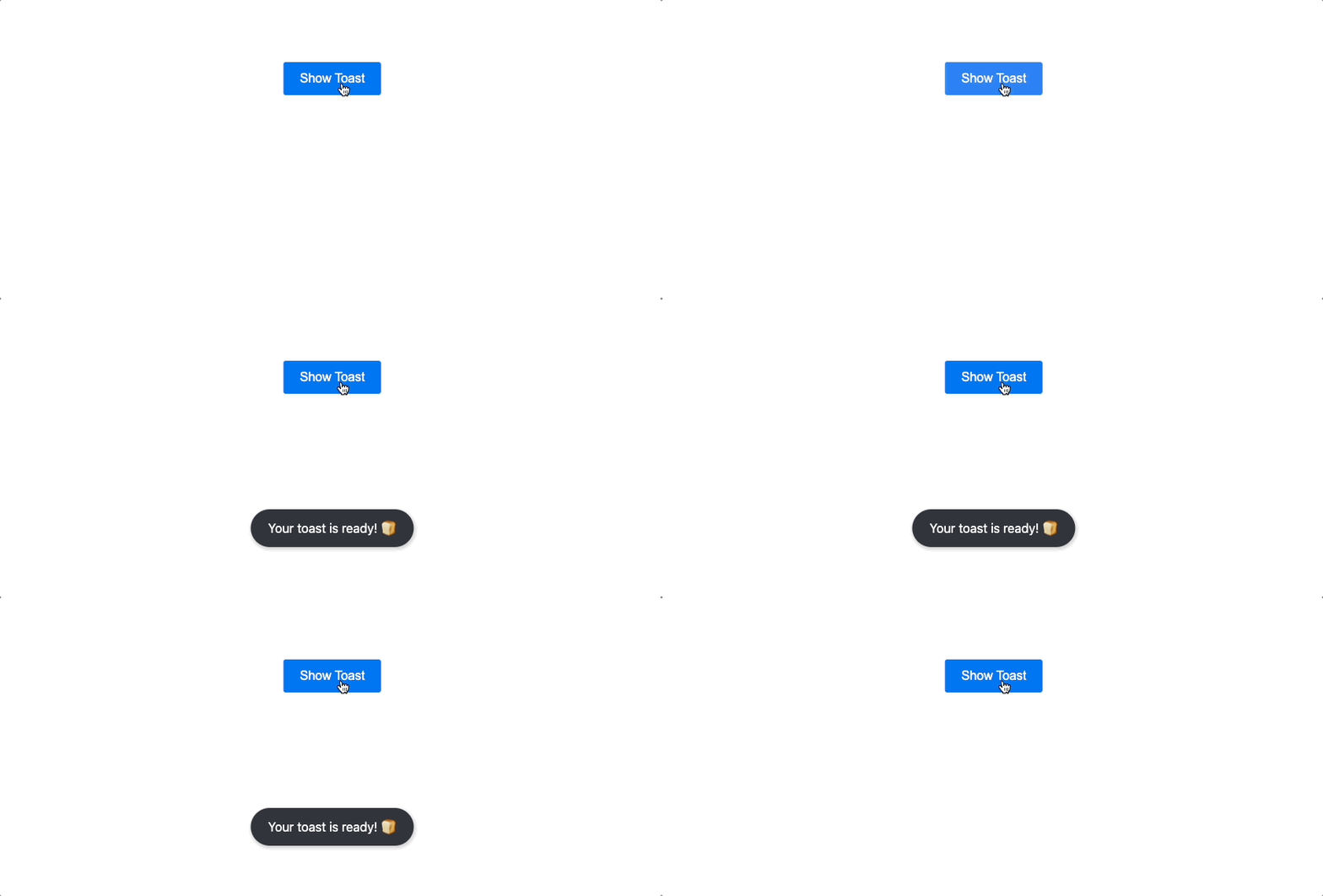 15 |
15 |
81 |  82 |
82 |
87 |  88 |
88 |
105 |
106 |  107 |
107 | 108 | Max 109 | 110 | |
111 |
112 |
113 |  114 |
114 | 115 | Minko 116 | 117 | |
118 |
119 |
120 |  121 |
121 | 122 | Hardy 123 | 124 | |
125 |
126 |
127 |  128 |
128 | 129 | Alex Muench 130 | 131 | |
132 |
133 |
134 |  135 |
135 | 136 | Emmanuel Ayodele Bello 137 | 138 | |
139 |
140 |
141 |  142 |
142 | 143 | silverwind 144 | 145 | |
146 |
{
196 | if (messageClassNames.includes(TransitionClassNames.exit)) {
197 | onClose();
198 | }
199 | }}
200 | >
201 |
206 | );
207 | }
208 |
209 | export default ToastMessage;
210 |
--------------------------------------------------------------------------------
/example/src/component/layout/layout.tsx:
--------------------------------------------------------------------------------
1 | import React, { ReactNode, useEffect, useRef, useState } from 'react';
2 | import { Link, NavLink, useLocation } from 'react-router-dom';
3 | import githubIcon from '../../assets/images/common/github-icon.png';
4 | import { AtLeast } from '../../type/utils';
5 | import styles from './layout.module.css';
6 |
7 | interface Props {
8 | children: ReactNode;
9 | }
10 |
11 | interface Menu {
12 | name: string;
13 | path: string;
14 | hash?: string;
15 | children?: AtLeast
202 | {localLoading && {loadingText} }
203 | {render ? render(message) : message}
204 |
205 | 187 | 188 | RST 189 | 190 |
191 |
192 |
197 |  198 |
199 |
198 |
199 |
200 |
15 |
16 |
44 |
45 |
46 |
53 |
71 |
113 |
114 |
115 |
118 | 119 |
185 |
186 |
187 |
227 |
228 |
229 |
275 |
276 | );
277 | }
278 |
279 | export default Theme;
280 |
--------------------------------------------------------------------------------
/__tests__/toast.test.tsx:
--------------------------------------------------------------------------------
1 | import { act, fireEvent, render, screen, waitFor } from '@testing-library/react';
2 | import React from 'react';
3 | import toast, { toast as toastNamed } from '../src';
4 | import { generateMessage } from '../src/lib/utils';
5 |
6 | const EXIT_ANIMATION_DURATION = 300;
7 |
8 | const delay = (ms: number) => new Promise((resolve) => setTimeout(resolve, ms));
9 |
10 | describe('toast', () => {
11 | it('renders a toast when the show button is clicked', async () => {
12 | const TOAST_TEXT = generateMessage();
13 | render(
14 | ,
17 | );
18 |
19 | const button = screen.getByText('show');
20 | await act(() => button.click());
21 |
22 | screen.getByText(TOAST_TEXT);
23 | });
24 |
25 | it('displays the toast for the specified duration and then removes it', async () => {
26 | const TOAST_TEXT = generateMessage();
27 | const DURATION = 500;
28 | await act(() => toast(TOAST_TEXT, DURATION));
29 |
30 | const toastElement = screen.getByText(TOAST_TEXT);
31 |
32 | await waitFor(() => delay(DURATION + EXIT_ANIMATION_DURATION));
33 | fireEvent.transitionEnd(toastElement);
34 |
35 | expect(toastElement).not.toBeInTheDocument();
36 | });
37 |
38 | it('renders toast with infinite duration until manually closed', async () => {
39 | const TOAST_TEXT = generateMessage();
40 | const infiniteToast = await act(() => toast(TOAST_TEXT, Infinity));
41 |
42 | const toastElement = screen.getByText(TOAST_TEXT);
43 | await act(() => infiniteToast.close());
44 |
45 | await act(() => delay(EXIT_ANIMATION_DURATION));
46 | fireEvent.transitionEnd(toastElement);
47 |
48 | expect(toastElement).not.toBeInTheDocument();
49 | });
50 |
51 | it('renders and removes toast based on specified duration in options', async () => {
52 | const TOAST_TEXT = generateMessage();
53 | const DURATION = 500;
54 | await act(() => toast(TOAST_TEXT, { duration: DURATION }));
55 |
56 | const toastElement = screen.getByText(TOAST_TEXT);
57 | await waitFor(() => delay(DURATION + EXIT_ANIMATION_DURATION));
58 | fireEvent.transitionEnd(toastElement);
59 |
60 | expect(toastElement).not.toBeInTheDocument();
61 | });
62 |
63 | it('applies custom className to toast container', async () => {
64 | const TOAST_TEXT = generateMessage();
65 | const CLASSNAME = 'test-classname';
66 | await act(() => toast(TOAST_TEXT, { className: CLASSNAME }));
67 |
68 | const toastDOM = screen.getByText(TOAST_TEXT);
69 | expect(toastDOM).toHaveClass(CLASSNAME);
70 | });
71 |
72 | it('closes the toast when clickClosable is true and toast is clicked', async () => {
73 | const TOAST_TEXT = generateMessage();
74 | await act(() => toast(TOAST_TEXT, { clickClosable: true }));
75 |
76 | const toastDOM = screen.getByText(TOAST_TEXT);
77 | await act(() => toastDOM.click());
78 |
79 | await waitFor(() => delay(EXIT_ANIMATION_DURATION));
80 | fireEvent.transitionEnd(toastDOM);
81 |
82 | expect(toastDOM).not.toBeInTheDocument();
83 | });
84 |
85 | it('renders toast with specified position', async () => {
86 | const TOAST_TEXT = generateMessage();
87 | await act(() => toast(TOAST_TEXT, { position: 'top-center' }));
88 | const toastDOM1 = screen.getByText(TOAST_TEXT);
89 |
90 | expect(toastDOM1.parentElement).toHaveClass('toast__message--top-center');
91 | });
92 |
93 | it('limits visible toasts based on maxVisibleToasts', async () => {
94 | const TOAST_TEXT = generateMessage();
95 | const DURATION = 500;
96 |
97 | await act(() => {
98 | toast(TOAST_TEXT, DURATION);
99 | toast(TOAST_TEXT, { duration: DURATION, maxVisibleToasts: 1 });
100 | });
101 |
102 | const toastDOM = screen.getAllByText(TOAST_TEXT);
103 |
104 | toastDOM.forEach((toast) => {
105 | fireEvent.transitionEnd(toast);
106 | });
107 |
108 | const toasts = screen.getAllByText(TOAST_TEXT);
109 | expect(toasts.length).toBe(1);
110 | });
111 |
112 | it('renders custom toast content with render prop', async () => {
113 | const TOAST_TEXT = generateMessage();
114 | const render = () => 📚 Introduction
17 |18 | The theme functionality in react-simple-toasts allows for customisation of toast 19 | appearances. No theme is applied by default unless explicitly specified. 20 |
21 | 22 |
23 |
30 |
31 |
32 | {`import toast from 'react-simple-toasts';
33 | import 'react-simple-toasts/dist/style.css';
34 |
35 | export default function App() {
36 | return (
37 |
40 | );
41 | }`}
42 |
43 | 🎁 Built-in Themes
47 |48 | react-simple-toasts comes with a variety of built-in themes for quick styling of your 49 | toasts. 50 |
51 | 52 |53 |
Standard Themes
54 |
55 | {STANDARD_THEMES.map((theme) => (
56 |
69 |
70 |
57 |
66 |
67 | ))}
68 | 71 |
Creative Themes
72 |
73 | {themeList
74 | .filter((theme) => !STANDARD_THEMES.includes(theme))
75 | .map((theme) => (
76 |
89 |
90 |
77 |
86 |
87 | ))}
88 |
91 | {`import toast, { Themes } from 'react-simple-toasts';
92 | import 'react-simple-toasts/dist/style.css';
93 | import 'react-simple-toasts/dist/theme/dark.css'; // Import the 'dark' theme CSS
94 |
95 | export default function App() {
96 |
97 | const handleToast = () => {
98 | // Using a literal string to set the theme to 'dark'
99 | toast('Hello, World!', { theme: 'dark' });
100 |
101 | // Alternatively, you can import the Themes constant and use it like so:
102 | // toast('Hello, World!', { theme: Themes.DARK });
103 | };
104 |
105 | return (
106 |
109 | );
110 | }`}
111 |
112 | 🎨 Setting a Theme
116 |There are several ways to set a theme for your toasts. Here are some examples:
117 |118 | 119 |
120 |
136 |
137 | Setting a theme in toast function
121 |You can directly specify a theme when calling the toast function.
122 |
123 | {`import toast from 'react-simple-toasts';
124 | import 'react-simple-toasts/dist/style.css';
125 | import 'react-simple-toasts/dist/theme/dark.css';
126 |
127 | export default function App() {
128 | return (
129 |
132 | );
133 | }`}
134 |
135 |
138 |
161 |
162 | Setting a global theme
139 |You can set a global theme that will be used for all toasts by default.
140 |
141 | {`// index.js
142 | import 'react-simple-toasts/dist/theme/dark.css';
143 |
144 | toastConfig({
145 | theme: 'dark',
146 | });`}
147 |
148 |
149 |{`import toast from 'react-simple-toasts';
150 | import 'react-simple-toasts/dist/style.css';
151 |
152 | export default function App() {
153 | return (
154 |
157 | );
158 | }`}
159 |
160 | 148 |
149 |
163 |
184 | Creating a themed toast function
164 |165 | You can create a toast function with a specified theme that can be used throughout your 166 | application. 167 |
168 |
169 | {`import toast from 'react-simple-toasts';
170 | import 'react-simple-toasts/dist/style.css';
171 | import 'react-simple-toasts/dist/theme/dark.css';
172 |
173 | const darkToast = createToast({ theme: 'dark' });
174 |
175 | export default function App() {
176 | return (
177 |
180 | );
181 | }`}
182 |
183 | 🛠 Custom Theme
188 |
189 | If the built-in themes do not suit your needs, you can easily create your own custom
190 | theme. To do this, simply specify your own CSS class by using the className{' '}
191 | property. You can apply this property when calling the toast function, setting global
192 | configurations, or creating a toast function. Here is an example of how you can create a
193 | custom theme:
194 |
197 |
226 |
198 |
201 |
202 |
203 | {`/* my-style.css */
204 |
205 | .my-toast {
206 | background-color: rgba(255, 107, 129, 0.9);
207 | padding: 10px 20px;
208 | color: #fff;
209 | border-radius: 3px;
210 | }`}
211 |
212 |
213 | {`import toast from 'react-simple-toasts';
214 | import 'react-simple-toasts/dist/style.css';
215 | import './my-style.css';
216 |
217 | export default function App() {
218 | return (
219 |
222 | );
223 | }`}
224 |
225 | 🤝 Contributing Theme
230 |231 | If you've created a theme that you believe would be beneficial to others, you're welcome 232 | to contribute it to the react-simple-toasts library. Here are the steps to do so: 233 |
234 |-
235 |
-
236 | Add your theme name to the
Themesconstant in the{' '} 237 | 238 | source code 239 | 240 | . It should look something like this: 241 |242 |249 |{`// After addition, your theme should be included as follows: 243 | export const Themes = { 244 | LIGHT: 'light', 245 | DARK: 'dark', 246 | YOUR_THEME_NAME: 'your_theme_name', 247 | } as const;`} 248 |
250 |
251 | - 252 | Create a CSS file with the same name as your theme, and add it to the{' '} 253 | 254 | theme folder 255 | 256 | . 257 | 258 |
-
259 | Declare the
.toast-[name]selector in your CSS file and apply your styles. 260 | The[name]should match the name of your theme. 261 |262 |268 |{`/* /src/theme/some.css */ 263 | 264 | .toast-some { 265 | /* your styles here */ 266 | }`} 267 |
269 |
271 | We appreciate your contributions and look forward to seeing your creative and unique 272 | themes! 273 |
274 |custom render
;
115 | await act(() => toast(TOAST_TEXT, { render }));
116 |
117 | const toastDOM = screen.getByText('custom render');
118 | expect(toastDOM).toHaveClass('custom-class');
119 | });
120 |
121 | it('triggers onClick event when toast is clicked', async () => {
122 | const TOAST_TEXT = generateMessage();
123 | const onClick = jest.fn();
124 | await act(() => toast(TOAST_TEXT, { clickable: true, onClick }));
125 |
126 | const toastDOM = screen.getByText(TOAST_TEXT);
127 | await act(() => toastDOM.click());
128 | expect(onClick).toHaveBeenCalled();
129 | });
130 |
131 | it('calls onCloseStart and onClose when toast is clicked with clickClosable set to true', async () => {
132 | const TOAST_TEXT = generateMessage();
133 | const DURATION = 500;
134 | const onCloseStart = jest.fn();
135 | const onClose = jest.fn();
136 | await act(() =>
137 | toast(TOAST_TEXT, { onCloseStart, onClose, clickClosable: true, duration: DURATION }),
138 | );
139 |
140 | const toastDOM = screen.getByText(TOAST_TEXT);
141 | await act(() => toastDOM.click());
142 | fireEvent.transitionEnd(toastDOM);
143 |
144 | expect(onCloseStart).toHaveBeenCalled();
145 | await waitFor(() => expect(onClose).toHaveBeenCalled());
146 | });
147 |
148 | it('updates the toast duration and removes the toast after the new duration', async () => {
149 | const TOAST_TEXT = generateMessage();
150 | const DURATION = Infinity;
151 | const NEW_DURATION = 500;
152 | const toastInstance = await act(() => toast(TOAST_TEXT, DURATION));
153 |
154 | toastInstance.updateDuration(NEW_DURATION);
155 | const toastElement = screen.getByText(TOAST_TEXT);
156 |
157 | await act(() => delay(NEW_DURATION));
158 | fireEvent.transitionEnd(toastElement);
159 |
160 | expect(toastElement).not.toBeInTheDocument();
161 | });
162 |
163 | it('updates the content of the displayed toast', async () => {
164 | const TOAST_TEXT = generateMessage();
165 | const NEW_TOAST_TEXT = generateMessage();
166 | const toastInstance = await act(() => toast(TOAST_TEXT));
167 | const toastElement = screen.getByText(TOAST_TEXT);
168 |
169 | await act(() => toastInstance.update(NEW_TOAST_TEXT));
170 | expect(toastElement).toHaveTextContent(NEW_TOAST_TEXT);
171 | });
172 |
173 | it('applies the specified theme to the toast', async () => {
174 | const TOAST_TEXT = generateMessage();
175 | await act(() => toast(TOAST_TEXT, { theme: 'light' }));
176 | const toastElement = screen.getByText(TOAST_TEXT);
177 |
178 | expect(toastElement).toHaveClass('toast__light');
179 | });
180 |
181 | it('applies the specified zIndex to the toast', async () => {
182 | const TOAST_TEXT = generateMessage();
183 | await act(() => toast(TOAST_TEXT, { zIndex: 10 }));
184 | const toastElement = screen.getByText(TOAST_TEXT);
185 |
186 | expect(toastElement.parentElement).toHaveStyle('z-index: 10');
187 | });
188 |
189 | it('closes the toast rendered with render option when clickClosable is true and toast is clicked ', async () => {
190 | const TOAST_TEXT = generateMessage();
191 | await act(() =>
192 | toast(TOAST_TEXT, {
193 | clickClosable: true,
194 | render: (message) => {message}
,
195 | }),
196 | );
197 | const toastElement = screen.getByText(TOAST_TEXT);
198 | await act(() => toastElement.click());
199 | await waitFor(() => delay(EXIT_ANIMATION_DURATION));
200 | fireEvent.transitionEnd(toastElement);
201 |
202 | expect(toastElement).not.toBeInTheDocument();
203 | });
204 |
205 | it('renders second toast upper than first toast when isReversedOrder set to true', async () => {
206 | const FIRST_TEXT = generateMessage();
207 | const SECOND_TEXT = generateMessage();
208 | await act(() => toast(FIRST_TEXT));
209 | await act(() => toast(SECOND_TEXT, { isReversedOrder: true }));
210 | const toastElements = screen.getAllByText(/message/);
211 | expect(toastElements[0]).toHaveTextContent(SECOND_TEXT);
212 | });
213 |
214 | it('applies theme class to toast when theme is specified and does not apply it when theme is not specified', async () => {
215 | const TOAST_TEXT = generateMessage();
216 | const toastContentClassName = 'toast__content toast__theme-content';
217 | await act(() => toast(TOAST_TEXT, { theme: 'dark' }));
218 |
219 | const toastDOM = screen.getByText(TOAST_TEXT);
220 | expect(toastDOM).toHaveClass(toastContentClassName);
221 |
222 | const TOAST_TEXT2 = generateMessage();
223 | await act(() => toast(TOAST_TEXT2));
224 | const toastDOM2 = screen.getByText(TOAST_TEXT2);
225 | expect(toastDOM2).not.toHaveClass(toastContentClassName);
226 | });
227 |
228 | it('should display the toast message indefinitely when duration is set to 0 or null', async () => {
229 | const TOAST_TEXT = generateMessage();
230 |
231 | jest.useFakeTimers(); // Use fake timers
232 |
233 | await act(() => toast(TOAST_TEXT, 0));
234 | await act(() => {
235 | jest.runAllTimers(); // Run all pending timers
236 | return Promise.resolve();
237 | });
238 |
239 | const toastElement = screen.getByText(TOAST_TEXT);
240 | expect(toastElement).toBeInTheDocument();
241 |
242 | jest.useRealTimers(); // Revert to real timers
243 | });
244 |
245 | it('should display the toast message indefinitely when duration is set to null', async () => {
246 | const TOAST_TEXT = generateMessage();
247 |
248 | jest.useFakeTimers(); // Use fake timers
249 |
250 | await act(() => toast(TOAST_TEXT, null));
251 | await act(() => {
252 | jest.runAllTimers(); // Run all pending timers
253 | return Promise.resolve();
254 | });
255 |
256 | const toastElement = screen.getByText(TOAST_TEXT);
257 | expect(toastElement).toBeInTheDocument();
258 |
259 | jest.useRealTimers(); // Revert to real timers
260 | });
261 |
262 | it('should renders a toast with the named export', async () => {
263 | const TOAST_TEXT = generateMessage();
264 | render(
265 | ,
268 | );
269 |
270 | const button = screen.getByText('show');
271 | await act(() => button.click());
272 |
273 | screen.getByText(TOAST_TEXT);
274 | });
275 |
276 | it('should retain the theme when updating the toast with an options object', async () => {
277 | const TOAST_TEXT = generateMessage();
278 | const UPDATED_TEXT = generateMessage();
279 | const toastContentClassName = 'toast__theme-content';
280 |
281 | const toastInstance = await act(() => toast(TOAST_TEXT, { theme: 'dark' }));
282 |
283 | const toastDOM = screen.getByText(TOAST_TEXT);
284 | expect(toastDOM).toHaveClass(toastContentClassName);
285 |
286 | await act(() => toastInstance.update({ message: UPDATED_TEXT }));
287 |
288 | const updatedToastDOM = screen.getByText(UPDATED_TEXT);
289 | expect(updatedToastDOM).toHaveClass(toastContentClassName);
290 | });
291 | });
292 |
--------------------------------------------------------------------------------
/example/src/page/change-log/change-log.tsx:
--------------------------------------------------------------------------------
1 | import React from 'react';
2 | import dayjs from 'dayjs';
3 | import styles from './change-log.module.css';
4 |
5 | function ChangeLog() {
6 | return (
7 |
8 |
9 |
16 |
17 |
18 |
33 |
34 |
35 |
44 |
45 |
46 |
60 |
61 |
62 |
81 |
82 |
83 |
93 |
94 |
95 |
106 |
107 |
108 |
118 |
119 |
120 |
130 |
131 |
132 |
142 |
143 |
144 |
156 |
157 |
158 |
177 |
178 |
179 |
191 |
192 |
193 |
215 |
216 |
217 |
246 |
247 |
248 |
258 |
259 |
260 |
270 |
271 |
272 |
282 |
283 |
284 |
295 |
296 |
297 |
308 |
309 |
310 |
322 |
323 |
324 |
343 |
344 |
345 |
370 |
371 |
372 |
383 |
384 | );
385 | }
386 |
387 | export default ChangeLog;
388 |
--------------------------------------------------------------------------------
/example/src/page/example/example.tsx:
--------------------------------------------------------------------------------
1 | import React, { useState } from 'react';
2 | import toast, { Toast, ToastPosition } from 'react-simple-toasts';
3 | import { Link } from 'react-router-dom';
4 | import styles from './example.module.css';
5 | import CommonHighlighter from '../../component/common-highlighter';
6 | import Button from '../../component/button';
7 |
8 | function Example() {
9 | const [position, setPosition] = useState📚 Introduction
10 |11 | This page provides information about the changes and updates made in each version of 12 | react-simple-toasts. Please refer to this page for the details of new features, 13 | improvements, and bug fixes in each version. 14 |
15 |6.1.0
19 |{dayjs('2025-01-19').format('YYYY.MM.DD')}
20 | ⚙️ Improvements
21 |-
22 |
- 23 | Code Refactoring: Enhanced code maintainability and reusability through 24 | comprehensive refactoring. 25 | #100 26 | 27 |
- 28 | Node.js Compatibility: Removed upper Node.js version constraint to 29 | support latest Node.js versions. 30 | 31 |
6.0.1
36 |{dayjs('2024-11-16').format('YYYY.MM.DD')}
37 | 🔄 Compatibility
38 |-
39 |
- 40 | React 19 Support: Added compatibility support for React 19 RC version. 41 | 42 |
6.0.0
47 |{dayjs('2024-09-18').format('YYYY.MM.DD')}
48 | 🔄 Major Changes
49 |-
50 |
- 51 | BEM Styling Introduced: Switched from CSS Modules class-based styling 52 | to BEM methodology. This change makes style overriding easier. 53 | 54 |
-
55 | Explicit Style Import Required: From version 6.0.0, you need to
56 | explicitly import the
style.cssfile. 57 |
58 |
5.10.1
63 |{dayjs('2024-07-25').format('YYYY.MM.DD')}
64 | 🎉 New Features
65 |-
66 |
-
67 | Named Export: Added a named export
toastto resolve type 68 | issues with the default export. 69 | #92 70 |
71 |
🐛 Bug Fixes
73 |-
74 |
- 75 | Maintain Theme on Update: Fixed an issue where the theme was not being 76 | maintained after updates. 77 | #95 78 | 79 |
5.10.0
84 |{dayjs(1695454943400).format('YYYY.MM.DD')}
85 | 🌈 Theme Expansion
86 |-
87 |
-
88 | New Themes: Added new themes:
dark-edge,{' '} 89 |light-edge. 90 |
91 |
5.9.0
96 |{dayjs(1694441587084).format('YYYY.MM.DD')}
97 | 🌈 Theme Expansion
98 |-
99 |
-
100 | New Themes: Introduced new themes:
moonlightand{' '} 101 |sunset. These themes offer a visually appealing experience and provide more 102 | customization options for toast notifications. 103 |
104 |
5.8.3
109 |{dayjs(1693947426761).format('YYYY.MM.DD')}
{' '}
110 | ⚙️ Improvements
111 |-
112 |
- 113 | Add Terser Plugin: Integrated Terser plugin into Rollup configuration 114 | for code minification and optimization. 115 | 116 |
5.8.2
121 |{dayjs(1692873349604).format('YYYY.MM.DD')}
122 | ⚙️ Improvements
123 |-
124 |
- 125 | Theme Option Type Update: Modified the theme option type to accept 126 | string, and improved the ability to use custom themes through the theme option. 127 | 128 |
5.8.1
133 |{dayjs(1692873339604).format('YYYY.MM.DD')}
134 | 🐛 Bug Fixes
135 |-
136 |
- 137 | Fix Theme Style Overlap with Render Option: Fixed a bug where the theme 138 | style overlapped when using the render option. 139 | 140 |
5.8.0
145 |{dayjs().format('YYYY.MM.DD')}
146 | 🎉 New Features
147 |-
148 |
-
149 | Loading Option: Added a loading option. The loading option provides the
150 | functionality to display a loading indicator within a toast message. It can be set as a{' '}
151 |
booleanvalue or as aPromiseobject, allowing for more 152 | customized loading behavior. 153 |
154 |
5.7.1
159 |{dayjs(1692359510375).format('YYYY.MM.DD')}
{' '}
160 | ⚙️ Improvements
161 |-
162 |
-
163 | Duration Configuration: Added support for
0and{' '} 164 |nullas thedurationoption. This allows the toast messages 165 | not to close automatically when using these values. The existingInfinity{' '} 166 | option will continue to create an "infinite toast." 167 |
168 |
🐛 Bug Fixes
170 |-
171 |
- 172 | Fixed Long Message Positioning: Fixed an issue where the position was 173 | not calculated correctly for messages that break into multiple lines. 174 | 175 |
5.7.0
180 |{dayjs(1692063912987).format('YYYY.MM.DD')}
181 |
182 | 🎉 New Features
183 |-
184 |
-
185 | Gap Configuration Option: Added a new
gapoption that 186 | allows you to control the distance between toast messages. This new feature provides 187 | greater flexibility in customizing the appearance of the toasts. 188 |
189 |
5.6.1
194 |{dayjs(1690979544805).format('YYYY.MM.DD')}
195 |
196 | 🐛 Bug Fixes
197 |-
198 |
- 199 | Fixed Failed Tests: Resolved issues related to failing tests. 200 | 201 |
⚙️ Improvements
204 |-
205 |
- 206 | Build System Enhancement for Development: Improved the build system for 207 | a smoother development experience. 208 | 209 |
- 210 | Code Cleanup: Removed unnecessary code for better maintainability and 211 | performance. 212 | 213 |
5.6.0
218 |{dayjs(1690979544805).format('YYYY.MM.DD')}
219 |
220 | 🌈 Theme Expansion
221 |-
222 |
-
223 | New Themes: Added new themes:
blue-dusk,{' '} 224 |ocean-wave. 225 |
226 |
🎉 New Features
229 |-
230 |
-
231 | Offset Options: Added new offset options:
offsetXand{' '} 232 |offsetY. These options allow you to control the horizontal and vertical 233 | distance of the toast message from the edge of the viewport. 234 |
235 |
⚙️ Improvements
238 |-
239 |
- 240 | CSS Modules for Theme classNames: CSS Modules have been applied to 241 | theme classNames. This allows for better local scoping of CSS by default and reduces the 242 | chance of globally scoped CSS interfering with the components. 243 | 244 |
5.5.0
249 |{dayjs(1690070400000).format('YYYY.MM.DD')}
250 |
251 | 🌈 Theme Expansion
252 |-
253 |
-
254 | New Themes: Added new themes:
chroma. 255 |
256 |
5.4.0
261 |{dayjs(1689196653355).format('YYYY.MM.DD')}
262 |
263 | 🌈 Theme Expansion
264 |-
265 |
-
266 | New Themes: Added new themes:
pink-dawn. 267 |
268 |
5.3.0
273 |{dayjs(1688884298301).format('YYYY.MM.DD')}
274 |
275 | 🌈 Theme Expansion
276 |-
277 |
-
278 | New Themes: Added new themes:
plain. 279 |
280 |
5.2.1
285 |{dayjs(1688257564385).format('YYYY.MM.DD')}
286 |
287 | 🐛 Bug Fixes
288 |-
289 |
- 290 | Fixed styling for center position: Fixed a bug where incorrect styles 291 | were displayed when position was set to center. 292 | 293 |
5.2.0
298 |{dayjs(1687592209000).format('YYYY.MM.DD')}
299 |
300 | 🌈 Theme Expansion
301 |-
302 |
-
303 | New Themes: Added new themes:
success,info, 304 |warning,failure, andfrosted-glass. 305 |
306 |
5.1.0
311 |{dayjs(1686740905761).format('YYYY.MM.DD')}
312 |
313 | 🎉 New Features
314 |-
315 |
-
316 | isReversedOrder Option: A new
isReversedOrderoption has 317 | been added. By setting this option to true, the order of the displayed toasts will be 318 | reversed. 319 |
320 |
5.0.1
325 |{dayjs(1686577466589).format('YYYY.MM.DD')}
326 |
327 | ⚙️ Improvements
328 |-
329 |
-
330 | Remove deprecated time option: The previously deprecated{' '}
331 |
timeoption has been removed in this version for better performance and 332 | efficiency. 333 |
334 |
🐛 Bug Fixes
336 |-
337 |
-
338 | Clickable with Render option: Fixed a bug where click options were not
339 | working when the
renderoption was used. 340 |
341 |
5.0.0
346 |{dayjs(1686444450563).format('YYYY.MM.DD')}
347 |
348 | 🎉 New Features
349 |-
350 |
- 351 | zIndex Options: We have added zIndex options. You can now set the css 352 | z-index property for individual toast messages or for the entire message. 353 | 354 |
⚙️ Improvements
357 |-
358 |
- 359 | HTML Structure of Toast Messages: We have improved and refactored the 360 | HTML structure of the toast messages. This was done for improved scalability with 361 | continuous updates. 362 | 363 |
- 364 | Animation Simplification: We have streamlined the overall animations. 365 | Particularly, the animation for toast messages appearing from the top has been improved 366 | to be more UX-friendly. 367 | 368 |
4.0.0
373 |{dayjs(1686100642000).format('YYYY.MM.DD')}
374 |
375 | 🎉 New Features
376 |-
377 |
- 378 | Theme Support: react-simple-toasts now supports theming. You can use 379 | built-in themes ('dark' and 'light') or create your own custom themes using CSS. 380 | 381 |
14 |
15 |
18 |
334 |
335 |
336 |
339 | 340 |
555 |
556 | );
557 | }
558 |
559 | export default Example;
560 |
--------------------------------------------------------------------------------
/example/src/page/api/api.tsx:
--------------------------------------------------------------------------------
1 | import React, { Fragment } from 'react';
2 | import styles from './api.module.css';
3 | import CommonHighlighter from '../../component/common-highlighter';
4 | import { Themes } from '../../../../src/lib/constants';
5 |
6 | function Api() {
7 | const themes = Object.values(Themes);
8 |
9 | return (
10 | 🔬 Simple Example
16 |Here's a simple example of how to use our package:
17 |18 |
19 |
41 |
42 | Basic Usage
20 |
21 |
22 |
23 |
24 | {`import toast, { toastConfig } from 'react-simple-toasts';
25 | import 'react-simple-toasts/dist/style.css';
26 | import 'react-simple-toasts/dist/theme/dark.css';
27 |
28 | toastConfig({
29 | theme: 'dark',
30 | });
31 |
32 | export default function App() {
33 | return (
34 |
37 | );
38 | }`}
39 |
40 |
43 |
66 |
67 | Duration
44 | 45 |
46 | default:
48 | 3000
47 |
49 | The duration option, in milliseconds, allows you to control how long the
50 | toast message is displayed. There are two different ways to set it as shown in the
51 | example.
52 |
54 |
55 |
56 |
57 | {`import toast from 'react-simple-toasts';
58 | import 'react-simple-toasts/dist/style.css';
59 | toast('Hello, World!', 1000);
60 |
61 | // OR
62 |
63 | toast('Hello, World!', { duration: 1000 })`}
64 |
65 |
68 |
111 |
112 | Theme
69 | 70 |
71 | default:
73 | undefined
72 |
74 | The theme option in the toast configuration allows you to apply different
75 | styles to your toasts. If no theme is specified, no default styles will be applied. You
76 | need to import the CSS file for the desired theme as shown in the code example below.
77 | For the available themes, please refer to the{' '}
78 | Built in Themes page.
79 |
81 |
82 |
83 |
84 |
85 |
86 |
87 | {`import toast from 'react-simple-toasts';
88 | import 'react-simple-toasts/dist/style.css';
89 | import 'react-simple-toasts/dist/theme/dark.css';
90 | import 'react-simple-toasts/dist/theme/light.css';
91 |
92 | export default function App() {
93 | return (
94 | <>
95 |
98 |
99 |
102 |
103 |
106 |
107 | );
108 | }`}
109 |
110 |
113 |
159 |
160 | className
114 | 115 |
116 | default:
118 | undefined
117 |
119 | The className option allows you to customize the style of the toast
120 | message. You can provide your own CSS class name and define the styles in your CSS file
121 | as shown in the example.
122 |
124 |
134 |
135 |
136 | {`/* my-style.css */
137 |
138 | .my-toast {
139 | background-color: rgba(255, 107, 129, 0.9);
140 | padding: 10px 20px;
141 | color: #fff;
142 | border-radius: 3px;
143 | }`}
144 |
145 |
146 | {`import toast from 'react-simple-toasts';
147 | import 'react-simple-toasts/dist/style.css';
148 | import 'my-style.css';
149 |
150 | export default function App() {
151 | return (
152 |
155 | );
156 | }`}
157 |
158 |
161 |
192 |
193 | clickable
162 | 163 |
164 | default:
166 |
167 | false
165 |
168 | The clickable option allows you to make the toast message interactive,
169 | meaning it can be clicked. Once clickable is set to true, you can provide
170 | an onClick handler to execute an action when the toast is clicked, as
171 | demonstrated in the example.
172 |
174 |
184 |
185 |
186 | {`toast('Hello, World!', {
187 | clickable: true,
188 | onClick: () => alert('Clicked!'),
189 | });`}
190 |
191 |
194 |
222 |
223 | clickClosable
195 | 196 |
197 | default:
199 |
200 | false
198 |
201 | The clickClosable prop allows users to dismiss the toast by clicking on it.
202 | When set to true, a click anywhere on the toast message will close the
203 | toast. This provides an additional, user-friendly way to dismiss toasts, beyond waiting
204 | for them to automatically disappear.
205 |
208 |
217 |
218 |
219 | {`toast('Hello, World!', { clickClosable: true })`}
220 |
221 |
224 |
273 |
274 | position
225 | 226 |
227 | default:
229 |
230 | bottom-center
228 |
231 | The position prop determines the location on the screen where the toast
232 | will appear. Available positions include 'top-left',
233 | 'top-center', 'top-right', 'bottom-left',{' '}
234 | 'bottom-center','bottom-right', and 'center'.
235 | This gives you the flexibility to ensure that the toast doesn't interfere with other
236 | important UI elements.
237 |
240 |
253 |
262 |
263 |
264 | {`toast('Hello, World!', { position: 'top-left' });
265 | toast('Hello, World!', { position: 'top-center' });
266 | toast('Hello, World!', { position: 'top-right' });
267 | toast('Hello, World!', { position: 'bottom-left' });
268 | toast('Hello, World!', { position: 'bottom-center' });
269 | toast('Hello, World!', { position: 'bottom-right' });
270 | toast('Hello, World!', { position: 'center' });`}
271 |
272 |
275 |
304 |
305 | maxVisibleToasts
276 | 277 |
278 | default:
280 |
281 | undefined
279 |
282 | The maxVisibleToasts prop sets a limit to the number of toasts that can be
283 | displayed on the screen at the same time. If more toasts are triggered while the limit
284 | is reached, they will be queued and displayed as older toasts disappear. This helps
285 | prevent a scenario where a large number of toasts are displayed simultaneously,
286 | potentially disrupting the user experience.
287 |
290 |
299 |
300 |
301 | {`toast('Hello, World!', { maxVisibleToasts: 3 })`}
302 |
303 |
306 |
324 | Or, to simulate a lengthy operation, you can use a Promise that resolves after a delay. 325 | The following example demonstrates a dummy Promise that resolves after 3 seconds, but in a 326 | real-world scenario, this could represent an actual asynchronous task: 327 |
333 | loading
307 |
308 | default:
310 | false
309 | 311 | The loading option provides the functionality to display a loading indicator within a 312 | toast message. This option is useful for visually indicating to the user that a lengthy 313 | operation is in progress. The color of the loading indicator is determined by the color 314 | of the message in the toast. The loading option can be set as true or as a Promise 315 | object, and there are two ways to use it 316 |
317 |
318 |
319 |
320 |
321 | {`toast('Synchronizing...', { loading: true });`}
322 |
323 | 324 | Or, to simulate a lengthy operation, you can use a Promise that resolves after a delay. 325 | The following example demonstrates a dummy Promise that resolves after 3 seconds, but in a 326 | real-world scenario, this could represent an actual asynchronous task: 327 |
328 | {`const taskPromise = new Promise((resolve) => setTimeout(resolve, 3000));
329 |
330 | toast('Synchronizing...', { loading: taskPromise });`}
331 |
332 | 🚀 Advanced Example
337 |This is a more advanced example with additional options:
338 |339 | 340 |
341 |
395 |
396 | Promise Based Loading
342 |343 | This example demonstrates how to use a Promise to control a loading indicator in a toast 344 | message. A loading indicator is shown while the Promise is pending. Once resolved, the 345 | toast updates to a success message with a different theme and duration. 346 |
347 |
348 |
369 |
370 |
371 | {`import toast from 'react-simple-toasts';
372 | import 'react-simple-toasts/dist/style.css';
373 | import 'react-simple-toasts/dist/theme/info.css';
374 | import 'react-simple-toasts/dist/theme/success.css';
375 |
376 | // ...
377 |
378 | const taskPromise = new Promise((resolve) => setTimeout(resolve, 2000));
379 |
380 | const taskToast = toast('Task started...', {
381 | theme: 'info',
382 | loading: taskPromise,
383 | duration: Infinity,
384 | });
385 |
386 | taskPromise.then(() =>
387 | taskToast.update({
388 | message: 'Task completed!',
389 | duration: 2000,
390 | theme: 'success',
391 | }),
392 | );`}
393 |
394 |
397 |
409 |
410 | With
412 |
440 |
495 |
496 | Infinity Duration
398 | 399 |
400 | If you want to create a toast notification that stays on the screen indefinitely until
401 | manually closed, you can pass 0, null, or{' '}
402 | Infinity as the duration. This will create an "infinite toast". The example
403 | below shows how to create an infinite toast and provide a button for manually closing
404 | it. This can be useful in scenarios where you want to make sure a critical message is
405 | not missed by the user.
406 |
409 |
410 | With clickClosable
411 |
412 |
413 |
418 |
419 |
420 | {`import toast, { Toast } from 'react-simple-toasts';
421 | import 'react-simple-toasts/dist/style.css';
422 |
423 | export default function App() {
424 | const handleShowClick = () => {
425 | toast('Hello, World!', {
426 | duration: null,
427 | clickClosable: true,
428 | });
429 | };
430 |
431 | return (
432 |
435 | );
436 | }`}
437 |
438 |
439 | 440 |
Manual Control
441 | 442 |
443 |
449 |
458 |
459 |
460 | {`import toast, { Toast } from 'react-simple-toasts';
461 | import 'react-simple-toasts/dist/style.css';
462 |
463 | export default function App() {
464 | const [infiniteToast, setInfiniteToast] = useState(null);
465 |
466 | const handleShowClick = () => {
467 | const infiniteToast = toast('Hello, World!', { duration: null });
468 | setInfiniteToast(infiniteToast);
469 | };
470 |
471 | const handleCloseClick = () => {
472 | infiniteToast?.close();
473 | setInfiniteToast(null);
474 | };
475 |
476 | return (
477 | <>
478 |
484 |
490 |
491 | );
492 | }`}
493 |
494 |
497 |
554 | Updating Toasts in Real-time
498 | 499 |
500 | The example below demonstrates how to dynamically update the content of a toast message
501 | in real-time. Here, a countdown timer is implemented to show the remaining lifetime of
502 | the toast. It's updated every 100 milliseconds until the toast is automatically closed
503 | after 5 seconds. The update function of the toast instance is used to
504 | accomplish this.
505 |
508 |
525 |
526 |
527 | {`import toast from 'react-simple-toasts';
528 | import 'react-simple-toasts/dist/style.css';
529 |
530 | export default function App() {
531 | const handleClick = () => {
532 | const DURATION = 5000;
533 | const toastCreatedAt = Date.now();
534 |
535 | const myToast = toast('Toast will close in 5s', {
536 | duration: DURATION,
537 | onClose: () => clearInterval(interval),
538 | });
539 |
540 | const interval = setInterval(() => {
541 | const remainingTime = Math.max(0, DURATION - (Date.now() - toastCreatedAt));
542 | myToast.update(\`Toast will close in \${(remainingTime / 1000).toFixed(1)}s\`);
543 | }, 100);
544 | };
545 |
546 | return (
547 |
550 | );
551 | }`}
552 |
553 |
11 |
12 |
31 |
39 |
55 | 56 |
91 |
92 |
94 |
275 |
344 |
345 |
347 |
399 |
400 |
401 |
403 | Configuring Toasts:
405 |
411 | 412 |
571 | 572 |
602 | 603 |
625 | 626 |
640 |
641 |
642 |
651 |
663 |
668 |
669 | );
670 | }
671 |
672 | export default Api;
673 |
--------------------------------------------------------------------------------
🍞 Toast
13 | 14 |toast(message, durationOrOptions): Toast
15 |16 | Displays a toast notification with the given message and options. It returns a Toast 17 | object that allows you to control the toast message currently being displayed. 18 |
19 |
20 | {`import toast from 'react-simple-toasts';
21 | import 'react-simple-toasts/dist/style.css';
22 | export function MyComponent() {
23 | return (
24 |
27 | );
28 | }`}
29 |
30 | 31 |
32 | By default, the toast message is displayed for 3 seconds. Modify the duration by providing
33 | a second argument to the toast function:
34 |
36 | {`toast('Hello, world!', 5000);`}
37 |
38 | 39 |
40 | Adjust the appearance and behavior of the toast message by supplying an options object to 41 | the toast function: 42 |
43 |
44 | {`toast('Hello, world!', {
45 | duration: 5000,
46 | position: 'top-right',
47 | clickable: true,
48 | clickClosable: true,
49 | className: 'custom-toast',
50 | render: (message) =>
53 |
54 | 55 | 56 |
Main Parameters
57 | 58 |
59 |
90 |
60 |
61 |
62 |
88 |
89 | | Parameter | 64 |Type | 65 |Description | 66 |
|---|---|---|
| message | 71 |
72 | string, ReactNode
73 | |
74 | The message to display in the toast. | 75 |
| durationOrOptions | 78 |
79 | number, object
80 | |
81 | 82 | Either the duration for the toast (in milliseconds) or an object containing 83 | options for the toast. 84 | | 85 |
91 |
92 | Options Object Properties
93 |
94 |
95 |
274 |
96 |
97 |
98 |
272 |
273 | | Property | 100 |Type | 101 |Description | 102 |Version | 103 |
|---|---|---|---|
| duration | 108 |
109 | number
110 | |
111 |
112 | The duration (in milliseconds) for which the toast message will be displayed.
113 | Default is 3000.
114 | |
115 | 116 | |
| theme | 119 |
120 | string
121 | |
122 |
123 | The theme property specifies the visual theme of the toast message. Available
124 | options include
125 | {themes.map((name, i) => (
126 | '{name}'
128 | {i < themes.length - 1 ? ', ' : ''}
129 | |
133 | 4.0.0 | 134 |
| zIndex | 137 |
138 | number
139 | |
140 |
141 | Sets the stack order of the toast. Higher values will render the toast on top.
142 | Default is 1000.
143 | |
144 | 5.0.0 | 145 |
| className | 148 |
149 | string
150 | |
151 | A string of classes to apply to the toast container. | 152 |153 | |
| clickable | 156 |
157 | boolean
158 | |
159 |
160 | A boolean value that determines whether the toast message is clickable. Default
161 | is false.
162 | |
163 | 164 | |
| clickClosable | 167 |
168 | boolean
169 | |
170 |
171 | A boolean value that determines whether the toast message can be closed by
172 | clicking on it. Default is false.
173 | |
174 | 175 | |
| position | 178 |
179 | string
180 | |
181 |
182 | A string that sets the position of the toast message. Available options are{' '}
183 | 'bottom-left', 'bottom-center',{' '}
184 | 'bottom-right', 'top-left', 'top-center',{' '}
185 | 'top-right', and 'center'. Default is{' '}
186 | 'bottom-center'.
187 | |
188 | 189 | |
| maxVisibleToasts | 192 |
193 | number
194 | |
195 |
196 | The maximum number of toast messages that can be displayed simultaneously.
197 | Default is null, which allows an unlimited number of toasts.
198 | |
199 | 200 | |
| render | 203 |
204 | function
205 | |
206 |
207 | A function that returns a ReactNode to render as the toast message. The function
208 | takes a message argument, which is the message to display in the
209 | toast. Default is null.
210 | |
211 | 212 | |
| isReversedOrder | 215 |
216 | boolean
217 | |
218 |
219 | A boolean value that determines whether the order of toast messages will be
220 | reversed. Default is false.
221 | |
222 | 5.1.0 | 223 |
| loading | 226 |
227 | boolean, Promise
228 | |
229 | 230 | The loading option provides the functionality to display a loading indicator 231 | within a toast message. It can be set as a boolean value or as a Promise object, 232 | allowing for more customized loading behavior. 233 | | 234 |5.8.0 | 235 |
| onClick | 238 |
239 | function
240 | |
241 |
242 | A function to be called when the toast message is clicked. This function takes
243 | an event argument, which is the click event. Must be used with{' '}
244 | clickable: true.
245 | |
246 | 247 | |
| onClose | 250 |
251 | function
252 | |
253 | 254 | A function to be called when the toast message is closed and the closing 255 | animation is finished. 256 | | 257 |258 | |
| onCloseStart | 261 |
262 | function
263 | |
264 | 265 | A function to be called when the toast message starts closing, right before the 266 | closing animation begins. 267 | | 268 |269 | |
275 |
Toast Return Object
276 |
277 | When you call the toast function, it returns a Toast object that
278 | you can use to control the displayed toast message. These methods can be invoked at any
279 | time to manage the toast message before its duration has elapsed.
280 |
282 | {`const myToast = toast('Hello, world!', Infinity);
283 |
284 | // ...
285 |
286 | `}
289 |
290 |
291 |
292 | The Toast object includes the following methods:
293 |
295 |
343 |
296 |
297 |
298 |
341 |
342 | | Method | 300 |Description | 301 |Version | 302 |
|---|---|---|
307 | close()
308 | |
309 | Closes the currently displayed toast message. | 310 |3.3.0 | 311 |
314 | updateDuration(newDuration: number)
315 | |
316 | Updates the duration of the currently displayed toast message. | 317 |3.5.0 | 318 |
321 | update(message: ReactNode, duration?: number)
322 | |
323 | 324 | Updates the message and duration of the currently displayed toast message. 325 | | 326 |3.5.0 | 327 |
330 | update(options: ToastUpdateOptions)
331 | |
332 |
333 | Updates the currently displayed toast message with new options specified in the{' '}
334 | ToastUpdateOptions object. This allows for more granular control
335 | over the toast's content and behavior.
336 | |
337 | 5.8.0 | 338 |
344 |
345 | ToastUpdateOptions Object Properties
346 |
347 |
348 |
398 |
349 |
350 |
351 |
396 |
397 | | Parameter | 353 |Type | 354 |Description | 355 |
|---|---|---|
| message | 360 |
361 | string, ReactNode
362 | |
363 | The new message to display in the toast. | 364 |
| duration | 367 |
368 | number
369 | |
370 | 371 | The new duration (in milliseconds) for which the toast message will be 372 | displayed. 373 | | 374 |
| loading | 377 |
378 | boolean,Promise
379 | |
380 | 381 | Indicates whether the toast is in a loading state or accepts a Promise to 382 | automatically handle loading behavior. 383 | | 384 |
| theme | 387 |
388 | string
389 | |
390 | 391 | The new theme to apply to the toast. Must be one of the predefined themes. 392 | | 393 |
🛠️ Toast Config
402 |
403 | Configuring Toasts: createToast and toastConfig
404 |
405 |
406 | The createToast and toastConfig functions provide methods for
407 | configuring and managing toast messages in your application. Both functions can be used to
408 | fine-tune the behavior of your toast messages, each serving a different purpose.
409 |
411 | 412 |
413 |
570 |
414 |
415 |
416 |
568 |
569 | | Parameter | 418 |Type | 419 |Description | 420 |Version | 421 |
|---|---|---|---|
| duration | 426 |
427 | number
428 | |
429 |
430 | The duration (in milliseconds) for which the toast message will be displayed.
431 | Default is 3000.
432 | |
433 | 434 | |
| theme | 437 |
438 | string
439 | |
440 |
441 | The theme property specifies the visual theme of the toast message. Available
442 | options include
443 | {themes.map((name, i) => (
444 | '{name}'
446 | {i < themes.length - 1 ? ', ' : ''}
447 | |
451 | 4.0.0 | 452 |
| zIndex | 455 |
456 | number
457 | |
458 |
459 | Sets the stack order of the toast. Higher values will render the toast on top.
460 | Default is 1000.
461 | |
462 | 5.0.0 | 463 |
| className | 466 |
467 | string
468 | |
469 | A string of classes to apply to the toast container. | 470 |471 | |
| clickClosable | 474 |
475 | boolean
476 | |
477 |
478 | A boolean value that determines whether the toast message can be closed by
479 | clicking on it. Default is false.
480 | |
481 | 482 | |
| position | 485 |
486 | string
487 | |
488 |
489 | A string that sets the position of the toast message. Available options are{' '}
490 | 'bottom-left', 'bottom-center',{' '}
491 | 'bottom-right', 'top-left', 'top-center',{' '}
492 | 'top-right', and 'center'. Default is{' '}
493 | 'bottom-center'.
494 | |
495 | 496 | |
| maxVisibleToasts | 499 |
500 | number
501 | |
502 |
503 | The maximum number of toast messages that can be displayed simultaneously.
504 | Default is null, which allows an unlimited number of toasts.
505 | |
506 | 507 | |
| render | 510 |
511 | function
512 | |
513 |
514 | A function that returns a ReactNode to render as the toast message. The function
515 | takes a message argument, which is the message to display in the
516 | toast. Default is null.
517 | |
518 | 519 | |
| isReversedOrder | 522 |
523 | boolean
524 | |
525 |
526 | A boolean value that determines whether the order of toast messages will be
527 | reversed. Default is false.
528 | |
529 | 5.1.0 | 530 |
| offsetX | 533 |
534 | number
535 | |
536 |
537 | The horizontal offset (in pixels) from the edge of the viewport. This value
538 | determines the left or right distance of the toast depending on the toast's
539 | position. Default is 30.
540 | |
541 | 5.6.0 | 542 |
| offsetY | 545 |
546 | number
547 | |
548 |
549 | The vertical offset (in pixels) from the edge of the viewport. This value
550 | determines the top or bottom distance of the toast depending on the toast's
551 | position. Default is 30.
552 | |
553 | 5.6.0 | 554 |
| gap | 557 |
558 | number
559 | |
560 |
561 | The vertical gap (in pixels) between consecutive toast messages. This value
562 | determines the vertical distance between toasts. Default is 10.
563 | |
564 | 5.7.0 | 565 |
571 | 572 |
createToast(options)
573 |
574 | Introduced in version 3.6.0, the createToast function generates a new toast
575 | function instance based on the given options. This allows you to create and manage
576 | multiple pre-configured toast instances with different configurations.
577 |
579 |
580 | {`import { createToast } from 'react-simple-toasts';
581 |
582 | const customToast = createToast({
583 | duration: 5000,
584 | theme: 'dark',
585 | className: 'custom-toast',
586 | clickClosable: true,
587 | position: 'bottom-right',
588 | maxVisibleToasts: 3,
589 | render: (message) => {message},
590 | });
591 |
592 | function MyComponent() {
593 | return (
594 |
597 | );
598 | }`}
599 |
600 |
601 | 602 | 603 |
toastConfig(options)
604 |
605 | The toastConfig function sets default options for all toast messages in your
606 | application.
607 |
609 |
610 | {`// index.js
611 | import { toastConfig } from 'react-simple-toasts';
612 |
613 | toastConfig({
614 | duration: 5000,
615 | theme: 'dark',
616 | className: 'custom-toast',
617 | clickClosable: true,
618 | position: 'bottom-right',
619 | maxVisibleToasts: 3,
620 | render: (message) => {message},
621 | });`}
622 |
623 |
624 | 625 | 626 |
createToast vs toastConfig
627 |
628 | While both createToast and toastConfig serve similar purposes,
629 | they differ in their usage. toastConfig specifies default settings that apply
630 | to all toast messages throughout your application. In contrast, createToast{' '}
631 | is used to create distinct toast instances with various configurations.
632 |
634 | If you need to create toasts with special settings for specific sections only, it's
635 | recommended to use createToast. However, if you want to maintain consistency
636 | across your application, it's advisable to specify default settings using{' '}
637 | toastConfig.
638 |
🧹 Clearing Toasts
643 |clearToasts()
644 |
645 | The clearToasts function is used to dismiss all currently displayed toast
646 | notifications. This can be especially useful in situations where you want to ensure that
647 | all toasts are removed from the screen, such as navigating away from a page or reacting to
648 | specific user actions.
649 |
651 |
652 | Here is an example of how to use the clearToasts function:
653 |
655 | {`import { clearToasts } from 'react-simple-toasts';
656 |
657 | // ... your other code
658 |
659 | // This will dismiss all current toast notifications
660 | clearToasts();`}
661 |
662 | 663 |
664 | Note that the clearToasts function does not take any arguments and does not
665 | return a value. It simply removes all toasts from the screen.
666 |