├── 10
├── cc_license.png
├── stats.py
├── _publish.yml
└── 10.qmd
├── 11
├── cc_license.png
├── text.txt
├── _publish.yml
└── 11.qmd
├── 12
├── cc_license.png
├── _publish.yml
└── 12.qmd
├── .gitignore
├── 01
├── cc_license.png
├── install-python-macos.png
├── install-python-windows.png
├── _publish.yml
└── 01.qmd
├── 02
├── cc_license.png
├── idle-editor.png
├── idle-shell.png
├── python-components.png
├── _publish.yml
└── 02.qmd
├── 03
├── cc_license.png
├── python_names_1.png
├── python_names_2.png
├── python_names_3.png
├── python_object.png
├── _publish.yml
└── 03.qmd
├── 04
├── cc_license.png
├── debug-control.png
├── _publish.yml
└── 04.qmd
├── 05
├── cc_license.png
├── _publish.yml
└── 05.qmd
├── 06
├── cc_license.png
├── _publish.yml
└── 06.qmd
├── 07
├── cc_license.png
├── _publish.yml
└── 07.qmd
├── 08
├── cc_license.png
├── _publish.yml
└── 08.qmd
├── 09
├── cc_license.png
├── _publish.yml
└── 09.qmd
└── README.md
/.gitignore:
--------------------------------------------------------------------------------
1 | *.html
2 | *_files/
3 | .quarto/
4 |
--------------------------------------------------------------------------------
/01/cc_license.png:
--------------------------------------------------------------------------------
https://raw.githubusercontent.com/cbrnr/python-intro-short/HEAD/01/cc_license.png
--------------------------------------------------------------------------------
/02/cc_license.png:
--------------------------------------------------------------------------------
https://raw.githubusercontent.com/cbrnr/python-intro-short/HEAD/02/cc_license.png
--------------------------------------------------------------------------------
/02/idle-editor.png:
--------------------------------------------------------------------------------
https://raw.githubusercontent.com/cbrnr/python-intro-short/HEAD/02/idle-editor.png
--------------------------------------------------------------------------------
/02/idle-shell.png:
--------------------------------------------------------------------------------
https://raw.githubusercontent.com/cbrnr/python-intro-short/HEAD/02/idle-shell.png
--------------------------------------------------------------------------------
/03/cc_license.png:
--------------------------------------------------------------------------------
https://raw.githubusercontent.com/cbrnr/python-intro-short/HEAD/03/cc_license.png
--------------------------------------------------------------------------------
/04/cc_license.png:
--------------------------------------------------------------------------------
https://raw.githubusercontent.com/cbrnr/python-intro-short/HEAD/04/cc_license.png
--------------------------------------------------------------------------------
/05/cc_license.png:
--------------------------------------------------------------------------------
https://raw.githubusercontent.com/cbrnr/python-intro-short/HEAD/05/cc_license.png
--------------------------------------------------------------------------------
/06/cc_license.png:
--------------------------------------------------------------------------------
https://raw.githubusercontent.com/cbrnr/python-intro-short/HEAD/06/cc_license.png
--------------------------------------------------------------------------------
/07/cc_license.png:
--------------------------------------------------------------------------------
https://raw.githubusercontent.com/cbrnr/python-intro-short/HEAD/07/cc_license.png
--------------------------------------------------------------------------------
/08/cc_license.png:
--------------------------------------------------------------------------------
https://raw.githubusercontent.com/cbrnr/python-intro-short/HEAD/08/cc_license.png
--------------------------------------------------------------------------------
/09/cc_license.png:
--------------------------------------------------------------------------------
https://raw.githubusercontent.com/cbrnr/python-intro-short/HEAD/09/cc_license.png
--------------------------------------------------------------------------------
/10/cc_license.png:
--------------------------------------------------------------------------------
https://raw.githubusercontent.com/cbrnr/python-intro-short/HEAD/10/cc_license.png
--------------------------------------------------------------------------------
/11/cc_license.png:
--------------------------------------------------------------------------------
https://raw.githubusercontent.com/cbrnr/python-intro-short/HEAD/11/cc_license.png
--------------------------------------------------------------------------------
/11/text.txt:
--------------------------------------------------------------------------------
1 | Hello!
2 |
3 | This is just a test file containing some random text.
4 |
5 | Nice!
--------------------------------------------------------------------------------
/12/cc_license.png:
--------------------------------------------------------------------------------
https://raw.githubusercontent.com/cbrnr/python-intro-short/HEAD/12/cc_license.png
--------------------------------------------------------------------------------
/03/python_names_1.png:
--------------------------------------------------------------------------------
https://raw.githubusercontent.com/cbrnr/python-intro-short/HEAD/03/python_names_1.png
--------------------------------------------------------------------------------
/03/python_names_2.png:
--------------------------------------------------------------------------------
https://raw.githubusercontent.com/cbrnr/python-intro-short/HEAD/03/python_names_2.png
--------------------------------------------------------------------------------
/03/python_names_3.png:
--------------------------------------------------------------------------------
https://raw.githubusercontent.com/cbrnr/python-intro-short/HEAD/03/python_names_3.png
--------------------------------------------------------------------------------
/03/python_object.png:
--------------------------------------------------------------------------------
https://raw.githubusercontent.com/cbrnr/python-intro-short/HEAD/03/python_object.png
--------------------------------------------------------------------------------
/04/debug-control.png:
--------------------------------------------------------------------------------
https://raw.githubusercontent.com/cbrnr/python-intro-short/HEAD/04/debug-control.png
--------------------------------------------------------------------------------
/02/python-components.png:
--------------------------------------------------------------------------------
https://raw.githubusercontent.com/cbrnr/python-intro-short/HEAD/02/python-components.png
--------------------------------------------------------------------------------
/01/install-python-macos.png:
--------------------------------------------------------------------------------
https://raw.githubusercontent.com/cbrnr/python-intro-short/HEAD/01/install-python-macos.png
--------------------------------------------------------------------------------
/01/install-python-windows.png:
--------------------------------------------------------------------------------
https://raw.githubusercontent.com/cbrnr/python-intro-short/HEAD/01/install-python-windows.png
--------------------------------------------------------------------------------
/10/stats.py:
--------------------------------------------------------------------------------
1 | def mean(values):
2 | s = 0
3 | for v in values:
4 | s += v
5 | return s / len(values)
6 |
--------------------------------------------------------------------------------
/01/_publish.yml:
--------------------------------------------------------------------------------
1 | - source: 01.qmd
2 | netlify:
3 | - id: a72c34e2-4269-4334-98e3-da5bbe1f3543
4 | url: https://python-intro-01.netlify.app
5 |
--------------------------------------------------------------------------------
/02/_publish.yml:
--------------------------------------------------------------------------------
1 | - source: 02.qmd
2 | netlify:
3 | - id: c58043f1-5fb4-4a14-98e1-9377f35c27f2
4 | url: https://python-intro-02.netlify.app
5 |
--------------------------------------------------------------------------------
/03/_publish.yml:
--------------------------------------------------------------------------------
1 | - source: 03.qmd
2 | netlify:
3 | - id: dc83fc48-f792-4bb4-94df-6b5a343f2c03
4 | url: https://python-intro-03.netlify.app
5 |
--------------------------------------------------------------------------------
/04/_publish.yml:
--------------------------------------------------------------------------------
1 | - source: 04.qmd
2 | netlify:
3 | - id: 8f32aeb8-20cd-4c78-9c85-9df0741dfb1a
4 | url: https://python-intro-04.netlify.app
5 |
--------------------------------------------------------------------------------
/05/_publish.yml:
--------------------------------------------------------------------------------
1 | - source: 05.qmd
2 | netlify:
3 | - id: 4590ff6e-e4d1-488c-a002-ed91d426b62d
4 | url: https://python-intro-05.netlify.app
5 |
--------------------------------------------------------------------------------
/06/_publish.yml:
--------------------------------------------------------------------------------
1 | - source: 06.qmd
2 | netlify:
3 | - id: bcf4fe67-8285-4973-9b70-de9793a850a6
4 | url: https://python-intro-06.netlify.app
5 |
--------------------------------------------------------------------------------
/07/_publish.yml:
--------------------------------------------------------------------------------
1 | - source: 07.qmd
2 | netlify:
3 | - id: f2821280-5ff9-4714-b8dd-5dc83c83a2a2
4 | url: https://python-intro-07.netlify.app
5 |
--------------------------------------------------------------------------------
/08/_publish.yml:
--------------------------------------------------------------------------------
1 | - source: 08.qmd
2 | netlify:
3 | - id: 512e6f5e-2385-47ff-be9a-3aecda1597b0
4 | url: https://python-intro-08.netlify.app
5 |
--------------------------------------------------------------------------------
/09/_publish.yml:
--------------------------------------------------------------------------------
1 | - source: 09.qmd
2 | netlify:
3 | - id: c5bf0e88-a616-4a90-a7dc-c82b11e5141c
4 | url: https://python-intro-09.netlify.app
5 |
--------------------------------------------------------------------------------
/10/_publish.yml:
--------------------------------------------------------------------------------
1 | - source: 10.qmd
2 | netlify:
3 | - id: 6a604355-05b1-4e2d-a351-e0edcae4f134
4 | url: https://python-intro-10.netlify.app
5 |
--------------------------------------------------------------------------------
/11/_publish.yml:
--------------------------------------------------------------------------------
1 | - source: 11.qmd
2 | netlify:
3 | - id: 53dcfd69-96bf-4dd0-ad2e-8e69b9341b84
4 | url: https://python-intro-11.netlify.app
5 |
--------------------------------------------------------------------------------
/12/_publish.yml:
--------------------------------------------------------------------------------
1 | - source: 12.qmd
2 | netlify:
3 | - id: 7a7d7ec3-938e-4db9-9ed4-6780bade865a
4 | url: https://python-intro-12.netlify.app
5 |
--------------------------------------------------------------------------------
/README.md:
--------------------------------------------------------------------------------
1 | # A short introduction to Python
2 |
3 | 1. [Basics](https://python-intro-01.netlify.app/)
4 | 2. [Python environment](https://python-intro-02.netlify.app/)
5 | 3. [Names, expressions, statements](https://python-intro-03.netlify.app/)
6 | 4. [Functions](https://python-intro-04.netlify.app/)
7 | 5. [Conditions](https://python-intro-05.netlify.app)
8 | 6. [Loops](https://python-intro-06.netlify.app)
9 | 7. [Strings](https://python-intro-07.netlify.app)
10 | 8. [Lists](https://python-intro-08.netlify.app)
11 | 9. [Dictionaries](https://python-intro-09.netlify.app)
12 | 10. [Modules and packages](https://python-intro-10.netlify.app)
13 | 11. [Input and output](https://python-intro-11.netlify.app)
14 | 12. [Exercises](https://python-intro-12.netlify.app)
15 |
--------------------------------------------------------------------------------
/12/12.qmd:
--------------------------------------------------------------------------------
1 | ---
2 | title: "12 – Exercises"
3 | subtitle: "Introduction to Python"
4 | author: "Clemens Brunner"
5 | date: 2025-02-05
6 | format:
7 | html:
8 | page-layout: full
9 | engine: jupyter
10 | highlight-style: github
11 | title-block-banner: true
12 | theme:
13 | light: flatly
14 | dark: darkly
15 | cap-location: margin
16 | ---
17 |
18 | ## Introduction
19 |
20 | This section contains additional exercises to practice the concepts learned in the previous sections. This is still work in progress, so more exercises will be added over time.
21 |
22 |
23 | ## Exercise 1
24 |
25 | Write a function `collatz` that takes a positive integer `n` as an argument and returns a list of the [Collatz sequence](https://en.wikipedia.org/wiki/Collatz_conjecture) starting with `n`. The Collatz sequence is defined as follows: if `n` is even, the next number is half of `n`. If `n` is odd, the next number is three times `n` plus 1. The sequence ends when it reaches 1.
26 |
27 |
28 | ---
29 |  This document is licensed under the [CC BY-NC-SA 4.0](https://creativecommons.org/licenses/by-nc-sa/4.0/) by [Clemens Brunner](https://cbrnr.github.io/).
30 |
--------------------------------------------------------------------------------
/09/09.qmd:
--------------------------------------------------------------------------------
1 | ---
2 | title: "9 – Dictionaries"
3 | subtitle: "Introduction to Python"
4 | author: "Clemens Brunner"
5 | date: 2025-02-05
6 | format:
7 | html:
8 | page-layout: full
9 | engine: jupyter
10 | highlight-style: github
11 | title-block-banner: true
12 | theme:
13 | light: flatly
14 | dark: darkly
15 | cap-location: margin
16 | ---
17 |
18 | ## Introduction
19 |
20 | The last built-in data type we are going to cover is the dictionary (`dict`). Just like its name implies, a dictionary is a mapping data type, which maps keys to values. It works a little like a real-word dictionary. Let's assume we wanted to look up the German translation of "cat". We'd flip through the pages of an English-German dictionary until we found the entry for "cat". This entry would contain the German translation "Katze". In this example, "cat" is the key and "Katze" is its value. Therefore, a dictionary is a mapping from keys to values. A dictionary can contain many key/value pairs.
21 |
22 |
23 | ## Creating dictionaries
24 |
25 | We use curly braces to create a `dict`, and we supply a comma-separated list of key/value pairs inside the braces (the key/value pairs are separated by colons). Here's an example:
26 |
27 | ```{python}
28 | d = {"house": "Haus", "cat": "Katze", "snake": "Schlange"}
29 | ```
30 |
31 | Alternatively, we can also use the `dict` function and create key/value pairs with keyword arguments:
32 |
33 | ```{python}
34 | d = dict(house="Haus", cat="Katze", snake="Schlange")
35 | ```
36 |
37 | Note that in the second version, dictionary keys need to be valid Python names, whereas the first version is more flexible. For example, we can use an `int` as a key, but only when we use curly bracket notation:
38 |
39 | ```{python}
40 | {1: "one", 2: "two"}
41 | ```
42 |
43 | The `dict` function raises a syntax error, because argument names must not start with a digit:
44 |
45 | ```{python}
46 | #| error: true
47 | dict(1="one", 2="two")
48 | ```
49 |
50 | Just like in lists and strings, Python uses square brackets to access individual elements in a dict. However, because dictionaries are not ordered, we use its keys to retrieve their corresponding values. Let's demonstrate this with the dictionary we defined previously:
51 |
52 | ```{python}
53 | d["cat"]
54 | ```
55 |
56 | ```{python}
57 | d["house"]
58 | ```
59 |
60 | When we use a key that does not exist in the dictionary, Python raises an error:
61 |
62 | ```{python}
63 | #| error: true
64 | d["dog"]
65 | ```
66 |
67 | Dictionaries are mutable, which means that we can modify existing dictionary entries:
68 |
69 | ```{python}
70 | d["snake"] = "Python"
71 | d
72 | ```
73 |
74 | We can add new entries simply by assigning a value to a new key using square bracket notation:
75 |
76 | ```{python}
77 | d["bug"] = "Wanze"
78 | d
79 | ```
80 |
81 | :::{.callout-important}
82 | Again, order is irrelevant in dictionaries. There is no first, second or last item in a dictionary – values can only be accessed by their key.
83 | :::
84 |
85 | So far, we have used strings as dictionary keys. However, we can actually use any *immutable* data type as a key, including integers, floats, and tuples. Importantly, we cannot use lists as keys, because lists are mutable. This restriction does *not* apply to dictionary *values*, which can be mutable or immutable objects.
86 |
87 | ```{python}
88 | x = {13: "A", "c": 2.22, (0, 1): [1, 2, 3]}
89 | x
90 | ```
91 |
92 | ```{python}
93 | #| error: true
94 | x[[4, 5, 6]] = "X" # try to add new entry with mutable key (list)
95 | ```
96 |
97 | The previous assignment demonstrates what happens when we try to create a dictionary entry with a list as a key: we get a `TypeError` (note that the error message says that the type is *unhashable* – for most purposes, unhashable means mutable, although technically these are different concepts).
98 |
99 |
100 | ## Working with dictionaries
101 |
102 | Not surprisingly, we can use the `len` function to determine the number of entries in a dictionary:
103 |
104 | ```{python}
105 | d = {"house": "Haus", "cat": "Katze", "snake": "Schlange"}
106 | len(d)
107 | ```
108 |
109 | Notice that an entry is a key/value pair. We can get the keys or values separately with the `keys` and `values` methods, respectively:
110 |
111 | ```{python}
112 | d.keys()
113 | ```
114 |
115 | ```{python}
116 | d.values()
117 | ```
118 |
119 | These methods return list-like objects (you can basically think of them as lists).
120 |
121 | Using the `in` keyword, we can check if the dictionary contains a specific *key*:
122 |
123 | ```{python}
124 | "cat" in d
125 | ```
126 |
127 | ```{python}
128 | "Katze" in d
129 | ```
130 |
131 | If we want to check for a specific *value*, we can perform our query on `d.values()` instead:
132 |
133 | ```{python}
134 | "cat" in d.values()
135 | ```
136 |
137 | ```{python}
138 | "Katze" in d.values()
139 | ```
140 |
141 |
142 | ## Iterating over dictionaries
143 |
144 | Dictionaries are iterable, and if we create a loop over a dict, we actually loop over its *keys*:
145 |
146 | ```{python}
147 | for key in d:
148 | print(key)
149 | ```
150 |
151 | Using the current key in each iteration, we can access the corresponding value via indexing:
152 |
153 | ```{python}
154 | for key in d:
155 | print(key, ":", d[key])
156 | ```
157 |
158 | Of course, we could also iterate over `d.values()` specifically, but often it is necessary to iterate over both keys and values simultaneously. The dict method `items` returns key/value pairs as tuples:
159 |
160 | ```{python}
161 | d.items()
162 | ```
163 |
164 | We can use this list-like sequence of tuples in a loop, which means that we get a tuple in each iteration. However, instead of assigning one name to the tuple, we can unpack its two items into two distinct names (this is called *tuple unpacking*):
165 |
166 | ```{python}
167 | for key, value in d.items():
168 | print(key, "=>", value)
169 | ```
170 |
171 | :::{.callout-tip}
172 | Here's another example of tuple unpacking:
173 |
174 | ```{python}
175 | a, b = 12, 13
176 | a
177 | ```
178 |
179 | ```{python}
180 | b
181 | ```
182 |
183 | The tuple `12, 13` on the right-hand side contains two items. On the left-hand side, we assign a name to each item in the tuple, effectively unpacking the tuple into individual names. Because Python always evaluates the right-hand side first, the canonical way to swap two values in Python is very short and sweet:
184 |
185 | ```{python}
186 | a, b = b, a
187 | ```
188 |
189 | This swaps the values of `a` and `b`, which we can confirm by printing their values:
190 |
191 | ```{python}
192 | a
193 | ```
194 |
195 | ```{python}
196 | b
197 | ```
198 | :::
199 |
200 |
201 | ## Setting default values
202 |
203 | We have already seen that accessing a non-existing dictionary entry results in a `KeyError`:
204 |
205 | ```{python}
206 | #| error: true
207 | d = {"house": "Haus", "cat": "Katze", "snake": "Schlange"}
208 | d["dog"]
209 | ```
210 |
211 | There are two additional options to get values from a dictionary without raising an error. First, the `get` method returns a user-defined default value (by default `None`) if a key does not exist:
212 |
213 | ```{python}
214 | d.get("dog") # returns None
215 | ```
216 |
217 | ```{python}
218 | d.get("dog", "UNDEFINED") # returns "UNDEFINED" if the key does not exist
219 | ```
220 |
221 | ```{python}
222 | d.get("cat", "UNDEFINED") # returns the value if the key exists
223 | ```
224 |
225 | However, `get` does not automatically *add* new entries to the dictionary (in our example, there is still no `"dog"` entry in `d`):
226 |
227 | ```{python}
228 | d
229 | ```
230 |
231 | If we do want to add new key/value pairs whenever we access a non-existing key, we can use the `setdefault` method instead of `get`:
232 |
233 | ```{python}
234 | d.setdefault("dog", "UNDEFINED")
235 | ```
236 |
237 | ```{python}
238 | d
239 | ```
240 |
241 |
242 | ## Exercises
243 |
244 | 1. Create a dictionary containing three arbitrary elements. How can you access those three values individually?
245 |
246 | 2. Add a fourth entry to the dictionary.
247 |
248 | 3. Iterate over the dictionary and output all key/value pairs on separate lines.
249 |
250 | 4. Access a non-existing element in the dictionary with the three different options discussed in this chapter.
251 |
252 | ---
253 |  This document is licensed under the [CC BY-NC-SA 4.0](https://creativecommons.org/licenses/by-nc-sa/4.0/) by [Clemens Brunner](https://cbrnr.github.io/).
254 |
--------------------------------------------------------------------------------
/01/01.qmd:
--------------------------------------------------------------------------------
1 | ---
2 | title: "1 – Basics"
3 | subtitle: "Introduction to Python"
4 | author: "Clemens Brunner"
5 | date: 2025-02-05
6 | format:
7 | html:
8 | page-layout: full
9 | engine: jupyter
10 | highlight-style: github
11 | title-block-banner: true
12 | theme:
13 | light: flatly
14 | dark: darkly
15 | cap-location: margin
16 | ---
17 |
18 | ## Introduction
19 |
20 | In this workshop, you will learn the basics of the Python programming language. This is a course for beginners, so you do not need to be fluent in any other programming language. In fact, it is perfectly fine if you have never programmed before.
21 |
22 | We will start from scratch and learn how to set up a working Python environment, including package management and related housekeeping tasks. Once Python is installed on your computer, we will dive into the elegant syntax and basic building blocks of the Python language, such as functions, conditions, and loops. We will then discuss important data types in Python, focussing on strings, lists, and dictionaries. Afterwards, we will start using these building blocks to solve simple tasks such as reading/writing text from/to a file. Finally, we will briefly introduce widely used third-party packages for scientific computing. Specifically, we will touch upon packages that allow us to efficiently work with numerical data and tabular data.
23 |
24 | With that out of the way, let's get started!
25 |
26 |
27 | ## Overview
28 |
29 | [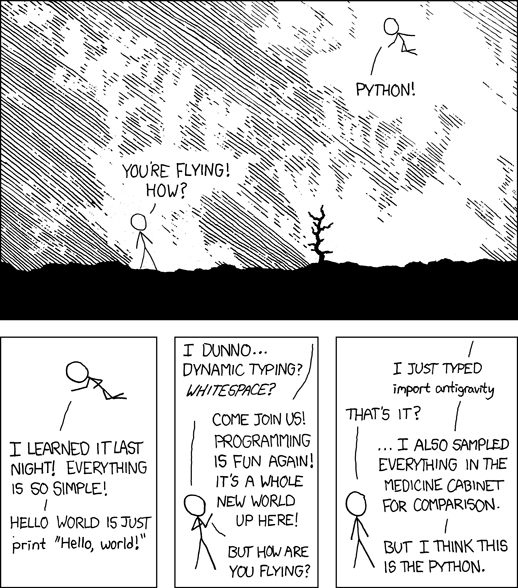](https://xkcd.com/353/)
30 |
31 | Here are some facts about Python:
32 |
33 | - Simple, elegant, and fun to learn and use
34 | - Open source (not only [free as in beer but also free as in speech](https://en.wikipedia.org/wiki/Gratis_versus_libre))
35 | - Cross-platform (Python runs on Windows, macOS, and Linux)
36 | - General-purpose programming language, meaning that Python is not specifically designed to be extremely good in one particular area such as statistics – it can be used for many different applications including data science, web servers, graphical user interfaces, programming the [Raspberry Pi](https://www.raspberrypi.org/), ...
37 | - Batteries included approach (the [standard library](https://docs.python.org/3/library/) shipping with Python contains many useful things ready for use)
38 | - Huge number of [third-party packages](https://pypi.org/) that implement even more useful things
39 | - Large and friendly community
40 |
41 | Python was first released by [Guido van Rossum](https://en.wikipedia.org/wiki/Guido_van_Rossum) way back in 1991, and its popularity has skyrocketed in the past years. While there are many ways to measure the popularity of a programming language, Python has consistently ranked among the top languages for years (for example according to [PYPL](https://pypl.github.io/PYPL.html), the [TIOBE index](https://www.tiobe.com/tiobe-index/), and the [IEEE Spectrum Top Programming Languages](https://spectrum.ieee.org/top-programming-languages-2024)). Also, one of the results of the [Stack Overflow Developer Survey 2024](https://survey.stackoverflow.co/2024/) is that Python is among the [most popular technologies](https://survey.stackoverflow.co/2024/technology/#most-popular-technologies) as well as highly [admired and desired](https://survey.stackoverflow.co/2024/technology/#admired-and-desired).
42 |
43 | So far, we have only talked about Python without seeing what the language actually looks like. Here's a sneak peak at what you will be able to understand after completing this course (gray boxes contain Python code, whereas the result of a line of code is shown directly below it):
44 |
45 | ```{python}
46 | print("Hello World!")
47 | ```
48 |
49 | ```{python}
50 | "only lower case letters".upper()
51 | ```
52 |
53 | ```{python}
54 | for i in range(10):
55 | print(i, end=", ")
56 | ```
57 |
58 | ```{python}
59 | [k**2 for k in range(0, 100, 10)]
60 | ```
61 |
62 | In summary, Python is extremely popular and fun to use, so in the next section we're going to discuss how to install it on our computer.
63 |
64 |
65 | ## Installation
66 |
67 | The [official Python website](https://www.python.org/) is a great resource for everything related to Python. The [download](https://www.python.org/downloads/) section contains installers for many platforms, including Windows and macOS. If you are on Linux, I recommend that you use your package manager (such as `apt`, `yum`, or `pacman`) to install Python (in most cases, Python will already be installed anyway).
68 |
69 | On Windows, make sure to check the option *"Add python.exe to PATH"*. I strongly recommend to use the default values for all other settings.
70 |
71 | 
72 |
73 | On macOS, run both "Install Certificates" and "Update Shell Profile" commands available in the application folder after the installation is complete:
74 |
75 | 
76 |
77 |
78 | ## First steps
79 |
80 | After installing Python, it is instructive to enter some simple Python commands and see what happens. The program which understands and interprets Python commands is called the *Python interpreter*. It can be invoked in various ways, but one of the easiest options is to run it from the command line (or terminal), a powerful text-based interface provided by your operating system.
81 |
82 | - On Windows, you should see a start menu entry inside the Python folder named "Python 3.12 (64-bit)" (or similar). Alternatively, you can launch Python from a regular command prompt by starting the "Terminal" app and typing `python` followed by Enter.
83 | - On macOS, start the "Terminal" app and type `python3` (followed by Enter).
84 | - On Linux, start your favorite terminal app and type `python` (followed by Enter).
85 |
86 | :::{.callout-important}
87 | The Python interpreter executable is called `python` on Windows and Linux, but `python3` on macOS. If you use macOS, remember to always use `python3` to start the Python interpreter.
88 | :::
89 |
90 | A simple (black or white) text window will open – this is the so-called *interactive* Python interpreter. You can enter commands, and Python will happily try to execute what you just typed (the interactive interpreter is also called the [REPL](https://en.wikipedia.org/wiki/Read%E2%80%93eval%E2%80%93print_loop), short for read-eval-print loop).
91 |
92 | The interactive Python interpreter includes a *prompt*, which is typically the character sequence `>>>`. This prompt indicates that Python is ready to receive user input. You can type a Python command and hit Enter to evaluate it. Python will immediately show the result of this command (if any) on the next line.
93 |
94 | :::{.callout-note}
95 | Throughout the course material, we show Python code in gray boxes and never include the prompt `>>>`.
96 | :::
97 |
98 | Let's try to use Python as a calculator. Python supports the four basic arithmetic operations (addition, subtraction, multiplication, and division):
99 |
100 | ```{python}
101 | 1 + 1
102 | ```
103 |
104 | ```{python}
105 | 10 - 7
106 | ```
107 |
108 | ```{python}
109 | 7 * 8
110 | ```
111 |
112 | ```{python}
113 | 120 / 7
114 | ```
115 |
116 | In addition, Python can also compute the result of integer division and its remainder:
117 |
118 | ```{python}
119 | 120 // 7
120 | ```
121 |
122 | ```{python}
123 | 120 % 7
124 | ```
125 |
126 | Exponentiation (raising one number to the power of another) uses the `**` operator:
127 |
128 | ```{python}
129 | 2**64
130 | ```
131 |
132 | Finally, Python knows the correct order of operations and is able to deal with parentheses ([PEMDAS](https://en.wikipedia.org/wiki/Order_of_operations#Mnemonics)):
133 |
134 | ```{python}
135 | (13 + 6) * 8 - 12 / (2.5 + 1.6)
136 | ```
137 |
138 | Note that Python accepts only regular parentheses (and not square or curly brackets) to group expressions:
139 |
140 | ```{python}
141 | ((13 + 6) * 8) / (12 / (2.5 + 1.6))
142 | ```
143 |
144 | :::{.callout-important}
145 | Python uses a *dot* as the decimal separator and not a comma (as is common in German-speaking regions).
146 | :::
147 |
148 | For more advanced calculations such as square roots, logarithms, or trigonometric functions, we need to import (activate) the [`math`](https://docs.python.org/3/library/math.html) module to use the various functions it provides:
149 |
150 | ```{python}
151 | import math
152 | ```
153 |
154 | After that, we can compute the square root of 2 as follows:
155 |
156 | ```{python}
157 | math.sqrt(2)
158 | ```
159 |
160 | Mathematical constants such as Euler's number *e* (`math.e`) and $\pi$ (`math.pi`) are also available:
161 |
162 | ```{python}
163 | 1 + math.sqrt(math.e) * 7 - 2 * math.pi * 1.222
164 | ```
165 |
166 |
167 | ## Exercises
168 |
169 | 1. Install Python and start the interactive interpreter. Which Python version do you use and how can you find out?
170 |
171 | 2. What happens if you type `import antigravity` and `import this` in the Python interpreter?
172 |
173 | 3. Compute the result of the division $4 / 0.4$. In addition, compute the integer result and the remainder.
174 |
175 | 4. Assume you measured the following values: 11, 27, 15, 10, 33, 18, 25, 22, 39, and 11. Calculate the arithmetic mean in a single line of code.
176 |
177 | 5. Evaluate the following mathematical expression in a single line of code (don't forget to `import math` for the square root and $\pi$):
178 |
179 | $$\frac{(5^5 - \pi) \cdot \frac{19}{3}}{\sqrt{13} + 7^{\frac{2}{3}}}$$
180 |
181 | ---
182 |  This document is licensed under the [CC BY-NC-SA 4.0](https://creativecommons.org/licenses/by-nc-sa/4.0/) by [Clemens Brunner](https://cbrnr.github.io/).
183 |
--------------------------------------------------------------------------------
/06/06.qmd:
--------------------------------------------------------------------------------
1 | ---
2 | title: "6 – Loops"
3 | subtitle: "Introduction to Python"
4 | author: "Clemens Brunner"
5 | date: 2025-02-05
6 | format:
7 | html:
8 | page-layout: full
9 | engine: jupyter
10 | highlight-style: github
11 | title-block-banner: true
12 | theme:
13 | light: flatly
14 | dark: darkly
15 | cap-location: margin
16 | ---
17 |
18 | ## Introduction
19 |
20 | It is often necessary to repeat statements a certain (or undefined) number of times. For example, let's assume that we wanted to print "Hello!" five times. Rather naively, we could write this simply as:
21 |
22 | ```{python}
23 | print("Hello")
24 | print("Hello")
25 | print("Hello")
26 | print("Hello")
27 | print("Hello")
28 | ```
29 |
30 | Although this does the job, it is really cumbersome to repeat the same line of code multiple times. Furthermore, imagine we made a mistake and we really wanted to print "Bye" instead of "Hello" – we'd have to change our code in five different locations!
31 |
32 |
33 | ## `for`-loops
34 |
35 | Python supports two types of loops (`for`-loops and `while`-loops), which enable us to perform repeated actions. Like functions and conditions, loops control the program flow. Our previous example could be rewritten as follows:
36 |
37 | ```{python}
38 | for i in range(5):
39 | print("Hello")
40 | ```
41 |
42 | This is obviously much shorter than writing out each repetition manually (even more so if the loop involves more iterations). Furthermore, if we want to make changes, we only need to do it once inside the body of the loop.
43 |
44 | Let's analyze the structure of a `for`-loop in Python. The first part should look familiar: just like functions and conditions, `for`-loops start with a header. This time, the header is introduced with the `for` keyword. Next, the loop header defines a name (`i` in our case), which will get individual values of a sequence-like object, which is specified last (`range(5)` in the example). In each iteration of the loop, `i` gets the current value of the sequence we are iterating over. A colon concludes the loop header.
45 |
46 | The indented part after the header forms the body of the loop. This code block is what is actually repeated (in our example, `print("Hello")` is repeatedly called five times).
47 |
48 | :::{.callout-note}
49 | Since we are not using the value of `i` in the loop body, it is common to use the name `_` instead. Note that this is just a convention, there is nothing special about the name `_` at all.
50 | :::
51 |
52 | We can further inspect what's going on by printing `i` inside the loop:
53 |
54 | ```{python}
55 | for i in range(5):
56 | print(i)
57 | ```
58 |
59 | :::{.callout-tip}
60 | Note that `i` remains available after the loop – its value will be `4`, because this was the most recent assignment in the last iteration of the loop.
61 | :::
62 |
63 | Alright, so `range(5)` produces a sequence of five numbers, starting at 0 and ending with 4. The loop iterates over all elements of this sequence until it is exhausted, after which the loop stops. In each iteration of the loop, `i` contains the i-th element of the sequence, and this particular value is used when running the body of the loop.
64 |
65 | :::{.callout-note}
66 | Actually, `range` can also be called with two arguments, which are then interpreted as start and stop values of the created range. However, the stop value does not belong to the sequence anymore (this is because the difference between stop and start is supposed to equal the number of elements):
67 |
68 | ```{python}
69 | list(range(2, 8)) # 8 - 2 = 6 values (from 2 to 7)
70 | ```
71 |
72 | Note that we have to use `list` in order to see all the elements that `range` creates at once (more on lists soon).
73 |
74 | If called with a third argument, `range` interprets this argument as a step size:
75 |
76 | ```{python}
77 | list(range(2, 8, 2)) # values from 2 to 7, but only every second value
78 | ```
79 | :::
80 |
81 | A loop can iterate not only over `range`, but over *any sequence-like* object (a data type that can contain more than one item). We will learn more about three widely-used container types (strings, lists, and dictionaries) in the next chapters.
82 |
83 | Here's a short preview of what a loop can do. First, we can iterate over a string:
84 |
85 | ```{python}
86 | for s in "Hello World!":
87 | print(s)
88 | ```
89 |
90 | Here, `s` gets all characters of the string `"Hello World!"` sequentially as the loop iterates. That is, in the first iteration, `s` contains the character `"H"`, in the second `"e"`, and so on. The `print` function is called in each iteration with the current character `s` as its argument (it automatically inserts a newline at the end, though this can be changed with the `end` parameter).
91 |
92 | A list is another popular sequence-like data type that can contain elements of arbitrary types (more on this later). We can iterate over a list like this:
93 |
94 | ```{python}
95 | a = ["Hello", "world!", "I", "love", "Python!"]
96 |
97 | for element in a:
98 | print(element)
99 | ```
100 |
101 |
102 | ### Breaking and continuing loops
103 |
104 | Python lets us preemptively break out of a loop or jump to the next iteration from anywhere in the loop body using the `break` and `continue` keywords, respectively.
105 |
106 | Sometimes, we want to stop a loop early, like in the following example that demonstrates how to search for a character within a given string:
107 |
108 | ```{python}
109 | i = 0 # current position (index)
110 |
111 | for c in "Hide and seek":
112 | if c == "e": # we're searching for the first "e"
113 | break
114 | i += 1 # increment i by 1
115 |
116 | print(i)
117 | ```
118 |
119 | This example searches for the first occurrence of the character `"e"` within the string `"Hide and seek"`. If it finds it, the name `i` contains the position (index) of this character within the string (`3` in this example, because we initialize `i` with zero). Notice that once we have found the character (`c == "e"`), we immediately break out of the loop (which means Python immediately jumps to the end of the loop, which is the `print(i)` function call). As we will see soon, `break` is especially useful in `while`-loops.
120 |
121 | :::{.callout-note}
122 | The statement `i += 1` is shorthand for `i = i + 1` (increment `i` by one).
123 | :::
124 |
125 | The next example demonstrates the use of the `continue` statement, which causes Python to immediately jump back to the loop header and begin the next iteration.
126 |
127 | ```{python}
128 | for num in range(2, 10):
129 | if num % 2 == 0:
130 | print("Found an even number", num)
131 | continue
132 | print("Found an odd number", num)
133 | ```
134 |
135 | Of course, we could have used an `else` branch here, but the goal was to show an example for the `continue` statement.
136 |
137 |
138 | ## `while`-loops
139 |
140 | In addition to `for`-loops, Python also supports `while`-loops. In general, both loop types can be used interchangeably, but `while`-loops are especially useful when we need a loop that never stops (an infinite loop), or in cases where we don't know in advance how many iterations we are going to perform.
141 |
142 | Here's our first `for`-loop example transformed to a `while`-loop:
143 |
144 | ```python
145 | i = 0
146 |
147 | while i < 5:
148 | print(i)
149 | i += 1
150 | ```
151 |
152 | In this case, we would prefer the `for`-loop, because it requires us to write only two lines of code as opposed to four lines for the `while`-loop.
153 |
154 | However, `while`-loops are useful if we don't know the number of iterations in advance, which is often the case when user input is involved. Consider the following example, which prompts the user to input a character and runs until the input equals `"q"`:
155 |
156 | ```python
157 | while True:
158 | line = input("> (enter 'q' to quit) ")
159 | if line == "q":
160 | break
161 | ```
162 |
163 | The `while`-loop makes this use case quite natural. Apparently, `while True` is *always* `True`, so the loop will go on forever. However, notice that there is a `break` statement inside the loop body, which will exit the loop immediately. This will only happen if the user input (stored in `line`) equals `"q"`.
164 |
165 | Here's another fun little example which involves a (potentially) infinite `while`-loop. It also contains a condition with `if`, `elif`, and `else` blocks. The task of the user is to guess the value of `number` (which is 23 in this case, but we assume that the user doesn't know this value). If the guess is correct, we `break` out of the loop and the program is done. If the user's guess is incorrect, we give a hint and go to the next iteration.
166 |
167 | ```python
168 | number = 23
169 |
170 | while True:
171 | guess = int(input("Enter an integer: ")) # int converts the input to a number
172 | if guess == number:
173 | print("Congratulations, you guessed it.")
174 | break
175 | elif guess < number:
176 | print("No, it is a little higher than that.")
177 | else:
178 | print("No, it is a little lower than that.")
179 | ```
180 |
181 |
182 | ## Exercises
183 |
184 | 1. Modify the number guessing game by reporting the number of guesses it took a user to guess the correct number!
185 |
186 | 2. Iterate over the list `lst = ["I", "love", "Python"]` and in each iteration, `print` the current list element on the screen.
187 |
188 | 3. Iterate over the list `lst = ["I", "love", "Python"]` and in each iteration, use a second loop to iterate over the current string and `print` each character on the screen followed by a `-`. Use the `end="-"` argument in `print` to get the desired output, which should look like this: `I-l-o-v-e-P-y-t-h-o-n-`.
189 |
190 | 4. Iterate over the list `[1, 13, 25, -11, 17, 24, 9, -1, 2, 3]` until you encounter the first even number. Once you find this number, break out of the loop and print the number on the screen. Since we have not learned about lists yet, use a for-loop to solve this problem (we could also use a while-loop, but we need to know more about lists before we can do so).
191 |
192 | ---
193 |  This document is licensed under the [CC BY-NC-SA 4.0](https://creativecommons.org/licenses/by-nc-sa/4.0/) by [Clemens Brunner](https://cbrnr.github.io/).
194 |
--------------------------------------------------------------------------------
/05/05.qmd:
--------------------------------------------------------------------------------
1 | ---
2 | title: "5 – Conditions"
3 | subtitle: "Introduction to Python"
4 | author: "Clemens Brunner"
5 | date: 2025-02-05
6 | format:
7 | html:
8 | page-layout: full
9 | engine: jupyter
10 | highlight-style: github
11 | title-block-banner: true
12 | theme:
13 | light: flatly
14 | dark: darkly
15 | cap-location: margin
16 | ---
17 |
18 | ## Introduction
19 |
20 | As our programs become more complex, we will often need to run a block of code only if a specific condition is met. For example, we might want to output a message only if a certain number is less than some specified value. This is where conditions come in handy – they allow us to run code only if a condition is fulfilled. Conditions are another important building block of almost any real-world program. Just like functions, conditions allow us to control the flow of execution.
21 |
22 |
23 | ## Comparisons
24 |
25 | A condition is based on a comparison. A comparison is an expression, which means that it has a value. Because a condition can only be either true or false, Python has a special data type `bool` exactly for this purpose. Therefore, a `bool` can either be `True` or `False` (notice the capitalization of the first letters):
26 |
27 | ```{python}
28 | x = True
29 | type(x)
30 | ```
31 |
32 | ```{python}
33 | y = False
34 | type(y)
35 | ```
36 |
37 |
38 | ### Comparison operators
39 |
40 | Python has the following binary comparison operators:
41 |
42 | - Equality `==`
43 | - Inequality `!=`
44 | - Less than `<`
45 | - Greater than `>`
46 | - Less than or equal to `<=`
47 | - Greater than or equal to `>=`
48 |
49 | Here are some examples:
50 |
51 | ```{python}
52 | x = 2
53 | x == 2
54 | ```
55 |
56 | :::{.callout-tip}
57 | Mixing up the equality operator `==` with the assignment operator `=` is a common mistake, so make sure to use the correct operator in your code!
58 | :::
59 |
60 | ```{python}
61 | x != 2
62 | ```
63 |
64 | ```{python}
65 | x > 2
66 | ```
67 |
68 | ```{python}
69 | x < 10
70 | ```
71 |
72 | We can combine two or more comparisons using the `and` and `or` keywords:
73 |
74 | ```{python}
75 | x > 0 and x < 10
76 | ```
77 |
78 | ```{python}
79 | x == -2 or x == 2
80 | ```
81 |
82 | ```{python}
83 | x > 5 or x < 10 and x > 8
84 | ```
85 |
86 | :::{.callout-tip}
87 | Python has a shortcut for checking if a number is within a certain range. Instead of writing:
88 |
89 | ```{python}
90 | x > 0 and x < 10
91 | ```
92 |
93 | We can write:
94 |
95 | ```{python}
96 | 0 < x < 10
97 | ```
98 | :::
99 |
100 | The `not` keyword inverts a boolean expression:
101 |
102 | ```{python}
103 | not True
104 | ```
105 |
106 | ```{python}
107 | not False
108 | ```
109 |
110 | ```{python}
111 | not 0 < x < 10
112 | ```
113 |
114 | We can always use parentheses to change precedence or improve readability:
115 |
116 | ```{python}
117 | not (0 < x < 10)
118 | ```
119 |
120 | ```{python}
121 | (x < 0) or (x >= 2)
122 | ```
123 |
124 | :::{.callout-note}
125 | Python also has an exclusive or (XOR) operator `^`, which returns `True` if exactly one of the two operands is `True`:
126 |
127 | ```{python}
128 | True ^ False
129 | ```
130 |
131 | ```{python}
132 | True ^ True
133 | ```
134 | :::
135 |
136 |
137 | ### Comparing floating point numbers
138 |
139 | Python distinguishes between integer numbers (`int`) and floating point numbers (`float`). These two types represent numbers differently. Most noteably, `int` numbers have *exact* internal representations, whereas `float` numbers can only be stored with *limited precision*. This can lead to subtle issues, especially when comparing two floating point numbers for equality:
140 |
141 | ```{python}
142 | 0.1 + 0.1 + 0.1 == 0.3
143 | ```
144 |
145 | A common solution is to allow a certain amount of "wiggle space" in the comparison:
146 |
147 | ```{python}
148 | (0.1 + 0.1 + 0.1) - 0.3 < 1e-15
149 | ```
150 |
151 | The `math` module has a function called `isclose`, which can be used exactly for this purpose:
152 |
153 | ```{python}
154 | import math
155 | math.isclose(0.1 + 0.1 + 0.1, 0.3)
156 | ```
157 |
158 | :::{.callout-tip}
159 | Python supports expressing decimal numbers using [scientific notation](https://en.wikipedia.org/wiki/Scientific_notation) with powers of ten. It uses the symbol `e`, which can be read as "times ten to the power of". The following examples illustrate this concept:
160 |
161 | ```{python}
162 | 1e0 # 1 times 10 to the power of 0
163 | ```
164 |
165 | ```{python}
166 | -4e0 # -4 times 10 to the power of 0
167 | ```
168 |
169 | ```{python}
170 | 1e1 # 1 times 10 to the power of 1
171 | ```
172 |
173 | ```{python}
174 | 3.5e2 # 3.5 times 10 to the power of 2
175 | ```
176 |
177 | ```{python}
178 | 1e-2 # 1 times 10 to the power of -2
179 | ```
180 |
181 | ```{python}
182 | 1e-15 # 1 times 10 to the power of -15 = 0.000000000000001
183 | ```
184 |
185 | Note that the result is always a regular `float` number.
186 | :::
187 |
188 |
189 | ## Conditions
190 |
191 | We are now ready to discuss conditions. A condition checks whether a specific comparison (boolean expression) is `True` or `False`. Python runs an associated block of code only if the result is `True`.
192 |
193 | Here's the structure of a condition in pseudo-code:
194 |
195 | ```
196 | if :
197 |
198 | ...
199 | ...
200 | elif : # optional
201 |
202 | ...
203 | elif : # optional
204 |
205 | ...
206 | ...
207 | else: # optional
208 |
209 | ```
210 |
211 | The indented lines of code belonging to a specific condition are only executed if the corresponding condition is `True`. We can test several conditions sequentially by using `elif` statements after the initial `if` statement. If no condition is `True`, Python runs the code in the `else` block.
212 |
213 | Importantly, Python only executes the *first* block of code where the condition returns `True`. If this happens, all other `elif` and `else` blocks are skipped.
214 |
215 |
216 | ### Example 1
217 |
218 | Let's work through some examples. Here's a simple condition consisting of only one `if` statement:
219 |
220 | ```{python}
221 | a = 2
222 |
223 | if a > 0:
224 | print("a is a positive number")
225 | print("this is good to know")
226 | ```
227 |
228 | If we run these lines, Python will execute the indented lines of code, because `a` is in fact greater than zero. Since the condition `a > 0` is `True`, we get the two lines of output.
229 |
230 | If we take the same `if` block, but set `a = 0` before, we do not get any output, because Python does not run the two lines (the condition `a > 0` is `False`):
231 |
232 | ```{python}
233 | a = 0
234 |
235 | if a > 0:
236 | print("a is a positive number")
237 | print("this is good to know")
238 | ```
239 |
240 |
241 | ### Example 2
242 |
243 | We can add an optional `else` branch, which Python runs if none of the previous conditions evaluated to `True`:
244 |
245 | ```{python}
246 | a = 0
247 |
248 | if a > 0:
249 | print("a is a positive number")
250 | print("this is good to know")
251 | else:
252 | print("a is either 0 or a negative number")
253 | ```
254 |
255 | Now because `a > 0` is `False`, Python will run the code associated with the `else` branch.
256 |
257 |
258 | ### Example 3
259 |
260 | Also optionally, we can add (an arbitrary number of) `elif` branches, for example:
261 |
262 | ```{python}
263 | a = -5
264 |
265 | if a > 0:
266 | print("a is a positive number")
267 | print("this is good to know")
268 | elif a < 0:
269 | print("a is a negative number")
270 | else:
271 | print("a is 0")
272 | ```
273 |
274 |
275 | ### Example 4
276 |
277 | Due to the fact that Python only runs the code associated with the *first* condition yielding `True`, the *order* of conditions is important. Consider the following two examples containing identical conditions, but in a different order:
278 |
279 | ```{python}
280 | a = 4
281 |
282 | if a > 5:
283 | print("One")
284 | elif a < 10:
285 | print("Two")
286 | elif a == 4:
287 | print("Three")
288 | else:
289 | print("Four")
290 | ```
291 |
292 | Now we swap the order of the two `elif` branches:
293 |
294 | ```python
295 | a = 4
296 |
297 | if a > 5:
298 | print("One")
299 | elif a == 4:
300 | print("Three")
301 | elif a < 10:
302 | print("Two")
303 | else:
304 | print("Four")
305 | ```
306 |
307 | This example demonstrates that the order of branches is important.
308 |
309 |
310 | ### Example 5
311 |
312 | We haven't really talked about data types other than numeric ones yet, but Python can also compare non-numeric types such as strings:
313 |
314 | ```{python}
315 | p = "Python"
316 | r = "R"
317 | p == r
318 | ```
319 |
320 | ```{python}
321 | p > r
322 | ```
323 |
324 | ```{python}
325 | p < r
326 | ```
327 |
328 | Therefore, we can use such comparisons in a condition:
329 |
330 | ```{python}
331 | if p != r:
332 | print("Python and R are different, but both are pretty cool!")
333 | ```
334 |
335 |
336 | ## Exercises
337 |
338 | 1. Write the following program:
339 | - First, ask the user to type in two numbers `x` and `y`. You can use the `input` function to get user input. Note that `input` always returns a `str`, but you can use the `int` function to convert a number contained in a `str` to `int`!
340 | - Once you have both numbers `x` and `y`, check if their sum is greater than 50.
341 | - If the sum is greater than 50, print "Greater than 50!".
342 | - If the sum is less than 50, print "Less than 50!".
343 | - If the sum is exactly 50, print "50!".
344 |
345 | 2. Write a function `is_odd`, which has one parameter `x` and returns `True` if `x` is odd. If `x` is even, the function returns `False`. Note that you can check if a number is odd if dividing this number by 2 has a remainder of 1 (for even numbers, the remainder is 0). Use the `%` operator to compute the remainder!
346 |
347 | 3. Convert the following nested conditions into one block with `if`/`elif`/`else` branches:
348 | ```python
349 | if x > 0:
350 | print("x is positive")
351 | else:
352 | if x < 0:
353 | print("x is negative")
354 | else:
355 | print("x is equal to 0")
356 | ```
357 |
358 | ---
359 |  This document is licensed under the [CC BY-NC-SA 4.0](https://creativecommons.org/licenses/by-nc-sa/4.0/) by [Clemens Brunner](https://cbrnr.github.io/).
360 |
--------------------------------------------------------------------------------
/03/03.qmd:
--------------------------------------------------------------------------------
1 | ---
2 | title: "3 – Names, Expressions, and Statements"
3 | subtitle: "Introduction to Python"
4 | author: "Clemens Brunner"
5 | date: 2025-02-05
6 | format:
7 | html:
8 | page-layout: full
9 | engine: jupyter
10 | highlight-style: github
11 | title-block-banner: true
12 | theme:
13 | light: flatly
14 | dark: darkly
15 | cap-location: margin
16 | ---
17 |
18 | ## Objects, values, and types
19 |
20 | Everything in Python is an *object*. An object is an entity which has a value, a type, and a unique identifier. For example, the number `1` we used in our arithmetic calculations is actually an object. It has the value `1` and the type `int` (which means integer number). Here are a few additional examples of objects:
21 |
22 | ```{python}
23 | 1
24 | ```
25 |
26 | ```{python}
27 | 2.15
28 | ```
29 |
30 | ```{python}
31 | "Hello world!"
32 | ```
33 |
34 | ```{python}
35 | '3'
36 | ```
37 |
38 | As we already know, Python outputs the *value* of the last command automatically in the REPL (the interactive interpreter). That's why we know the value of the `1` object is `1`, and the value of the `"Hello world!"` object is `'Hello world!'` (never mind the different quotes for now, we'll discuss these so-called strings in a later chapter).
39 |
40 | To find out the type of a given object, we can use the built-in `type` function as follows:
41 |
42 | ```{python}
43 | type(1)
44 | ```
45 |
46 | ```{python}
47 | type(2.15)
48 | ```
49 |
50 | ```{python}
51 | type("Hello world!")
52 | ```
53 |
54 | ```{python}
55 | type('3')
56 | ```
57 |
58 | Apparently, integer numbers are of type `int` (integer number), decimal numbers are `float` (floating point number), and character strings enclosed by single or double quotes are `str` (string) objects.
59 |
60 | Conceptually, we can think of an object as an entity of a specific type with a specific value living in the computer's memory:
61 |
62 | 
63 |
64 | Each object also has a unique identifier. We can use the `id` function to find out:
65 |
66 | ```{python}
67 | id(3)
68 | ```
69 |
70 | ```{python}
71 | id(4)
72 | ```
73 |
74 | The actual identifier numbers are irrelevant (and probably different on your computer). The only thing that's interesting about these identifiers is whether or not they are identical. In the previous example, the object `3` has a different identifier than the object `4`, so we know that these are two different objects.
75 |
76 |
77 | ## Names
78 |
79 | Objects can have names (in other programming languages, names are often called variables). We can assign a name to an object with the assignment operator `=` as follows:
80 |
81 | ```{python}
82 | a = 1
83 | ```
84 |
85 | This attaches the name `a` to the object `1` (of type `int`). We can visualize names as tags or labels attached to an object.
86 |
87 | 
88 |
89 | Python lets us reassign an existing name to a different object. Notice how the object on the left does not have a name anymore after we re-assign `a`:
90 |
91 | ```{python}
92 | a = 2.4
93 | ```
94 |
95 | 
96 |
97 | An object can also have more than one name attached to it:
98 |
99 | ```{python}
100 | b = a
101 | ```
102 |
103 | 
104 |
105 | We can confirm that `a` and `b` point to the same object by inspecting their corresponding identifiers:
106 |
107 | ```{python}
108 | id(a)
109 | ```
110 |
111 | ```{python}
112 | id(b)
113 | ```
114 |
115 | Indeed, they are identical, so there is just one object with two names. If we want to check if two names are attached to one and the same object, we can also use the `is` keyword as a shortcut:
116 |
117 | ```{python}
118 | a is b
119 | ```
120 |
121 | The type of a name corresponds to the type of the object the name is attached to:
122 |
123 | ```{python}
124 | type(a)
125 | ```
126 |
127 | ```{python}
128 | type(b)
129 | ```
130 |
131 | Whenever Python works with a name, it always replaces it with the value of the corresponding object. Furthermore, Python always evaluates the right-hand side of an assignment first before assigning the name. Consider the following example:
132 |
133 | ```{python}
134 | x = 11
135 | 9 + x # x is evaluated to 11, then 9 + 11 is evaluated to 20
136 | ```
137 |
138 | After this line, `x` still has the value `11`:
139 |
140 | ```{python}
141 | x
142 | ```
143 |
144 | We now reassign the name `x` to a different object `2`:
145 |
146 | ```{python}
147 | x = 2
148 | 2 * x # x is evaluated to 2, then 2 * 2 is evaluated to 4
149 | ```
150 |
151 | After this line, `x` has the value `2`. However, we can reassign `x` again and even use the old value of `x` in the right-hand side of the assignment:
152 |
153 | ```{python}
154 | x = 2 * x # first evaluate the right-hand side to 2 * 2 = 4, then assign x = 4
155 | x
156 | ```
157 |
158 |
159 | ## Choosing names
160 |
161 | ### Basic rules
162 |
163 | Valid names can contain letters (lower and upper case), digits, and underscores (but a name cannot start with a digit). [PEP8](https://www.python.org/dev/peps/pep-0008/#naming-conventions) lists recommendations for choosing good names – we only need to remember one rule for now: almost all names should be lowercase, and if necessary can also contain underscores, such as `lower_case_with_underscores`.
164 |
165 | Names should convey meaning, so instead of a generic `x` or `i`, we should try to find a name that tells us something about its intended use. Also, it is good practice to use English (and not e.g. German) names, because you never know who will read your code in the future.
166 |
167 | Here are a few examples for naming an object which represents the number of students in a school class:
168 |
169 | ```{python}
170 | number_of_students_in_class = 23 # too long
171 | NumberOfStudents = 23 # wrong style, not separated with underscores
172 | n_students = 23 # pretty nice
173 | n = 23 # probably too short (but may be OK sometimes)
174 | ```
175 |
176 |
177 | ### Keywords
178 |
179 | Python defines several reserved keywords that are a core part of the language. They *cannot* be used to name objects, so it is important to know what they are. The following code snippet produces a list of all keywords:
180 |
181 | ```{python}
182 | import keyword
183 | keyword.kwlist
184 | ```
185 |
186 | For example, this means that you cannot use the name `lambda`. If you do, Python will generate an error:
187 |
188 | ```{python}
189 | #| error: true
190 | lambda = 7
191 | ```
192 |
193 |
194 | ### Built-in functions
195 |
196 | Python also has a number of [built-in functions](https://docs.python.org/3/library/functions.html) that are always available (without importing). Although it is possible to assign the names of these built-in functions to other objects, it is considered bad practice, because it might lead to subtle bugs. The following code generates a list of all built-ins:
197 |
198 | ```python
199 | dir(__builtins__)
200 | ```
201 |
202 | :::{.callout-tip}
203 | If you really want to use a name that is already taken by a built-in function, it is better to change the name slightly by appending an underscore. For example, instead of using `lambda`, you could use `lambda_`.
204 | :::
205 |
206 |
207 | ## Operators
208 |
209 | In general, operators work with objects. We have already used several (arithmetic) operators such as `+`, `-`, `*`, `/`, `**`, `//`, and `%`. Some operators are *binary* and require *two* operands (for example, the multiplication `2 * 3`), whereas other operators are *unary* and require only *one* operand (for example, the negation `-5`).
210 |
211 |
212 | ## Expressions
213 |
214 | An *expression* is any combination of values, names, and operators. Importantly, an expression *always evaluates to a single value* (or short, an expression *has* a value). Here are a few examples for expressions (remember that their values are automatically printed in the REPL):
215 |
216 | ```{python}
217 | 17 # just one value
218 | ```
219 |
220 | ```{python}
221 | 23 + 4**2 - 2 # four values and three operators
222 | ```
223 |
224 | ```{python}
225 | n = 25 # an assignment is not an expression!
226 | ```
227 |
228 | ```{python}
229 | n # one name (evaluates to its value)
230 | ```
231 |
232 | ```{python}
233 | n + 5 # a name, an operator, and a value
234 | ```
235 |
236 | Python reduces an expression to a *single value*. A more complex expression is evaluated step by step according to operator precedence rules (think [PEMDAS](https://en.wikipedia.org/wiki/Order_of_operations#Mnemonics)) from left to right. As we've already discussed, Python evaluates the right-hand side of an assignment first before assigning a name.
237 |
238 |
239 | ## Statements
240 |
241 | A statement is a unit of code which Python can run. This is a rather broad definition, and statements therefore include expressions as a special case (in other words, an expression is a statement with a value). However, there are also statements that do *not* have a value, such as an assignment. Here are two examples for statements that are not expressions:
242 |
243 | ```{python}
244 | x = 13
245 | print("Hello world!")
246 | ```
247 |
248 | Note that although the `print` statement generates output, this output is not its value (try assigning a name to the function call)!
249 |
250 |
251 | ## Exercises
252 |
253 | 1. Determine if the following names are valid, and if they are, decide if they comply with PEP8 conventions. Describe whether each name is a good name for an object containing a string or an integer number.
254 | - `2x`
255 | - `_`
256 | - `x23`
257 | - `_name`
258 | - `alpha`
259 | - `lambda`
260 | - `Name`
261 | - `X2`
262 | - `sum`
263 | - `test-case`
264 |
265 | 2. Consider these three assignments:
266 | ```python
267 | width = 17
268 | height = 12
269 | delimiter = "."
270 | ```
271 | Determine both the value and type of the following expressions:
272 | - `width / 2`
273 | - `height / 3`
274 | - `height * 3`
275 | - `height * 3.0`
276 | - `delimiter * 5`
277 | - `2 * (width + height) + 1.5`
278 | - `12 + 3`
279 | - `"12 + 3"`
280 |
281 | 3. Calculate the area and volume of a sphere with radius $r = 5$. Use the names `r`, `area`, and `volume` to compute these quantities. The number $\pi$ is available as `math.pi` after running `import math`.
282 |
283 | 4. What is the type of the value `True`? What is the type of the value `'True'`? What is the type of `math` (which you imported in the previous exercise)?
284 |
285 | ---
286 |  This document is licensed under the [CC BY-NC-SA 4.0](https://creativecommons.org/licenses/by-nc-sa/4.0/) by [Clemens Brunner](https://cbrnr.github.io/).
287 |
--------------------------------------------------------------------------------
/10/10.qmd:
--------------------------------------------------------------------------------
1 | ---
2 | title: "10 – Modules and Packages"
3 | subtitle: "Introduction to Python"
4 | author: "Clemens Brunner"
5 | date: 2025-02-05
6 | format:
7 | html:
8 | page-layout: full
9 | engine: jupyter
10 | highlight-style: github
11 | title-block-banner: true
12 | theme:
13 | light: flatly
14 | dark: darkly
15 | cap-location: margin
16 | ---
17 |
18 | ## Introduction
19 |
20 | The core Python programming language can be extended with modules and packages. The [standard library](https://docs.python.org/3/library/index.html), which ships with every Python installation, is a collection of numerous modules for various purposes. In addition, there are thousands of third-party packages available on [PyPI](https://pypi.org/), which can be installed with the `pip` package manager.
21 |
22 | A *module* is a Python script that we can import in order to use whatever is defined in it. A *package* organizes a collection of modules. We will see examples for both modules and packages later in this chapter.
23 |
24 |
25 | ## Importing modules
26 |
27 | We have already used functions from the `math` module (which is part of the standard library). Before using functions defined in a module, we have to import either the entire module or only specific functions from the module. By convention, we import modules at the top of a script.
28 |
29 | Here's an example where we import the entire `math` module and then use some of its names and functions:
30 |
31 | ```{python}
32 | import math
33 | math.pi
34 | ```
35 |
36 | ```{python}
37 | math.e
38 | ```
39 |
40 | ```{python}
41 | math.sin(math.pi)
42 | ```
43 |
44 | ```{python}
45 | math.cos(math.pi)
46 | ```
47 |
48 | After `import math`, we can access the contents of the module by prepending `math.` to the actual names contained in the module (`math.pi`, `math.e`, `math.sin`, and so on).
49 |
50 | The `dir` function lists all definitions contained in a module (we can ignore the dunder names, which are reserved for internal use):
51 |
52 | ```{python}
53 | dir(math)
54 | ```
55 |
56 | If we only want to use a limited number of functions from a module, we can save us some typing by importing specific functions from a module like this:
57 |
58 | ```{python}
59 | from math import pi, sqrt
60 | sqrt(4)
61 | ```
62 |
63 | ```{python}
64 | 2 * 3**2 * pi
65 | ```
66 |
67 | That way, we can use these functions directly as `sqrt` and `pi` instead of `math.sqrt` and `math.pi`, respectively.
68 |
69 |
70 | ## Writing custom modules
71 |
72 | We are not restricted to using predefined modules – Python lets us write our own modules. This is especially useful to structure a longer program into several files. For example, let's assume that we wrote our own `mean` function, which computes the arithmetic mean of a list of numbers with the following relatively naive implementation:
73 |
74 | ```{python}
75 | def mean(values):
76 | s = 0
77 | for v in values:
78 | s += v
79 | return s / len(values)
80 | ```
81 |
82 | We could put this function in our own module called `stats`. This is just a Python file called [`stats.py`](stats.py), and its contents is the function definition.
83 |
84 | Note that this file should be available in the current working directory, which corresponds to the directory that the Python interpreter is currently working in. We can then import either our `stats` module or the `mean` function from our `stats` module directly:
85 |
86 | ```{python}
87 | import stats
88 | dir(stats)
89 | ```
90 |
91 | The only non-dunder name is indeed our `mean` function, which we can now use as:
92 |
93 | ```{python}
94 | stats.mean(range(1, 101))
95 | ```
96 |
97 | Alternatively, we can only import the `mean` function:
98 |
99 | ```{python}
100 | from stats import mean
101 | mean(range(1, 101))
102 | ```
103 |
104 | Optionally, we can rename either the imported module or the imported function during import:
105 |
106 | ```{python}
107 | import stats as st
108 | st.mean([1, 2, 3])
109 | ```
110 |
111 | ```python
112 | from stats import mean as m
113 | m(range(50, 76))
114 | ```
115 |
116 | Sometimes, this is useful when modules or function names are very long. In addition, some popular third-party modules like NumPy are imported with shorter names by convention:
117 |
118 | ```python
119 | import numpy as np # convention
120 | ```
121 |
122 | Behind the scenes, nothing fancy is happening when we use alternative names for imported modules. This is just a shorter version for writing:
123 |
124 | ```python
125 | import numpy # imports module and assigns the name numpy
126 | np = numpy # create another name np (an alias)
127 | del numpy # delete the original name numpy (we still have np)
128 | ```
129 |
130 |
131 | ## Selected examples from the standard library
132 |
133 | We will now briefly discuss some common modules from the standard library. First, note that a `mean` function is already implemented in the `statistics` module:
134 |
135 | ```{python}
136 | import statistics
137 | statistics.mean(range(1, 101))
138 | ```
139 |
140 | This module contains some additional useful statistical functions (check out the [documentation](https://docs.python.org/3/library/statistics.html) for an exhaustive list).
141 |
142 | Generating random numbers is a common task in many applications. Python includes the `random` module, which contains many functions related to random number generation.
143 |
144 | ```{python}
145 | import random
146 | ```
147 |
148 | Computers cannot produce true random numbers. Instead, they use sophisticated algorithms to generate pseudo-random numbers, which behave like true random numbers, but can be generated by a deterministic algorithm. It is good practice to initialize the random number generator with `random.seed` before drawing random numbers, because this makes the code reproducible. Setting the random seed makes sure that we get the same sequence of random numbers whenever we run our script. Let's look at an example, which draws three random integers from the range of 0 to 100:
149 |
150 | ```{python}
151 | random.seed(42) # initialize the random number generator
152 | random.randint(0, 100)
153 | ```
154 |
155 | ```{python}
156 | random.randint(0, 100)
157 | ```
158 |
159 | ```{python}
160 | random.randint(0, 100)
161 | ```
162 |
163 | The initial function call `random.seed(42)` puts the random number generator in a defined state. The concrete number `42` is not important, but if we use the same seed every time we re-run the script, we will get the same random numbers. In other words, if we run the previous four lines again, we will always get the same sequence of random numbers.
164 |
165 | The `random` module has many useful functions. For example, we can randomly sample from a list with `random.choice` (note that we do not set `random.seed` every time, this should only happen once per session, preferrably at the very top of a script):
166 |
167 | ```{python}
168 | x = ["a", "b", "c", "d", "e"]
169 | random.choice(x)
170 | ```
171 |
172 | ```{python}
173 | random.choice(range(1, 1001))
174 | ```
175 |
176 | There is also a function that randomly shuffles the elements of a list in-place:
177 |
178 | ```{python}
179 | x = ["a", "b", "c", "d", "e"]
180 | random.shuffle(x)
181 | x
182 | ```
183 |
184 | This concludes our extremely short tour of some important modules in the standard library.
185 |
186 |
187 | ## Packages
188 |
189 | A package organizes several modules into a hierarchy. This allows us to group related modules into a common structure (which makes each module shorter instead of having one module containing a lot of code).
190 |
191 | Python uses the directory structure to define a package. If a directory contains an (empty) file named `__init__.py`, Python treats the directory as a package. This way, several modules can be combined in a package like in the following example. Let's assume we have a number of modules related to sound processing (this is an [example from the official Python documentation](https://docs.python.org/3/tutorial/modules.html#packages)). We would like to create a `sound` package to organize all of our modules. Here's a directory structure we could use for our package:
192 |
193 | ```
194 | sound/
195 | __init__.py
196 | formats/
197 | __init__.py
198 | wavread.py
199 | wavwrite.py
200 | aiffread.py
201 | aiffwrite.py
202 | auread.py
203 | auwrite.py
204 | ...
205 | effects/
206 | __init__.py
207 | echo.py
208 | surround.py
209 | reverse.py
210 | ...
211 | filters/
212 | __init__.py
213 | equalizer.py
214 | vocoder.py
215 | karaoke.py
216 | ...
217 | ```
218 |
219 | Each directory containing a file called `__init__.py` is a package. In our example, we have a `sound` package, which contains three sub-packages called `formats`, `effects`, and `filters`. Each of these three sub-packages contains a number of modules (`wavread.py`, `wavwrite.py`, ...).
220 |
221 | Let's see how we can import the contents of the package in Python. We can import individual modules with dot notation:
222 |
223 | ```python
224 | import sound.effects.echo
225 | ```
226 |
227 | We can then use functions defined in that module, but we have to prepend the full name. For example, calling the function `echofilter` in that module needs to be written like this:
228 |
229 | ```python
230 | sound.effects.echo.echofilter(input, output, delay=0.7, atten=4)
231 | ```
232 |
233 | Alternatively, we can import the module `echo` as:
234 |
235 | ```python
236 | from sound.effects import echo
237 | ```
238 |
239 | This makes calling functions from that module shorter:
240 |
241 | ```python
242 | echo.echofilter(input, output, delay=0.7, atten=4)
243 | ```
244 |
245 | Finally, we could also import just the function `echofilter`:
246 |
247 | ```python
248 | from sound.effects.echo import echofilter
249 | echofilter(input, output, delay=0.7, atten=4)
250 | ```
251 |
252 | Or even shorter:
253 |
254 | ```python
255 | from sound.effects.echo import echofilter as ef
256 | ef(input, output, delay=0.7, atten=4)
257 | ```
258 |
259 | The packages NumPy, SciPy, Pandas, and Matplotlib are essential tools for performing data science with Python. By convention, these packages are imported as follows:
260 |
261 | ```python
262 | import numpy as np
263 | import scipy as sp
264 | import pandas as pd
265 | import matplotlib.pyplot as plt
266 | ```
267 |
268 |
269 | ## Exercises
270 |
271 | 1. Import the `math` module and print $\pi$ on the screen. Furthermore, list all objects contained in the module.
272 |
273 | 2. Import the variance function from the `statistics` module as `var`. Compute the result of this expression:
274 | ```python
275 | var([13, 27.75, 11.56, 22, 17, 32.22, 26.7])
276 | ```
277 |
278 | 3. Create a module called `textutils`, which contains a function `is_palindrome`. This function should check whether its argument is a palindrome or not by returning `True` or `False`, respectively. Call the function from this module in a script with two different strings.
279 |
280 | 4. The `scipy` package contains many functions for scientific computing. Among others, `scipy` contains a `stats` subpackage. Find a function which computes the Pearson correlation coefficient, and use this function to calculate the correlation between the following two lists of numbers:
281 | ```python
282 | x = [1, 2, 3, 4]
283 | y = [11, 7, 9, 3]
284 | ```
285 |
286 | ---
287 |  This document is licensed under the [CC BY-NC-SA 4.0](https://creativecommons.org/licenses/by-nc-sa/4.0/) by [Clemens Brunner](https://cbrnr.github.io/).
288 |
--------------------------------------------------------------------------------
/08/08.qmd:
--------------------------------------------------------------------------------
1 | ---
2 | title: "8 – Lists and Tuples"
3 | subtitle: "Introduction to Python"
4 | author: "Clemens Brunner"
5 | date: 2025-02-05
6 | format:
7 | html:
8 | page-layout: full
9 | engine: jupyter
10 | highlight-style: github
11 | title-block-banner: true
12 | theme:
13 | light: flatly
14 | dark: darkly
15 | cap-location: margin
16 | ---
17 |
18 | ## Creating lists
19 |
20 | A list is a container sequence which, unlike strings, can contain items of *arbitrary* types. We use square brackets to create a new list (with commas separating the list items):
21 |
22 | ```{python}
23 | x = [23, "Hello!", "test", 1.44, True]
24 | y = [1, "1", [1, 2, 3], ["test", False, [True, True, 2, 4]]]
25 | ```
26 |
27 |
28 | ## Indexing and slicing
29 |
30 | Indexing and slicing works exactly like in strings. We use square brackets to extract a single or multiple items from a list:
31 |
32 | ```{python}
33 | x[0]
34 | ```
35 |
36 | ```{python}
37 | x[-2]
38 | ```
39 |
40 | ```{python}
41 | x[1:4]
42 | ```
43 |
44 | ```{python}
45 | x[::-1]
46 | ```
47 |
48 |
49 | ## Working with lists
50 |
51 | ### Length
52 |
53 | The `len` function returns the number of items in a list:
54 |
55 | ```{python}
56 | len(x)
57 | ```
58 |
59 | ```{python}
60 | len(y)
61 | ```
62 |
63 | An empty list has a length of zero:
64 |
65 | ```{python}
66 | z = []
67 | len(z)
68 | ```
69 |
70 |
71 | ### Modifying lists
72 |
73 | In contrast to strings, lists are mutable. That is, items in a list can be modified after the list has been created. For example:
74 |
75 | ```{python}
76 | x
77 | ```
78 |
79 | ```{python}
80 | x[1] = 12345 # no problem here
81 | x
82 | ```
83 |
84 | Remember that we can assign more than one name to a Python object. For example, we could create a second name `y` for the list that is currently named `x`:
85 |
86 | ```{python}
87 | y = x
88 | ```
89 |
90 | If we modify the list, changes are visible through both names `x` and `y`, because the underlying list object is one and the same:
91 |
92 | ```{python}
93 | x[1] = "Good bye!"
94 | x
95 | ```
96 |
97 | ```{python}
98 | y
99 | ```
100 |
101 | :::{.callout-tip}
102 | The following example illustrates five options to create a copy of the list `x` (or in other words, a new list):
103 |
104 | ```{python}
105 | x = [1, 2, 3, 4]
106 |
107 | x1 = x.copy()
108 | x2 = list(x)
109 | x3 = x[:]
110 |
111 | import copy
112 | x4 = copy.copy(x)
113 | x5 = copy.deepcopy(x)
114 | ```
115 |
116 | Note that if the list contains mutable objects (such as lists) itself, only `copy.deepcopy` will create copies from all objects (but this is also the slowest method).
117 | :::
118 |
119 |
120 | ### Concatenation
121 |
122 | Adding lists with the `+` operator concatenates their items and creates a new list:
123 |
124 | ```{python}
125 | [1, 2, "three"] + ["four", 5, 6.0]
126 | ```
127 |
128 | Likewise, the `*` concatenates list items multiple times:
129 |
130 | ```{python}
131 | [1.0, 2, "three"] * 3
132 | ```
133 |
134 |
135 | ### List methods
136 |
137 | Lists have their own host of methods. Bear in mind that in general, list methods change the given list *in place*, whereas string methods always create a new string. One of the most frequently used list methods is `append`, which (as the name implies) appends a new item at the end of the list:
138 |
139 | ```{python}
140 | x
141 | ```
142 |
143 | ```{python}
144 | x.append(13)
145 | x
146 | ```
147 |
148 | :::{.callout-important}
149 | Because list methods change the list in place, they do not return anything (or rather, they return `None`). Therefore, the following code will not work as expected:
150 |
151 | ```python
152 | x = x.append(13)
153 | ```
154 |
155 | After this line, `x` will be `None` (the return value of `append`), and the modified list will not be accessible anymore. Therefore, the correct way to append an item to a list is to rely on in-place modification as shown in the previous example.
156 | :::
157 |
158 | If we want to append more than one item, we can use the related `extend` method:
159 |
160 | ```{python}
161 | x.extend(["A", "B", "C"])
162 | x
163 | ```
164 |
165 | Note that `x.append(["A", "B", "C"])` also works, but produces a different result:
166 |
167 | ```{python}
168 | x.append(["A", "B", "C"])
169 | x
170 | ```
171 |
172 | The `del` keyword or the `pop` method both remove items from a list. For example, the following statement removes two items at the given indexes (1 and 2):
173 |
174 | ```{python}
175 | del x[1:3]
176 | x
177 | ```
178 |
179 | Similarly, this is how to remove the last item using `pop`:
180 |
181 | ```{python}
182 | x.pop(-1)
183 | ```
184 |
185 | ```{python}
186 | x
187 | ```
188 |
189 | Note that `pop` returns the removed item *and* changes the list in place (`del` does not return anything).
190 |
191 | The `remove` method removes items by *value* (instead of by index). For example, `x.remove(13)` removes the first item in the list which is equal to `13`:
192 |
193 | ```{python}
194 | x.remove(13)
195 | x
196 | ```
197 |
198 | Finally, the `sort` method sorts a list in place if this is possible. This means that all items should be of the same type, otherwise sorting will result in an error.
199 |
200 | ```{python}
201 | #| error: true
202 | x.sort()
203 | ```
204 |
205 | To demonstrate this, let's create a new list `h` consisting of only numbers and sort it:
206 |
207 | ```{python}
208 | h = [6, 9, 23, 1, -78, 44]
209 | h.sort()
210 | h
211 | ```
212 |
213 |
214 | ### Iterating over lists
215 |
216 | The `in` keyword checks whether a specific value is contained in a list:
217 |
218 | ```{python}
219 | x = [1, 2, 3, 4, 5]
220 | 2 in x
221 | ```
222 |
223 | ```{python}
224 | 7 in x
225 | ```
226 |
227 | Iteration with a for-loop also works as expected:
228 |
229 | ```{python}
230 | for item in x:
231 | print(item)
232 | ```
233 |
234 |
235 | ## Tuples
236 |
237 | Tuples are basically immutable lists. We will not go into more detail why tuples are useful, but suffice it to say that we should prefer a tuple instead of a list whenever we do not want to change its items. For example, instead of storing the latitude and longitude of a given location in a list, a tuple might be more reasonable (because the coordinates of a given location will not change).
238 |
239 | The syntax for creating a tuple is similar to creating a list, except that it doesn't use square brackets. Strictly speaking, listing items separated by commas defines a tuple, but sometimes parentheses are required and/or improve readability:
240 |
241 | ```{python}
242 | t = 23, "Hello!", "test", 1.44, True
243 | t
244 | ```
245 |
246 | We cannot modify tuples because they are immutable:
247 |
248 | ```{python}
249 | t[1]
250 | ```
251 |
252 | ```{python}
253 | #| error: true
254 | t[1] = 12345
255 | ```
256 |
257 |
258 | ## List comprehensions
259 |
260 | There is another neat way to construct a list in Python: list comprehensions. These do not introduce any new functionality (everything can be accomplished without list comprehensions), but this so-called *syntactic sugar* makes some list assignments shorter to write and/or easier to read.
261 |
262 | Consider the following example, where we want to create a list containing all squares from numbers 1 to 10. We already know how to do this with a `for`-loop:
263 |
264 | ```{python}
265 | squares = []
266 | for n in range(1, 11):
267 | squares.append(n**2)
268 | ```
269 |
270 | The resulting list is:
271 |
272 | ```{python}
273 | squares
274 | ```
275 |
276 | The alternative list comprehension is much more compact and looks as follows:
277 |
278 | ```{python}
279 | squares = [n**2 for n in range(1, 11)]
280 | squares
281 | ```
282 |
283 | In general, a list comprehension is surrounded by square brackets (to denote that a list will be constructed). Inside the brackets, the first expression defines the individual items that go into the new list (`n**2` in our example). After that, something very similar to a `for`-loop iterates over some sequence (some iterable) to generate the individual items (in our case, `n` takes on values from `range(1, 11)`).
284 |
285 | Here's another example of a list comprehension, which multiplies each item in a (numeric) list by 2:
286 |
287 | ```{python}
288 | numbers = [-4, -2, 0, 2, 4]
289 | numbers2 = [n * 2 for n in numbers]
290 | numbers2
291 | ```
292 |
293 | Every time we want to apply some operation to each individual item in a list, a list comprehension might be the way to go. Another example is taking the absolute value of each item in a list:
294 |
295 | ```{python}
296 | numbers_abs = [abs(x) for x in numbers]
297 | numbers_abs
298 | ```
299 |
300 | Remember that all list comprehensions can be written with a regular loop and the `append` method. We can also include a condition in the list comprehension, which will include an item in the new list only if the condition is `True`. This is useful for filtering values as shown in the following example, where we filter all values greater than or equal to zero:
301 |
302 | ```{python}
303 | [x for x in numbers if x >= 0]
304 | ```
305 |
306 | List comprehensions can even be nested:
307 |
308 | ```{python}
309 | lst = [(x - 1, y - 2) for x in [1, 2, 3] for y in [3, 1, 4] if x != y]
310 | lst
311 | ```
312 |
313 | This is a pretty complex list comprehension, and in this case, the traditional way might be more readable:
314 |
315 | ```{python}
316 | lst = [] # start with an empty list
317 | for x in [1, 2, 3]:
318 | for y in [3, 1, 4]:
319 | if x != y:
320 | lst.append((x - 1, y - 2))
321 | ```
322 |
323 | The results are exactly the same (observe how the individual `for` and `if` statements correspond to each other in both list assignments).
324 |
325 | Let's finish up this topic with a slightly less complex list comprehension just to see another example:
326 |
327 | ```{python}
328 | freshfruit = [' banana', ' loganberry ', 'passion fruit ']
329 | [weapon.strip().upper() + "!" for weapon in freshfruit] # creates a new list
330 | ```
331 |
332 |
333 | ## Exercises
334 |
335 | 1. Write a function `histogram` which accepts a list of numbers as its input argument. The function should convert the argument to a simple (vertical) histogram as follows: Each item of the list defines a row in the histogram, the length of which is defined by the value in the list. By default, the histogram should consist of `*` characters (but it should be possible to change this character with a second argument).
336 |
337 | Here are two examples that demonstrate the behavior of the function:
338 |
339 | ```python
340 | >>> histogram([1, 8, 5, 17, 14, 9, 2])
341 | *
342 | ********
343 | *****
344 | *****************
345 | **************
346 | *********
347 | **
348 | >>> histogram([1, 8, 5, 17, 2], char="-")
349 | -
350 | --------
351 | -----
352 | -----------------
353 | --
354 | ```
355 |
356 | Use the `print` function to print the histogram row by row. Repeating a string might be useful, for example `"*" * 8` is `"********"`.
357 |
358 | 2. Define a function `sum_of_squares` which takes a list of numbers and returns the sum of all squared items (one number). Note that the built-in function `sum` computes the sum of a list of numbers.
359 |
360 | 3. Create a list `numbers` consisting of the 25 integers from 1 to 25. Based on this list, generate the following five new lists:
361 | - `squares` containing the squared numbers
362 | - `evens` containing the even numbers
363 | - `odds` containing the odd numbers
364 | - `roots` containing the square roots of the numbers
365 | - `logs` containing the natural logarithms of the numbers
366 |
367 | For the last two lists, use the functions `sqrt` and `log` from the `math` module (first, `import math` and then use the functions as `math.sqrt` and `math.log`, respectively).
368 |
369 | 4. Find out what is wrong with the following code:
370 | ```python
371 | x = [1, 2, 3, 4]
372 | x = x.append(5)
373 | ```
374 |
375 | ---
376 |  This document is licensed under the [CC BY-NC-SA 4.0](https://creativecommons.org/licenses/by-nc-sa/4.0/) by [Clemens Brunner](https://cbrnr.github.io/).
377 |
--------------------------------------------------------------------------------
/11/11.qmd:
--------------------------------------------------------------------------------
1 | ---
2 | title: "11 – Input and Output"
3 | subtitle: "Introduction to Python"
4 | author: "Clemens Brunner"
5 | date: 2025-02-05
6 | format:
7 | html:
8 | page-layout: full
9 | engine: jupyter
10 | highlight-style: github
11 | title-block-banner: true
12 | theme:
13 | light: flatly
14 | dark: darkly
15 | cap-location: margin
16 | ---
17 |
18 | ## Introduction
19 |
20 | We will now delve into simple input and output (I/O) operations, which includes activities such as getting input from the keyboard, reading text files, string formatting, and writing data to text files. Let's start with string formatting.
21 |
22 |
23 | ## String formatting
24 |
25 | We are already familiar with the built-in `print` function. If we call `print` with an argument, the function will print this argument on the screen (more technically, it will write to standard output):
26 |
27 | ```{python}
28 | print("Hello")
29 | ```
30 |
31 | The argument does not have to be a string, because `print` also works with numeric types:
32 |
33 | ```{python}
34 | print(55)
35 | ```
36 |
37 | In fact, `print` accepts an arbitrary number of arguments:
38 |
39 | ```{python}
40 | print("Hello", "world", "this", "is", 2020)
41 | ```
42 |
43 | When there is more than one argument, `print` automatically creates a space to separate the arguments in the output. We can use the `sep` argument to change the default from `" "` to any string we want. For example, we could set `sep` to an empty string:
44 |
45 | ```{python}
46 | print("Hello", "world", "this", "is", 2020, sep="")
47 | ```
48 |
49 | Strings are perfectly suited to output information either to the screen or to a file, because strings can represent almost any kind of information. Therefore, we can use the `str` function to convert arbitrary data types to strings:
50 |
51 | ```{python}
52 | str(55)
53 | ```
54 |
55 | When writing a script, we often want to output information such as the result of a calculation. Suppose we compute the sum of two numbers `a` and `b`, and we would like to print the result in a nicely formatted way. Here's one option using multiple arguments for the `print` function:
56 |
57 | ```{python}
58 | a = 5
59 | b = 10
60 | print(a, "+", b, "=", a + b)
61 | ```
62 |
63 | Alternatively, we could build our desired output string and pass that as the only argument to `print` (remember that `+` concatenates strings):
64 |
65 | ```{python}
66 | print(str(a) + " + " + str(b) + " = " + str(a + b))
67 | ```
68 |
69 | Notice that we must take care of whitespace ourselves, because the `print` function with one argument just outputs this argument.
70 |
71 |
72 | ### f-strings
73 |
74 | Constructing output strings like this quickly becomes cumbersome. Luckily, Python has a feature called f-strings, which greatly facilitates this task. An f-string (a "formatted" string) is a special way to define a string that may contain expressions (such as the names `a` and `b` from the previous example). Whenever Python encounters an expression enclosed in curly braces in an f-string, Python replaces that expression with its value. To define an f-string, we simply prepend `f` to the string literal (right before the opening quote):
75 |
76 | ```{python}
77 | f"This is an f-string"
78 | ```
79 |
80 | In this example, we don't really need an f-string, because a regular string could also do the job.
81 |
82 | :::{.callout-tip}
83 | Just to be clear, both a regular string and an f-string create a plain old `str` object. The difference is that during creation, f-strings support interpolating expressions into the resulting string object.
84 | :::
85 |
86 | However, we can now add an expression inside the string, which Python will evaluate and replace in the result (note that we use the name `a` defined previously as `a = 5`):
87 |
88 | ```{python}
89 | f"The first number is {a}."
90 | ```
91 |
92 | We could write the example output from before in a more straightforward way:
93 |
94 | ```{python}
95 | print(f"{a} + {b} = {a + b}")
96 | ```
97 |
98 | Sometimes, it is necessary to control the format of the evaluated expressions. For example, suppose we want to print the digits of $\pi$ with a precision of five decimal places. Let's see what we get if we print the following f-string:
99 |
100 | ```{python}
101 | import math
102 | print(f"The value of pi is approximately {math.pi}.")
103 | ```
104 |
105 | It seems like Python prints floating point numbers with 15 decimal places by default. We can change the format of expressions inside the curly braces with a special [format specification mini-language](https://docs.python.org/3/library/string.html#format-specification-mini-language). In a nutshell, we can optionally append a `:` and the desired format code after the expression. For example, we specify the precision of a floating point number to be five decimal places by appending `:.5f`:
106 |
107 | ```{python}
108 | print(f"The value of pi is approximately {math.pi:.5f}.")
109 | ```
110 |
111 | Note that this doesn't change the value of `math.pi`, but only affects how this number is formatted in the output.
112 |
113 | The format specification mini-language is very powerful. It is worth going through some examples to find out what it can do, so make sure to consult the documentation whenever you need a specific output format.
114 |
115 |
116 | ## Reading text files
117 |
118 | Often, it is necessary to read data from a file. For example, a data analysis script in Python will need to import some data as one of the first steps. If the file is a text file (as opposed to a binary file), reading its contents is straightforward. The `open` function opens the specified file and returns a file handle object, which can be used to read from or write to the file:
119 |
120 | ```{python}
121 | f = open("text.txt")
122 | ```
123 |
124 | By default, the function opens the file specified in the first argument in "read" mode. Other valid modes are "write" and "append", which can be set with the `mode` parameter (the argument can take on the strings `"r"` for read, `"w"` for write, and `"a"` for append).
125 |
126 | After opening the file, we can read, write, or append from/to the file (we'll see how to do this in a minute). Once we're done, we need to close the file by calling the `close` method:
127 |
128 | ```{python}
129 | f.close()
130 | ```
131 |
132 | It is easy to forget to close the file, so Python provides a context manager (a `with` block), which automatically closes the file when leaving the block:
133 |
134 | ```{python}
135 | with open("text.txt") as f:
136 | print("read file contents using f")
137 | print("once we're done, we don't have to close the file")
138 |
139 | print("Back to normal, the end of the with block closed the file automatically!")
140 | ```
141 |
142 | We will now discuss which commands support reading the contents of a text file. To do this, we will use methods of the file object `f`. The `read` method reads the *entire* file and returns its contents as a single string. For example, let's assume the file [`text.txt`](text.txt) is located in the current working directory and contains the following five lines of text (there are three lines with text and two blank lines):
143 |
144 | ```
145 | Hello!
146 |
147 | This is just a test file containing some random text.
148 |
149 | Nice!
150 | ```
151 |
152 | :::{.callout-note}
153 | Remember that line breaks are actually just `\n` special characters, so the file contents is actually equal to this string:
154 |
155 | ```
156 | Hello!\n\nThis is just a test file containing some random text.\n\nNice!
157 | ```
158 | :::
159 |
160 | The following code snippet creates a string `lines` with the contents of the file:
161 |
162 | ```{python}
163 | with open("text.txt") as f:
164 | lines = f.read()
165 | ```
166 |
167 | Indeed, `lines` is now associated with the following string:
168 |
169 | ```{python}
170 | lines
171 | ```
172 |
173 | The file handle `f` works like an old-fashioned tape drive. When you open a file, the file handle points at the start of the file. Every time you read from the file, the file handle moves forward past the already read characters. Therefore, if we read the whole contents at once using `f.read()`, the file handle points to the very end of the file.
174 |
175 | If we then try to read from the file again, we get an empty string (assuming the file `f` is still open):
176 |
177 | ```{python}
178 | with open("text.txt") as f:
179 | lines = f.read()
180 | lines = f.read()
181 | print(lines)
182 | ```
183 |
184 | The simplest way to read from the file a second time is to close it and open it again. That way, the file handle is initialized and points to the start of the file again.
185 |
186 | Sometimes, it is useful to read the contents of a file line by line. For example, very large text files might be too large to fit into a single string object if the computer does not have enough memory. Instead, the `readline` method returns the contents of a file line by line:
187 |
188 | ```{python}
189 | with open("text.txt") as f:
190 | print("Line 1: ", f.readline(), end="")
191 | print("Line 2: ", f.readline(), end="")
192 | print("Line 3: ", f.readline(), end="")
193 | ```
194 |
195 | Since reading a file line by line is such a common task, we can also iterate over a file object, which will return one line in each iteration:
196 |
197 | ```{python}
198 | with open("text.txt") as f:
199 | for line in f:
200 | print(line, end="")
201 | ```
202 |
203 | This is the Pythonic way to read a text file. One of the perks of iterating is that we can modify the iteration in many useful ways. For example, iterating over `enumerate(f)` instead of just `f` returns a tuple of a counter (the current line number) and the contents of the current line:
204 |
205 | ```{python}
206 | with open("text.txt") as f:
207 | for no, line in enumerate(f):
208 | print(no, line, end="")
209 | ```
210 |
211 | Note that `enumerate` has a `start` parameter, which determines the initial value it returns (default 0). Therefore, if we want to start counting at 1, we can iterate over `enumerate(f, start=1)`.
212 |
213 |
214 | ## Writing text files
215 |
216 | Writing text files is similar to reading. First, we open a file for writing by passing `"w"` as the `mode` argument. We then call the `write` method of the file handle and pass it a string, which will be the contents of the new file:
217 |
218 | ```python
219 | s = "This should go into the file."
220 |
221 | with open("test2.txt", "w") as f:
222 | f.write(s)
223 | ```
224 |
225 | Using `mode="a"`, we can append to an existing file:
226 |
227 | ```python
228 | s = "\nMore content!"
229 |
230 | with open("test2.txt", "a") as f:
231 | f.write(s)
232 | ```
233 |
234 |
235 | ## Exercises
236 |
237 | 1. Write all even numbers from 0 to 100 to a file called `numbers.txt`. The numbers should be separated by a comma. *Hint:* The `",".join` method can be used to create a succinct solution.
238 |
239 | 2. Use the `random` module to write 1000 random integers (from -1000 to 1000) to a file called `random.txt`. For reproducibility, initialize the random number generator with `random.seed(7)`.
240 |
241 | 3. Read the file `random.txt` created in the previous exercise. Convert the resulting string into a list of numbers. Finally, compute the mean and variance of all numbers using the `mean` and `variance` functions from the `statistics` module. Print these two statistics on the screen with a precision of two decimal places.
242 |
243 | 4. Download the [official Scrabble word list](https://www.wordgamedictionary.com/twl06/download/twl06.txt) (`twl06.txt`) and put it into the current working directory. Using Python, count the number of valid Scrabble words. Note that the first two lines in the file should be ignored. Furthermore, the file contains one valid word per line. Since the file contains a large number of words, an efficient solution reads the file line by line (instead of the whole contents at once) to minimize memory use.
244 |
245 | 5. Extend the solution to the previous example to find the longest valid Scrabble word. How many letters do the longest words have? Can you list all of them if there are more? *Hint:* Do not count the newline characters at the end of every line (you could use the `strip` method to remove any whitespace characters).
246 |
247 | ---
248 |  This document is licensed under the [CC BY-NC-SA 4.0](https://creativecommons.org/licenses/by-nc-sa/4.0/) by [Clemens Brunner](https://cbrnr.github.io/).
249 |
--------------------------------------------------------------------------------
/07/07.qmd:
--------------------------------------------------------------------------------
1 | ---
2 | title: "7 – Strings"
3 | subtitle: "Introduction to Python"
4 | author: "Clemens Brunner"
5 | date: 2025-02-05
6 | format:
7 | html:
8 | page-layout: full
9 | engine: jupyter
10 | highlight-style: github
11 | title-block-banner: true
12 | theme:
13 | light: flatly
14 | dark: darkly
15 | cap-location: margin
16 | ---
17 |
18 | ## Introduction
19 |
20 | We will now start touring some of the most widely used built-in data types in Python. In this chapter, we will discuss strings (`str`), while the following chapters will showcase lists (`list`) and dictionaries (`dict`).
21 |
22 | Briefly, we can categorize the built-in data types as follows (the examples in parentheses are not exhaustive):
23 |
24 | - Logical (`bool`)
25 | - Numeric (`int`, `float`, `complex`)
26 | - Sequences
27 | - Containers (`list`, `tuple`)
28 | - Flat sequences (`str`, `bytes`, `bytearray`)
29 | - Mappings (`dict`, `set`, `frozenset`)
30 |
31 |
32 | ## Mutable and immutable data types
33 |
34 | Python distinguishes between two kinds of data types: *mutable* and *immutable* ones. Mutable objects can be changed after they have been created, whereas immutable objects can *not* be changed after they have been instantiated.
35 |
36 | From the previous categorization, only `list`, `bytearray`, `dict`, and `set` are mutable – all other types are immutable.
37 |
38 | For example, let's see what immutable means for an `int` object. First, we assign the name `a` to the immutable `int` object `2`:
39 |
40 | ```{python}
41 | a = 2
42 | ```
43 |
44 | The `id` function returns the unique identifier of a Python object. If two objects have different identifiers, we know that they are two different objects. Conversely, if two names point to the same identifier, we know that they are associated with one and the same object.
45 |
46 | ```{python}
47 | id(a)
48 | ```
49 |
50 | Let's re-assign our name `a` to the `int` object `3`:
51 |
52 | ```{python}
53 | a = 3
54 | ```
55 |
56 | To verify that `a` is attached to a different object now, we inspect its identifier:
57 |
58 | ```{python}
59 | id(a)
60 | ```
61 |
62 | The number is different than before, which means that `a` now refers to a different object. In other words, re-assigning `a` did *not* change the original `2` object (it cannot be changed because an `int` object is immutable), but the name is simply attached to a different object `3` now.
63 |
64 | In this chapter, we will see that strings are also immutable – once a string is created, it cannot be modified anymore. Consider the following example, where we are trying to change one character in an existing string (more on the mechanics and meaning of the square bracket notation later):
65 |
66 | ```{python}
67 | s = "Pithon"
68 | s[1] # character at index 1
69 | ```
70 |
71 | ```{python}
72 | #| error: true
73 | s[1] = "y" # let's try to change that character
74 | ```
75 |
76 | Modifying a string after it has been created is not supported, because strings are immutable.
77 |
78 |
79 | ## Creating strings
80 |
81 | A string is an immutable sequence of characters. All elements of a string are of the same type (characters), so we refer to a string as a *flat* sequence (in contrast, *container* sequences can contain elements of different *arbitrary* types). Python uses single or double quotes to enclose the content of a string, for instance:
82 |
83 | ```{python}
84 | s1 = "String"
85 | s1
86 | ```
87 |
88 | ```{python}
89 | s2 = 'Another string'
90 | s2
91 | ```
92 |
93 | It doesn't matter if you use single or double quotes as long as the opening and closing quotes are the same. However, there might be cases when you would prefer one variant over the other:
94 |
95 | ```{python}
96 | s3 = 'What does "ontology" mean?'
97 | s4 = "That's a string too!"
98 | ```
99 |
100 | Specifically, if the string itself contains a single (double) quote, it is easier to use a double (single) quote to enclose the string. However, what happens if the string contains both single and double quotes? In this case, we need to *escape* the quote characters with a backslash like this:
101 |
102 | ```{python}
103 | s5 = "This \"string\" has 'both' quotes!"
104 | s6 = 'This "string" has \'both\' quotes!'
105 | ```
106 |
107 | :::{.callout-note}
108 | An escape sequence consists of a backlash followed by one or more symbols. However, it always represents a single character in the actual (printed) string.
109 | :::
110 |
111 | Using such escape sequences, it is also possible to include non-printable characters in a string. For example, a newline can be created with the escape sequence `\n`:
112 |
113 | ```{python}
114 | s7 = "Line one.\nLine two."
115 | s7
116 | ```
117 |
118 | ```{python}
119 | print(s7)
120 | ```
121 |
122 | The `print` function converts escape characters to their intended representation, so in the previous example `\n` is displayed as an actual line break.
123 |
124 | Another option to define a string is to use triple quotes. Triple-quoted strings can span multiple lines, which is not possible with single-quoted strings:
125 |
126 | ```{python}
127 | s8 = """This is
128 | a multi-line
129 | string."""
130 | s8
131 | ```
132 |
133 | ```{python}
134 | print(s8)
135 | ```
136 |
137 | Whatever method you use to create a string, the result is *always* a string (`str`) object.
138 |
139 |
140 | ## String indexing
141 |
142 | We can access an individual element of a string (a single character) – this is called *indexing*. Python uses an integer index inside square brackets to extract the character at a particular position corresponding to the index. Note that Python starts counting at *zero*, so the first character has index 0, the second has index 1, and so on.
143 |
144 | Here's an example:
145 |
146 | ```{python}
147 | s = "Python"
148 | s[0]
149 | ```
150 |
151 | ```{python}
152 | s[1]
153 | ```
154 |
155 | ```{python}
156 | s[5]
157 | ```
158 |
159 | If we specify an index that exceeds the length of the string, we get an error:
160 |
161 | ```{python}
162 | #| error: true
163 | s[6]
164 | ```
165 |
166 | An index can also be negative. Negative indexes denote the position in a string counting from the *end*:
167 |
168 | ```{python}
169 | s[-1] # last element
170 | ```
171 |
172 | ```{python}
173 | s[-2] # second last element
174 | ```
175 |
176 | ```{python}
177 | s[-6] # sixth last element
178 | ```
179 |
180 |
181 | ## String slicing
182 |
183 | Python also lets us extract more than one element from a string – this is called *slicing*. Inside the square brackets, we can specify a start index and a stop index separated by a colon. Optionally, we can also specify a step size (separated by another colon). As we have already seen with the `range` function, Python starts counting at zero and does not include the stop index.
184 |
185 | ```{python}
186 | s[0:3]
187 | ```
188 |
189 | ```{python}
190 | s[1:3]
191 | ```
192 |
193 | ```{python}
194 | s[0:5:2]
195 | ```
196 |
197 | ```{python}
198 | s[-4:5]
199 | ```
200 |
201 | ```{python}
202 | s[-4:-6:-1]
203 | ```
204 |
205 | If you omit the start index, the slice automatically starts with the first element. If you omit the stop index, the slice ends with the last element (inclusive). If you omit the step size, the default of 1 is used.
206 |
207 | ```{python}
208 | s[:3]
209 | ```
210 |
211 | ```{python}
212 | s[3:]
213 | ```
214 |
215 | ```{python}
216 | s[::-1] # negative step size counts backwards
217 | ```
218 |
219 |
220 | ## Working with strings
221 |
222 | ### Length
223 |
224 | The built-in `len` function returns the length of a sequence, or in other words, the number of items it contains. Therefore, `len` returns the number of characters in a string:
225 |
226 | ```{python}
227 | s = "Python"
228 | len(s)
229 | ```
230 |
231 | ```{python}
232 | len("This is a pretty long string.")
233 | ```
234 |
235 | We can also create an empty string like this:
236 |
237 | ```{python}
238 | s = ""
239 | len(s)
240 | ```
241 |
242 | :::{.callout-tip}
243 | The enclosing quotes are *never* part of the actual string!
244 | :::
245 |
246 | The following example demonstrates that the escape sequence `\n` is a single character:
247 |
248 | ```{python}
249 | len("\n")
250 | ```
251 |
252 |
253 | ### Concatenation
254 |
255 | Strings are immutable, so we cannot change them after they have been created:
256 |
257 | ```{python}
258 | s = "house"
259 | s[0]
260 | ```
261 |
262 | ```{python}
263 | #| error: true
264 | s[0] = "m"
265 | ```
266 |
267 | However, if we want to replace one or more characters in a string, we can always create a *new* string as follows:
268 |
269 | ```{python}
270 | s = "m" + s[1:]
271 | s
272 | ```
273 |
274 | The previous snippet uses all characters except the first of the string `"house"` (so `s[1:]` is just `"ouse"`). It then prepends the string `"m"`, which together creates a new string object. Finally, we (re-)assign the name `s` to the new string.
275 |
276 | Apparently, we can concatenate strings with the `+` operator. This creates a new string by appending all strings in the operation. Here's another example:
277 |
278 | ```{python}
279 | x = "ha" + "ha" + "ha"
280 | x
281 | ```
282 |
283 | Consequently, the `*` operator performs repeated concatenation as a shortcut:
284 |
285 | ```{python}
286 | x = "ha" * 3
287 | x
288 | ```
289 |
290 |
291 | ### String methods
292 |
293 | A method is a function which is attached to an object. The syntax for calling a method differs slightly from a normal function, but conceptually, methods are just functions. A method call always starts with the object you want to call the method on, followed by a dot, and finally the method call (which involves the method name and a pair of parentheses).
294 |
295 | For example, strings have an `upper` method, which returns a new string with all characters in uppercase:
296 |
297 | ```{python}
298 | x = "Hello!"
299 | x.upper() # method call
300 | ```
301 |
302 | The method call `x.upper()` basically calls a function `upper` and automatically passes the string object `x` as its first argument. In fact, we could also use `str.upper(x)` instead. However, the special method call syntax makes it clear that `upper` is directly attached to the string object (`int` objects do not have an `upper` method, for example).
303 |
304 | :::{.callout-important}
305 | Bear in mind that all string methods return *new* strings (since strings are immutable), so the original string is never changed:
306 |
307 | ```{python}
308 | x
309 | ```
310 |
311 | ```{python}
312 | x.upper()
313 | ```
314 |
315 | ```{python}
316 | x
317 | ```
318 | :::
319 |
320 | We will now quickly tour some of the most frequently used string methods (see the [official Python string documentation](https://docs.python.org/3/library/stdtypes.html#str) for more details). We already saw `upper`, and not surprisingly, there is also a `lower` method:
321 |
322 | ```{python}
323 | x = "Hello!"
324 | x.lower()
325 | ```
326 |
327 | To re-iterate, we did not change the object `x` is assigned to:
328 |
329 | ```{python}
330 | x
331 | ```
332 |
333 | However, we can re-assign the name `x` to the newly created string if we want:
334 |
335 | ```{python}
336 | x = x.lower()
337 | x
338 | ```
339 |
340 | The built-in `dir` function lists all methods associated with an object. Therefore, if we want to find out which string methods are available, we call `dir` and pass a string object as the argument:
341 |
342 | ```{python}
343 | dir(x) # x was defined in the previous example and is a string object
344 | ```
345 |
346 | This is quite some list. However, we can ignore all names starting and ending with two underscores (for example, `__add__`, `__class__`, and so on). These so-called "dunder" methods are reserved for internal use.
347 |
348 | When using the interactive interpreter, there is a nicer way to get a list of available methods: if you type `x.` and then hit the Tab key, the REPL will show a popup containing all available methods (and it will automatically hide all dunder methods). This makes it especially easy to explore what's available.
349 |
350 | In addition to `upper` and `lower`, other case-changing methods are `capitalize`, `casefold`, `swapcase`, and `title`.
351 |
352 | The `strip` method is particularly useful to remove leading and trailing whitespace (which is often used for sanitizing strings):
353 |
354 | ```{python}
355 | s = " This is an example. "
356 | s.strip()
357 | ```
358 |
359 | The `split` method splits a string into a list of shorter strings. By default, `split` splits on [whitespace](https://en.wikipedia.org/wiki/Whitespace_character), which is a nice way to partition a string into words (we will learn about lists in the next chapter):
360 |
361 | ```{python}
362 | s = "This is an example."
363 | s.split()
364 | ```
365 |
366 | Note that `split` accepts a `sep` argument, which defines the delimiter used to split the string. We could split on dots:
367 |
368 | ```{python}
369 | s = "Today is Sunday. It is sunny. It is not raining."
370 | s.split(".")
371 | ```
372 |
373 | Note how the separator is not part of any substring in the resulting list.
374 |
375 | The opposite of `split` is `join`. Given a list of strings, we can create a single string by joining all elements in the list:
376 |
377 | ```{python}
378 | ";".join(["one", "two", "three"])
379 | ```
380 |
381 | This syntax might look a bit weird, but we are calling the `join` method on the string `";"`, which means that Python creates a new string by joining the list elements with the `";"` character.
382 |
383 | The string does not have to be a single character:
384 |
385 | ```{python}
386 | " --> ".join(["one", "two", "three"])
387 | ```
388 |
389 | Sometimes, it is useful to count or find specific characters in a string. This is where the `count` and `find` methods come in handy. Suppose we have the following string `s`:
390 |
391 | ```{python}
392 | s = "pneumonoultramicroscopicsilicovolcanoconiosis"
393 | ```
394 |
395 | Say we want to know how many `"i"` characters it contains:
396 |
397 | ```{python}
398 | s.count("i")
399 | ```
400 |
401 | We can find the index of the first `"i"`:
402 |
403 | ```{python}
404 | s.find("i")
405 | ```
406 |
407 | ```{python}
408 | s[14]
409 | ```
410 |
411 | Note that `s[14]` refers to the fifteenth letter. The method accepts an optional `start` argument, which denotes where to start the search:
412 |
413 | ```{python}
414 | s.find("i", 15) # the next "i"
415 | ```
416 |
417 |
418 | ### Iterating over strings
419 |
420 | The `in` keyword checks whether a certain string is contained in another string:
421 |
422 | ```{python}
423 | s = "computer"
424 | "mpu" in s
425 | ```
426 |
427 | ```{python}
428 | "y" in s
429 | ```
430 |
431 | A `for`-loop can directly iterate over a string as follows:
432 |
433 | ```{python}
434 | for c in s:
435 | print(c, end=".")
436 | ```
437 |
438 | We could also use a `while`-loop, but this is more cumbersome and less Pythonic, so *don't do this*:
439 |
440 | ```{python}
441 | i = 0
442 |
443 | while i < len(s):
444 | print(s[i], end=".")
445 | i += 1
446 | ```
447 |
448 | We can now combine what we learned about functions, loops, conditions, and strings to mimic the `find` and `count` string methods. Remember that the `find` method finds a substring in a string and returns the index of the first match. If it does not find the substring, it returns `-1`.
449 |
450 | Here's a function that implements the behavior of the `find` method (provided that the substring is only a single character):
451 |
452 | ```{python}
453 | def find(s, sub):
454 | i = 0
455 | while i < len(s):
456 | if s[i] == sub:
457 | return i # found it
458 | i += 1
459 | return -1 # no match
460 | ```
461 |
462 | Similarly, here's a custom function which replicates the `count` method:
463 |
464 | ```{python}
465 | def count(s, sub):
466 | i = 0
467 | for c in s:
468 | if c == sub: # found it
469 | i += 1 # increment our counter
470 | return i
471 | ```
472 |
473 |
474 | ## Exercises
475 |
476 | 1. Write a function called `reverse`, which takes a string and returns a reversed version of that string.
477 |
478 | 2. Assume we have the following string `s = "programming course"`. Which method creates a new string where each word starts with an uppercase letter?
479 |
480 | 3. Assume we have the following string `s = "I like Pithon"`. How can we replace the `"i"` with a `"y"` and create a new string with the correct spelling from the given string?
481 |
482 | 4. A palindrome is a word or a sentence which reads the same forwards and backwards, for example "madam" or "Was it a car or a cat I saw?". Write a function `is_palindrome`, which returns `True` if a given string is a palindrome (or `False` if not). It is helpful to convert all characters to lowercase as a first step inside the function. Furthermore, whitespace and punctuation needs to be ignored if the function also needs to work with sentences.
483 |
484 | ---
485 |  This document is licensed under the [CC BY-NC-SA 4.0](https://creativecommons.org/licenses/by-nc-sa/4.0/) by [Clemens Brunner](https://cbrnr.github.io/).
486 |
--------------------------------------------------------------------------------
/02/02.qmd:
--------------------------------------------------------------------------------
1 | ---
2 | title: "2 – The Python Environment"
3 | subtitle: "Introduction to Python"
4 | author: "Clemens Brunner"
5 | date: 2025-02-05
6 | format:
7 | html:
8 | page-layout: full
9 | engine: jupyter
10 | highlight-style: github
11 | title-block-banner: true
12 | theme:
13 | light: flatly
14 | dark: darkly
15 | cap-location: margin
16 | ---
17 |
18 | ## Introduction
19 |
20 | Python consists of the Python programming language, a Python interpreter (a program that interprets and runs Python code), and an extensive standard library.
21 |
22 | {width=50%}
23 |
24 | The Python programming language includes only relatively few keywords and built-in functions. However, the [standard library](https://docs.python.org/3/library/) extends the core functionality with additional data types, input/output, regular expressions, mathematical functions, data compression, networking, multimedia services, graphical user interfaces, and much more. The standard library is part of any Python installation, so it is always available at your fingertips.
25 |
26 | :::{.callout-tip}
27 | In the previous chapter, we used `import math` to access mathematical functions and constants from the `math` module (which is part of the standard library). Importing is necessary before we can use things contained in any module.
28 | :::
29 |
30 | Python can be further extended with third-party packages that are not part of the official Python distribution. Installing these packages is straightforward, because they are available from a central repository called the [Python Packaging Index (PyPI)](https://pypi.org). We will discuss how to install, update, and uninstall third-party packages later in this chapter.
31 |
32 | As for any programming language, a code editor or integrated development environment (IDE) is an essential tool for writing Python code. Good code editors include support for syntax highlighting, indentation, line numbers, [linting](https://en.wikipedia.org/wiki/Lint_(software)), code inspection, and more. We will use [IDLE](https://docs.python.org/3/library/idle.html) in this course, which is included in the official Python installers. IDLE is a very simple IDE, which is ideal for anyone who is just getting started with Python. However, you might want to switch to a more advanced code editor, such as [Visual Studio Code](https://code.visualstudio.com/) or [PyCharm](https://www.jetbrains.com/pycharm/), as you become more proficient with Python.
33 |
34 |
35 | ## IDLE
36 |
37 | After starting IDLE, you will see a window with a Python shell (also called the interactive interpreter):
38 |
39 | 
40 |
41 | In the previous chapter, we used the interactive interpreter directly from the terminal, but we can also use IDLE to run Python code interactively. The interactive interpreter is a great tool for testing small code snippets, for example to check the result of a calculation or to experiment with a new function. However, the interactive interpreter does not save your code. If you restart it, everything you typed in a previous session is lost, because you will always start with a clean slate.
42 |
43 | To save your code, you need to write it to a text file with the file extension `.py` (such files are also called *Python scripts*). IDLE provides a text editor for creating, writing, and modifying Python scripts, which can then be executed by the Python interpreter:
44 |
45 | 
46 |
47 | To create a new script, select "File" > "New File" from the menu. You can then write your Python code in the editor and save it to a file with the `.py` extension. To run the entire script, select "Run" > "Run Module" from the menu. The output of the script will be displayed in the interactive interpreter.
48 |
49 |
50 | ## Getting help
51 |
52 | One of the most important activities when programming is reading documentation. Besides querying your favorite web search engine or AI assistant, the Python interpreter can display short help texts for many Python commands. For example, to view the documentation for the `print` function, you can type `help(print)` in the Python interpreter.
53 |
54 |
55 | ## Managing packages
56 |
57 | Almost any real-world project requires functionality that is not available in Python out of the box. Therefore, it is important to know how to install additional third-party packages. You might also want to uninstall packages that you don't need anymore to keep your environment clean and save some disk space. It is also a good idea to keep all installed packages up to date, as package maintainers regularly fix bugs and add new features.
58 |
59 | All of these tasks can be performed with the `pip` command line tool, which is bundled with the Python installation. To use it, we need to open a terminal:
60 |
61 | - On Windows, open the "Terminal" app from the start menu.
62 | - On macOS, open the "Terminal" app.
63 | - On Linux, open your favorite terminal app.
64 |
65 | :::{.callout-note}
66 | On macOS, the command line tool is called `pip3` instead of `pip` (just like we use `python3` instead of `python` to invoke the Python interpreter).
67 | :::
68 |
69 | :::{.callout-important}
70 | A [terminal](https://en.wikipedia.org/wiki/Terminal_emulator) is a program that runs a [shell](https://en.wikipedia.org/wiki/Shell_(computing)), which interprets text commands to interact with the operating system.
71 |
72 | Note that `pip` is *not* a Python command, so make sure to enter `pip` commands in the shell and not in the Python interpreter! Usually, the prompt is a good indicator of where to enter commands. As a rule of thumb, if the prompt ends with a `$` or `>`, you are in the shell. If the prompt ends with `>>>`, you are in the Python interpreter.
73 | :::
74 |
75 | Let's test if we can successfully run the `pip` tool. In a terminal, type:
76 |
77 | ```shell
78 | pip --version
79 | ```
80 |
81 | This command should display the `pip` version (for example, 23.3.1) and its location in the file system. If this results in an error message, something is wrong with your Python installation (in this case, consult the [installation instructions](https://docs.python.org/3/using/index.html) to fix the problem).
82 |
83 | It is useful to know which Python packages are already installed. We can use the following command to find out:
84 |
85 | ```shell
86 | pip list
87 | ```
88 |
89 | This will print a list of installed packages, including their names and versions. If you have just installed Python, this list will only contain a few entries (usually just `pip`).
90 |
91 | Before installing a new package, we need to know the name of the package. You can query the [PyPI website](https://pypi.org/) to find a specific package. You can then install that package as follows (replace `` with the actual name):
92 |
93 | ```shell
94 | pip install
95 | ```
96 |
97 | It is also straightforward to uninstall a package:
98 |
99 | ```shell
100 | pip uninstall
101 | ```
102 |
103 | Finally, you can get a list of outdated packages:
104 |
105 | ```shell
106 | pip list --outdated
107 | ```
108 |
109 | If this command shows packages that have newer versions available, you can upgrade each individual package with:
110 |
111 | ```shell
112 | pip install --upgrade
113 | ```
114 |
115 | :::{.callout-note}
116 | As you get more proficient with Python, you might want to create a [virtual environment](https://docs.python.org/3/library/venv.html) for each project. This allows you to install packages for each project in separate isolated environments, which avoids conflicts between different projects. However, this is a slightly advanced topic and not necessary for this introductory course.
117 | :::
118 |
119 |
120 | ## Interactive vs. script mode
121 |
122 | The Python interpreter behaves slightly differently depending on how it is used, namely interactively or running an entire script.
123 |
124 |
125 | ### Interactive mode (REPL)
126 |
127 | The interactive mode is useful for executing single lines of code, because Python immediately shows the result. We have already encountered this mode before when we used Python as a calculator. To recap, interactive mode features a prompt (`>>>`), which indicates that Python is ready and waiting for user input. Importantly, Python also displays the results of calculations automatically in interactive mode. For example:
128 |
129 | ```{python}
130 | 1 + 4
131 | ```
132 |
133 | The result `5` is displayed automatically right after the command. In general, if you start Python by typing `python` on the command line, Python will start in interactive mode.
134 |
135 | :::{.callout-tip}
136 | You can exit the interactive interpreter by typing `exit` (or alternatively CtrlD on macOS or Linux).
137 | :::
138 |
139 |
140 | ### Script mode
141 |
142 | In contrast to interactive mode, Python can run many lines of code in one go using script mode. As we already know, a Python script is a plain text file (ending in `.py`) containing Python code. In general, one line contains exactly one code statement. Compared to interactive mode, Python does *not* display results automatically. For example, let's assume that a Python script named `test.py` contains the following line:
143 |
144 | ```python
145 | 1 + 4
146 | ```
147 |
148 | When we run this script with `python test.py` from the command line, Python executes all commands line by line, but it does not automatically show the results. Therefore, there will be no output when running this script. However, you can always explicitly print something on the screen with the `print` function (more on functions later), so in this example script we could write `print(1 + 4)` instead.
149 |
150 |
151 | ## Python syntax
152 |
153 | Let's return to the Python programming language and in particular its syntax (which describes the rules and structure of code statements). One of the most unique features of Python is that it uses significant [whitespace](https://en.wikipedia.org/wiki/Whitespace_character) (in almost all cases this means spaces) for grouping code into blocks. This results in fewer lines of code and therefore less visual noise, because no special grouping symbols (such as `begin` or `end`) are needed.
154 |
155 | Consider the following example code snippet:
156 |
157 | ```{.python code-line-numbers="true"}
158 | # this is a comment
159 | def do_something(n_times=10):
160 | counter = 0
161 | for i in range(n_times):
162 | print(i)
163 | if i % 2: # odd number
164 | counter += 1
165 | print("Odd")
166 | return counter
167 |
168 | counter = do_something()
169 | print(counter)
170 | ```
171 |
172 | :::{.callout-note}
173 | It is not important to understand what this code is doing at this point as we only want to focus on its structure!
174 | :::
175 |
176 | First, we notice that line 1 starts with a `#` character. This line is a *comment*, and Python ignores everything from the `#` character to the end of the line. This means that we can use comments to explain portions of the code in plain English (or whatever natural language you like to use). Line 6 also contains a comment, but this time directly after a statement.
177 |
178 | Lines 3–9 are *indented* (which means shifted to the right). By convention, most Pythonistas^[People using Python] use *four spaces* to denote one level of indentation. Indented lines of code belong together. For example, lines 3–9 below `def do_something(n_times=10):` define a block of code belonging to that `def` statement (note that statements introducing a block always end with a colon). Within this block, there are two additional blocks defined by additional indentation (lines 5–8 and lines 7–8, respectively).
179 |
180 | Blocks are necessary to define scopes, something which we will discuss later in this course.
181 |
182 | Finally, the example contains *function calls*. We will discuss functions in detail later in this course, but for now you can think of a function as a mini-script. Whenever you call a function, Python runs the whole mini-script defined by the function. The syntax for calling a function is a pair of parenthesis `()` right after the function name. In the example code, `range(n_times)`, `print(i)`, `print("Odd")`, `do_something()`, and `print(counter)` are all function calls. Note that you can supply so-called *arguments* between the parentheses if the function takes parameters. All function calls in the example have exactly one argument, except for `do_something()`, which has no argument. Arguments allow us to pass additional information to the function (but again, more on functions later).
183 |
184 | :::{.callout-tip}
185 | Like most programming languages, Python is very picky about correct syntax. For example, capitalization matters, so `print` is not the same as `Print`. A missing `:` in places where a colon should be triggers a syntax error. Incorrect indentation can either lead to a syntax error or to non-intended behavior (which means the Python program runs without errors, but does not do what the programmer intended). It is very instructive to try out invalid code in the interactive interpreter, for example:
186 |
187 | ```{python}
188 | #| error: true
189 | Print("Hello")
190 | ```
191 |
192 | It is important to be familiar with Python error messages to interpret them correctly and efficiently (after all, the goal should be to fix them), so make errors and learn from them!
193 | :::
194 |
195 |
196 | ## Python code style
197 |
198 | There are also stylistic issues that Python does not care about at all. The following three statements are equivalent for Python:
199 |
200 | ```{python}
201 | x = 1 + 2 + 3 * (16 - 7)
202 | x=1+ 2+ 3* ( 16-7 )
203 | x=1+2+3*(16-7)
204 | ```
205 |
206 | Arguably, the first statement is much easier to read than the other two. The [Python Enhancement Proposal 8 (PEP8)](https://www.python.org/dev/peps/pep-0008/) summarizes coding conventions that describe how Python code should look like to enhance readability. There are automated tools that reformat Python code according to PEP8 (such as [Ruff](https://docs.astral.sh/ruff/)), but we will not use them in this course. However, it is still a good idea to follow PEP8 as closely as possible, because it makes your code more readable and understandable for others (and for yourself in the future).
207 |
208 |
209 | ## Additional learning resources
210 |
211 | Here are a few Python resources for beginners that might be helpful after completing this course.
212 |
213 |
214 | ### Online documentation
215 |
216 | - The [official Python documentation](https://docs.python.org/3/) has everything you need to know, including a nice [tutorial](https://docs.python.org/3/tutorial/index.html).
217 | - To get started with IDLE, check out this very nice [IDLE tutorial](https://realpython.com/python-idle/).
218 | - If you search the web for a specific Python problem, chances are that you will land on [Stack Overflow](https://stackoverflow.com/questions/tagged/python), which has many questions and answers related to Python.
219 | - ChatGPT (and other GPT models) can also be helpful for Python questions. Just ask your question in plain English, and the model will try to help you. However, be aware that the model might not always provide a correct answer!
220 |
221 |
222 | ### Online courses
223 |
224 | - [Learn to Program: The Fundamentals](https://www.coursera.org/learn/learn-to-program)
225 | - [Learn to Program: Crafting Quality Code](https://www.coursera.org/learn/program-code)
226 | - [Programming for Everybody (Getting Started with Python)](https://www.coursera.org/learn/python)
227 | - [Python Data Structures](https://www.coursera.org/learn/python-data)
228 | - [An Introduction to Interactive Programming in Python (Part 1)](https://www.coursera.org/learn/interactive-python-1)
229 | - [An Introduction to Interactive Programming in Python (Part 2)](https://www.coursera.org/learn/interactive-python-2)
230 | - [Real Python](https://realpython.com/)
231 |
232 |
233 | ### Books
234 |
235 | - [Think Python](https://allendowney.github.io/ThinkPython/)
236 | - [Python Basics](https://realpython.com/products/python-basics-book/)
237 | - [A Byte of Python](http://python.swaroopch.com/)
238 | - [Python for You and Me](http://pymbook.readthedocs.io/en/latest/)
239 | - [Python Crash Course](https://nostarch.com/pythoncrashcourse2e)
240 |
241 |
242 | ## Exercises
243 |
244 | 1. Create a list of installed packages in your Python environment.
245 |
246 | 2. Update all installed packages. Find out if `numpy` is installed, and if not, install this packages.
247 |
248 | 3. Install the `mne` package. Afterwards, uninstall it again. What happens to the dependencies of the `mne` package when you uninstall it?
249 |
250 | 4. Create a short Python script called `test.py` with the following contents:
251 | - The first line should be a comment with your name.
252 | - The second line should be empty.
253 | - The third line should use the `print` function to print something on the screen.
254 | - The last line should be empty.
255 |
256 | Make sure that the code is formatted according to PEP8!
257 |
258 | 5. Display the documentation for the `print` function in the interactive Python interpreter.
259 |
260 | ---
261 |  This document is licensed under the [CC BY-NC-SA 4.0](https://creativecommons.org/licenses/by-nc-sa/4.0/) by [Clemens Brunner](https://cbrnr.github.io/).
262 |
--------------------------------------------------------------------------------
/04/04.qmd:
--------------------------------------------------------------------------------
1 | ---
2 | title: "4 – Functions"
3 | subtitle: "Introduction to Python"
4 | author: "Clemens Brunner"
5 | date: 2024-02-05
6 | format:
7 | html:
8 | page-layout: full
9 | engine: jupyter
10 | highlight-style: github
11 | title-block-banner: true
12 | theme:
13 | light: flatly
14 | dark: darkly
15 | cap-location: margin
16 | ---
17 |
18 | ## Introduction
19 |
20 | Functions encapsulate code that performs a specific task, or in other words, functions group lines of code that belong together. They promote reusability and prevent code duplication. For example, if you need to perform repeated calculations consisting of several lines of code, the corresponding code might be outsourced into a function. We will see examples of Python functions soon, but first we will discuss how to call and define functions.
21 |
22 |
23 | ## Calling functions
24 |
25 | We have already mentioned that we *call* an existing function with its name followed by a pair of parentheses. Inside the parentheses, a function can accept arguments, which are specific values we provide to customize its behavior.
26 |
27 | For example, we already saw the built-in functions `print` and `type`. Here's how we call these functions:
28 |
29 | ```{python}
30 | print("Hello")
31 | ```
32 |
33 | ```{python}
34 | type("Hello")
35 | ```
36 |
37 | Notice that both functions are called with one argument (the string `"Hello"` in this case). However, we can also call a function without any argument:
38 |
39 | ```{python}
40 | print()
41 | ```
42 |
43 | If and how many arguments a function accepts depends entirely on the specific function. The `print` function, for example, can accept any number of arguments, whereas the `len` function (which we will cover in a later chapter) accepts exactly one argument.
44 |
45 | :::{.callout-important}
46 | No matter how many arguments a function takes (this really depends on the specific function), we need to supply the *pair of parentheses* in order to call the function.
47 | :::
48 |
49 | Calling a function instructs Python to *run* all lines of code belonging to that function. In the examples we've just shown, we do not even know which lines of code get executed when we run the `print` or `type` functions. However, this is not important as long as the functions do what they are supposed to do. This is what encapsulation actually means: a function encapsulates its code, and we can call a function without ever knowing its implementation details.
50 |
51 |
52 | ## Defining functions
53 |
54 | We are not restricted to calling existing functions. In fact, we can create our own functions, and they behave just like built-in functions. Here's how we define a function in Python (using pseudo-code):
55 |
56 | ```
57 | def function_name(, , ...):
58 |
59 | ...
60 |
61 | ```
62 |
63 | Let's break this down. A function definition starts with a function header introduced with the keyword `def`. Then we specify the function name (keeping in mind the naming rules we've already discussed), followed by a pair of parentheses. If our function requires additional information to do its job, we specify its *parameters* inside the parentheses (separated by commas). Each parameter gets its own name, and the function replaces all parameters with specific values that are provided when the function is called (these specific values are called *arguments*). Finally, the function header needs to be concluded with a `:` symbol.
64 |
65 | Next, we indent all lines that belong to the function body. That way, Python knows which lines to execute when we call the function. A function body can consist of one or several lines of code. If the function has parameters, their specific values are available within the function body (that is, parameter names get replaced with specific argument values). Optionally, a function can return a value (for example, the result of a computation). This return value can be evaluated and used just like any expression.
66 |
67 |
68 | ### Example 1
69 |
70 | Let's review some examples of simple functions. The following function is named `test1`, has no parameters, and its body consists of two lines of code. When called, the function internally assigns the name `s` to the string `"Hello World!"`, which it then prints to the screen. This function does *not* return a value.
71 |
72 | ```{python}
73 | def test1():
74 | s = "Hello world!"
75 | print(s)
76 | ```
77 |
78 | :::{.callout-note}
79 | When typing this function definition in the interactive interpreter, the prompt changes from `>>>` to `...` after the first line, because Python knows that the function definition is incomplete. As with the regular prompt, do not type the `...` characters when you define this function in the REPL.
80 | :::
81 |
82 | Notice that running these three lines of code in Python does *not* actually *run* the function – they merely *define* the function so that Python now knows that a function `test1` exists. We still have to *call* this function in order to run it:
83 |
84 | ```{python}
85 | test1()
86 | ```
87 |
88 | As a side note, the name `s` used inside the function body does not exist outside the function, because a function body defines its own scope. Everything defined inside a function only exists within this function.
89 |
90 |
91 | ### Example 2
92 |
93 | Let's modify the first example so that it returns a value. Here's our new function `test2`:
94 |
95 | ```{python}
96 | def test2():
97 | s = "Hello world!"
98 | return s
99 | ```
100 |
101 | This function contains a `return` statement, which in this case means that the function returns `s` (which is equal to the string `"Hello world!"`). After defining this function, we can call it:
102 |
103 | ```{python}
104 | test2()
105 | ```
106 |
107 | Since we are using Python in interactive mode, the returned value is automatically printed on the screen. However, we can now also continue to work with the returned value, for example by giving it a name:
108 |
109 | ```{python}
110 | h = test2()
111 | ```
112 |
113 | Now the result of calling `test2` (its return value) is accessible with the name `h`, which refers to the string `'Hello world!'`:
114 |
115 | ```{python}
116 | h
117 | ```
118 |
119 | ```{python}
120 | type(h)
121 | ```
122 |
123 | :::{.callout-tip}
124 | Make sure that you understand the difference in behavior between the two functions `test1` and `test2`! The first function prints a string to the screen (and returns nothing), whereas the second function returns a string.
125 | :::
126 |
127 |
128 | ### Example 3
129 |
130 | Let's define an even more sophisticated function, this time we throw two parameters `x` and `y` into the mix. The function should return the sum of these two parameters, which is why we aptly name it `add`:
131 |
132 | ```{python}
133 | def add(x, y):
134 | return x + y
135 | ```
136 |
137 | Once the `add` function is defined, we have to call it with two arguments:
138 |
139 | ```{python}
140 | add(3, 7)
141 | ```
142 |
143 | When the function is called, the arguments (the values `3` and `7` in this particular example) are used in place of the parameters `x` and `y` inside the function body. That's why the function returns `3 + 7` (evaluating to `10`).
144 |
145 | Notice that we need to supply *exactly* two arguments when we call `add`. If we don't, Python will throw an error:
146 |
147 | ```{python}
148 | #| error: true
149 | add(5)
150 | ```
151 |
152 | Because this function returns a value, Python will reduce a function call like `add(5, 5)` to its return value `10`. Using this knowledge, we can *compose* more complicated expressions as follows:
153 |
154 | ```{python}
155 | add(add(2, add(5, 7)), 9)
156 | ```
157 |
158 | Working its way from inside out, Python replaces each function call with its returned value until the result cannot be reduced further. Here's a breakdown of the steps involved in the previous example:
159 |
160 | ```{python}
161 | add(add(2, add(5, 7)), 9) # add(5, 7) is evaluated to 12
162 | add(add(2, 12), 9) # add(2, 12) is evaluated to 14
163 | add(14, 9) # add(14, 9) is evaluated to 23
164 | 23
165 | ```
166 |
167 | Of course, we can also assign a name to the returned value if we want to use it later on:
168 |
169 | ```{python}
170 | a = add(add(2, add(5, 7)), 9) # 23
171 | a - 20
172 | ```
173 |
174 |
175 | ## Defining default arguments
176 |
177 | Python functions have an extremely useful feature. When defining a function, parameters can get default values, so-called *default arguments*. This means that all parameters with default values are *optional* when the function is called – values for these optional parameters do not need to be passed.
178 |
179 | Here's our `add` function definition from before, but this time the second parameter gets a default value of `1`:
180 |
181 | ```{python}
182 | def add(x, y=1):
183 | return x + y
184 | ```
185 |
186 | Now we can also call `add` with just *one* argument (`x`), because if we do not supply a value for `y`, Python will use its default value of `1`:
187 |
188 | ```{python}
189 | add(5)
190 | ```
191 |
192 | Note that we can still call the function with two arguments if we want to override the default value for `y`:
193 |
194 | ```{python}
195 | add(5, 3)
196 | ```
197 |
198 |
199 | ## Calling functions with keyword arguments
200 |
201 | Normally, Python assigns arguments passed to a function call by *position*. That is, if we call `add(5, 3)`, the first parameter `x` gets the first value `5`, and the second parameter `y` gets the second value `3`. Specifying arguments in a function call by position is referred to as *positional arguments*.
202 |
203 | However, this can quickly get unwieldy if a function has many parameters. Consider the following function definition:
204 |
205 | ```{python}
206 | def many_args(a, b, c=0, d=1, e=0, f=5, g=5, h=0, i=-1):
207 | pass
208 | ```
209 |
210 | :::{.callout-note}
211 | The `pass` statement is a placeholder that literally does nothing. Since Python requires at least one indented line of code in a function body, we have to use `pass` here in order to define a function that does not do anything.
212 | :::
213 |
214 | Parameters `a` and `b` are mandatory, whereas the remaining seven parameters have default values (and are therefore optional). Let's assume we want to call the function with arguments `a=10` and `b=5`, and we want only one of the remaining seven parameters to differ from their default value – say, we only want `h=-5`. Using positional arguments, we need to include arguments for parameters that we do not even want to change (because we need to get to the eigth parameter):
215 |
216 | ```{python}
217 | many_args(10, 5, 0, 1, 0, 5, 5, -5)
218 | ```
219 |
220 | This is where *keyword arguments* come to the rescue. Whenever we call a function, we can always explicitly include the parameter *name* in addition to its specific value like this:
221 |
222 | ```{python}
223 | many_args(a=10, b=5, h=-5)
224 | ```
225 |
226 | That way, arguments that keep their default values do not need to be passed to the function. In addition, keyword arguments make it obvious which arguments we are actually passing.
227 |
228 | We can even mix positional and keyword arguments to optimize conciseness and readability:
229 |
230 | ```{python}
231 | many_args(10, 5, h=-5)
232 | ```
233 |
234 | The first two arguments are matched by position, whereas the third argument is matched by name.
235 |
236 | Here is another function to further illustrate the concept (taken directly from the [official Python tutorial](https://docs.python.org/3/tutorial/controlflow.html#keyword-arguments)):
237 |
238 | ```{python}
239 | def parrot(voltage, state='a stiff', action='voom', type='Norwegian Blue'):
240 | print("-- This parrot wouldn't", action, end=' ')
241 | print("if you put", voltage, "volts through it.")
242 | print("-- Lovely plumage, the", type)
243 | print("-- It's", state + "!")
244 | ```
245 |
246 | The following function calls are valid (outputs omitted):
247 |
248 | ```python
249 | # 1 positional argument
250 | parrot(1000)
251 |
252 | # 1 keyword argument
253 | parrot(voltage=1000)
254 |
255 | # 2 keyword arguments
256 | parrot(voltage=1000000, action='VOOOOOM')
257 |
258 | # 2 keyword arguments
259 | parrot(action='VOOOOOM', voltage=1000000)
260 |
261 | # 3 positional arguments
262 | parrot('a million', 'bereft of life', 'jump')
263 |
264 | # 1 positional, 1 keyword argument
265 | parrot('a thousand', state='pushing up the daisies')
266 | ```
267 |
268 | In contrast, all of these function calls produce an error:
269 |
270 | ```{python}
271 | #| error: true
272 | parrot()
273 | ```
274 |
275 | ```{python}
276 | #| error: true
277 | parrot(voltage=5.0, 'dead')
278 | ```
279 |
280 | ```{python}
281 | #| error: true
282 | parrot(110, voltage=220)
283 | ```
284 |
285 | ```{python}
286 | #| error: true
287 | parrot(230, actor='John Cleese')
288 | ```
289 |
290 |
291 | ## Flow of execution
292 |
293 | It is instructive to inspect how Python runs code. In general, Python executes code line by line, starting at the very top (the first line).
294 |
295 | Whenever Python comes across a line containing a function header, it takes note that this functions exists, but it doesn't *run* the function body – this only happens when a function is *called* (as opposed to defined). Therefore, Python skips the function body and resumes at the first line after the function body.
296 |
297 | Consider the following example:
298 |
299 | ```{.python code-line-numbers="true"}
300 | a = 5
301 | print("Hello")
302 |
303 | def test(x, y):
304 | x = x + 2
305 | y = y - 3
306 | return x * y
307 |
308 | print("World")
309 | z = test(5, 6)
310 | print(z)
311 | ```
312 |
313 | Let's see how Python runs this script step by step:
314 |
315 | 1. Python starts at the first line and assigns `a = 5`.
316 | 2. In the next line, we call the function `print("Hello")`. This function is a built-in function, so we don't know which code gets executed when we call this function (it is defined somewhere else outside our script).
317 | 3. Python registers our `test` function in line 4, taking note that this function requires two arguments `x` and `y` when called.
318 | 4. Lines 5–7 in the function body are skipped, and Python runs the first statement after the function, namely `print("World")` on line 9.
319 | 5. Next, Python calls the `test` function with arguments `5` and `6` on line 10. This means that it jumps to the function header in line 4 and assigns concrete values `x=5` and `y=6` to both parameters.
320 | 6. Python will now run the code in the function body in lines 5–7. First, it computes `x + 2` and re-assigns the name `x` to this result (after this line, `x` is equal to `7`).
321 | 7. Similarly, Python decreases the value of `y` by `3`, so `y` is now `3`.
322 | 8. The function returns the product `x * y`, which equals `7 * 3` or `21`.
323 | 9. Python is now back in the function call on line 10 and assigns the name `z` to the return value of the function, so `z` gets the value `21`.
324 | 10. Finally, Python calls the function `print(z)` on line 11, which prints `21` to the screen.
325 | 11. Python has reached the end of the script, so we're done.
326 |
327 | You can use the debug facilities of IDLE to step through the code. First, click anywhere in the first line to create a breakpoint (the line will be highlighted in yellow). Then, click on the "Debug" > "Debugger" (this menu is only available in the IDLE shell and not in the IDLE editor window). A new window titled "Debug Control" will open, and you can run this file as usual. Python will stop at the first breakpoint and you can step through the code line by line. The "Debug Control" window provides buttons to step into, over, or out of functions, as well as to continue running the code until the next breakpoint is reached. This window also shows the current state of all local variables (objects that you have given names in your code).
328 |
329 | 
330 |
331 |
332 | ## Scope
333 |
334 | In the previous example, the function `test` had two parameters `x` and `y`, which are only accessible *within* the function. These names do *not* exist outside the function, so they are bound to the local scope of that function.
335 |
336 |
337 | ### Example 1
338 |
339 | Some additional examples further illustrate the scoping rules of Python. Consider the following function definition and subsequent function call:
340 |
341 | ```{python}
342 | def test():
343 | s = 15 # s only exists in the function body
344 | print(s)
345 |
346 | test()
347 | ```
348 |
349 | Since `s` only exists in the function body (in its local scope), we get an error if we try to access it outside the function:
350 |
351 | ```{python}
352 | #| error: true
353 | print(s)
354 | ```
355 |
356 |
357 | ### Example 2
358 |
359 | Interestingly, we can access names from higher-level scopes without any problem. For example, we can use names defined in the *global* scope (outside of any function) inside a function body (but not vice versa):
360 |
361 | ```{python}
362 | s = 15 # global scope
363 | def test():
364 | print(s) # s from global scope
365 |
366 | test()
367 | print(s)
368 | ```
369 |
370 |
371 | ### Example 3
372 |
373 | In Python, local names can *shadow* global names. In the following example, the local name `s` inside the function body shadows the global name `s`. This means that inside the function, a different (local) name `s` is used. Outside the function, only the global `s` exists.
374 |
375 | ```{python}
376 | s = 15
377 |
378 | def test():
379 | s = 12 # local s shadows global s
380 | print(s)
381 |
382 | test()
383 | print(s)
384 | ```
385 |
386 |
387 | ### Example 4
388 |
389 | Now this is where things can get tricky. Inside functions, we can access global names, but we are only allowed to read their values and not modify them unless we take special measures. If a function contains an assignment to a name, this name is automatically treated as a local name. The following example will throw an error because the function is trying to change the local name before it is defined:
390 |
391 | ```{python}
392 | s = 15
393 |
394 | def test():
395 | print(s) # local s does not exist yet, so we can't print it
396 | s = 12 # here we define our local s which shadows the global s
397 | print(s)
398 | ```
399 |
400 | Calling that function results in an error:
401 | ```{python}
402 | #| error: true
403 | test()
404 | ```
405 |
406 | If we really meant to access the global `s`, we need to tell Python by using the `global` statement:
407 |
408 | ```{python}
409 | s = 15
410 |
411 | def test():
412 | global s # we want to access the global s
413 | print(s)
414 | s = 12 # modifies global s
415 | print(s)
416 |
417 | test()
418 | print(s)
419 | ```
420 |
421 |
422 | ### Example 5
423 |
424 | The solution to the previous example with the `global` statement is not ideal and should be avoided whenever possible. If you need to access a name from the global scope, it is better to pass this value to the function as an argument:
425 |
426 | ```{python}
427 | s = 15
428 |
429 | def test(s):
430 | print(s)
431 | s = 12
432 | print(s)
433 |
434 | print(s)
435 | test(s)
436 | print(s)
437 | ```
438 |
439 | Note that this does not change the global `s`, because the function argument `s` merely shadows it.
440 |
441 |
442 | ### Example 6
443 |
444 | If we also want to modify a value from the global scope, we could have the function return a value, which we can re-assign in global scope:
445 |
446 | ```{python}
447 | s = 15
448 |
449 | def test(s):
450 | print(s)
451 | s = 12
452 | print(s)
453 | return s
454 |
455 | print(s)
456 | s = test(s)
457 | print(s)
458 | ```
459 |
460 | This is the recommended Pythonic solution if you want to modify a value from the global scope inside a function.
461 |
462 |
463 | ## Exercises
464 |
465 | 1. Define a function `add_one` which increments and returns the supplied argument (a number) by one. Then evaluate the expression `add_one(add_one(add_one(13)))`.
466 |
467 | 2. Define a function `mult` which multiplies its two input arguments and returns their product. The second parameter should have a default value of `1` so that the function can also be called with only one argument. Test your function with the following three function calls:
468 |
469 | ```python
470 | mult(3, 7)
471 | mult(12)
472 | mult(2, mult(8, 8))
473 | ```
474 |
475 | 3. Define a function `to_fahrenheit` which converts its argument (a temperature in degrees Celsius) to degrees Fahrenheit and returns this result. Furthermore, define another function `to_celsius` which performs the opposite conversion (from degrees Fahrenheit to degrees Celsius). Verify both functions with the following function calls (feel free to test additional temperature values):
476 |
477 | ```python
478 | to_fahrenheit(0)
479 | to_celsius(100)
480 | to_celsius(to_fahrenheit(38))
481 | ```
482 |
483 | 4. Define a function `nonsense` with three parameters `a`, `b`, and `c`. Arguments `b` and `c` should be optional and default to `10` and `13`, respectively. The function should return the result of `a**2 - b * 2 + c**2`. Call the function in the following ways:
484 |
485 | - Without arguments
486 | - With three positional arguments
487 | - With two positional arguments
488 | - With one keyword argument
489 | - With two keyword arguments
490 | - With two positional and one keyword argument
491 | - With one positional and one keyword argument
492 |
493 | Write down each function call, each return value, and the values for each of the three arguments. Make sure that the function calls do not throw errors – this is always possible except for the first case (no arguments)!
494 |
495 | ---
496 |  This document is licensed under the [CC BY-NC-SA 4.0](https://creativecommons.org/licenses/by-nc-sa/4.0/) by [Clemens Brunner](https://cbrnr.github.io/).
497 |
--------------------------------------------------------------------------------