"
75 | ```
--------------------------------------------------------------------------------
/self-hosted/runbooks/email-notifications.mdx:
--------------------------------------------------------------------------------
1 | ---
2 | title: Customize email notifications in Chatwoot
3 | description: Guide to customizing email notification templates in self-hosted Chatwoot installations
4 | sidebarTitle: Email Notifications
5 | ---
6 |
7 | Chatwoot allows customization of email notifications in self hosted installations.
8 |
9 | To customize the email notifications, follow the instructions below. Inorder to update the content, you have to add a new template in the Database, here is how you can do it.
10 |
11 | ## 1. Login into the rails console.
12 |
13 | For Heroku installation, login to your account, go to the app. Click on "More", select "Run Console" from the dropdown menu. Enter the following command and hit run
14 |
15 | ```rb
16 | heroku run rails console
17 | ```
18 |
19 | For Linux VM installations, go to directory where Chatwoot code is available. If you have used the installation script, the default path is `/home/chatwoot/chatwoot`. Run the following command.
20 |
21 | ```rb
22 | RAILS_ENV=production bundle exec rails console
23 | ```
24 |
25 | ## 2. Create a new template for the emails. Execute the following commands.
26 |
27 | ```rb
28 | email_template = EmailTemplate.new
29 | email_template.name = 'conversation_assignment' # Accepts conversation_assignment, conversation_creation
30 | email_template.body = '// Enter your content'
31 | email_template.save!
32 | ```
33 |
34 | ### Variables
35 |
36 | Template would receive 3 variable
37 |
38 | 1. `user` - Use `{{ user.name }}` to get the username.
39 | 2. `conversation` - Use `{{ conversation.display_id }}` to get the conversation ID
40 | 3. `action_url` - This is the URL of the conversation.
41 |
42 | ## Default content
43 |
44 | Default content of the above template is as shown below
45 |
46 | ### 1. Conversation Assignment
47 |
48 | ```html
49 | Hi {{user.available_name}},
50 | Time to save the world. A new conversation has been assigned to you
51 | Click here to get cracking.
52 | ```
53 |
54 | ### 2. Conversation Creation
55 |
56 | ```html
57 | Hi {{user.available_name}}
58 |
59 | Time to save the world. A new conversation has been created in {{ inbox.name }}
60 |
61 | Click here to get cracking.
62 |
63 | ```
64 |
65 | We use [Liquid templating engine](https://shopify.github.io/liquid/) internally, so all valid operators can be used here.
--------------------------------------------------------------------------------
/self-hosted/deployment/architecture.mdx:
--------------------------------------------------------------------------------
1 | ---
2 | title: Chatwoot Production Deployment Guide
3 | description: Understanding Chatwoot's production architecture and deployment requirements
4 | sidebarTitle: Architecture
5 | ---
6 |
7 | This guide will help you to deploy Chatwoot to production!
8 |
9 | ## Architecture
10 |
11 | Running Chatwoot in production requires the following set of services.
12 |
13 | * Chatwoot web servers
14 | * Chatwoot workers
15 | * PostgreSQL Database
16 | * Redis Database
17 | * Email service (SMTP servers / SendGrid / Mailgun etc)
18 | * Object Storage (S3, Azure Storage, GCS, etc)
19 |
20 | 
21 |
22 | ## Updating your Chatwoot installation
23 |
24 | A new version of Chatwoot is released around the first Monday of every month. We also release minor versions when there is a need for hotfixes or security updates.
25 |
26 | You can stay tuned to our [Roadmap](https://github.com/chatwoot/chatwoot/milestones) and [releases](https://github.com/chatwoot/chatwoot/releases) on GitHub. We recommend you to stay up to date with our releases to enjoy the latest features and security updates.
27 |
28 | The deployment process for a newer version involves updating your app servers and workers with the latest code. Most updates would involve database migrations as well which can be executed through the following Rails command.
29 |
30 | ```bash
31 | bundle exec rails db:migrate
32 | ```
33 |
34 | The detailed instructions can be found in respective deployment guides.
35 |
36 | ## Available deployment options
37 |
38 | If you want to self host Chatwoot, the recommended approach is to use one of the recommended one click installation options from the below list. If you are comfortable with Ruby on Rails applications, you can also make use of the other deployment options mentioned below.
39 |
40 | * **[Heroku](/self-hosted/deployment/heroku)** (recommended)
41 | * **[Docker](/self-hosted/deployment/docker)** (recommended)
42 | * **[Linux](/self-hosted/deployment/linux-vm)**
43 | * **[Kubernetes](/self-hosted/deployment/helm-chart)**
44 | * **[Chatwoot CTL](/self-hosted/deployment/chatwoot-ctl)**
45 |
46 | ### Cloud Providers
47 |
48 | * **[AWS](/self-hosted/deployment/aws)**
49 | * **[Azure](/self-hosted/deployment/azure)**
50 | * **[DigitalOcean](/self-hosted/deployment/digitalocean)**
51 | * **[Google Cloud](/self-hosted/deployment/gcp)**
52 | * **[Heroku](/self-hosted/deployment/heroku)**
53 |
--------------------------------------------------------------------------------
/self-hosted/monitoring/apm-and-error-monitoring.mdx:
--------------------------------------------------------------------------------
1 | ---
2 | title: APM and Tracing
3 | description: Configure APM and error monitoring tools for Chatwoot
4 | sidebarTitle: APM and Tracing
5 | ---
6 |
7 | Chatwoot supports various APM and monitoring tools.
8 | You can enable them by configuring the given environment variables.
9 |
10 | ## [Sentry](https://sentry.io/)
11 |
12 | Provide your `sentry dsn`.
13 |
14 | ```bash
15 | SENTRY_DSN=
16 | ```
17 |
18 | ## [Scout](https://scoutapm.com)
19 | Provide values for the following environment variables. Refer [scout documentation](https://scoutapm.com/docs/ruby/configuration) for additional options.
20 | ```bash
21 | ## https://scoutapm.com/docs/ruby/configuration
22 | # SCOUT_KEY=YOURKEY
23 | # SCOUT_NAME=YOURAPPNAME (Production)
24 | # SCOUT_MONITOR=true
25 | ```
26 |
27 | ## [NewRelic](https://newrelic.com/)
28 | Enable Newrelic by configuring the license key. Refer [newrelic documentation](https://docs.newrelic.com/docs/agents/ruby-agent/configuration/ruby-agent-configuration/) for additional options.
29 |
30 | ```bash
31 | # https://docs.newrelic.com/docs/agents/ruby-agent/configuration/ruby-agent-configuration/
32 | # NEW_RELIC_LICENSE_KEY=
33 | ```
34 |
35 | ## [DataDog](https://www.datadoghq.com/)
36 |
37 | Datadog requires an agent running on the host machine to which the tracing library can send data. Chatwoot ruby code contains the tracing library, but you need to configure the agent in your host machine/docker environment for the integration to work.
38 |
39 | Enable Datadog in chatwoot by configuring the `trace agent url`.
40 |
41 | ```bash
42 | ## https://github.com/DataDog/dd-trace-rb/blob/master/docs/GettingStarted.md#environment-variables
43 | # DD_TRACE_AGENT_URL=http://localhost:8126
44 | ```
45 |
46 | ### Running Datadog agent in local via docker
47 | ```bash
48 | # to run in your local machine binding to port 8126
49 | # replace and dd_site as required
50 |
51 | docker run -d --name dd-agent -v /var/run/docker.sock:/var/run/docker.sock:ro -v /proc/:/host/proc/:ro -v /sys/fs/cgroup/:/host/sys/fs/cgroup:ro -p 8126:8126 -e DD_API_KEY= -e DD_SITE="datadoghq.com" gcr.io/datadoghq/agent:7
52 | ```
53 |
54 | Refer Datadog documentation to install the agent in specific environments like [Ubuntu](https://docs.datadoghq.com/agent/basic_agent_usage/ubuntu/?tab=agentv6v7), [Docker](https://docs.datadoghq.com/agent/docker/?tab=standard), [kubernetes](https://docs.datadoghq.com/agent/kubernetes/?tab=helm) etc.
--------------------------------------------------------------------------------
/self-hosted/deployment/heroku.mdx:
--------------------------------------------------------------------------------
1 | ---
2 | title: Heroku Chatwoot Production Deployment Guide
3 | description: Deploy Chatwoot on Heroku with one-click deployment
4 | sidebarTitle: Heroku
5 | ---
6 |
7 | # Deploying on Heroku
8 |
9 |
10 | Heroku has discontinued free dynos, postgres and redis. [Chatwoot will use basic/mini plans](https://blog.heroku.com/new-low-cost-plans) for all new Heroku deployments going forward.
11 |
12 |
13 | Deploy Chatwoot on Heroku through the following steps:
14 |
15 | 1. Click on the [one click deploy button](https://heroku.com/deploy?template=https://github.com/chatwoot/chatwoot/tree/master) and deploy your app.
16 | 2. Go to the **Resources** tab in the Heroku app dashboard and ensure the worker dynos is turned on.
17 | 3. Head over to **Settings** tab in Heroku app dashboard and click **Reveal Config Vars**.
18 | 4. Configure the environment variables for [mailer](/self-hosted/configuration/environment-variables#configure-emails) and [storage](/self-hosted/deployment/storage/supported-providers) as per the [documentation](/self-hosted/configuration/environment-variables).
19 | 5. Head over to `yourapp.herokuapp.com` and enjoy using Chatwoot.
20 |
21 |
31 |
32 | ## Updating the deployment on Heroku
33 |
34 | Whenever a new version is out for Chatwoot, you update your Heroku deployment through following steps:
35 |
36 | 1. In the **Deploy** tab, choose `GitHub` as the deployment option.
37 | 2. Connect Chatwoot repo to the app.
38 | 3. Head over to the manual deploy option, choose `master` branch and hit **Deploy**.
39 |
40 | ## Known Limitations
41 |
42 | 1. **Dyno Sleep**: If you are on a free tier and you don't access the application for a while Heroku will put your dynos to sleep. You can fix this by upgrading the dynos to paid tier.
43 |
44 | 2. **Ephemeral Storage**: Heroku has an "ephemeral" hard disk. The files uploaded to Chatwoot would not persist after the application is restarted. By default, Chatwoot uses local disk as the upload destination. To overcome this problem, you will have to [configure a cloud storage](/self-hosted/deployment/storage/supported-providers).
45 |
46 | 3. **Build Version**: If the build version is shown as unknown on the settings page, enable the runtime dyno metadata feature. To enable, use:
47 | ```bash
48 | heroku labs:enable runtime-dyno-metadata -a
49 | ```
--------------------------------------------------------------------------------
/self-hosted/telemetry.mdx:
--------------------------------------------------------------------------------
1 | ---
2 | title: "Telemetry"
3 | description: "Learn about Chatwoot's telemetry data collection, what data is collected, how it's used, and how to opt-out"
4 | ---
5 |
6 | Chatwoot tracks usage of its products which helps the team to improve and deliver better software. You can opt-out of this telemetry at any time.
7 |
8 | ## What data is collected
9 |
10 | None of your customer data is ever transmitted by Chatwoot installation. The telemetry data collected by our products are purely usage statistics of various software features.
11 |
12 | ### On-boarding
13 |
14 | Our software onboarding screens may contain optional forms to subscribe to our product newsletters or a callback request. These inputs are completely optional and the user preferences updated in these onboarding steps are completely adhered to.
15 |
16 | ### Self hosted installations
17 |
18 | Chatwoot sends anonymised metadata to our telemetry instance at a defined interval. The following list contains the various attributes in this metadata.
19 |
20 | - Aggregated number various data models like users, accounts, labels, canned responses etc.
21 | - Distribution of inboxes by type.
22 | - Distribution of conversations by inbox type.
23 | - The list of enabled integrations
24 |
25 | ### Mobile Apps
26 |
27 | - Usage events on various feature interactions.
28 |
29 | ## How is the data used
30 |
31 | This data will only be used by Chatwoot team for:
32 |
33 | - Directly improving the product and identifying the parts of product which are popular.
34 | - Identifying areas with limited usage or where our users get stuck.
35 | - Prioritizing the next set of features to be developed.
36 |
37 | ## How is the data collected and how will it be processed
38 |
39 | The telemetry data is stored securely on Chatwoot systems, with appropriate encryptions and access controls in place.
40 |
41 | The self-hosted installation interacts with the URLs (hub.chatwoot.com, hub.2.chatwoot.com) every day. Both the URLs are hosted and owned by Chatwoot. The data collected from the individual installations would follow our [privacy policy](https://www.chatwoot.com/privacy-policy/#how-chatwoot-uses-and-protects-personally-identifying-information).
42 |
43 | ## How to opt-out of data collection
44 |
45 | If you want to disable telemetry you can do the following.
46 |
47 | ### Disable data collection
48 |
49 | Use the environment variable `DISABLE_TELEMETRY` in the installation. Set it to `true` to disable the data collection.
50 |
51 | ```bash
52 | DISABLE_TELEMETRY=true
53 | ```
54 |
55 | ### Disable update email subscription
56 |
57 | While you signup, you have to option to disable the subscription to update emails. If the option is disabled, Chatwoot won't collect the emails.
--------------------------------------------------------------------------------
/self-hosted/configuration/features/email-channel/introduction.mdx:
--------------------------------------------------------------------------------
1 | ---
2 | title: Introduction to Email Channel Configuration
3 | description: Overview of email channel configuration for self-hosted Chatwoot
4 | sidebarTitle: Introduction
5 | ---
6 |
7 | Email is one of the core channels in Chatwoot, and for self-hosted installations the configuration depends entirely on how your mail infrastructure is set up. Different teams use different providers—Google Workspace, Microsoft 365, custom SMTP/IMAP servers, or even forwarding-based workflows. Because of this, Chatwoot provides multiple ways to connect a mailbox, each with slightly different requirements, security properties, and operational trade-offs.
8 |
9 | This guide introduces the five supported configurations available in Chatwoot for setting up email channels in a self-hosted environment. All of these methods allow Chatwoot to send and receive email, but the authentication flow, inbound routing, and outbound delivery differ based on your setup.
10 |
11 | ### Google (OAuth based)
12 |
13 | If you are using Gmail or Google Workspace, you can connect your mailbox using Google OAuth. This provides a secure, standards-based authentication flow without managing app passwords. Chatwoot will use Google's SMTP and IMAP servers for sending and receiving.
14 |
15 | Click here to learn more about [Google Workspace Setup](./google-workspace-setup).
16 |
17 | ### Microsoft (OAuth based)
18 |
19 | For organizations using Microsoft 365 or Outlook, you can connect your mailbox using Microsoft OAuth. Chatwoot integrates with Microsoft’s SMTP and IMAP endpoints for full send/receive capability.
20 |
21 | Click here to learn more about [Microsoft Setup](./azure-app-setup).
22 |
23 | ### Standard SMTP + IMAP
24 |
25 | This configuration supports any custom mail provider by allowing you to set standard SMTP credentials for outbound mail and IMAP credentials for inbound. This works with on‑prem servers, commercial providers, or any setup that supports username/password authentication.
26 |
27 | ### Forwarding Rule (Email → Chatwoot Ingress)
28 |
29 | Instead of configuring IMAP, some teams prefer to forward incoming emails directly to Chatwoot. If your mail provider supports forwarding rules, you can send inbound email to Chatwoot’s ingress address, which Chatwoot will process as incoming messages. Outbound email will use your configured SMTP provider.
30 |
31 | ### IMAP (Inbound Only) + Chatwoot Mailer (Outbound)
32 |
33 | In this mode, Chatwoot pulls inbound email through IMAP but sends outbound messages using Chatwoot’s mailer configuration. This is useful when your mail provider imposes SMTP restrictions or when you want a consistent outbound delivery method across channels.
34 |
35 | You just need to configure IMAP settings here.
36 |
--------------------------------------------------------------------------------
/self-hosted/deployment/chatwoot-ctl.mdx:
--------------------------------------------------------------------------------
1 | ---
2 | title: Chatwoot CTL
3 | description: CLI tool to install and manage a self hosted Chatwoot Linux installation
4 | sidebarTitle: Chatwoot CTL
5 | ---
6 |
7 | ## Introduction
8 |
9 | Chatwoot CTL(`cwctl`) is CLI tool to install and manage a self hosted Chatwoot Linux installation.
10 |
11 | `cwctl` aims to abstract away the common bash interactions with a Chatwoot installation and provide an easy to use syntax. This is not intended to be a full replacement.
12 |
13 | If you are running a Chatwoot v2.7.0 instance or later, `cwctl` would have been already installed for you as part of installation.
14 |
15 | Check if `cwctl` is already installed by
16 |
17 | ```bash
18 | cwctl --version
19 | ```
20 |
21 | If `cwctl` is not present, follow the steps below to install Chatwoot CTL.
22 |
23 | ### Install or Upgrade Chatwoot CTL
24 |
25 | If you used an older version of install script(< 2.0), you will not have `cwctl` in your PATH. To install/upgrade Chatwoot CTL,
26 |
27 | ```bash
28 | wget https://get.chatwoot.app/linux/install.sh -O /usr/local/bin/cwctl && chmod +x /usr/local/bin/cwctl
29 | cwctl --help
30 | ```
31 |
32 |
33 | The above command requires root access to install `cwctl` to `/usr/local/bin`.
34 |
35 |
36 | ### Help
37 |
38 | To learn more about the options supported by `cwctl`,
39 |
40 | ```bash
41 | sudo cwctl --help
42 | ```
43 |
44 | ### Upgrading to a newer version of Chatwoot
45 |
46 | Whenever a new version of Chatwoot is released, use the following steps to upgrade your instance.
47 |
48 | ```bash
49 | sudo cwctl --upgrade
50 | ```
51 |
52 |
53 | This will upgrade your Chatwoot instance to the latest stable release. If you are running a custom branch in production do not use this to upgrade.
54 |
55 |
56 | ### Setup Nginx with SSL after installation
57 |
58 | To set up Nginx with SSL after initial setup(if you answered `no` to webserver/SSL setup during the first install)
59 |
60 |
61 | Please add an A record pointing to your Chatwoot instance IP before proceeding.
62 |
63 |
64 | ```bash
65 | sudo cwctl --webserver
66 | ```
67 |
68 | ### Restart Chatwoot
69 |
70 | ```bash
71 | sudo cwctl --restart
72 | ```
73 |
74 | ### Running Rails Console
75 |
76 | ```bash
77 | sudo cwctl --console
78 | ```
79 |
80 | ### Viewing Logs
81 |
82 | For Chatwoot web(rails) server logs use,
83 |
84 | ```bash
85 | sudo cwctl --logs web
86 | ```
87 |
88 | For Chatwoot worker(sidekiq) server logs use,
89 |
90 | ```bash
91 | sudo cwctl --logs worker
92 | ```
93 |
94 | ### Version
95 |
96 | To check the version of Chatwoot CTL,
97 |
98 | ```bash
99 | sudo cwctl --version
100 | ```
--------------------------------------------------------------------------------
/self-hosted/configuration/features/email-channel/conversation-continuity.mdx:
--------------------------------------------------------------------------------
1 | ---
2 | title: Conversation Continuity
3 | description: Continue conversations between website live chat and email
4 | sidebarTitle: Conversation Continuity
5 | ---
6 |
7 | When a customer starts a conversation on your website, you don’t want the thread to break just because the user went offline. Chatwoot automatically maintains continuity between the website live chat and email, so the conversation stays in one place for both your agents and your customers.
8 |
9 | This guide explains how that flow works and what you should set up to ensure everything stays seamless.
10 |
11 | ### How Conversation Continuity Works
12 |
13 | #### 1. Customer starts a conversation
14 |
15 | The customer interacts with your widget and starts a conversation.
16 | If Email Collect is enabled, the widget asks the customer for their email address.
17 | This email becomes the identifier for all future messages.
18 |
19 | #### 2. Customer goes offline, agent replies
20 |
21 | If the agent replies when the customer is no longer online, Chatwoot delivers the agent’s reply to the customer via email.
22 | This ensures the user doesn’t miss the update.
23 |
24 | #### 3. Customer replies from their email
25 |
26 | The user sees your message in their inbox and simply replies to that email like any normal thread.
27 | They don’t need to come back to your website manually — replying from email is enough.
28 |
29 | #### 4. Chatwoot processes the email and links it to the conversation
30 |
31 | When Chatwoot receives the user’s email:
32 | • It reads the email headers (Message-ID / References / custom thread identifiers)
33 | • It maps the email to the correct conversation thread
34 | • It adds the user’s reply as a new message inside the same live-chat conversation
35 |
36 | To the agent, it looks like the user never left.
37 | To the user, it feels like replying to any normal email thread.
38 |
39 | ### What You Need to Enable
40 |
41 | #### 1. Email Collect Hook
42 | Make sure the widget is configured to collect the user’s email early in the conversation.
43 | This is the key to linking email replies back to the same thread.
44 |
45 | #### 2. Email channel configuration
46 | Make sure email forwarding is enabled as per this guide: [Forwarding Emails to Chatwoot](./forwarding-emails-to-chatwoot).
47 |
48 | #### 3. Mailer configuration
49 | Outbound emails should be properly configured so Chatwoot can notify the customer when the agent replies offline.
50 |
51 |  52 |
53 | After finishing the set up, the mail sent from Chatwoot will have a `replyto:` in the following format `reply+@` and reply to those would get appended to your conversation.
54 |
--------------------------------------------------------------------------------
/self-hosted/enterprise-edition.mdx:
--------------------------------------------------------------------------------
1 | ---
2 | title: 'Managing Enterprise Edition Features'
3 | description: 'Learn how to manage and configure Chatwoot Enterprise Edition features including licensing, pricing, and advanced capabilities'
4 | ---
5 |
6 | Chatwoot Enterprise Edition is a proprietary version of Chatwoot software designed for larger organizations that require advanced features such as Whitelabeling, SLA Management, Audit Logs, Agent Capacity Managment, etc. It is developed from the same GitHub repository as the Community Edition but includes additional, proprietary features aimed at supporting commercial business needs.
7 |
8 | The Enterprise Edition offers direct support options and an easy upgrade path to paid features, ensuring that businesses can scale their operations efficiently without needing to reinstall the software. For more detailed information, you can visit the [Chatwoot Enterprise Edition User Guide](https://www.chatwoot.com/hc/user-guide/articles/1677776492-enterprise-edition).
9 |
10 | ## Managing Enterprise Edition Plan
11 |
12 | To activate the Enterprise Plan, head over to the `Settings` tab in your Super Admin panel. It displays your current plan; clicking on the manage button will let you access the portal where you can purchase the appropriate number of licenses.
13 |
14 | Our pricing plans start at $19 per agent per month. For more detailed information, please refer to the [self-hosted pricing plans](https://chatwoot.com/pricing/self-hosted-plans).
15 |
16 | ### Settings Overview
17 |
18 |
52 |
53 | After finishing the set up, the mail sent from Chatwoot will have a `replyto:` in the following format `reply+@` and reply to those would get appended to your conversation.
54 |
--------------------------------------------------------------------------------
/self-hosted/enterprise-edition.mdx:
--------------------------------------------------------------------------------
1 | ---
2 | title: 'Managing Enterprise Edition Features'
3 | description: 'Learn how to manage and configure Chatwoot Enterprise Edition features including licensing, pricing, and advanced capabilities'
4 | ---
5 |
6 | Chatwoot Enterprise Edition is a proprietary version of Chatwoot software designed for larger organizations that require advanced features such as Whitelabeling, SLA Management, Audit Logs, Agent Capacity Managment, etc. It is developed from the same GitHub repository as the Community Edition but includes additional, proprietary features aimed at supporting commercial business needs.
7 |
8 | The Enterprise Edition offers direct support options and an easy upgrade path to paid features, ensuring that businesses can scale their operations efficiently without needing to reinstall the software. For more detailed information, you can visit the [Chatwoot Enterprise Edition User Guide](https://www.chatwoot.com/hc/user-guide/articles/1677776492-enterprise-edition).
9 |
10 | ## Managing Enterprise Edition Plan
11 |
12 | To activate the Enterprise Plan, head over to the `Settings` tab in your Super Admin panel. It displays your current plan; clicking on the manage button will let you access the portal where you can purchase the appropriate number of licenses.
13 |
14 | Our pricing plans start at $19 per agent per month. For more detailed information, please refer to the [self-hosted pricing plans](https://chatwoot.com/pricing/self-hosted-plans).
15 |
16 | ### Settings Overview
17 |
18 |  19 |
20 | - `Installation Identifier`: This is the unique identifier used to identify an installation and associate a license with that installation.
21 | - `Manage Plan`: Redirects to the Stripe portal where you can purchase the appropriate number of licenses.
22 | - `Refresh`: Refresh button next to plan details helps to sync your server with the license server in cases where a license purchase is not yet reflected in the system.
23 | - `Feature Config`: You can configure settings for enterprise features like `Whitelabeling` by clicking on the gear icon next to the feature name under feature settings.
24 | - `Support Options`: Based on your plan, applicable support options will be displayed.
25 |
26 | ## FAQ
27 |
28 | ### Do you have Instance level plans?
29 |
30 | No, at the moment Chatwoot only offers per agent per month plans. If you are looking at a large number of agents, you can reach out to us at `sales@chatwoot.com` for custom plans.
31 |
32 | ### Transferring licenses?
33 |
34 | If you are moving the installation between servers and doing so with a database backup, the original installation identifier is retained, and you don't need to activate the license again.
35 |
36 | If for some reason you decide to delete an existing licensed installation and want to do a new installation, please reach out to Chatwoot support, and our team can help you transfer the license to your new installation.
--------------------------------------------------------------------------------
/self-hosted/deployment/storage/supported-providers.mdx:
--------------------------------------------------------------------------------
1 | ---
2 | title: Supported Providers
3 | description: Configure cloud storage providers for Chatwoot file storage
4 | sidebarTitle: Supported Providers
5 | ---
6 |
7 | # Configure Cloud Storage
8 |
9 | Chatwoot uses [Active Storage](https://edgeguides.rubyonrails.org/active_storage_overview.html) for storing attachments. The default storage option is local storage on your server, but you can configure cloud providers for better scalability and backup.
10 |
11 |
12 | It is recommended to use a cloud provider for your Chatwoot storage to ensure proper backup of stored attachments and prevent data loss.
13 |
14 |
15 | ## Using Amazon S3
16 |
17 | You can get started with [Creating an S3 bucket](https://docs.aws.amazon.com/AmazonS3/latest/gsg/CreatingABucket.html) and [Create an IAM user](https://docs.aws.amazon.com/IAM/latest/UserGuide/id_users_create.html) to configure the following details.
18 |
19 | Configure the following env variables.
20 |
21 | ```bash
22 | ACTIVE_STORAGE_SERVICE=amazon
23 | S3_BUCKET_NAME=
24 | AWS_ACCESS_KEY_ID=
25 | AWS_SECRET_ACCESS_KEY=
26 | AWS_REGION=
27 | ```
28 |
29 | ## Using Google GCS
30 |
31 |
32 | Starting with version 2.17+, wrap the `GCS_CREDENTIALS` environment variable in single quotes.
33 |
34 |
35 | Configure the following env variables.
36 |
37 | ```bash
38 | ACTIVE_STORAGE_SERVICE=google
39 | GCS_PROJECT=
40 | GCS_CREDENTIALS=
41 | GCS_BUCKET=
42 | ```
43 |
44 | The value of the `GCS_CREDENTIALS` should be a json formatted string containing the following keys.
45 |
46 | ```bash
47 | {
48 | "type": "service_account",
49 | "project_id" : "",
50 | "private_key_id" : "",
51 | "private_key" : "",
52 | "client_email" : "",
53 | "client_id" : "",
54 | "auth_uri" : "",
55 | "token_uri" : "",
56 | "auth_provider_x509_cert_url" : "",
57 | "client_x509_cert_url" : ""
58 | }
59 | ```
60 | When pasting the credentials to the ENV file, make sure to remove the new lines and paste it into a single line.
61 |
62 | ```bash
63 | GCS_CREDENTIALS={"type": "service_account","project_id": "","private_key_id": "","private_key": "","client_email": "","client_id": "","auth_uri": "","token_uri": "","auth_provider_x509_cert_url": "","client_x509_cert_url": ""}
64 | ```
65 |
66 | ## Using Microsoft Azure
67 |
68 | Configure the following env variables.
69 |
70 | ```bash
71 | ACTIVE_STORAGE_SERVICE=microsoft
72 | AZURE_STORAGE_ACCOUNT_NAME=
73 | AZURE_STORAGE_ACCESS_KEY=
74 | AZURE_STORAGE_CONTAINER=
75 | ```
76 |
77 | ## Using Amazon S3 Compatible Service
78 |
79 | To use an s3 compatible service such as [DigitalOcean Spaces](https://www.digitalocean.com/docs/spaces/resources/s3-sdk-examples/#configure-a-client), Minio etc..
80 |
81 | Configure the following env variables.
82 |
83 | ```bash
84 | ACTIVE_STORAGE_SERVICE=s3_compatible
85 | STORAGE_BUCKET_NAME=
86 | STORAGE_ACCESS_KEY_ID=
87 | STORAGE_SECRET_ACCESS_KEY=
88 | STORAGE_REGION=nyc3
89 | STORAGE_ENDPOINT=https://nyc3.digitaloceanspaces.com
90 | #set force_path_style to true if using minio
91 | #STORAGE_FORCE_PATH_STYLE=true
92 | ```
93 |
--------------------------------------------------------------------------------
/self-hosted/deployment/storage/gcs-bucket.mdx:
--------------------------------------------------------------------------------
1 | ---
2 | title: GCS Bucket
3 | description: Configure Google Cloud Storage bucket as storage in Chatwoot
4 | sidebarTitle: GCS Bucket
5 | ---
6 |
7 | Chatwoot supports Google Cloud storage as the storage provider. To enable GCS in Chatwoot, follow the below mentioned steps.
8 |
9 | Set google as the active storage service in the environment variables
10 |
11 | ```bash
12 | ACTIVE_STORAGE_SERVICE='google'
13 | ```
14 |
15 | ## Get project ID variable
16 |
17 | Login to your Google Cloud console. On your home page of your project you will be able to see the project id and project name as follows.
18 |
19 | 
20 |
21 | ```bash
22 | GCS_PROJECT=your-project-id
23 | ```
24 |
25 | ## Setup GCS Bucket
26 |
27 | Go to Storage -> Browser. Click on "Create Bucket". You will be presented with a screen as shown below. Select the default values and continue.
28 |
29 | 
30 |
31 | Once this is done you will get the bucket name. Set this as GCS_BUCKET.
32 |
33 | ```bash
34 | GCS_BUCKET=your-bucket-name
35 | ```
36 |
37 | ## Setup a service account
38 |
39 | Go to `Identity & Services -> Identity -> Service Accounts`. Click on "Create Service Account".
40 |
41 | Provice a name and an ID for the service account, click on create. You will be asked to "Grant this service account access to the project" Select Cloud Storage -> Storage Admin as shown below.
42 |
43 | 
44 |
45 | ## Add service account to the bucket
46 |
47 | Go to Storage -> Browser -> Your bucket -> Permissions. Click on add. On "New members" field select the service account you just created.
48 |
49 | Select role as `Cloud Storage -> Storage Admin` and save.
50 |
51 | 
52 |
53 | ## Generate a key for the service account
54 |
55 | Go to `Identity & Services -> Identity -> Service Accounts -> Your service account`. There is a section called **Keys**. Click on **Add Key**. You will be presented with an option like the one below. Select JSON from the option.
56 |
57 | 
58 |
59 | Copy the json file content and set it as GCS_CREDENTIALS
60 |
61 | A sample credential file is of the following format.
62 |
63 | ```json
64 | {
65 | "type": "service_account",
66 | "project_id": "",
67 | "private_key_id": "",
68 | "private_key": "",
69 | "client_email": "",
70 | "client_id": "",
71 | "auth_uri": "",
72 | "token_uri": "",
73 | "auth_provider_x509_cert_url": "",
74 | "client_x509_cert_url": ""
75 | }
76 | ```
77 |
78 | When pasting the credentials to the ENV file, make sure to remove the new lines and paste it into a single line.
79 | ```bash
80 | GCS_CREDENTIALS={"type": "service_account","project_id": "","private_key_id": "","private_key": "","client_email": "","client_id": "","auth_uri": "","token_uri": "","auth_provider_x509_cert_url": "","client_x509_cert_url": ""}
81 | ```
82 |
83 |
84 | If you are running Chatwoot v2.17+, make sure to wrap `GCS_CREDENTIALS` in single quotes.
85 |
--------------------------------------------------------------------------------
/contributing-guide/environment-setup/make.mdx:
--------------------------------------------------------------------------------
1 | ---
2 | title: Make Commands Setup
3 | description: Speed up your local development workflow with Make commands for Chatwoot.
4 | sidebarTitle: Make Setup
5 | ---
6 |
7 | # Speed up your local development with Make
8 |
9 | Speed up your local development workflow with make commands for Chatwoot.
10 |
11 | ## Clone the repo and cd to the Chatwoot directory
12 |
13 | Clone the repository and navigate to the Chatwoot directory:
14 |
15 | ```bash
16 | git clone https://github.com/chatwoot/chatwoot.git
17 | cd chatwoot
18 | ```
19 |
20 | ## Install Ruby & JavaScript dependencies
21 |
22 | Install Ruby and JavaScript dependencies using the following command. This command runs Bundler and pnpm:
23 |
24 | ```bash
25 | make burn
26 | ```
27 |
28 | ## Run database migrations
29 |
30 | Apply necessary database schema changes to your development environment by running the following command:
31 |
32 | ```bash
33 | make db
34 | ```
35 |
36 | ## Run database seed
37 |
38 | Load some seed data to your development environment for testing by running the following command:
39 |
40 | ```bash
41 | make db_seed
42 | ```
43 |
44 | ## Run dev server using Overmind
45 |
46 | Start the development server using Overmind, a process manager that can run multiple processes concurrently:
47 |
48 | ```bash
49 | make run
50 | ```
51 |
52 | ## Force run if ./.overmind.sock file exists
53 |
54 | If the `make run` command fails due to the existence of a `./.overmind.sock` file, you can try using the following command:
55 |
56 | ```bash
57 | make force_run
58 | ```
59 |
60 | ## Debug - Attach to backend via Overmind tmux session
61 |
62 | For debugging purposes, you can attach to the backend via the Overmind tmux session using the following command:
63 |
64 | ```bash
65 | make debug
66 | ```
67 |
68 | ## Debug worker
69 |
70 | To debug the worker, use the following command:
71 |
72 | ```bash
73 | make debug_worker
74 | ```
75 |
76 | ## Get Rails console
77 |
78 | Access the Rails console, which provides an interactive environment for interacting with the Chatwoot application:
79 |
80 | ```bash
81 | make console
82 | ```
83 |
84 | ## Build Docker image
85 |
86 | Build the Docker image for the Chatwoot project:
87 |
88 | ```bash
89 | make docker
90 | ```
91 |
92 | ## Workflow after pulling in the latest changes from `develop`
93 |
94 | To update your development environment after pulling the latest changes from the `develop` branch, follow these steps:
95 |
96 | ```bash
97 | make burn # Install dependencies
98 |
99 | make db # Run migrations
100 |
101 | make run # Start the server
102 | ```
103 |
104 | ## Getting Help
105 |
106 | If you encounter issues with Make commands:
107 |
108 | - **Makefile Documentation**: Check the project's `Makefile` for available commands
109 | - **Overmind Documentation**: [https://github.com/DarthSim/overmind](https://github.com/DarthSim/overmind)
110 | - **Chatwoot Issues**: [GitHub Issues](https://github.com/chatwoot/chatwoot/issues)
111 | - **Community Support**: [Discord](https://discord.com/invite/cJXdrwS)
112 |
113 | ---
114 |
115 | Your Make-based development workflow is now ready for efficient Chatwoot development! 🚀
--------------------------------------------------------------------------------
/self-hosted/restricted-instances.mdx:
--------------------------------------------------------------------------------
1 | ---
2 | title: 'Running Chatwoot in Restricted Instances'
3 | description: 'Configuration guide for deploying Chatwoot in environments with restricted internal networks'
4 | ---
5 |
6 | This guide outlines the necessary configurations for deploying Chatwoot in environments with restricted internal networks, ensuring full functionality and compliance.
7 |
8 | ## Activating Licenses
9 |
10 | Licensing is critical for the operational legality and functionality of Chatwoot:
11 |
12 | ### Whitelist Licensing Server
13 |
14 | Add `https://hub.2.chatwoot.com` to your network's whitelist for license activation and management of Stripe payment links.
15 |
16 | ### Switch to Email Invoices
17 |
18 | For organizations preferring email invoices, contact our sales team at `sales@chatwoot.com` with your installation identifier to configure this billing option.
19 |
20 | ## Enabling ChatWidget for Users
21 |
22 | To ensure seamless functionality of the ChatWidget within restricted networks, perform the following configurations:
23 |
24 | ### WebSockets
25 |
26 | Enable WebSocket connections through `wss://yourdomain.com/cable` to facilitate real-time communications.
27 |
28 | ### Widget API URLs
29 |
30 | Open all API endpoints under the widget path to ensure full functionality. Configure your network to allow access to:
31 |
32 | ```
33 | https://yourdomain.com/api/v1/widget/*
34 | ```
35 |
36 | This wildcard approach ensures all necessary widget functionalities such as conversation handling, message management, and contact updates are operable without individual endpoint specifications.
37 |
38 | ### Widget Assets
39 |
40 | Make sure that static assets required by the ChatWidget are accessible. These are typically served from:
41 |
42 | ```
43 | https://yourdomain.com/packs
44 | ```
45 |
46 | Ensure all paths under this directory are accessible to support the widget fully.
47 |
48 | ## SMTP Configuration for Emails
49 |
50 | Proper SMTP setup is essential for managing email communications within restricted networks:
51 |
52 | ### SMTP Server Details
53 |
54 | Configure your SMTP server to handle outgoing emails from Chatwoot, including server address, port, authentication details, and secure connection protocols.
55 |
56 | ### Secure Connections
57 |
58 | Employ TLS/SSL for secure email transmissions, ensuring your network permits connections over the designated SMTP port (commonly 587 for TLS).
59 |
60 | ## Additional Configuration for Restricted Networks
61 |
62 | Additional considerations are necessary for the optimal operation of Chatwoot in restricted environments:
63 |
64 | ### DNS Configuration
65 |
66 | Ensure DNS settings are optimized to reduce resolution times and enhance the accessibility of Chatwoot services.
67 |
68 | ### SSL/TLS Configuration
69 |
70 | Maintain up-to-date SSL/TLS certificates that are compatible with all internal systems and browsers.
71 |
72 | ### Monitoring and Logging
73 |
74 | Implement comprehensive monitoring and logging solutions to swiftly detect and address potential disruptions, maintaining system stability and performance.
75 |
76 |
77 | By following these detailed instructions, your Chatwoot deployment can effectively operate within restricted network environments, ensuring a robust and secure customer support platform.
78 |
--------------------------------------------------------------------------------
/self-hosted/deployment/storage/s3-bucket.mdx:
--------------------------------------------------------------------------------
1 | ---
2 | title: S3 Bucket
3 | description: Configure Amazon S3 bucket as storage in Chatwoot
4 | sidebarTitle: S3 Bucket
5 | ---
6 |
7 | ## Using Amazon S3
8 |
9 | You can get started with [Creating an S3 bucket](https://docs.aws.amazon.com/AmazonS3/latest/gsg/CreatingABucket.html) and [Create an IAM user](https://docs.aws.amazon.com/IAM/latest/UserGuide/id_users_create.html) to configure the following details.
10 |
11 | Configure the following env variables.
12 |
13 | ```bash
14 | ACTIVE_STORAGE_SERVICE='amazon'
15 | S3_BUCKET_NAME=
16 | AWS_ACCESS_KEY_ID=
17 | AWS_SECRET_ACCESS_KEY=
18 | AWS_REGION=
19 | ```
20 |
21 | ## S3 Bucket policy
22 |
23 | Inorder to use S3 bucket in Chatwoot, a policy has to be set with the correct credentials. A sample policy is given below, as the listed actions are required for the storage to work.
24 |
25 | ```json
26 | {
27 | "Version": "2012-10-17",
28 | "Id": "Policyxxx",
29 | "Statement": [
30 | {
31 | "Sid": "Stmtxxx",
32 | "Effect": "Allow",
33 | "Principal": {
34 | "AWS": "your-user-arn"
35 | },
36 | "Action": [
37 | "s3:DeleteObject",
38 | "s3:GetObject",
39 | "s3:ListBucket",
40 | "s3:PutObject"
41 | ],
42 | "Resource": [
43 | "arn:aws:s3:::your-bucket-name",
44 | "arn:aws:s3:::your-bucket-name/*"
45 | ]
46 | }
47 | ]
48 | }
49 | ```
50 |
51 | Replace your *bucket name* in the appropriate places.
52 |
53 | **User ARN** can be found using the following steps:
54 |
55 | 1. Login to AWS Console. Go to IAM, and click on Users from the left sidebar. You will be to see the list of users as follows.
56 |
57 | 
58 |
59 | 2. Click on the user, you will be to see a screen as shown below. Copy the User ARN and paste it in the above policy.
60 |
61 | 
62 |
63 | **Add CORS Configuration on your S3 buckets**
64 |
65 | You need to configure CORS settings to the respective storage cloud to support Direct file uploads from the widget and the Chatwoot dashboard.
66 |
67 | Refer to this link for more information: https://edgeguides.rubyonrails.org/active_storage_overview.html#cross-origin-resource-sharing-cors-configuration
68 |
69 | To make CORS configuration changes on S3:
70 |
71 | 1. Go to your S3 bucket
72 | 2. Click on the permissions tab.
73 | 3. Scroll to Cross-origin resource sharing (CORS) and click on `Edit` and add the respective changes shown below.
74 |
75 | 
76 |
77 | Add your Chatwoot URL to the `AllowedOrigin` as shown below.
78 |
79 | ```json
80 | [
81 | {
82 | "AllowedHeaders": [
83 | "*"
84 | ],
85 | "AllowedMethods": [
86 | "PUT",
87 | "POST",
88 | "DELETE",
89 | "GET"
90 | ],
91 | "AllowedOrigins": [
92 | ""
93 | ],
94 | "ExposeHeaders": [
95 | "Origin",
96 | "Content-Type",
97 | "Content-MD5",
98 | "Content-Disposition"
99 | ],
100 | "MaxAgeSeconds": 3600
101 | }
102 | ]
103 | ```
--------------------------------------------------------------------------------
/introduction.mdx:
--------------------------------------------------------------------------------
1 | ---
2 | title: Welcome to Chatwoot Developer Docs
3 | description: Your comprehensive guide to installing, configuring, developing with, and integrating Chatwoot - the open-source customer support platform.
4 | sidebarTitle: Introduction
5 | ---
6 |
7 |
8 | ## What You'll Find Here
9 |
10 |
11 |
16 | Deploy Chatwoot on your infrastructure with Docker, Kubernetes, or cloud providers
17 |
18 |
23 | Contribute to Chatwoot with our development setup, testing guidelines, and best practices
24 |
25 |
30 | Build powerful integrations with our comprehensive REST APIs
31 |
32 |
37 | Understand Chatwoot's system architecture and components
38 |
39 |
40 |
41 | ## Getting Started Paths
42 |
43 | Choose your path based on what you want to accomplish:
44 |
45 | ### 🚀 **I want to install Chatwoot**
46 | Perfect! Head to our [Installation Guide](/self-hosted) to deploy Chatwoot on your preferred platform. We support:
47 | - Docker containers for quick setup
48 | - Kubernetes for scalable deployments
49 | - Major cloud providers (AWS, GCP, Azure)
50 | - Traditional Linux VMs
51 |
52 | ### 🛠️ **I want to contribute to Chatwoot**
53 | Check out our [Contributing Guide](/contributing-guide) to:
54 | - Set up your development environment
55 | - Understand our coding standards
56 | - Learn our testing practices
57 | - Submit your first pull request
58 |
59 | ### 🔌 **I want to build integrations**
60 | Great! Explore our [API Reference](/api-reference/introduction) with three categories of APIs:
61 | - **Application APIs** - Manage accounts, agents, and conversations
62 | - **Platform APIs** - Administrative control for installations
63 | - **Client APIs** - Build custom chat interfaces
64 |
65 | ### 📚 **I want to understand the architecture**
66 | Excellent! Our [Architecture Guide](/self-hosted/deployment/architecture) covers:
67 | - System components and their interactions
68 | - Database schemas and relationships
69 | - Scalability considerations
70 | - Security best practices
71 |
72 | ## Why Chatwoot?
73 |
74 | Chatwoot is built with modern technologies and follows industry best practices:
75 |
76 | - **Open Source**: Full transparency and community-driven development
77 | - **Multi-channel**: Support customers across web, mobile, email, and social platforms
78 | - **Scalable**: From small teams to enterprise deployments
79 | - **Extensible**: Rich APIs and webhook system for custom integrations
80 | - **Modern Stack**: Ruby on Rails backend, Vue.js frontend, PostgreSQL database
81 |
82 | ## Community & Support
83 |
84 | Join our thriving community of developers and users:
85 |
86 | - **GitHub**: [github.com/chatwoot/chatwoot](https://github.com/chatwoot/chatwoot)
87 | - **Community**: [chatwoot.com/community](https://chatwoot.com/community)
88 | - **Discussions**: [GitHub Discussions](https://github.com/chatwoot/chatwoot/discussions)
89 | - **Twitter**: [@chatwootapp](https://twitter.com/chatwootapp)
90 |
91 | ---
92 |
93 | Ready to dive in? Choose your path above and let's build something amazing together! 🚀
94 |
--------------------------------------------------------------------------------
/self-hosted/deployment/performance/cloudfront-cdn.mdx:
--------------------------------------------------------------------------------
1 | ---
2 | title: Cloudfront CDN
3 | description: Configure Cloudfront as a CDN for Chatwoot assets
4 | sidebarTitle: Cloudfront CDN
5 | ---
6 |
7 | This document helps you to configure Cloudfront as the asset host for Chatwoot. If you have a high traffic website, we would recommend setting up a CDN for Chatwoot.
8 |
9 | ## Configure a Cloudfront distribution
10 |
11 | **Step 1**: Create a Cloudfront distribution.
12 |
13 | 
14 |
15 | **Step 2**: Select "Web" as delivery method for your content.
16 |
17 | 
18 |
19 | **Step 3**: Configure the Origin Settings as the following.
20 |
21 | 
22 |
23 | - Provide your Chatwoot Installation URL under Origin Domain Name.
24 | - Select "Origin Protocol Policy" as Match Viewer.
25 |
26 | **Step 4**: Configure Cache behaviour.
27 |
28 | 
29 |
30 | - Configure **Allowed HTTP methods** to use *GET, HEAD, OPTIONS*.
31 | - Configure **Cache and origin request settings** to use *Use legacy cache settings*.
32 | - Select **Whitelist** for *Cache Based on Selected Request Headers*.
33 | - Add the following headers to the **Whitelist Headers**.
34 | 
35 | - **Access-Control-Request-Headers**
36 | - **Access-Control-Request-Method**
37 | - **Origin**
38 | - Set the **Response headers policy** to **CORS-With-Preflight**
39 |
40 | **Step 5**: Click on **Create Distribution**. You will be able to see the distribution as shown below. Use the **Domain name** listed in the details as the **ASSET_CDN_HOST** in Chatwoot.
41 |
42 | 
43 |
44 | ## Add ASSET_CDN_HOST in Chatwoot
45 |
46 | Your Cloudfront URL will be of the format `.cloudfront.net`.
47 |
48 | Set
49 |
50 | ```bash
51 | ASSET_CDN_HOST=.cloudfront.net
52 | ```
53 |
54 | in the environment variables.
55 |
56 | ## Benefits of Using CDN
57 |
58 |
59 | Using a CDN provides several benefits for your Chatwoot installation:
60 |
61 |
62 | 1. **Faster Asset Loading**: Assets are served from edge locations closer to users
63 | 2. **Reduced Server Load**: Static assets are served from CDN, reducing load on your application server
64 | 3. **Better User Experience**: Faster page load times improve user experience
65 | 4. **Global Availability**: Assets are cached globally for users worldwide
66 | 5. **Bandwidth Savings**: Reduces bandwidth usage on your origin server
67 |
68 | ## Troubleshooting
69 |
70 | ### CORS Issues
71 |
72 | If you encounter CORS issues after setting up CloudFront:
73 |
74 | 1. Ensure the CORS headers are properly configured in CloudFront
75 | 2. Verify that your `CORS_ORIGINS` environment variable includes your CDN domain:
76 |
77 | ```bash
78 | CORS_ORIGINS=https://yourdomain.com,https://d1234567890.cloudfront.net
79 | ```
80 |
81 | ### Cache Invalidation
82 |
83 | To invalidate CloudFront cache after updating assets:
84 |
85 | 1. Go to CloudFront console
86 | 2. Select your distribution
87 | 3. Create an invalidation for `/*` to clear all cached assets
88 |
89 | ### SSL Certificate
90 |
91 | For custom domain names with CloudFront:
92 |
93 | 1. Request an SSL certificate in AWS Certificate Manager (ACM)
94 | 2. Configure the certificate in your CloudFront distribution
95 | 3. Update your DNS to point to the CloudFront distribution
96 |
97 |
98 | SSL certificates for CloudFront must be requested in the US East (N. Virginia) region regardless of where your distribution is located.
99 |
--------------------------------------------------------------------------------
/self-hosted/configuration/features/integrations/slack-integration-setup.mdx:
--------------------------------------------------------------------------------
1 | ---
2 | title: Setting Up Slack Integration
3 | description: Configure Slack integration to receive Chatwoot conversations in Slack channels
4 | sidebarTitle: Slack
5 | ---
6 |
7 | Setting up Chatwoot Slack integration involves 5 steps.
8 |
9 | 1. Create a slack app in the developer portal.
10 | 2. Add necessary permissions for the slack app.
11 | 3. Configure Chatwoot with the `client ID` and `client Secret` obtained from the slack app.
12 | 4. Open Chatwoot UI, navigate to integrations, Slack and click connect.
13 | 5. Voila! You should be receiving new conversations in the #customer-conversations channel in Slack.
14 |
15 | ## Register a Slack app
16 |
17 | To use Slack Integration, you have to create a Slack app in the developer portal. You can find more details about creating Slack apps at the [Slack developer portal](https://api.slack.com/).
18 |
19 | Once you register your Slack App, you will have to obtain the `Client Id` and `Client Secret`. These values will be available in the app settings and will be required while setting up Chatwoot environment variables.
20 |
21 | ## Configure the Slack app
22 |
23 | 1. Create a Slack app and add it to your development workspace.
24 | 2. Obtain the `Client Id` and `Client Secret` for the app and configure it in your Chatwoot [environment variables](/self-hosted/configuration/environment-variables).
25 | 3. Head over to the `OAuth & permissions` section under `features` tab.
26 | 4. In the redirect URLs, Add your Chatwoot installation base URL.
27 | 5. In the scopes section configure the given scopes for bot token scopes:
28 | - `channels:history`
29 | - `channels:join`
30 | - `channels:manage`
31 | - `channels:read`
32 | - `chat:write`
33 | - `chat:write.customize`
34 | - `commands`
35 | - `files:read`
36 | - `files:write`
37 | - `groups:history`
38 | - `groups:write`
39 | - `im:history`
40 | - `im:write`
41 | - `links:read`
42 | - `links:write`
43 | - `mpim:history`
44 | - `mpim:write`
45 | - `users:read`
46 | - `users:read.email`
47 | 7. In the user access token section subscribe to: `files:read`, `files:write`, `remote_files:share`
48 | 8. Head over to the `Events Subscriptions` section in the `Features` tab.
49 | 9. Enable events and configure the given request url `{Chatwoot installation url}/api/v1/integrations/webhooks`
50 | 10. Subscribe to the following bot events: `link_shared`, `message.channels`, `message.groups`, `message.im`, `message.mpim`.
51 | 11. Add the installation URL as `domain` under the `App unfurl domains section` to display meta information about the conversation when the conversation URL is shared.
52 | 12. Connect Slack integration on Chatwoot app and get productive.
53 |
54 | ## Configure the environment variables in Chatwoot
55 |
56 | Obtain the `Client ID` and `Client Secret` for the app and configure it in your Chatwoot [environment variables](/self-hosted/configuration/environment-variables).These values will be available under `Settings` > `Basic Information`.
57 |
58 | ```bash
59 | SLACK_CLIENT_ID=
60 | SLACK_CLIENT_SECRET=
61 | ```
62 |
63 | Restart the Chatwoot server.
64 |
65 |
66 | Slack will only show up in the integrations section once you have configured these values and restarted the server.
67 |
68 |
69 | ## Connect Chatwoot with your Slack workspace
70 |
71 | Follow this [guide](https://www.chatwoot.com/hc/user-guide/articles/1677774874-how-to-answer-conversations-from-slack) to complete the Slack integration.
72 |
73 | ## Testing your setup
74 |
75 | 1. Create a new conversation.
76 | 2. Ensure that you are receiving the Chatwoot messages in the connected slack channel.
77 | 3. Add a message to that thread and ensure that it is coming back on to Chatwoot.
78 | 4. Add `note:` or `private:` in front of the Slack message to see if it is coming out as private notes.
79 | 5. If your Slack member's email matches their email on Chatwoot, the messages will be associated with their Chatwoot user account.
80 |
--------------------------------------------------------------------------------
/contributing-guide/tests/cypress.mdx:
--------------------------------------------------------------------------------
1 | ---
2 | title: End-to-end testing with Cypress
3 | description: Guide to running Cypress end-to-end tests for Chatwoot
4 | sidebarTitle: Cypress Testing
5 | ---
6 |
7 | # End-to-end testing with Cypress
8 |
9 | Chatwoot uses [Cypress](https://www.cypress.io/) for end-to-end testing. Use the following steps to run the tests on your local machine.
10 |
11 | ## Prepare the Test Server
12 |
13 | Choose any of the given methods to run your Chatwoot test server.
14 |
15 |
16 |
17 |
18 | ### Using Local Chatwoot Installation
19 |
20 |
21 | You have to install the necessary dependencies as described in [setup guide](/contributing-guide/setup-guide) for this method to work.
22 |
23 |
24 | Navigate to Chatwoot codebase in your local machine and execute the following steps:
25 |
26 | #### Create a fresh test database
27 |
28 | ```bash
29 | RAILS_ENV=test bin/rake db:drop
30 | RAILS_ENV=test bin/rake db:create
31 | RAILS_ENV=test bin/rake db:schema:load
32 | ```
33 |
34 | #### Start Chatwoot in the test environment
35 |
36 | ```bash
37 | RAILS_ENV=test foreman start -f Procfile.test
38 | ```
39 |
40 | Load the URL in the browser and wait for it to start up:
41 | ```
42 | http://localhost:5050/app/login
43 | ```
44 |
45 |
46 |
47 |
48 | ### Using Docker
49 |
50 | Follow the [docker setup guide](/contributing-guide/environment-setup/docker) until you build the images.
51 |
52 | #### Change the Rails Environment
53 |
54 | Open `docker-compose.yaml` and update all the `RAILS_ENV` values from `development` to `test`:
55 |
56 | ```yaml
57 | # In docker-compose.yaml
58 | environment:
59 | - RAILS_ENV=test # Change from development to test
60 | ```
61 |
62 | #### Update the Port
63 |
64 | Under rails section in your `docker-compose.yaml` update the port value as given below:
65 |
66 | ```yaml
67 | # In docker-compose.yaml
68 | ports:
69 | - 5050:3000 # Change from 3000:3000 to 5050:3000
70 | ```
71 |
72 | #### Reset the Database
73 |
74 | ```bash
75 | docker-compose run --rm rails bundle exec rails db:reset
76 | ```
77 |
78 | #### Start Chatwoot Docker in the test environment
79 |
80 | ```bash
81 | docker-compose up
82 | ```
83 |
84 | Load the URL in the browser and wait for it to start up:
85 | ```
86 | http://localhost:5050/app/login
87 | ```
88 |
89 |
90 |
91 |
92 | ## Run Cypress
93 |
94 | Load `localhost:5050` on your browser and ensure that the Chatwoot server is running.
95 |
96 | Navigate to your Chatwoot local directory and execute the following command to run the Cypress tests:
97 |
98 | ```bash
99 | pnpm cypress open --project ./spec
100 | ```
101 |
102 | This will open the Cypress Test Runner where you can:
103 |
104 | 1. **Choose a browser** for running tests
105 | 2. **Select test files** to run individual or all tests
106 | 3. **Watch tests run** in real-time with step-by-step execution
107 | 4. **Debug failed tests** with detailed error information
108 |
109 |
110 | ## Getting Help
111 |
112 | If you encounter issues with Cypress testing:
113 |
114 | - **Cypress Documentation**: [Official Cypress Docs](https://docs.cypress.io/)
115 | - **Cypress Best Practices**: [Testing Guide](https://docs.cypress.io/guides/references/best-practices)
116 | - **Common Errors**: See [Common Errors](/contributing-guide/common-errors)
117 | - **Community Support**: [Discord](https://discord.com/invite/cJXdrwS)
118 |
119 | ## Useful Resources
120 |
121 | - **Cypress API Reference**: [https://docs.cypress.io/api/table-of-contents](https://docs.cypress.io/api/table-of-contents)
122 | - **Testing Library**: [Testing utilities for better element selection](https://testing-library.com/)
123 | - **Cypress Examples**: [Real-world examples](https://github.com/cypress-io/cypress-example-recipes)
124 |
125 | ---
126 |
127 | Your Cypress testing environment is now ready for comprehensive end-to-end testing! 🧪
128 |
--------------------------------------------------------------------------------
/self-hosted/deployment/backup.mdx:
--------------------------------------------------------------------------------
1 | ---
2 | title: Backing Up Your Chatwoot Installation
3 | description: Complete guide to backing up and restoring your Chatwoot installation data
4 | sidebarTitle: Backup
5 | ---
6 |
7 | Backups are crucial for any software system, including Chatwoot, for several reasons:
8 |
9 | 1. **Disaster Recovery**: Backups serve as your safety net in the event of catastrophic incidents like hardware failure, data center outage, or natural disasters. They allow you to restore your application to its previous state quickly.
10 |
11 | 2. **Data Loss Prevention**: Accidental data deletion or alteration due to human errors, software bugs, or malicious attacks can lead to significant losses. Backups provide a way to recover such lost or corrupted data.
12 |
13 | 3. **Audit and Compliance**: Certain regulations require businesses to maintain backups for a specific period. These backups may serve as reference points for audits or compliance checks.
14 |
15 | 4. **Business Continuity**: In situations where your primary data source becomes unavailable, having a backup allows your business to continue its operations with minimal disruption.
16 |
17 | In short, backups are an essential part of risk management and ensure the smooth operation of your software system.
18 |
19 | ## What Data Should Be Backed Up?
20 |
21 | - [Postgres Database](#postgres-database)
22 | - [Storage (File uploads/Other Assets in Your Installation)](#storage)
23 | - [Configuration Variables](#configuration)
24 | - [Code Customisations](#code-customisations)
25 |
26 | ### Postgres Database
27 |
28 | If you are managing the Postgres service yourself, you can use the `pg_dump` tool provided by PostgreSQL for this purpose.
29 |
30 | ```bash
31 | pg_dump -U postgres -W -F t chatwoot_production > backup.tar
32 | ```
33 |
34 | If you are using a managed provider like AWS, Google Cloud, or Azure, enable backups using the options provided by your provider.
35 |
36 | ### Storage
37 |
38 | Based on your [storage configuration](/self-hosted/configuration/environment-variables#configure-storage), you should take the appropriate steps.
39 |
40 | If you are using a managed provider like `S3`, `GCS`, etc., ensure backups using the options available with the provider.
41 | If you are using the `local` storage provider, ensure to take a disk backup of the `storage` folder in the root of your Chatwoot Installation.
42 |
43 | ### Configuration
44 |
45 | Important configuration might be stored in environment variables. You should back these up as well.
46 | Make a copy of the `.env` file or keep a backup of these configurations based on your setup.
47 |
48 | ### Code Customisations
49 |
50 | Official Chatwoot updates using tools like `cwctl` assume that there are no customisations done to the Chatwoot installation. We don't provide support for custom modifications of the Chatwoot codebase. If you are planning any such modifications, please ensure that you back up these customisations using `git` or other appropriate tooling.
51 |
52 | ## Guidelines
53 |
54 | The frequency of backups largely depends on the nature of your application and the amount of data you generate and can afford to lose. You can opt for `continuous` or `daily` backups as per your need.
55 |
56 |
57 | Remember, these backups should be stored in a different physical location to protect against hardware failures. Using a cloud storage provider could be a good solution. Please ensure that access to these backups is tightly controlled, as they contain sensitive data.
58 |
59 |
60 | ## Restoring a Backup
61 |
62 | To restore a backup into a new Chatwoot installation, please follow these steps:
63 |
64 | - Set up a new Chatwoot installation and finish the onboarding flow.
65 | - Ensure that the [configuration](#configuration) values match the ones in your backup.
66 | - Purge the database of this installation and replace it with the data from your [postgres](#postgres-database) backup.
67 | - Restore [Storage](#storage) with your backup data.
68 | - Restore any [Code Customisations](#code-customisations).
69 | - Restart Chatwoot services and you are good to go.
70 |
--------------------------------------------------------------------------------
/self-hosted/configuration/features/email-channel/google-workspace-setup.mdx:
--------------------------------------------------------------------------------
1 | ---
2 | title: Google Workspace
3 | description: Configure an OAuth app for Gmail
4 | sidebarTitle: Google Workspace
5 | ---
6 |
7 | At present, Gmail integration operates through [less-secure](https://support.google.com/accounts/answer/6010255?hl=en) apps. However, as of June 15, 2024, Google Workspace will [cease to support](https://workspaceupdates.googleblog.com/2023/09/winding-down-google-sync-and-less-secure-apps-support.html) these less-secure apps. This will affect the Gmail integration in Chatwoot. To ensure that your Gmail integration continues to work, you will need to set up an OAuth app in Google Workspace.
8 |
9 |
10 | Existing setups will continue to work until September 30, 2024. However, we recommend setting up an OAuth app as soon as possible to avoid any disruptions.
11 |
12 |
13 | This guide will walk you through the process of setting up an OAuth app in Google Workspace.
14 |
15 | ## Register the app
16 |
17 | To enable Google OAuth in Chatwoot, you need to provide the client ID, client secret, and callback URL. You can find the instructions to generate these details [here](https://support.google.com/cloud/answer/6158849). Once you have followed these steps, you will be able to get a Client ID and Secret.
18 |
19 | 
20 |
21 | Use the callback URL `https:///google/callback` when registering the app. This URL is used to redirect the user back to the Chatwoot instance after authentication.
22 |
23 | Set the `GOOGLE_OAUTH_CLIENT_ID` and `GOOGLE_OAUTH_CLIENT_SECRET` environment variables in your Chatwoot installation using the values you copied from the Google API Console.
24 |
25 | ```bash
26 | GOOGLE_OAUTH_CLIENT_ID=369777777777-xxxxxxxxxxxxxxxxxxxxxxxxxxxxxxxx.apps.googleusercontent.com
27 | GOOGLE_OAUTH_CLIENT_SECRET=ABCDEF-GHijklmnoPqrstuvwX-yz1234567
28 | ```
29 |
30 |
31 | If you have already setup [Google OAuth login flow](https://www.chatwoot.com/self-hosted/configuration/environment-variables#google-oauth) You can use the same app, by simply adding the new callback URL. **Do not remove the previous callback URL.**
32 |
33 |
34 | After setting these environment variables, restart your Chatwoot server to apply the changes. Now, users will be able to sign in using their Google accounts.
35 |
36 | You will notice that the app you are using is in testing mode; we will cover that later in the guide. For now, you can ignore it.
37 |
38 | ## Configure the application
39 |
40 | To fetch the emails from the client inbox, you need to configure the correct scopes. The following scopes are required:
41 |
42 | - `https://mail.google.com/`: To read, send, delete, and manage your email.
43 | - `email`: To view the user's email address.
44 | - `profile`: To view the name and picture etc.
45 |
46 | You can configure the scopes in the Google API Console by following the steps below:
47 |
48 | 1. Go to the [Google API Console](https://console.developers.google.com/).
49 | 2. Select the project you created earlier.
50 | 3. Click on the "OAuth consent screen" tab and click on the "Edit App" button.
51 | 4. Add the required scopes in the "Scopes for Google APIs" section.
52 | 5. Click on the "Save" button.
53 |
54 | Here's a demo showing how to add the `https://mail.google.com/` scope:
55 |
56 | 
57 |
58 | ## Publishing the app
59 |
60 | If you're using Chatwoot within an organization with fewer than 100 users, you can continue to use the app in testing mode. However, if you're using Chatwoot in an organization with more than 100 users or using the app to serve multiple clients, you will need to publish the app to make it available to all users.
61 |
62 | To publish the app, you need to go through the verification process since we use a restricted scope. You can find the instructions to verify the app [here](https://support.google.com/cloud/answer/9110914).
63 |
64 | It's important to note that the verification process can take a few days to complete. Once the app is verified, you can publish it and make it available to all users.
65 |
--------------------------------------------------------------------------------
/api-reference/introduction.mdx:
--------------------------------------------------------------------------------
1 | ---
2 | title: Introduction to Chatwoot APIs
3 | description: Learn how to use Chatwoot APIs to build integrations, customize chat experiences, and manage your installation.
4 | sidebarTitle: Introduction
5 | ---
6 |
7 | Welcome to the Chatwoot API documentation. Whether you're building custom workflows for your support team, integrating Chatwoot into your product, or managing users across installations, our APIs provide the flexibility and power to help you do more with Chatwoot.
8 |
9 | Chatwoot provides three categories of APIs, each designed with a specific use case in mind:
10 |
11 | - **Application APIs** – For account-level automation and agent-facing integrations.
12 | - **Client APIs** – For building custom chat interfaces for end-users
13 | - **Platform APIs** – For managing and administering installations at scale
14 |
15 | ---
16 |
17 | ## Application APIs
18 |
19 | Application APIs are designed for interacting with a Chatwoot account from an agent/admin perspective. Use them to build internal tools, automate workflows, or perform bulk operations like data import/export.
20 |
21 | - **Authentication**: Requires a user `access_token`, which can be generated from **Profile Settings** after logging into your Chatwoot account.
22 | - **Availability**: Supported on both **Cloud** and **Self-hosted** Chatwoot installations.
23 | - **Example**: [Google Cloud Functions Demo](https://github.com/chatwoot/google-cloud-functions-demo)
24 |
25 | ---
26 |
27 | ## Client APIs
28 |
29 | Client APIs are intended for building custom messaging experiences over Chatwoot. If you're not using the native website widget or want to embed chat in your mobile app, these APIs are the way to go.
30 |
31 | - **Authentication**: Uses `inbox_identifier` (from **Settings → Configuration** in API inboxes) and `contact_identifier` (returned when creating a contact).
32 | - **Availability**: Supported on both **Cloud** and **Self-hosted** Chatwoot installations.
33 | - **Examples**:
34 |
35 | - [Client API Demo](https://github.com/chatwoot/client-api-demo)
36 | - [Flutter SDK](https://github.com/chatwoot/chatwoot-flutter-sdk)
37 |
38 | ---
39 |
40 | ## Platform APIs
41 |
42 | Platform APIs are used to manage Chatwoot installations at the admin level. These APIs allow you to control users, roles, and accounts, or sync data from external authentication systems.
43 |
44 | > **Note:** Platform APIs cannot access accounts or users created via the Chatwoot UI, or by other API keys. They can only access accounts, users, and other objects created by the specific platform API key used for authentication, or objects explicitly permitted to that API key.
45 |
46 | - **Authentication**: Requires an `access_token` generated by a **Platform App**, which can be created in the **Super Admin Console**.
47 | - **Availability**: Available on **Self-hosted** / **Managed Hosting** Chatwoot installations only.
48 |
49 | ---
50 |
51 | Use the right API for your use case, and you'll be able to extend, customize, and integrate Chatwoot into your stack with ease.
52 |
53 | ---
54 |
55 | ## FAQ
56 |
57 | ### Why do I get a 401 'Non permissible resource' error when using Platform API tokens?
58 |
59 | Platform APIs cannot access accounts or users created via the Chatwoot UI, or by other API keys. They can only access accounts, users, and other objects created by the same API key, or objects explicitly permitted to that API key. If you need to grant a Platform App access to an object (such as an Account) that it did not create, you can manually add the permission using the following command in a Rails console (replace the numbers with the correct IDs):
60 |
61 | ```ruby
62 | PlatformAppPermissible.create!(platform_app: PlatformApp.find(1), permissible: Account.find(1))
63 | ```
64 |
65 | ### What should I do if the API documentation appears outdated?
66 |
67 | If you encounter discrepancies between the API documentation and actual API behavior, we recommend inspecting the actual requests made by the Chatwoot UI through your browser's developer console Network tab to see the exact request format and payload structure that works with the current API, then replicate the same request structure in your integration.
68 |
69 | You can contribute back by submitting a [pull request](/contributing-guide/api-documentation) with documentation corrections or by [raising an issue](https://github.com/chatwoot/chatwoot/issues) in our GitHub repository to help keep our API documentation current for everyone.
70 |
--------------------------------------------------------------------------------
/contributing-guide/telegram-channel-setup.mdx:
--------------------------------------------------------------------------------
1 | ---
2 | title: Telegram App Integration Setup
3 | description: Setup Telegram app integration on your local machine for development
4 | sidebarTitle: Telegram Setup
5 | ---
6 |
7 | # Setup Telegram app integration on your local machine
8 |
9 | Please follow the steps if you are trying to work with the Telegram integration on your local machine.
10 |
11 | ## Prerequisites
12 |
13 | - Telegram Bot Token from [BotFather](https://t.me/botfather)
14 | - Ngrok or similar tunneling service
15 | - Running Chatwoot development environment
16 |
17 | ## Setup Steps
18 |
19 | ### 1. Start Ngrok Server
20 |
21 | Start a Ngrok server listening at port `3000` or the port you will be running the Chatwoot installation:
22 |
23 | ```bash
24 | # Install ngrok if you haven't already
25 | # Download from https://ngrok.com/download
26 |
27 | # Start ngrok tunnel
28 | ngrok http 3000
29 | ```
30 |
31 | ### 2. Update Environment Variables
32 |
33 | Update the `.env` variable `FRONTEND_URL` in Chatwoot with the `https` version of the Ngrok URL:
34 |
35 | ```bash
36 | # In your .env file
37 | FRONTEND_URL=https://your-ngrok-subdomain.ngrok.io
38 | ```
39 |
40 | ### 3. Start Chatwoot Server
41 |
42 | Start the Chatwoot server and create a new Telegram channel with the token obtained from Telegram BotFather.
43 |
44 | ```bash
45 | # Start the development server
46 | make run
47 | # or
48 | foreman start -f Procfile.dev
49 | ```
50 |
51 | ### 4. Create Telegram Channel
52 |
53 | 1. **Access Chatwoot**: Go to your Chatwoot instance (http://localhost:3000)
54 | 2. **Navigate to Settings** → **Inboxes** → **Add Inbox**
55 | 3. **Select Telegram** as the channel type
56 | 4. **Enter Bot Token**: Paste the token you received from BotFather
57 | 5. **Configure Channel**: Set up the channel name and other settings
58 |
59 | ## Verify Webhook Registration
60 |
61 | While creating the channel, Chatwoot should have registered a webhook callback URL in Telegram for your Bot. You can verify whether this URL registration was done successfully by calling the Telegram API:
62 |
63 | ```bash
64 | GET https://api.telegram.org/bot{your_bot_token}/getWebhookInfo
65 | ```
66 |
67 | ## Testing the Integration
68 |
69 | If the webhook is registered correctly with Telegram, your Ngrok server should receive events for new Telegram messages, and new conversations will be created in Chatwoot.
70 |
71 | ### Test Steps
72 |
73 | 1. **Send a message** to your Telegram bot
74 | 2. **Check Ngrok logs** to see if the webhook request is received
75 | 3. **Check Chatwoot** to see if a new conversation is created
76 | 4. **Reply from Chatwoot** to test bidirectional communication
77 |
78 | ## Troubleshooting
79 |
80 |
81 | **Problem**: Telegram webhook registration fails
82 |
83 | **Solution**:
84 | - Ensure your Ngrok URL is accessible publicly
85 | - Check that `FRONTEND_URL` is set correctly in your `.env` file
86 | - Verify the bot token is correct
87 | - Restart Chatwoot after updating environment variables
88 |
89 |
90 |
91 | **Problem**: Telegram messages don't create conversations in Chatwoot
92 |
93 | **Solution**:
94 | - Check Ngrok logs for incoming webhook requests
95 | - Verify the webhook URL in Telegram using the API call above
96 | - Check Chatwoot logs for any error messages
97 | - Ensure the channel is properly configured and enabled
98 |
99 |
100 |
101 | **Problem**: SSL certificate issues with webhook
102 |
103 | **Solution**:
104 | - Use the `https` version of your Ngrok URL
105 | - Ensure Ngrok is running properly
106 | - Try restarting Ngrok and updating the webhook
107 |
108 |
109 | ## Next Steps
110 |
111 | After successful setup:
112 |
113 | 1. **Test message flow** between Telegram and Chatwoot
114 | 2. **Configure agent assignments** for Telegram conversations
115 | 3. **Set up automated responses** if needed
116 | 4. **Review webhook logs** for debugging
117 |
118 | ## Getting Help
119 |
120 | If you encounter issues:
121 |
122 | - **Check Logs**: Review both Chatwoot and Ngrok logs
123 | - **Telegram Bot API**: [Official Documentation](https://core.telegram.org/bots/api)
124 | - **Common Errors**: See [Common Errors](/contributing-guide/common-errors)
125 | - **Community Support**: [Discord](https://discord.com/invite/cJXdrwS)
126 |
127 | ---
128 |
129 | Your Telegram integration is now ready for development and testing! 📱
130 |
--------------------------------------------------------------------------------
/self-hosted/configuration/features/email-channel/conversation-continuity-using-sendgrid.mdx:
--------------------------------------------------------------------------------
1 | ---
2 | title: SendGrid Guide
3 | description: Guide to setting up Conversation Continuity with SendGrid
4 | sidebarTitle: SendGrid Ingress
5 | ---
6 |
7 | This doc will help you set up [Conversation continuity](https://www.chatwoot.com/docs/self-hosted/configuration/features/email-channel/conversation-continuity) with SendGrid.
8 |
9 | ## Installation
10 |
11 | This example is based on a Heroku installation of Chatwoot, and using SendGrid for outgoing email. For more information about installing Chatwoot, go [here](https://www.chatwoot.com/docs/self-hosted#deployment).
12 |
13 | ## Configuring inbound reply emails
14 |
15 | Firstly, we need to tell our Chatwoot instance what mailer we're using to handle incoming emails. We do that with a config var. Go to your Heroku dashboard, click on your Chatwoot instance and click settings.
16 |
17 | 
18 |
19 | Then scroll until you see two blank fields with an add button. There, enter:
20 |
21 | ```javascript
22 | RAILS_INBOUND_EMAIL_SERVICE=sendgrid
23 | ```
24 |
25 | 
26 |
27 | Next, we're going to set a password. We'll use this later on with SendGrid. For this example, we'll use something simple - like ```potatosalad```, but like all passwords - you should always use a secure mixture of letters, numbers and symbols.
28 |
29 | 
30 |
31 | ## SendGrid
32 |
33 | Now we're going to set up the domain we're using for inbound emails. Because you're most likely going to have an email service like Google Workspace or Microsoft 365 for Business, you should use a subdomain for your inbound emails to Chatwoot.
34 |
35 | For example, let's say we used support.example.com as our domain. In this instance, we'd add an MX record pointing support.example.com to ```mx.sendgrid.net``` with a priority of ```10```.
36 |
37 | You should wait a while (usually an hour will do). You can use [mxtoolbox.com](https://mxtoolbox.com) to check if the MX record has been propogated. If you see something like this, you can move onto the next step:
38 |
39 | 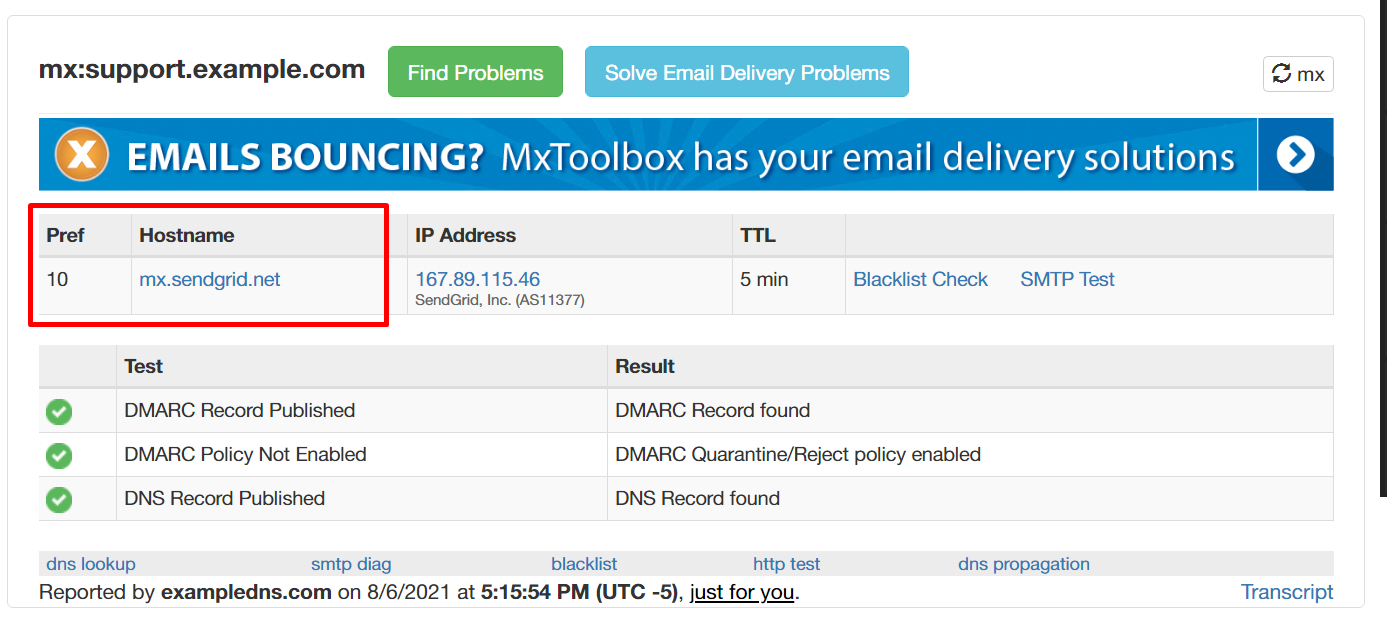
40 |
41 | Now, go to the SendGrid dashboard at [app.sendgrid.com](https://app.sendgrid.com). Select Settings, and Inbound Parse.
42 |
43 | 
44 |
45 | Then click "Add Host & URL".
46 |
47 | 
48 |
49 | **Receiving Subdomain** should be the domain you set up the MX record for earlier.
50 |
51 | 
52 |
53 | Then add your **Destination URL**. Your Destination URL should look something like this:
54 |
55 | ```https://actionmailbox:potatosalad@chatwoot.example.com/rails/action_mailbox/sendgrid/inbound_emails```
56 |
57 | ``potatosalad`` is the password we set earlier, and ``chatwoot.example.com`` is the URL of our Chatwoot instance. Everything else should stay the same.
58 |
59 | 
60 |
61 |
62 | Make sure to check "POST the raw, full MIME message". In order to function correctly, Action Mailbox needs the raw MIME message.
63 |
64 |
65 | 
66 |
67 | ## Setting the inbound domain variable in Heroku
68 |
69 | Finally, we need to tell our Chatwoot installation what domain we're using with SendGrid.
70 |
71 | Your variable should look like this:
72 |
73 | ```javascript
74 | MAILER_INBOUND_EMAIL_DOMAIN=support.example.com
75 | ```
76 |
77 | You should change ``support.example.com`` to the domain you used with SendGrid.
78 |
79 | 
80 |
81 | ## Next steps
82 |
83 | You're done! Next, you should [enable the email channel](https://www.chatwoot.com/docs/self-hosted/configuration/features/email-channel/setup).
84 |
--------------------------------------------------------------------------------
/self-hosted/configuration/features/integrations/instagram-via-instagram-business-login.mdx:
--------------------------------------------------------------------------------
1 | ---
2 | title: Instagram via Instagram Business Login
3 | description: Set up Instagram integration using Instagram Business Login authentication (recommended method)
4 | sidebarTitle: Instagram via Instagram Business Login
5 | ---
6 |
7 |
8 | Please ensure you have installed version v4.1 or above. If not, please refer to this [guide](./instagram-channel-setup) for the Facebook Login method.
9 |
10 |
11 | ## Prerequisites
12 |
13 | 1. A valid facebook account.
14 | 2. A valid instagram professional account.
15 |
16 | ## Register A Facebook App
17 |
18 | To use Instagram Channel, you have to create a Facebook app in the developer portal. You can find more details about creating Facebook apps [here](./facebook-channel-setup).
19 |
20 | 1. Click on the "Create App" button
21 |
22 | 
23 |
24 | 2. Select the option "Other".
25 |
26 | 
27 |
28 | 3. For the app type, choose "Business"
29 |
30 | 
31 |
32 | 4. Add app name and connect business account
33 |
34 | 
35 |
36 | 5. Add Instagram product from the Home page.
37 |
38 | 
39 |
40 | ## Configure Instagram settings for Chatwoot
41 |
42 | 1. Copy Instagram app ID and Instagram app secret
43 |
44 | 
45 |
46 | 2. Add the Instagram app ID and Instagram app secret to your app config via `{Chatwoot installation url}/super_admin/app_config?config=instagram`
47 |
48 | 
49 |
50 | 3. Configure Webhooks
51 |
52 | Set the callback URL to `{your_chatwoot_url}/webhooks/instagram`. The verify token should match your `INSTAGRAM_VERIFY_TOKEN`, which can be configured through `app_config`
53 |
54 | 
55 |
56 | Subscribe to `messages`, `messaging_seen`, and `message_reactions` events.
57 |
58 | 
59 |
60 |
61 | To receive web hooks, app mode should be set to "Live".
62 |
63 |
64 | 4. Set up Instagram business login
65 |
66 | Set Redirect URL as `{your_chatwoot_url}/instagram/callback`
67 |
68 | 
69 |
70 | 5. Create a new Instagram tester account
71 |
72 | ## Create Instagram Inbox
73 |
74 | Head over to Chatwoot and create a Instagram inbox. Please refer to this [guide](https://chatwoot.help/hc/user-guide/articles/1744361165-how-to-setup-an-instagram-channel-via-instagram-login) for more details on creating a Instagram inbox in Chatwoot.
75 |
76 | ## How to test the Instagram before going to live
77 |
78 | 1. Add Instagram Testers by clicking "Add People" button.
79 |
80 | 
81 |
82 | 2. Make sure that you have selected the role Instagram Tester while creating a new tester.
83 |
84 | 
85 |
86 | ## Going into production.
87 |
88 | Before you can start using your Facebook app in production, you will have to get it verified by Facebook. Refer to the [docs](https://developers.facebook.com/docs/messenger-platform/instagram/app-review) on getting your app verified.
89 |
90 | ## Troubleshooting & Common Errors
91 |
92 | ### Insufficient Developer Role Error
93 |
94 | Ensure the Instagram user is added as a developer: `Meta Dashboard → App Roles → Roles → Add People → Enter Instagram ID`
95 |
96 | ### API Access Deactivated
97 |
98 | Ensure the **Privacy Policy URL** is valid and correctly set.
99 |
100 | ### Invalid request: Request parameters are invalid: Invalid redirect_uri
101 |
102 | Please configure the Frontend URL. The Frontend URL does not match the authorization URL.
103 |
104 | ### Instagram Channel creation Error: Failed to exchange token
105 |
106 | Please make sure that tester account has been added to the facebook app settings.
107 |
108 | ### 400: Session Invalid when connecting the instagram channel
109 |
110 | This might be issue from facebook side. Please try again after some time.
--------------------------------------------------------------------------------
/self-hosted/deployment/restack.mdx:
--------------------------------------------------------------------------------
1 | ---
2 | title: Restack Chatwoot production deployment guide
3 | description: Deploy Chatwoot on AWS with Restack's managed Kubernetes platform
4 | sidebarTitle: AWS with Restack
5 | ---
6 |
7 | ## Getting Started
8 |
9 | To deploy Chatwoot with Restack:
10 |
11 | - [Sign up for a Restack account](#sign-up-for-a-restack-account).
12 | - [Add AWS credentials with AdministratorAccess](#add-aws-credentials-with-administratoraccess).
13 | - [One-click cluster creation with Restack](#one-click-cluster-creation-with-restack).
14 | - [Deploy Chatwoot on Restack](#deploy-chatwoot-on-restack).
15 | - [Start using Chatwoot](#start-using-chatwoot).
16 | - [Deploy multiple instances of Chatwoot](#deploy-multiple-instances-of-chatwoot).
17 |
18 |
19 | This is a community contributed installation setup. This will only have community support for any issues in future.
20 |
21 |
22 | ## Sign up for a Restack account
23 |
24 | To Sign up for a Restack account, visit [www.restack.io/signup](https://www.restack.io/signup). You can sign up with your corporate email address or your GitHub profile. You do not need a credit card to sign up.
25 |
26 | 
27 |
28 | If you already have an account, go ahead and login to Restack at [www.restack.io/login](https://www.restack.io/login).
29 |
30 | ## Add AWS credentials with AdministratorAccess
31 |
32 | To deploy Chatwoot in your own AWS infrastructure with Restack, you will need to add your credentials as the next step.
33 |
34 | Make sure that this account has *AdministratorAccess*. This is how Restack can ensure an end-to-end cluster creation and cluster management process.
35 |
36 | 1. Navigate to *Clusters* in the left-hand navigation menu.
37 | 2. Select the *Credentials* tab.
38 | 3. Click *Add credential*.
39 |
40 | 
41 |
42 | 4. Give a suitable title to your credentials for managing them later.
43 | 5. Enter your *AWS Access Key ID* and *AWS Secret Access key*.
44 | 6. Click *Add credential*.
45 |
46 | 
47 |
48 |
49 | [How to get your AWS Access key ID and AWS Secret Access Key](https://docs.aws.amazon.com/accounts/latest/reference/root-user-access-key.html)
50 |
51 |
52 | ## One-click cluster creation with Restack
53 |
54 |
55 | Why do I need a cluster?
19 |
20 | - `Installation Identifier`: This is the unique identifier used to identify an installation and associate a license with that installation.
21 | - `Manage Plan`: Redirects to the Stripe portal where you can purchase the appropriate number of licenses.
22 | - `Refresh`: Refresh button next to plan details helps to sync your server with the license server in cases where a license purchase is not yet reflected in the system.
23 | - `Feature Config`: You can configure settings for enterprise features like `Whitelabeling` by clicking on the gear icon next to the feature name under feature settings.
24 | - `Support Options`: Based on your plan, applicable support options will be displayed.
25 |
26 | ## FAQ
27 |
28 | ### Do you have Instance level plans?
29 |
30 | No, at the moment Chatwoot only offers per agent per month plans. If you are looking at a large number of agents, you can reach out to us at `sales@chatwoot.com` for custom plans.
31 |
32 | ### Transferring licenses?
33 |
34 | If you are moving the installation between servers and doing so with a database backup, the original installation identifier is retained, and you don't need to activate the license again.
35 |
36 | If for some reason you decide to delete an existing licensed installation and want to do a new installation, please reach out to Chatwoot support, and our team can help you transfer the license to your new installation.
--------------------------------------------------------------------------------
/self-hosted/deployment/storage/supported-providers.mdx:
--------------------------------------------------------------------------------
1 | ---
2 | title: Supported Providers
3 | description: Configure cloud storage providers for Chatwoot file storage
4 | sidebarTitle: Supported Providers
5 | ---
6 |
7 | # Configure Cloud Storage
8 |
9 | Chatwoot uses [Active Storage](https://edgeguides.rubyonrails.org/active_storage_overview.html) for storing attachments. The default storage option is local storage on your server, but you can configure cloud providers for better scalability and backup.
10 |
11 |
12 | It is recommended to use a cloud provider for your Chatwoot storage to ensure proper backup of stored attachments and prevent data loss.
13 |
14 |
15 | ## Using Amazon S3
16 |
17 | You can get started with [Creating an S3 bucket](https://docs.aws.amazon.com/AmazonS3/latest/gsg/CreatingABucket.html) and [Create an IAM user](https://docs.aws.amazon.com/IAM/latest/UserGuide/id_users_create.html) to configure the following details.
18 |
19 | Configure the following env variables.
20 |
21 | ```bash
22 | ACTIVE_STORAGE_SERVICE=amazon
23 | S3_BUCKET_NAME=
24 | AWS_ACCESS_KEY_ID=
25 | AWS_SECRET_ACCESS_KEY=
26 | AWS_REGION=
27 | ```
28 |
29 | ## Using Google GCS
30 |
31 |
32 | Starting with version 2.17+, wrap the `GCS_CREDENTIALS` environment variable in single quotes.
33 |
34 |
35 | Configure the following env variables.
36 |
37 | ```bash
38 | ACTIVE_STORAGE_SERVICE=google
39 | GCS_PROJECT=
40 | GCS_CREDENTIALS=
41 | GCS_BUCKET=
42 | ```
43 |
44 | The value of the `GCS_CREDENTIALS` should be a json formatted string containing the following keys.
45 |
46 | ```bash
47 | {
48 | "type": "service_account",
49 | "project_id" : "",
50 | "private_key_id" : "",
51 | "private_key" : "",
52 | "client_email" : "",
53 | "client_id" : "",
54 | "auth_uri" : "",
55 | "token_uri" : "",
56 | "auth_provider_x509_cert_url" : "",
57 | "client_x509_cert_url" : ""
58 | }
59 | ```
60 | When pasting the credentials to the ENV file, make sure to remove the new lines and paste it into a single line.
61 |
62 | ```bash
63 | GCS_CREDENTIALS={"type": "service_account","project_id": "","private_key_id": "","private_key": "","client_email": "","client_id": "","auth_uri": "","token_uri": "","auth_provider_x509_cert_url": "","client_x509_cert_url": ""}
64 | ```
65 |
66 | ## Using Microsoft Azure
67 |
68 | Configure the following env variables.
69 |
70 | ```bash
71 | ACTIVE_STORAGE_SERVICE=microsoft
72 | AZURE_STORAGE_ACCOUNT_NAME=
73 | AZURE_STORAGE_ACCESS_KEY=
74 | AZURE_STORAGE_CONTAINER=
75 | ```
76 |
77 | ## Using Amazon S3 Compatible Service
78 |
79 | To use an s3 compatible service such as [DigitalOcean Spaces](https://www.digitalocean.com/docs/spaces/resources/s3-sdk-examples/#configure-a-client), Minio etc..
80 |
81 | Configure the following env variables.
82 |
83 | ```bash
84 | ACTIVE_STORAGE_SERVICE=s3_compatible
85 | STORAGE_BUCKET_NAME=
86 | STORAGE_ACCESS_KEY_ID=
87 | STORAGE_SECRET_ACCESS_KEY=
88 | STORAGE_REGION=nyc3
89 | STORAGE_ENDPOINT=https://nyc3.digitaloceanspaces.com
90 | #set force_path_style to true if using minio
91 | #STORAGE_FORCE_PATH_STYLE=true
92 | ```
93 |
--------------------------------------------------------------------------------
/self-hosted/deployment/storage/gcs-bucket.mdx:
--------------------------------------------------------------------------------
1 | ---
2 | title: GCS Bucket
3 | description: Configure Google Cloud Storage bucket as storage in Chatwoot
4 | sidebarTitle: GCS Bucket
5 | ---
6 |
7 | Chatwoot supports Google Cloud storage as the storage provider. To enable GCS in Chatwoot, follow the below mentioned steps.
8 |
9 | Set google as the active storage service in the environment variables
10 |
11 | ```bash
12 | ACTIVE_STORAGE_SERVICE='google'
13 | ```
14 |
15 | ## Get project ID variable
16 |
17 | Login to your Google Cloud console. On your home page of your project you will be able to see the project id and project name as follows.
18 |
19 | 
20 |
21 | ```bash
22 | GCS_PROJECT=your-project-id
23 | ```
24 |
25 | ## Setup GCS Bucket
26 |
27 | Go to Storage -> Browser. Click on "Create Bucket". You will be presented with a screen as shown below. Select the default values and continue.
28 |
29 | 
30 |
31 | Once this is done you will get the bucket name. Set this as GCS_BUCKET.
32 |
33 | ```bash
34 | GCS_BUCKET=your-bucket-name
35 | ```
36 |
37 | ## Setup a service account
38 |
39 | Go to `Identity & Services -> Identity -> Service Accounts`. Click on "Create Service Account".
40 |
41 | Provice a name and an ID for the service account, click on create. You will be asked to "Grant this service account access to the project" Select Cloud Storage -> Storage Admin as shown below.
42 |
43 | 
44 |
45 | ## Add service account to the bucket
46 |
47 | Go to Storage -> Browser -> Your bucket -> Permissions. Click on add. On "New members" field select the service account you just created.
48 |
49 | Select role as `Cloud Storage -> Storage Admin` and save.
50 |
51 | 
52 |
53 | ## Generate a key for the service account
54 |
55 | Go to `Identity & Services -> Identity -> Service Accounts -> Your service account`. There is a section called **Keys**. Click on **Add Key**. You will be presented with an option like the one below. Select JSON from the option.
56 |
57 | 
58 |
59 | Copy the json file content and set it as GCS_CREDENTIALS
60 |
61 | A sample credential file is of the following format.
62 |
63 | ```json
64 | {
65 | "type": "service_account",
66 | "project_id": "",
67 | "private_key_id": "",
68 | "private_key": "",
69 | "client_email": "",
70 | "client_id": "",
71 | "auth_uri": "",
72 | "token_uri": "",
73 | "auth_provider_x509_cert_url": "",
74 | "client_x509_cert_url": ""
75 | }
76 | ```
77 |
78 | When pasting the credentials to the ENV file, make sure to remove the new lines and paste it into a single line.
79 | ```bash
80 | GCS_CREDENTIALS={"type": "service_account","project_id": "","private_key_id": "","private_key": "","client_email": "","client_id": "","auth_uri": "","token_uri": "","auth_provider_x509_cert_url": "","client_x509_cert_url": ""}
81 | ```
82 |
83 |
84 | If you are running Chatwoot v2.17+, make sure to wrap `GCS_CREDENTIALS` in single quotes.
85 |
--------------------------------------------------------------------------------
/contributing-guide/environment-setup/make.mdx:
--------------------------------------------------------------------------------
1 | ---
2 | title: Make Commands Setup
3 | description: Speed up your local development workflow with Make commands for Chatwoot.
4 | sidebarTitle: Make Setup
5 | ---
6 |
7 | # Speed up your local development with Make
8 |
9 | Speed up your local development workflow with make commands for Chatwoot.
10 |
11 | ## Clone the repo and cd to the Chatwoot directory
12 |
13 | Clone the repository and navigate to the Chatwoot directory:
14 |
15 | ```bash
16 | git clone https://github.com/chatwoot/chatwoot.git
17 | cd chatwoot
18 | ```
19 |
20 | ## Install Ruby & JavaScript dependencies
21 |
22 | Install Ruby and JavaScript dependencies using the following command. This command runs Bundler and pnpm:
23 |
24 | ```bash
25 | make burn
26 | ```
27 |
28 | ## Run database migrations
29 |
30 | Apply necessary database schema changes to your development environment by running the following command:
31 |
32 | ```bash
33 | make db
34 | ```
35 |
36 | ## Run database seed
37 |
38 | Load some seed data to your development environment for testing by running the following command:
39 |
40 | ```bash
41 | make db_seed
42 | ```
43 |
44 | ## Run dev server using Overmind
45 |
46 | Start the development server using Overmind, a process manager that can run multiple processes concurrently:
47 |
48 | ```bash
49 | make run
50 | ```
51 |
52 | ## Force run if ./.overmind.sock file exists
53 |
54 | If the `make run` command fails due to the existence of a `./.overmind.sock` file, you can try using the following command:
55 |
56 | ```bash
57 | make force_run
58 | ```
59 |
60 | ## Debug - Attach to backend via Overmind tmux session
61 |
62 | For debugging purposes, you can attach to the backend via the Overmind tmux session using the following command:
63 |
64 | ```bash
65 | make debug
66 | ```
67 |
68 | ## Debug worker
69 |
70 | To debug the worker, use the following command:
71 |
72 | ```bash
73 | make debug_worker
74 | ```
75 |
76 | ## Get Rails console
77 |
78 | Access the Rails console, which provides an interactive environment for interacting with the Chatwoot application:
79 |
80 | ```bash
81 | make console
82 | ```
83 |
84 | ## Build Docker image
85 |
86 | Build the Docker image for the Chatwoot project:
87 |
88 | ```bash
89 | make docker
90 | ```
91 |
92 | ## Workflow after pulling in the latest changes from `develop`
93 |
94 | To update your development environment after pulling the latest changes from the `develop` branch, follow these steps:
95 |
96 | ```bash
97 | make burn # Install dependencies
98 |
99 | make db # Run migrations
100 |
101 | make run # Start the server
102 | ```
103 |
104 | ## Getting Help
105 |
106 | If you encounter issues with Make commands:
107 |
108 | - **Makefile Documentation**: Check the project's `Makefile` for available commands
109 | - **Overmind Documentation**: [https://github.com/DarthSim/overmind](https://github.com/DarthSim/overmind)
110 | - **Chatwoot Issues**: [GitHub Issues](https://github.com/chatwoot/chatwoot/issues)
111 | - **Community Support**: [Discord](https://discord.com/invite/cJXdrwS)
112 |
113 | ---
114 |
115 | Your Make-based development workflow is now ready for efficient Chatwoot development! 🚀
--------------------------------------------------------------------------------
/self-hosted/restricted-instances.mdx:
--------------------------------------------------------------------------------
1 | ---
2 | title: 'Running Chatwoot in Restricted Instances'
3 | description: 'Configuration guide for deploying Chatwoot in environments with restricted internal networks'
4 | ---
5 |
6 | This guide outlines the necessary configurations for deploying Chatwoot in environments with restricted internal networks, ensuring full functionality and compliance.
7 |
8 | ## Activating Licenses
9 |
10 | Licensing is critical for the operational legality and functionality of Chatwoot:
11 |
12 | ### Whitelist Licensing Server
13 |
14 | Add `https://hub.2.chatwoot.com` to your network's whitelist for license activation and management of Stripe payment links.
15 |
16 | ### Switch to Email Invoices
17 |
18 | For organizations preferring email invoices, contact our sales team at `sales@chatwoot.com` with your installation identifier to configure this billing option.
19 |
20 | ## Enabling ChatWidget for Users
21 |
22 | To ensure seamless functionality of the ChatWidget within restricted networks, perform the following configurations:
23 |
24 | ### WebSockets
25 |
26 | Enable WebSocket connections through `wss://yourdomain.com/cable` to facilitate real-time communications.
27 |
28 | ### Widget API URLs
29 |
30 | Open all API endpoints under the widget path to ensure full functionality. Configure your network to allow access to:
31 |
32 | ```
33 | https://yourdomain.com/api/v1/widget/*
34 | ```
35 |
36 | This wildcard approach ensures all necessary widget functionalities such as conversation handling, message management, and contact updates are operable without individual endpoint specifications.
37 |
38 | ### Widget Assets
39 |
40 | Make sure that static assets required by the ChatWidget are accessible. These are typically served from:
41 |
42 | ```
43 | https://yourdomain.com/packs
44 | ```
45 |
46 | Ensure all paths under this directory are accessible to support the widget fully.
47 |
48 | ## SMTP Configuration for Emails
49 |
50 | Proper SMTP setup is essential for managing email communications within restricted networks:
51 |
52 | ### SMTP Server Details
53 |
54 | Configure your SMTP server to handle outgoing emails from Chatwoot, including server address, port, authentication details, and secure connection protocols.
55 |
56 | ### Secure Connections
57 |
58 | Employ TLS/SSL for secure email transmissions, ensuring your network permits connections over the designated SMTP port (commonly 587 for TLS).
59 |
60 | ## Additional Configuration for Restricted Networks
61 |
62 | Additional considerations are necessary for the optimal operation of Chatwoot in restricted environments:
63 |
64 | ### DNS Configuration
65 |
66 | Ensure DNS settings are optimized to reduce resolution times and enhance the accessibility of Chatwoot services.
67 |
68 | ### SSL/TLS Configuration
69 |
70 | Maintain up-to-date SSL/TLS certificates that are compatible with all internal systems and browsers.
71 |
72 | ### Monitoring and Logging
73 |
74 | Implement comprehensive monitoring and logging solutions to swiftly detect and address potential disruptions, maintaining system stability and performance.
75 |
76 |
77 | By following these detailed instructions, your Chatwoot deployment can effectively operate within restricted network environments, ensuring a robust and secure customer support platform.
78 |
--------------------------------------------------------------------------------
/self-hosted/deployment/storage/s3-bucket.mdx:
--------------------------------------------------------------------------------
1 | ---
2 | title: S3 Bucket
3 | description: Configure Amazon S3 bucket as storage in Chatwoot
4 | sidebarTitle: S3 Bucket
5 | ---
6 |
7 | ## Using Amazon S3
8 |
9 | You can get started with [Creating an S3 bucket](https://docs.aws.amazon.com/AmazonS3/latest/gsg/CreatingABucket.html) and [Create an IAM user](https://docs.aws.amazon.com/IAM/latest/UserGuide/id_users_create.html) to configure the following details.
10 |
11 | Configure the following env variables.
12 |
13 | ```bash
14 | ACTIVE_STORAGE_SERVICE='amazon'
15 | S3_BUCKET_NAME=
16 | AWS_ACCESS_KEY_ID=
17 | AWS_SECRET_ACCESS_KEY=
18 | AWS_REGION=
19 | ```
20 |
21 | ## S3 Bucket policy
22 |
23 | Inorder to use S3 bucket in Chatwoot, a policy has to be set with the correct credentials. A sample policy is given below, as the listed actions are required for the storage to work.
24 |
25 | ```json
26 | {
27 | "Version": "2012-10-17",
28 | "Id": "Policyxxx",
29 | "Statement": [
30 | {
31 | "Sid": "Stmtxxx",
32 | "Effect": "Allow",
33 | "Principal": {
34 | "AWS": "your-user-arn"
35 | },
36 | "Action": [
37 | "s3:DeleteObject",
38 | "s3:GetObject",
39 | "s3:ListBucket",
40 | "s3:PutObject"
41 | ],
42 | "Resource": [
43 | "arn:aws:s3:::your-bucket-name",
44 | "arn:aws:s3:::your-bucket-name/*"
45 | ]
46 | }
47 | ]
48 | }
49 | ```
50 |
51 | Replace your *bucket name* in the appropriate places.
52 |
53 | **User ARN** can be found using the following steps:
54 |
55 | 1. Login to AWS Console. Go to IAM, and click on Users from the left sidebar. You will be to see the list of users as follows.
56 |
57 | 
58 |
59 | 2. Click on the user, you will be to see a screen as shown below. Copy the User ARN and paste it in the above policy.
60 |
61 | 
62 |
63 | **Add CORS Configuration on your S3 buckets**
64 |
65 | You need to configure CORS settings to the respective storage cloud to support Direct file uploads from the widget and the Chatwoot dashboard.
66 |
67 | Refer to this link for more information: https://edgeguides.rubyonrails.org/active_storage_overview.html#cross-origin-resource-sharing-cors-configuration
68 |
69 | To make CORS configuration changes on S3:
70 |
71 | 1. Go to your S3 bucket
72 | 2. Click on the permissions tab.
73 | 3. Scroll to Cross-origin resource sharing (CORS) and click on `Edit` and add the respective changes shown below.
74 |
75 | 
76 |
77 | Add your Chatwoot URL to the `AllowedOrigin` as shown below.
78 |
79 | ```json
80 | [
81 | {
82 | "AllowedHeaders": [
83 | "*"
84 | ],
85 | "AllowedMethods": [
86 | "PUT",
87 | "POST",
88 | "DELETE",
89 | "GET"
90 | ],
91 | "AllowedOrigins": [
92 | ""
93 | ],
94 | "ExposeHeaders": [
95 | "Origin",
96 | "Content-Type",
97 | "Content-MD5",
98 | "Content-Disposition"
99 | ],
100 | "MaxAgeSeconds": 3600
101 | }
102 | ]
103 | ```
--------------------------------------------------------------------------------
/introduction.mdx:
--------------------------------------------------------------------------------
1 | ---
2 | title: Welcome to Chatwoot Developer Docs
3 | description: Your comprehensive guide to installing, configuring, developing with, and integrating Chatwoot - the open-source customer support platform.
4 | sidebarTitle: Introduction
5 | ---
6 |
7 |
8 | ## What You'll Find Here
9 |
10 |
11 |
16 | Deploy Chatwoot on your infrastructure with Docker, Kubernetes, or cloud providers
17 |
18 |
23 | Contribute to Chatwoot with our development setup, testing guidelines, and best practices
24 |
25 |
30 | Build powerful integrations with our comprehensive REST APIs
31 |
32 |
37 | Understand Chatwoot's system architecture and components
38 |
39 |
40 |
41 | ## Getting Started Paths
42 |
43 | Choose your path based on what you want to accomplish:
44 |
45 | ### 🚀 **I want to install Chatwoot**
46 | Perfect! Head to our [Installation Guide](/self-hosted) to deploy Chatwoot on your preferred platform. We support:
47 | - Docker containers for quick setup
48 | - Kubernetes for scalable deployments
49 | - Major cloud providers (AWS, GCP, Azure)
50 | - Traditional Linux VMs
51 |
52 | ### 🛠️ **I want to contribute to Chatwoot**
53 | Check out our [Contributing Guide](/contributing-guide) to:
54 | - Set up your development environment
55 | - Understand our coding standards
56 | - Learn our testing practices
57 | - Submit your first pull request
58 |
59 | ### 🔌 **I want to build integrations**
60 | Great! Explore our [API Reference](/api-reference/introduction) with three categories of APIs:
61 | - **Application APIs** - Manage accounts, agents, and conversations
62 | - **Platform APIs** - Administrative control for installations
63 | - **Client APIs** - Build custom chat interfaces
64 |
65 | ### 📚 **I want to understand the architecture**
66 | Excellent! Our [Architecture Guide](/self-hosted/deployment/architecture) covers:
67 | - System components and their interactions
68 | - Database schemas and relationships
69 | - Scalability considerations
70 | - Security best practices
71 |
72 | ## Why Chatwoot?
73 |
74 | Chatwoot is built with modern technologies and follows industry best practices:
75 |
76 | - **Open Source**: Full transparency and community-driven development
77 | - **Multi-channel**: Support customers across web, mobile, email, and social platforms
78 | - **Scalable**: From small teams to enterprise deployments
79 | - **Extensible**: Rich APIs and webhook system for custom integrations
80 | - **Modern Stack**: Ruby on Rails backend, Vue.js frontend, PostgreSQL database
81 |
82 | ## Community & Support
83 |
84 | Join our thriving community of developers and users:
85 |
86 | - **GitHub**: [github.com/chatwoot/chatwoot](https://github.com/chatwoot/chatwoot)
87 | - **Community**: [chatwoot.com/community](https://chatwoot.com/community)
88 | - **Discussions**: [GitHub Discussions](https://github.com/chatwoot/chatwoot/discussions)
89 | - **Twitter**: [@chatwootapp](https://twitter.com/chatwootapp)
90 |
91 | ---
92 |
93 | Ready to dive in? Choose your path above and let's build something amazing together! 🚀
94 |
--------------------------------------------------------------------------------
/self-hosted/deployment/performance/cloudfront-cdn.mdx:
--------------------------------------------------------------------------------
1 | ---
2 | title: Cloudfront CDN
3 | description: Configure Cloudfront as a CDN for Chatwoot assets
4 | sidebarTitle: Cloudfront CDN
5 | ---
6 |
7 | This document helps you to configure Cloudfront as the asset host for Chatwoot. If you have a high traffic website, we would recommend setting up a CDN for Chatwoot.
8 |
9 | ## Configure a Cloudfront distribution
10 |
11 | **Step 1**: Create a Cloudfront distribution.
12 |
13 | 
14 |
15 | **Step 2**: Select "Web" as delivery method for your content.
16 |
17 | 
18 |
19 | **Step 3**: Configure the Origin Settings as the following.
20 |
21 | 
22 |
23 | - Provide your Chatwoot Installation URL under Origin Domain Name.
24 | - Select "Origin Protocol Policy" as Match Viewer.
25 |
26 | **Step 4**: Configure Cache behaviour.
27 |
28 | 
29 |
30 | - Configure **Allowed HTTP methods** to use *GET, HEAD, OPTIONS*.
31 | - Configure **Cache and origin request settings** to use *Use legacy cache settings*.
32 | - Select **Whitelist** for *Cache Based on Selected Request Headers*.
33 | - Add the following headers to the **Whitelist Headers**.
34 | 
35 | - **Access-Control-Request-Headers**
36 | - **Access-Control-Request-Method**
37 | - **Origin**
38 | - Set the **Response headers policy** to **CORS-With-Preflight**
39 |
40 | **Step 5**: Click on **Create Distribution**. You will be able to see the distribution as shown below. Use the **Domain name** listed in the details as the **ASSET_CDN_HOST** in Chatwoot.
41 |
42 | 
43 |
44 | ## Add ASSET_CDN_HOST in Chatwoot
45 |
46 | Your Cloudfront URL will be of the format `.cloudfront.net`.
47 |
48 | Set
49 |
50 | ```bash
51 | ASSET_CDN_HOST=.cloudfront.net
52 | ```
53 |
54 | in the environment variables.
55 |
56 | ## Benefits of Using CDN
57 |
58 |
59 | Using a CDN provides several benefits for your Chatwoot installation:
60 |
61 |
62 | 1. **Faster Asset Loading**: Assets are served from edge locations closer to users
63 | 2. **Reduced Server Load**: Static assets are served from CDN, reducing load on your application server
64 | 3. **Better User Experience**: Faster page load times improve user experience
65 | 4. **Global Availability**: Assets are cached globally for users worldwide
66 | 5. **Bandwidth Savings**: Reduces bandwidth usage on your origin server
67 |
68 | ## Troubleshooting
69 |
70 | ### CORS Issues
71 |
72 | If you encounter CORS issues after setting up CloudFront:
73 |
74 | 1. Ensure the CORS headers are properly configured in CloudFront
75 | 2. Verify that your `CORS_ORIGINS` environment variable includes your CDN domain:
76 |
77 | ```bash
78 | CORS_ORIGINS=https://yourdomain.com,https://d1234567890.cloudfront.net
79 | ```
80 |
81 | ### Cache Invalidation
82 |
83 | To invalidate CloudFront cache after updating assets:
84 |
85 | 1. Go to CloudFront console
86 | 2. Select your distribution
87 | 3. Create an invalidation for `/*` to clear all cached assets
88 |
89 | ### SSL Certificate
90 |
91 | For custom domain names with CloudFront:
92 |
93 | 1. Request an SSL certificate in AWS Certificate Manager (ACM)
94 | 2. Configure the certificate in your CloudFront distribution
95 | 3. Update your DNS to point to the CloudFront distribution
96 |
97 |
98 | SSL certificates for CloudFront must be requested in the US East (N. Virginia) region regardless of where your distribution is located.
99 |
--------------------------------------------------------------------------------
/self-hosted/configuration/features/integrations/slack-integration-setup.mdx:
--------------------------------------------------------------------------------
1 | ---
2 | title: Setting Up Slack Integration
3 | description: Configure Slack integration to receive Chatwoot conversations in Slack channels
4 | sidebarTitle: Slack
5 | ---
6 |
7 | Setting up Chatwoot Slack integration involves 5 steps.
8 |
9 | 1. Create a slack app in the developer portal.
10 | 2. Add necessary permissions for the slack app.
11 | 3. Configure Chatwoot with the `client ID` and `client Secret` obtained from the slack app.
12 | 4. Open Chatwoot UI, navigate to integrations, Slack and click connect.
13 | 5. Voila! You should be receiving new conversations in the #customer-conversations channel in Slack.
14 |
15 | ## Register a Slack app
16 |
17 | To use Slack Integration, you have to create a Slack app in the developer portal. You can find more details about creating Slack apps at the [Slack developer portal](https://api.slack.com/).
18 |
19 | Once you register your Slack App, you will have to obtain the `Client Id` and `Client Secret`. These values will be available in the app settings and will be required while setting up Chatwoot environment variables.
20 |
21 | ## Configure the Slack app
22 |
23 | 1. Create a Slack app and add it to your development workspace.
24 | 2. Obtain the `Client Id` and `Client Secret` for the app and configure it in your Chatwoot [environment variables](/self-hosted/configuration/environment-variables).
25 | 3. Head over to the `OAuth & permissions` section under `features` tab.
26 | 4. In the redirect URLs, Add your Chatwoot installation base URL.
27 | 5. In the scopes section configure the given scopes for bot token scopes:
28 | - `channels:history`
29 | - `channels:join`
30 | - `channels:manage`
31 | - `channels:read`
32 | - `chat:write`
33 | - `chat:write.customize`
34 | - `commands`
35 | - `files:read`
36 | - `files:write`
37 | - `groups:history`
38 | - `groups:write`
39 | - `im:history`
40 | - `im:write`
41 | - `links:read`
42 | - `links:write`
43 | - `mpim:history`
44 | - `mpim:write`
45 | - `users:read`
46 | - `users:read.email`
47 | 7. In the user access token section subscribe to: `files:read`, `files:write`, `remote_files:share`
48 | 8. Head over to the `Events Subscriptions` section in the `Features` tab.
49 | 9. Enable events and configure the given request url `{Chatwoot installation url}/api/v1/integrations/webhooks`
50 | 10. Subscribe to the following bot events: `link_shared`, `message.channels`, `message.groups`, `message.im`, `message.mpim`.
51 | 11. Add the installation URL as `domain` under the `App unfurl domains section` to display meta information about the conversation when the conversation URL is shared.
52 | 12. Connect Slack integration on Chatwoot app and get productive.
53 |
54 | ## Configure the environment variables in Chatwoot
55 |
56 | Obtain the `Client ID` and `Client Secret` for the app and configure it in your Chatwoot [environment variables](/self-hosted/configuration/environment-variables).These values will be available under `Settings` > `Basic Information`.
57 |
58 | ```bash
59 | SLACK_CLIENT_ID=
60 | SLACK_CLIENT_SECRET=
61 | ```
62 |
63 | Restart the Chatwoot server.
64 |
65 |
66 | Slack will only show up in the integrations section once you have configured these values and restarted the server.
67 |
68 |
69 | ## Connect Chatwoot with your Slack workspace
70 |
71 | Follow this [guide](https://www.chatwoot.com/hc/user-guide/articles/1677774874-how-to-answer-conversations-from-slack) to complete the Slack integration.
72 |
73 | ## Testing your setup
74 |
75 | 1. Create a new conversation.
76 | 2. Ensure that you are receiving the Chatwoot messages in the connected slack channel.
77 | 3. Add a message to that thread and ensure that it is coming back on to Chatwoot.
78 | 4. Add `note:` or `private:` in front of the Slack message to see if it is coming out as private notes.
79 | 5. If your Slack member's email matches their email on Chatwoot, the messages will be associated with their Chatwoot user account.
80 |
--------------------------------------------------------------------------------
/contributing-guide/tests/cypress.mdx:
--------------------------------------------------------------------------------
1 | ---
2 | title: End-to-end testing with Cypress
3 | description: Guide to running Cypress end-to-end tests for Chatwoot
4 | sidebarTitle: Cypress Testing
5 | ---
6 |
7 | # End-to-end testing with Cypress
8 |
9 | Chatwoot uses [Cypress](https://www.cypress.io/) for end-to-end testing. Use the following steps to run the tests on your local machine.
10 |
11 | ## Prepare the Test Server
12 |
13 | Choose any of the given methods to run your Chatwoot test server.
14 |
15 |
16 |
17 |
18 | ### Using Local Chatwoot Installation
19 |
20 |
21 | You have to install the necessary dependencies as described in [setup guide](/contributing-guide/setup-guide) for this method to work.
22 |
23 |
24 | Navigate to Chatwoot codebase in your local machine and execute the following steps:
25 |
26 | #### Create a fresh test database
27 |
28 | ```bash
29 | RAILS_ENV=test bin/rake db:drop
30 | RAILS_ENV=test bin/rake db:create
31 | RAILS_ENV=test bin/rake db:schema:load
32 | ```
33 |
34 | #### Start Chatwoot in the test environment
35 |
36 | ```bash
37 | RAILS_ENV=test foreman start -f Procfile.test
38 | ```
39 |
40 | Load the URL in the browser and wait for it to start up:
41 | ```
42 | http://localhost:5050/app/login
43 | ```
44 |
45 |
46 |
47 |
48 | ### Using Docker
49 |
50 | Follow the [docker setup guide](/contributing-guide/environment-setup/docker) until you build the images.
51 |
52 | #### Change the Rails Environment
53 |
54 | Open `docker-compose.yaml` and update all the `RAILS_ENV` values from `development` to `test`:
55 |
56 | ```yaml
57 | # In docker-compose.yaml
58 | environment:
59 | - RAILS_ENV=test # Change from development to test
60 | ```
61 |
62 | #### Update the Port
63 |
64 | Under rails section in your `docker-compose.yaml` update the port value as given below:
65 |
66 | ```yaml
67 | # In docker-compose.yaml
68 | ports:
69 | - 5050:3000 # Change from 3000:3000 to 5050:3000
70 | ```
71 |
72 | #### Reset the Database
73 |
74 | ```bash
75 | docker-compose run --rm rails bundle exec rails db:reset
76 | ```
77 |
78 | #### Start Chatwoot Docker in the test environment
79 |
80 | ```bash
81 | docker-compose up
82 | ```
83 |
84 | Load the URL in the browser and wait for it to start up:
85 | ```
86 | http://localhost:5050/app/login
87 | ```
88 |
89 |
90 |
91 |
92 | ## Run Cypress
93 |
94 | Load `localhost:5050` on your browser and ensure that the Chatwoot server is running.
95 |
96 | Navigate to your Chatwoot local directory and execute the following command to run the Cypress tests:
97 |
98 | ```bash
99 | pnpm cypress open --project ./spec
100 | ```
101 |
102 | This will open the Cypress Test Runner where you can:
103 |
104 | 1. **Choose a browser** for running tests
105 | 2. **Select test files** to run individual or all tests
106 | 3. **Watch tests run** in real-time with step-by-step execution
107 | 4. **Debug failed tests** with detailed error information
108 |
109 |
110 | ## Getting Help
111 |
112 | If you encounter issues with Cypress testing:
113 |
114 | - **Cypress Documentation**: [Official Cypress Docs](https://docs.cypress.io/)
115 | - **Cypress Best Practices**: [Testing Guide](https://docs.cypress.io/guides/references/best-practices)
116 | - **Common Errors**: See [Common Errors](/contributing-guide/common-errors)
117 | - **Community Support**: [Discord](https://discord.com/invite/cJXdrwS)
118 |
119 | ## Useful Resources
120 |
121 | - **Cypress API Reference**: [https://docs.cypress.io/api/table-of-contents](https://docs.cypress.io/api/table-of-contents)
122 | - **Testing Library**: [Testing utilities for better element selection](https://testing-library.com/)
123 | - **Cypress Examples**: [Real-world examples](https://github.com/cypress-io/cypress-example-recipes)
124 |
125 | ---
126 |
127 | Your Cypress testing environment is now ready for comprehensive end-to-end testing! 🧪
128 |
--------------------------------------------------------------------------------
/self-hosted/deployment/backup.mdx:
--------------------------------------------------------------------------------
1 | ---
2 | title: Backing Up Your Chatwoot Installation
3 | description: Complete guide to backing up and restoring your Chatwoot installation data
4 | sidebarTitle: Backup
5 | ---
6 |
7 | Backups are crucial for any software system, including Chatwoot, for several reasons:
8 |
9 | 1. **Disaster Recovery**: Backups serve as your safety net in the event of catastrophic incidents like hardware failure, data center outage, or natural disasters. They allow you to restore your application to its previous state quickly.
10 |
11 | 2. **Data Loss Prevention**: Accidental data deletion or alteration due to human errors, software bugs, or malicious attacks can lead to significant losses. Backups provide a way to recover such lost or corrupted data.
12 |
13 | 3. **Audit and Compliance**: Certain regulations require businesses to maintain backups for a specific period. These backups may serve as reference points for audits or compliance checks.
14 |
15 | 4. **Business Continuity**: In situations where your primary data source becomes unavailable, having a backup allows your business to continue its operations with minimal disruption.
16 |
17 | In short, backups are an essential part of risk management and ensure the smooth operation of your software system.
18 |
19 | ## What Data Should Be Backed Up?
20 |
21 | - [Postgres Database](#postgres-database)
22 | - [Storage (File uploads/Other Assets in Your Installation)](#storage)
23 | - [Configuration Variables](#configuration)
24 | - [Code Customisations](#code-customisations)
25 |
26 | ### Postgres Database
27 |
28 | If you are managing the Postgres service yourself, you can use the `pg_dump` tool provided by PostgreSQL for this purpose.
29 |
30 | ```bash
31 | pg_dump -U postgres -W -F t chatwoot_production > backup.tar
32 | ```
33 |
34 | If you are using a managed provider like AWS, Google Cloud, or Azure, enable backups using the options provided by your provider.
35 |
36 | ### Storage
37 |
38 | Based on your [storage configuration](/self-hosted/configuration/environment-variables#configure-storage), you should take the appropriate steps.
39 |
40 | If you are using a managed provider like `S3`, `GCS`, etc., ensure backups using the options available with the provider.
41 | If you are using the `local` storage provider, ensure to take a disk backup of the `storage` folder in the root of your Chatwoot Installation.
42 |
43 | ### Configuration
44 |
45 | Important configuration might be stored in environment variables. You should back these up as well.
46 | Make a copy of the `.env` file or keep a backup of these configurations based on your setup.
47 |
48 | ### Code Customisations
49 |
50 | Official Chatwoot updates using tools like `cwctl` assume that there are no customisations done to the Chatwoot installation. We don't provide support for custom modifications of the Chatwoot codebase. If you are planning any such modifications, please ensure that you back up these customisations using `git` or other appropriate tooling.
51 |
52 | ## Guidelines
53 |
54 | The frequency of backups largely depends on the nature of your application and the amount of data you generate and can afford to lose. You can opt for `continuous` or `daily` backups as per your need.
55 |
56 |
57 | Remember, these backups should be stored in a different physical location to protect against hardware failures. Using a cloud storage provider could be a good solution. Please ensure that access to these backups is tightly controlled, as they contain sensitive data.
58 |
59 |
60 | ## Restoring a Backup
61 |
62 | To restore a backup into a new Chatwoot installation, please follow these steps:
63 |
64 | - Set up a new Chatwoot installation and finish the onboarding flow.
65 | - Ensure that the [configuration](#configuration) values match the ones in your backup.
66 | - Purge the database of this installation and replace it with the data from your [postgres](#postgres-database) backup.
67 | - Restore [Storage](#storage) with your backup data.
68 | - Restore any [Code Customisations](#code-customisations).
69 | - Restart Chatwoot services and you are good to go.
70 |
--------------------------------------------------------------------------------
/self-hosted/configuration/features/email-channel/google-workspace-setup.mdx:
--------------------------------------------------------------------------------
1 | ---
2 | title: Google Workspace
3 | description: Configure an OAuth app for Gmail
4 | sidebarTitle: Google Workspace
5 | ---
6 |
7 | At present, Gmail integration operates through [less-secure](https://support.google.com/accounts/answer/6010255?hl=en) apps. However, as of June 15, 2024, Google Workspace will [cease to support](https://workspaceupdates.googleblog.com/2023/09/winding-down-google-sync-and-less-secure-apps-support.html) these less-secure apps. This will affect the Gmail integration in Chatwoot. To ensure that your Gmail integration continues to work, you will need to set up an OAuth app in Google Workspace.
8 |
9 |
10 | Existing setups will continue to work until September 30, 2024. However, we recommend setting up an OAuth app as soon as possible to avoid any disruptions.
11 |
12 |
13 | This guide will walk you through the process of setting up an OAuth app in Google Workspace.
14 |
15 | ## Register the app
16 |
17 | To enable Google OAuth in Chatwoot, you need to provide the client ID, client secret, and callback URL. You can find the instructions to generate these details [here](https://support.google.com/cloud/answer/6158849). Once you have followed these steps, you will be able to get a Client ID and Secret.
18 |
19 | 
20 |
21 | Use the callback URL `https:///google/callback` when registering the app. This URL is used to redirect the user back to the Chatwoot instance after authentication.
22 |
23 | Set the `GOOGLE_OAUTH_CLIENT_ID` and `GOOGLE_OAUTH_CLIENT_SECRET` environment variables in your Chatwoot installation using the values you copied from the Google API Console.
24 |
25 | ```bash
26 | GOOGLE_OAUTH_CLIENT_ID=369777777777-xxxxxxxxxxxxxxxxxxxxxxxxxxxxxxxx.apps.googleusercontent.com
27 | GOOGLE_OAUTH_CLIENT_SECRET=ABCDEF-GHijklmnoPqrstuvwX-yz1234567
28 | ```
29 |
30 |
31 | If you have already setup [Google OAuth login flow](https://www.chatwoot.com/self-hosted/configuration/environment-variables#google-oauth) You can use the same app, by simply adding the new callback URL. **Do not remove the previous callback URL.**
32 |
33 |
34 | After setting these environment variables, restart your Chatwoot server to apply the changes. Now, users will be able to sign in using their Google accounts.
35 |
36 | You will notice that the app you are using is in testing mode; we will cover that later in the guide. For now, you can ignore it.
37 |
38 | ## Configure the application
39 |
40 | To fetch the emails from the client inbox, you need to configure the correct scopes. The following scopes are required:
41 |
42 | - `https://mail.google.com/`: To read, send, delete, and manage your email.
43 | - `email`: To view the user's email address.
44 | - `profile`: To view the name and picture etc.
45 |
46 | You can configure the scopes in the Google API Console by following the steps below:
47 |
48 | 1. Go to the [Google API Console](https://console.developers.google.com/).
49 | 2. Select the project you created earlier.
50 | 3. Click on the "OAuth consent screen" tab and click on the "Edit App" button.
51 | 4. Add the required scopes in the "Scopes for Google APIs" section.
52 | 5. Click on the "Save" button.
53 |
54 | Here's a demo showing how to add the `https://mail.google.com/` scope:
55 |
56 | 
57 |
58 | ## Publishing the app
59 |
60 | If you're using Chatwoot within an organization with fewer than 100 users, you can continue to use the app in testing mode. However, if you're using Chatwoot in an organization with more than 100 users or using the app to serve multiple clients, you will need to publish the app to make it available to all users.
61 |
62 | To publish the app, you need to go through the verification process since we use a restricted scope. You can find the instructions to verify the app [here](https://support.google.com/cloud/answer/9110914).
63 |
64 | It's important to note that the verification process can take a few days to complete. Once the app is verified, you can publish it and make it available to all users.
65 |
--------------------------------------------------------------------------------
/api-reference/introduction.mdx:
--------------------------------------------------------------------------------
1 | ---
2 | title: Introduction to Chatwoot APIs
3 | description: Learn how to use Chatwoot APIs to build integrations, customize chat experiences, and manage your installation.
4 | sidebarTitle: Introduction
5 | ---
6 |
7 | Welcome to the Chatwoot API documentation. Whether you're building custom workflows for your support team, integrating Chatwoot into your product, or managing users across installations, our APIs provide the flexibility and power to help you do more with Chatwoot.
8 |
9 | Chatwoot provides three categories of APIs, each designed with a specific use case in mind:
10 |
11 | - **Application APIs** – For account-level automation and agent-facing integrations.
12 | - **Client APIs** – For building custom chat interfaces for end-users
13 | - **Platform APIs** – For managing and administering installations at scale
14 |
15 | ---
16 |
17 | ## Application APIs
18 |
19 | Application APIs are designed for interacting with a Chatwoot account from an agent/admin perspective. Use them to build internal tools, automate workflows, or perform bulk operations like data import/export.
20 |
21 | - **Authentication**: Requires a user `access_token`, which can be generated from **Profile Settings** after logging into your Chatwoot account.
22 | - **Availability**: Supported on both **Cloud** and **Self-hosted** Chatwoot installations.
23 | - **Example**: [Google Cloud Functions Demo](https://github.com/chatwoot/google-cloud-functions-demo)
24 |
25 | ---
26 |
27 | ## Client APIs
28 |
29 | Client APIs are intended for building custom messaging experiences over Chatwoot. If you're not using the native website widget or want to embed chat in your mobile app, these APIs are the way to go.
30 |
31 | - **Authentication**: Uses `inbox_identifier` (from **Settings → Configuration** in API inboxes) and `contact_identifier` (returned when creating a contact).
32 | - **Availability**: Supported on both **Cloud** and **Self-hosted** Chatwoot installations.
33 | - **Examples**:
34 |
35 | - [Client API Demo](https://github.com/chatwoot/client-api-demo)
36 | - [Flutter SDK](https://github.com/chatwoot/chatwoot-flutter-sdk)
37 |
38 | ---
39 |
40 | ## Platform APIs
41 |
42 | Platform APIs are used to manage Chatwoot installations at the admin level. These APIs allow you to control users, roles, and accounts, or sync data from external authentication systems.
43 |
44 | > **Note:** Platform APIs cannot access accounts or users created via the Chatwoot UI, or by other API keys. They can only access accounts, users, and other objects created by the specific platform API key used for authentication, or objects explicitly permitted to that API key.
45 |
46 | - **Authentication**: Requires an `access_token` generated by a **Platform App**, which can be created in the **Super Admin Console**.
47 | - **Availability**: Available on **Self-hosted** / **Managed Hosting** Chatwoot installations only.
48 |
49 | ---
50 |
51 | Use the right API for your use case, and you'll be able to extend, customize, and integrate Chatwoot into your stack with ease.
52 |
53 | ---
54 |
55 | ## FAQ
56 |
57 | ### Why do I get a 401 'Non permissible resource' error when using Platform API tokens?
58 |
59 | Platform APIs cannot access accounts or users created via the Chatwoot UI, or by other API keys. They can only access accounts, users, and other objects created by the same API key, or objects explicitly permitted to that API key. If you need to grant a Platform App access to an object (such as an Account) that it did not create, you can manually add the permission using the following command in a Rails console (replace the numbers with the correct IDs):
60 |
61 | ```ruby
62 | PlatformAppPermissible.create!(platform_app: PlatformApp.find(1), permissible: Account.find(1))
63 | ```
64 |
65 | ### What should I do if the API documentation appears outdated?
66 |
67 | If you encounter discrepancies between the API documentation and actual API behavior, we recommend inspecting the actual requests made by the Chatwoot UI through your browser's developer console Network tab to see the exact request format and payload structure that works with the current API, then replicate the same request structure in your integration.
68 |
69 | You can contribute back by submitting a [pull request](/contributing-guide/api-documentation) with documentation corrections or by [raising an issue](https://github.com/chatwoot/chatwoot/issues) in our GitHub repository to help keep our API documentation current for everyone.
70 |
--------------------------------------------------------------------------------
/contributing-guide/telegram-channel-setup.mdx:
--------------------------------------------------------------------------------
1 | ---
2 | title: Telegram App Integration Setup
3 | description: Setup Telegram app integration on your local machine for development
4 | sidebarTitle: Telegram Setup
5 | ---
6 |
7 | # Setup Telegram app integration on your local machine
8 |
9 | Please follow the steps if you are trying to work with the Telegram integration on your local machine.
10 |
11 | ## Prerequisites
12 |
13 | - Telegram Bot Token from [BotFather](https://t.me/botfather)
14 | - Ngrok or similar tunneling service
15 | - Running Chatwoot development environment
16 |
17 | ## Setup Steps
18 |
19 | ### 1. Start Ngrok Server
20 |
21 | Start a Ngrok server listening at port `3000` or the port you will be running the Chatwoot installation:
22 |
23 | ```bash
24 | # Install ngrok if you haven't already
25 | # Download from https://ngrok.com/download
26 |
27 | # Start ngrok tunnel
28 | ngrok http 3000
29 | ```
30 |
31 | ### 2. Update Environment Variables
32 |
33 | Update the `.env` variable `FRONTEND_URL` in Chatwoot with the `https` version of the Ngrok URL:
34 |
35 | ```bash
36 | # In your .env file
37 | FRONTEND_URL=https://your-ngrok-subdomain.ngrok.io
38 | ```
39 |
40 | ### 3. Start Chatwoot Server
41 |
42 | Start the Chatwoot server and create a new Telegram channel with the token obtained from Telegram BotFather.
43 |
44 | ```bash
45 | # Start the development server
46 | make run
47 | # or
48 | foreman start -f Procfile.dev
49 | ```
50 |
51 | ### 4. Create Telegram Channel
52 |
53 | 1. **Access Chatwoot**: Go to your Chatwoot instance (http://localhost:3000)
54 | 2. **Navigate to Settings** → **Inboxes** → **Add Inbox**
55 | 3. **Select Telegram** as the channel type
56 | 4. **Enter Bot Token**: Paste the token you received from BotFather
57 | 5. **Configure Channel**: Set up the channel name and other settings
58 |
59 | ## Verify Webhook Registration
60 |
61 | While creating the channel, Chatwoot should have registered a webhook callback URL in Telegram for your Bot. You can verify whether this URL registration was done successfully by calling the Telegram API:
62 |
63 | ```bash
64 | GET https://api.telegram.org/bot{your_bot_token}/getWebhookInfo
65 | ```
66 |
67 | ## Testing the Integration
68 |
69 | If the webhook is registered correctly with Telegram, your Ngrok server should receive events for new Telegram messages, and new conversations will be created in Chatwoot.
70 |
71 | ### Test Steps
72 |
73 | 1. **Send a message** to your Telegram bot
74 | 2. **Check Ngrok logs** to see if the webhook request is received
75 | 3. **Check Chatwoot** to see if a new conversation is created
76 | 4. **Reply from Chatwoot** to test bidirectional communication
77 |
78 | ## Troubleshooting
79 |
80 |
81 | **Problem**: Telegram webhook registration fails
82 |
83 | **Solution**:
84 | - Ensure your Ngrok URL is accessible publicly
85 | - Check that `FRONTEND_URL` is set correctly in your `.env` file
86 | - Verify the bot token is correct
87 | - Restart Chatwoot after updating environment variables
88 |
89 |
90 |
91 | **Problem**: Telegram messages don't create conversations in Chatwoot
92 |
93 | **Solution**:
94 | - Check Ngrok logs for incoming webhook requests
95 | - Verify the webhook URL in Telegram using the API call above
96 | - Check Chatwoot logs for any error messages
97 | - Ensure the channel is properly configured and enabled
98 |
99 |
100 |
101 | **Problem**: SSL certificate issues with webhook
102 |
103 | **Solution**:
104 | - Use the `https` version of your Ngrok URL
105 | - Ensure Ngrok is running properly
106 | - Try restarting Ngrok and updating the webhook
107 |
108 |
109 | ## Next Steps
110 |
111 | After successful setup:
112 |
113 | 1. **Test message flow** between Telegram and Chatwoot
114 | 2. **Configure agent assignments** for Telegram conversations
115 | 3. **Set up automated responses** if needed
116 | 4. **Review webhook logs** for debugging
117 |
118 | ## Getting Help
119 |
120 | If you encounter issues:
121 |
122 | - **Check Logs**: Review both Chatwoot and Ngrok logs
123 | - **Telegram Bot API**: [Official Documentation](https://core.telegram.org/bots/api)
124 | - **Common Errors**: See [Common Errors](/contributing-guide/common-errors)
125 | - **Community Support**: [Discord](https://discord.com/invite/cJXdrwS)
126 |
127 | ---
128 |
129 | Your Telegram integration is now ready for development and testing! 📱
130 |
--------------------------------------------------------------------------------
/self-hosted/configuration/features/email-channel/conversation-continuity-using-sendgrid.mdx:
--------------------------------------------------------------------------------
1 | ---
2 | title: SendGrid Guide
3 | description: Guide to setting up Conversation Continuity with SendGrid
4 | sidebarTitle: SendGrid Ingress
5 | ---
6 |
7 | This doc will help you set up [Conversation continuity](https://www.chatwoot.com/docs/self-hosted/configuration/features/email-channel/conversation-continuity) with SendGrid.
8 |
9 | ## Installation
10 |
11 | This example is based on a Heroku installation of Chatwoot, and using SendGrid for outgoing email. For more information about installing Chatwoot, go [here](https://www.chatwoot.com/docs/self-hosted#deployment).
12 |
13 | ## Configuring inbound reply emails
14 |
15 | Firstly, we need to tell our Chatwoot instance what mailer we're using to handle incoming emails. We do that with a config var. Go to your Heroku dashboard, click on your Chatwoot instance and click settings.
16 |
17 | 
18 |
19 | Then scroll until you see two blank fields with an add button. There, enter:
20 |
21 | ```javascript
22 | RAILS_INBOUND_EMAIL_SERVICE=sendgrid
23 | ```
24 |
25 | 
26 |
27 | Next, we're going to set a password. We'll use this later on with SendGrid. For this example, we'll use something simple - like ```potatosalad```, but like all passwords - you should always use a secure mixture of letters, numbers and symbols.
28 |
29 | 
30 |
31 | ## SendGrid
32 |
33 | Now we're going to set up the domain we're using for inbound emails. Because you're most likely going to have an email service like Google Workspace or Microsoft 365 for Business, you should use a subdomain for your inbound emails to Chatwoot.
34 |
35 | For example, let's say we used support.example.com as our domain. In this instance, we'd add an MX record pointing support.example.com to ```mx.sendgrid.net``` with a priority of ```10```.
36 |
37 | You should wait a while (usually an hour will do). You can use [mxtoolbox.com](https://mxtoolbox.com) to check if the MX record has been propogated. If you see something like this, you can move onto the next step:
38 |
39 | 
40 |
41 | Now, go to the SendGrid dashboard at [app.sendgrid.com](https://app.sendgrid.com). Select Settings, and Inbound Parse.
42 |
43 | 
44 |
45 | Then click "Add Host & URL".
46 |
47 | 
48 |
49 | **Receiving Subdomain** should be the domain you set up the MX record for earlier.
50 |
51 | 
52 |
53 | Then add your **Destination URL**. Your Destination URL should look something like this:
54 |
55 | ```https://actionmailbox:potatosalad@chatwoot.example.com/rails/action_mailbox/sendgrid/inbound_emails```
56 |
57 | ``potatosalad`` is the password we set earlier, and ``chatwoot.example.com`` is the URL of our Chatwoot instance. Everything else should stay the same.
58 |
59 | 
60 |
61 |
62 | Make sure to check "POST the raw, full MIME message". In order to function correctly, Action Mailbox needs the raw MIME message.
63 |
64 |
65 | 
66 |
67 | ## Setting the inbound domain variable in Heroku
68 |
69 | Finally, we need to tell our Chatwoot installation what domain we're using with SendGrid.
70 |
71 | Your variable should look like this:
72 |
73 | ```javascript
74 | MAILER_INBOUND_EMAIL_DOMAIN=support.example.com
75 | ```
76 |
77 | You should change ``support.example.com`` to the domain you used with SendGrid.
78 |
79 | 
80 |
81 | ## Next steps
82 |
83 | You're done! Next, you should [enable the email channel](https://www.chatwoot.com/docs/self-hosted/configuration/features/email-channel/setup).
84 |
--------------------------------------------------------------------------------
/self-hosted/configuration/features/integrations/instagram-via-instagram-business-login.mdx:
--------------------------------------------------------------------------------
1 | ---
2 | title: Instagram via Instagram Business Login
3 | description: Set up Instagram integration using Instagram Business Login authentication (recommended method)
4 | sidebarTitle: Instagram via Instagram Business Login
5 | ---
6 |
7 |
8 | Please ensure you have installed version v4.1 or above. If not, please refer to this [guide](./instagram-channel-setup) for the Facebook Login method.
9 |
10 |
11 | ## Prerequisites
12 |
13 | 1. A valid facebook account.
14 | 2. A valid instagram professional account.
15 |
16 | ## Register A Facebook App
17 |
18 | To use Instagram Channel, you have to create a Facebook app in the developer portal. You can find more details about creating Facebook apps [here](./facebook-channel-setup).
19 |
20 | 1. Click on the "Create App" button
21 |
22 | 
23 |
24 | 2. Select the option "Other".
25 |
26 | 
27 |
28 | 3. For the app type, choose "Business"
29 |
30 | 
31 |
32 | 4. Add app name and connect business account
33 |
34 | 
35 |
36 | 5. Add Instagram product from the Home page.
37 |
38 | 
39 |
40 | ## Configure Instagram settings for Chatwoot
41 |
42 | 1. Copy Instagram app ID and Instagram app secret
43 |
44 | 
45 |
46 | 2. Add the Instagram app ID and Instagram app secret to your app config via `{Chatwoot installation url}/super_admin/app_config?config=instagram`
47 |
48 | 
49 |
50 | 3. Configure Webhooks
51 |
52 | Set the callback URL to `{your_chatwoot_url}/webhooks/instagram`. The verify token should match your `INSTAGRAM_VERIFY_TOKEN`, which can be configured through `app_config`
53 |
54 | 
55 |
56 | Subscribe to `messages`, `messaging_seen`, and `message_reactions` events.
57 |
58 | 
59 |
60 |
61 | To receive web hooks, app mode should be set to "Live".
62 |
63 |
64 | 4. Set up Instagram business login
65 |
66 | Set Redirect URL as `{your_chatwoot_url}/instagram/callback`
67 |
68 | 
69 |
70 | 5. Create a new Instagram tester account
71 |
72 | ## Create Instagram Inbox
73 |
74 | Head over to Chatwoot and create a Instagram inbox. Please refer to this [guide](https://chatwoot.help/hc/user-guide/articles/1744361165-how-to-setup-an-instagram-channel-via-instagram-login) for more details on creating a Instagram inbox in Chatwoot.
75 |
76 | ## How to test the Instagram before going to live
77 |
78 | 1. Add Instagram Testers by clicking "Add People" button.
79 |
80 | 
81 |
82 | 2. Make sure that you have selected the role Instagram Tester while creating a new tester.
83 |
84 | 
85 |
86 | ## Going into production.
87 |
88 | Before you can start using your Facebook app in production, you will have to get it verified by Facebook. Refer to the [docs](https://developers.facebook.com/docs/messenger-platform/instagram/app-review) on getting your app verified.
89 |
90 | ## Troubleshooting & Common Errors
91 |
92 | ### Insufficient Developer Role Error
93 |
94 | Ensure the Instagram user is added as a developer: `Meta Dashboard → App Roles → Roles → Add People → Enter Instagram ID`
95 |
96 | ### API Access Deactivated
97 |
98 | Ensure the **Privacy Policy URL** is valid and correctly set.
99 |
100 | ### Invalid request: Request parameters are invalid: Invalid redirect_uri
101 |
102 | Please configure the Frontend URL. The Frontend URL does not match the authorization URL.
103 |
104 | ### Instagram Channel creation Error: Failed to exchange token
105 |
106 | Please make sure that tester account has been added to the facebook app settings.
107 |
108 | ### 400: Session Invalid when connecting the instagram channel
109 |
110 | This might be issue from facebook side. Please try again after some time.
--------------------------------------------------------------------------------
/self-hosted/deployment/restack.mdx:
--------------------------------------------------------------------------------
1 | ---
2 | title: Restack Chatwoot production deployment guide
3 | description: Deploy Chatwoot on AWS with Restack's managed Kubernetes platform
4 | sidebarTitle: AWS with Restack
5 | ---
6 |
7 | ## Getting Started
8 |
9 | To deploy Chatwoot with Restack:
10 |
11 | - [Sign up for a Restack account](#sign-up-for-a-restack-account).
12 | - [Add AWS credentials with AdministratorAccess](#add-aws-credentials-with-administratoraccess).
13 | - [One-click cluster creation with Restack](#one-click-cluster-creation-with-restack).
14 | - [Deploy Chatwoot on Restack](#deploy-chatwoot-on-restack).
15 | - [Start using Chatwoot](#start-using-chatwoot).
16 | - [Deploy multiple instances of Chatwoot](#deploy-multiple-instances-of-chatwoot).
17 |
18 |
19 | This is a community contributed installation setup. This will only have community support for any issues in future.
20 |
21 |
22 | ## Sign up for a Restack account
23 |
24 | To Sign up for a Restack account, visit [www.restack.io/signup](https://www.restack.io/signup). You can sign up with your corporate email address or your GitHub profile. You do not need a credit card to sign up.
25 |
26 | 
27 |
28 | If you already have an account, go ahead and login to Restack at [www.restack.io/login](https://www.restack.io/login).
29 |
30 | ## Add AWS credentials with AdministratorAccess
31 |
32 | To deploy Chatwoot in your own AWS infrastructure with Restack, you will need to add your credentials as the next step.
33 |
34 | Make sure that this account has *AdministratorAccess*. This is how Restack can ensure an end-to-end cluster creation and cluster management process.
35 |
36 | 1. Navigate to *Clusters* in the left-hand navigation menu.
37 | 2. Select the *Credentials* tab.
38 | 3. Click *Add credential*.
39 |
40 | 
41 |
42 | 4. Give a suitable title to your credentials for managing them later.
43 | 5. Enter your *AWS Access Key ID* and *AWS Secret Access key*.
44 | 6. Click *Add credential*.
45 |
46 | 
47 |
48 |
49 | [How to get your AWS Access key ID and AWS Secret Access Key](https://docs.aws.amazon.com/accounts/latest/reference/root-user-access-key.html)
50 |
51 |
52 | ## One-click cluster creation with Restack
53 |
54 |
55 | Why do I need a cluster?
56 | Running your application on a Kubernetes cluster lets you deploy, scale and monitor the application reliably.
57 |
58 |
59 | Once you have added your credentials,
60 |
61 | 1. Navigate to the *Clusters* tab on the same page and click on *Create cluster*.
62 |
63 | 
64 |
65 | 2. Give a suitable name to your cluster.
66 | 3. Select the region you want to deploy the cluster in.
67 | 4. Select the AWS credentials you added in the previous step.
68 |
69 | 
70 |
71 | The cluster creation process will start automatically. Once the cluster is ready, you will get an email on the email id connected with your account.
Creating a cluster is a one-time process. From here you can add other open source tools or multiple instances of Chatwoot in the same cluster.
72 |
73 | 
74 |
75 | 
76 |
77 | Any application you deploy in your cluster will be accessible via a free **restack domain**.
Contact the Restack team via chat to set a custom domain for your Chatwoot instances.
78 |
79 | ## Deploy Chatwoot on Restack
80 |
81 | 1. Click *Add application* from the Cluster description or go to the Applications tab in the left hand side navigation.
82 | 2. Click *Chatwoot*.
83 |
84 | 
85 |
86 | 3. Select the cluster you have already provisioned.
87 | 4. Click *Add application*.
88 |
89 | ## Start using Chatwoot
90 |
91 | Chatwoot will be deployed on your cluster and you can access it using the link under the *URL* tab.
92 |
93 | 
94 |
95 | You can also check the workloads and volumes that are deployed within Chatwoot.
96 |
97 | 
98 |
99 | ## Deploy multiple instances of Chatwoot
100 |
101 | Restack makes it easier to deploy multiple instances of Chatwoot on the same or multiple clusters.
So you can test the latest version before upgrading or have a dedicated instance for development and for production.
--------------------------------------------------------------------------------
/contributing-guide/chatwoot-apis.mdx:
--------------------------------------------------------------------------------
1 | ---
2 | title: "Chatwoot APIs"
3 | ---
4 |
5 | Chatwoot provides three types of APIs. This distinction is primarily based on the specific use cases for which these APIs are designed.
6 |
7 | 1. [Application APIs](#application-apis)
8 | 2. [Client APIs](#client-apis)
9 | 3. [Platform APIs](#platform-apis)
10 |
11 | Ref: [Chatwoot API Docs](https://www.chatwoot.com/developers/api/)
12 |
13 | ## Application APIs
14 |
15 | Application APIs are designed to interact with a Chatwoot account from a user's perspective. These APIs will help in building integrations for the support agents,
16 | bulk import/export of data into a Chatwoot account etc.
17 |
18 | To authenticate to this API, you will require a user `access_token`, which can be obtained from `profile_settings` after logging into your Chatwoot account.
19 | These APIs are available on both `cloud` and `self-hosted` Chatwoot Accounts.
20 |
21 | Ref: [Postman Collection](https://www.postman.com/chatwoot/workspace/chatwoot-apis/collection/162770-a7462388-50fd-4035-9bfc-5750f91c00cd)
22 |
23 | ### Example Implementations
24 | - https://github.com/chatwoot/google-cloud-functions-demo
25 |
26 | ## Client APIs
27 |
28 | The client APIs allow users to build custom conversational interfaces over Chatwoot. Not happy with the native Chatwoot Website widget? Want to create a customer Chat support option right into your mobile app? Client APIs are here to help.
29 |
30 | Client APIs use a combination of `inbox_identifier` and `contact_identifier` for authentication. The `inbox_identifier` can be obtained from the Settings->Configuration of API inboxes in Chatwoot. The `contact_identifier` can be obtained from the server on successful contact Create API requests, which can be cached to perform subsequent requests on behalf of the contact.
31 |
32 | These APIs are available on both `cloud` and `self-hosted` Chatwoot Accounts.
33 |
34 | Ref: [Postman Collection](https://www.postman.com/chatwoot/workspace/chatwoot-apis/collection/162770-9b283c34-96a9-494f-bb52-c5c6ab864a4a)
35 |
36 | ### Example Implementations
37 | - https://github.com/chatwoot/client-api-demo
38 | - https://github.com/chatwoot/chatwoot-flutter-sdk
39 |
40 | ## Platform APIs
41 |
42 | The installation admin can use these APIs to manage users, accounts, and roles. These APIs could also be used to sync auth information from external systems into chatwoot. These APIs are particularly helpful if you plan to build a conversation management interface into your existing software stack.
43 |
44 | > **Note:** Platform APIs cannot access accounts or users created via the Chatwoot UI, or by other API keys. They can only access accounts, users, and other objects created by the specific platform API key used for authentication, or objects explicitly permitted to that API key.
45 |
46 | To authenticate these APIs, you must have an `access_token` issued on behalf of a `Platform app`. You can create a Platform App from [Super Admin Console](/self-hosted/monitoring/super-admin-sidekiq/). The access_token can also be obtained from the `Access Tokens` tab in [Super Admin Console](/self-hosted/monitoring/super-admin-sidekiq/).
47 |
48 | These APIs are available on `self-hosted` Chatwoot installations.
49 |
50 | Ref: [Postman Collection](https://www.postman.com/chatwoot/workspace/chatwoot-apis/collection/162770-e5451b69-9f97-489b-b352-4ca7d8d82aff)
51 |
52 | ### FAQ
53 |
54 | #### Why do I get a 401 'Non permissible resource' error when using Platform API tokens?
55 |
56 | Platform APIs cannot access accounts or users created via the Chatwoot UI, or by other API keys. They can only access accounts, users, and other objects created by the same API key, or objects explicitly permitted to that API key. If you need to grant a Platform App access to an object (such as an Account) that it did not create, you can manually add the permission using the following command in a Rails console (replace the numbers with the correct IDs):
57 |
58 | ```ruby
59 | PlatformAppPermissible.create!(platform_app: PlatformApp.find(1), permissible: Account.find(1))
60 | ```
61 |
62 | #### What should I do if the API documentation appears outdated?
63 |
64 | If you encounter discrepancies between the API documentation and actual API behavior, we recommend inspecting the actual requests made by the Chatwoot UI through your browser's developer console Network tab to see the exact request format and payload structure that works with the current API, then replicate the same request structure in your integration.
65 |
66 | You can contribute back by submitting a [pull request](/contributing-guide/api-documentation) with documentation corrections or by [raising an issue](https://github.com/chatwoot/chatwoot/issues) in our GitHub repository to help keep our API documentation current for everyone.
67 |
--------------------------------------------------------------------------------
/self-hosted/deployment/caprover.mdx:
--------------------------------------------------------------------------------
1 | ---
2 | title: Caprover Chatwoot Production deployment guide
3 | description: Deploy Chatwoot using Caprover's one-click application management
4 | sidebarTitle: Caprover
5 | ---
6 |
7 | ## Caprover Overview
8 |
9 | Caprover is an extremely easy to use application server management tool. It is blazing fast and uses Docker under the hood. Chatwoot has been made available as a one-click app in Caprover, and the deployment process is straightforward.
10 |
11 |
12 | This is a community contributed installation setup. This will only have community support for any issues in future.
13 |
14 |
15 | ## Setup Chatwoot Using Caprover
16 |
17 | ### 1. Install Caprover on your VM
18 |
19 | Finish your Caprover installation by referring to [Getting started guide](https://caprover.com/docs/get-started.html).
20 |
21 | ### 2. Install Chatwoot
22 |
23 | Chatwoot is available in the one-click apps option in Caprover. Search for Chatwoot in the list of one-click apps. Replace the default `version` with the latest `version` of chatwoot. Use appropriate values for the Postgres and Redis passwords and click install. It should only take a few minutes.
24 |
25 | ### 3. Finish the setup
26 |
27 | Head over to the `web` service in the Caprover applications and enable `Websocket Support` in the HTTP settings to true. You could also enable `https` for the application.
28 |
29 | 
30 |
31 | ### 4. Configure environment variables
32 |
33 | Caprover will take care of Postgres and Redis installation, along with the app and worker servers. We would advise you to replace the Database/Redis services with managed/standalone servers once you start scaling.
34 |
35 | Also, ensure to set the appropriate environment variables for email, Object Store service etc. using our [Environment variables guide](/self-hosted/configuration/environment-variables)
36 |
37 |
38 | Chatwoot requires websocket support. Do enable it from `chatwoot-web` settings page in Caprover.
39 |
40 |
41 | ## Upgrading Chatwoot installation
42 |
43 | To update your chatwoot installation to the latest version in Caprover, run the following command in the deployment tab for web and worker in `method 5: deploy captain-definition`. Make sure to replace `[DESIRED VERSION HERE]` with the current latest stable version. Check [here](https://www.chatwoot.com/changelog/) and [here](https://hub.docker.com/r/chatwoot/chatwoot/tags) for possible version numbers first.
44 |
45 | ### web
46 |
47 | ```json
48 | {
49 | "schemaVersion": 2,
50 | "dockerfileLines": [
51 | "FROM chatwoot/chatwoot:[DESIRED VERSION HERE]",
52 | "RUN chmod +x docker/entrypoints/rails.sh",
53 | "ENTRYPOINT [\"docker/entrypoints/rails.sh\"]",
54 | "CMD bundle exec rake db:chatwoot_prepare; bundle exec rails s -b 0.0.0.0 -p 3000"
55 | ]
56 | }
57 | ```
58 |
59 | ### worker
60 |
61 | ```json
62 | {
63 | "schemaVersion": 2,
64 | "dockerfileLines": [
65 | "FROM chatwoot/chatwoot:[DESIRED VERSION HERE]",
66 | "RUN chmod +x docker/entrypoints/rails.sh",
67 | "ENTRYPOINT [\"docker/entrypoints/rails.sh\"]",
68 | "CMD bundle exec sidekiq -C config/sidekiq.yml"
69 | ]
70 | }
71 | ```
72 |
73 | ## Accessing Rails Console
74 |
75 | Login to the server where you have caprover installed and execute the following commands.
76 |
77 | ```bash
78 | # access the shell inside the container
79 | docker exec -it $(docker ps --filter name=srv-captain--chatwoot-web -q) /bin/sh
80 | # start rails console
81 | RAILS_ENV=production bundle exec rails c
82 | ```
83 |
84 | ## Common Errors
85 |
86 | ### API requests failing with "You need to sign in or sign up before continuing."
87 |
88 | Nginx by default strip of headers with `_` . Head over to the Nginx configuration option in caprover under the Chatwoot web and add the following directive.
89 |
90 | Access the Caprover `web dashboard` > `Apps` > `Apps Edit` > `Edit Default Nginx Configurations`. Refer https://caprover.com/docs/nginx-customization.html for more details.
91 |
92 | ```nginx
93 | # Nginx strips out underscore in headers by default
94 | # Chatwoot relies on underscore in headers for API
95 | # Make sure that the config is set to on.
96 | underscores_in_headers on;
97 | ```
98 |
99 | ### Issues related to storage persistance
100 |
101 | Please setup a cloud storage like s3 or gcs bucket or any s3 api compatible service as the active storage service.
102 | Caprover installation needs this for storage persistance. Refer the [storage guide](/self-hosted/deployment/storage/supported-providers).
103 |
104 | ## Further references
105 |
106 | - https://isotropic.co/how-to-install-chatwoot-to-a-digitalocean-droplet/
107 |
--------------------------------------------------------------------------------
/self-hosted/runbooks/upgrade-to-chatwoot-v4.mdx:
--------------------------------------------------------------------------------
1 | ---
2 | title: "How to upgrade to Chatwoot v4?"
3 | description: "Complete guide for upgrading to Chatwoot v4 with PostgreSQL pgvector support"
4 | ---
5 |
6 | Chatwoot v4 requires PostgreSQL with `pgvector` support. You need to ensure that the version of PostgreSQL you are running supports `pgvector` before upgrading.
7 |
8 | ## Type of Deployment
9 |
10 | ### Linux
11 | - If you are using managed PostgreSQL, refer to the **Managed PostgreSQL** section below.
12 | - If you are using self-hosted PostgreSQL, read along.
13 |
14 | ### Docker
15 | - If you are using managed PostgreSQL, refer to the **Managed PostgreSQL** section below.
16 | - If you are using self-hosted PostgreSQL, read along.
17 |
18 | ### Kubernetes (Helm)
19 | - If you are using managed PostgreSQL, refer to the **Managed PostgreSQL** section below.
20 | - If you are using self-hosted PostgreSQL, read along.
21 |
22 | ### Heroku
23 | - No action is needed if you are using Heroku PostgreSQL.
24 | - If you are using another managed PostgreSQL, refer to the **Managed PostgreSQL** section below.
25 |
26 | ## PostgreSQL
27 |
28 | The PostgreSQL section is divided into parts based on how you are running PostgreSQL:
29 | 1. **Managed PostgreSQL** from cloud vendors like AWS, GCP, Azure, Heroku, etc.
30 | 2. **Self-hosted PostgreSQL** on Linux, Docker, or Kubernetes via Helm charts.
31 |
32 | ### Managed PostgreSQL
33 |
34 | #### AWS RDS
35 | No action is needed if you are on the latest version of RDS.
36 | [Learn more](https://aws.amazon.com/about-aws/whats-new/2023/10/amazon-rds-postgresql-pgvector-hnsw-indexing/)
37 |
38 | #### Google Cloud (Cloud SQL)
39 | No action is needed.
40 | [Learn more](https://cloud.google.com/blog/products/databases/using-pgvector-llms-and-langchain-with-google-cloud-databases)
41 |
42 | #### Heroku PostgreSQL
43 | The `pgvector` extension is supported. No action is needed.
44 | [Learn more](https://devcenter.heroku.com/articles/pgvector-heroku-postgres)
45 |
46 | #### Azure PostgreSQL
47 | To enable `pgvector` on your Azure Database for PostgreSQL flexible server instance:
48 |
49 | 1. Add `pgvector` to your allowlist as described in the PostgreSQL extensions documentation.
50 | 2. Verify if it is correctly added by running:
51 | ```sql
52 | SHOW azure.extensions;
53 | ```
54 |
55 | [Learn more](https://learn.microsoft.com/en-us/azure/postgresql/flexible-server/how-to-use-pgvector#enable-extension)
56 |
57 | ---
58 |
59 | ## Self-hosted PostgreSQL
60 |
61 | ### Linux VM
62 |
63 | #### Existing Installation
64 | Install the `pgvector` extension for your version of PostgreSQL and run the upgrade:
65 |
66 | ```bash
67 | # Find your PostgreSQL version
68 | psql --version
69 |
70 | # If its version 16, use the following command
71 | # Replace "16" with your PostgreSQL version
72 | sudo apt install postgresql-16-pgvector
73 | ```
74 |
75 | ### Docker Container
76 |
77 | #### Existing Installation
78 |
79 | 1. Replace the PostgreSQL image with the pgvector image. The pgvector image is a drop-in replacement and works with your existing data:
80 |
81 | ```bash
82 | docker compose down
83 |
84 | # Edit and replace the PostgreSQL image in docker-compose.yaml
85 | vi docker-compose.yaml
86 |
87 | # Replace PostgreSQL image tag
88 | # Example: replace
89 | # image: postgres:12
90 | # with
91 | # image: pgvector/pgvector:pg12
92 |
93 | # Ensure the pg tag number matches your PostgreSQL version
94 | docker compose pull
95 |
96 | # Verify the updated setup
97 | docker compose up -d
98 | ```
99 |
100 | 2. After verifying that the existing installation works with the pgvector image, proceed with the regular upgrade steps.
101 | [Learn more](https://www.chatwoot.com/docs/self-hosted/deployment/upgrade#docker)
102 |
103 | ### Kubernetes (Helm Chart)
104 |
105 | If you use the built-in PostgreSQL via the official Helm chart, follow the steps below. The Bitnami-packaged PostgreSQL used in the Helm chart does not support the pgvector extension. To address this, we have built a custom Postgres image with `pgvector` support.
106 |
107 |
108 | This is only applicable if you are using the built-in Postgres with helm charts. Refer to the managed docs section if you are using AWS RDS or something similar.
109 |
110 |
111 | 1. Create a `values.v4-upgrade.yaml` file with the following contents:
112 |
113 | ```yaml
114 | image:
115 | repository: chatwoot/chatwoot
116 | tag: v4.0.1
117 | pullPolicy: IfNotPresent
118 |
119 | postgresql:
120 | image:
121 | registry: ghcr.io
122 | repository: chatwoot/pgvector
123 | ```
124 |
125 | 2. Run `helm upgrade` with this custom values.yaml file.
--------------------------------------------------------------------------------
/self-hosted/configuration/features/email-channel/forwarding-emails-to-chatwoot.mdx:
--------------------------------------------------------------------------------
1 | ---
2 | title: Forwarding Emails to Chatwoot
3 | description: Guide to set up email forwarding to Chatwoot
4 | sidebarTitle: Forwarding
5 | ---
6 |
7 | This guide explains how to set up email forwarding to Chatwoot when you prefer not to configure IMAP. Forwarding allows your email provider to push inbound messages directly to Chatwoot, which then processes them as incoming conversations in your inbox.
8 |
9 |
10 |
11 | Forwarding emails to Chatwoot requires a [cloud storage configured](/self-hosted/deployment/storage/supported-providers)
12 |
13 |
14 | ## When to Use Forwarding
15 |
16 | Forwarding is a good option if:
17 |
18 | * You don’t want to use IMAP or your provider does not allow IMAP access.
19 | * You want a simple, push‑based way to deliver inbound emails to Chatwoot.
20 | * Your provider supports routing or forwarding rules (Gmail, Google Workspace, Outlook, Fastmail, Zoho, custom servers, etc.).
21 | * You already use SMTP for outbound mail and just need a lightweight inbound setup.
22 |
23 | ## How Forwarding Works in Chatwoot
24 |
25 | Each email inbox in Chatwoot is assigned an ingress address—a unique, system‑generated email address. When your provider forwards an email to that address, Chatwoot. Note: For installations using an ingress provider (SES, SendGrid, Mailgun, etc.), you must configure an MX record pointing to the ingress provider so that inbound email is accepted and routed correctly.
26 |
27 |
28 | 1. Ingress provider receives the email and forwards it to the configured Chatwoot URL.
29 | 2. Chatwoot parses the content, attachments, headers, and thread references.
30 | 3. Creates or updates the conversation in the appropriate inbox.
31 | 4. Handles message threading properly via `Message-ID`, `References`, and `In-Reply-To`.
32 |
33 | Outbound email continues to use your configured SMTP provider.
34 |
35 |
36 | ## Requirements
37 |
38 | To use forwarding successfully, ensure:
39 |
40 | * **Email ingress is enabled on your Chatwoot installation.** Some self-hosted setups disable ingress by default for security.
41 | * **Your installation supports inbound processing** via the configured mailer/ingress pipeline.
42 | * **The forwarding rule is set to forward *all* relevant mail**, including replies.
43 | * **SPF, DKIM, and DMARC** are correctly configured on your domain for good deliverability.
44 |
45 | If ingress is disabled, Chatwoot will show a warning in the UI. Your administrator must enable it before forwarding works.
46 |
47 | The receiving domain should be configured in the environment variable `MAILER_INBOUND_EMAIL_DOMAIN`.
48 |
49 | ```
50 | MAILER_INBOUND_EMAIL_DOMAIN=
51 | ```
52 |
53 |
54 | ## Finding the Forwarding Address
55 |
56 | In Chatwoot:
57 |
58 | 1. Go to your inbox settings.
59 | 2. Select your email channel settings -> Configuration
60 | 3. Copy the provided **Chatwoot ingress email address**.
61 |
62 | This address is unique per inbox.
63 |
64 |
65 |
66 | ## Configuring Forwarding on Your Email Provider
67 |
68 | The setup varies slightly across providers, but the steps are generally:
69 |
70 | 1. Open your email provider's forwarding or routing settings.
71 | 2. Add the Chatwoot ingress email as a forwarding destination.
72 | 3. Verify the address if the provider requires confirmation.
73 | 4. Set a rule to forward all incoming email (or only relevant messages) to the ingress address.
74 | 5. Save the configuration.
75 |
76 | ## Configuring Ingress Provider
77 |
78 | For Chatwoot installations, a dedicated ingress provider (Amazon SES, SendGrid, Mailgun, etc.) is required. The provider acts as the first receiver of your domain’s email and then forwards it to the Chatwoot ingress URL.
79 |
80 | See more details [here](./ingress-providers).
81 |
82 | ## Outbound Email Behavior
83 |
84 | Forwarding affects **only inbound** messages.
85 | Outbound messages will still be sent using:
86 |
87 | * The SMTP provider you configured for the inbox (recommended), or
88 | * The default SMTP provider configured in the Chatwoot installation.
89 |
90 |
91 | ## Troubleshooting
92 |
93 | Common issues:
94 |
95 | ### 1. Forwarding Not Enabled in Chatwoot
96 |
97 | If you see: *“Support for forwarding emails is not configured. Contact your administrator.”*
98 | Your Chatwoot installation must enable email ingress. MAILER_INBOUND_EMAIL_DOMAIN configuration is missing.
99 |
100 | ### 2. Emails Not Appearing in the Inbox
101 |
102 | Check:
103 | * Forwarding rule is enabled and active.
104 | * Provider is not suppressing or classifying forwarded mail.
105 | * No DMARC quarantine/reject issues.
106 | * The ingress address is correct.
107 |
108 | ### 3. Threading Issues
109 | Chatwoot relies on message headers for threading. Ensure your provider forwards headers intact.
110 |
--------------------------------------------------------------------------------
/self-hosted.mdx:
--------------------------------------------------------------------------------
1 | ---
2 | title: Self-Hosted Installation Guide
3 | description: Complete guide to install and setup a production-ready Chatwoot instance on your own infrastructure.
4 | sidebarTitle: Introduction
5 | ---
6 |
7 | Welcome to the Chatwoot self-hosted installation guide. This comprehensive documentation will help you deploy, configure, and maintain your own Chatwoot instance with full control over your data and infrastructure.
8 |
9 | ## Why Self-Host Chatwoot?
10 |
11 | Self-hosting Chatwoot gives you complete control over your customer support platform:
12 |
13 | - **Data Privacy**: Keep all customer data on your own servers
14 | - **Customization**: Modify the platform to fit your specific needs
15 | - **Cost Control**: No per-agent pricing - scale as much as you need
16 | - **Compliance**: Meet specific regulatory requirements
17 | - **Integration**: Deep integration with your existing infrastructure
18 |
19 | ## Deployment Options
20 |
21 | Chatwoot supports multiple deployment methods to fit different infrastructure needs:
22 |
23 | ### 🐧 Linux VM Deployment
24 | Deploy directly on Ubuntu/Linux virtual machines with our automated installation script.
25 | - **Best for**: Traditional server environments
26 | - **Complexity**: Low to Medium
27 | - **Maintenance**: Manual updates required
28 |
29 | ### 🐳 Docker Deployment
30 | Use Docker containers for consistent, portable deployments.
31 | - **Best for**: Containerized environments
32 | - **Complexity**: Medium
33 | - **Maintenance**: Easy updates with container pulls
34 |
35 | ### ☸️ Kubernetes Deployment
36 | Deploy on Kubernetes clusters for enterprise-scale operations.
37 | - **Best for**: Large-scale, high-availability deployments
38 | - **Complexity**: High
39 | - **Maintenance**: Automated with proper CI/CD
40 |
41 | ### ☁️ Cloud Provider Deployments
42 | One-click deployments on major cloud platforms:
43 | - **AWS**: EC2, ECS, and Marketplace options
44 | - **Azure**: Container Instances and VM deployments
45 | - **DigitalOcean**: Droplets and App Platform
46 | - **Google Cloud**: Compute Engine and Cloud Run
47 | - **Heroku**: Simple one-click deployment
48 |
49 | ## System Requirements
50 |
51 | ### Minimum Requirements
52 | - **CPU**: 2 cores
53 | - **RAM**: 4GB
54 | - **Storage**: 20GB SSD
55 | - **OS**: Ubuntu 20.04+ or compatible Linux distribution
56 |
57 | ### Recommended for Production
58 | - **CPU**: 4+ cores
59 | - **RAM**: 8GB+
60 | - **Storage**: 50GB+ SSD
61 | - **Database**: PostgreSQL 12+
62 | - **Cache**: Redis 6+
63 | - **Reverse Proxy**: Nginx or similar
64 |
65 | ## What You'll Need
66 |
67 | Before starting your Chatwoot installation, ensure you have:
68 |
69 | ### Technical Requirements
70 | - [ ] Server or cloud instance meeting minimum requirements
71 | - [ ] Domain name (recommended for production)
72 | - [ ] SSL certificate (Let's Encrypt recommended)
73 | - [ ] SMTP server for email notifications
74 |
75 | ### Access Requirements
76 | - [ ] SSH access to your server
77 | - [ ] Root or sudo privileges
78 | - [ ] Firewall configuration access
79 |
80 | ### Optional but Recommended
81 | - [ ] Object storage (AWS S3, Google Cloud Storage, etc.)
82 | - [ ] CDN for static assets
83 | - [ ] Monitoring tools (APM, logging)
84 | - [ ] Backup solution
85 |
86 | ## Security Considerations
87 |
88 | When self-hosting Chatwoot, consider these security aspects:
89 |
90 | - **Regular Updates**: Keep Chatwoot and system packages updated
91 | - **Firewall Configuration**: Only expose necessary ports
92 | - **SSL/TLS**: Always use HTTPS in production
93 | - **Database Security**: Secure PostgreSQL with strong passwords
94 | - **Backup Encryption**: Encrypt sensitive backup data
95 | - **Access Control**: Implement proper user access controls
96 |
97 | ## Getting Started
98 |
99 | Ready to deploy Chatwoot? Choose your preferred deployment method:
100 |
101 |
102 |
103 | Get up and running quickly with Docker containers
104 |
105 |
106 | Traditional server deployment with our automated script
107 |
108 |
109 | Enterprise-scale deployment on Kubernetes
110 |
111 |
112 | One-click deployments on major cloud platforms
113 |
114 |
115 |
116 | ## Community and Support
117 |
118 | - **Documentation**: Comprehensive guides and API references
119 | - **GitHub**: [Source code and issue tracking](https://github.com/chatwoot/chatwoot)
120 | - **Discord**: [Community chat and support](https://discord.gg/cJXdrwS)
121 | - **Forum**: [Community discussions and Q&A](https://github.com/chatwoot/chatwoot/discussions)
122 |
--------------------------------------------------------------------------------
/self-hosted/deployment/requirements.mdx:
--------------------------------------------------------------------------------
1 | ---
2 | title: System Requirements
3 | description: Hardware and software requirements for self-hosting Chatwoot
4 | sidebarTitle: Requirements
5 | ---
6 |
7 | This page includes useful information on the requirements that are needed to install and run Chatwoot on your servers.
8 |
9 | ## Operating Systems
10 |
11 | ### Supported Linux distribution
12 |
13 | - Ubuntu (20.04)
14 |
15 | Installation of Chatwoot is possible on most unix environments, but not officially supported.
16 |
17 | ### Microsoft Windows
18 |
19 | Chatwoot is developed for Linux-based operating systems. Please consider using a virtual machine to run Chatwoot on windows.
20 |
21 | ## Software requirements
22 |
23 | ### Ruby versions
24 |
25 | - Ruby 3.2 and later is required.
26 |
27 | You must use the standard MRI implementation of Ruby. Chatwoot needs several Gems that have native extensions.
28 |
29 | ### Node.js versions
30 |
31 | We only support Node.js 10.13.0 or higher.
32 |
33 | We recommend Node 20.x, as it's faster and the latest.
34 |
35 | Chatwoot uses [webpack](https://webpack.js.org/) to compile frontend assets, which requires a minimum version of Node.js 20.x.0.
36 |
37 | You can check which version you're running with `node -v`. If you're running a version older than `v10.13.0`, you need to update it to a newer version. You can find instructions to install from community maintained packages or compile from source at the [Node.js website](https://nodejs.org/en/download/).
38 |
39 | ## Hardware requirements
40 |
41 | ### Storage
42 |
43 | The necessary hard drive space largely depends on your usage, the size and number of attachments that you receive through your conversations etc.
44 |
45 |
46 | Consider using a storage option provided by AWS, Azure, Google Cloud etc, if you want to stay flexible and accommodate the growing storage requirements. Chatwoot also supports other S3 API compatible services viz Minio, DigitalOcean Spaces, Linode Objects etc.
47 |
48 |
49 | ### CPU
50 |
51 | CPU requirements are dependent on the usage and expected workload. Your workload is influenced by factors such as - but not limited to - how active your users are, how many conversations do you receive and the conversation channels which you are using.
52 |
53 | The following is the recommended minimum CPU hardware guidance for a handful of example Chatwoot conversation base sizes.
54 |
55 | - **4 cores** is the **recommended** minimum number of cores and supports up to 10,000 conversations a day.
56 | - 8 cores supports up to 20,000 conversations a day.
57 | - More conversations? Consider scaling horizontally by adding more application servers.
58 |
59 | ### Memory
60 |
61 | Memory requirements are dependent on the usage and expected workload. Your workload is influenced by factors such as - but not limited to - How active your users are, how many conversations do you receive and the conversation channels which you are using.
62 |
63 | The following is the recommended minimum Memory hardware guidance for a handful of example Chatwoot conversation base sizes.
64 |
65 | - **4GB RAM** is the **required** minimum memory size and supports up to 10,000 conversations a day.
66 | - we are always working to reduce the memory requirement.
67 | - 8GB RAM supports up to 20,000 conversations a day.
68 | - More conversations? Consider scaling horizontally by adding more application servers.
69 |
70 |
71 | Add at least 1GB of swap memory to the machine to ensure that the machine doesn't run out of resources during an upgrade.
72 |
73 |
74 | ## Database
75 |
76 | PostgreSQL is the only supported database. We don't have plans to support any other alternatives as of now.
77 |
78 | ### PostgreSQL Requirements
79 |
80 | The server running PostgreSQL should have _at least_ 5-10 GB of storage available, though the exact requirements depends on the usage on your Chatwoot Instance.
81 |
82 | We highly recommend using the latest stable PostgreSQL versions as these were used for development and testing.
83 |
84 | ### Redis
85 |
86 | Redis stores the background task queue and various chatwoot configurations cached. The storage requirements for Redis are minimal, You can start with 100MB and scale up as required.
87 |
88 | Redis version 7.0 or higher is recommended
89 |
90 | ## Sidekiq
91 |
92 | Sidekiq processes the background jobs with a multi-threaded process. This process starts with the entire Rails stack but it can grow over time due to memory leaks. On a very active server the Sidekiq process can use 1GB+ of memory.
93 |
94 | You can opt to have both the sidekiq workers and rails servers to run on the same machine. But we recommend keeping the worker process and rails server on separate webservers for better scalability.
95 |
96 | ## Supported web browsers
97 |
98 | Chatwoot supports the following web browsers:
99 |
100 | - [Mozilla Firefox](https://www.mozilla.org/en-US/firefox/new/)
101 | - [Google Chrome](https://www.google.com/chrome/)
102 | - [Chromium](https://www.chromium.org/getting-involved/dev-channel)
103 | - [Apple Safari](https://www.apple.com/safari/)
104 | - [Microsoft Edge](https://www.microsoft.com/en-us/edge)
105 |
106 |
107 | We don't support running Chatwoot with JavaScript disabled in the browser.
108 |
--------------------------------------------------------------------------------
/contributing-guide/security-reports.mdx:
--------------------------------------------------------------------------------
1 | ---
2 | title: Reporting Security Issues
3 | description: How to report security vulnerabilities in Chatwoot
4 | sidebarTitle: Security Reports
5 | ---
6 |
7 | # Reporting Security Issues
8 |
9 | Chatwoot is looking forward to working with security researchers worldwide to keep Chatwoot and our users safe. If you have found an issue in our systems/applications, please reach out to us.
10 |
11 | ## Reporting a Vulnerability
12 |
13 | We use GitHub for security issues that affect our project. If you believe you have found a vulnerability, please disclose it via this [form](https://github.com/chatwoot/chatwoot/security/advisories/new).
14 |
15 | This will enable us to review the vulnerability, fix it promptly, and reward you for your efforts.
16 |
17 | If you have any questions about the process, contact **security@chatwoot.com**.
18 |
19 | Please try your best to describe a clear and realistic impact for your report, and please don't open any public issues on GitHub or social media; we're doing our best to respond through GitHub as quickly as possible.
20 |
21 |
22 | Please use the email for questions related to the process. Disclosures should be done via [GitHub](https://github.com/chatwoot/chatwoot/security/advisories/new).
23 |
24 |
25 | ## Supported Versions
26 |
27 | | Version | Supported |
28 | | -------- | --------- |
29 | | latest | ️✅ |
30 | | < latest | ❌ |
31 |
32 | ## Vulnerabilities We Care About 🫣
33 |
34 |
35 | Please do not perform testing against Chatwoot production services. Use a `self-hosted instance` to perform tests.
36 |
37 |
38 | We consider the following vulnerabilities as high priority:
39 |
40 | - Remote command execution
41 | - SQL Injection
42 | - Authentication bypass
43 | - Privilege Escalation
44 | - Cross-site scripting (XSS)
45 | - Performing limited admin actions without authorization
46 | - CSRF
47 |
48 | ## Non-Qualifying Vulnerabilities
49 |
50 | We consider the following out of scope, though there may be exceptions:
51 |
52 | - Missing HTTP security headers
53 | - Incomplete/Missing SPF/DKIM
54 | - Reports from automated tools or scanners
55 | - Theoretical attacks without proof of exploitability
56 | - Social engineering
57 | - Reflected file download
58 | - Physical attacks
59 | - Weak SSL/TLS/SSH algorithms or protocols
60 | - Attacks involving physical access to a user's device or a device or network that's already seriously compromised (e.g., man-in-the-middle)
61 | - The user attacks themselves
62 | - Incomplete/Missing SPF/DKIM
63 | - Denial of Service attacks
64 | - Brute force attacks
65 | - DNSSEC
66 |
67 | If you are unsure about the scope, please create a [report](https://github.com/chatwoot/chatwoot/security/advisories/new).
68 |
69 | ## Triaging Process
70 |
71 | Chatwoot team triages the issues in GitHub weekly. We're doing our best to respond through GitHub as quickly as we can, so please don't open any public issues on GitHub or social media and avoid duplicate reports over emails.
72 |
73 | - Based on reviewing the report, the team will assign a priority to the issue and move it into the internal backlog to prioritize a fix.
74 | - In cases where the team needs more information or disagreements of severity, the team will communicate the same over GitHub before completing the triaging.
75 |
76 | After triage, the team will start working on the issue based on the following severity and timelines:
77 |
78 | ## Response Timeline
79 |
80 | | Severity | Timeline |
81 | | ------------- | --------- |
82 | | Critical (P0) | ️ 7 Days |
83 | | High | 30 Days |
84 | | Medium | 60 Days |
85 | | Low | 90 Days |
86 |
87 | ## Security Best Practices
88 |
89 | ### For Researchers
90 |
91 | - **Test Responsibly**: Only test on your own self-hosted instances
92 | - **Provide Clear Details**: Include steps to reproduce, impact assessment, and suggested fixes
93 | - **Be Patient**: Allow time for our team to investigate and respond
94 | - **Follow Responsible Disclosure**: Don't publish vulnerabilities publicly until they're fixed
95 |
96 | ### For Users
97 |
98 | - **Keep Updated**: Always use the latest version of Chatwoot
99 | - **Secure Configuration**: Follow security best practices for your deployment
100 | - **Monitor Logs**: Regularly check logs for suspicious activity
101 | - **Report Issues**: If you notice anything unusual, report it through proper channels
102 |
103 | ## Bounty Program
104 |
105 | While we don't currently have a formal bug bounty program, we do recognize and appreciate security researchers who help us improve Chatwoot's security:
106 |
107 | - **Hall of Fame**: Recognition on our security acknowledgments page
108 | - **Direct Communication**: Work directly with our security team
109 | - **Early Access**: Get early access to security updates and patches
110 |
111 | ## Getting Help
112 |
113 | If you need assistance with security reporting:
114 |
115 | - **Process Questions**: Contact security@chatwoot.com
116 | - **Technical Issues**: Use our [Discord community](https://discord.com/invite/cJXdrwS)
117 | - **General Support**: Check our [documentation](/contributing-guide/common-errors)
118 |
119 | ## Thanks
120 |
121 | Thank you for keeping Chatwoot and our users safe. 🙇
122 |
123 | Your efforts help us maintain a secure platform for thousands of businesses worldwide. We appreciate the time and expertise you contribute to making Chatwoot better for everyone.
124 |
125 | ---
126 |
127 | Remember: Security is a shared responsibility. Together, we can make Chatwoot safer for everyone.
128 |
--------------------------------------------------------------------------------
/contributing-guide/code-of-conduct.mdx:
--------------------------------------------------------------------------------
1 | ---
2 | title: Contributor Covenant Code of Conduct
3 | description: Code of conduct for Chatwoot community members and contributors
4 | sidebarTitle: Code of Conduct
5 | ---
6 |
7 | # Contributor Covenant Code of Conduct
8 |
9 | ## Our Pledge
10 |
11 | We as members, contributors, and leaders pledge to make participation in our community a harassment-free experience for everyone, regardless of age, body size, visible or invisible disability, ethnicity, sex characteristics, gender identity and expression, level of experience, education, socio-economic status, nationality, personal appearance, race, caste, color, religion, or sexual identity and orientation.
12 |
13 | We pledge to act and interact in ways that contribute to an open, welcoming, diverse, inclusive, and healthy community.
14 |
15 | ## Our Standards
16 |
17 | Examples of behavior that contributes to a positive environment for our community include:
18 |
19 | * Demonstrating empathy and kindness toward other people
20 | * Being respectful of differing opinions, viewpoints, and experiences
21 | * Giving and gracefully accepting constructive feedback
22 | * Accepting responsibility and apologizing to those affected by our mistakes, and learning from the experience
23 | * Focusing on what is best not just for us as individuals, but for the overall community
24 |
25 | Examples of unacceptable behavior include:
26 |
27 | * The use of sexualized language or imagery, and sexual attention or advances of any kind
28 | * Trolling, insulting or derogatory comments, and personal or political attacks
29 | * Public or private harassment
30 | * Publishing others' private information, such as a physical or email address, without their explicit permission
31 | * Other conduct which could reasonably be considered inappropriate in a professional setting
32 |
33 | ## Enforcement Responsibilities
34 |
35 | Community leaders are responsible for clarifying and enforcing our standards of acceptable behavior and will take appropriate and fair corrective action in response to any behavior that they deem inappropriate, threatening, offensive, or harmful.
36 |
37 | Community leaders have the right and responsibility to remove, edit, or reject comments, commits, code, wiki edits, issues, and other contributions that are not aligned to this Code of Conduct, and will communicate reasons for moderation decisions when appropriate.
38 |
39 | ## Scope
40 |
41 | This Code of Conduct applies within all community spaces, and also applies when an individual is officially representing the community in public spaces. Examples of representing our community include using an official e-mail address, posting via an official social media account, or acting as an appointed representative at an online or offline event.
42 |
43 | ## Enforcement
44 |
45 | Instances of abusive, harassing, or otherwise unacceptable behavior may be reported to the community leaders responsible for enforcement at **hello@chatwoot.com**.
46 |
47 | All complaints will be reviewed and investigated promptly and fairly.
48 |
49 | All community leaders are obligated to respect the privacy and security of the reporter of any incident.
50 |
51 | ## Enforcement Guidelines
52 |
53 | Community leaders will follow these Community Impact Guidelines in determining the consequences for any action they deem in violation of this Code of Conduct:
54 |
55 | ### 1. Correction
56 |
57 | **Community Impact**: Use of inappropriate language or other behavior deemed unprofessional or unwelcome in the community.
58 |
59 | **Consequence**: A private, written warning from community leaders, providing clarity around the nature of the violation and an explanation of why the behavior was inappropriate. A public apology may be requested.
60 |
61 | ### 2. Warning
62 |
63 | **Community Impact**: A violation through a single incident or series of actions.
64 |
65 | **Consequence**: A warning with consequences for continued behavior. No interaction with the people involved, including unsolicited interaction with those enforcing the Code of Conduct, for a specified period of time. This includes avoiding interactions in community spaces as well as external channels like social media. Violating these terms may lead to a temporary or permanent ban.
66 |
67 | ### 3. Temporary Ban
68 |
69 | **Community Impact**: A serious violation of community standards, including sustained inappropriate behavior.
70 |
71 | **Consequence**: A temporary ban from any sort of interaction or public communication with the community for a specified period of time. No public or private interaction with the people involved, including unsolicited interaction with those enforcing the Code of Conduct, is allowed during this period. Violating these terms may lead to a permanent ban.
72 |
73 | ### 4. Permanent Ban
74 |
75 | **Community Impact**: Demonstrating a pattern of violation of community standards, including sustained inappropriate behavior, harassment of an individual, or aggression toward or disparagement of classes of individuals.
76 |
77 | **Consequence**: A permanent ban from any sort of public interaction within the community.
78 |
79 | ## Attribution
80 |
81 | This Code of Conduct is adapted from the [Contributor Covenant](https://www.contributor-covenant.org), version 2.0, available at [https://www.contributor-covenant.org/version/2/0/code_of_conduct.html](https://www.contributor-covenant.org/version/2/0/code_of_conduct.html).
82 |
83 | Community Impact Guidelines were inspired by [Mozilla's code of conduct enforcement ladder](https://github.com/mozilla/diversity).
84 |
85 | For answers to common questions about this code of conduct, see the FAQ at [https://www.contributor-covenant.org/faq](https://www.contributor-covenant.org/faq). Translations are available at [https://www.contributor-covenant.org/translations](https://www.contributor-covenant.org/translations).
86 |
87 | ---
88 |
89 | By participating in the Chatwoot community, you agree to abide by this Code of Conduct. Thank you for helping us create a welcoming and inclusive environment for everyone.
--------------------------------------------------------------------------------
/self-hosted/configuration/features/email-channel/amazon-ses-ingress.mdx:
--------------------------------------------------------------------------------
1 | ---
2 | title: Configuring Amazon SES as an Ingress Provider for Chatwoot
3 | description: Guide to setting up conversation continuity, inbound emails with Amazon SES
4 | sidebarTitle: Amazon SES Ingress
5 | ---
6 |
7 | This guide explains how to set up Amazon SES as the incoming email (ingress) provider for your self-hosted Chatwoot installation. If you plan to use Chatwoot’s email forwarding option and want SES to handle inbound mail delivery into Chatwoot, this documentation is for you.
8 |
9 |
10 | ### Who is this for?
11 |
12 | This setup is intended for:
13 |
14 | - Teams running self‑hosted Chatwoot.
15 | - Users who want to use Amazon SES to receive inbound emails.
16 | - Workspaces that want to configure forwarding rules rather than using IMAP/OAuth connections to bring emails into Chatwoot.
17 |
18 | If you are using Chatwoot Cloud, you do not need this setup.
19 |
20 | ### Architecture
21 |
22 | At a high level, the flow looks like this:
23 |
24 | 
25 |
26 | 1. An email is sent to your domain (e.g., support@yourdomain.com).
27 | 2. Amazon SES receives the email.
28 | 3. SES forwards the message to an SNS Topic.
29 | 4. SNS publishes the message payload to a Chatwoot email ingress endpoint.
30 | 5. Chatwoot processes the payload and creates/updates a conversation.
31 |
32 | ### Prerequisites
33 |
34 | Before you begin, you should have:
35 |
36 | - Access to AWS SES, SNS, Route53 (or your DNS provider).
37 | - A self‑hosted Chatwoot installation reachable over HTTPS.
38 |
39 | ### Step 1: Verify Your Domain in Amazon SES
40 |
41 | Amazon SES must verify that you own the domain before it can receive mail.
42 |
43 | 1. Log in to AWS Console → SES → Identities.
44 | 2. Click Create Identity.
45 | 3. Choose Domain.
46 | 4. Enter the domain you want to receive email for.
47 | 5. Amazon SES will show DNS records you must add:
48 | - DKIM (CNAME) records
49 | - SPF (TXT) record
50 | - DMARC (TXT) record (optional but recommended)
51 | 6. Add all records to your DNS provider.
52 | 7. Wait for the identity status to become verified.
53 |
54 | ### Step 2: Configure MX Records to Route Email to SES
55 |
56 | SES must become the inbound email handler for your domain.
57 |
58 | 1. In SES, open Configuration → Email Receiving.
59 | 2. Locate the MX record value for your region (example: 10 inbound-smtp.us-east-1.amazonaws.com).
60 | 3. Go to your DNS provider.
61 | 4. Add an MX record:
62 | - Priority: 10
63 | - Value: `inbound-smtp..amazonaws.com`
64 |
65 |
66 | Once this is set, your domain will start routing incoming mail to SES. If you have any doubts about setting this up, read more at [AWS SES documentation](https://docs.aws.amazon.com/ses/latest/dg/receiving-email-setting-up.html).
67 |
68 |
69 | ### Step 3: Configure SES to Publish Inbound Emails to SNS
70 |
71 | Chatwoot reads incoming messages via SNS notifications.
72 |
73 | Go to SES → Email Receiving → Rule Sets.
74 |
75 | 
76 |
77 | Create a Rule Set if you don’t have one.
78 |
79 | 
80 |
81 | Add a new rule:
82 | - Recipients → Add your inbound email (e.g. support@yourdomain.com) or ignore this field since it would forward every email to SNS (which is better if you have more than one email channel)
83 | - Actions → Publish to Amazon SNS topic
84 | - Select your SNS topic.
85 | - Make sure that you select the Encoding as UTF-8.
86 |
87 | 
88 |
89 | Save and enable the rule.
90 |
91 | Note: You don't have to turn on Transport Layer Security (TLS) or Spam and virus scanning for this setup. Now SES will publish every inbound email event to your SNS topic.
92 |
93 |
94 | ### Step 4: Configure Chatwoot Environment Variables
95 |
96 | Before creating the SNS subscription, you must configure two environment variables in your Chatwoot installation:
97 |
98 | ```bash
99 | RAILS_INBOUND_EMAIL_SERVICE=ses
100 |
101 | # SNS topic ARN for ActionMailbox (format: arn:aws:sns:region:account-id:topic-name)
102 | # Configure only after you create the SNS topic in AWS
103 | ACTION_MAILBOX_SES_SNS_TOPIC=
104 | ```
105 |
106 | Why this matters:
107 | Chatwoot needs to know that SES will be used for inbound email. Chatwoot must be ready to valid the SNS topic once the subscription is created.
108 |
109 | ### Step 5: Create SNS Subscription to Forward to Chatwoot
110 |
111 | SNS needs to send the email payload directly to Chatwoot.
112 |
113 | Go to SNS → Topics. Open the topic you created. Click Create Subscription.
114 | 
115 |
116 |
117 | Set:
118 | - Protocol: HTTPS
119 | - Endpoint: Your Chatwoot email ingress endpoint `https://chatwoot.example.com/rails/action_mailbox/ses/inbound_emails`
120 |
121 | 
122 |
123 | Save.
124 |
125 | Note: SNS will send a confirmation request. Chatwoot will automatically confirm the subscription.
126 |
127 |
128 | ### Step 6: Add Email Channel in Chatwoot
129 |
130 | 1. Go to your Chatwoot account. Settings → Inboxes → Add Inbox.
131 | 2. Choose Email -> Other Providers.
132 | 3. Use any email address from the domain that is configured in SES.
133 |
134 | After this you should see incoming email in your inbox.
135 |
136 |
137 | ### Troubleshooting
138 |
139 | Emails not appearing in Chatwoot:
140 | - Check SES → SNS → Subscription delivery logs.
141 | - Check SNS subscription status.
142 | - Check Chatwoot logs for any errors.
143 | - Ensure Chatwoot server is reachable publicly.
144 | - Check if MX records propagated.
145 |
146 | SNS subscription not confirmed:
147 | - Ensure Chatwoot server is reachable publicly.
148 | - Verify system time and SSL certificates on your server. If you are testing this in local environment, you can use tools like ngrok to expose your Chatwoot server to the internet. Make sure that you are using `openssl<=3.5`.
149 |
--------------------------------------------------------------------------------
/contributing-guide/environment-setup/ubuntu.mdx:
--------------------------------------------------------------------------------
1 | ---
2 | title: Ubuntu Development Setup
3 | description: Complete guide to setting up your Ubuntu development environment for Chatwoot contribution.
4 | sidebarTitle: Ubuntu Setup
5 | ---
6 |
7 | # Ubuntu Development Setup
8 |
9 | This guide will help you set up your Ubuntu development environment for contributing to Chatwoot. These instructions work for Ubuntu 20.04, 22.04, and newer versions.
10 |
11 | ## Update System Packages
12 |
13 | Open a terminal and run the following commands to update your system packages:
14 |
15 | ```bash
16 | sudo apt-get update
17 | ```
18 |
19 | ## Install Git
20 |
21 | Install Git for version control:
22 |
23 | ```bash
24 | sudo apt-get install git
25 | ```
26 |
27 | Configure Git with your information:
28 |
29 | ```bash
30 | git config --global user.name "Your Name"
31 | git config --global user.email "your.email@example.com"
32 | ```
33 |
34 | Verify Git installation:
35 |
36 | ```bash
37 | git --version
38 | ```
39 |
40 | ## Install RVM
41 |
42 | You need software-properties-common installed in order to add PPA repositories:
43 |
44 | ```bash
45 | sudo apt-get install software-properties-common
46 | ```
47 |
48 | Install RVM (Ruby Version Manager):
49 |
50 | ```bash
51 | sudo apt-add-repository -y ppa:rael-gc/rvm
52 | sudo apt-get update
53 | sudo apt-get install rvm
54 | sudo usermod -a -G rvm $USER
55 | ```
56 |
57 | **Important**: Enable `Run command as a login shell` in terminal `Preferences`. Restart your computer after installation.
58 |
59 | ## Install Ruby
60 |
61 | Chatwoot APIs are built on Ruby on Rails. You need to install Ruby 3.3.3:
62 |
63 | ```bash
64 | rvm install ruby-3.3.3
65 | ```
66 |
67 | Use Ruby 3.3.3 as default:
68 |
69 | ```bash
70 | rvm use 3.3.3 --default
71 | ```
72 |
73 | Verify Ruby installation:
74 |
75 | ```bash
76 | ruby --version
77 | # Should output: ruby 3.3.3
78 | ```
79 |
80 | ## Install Node.js
81 |
82 | Chatwoot requires Node.js version `20`. Install Node.js from NodeSource using the following commands:
83 |
84 | ```bash
85 | curl -sL https://deb.nodesource.com/setup_20.x | sudo -E bash -
86 | sudo apt-get install -y nodejs
87 | ```
88 |
89 | Verify Node.js installation:
90 |
91 | ```bash
92 | node --version
93 | # Should output: v20.x.x
94 |
95 | npm --version
96 | ```
97 |
98 | ## Install pnpm
99 |
100 | We use `pnpm` as the package manager:
101 |
102 | ```bash
103 | curl -fsSL https://get.pnpm.io/install.sh | sh -
104 | ```
105 |
106 | Verify pnpm installation:
107 |
108 | ```bash
109 | pnpm --version
110 | ```
111 |
112 | ## Install PostgreSQL
113 |
114 | The database used in Chatwoot is PostgreSQL. Use the following commands to install PostgreSQL:
115 |
116 | ```bash
117 | sudo apt install postgresql postgresql-contrib
118 | ```
119 |
120 | The installation procedure creates a user account called postgres that is associated with the default Postgres role. In order to use Postgres, you can log into that account:
121 |
122 | ```bash
123 | sudo -u postgres psql
124 | ```
125 |
126 | Install `libpq-dev` dependencies for Ubuntu:
127 |
128 | ```bash
129 | sudo apt-get install libpq-dev
130 | ```
131 |
132 | Verify PostgreSQL installation:
133 |
134 | ```bash
135 | psql --version
136 | ```
137 |
138 | ## Install Redis Server
139 |
140 | Chatwoot uses Redis server in agent assignments and reporting. You need to install `redis-server`:
141 |
142 | ```bash
143 | sudo apt-get install redis-server
144 | ```
145 |
146 | Next, enable Redis to start on system boot:
147 |
148 | ```bash
149 | sudo systemctl enable redis-server.service
150 | ```
151 |
152 | Verify Redis installation:
153 |
154 | ```bash
155 | redis-cli ping
156 | # Should output: PONG
157 | ```
158 |
159 | ## Install ImageMagick
160 |
161 | Install ImageMagick for image processing:
162 |
163 | ```bash
164 | sudo apt-get install imagemagick
165 | ```
166 |
167 | Verify ImageMagick installation:
168 |
169 | ```bash
170 | convert --version
171 | ```
172 |
173 | ## Troubleshooting Common Issues
174 |
175 |
176 | **Solution**: Ensure you have restarted your computer and enabled "Run command as a login shell":
177 | ```bash
178 | # Check if RVM is loaded
179 | rvm --version
180 |
181 | # If not found, try loading manually
182 | source ~/.rvm/scripts/rvm
183 | ```
184 |
185 |
186 |
187 | **Solution**: Install missing dependencies:
188 | ```bash
189 | sudo apt-get install autoconf bison build-essential libssl-dev libyaml-dev libreadline6-dev zlib1g-dev libncurses5-dev libffi-dev libgdbm6 libgdbm-dev libdb-dev
190 | rvm reinstall ruby-3.3.3
191 | ```
192 |
193 |
194 |
195 | **Solution**: Configure PostgreSQL user and database:
196 | ```bash
197 | # Switch to postgres user and create a superuser
198 | sudo -u postgres createuser --superuser $USER
199 |
200 | # Set password for your user
201 | sudo -u postgres psql -c "ALTER USER $USER PASSWORD 'password';"
202 |
203 | # Create a database for your user
204 | sudo -u postgres createdb $USER
205 | ```
206 |
207 |
208 |
209 | **Solution**: Clear cache and reinstall:
210 | ```bash
211 | sudo apt-get remove nodejs npm
212 | sudo apt-get autoremove
213 | curl -sL https://deb.nodesource.com/setup_20.x | sudo -E bash -
214 | sudo apt-get install -y nodejs
215 | ```
216 |
217 |
218 |
219 | **Solution**: Fix ownership of common directories:
220 | ```bash
221 | sudo chown -R $USER:$USER ~/.npm
222 | sudo chown -R $USER:$USER ~/.pnpm-store
223 | ```
224 |
225 |
226 | ## Getting Help
227 |
228 | If you encounter issues:
229 |
230 | - **Common Errors**: Check [Common Errors](/contributing-guide/common-errors)
231 | - **Discord Community**: Join our [Discord](https://discord.com/invite/cJXdrwS)
232 | - **GitHub Issues**: [Create an issue](https://github.com/chatwoot/chatwoot/issues)
233 | - **Ubuntu Community**: [Ubuntu Forums](https://ubuntuforums.org/)
234 |
235 | ---
236 |
237 | Your Ubuntu development environment is now ready for Chatwoot development! 🐧
238 |
--------------------------------------------------------------------------------
/self-hosted/deployment/aws-marketplace.mdx:
--------------------------------------------------------------------------------
1 | ---
2 | title: AWS Marketplace AMI Deployment
3 | description: Deploy Chatwoot on AWS using the marketplace AMI listing
4 | sidebarTitle: AWS Marketplace
5 | ---
6 |
7 | # AWS Chatwoot Deployment Guide
8 |
9 | The following is the guide for deploying Chatwoot on AWS using the marketplace listing. Use our helm charts with AWS Elastic Kubernetes Service(EKS) for a cloud-native deployment.
10 |
11 | ## Prerequisites
12 | - AWS account
13 |
14 | ## Install Chatwoot via AWS Marketplace AMI
15 |
16 | ### Step 1: Subscribe to Chatwoot
17 |
18 | 1. Go to [Chatwoot AWS marketplace listing](https://aws.amazon.com/marketplace/pp/prodview-tolblk4kmdqd4) and click on **Subscribe**.
19 |
20 | 
21 |
22 | ### Step 2: Sign In
23 |
24 | 2. Sign in with your AWS account.
25 |
26 | 
27 |
28 | ### Step 3: Continue to Configuration
29 |
30 | 3. Click on **Continue to Configuration**.
31 |
32 | 
33 |
34 | ### Step 4: Configure Software
35 |
36 | 4. Select the latest version in **Software Version** and pick your AWS **region**. Click **Continue to Launch**.
37 |
38 | 
39 |
40 | ### Step 5: Launch Configuration
41 |
42 | 5. Review the launch configuration. Leave the **Choose Action** field with the default value **Launch from Website**. Choose a VPC and subnet as per your AWS region preference.
43 |
44 | 
45 |
46 | ### Step 6: Create Security Group
47 |
48 | 6. Scroll down to the **Security Group** section and click **Create New Based On Seller Settings**.
49 |
50 | 
51 |
52 | ### Step 7: Save Security Group
53 |
54 | 7. Save the new security group and choose it after creation.
55 |
56 | 
57 |
58 | ### Step 8: Configure Key Pair
59 |
60 | 8. Pick a key pair you already have or create a new one in the region you are deploying. Click **Launch**.
61 |
62 | 
63 |
64 | ### Step 9: Launch Confirmation
65 |
66 | 9. AWS should now display a congratulations screen confirming that Chatwoot instance is launched successfully. Click on the **EC2 Console** link.
67 |
68 | 
69 |
70 | ### Step 10: Wait for Instance
71 |
72 | 10. Wait for a few minutes to let the instance come up.
73 |
74 | 
75 |
76 | ### Step 11: Get Public IP
77 |
78 | 11. Select the instance and copy the public IP.
79 |
80 | 
81 |
82 | ### Step 12: Access Chatwoot
83 |
84 | 12. Visit `http://:3000`. This should bring up the Chatwoot UI. Congratulations. Woot! Woot!!
85 |
86 | 
87 |
88 | ## Configuring Chatwoot
89 |
90 | To configure Chatwoot, we need to SSH into the instance. We will use **AWS Console Connect** for this.
91 |
92 | ### Step 1: Connect to Instance
93 |
94 | 1. Select the instance and click on **Connect**.
95 |
96 | 
97 |
98 | ### Step 2: Use Ubuntu User
99 |
100 | 2. Change the username from `root` to `ubuntu` and click **Connect**.
101 |
102 | 
103 |
104 | ### Step 3: Configure Environment Variables
105 |
106 | 3. Switch to the `chatwoot` user and configure the necessary environment variables. Refer to [Environment variables](/self-hosted/configuration/environment-variables) document for the complete list.
107 |
108 | ```bash
109 | sudo -i -u chatwoot
110 | cd chatwoot
111 | vi .env
112 | ```
113 |
114 |
115 | It is recommended to configure a proxy server like Nginx and set up SSL. Make sure to modify the security group created in step 6 accordingly.
116 |
117 |
118 | ## Updating the Instance
119 |
120 | Please follow the Chatwoot update process in the standard [Linux VM setup](/self-hosted/deployment/linux-vm).
121 |
122 | ## Security Recommendations
123 |
124 | ### SSL Configuration
125 | - Set up SSL certificates using Let's Encrypt or AWS Certificate Manager
126 | - Configure Nginx as a reverse proxy
127 | - Update security group rules to allow HTTPS traffic (port 443)
128 |
129 | ### Access Control
130 | - Restrict SSH access to specific IP addresses
131 | - Use IAM roles for EC2 instances where possible
132 | - Enable AWS CloudTrail for audit logging
133 |
134 | ### Backup Strategy
135 | - Set up automated EBS snapshots
136 | - Configure database backups
137 | - Store backups in S3 with appropriate lifecycle policies
138 |
139 | ## Troubleshooting
140 |
141 | ### Common Issues
142 |
143 |
144 | **Problem**: Cannot access Chatwoot on port 3000
145 |
146 | **Solutions**:
147 | - Check security group allows inbound traffic on port 3000
148 | - Verify instance is running and healthy
149 | - Check if Chatwoot service is running: `sudo systemctl status chatwoot`
150 |
151 |
152 |
153 | **Problem**: Chatwoot service fails to start
154 |
155 | **Solutions**:
156 | - Check logs: `sudo journalctl -u chatwoot -f`
157 | - Verify environment variables are correctly set
158 | - Ensure database connection is working
159 | - Check disk space and memory usage
160 |
161 |
162 | ### Support Resources
163 |
164 | - [AWS Support](https://aws.amazon.com/support/)
165 | - [Chatwoot Community Discord](https://discord.com/invite/cJXdrwS)
166 | - [GitHub Issues](https://github.com/chatwoot/chatwoot/issues)
167 |
168 | ---
169 |
170 | The AWS Marketplace AMI provides a quick way to deploy Chatwoot with pre-configured settings. For production use, ensure you implement proper security measures and backup strategies.
--------------------------------------------------------------------------------
 16 |
17 | ## Join Our Contributors
18 |
19 | Ready to make your mark on Chatwoot? Here's how to get started:
20 |
21 | ### Quick Start
22 |
23 | 1. **Star the Repository**: [Star Chatwoot on GitHub](https://github.com/chatwoot/chatwoot)
24 | 2. **Join Discord**: [Join our Discord community](https://discord.com/invite/cJXdrwS)
25 | 3. **Pick an Issue**: Find a [good first issue](https://github.com/chatwoot/chatwoot/labels/good%20first%20issue)
26 | 4. **Make Your First Contribution**: Follow our [contribution guide](/contributing-guide)
27 |
28 | ### Stay Connected
29 |
30 | - **GitHub**: [github.com/chatwoot/chatwoot](https://github.com/chatwoot/chatwoot)
31 | - **Discord**: [discord.com/invite/cJXdrwS](https://discord.com/invite/cJXdrwS)
32 | - **Twitter**: [@chatwootapp](https://twitter.com/chatwootapp)
33 | - **LinkedIn**: [Chatwoot Company Page](https://www.linkedin.com/company/chatwoot)
34 |
35 | ---
36 |
37 | Every contribution, no matter how small, makes Chatwoot better for thousands of users worldwide. Thank you for considering joining our contributor community! 🙏
38 |
--------------------------------------------------------------------------------
/self-hosted/configuration/features/integrations/shopify-integration-setup.mdx:
--------------------------------------------------------------------------------
1 | ---
2 | title: Setting Up Shopify Integration
3 | description: Configure Shopify integration to track orders and customer information from Chatwoot
4 | sidebarTitle: Shopify
5 | ---
6 |
7 | Setting up Chatwoot Shopify integration involves 5 steps.
8 |
9 | 1. Create a Shopify app in the [shopify partner dashboard](https://partners.shopify.com/).
10 | 2. Add necessary details and save the app.
11 | 3. Configure Chatwoot with the `Client ID` and `Client secret` obtained from the Shopify app.
12 | 4. Open Chatwoot UI, navigate to integrations, select Shopify, and click connect.
13 | 5. Voila! You should now be able to use Shopify in your Chatwoot account.
14 |
15 | ## Register and configure the Shopify app
16 |
17 | To use Shopify Integration, you need to create a Shopify app in the [shopify partner dashboard](https://partners.shopify.com/). You can find more details about creating Shopify apps at the [Shopify developer portal](https://shopify.dev/docs/apps/build).
18 |
19 | 1. Create a Shopify app.
20 |
21 | 
22 |
23 | 2. Obtain the `Client ID` and `Client Secret` for the app and configure it in your app config via `{Chatwoot installation url}/super_admin/app_config?config=shopify`
24 |
25 | 
26 |
27 | 3. Configure the redirect URL as `{Chatwoot installation url}/shopify/callback` in app configuration.
28 |
29 | 
30 |
31 |
16 |
17 | ## Join Our Contributors
18 |
19 | Ready to make your mark on Chatwoot? Here's how to get started:
20 |
21 | ### Quick Start
22 |
23 | 1. **Star the Repository**: [Star Chatwoot on GitHub](https://github.com/chatwoot/chatwoot)
24 | 2. **Join Discord**: [Join our Discord community](https://discord.com/invite/cJXdrwS)
25 | 3. **Pick an Issue**: Find a [good first issue](https://github.com/chatwoot/chatwoot/labels/good%20first%20issue)
26 | 4. **Make Your First Contribution**: Follow our [contribution guide](/contributing-guide)
27 |
28 | ### Stay Connected
29 |
30 | - **GitHub**: [github.com/chatwoot/chatwoot](https://github.com/chatwoot/chatwoot)
31 | - **Discord**: [discord.com/invite/cJXdrwS](https://discord.com/invite/cJXdrwS)
32 | - **Twitter**: [@chatwootapp](https://twitter.com/chatwootapp)
33 | - **LinkedIn**: [Chatwoot Company Page](https://www.linkedin.com/company/chatwoot)
34 |
35 | ---
36 |
37 | Every contribution, no matter how small, makes Chatwoot better for thousands of users worldwide. Thank you for considering joining our contributor community! 🙏
38 |
--------------------------------------------------------------------------------
/self-hosted/configuration/features/integrations/shopify-integration-setup.mdx:
--------------------------------------------------------------------------------
1 | ---
2 | title: Setting Up Shopify Integration
3 | description: Configure Shopify integration to track orders and customer information from Chatwoot
4 | sidebarTitle: Shopify
5 | ---
6 |
7 | Setting up Chatwoot Shopify integration involves 5 steps.
8 |
9 | 1. Create a Shopify app in the [shopify partner dashboard](https://partners.shopify.com/).
10 | 2. Add necessary details and save the app.
11 | 3. Configure Chatwoot with the `Client ID` and `Client secret` obtained from the Shopify app.
12 | 4. Open Chatwoot UI, navigate to integrations, select Shopify, and click connect.
13 | 5. Voila! You should now be able to use Shopify in your Chatwoot account.
14 |
15 | ## Register and configure the Shopify app
16 |
17 | To use Shopify Integration, you need to create a Shopify app in the [shopify partner dashboard](https://partners.shopify.com/). You can find more details about creating Shopify apps at the [Shopify developer portal](https://shopify.dev/docs/apps/build).
18 |
19 | 1. Create a Shopify app.
20 |
21 | 
22 |
23 | 2. Obtain the `Client ID` and `Client Secret` for the app and configure it in your app config via `{Chatwoot installation url}/super_admin/app_config?config=shopify`
24 |
25 | 
26 |
27 | 3. Configure the redirect URL as `{Chatwoot installation url}/shopify/callback` in app configuration.
28 |
29 | 
30 |
31 |