├── .github
└── workflows
│ ├── sandpaper-version.txt
│ ├── pr-close-signal.yaml
│ ├── pr-post-remove-branch.yaml
│ ├── pr-preflight.yaml
│ ├── sandpaper-main.yaml
│ ├── update-workflows.yaml
│ ├── pr-receive.yaml
│ ├── update-cache.yaml
│ ├── pr-comment.yaml
│ └── README.md
├── CITATION
├── .update-copyright.conf
├── site
└── README.md
├── episodes
├── fig
│ ├── history.png
│ ├── OR_02_Transform.png
│ └── OR_01_parse_options.png
├── 07-resources.md
├── 05-scripts.md
├── 04-numbers.md
├── 01-introduction.md
├── 06-saving.md
├── 03-filter-sort.md
└── 02-working-with-openrefine.md
├── profiles
└── learner-profiles.md
├── CODE_OF_CONDUCT.md
├── .editorconfig
├── .gitignore
├── index.md
├── learners
├── reference.md
└── setup.md
├── .zenodo.json
├── AUTHORS
├── instructors
└── instructor-notes.md
├── config.yaml
├── LICENSE.md
├── README.md
└── CONTRIBUTING.md
/.github/workflows/sandpaper-version.txt:
--------------------------------------------------------------------------------
1 | 0.16.12
2 |
--------------------------------------------------------------------------------
/CITATION:
--------------------------------------------------------------------------------
1 | FIXME: describe how to cite this lesson.
2 |
--------------------------------------------------------------------------------
/.update-copyright.conf:
--------------------------------------------------------------------------------
1 | [project]
2 | vcs: Git
3 |
4 | [files]
5 | authors: yes
6 | files: no
7 |
--------------------------------------------------------------------------------
/site/README.md:
--------------------------------------------------------------------------------
1 | This directory contains rendered lesson materials. Please do not edit files
2 | here.
3 |
--------------------------------------------------------------------------------
/episodes/fig/history.png:
--------------------------------------------------------------------------------
https://raw.githubusercontent.com/datacarpentry/openrefine-socialsci/HEAD/episodes/fig/history.png
--------------------------------------------------------------------------------
/profiles/learner-profiles.md:
--------------------------------------------------------------------------------
1 | ---
2 | title: FIXME
3 | ---
4 |
5 | This is a placeholder file. Please add content here.
6 |
--------------------------------------------------------------------------------
/episodes/fig/OR_02_Transform.png:
--------------------------------------------------------------------------------
https://raw.githubusercontent.com/datacarpentry/openrefine-socialsci/HEAD/episodes/fig/OR_02_Transform.png
--------------------------------------------------------------------------------
/episodes/fig/OR_01_parse_options.png:
--------------------------------------------------------------------------------
https://raw.githubusercontent.com/datacarpentry/openrefine-socialsci/HEAD/episodes/fig/OR_01_parse_options.png
--------------------------------------------------------------------------------
/CODE_OF_CONDUCT.md:
--------------------------------------------------------------------------------
1 | ---
2 | title: "Contributor Code of Conduct"
3 | ---
4 |
5 | As contributors and maintainers of this project,
6 | we pledge to follow the [The Carpentries Code of Conduct][coc].
7 |
8 | Instances of abusive, harassing, or otherwise unacceptable behavior
9 | may be reported by following our [reporting guidelines][coc-reporting].
10 |
11 |
12 | [coc-reporting]: https://docs.carpentries.org/topic_folders/policies/incident-reporting.html
13 | [coc]: https://docs.carpentries.org/topic_folders/policies/code-of-conduct.html
14 |
--------------------------------------------------------------------------------
/.editorconfig:
--------------------------------------------------------------------------------
1 | root = true
2 |
3 | [*]
4 | charset = utf-8
5 | insert_final_newline = true
6 | trim_trailing_whitespace = true
7 |
8 | [*.md]
9 | indent_size = 2
10 | indent_style = space
11 | max_line_length = 100 # Please keep this in sync with bin/lesson_check.py!
12 | trim_trailing_whitespace = false # keep trailing spaces in markdown - 2+ spaces are translated to a hard break (
)
13 |
14 | [*.r]
15 | max_line_length = 80
16 |
17 | [*.py]
18 | indent_size = 4
19 | indent_style = space
20 | max_line_length = 79
21 |
22 | [*.sh]
23 | end_of_line = lf
24 |
25 | [Makefile]
26 | indent_style = tab
27 |
--------------------------------------------------------------------------------
/.github/workflows/pr-close-signal.yaml:
--------------------------------------------------------------------------------
1 | name: "Bot: Send Close Pull Request Signal"
2 |
3 | on:
4 | pull_request:
5 | types:
6 | [closed]
7 |
8 | jobs:
9 | send-close-signal:
10 | name: "Send closing signal"
11 | runs-on: ubuntu-22.04
12 | if: ${{ github.event.action == 'closed' }}
13 | steps:
14 | - name: "Create PRtifact"
15 | run: |
16 | mkdir -p ./pr
17 | printf ${{ github.event.number }} > ./pr/NUM
18 | - name: Upload Diff
19 | uses: actions/upload-artifact@v4
20 | with:
21 | name: pr
22 | path: ./pr
23 |
--------------------------------------------------------------------------------
/.github/workflows/pr-post-remove-branch.yaml:
--------------------------------------------------------------------------------
1 | name: "Bot: Remove Temporary PR Branch"
2 |
3 | on:
4 | workflow_run:
5 | workflows: ["Bot: Send Close Pull Request Signal"]
6 | types:
7 | - completed
8 |
9 | jobs:
10 | delete:
11 | name: "Delete branch from Pull Request"
12 | runs-on: ubuntu-22.04
13 | if: >
14 | github.event.workflow_run.event == 'pull_request' &&
15 | github.event.workflow_run.conclusion == 'success'
16 | permissions:
17 | contents: write
18 | steps:
19 | - name: 'Download artifact'
20 | uses: carpentries/actions/download-workflow-artifact@main
21 | with:
22 | run: ${{ github.event.workflow_run.id }}
23 | name: pr
24 | - name: "Get PR Number"
25 | id: get-pr
26 | run: |
27 | unzip pr.zip
28 | echo "NUM=$(<./NUM)" >> $GITHUB_OUTPUT
29 | - name: 'Remove branch'
30 | uses: carpentries/actions/remove-branch@main
31 | with:
32 | pr: ${{ steps.get-pr.outputs.NUM }}
33 |
--------------------------------------------------------------------------------
/.gitignore:
--------------------------------------------------------------------------------
1 | # sandpaper files
2 | episodes/*html
3 | site/*
4 | !site/README.md
5 |
6 | # History files
7 | .Rhistory
8 | .Rapp.history
9 | # Session Data files
10 | .RData
11 | # User-specific files
12 | .Ruserdata
13 | # Example code in package build process
14 | *-Ex.R
15 | # Output files from R CMD build
16 | /*.tar.gz
17 | # Output files from R CMD check
18 | /*.Rcheck/
19 | # RStudio files
20 | .Rproj.user/
21 | # produced vignettes
22 | vignettes/*.html
23 | vignettes/*.pdf
24 | # OAuth2 token, see https://github.com/hadley/httr/releases/tag/v0.3
25 | .httr-oauth
26 | # knitr and R markdown default cache directories
27 | *_cache/
28 | /cache/
29 | # Temporary files created by R markdown
30 | *.utf8.md
31 | *.knit.md
32 | # R Environment Variables
33 | .Renviron
34 | # pkgdown site
35 | docs/
36 | # translation temp files
37 | po/*~
38 | # renv detritus
39 | renv/sandbox/
40 | *.pyc
41 | *~
42 | .DS_Store
43 | .ipynb_checkpoints
44 | .sass-cache
45 | .jekyll-cache/
46 | .jekyll-metadata
47 | __pycache__
48 | _site
49 | .Rproj.user
50 | .bundle/
51 | .vendor/
52 | vendor/
53 | .docker-vendor/
54 | Gemfile.lock
55 | .*history
56 |
--------------------------------------------------------------------------------
/.github/workflows/pr-preflight.yaml:
--------------------------------------------------------------------------------
1 | name: "Pull Request Preflight Check"
2 |
3 | on:
4 | pull_request_target:
5 | branches:
6 | ["main"]
7 | types:
8 | ["opened", "synchronize", "reopened"]
9 |
10 | jobs:
11 | test-pr:
12 | name: "Test if pull request is valid"
13 | if: ${{ github.event.action != 'closed' }}
14 | runs-on: ubuntu-22.04
15 | outputs:
16 | is_valid: ${{ steps.check-pr.outputs.VALID }}
17 | permissions:
18 | pull-requests: write
19 | steps:
20 | - name: "Get Invalid Hashes File"
21 | id: hash
22 | run: |
23 | echo "json<> $GITHUB_OUTPUT
26 | - name: "Check PR"
27 | id: check-pr
28 | uses: carpentries/actions/check-valid-pr@main
29 | with:
30 | pr: ${{ github.event.number }}
31 | invalid: ${{ fromJSON(steps.hash.outputs.json)[github.repository] }}
32 | fail_on_error: true
33 | - name: "Comment result of validation"
34 | id: comment-diff
35 | if: ${{ always() }}
36 | uses: carpentries/actions/comment-diff@main
37 | with:
38 | pr: ${{ github.event.number }}
39 | body: ${{ steps.check-pr.outputs.MSG }}
40 |
--------------------------------------------------------------------------------
/index.md:
--------------------------------------------------------------------------------
1 | ---
2 | site: sandpaper::sandpaper_site
3 | ---
4 |
5 | A part of the data workflow is preparing the data for analysis. Some of this
6 | involves data cleaning, where errors in the data are identifed and corrected or
7 | formatting made consistent. This step must be taken with the same care and
8 | attention to reproducibility as the analysis.
9 |
10 | OpenRefine is a powerful free and open source tool for
11 | working with messy data: cleaning it and transforming it from one format into
12 | another.
13 |
14 | ## Learning objectives
15 |
16 | By the end of this lesson, you will be able to:
17 |
18 | - create, export and import a project in OpenRefine
19 | - view and work on subsets of rows using facets and text filters
20 | - reduce variations in data through clustering, bulk editing and transformations
21 | - undo and redo actions and export the history of actions
22 | - save cleaned data in a widely supported file format
23 |
24 | This lesson will teach you to use OpenRefine to effectively clean and format
25 | data and automatically track any changes that you make. Many people comment
26 | that this tool saves them literally months of work trying to make these
27 | edits by hand.
28 |
29 | Importantly, this lesson does not cover all of OpenRefine's functionalities.
30 | It also does not correct all errors in the provided dataset.
31 |
32 | ## Getting Started
33 |
34 | Data Carpentry's teaching is hands-on, so participants are encouraged to use
35 | their own computers to ensure the proper setup of tools for an efficient
36 | workflow.
37 |
38 | **These lessons assume no prior knowledge of the skills or tools.**
39 |
40 | To most effectively use these materials, please make sure to install
41 | everything *before* working through this lesson.
42 |
43 |
--------------------------------------------------------------------------------
/learners/reference.md:
--------------------------------------------------------------------------------
1 | ---
2 | title: 'Glossary'
3 | ---
4 |
5 | ## Glossary
6 |
7 | including tab separated (`tsv`), comma separated (`csv`), Excel
8 | (`xls`, `xlsx`), JSON, XML, RDF as XML, Google Spreadsheets
9 |
10 |
11 | [csv]{#csv}
12 | : A file extension indicating that a text file that has values separated by
13 | commas (comma-separated-values).
14 |
15 | [Clustering]{#clustering}
16 | : A method for finding different groups of values that may actually be
17 | representing the same thing.
18 |
19 | [Faceting]{#faceting}
20 | : A method for exploring the values in a variable. In this episode it is used
21 | to explore the values in order to identify errors in data entry.
22 |
23 | [Filter]{#filter}
24 | : To select a subset of data from a dataframe.
25 |
26 | [JSON]{#json}
27 | : A file extension indicating that the values in a text file are structured
28 | using JavaScript Object Notation (JSON).
29 |
30 | [RDF]{#rdf}
31 | : A file that extension indicating that the values in a file are structured
32 | using Resource Description Framework (RDF).
33 |
34 | [Regular expressions (regex)]{#regular-expressions-regex}
35 | : A text string for describing a search pattern. They usually incorporate the
36 | use of wildcards to match letters, numbers, punctuation, spacing, or some
37 | combination.
38 |
39 | [tsv]{#tsv}
40 | : A file extension indicating that a text file that has values separated by
41 | tabs (tab-separated-values).
42 |
43 | [xls]{#xls}
44 | : A file extension indicating that a file is a spreadsheet created by
45 | Microsoft Excel.
46 |
47 | [xlsx]{#xlsx}
48 | : A file extension indicating that a file is a spreadsheet created by
49 | Microsoft Excel using XML.
50 |
51 | [XML]{#xml}
52 | : A file extension indicating that the values in a file are structured using
53 | Extensible Markup Language (XML).
54 |
55 |
56 |
--------------------------------------------------------------------------------
/.github/workflows/sandpaper-main.yaml:
--------------------------------------------------------------------------------
1 | name: "01 Build and Deploy Site"
2 |
3 | on:
4 | push:
5 | branches:
6 | - main
7 | - master
8 | schedule:
9 | - cron: '0 0 * * 2'
10 | workflow_dispatch:
11 | inputs:
12 | name:
13 | description: 'Who triggered this build?'
14 | required: true
15 | default: 'Maintainer (via GitHub)'
16 | reset:
17 | description: 'Reset cached markdown files'
18 | required: false
19 | default: false
20 | type: boolean
21 | jobs:
22 | full-build:
23 | name: "Build Full Site"
24 |
25 | # 2024-10-01: ubuntu-latest is now 24.04 and R is not installed by default in the runner image
26 | # pin to 22.04 for now
27 | runs-on: ubuntu-22.04
28 | permissions:
29 | checks: write
30 | contents: write
31 | pages: write
32 | env:
33 | GITHUB_PAT: ${{ secrets.GITHUB_TOKEN }}
34 | RENV_PATHS_ROOT: ~/.local/share/renv/
35 | steps:
36 |
37 | - name: "Checkout Lesson"
38 | uses: actions/checkout@v4
39 |
40 | - name: "Set up R"
41 | uses: r-lib/actions/setup-r@v2
42 | with:
43 | use-public-rspm: true
44 | install-r: false
45 |
46 | - name: "Set up Pandoc"
47 | uses: r-lib/actions/setup-pandoc@v2
48 |
49 | - name: "Setup Lesson Engine"
50 | uses: carpentries/actions/setup-sandpaper@main
51 | with:
52 | cache-version: ${{ secrets.CACHE_VERSION }}
53 |
54 | - name: "Setup Package Cache"
55 | uses: carpentries/actions/setup-lesson-deps@main
56 | with:
57 | cache-version: ${{ secrets.CACHE_VERSION }}
58 |
59 | - name: "Deploy Site"
60 | run: |
61 | reset <- "${{ github.event.inputs.reset }}" == "true"
62 | sandpaper::package_cache_trigger(TRUE)
63 | sandpaper:::ci_deploy(reset = reset)
64 | shell: Rscript {0}
65 |
--------------------------------------------------------------------------------
/.zenodo.json:
--------------------------------------------------------------------------------
1 | {
2 | "contributors": [
3 | {
4 | "type": "Editor",
5 | "name": "Ben Companjen",
6 | "orcid": "0000-0002-7023-9047"
7 | },
8 | {
9 | "type": "Editor",
10 | "name": "Emilia F Gan",
11 | "orcid": "0000-0002-7127-5939"
12 | }
13 | ],
14 | "creators": [
15 | {
16 | "name": "Ben Companjen",
17 | "orcid": "0000-0002-7023-9047"
18 | },
19 | {
20 | "name": "Sarah M Brown",
21 | "orcid": "0000-0001-5728-0822"
22 | },
23 | {
24 | "name": "Jeremy Cohen"
25 | },
26 | {
27 | "name": "Geoffrey T. LaFlair",
28 | "orcid": "0000-0003-0306-6550"
29 | },
30 | {
31 | "name": "Lucia Michielin"
32 | },
33 | {
34 | "name": "bkmgit"
35 | },
36 | {
37 | "name": "Maria del Mar Quiroga",
38 | "orcid": "0000-0002-8943-2808"
39 | },
40 | {
41 | "name": "Isaac Williams",
42 | "orcid": "0000-0001-9936-8005"
43 | },
44 | {
45 | "name": "Maneesha Sane"
46 | },
47 | {
48 | "name": "Meghan Landry",
49 | "orcid": "0000-0002-2353-3956"
50 | },
51 | {
52 | "name": "Annajiat Alim Rasel",
53 | "orcid": "0000-0003-0198-3734"
54 | },
55 | {
56 | "name": "Claudiu Forgaci",
57 | "orcid": "0000-0003-3218-5102"
58 | },
59 | {
60 | "name": "Shawn Ross"
61 | },
62 | {
63 | "name": "Angela Li",
64 | "orcid": "0000-0002-8956-419X"
65 | },
66 | {
67 | "name": "Evan Peter Williamson",
68 | "orcid": "0000-0002-7990-9924"
69 | },
70 | {
71 | "name": "Jennifer Anne Wood Stubbs"
72 | },
73 | {
74 | "name": "Lorna"
75 | },
76 | {
77 | "name": "Matthew Forshaw"
78 | },
79 | {
80 | "name": "Michael MacAskill"
81 | },
82 | {
83 | "name": "Prajwal Borkar"
84 | },
85 | {
86 | "name": "antonyni"
87 | },
88 | {
89 | "name": "khalatevarun"
90 | }
91 | ],
92 | "license": {
93 | "id": "CC-BY-4.0"
94 | }
95 | }
96 |
--------------------------------------------------------------------------------
/AUTHORS:
--------------------------------------------------------------------------------
1 | openrefine-socialsci was written by:
2 | Abigail Cabunoc
3 | Abigail Cabunoc
4 | Andrew Sanchez
5 | Andy Boughton
6 | Bill Mills
7 | Brandon Curtis
8 | David Mawdsley
9 | David Perez Suarez
10 | Erin Becker
11 | ErinBecker
12 | Francois Michonneau
13 | Francois Michonneau
14 | François Michonneau
15 | Gabriel A. Devenyi
16 | Geoff LaFlair
17 | Greg Wilson
18 | Greg Wilson
19 | Ian Carroll
20 | Ian Lee
21 | James Allen
22 | Joel Nothman
23 | Jon Pipitone
24 | Jonah Duckles
25 | Joseph Stachelek
26 | Katrin Leinweber <9948149+katrinleinweber@users.noreply.github.com>
27 | Katrin Leinweber
28 | Maxim Belkin
29 | Maxim Belkin
30 | Michael Hansen
31 | Michael R. Crusoe
32 | Nick Young
33 | Nick Young
34 | PeterSmyth12
35 | Piotr Banaszkiewicz
36 | Raniere Silva
37 | Raniere Silva
38 | Raniere Silva
39 | Remi Rampin
40 | Rémi Emonet
41 | Rémi Emonet
42 | Timothée Poisot
43 | Tracy Teal
44 | W. Trevor King
45 | William L. Close
46 | William L. Close
47 | evanwill
48 | jcoliver
49 | karenword
50 | lachlan
51 | naught101
52 | tracykteal
53 |
--------------------------------------------------------------------------------
/instructors/instructor-notes.md:
--------------------------------------------------------------------------------
1 | ---
2 | title: Instructor Notes
3 | ---
4 |
5 | ## Setup
6 |
7 | Participants should install and run before the workshop, so that any problems
8 | may reveal themselves early.
9 |
10 | ## The dataset used
11 |
12 | - The dataset used in this lesson can be downloaded from Figshare through the
13 | link in the [setup section](../learners/setup.md).
14 | - It will need to be downloaded to the local machine before it can be loaded
15 | into OpenRefine.
16 | - A general description of the dataset used in the Social Sciences lessons can
17 | be found [in the workshop data home page](https://datacarpentry.org/socialsci-workshop/data/).
18 |
19 | ## The Lessons
20 |
21 | [Introduction](../episodes/01-introduction.md)
22 |
23 | - Explains what OpenRefine is, what it is used for and where to get help.
24 |
25 | [Working with OpenRefine](../episodes/02-working-with-openrefine.md)
26 |
27 | - Covers the creation of an OpenRefine project using our dataset.
28 | - Facets and clustering are introduced and there is a discussion on the
29 | different clustering algorithms and how they may produce different results.
30 | - Splitting columns is covered as is undo/redo.
31 |
32 | [Filtering and Sorting](../episodes/03-filter-sort.md)
33 |
34 | - Using Include and Exclude from a facet is covered and the difference between
35 | faceting and filtering is explained.
36 | - The various sort options for single or multiple columns is covered.
37 |
38 | [Examining Numbers in OpenRefine](../episodes/04-numbers.md)
39 |
40 | - Explains that everything is a string until you change it.
41 | - Explains how to change the data type and the additional faceting ability it provides.
42 |
43 | [Using scripts](../episodes/05-scripts.md)
44 |
45 | - Explains how actions within a project can be copied to an external file and
46 | re-applied. The same file is used to re-apply the changes.
47 |
48 | [Saving results](../episodes/06-saving.md)
49 |
50 | - Covers the overall format of a project 'file' and how the components can be viewed.
51 | - This may require installing additional software on Windows machine (e.g.
52 | 7-zip) as the built-in un-zipping facility does not work with tar.gz files.
53 |
54 | [Other resources in OpenRefine](../episodes/07-resources.md)
55 |
56 | - Just a list of various OpenRefine resources available on-line (taken from the Ecology lessons)
57 |
58 |
59 |
--------------------------------------------------------------------------------
/.github/workflows/update-workflows.yaml:
--------------------------------------------------------------------------------
1 | name: "02 Maintain: Update Workflow Files"
2 |
3 | on:
4 | workflow_dispatch:
5 | inputs:
6 | name:
7 | description: 'Who triggered this build (enter github username to tag yourself)?'
8 | required: true
9 | default: 'weekly run'
10 | clean:
11 | description: 'Workflow files/file extensions to clean (no wildcards, enter "" for none)'
12 | required: false
13 | default: '.yaml'
14 | schedule:
15 | # Run every Tuesday
16 | - cron: '0 0 * * 2'
17 |
18 | jobs:
19 | check_token:
20 | name: "Check SANDPAPER_WORKFLOW token"
21 | runs-on: ubuntu-22.04
22 | outputs:
23 | workflow: ${{ steps.validate.outputs.wf }}
24 | repo: ${{ steps.validate.outputs.repo }}
25 | steps:
26 | - name: "validate token"
27 | id: validate
28 | uses: carpentries/actions/check-valid-credentials@main
29 | with:
30 | token: ${{ secrets.SANDPAPER_WORKFLOW }}
31 |
32 | update_workflow:
33 | name: "Update Workflow"
34 | runs-on: ubuntu-22.04
35 | needs: check_token
36 | if: ${{ needs.check_token.outputs.workflow == 'true' }}
37 | steps:
38 | - name: "Checkout Repository"
39 | uses: actions/checkout@v4
40 |
41 | - name: Update Workflows
42 | id: update
43 | uses: carpentries/actions/update-workflows@main
44 | with:
45 | clean: ${{ github.event.inputs.clean }}
46 |
47 | - name: Create Pull Request
48 | id: cpr
49 | if: "${{ steps.update.outputs.new }}"
50 | uses: carpentries/create-pull-request@main
51 | with:
52 | token: ${{ secrets.SANDPAPER_WORKFLOW }}
53 | delete-branch: true
54 | branch: "update/workflows"
55 | commit-message: "[actions] update sandpaper workflow to version ${{ steps.update.outputs.new }}"
56 | title: "Update Workflows to Version ${{ steps.update.outputs.new }}"
57 | body: |
58 | :robot: This is an automated build
59 |
60 | Update Workflows from sandpaper version ${{ steps.update.outputs.old }} -> ${{ steps.update.outputs.new }}
61 |
62 | - Auto-generated by [create-pull-request][1] on ${{ steps.update.outputs.date }}
63 |
64 | [1]: https://github.com/carpentries/create-pull-request/tree/main
65 | labels: "type: template and tools"
66 | draft: false
67 |
--------------------------------------------------------------------------------
/config.yaml:
--------------------------------------------------------------------------------
1 | #------------------------------------------------------------
2 | # Values for this lesson.
3 | #------------------------------------------------------------
4 |
5 | # Which carpentry is this (swc, dc, lc, or cp)?
6 | # swc: Software Carpentry
7 | # dc: Data Carpentry
8 | # lc: Library Carpentry
9 | # cp: Carpentries (to use for instructor training for instance)
10 | # incubator: The Carpentries Incubator
11 | carpentry: 'dc'
12 |
13 | # Overall title for pages.
14 | title: 'OpenRefine for Social Science Data'
15 |
16 | # Date the lesson was created (YYYY-MM-DD, this is empty by default)
17 | created: '2017-05-25'
18 |
19 | # Comma-separated list of keywords for the lesson
20 | keywords: 'OpenRefine, data cleaning, data, lesson, The Carpentries'
21 |
22 | # Life cycle stage of the lesson
23 | # possible values: pre-alpha, alpha, beta, stable
24 | life_cycle: 'stable'
25 |
26 | # License of the lesson materials (recommended CC-BY 4.0)
27 | license: 'CC-BY 4.0'
28 |
29 | # Link to the source repository for this lesson
30 | source: 'https://github.com/datacarpentry/openrefine-socialsci'
31 |
32 | # Default branch of your lesson
33 | branch: 'main'
34 |
35 | # Who to contact if there are any issues
36 | contact: 'team@carpentries.org'
37 |
38 | # Navigation ------------------------------------------------
39 | #
40 | # Use the following menu items to specify the order of
41 | # individual pages in each dropdown section. Leave blank to
42 | # include all pages in the folder.
43 | #
44 | # Example -------------
45 | #
46 | # episodes:
47 | # - introduction.md
48 | # - first-steps.md
49 | #
50 | # learners:
51 | # - setup.md
52 | #
53 | # instructors:
54 | # - instructor-notes.md
55 | #
56 | # profiles:
57 | # - one-learner.md
58 | # - another-learner.md
59 |
60 | # Order of episodes in your lesson
61 | episodes:
62 | - 01-introduction.md
63 | - 02-working-with-openrefine.md
64 | - 03-filter-sort.md
65 | - 04-numbers.md
66 | - 05-scripts.md
67 | - 06-saving.md
68 | - 07-resources.md
69 |
70 | # Information for Learners
71 | learners:
72 |
73 | # Information for Instructors
74 | instructors:
75 |
76 | # Learner Profiles
77 | profiles:
78 |
79 | # Customisation ---------------------------------------------
80 | #
81 | # This space below is where custom yaml items (e.g. pinning
82 | # sandpaper and varnish versions) should live
83 |
84 | # The url is used in embedded metadata and the sitemap.
85 | # It must end with a '/'.
86 | url: 'https://datacarpentry.org/openrefine-socialsci/'
87 | analytics: carpentries
88 | lang: en
89 |
--------------------------------------------------------------------------------
/episodes/07-resources.md:
--------------------------------------------------------------------------------
1 | ---
2 | title: Other Resources in OpenRefine
3 | teaching: 5
4 | exercises: 5
5 | ---
6 |
7 | ::::::::::::::::::::::::::::::::::::::: objectives
8 |
9 | - Understand that there are many online resources available for more information on OpenRefine.
10 | - Locate helpful resources to learn more about OpenRefine.
11 |
12 | ::::::::::::::::::::::::::::::::::::::::::::::::::
13 |
14 | :::::::::::::::::::::::::::::::::::::::: questions
15 |
16 | - What other resources are available for working with OpenRefine?
17 |
18 | ::::::::::::::::::::::::::::::::::::::::::::::::::
19 |
20 | ## Getting help for OpenRefine
21 |
22 | You can find out a lot more about OpenRefine at [openrefine.org](https://openrefine.org)
23 | and check out some great introductory videos.
24 |
25 | These videos and others on OpenRefine can also be found on YouTube by searching under
26 | 'OpenRefine'. There is an [official forum](https://forum.openrefine.org/) that
27 | can answer a lot of beginner questions and problems. Information can also be found on
28 | [StackOverflow](https://stackoverflow.com/questions/tagged/openrefine) where
29 | you can find a lot of help. As with other programs of this type, OpenRefine
30 | libraries are available too, where you can find a script you need and copy it
31 | into your OpenRefine instance to run it on your dataset.
32 |
33 | ## Using online resources to get help with OpenRefine
34 |
35 | OpenRefine is more than a simple data cleaning tool. People are using it for
36 | all sorts of activities. Here are some other resources that might prove useful.
37 |
38 | OpenRefine has its own web site with documentation and a book:
39 |
40 | - [OpenRefine web site](https://openrefine.org/)
41 | - [OpenRefine User Manual](https://openrefine.org/docs)
42 | - [Using OpenRefine][book]
43 | book by Ruben Verborgh, Max De Wilde and Aniket Sawant
44 | - [OpenRefine history from Wikipedia](https://en.wikipedia.org/wiki/OpenRefine)
45 |
46 | [book]: https://www.worldcat.org/title/using-openrefine-the-essential-openrefine-guide-that-takes-you-from-data-analysis-and-error-fixing-to-linking-your-dataset-to-the-web/oclc/889271264
47 |
48 | In addition, see these other useful resources:
49 |
50 | - [Grateful Data](https://github.com/scottythered/gratefuldata/wiki) is a fun
51 | site with many resources devoted to OpenRefine, including a nice tutorial.
52 |
53 | There are more advanced uses of OpenRefine, such as bringing in column or cell
54 | data using web locators (URLs or APIs). The links above can give you a start on
55 | your journey.
56 |
57 | ::::::::::::::::::::::::::::::::::::::: challenge
58 |
59 | ### Discuss a resource
60 |
61 | Visit one of these sites and share what you find with another person.
62 |
63 | ::::::::::::::::::::::::::::::::::::::::::::::::::
64 |
65 |
66 | :::::::::::::::::::::::::::::::::::::::: keypoints
67 |
68 | - Other examples and resources online are good for learning more about OpenRefine.
69 |
70 | ::::::::::::::::::::::::::::::::::::::::::::::::::
71 |
72 |
73 |
--------------------------------------------------------------------------------
/episodes/05-scripts.md:
--------------------------------------------------------------------------------
1 | ---
2 | title: 'Using scripts '
3 | teaching: 10
4 | exercises: 10
5 | ---
6 |
7 | ::::::::::::::::::::::::::::::::::::::: objectives
8 |
9 | - Describe how OpenRefine generates JSON code representing the work done in an analysis session.
10 | - Demonstrate ability to export this JSON code from OpenRefine.
11 | - Demonstrate ability to import a JSON code file to apply the analysis to another dataset.
12 |
13 | ::::::::::::::::::::::::::::::::::::::::::::::::::
14 |
15 | :::::::::::::::::::::::::::::::::::::::: questions
16 |
17 | - How can we document the data-cleaning steps we’ve applied to our data?
18 | - How can we apply these steps to additional data sets?
19 |
20 | ::::::::::::::::::::::::::::::::::::::::::::::::::
21 |
22 | ## How OpenRefine records what you have done
23 |
24 | As you conduct your data cleaning and preliminary analysis, OpenRefine saves
25 | every change you make to the dataset. These changes are saved in a format known
26 | as JSON (JavaScript Object Notation). You can export this JSON script and apply
27 | it to other data files. If you had 20 files to clean, and they all had
28 | the same type of errors (e.g. misspellings, leading white spaces), and all
29 | files had the same column names, you could save the JSON script, open a new
30 | file to clean in OpenRefine, paste in the script and run it. This gives you a
31 | quick way to clean all of your related data.
32 |
33 | ::::::::::::::::::::::::::::::::::::::: challenge
34 |
35 | ### Saving your work as a script
36 |
37 | 1. In the `Undo / Redo` section, click `Extract...`, and select the steps that
38 | you want to apply to other datasets by clicking the check boxes.
39 |
40 | {alt='History'}
41 |
42 | 2. Copy the code from the right hand panel and paste it into a text editor
43 | (like NotePad on Windows or TextEdit on Mac). Make sure it saves as a plain
44 | text file. In TextEdit, do this by selecting `Format` > `Make plain text`
45 | and save the file as a `.txt` file.
46 |
47 | ::::::::::::::::::::::::::::::::::::::::::::::::::
48 |
49 |
50 | ::::::::::::::::::::::::::::::::::::::: challenge
51 |
52 | ### Importing a script to use against another dataset
53 |
54 | Let's practice running these steps on a new dataset. We'll test this on an
55 | uncleaned version of the dataset we've been working with.
56 |
57 | 1. Start a new project in OpenRefine using the messy dataset you downloaded
58 | before. Give the project a new name.
59 | 2. Click the `Undo / Redo` tab > `Apply` and paste in the contents of `.txt`
60 | file with the JSON code.
61 | 3. Click `Perform operations`. The dataset should now be the same as your other
62 | cleaned dataset.
63 |
64 | ::::::::::::::::::::::::::::::::::::::::::::::::::
65 |
66 | For convenience, we used the same dataset. In reality you could use this
67 | process to clean related datasets. For example, data that you had collected
68 | over different fieldwork periods or data that was collected by different
69 | researchers (provided everyone uses the same column headings). The data in this
70 | file was generated from an eSurvey system with the actual survey being
71 | delivered centrally to a smartphone, so the column headings are pretty much
72 | guaranteed to be the same.
73 |
74 |
75 |
76 | :::::::::::::::::::::::::::::::::::::::: keypoints
77 |
78 | - All changes are being tracked in OpenRefine, and this information can be used for scripts for future analyses or reproducing an analysis.
79 |
80 | ::::::::::::::::::::::::::::::::::::::::::::::::::
81 |
82 |
83 |
--------------------------------------------------------------------------------
/LICENSE.md:
--------------------------------------------------------------------------------
1 | ---
2 | title: "Licenses"
3 | ---
4 |
5 | ## Instructional Material
6 |
7 | All Carpentries (Software Carpentry, Data Carpentry, and Library Carpentry)
8 | instructional material is made available under the [Creative Commons
9 | Attribution license][cc-by-human]. The following is a human-readable summary of
10 | (and not a substitute for) the [full legal text of the CC BY 4.0
11 | license][cc-by-legal].
12 |
13 | You are free:
14 |
15 | - to **Share**---copy and redistribute the material in any medium or format
16 | - to **Adapt**---remix, transform, and build upon the material
17 |
18 | for any purpose, even commercially.
19 |
20 | The licensor cannot revoke these freedoms as long as you follow the license
21 | terms.
22 |
23 | Under the following terms:
24 |
25 | - **Attribution**---You must give appropriate credit (mentioning that your work
26 | is derived from work that is Copyright (c) The Carpentries and, where
27 | practical, linking to ), provide a [link to the
28 | license][cc-by-human], and indicate if changes were made. You may do so in
29 | any reasonable manner, but not in any way that suggests the licensor endorses
30 | you or your use.
31 |
32 | - **No additional restrictions**---You may not apply legal terms or
33 | technological measures that legally restrict others from doing anything the
34 | license permits. With the understanding that:
35 |
36 | Notices:
37 |
38 | * You do not have to comply with the license for elements of the material in
39 | the public domain or where your use is permitted by an applicable exception
40 | or limitation.
41 | * No warranties are given. The license may not give you all of the permissions
42 | necessary for your intended use. For example, other rights such as publicity,
43 | privacy, or moral rights may limit how you use the material.
44 |
45 | ## Software
46 |
47 | Except where otherwise noted, the example programs and other software provided
48 | by The Carpentries are made available under the [OSI][osi]-approved [MIT
49 | license][mit-license].
50 |
51 | Permission is hereby granted, free of charge, to any person obtaining a copy of
52 | this software and associated documentation files (the "Software"), to deal in
53 | the Software without restriction, including without limitation the rights to
54 | use, copy, modify, merge, publish, distribute, sublicense, and/or sell copies
55 | of the Software, and to permit persons to whom the Software is furnished to do
56 | so, subject to the following conditions:
57 |
58 | The above copyright notice and this permission notice shall be included in all
59 | copies or substantial portions of the Software.
60 |
61 | THE SOFTWARE IS PROVIDED "AS IS", WITHOUT WARRANTY OF ANY KIND, EXPRESS OR
62 | IMPLIED, INCLUDING BUT NOT LIMITED TO THE WARRANTIES OF MERCHANTABILITY,
63 | FITNESS FOR A PARTICULAR PURPOSE AND NONINFRINGEMENT. IN NO EVENT SHALL THE
64 | AUTHORS OR COPYRIGHT HOLDERS BE LIABLE FOR ANY CLAIM, DAMAGES OR OTHER
65 | LIABILITY, WHETHER IN AN ACTION OF CONTRACT, TORT OR OTHERWISE, ARISING FROM,
66 | OUT OF OR IN CONNECTION WITH THE SOFTWARE OR THE USE OR OTHER DEALINGS IN THE
67 | SOFTWARE.
68 |
69 | ## Trademark
70 |
71 | "The Carpentries", "Software Carpentry", "Data Carpentry", and "Library
72 | Carpentry" and their respective logos are registered trademarks of
73 | [The Carpentries, Inc.][carpentries].
74 |
75 | [cc-by-human]: https://creativecommons.org/licenses/by/4.0/
76 | [cc-by-legal]: https://creativecommons.org/licenses/by/4.0/legalcode
77 | [mit-license]: https://opensource.org/licenses/mit-license.html
78 | [carpentries]: https://carpentries.org
79 | [osi]: https://opensource.org
80 |
--------------------------------------------------------------------------------
/README.md:
--------------------------------------------------------------------------------
1 | [](https://slack-invite.carpentries.org/)
2 | [][Slack channel]
3 | [](https://zenodo.org/badge/latestdoi/92422790)
4 |
5 | # OpenRefine for Social Sciences
6 |
7 | This is a Data Carpentry lesson on OpenRefine for social scientists.
8 | Please see for a rendered version of this lesson.
9 |
10 | This is an introduction to [OpenRefine] designed for participants with no previous experience.
11 | This lesson can be taught in ~ 2 hours, excluding setup.
12 | The episodes in this lesson cover introductory topics related to using OpenRefine.
13 |
14 | The [Instructor View][in] shows the lesson contents with extra information that is useful
15 | when teaching this lesson.
16 |
17 | ## Contributing
18 |
19 | We welcome all contributions to improve the lesson!
20 | The [maintainers](#maintainers) will do their best to help you if you have any
21 | questions, concerns, or experience any difficulties along the way.
22 |
23 | We'd like to ask you to familiarize yourself with our [Contribution Guide](CONTRIBUTING.md) and
24 | have a look at the [more detailed guidelines][sandpaper-docs] on using formatting, ways to render
25 | the lesson locally, and even how to write new episodes.
26 |
27 | Please see the current list of [issues][ghri] for ideas for contributing to this lesson.
28 | For making your contribution, we use the [GitHub flow][github-flow].
29 | Look for the tag .
30 | This indicates that the maintainers will welcome a pull request fixing this issue.
31 |
32 | ### Making changes to the contents
33 |
34 | *Please read [Contributing](CONTRIBUTING.md) before starting the work.
35 | This section and the next are only a very brief introduction to providing changes.*
36 |
37 | This lesson website is built from Markdown files using The Workbench, a set of tools
38 | that check and convert the source files into a good-looking website.
39 | The episodes that make up this lesson are in the `episodes` directory.
40 |
41 | Learn [how to update lesson contents](https://carpentries.github.io/sandpaper-docs/episodes.html) in The Workbench documentation.
42 |
43 | If you want to create a pull request (PR) with changes in any of the episodes or other Markdown
44 | files, it helps if you can preview the results of your changes before you submit the PR.
45 | This is explained in the next section.
46 | Previewing is not required. If you submit your PR, automated workflows will run and a bot
47 | will inform you about the results.
48 |
49 | ### Previewing the lesson on your computer
50 |
51 | *This is helpful for submitting a pull request, but not required.*
52 |
53 | Previewing the lesson on your computer requires that you install The Workbench tools.
54 | Please see the [instructions for setting up The Workbench on your computer][sandpaper-docs].
55 |
56 | After setting up, see [Previewing Your New Lesson][check] to learn how to preview your changes.
57 |
58 | ## Maintainers
59 |
60 | The current maintainers of this lesson are:
61 |
62 | - [Ben Companjen](https://github.com/bencomp)
63 | - [Marijane White](https://github.com/marijane)
64 |
65 | They can usually be reached in our [Slack channel] and through [issues in the GitHub
66 | repository][ghri].
67 |
68 | [Slack channel]: https://carpentries.slack.com/messages/C9Y0UEXPY
69 | [in]: https://datacarpentry.org/openrefine-socialsci/instructor/index.html
70 | [sandpaper-docs]: https://carpentries.github.io/sandpaper-docs/index.html
71 | [ghri]: https://github.com/datacarpentry/openrefine-socialsci/issues
72 | [github-flow]: https://guides.github.com/introduction/flow/
73 | [check]: https://carpentries.github.io/sandpaper-docs/introduction.html#preview
74 | [OpenRefine]: https://openrefine.org/
75 |
--------------------------------------------------------------------------------
/episodes/04-numbers.md:
--------------------------------------------------------------------------------
1 | ---
2 | title: Examining Numbers in OpenRefine
3 | teaching: 10
4 | exercises: 10
5 | ---
6 |
7 | ::::::::::::::::::::::::::::::::::::::: objectives
8 |
9 | - Transform a text column into a number column.
10 | - Identify and modify non-numeric values in a numeric column using facets.
11 |
12 | ::::::::::::::::::::::::::::::::::::::::::::::::::
13 |
14 | :::::::::::::::::::::::::::::::::::::::: questions
15 |
16 | - How can we convert a column from one data type to another?
17 | - How can we find non-numeric values in a column that should contain numbers?
18 |
19 | ::::::::::::::::::::::::::::::::::::::::::::::::::
20 |
21 | ## Numbers
22 |
23 | When a table is imported into OpenRefine, all columns are treated as containing
24 | text values. We saw earlier how we can sort column values as numbers, but this
25 | does not change the cells in a column from text to numbers. Rather, this
26 | interprets the values as numbers for the purposes of sorting but keeps the
27 | underlying data type as is. We can, however, transform columns from text to
28 | other data types (e.g. number or date) using the `Edit cells` > `Common transforms` feature. Here we will experiment changing columns to numbers and
29 | see what additional capabilities that grants us.
30 |
31 | Be sure to remove any `Text filter` facets you have enabled from the left panel
32 | so that we can examine our whole dataset. You can remove an existing facet by
33 | clicking the `x` in the upper left of that facet window.
34 |
35 | To transform cells in the `years_farm` column to numbers, click the down arrow
36 | for that column, then `Edit cells` > `Common transforms…` > `To number`. You
37 | will notice the `years_farm` values change from left-justified to
38 | right-justified, and black to green in color.
39 |
40 | ::::::::::::::::::::::::::::::::::::::: challenge
41 |
42 | ### Transforming column contents to numbers
43 |
44 | Transform three more columns, `no_membrs`, `years_liv`, and
45 | `buildings_in_compound`, from text to numbers. Can all columns be transformed
46 | to numbers? - Try it with `village` for example.
47 |
48 | ::::::::::::::: solution
49 |
50 | ### Solution
51 |
52 | Only observations that include only numerals (0-9) can be transformed to
53 | numbers. If you apply a number transformation to a column that doesn't meet
54 | this criteria, and then click the `Undo / Redo` tab, you will see a step
55 | that starts with `Text transform on 0 cells`. This means that the data in
56 | that column was not transformed.
57 |
58 | :::::::::::::::::::::::::
59 |
60 | ::::::::::::::::::::::::::::::::::::::::::::::::::
61 |
62 | ### Numeric facet
63 |
64 | Sometimes non-numeric values or blanks occur in a column where numbers are
65 | expected. Such values may represent errors in data entry, and we want to find
66 | them. We can do that with a `Numeric facet`.
67 |
68 | ::::::::::::::::::::::::::::::::::::::: challenge
69 |
70 | ### Using a numeric facet
71 |
72 | 1. For a column you transformed to numbers, edit one or two cells, replacing
73 | the numbers with text (such as `abc`) or blank (no number or text). You
74 | will need to change the `Data type` to `text` using the drop-down menu.
75 | 2. Use the column pulldown menu to apply a numeric facet to the column you
76 | edited. The facet will appear in the left panel.
77 | 3. Notice that there are several checkboxes in this facet: `Numeric`,
78 | `Non-numeric`, `Blank`, and `Error`. Below these checkboxes are counts of
79 | the number of cells in each category. You should see checks for
80 | `Non-numeric` and `Blank` if you changed some values.
81 | 4. Experiment with checking or unchecking these boxes to select subsets of
82 | your data.
83 |
84 | ::::::::::::::::::::::::::::::::::::::::::::::::::
85 |
86 | When done examining the numeric data, remove this facet by clicking the `x` in
87 | the upper left corner of its panel. Note that this does not undo the edits you
88 | made to the cells in this column. Use the `Undo / Redo` function to reverse
89 | these changes.
90 |
91 |
92 |
93 | :::::::::::::::::::::::::::::::::::::::: keypoints
94 |
95 | - OpenRefine also provides ways to to examine and clean numerical data.
96 |
97 | ::::::::::::::::::::::::::::::::::::::::::::::::::
98 |
99 |
100 |
--------------------------------------------------------------------------------
/.github/workflows/pr-receive.yaml:
--------------------------------------------------------------------------------
1 | name: "Receive Pull Request"
2 |
3 | on:
4 | pull_request:
5 | types:
6 | [opened, synchronize, reopened]
7 |
8 | concurrency:
9 | group: ${{ github.ref }}
10 | cancel-in-progress: true
11 |
12 | jobs:
13 | test-pr:
14 | name: "Record PR number"
15 | if: ${{ github.event.action != 'closed' }}
16 | runs-on: ubuntu-22.04
17 | outputs:
18 | is_valid: ${{ steps.check-pr.outputs.VALID }}
19 | steps:
20 | - name: "Record PR number"
21 | id: record
22 | if: ${{ always() }}
23 | run: |
24 | echo ${{ github.event.number }} > ${{ github.workspace }}/NR # 2022-03-02: artifact name fixed to be NR
25 | - name: "Upload PR number"
26 | id: upload
27 | if: ${{ always() }}
28 | uses: actions/upload-artifact@v4
29 | with:
30 | name: pr
31 | path: ${{ github.workspace }}/NR
32 | - name: "Get Invalid Hashes File"
33 | id: hash
34 | run: |
35 | echo "json<> $GITHUB_OUTPUT
38 | - name: "echo output"
39 | run: |
40 | echo "${{ steps.hash.outputs.json }}"
41 | - name: "Check PR"
42 | id: check-pr
43 | uses: carpentries/actions/check-valid-pr@main
44 | with:
45 | pr: ${{ github.event.number }}
46 | invalid: ${{ fromJSON(steps.hash.outputs.json)[github.repository] }}
47 |
48 | build-md-source:
49 | name: "Build markdown source files if valid"
50 | needs: test-pr
51 | runs-on: ubuntu-22.04
52 | if: ${{ needs.test-pr.outputs.is_valid == 'true' }}
53 | env:
54 | GITHUB_PAT: ${{ secrets.GITHUB_TOKEN }}
55 | RENV_PATHS_ROOT: ~/.local/share/renv/
56 | CHIVE: ${{ github.workspace }}/site/chive
57 | PR: ${{ github.workspace }}/site/pr
58 | MD: ${{ github.workspace }}/site/built
59 | steps:
60 | - name: "Check Out Main Branch"
61 | uses: actions/checkout@v4
62 |
63 | - name: "Check Out Staging Branch"
64 | uses: actions/checkout@v4
65 | with:
66 | ref: md-outputs
67 | path: ${{ env.MD }}
68 |
69 | - name: "Set up R"
70 | uses: r-lib/actions/setup-r@v2
71 | with:
72 | use-public-rspm: true
73 | install-r: false
74 |
75 | - name: "Set up Pandoc"
76 | uses: r-lib/actions/setup-pandoc@v2
77 |
78 | - name: "Setup Lesson Engine"
79 | uses: carpentries/actions/setup-sandpaper@main
80 | with:
81 | cache-version: ${{ secrets.CACHE_VERSION }}
82 |
83 | - name: "Setup Package Cache"
84 | uses: carpentries/actions/setup-lesson-deps@main
85 | with:
86 | cache-version: ${{ secrets.CACHE_VERSION }}
87 |
88 | - name: "Validate and Build Markdown"
89 | id: build-site
90 | run: |
91 | sandpaper::package_cache_trigger(TRUE)
92 | sandpaper::validate_lesson(path = '${{ github.workspace }}')
93 | sandpaper:::build_markdown(path = '${{ github.workspace }}', quiet = FALSE)
94 | shell: Rscript {0}
95 |
96 | - name: "Generate Artifacts"
97 | id: generate-artifacts
98 | run: |
99 | sandpaper:::ci_bundle_pr_artifacts(
100 | repo = '${{ github.repository }}',
101 | pr_number = '${{ github.event.number }}',
102 | path_md = '${{ env.MD }}',
103 | path_pr = '${{ env.PR }}',
104 | path_archive = '${{ env.CHIVE }}',
105 | branch = 'md-outputs'
106 | )
107 | shell: Rscript {0}
108 |
109 | - name: "Upload PR"
110 | uses: actions/upload-artifact@v4
111 | with:
112 | name: pr
113 | path: ${{ env.PR }}
114 | overwrite: true
115 |
116 | - name: "Upload Diff"
117 | uses: actions/upload-artifact@v4
118 | with:
119 | name: diff
120 | path: ${{ env.CHIVE }}
121 | retention-days: 1
122 |
123 | - name: "Upload Build"
124 | uses: actions/upload-artifact@v4
125 | with:
126 | name: built
127 | path: ${{ env.MD }}
128 | retention-days: 1
129 |
130 | - name: "Teardown"
131 | run: sandpaper::reset_site()
132 | shell: Rscript {0}
133 |
--------------------------------------------------------------------------------
/.github/workflows/update-cache.yaml:
--------------------------------------------------------------------------------
1 | name: "03 Maintain: Update Package Cache"
2 |
3 | on:
4 | workflow_dispatch:
5 | inputs:
6 | name:
7 | description: 'Who triggered this build (enter github username to tag yourself)?'
8 | required: true
9 | default: 'monthly run'
10 | schedule:
11 | # Run every tuesday
12 | - cron: '0 0 * * 2'
13 |
14 | jobs:
15 | preflight:
16 | name: "Preflight Check"
17 | runs-on: ubuntu-22.04
18 | outputs:
19 | ok: ${{ steps.check.outputs.ok }}
20 | steps:
21 | - id: check
22 | run: |
23 | if [[ ${{ github.event_name }} == 'workflow_dispatch' ]]; then
24 | echo "ok=true" >> $GITHUB_OUTPUT
25 | echo "Running on request"
26 | # using single brackets here to avoid 08 being interpreted as octal
27 | # https://github.com/carpentries/sandpaper/issues/250
28 | elif [ `date +%d` -le 7 ]; then
29 | # If the Tuesday lands in the first week of the month, run it
30 | echo "ok=true" >> $GITHUB_OUTPUT
31 | echo "Running on schedule"
32 | else
33 | echo "ok=false" >> $GITHUB_OUTPUT
34 | echo "Not Running Today"
35 | fi
36 |
37 | check_renv:
38 | name: "Check if We Need {renv}"
39 | runs-on: ubuntu-22.04
40 | needs: preflight
41 | if: ${{ needs.preflight.outputs.ok == 'true'}}
42 | outputs:
43 | needed: ${{ steps.renv.outputs.exists }}
44 | steps:
45 | - name: "Checkout Lesson"
46 | uses: actions/checkout@v4
47 | - id: renv
48 | run: |
49 | if [[ -d renv ]]; then
50 | echo "exists=true" >> $GITHUB_OUTPUT
51 | fi
52 |
53 | check_token:
54 | name: "Check SANDPAPER_WORKFLOW token"
55 | runs-on: ubuntu-22.04
56 | needs: check_renv
57 | if: ${{ needs.check_renv.outputs.needed == 'true' }}
58 | outputs:
59 | workflow: ${{ steps.validate.outputs.wf }}
60 | repo: ${{ steps.validate.outputs.repo }}
61 | steps:
62 | - name: "validate token"
63 | id: validate
64 | uses: carpentries/actions/check-valid-credentials@main
65 | with:
66 | token: ${{ secrets.SANDPAPER_WORKFLOW }}
67 |
68 | update_cache:
69 | name: "Update Package Cache"
70 | needs: check_token
71 | if: ${{ needs.check_token.outputs.repo== 'true' }}
72 | runs-on: ubuntu-22.04
73 | env:
74 | GITHUB_PAT: ${{ secrets.GITHUB_TOKEN }}
75 | RENV_PATHS_ROOT: ~/.local/share/renv/
76 | steps:
77 |
78 | - name: "Checkout Lesson"
79 | uses: actions/checkout@v4
80 |
81 | - name: "Set up R"
82 | uses: r-lib/actions/setup-r@v2
83 | with:
84 | use-public-rspm: true
85 | install-r: false
86 |
87 | - name: "Update {renv} deps and determine if a PR is needed"
88 | id: update
89 | uses: carpentries/actions/update-lockfile@main
90 | with:
91 | cache-version: ${{ secrets.CACHE_VERSION }}
92 |
93 | - name: Create Pull Request
94 | id: cpr
95 | if: ${{ steps.update.outputs.n > 0 }}
96 | uses: carpentries/create-pull-request@main
97 | with:
98 | token: ${{ secrets.SANDPAPER_WORKFLOW }}
99 | delete-branch: true
100 | branch: "update/packages"
101 | commit-message: "[actions] update ${{ steps.update.outputs.n }} packages"
102 | title: "Update ${{ steps.update.outputs.n }} packages"
103 | body: |
104 | :robot: This is an automated build
105 |
106 | This will update ${{ steps.update.outputs.n }} packages in your lesson with the following versions:
107 |
108 | ```
109 | ${{ steps.update.outputs.report }}
110 | ```
111 |
112 | :stopwatch: In a few minutes, a comment will appear that will show you how the output has changed based on these updates.
113 |
114 | If you want to inspect these changes locally, you can use the following code to check out a new branch:
115 |
116 | ```bash
117 | git fetch origin update/packages
118 | git checkout update/packages
119 | ```
120 |
121 | - Auto-generated by [create-pull-request][1] on ${{ steps.update.outputs.date }}
122 |
123 | [1]: https://github.com/carpentries/create-pull-request/tree/main
124 | labels: "type: package cache"
125 | draft: false
126 |
--------------------------------------------------------------------------------
/episodes/01-introduction.md:
--------------------------------------------------------------------------------
1 | ---
2 | title: Introduction
3 | teaching: 10
4 | exercises: 0
5 | ---
6 |
7 | ::::::::::::::::::::::::::::::::::::::: objectives
8 |
9 | - Describe OpenRefine’s uses and applications.
10 | - Differentiate data cleaning from data organization.
11 | - Experiment with OpenRefine’s user interface.
12 |
13 | ::::::::::::::::::::::::::::::::::::::::::::::::::
14 |
15 | :::::::::::::::::::::::::::::::::::::::: questions
16 |
17 | - What is OpenRefine useful for?
18 |
19 | ::::::::::::::::::::::::::::::::::::::::::::::::::
20 |
21 | ::::: instructor
22 |
23 | ## Please help improve this page
24 |
25 | There are several issues related to this section of the lesson:
26 |
27 | - [it does not explain the difference between data cleaning and data organisation (#56)][issue-56]
28 | - [the contents do not match the objectives (#86)][issue-86]
29 | - [it does not explain when (not) to use OpenRefine (#103)][issue-103]
30 | - [the Other Resources section needs refinement (#172)][issue-172]
31 |
32 | [issue-56]: https://github.com/datacarpentry/openrefine-socialsci/issues/56
33 | [issue-86]: https://github.com/datacarpentry/openrefine-socialsci/issues/86
34 | [issue-103]: https://github.com/datacarpentry/openrefine-socialsci/issues/103
35 | [issue-172]: https://github.com/datacarpentry/openrefine-socialsci/issues/172
36 |
37 | Your input on these issues would be much appreciated!
38 |
39 | ::::::::::::::::
40 |
41 | ## Motivations for the OpenRefine Lesson
42 |
43 | - Data is often very messy. OpenRefine provides a set of tools to allow you to
44 | identify and amend the messy data.
45 | - It is important to know what you did to your data. Additionally, journals,
46 | granting agencies, and other institutions are requiring documentation of the
47 | steps you took when working with your data. With OpenRefine, you can capture
48 | all actions applied to your raw data and share them with your publication as
49 | supplemental material.
50 | - All actions are easily reversed in OpenRefine.
51 | - If you save your work it will be to a new file. OpenRefine always uses a copy
52 | of your data and *does not* modify your original dataset.
53 | - Data cleaning steps often need repeating with multiple files. OpenRefine
54 | keeps track of all of your actions and allows them to be applied to different datasets.
55 | - Some concepts such as clustering algorithms are quite complex, but OpenRefine
56 | makes it easy to introduce them, use them, and show their power.
57 |
58 | ## Features
59 |
60 | - Open source ([source on GitHub](https://github.com/OpenRefine/OpenRefine)).
61 | - A large growing community, from novice to expert, ready to help. See Getting
62 | Help section below.
63 | - Works with large-ish datasets (100,000 rows). Can adjust memory allocation to
64 | accommodate larger datasets.
65 | - OpenRefine always keeps your data private on your own computer until you
66 | choose to share it. It works by running a small server on your computer and
67 | using your web browser to interact with it, but your private data never
68 | leaves your computer unless you want it to.
69 |
70 |
71 | ::: instructor
72 |
73 | ### Data privacy when using APIs or reconciliation
74 |
75 | Most functionality does not require an Internet connection and keeps your data
76 | within the computer.
77 | Some functions, however, like looking up data from URLs or reconciling values
78 | in your dataset with online services, necessarily require that data is sent to
79 | the online services.
80 | While this lesson does not cover these functions, it may be important to know
81 | how data could be shared with outside parties, especially if you work with
82 | sensitive or confidential data.
83 |
84 | ::::::::::::::
85 |
86 | ## Before we get started
87 |
88 | Note: this is a Java program that runs on your machine (not in the cloud). It
89 | runs inside your browser, but no web connection is needed.
90 |
91 | Follow the [Setup](../learners/setup.md) instructions to install OpenRefine.
92 |
93 | If after installation and running OpenRefine, it does not automatically open
94 | for you, point your browser at [http://127.0.0.1:3333/](https://127.0.0.1:3333/)
95 | or [http://localhost:3333](https://localhost:3333) to launch the program.
96 |
97 |
98 |
99 | ::: instructor
100 |
101 | ### Zooming hides buttons
102 |
103 | OpenRefine is used through its graphical user interface in this lesson.
104 | In classroom settings or in online classes, you probably want to zoom in on the
105 | interface so that text is readable to all.
106 | However, when you zoom in, some controls may fall outside the view.
107 | Dialog windows in OpenRefine cannot be dragged, so the only way to show buttons
108 | that were outside the view is to zoom out again.
109 |
110 | If you are planning to teach this lesson to a big room, you may want to check
111 | if the main projector screen or monitor is large enough to show all of the
112 | user interface while having the text large enough that all learners can see it.
113 |
114 | ::::::::::::::
115 |
116 | :::::::::::::::::::::::::::::::::::::::: keypoints
117 |
118 | - OpenRefine is a powerful, free, and open source tool that can be used for data cleaning.
119 | - OpenRefine will automatically track any steps allowing you to backtrack as needed and providing a record of all work done.
120 |
121 | ::::::::::::::::::::::::::::::::::::::::::::::::::
122 |
123 |
124 |
--------------------------------------------------------------------------------
/episodes/06-saving.md:
--------------------------------------------------------------------------------
1 | ---
2 | title: Exporting and Saving Data from OpenRefine
3 | teaching: 10
4 | exercises: 5
5 | ---
6 |
7 | ::::::::::::::::::::::::::::::::::::::: objectives
8 |
9 | - Export cleaned data from an OpenRefine project.
10 | - Save an OpenRefine project as a shareable file.
11 |
12 | ::::::::::::::::::::::::::::::::::::::::::::::::::
13 |
14 | :::::::::::::::::::::::::::::::::::::::: questions
15 |
16 | - How can we get our cleaned data out of OpenRefine?
17 | - How can we save the whole project with all history as a file?
18 |
19 | ::::::::::::::::::::::::::::::::::::::::::::::::::
20 |
21 | ## Exporting Cleaned Data
22 |
23 | When you completed the cleaning steps, you probably want to save the cleaned
24 | dataset as a new file, so that you can further analyse the data using other
25 | applications.
26 | OpenRefine allows you to do so by *exporting* the data in various file formats.
27 |
28 | 1. Click `Export` in the top right and select the file type you want to export
29 | the data in. `Tab-separated values` (`tsv`) or `Comma-separated values`
30 | (`csv`) would be good choices.
31 | 2. OpenRefine creates a file whose name is based on the project name and asks
32 | the browser to download it.
33 | Depending on your browser settings, this file is automatically saved in the
34 | default location for downloaded files, or you see a dialog window to choose
35 | where you want to save the file.
36 |
37 | The downloaded file can then be opened in a spreadsheet program or imported into
38 | programs written in R or Python, for example.
39 |
40 | Remember from our lesson on Spreadsheets that using widely-supported,
41 | non-proprietary file formats like `tsv` or `csv` improves the ability of
42 | yourself and others to use your data.
43 |
44 | ::::::::::::::::::::::::::: callout
45 |
46 | ### Only matching rows are exported
47 |
48 | OpenRefine only operates on rows that match all enabled filters.
49 | This is also true for exporting data.
50 | So if you want to export a selection from a larger dataset, you can use filters
51 | and facets to select what data you want to export.
52 |
53 | However, if you wanted to export all data and forget to reset all facets and filters,
54 | the exported dataset may appear to be incomplete.
55 | OpenRefine does not provide a warning about enabled filters when you export data.
56 |
57 | :::::::::::::::::::::::::::::::::::
58 |
59 |
60 | ## Saving a Project as a File
61 |
62 | Next to exporting the data, you can export the project as well.
63 | When you export the project, OpenRefine creates a single file that includes the
64 | data and all the information about the cleaning and data transformation steps
65 | that you have taken.
66 |
67 | You can use this file as a project backup, transfer it to another computer to
68 | continue working on the data or share it with a collaborator who can open it
69 | to see what you did and continue the work.
70 |
71 | ::::::::::::::::::::::::::: callout
72 |
73 | ### Saving happens automatically
74 |
75 | By default OpenRefine is saving your project continuously while you work on it.
76 | If you close OpenRefine and open it up again, you can see a list of your
77 | projects when you select "Open Project" on the start screen.
78 | You can open an existing project by clicking on its title.
79 |
80 | :::::::::::::::::::::::::::::::::::
81 |
82 |
83 | ::::::::::::::::::::::::: challenge
84 |
85 | ### Exporting and examining the project
86 |
87 | In this exercise, we will export the project and examine the contents of the
88 | exported file.
89 |
90 | 1. Click the `Export` button in the top right and select `OpenRefine project archive to file`.
91 | 2. OpenRefine then presents a `tar.gz` file for download.
92 | Depending on your browser you may have to specify where you want to save the
93 | file, or it may be downloaded to your default directory for downloaded files.
94 | The `tar.gz` extension tells you that this is a compressed file. The
95 | downloaded `tar.gz` file is actually a folder of files which have been
96 | compressed. Linux and Mac machines will have software installed to
97 | automatically expand this type of file when you double-click on it. For
98 | Windows based machines you may have to install a utility like '7-zip' in
99 | order to expand the file and see the files in the folder.
100 | 3. After you have expanded the file, look at the files that appear in this
101 | folder. What files are here? What information do you think these files
102 | contain?
103 |
104 | ::::::::::::::: solution
105 |
106 | ### Solution
107 |
108 | You should see:
109 |
110 | - a `history` folder which contains a collection of `zip` files. Each of
111 | these files itself contains a `change.txt` file. These `change.txt` files
112 | are the records of each individual transformation that you did to your
113 | data.
114 | - a `data.zip` file. When expanded, this `zip` file includes a file called
115 | `data.txt` which is a copy of your raw data. You may also see other files.
116 |
117 |
118 | :::::::::::::::::::::::::
119 |
120 | :::::::::::::::::::::::::::::::::::
121 |
122 | ### Importing a Project
123 |
124 | You can import an existing project into OpenRefine by clicking `Open...` in the
125 | upper right, then opening the `Import Project` tab and selecting the `tar.gz`
126 | project file.
127 |
128 |
129 | :::::::::::::::::::::::::::::::::::::::: keypoints
130 |
131 | - Cleaned data, or selected data, can be exported from OpenRefine
132 | for use in other applications.
133 | - Projects can be exported to files that contain the original data
134 | and all data cleaning steps you performed.
135 |
136 | ::::::::::::::::::::::::::::::::::::::::::::::::::
137 |
--------------------------------------------------------------------------------
/CONTRIBUTING.md:
--------------------------------------------------------------------------------
1 | # Contributing
2 |
3 | [The Carpentries][cp-site] ([Software Carpentry][swc-site], [Data
4 | Carpentry][dc-site], and [Library Carpentry][lc-site]) are open source
5 | projects, and we welcome contributions of all kinds: new lessons, fixes to
6 | existing material, bug reports, and reviews of proposed changes are all
7 | welcome.
8 |
9 | ## Contributor Agreement
10 |
11 | By contributing, you agree that we may redistribute your work under [our
12 | license](LICENSE.md). In exchange, we will address your issues and/or assess
13 | your change proposal as promptly as we can, and help you become a member of our
14 | community. Everyone involved in [The Carpentries][cp-site] agrees to abide by
15 | our [code of conduct](CODE_OF_CONDUCT.md).
16 |
17 | ## How to Contribute
18 |
19 | The easiest way to get started is to file an issue to tell us about a spelling
20 | mistake, some awkward wording, or a factual error. This is a good way to
21 | introduce yourself and to meet some of our community members.
22 |
23 | 1. If you do not have a [GitHub][github] account, you can [send us comments by
24 | email][contact]. However, we will be able to respond more quickly if you use
25 | one of the other methods described below.
26 |
27 | 2. If you have a [GitHub][github] account, or are willing to [create
28 | one][github-join], but do not know how to use Git, you can report problems
29 | or suggest improvements by [creating an issue][issues]. This allows us to
30 | assign the item to someone and to respond to it in a threaded discussion.
31 |
32 | 3. If you are comfortable with Git, and would like to add or change material,
33 | you can submit a pull request (PR). Instructions for doing this are
34 | [included below](#using-github).
35 |
36 | Note: if you want to build the website locally, please refer to [The Workbench
37 | documentation][template-doc].
38 |
39 | ## Where to Contribute
40 |
41 | 1. If you wish to change this lesson, add issues and pull requests here.
42 | 2. If you wish to change the template used for workshop websites, please refer
43 | to [The Workbench documentation][template-doc].
44 |
45 |
46 | ## What to Contribute
47 |
48 | There are many ways to contribute, from writing new exercises and improving
49 | existing ones to updating or filling in the documentation and submitting bug
50 | reports about things that do not work, are not clear, or are missing.
51 | If you are looking for ideas, please see [the list of issues for this
52 | repository][issues], or the issues for [Data Carpentry][dc-issues], [Library
53 | Carpentry][lc-issues], and [Software Carpentry][swc-issues] projects.
54 | The Carpentries also provide an [overview of issues in all lessons][all-issues]
55 | that need help.
56 |
57 | Comments on issues and reviews of pull requests are just as welcome: we are
58 | smarter together than we are on our own. **Reviews from novices and newcomers
59 | are particularly valuable**: it's easy for people who have been using these
60 | lessons for a while to forget how impenetrable some of this material can be, so
61 | fresh eyes are always welcome.
62 |
63 | ## What *Not* to Contribute
64 |
65 | Our lessons already contain more material than we can cover in a typical
66 | workshop, so we are usually *not* looking for more concepts or tools to add to
67 | them. As a rule, if you want to introduce a new idea, you must (a) estimate how
68 | long it will take to teach and (b) explain what you would take out to make room
69 | for it. The first encourages contributors to be honest about requirements; the
70 | second, to think hard about priorities.
71 |
72 | We are also not looking for exercises or other material that only run on one
73 | platform. Our workshops typically contain a mixture of Windows, macOS, and
74 | Linux users; in order to be usable, our lessons must run equally well on all
75 | three.
76 |
77 | ## Using GitHub
78 |
79 | If you choose to contribute via GitHub, you may want to look at [How to
80 | Contribute to an Open Source Project on GitHub][how-contribute]. In brief, we
81 | use [GitHub flow][github-flow] to manage changes:
82 |
83 | 1. Create a new branch in your desktop copy of this repository for each
84 | significant change.
85 | 2. Commit the change in that branch.
86 | 3. Push that branch to your fork of this repository on GitHub.
87 | 4. Submit a pull request from that branch to the [upstream repository][repo].
88 | 5. If you receive feedback, make changes on your desktop and push to your
89 | branch on GitHub: the pull request will update automatically.
90 |
91 | NB: The published copy of the lesson is usually in the `main` branch.
92 |
93 | Each lesson has a team of maintainers who review issues and pull requests or
94 | encourage others to do so. The maintainers are community volunteers, and have
95 | final say over what gets merged into the lesson.
96 |
97 | ## Other Resources
98 |
99 | The Carpentries is a global organisation with volunteers and learners all over
100 | the world. We share values of inclusivity and a passion for sharing knowledge,
101 | teaching and learning. There are several ways to connect with The Carpentries
102 | community listed at including via social
103 | media, slack, newsletters, and email lists. You can also [reach us by
104 | email][contact].
105 |
106 | [issues]: https://github.com/datacarpentry/openrefine-socialsci/issues
107 | [contact]: mailto:team@carpentries.org
108 | [cp-site]: https://carpentries.org/
109 | [dc-issues]: https://github.com/issues?q=user%3Adatacarpentry
110 | [dc-lessons]: https://datacarpentry.org/lessons/
111 | [dc-site]: https://datacarpentry.org/
112 | [discuss-list]: https://lists.software-carpentry.org/listinfo/discuss
113 | [github]: https://github.com
114 | [github-flow]: https://guides.github.com/introduction/flow/
115 | [github-join]: https://github.com/join
116 | [how-contribute]: https://egghead.io/courses/how-to-contribute-to-an-open-source-project-on-github
117 | [all-issues]: https://carpentries.org/help-wanted-issues/
118 | [lc-issues]: https://github.com/issues?q=user%3ALibraryCarpentry
119 | [swc-issues]: https://github.com/issues?q=user%3Aswcarpentry
120 | [swc-lessons]: https://software-carpentry.org/lessons/
121 | [swc-site]: https://software-carpentry.org/
122 | [lc-site]: https://librarycarpentry.org/
123 | [template-doc]: https://carpentries.github.io/workbench/
124 |
--------------------------------------------------------------------------------
/.github/workflows/pr-comment.yaml:
--------------------------------------------------------------------------------
1 | name: "Bot: Comment on the Pull Request"
2 |
3 | # read-write repo token
4 | # access to secrets
5 | on:
6 | workflow_run:
7 | workflows: ["Receive Pull Request"]
8 | types:
9 | - completed
10 |
11 | concurrency:
12 | group: pr-${{ github.event.workflow_run.pull_requests[0].number }}
13 | cancel-in-progress: true
14 |
15 |
16 | jobs:
17 | # Pull requests are valid if:
18 | # - they match the sha of the workflow run head commit
19 | # - they are open
20 | # - no .github files were committed
21 | test-pr:
22 | name: "Test if pull request is valid"
23 | runs-on: ubuntu-22.04
24 | if: >
25 | github.event.workflow_run.event == 'pull_request' &&
26 | github.event.workflow_run.conclusion == 'success'
27 | outputs:
28 | is_valid: ${{ steps.check-pr.outputs.VALID }}
29 | payload: ${{ steps.check-pr.outputs.payload }}
30 | number: ${{ steps.get-pr.outputs.NUM }}
31 | msg: ${{ steps.check-pr.outputs.MSG }}
32 | steps:
33 | - name: 'Download PR artifact'
34 | id: dl
35 | uses: carpentries/actions/download-workflow-artifact@main
36 | with:
37 | run: ${{ github.event.workflow_run.id }}
38 | name: 'pr'
39 |
40 | - name: "Get PR Number"
41 | if: ${{ steps.dl.outputs.success == 'true' }}
42 | id: get-pr
43 | run: |
44 | unzip pr.zip
45 | echo "NUM=$(<./NR)" >> $GITHUB_OUTPUT
46 |
47 | - name: "Fail if PR number was not present"
48 | id: bad-pr
49 | if: ${{ steps.dl.outputs.success != 'true' }}
50 | run: |
51 | echo '::error::A pull request number was not recorded. The pull request that triggered this workflow is likely malicious.'
52 | exit 1
53 | - name: "Get Invalid Hashes File"
54 | id: hash
55 | run: |
56 | echo "json<> $GITHUB_OUTPUT
59 | - name: "Check PR"
60 | id: check-pr
61 | if: ${{ steps.dl.outputs.success == 'true' }}
62 | uses: carpentries/actions/check-valid-pr@main
63 | with:
64 | pr: ${{ steps.get-pr.outputs.NUM }}
65 | sha: ${{ github.event.workflow_run.head_sha }}
66 | headroom: 3 # if it's within the last three commits, we can keep going, because it's likely rapid-fire
67 | invalid: ${{ fromJSON(steps.hash.outputs.json)[github.repository] }}
68 | fail_on_error: true
69 |
70 | # Create an orphan branch on this repository with two commits
71 | # - the current HEAD of the md-outputs branch
72 | # - the output from running the current HEAD of the pull request through
73 | # the md generator
74 | create-branch:
75 | name: "Create Git Branch"
76 | needs: test-pr
77 | runs-on: ubuntu-22.04
78 | if: ${{ needs.test-pr.outputs.is_valid == 'true' }}
79 | env:
80 | NR: ${{ needs.test-pr.outputs.number }}
81 | permissions:
82 | contents: write
83 | steps:
84 | - name: 'Checkout md outputs'
85 | uses: actions/checkout@v4
86 | with:
87 | ref: md-outputs
88 | path: built
89 | fetch-depth: 1
90 |
91 | - name: 'Download built markdown'
92 | id: dl
93 | uses: carpentries/actions/download-workflow-artifact@main
94 | with:
95 | run: ${{ github.event.workflow_run.id }}
96 | name: 'built'
97 |
98 | - if: ${{ steps.dl.outputs.success == 'true' }}
99 | run: unzip built.zip
100 |
101 | - name: "Create orphan and push"
102 | if: ${{ steps.dl.outputs.success == 'true' }}
103 | run: |
104 | cd built/
105 | git config --local user.email "actions@github.com"
106 | git config --local user.name "GitHub Actions"
107 | CURR_HEAD=$(git rev-parse HEAD)
108 | git checkout --orphan md-outputs-PR-${NR}
109 | git add -A
110 | git commit -m "source commit: ${CURR_HEAD}"
111 | ls -A | grep -v '^.git$' | xargs -I _ rm -r '_'
112 | cd ..
113 | unzip -o -d built built.zip
114 | cd built
115 | git add -A
116 | git commit --allow-empty -m "differences for PR #${NR}"
117 | git push -u --force --set-upstream origin md-outputs-PR-${NR}
118 |
119 | # Comment on the Pull Request with a link to the branch and the diff
120 | comment-pr:
121 | name: "Comment on Pull Request"
122 | needs: [test-pr, create-branch]
123 | runs-on: ubuntu-22.04
124 | if: ${{ needs.test-pr.outputs.is_valid == 'true' }}
125 | env:
126 | NR: ${{ needs.test-pr.outputs.number }}
127 | permissions:
128 | pull-requests: write
129 | steps:
130 | - name: 'Download comment artifact'
131 | id: dl
132 | uses: carpentries/actions/download-workflow-artifact@main
133 | with:
134 | run: ${{ github.event.workflow_run.id }}
135 | name: 'diff'
136 |
137 | - if: ${{ steps.dl.outputs.success == 'true' }}
138 | run: unzip ${{ github.workspace }}/diff.zip
139 |
140 | - name: "Comment on PR"
141 | id: comment-diff
142 | if: ${{ steps.dl.outputs.success == 'true' }}
143 | uses: carpentries/actions/comment-diff@main
144 | with:
145 | pr: ${{ env.NR }}
146 | path: ${{ github.workspace }}/diff.md
147 |
148 | # Comment if the PR is open and matches the SHA, but the workflow files have
149 | # changed
150 | comment-changed-workflow:
151 | name: "Comment if workflow files have changed"
152 | needs: test-pr
153 | runs-on: ubuntu-22.04
154 | if: ${{ always() && needs.test-pr.outputs.is_valid == 'false' }}
155 | env:
156 | NR: ${{ github.event.workflow_run.pull_requests[0].number }}
157 | body: ${{ needs.test-pr.outputs.msg }}
158 | permissions:
159 | pull-requests: write
160 | steps:
161 | - name: 'Check for spoofing'
162 | id: dl
163 | uses: carpentries/actions/download-workflow-artifact@main
164 | with:
165 | run: ${{ github.event.workflow_run.id }}
166 | name: 'built'
167 |
168 | - name: 'Alert if spoofed'
169 | id: spoof
170 | if: ${{ steps.dl.outputs.success == 'true' }}
171 | run: |
172 | echo 'body<> $GITHUB_ENV
173 | echo '' >> $GITHUB_ENV
174 | echo '## :x: DANGER :x:' >> $GITHUB_ENV
175 | echo 'This pull request has modified workflows that created output. Close this now.' >> $GITHUB_ENV
176 | echo '' >> $GITHUB_ENV
177 | echo 'EOF' >> $GITHUB_ENV
178 |
179 | - name: "Comment on PR"
180 | id: comment-diff
181 | uses: carpentries/actions/comment-diff@main
182 | with:
183 | pr: ${{ env.NR }}
184 | body: ${{ env.body }}
185 |
--------------------------------------------------------------------------------
/learners/setup.md:
--------------------------------------------------------------------------------
1 | ---
2 | title: Setup
3 | ---
4 |
5 | ::: instructor
6 |
7 | ## Install and run before workshop
8 |
9 | Participants should install and run before the workshop, so that any problems
10 | may reveal themselves early.
11 |
12 | ::::::::::::::
13 |
14 | :::::::::::::::::::::::::::::::::::::::::: prereq
15 |
16 | ## Data
17 |
18 | The data for this lesson is a part of the Data Carpentry Social Sciences
19 | workshop. It is a teaching version of the Studying African Farmer-Led
20 | Irrigation (SAFI) database. The SAFI dataset represents interviews of farmers
21 | in two countries in eastern sub-Saharan Africa (Mozambique and Tanzania).
22 | These interviews were conducted between November 2016 and June 2017 and probed
23 | household features (e.g. construction materials used, number of household
24 | members), agricultural practices (e.g. water usage), and assets (e.g. number
25 | and types of livestock).
26 |
27 | The data used in this lesson
28 | is a subset of the teaching version that has been intentionally 'messed up'
29 | for this lesson.
30 |
31 | [**Download** the data file](https://ndownloader.figshare.com/files/11502815)
32 | to your computer to a location where you will be able to find it during the lesson.
33 |
34 | ::: instructor
35 |
36 | ### About the data
37 |
38 | A general description of the dataset used in the Social Sciences lessons can
39 | be found [in the workshop data home page](https://www.datacarpentry.org/socialsci-workshop/data/).
40 |
41 | ::::::::::::::
42 |
43 |
44 | ::: instructor
45 |
46 | ### Import from URL
47 |
48 | Instead of downloading the data to the computer, you could import the data from
49 | the URL directly when you start the project.
50 | When learners have trouble finding the file on their computer, this may be a
51 | workaround to not have to wait.
52 |
53 | ::::::::::::::
54 |
55 | ::::::::::::::::::::::::::::::::::::::::::::::::::
56 |
57 | :::::::::::::::::::::::::::::::::::::::::: prereq
58 |
59 | ## Software
60 |
61 | For this lesson you will need **OpenRefine** and a
62 | web browser. Basic installation steps are provided on this page.
63 | The OpenRefine [installation manual](https://openrefine.org/docs/manual/installing)
64 | provides more details about installation, upgrades and configuration.
65 |
66 | Note: this is a Java program that runs on your machine (not in the cloud).
67 | It runs inside your browser, but no web connection is needed for this lesson.
68 |
69 | :::::::::::::::::::::::::::::::::::::: callout
70 |
71 | ### Administrator rights
72 |
73 | You do not need administrative rights on the computer to *install* OpenRefine.
74 | However, if anti-malware software blocks OpenRefine when you try to start it,
75 | you may need administrative rights to allow OpenRefine to *run*.
76 | OpenRefine is safe to run.
77 |
78 | :::::::::::::::::::::::::::::::::::::::::::::::
79 |
80 | ::::::::::::::::::::::::::::::::::::::::::::::::::
81 |
82 | ::: instructor
83 |
84 | ### Long startup duration
85 |
86 | Starting OpenRefine may take minutes, even on some modern computers.
87 | Learners may be wondering if it is actually working; if there are no error messages,
88 | it is probably still starting up and you should wait a little longer.
89 |
90 | ::::::::::::::
91 |
92 | ### Windows
93 |
94 | - Check that you have Firefox, Edge, Opera or Chrome browsers installed and set
95 | as your default browser. OpenRefine runs in your default browser. It will not
96 | run correctly in Internet Explorer.
97 | - Download the software from [openrefine.org](https://openrefine.org).
98 | - Unzip the downloaded file into a directory by right-clicking and
99 | selecting "Extract…". Name that directory something like OpenRefine.
100 |
101 | ::::::::::::::::::::::::::::::::::::::::: callout
102 |
103 | #### Long paths
104 |
105 | The path to the directory you extract the application files into should be
106 | short, because some of OpenRefine's files have very long names. If the path is
107 | too long, OpenRefine cannot start.
108 |
109 | ::::::::::::::::::::::::::::::::::::::::::::::::::
110 |
111 | - Go to your newly created OpenRefine directory.
112 | - Launch OpenRefine by opening `openrefine.exe`. This will launch a command prompt window,
113 | but you can ignore that and wait for the browser to launch.
114 | - If you see Internet Explorer start, or OpenRefine does not automatically
115 | open for you, point one of the supported browsers at [http://127.0.0.1:3333/](https://127.0.0.1:3333/) or
116 | [http://localhost:3333](https://localhost:3333) to launch the program.
117 |
118 | ### Mac
119 |
120 | - Check that you have Firefox, Edge, Opera or Chrome browsers installed and set as your
121 | default browser. OpenRefine runs in your default browser. It will not run
122 | correctly in Internet Explorer.
123 | - Download the software from [openrefine.org](https://openrefine.org).
124 | - Unzip the downloaded file into a directory by double-clicking it. Name
125 | that directory something like OpenRefine.
126 | - Go to your newly created OpenRefine directory.
127 | - Drag the OpenRefine app into the Applications folder.
128 | - Launch OpenRefine: Control-click the app icon, then
129 | choose "Open" from the shortcut menu. For Troubleshooting help, see
130 | [the Apple support page](https://support.apple.com/guide/mac-help/open-a-mac-app-from-an-unidentified-developer-mh40616/mac).
131 | - If you are using a different browser than listed above, or if OpenRefine does not automatically
132 | open for you, point your browser at [http://127.0.0.1:3333/](https://127.0.0.1:3333/) or
133 | [http://localhost:3333](https://localhost:3333) to launch the program.
134 |
135 | ### Linux
136 |
137 | - Check that you have Firefox or Chrome browsers installed and set as your
138 | default browser. OpenRefine runs in your default browser.
139 | - Download the software from [openrefine.org](https://openrefine.org).
140 | - Unzip the downloaded file into a directory. Name that directory something like OpenRefine.
141 | - Go to your newly created OpenRefine directory.
142 | - Launch OpenRefine by typing `./refine` into the terminal within the OpenRefine directory.
143 | - If you are using a different browser than listed above, or if OpenRefine does not automatically
144 | open for you, point your browser at [http://127.0.0.1:3333/](https://127.0.0.1:3333/) or
145 | [http://localhost:3333](https://localhost:3333) to launch the program.
146 |
147 | ### Exiting OpenRefine
148 |
149 | To exit OpenRefine, close all the browser tabs or windows, then navigate to the command line window.
150 | To close this window and ensure OpenRefine exits properly, hold down [control] and press [c] on your keyboard.
151 | This will save all changes to your projects.
152 |
153 | Remember, it's important to close the browser window or tab first to ensure you're not actively using OpenRefine
154 | before stopping the server. This prevents any unsaved changes from being lost. After stopping the server, you can
155 | safely exit the terminal or command prompt window.
156 |
--------------------------------------------------------------------------------
/episodes/03-filter-sort.md:
--------------------------------------------------------------------------------
1 | ---
2 | title: Filtering and Sorting with OpenRefine
3 | teaching: 10
4 | exercises: 10
5 | ---
6 |
7 | ::::::::::::::::::::::::::::::::::::::: objectives
8 |
9 | - Filter to a subset of rows by text filter or include/exclude.
10 | - Sort table by a column.
11 | - Sort by multiple columns.
12 |
13 | ::::::::::::::::::::::::::::::::::::::::::::::::::
14 |
15 | :::::::::::::::::::::::::::::::::::::::: questions
16 |
17 | - How can we select only a subset of our data to work with?
18 | - How can we sort our data?
19 |
20 | ::::::::::::::::::::::::::::::::::::::::::::::::::
21 |
22 | ## Filtering
23 |
24 | There are many entries in our data table. We can filter it to work on a subset
25 | of the data in the list for the next set of operations. Please ensure you
26 | perform this step to save time during the class.
27 |
28 | ::::::::::::::::::::::::::::::::::::::: challenge
29 |
30 | ### Using a Text Filter
31 |
32 | 1. Click the down arrow next to `respondent_roof_type` > `Text filter`. A
33 | `respondent_roof_type` facet will appear on the left margin.
34 | 2. Type in `mabat` and press return. There are 58 matching rows of the original
35 | 131 rows (and these rows are selected for the subsequent steps).
36 | 3. At the top, change the view to `Show` 50 `rows`. This way you will see most
37 | of the matching rows.
38 | 4. Answer these questions:
39 | 1. What roof types are selected by this procedure?
40 | 2. How would you restrict this to only one of the roof types?
41 |
42 | ::::::::::::::: solution
43 |
44 | ### Solution
45 |
46 | 1. Do `Facet` > `Text facet` on the `respondent_roof_type` column after
47 | filtering. This will show that two names match your filter criteria.
48 | They are `mabatipitched` and `mabatisloping`.
49 | 2. To restrict to only one of these two roof types, you could include more
50 | letters in your filter.
51 |
52 | :::::::::::::::::::::::::
53 |
54 | ::::::::::::::::::::::::::::::::::::::::::::::::::
55 |
56 | ## Excluding entries
57 |
58 | In addition to the simple text filtering we used above, another way to narrow
59 | our filter is to `include` and/or `exclude` entries in a facet. You will see
60 | the `include` or `exclude` options if you hover over the name in the facet
61 | window.
62 |
63 | If you still have your facet for `respondent_roof_type`, you can use it, or use
64 | drop-down menu > `Facet` > `Text facet` to create a new facet. Only the entries
65 | with names that agree with your `Text filter` will be included in this facet.
66 |
67 | Faceting and filtering look very similar. A good distinction is that faceting
68 | gives you an overview description of all of the data that is currently
69 | selected, while filtering allows you to select a subset of your data for
70 | analysis.
71 |
72 | ::::::::::::::::::::::::::::::::::::::: challenge
73 |
74 | ### Including and excluding rows using a facet
75 |
76 | Use `include / exclude` to select only entries from one of these two roof types.
77 |
78 | ::::::::::::::: solution
79 |
80 | ### Solution
81 |
82 | 1. In the facet (left margin), click on one of the names, such as
83 | `mabatisloping`. Notice that when you click on the name, or hover over
84 | it, there are entries to the right for `edit` and `include`.
85 | 2. Click `include`. This will explicitly include this roof type, and
86 | exclude others that are not explicitly included. Notice that the option
87 | now changes to `exclude`.
88 | 3. Click `include` and `exclude` on the other roof type and notice how the
89 | two entries appear and disappear from the table.
90 |
91 | :::::::::::::::::::::::::
92 |
93 | ::::::::::::::::::::::::::::::::::::::::::::::::::
94 |
95 | Remove the filter before moving on so that you again have the full dataset of 131 records.
96 |
97 | ## Sort
98 |
99 | You can sort the data by a column by using the drop-down menu in that column.
100 | There you can sort by `text`, `numbers`, `dates` or `booleans` (`TRUE` or
101 | `FALSE` values). You can also specify what order to put `Blanks` and `Errors`
102 | in the sorted results.
103 |
104 | If this is your first time sorting this table, then the drop-down menu for the
105 | selected column shows `Sort...`. Select what you would like to sort by (such as
106 | `numbers`). Additional options will then appear for you to fine-tune your
107 | sorting.
108 |
109 | ::::::::::::::::::::::::::::::::::::::: challenge
110 |
111 | ### Finding GPS Altitude outliers
112 |
113 | Sort the data by `gps_Altitude`. Do you think the first few entries may have
114 | incorrect altitudes?
115 |
116 | ::::::::::::::: solution
117 |
118 | ### Solution
119 |
120 | In the `gps_Altitude` column, select `Sort...` > `numbers` and select
121 | `smallest first`. The first few values are all 0. The altitudes are more
122 | likely 'missing' than incorrect. The survey is delivered by Smartphone with
123 | the gps information added automatically by the app. The lack of an altitude
124 | value suggests that the smartphone was unable to provide it and it
125 | defaulted to 0.
126 |
127 | :::::::::::::::::::::::::
128 |
129 | ::::::::::::::::::::::::::::::::::::::::::::::::::
130 |
131 | If you try to re-sort a column that you have already used, the drop-down menu
132 | changes slightly, to > `Sort` without the `...`, to remind you that you have
133 | already used this column. It will give you additional options:
134 |
135 | - `Sort` > `Sort...` - This option enables you to modify your original sort.
136 | - `Sort` > `Reverse` - This option allows you to reverse the order of the sort.
137 | - `Sort` > `Remove sort` - This option allows you to undo your sort.
138 |
139 | ### Sorting by multiple columns
140 |
141 | You can sort by multiple columns by performing sort on additional columns. The
142 | sort will depend on the order in which you select columns to sort. To restart
143 | the sorting process with a particular column, check the `sort by this column alone` box in the `Sort` pop-up menu.
144 |
145 | If you go back to one of the already sorted columns and select > `Sort` >
146 | `Remove sort`, that column is removed from your multiple sort. If it is the
147 | only column sorted, then data reverts to its original order.
148 |
149 | ::::::::::::::::::::::::::::::::::::::: challenge
150 |
151 | ### Finding village "49"
152 |
153 | We discovered in an earlier lesson that the value for one of the `village`
154 | entries was given as 49. This is clearly wrong. By looking at the GPS
155 | coordinates for the entries of the other villages can we decide what village
156 | the data in that column was collected from?
157 |
158 | 1. Sort on `gps_Latitude` as a number with the smallest first.
159 | 2. Add a sort on `gps_Longitude` as a number with the smallest first.
160 | 3. Using the drop down arrow on the `village` column, select `Edit column` >
161 | `Move column to end`. This will allow you to compare village names with GPS coordinates.
162 | 4. Scroll through the entries until you find village `49`. Can you tell from
163 | it's GPS coordinates which village it belong to?
164 | 5. Now sort only by `interview_date` as date. Move the `village` column to
165 | the start of the table. Does the row where village is `49` group with one
166 | particular village? Is it the same village as when comparing GPS
167 | coordinates?
168 |
169 | ::::::::::::::: solution
170 |
171 | ### Solution
172 |
173 | The interview data for that row is in a small cluster of Chirodzo
174 | interviews when sorting by GPS coordinates. When sorting by interview date,
175 | it is also with Chirodzo interviews. In fact, only Chirodzo had interviews
176 | conducted on that date.
177 |
178 | :::::::::::::::::::::::::
179 |
180 | ::::::::::::::::::::::::::::::::::::::::::::::::::
181 |
182 | Perform a text facet on the `village` column and change `49` to the village
183 | name that was determined in the previous exercise. You should now have only
184 | three village names.
185 |
186 |
187 |
188 | :::::::::::::::::::::::::::::::::::::::: keypoints
189 |
190 | - OpenRefine provides a way to sort and filter data without affecting the raw data.
191 |
192 | ::::::::::::::::::::::::::::::::::::::::::::::::::
193 |
194 |
195 |
--------------------------------------------------------------------------------
/.github/workflows/README.md:
--------------------------------------------------------------------------------
1 | # Carpentries Workflows
2 |
3 | This directory contains workflows to be used for Lessons using the {sandpaper}
4 | lesson infrastructure. Two of these workflows require R (`sandpaper-main.yaml`
5 | and `pr-receive.yaml`) and the rest are bots to handle pull request management.
6 |
7 | These workflows will likely change as {sandpaper} evolves, so it is important to
8 | keep them up-to-date. To do this in your lesson you can do the following in your
9 | R console:
10 |
11 | ```r
12 | # Install/Update sandpaper
13 | options(repos = c(carpentries = "https://carpentries.r-universe.dev/",
14 | CRAN = "https://cloud.r-project.org"))
15 | install.packages("sandpaper")
16 |
17 | # update the workflows in your lesson
18 | library("sandpaper")
19 | update_github_workflows()
20 | ```
21 |
22 | Inside this folder, you will find a file called `sandpaper-version.txt`, which
23 | will contain a version number for sandpaper. This will be used in the future to
24 | alert you if a workflow update is needed.
25 |
26 | What follows are the descriptions of the workflow files:
27 |
28 | ## Deployment
29 |
30 | ### 01 Build and Deploy (sandpaper-main.yaml)
31 |
32 | This is the main driver that will only act on the main branch of the repository.
33 | This workflow does the following:
34 |
35 | 1. checks out the lesson
36 | 2. provisions the following resources
37 | - R
38 | - pandoc
39 | - lesson infrastructure (stored in a cache)
40 | - lesson dependencies if needed (stored in a cache)
41 | 3. builds the lesson via `sandpaper:::ci_deploy()`
42 |
43 | #### Caching
44 |
45 | This workflow has two caches; one cache is for the lesson infrastructure and
46 | the other is for the lesson dependencies if the lesson contains rendered
47 | content. These caches are invalidated by new versions of the infrastructure and
48 | the `renv.lock` file, respectively. If there is a problem with the cache,
49 | manual invaliation is necessary. You will need maintain access to the repository
50 | and you can either go to the actions tab and [click on the caches button to find
51 | and invalidate the failing cache](https://github.blog/changelog/2022-10-20-manage-caches-in-your-actions-workflows-from-web-interface/)
52 | or by setting the `CACHE_VERSION` secret to the current date (which will
53 | invalidate all of the caches).
54 |
55 | ## Updates
56 |
57 | ### Setup Information
58 |
59 | These workflows run on a schedule and at the maintainer's request. Because they
60 | create pull requests that update workflows/require the downstream actions to run,
61 | they need a special repository/organization secret token called
62 | `SANDPAPER_WORKFLOW` and it must have the `public_repo` and `workflow` scope.
63 |
64 | This can be an individual user token, OR it can be a trusted bot account. If you
65 | have a repository in one of the official Carpentries accounts, then you do not
66 | need to worry about this token being present because the Carpentries Core Team
67 | will take care of supplying this token.
68 |
69 | If you want to use your personal account: you can go to
70 |
71 | to create a token. Once you have created your token, you should copy it to your
72 | clipboard and then go to your repository's settings > secrets > actions and
73 | create or edit the `SANDPAPER_WORKFLOW` secret, pasting in the generated token.
74 |
75 | If you do not specify your token correctly, the runs will not fail and they will
76 | give you instructions to provide the token for your repository.
77 |
78 | ### 02 Maintain: Update Workflow Files (update-workflow.yaml)
79 |
80 | The {sandpaper} repository was designed to do as much as possible to separate
81 | the tools from the content. For local builds, this is absolutely true, but
82 | there is a minor issue when it comes to workflow files: they must live inside
83 | the repository.
84 |
85 | This workflow ensures that the workflow files are up-to-date. The way it work is
86 | to download the update-workflows.sh script from GitHub and run it. The script
87 | will do the following:
88 |
89 | 1. check the recorded version of sandpaper against the current version on github
90 | 2. update the files if there is a difference in versions
91 |
92 | After the files are updated, if there are any changes, they are pushed to a
93 | branch called `update/workflows` and a pull request is created. Maintainers are
94 | encouraged to review the changes and accept the pull request if the outputs
95 | are okay.
96 |
97 | This update is run weekly or on demand.
98 |
99 | ### 03 Maintain: Update Package Cache (update-cache.yaml)
100 |
101 | For lessons that have generated content, we use {renv} to ensure that the output
102 | is stable. This is controlled by a single lockfile which documents the packages
103 | needed for the lesson and the version numbers. This workflow is skipped in
104 | lessons that do not have generated content.
105 |
106 | Because the lessons need to remain current with the package ecosystem, it's a
107 | good idea to make sure these packages can be updated periodically. The
108 | update cache workflow will do this by checking for updates, applying them in a
109 | branch called `updates/packages` and creating a pull request with _only the
110 | lockfile changed_.
111 |
112 | From here, the markdown documents will be rebuilt and you can inspect what has
113 | changed based on how the packages have updated.
114 |
115 | ## Pull Request and Review Management
116 |
117 | Because our lessons execute code, pull requests are a secruity risk for any
118 | lesson and thus have security measures associted with them. **Do not merge any
119 | pull requests that do not pass checks and do not have bots commented on them.**
120 |
121 | This series of workflows all go together and are described in the following
122 | diagram and the below sections:
123 |
124 | 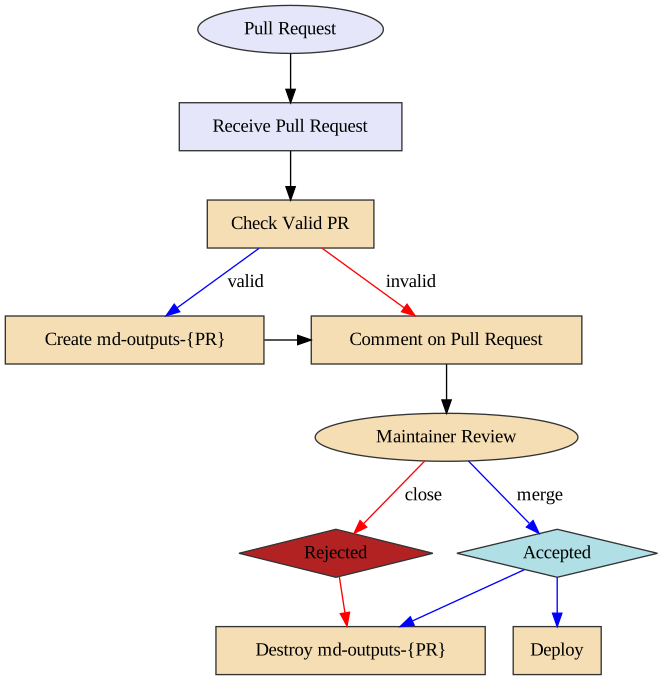
125 |
126 | ### Pre Flight Pull Request Validation (pr-preflight.yaml)
127 |
128 | This workflow runs every time a pull request is created and its purpose is to
129 | validate that the pull request is okay to run. This means the following things:
130 |
131 | 1. The pull request does not contain modified workflow files
132 | 2. If the pull request contains modified workflow files, it does not contain
133 | modified content files (such as a situation where @carpentries-bot will
134 | make an automated pull request)
135 | 3. The pull request does not contain an invalid commit hash (e.g. from a fork
136 | that was made before a lesson was transitioned from styles to use the
137 | workbench).
138 |
139 | Once the checks are finished, a comment is issued to the pull request, which
140 | will allow maintainers to determine if it is safe to run the
141 | "Receive Pull Request" workflow from new contributors.
142 |
143 | ### Receive Pull Request (pr-receive.yaml)
144 |
145 | **Note of caution:** This workflow runs arbitrary code by anyone who creates a
146 | pull request. GitHub has safeguarded the token used in this workflow to have no
147 | priviledges in the repository, but we have taken precautions to protect against
148 | spoofing.
149 |
150 | This workflow is triggered with every push to a pull request. If this workflow
151 | is already running and a new push is sent to the pull request, the workflow
152 | running from the previous push will be cancelled and a new workflow run will be
153 | started.
154 |
155 | The first step of this workflow is to check if it is valid (e.g. that no
156 | workflow files have been modified). If there are workflow files that have been
157 | modified, a comment is made that indicates that the workflow is not run. If
158 | both a workflow file and lesson content is modified, an error will occurr.
159 |
160 | The second step (if valid) is to build the generated content from the pull
161 | request. This builds the content and uploads three artifacts:
162 |
163 | 1. The pull request number (pr)
164 | 2. A summary of changes after the rendering process (diff)
165 | 3. The rendered files (build)
166 |
167 | Because this workflow builds generated content, it follows the same general
168 | process as the `sandpaper-main` workflow with the same caching mechanisms.
169 |
170 | The artifacts produced are used by the next workflow.
171 |
172 | ### Comment on Pull Request (pr-comment.yaml)
173 |
174 | This workflow is triggered if the `pr-receive.yaml` workflow is successful.
175 | The steps in this workflow are:
176 |
177 | 1. Test if the workflow is valid and comment the validity of the workflow to the
178 | pull request.
179 | 2. If it is valid: create an orphan branch with two commits: the current state
180 | of the repository and the proposed changes.
181 | 3. If it is valid: update the pull request comment with the summary of changes
182 |
183 | Importantly: if the pull request is invalid, the branch is not created so any
184 | malicious code is not published.
185 |
186 | From here, the maintainer can request changes from the author and eventually
187 | either merge or reject the PR. When this happens, if the PR was valid, the
188 | preview branch needs to be deleted.
189 |
190 | ### Send Close PR Signal (pr-close-signal.yaml)
191 |
192 | Triggered any time a pull request is closed. This emits an artifact that is the
193 | pull request number for the next action
194 |
195 | ### Remove Pull Request Branch (pr-post-remove-branch.yaml)
196 |
197 | Tiggered by `pr-close-signal.yaml`. This removes the temporary branch associated with
198 | the pull request (if it was created).
199 |
--------------------------------------------------------------------------------
/episodes/02-working-with-openrefine.md:
--------------------------------------------------------------------------------
1 | ---
2 | title: Working with OpenRefine
3 | teaching: 15
4 | exercises: 20
5 | ---
6 |
7 | ::::::::::::::::::::::::::::::::::::::: objectives
8 |
9 | - Create a new OpenRefine project from a CSV file.
10 | - Understand potential problems with file headers.
11 | - Use facets to summarize data from a column.
12 | - Use clustering to detect possible typing errors.
13 | - Understand that there are different clustering algorithms which might give different results.
14 | - Employ drop-downs to remove white spaces from cells.
15 | - Manipulate data using previous steps with undo/redo.
16 |
17 | ::::::::::::::::::::::::::::::::::::::::::::::::::
18 |
19 | :::::::::::::::::::::::::::::::::::::::: questions
20 |
21 | - How can we bring our data into OpenRefine?
22 | - How can we sort and summarize our data?
23 | - How can we find and correct errors in our raw data?
24 |
25 | ::::::::::::::::::::::::::::::::::::::::::::::::::
26 |
27 | ## Creating a new OpenRefine project
28 |
29 | OpenRefine can import a variety of file types, including tab separated (`tsv`),
30 | comma separated (`csv`), Excel (`xls`, `xlsx`), JSON, XML, RDF as XML, and
31 | Google Spreadsheets. See the [OpenRefine Create a Project by Importing Data
32 | page](https://docs.openrefine.org/manual/starting/#create-a-project-by-importing-data)
33 | for more information.
34 |
35 | In this first step, we'll browse our computer to the sample data file for this
36 | lesson.
37 | In this case, we will be using data obtained from interviews of farmers in two
38 | countries in eastern sub-Saharan Africa (Mozambique and Tanzania).
39 | If you haven't yet downloaded the data, see the [instructions on downloading
40 | the data in Setup](../learners/setup.md).
41 |
42 | ::: instructor
43 |
44 | ### Extensions affecting the user interface
45 |
46 | If you installed any [extensions][] in OpenRefine, your screen may look different
47 | from the default OpenRefine user interface that learners see.
48 | For example, an extension may add buttons, menu items or GREL functions.
49 | If the changes are noticeable, you might want to mention how your interface looks
50 | different from the learners' interface.
51 |
52 | [extensions]: https://openrefine.org/extensions
53 |
54 | ::::::::::::::
55 |
56 | ::: instructor
57 |
58 | ### Importing the sample data
59 |
60 | The file has a single header row and has comma-separated values.
61 | OpenRefine should not have trouble figuring out the settings for parsing these
62 | data. Either US-ASCII or UTF-8 are fine as character encoding.
63 |
64 | Consider giving the project a meaningful name. If you do, briefly explain how
65 | that name is meaningful (to you and hopefully others).
66 |
67 | There are many columns in the file, which may be handled after importing.
68 |
69 | ::::::::::::::
70 |
71 |
72 | ::: instructor
73 |
74 | ### Open Project when you returned to start screen
75 |
76 | If at any time during the lesson you (accidentally) end up back at the start screen,
77 | you could demonstrate "Open Project".
78 | It opens your project where you were, which demonstrates that OpenRefine
79 | continually saves the project in the background.
80 |
81 | ::::::::::::::
82 |
83 | Once OpenRefine is launched in your browser, the left margin has options to
84 | `Create Project`, `Open Project`, or `Import Project`. Here we will create a
85 | new project:
86 |
87 | 1. Click `Create Project` and select `Get data from` `This Computer`.
88 |
89 | 2. Click `Choose Files` and select the file `SAFI_openrefine.csv` that you
90 | downloaded in the [setup step](../learners/setup.md). Click
91 | `Open` or double-click on the filename.
92 |
93 | 3. Click `Next>>` under the browse button to upload the data into OpenRefine.
94 |
95 | 4. OpenRefine gives you a preview - a chance to show you it understood the
96 | file. If, for example, your file was really tab-delimited, the preview might
97 | look strange. You would then choose the correct separator in the box shown
98 | and click `Update Preview` (middle right). If this is the wrong file, click
99 | `<>` (upper right).
105 |
106 | Note that at step 1, you could upload data in a standard form from a web
107 | address by selecting `Get data from` `Web Addresses (URLs)`.
108 | The URLs must point to data in a file type that OpenRefine understands, just
109 | like the types that you could upload.
110 | Instead of downloading the dataset file as you did during
111 | [setup](../learners/setup.md) and uploading it from your computer,
112 | you could have submitted its URL here.
113 | Fully understanding this functionality is out of scope for this lesson.
114 | The [OpenRefine manual's section on importing from Web addresses
115 | (URLs)](https://docs.openrefine.org/manual/starting#web-addresses-urls) provides
116 | further information.
117 |
118 | ## Using Facets
119 |
120 | *Exploring data by applying multiple filters*
121 |
122 | Facets are one of the most useful features of OpenRefine and can help both get
123 | an overview of the data in a project as well as help you bring more consistency
124 | to the data. OpenRefine supports faceted browsing as a mechanism for
125 |
126 | - seeing a big picture of your data, and
127 | - filtering down to just the subset of rows that you want to change in bulk.
128 |
129 | A 'Facet' groups all the like values that appear in a column, and then allows
130 | you to filter the data by these values and edit values across many records at
131 | the same time.
132 |
133 | One type of Facet is called a 'Text facet'. This groups all the identical text
134 | values in a column and lists each value with the number of records it appears
135 | in. The facet information always appears in the left hand panel in the
136 | OpenRefine interface.
137 |
138 | Here we will use faceting to look for potential errors in data entry in the `village` column.
139 |
140 | ::::::::::::::::::::::::: challenge
141 |
142 | ### Finding (potential) errors
143 |
144 | 1. Scroll over to the `village` column.
145 | 2. Click the down arrow and choose `Facet` > `Text facet`.
146 | 3. In the left panel, you'll now see a box containing every unique value in the
147 | `village` column along with a number representing how many times that value
148 | occurs in the column.
149 | 4. Try sorting this facet by name and by count. Do you notice any problems with
150 | the data? What are they?
151 | 5. Hover the mouse over one of the names in the `Facet` list. You should see
152 | that you have an `edit` function available.
153 | 6. You could use this to fix an error immediately, and OpenRefine will ask
154 | whether you want to make the same correction to every value it finds like
155 | that one. But OpenRefine offers even better ways to find and fix these
156 | errors, which we'll use instead. We'll learn about these when we talk about
157 | clustering.
158 |
159 | ::::::::::::::: solution
160 |
161 | ### Solution
162 |
163 | - `Chirdozo` is likely a mis-entry of `Chirodzo`.
164 | - `Ruca` is likely a mis-entry of `Ruaca`.
165 | - `Ruaca - Nhamuenda` and `Ruaca-Nhamuenda` refer to the same place (differ
166 | only by spaces around the hyphen). You might also wonder if both of these
167 | are the same as `Ruaca`. We will see how to correct these misspelled and
168 | mistyped entries in a later exercise.
169 | - The entry `49` is almost certainly an error but you will not be able to fix
170 | it by reference to other data.
171 |
172 | :::::::::::::::::::::::::
173 |
174 | :::::::::::::::::::::::::::::::::::
175 |
176 |
177 | ::::::::::::::::::::::::::::::::::::::: challenge
178 |
179 | ### Interview collection dates
180 |
181 | 1. Using faceting, find out how many different `interview_date` values there
182 | are in the survey results.
183 |
184 | 2. Is the column formatted as Text or Date?
185 |
186 | 3. Use faceting to produce a timeline display for `interview_date`. You will
187 | need to use `Edit cells` > `Common transforms` > `To date` to convert this
188 | column to dates.
189 |
190 | 4. During what period were most of the interviews collected?
191 |
192 | ::::::::::::::: solution
193 |
194 | ### Solution
195 |
196 | For the column `interview_date` do `Facet` > `Text facet`. A box will
197 | appear in the left panel showing that there are 19 unique entries in
198 | this column.
199 | By default, the column `interview_date` is formatted as Text. You can
200 | change the format by doing `Edit cells` > `Common transforms` > `To date`.
201 |
202 | Notice the the values in the column turn green. Doing `Facet` > `Timeline facet` creates a box in the left panel that shows a histogram of the number
203 | of entries for each date.
204 |
205 | Most of the data was collected in November of 2016.
206 |
207 | :::::::::::::::::::::::::
208 |
209 | ::::::::::::::::::::::::::::::::::::::::::::::::::
210 |
211 |
212 | ::::::::::::::::::::::::::::::::::::::::: callout
213 |
214 | ## Other types of Facets
215 |
216 | Please see the
217 | [OpenRefine Manual section on Facets](https://openrefine.org/docs/manual/facets)
218 | for reference information on all types of facets.
219 |
220 | Besides 'Text facets' OpenRefine also supports several other types of
221 | facet. These include:
222 |
223 | - Numeric facets
224 | - Timeline facets (for dates)
225 | - Custom facets
226 | - Scatterplot facets
227 |
228 | **Numeric and Scatterplot facets** display graphs instead of lists of values.
229 | The numeric facet graph includes 'drag and drop' controls you can use to set
230 | a start and end range to filter the data displayed.
231 | A scatterplot facet allows you to visualise values in a pair of numeric columns
232 | as a scatterplot, so that you can filter by two-value combinations.
233 |
234 | ::: instructor
235 |
236 | ### Exercises available in OpenRefine for Ecologists lesson
237 |
238 | These facet types are explored further in [Examining Numeric Columns in the
239 | *OpenRefine for Ecologists* lesson][ecology-facets].
240 | Note that this is a different lesson!
241 |
242 | [ecology-facets]: https://datacarpentry.org/OpenRefine-ecology-lesson/03-exploring-data.html#exploring-numeric-columns
243 |
244 | ::::::::::::::
245 |
246 | **Custom facets** are a range of different types of facets. Some of the
247 | default custom facets are:
248 |
249 | - Word facet - this breaks down text into words and counts the number of
250 | records each word appears in
251 | - Duplicates facet - this results in a binary facet of 'true' or 'false'.
252 | Rows appear in the 'true' facet if the value in the selected column is an
253 | exact match for a value in the same column in another row
254 | - Text length facet - creates a numeric facet based on the length (number of
255 | characters) of the text in each row for the selected column. This can be
256 | useful for spotting incorrect or unusual data in a field where specific
257 | lengths are expected (e.g. if the values are expected to be years, any row
258 | with a text length more than 4 for that column is likely to be incorrect)
259 | - Facet by blank - a binary facet of 'true' or 'false'. Rows appear in the
260 | 'true' facet if they have no data present in that column. This is useful
261 | when looking for rows missing key data.
262 |
263 | ::::::::::::::::::::::::::::::::::::::::::::::::::
264 |
265 |
266 | ::::: callout
267 |
268 | ### Bookmark a project with facets and filters
269 |
270 | OpenRefine saves the project continuously so that you can close the browser
271 | and use "Open Project" from the start page to continue the work.
272 | However, any facets and filters (discussed in the next episode) are not saved.
273 | To save the exact view, you can bookmark the "Permalink" that is to the right
274 | of the project name in the top left corner of the screen.
275 |
276 | :::::::::::::
277 |
278 |
279 | ## Using clustering to detect possible typing errors
280 |
281 | In OpenRefine, clustering means "finding groups of different values that might
282 | be alternative representations of the same thing". For example, the two strings
283 | `New York` and `new york` are very likely to refer to the same concept and just
284 | have capitalization differences. Likewise, `Gödel` and `Godel` probably refer
285 | to the same person. Clustering is a very powerful tool for cleaning datasets
286 | which contain misspelled or mistyped entries. OpenRefine has several clustering
287 | algorithms built in. Experiment with them, and learn more about these
288 | algorithms and how they work.
289 |
290 | 1. In the `village` Text Facet we created in the step above, click the `Cluster` button.
291 | 2. In the resulting pop-up window, you can change the `Method` and the `Keying Function`. Try different combinations to see what different mergers of values are suggested.
292 | 3. Select the `key collision` method and `metaphone3` keying function. It
293 | should identify two clusters.
294 | 4. Click the `Merge?` box beside each cluster, then click `Merge Selected and Recluster` to apply the corrections to the dataset.
295 | 5. Try selecting different `Methods` and `Keying Functions` again, to see what
296 | new merges are suggested.
297 | 6. You should find that using the default settings, no more clusters are found,
298 | for example to merge `Ruaca-Nhamuenda` with `Ruaca` or `Chirdozo` with
299 | `Chirodzo`. (Note that the `nearest neighbor` method with `ppm` distance,
300 | `radius` ≥ 4, and `block chars` ≤ 4 will find these clusters, as well
301 | as other settings with `levenshtein` distance)
302 | 7. To merge these values we will hover over them in the village text facet,
303 | select edit, and manually change the names. Change `Chirdozo` to `Chirodzo`
304 | and `Ruaca-Nhamuenda` to `Ruaca`. You should now have four clusters:
305 | `Chirodzo`, `God`, `Ruaca` and `49`.
306 |
307 | Important: If you `Merge` using a different method or keying function, or more
308 | times than described in the instructions above, your solutions for later
309 | exercises will not be the same as shown in those exercise solutions.
310 |
311 | The [manual's section on clustering][clustering] provides technical details on
312 | how the different clustering algorithms work.
313 |
314 | [clustering]: https://openrefine.org/docs/technical-reference/clustering-in-depth
315 |
316 | ## Transforming data
317 |
318 | The data in the `items_owned` column is a set of items in a list. The list is
319 | in square brackets and each item is in single quotes. Before we split the list
320 | into individual items in the next section, we first want to remove the brackets
321 | and the quotes.
322 |
323 | 1. Click the down arrow at the top of the `items_owned` column. Choose
324 | `Edit Cells` > `Transform...`
325 |
326 | 2. This will open up a window into which you can type a GREL expression. GREL
327 | stands for General Refine Expression Language.
328 | {alt='OR\_Transform'}
329 |
330 | 3. First we will remove all of the left square brackets (`[`). In the
331 | Expression box type `value.replace("[", "")` and click `OK`.
332 |
333 | 4. What the expression means is this: Take the `value` in each cell in the
334 | selected column and replace all of the "[" with "" (i.e. nothing - delete).
335 |
336 | 5. Click `OK`. You should see in the `items_owned` column that there are no
337 | longer any left square brackets.
338 |
339 | ::::::::::::::::::::::::::::::::::::::: challenge
340 |
341 | ### Remove unwanted characters
342 |
343 | Use this same strategy to remove the single quote marks (`'`), the
344 | right square brackets (`]`), and spaces from the `items_owned` column.
345 |
346 | ::::::::::::::: solution
347 |
348 | ### Solution
349 |
350 | 1. `value.replace("'", "")`
351 | 2. `value.replace("]", "")`
352 | 3. `value.replace(" ", "")`
353 | You should now have a list of items separated by semi-colons (`;`).
354 |
355 | :::::::::::::::::::::::::
356 |
357 | ::::::::::::::::::::::::::::::::::::::::::::::::::
358 |
359 | Now that we have cleaned out extraneous characters from our `items_owned`
360 | column, we can use a text facet to see which items were commonly owned or
361 | rarely owned by the interview respondents.
362 |
363 | 1. Click the down arrow at the top of the `items_owned` column. Choose
364 | `Facet` > `Custom text facet...`
365 | 2. In the `Expression` box, type `value.split(";")`.
366 | 3. Click `OK`.
367 |
368 | You should now see a new text facet box in the left-hand pane.
369 |
370 | ::::::::::::::::::::::::::::::::::::::: challenge
371 |
372 | ### Commonly owned items
373 |
374 | Which two items are the most commonly owned? Which are the two
375 | least commonly owned?
376 |
377 | ::::::::::::::: solution
378 |
379 | ### Solution
380 |
381 | Select `Sort by:` `count`. The most commonly owned items are
382 | mobile phone and radio, the least commonly owned are cars and computers.
383 |
384 | :::::::::::::::::::::::::
385 |
386 | ::::::::::::::::::::::::::::::::::::::::::::::::::
387 |
388 |
389 | ::::::::::::::::::::::::::::::::::::::: challenge
390 |
391 | ### Month(s) with farmers lacking food
392 |
393 | Perform the same clean up steps and customized text faceting for
394 | the `months_lack_food` column. Which month(s) were farmers
395 | more likely to lack food?
396 |
397 | ::::::::::::::: solution
398 |
399 | ### Solution
400 |
401 | All four cleaning steps can be performed by combining `.replace`
402 | statements. The command is:
403 | `value.replace("[", "").replace("]", "").replace(" ", "").replace("'", "")`
404 | This can also be done in four separate steps if preferred.
405 | November was the most common month for respondents to lack food.
406 |
407 | :::::::::::::::::::::::::
408 |
409 | ::::::::::::::::::::::::::::::::::::::::::::::::::
410 |
411 |
412 | ::::::::::::::::::::::::::::::::::::::: challenge
413 |
414 | ### Clean up other columns
415 |
416 | Perform the same clean up steps for the `months_no_water`, `liv_owned`,
417 | `res_change`, and `no_food_mitigation` columns.
418 | Hint: To reuse a GREL command, click the `History` tab and then
419 | click `Reuse` next to the command you would like to apply to that
420 | column.
421 |
422 |
423 | ::::::::::::::::::::::::::::::::::::::::::::::::::
424 |
425 | ## Using undo and redo
426 |
427 | It's common while exploring and cleaning a dataset to discover after you've
428 | made a change that you really should have done something else first. OpenRefine
429 | provides `Undo` and `Redo` operations to make this easy.
430 |
431 | ::::::::::::::::::::::::::::::::::::::: challenge
432 |
433 | ### Explore undo and redo
434 |
435 | 1. Click where it says `Undo / Redo` on the left side of the screen. All the
436 | changes you have made so far are listed here.
437 | 2. Click on the step that you want to go back to, in this case go back
438 | several steps to before you had done any text transformation.
439 | 3. Visually confirm that those columns now contain the special characters
440 | that we had removed previously.
441 | 4. Notice that you can still click on the later steps to `Redo` the actions.
442 | Before moving on to the next lesson, redo all the steps in your analysis
443 | so that all of the columns you modified are lacking in square brackets,
444 | spaces, and single quotes.
445 |
446 | ::::::::::::::::::::::::::::::::::::::::::::::::::
447 |
448 | ## Trim Leading and Trailing Whitespace
449 |
450 | Sometimes spaces (or tabs, or newline characters) will be present at the beginning
451 | or end of a text cell.
452 | They may have been in the dataset that was imported, or appear when you perform
453 | operations on the data, such as splitting text.
454 | While we as humans cannot always see or notice these (especially if they are at
455 | the end of a word), a computer always sees them.
456 | These spaces are often unwanted variations that should to be removed.
457 |
458 | As of version 3.4, OpenRefine provides the option to trim (i.e. remove) leading and
459 | trailing whitespace during the import of data (see image at the top of this page).
460 | This is then applied to the data in all columns.
461 |
462 | OpenRefine also provides a menu option to remove blank
463 | characters from the beginning and end of any entries in the column that you choose.
464 |
465 | ::::::::::::::::::::::::: challenge
466 |
467 | ### Remove a trailing space
468 |
469 | 1. Edit the `village` on the first row to introduce a space at the end, set to `God `.
470 | 2. Create a new text facet for the `village` column. You should now see two
471 | different entries for `God`, one of which has a trailing whitespace.
472 | 3. To remove the whitespace, choose `Edit cells` > `Common transforms` >
473 | `Trim leading and trailing whitespace`.
474 | 4. You should now see only four choices in your text facet again.
475 |
476 | :::::::::::::::::::::::::::::::::::
477 |
478 |
479 | :::::::::::::::::::::::::::::::::::::::: keypoints
480 |
481 | - OpenRefine can import a variety of file types.
482 | - OpenRefine can be used to explore data using filters.
483 | - Clustering in OpenRefine can help to identify different values that might mean the same thing.
484 | - OpenRefine can transform the values of a column.
485 |
486 | ::::::::::::::::::::::::::::::::::::::::::::::::::
487 |
488 |
489 |
--------------------------------------------------------------------------------