├── tldr.md
├── setup-azure-postgresql.md
├── connect-to-SQL-Server-from-app-server.md
├── register-for-azure-account.md
└── README.md
/tldr.md:
--------------------------------------------------------------------------------
1 | ## tl;dr
2 |
3 | Microsoft Azure is not "_better_" than any other "Cloud"
4 | Infrastructure/Platform Provider.
5 | They have implemented a IaaS/PaaS in _response_ to Amazon Web Services;
6 | because they saw their server business being _wiped out_.
7 | Their choice of name "Windows Azure" in 2010 reflects how _utterly clueless_
8 | [Steve Ballmer](https://medium.com/packt-publishing/how-to-be-like-steve-ballmer-cf4c9803d74c)
9 | was about the "Cloud" (_Market_)
10 | that MSFT saw Azure as a way to sell more Windows (_i.e. Server Licenses_)
11 | and not as general purpose platform. _Obviously_ in 2014 when
12 | [Satya Nadella](https://en.wikipedia.org/wiki/Satya_Nadella)
13 | was made CEO of Microsoft Azure was re-branded from "**_Windows_ Azure**"
14 | to "**_Microsoft_ Azure**" they decided to expand
15 | to being a more general purpose IaaS/PaaS provider.
16 | The fact that Nadella was "Executive Vice President" of "Cloud and Enterprise"
17 | before being made CEO helped Microsoft to focus on that segment
18 | of their business when was given the reins.
19 |
20 | To be **100% Clear**: we are _only_ using Azure
21 | because one of our clients (NHS) _requires_ us to.
22 | We would _prefer_ to use AWS, Digital Ocean
23 | or Google Could Platform over Azure _every time_.
24 | Not that we think that the _people_ working on the Azure team are "bad"
25 | just that the Company (Microsoft) is [Evil](https://www.reddit.com/r/OutOfTheLoop/comments/2v4ses/why_is_microsoft_so_widely_considered_evil/) and should not be supported.
26 |
27 | > Microsoft has _allowed_ their OS to be insecure
28 | which has lead to Ransomeware costing the NHS _real_ Time and Money
29 | e.g: http://www.bbc.co.uk/news/health-39899646
30 | We think the NHS should implement moving _away_ from Microsoft _immediately_.
31 | If anyone _at_ the NHS is reading `this` far and wants to discuss
32 | an ***implementation plan*** for moving away from
33 | [Microsoft's **Monopoly**](http://techrights.org/2016/06/05/microsoft-reputation-laundered),
34 | contact us to discuss,
35 | I will _personally_ work for **FREE** for as long as it takes
36 | to make the NHS 100% Open Source, Transparent
37 | and thus Orders of Magnitude more Cost-effective!!
38 |
39 | We _understand_ from a corporate policy/decision-making perspective
40 | that Azure is an _easy_ decision for certain companies/"executives"
41 | to make given their _existing_ investment/commitment to Microsoft ...
42 | So we want to _document_ our setup so that it can be followed
43 | by anyone `else` in the same situation.
44 |
45 | Much like Windows Phone, Azure is a "_me too_" product where Microsoft
46 | is playing catchup with _well-established/better_
47 | (_more mature, feature rich/innovative, faster, cheaper_) alternatives.
48 | There's _no_ ***technical reason*** why _anyone_ would use Azure
49 | other than a political decision.
50 | In our case the NHS were offered _big_ discounts by Microsoft to use Azure.
51 | Everyone knows that MSFT are discounting Azure to the NHS for reasons
52 | _other_ than "doing good", but the NHS IT people love a bargain so they are
53 | investing huge amounts of time locking themselves into the Microsoft "Cloud".
54 |
55 | At least all the apps that _we_ (@dwyl) build are designed to be
56 | "infrastructure agnostic" (_i.e. no "lock-in"_).
57 |
--------------------------------------------------------------------------------
/setup-azure-postgresql.md:
--------------------------------------------------------------------------------
1 | # Azure PostgreSQL-as-a-Service
2 |
3 | This is a _step-by-step_ guide
4 | to setting up a PostgreSQL Database
5 | on Microsoft Azure!
6 |
7 | ### 1. On Azure Dashboard Click the "Search" Icon
8 |
9 | Click on the search (_magnifying glass_) icon:
10 |
11 | 
12 |
13 | ### 2. Type Postgres into the Search input Field
14 |
15 | Once the search interface appears, type `postgres` into the field:
16 |
17 | 
18 |
19 | Then click on the result that says "**Azure Database for PostgreSQL**".
20 | (_that will take you to screen that allows you to create a new database_)
21 |
22 | ### 3. Click on the "Add" Button to Create a Database
23 |
24 | Click on one of the buttons that allows you to add
25 |
26 | 
27 |
28 |
29 | ### 4. Complete the Database Creation Form
30 |
31 | 
32 |
33 | 1. Give your database a meaningful name
34 | (_longer is better. spaces aren't allowed_)
35 | 2. Select the subscription
36 | (_i.e. how are you paying for the Database resources_)
37 | 3. Select a resource group (_we just use the same one as the VPS servers_)
38 | 4. Define the username that will be used to login to your Database
39 | (_we chose to keep it obvious for this example, but longer is better_)
40 | 5. Create a password.
41 | (_the longer the better. it does not need to be "human readable"_)
42 | for an example of a _long_ and _secure_ password see:
43 | https://www.grc.com/passwords.htm
44 | 6. Repeat (_copy-paste_) the same password.
45 | **Tip**: Make a _note_ of this password because
46 | Azure will not "remind" you of it (_it won't be displayed in plaintext_)
47 | and you will need it in a later step.
48 | 7. Select the location where you want your PostgreSQL instance to be.
49 | (_we select the **same** as our VPS servers/cluster for lower latency_)
50 | 8. Select the _version_ of PostgreSQL you want to use.
51 | (_unless you have a **reason** to select something else,
52 | pick the current/latest version; in this case 9.6_)
53 | 9. Select a Pricing Tier. Pricing depends on your perceived needs.
54 | If you _know_ that you need a certain amount
55 | of storage space and "compute units" then go for more, but for _most_ "simple"
56 | web applications the "Basic" tier is _perfectly fine_.
57 | 10. Click "**Create**" to finalise the creation.
58 |
59 | ## 5. Add the `DATABASE_URL` Environment Variable to the App Server(s)
60 |
61 | On your application server add the `DATABASE_URL` Environment Variable:
62 |
63 | Environment Variables:
64 | ```
65 | export DATABASE_URL=postgres://postgres@pxblog:{your_password}@pxblog.postgres.database.azure.com:5432/{your_database}?ssl=true
66 | export PORT=4000
67 | ```
68 |
69 | We _recommend_ adding environment variables to the `~/.profile` file.
70 |
71 | > Note: ensure that you have granted access to app server
72 | from the database server.
73 |
--------------------------------------------------------------------------------
/connect-to-SQL-Server-from-app-server.md:
--------------------------------------------------------------------------------
1 | # Connect to Microsoft SQL Server from App Server
2 |
3 | ## Why?
4 |
5 | In the
6 | [Healthlocker Web Application](https://github.com/healthlocker/healthlocker)
7 | (_personally identifiable_) patient data is stored a separate (_read only_)
8 | Microsoft SQL Database.
9 |
10 | We need to _read_ that data in order to display it for users in the App.
11 |
12 | ## What?
13 |
14 | This _documents_ the steps taken to _confirm_ we are
15 | able to connect the SQL Server and query the data (_step-by-step_).
16 |
17 | ## How?
18 |
19 | Login to the application server (VM) using ssh:
20 |
21 |
54 |
55 | ```sh
56 | ssh hladmin@51.140.86.5
57 | ```
58 |
59 | 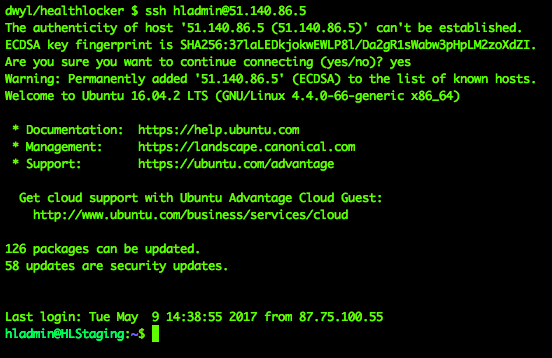
60 |
61 | Instal Security Updates:
62 |
63 | ```
64 | sudo apt-get update
65 | ```
66 | 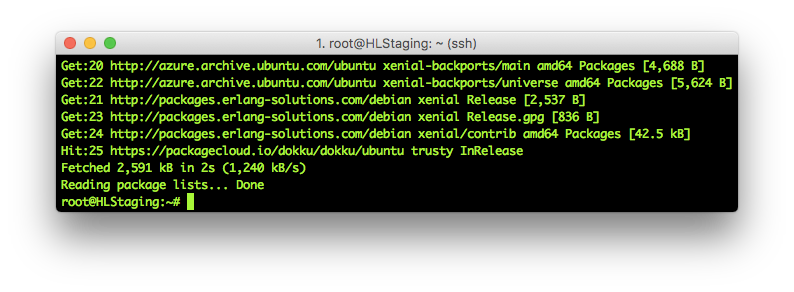
67 |
68 | ### Connect to Microsoft SQL Server from Linux (CLI)
69 |
70 | using `sqlcmd` following this guide:
71 | https://docs.microsoft.com/en-us/sql/linux/sql-server-linux-connect-and-query-sqlcmd
72 |
73 | ### Install `sqlcmd` on Ubuntu
74 |
75 | Please see up-to-date instructions:
76 | https://docs.microsoft.com/en-us/sql/linux/sql-server-linux-setup-tools#ubuntu
77 |
78 | We ran the following commands:
79 | ```
80 | curl https://packages.microsoft.com/config/ubuntu/16.04/prod.list | sudo tee /etc/apt/sources.list.d/msprod.list
81 | sudo apt-get update
82 | sudo apt-get install mssql-tools unixodbc-dev
83 | echo 'export PATH="$PATH:/opt/mssql-tools/bin"' >> ~/.bash_profile
84 | source ~/.bash_profile
85 | ```
86 |
87 | ### Login to Microsoft SQL Server
88 |
89 | Login to the remote SQL Server using the IP, Username,
90 | and Password
91 | ```
92 | sqlcmd -S 192.555.5.555 -U SA -P ''
93 | ```
94 |
95 | In our case:
96 |
97 | ```
98 | sqlcmd -S "$EPJS_MSSQL_DATABASE_SERVER" -U "$EPJS_MSSQL_DATABASE_USERNAME" -P "$EPJS_MSSQL_DATABASE_PASSWORD"
99 | ```
100 | > Note the values in quotes preceded by a $ are environment variables:
101 | EPJS_MSSQL_DATABASE_PASSWORD
102 | EPJS_MSSQL_DATABASE_USERNAME
103 | EPJS_MSSQL_DATABASE_SERVER
104 |
105 | ### List Databases
106 |
107 | ```
108 | 1> select name from sys.databases
109 | 2> go
110 | ```
111 |
112 | in our case this showed:
113 | ```
114 | master
115 | tempdb
116 | msdb
117 | DBAdmin
118 | MHL2
119 | ```
120 | ### List Tables in Database:
121 |
122 | Copy-paste one line at a time. (_Painfull, I know... thanks Microsoft!_)
123 | ```
124 | use MHL2;
125 | go
126 | SELECT TABLE_NAME FROM information_schema.tables;
127 | go
128 | ```
129 | In our case the tables are:
130 | ```
131 | mhlTeamMembers
132 | mhlGPDetails
133 | mhlSLAMRecoveryCarePlan
134 | mhlSLAMRecoveryCarePlanContingency
135 | mhlSLAMRecoveryFocusedCarePlanDailyActivity
136 | mhlSLAMRecoveryFocusedCarePlanHelper
137 | mhlSLAMRecoveryFocusedCarePlanHelperPart2
138 | mhlSLAMRecoveryFocusedCarePlanGettingHelpFromOthersGeneral
139 | mhlSLAMRecoveryFocusedCarePlanGoalsAndAsp
140 | mhlSLAMRecoveryFocusedCarePlanGoalsAndAspBudget
141 | mhlSLAMRecoveryFocusedCarePlanLifeEventsTriggers
142 | mhlPatientAddressDetails
143 | mhlPatientNextOfKinDetails
144 | mhlSummaryOfNeed
145 | mhlPatIndex
146 | ```
147 |
148 | ### Run `SELECT` Query to Confirm Data Available
149 |
150 | ```
151 | SELECT COUNT(*) FROM mhlPatIndex;
152 | ```
153 |
154 | Result:
155 | 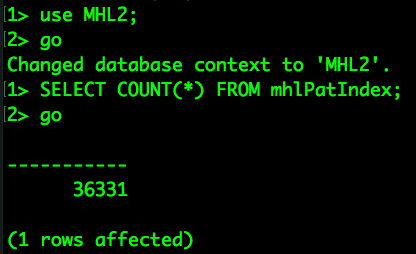
156 |
157 |
158 | ## Background Reading
159 |
160 | + https://docs.microsoft.com/en-us/azure/sql-database/sql-database-connect-query-nodejs
161 |
--------------------------------------------------------------------------------
/register-for-azure-account.md:
--------------------------------------------------------------------------------
1 | ## Register for Azure in _TWELVE_ Easy Steps!
2 |
3 | This is the UX you should _expect_ when using Azure:
4 |
5 | 
6 | As long as you ***set your expectations*** (_low_) going in you won't be _too_
7 | [**disappointed / frustrated**](https://feedback.azure.com/forums/266794-support-feedback/suggestions/10461873-azure-is-unfinished-product-support-sucks)
8 | With that disclaimer out of the way, let's get started! :-)
9 |
10 | ### 1. Register for Azure
11 |
12 | If you don't _already_ have a Microsoft Azure account
13 | (_why would you?1_)
14 | register for one at: https://azure.microsoft.com/
15 |
16 | 
17 |
18 | ### 2. Yes I want a "Free" Account
19 |
20 | Click on `Start Free` button:
21 |
22 | 
23 |
24 | P.S: This is a _sign_ of things to come:
25 | _many clicks_ to accomplish simple actions!!!
26 |
27 | > Microsoft uses (_very_) "Sticky" Sessions!
28 | Even though I ***signed out*** of my _personal_ (hotmail) account,
29 | they still kept a record on my computer so they would _not_
30 | let me open a new account! hence the incognito browser windows for the
31 | rest of the registration process!
32 |
33 | ### 3. Click on `Create a New Microsoft Account`
34 |
35 | Unless you already have a Microsoft Account and have _never_
36 | used Azure before, you will need to `Create a new Microsoft Account`:
37 |
38 | 
39 |
40 | ### 4. Input your Desired Email Address
41 |
42 | 
43 |
44 | ### 5. Fill in "About You" i.e. Personal Details for their Marketing Database!
45 |
46 | 
47 |
48 | > Note you will need to use a ***real phone number***
49 | to get your account verified ... see next step!
50 |
51 | ### 6. Verify your New Account by Phone
52 |
53 | 
54 |
55 | _Obviously_ you need to use a ***real phone number*** here ...
56 |
57 | ### 7. Verify your New Account by Credit Card
58 |
59 | 
60 |
61 | _Obviously_ this step needs to be a ***real credit card***:
62 | And you should _totally_ Trust Microsoft with your Credit Card,
63 | cause their security is _always_ the best ...
64 | https://www.google.com/#q=microsoft+security+flaw+Project+Zero
65 |
66 | ### 8. Check The "Agree" All-the-Things
67 |
68 | 
69 |
70 | _Naturally_, the checkbox that lets Microsoft `SPAM` you with their crap
71 | is checked. It's up to you if you want to drink their coolaid.
72 |
73 | 
74 |
75 | Once you click "sign up" go get a coffee because it's _slow_!
76 |
77 | ### 9. Click `Get started with your Azure subscription`
78 |
79 | One more thing to click before you get to see anything useful/relevant:
80 |
81 | 
82 |
83 | ### 10. Now Sign up to watch a Webinar
84 |
85 | Click on the `Get started with your Azure subscription` takes you
86 | to this "Webinar" signup page:
87 |
88 | 
89 |
90 | Why would I want to waste time on a Webinar?!
91 | Why can't I get started _right now_?!?
92 | _Luckily_ I've used Azure before and I know that clicking the "portal"
93 | link in the Top Navigation will take me to the Azure dashboard.
94 | But if you're `new` to this, you'll have to keep guessing!!
95 |
96 | ### 11. Click on `Portal` in the Top Nav
97 |
98 | When you click on the `portal` link you will be shown the dashboard,
99 | kinda ...
100 |
101 | 
102 |
103 | What you are actually shown is a Modal Window!!
104 | One more click before you can get _anything_ done.
105 |
106 | ### 12. Click on `Maybe Later`
107 |
108 | Finally after 12 steps and _reliquishing_ ***all my personal data***
109 | I'm able to see a dashboard:
110 |
111 | 
112 |
--------------------------------------------------------------------------------
/README.md:
--------------------------------------------------------------------------------
1 | # Learn Microsoft Azure
2 |
3 | 
4 |
5 | Learn how to deploy your Web Application &
6 | Database Server to Microsoft Azure.
7 |
8 | ## Why?
9 |
10 | The decision was made to deploy your work/app to Azure1,
11 | now you have the task of making it happen.
12 |
13 | ## What?
14 |
15 | A Step-by-Step guide to deploying your first app on Microsoft Azure.
16 |
17 | The first part of this guide focusses on getting a Linux Virtual Machine
18 | launched on Azure.
19 | You can then deploy what ever you like to it
20 | and it will work _similarly_ to other cloud providers.
21 |
22 |
23 | After that we move on to deploying a Phoenix Web Application
24 | (_because that is our chosen
25 | [technology stack](https://github.com/dwyl/technology-stack) @dwyl_)
26 | but the process is the same for _any_ stack.
27 |
28 | ## Who?
29 |
30 | Developers who need to deploy to Azure
31 | because their client/employer requires them to.
32 | If you have no prior "Cloud" Infrastructure experience,
33 | you will have no expectations or pre-conceptions.
34 |
35 |
36 | # How?
37 |
38 | > If you don't already have an account on Azure,
39 | go register for one now!
40 | [/**register**-for-**azure**-account.md](https://github.com/dwyl/learn-microsoft-azure/blob/master/register-for-azure-account.md)
41 |
42 | ## Part 1: Creating a Linux Virtual Machine (VM) Instance
43 |
44 | ### 1. Go to "Azure Portal Dashboard"
45 |
46 | Visit your Azure Dashboard: https://portal.azure.com
47 |
48 |
49 | ### 2. Create a Virtual Machine
50 |
51 | 
52 |
53 | 1. Click on the "Burger" (☰) Menu to expand the service menu
54 | 2. Click on "Virtual Machines" in the services menu
55 | 3. Click on "+ Add" to add a Virtual Machine
56 |
57 | > The Azure Tutorial(s) all assume you have the CLI installed. e.g:
58 | https://docs.microsoft.com/en-us/azure/virtual-machines/linux/tutorial-manage-vm
59 | > I'm doing a _step-by-step_ GUI tutorial instead because it's
60 | _way_ more beginner friendly!
61 |
62 |
63 | ### 3. Create Ubuntu `16.04 LTS` Virtual Machine
64 |
65 | 
66 |
67 | 1. Search for "Ubuntu LTS"
68 | 2. Select the LTS Version which is _currently_ `16.04 LTS`
69 | 3. Select the VM from the Right Menu
70 | Note: Dependent on your screen size, you may need to scroll to the Right to reveal the "Create" Button.
71 | 4. Click "Create" button to start the creation process.
72 |
73 | 
74 |
75 |
76 | ### 4. Input the Configuration Details for your VM
77 |
78 | You should then see a screen similar to this:
79 |
80 | 
81 |
82 | 1. Name: give your VM a meaningful name e.g: `phoenix-prod-1` (_useful if you end up having a cluster of several machines later on..._)
83 | 2. VM disk type: SSD (_keep the default_)
84 | 3. User name: `azure` (_they don't let you have the username `root` even though which ever username you do pick here has `root priviledges`!... I use `azure` so it's clear which platform my VM is hosted by/on._)
85 | 4. Authentication Type: `SSH public key` (_obviously more secure than password_)
86 | 5. SSH public key - paste your public key here.
87 | (_if you don't have a public key,
88 | how are you using GitHub...?!_
89 | see: http://stackoverflow.com/questions/3828164/how-do-i-access-my-ssh-public-key ...)
90 | copy your ssh key into your clipboard using this command:
91 | ```
92 | pbcopy < ~/.ssh/id_rsa.pub
93 | ```
94 | 6. Subscription: Free Trial (_obviously_)
95 | 7. Resource Group: [x] Create new.
96 | Called it `phoenix-cluster`
97 | 8. Location: `West Europe` (_pick what ever is closest to your end-users_)
98 | 9. Click "OK" (_finally_!)
99 |
100 | ### 5. Size: Choose Virtual Machine Size
101 |
102 | 
103 |
104 | Select the _cheapest_ VM available and
105 | then click the "Select" button.
106 |
107 |
108 | ### 6. Confirm the Settings for New Instance
109 |
110 | Confirm the settings for your new instance (_leave the defaults they are fine_):
111 |
112 | 
113 |
114 | Click on "OK" to confirm.
115 |
116 | > nothing.else.is.available@outlook.com
117 |
118 | ### 7. Instance Summary
119 |
120 | 
121 |
122 | Once you have confirmed the details, click "OK" to launch your instance.
123 |
124 | ### 8. Wait for the Instance to be "Provisioned"
125 |
126 | Now Wait ...
127 |
128 | 
129 |
130 | Sadly, Azure takes some time to launch.
131 | Go re-fill your water bottle. ;-)
132 |
133 | Make a note of the IP address of the instance so that you can login to it in the next step.
134 | Ours VM's IP Address is: **52.232.127.28**.
135 |
136 | ### 9. Login With SSH
137 |
138 | In our case the **user** for the server
139 | (_which we defined in step 4.3 above_) is `azure`
140 | and the IP address of our VM/instance is `52.232.127.28`.
141 | So we login using the following command
142 |
143 | ```
144 | ssh azure@52.232.127.28
145 | ```
146 | 
147 |
148 | You will be asked to _confirm_ you want to _continue_ connecting.
149 | Type Yes and then [return].
150 |
151 | ### 10. Setup Network Security Rule for VM
152 |
153 | In order to allow inbound TCP traffic
154 | into the instance
155 |
156 | From the Azure Dashboard, Select "Virtual Machines" then click on your Machine:
157 |
158 | 
159 |
160 | Once you are viewing the details for your VM:
161 |
162 | 
163 |
164 | 1. Click on "**Network Interfaces**"
165 | 2. Click on the name of the interface for you instance in our case: **phoenix-prod-1594**
166 | 3. Click on "**Network Security Group**"
167 | 4. Click on the the name of your Security Group
168 | in our case "**phoenix-prod-1-nsg**"
169 |
170 | 
171 |
172 | Next you will setup a Firewall rule for the VM.
173 |
174 | ### 11. Define Inbound HTTP Firewall Rule for the VM
175 |
176 | After completing the preceeding step,
177 | you will see the network security group Overview.
178 |
179 | 
180 |
181 | Click on the (_nonsensical_) button to Create
182 | a new inbound security rule.
183 |
184 | Then you will see the "Inbound Security Rules"
185 | where you can click on the "**+ Add**" button:
186 |
187 | 
188 |
189 | 1. Click on the "**+ Add**" button
190 | 2. Select **HTTP** from the list of services (_option "drop-down" list_)
191 | 3. Click "**OK**" button to create the new rule.
192 |
193 | You should now see the rule in the
194 | **Inbound security rules** list:
195 |
196 | 
197 |
198 |
199 | ### 12. Install & Run NGINX to Test
200 |
201 | While logged into the remote machine (the azure VM) run the following three commands:
202 |
203 | ```sh
204 | sudo apt-get update
205 | sudo apt-get install nginx -y
206 | sudo service nginx start
207 | sudo service nginx status
208 | ```
209 | You should see:
210 | 
211 | Then:
212 | 
213 | Then:
214 | 
215 |
216 |
217 | ### 13. Confirm NGINX is Serving the Default Page
218 |
219 | Now visit the IP address for your VM in a browser (_in our case:_ http://52.232.127.28/)
220 | and you should expect to see the following:
221 |
222 | 
223 |
224 | ## Congratulations Your Azure VM Instance is _Working_!! :-)
225 |
226 | After you've tested with NGINX, if you prefer to _remove_ it
227 | (_because you don't need it for serving your app_)
228 | see:
229 | https://askubuntu.com/questions/235347/what-is-the-best-way-to-uninstall-nginx
230 |
231 |
232 | ## Part 2: Deploying Your Application
233 |
234 | Before deploying _your_ app to the Azure Instance,
235 | shut down NGINX (_if you still have it running from "Part 1"_)
236 | ```
237 | sudo service nginx stop
238 | ```
239 |
240 | For deploying a Phoenix Framework Web Application,
241 | see:
242 |
243 | > **TODO**: Link to `advanced-deployment.md` once PR containing instructions is merged!
244 |
245 |
246 | ### Edit Your `~/.profile` File on Azure Instance to set TCP Port for Phoenix
247 |
248 | Your Phoenix Web Application expects to have an environment variable
249 | defined for the TCP PORT which the app will listen on.
250 | In our case we are going to stick with the default and use `4000`.
251 |
252 | Run the following command to append the line
253 | `export PORT=4000` to your `~/.profile` file:
254 | ```
255 | "echo export PORT=4000" >> ~/.profile
256 | ```
257 | Then run the following command to ensure that `~/.profile` file is _loaded_:
258 | ```
259 | source ~/.profile
260 | ```
261 | You can _confirm_ that the `PORT` environment variable is now define on the VM
262 | by running the `printenv` command:
263 | ```
264 | printenv
265 | ```
266 | 
267 |
268 | ### Redirect TCP Port 80 to Port 4000 (where our app is listening)
269 |
270 | On the Azure Instance run the following command:
271 | ```
272 | sudo iptables -t nat -A PREROUTING -i eth0 -p tcp --dport 80 -j REDIRECT --to-port 4000
273 | ```
274 | To _confirm_ the routing from port 80 to 4000 run the following command:
275 | ```
276 | sudo iptables -t nat --line-numbers -L
277 | ```
278 | 
279 |
280 | Now when you _deploy_ the app to this instance
281 | it will "_listen_" on PORT 4000,
282 | but the Firewall will re-route `http` requests from port `80` to `4000`.
283 |
284 |
285 | ### Deploy your Phoenix Web App using EDeliver
286 |
287 | Once you have configured your Phoenix App to deploy using Edeliver,
288 | simply update the settings of your `.deliver/config` file to
289 | to the VM IP Address and username of your Azure instance:
290 |
291 | ```
292 | PRODUCTION_HOSTS="52.232.127.28"
293 | PRODUCTION_USER="azure"
294 | DELIVER_TO="/home/azure"
295 | ```
296 |
297 | Once you have updated the `.deliver/config` file with the Azure VM details,
298 | run these two commands from inside your Phoenix Project (_on your local machine_):
299 |
300 | ```
301 | mix edeliver deploy release to production
302 | mix edeliver start production
303 | ```
304 |
305 | You should expect to see the following output:
306 |
307 | 
308 |
309 | ### Confirm the Phoenix App is Working in a Web Browser
310 |
311 | Visit your app by IP Address in your Web Browser. e.g: http://52.232.127.28
312 |
313 | 
314 |
315 |
316 | ## Part 3: Using the Azure PostgreSQL-as-a-Service Database with Phoenix
317 |
318 | We are still pending a _decision_ on this feature ...
319 | see: https://github.com/dwyl/learn-microsoft-azure/issues/5
320 |
321 |
322 |
323 |
324 |
325 |
346 |
347 | ## Background Reading
348 |
349 | + Install NGINX on Ubuntu on Azure:
350 | https://ztirom.at/2016/01/setup-nginx-and-ubuntu-on-azure/
351 | + Opening Ports on your Azure VM:
352 | http://stackoverflow.com/questions/38155616/azure-ubuntu-vm-endpoints
353 | + http://www.phoenixframework.org/docs/deployment
354 | + http://dokku.viewdocs.io/dokku/getting-started/installation/
355 | + http://dokku.viewdocs.io/dokku/getting-started/install/azure/
356 | + https://www.microsoft.com/developerblog/real-life-code/2015/10/30/Streamlined-Dokku-Deployment.html
357 | + https://gist.github.com/henrik/c70e32544e09c1a79841
358 | + http://blog.pragtechnologies.com/deploying-phoenix-using-dokku-in-azure/
359 |
360 |
361 | 1See: [/tldr.md](https://github.com/dwyl/learn-microsoft-azure/blob/master/tldr.md)
362 |
--------------------------------------------------------------------------------