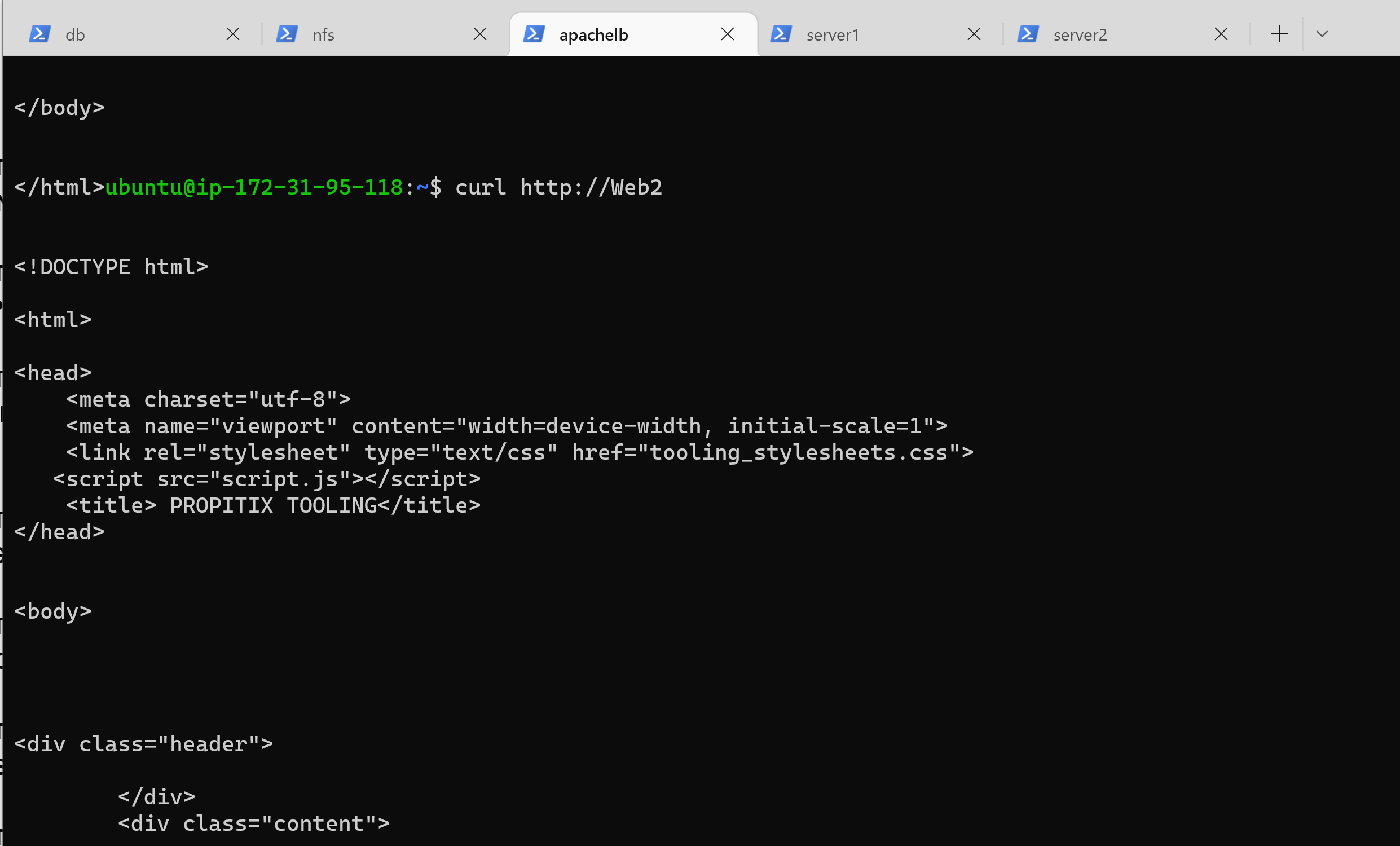
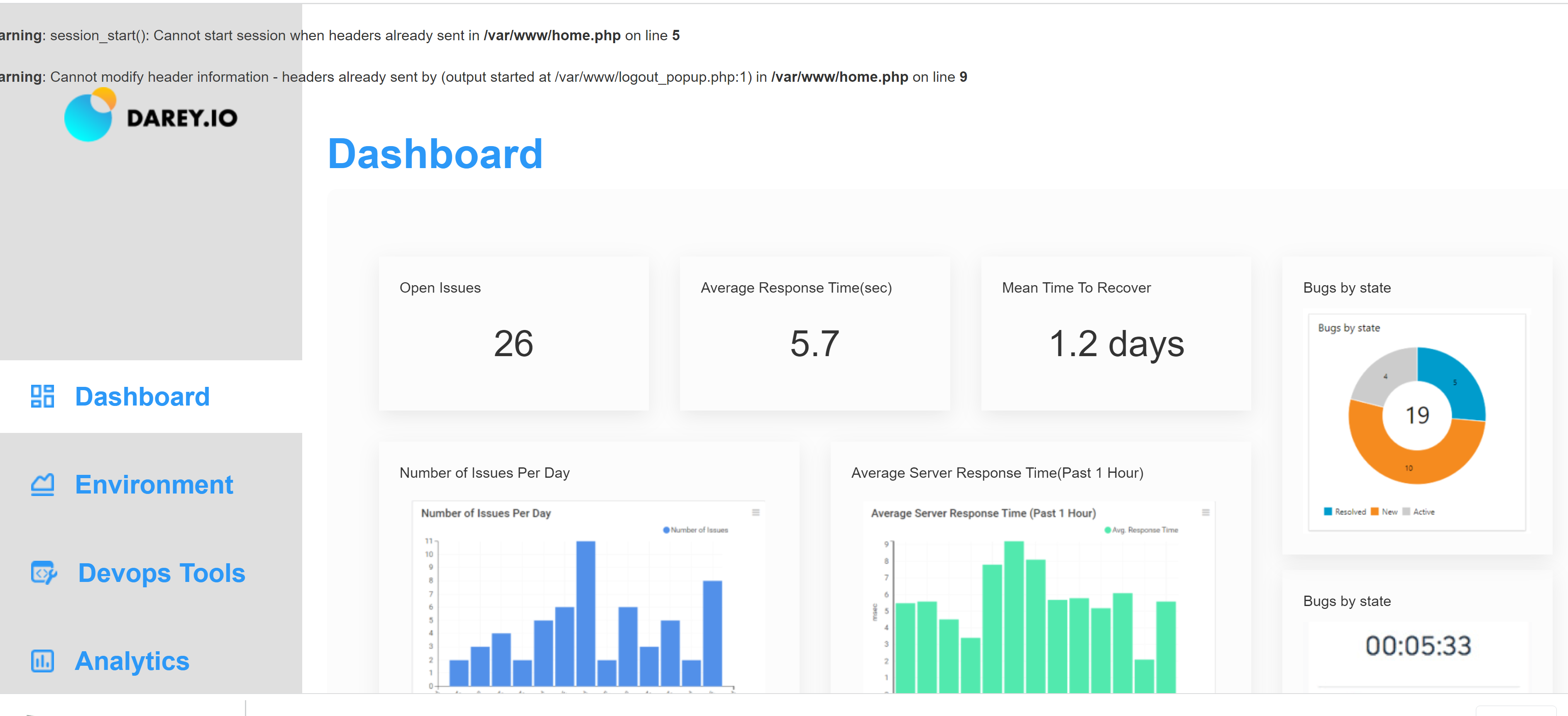
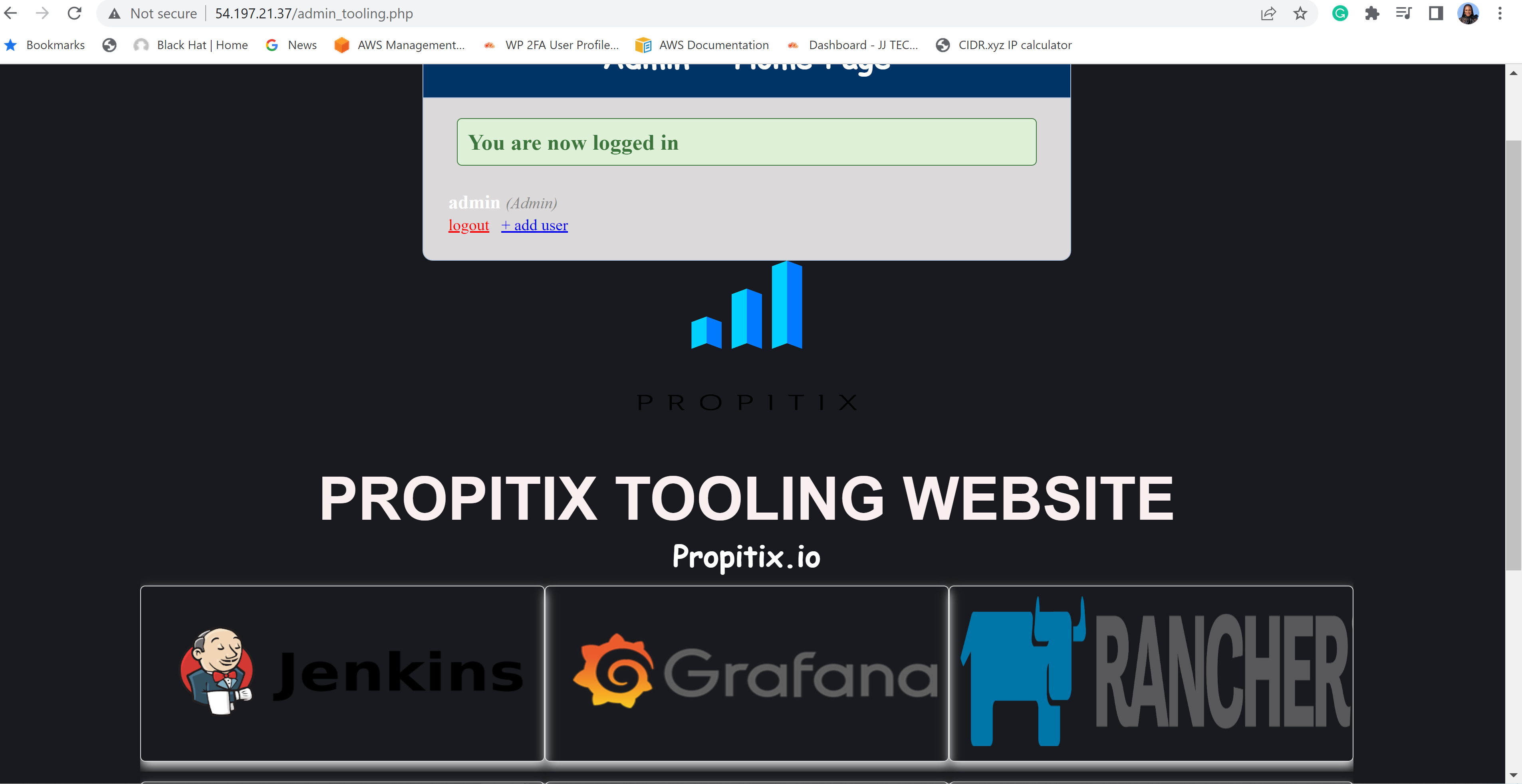
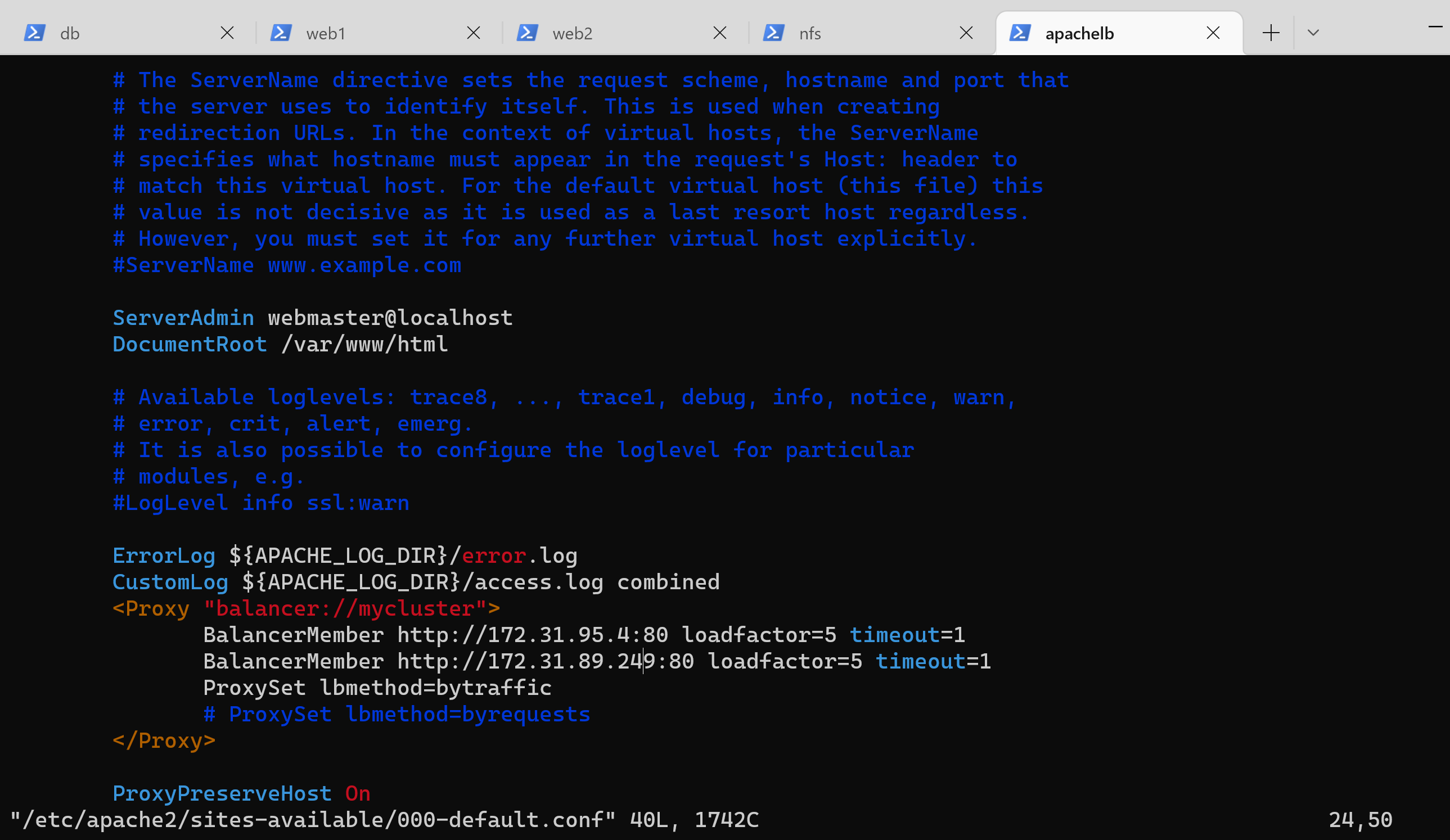
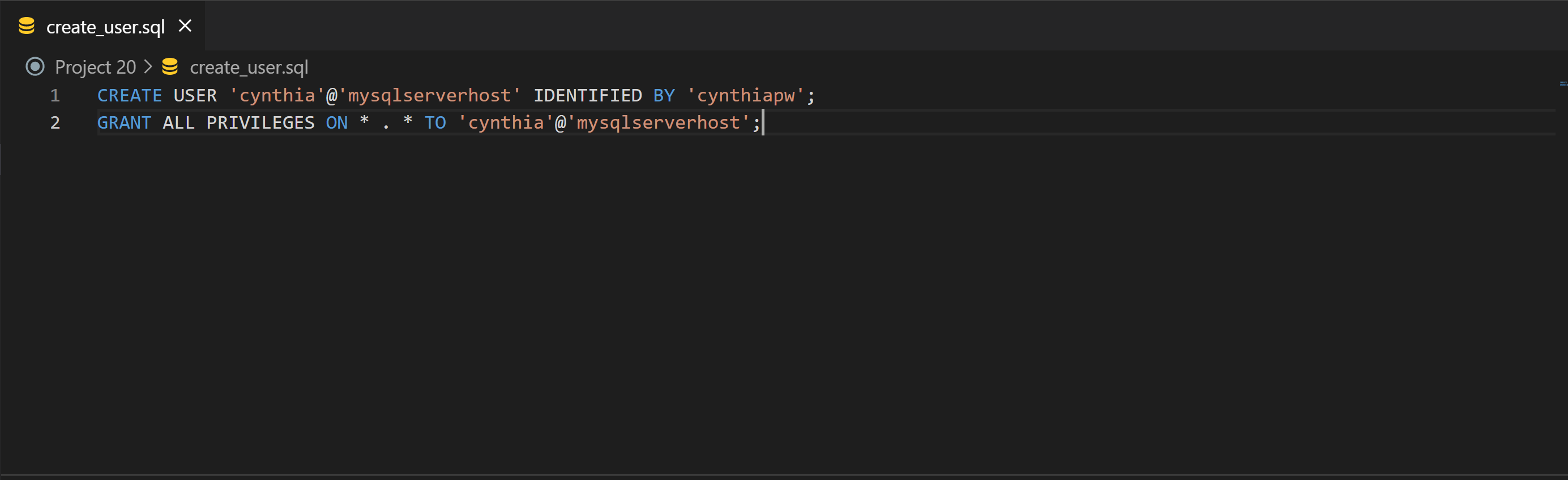
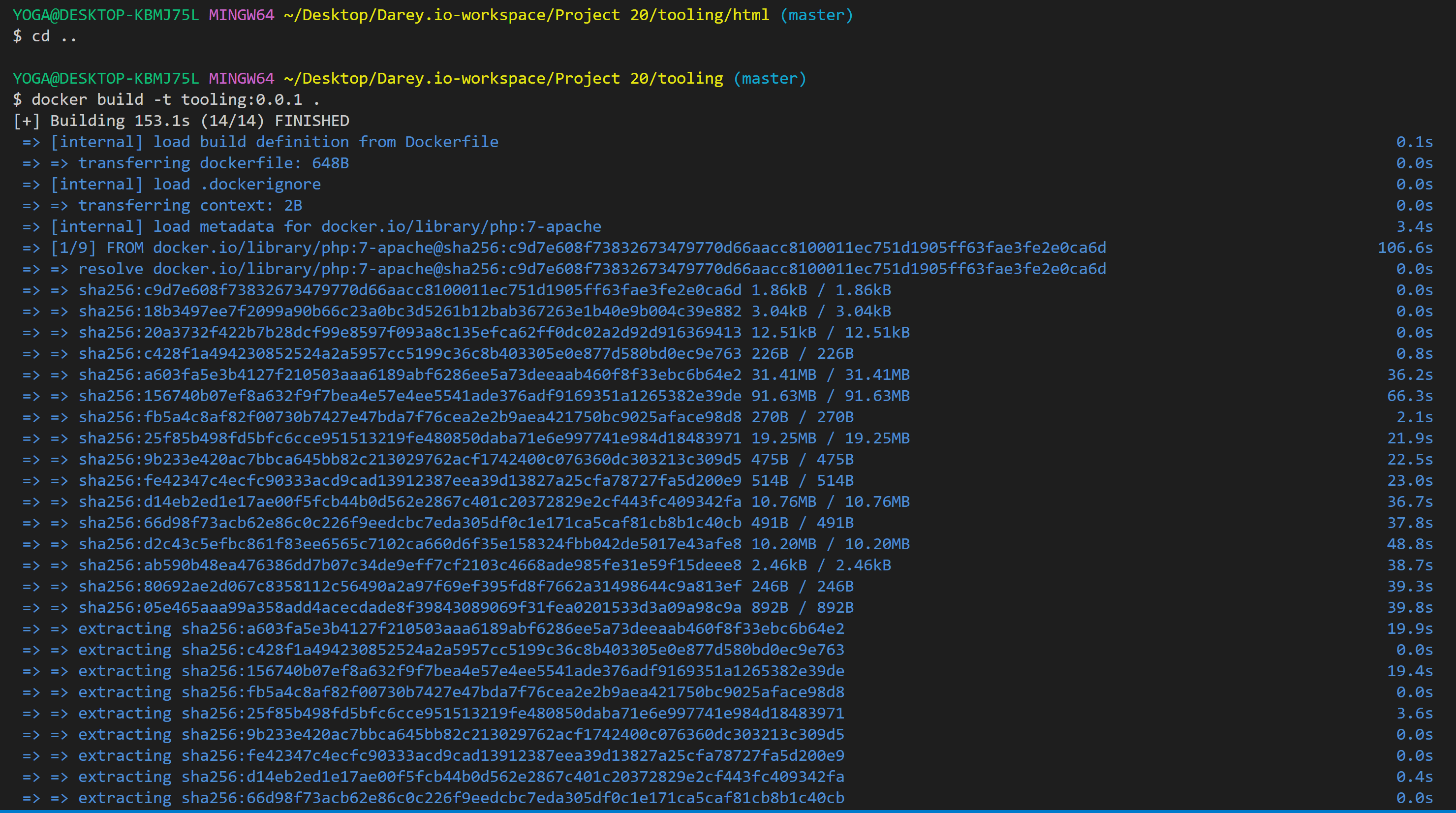
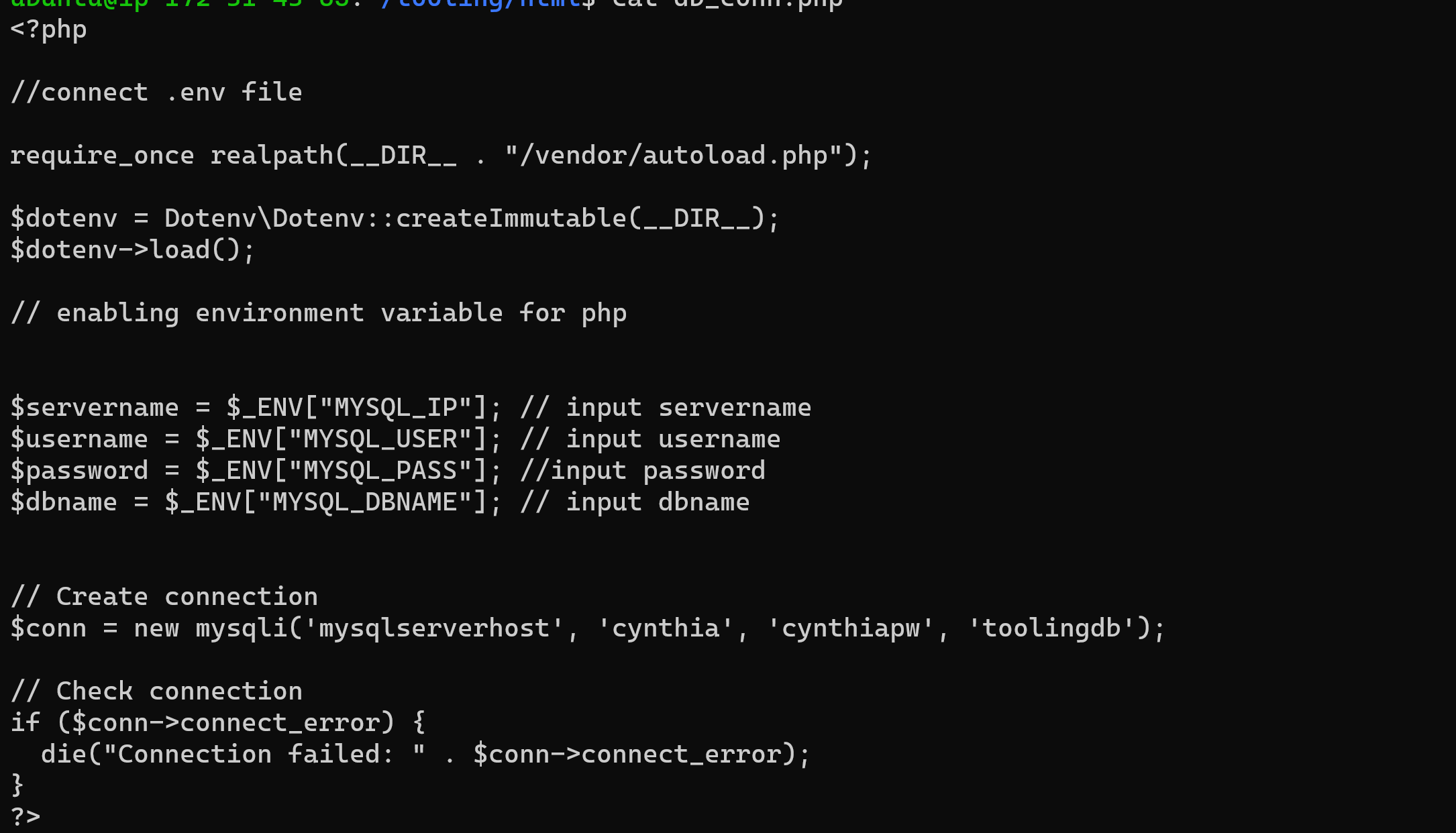
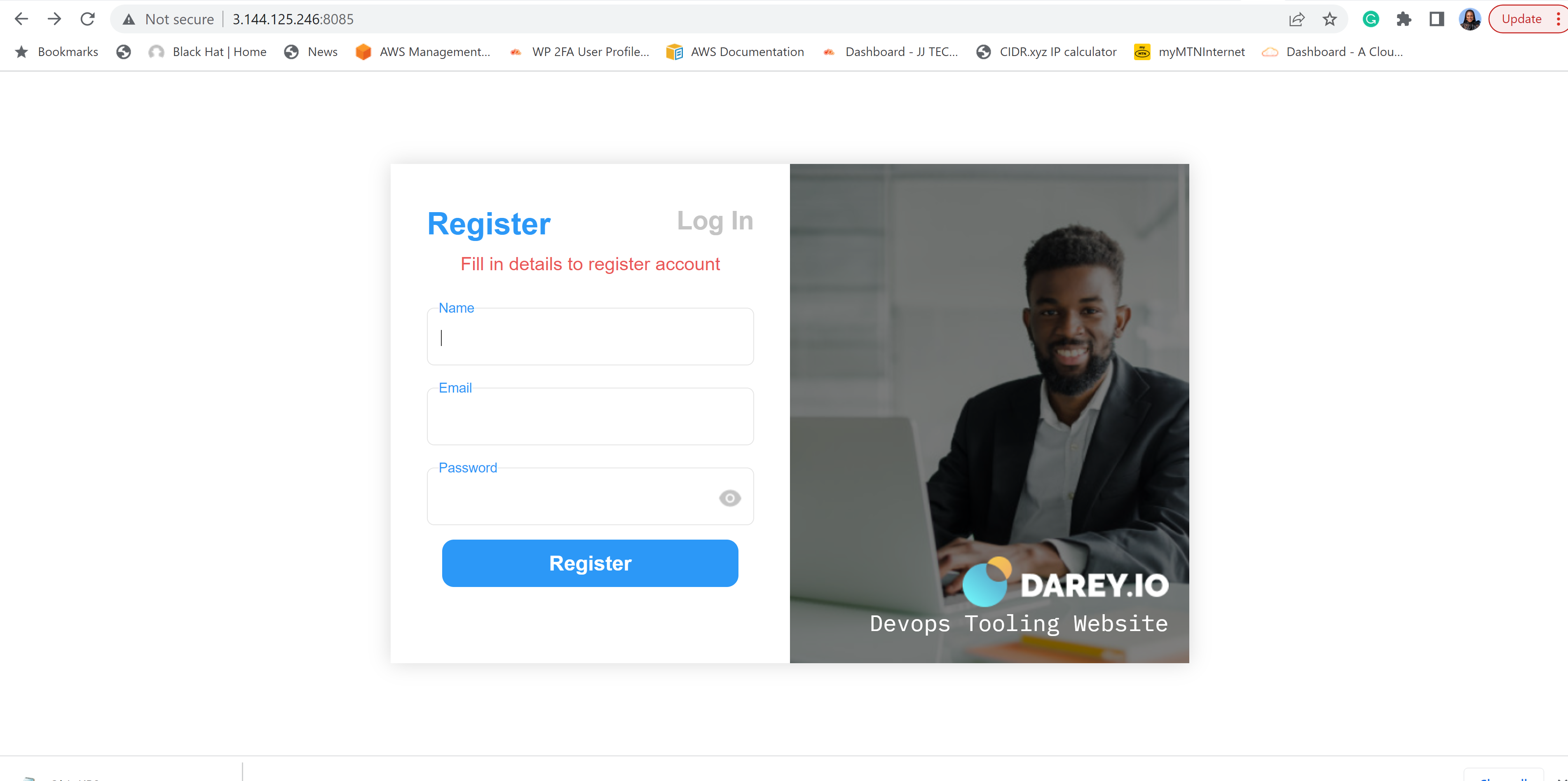
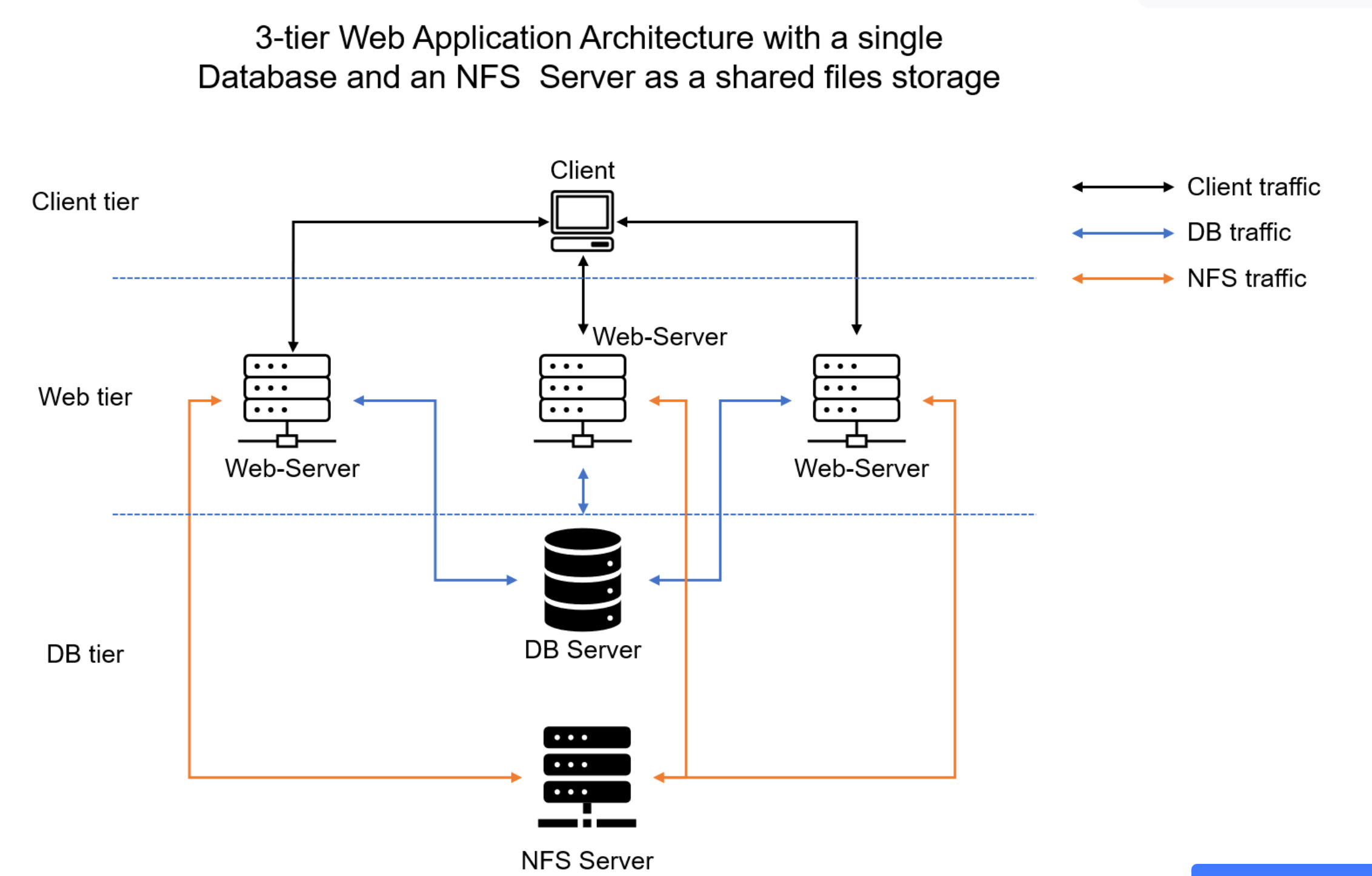
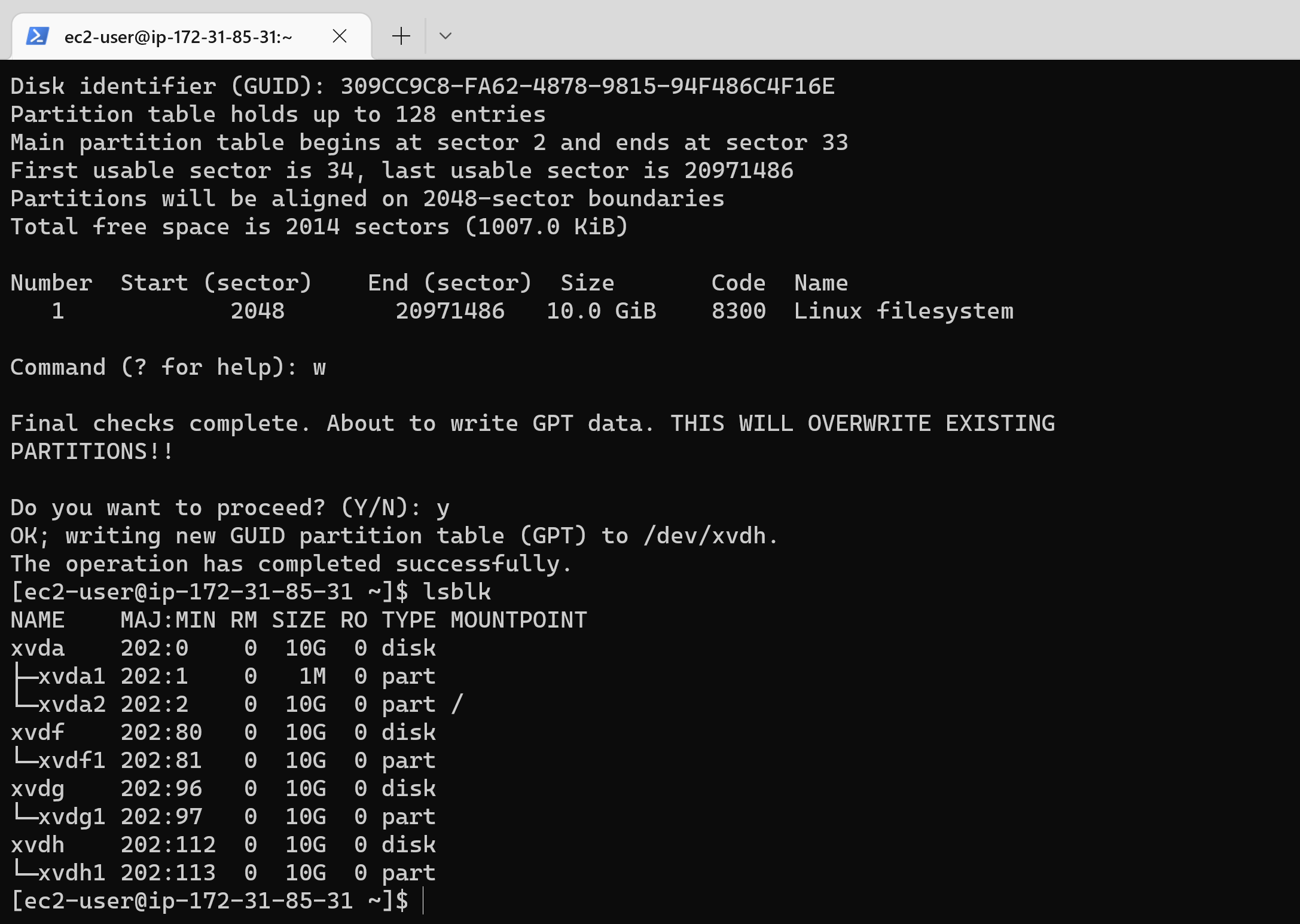
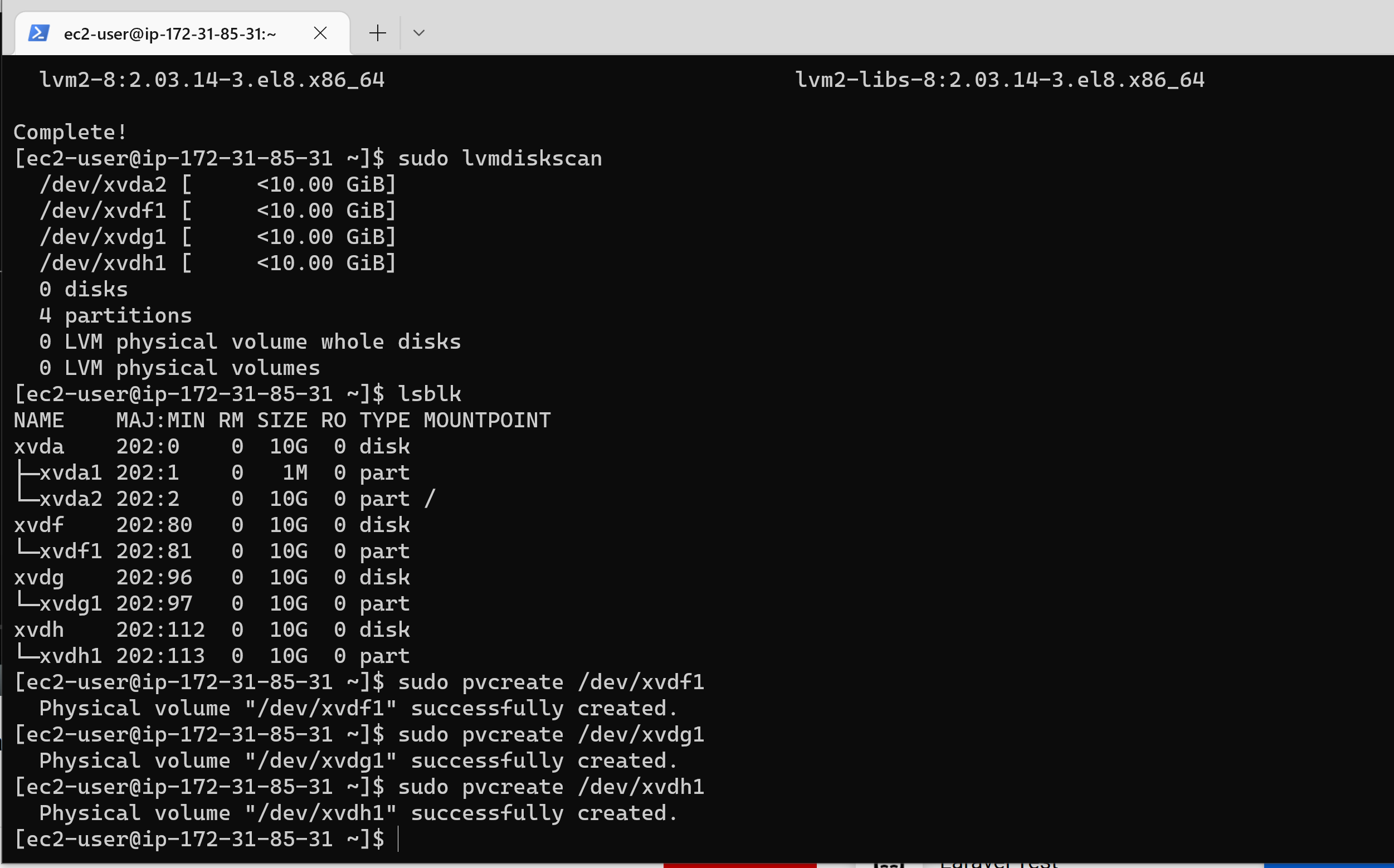
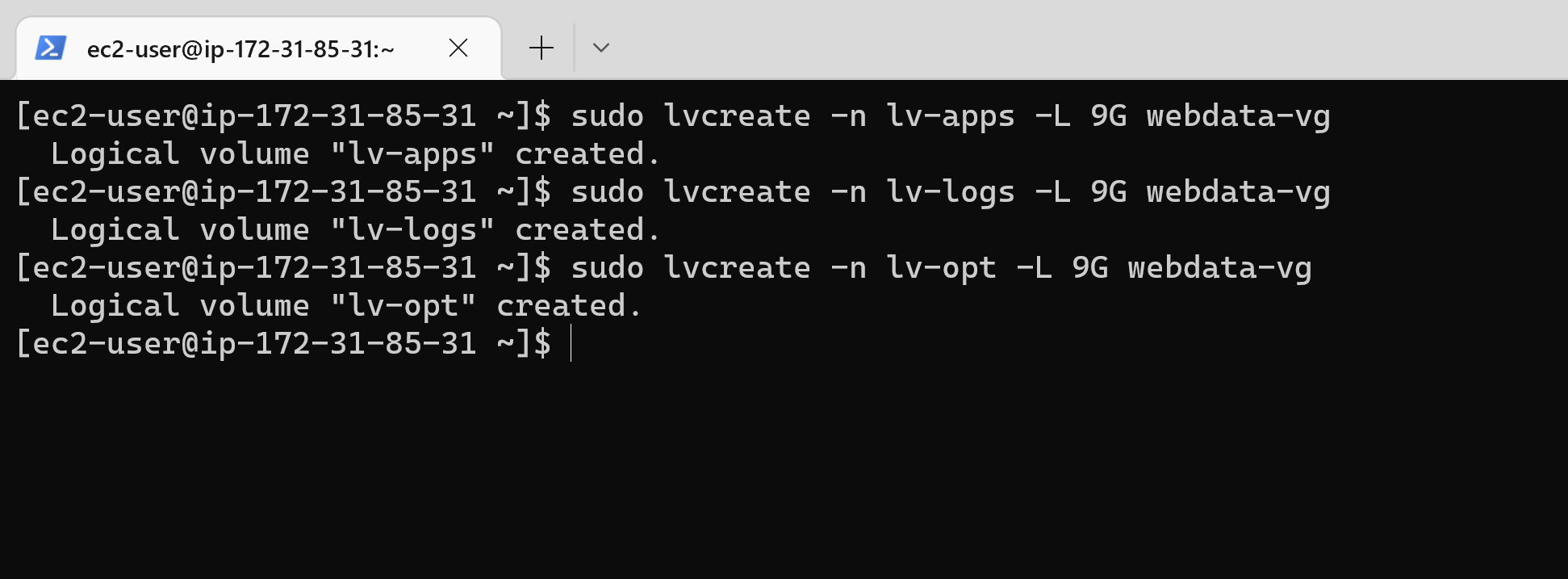
├── Project22.md ├── README.md ├── LICENSE ├── Project5.md ├── Project8.md ├── Project10.md ├── Project20.md ├── Project1.md ├── Project9.md ├── Project11.md ├── Project6.md ├── Project7.md ├── Project4.md ├── Project12.md ├── Project2.md ├── Project19.md ├── Project16.md ├── Project3.md ├── Project14.md └── Project17.md /Project22.md: -------------------------------------------------------------------------------- 1 | 2 | -------------------------------------------------------------------------------- /README.md: -------------------------------------------------------------------------------- 1 | # DevOps-projects 2 | All DevOps related projects 3 | -------------------------------------------------------------------------------- /LICENSE: -------------------------------------------------------------------------------- 1 | MIT License 2 | 3 | Copyright (c) 2022 Cynthia Okoduwa 4 | 5 | Permission is hereby granted, free of charge, to any person obtaining a copy 6 | of this software and associated documentation files (the "Software"), to deal 7 | in the Software without restriction, including without limitation the rights 8 | to use, copy, modify, merge, publish, distribute, sublicense, and/or sell 9 | copies of the Software, and to permit persons to whom the Software is 10 | furnished to do so, subject to the following conditions: 11 | 12 | The above copyright notice and this permission notice shall be included in all 13 | copies or substantial portions of the Software. 14 | 15 | THE SOFTWARE IS PROVIDED "AS IS", WITHOUT WARRANTY OF ANY KIND, EXPRESS OR 16 | IMPLIED, INCLUDING BUT NOT LIMITED TO THE WARRANTIES OF MERCHANTABILITY, 17 | FITNESS FOR A PARTICULAR PURPOSE AND NONINFRINGEMENT. IN NO EVENT SHALL THE 18 | AUTHORS OR COPYRIGHT HOLDERS BE LIABLE FOR ANY CLAIM, DAMAGES OR OTHER 19 | LIABILITY, WHETHER IN AN ACTION OF CONTRACT, TORT OR OTHERWISE, ARISING FROM, 20 | OUT OF OR IN CONNECTION WITH THE SOFTWARE OR THE USE OR OTHER DEALINGS IN THE 21 | SOFTWARE. 22 | -------------------------------------------------------------------------------- /Project5.md: -------------------------------------------------------------------------------- 1 | ## Client/Server Architecture Using A MySQL Relational Database Management System 2 | ### TASK – Implement a Client Server Architecture using MySQL Database Management System (DBMS). 3 | #### Steps 4 | 1. Spin up two Linux-based virtual servers (EC2 instances in AWS) and name them: `mysql server` and `mysql client` respectively. 5 | 2. Run `sudo apt update -y` for lastest updates on server. 6 | ![Pix1](https://user-images.githubusercontent.com/74002629/179509562-143bc321-9064-4788-96c5-23d99e76931c.PNG) 7 | 8 | 3. Next, on **mysql server** install MySQL Server software: `sudo apt install mysql-server -y` 9 | 4. On **mysql client** install MySQL Client software: `sudo apt install mysql-client -y` 10 | ![pix2](https://user-images.githubusercontent.com/74002629/179509582-c75aee5c-e666-420a-9c95-d3f4b9318d5e.PNG) 11 | 12 | 5. Edit Inbound rule on **mysql server** to allow access to **mysql client** traffic. MySQL server uses TCP port 3306 by default. Specify inbound traffic from the IP 13 | of **mysql cient** for extra security. 14 | ![pix 3](https://user-images.githubusercontent.com/74002629/179509596-05ed6043-44db-4801-82bc-55bcbd06711f.PNG) 15 | 16 | 6. For **mysql client** to gain remote access to **mysql server** we need to create and database and a user on **mysql server**. To start with run the mysql security 17 | script: `sudo mysql_secure_installation` Follow the prompts and answer appropraitely to finish the process. 18 | ![pix4](https://user-images.githubusercontent.com/74002629/179509619-5350cff4-ae12-4c5a-adb7-67909c0cf209.PNG) 19 | 20 | 7. Run mysql command: `sudo mysql` This would take you to the mysql prompt (You may be required to input password if you opten for the validate password during 21 | the security script installation) 22 | 8. Next, create the remote user with this following command: `CREATE USER 'remote_user'@'%' IDENTIFIED WITH mysql_native_password BY 'password';` 23 | ![pix5](https://user-images.githubusercontent.com/74002629/179509648-192f958c-588d-485c-8fbd-b82b087f28f0.PNG) 24 | 25 | 9. Create database with: `CREATE DATABASE test_db;` 26 | 10. Then grant privieges to remote_user: `GRANT ALL ON test_db.* TO 'remote_user'@'%' WITH GRANT OPTION;` 27 | 11. . Finally, flush privileges and exit mysql : `FLUSH PRIVILEGES;` 28 | ![PIX7](https://user-images.githubusercontent.com/74002629/179509685-0d7cc63a-b82d-4335-a71a-31d723095d73.PNG) 29 | 30 | 12. Having created the user and database, configure MySQL server to allow connections from remote hosts. Use the following command: `sudo vi /etc/mysql/mysql.conf.d/mysqld.cnf` 31 | 13. In the text editor, replace the old **Bind-address** from ‘127.0.0.1’ to ‘0.0.0.0’ then save and exit. 32 | ![pix10](https://user-images.githubusercontent.com/74002629/179512615-0c5a49e2-c66d-4a2e-9214-452c726e25bb.PNG) 33 | 34 | 14. Next, we restart mysql with: `sudo systemctl restart mysql` 35 | 15. From **mysql client** connect remotely to **mysql server** Database Engine without using SSH. Using the mysql utility to perform this action type: 36 | `sudo mysql -u remote_user -h 172.31.3.70 -p` and enter `password` for the user password. 37 | ![pix11](https://user-images.githubusercontent.com/74002629/179512631-8e14a82c-7cd2-41f7-98d1-3a20791605f7.PNG) 38 | 39 | 16. This gives us access into the mysql server database engine. 40 | 17. Finally type: `Show databases;` to show the test_db database that was created. 41 | ![pix12](https://user-images.githubusercontent.com/74002629/179512639-524ee577-45b3-4db1-9c17-37d8b2679268.PNG) 42 | -------------------------------------------------------------------------------- /Project8.md: -------------------------------------------------------------------------------- 1 | # LOAD BALANCER SOLUTION WITH APACHE 2 | ![Capture](https://user-images.githubusercontent.com/74002629/183334671-0641051c-31e2-44e9-950c-b2f7197b6343.PNG) 3 | ### Step 1 Configure Apache As A Load Balancer 4 | 1. Create an Ubuntu Server 20.04 EC2 instance and name it **Project-8-apache-lb**. 5 | 2. Open TCP port 80 on **Project-8-apache-lb** by creating an Inbound Rule in Security Group. 6 | 3. Connect to the server through the SSh terminal and install Apache Load balancer then configure it to point traffic coming to LB to the Web Servers by running the following: 7 | ``` 8 | sudo apt update 9 | sudo apt install apache2 -y 10 | sudo apt-get install libxml2-dev 11 | ``` 12 | 4. Enable the following and restart the service: 13 | ``` 14 | sudo a2enmod rewrite 15 | sudo a2enmod proxy 16 | sudo a2enmod proxy_balancer 17 | sudo a2enmod proxy_http 18 | sudo a2enmod headers 19 | sudo a2enmod lbmethod_bytraffic 20 | 21 | sudo systemctl restart apache2 22 | ``` 23 | 5. Ensure Apache2 is up and running: `sudo systemctl status apache2` 24 | ![pix1](https://user-images.githubusercontent.com/74002629/183334681-752ce1e8-cf63-4a09-9995-9693c01b1b3d.PNG) 25 | 26 | 7. Next, configure load balancing in the default config file: `sudo vi /etc/apache2/sites-available/000-default.conf` 27 | 8. In the config file add and save the following configuration into this section ** ** making sure to enter the IP of the webservers 28 | ``` 29 | 30 | BalancerMember http://172.31.95.40:80 loadfactor=5 timeout=1 31 | BalancerMember http://172.31.89.249:80 loadfactor=5 timeout=1 32 | ProxySet lbmethod=bytraffic 33 | # ProxySet lbmethod=byrequests 34 | 35 | 36 | ProxyPreserveHost On 37 | ProxyPass / balancer://mycluster/ 38 | ProxyPassReverse / balancer://mycluster/ 39 | ``` 40 | ![pix2](https://user-images.githubusercontent.com/74002629/183334693-52064187-9d6f-4c4e-a546-019e97de0fb3.PNG) 41 | 42 | 8. Restart Apache server: `sudo systemctl restart apache2` 43 | 9. Verify that our configuration works – try to access your LB’s public IP address or Public DNS name from your browser: 44 | `http:///index.php` 45 | ![pix3](https://user-images.githubusercontent.com/74002629/183334724-8419040e-1711-4783-96a9-277ec2c58145.PNG) 46 | * The load balancer accepts the traffic and distributes it between the servers according to the method that was specified. 47 | 10. In Project-7 I had mounted **/var/log/httpd/** from the Web Servers to the NFS server, here I shall unmount them and give each Web Server has its own log directory: `sudo umount -f /var/log/httpd` 48 | 11. Open two ssh/Putty consoles for both Web Servers and run following command: `sudo tail -f /var/log/httpd/access_log` 49 | 12. Refresh the browser page `http://172.31.95.118/index.php` with the load balancer public IP several times and make sure that both servers receive HTTP GET requests from your LB – new records will appear in each server’s log file. The number of requests to each server will be approximately the same since we set loadfactor to the same value for both servers – it means that traffic will be disctributed evenly between them. 50 | ![pix4](https://user-images.githubusercontent.com/74002629/183334734-dbae496e-d27d-49f4-b01e-850eb49fd9ba.PNG) 51 | ![pix5](https://user-images.githubusercontent.com/74002629/183334749-4f5c17f2-c9e9-4034-9e6e-72e7dbab65ff.PNG) 52 | 53 | ### Step 2 – Configure Local DNS Names Resolution 54 | 1. Sometimes it may become tedious to remember and switch between IP addresses, especially when you have a lot of servers under your management. 55 | We can solve this by configuring local domain name resolution. The easiest way is to use **/etc/hosts file**, although this approach is not very scalable, but it is very easy to configure and shows the concept well. 56 | 2. Open this file on your LB server: `sudo vi /etc/hosts` 57 | 3. Add 2 records into this file with Local IP address and arbitrary name for both of your Web Servers 58 | ``` 59 | 172.31.95.40 Web1 60 | 172.31.89.249 Web2 61 | ``` 62 | ![pix6](https://user-images.githubusercontent.com/74002629/183334761-4df087b0-b6b2-4bce-a63a-8ab34a9578f6.PNG) 63 | 64 | 3. Now you can update your LB config file with those names instead of IP addresses. 65 | ``` 66 | BalancerMember http://Web1:80 loadfactor=5 timeout=1 67 | BalancerMember http://Web2:80 loadfactor=5 timeout=1 68 | ``` 69 | ![pix7](https://user-images.githubusercontent.com/74002629/183334771-6e274762-6a6f-4d35-b6d9-48929322cbd3.PNG) 70 | 71 | 4. You can try to curl your Web Servers from LB locally `curl http://Web1` or `curl http://Web2` to see the HTML formated version of your website. 72 | ![pix8](https://user-images.githubusercontent.com/74002629/183334784-ef5e63ba-78d2-4241-892b-b6669940d54c.PNG) 73 | ![pix9](https://user-images.githubusercontent.com/74002629/183334797-ad9753e0-d34b-47f8-9146-66ff4c9de5f0.PNG) 74 | 75 | -------------------------------------------------------------------------------- /Project10.md: -------------------------------------------------------------------------------- 1 | # LOAD BALANCER SOLUTION WITH NGINX AND SSL/TLS 2 | 3 | In this project, we will solidify our knowledge of load balancers and make us versatile in our knowledge of configuring a different type of LB. We will configure an Nginx Load Balancer solution and also register our website with LetsEnrcypt Certificate Authority, to automate certificate issuance. 4 | 5 | A certificate is a security technology that protects connection from MITM attacks by creating an encrypted session between browser and Web server. In our project we will use a shell client recommended by LetsEncrypt – cetrbot. 6 | 7 | Our achitecture will look something like this: 8 | 9 | ![pix18](https://user-images.githubusercontent.com/74002629/184848922-0b777f13-bef5-4361-9a97-a3996c451f3e.PNG) 10 | 11 | ### Task 12 | This project consists of two parts: 13 | 1. Configure Nginx as a Load Balancer 14 | 2. Register a new domain name and configure secured connection using SSL/TLS certificates 15 | 16 | #### Step 1 - CONFIGURE NGINX AS A LOAD BALANCER 17 | 18 | 1. Create an EC2 VM based on Ubuntu Server 20.04 LTS and name it **Nginx LB**, make sure to open TCP port 80 for HTTP connections and 19 | open TCP port 443 for secured HTTPS connections 20 | 2. Update /etc/hosts file for local DNS with Web Servers’ names (e.g. Web1 and Web2) and their local IP addresses 21 | 3. Install and configure Nginx as a load balancer to point traffic to the resolvable DNS names of the webservers, update the instance and Install Nginx: 22 | ``` 23 | sudo apt update 24 | sudo apt install nginx 25 | ``` 26 | ![pix4](https://user-images.githubusercontent.com/74002629/184851120-9fc08d7a-f638-4b85-b57d-6fdaa543fc50.PNG) 27 | 28 | 4. Open the default nginx configuration file : `sudo vi /etc/nginx/nginx.conf` 29 | 5. insert following configuration into http section 30 | ``` 31 | upstream myproject { 32 | server Web1 weight=5; 33 | server Web2 weight=5; 34 | } 35 | 36 | server { 37 | listen 80; 38 | server_name www.domain.com; 39 | location / { 40 | proxy_pass http://myproject; 41 | } 42 | } 43 | ``` 44 | 6. Also in the configuration file, comment out this line: 45 | `# include /etc/nginx/sites-enabled/*;` 46 | 7. Restart Nginx and make sure the service is up and running 47 | ``` 48 | sudo systemctl restart nginx 49 | sudo systemctl status nginx 50 | ``` 51 | 52 | #### Step 2 - REGISTER A NEW DOMAIN NAME AND CONFIGURE SECURED CONNECTION USING SSL/TLS CERTIFICATES 53 | 54 | 1. Register a domain name with any registrar of your choice in any domain zone (e.g. .com, .net, .org, .edu, .info, .xyz or any other) 55 | 2. Assign an Elastic IP to your Nginx LB server and associate your domain name with this Elastic IP 56 | 3. Create a static IP address, allocate the Elastic IP and associate it with an EC2 server to ensure your IP remain the same everytime you restart the instance. 57 | 4. Update **A record** in your registrar to point to Nginx LB using Elastic IP address 58 | 59 | ![pix8](https://user-images.githubusercontent.com/74002629/184852049-7edb350f-1061-4e95-b545-4ec159324986.PNG) 60 | 61 | 6. Check that your Web Servers can be reached from your browser using new domain name using HTTP protocol – http://buildwithme.link 62 | 63 | ![pix7](https://user-images.githubusercontent.com/74002629/184852273-381a3fdc-b150-4452-b01e-c062067456da.PNG) 64 | 65 | 8. Configure Nginx to recognize your new domain name, update your nginx.conf with server_name www.buildwithme.link instead of server_name www.domain.com 66 | 9. Next, install certbot and request for an SSL/TLS certificate, first install certbot dependency: `sudo apt install python3-certbot-nginx -y` 67 | 10. Install certbot: `sudo apt install certbot -y` 68 | 12. Request your certificate (just follow the certbot instructions – you will need to choose which domain you want your certificate to be issued for, domain name will be looked up from nginx.conf file so make sure you have updated it on step 4). 69 | ``` 70 | sudo certbot --nginx -d biuldwithme.link -d www.buildwithme.link 71 | ``` 72 | ![pix12](https://user-images.githubusercontent.com/74002629/184856111-572b3705-6232-4b20-ae1a-c85534e8fb1a.PNG) 73 | 74 | 10. Test secured access to your Web Solution by trying to reach https://buildwithme.link, if successful, you will be able to access your website by using HTTPS protocol (that uses TCP port 443) and see a padlock pictogram in your browser’s search string. Click on the padlock icon and you can see the details of the certificate issued for your website. 75 | 76 | ![pix14](https://user-images.githubusercontent.com/74002629/184856345-02ba08bc-ac02-4ef4-a7a7-47949e29f58a.PNG) 77 | 78 | ![pix16](https://user-images.githubusercontent.com/74002629/184856437-3d34d4c2-f96a-4707-bc65-09226fb4d47f.PNG) 79 | 80 | #### Step 3 - Set up periodical renewal of your SSL/TLS certificate 81 | 82 | 1. By default, LetsEncrypt certificate is valid for 90 days, so it is recommended to renew it at least every 60 days or more frequently. You can test renewal command in dry-run mode: `sudo certbot renew --dry-run` 83 | 2. Best pracice is to have a scheduled job to run renew command periodically. Let us configure a cronjob to run the command twice a day. To do so, edit the crontab file with the following command: `crontab -e` 84 | 3. Add following line: `* */12 * * * root /usr/bin/certbot renew > /dev/null 2>&1` 85 | 4. You can always change the interval of this cronjob if twice a day is too often by adjusting schedule expression. 86 | -------------------------------------------------------------------------------- /Project20.md: -------------------------------------------------------------------------------- 1 | ## MIGRATION TO THE СLOUD WITH CONTAINERIZATION USING DOCKER 2 | 3 | In this project, I demonstrate the process of migrating an application from a virtual machine to containers using Docker. A VM infrastructure requires an OS for 4 | the host server and an additional OS for each hosted application. Because containers all share the underlying OS, a single OS can support more than one container. 5 | The elimination of extra operating systems means less memory, less drive space and faster processing so that applications run more efficiently. 6 | 7 | #### STEP 1 8 | To begin the project, I created my Docker container on an Ubuntu 20.04 virtual machine. Below are the steps for installing Docker on Ubuntu 20.04 VM: 9 | 1. First, update your existing list of packages: `sudo apt update` 10 | 2. Install a few prerequisite packages which let apt use packages over HTTPS: `sudo apt install apt-transport-https ca-certificates curl software-properties-common` 11 | 3. Add the GPG key for the official Docker repository to your system: `curl -fsSL https://download.docker.com/linux/ubuntu/gpg | sudo apt-key add -` 12 | 4. Add the Docker repository to APT sources: `sudo add-apt-repository "deb [arch=amd64] https://download.docker.com/linux/ubuntu focal stable"` 13 | 5. Make sure you are about to install from the Docker repo instead of the default Ubuntu repo: `apt-cache policy docker-ce` 14 | 6. You output should look something like this: 15 | ``` 16 | docker-ce: 17 | Installed: (none) 18 | Candidate: 5:19.03.9~3-0~ubuntu-focal 19 | Version table: 20 | 5:19.03.9~3-0~ubuntu-focal 500 21 | 500 https://download.docker.com/linux/ubuntu focal/stable amd64 Packages 22 | ``` 23 | 7. Finally, install Docker: `sudo apt install docker-ce` 24 | 8. Check that that Docker is running: `sudo systemctl status docker` 25 | 9. Your output should show that Docker is active. 26 | 10. To get more information about installing Docker on Ubuntu 20.04, check this [link](https://www.digitalocean.com/community/tutorials/how-to-install-and-use-docker-on-ubuntu-20-04) 27 | #### STEP 2 Create SQL Container and Connect to the container. 28 | 1. First, create a network. Creating a custom network is not mandatory, if we do not create a network, Docker will use the default network for all the containers. In this project however, the requirement is to control the cidr range of the containers running so I created a custom network with a specific cidr with the following code: ` sudo docker network create --subnet=172.18.0.0/24 tooling_app_network` 29 | ![pix4](https://user-images.githubusercontent.com/74002629/208447461-7107f1b9-96eb-4ddb-974d-cf9a64459b22.PNG) 30 | 2. Create an environment variable to store the root password: ` export MYSQL_PW=cynthiapw` 31 | 3. Echo enviroment variable to confirm it was created: `echo $MYSQL_PW` This would output the password you created. 32 | 4. Next, pull the image and run the container, all in one command like below: 33 | ` sudo docker run --network tooling_app_network -h mysqlserverhost --name=mysql-server -e MYSQL_ROOT_PASSWORD=$MYSQL_PW -d mysql/mysql-server:latest ` 34 | 5. Verify the container is running: ` sudo docker ps -a` 35 | ![pix5](https://user-images.githubusercontent.com/74002629/208448222-d846880f-222c-4ee0-aa50-c44ed8f282f5.PNG) 36 | 6. Create an SQL script that to create a user that will connect remotely. Create a file and name it ****create_user.sql**** and add code in the file: 37 | ``` 38 | CREATE USER 'cynthia'@'%' IDENTIFIED BY 'cynthiapw'; 39 | GRANT ALL PRIVILEGES ON *.* TO 'cynthia'@'%'; 40 | 41 | CREATE DATABASE toolingdb; 42 | ``` 43 | The script also creates a database for the Tooling web application. 44 | ![pix6](https://user-images.githubusercontent.com/74002629/208448548-843a4e08-f288-4db2-a77b-3c237e13e5a4.PNG) 45 | 46 | 7. Run the script, ensure you are in the directory create_user.sql file is located or declare a path: 47 | `sudo docker exec -i mysql-server mysql -uroot -p$MYSQL_PW < create_user.sql` 48 | 8. If you see a warning like below, it is acceptable to ignore: "mysql: [Warning] Using a password on the command line interface can be insecure" 49 | 9. Next, connect to the MySQL server from a second container running the MySQL client utility. To run the MySQL Client Container, type: 50 | ` sudo docker run --network tooling_app_network --name mysql-client -it --rm mysql mysql -h mysqlserverhost -u -p ` 51 | #### Step 3: Prepare database schema 52 | 1. Clone the Tooling-app repository from [here](https://github.com/darey-devops/tooling) 53 | 2. On your terminal, export the location of the SQL file: `export tooling_db_schema=/tooling_db_schema.sql` 54 | 3. Echo to verify that the path is exported: `echo $tooling_db_schema` 55 | 4. Use the SQL script to create the database and prepare the schema. With the docker exec command, you can execute a command in a running container. 56 | ` sudo docker exec -i mysql-server mysql -uroot -p$MYSQL_PW < $tooling_db_schema.sql` 57 | ![pix7](https://user-images.githubusercontent.com/74002629/208449253-8f74bc1a-ddbc-488d-beca-8d80cfa75d0f.PNG) 58 | 59 | 5. Update the `.env` file with connection details to the database. The .env file is located in the html **tooling/html/.env** folder but not visible in terminal. Use vi or nano 60 | ``` 61 | sudo vi .env 62 | 63 | MYSQL_IP=mysqlserverhost 64 | MYSQL_USER=cynthia 65 | MYSQL_PASS=cynthiapw 66 | MYSQL_DBNAME=toolingdb 67 | ``` 68 | ![pix7](https://user-images.githubusercontent.com/74002629/208449253-8f74bc1a-ddbc-488d-beca-8d80cfa75d0f.PNG) 69 | 70 | #### Step 4: Run the Tooling App 71 | 1. Before you run the tooling appication ensure you edit your security group to allow TCP traffic on port 8085 with access from anywhere(0.0.0.0) 72 | 2. In this project, I built my container from a pre-created Dockerfile located in the tooling directory. Navigate to the directory "tooling" that has the Dockerfile and build your container : ` sudo docker build -t tooling:0.0.1 . ` 73 | ![pix8](https://user-images.githubusercontent.com/74002629/208449729-39489043-231b-406c-a260-89d2cf49966e.PNG) 74 | 3. Run the container: `docker run --network tooling_app_network -p 8085:80 -it tooling:0.0.1` 75 | 4. Access your tooling site via: `http://:8085` 76 | **Note:** I had an error that stated:AH00558: apache2: Could not reliably determine the server's fully qualified domain name, using 172.18.0.3. Set the 'ServerName' directive globally to suppress this message 77 | I solved it by going into the db_conn.php file and hardcoded my enviroment variable. This is not the recommended way of doing it but this was how I got mine to work. 78 | 5. Get into the db_conn.php file: `sudo vi db_conn.php` and edit the Create connection variables. 79 | ![prob9](https://user-images.githubusercontent.com/74002629/208464715-5c919bb7-115e-419a-9fee-247aca874cbd.PNG) 80 | 6. Access your toolint site again: `http://:8085` 81 | ![pix13](https://user-images.githubusercontent.com/74002629/208465141-bba73216-8ff3-434b-9727-799f32b6c0ab.PNG) 82 | ![pix14](https://user-images.githubusercontent.com/74002629/208465156-510390a6-d568-44cf-93e5-ca1215aa1887.PNG) 83 | 84 | -------------------------------------------------------------------------------- /Project1.md: -------------------------------------------------------------------------------- 1 | ## WEB STACK IMPLEMENTATION (LAMP STACK) IN AWS 2 | ### ASW account setup and provisioning an Ubuntu Server 3 | #### Steps 4 | 1. Signed up for an AWS account. 5 | 2. Logged in as IAM user 6 | 3. In the VPC console, I create Security Group 7 | ![Project1pix2](https://user-images.githubusercontent.com/74002629/174605346-f0f4b1bc-0e4e-45f7-ac6e-6a49ae27600a.PNG) 8 | 9 | 4. Launched an EC2 instance 10 | 5. I selelected the Ubuntu free tier instance 11 | 6. I set the required configurations (Enabled public IP, security group, and key pair) and finally launched the instance. 12 | ![project1pix3](https://user-images.githubusercontent.com/74002629/174606543-32845537-efdd-4abe-a903-82a20f3bbb80.PNG) 13 | 14 | 7. Next I SSH into the instance using Windows Terminal 15 | 8. In the Terminal, I typed cd Downloads to navigate to the locxcation of my key-pair. 16 | 9. Inside the Downloads directory, I connect to my instance using its Public DNS. 17 | ![project1pix4](https://user-images.githubusercontent.com/74002629/174608684-dadf6c62-f32f-4abf-99bf-dd6078bcf279.PNG) 18 | ![project1pix5](https://user-images.githubusercontent.com/74002629/174608722-755ce47c-4c8e-475c-a399-43e314235364.PNG) 19 | 20 | ### INSTALLING APACHE AND UPDATING THE FIREWALL 21 | #### Steps 22 | 1. Install Apache using Ubuntu’s package manager ‘apt', Run the following commands: To update a list of packages in package manager: 23 | **sudo apt update** 24 | ![Project1pix6](https://user-images.githubusercontent.com/74002629/176584111-c2fd6d3e-d34a-49c1-854c-8ff272d7b7ca.PNG) 25 | 26 | 2. To run apache2 package installation: 27 | **sudo apt install apache2** 28 | 3. Next, verify that Apache2 is running as a service in the OS. run: 29 | **sudo systemctl status apache2** 30 | 4. The green light indicates Apache2 is running. 31 | 5. ![Project1pix8](https://user-images.githubusercontent.com/74002629/176584784-e6c1af68-19c6-4fdd-8551-10d1a223c33d.PNG) 32 | 33 | 6. Open port 80 on the Ubuntu instance to allow access from the internet. 34 | 7. Access the Apache2 service locally in our Ubuntu shell by running: 35 | **curl http://localhost:80** or **curl http://127.0.0.1:80** This command would output the Apache2 payload indicating that it is accessible locally in the Ubuntu shell. 36 | 8. Next, test that Apache HTTP server can respond to requests from the Internet. Open a browser and type the public IP of the Ubutun instance: **http://3.235.248.184/:80** This outputs the Apache2 default page. 37 | ![Project1pix9](https://user-images.githubusercontent.com/74002629/176584558-a98ef686-4ea4-4df6-8d15-d695377c7d89.PNG) 38 | 39 | 40 | 41 | ### INSTALLING MYSQL 42 | #### Steps 43 | In this step, I install a Database Management System (DBMS) to be able to store and manage data for the site in a relational database. 44 | 1. Run ‘apt’ to acquire and install this software, run: **sudo apt install mysql-server** 45 | 2. Confirm intallation by typing Y when prompted. 46 | 3. Once installation is complete, log in to the MySQL console by running: **sudo mysql** 47 | ![Project1pix11](https://user-images.githubusercontent.com/74002629/176585224-e55ca7bb-73a7-464a-9172-7161ba5b434b.PNG) 48 | 49 | 4. Next, run a security script that comes pre-installed with MySQL, to remove some insecure default settings and lock down access to your database system. run: 50 | **ALTER USER 'root'@'localhost' IDENTIFIED WITH mysql_native_password BY 'PassWord.1';** then exit MySQL shell by typing exit and enter. 51 | 5. Run interactive script by typing: **sudo mysql_secure_installation** and following the instrustions. 52 | 6. Next, test that login to MySQL console works. Run: **sudo mysql -p** 53 | ![Project1pix21](https://user-images.githubusercontent.com/74002629/176585784-48ef1dd3-049f-45d1-a7df-884764d14d22.PNG) 54 | 55 | 7. Type exit and enter to exit console. 56 | 57 | ### STEP 3 — INSTALLING PHP 58 | #### Steps 59 | 1. To install these 3 packages at once, run: 60 | **sudo apt install php libapache2-mod-php php-mysql** 61 | ![Project1pix13](https://user-images.githubusercontent.com/74002629/176586557-cc03a8d5-bd3b-48c8-9942-92207da39e3f.PNG) 62 | 63 | 2. After installation is done, run the following command to confirm your PHP version: **php -v** 64 | ![Project1pix14](https://user-images.githubusercontent.com/74002629/176586185-40638bfe-6f41-4af6-8d64-ae758b4090b8.PNG) 65 | 66 | 4. At this point, your LAMP stack is completely installed and fully operational. 67 | 68 | ### STEP 4 — CREATING A VIRTUAL HOST FOR YOUR WEBSITE USING APACHE 69 | #### Steps 70 | 1. Setting up a domain called projectlamp. Create the directory for projectlamp using ‘mkdir’. Run: **sudo mkdir /var/www/projectlamp** 71 | 2. assign ownership of the directory with your current system user, run: **sudo chown -R $USER:$USER /var/www/projectlamp** 72 | 3. Next, create and open a new configuration file in Apache’s sites-available directory. Tpye: **sudo vi /etc/apache2/sites-available/projectlamp.conf** 73 | 4. This will create a new blank file. Paste in the following bare-bones configuration by hitting on i on the keyboard to enter the insert mode, and paste the text: 74 | ** 75 | ServerName projectlamp 76 | ServerAlias www.projectlamp 77 | ServerAdmin webmaster@localhost 78 | DocumentRoot /var/www/projectlamp 79 | ErrorLog ${APACHE_LOG_DIR}/error.log 80 | CustomLog ${APACHE_LOG_DIR}/access.log combined 81 | ** 82 | ![Project1pix15](https://user-images.githubusercontent.com/74002629/176587989-12ed00f0-f3c5-482f-98dc-1e9c849e8a99.PNG) 83 | 84 | 5.To save and close the file. Hit the esc button on the keyboard, Type :, Type wq. w for write and q for quit and Hit ENTER to save the file. 85 | 6. use the ls command to show the new file in the sites-available directory: **sudo ls /etc/apache2/sites-available** 86 | ![Project1pix16](https://user-images.githubusercontent.com/74002629/176588144-f7413246-cf7e-43df-8399-cd7c81e98bae.PNG) 87 | 88 | 7. Next, use a2ensite command to enable the new virtual host: **sudo a2ensite projectlamp** 89 | 8. Disable the default website that comes installed with Apache. type: **sudo a2dissite 000-default** 90 | 9. Esure your configuration file doesn’t contain syntax errors, run: **sudo apache2ctl configtest** 91 | 10. Finally, reload Apache so these changes take effect: **sudo systemctl reload apache2** 92 | ![Project1pix17](https://user-images.githubusercontent.com/74002629/176588441-b562f1be-f86d-4c35-83a9-1d0294d9eae0.PNG) 93 | 94 | 12. The website is active, but the web root /var/www/projectlamp is still empty. Create an index.html file in that location so that we can test that the virtual host works as expected: 95 | **sudo echo 'Hello LAMP from hostname' $(curl -s http://169.254.169.254/latest/meta-data/public-hostname) 'with public IP' $(curl -s http://169.254.169.254/latest/meta-data/public-ipv4) > /var/www/projectlamp/index.html** 96 | 12. Relaod the public IP to see changes to the apache2 default page. 97 | ![Project1pix19](https://user-images.githubusercontent.com/74002629/176588537-7e43b408-6674-4530-afa8-7e65c69800e8.PNG) 98 | 99 | ### STEP 5 — ENABLE PHP ON THE WEBSITE 100 | #### Steps 101 | 1. With the default DirectoryIndex settings on Apache, a file named index.html will always take precedence over an index.php file. To make index.php file tak precedence need to edit the /etc/apache2/mods-enabled/dir.conf file and change the order in which the index.php file is listed within the DirectoryIndex directive. 102 | 2. Run: **sudo vim /etc/apache2/mods-enabled/dir.conf** then: 103 | ** 104 | #Change this: 105 | #DirectoryIndex index.html index.cgi index.pl index.php index.xhtml index.htm 106 | #To this: 107 | DirectoryIndex index.php index.html index.cgi index.pl index.xhtml index.htm 108 | ** 109 | 4. Save and close file. 110 | 5. Next, reload Apache so the changes take effect, type: **sudo systemctl reload apache2** 111 | 6. Finally, we will create a PHP script to test that PHP is correctly installed and configured on your server. Create a new file named index.php inside the custom web root folder, run: **vim /var/www/projectlamp/index.php** 112 | 7. This will open a blank file. Add the PHP code: 113 | ** \ 21 | /etc/apt/sources.list.d/jenkins.list' 22 | sudo apt update 23 | sudo apt-get install jenkins 24 | ``` 25 | ![pix2](https://user-images.githubusercontent.com/74002629/184062376-edb7e30b-8aca-475a-81bb-8db67da7e534.PNG) 26 | 27 | 4. Make sure Jenkins is up and running: `sudo systemctl status jenkins` 28 | ![pix3](https://user-images.githubusercontent.com/74002629/184062386-8be70305-bf29-46c2-b15e-0da44b9a1b1e.PNG) 29 | 30 | 5. By default Jenkins server uses TCP port 8080 – open it by creating a new Inbound Rule in your EC2 Security Group 31 | 6. Next, setup Jenkins. From your browser access `http://:8080` You will be prompted to provide a default admin password 32 | ![pix4](https://user-images.githubusercontent.com/74002629/184062392-e1d57e72-b7eb-460f-8b7f-077555a88fae.PNG) 33 | 34 | 7. Retrieve the password from your Jenkins server: `sudo cat /var/lib/jenkins/secrets/initialAdminPassword` 35 | ![pix5](https://user-images.githubusercontent.com/74002629/184062404-4aff3525-1fde-42fa-9bfa-07aad33ef129.PNG) 36 | 37 | 8. Copy the password from the server and paste on Jenkins setup to unlock Jenkins. 38 | 9. Next, you will be prompted to install plugins – **choose suggested plugins** 39 | ![pix6](https://user-images.githubusercontent.com/74002629/184062413-3c306670-0e55-4319-a5af-ff7757b0ff0e.PNG) 40 | 41 | 10. Once plugins installation is done – create an admin user and you will get your Jenkins server address. **The installation is completed!** 42 | ![pix7](https://user-images.githubusercontent.com/74002629/184062420-54d31942-052e-40f0-bcff-2d6820640868.PNG) 43 | 44 | 45 | #### Step 2 - Configure Jenkins to retrieve source codes from GitHub using Webhooks 46 | Here I configure a simple Jenkins job/project. This job will will be triggered by GitHub webhooks and will execute a ‘build’ task to retrieve codes from GitHub and store it locally on Jenkins server. 47 | 48 | 1. Enable webhooks in your GitHub repository settings: 49 | ``` 50 | Go to the tooling repository 51 | Click on settings 52 | Click on webhooks on the left panel 53 | On the webhooks page under Payload URL enter: `http:// Jenkins server IP address/github-webhook` 54 | Under content type select: application/json 55 | Then add webhook 56 | ``` 57 | ![pix8](https://user-images.githubusercontent.com/74002629/184062424-940204e5-ddb6-4d37-b667-659509933cbe.PNG) 58 | 59 | 2. Go to Jenkins web console, click **New Item** and create a **Freestyle project** and click OK 60 | 3. Connect your GitHub repository, copy the repository URL from the repository 61 | 4. In configuration of your Jenkins freestyle project under Source Code Management select **Git repository**, provide there the link to your Tooling GitHub repository and credentials (user/password) so Jenkins could access files in the repository. 62 | ![pix9](https://user-images.githubusercontent.com/74002629/184093372-97bdd653-2fc2-4940-9d19-4eff2386f370.PNG) 63 | 64 | 5. Save the configuration and let us try to run the build. For now we can only do it manually. 65 | 6. Click **Build Now** button, if you have configured everything correctly, the build will be successfull and you will see it under **#1** 66 | 7. Open the build and check in **Console Output** if it has run successfully. 67 | ![pix10](https://user-images.githubusercontent.com/74002629/184093378-af5503cd-77e0-4082-86df-72649418deaa.PNG) 68 | 69 | This build does not produce anything and it runs only when it is triggered manually. Let us fix it. 70 | 8. Click **Configure** your job/project and add and save these two configurations: 71 | ``` 72 | Under **Build triggers** select: Github trigger for GITScm polling 73 | Under **Post Build Actions** select Archieve the artifacts and enter `**` in the text box. 74 | ``` 75 | 9. Now, go ahead and make some change in any file in your GitHub repository (e.g. README.MD file) and push the changes to the master branch. 76 | 10. You will see that a new build has been launched automatically (by webhook) and you can see its results – artifacts, saved on Jenkins server. 77 | 11. We have successfully configured an automated Jenkins job that receives files from GitHub by webhook trigger (this method is considered as ‘push’ because the changes are being ‘pushed’ and files transfer is initiated by GitHub). 78 | ![pix16](https://user-images.githubusercontent.com/74002629/184093459-3d873ef8-6068-45d6-b56d-8d77669b5cf5.PNG) 79 | 80 | 12. By default, the artifacts are stored on Jenkins server locally: `ls /var/lib/jenkins/jobs/tooling_github/builds//archive/` 81 | 82 | #### Step 3 – Configure Jenkins to copy files to NFS server via SSH 83 | 1. Now we have our artifacts saved locally on Jenkins server, the next step is to copy them to our NFS server to /mnt/apps directory. We need a plugin called 84 | **Publish over SSh** 85 | 2. Install "Publish Over SSH" plugin. 86 | 3. Navigate to the dashboard select **Manage Jenkins** and choose **Manage Plugins** menu item. 87 | 4. On **Available** tab search for **Publish Over SSH** plugin and install it 88 | ![pix14](https://user-images.githubusercontent.com/74002629/184093437-ab971150-bb70-4393-a201-dc17617dd776.PNG) 89 | 90 | 5. Configure the job/project to copy artifacts over to NFS server. 91 | 6. On main dashboard select **Manage Jenkins** and choose **Configure System** menu item. 92 | 7. Scroll down to Publish over SSH plugin configuration section and configure it to be able to connect to your NFS server: 93 | ``` 94 | Provide a private key (content of .pem file that you use to connect to NFS server via SSH/Putty) 95 | Name- NFS 96 | Hostname – can be private IP address of your NFS server 97 | Username – ec2-user (since NFS server is based on EC2 with RHEL 8) 98 | Remote directory – /mnt/apps since our Web Servers use it as a mointing point to retrieve files from the NFS server 99 | ``` 100 | ![pix15](https://user-images.githubusercontent.com/74002629/184093450-be61c4f9-8214-4499-8db2-6dabafd1b954.PNG) 101 | 102 | 8. Test the configuration and make sure the connection returns **Success** Remember, that TCP port 22 on NFS server must be open to receive SSH connections. 103 | 9. Save the configuration and open your Jenkins job/project configuration page and add another one Post-build Action: **Set build actionds over SSH** 104 | 10. Configure it to send all files probuced by the build into our previouslys define remote directory. In our case we want to copy all files and directories – so we use ** 105 | ![pix17](https://user-images.githubusercontent.com/74002629/184093471-5c12b087-5427-4c2a-b205-b7fb17f78de6.PNG) 106 | 107 | 11. Save this configuration and go ahead, change something in **README.MD** file the GitHub Tooling repository. 108 | 12. Webhook will trigger a new job and in the "Console Output" of the job you will find something like this: 109 | ``` 110 | SSH: Transferred 25 file(s) 111 | Finished: SUCCESS 112 | ``` 113 | ![pix19](https://user-images.githubusercontent.com/74002629/184093501-6b1ed16a-66d0-4cb1-be0a-e5ba12a69442.PNG) 114 | 13. To make sure that the files in /mnt/apps have been updated – connect via SSH/Putty to your NFS server and check README.MD file: `cat /mnt/apps/README.md` 115 | 14. If you see the changes you had previously made in your GitHub – the job works as expected. 116 | ![pix18](https://user-images.githubusercontent.com/74002629/184095205-e37fa908-b2bf-4286-b553-afa26113175d.PNG) 117 | 118 | 119 | #### Issues 120 | 1. After step 11, I got a "Permission denied" error which indicated that by build was not successful 121 | 2. I fixed the issue by changing mode and ownership on the NFS server with the following: 122 | ``` 123 | ll /mnt 124 | sudo chown -R nobody:nobody /mnt 125 | sudo chmod -R 777 /mnt 126 | ``` 127 | 128 | 129 | 130 | 131 | -------------------------------------------------------------------------------- /Project11.md: -------------------------------------------------------------------------------- 1 | ## ANSIBLE CONFIGURATION MANAGEMENT – AUTOMATE PROJECT 7 TO 10 2 | 3 | ![Capture1](https://user-images.githubusercontent.com/74002629/185382955-28d67f00-8b19-4caa-8dd2-048cea6c0b74.PNG) 4 | 5 | #### Task 6 | 1. Install and configure Ansible client to act as a Jump Server/Bastion Host 7 | 2. Create a simple Ansible playbook to automate servers configuration 8 | 9 | ### Install and configure Ansible client to act as a Jump Server/Bastion Host 10 | 11 | An SSH jump server is a regular Linux server, accessible from the Internet, which is used as a gateway to access other Linux machines on a private network using the SSH protocol. Sometimes an SSH jump server is also called a “jump host” or a “bastion host”. The purpose of an SSH jump server is to be the only gateway for access to your infrastructure reducing the size of any potential attack surface. 12 | 13 | #### Step 1 - INSTALL AND CONFIGURE ANSIBLE ON EC2 INSTANCE 14 | 1. Continuating from [project 9](https://github.com/cynthia-okoduwa/DevOps-projects/blob/main/Project9.md), update Name tag on your Jenkins EC2 Instance to **Jenkins-Ansible**. This server will be used to run playbooks. 15 | 2. In your GitHub account create a new repository and name it **ansible-config-mgt**. 16 | 3. In your **Jenkin-Ansible** server, instal **Ansible** 17 | ``` 18 | sudo apt update 19 | sudo apt install ansible 20 | ``` 21 | 4. Check your Ansible version by running `ansible --version` 22 | 5. Configure Jenkins build job to save your repository content every time you change it. See [project 9](https://github.com/cynthia-okoduwa/DevOps-projects/blob/main/Project9.md) for detailed steps 23 | - Create a new Freestyle project ansible in Jenkins and point it to your **ansible-config-mgt** repository. 24 | - Configure Webhook in GitHub and set webhook to trigger ansible build. 25 | ![pix1](https://user-images.githubusercontent.com/74002629/185372369-e33c094e-f075-4bdc-a4f3-e8dad525b60d.PNG) 26 | 27 | - Configure a Post-build job to save all (**) files. 28 | - Test your setup by making some change in README.MD file in master branch and make sure that builds starts automatically and Jenkins saves 29 | the files (build artifacts) in following folder `ls /var/lib/jenkins/jobs/ansible/builds//archive/` 30 | ![pix2](https://user-images.githubusercontent.com/74002629/185372377-a6e7429c-e066-40f6-a098-961d3681b14f.PNG) 31 | ![pix6](https://user-images.githubusercontent.com/74002629/185372410-082abc5b-7212-4a42-bb20-532118c46458.PNG) 32 | 33 | #### Step 2 – Prepare your development environment using Visual Studio Code 34 | 1. Install Visual Studio Code (VSC)- an Integrated development environment (IDE) or Source-code Editor. You can get it [here](https://code.visualstudio.com/download) 35 | 2. After you have successfully installed VSC, configure it to connect to your newly created GitHub repository. 36 | 3. Clone down your ansible-config-mgt repo to your Jenkins-Ansible instance: `git clone ` 37 | 38 | ### Create a simple Ansible playbook to automate servers configuration 39 | 40 | #### Step 3 - Begin Ansible development 41 | 1. In your **ansible-config-mgt** GitHub repository, create a new branch that will be used for development of a new feature. 42 | 2. Checkout the newly created feature branch to your local machine and start building your code and directory structure 43 | 3. Create a directory and name it **playbooks** – it will be used to store all your playbook files. 44 | 4. Create a directory and name it **inventory** – it will be used to keep your hosts organised. 45 | 5. Within the playbooks folder, create your first playbook, and name it **common.yml** 46 | 6. Within the inventory folder, create an inventory file (.yml) for each environment (Development, Staging Testing and Production) **dev**, **staging**, **uat**, and **prod** respectively. 47 | 48 | #### Step 4 – Set up an Ansible Inventory 49 | An Ansible inventory file defines the hosts and groups of hosts upon which commands, modules, and tasks in a playbook operate. Since the intention is to execute Linux commands on remote hosts, and ensure that it is the intended configuration on a particular server that occurs. It is important to have a way to organize our hosts in such an Inventory. 50 | 51 | 1. Save below inventory structure in the inventory/dev file to start configuring your development servers. Ensure to replace the IP addresses according to your own setup. 52 | 2. Ansible uses TCP port 22 by default, which means it needs to ssh into target servers from Jenkins-Ansible host – for this you can implement the concept of ssh-agent. Now you need to import your key into ssh-agent: 53 | ``` 54 | eval `ssh-agent -s` 55 | ssh-add 56 | ``` 57 | 3. Confirm the key has been added with this command, you should see the name of your key: `ssh-add -l` 58 | ![pix8](https://user-images.githubusercontent.com/74002629/185372433-a4eb4ba5-d290-422b-91e6-8a5260e0dad5.PNG) 59 | 60 | 5. Now, ssh into your Jenkins-Ansible server using ssh-agent: `ssh -A ubuntu@public-ip` 61 | 6. Also notice, that your ubuntu user is ubuntu and user for RHEL-based servers is ec2-user. 62 | 7. Update your inventory/dev.yml file with this snippet of code: 63 | ``` 64 | [nfs] 65 | ansible_ssh_user='ec2-user' 66 | 67 | [webservers] 68 | ansible_ssh_user='ec2-user' 69 | ansible_ssh_user='ec2-user' 70 | 71 | [db] 72 | ansible_ssh_user='ec2-user' 73 | 74 | [lb] 75 | ansible_ssh_user='ubuntu' 76 | ``` 77 | ![pix11](https://user-images.githubusercontent.com/74002629/185373588-0cb4a21a-d0a6-4bb3-9c21-475bc402011f.PNG) 78 | 79 | #### Step 5 – Create a Common Playbook 80 | Now we give Ansible the instructions on what you needs to be performed on all servers listed in **inventory/dev**. In **common.yml** playbook you will write configuration for repeatable, re-usable, and multi-machine tasks that is common to systems within the infrastructure. 81 | 1. Update your playbooks/common.yml file with following code: 82 | ``` 83 | --- 84 | - name: update web, nfs and db servers 85 | hosts: webservers, nfs, db 86 | remote_user: ec2-user 87 | become: yes 88 | become_user: root 89 | tasks: 90 | - name: ensure wireshark is at the latest version 91 | yum: 92 | name: wireshark 93 | state: latest 94 | 95 | - name: update LB server 96 | hosts: lb 97 | remote_user: ubuntu 98 | become: yes 99 | become_user: root 100 | tasks: 101 | - name: Update apt repo 102 | apt: 103 | update_cache: yes 104 | 105 | - name: ensure wireshark is at the latest version 106 | apt: 107 | name: wireshark 108 | state: latest 109 | ``` 110 | ![pix12](https://user-images.githubusercontent.com/74002629/185373600-c9815226-51e1-4e1a-ac92-b17b2e3713ea.PNG) 111 | 112 | 2. This playbook is divided into two parts, each of them is intended to perform the same task: install **wireshark utility** (or make sure it is updated to the latest version) on your RHEL 8 and Ubuntu servers. It uses **root** user to perform this task and respective package manager: **yum** for RHEL 8 and **apt** for Ubuntu. 113 | 3. For a better understanding of Ansible playbooks – [watch this video](https://www.youtube.com/watch?v=ZAdJ7CdN7DY) and read [this article](https://www.redhat.com/en/topics/automation/what-is-an-ansible-playbook) from Redhat. 114 | 115 | #### Step 6 – Update GIT with the latest code 116 | 1. Now all of your directories and files live on your machine and you need to push changes made locally to GitHub. 117 | 2. Commit your code into GitHub: use git commands to **add**, **commit** and **push** your branch to GitHub. 118 | ``` 119 | git status 120 | git add 121 | git commit -m "commit message" 122 | ``` 123 | 4. Create a Pull request (PR) 124 | ![pix14](https://user-images.githubusercontent.com/74002629/185374143-0881f820-48ac-4ff6-bafe-4a8d9c180341.PNG) 125 | 126 | 3. Once your code changes appear in master branch – Jenkins will do its job and save all the files (build artifacts) to **/var/lib/jenkins/jobs/ansible/builds//archive/** directory on Jenkins-Ansible server. 127 | 128 | ![pix17](https://user-images.githubusercontent.com/74002629/185374194-509b7ab2-0007-46ac-8e78-836a249ec73c.PNG) 129 | 130 | #### Step 7 – Run Ansible test 131 | 1. Now, it is time to execute ansible-playbook command and verify if your playbook actually works: `cd ansible-config-mgt` 132 | 2. Run ansible-playbook command: `ansible-playbook -i inventory/dev.yml playbooks/common.yml` 133 | ![pix20](https://user-images.githubusercontent.com/74002629/185374713-40418adb-3758-4b45-823e-a2825607d3f5.PNG) 134 | 135 | 4. If your command ran successfully, go to each of the servers and check if wireshark has been installed by running `which wireshark` or `wireshark --version` 136 | ![pix22](https://user-images.githubusercontent.com/74002629/185374839-0f2a05ba-78f7-44c5-abc6-d72c84c258de.PNG) 137 | ![pix23](https://user-images.githubusercontent.com/74002629/185374858-d24eacde-dbf0-46f9-a3e5-72ede5f3b0cd.PNG) 138 | -------------------------------------------------------------------------------- /Project6.md: -------------------------------------------------------------------------------- 1 | ![Capture3](https://user-images.githubusercontent.com/74002629/226575833-7d752dee-235f-45c9-a19d-57fcdf71df2a.PNG) 2 | ## WEB SOLUTION WITH WORDPRESS 3 | ### Part 1: Configure storage subsystem for Web and Database servers based on Linux OS. 4 | #### Steps 5 | 1. Launch an EC2 instance that will serve as "Web Server". Create 3 volumes in the same AZ as your Web Server, each of 10 GiB. 6 | 2. Attach all three volumes one by one to your Web Server instance 7 | 3. Open up the Linux terminal to begin configuration of the instance. Use `lsblk` command to inspect what block devices are attached to the server. The 3 newly 8 | created block devices are names **xvdf, xvdh, xvdg** 9 | 4. Use `df -h` command to see all mounts and free space on your server 10 | ![pix 2](https://user-images.githubusercontent.com/74002629/182373755-c02f2da2-046b-40d0-b95e-c389fa3ce9e4.PNG) 11 | 12 | 5. Use gdisk utility to create a single partition on each of the 3 disks `sudo gdisk /dev/xvdf` 13 | 6. A prompt pops up, type `n`, to create new partition. Enter the number of partition(in my case 1). Hex code is **8e00**. Type `p`, to view partition and finally `w`, to save newly created partition. 14 | 7. Repeat this process for the other remaining block devices. 15 | 8. Type **lsblk** to view newly created partition. 16 | ![pix4](https://user-images.githubusercontent.com/74002629/182373794-69594381-2aeb-44f6-8b82-ac8565a82952.PNG) 17 | 18 | 9. Install **lvm2** package by typing: sudo yum install lvm2. Run `sudo lvmdiskscan` command to check for available partitions. 19 | 10. Create physical volume to be used by lvm by using the pvcreate command: 20 | ``` 21 | sudo pvcreate /dev/xvdf1 22 | sudo pvcreate /dev/xvdg1 23 | sudo pvcreate /dev/xvdh1 24 | ``` 25 | 11. To check if the PV have been created type: `sudo pvs` 26 | ![pix7](https://user-images.githubusercontent.com/74002629/182373892-afab86a7-1020-4c34-8be9-52c691330d68.PNG) 27 | 28 | 12. Next, Create the volume group and name it **webdata-vg**: `sudo vgcreate webdata-vg /dev/xvdf1 /dev/xvdg1 /dev/xvdh1` 29 | 13. View newly created volume group type: `sudo vgs` 30 | ![pix8](https://user-images.githubusercontent.com/74002629/182373911-ac764044-c860-4b5e-9957-f1135dfe570f.PNG) 31 | 32 | 14. Create 2 logical volumes using lvcreate utility. Name them: `apps-lv` for storing data for the Website and `logs-lv` for storing data for logs. 33 | ``` 34 | sudo lvcreate -n apps-lv -L 14G webdata-vg 35 | sudo lvcreate -n logs-lv -L 14G webdata-vg 36 | ``` 37 | ![pix9](https://user-images.githubusercontent.com/74002629/182373931-d9d3c292-f5c8-4147-950d-3aea3d77bc47.PNG) 38 | 39 | 15. Verify Logical Volume has been created successfully by running: `sudo lvs` 40 | 16. Next, format the logical volumes with ext4 filesystem: 41 | ``` 42 | sudo mkfs -t ext4 /dev/webdata-vg/apps-lv 43 | sudo mkfs -t ext4 /dev/webdata-vg/logs-lv 44 | ``` 45 | ![pix11](https://user-images.githubusercontent.com/74002629/182375321-78581a9b-8389-403a-91ff-653f04164f0b.PNG) 46 | 47 | 17. Next, create mount points for logical volumes. Create **/var/www/html** directory to store website files: `sudo mkdir -p /var/www/html` then mount **/var/www/html** on apps-lv logical volume : `sudo mount /dev/webdata-vg/apps-lv /var/www/html/` 48 | ![pix12](https://user-images.githubusercontent.com/74002629/182375326-619af95d-796d-4c85-8063-9588ff143aba.PNG) 49 | 50 | 18. Create **/home/recovery/logs** to store backup of log data: `sudo mkdir -p /home/recovery/logs` 51 | 19. Use **rsync** utility to backup all the files in the log directory **/var/log** into **/home/recovery/logs** (It is important to backup all data on the /var/log directory because all the data will be deleted during the mount process) Type the following command: `sudo rsync -av /var/log/. /home/recovery/logs/` 52 | 20. Mount /var/log on logs-lv logical volume: `sudo mount /dev/webdata-vg/logs-lv /var/log` 53 | 21. Finally, restore deleted log files back into /var/log directory: `sudo rsync -av /home/recovery/logs/. /var/log` 54 | 22. Next, update **/etc/fstab** file so that the mount configuration will persist after restart of the server. 55 | 23. The UUID of the device will be used to update the /etc/fstab file to get the UUID type: `sudo blkid` and copy both the apps-vg and logs-vg UUID (Excluding the double quotes) 56 | 24. Type sudo `vi /etc/fstab` to open editor and update using the UUID you copied. 57 | ![pix13](https://user-images.githubusercontent.com/74002629/182375342-2c0713a4-946d-4e2c-a756-84472eb1ec34.PNG) 58 | 59 | 25. Test the configuration and reload the daemon: 60 | ``` 61 | sudo mount -a` 62 | sudo systemctl daemon-reload 63 | ``` 64 | 26. Verify your setup by running `df -h` 65 | ![pix15](https://user-images.githubusercontent.com/74002629/182375405-7cf58fec-605c-41b9-b48e-bea89656a452.PNG) 66 | 67 | ### Part 2 - Prepare the Database Server 68 | 27. Launch a second RedHat EC2 instance and name it **DB Server** 69 | 28. Repeat the same steps as for the Web Server, but instead of **apps-lv** create **db-lv** and mount it to **/db** directory instead of /var/www/html/. 70 | 71 | ### Part 3 -Install WordPress and connect it to a remote MySQL database server. 72 | 29. Update the repository: `sudo yum -y update` 73 | 30. Install wget, Apache and it’s dependencies: `sudo yum -y install wget httpd php php-mysqlnd php-fpm php-json` 74 | 31. Start Apache 75 | ``` 76 | sudo systemctl enable httpd 77 | sudo systemctl start httpd 78 | ``` 79 | ![pix17](https://user-images.githubusercontent.com/74002629/182375448-cdc35ab4-7f85-43f9-be40-b8e3419513c9.PNG) 80 | 81 | 32. install PHP and it’s depemdencies: 82 | ``` 83 | sudo yum install https://dl.fedoraproject.org/pub/epel/epel-release-latest-8.noarch.rpm 84 | sudo yum install yum-utils http://rpms.remirepo.net/enterprise/remi-release-8.rpm 85 | sudo yum module list php 86 | sudo yum module reset php 87 | sudo yum module enable php:remi-7.4 88 | sudo yum install php php-opcache php-gd php-curl php-mysqlnd 89 | sudo systemctl start php-fpm 90 | sudo systemctl enable php-fpm 91 | setsebool -P httpd_execmem 1 92 | ``` 93 | 33. Restart Apache: `sudo systemctl restart httpd` 94 | 34. Download wordpress and copy wordpress to var/www/html 95 | ``` 96 | mkdir wordpress 97 | cd wordpress 98 | sudo wget http://wordpress.org/latest.tar.gz 99 | sudo tar xzvf latest.tar.gz 100 | sudo rm -rf latest.tar.gz 101 | cp wordpress/wp-config-sample.php wordpress/wp-config.php 102 | cp -R wordpress /var/www/html/ 103 | ``` 104 | ![pix18](https://user-images.githubusercontent.com/74002629/182390571-8c367a9a-531b-44b2-b499-2ca2850286b5.PNG) 105 | 106 | 35. Configure SELinux Policies: 107 | ``` 108 | sudo chown -R apache:apache /var/www/html/wordpress 109 | sudo chcon -t httpd_sys_rw_content_t /var/www/html/wordpress -R 110 | sudo setsebool -P httpd_can_network_connect=1 111 | ``` 112 | ![pix19](https://user-images.githubusercontent.com/74002629/182390591-c618394d-4064-47e1-bc80-971665d5fcf8.PNG) 113 | 114 | ### Step 4 — Install MySQL on your DB Server instance 115 | 36. Run the following: 116 | ``` 117 | sudo yum update 118 | sudo yum install mysql-server 119 | ``` 120 | 37. Verify that the service is up and running: `sudo systemctl status mysqld`. If the service is not running, restart the service and enable it so it will be running even after reboot: 121 | ``` 122 | sudo systemctl restart mysqld 123 | sudo systemctl enable mysqld 124 | ``` 125 | ![pix20](https://user-images.githubusercontent.com/74002629/182390616-7a7f9464-5df3-4997-8a1b-a3ce3ae712d3.PNG) 126 | 127 | ### Step 5 — Configure DB to work with WordPress 128 | 38. Configure DB to work with Wordpress with the code below. 129 | ``` 130 | sudo mysql 131 | CREATE DATABASE wordpress; 132 | CREATE USER `myuser`@`` IDENTIFIED BY 'mypass'; 133 | GRANT ALL ON wordpress.* TO 'myuser'@''; 134 | FLUSH PRIVILEGES; 135 | SHOW DATABASES; 136 | exit 137 | ``` 138 | ![pix21](https://user-images.githubusercontent.com/74002629/182390638-84cd0f8d-66aa-4c9a-a3d9-17f9dad7f00a.PNG) 139 | 140 | ### Step 6 — Configure WordPress to connect to remote database. 141 | 39. Make sure to open MySQL port 3306 on DB Server EC2. For extra security, you shall allow access to the DB server ONLY from your Web Server’s IP address, so in the Inbound Rule configuration specify source as /32 142 | 40. Install MySQL client and test that you can connect from your Web Server to your DB server by using mysql-client 143 | ``` 144 | sudo yum install mysql 145 | sudo mysql -u admin -p -h 146 | ``` 147 | 41. Verify if you can successfully execute SHOW DATABASES; command and see a list of existing databases. 148 | ![pix26](https://user-images.githubusercontent.com/74002629/182393684-bb4357e0-14c2-44ba-80d2-eca86b5d7148.PNG) 149 | 150 | 42. Change permissions and configuration so Apache could use WordPress: 151 | 43. Enable TCP port 80 in Inbound Rules configuration for your Web Server EC2 (enable from everywhere 0.0.0.0/0 or from your workstation’s IP) 152 | 44. Try to access from your browser the link to your WordPress http:///wordpress/ 153 | ![pix28](https://user-images.githubusercontent.com/74002629/182393673-8c9cc21a-fee6-4c40-9ab5-034f968dafc5.PNG) 154 | ![pix29](https://user-images.githubusercontent.com/74002629/182393677-7204a1e6-3c1f-4b04-969c-5439762a4029.PNG) 155 | 156 | -------------------------------------------------------------------------------- /Project7.md: -------------------------------------------------------------------------------- 1 | # DEVOPS TOOLING WEBSITE SOLUTION 2 | ![Capture](https://user-images.githubusercontent.com/74002629/183053774-9dddd124-bdb1-4e78-b077-e5877b85fb33.PNG) 3 | 4 | ### Prerequites 5 | 1. Provision 4 Red Hat Enterprise Linux 8. One will be the NFS server and the other as the Web servers. 6 | 2. Provision 1 Ubuntu 20.04 for the the databaes server. 7 | 8 | ### Step 1 - Prepare NFS server 9 | 1. To view all logical volumes, run the command `lsblk` The 3 newly created block devices are names **xvdf**, **xvdh**, **xvdg** respectively. 10 | 2. Use gdisk utility to create a single partition on each of the 3 disks `sudo gdisk /dev/xvdf` 11 | 3. A prompt pops up, type `n` to create new partition, enter no of partition(1), hex code is 8300, `p` to view partition and `w` to save newly created partition. 12 | 4. Repeat this process for the other remaining block devices. 13 | 5. Type lsblk to view newly created partition. 14 | 6. Install lvm2 package by typing: `sudo yum install lvm2` then run `sudo lvmdiskscan` command to check for available partitions. 15 | ![Pix1](https://user-images.githubusercontent.com/74002629/183050422-48ff7ae2-982d-4ac7-9cf2-254a123a860c.PNG) 16 | 17 | 8. Create physical volume to be used by lvm by using the pvcreate command: 18 | ``` 19 | sudo pvcreate /dev/xvdf1 20 | sudo pvcreate /dev/xvdg1 21 | sudo pvcreate /dev/xvdh1 22 | ``` 23 | ![pix2](https://user-images.githubusercontent.com/74002629/183050437-d9a55dbb-ca1d-4b6f-8bb5-5f2c5bd1aa72.PNG) 24 | 25 | 8. To check if the PV have been created successfully, run: `sudo pvs` 26 | 9. Next, Create the volume group and name it webdata-vg: `sudo vgcreate webdata-vg /dev/xvdf1 /dev/xvdg1 /dev/xvdh1` 27 | 10. View newly created volume group type: `sudo vgs` 28 | 11. Create 3 logical volumes using lvcreate utility. Name them: lv-apps for storing data for the website, lv-logs for storing data for logs and lv-opt for Jenkins Jenkins server in project 8. 29 | ``` 30 | sudo lvcreate -n lv-apps -L 9G webdata-vg 31 | sudo lvcreate -n lv-logs -L 9G webdata-vg 32 | sudo lvcreate -n lv-opt -L 9G webdata-vg 33 | ``` 34 | ![pix5](https://user-images.githubusercontent.com/74002629/183050487-41f518eb-ffcb-46a2-84e0-36839d51b6ed.PNG) 35 | 36 | 12. Verify Logical Volume has been created successfully by running: `sudo lvs` 37 | 13. Next, format the logical volumes with ext4 filesystem: 38 | ``` 39 | sudo mkfs -t xfs /dev/webdata-vg/lv-apps 40 | sudo mkfs -t xfs /dev/webdata-vg/lv-logs 41 | sudo mkfs -t xfs /dev/webdata-vg/lv-opt 42 | ``` 43 | ![pix7](https://user-images.githubusercontent.com/74002629/183050528-14284dad-e0f5-4858-8ed5-b9fd29c12032.PNG) 44 | 45 | 14. Next, create mount points for the logical volumes. Create **/mnt/apps** the following directory to store website files: 46 | ``` 47 | sudo mkdir /mnt/apps 48 | sudo mkdir /mnt/logs 49 | sudo mkdir /mnt/opt 50 | ``` 51 | 15. Mount to **/dev/webdata-vg/lv-apps** **/dev/webdata-vg/lv-apps** and **/dev/webdata-vg/lv-opt** respectievly : 52 | ``` 53 | sudo mount /dev/webdata-vg/lv-apps /mnt/apps 54 | sudo mount /dev/webdata-vg/lv-logs /mnt/logs 55 | sudo mount /dev/webdata-vg/lv-opt /mnt/opt 56 | ``` 57 | 16. Install NFS server, configure it to start on reboot and make sure it is up and running 58 | ``` 59 | sudo yum -y update 60 | sudo yum install nfs-utils -y 61 | sudo systemctl start nfs-server.service 62 | sudo systemctl enable nfs-server.service 63 | sudo systemctl status nfs-server.service 64 | ``` 65 | ![pix8](https://user-images.githubusercontent.com/74002629/183051438-77d0ecbe-0812-487a-b754-b2837a67e7e3.PNG) 66 | 17. Export the mounts for webservers’ subnet cidr to connect as clients. For simplicity, install your all three Web Servers inside the same subnet, but in production set up you would probably want to separate each tier inside its own subnet for higher level of security. 67 | 18. Set up permission that will allow our Web servers to read, write and execute files on NFS: 68 | ``` 69 | sudo chown -R nobody: /mnt/apps 70 | sudo chown -R nobody: /mnt/logs 71 | sudo chown -R nobody: /mnt/opt 72 | 73 | sudo chmod -R 777 /mnt/apps 74 | sudo chmod -R 777 /mnt/logs 75 | sudo chmod -R 777 /mnt/opt 76 | 77 | sudo systemctl restart nfs-server.service 78 | ``` 79 | ![pix9](https://user-images.githubusercontent.com/74002629/183051442-69ca2423-75d4-4b3c-9ac1-afe5ee373b0b.PNG) 80 | 19. In your choosen text editor, configure access to NFS for clients within the same subnet (my Subnet CIDR – 172.31.80.0/20 ): 81 | ``` 82 | sudo vi /etc/exports 83 | 84 | /mnt/apps 172.31.80.0/20(rw,sync,no_all_squash,no_root_squash) 85 | /mnt/logs 172.31.80.0/20(rw,sync,no_all_squash,no_root_squash) 86 | /mnt/opt 172.31.80.0/20(rw,sync,no_all_squash,no_root_squash) 87 | 88 | Esc + :wq! 89 | 90 | sudo exportfs -arv 91 | ``` 92 | 20. Check which port is used by NFS and open it using Security Groups (add new Inbound Rule) 93 | `rpcinfo -p | grep nfs` 94 | ![pixSG](https://user-images.githubusercontent.com/74002629/183053344-f40f0d65-5670-4613-835c-1da0137e0416.PNG) 95 | 96 | ### STEP 2 — CONFIGURE THE DATABASE SERVER 97 | 1. Install and configure a MySQL DBMS to work with remote Web Server 98 | 2. SSH in to the provisioned DB server and run an update on the server: `sudo apt update` 99 | 3. Install mysql-server: `sudo apt install mysql-server -y` 100 | 4. Create a database and name it **tooling**: 101 | ``` 102 | sudo my sql 103 | create database tooling; 104 | ``` 105 | 5. Create a database user and name it **webaccess** and grant permission to **webaccess** user on tooling database to do anything only 106 | from the webservers subnet cidr: 107 | ``` 108 | create user 'webaccess'@'172.31.80.0/20' identified by 'password'; 109 | grant all privilleges on tooling.* to 'webaccess'@'172.31.80.0/20'; 110 | flush privileges; 111 | ``` 112 | 6. To show database run: `show databases;` 113 | ![pix10](https://user-images.githubusercontent.com/74002629/183051459-c2a2c22e-44ec-453b-9d2b-44000ceccae1.PNG) 114 | 115 | ### Step 3 — Prepare the Web Servers 116 | 117 | 1. Install NFS client on the webserver1: `sudo yum install nfs-utils nfs4-acl-tools -y` 118 | 2. Mount /var/www/ and target the NFS server’s export for apps (Use the private IP of the NFS server) 119 | ``` 120 | sudo mkdir /var/www 121 | sudo mount -t nfs -o rw,nosuid 172.31.85.14:/mnt/apps /var/www 122 | ``` 123 | 3. Verify that NFS was mounted successfully by running `df -h` Make sure that the changes will persist on Web Server after reboot: 124 | `sudo vi /etc/fstab` 125 | 4. Add the following line in the configuration file: `172.31.85.14:/mnt/apps /var/www nfs defaults 0 0` 126 | 5. Install Remi’s repository, Apache and PHP: 127 | ``` 128 | sudo yum install httpd -y 129 | sudo dnf install https://dl.fedoraproject.org/pub/epel/epel-release-latest-8.noarch.rpm 130 | sudo dnf install dnf-utils http://rpms.remirepo.net/enterprise/remi-release-8.rpm 131 | sudo dnf module reset php 132 | sudo dnf module enable php:remi-7.4 133 | sudo dnf install php php-opcache php-gd php-curl php-mysqlnd 134 | sudo systemctl start php-fpm 135 | sudo systemctl enable php-fpm 136 | setsebool -P httpd_execmem 1 137 | ``` 138 | 6. Repeat steps 1-5 for the other 2 webservers 139 | 7. Verify that Apache files and directories are available on the Web Server in /var/www and also on the NFS server in /mnt/apps. 140 | ![pix11](https://user-images.githubusercontent.com/74002629/183030599-7de0f18a-8050-4e42-bf6d-3307d8ff0ac7.PNG) 141 | 142 | 8. Locate the log folder for Apache on the Web Server and mount it to NFS server’s export for logs. Repeat step №3 and №4 to make sure the mount point will persist after reboot: 143 | ``` 144 | sudo mount -t nfs -o rw,nosuid 172.31.85.14:/mnt/logs /var/log/httpd 145 | sudo vi /etc/fstab 146 | 172.31.85.14:/mnt/logs /var/log/httpd nfs defaults 0 0 147 | ``` 148 | 9. Fork the tooling source code from **Darey.io** Github Account to your Github account. 149 | 10. Begin by installing git on the webserver: `sudo yum install git -y` 150 | 11. Initialize Git: `git init` 151 | 12. Then run: `git clone https://github.com/darey-io/tooling.git` 152 | ![pix12](https://user-images.githubusercontent.com/74002629/183052304-f20cf002-f862-42c2-b71c-a8619b16caaf.PNG) 153 | 154 | 13. Deploy the tooling website’s code to the Webserver. Ensure that the html folder from the repository is deployed to /var/www/html 155 | ![pix13](https://user-images.githubusercontent.com/74002629/183036121-425bca5c-d3dc-442c-8943-d9134077b4b2.PNG) 156 | 157 | 14. On the webserver, ensure port 80 in open to all traffic in the security groups. 158 | 15. Update the website’s configuration to connect to the database: `sudo vi /var/www/html/functions.php` 159 | ![pix15](https://user-images.githubusercontent.com/74002629/183052617-0bc05ae2-997f-4384-a157-558d707f34f0.PNG) 160 | 161 | 16. Apply tooling-db.sql script to your database using this command `mysqli_connect ('172.31.80.140', 'webaccess', 'password', 'tooling')` 162 | 17. In the databse server update the bind address to 0.0.0.0: `sudo vi /etc/mysql/mysql.conf.d/mysqld.cnf` 163 | 18. Then create in MySQL a new admin user with username: myuser and password: password: 164 | ``` 165 | INSERT INTO ‘users’ (‘id’, ‘username’, ‘password’, ’email’, ‘user_type’, ‘status’) VALUES 166 | -> (1, ‘myuser’, ‘5f4dcc3b5aa765d61d8327deb882cf99’, ‘user@mail.com’, ‘admin’, ‘1’); 167 | ``` 168 | ![pix16](https://user-images.githubusercontent.com/74002629/183053301-e021a287-f188-441e-96d0-022663e79a2d.PNG) 169 | Finally, open the website in your browser with the public IP of the webserver and make sure you can login into the websute with myuser user. 170 | ![pix17](https://user-images.githubusercontent.com/74002629/183053304-87db560b-8cbb-448e-96e1-caae58c2f0c1.PNG) 171 | ![pix18](https://user-images.githubusercontent.com/74002629/183053318-df3c9915-a54d-46d2-b798-5f54e3d8bb43.PNG) 172 | -------------------------------------------------------------------------------- /Project4.md: -------------------------------------------------------------------------------- 1 | ## MEAN STACK DEPLOYMENT TO UBUNTU IN AWS 2 | ### Task- Implement a simple Book Register web form using MEAN stack. 3 | #### Steps 4 | 1. ##### Install Nodejs 5 | * Provision Ubuntu 20.4 instance in AWS 6 | * Connect to the instance through an SSH client. 7 | * Once in the terminal, update Ubuntu using this command: `sudo apt update` 8 | * Next, upgrade Ubuntu with `sudo apt upgrade` 9 | * Add certificates: 10 | ``` 11 | sudo apt -y install curl dirmngr apt-transport-https lsb-release ca-certificates 12 | 13 | curl -sL https://deb.nodesource.com/setup_12.x | sudo -E bash - 14 | ``` 15 | ![Project4pix1](https://user-images.githubusercontent.com/74002629/177740062-bfa83002-6ee8-431a-81d2-0b5517fd470d.PNG) 16 | 17 | * Next we install nodejs with this: `sudo apt install -y nodejs` 18 | 19 | ![Project4pix2](https://user-images.githubusercontent.com/74002629/177740077-2135389b-62ec-423f-9a16-95ca7a29ce73.PNG) 20 | 21 | 2. ##### Install MongoDB 22 | * First we add our MongoDB key server with: `sudo apt-key adv --keyserver hkp://keyserver.ubuntu.com:80 --recv 0C49F3730359A14518585931BC711F9BA15703C6` 23 | * Add repository: `echo "deb [ arch=amd64 ] https://repo.mongodb.org/apt/ubuntu trusty/mongodb-org/3.4 multiverse" | sudo tee /etc/apt/sources.list.d/mongodb-org-3.4.list` 24 | * Install MongoDB with the following comand: `sudo apt install -y mongodb` 25 | 26 | ![Project4pix3](https://user-images.githubusercontent.com/74002629/177740109-72186618-747d-433a-9bdc-e4392be0f973.PNG) 27 | 28 | * Verify Server is up and running: `sudo systemctl status mongodb` 29 | 30 | ![Project4pix5](https://user-images.githubusercontent.com/74002629/177740147-d4fcae4f-a5e7-4d1a-86e2-7d480b1efd4b.PNG) 31 | 32 | * Install npm – Node package manager: `sudo apt install -y npm` 33 | * Next we install body-parser package to help with processing JSON files passed in requests to the server. Use the following command: `sudo npm install body-parser` 34 | 35 | ![Project4pix7](https://user-images.githubusercontent.com/74002629/177740193-5d033df2-8d50-4c05-9b66-0c23eb6e4875.PNG) 36 | 37 | * Next we create the **Books** directory and navigate into it with the following command: `mkdir Books && cd Books` 38 | * Inside the Books directory initialize npm project and add a file to it with the following command: `npm init` Then add **sever.js** file with: `vi server.js` 39 | * In the server.js file, paste the following code: 40 | ``` 41 | var express = require('express'); 42 | var bodyParser = require('body-parser'); 43 | var app = express(); 44 | app.use(express.static(__dirname + '/public')); 45 | app.use(bodyParser.json()); 46 | require('./apps/routes')(app); 47 | app.set('port', 3300); 48 | app.listen(app.get('port'), function() { 49 | console.log('Server up: http://localhost:' + app.get('port')); 50 | }); 51 | ``` 52 | ![Project4pix9](https://user-images.githubusercontent.com/74002629/177740233-afab3647-3e60-4c6c-beeb-b767b1c5357f.PNG) 53 | 54 | 3. ##### Install Express and set up routes to the server 55 | * Express will be used to pass book information to and from our MongoDB database and Mongoose will be used to establish a schema for the database to store data of our book register. To begin installation, type: `sudo npm install express mongoose` and enter. 56 | 57 | ![Project4pix10](https://user-images.githubusercontent.com/74002629/177740255-3fefa006-6bf8-4763-ad2e-de35e961312c.PNG) 58 | 59 | * while in **Books** folder, create a directory named **apps** and navigate into it with: `mkdir apps && cd apps` 60 | * Inside **apps**, create a file named routes.js with: `vi routes.js` 61 | * Copy and paste the code below into routes.js 62 | ``` 63 | module.exports = function(app) { 64 | app.get('/book', function(req, res) { 65 | Book.find({}, function(err, result) { 66 | if ( err ) throw err; 67 | res.json(result); 68 | }); 69 | }); 70 | app.post('/book', function(req, res) { 71 | var book = new Book( { 72 | name:req.body.name, 73 | isbn:req.body.isbn, 74 | author:req.body.author, 75 | pages:req.body.pages 76 | }); 77 | book.save(function(err, result) { 78 | if ( err ) throw err; 79 | res.json( { 80 | message:"Successfully added book", 81 | book:result 82 | }); 83 | }); 84 | }); 85 | app.delete("/book/:isbn", function(req, res) { 86 | Book.findOneAndRemove(req.query, function(err, result) { 87 | if ( err ) throw err; 88 | res.json( { 89 | message: "Successfully deleted the book", 90 | book: result 91 | }); 92 | }); 93 | }); 94 | var path = require('path'); 95 | app.get('*', function(req, res) { 96 | res.sendfile(path.join(__dirname + '/public', 'index.html')); 97 | }); 98 | }; 99 | ``` 100 | ![Project4pix11](https://user-images.githubusercontent.com/74002629/177742866-25909219-e92c-4dba-9f51-39937aed721e.PNG) 101 | 102 | * Also create a folder named **models** in the **apps** folder, then navigate into it: `mkdir models && cd models` 103 | * Inside **models**, create a file named **book.js** with: `vi book.js` 104 | * Copy and paste the code below into ‘book.js’ 105 | ``` 106 | var mongoose = require('mongoose'); 107 | var dbHost = 'mongodb://localhost:27017/test'; 108 | mongoose.connect(dbHost); 109 | mongoose.connection; 110 | mongoose.set('debug', true); 111 | var bookSchema = mongoose.Schema( { 112 | name: String, 113 | isbn: {type: String, index: true}, 114 | author: String, 115 | pages: Number 116 | }); 117 | var Book = mongoose.model('Book', bookSchema); 118 | module.exports = mongoose.model('Book', bookSchema); 119 | ``` 120 | ![Project4pix12](https://user-images.githubusercontent.com/74002629/177742884-89cd7741-6b6c-4e07-be4f-ff36547032dd.PNG) 121 | 122 | 4. ##### Access the routes with AngularJS 123 | * The final step would be using AngularJS to connect our web page with Express and perform actions on our book register. 124 | * Navigate back to **Books** directory using: `cd ../..` 125 | * Now create a folder named **public** and move into it: `mkdir public && cd public` 126 | * Add a file named **script.js**: `vi script.js` 127 | * And copy and paste the following code: 128 | ``` 129 | var app = angular.module('myApp', []); 130 | app.controller('myCtrl', function($scope, $http) { 131 | $http( { 132 | method: 'GET', 133 | url: '/book' 134 | }).then(function successCallback(response) { 135 | $scope.books = response.data; 136 | }, function errorCallback(response) { 137 | console.log('Error: ' + response); 138 | }); 139 | $scope.del_book = function(book) { 140 | $http( { 141 | method: 'DELETE', 142 | url: '/book/:isbn', 143 | params: {'isbn': book.isbn} 144 | }).then(function successCallback(response) { 145 | console.log(response); 146 | }, function errorCallback(response) { 147 | console.log('Error: ' + response); 148 | }); 149 | }; 150 | $scope.add_book = function() { 151 | var body = '{ "name": "' + $scope.Name + 152 | '", "isbn": "' + $scope.Isbn + 153 | '", "author": "' + $scope.Author + 154 | '", "pages": "' + $scope.Pages + '" }'; 155 | $http({ 156 | method: 'POST', 157 | url: '/book', 158 | data: body 159 | }).then(function successCallback(response) { 160 | console.log(response); 161 | }, function errorCallback(response) { 162 | console.log('Error: ' + response); 163 | }); 164 | }; 165 | }); 166 | ``` 167 | ![Project4pix13](https://user-images.githubusercontent.com/74002629/177742899-8172f3ca-bb34-4a30-815b-4bc76365d82b.PNG) 168 | 169 | * Also in **public** folder, create a file named **index.html**: `vi index.html` 170 | * And and paste the foloowing html code below into it: 171 | ``` 172 | 173 | 174 | 175 | 176 | 177 | 178 | 179 |




180 | 181 | 182 | 183 | 184 | 185 | 186 | 187 | 188 | 189 | 190 | 191 | 192 | 193 | 194 | 195 | 196 | 197 |
Name:
Isbn:
Author:
Pages:
198 | 199 |
200 |
201 |
202 | 203 | 204 | 205 | 206 | 207 | 208 | 209 | 210 | 211 | 212 | 213 | 214 | 215 | 216 | 217 | 218 |
NameIsbnAuthorPages
{{book.name}}{{book.isbn}}{{book.author}}{{book.pages}}
219 |
220 | 221 | 222 | ``` 223 | ![Project4pix14](https://user-images.githubusercontent.com/74002629/177742928-12b6730f-d169-438c-90f9-bc4a8fe3724a.PNG) 224 | 225 | * Then change the directory back up to **Books** using: `cd ..` 226 | * Now, start the server by running this command: `node server.js` If all goes well server should be up and running and we can connect to it on port 3300. 227 | * This however was not the case in my test, I kept on getting an error. see error in the picture below: 228 | 229 | ![Project4pix15](https://user-images.githubusercontent.com/74002629/177742997-92f09460-b0e5-4e8f-8f60-e79a6a1dd314.PNG) 230 | 231 | * After several attempts at troubleshooting I figured out what the issue was. The issue was with my nodejs version. During the installation, I installed version 12 but for some reson version 12 won't work but keeps giving me errors when I attempt to start the sever. 232 | * I solved this problem by upgrading my node version to version, 17.0.0 233 | * After this I tried to start the server again and it ran successfully. 234 | 235 | ![Project4pix16](https://user-images.githubusercontent.com/74002629/177743041-af433cfa-94af-45ac-a05d-beecdc2b2fcc.PNG) 236 | 237 | * Next I accessed the HTML page over the internet via port 3300 using the public IP: `http://34.200.223.160:3300/` 238 | 239 | ![Project4pix17](https://user-images.githubusercontent.com/74002629/177743063-c80a2fb6-0550-4319-b8ce-676277d0f58d.PNG) 240 | 241 | * Finally I enter some data into the database and it reflected. 242 | 243 | ![Project4pix18](https://user-images.githubusercontent.com/74002629/177743087-9fcbe570-a55b-403c-9173-97feebdedaf9.PNG) 244 | 245 | 246 | 247 | -------------------------------------------------------------------------------- /Project12.md: -------------------------------------------------------------------------------- 1 | ## ANSIBLE REFACTORING AND STATIC ASSIGNMENTS (IMPORTS AND ROLES) 2 | 3 | ![Capture](https://user-images.githubusercontent.com/74002629/187196466-07bfe88d-4571-43ba-9d7e-fa757395432d.PNG) 4 | 5 | ### Task 6 | 1. Refactor your Ansible code, create assignments, and use the imports functionality. 7 | 8 | 9 | ### Code Refactoring 10 | Refactoring is a general term in computer programming. It means making changes to the source code without changing expected 11 | behaviour of the software. The main idea of refactoring is to enhance code readability, increase maintainability and extensibility, 12 | reduce complexity, add proper comments without affecting the logic. 13 | 14 | ### Step 1 – Jenkins job enhancement 15 | Every new change in the codes creates a separate directory which is not very convenient when we want to run some commands from one place. 16 | Besides, it consumes space on Jenkins server with each subsequent change. I will enhance it by introducing a new Jenkins project/job – **Copy Artifact** plugin 17 | will be required for this. 18 | 19 | 1. Inside the **Jenkins-Ansible** server and create a new directory called **ansible-config-artifact** – where we will store all artifacts after each build. 20 | `sudo mkdir /home/ubuntu/ansible-config-artifact` 21 | 2. Change permissions to this directory, so Jenkins could save files there – `chmod -R 0777 /home/ubuntu/ansible-config-artifact` 22 | 3. Go to Jenkins web console -> **Manage Jenkins** -> **Manage Plugins** -> on **Available** tab search for **Copy Artifact** and install this plugin without 23 | restarting Jenkins. 24 | 4. Create a new **Freestyle project** (see [Project 9](https://github.com/cynthia-okoduwa/DevOps-projects/blob/main/Project9.md)) and name it 25 | **save_artifacts**. 26 | 5. This project will be triggered by completion of the existing ansible project. Configure it accordingly: 27 | - In **General** tab, enter your desired no for the **Max # of build to keep** (In my case 2) 28 | - Under Build Triggers, Enter **ansible.** 29 | ![Capture1](https://user-images.githubusercontent.com/74002629/187196502-3cddcd1e-5839-4930-93cc-67d43016a83f.PNG) 30 | 31 | 6. The main idea for save_artifacts project is to save artifacts into `/home/ubuntu/ansible-config-artifact directory`. To achieve this, create a build 32 | step and choose `Copy artifacts from other project`, specify **ansible** as a source project and `/home/ubuntu/ansible-config-artifact` as a target directory. 33 | 34 | ![Capture2](https://user-images.githubusercontent.com/74002629/187196539-b70887b6-587f-4e85-8572-0f60e094e028.PNG) 35 | 7. Test your set up by making some change in README.MD file inside your ansible-config-mgt repository (right inside master branch). 36 | If both Jenkins jobs have completed one after another – you shall see your files inside /home/ubuntu/ansible-config-artifact directory and it will be updated 37 | with every commit to your master branch. 38 | ![Capture3](https://user-images.githubusercontent.com/74002629/187196549-ccd85653-08eb-4335-ac99-5bd1436dcf7c.PNG) 39 | 40 | ### Step 2 – Refactor Ansible code by importing other playbooks into site.yml 41 | In Project 11 I wrote all tasks in a single playbook **common.yml**, a simple set of instructions for only 2 types of OS, but imagine there are many more tasks 42 | and I need to apply this playbook to other servers with different requirements. In this case, I will have to read through the whole playbook to check if all tasks 43 | written there are applicable and is there anything that you need to add for certain server/OS families. Very fast it will become a tedious exercise and my playbook 44 | will become messy. 45 | Breaking up tasks into different files is an excellent way to organize complex sets of tasks and optimize your Playbooks. 46 | 47 | Let see code re-use in action by importing other playbooks. 48 | 1. Before refactoring the codes, ensure you have pulled down the latest code from **master (main)** branch, and create a new branch, name it **refactor** in VScode. 49 | 2. Within playbooks folder, create a new file and name it **site.yml** – This file will now be considered as an entry point into the entire infrastructure 50 | configuration. In other words, site.yml will become a parent to all other playbooks that will be developed including common.yml that you created previously. 51 | 3. Create a new folder in root of the repository and name it **static-assignments**. The static-assignments folder is where all other children playbooks will be 52 | stored. This is merely for easy organization of your work. It is not an Ansible specific concept. 53 | 4. Move **common.yml** file into the newly created **static-assignments** folder. 54 | ![pix2](https://user-images.githubusercontent.com/74002629/187199132-243aa796-c6f0-4697-97d8-caa4aa53861a.PNG) 55 | 56 | 6. Inside **site.ym**l file, import **common.yml** playbook: 57 | ``` 58 | --- 59 | - hosts: all 60 | - import_playbook: ../static-assignments/common.yml 61 | ``` 62 | 7. Run **ansible-playbook** command against the **dev** environment. Since you need to apply some tasks to your dev servers and wireshark is already 63 | installed – you can go ahead and create another playbook under static-assignments and name it common-del.yml. In this playbook, configure deletion of wireshark utility. 64 | ``` 65 | --- 66 | - name: update web, nfs and db servers 67 | hosts: webservers, nfs, db 68 | remote_user: ec2-user 69 | become: yes 70 | become_user: root 71 | tasks: 72 | - name: delete wireshark 73 | yum: 74 | name: wireshark 75 | state: removed 76 | 77 | - name: update LB server 78 | hosts: lb 79 | remote_user: ubuntu 80 | become: yes 81 | become_user: root 82 | tasks: 83 | - name: delete wireshark 84 | apt: 85 | name: wireshark-qt 86 | state: absent 87 | autoremove: yes 88 | purge: yes 89 | autoclean: yes 90 | ``` 91 | 8. update site.yml with - import_playbook: ../static-assignments/common-del.yml instead of common.yml and run it against dev servers: 92 | ``` 93 | cd /home/ubuntu/ansible-config-mgt/ 94 | ansible-playbook -i inventory/dev.yml playbooks/site.yaml 95 | ``` 96 | ![pix4](https://user-images.githubusercontent.com/74002629/187199159-819a2a3a-1c5e-49f7-91da-22e346baaa07.PNG) 97 | 98 | 9. Confirm that wireshark is deleted on all the servers by running `wireshark --version` 99 | 100 | ![pix6](https://user-images.githubusercontent.com/74002629/187199257-b770119d-ff7b-4390-b461-6ffe17a16c33.PNG) 101 | ![pix7](https://user-images.githubusercontent.com/74002629/187199276-e0b5e4e0-3a08-4466-8cc1-48b3ca2c9ce7.PNG) 102 | ### Step 3 – Configure UAT Webservers with a role ‘Webserver’ 103 | 1. Launch 2 fresh EC2 instances using RHEL 8 image, name them accordingly – Web1-UAT and Web2-UAT. 104 | 2. To create a role, you must create a directory called **roles/**, relative to the playbook file or in **/etc/ansible/ directory**. 105 | 3. The entire folder structure should look like below: 106 | ``` 107 | └── webserver 108 | ├── README.md 109 | ├── defaults 110 | │ └── main.yml 111 | ├── handlers 112 | │ └── main.yml 113 | ├── meta 114 | │ └── main.yml 115 | ├── tasks 116 | │ └── main.yml 117 | └── templates 118 | ``` 119 | 4. Update your inventory **ansible-config-mgt/inventory/uat.yml** file with IP addresses of your 2 UAT Web servers. 120 | ``` 121 | [uat-webservers] 122 | ansible_ssh_user='ec2-user' 123 | ansible_ssh_user='ec2-user' 124 | ``` 125 | 126 | 5. Use ssh-agent to ssh into the Jenkins-Ansible instance. 127 | 6. In **/etc/ansible/ansible.cfg** file uncomment **roles_path** string and provide a full path to your roles directory, so Ansible knows where to find configured roles. 128 | `roles_path = /home/ubuntu/ansible-config-mgt/roles` 129 | 130 | ![step3pix4](https://user-images.githubusercontent.com/74002629/187199413-51e7f0e2-9674-4f83-9e82-0148c05fd505.PNG) 131 | 132 | 7. Time to add some logic to the webserver role. Go into **tasks** directory, and within the **main.yml** file, write configuration tasks to do the following: 133 | - Install and configure Apache (httpd service) 134 | - Clone Tooling website from GitHub https://github.com//tooling.git. 135 | - Ensure the tooling website code is deployed to /var/www/html on each of 2 UAT Web servers. 136 | - Make sure httpd service is started 137 | 8. Your **main.yml** may consist of following tasks: 138 | ``` 139 | --- 140 | - name: install apache 141 | become: true 142 | ansible.builtin.yum: 143 | name: "httpd" 144 | state: present 145 | 146 | - name: install git 147 | become: true 148 | ansible.builtin.yum: 149 | name: "git" 150 | state: present 151 | 152 | - name: clone a repo 153 | become: true 154 | ansible.builtin.git: 155 | repo: https://github.com//tooling.git 156 | dest: /var/www/html 157 | force: yes 158 | 159 | - name: copy html content to one level up 160 | become: true 161 | command: cp -r /var/www/html/html/ /var/www/ 162 | 163 | - name: Start service httpd, if not started 164 | become: true 165 | ansible.builtin.service: 166 | name: httpd 167 | state: started 168 | 169 | - name: recursively remove /var/www/html/html/ directory 170 | become: true 171 | ansible.builtin.file: 172 | path: /var/www/html/html 173 | state: absent 174 | ``` 175 | 176 | ### Step 4 – Reference ‘Webserver’ role 177 | 1. Within the **static-assignments** folder, create a new assignment for uat-webservers **uat-webservers.yml**. This is where you will reference the role. 178 | ``` 179 | --- 180 | - hosts: uat-webservers 181 | roles: 182 | - webserver 183 | ``` 184 | ![step4pix1](https://user-images.githubusercontent.com/74002629/187206058-776ee522-a1f6-4934-9dc8-dfb987b3dad4.PNG) 185 | 186 | 2. The entry point to the ansible configuration is the **site.yml** file. so, refer your uat-webservers.yml role inside site.yml in this format: 187 | ``` 188 | --- 189 | - hosts: all 190 | - import_playbook: ../static-assignments/common.yml 191 | 192 | - hosts: uat-webservers 193 | - import_playbook: ../static-assignments/uat-webservers.yml 194 | ``` 195 | ![step4pix2](https://user-images.githubusercontent.com/74002629/187206078-e15187b6-9e8f-47a7-aedb-b4c22de12c6b.PNG) 196 | 197 | ### Step 5 – Commit & Test 198 | 1. Commit your changes, create a Pull Request and merge them to master branch, make sure webhook triggered two consequent Jenkins jobs, they ran successfully and copied all the files to your Jenkins-Ansible server into **/home/ubuntu/ansible-config-mgt/** directory. 199 | ![step4pix6](https://user-images.githubusercontent.com/74002629/187206146-9236d753-bcd1-4282-b593-0bfc183c8d52.PNG) 200 | 201 | 2. Now run the playbook against your uat inventory and see what happens: 202 | `sudo ansible-playbook -i /home/ubuntu/ansible-config-mgt/inventory/uat.yml /home/ubuntu/ansible-config-mgt/playbooks/site.yml` 203 | 204 | ![pix8](https://user-images.githubusercontent.com/74002629/187206838-19510d55-419a-4ee6-9aca-811b498000cd.PNG) 205 | 206 | 3. You should be able to see both of your UAT Web servers configured and you can try to reach them from your browser. 207 | -------------------------------------------------------------------------------- /Project2.md: -------------------------------------------------------------------------------- 1 | ## WEB STACK IMPLEMENTATION (LEMP STACK) 2 | ### STEP 1 – INSTALLING THE NGINX WEB SERVER 3 | #### Steps 4 | * To start, update server’s package index. Afterwards, use apt install to get the Nginx installation going. To start the update run: **Sudo apt update** 5 | * Next, install Nginx by running: **sudo apt install nginx** 6 | * At the prompt, enter Y to confirm that you want to install Nginx. This would complete the installation process. 7 | * To confirm that nginx was successfully installed and is running as a service in Ubuntu, run: **sudo systemctl status nginx** 8 | ![Project2pix1](https://user-images.githubusercontent.com/74002629/176842611-fcf5a7ff-27e7-4afa-903b-df4be1fd648c.PNG) 9 | 10 | * Green indicator shows that the server was successfully install and running. 11 | ![Project2pix2](https://user-images.githubusercontent.com/74002629/176842759-9ae10e8e-8339-4ad2-9f48-0f92f9ae134a.PNG) 12 | 13 | * The server is running and we can access it locally and from the Internet but to access it from the internet port 80 must be open to allow traffic from the internet in. 14 | * To test that the server can be accessed locally from the instance run the curl command: **curl http://localhost:80** The output shows that the server is accessible from the local host. 15 | ![Project2pix3](https://user-images.githubusercontent.com/74002629/176843450-afac01c7-9d92-48c2-bb48-29478375f64e.PNG) 16 | 17 | * To test that the server can be accessed from the internet, open a browser and type the following url with the public IP of your Ubuntu instance; 18 | **http://Public-IP-Address:80** 19 | ![Project2pix4](https://user-images.githubusercontent.com/74002629/176843588-e1e79cf5-0630-417c-8566-6c4d18fe3a83.PNG) 20 | 21 | ### STEP 2 — INSTALLING MYSQL 22 | #### Steps 23 | * To acquire and install SQL run: **sudo apt install mysql-server** in the terminal. 24 | * At the prompt, confirm installation by typing Y and enter to proceed. 25 | * Next, log into MySQL: **sudo mysql** 26 | ![Project2pix5](https://user-images.githubusercontent.com/74002629/176843903-6587c9ef-4d64-4887-8594-a7b66c815bed.PNG) 27 | 28 | * Run a security script that comes pre-installed with MySQL. This script will remove some insecure default settings and lock down access to your database system. run the follwing command: **ALTER USER 'root'@'localhost' IDENTIFIED WITH mysql_native_password BY 'PassWord.1';** 29 | * Exit SQL shell by typing **exit** 30 | * Start interactive scripting to configure the validate password pluggin. Run: **sudo mysql_secure_installation** and answer Y to all the prompts. At the point you can change the password of your root user and also decide the level of password validation. 31 | * When done, test to know if login to the console is possible. type: **sudo mysql -p** 32 | ![Project2pix7](https://user-images.githubusercontent.com/74002629/176843938-5bbaa580-f126-42e7-b6b6-bcd985638a7f.PNG) 33 | 34 | * This would prompt you to enter root user password. Enter the choosen password and enter. 35 | * type exit to exit MySQL console. 36 | 37 | 38 | ### STEP 3 – INSTALLING PHP 39 | #### Steps 40 | * PHP has to be installed to process code and generate dynamic content for the web server. 41 | * Nginx requires an external program to handle PHP processing and act as a bridge between the PHP interpreter itself and the web server. This allows for a better overall performance in most PHP-based websites, but it requires additional configuration. You’ll need to install php-fpm, which stands for “PHP fastCGI process manager”, and tell Nginx to pass PHP requests to this software for processing. Additionally, you’ll need php-mysql, a PHP module that allows PHP to communicate with MySQL-based databases. Core PHP packages will automatically be installed as dependencies. 42 | * To install the 2 pacakages at once, run: **sudo apt install php-fpm php-mysql** 43 | * Type Y to confirm installation and enter. 44 | 45 | 46 | ### STEP 4 — CONFIGURING NGINX TO USE PHP PROCESSOR 47 | #### Steps 48 | * Now that we have PHP components installed. Next, I will configure Nginx to use them. 49 | * Create the root web directory for your_domain as follows:**sudo mkdir /var/www/projectLEMP** 50 | ![Project2pix9](https://user-images.githubusercontent.com/74002629/176854818-7399895f-8742-41fa-af40-b036e45d9985.PNG) 51 | 52 | * Next, assign ownership of the directory with the $USER environment variable, which will reference your current system user: **sudo chown -R $USER:$USER /var/www/projectLEMP** 53 | * Then, open a new configuration file in Nginx’s sites-available directory using your preferred command-line editor. Here, we’ll use nano: **sudo nano /etc/nginx/sites-available/projectLEMP** 54 | * This will create a new blank file. Paste in the following bare-bones configuration: 55 | ``` 56 | server { 57 | listen 80; 58 | server_name projectLEMP www.projectLEMP; 59 | root /var/www/projectLEMP; 60 | 61 | index index.html index.htm index.php; 62 | 63 | location / { 64 | try_files $uri $uri/ =404; 65 | } 66 | 67 | location ~ \.php$ { 68 | include snippets/fastcgi-php.conf; 69 | fastcgi_pass unix:/var/run/php/php8.1-fpm.sock; 70 | } 71 | 72 | location ~ /\.ht { 73 | deny all; 74 | } 75 | } 76 | ``` 77 | ![Project2pix10](https://user-images.githubusercontent.com/74002629/176855089-b017242e-425a-486f-8c3e-90ea1f8ba667.PNG) 78 | 79 | * In the namo editor, enter CTRL+X to exit and Y to confirm. 80 | * Activate the configuration by linking to the config file from Nginx’s sites-enabled directory, run: **sudo ln -s /etc/nginx/sites-available/projectLEMP /etc/nginx/sites-enabled/** 81 | * test your configuration for syntax errors by typing: **sudo nginx -t** 82 | ![Project2pix11](https://user-images.githubusercontent.com/74002629/176855487-7f07f551-912b-4529-95d1-74b2ff947779.PNG) 83 | 84 | * We need to disable default Nginx host that is currently configured to listen on port 80, for this run: **sudo unlink /etc/nginx/sites-enabled/default** 85 | * Next, reload Nginx to apply the changes: **sudo systemctl reload nginx** 86 | ![Project2pix12](https://user-images.githubusercontent.com/74002629/176855755-18b145a0-1e68-4317-9d74-f27393261c27.PNG) 87 | 88 | * The website is now active, but the web root /var/www/projectLEMP is still empty. Create an index.html file in that location so that we can test that the new server block works as expected: **sudo echo 'Hello LEMP from hostname' $(curl -s http://169.254.169.254/latest/meta-data/public-hostname) 'with public IP' $(curl -s http://169.254.169.254/latest/meta-data/public-ipv4) > /var/www/projectLEMP/index.html** 89 | * Open a browser and try to open the website URL using IP address: **http://Public-IP-Address:80** 90 | ![Project2pix12](https://user-images.githubusercontent.com/74002629/176855755-18b145a0-1e68-4317-9d74-f27393261c27.PNG) 91 | 92 | 93 | ### STEP 5 – TESTING PHP WITH NGINX 94 | #### Steps 95 | * Now that LAMP stack is completely installed and fully operational. We test it to validate that Nginx can correctly hand .php files off to your PHP processor. 96 | * Open a new file called info.php within your document root in your text editor: **sudo nano /var/www/projectLEMP/info.php** 97 | * Type the following lines into the new file. 98 | ``` 99 | TODO
    "; 160 | foreach($db->query("SELECT content FROM $table") as $row) { 161 | echo "
  1. " . $row['content'] . "
  2. "; 162 | } 163 | echo "
"; 164 | } catch (PDOException $e) { 165 | print "Error!: " . $e->getMessage() . "
"; 166 | die(); 167 | } 168 | ``` 169 | ![Project2pix23](https://user-images.githubusercontent.com/74002629/176872358-341aaad7-c8df-47cc-8180-67bd32eeb36c.PNG) 170 | 171 | * Save and close the file when you are done editing. 172 | * Access this page in the web browser by visiting the domain name or public IP address configured for the website, followed by /todo_list.php: **http:///todo_list.php** 173 | ![Project2pix26](https://user-images.githubusercontent.com/74002629/176872423-8db9361e-ba3d-4ba5-8fa1-26bb23d07f43.PNG) 174 | 175 | 176 | 177 | ### Issues 178 | While everything seemed to on go smoothly during the project, I however encountered an issue when I got to the final step where I had to access the database from the internet through the browser. I got an error saying: **Error!: SQLSTATE[HY000] [1045] Access denied for user 'example_user'@'localhost' (using password: YES)** 179 | After several attempts at troubleshooting the issue, I reliased that I had not changed the password value in the PHP script to the new password that I created when I created the example_user. 180 | -------------------------------------------------------------------------------- /Project19.md: -------------------------------------------------------------------------------- 1 | ## Automate Infrastructure With IaC using Terraform. Part 4 – Terraform Cloud 2 | ![Capture](https://user-images.githubusercontent.com/74002629/203817812-62cf36bc-623c-4182-b139-da2580de548b.PNG) 3 | 4 | This is the concluding part of the 4-part project on Infrastructure as Code using terraform. In the previous projects we built infrastructure for our architecture on our local machines. In this project we would be building the same architecture but this time with Terraform Cloud. Terraform Cloud is a managed service that provides you with Terraform CLI to provision infrastructure, either on demand or in response to various events. 5 | 6 | #### Migrate your .tf codes to Terraform Cloud 7 | ##### Steps 8 | 1. Create a new account with this [link](https://app.terraform.io/signup/account), then verify your email and you are ready. 9 | 2. Create an organization, select "Start from scratch", choose a name for your organization and create it. 10 | 3. Next, configure a workspace. There are 3 options to configure your workspace: 11 | - Version Control workflow: This is used to integrate your version control systems like GitHub, Gitlab, etc. When you publish a new version to the default branch, 12 | it would trigger an automatic plan and also apply to target branch if you set it to do so. It is the most commonly used. 13 | - CLI-driven workflow: With this you can run terraform commands from your local CLI but you are integrated with terraform cloud using some special sign in 14 | and settings and it will run your commands in the cloud and make use of that state. 15 | - API-driven workflow: This allows you work with APIs 16 | 17 | 4. We will use version control workflow as the most common and recommended way to run Terraform commands triggered from our git repository. Create a new repository 18 | in your GitHub and call it `terraform-cloud`, push your Terraform codes developed in the previous projects to the repository. 19 | 5. Choose Version Control Workflow and you will be promped to connect to your Version Control system account to your workspace (choose which ever suits you). 20 | You will be required to register a new OAuth Application – follow the prompt and connect your newly created repository to the workspace. 21 | 6. Move on to "Configure settings", provide a description for your workspace and leave all the remaining settings as default, click "Create workspace" 22 | 7. Configure variables. Terraform Cloud supports two types of variables: Environment variables and Terraform variables. Either type can be marked as sensitive, 23 | to prevents them from being displayed in the Terraform Cloud web UI and makes them write-only. We will set two environment variables: **AWS_ACCESS_KEY_ID** and 24 | **AWS_SECRET_ACCESS_KEY**, set the values that you used in Project 16. These credentials will be used to provision your AWS infrastructure by Terraform Cloud. 25 | For the Terraform variables instead entering each variable we have created in our `variables.tfvars` file here, simply change the file name from `variables.tfvars` to `variables.auto.tfvars` in the terraform-cloud directory structure. Terraform cloud will automatically pick the vaules in the file directly. 26 | After you have set the 2 variables – your Terraform Cloud is all set to apply the codes from GitHub and create all necessary AWS resources. 27 | 8. Now it is time to run our Terrafrom scripts, we would be using Packer to build our images in this project, and Ansible to configure the infrastructure, so for that 28 | we would be making changes to our our existing respository from [Project 18](https://github.com/cynthia-okoduwa/DevOps-projects/blob/main/Project18.md). Add the following folders in your code structure: 29 | - AMI: for building packer images 30 | - Ansible: for Ansible scripts to configure the infrastucture 31 | 9. Install the following tools on your local machine: 32 | - [Packer](https://developer.hashicorp.com/packer/tutorials/docker-get-started/get-started-install-cli) To create custom images that are immutable and prodduction ready. 33 | - [Ansible](https://docs.ansible.com/ansible/latest/installation_guide/intro_installation.html) for your server configuration. 34 | 35 | #### Create AMI using Packer 36 | 1. Terraform-cloud file structure create a new folder and name it `AMI`, the move all the .sh files from project 19 into it.(bastion.sh, ubuntu.sh, web.sh, nginx.sh) 37 | 2. Create 4 new files in the folder and name them as `bastion.pkr.hcl`, `nginx.pkr.hcl`, `web.pkr.hcl` and `ubuntu.pkr.hcl` respectively. 38 | 3. Inside the `bastion.pkr.hcl` paste the following user data : 39 | ``` 40 | variable "region" { 41 | type = string 42 | default = "us-east-2" 43 | } 44 | 45 | locals { 46 | timestamp = regex_replace(timestamp(), "[- TZ:]", "") 47 | } 48 | 49 | 50 | # source blocks are generated from your builders; a source can be referenced in 51 | # build blocks. A build block runs provisioners and post-processors on a 52 | # source. 53 | source "amazon-ebs" "terraform-bastion-prj-19" { 54 | ami_name = "terraform-bastion-prj-19-${local.timestamp}" 55 | instance_type = "t2.micro" 56 | region = var.region 57 | source_ami_filter { 58 | filters = { 59 | name = "RHEL-SAP-8.2.0_HVM-20211007-x86_64-0-Hourly2-GP2" 60 | root-device-type = "ebs" 61 | virtualization-type = "hvm" 62 | } 63 | most_recent = true 64 | owners = ["309956199498"] 65 | } 66 | ssh_username = "ec2-user" 67 | tag { 68 | key = "Name" 69 | value = "terraform-bastion-prj-19" 70 | } 71 | } 72 | 73 | # a build block invokes sources and runs provisioning steps on them. 74 | build { 75 | sources = ["source.amazon-ebs.terraform-bastion-prj-19"] 76 | 77 | provisioner "shell" { 78 | script = "bastion.sh" 79 | } 80 | } 81 | ``` 82 | 4. Inside `nginx.pkr.hcl` paste: 83 | ``` 84 | variable "region" { 85 | type = string 86 | default = "us-east-2" 87 | } 88 | 89 | locals { timestamp = regex_replace(timestamp(), "[- TZ:]", "") } 90 | 91 | 92 | # source blocks are generated from your builders; a source can be referenced in 93 | # build blocks. A build block runs provisioners and post-processors on a 94 | # source. 95 | source "amazon-ebs" "terraform-nginx-prj-19" { 96 | ami_name = "terraform-nginx-prj-19-${local.timestamp}" 97 | instance_type = "t2.micro" 98 | region = var.region 99 | source_ami_filter { 100 | filters = { 101 | name = "RHEL-SAP-8.2.0_HVM-20211007-x86_64-0-Hourly2-GP2" 102 | root-device-type = "ebs" 103 | virtualization-type = "hvm" 104 | } 105 | most_recent = true 106 | owners = ["309956199498"] 107 | } 108 | ssh_username = "ec2-user" 109 | tag { 110 | key = "Name" 111 | value = "terraform-nginx-prj-19" 112 | } 113 | } 114 | 115 | 116 | # a build block invokes sources and runs provisioning steps on them. 117 | build { 118 | sources = ["source.amazon-ebs.terraform-nginx-prj-19"] 119 | 120 | provisioner "shell" { 121 | script = "nginx.sh" 122 | } 123 | } 124 | ``` 125 | 5. Inside `ubuntu.pkr.hcl` paste: 126 | ``` 127 | variable "region" { 128 | type = string 129 | default = "us-east-2" 130 | } 131 | 132 | locals { timestamp = regex_replace(timestamp(), "[- TZ:]", "") } 133 | 134 | 135 | # source blocks are generated from your builders; a source can be referenced in 136 | # build blocks. A build block runs provisioners and post-processors on a 137 | # source. 138 | source "amazon-ebs" "terraform-ubuntu-prj-19" { 139 | ami_name = "terraform-ubuntu-prj-19-${local.timestamp}" 140 | instance_type = "t2.micro" 141 | region = var.region 142 | source_ami_filter { 143 | filters = { 144 | name = "ubuntu/images/*ubuntu-xenial-16.04-amd64-server-*" 145 | root-device-type = "ebs" 146 | virtualization-type = "hvm" 147 | } 148 | most_recent = true 149 | owners = ["099720109477"] 150 | } 151 | ssh_username = "ubuntu" 152 | tag { 153 | key = "Name" 154 | value = "terraform-ubuntu-prj-19" 155 | } 156 | } 157 | 158 | 159 | # a build block invokes sources and runs provisioning steps on them. 160 | build { 161 | sources = ["source.amazon-ebs.terraform-ubuntu-prj-19"] 162 | 163 | provisioner "shell" { 164 | script = "ubuntu.sh" 165 | } 166 | } 167 | ``` 168 | 6. For web.pkr.hcl, paste: 169 | ``` 170 | variable "region" { 171 | type = string 172 | default = "us-east-2" 173 | } 174 | 175 | locals { timestamp = regex_replace(timestamp(), "[- TZ:]", "") } 176 | 177 | 178 | # source blocks are generated from your builders; a source can be referenced in 179 | # build blocks. A build block runs provisioners and post-processors on a 180 | # source. 181 | source "amazon-ebs" "terraform-web-prj-19" { 182 | ami_name = "terraform-web-prj-19-${local.timestamp}" 183 | instance_type = "t2.micro" 184 | region = var.region 185 | source_ami_filter { 186 | filters = { 187 | name = "RHEL-SAP-8.2.0_HVM-20211007-x86_64-0-Hourly2-GP2" 188 | root-device-type = "ebs" 189 | virtualization-type = "hvm" 190 | } 191 | most_recent = true 192 | owners = ["309956199498"] 193 | } 194 | ssh_username = "ec2-user" 195 | tag { 196 | key = "Name" 197 | value = "terraform-web-prj-19" 198 | } 199 | } 200 | 201 | 202 | # a build block invokes sources and runs provisioning steps on them. 203 | build { 204 | sources = ["source.amazon-ebs.terraform-web-prj-19"] 205 | 206 | provisioner "shell" { 207 | script = "web.sh" 208 | } 209 | } 210 | ``` 211 | 7. These Packer configurations will make use of the user data provided in their respective .sh files. 212 | 8. Next in your terminal, navigate to the terraform-cloud directory and begin building your AMI. Type `packer build ` to build each packer AMI 213 | 9. Once build is complete, you should see your Web, Bastion, Nginx and Ubuntu AMIs in your AWS console. 214 | ![AMIs](https://user-images.githubusercontent.com/74002629/203560607-aba1b0bb-e8ac-461e-8d11-f490fe18afe2.PNG) 215 | 10. Copy the AMI ID of each AMI created and update the terraform.auto.tfvars file with the newly created AMIs. Note: the Ubuntu AMI will be used for Sonarqube. 216 | ![AMI ID](https://user-images.githubusercontent.com/74002629/203724846-2ec829c7-3795-4366-9d00-309b3e4c988f.PNG) 217 | 11. Push all your changes to the `terraform-cloud` repository. 218 | 12. Next in the Terraform cloud UI, run your first plan, if all goes well, run Apply. You will see your AWS resources being created. 219 | ![Pix2](https://user-images.githubusercontent.com/74002629/203728085-305eb60b-fa6b-433b-8f46-c88377f42ad3.PNG) 220 | 13. You have successfully created your resources using Terraform cloud. When you go into your AWS console you should see all the resources you have created, however our instances in the target group have failed health checks, beacause we have not configured the instances. Let's fix that. 221 | 14. In our terraform code, remove the instances as listeners and attachment to auto scaling groups. Comment out the nginx, loadbalancer and tooling listeners in the ALB module of your terraform code. and also comment out the attachment of autoscaling groups to the load balancers in the Autoscaling module of your terraform code. We are doing this to prevent issues till we have run our configurations, then we can reapply them. 222 | 15. Push your changes and Terraform cloud with Plan and Apply automatically 223 | 224 | #### Update Ansible script with values from Terraform output. 225 | 1. Next we would be updating the Ansible script with values from terraform output. 226 | 2. SSH into your Bastion server using SSH agent and clone down your repository. 227 | 3. Ansible will need to have access to your AWS accout to pull down the IP addresses of your instances, we will need to give Ansible access. Enter `aws configure` in your ansible directory, then follow the prompt and provide your secret key and access key to give Ansible access. 228 | 4. Ensure Ansible can pull down the required IPs by runing: `ansible-inventory -i invetory/aws.ec2.yml --graph` 229 | 5. Update the nginx role with DNS name for the laodbalancer. Go into your loadbalancer in your AWS console and copy the DNS name for the loadbalance and paste it in the nginx role. 230 | 6. Next update the RDS end-point in the tooling/tasks/setup-db.yml and wordpress/tasks/setup-db.yml files (You get this from your AWS console from the RDS you provisioned) Update it for the database and tooling credentials. 231 | 7. Also update your username name and password to correspond to what you have in your terraform.auto.tfvars 232 | 8. Next, update the access points of your filesystem for both the tooling and the wordpress site. it is located in `Ansible/roles/tooling/tasks/main.yml` and `Ansible/roles/wordpress/tasks/main.yml` respectively. 233 | 9. In the Ansible folder, create an ansible.cfg file and specify your roles path to allow Ansible find the roles when it runs, then run `export ANSIBLE_CONFIG=` in the terminal to tell ansible where to find the roles 234 | 10. Now run Ansible playbook against your environment. `ansible-playbook -i invetory/aws.ec2.yml playbooks/site.yml` If all goes well, you should see your playbook running. 235 | 11. Now we get into your Bastion server via SSH agent. Type `ssh -A ec2-user@` and from inside the bastion we can get into the other servers in the architecture. 236 | 12. To get into the other servers from the Bastion using SSH agent, enter the command `ssh ec2-user@ 237 | 13. Once inside your Nginx server run `sudo systemctl status nginx` to verify the server is running, the `sudo vi /etc/nginx/nginx.conf` to verify everything was configured correctly. 238 | 14. SSH into your tooling and wordpress servers respectively and run `df -h` to verify that the filesystem was successfully mounted and `sudo systemctl status httpd` to verif Apache is running. 239 | 15. in each server run change directory to `cd /var/www/html/` to see the health status of your servers, and `curl localhost` to see the webserver running in your local machine. 240 | 241 | 242 | 243 | 244 | 245 | -------------------------------------------------------------------------------- /Project16.md: -------------------------------------------------------------------------------- 1 | ## AUTOMATE INFRASTRUCTURE WITH IAC USING TERRAFORM PART 1 2 | ![Capture](https://user-images.githubusercontent.com/74002629/197526138-6fc583b5-e963-45b3-8113-2c4163b98b16.PNG) 3 | 4 | Our infrastructure is a three-tiered architecture that features the following and more: 5 | - A VPC 6 | - 6 subnets (2 public and 4 private) 7 | - A route table associated it with public subnets 8 | - A route table associated it with private subnets 9 | - Internet Gateway 10 | - Public route in table, associated with the Internet Gateway. (This is what allows a public subnet to be accisble from the Internet) 11 | - Elastic IPs 12 | - Nat Gateway 13 | - Security Groups 14 | - EC2 Instances for 2 webservers, etc 15 | - Launch Templates 16 | - Target Groups 17 | - Autoscaling Groups 18 | - TLS Certificates 19 | - Application Load Balancers (ALB) 20 | - EFS 21 | - RDS 22 | - DNS with Route53 23 | 24 | 25 | ### CREATE VPC AND SUBNETS USING TERRAFORM 26 | First set up Terraform CLI, to set up Terraform CLI follow this [instruction](https://learn.hashicorp.com/tutorials/terraform/install-cli). 27 | 28 | ### Create VPC 29 | 1. In Visual Studio Code: Create a folder called **PBL**, then create a file in the folder, name it **main.tf** 30 | 2. Create a resource by declaring AWS as a provider, and a resource to create a VPC in the **main.tf** file. (Provider blocks inform Terraform 31 | that you intend to build infrastructure within AWS and resource block will create the resource you specified, in the case the VPC.) 32 | ``` 33 | provider "aws" { 34 | region = "us-east-1" 35 | } 36 | 37 | # Create VPC 38 | resource "aws_vpc" "main" { 39 | cidr_block = "172.16.0.0/16" 40 | enable_dns_support = "true" 41 | enable_dns_hostnames = "true" 42 | enable_classiclink = "false" 43 | enable_classiclink_dns_support = "false" 44 | } 45 | ``` 46 | 3. Next, download the necessary plugins for Terraform to work. These plugins are used by **Providers** and **Provisioners**.To accomplish this 47 | run `terraform init` command. 48 | ![pix3](https://user-images.githubusercontent.com/74002629/197527219-1da4de2b-6e20-48ab-b2be-85d2f43416ca.PNG) 49 | 4. A new directory is created: **.terraform\....** This is where Terraform keeps plugins. 50 | ![pix4](https://user-images.githubusercontent.com/74002629/197527479-03a5a619-01c9-43fd-ac9e-4f0d84cf33f9.PNG) 51 | 5. Next, create the resource we just defined: **aws_vpc**. But before that, check to see what terraform intends to create before we tell it to 52 | go ahead and create it. Run: `terraform plan` 53 | 6. If you are happy with changes planned, execute `terraform apply` 54 | ##### Note 55 | - A **terraform.tfstate** file is created. Terraform uses this file to stay up to date with the exact state of the infrastructure. It reads this file to know what already exists, what should be added, or destroyed based on the entire terraform code that is being developed. 56 | ![pix7](https://user-images.githubusercontent.com/74002629/197527875-c7e0a3f3-e0e2-41ef-bc6b-9ab558496134.PNG) 57 | - Another file **terraform.tfstate.lock.info** is also created in this process, but gets deleted immediately. Terraform uses it to track, who is running its code against the infrastructure at any point in time. This is very important for teams working on the same Terraform repository at the same time. The lock prevents a user from executing Terraform configuration against the same infrastructure when another user is doing the same – it allows to avoid duplicates and conflicts. 58 | 59 | ### Create Subnets 60 | According to our architectural design, we require 6 subnets: 2 public, 2 private for webservers and 2 private for data layer. In this project we will be creating the public subnet only and the other 4 in subsequent projects. 61 | 1. In the main.tf file, add the following configuration below. We are declaring 2 resource blocks – one for each of the subnets. We are also using the **vpc_id** argument to interpolate the value of the VPC id by setting it to **aws_vpc.main.id**. This way, Terraform knows inside which VPC to create the subnet. 62 | ``` 63 | # Create public subnets1 64 | resource "aws_subnet" "public1" { 65 | vpc_id = aws_vpc.main.id 66 | cidr_block = "172.16.0.0/24" 67 | map_public_ip_on_launch = true 68 | availability_zone = "eu-central-1a" 69 | 70 | } 71 | 72 | # Create public subnet2 73 | resource "aws_subnet" "public2" { 74 | vpc_id = aws_vpc.main.id 75 | cidr_block = "172.16.1.0/24" 76 | map_public_ip_on_launch = true 77 | availability_zone = "eu-central-1b" 78 | } 79 | ``` 80 | ![pix8](https://user-images.githubusercontent.com/74002629/197528033-cce795c9-ef8f-451c-ad85-a3953e725207.PNG) 81 | 2. Run `terraform plan` to preview your configuration and `terraform apply` to create. 82 | 83 | ##### Note 84 | The above configurations has serveral problems that includes: 85 | - Hard coded values: Both the availability_zone and cidr_block arguments are hard coded. We should always endeavour to make our work dynamic. 86 | - Multiple Resource Blocks: we declared multiple resource blocks for each subnet in the code. This is bad coding practice. Best parctice is to create a single resource block that can dynamically create resources. If we had to create a lot of subnets, our code would quickly become overwhelming. To optimize this, we can make use of a count argument. 87 | Let's improve the code by refactoring it. 88 | 3. Run `terraform destroy` to destroy the current infrastructure and type **yes** after reviewing it. 89 | 90 | ### CODE REFACTORING 91 | 92 | To Fix hard coded values, we will use variables, and remove hard coding. 93 | 1. Starting with the provider block, declare a `variable` named **region**, give it a **default** value, and update the provider section by referring to the declared variable 94 | ``` 95 | variable "region" { 96 | default = "us-east-1" 97 | } 98 | 99 | provider "aws" { 100 | region = var.region 101 | } 102 | ``` 103 | 2. Repeat the same for **cidr** value in the **vpc** block, and all the other arguments. After declaring the variables, then make reference to them in the vpc bloc. 104 | ``` 105 | variable "region" { 106 | default = "us-east-1" 107 | } 108 | 109 | variable "vpc_cidr" { 110 | default = "172.16.0.0/16" 111 | } 112 | 113 | variable "enable_dns_support" { 114 | default = "true" 115 | } 116 | 117 | variable "enable_dns_hostnames" { 118 | default ="true" 119 | } 120 | 121 | variable "enable_classiclink" { 122 | default = "false" 123 | } 124 | 125 | variable "enable_classiclink_dns_support" { 126 | default = "false" 127 | } 128 | 129 | provider "aws" { 130 | region = var.region 131 | } 132 | 133 | # Create VPC 134 | resource "aws_vpc" "main" { 135 | cidr_block = var.vpc_cidr 136 | enable_dns_support = var.enable_dns_support 137 | enable_dns_hostnames = var.enable_dns_support 138 | enable_classiclink = var.enable_classiclink 139 | enable_classiclink_dns_support = var.enable_classiclink 140 | 141 | } 142 | ``` 143 | 3. Fixing multiple resource blocks: we'll make use of Terraform’s Data Sources to fetch information outside of Terraform. 144 | ``` 145 | # Get list of availability zones 146 | data "aws_availability_zones" "available" { 147 | state = "available" 148 | } 149 | ``` 150 | 4. Fetch Availability zones from AWS, and replace the hard coded value in the subnet’s availability_zone section: 151 | ``` 152 | # Create public subnet1 153 | resource "aws_subnet" "public" { 154 | count = 2 155 | vpc_id = aws_vpc.main.id 156 | cidr_block = "172.16.1.0/24" 157 | map_public_ip_on_launch = true 158 | availability_zone = data.aws_availability_zones.available.names[count.index] 159 | 160 | } 161 | ``` 162 | - The count tells us that we need 2 subnets. Therefore, Terraform will invoke a loop to create 2 subnets. 163 | - The data resource will return a list object that contains a list of AZs. 164 | 5. Make cidr_block dynamic: We will use a function cidrsubnet() to make the block dynamic. It accepts 3 parameters: **cidrsubnet(prefix, newbits, netnum)** 165 | ``` 166 | # Create public subnet1 167 | resource "aws_subnet" "public" { 168 | count = 2 169 | vpc_id = aws_vpc.main.id 170 | cidr_block = cidrsubnet(var.vpc_cidr, 4 , count.index) 171 | map_public_ip_on_launch = true 172 | availability_zone = data.aws_availability_zones.available.names[count.index] 173 | 174 | } 175 | ``` 176 | - The prefix parameter must be given in CIDR notation, same as for VPC. 177 | - The newbits parameter is the number of additional bits with which to extend the prefix. For example, if given a prefix ending with /16 and a newbits value of 4, the resulting subnet address will have length /20 178 | - The netnum parameter is a whole number that can be represented as a binary integer with no more than newbits binary digits, which will be used to populate the additional bits added to the prefix 179 | 6. Remove hard-coded count value by using length() function, which basically determines the length of a given list, map, or string. Update the public subnet block like this: 180 | ``` 181 | # Create public subnet1 182 | resource "aws_subnet" "public" { 183 | count = length(data.aws_availability_zones.available.names) 184 | vpc_id = aws_vpc.main.id 185 | cidr_block = cidrsubnet(var.vpc_cidr, 4 , count.index) 186 | map_public_ip_on_launch = true 187 | availability_zone = data.aws_availability_zones.available.names[count.index] 188 | 189 | } 190 | ``` 191 | ##### Note 192 | What we have now, does not satisfy our business requirement of just 2 subnets. The length function will return number 5 to the count argument, but what we actually need is 2. 193 | 194 | 7. To fix this, declare a variable to store the desired number of public subnets, and set the default value 195 | ``` 196 | variable "preferred_number_of_public_subnets" { 197 | default = 2 198 | } 199 | ``` 200 | 8. Next, update the count argument with a condition. Terraform needs to check first if there is a desired number of subnets. Otherwise, use the data returned by the lenght function. See how that is presented below. 201 | ``` 202 | # Create public subnets 203 | resource "aws_subnet" "public" { 204 | count = var.preferred_number_of_public_subnets == null ? length(data.aws_availability_zones.available.names) : var.preferred_number_of_public_subnets 205 | vpc_id = aws_vpc.main.id 206 | cidr_block = cidrsubnet(var.vpc_cidr, 4 , count.index) 207 | map_public_ip_on_launch = true 208 | availability_zone = data.aws_availability_zones.available.names[count.index] 209 | 210 | } 211 | ``` 212 | 213 | - The first part var.preferred_number_of_public_subnets == null checks if the value of the variable is set to null or has some value defined. 214 | - The second part ? and length(data.aws_availability_zones.available.names) means, if the first part is true, then use this. In other words, if preferred number of public subnets is null (Or not known) then set the value to the data returned by lenght function. 215 | - The third part : and var.preferred_number_of_public_subnets means, if the first condition is false, i.e preferred number of public subnets is not null then set the value to whatever is definied in var.preferred_number_of_public_subnets 216 | Your entire configuration should now look like this: 217 | ``` 218 | # Get list of availability zones 219 | data "aws_availability_zones" "available" { 220 | state = "available" 221 | } 222 | 223 | variable "region" { 224 | default = "eu-central-1" 225 | } 226 | 227 | variable "vpc_cidr" { 228 | default = "172.16.0.0/16" 229 | } 230 | 231 | variable "enable_dns_support" { 232 | default = "true" 233 | } 234 | 235 | variable "enable_dns_hostnames" { 236 | default ="true" 237 | } 238 | 239 | variable "enable_classiclink" { 240 | default = "false" 241 | } 242 | 243 | variable "enable_classiclink_dns_support" { 244 | default = "false" 245 | } 246 | 247 | variable "preferred_number_of_public_subnets" { 248 | default = 2 249 | } 250 | 251 | provider "aws" { 252 | region = var.region 253 | } 254 | 255 | # Create VPC 256 | resource "aws_vpc" "main" { 257 | cidr_block = var.vpc_cidr 258 | enable_dns_support = var.enable_dns_support 259 | enable_dns_hostnames = var.enable_dns_support 260 | enable_classiclink = var.enable_classiclink 261 | enable_classiclink_dns_support = var.enable_classiclink 262 | 263 | } 264 | 265 | # Create public subnets 266 | resource "aws_subnet" "public" { 267 | count = var.preferred_number_of_public_subnets == null ? length(data.aws_availability_zones.available.names) : var.preferred_number_of_public_subnets 268 | vpc_id = aws_vpc.main.id 269 | cidr_block = cidrsubnet(var.vpc_cidr, 4 , count.index) 270 | map_public_ip_on_launch = true 271 | availability_zone = data.aws_availability_zones.available.names[count.index] 272 | 273 | } 274 | ``` 275 | ### variables.tf & terraform.tfvars 276 | To make our code more readable and better structured, we will be making use of varibles.tf and terraform.tfvars files. Put all variable declarations in a separate file named variable.tf and provide non-default values to each variable in the terraform.tfvars 277 | 1. Create a new file and name it varible.tf then copy all the variable declarations into the new file. 278 | 2. Create another file, name it terraform.tfvars. Set values for each of the variables. 279 | 3. Your main.tf, variable.tf and terraform.tfvars files should look like the following below: 280 | main.tf 281 | ``` 282 | # Get list of availability zones 283 | data "aws_availability_zones" "available" { 284 | state = "available" 285 | } 286 | 287 | provider "aws" { 288 | region = var.region 289 | } 290 | 291 | # Create VPC 292 | resource "aws_vpc" "main" { 293 | cidr_block = var.vpc_cidr 294 | enable_dns_support = var.enable_dns_support 295 | enable_dns_hostnames = var.enable_dns_support 296 | enable_classiclink = var.enable_classiclink 297 | enable_classiclink_dns_support = var.enable_classiclink 298 | 299 | } 300 | 301 | # Create public subnets 302 | resource "aws_subnet" "public" { 303 | count = var.preferred_number_of_public_subnets == null ? length(data.aws_availability_zones.available.names) : var.preferred_number_of_public_subnets 304 | vpc_id = aws_vpc.main.id 305 | cidr_block = cidrsubnet(var.vpc_cidr, 4 , count.index) 306 | map_public_ip_on_launch = true 307 | availability_zone = data.aws_availability_zones.available.names[count.index] 308 | } 309 | ``` 310 | variables.tf 311 | ``` 312 | variable "region" { 313 | default = "eu-central-1" 314 | } 315 | 316 | variable "vpc_cidr" { 317 | default = "172.16.0.0/16" 318 | } 319 | 320 | variable "enable_dns_support" { 321 | default = "true" 322 | } 323 | 324 | variable "enable_dns_hostnames" { 325 | default ="true" 326 | } 327 | 328 | variable "enable_classiclink" { 329 | default = "false" 330 | } 331 | 332 | variable "enable_classiclink_dns_support" { 333 | default = "false" 334 | } 335 | 336 | variable "preferred_number_of_public_subnets" { 337 | default = null 338 | } 339 | ``` 340 | terraform.tfvars 341 | ``` 342 | region = "eu-central-1" 343 | 344 | vpc_cidr = "172.16.0.0/16" 345 | 346 | enable_dns_support = "true" 347 | 348 | enable_dns_hostnames = "true" 349 | 350 | enable_classiclink = "false" 351 | 352 | enable_classiclink_dns_support = "false" 353 | 354 | preferred_number_of_public_subnets = 2 355 | ``` 356 | 4. Your file structure shouke look like this 357 | ![pix15](https://user-images.githubusercontent.com/74002629/197528278-bf472aa3-7e9a-4542-a8a3-9daacaf8c00c.PNG) 358 | 5. Run `terraform plan` and ensure everything works. 359 | -------------------------------------------------------------------------------- /Project3.md: -------------------------------------------------------------------------------- 1 | ## SIMPLE TO-DO APPLICATION ON MERN WEB STACK 2 | ### Task - To deploy a simple To-Do application that creates To-Do lists 3 | ### STEP 1 – BACKEND CONFIGURATION 4 | #### Steps 5 | * Update ubuntu: `sudo apt update` 6 | * Upgrade ubuntu: `sudo apt upgrade` 7 | * Get the location of Node.js software from Ubuntu repositories. Run: `curl -fsSL https://deb.nodesource.com/setup_18.x | sudo -E bash -` 8 | ![MERNpix1](https://user-images.githubusercontent.com/74002629/177166115-965f0559-1c56-4f94-978b-edecab9f6b0d.PNG) 9 | 10 | * Install Node.js on the server with this command: `sudo apt-get install -y nodejs` This command installs both nodejs and npm. NPM is a package manager for Node like apt for Ubuntu, it is used to install Node modules & packages and to manage dependency conflicts. 11 | * Verify the node installation with this command: `node -v` 12 | * Verify the npm installation with this command: `npm -v` 13 | ![MERNpix2](https://user-images.githubusercontent.com/74002629/177169274-46cc3cf7-108e-4521-b61f-67743e9e8b50.PNG) 14 | 15 | ##### Application Code Setup 16 | * Create a new directory for your To-Do project: `mkdir Todo` 17 | * Run the command below to verify that the Todo directory is created, run: `ls` 18 | * Next, change the current directory to the newly created one: `cd Todo` 19 | * Next, you will use the command npm init to initialise your project, so that a new file named package.json will be created. This file will normally contain information about your application and the dependencies that it needs to run. Run the command: `npm init` then follow the prompt and finally answer yes to write out the package file. 20 | ![MERNpix3](https://user-images.githubusercontent.com/74002629/177170233-e1e5842c-d005-42e0-a98d-9024ccf9fcb1.PNG) 21 | * Run the command `ls` to confirm that you have package.json file created. 22 | ![MERNpix4](https://user-images.githubusercontent.com/74002629/177170737-eb8054fc-1430-466c-a08f-6cfe408d3630.PNG) 23 | 24 | ##### INSTALL EXPRESSJS 25 | * To use express, install it using npm: `npm install express` 26 | * Next, create a file index.js with this command: `touch index.js` 27 | * Run `ls` to confirm that your **index.js** file is successfully created. 28 | ![MERNpix5](https://user-images.githubusercontent.com/74002629/177171511-19fcd200-51d0-4bfc-a2ca-d04f829492b8.PNG) 29 | 30 | * Next step is to install the **dotenv** module. Run this code: `npm install dotenv` 31 | * Then open the **index.js** file with this command: `vim index.js` 32 | * Type the code below into it and save: 33 | ``` 34 | const express = require('express'); 35 | require('dotenv').config(); 36 | 37 | const app = express(); 38 | 39 | const port = process.env.PORT || 5000; 40 | 41 | app.use((req, res, next) => { 42 | res.header("Access-Control-Allow-Origin", "\*"); 43 | res.header("Access-Control-Allow-Headers", "Origin, X-Requested-With, Content-Type, Accept"); 44 | next(); 45 | }); 46 | 47 | app.use((req, res, next) => { 48 | res.send('Welcome to Express'); 49 | }); 50 | 51 | app.listen(port, () => { 52 | console.log(`Server running on port ${port}`) 53 | }); 54 | ``` 55 | * Use **:w** to save in vim and use **:qa** to exit vim 56 | ![MERNpix6](https://user-images.githubusercontent.com/74002629/177172327-27a3abb4-ee04-41bd-90dd-e3bf0a480cc9.PNG) 57 | 58 | * Test start the server to see if it works. Type: `node index.js` 59 | * You should see Server running on port 5000 in the terminal. 60 | ![MERNpix7](https://user-images.githubusercontent.com/74002629/177172683-a6e0794f-e599-4e30-8ebf-159e3c2fddf0.PNG) 61 | 62 | * Next, open port 5000 in EC2 Security Groups and save changes. 63 | * Open a browser and access the server’s Public IP or Public DNS name followed by port 5000: `http://:5000` 64 | ![MERNpix8](https://user-images.githubusercontent.com/74002629/177174585-ee179ca7-bda4-4ef4-a06e-f99a3d2529b1.PNG) 65 | 66 | ##### Routes 67 | * The To-Do application needs to be able to complete 3 actions: 68 | * Create a new task 69 | * Display list of all tasks 70 | * Delete a completed task 71 | * For each task, we need to create routes that will define various endpoints that the To-do app will depend on. Create a folder called **routes** with this command `mkdir routes` 72 | * Change directory to **routes** folder and create a file **api.js** with the command: `touch api.js` 73 | ![MERNpix9](https://user-images.githubusercontent.com/74002629/177192281-e43015e1-def9-45fd-9a44-f218a80f85a5.PNG) 74 | 75 | * Open the file with the command below `vim api.js` 76 | * Copy and save the code below into the file: 77 | ``` 78 | const express = require ('express'); 79 | const router = express.Router(); 80 | 81 | router.get('/todos', (req, res, next) => { 82 | 83 | }); 84 | 85 | router.post('/todos', (req, res, next) => { 86 | 87 | }); 88 | 89 | router.delete('/todos/:id', (req, res, next) => { 90 | 91 | }) 92 | 93 | module.exports = router; 94 | ``` 95 | ![Project3pix7](https://user-images.githubusercontent.com/74002629/178157087-65c46d72-f37c-4abb-b54e-0928c5859093.PNG) 96 | 97 | ##### MODELS 98 | * To create a Schema and a model, install mongoose which is a Node.js package that makes working with mongodb easier. Change directory back Todo folder with `cd ..` and install Mongoose with the following command: `npm install mongoose` 99 | * Create a new folder **models**, then change directory into the newly created **models** folder, Inside the models folder, create a file and name it **todo.js** with the following command: `mkdir models && cd models && touch todo.js` 100 | * Open the file created with vim todo.js then paste the code below in the file: 101 | ``` 102 | const mongoose = require('mongoose'); 103 | const Schema = mongoose.Schema; 104 | 105 | //create schema for todo 106 | const TodoSchema = new Schema({ 107 | action: { 108 | type: String, 109 | required: [true, 'The todo text field is required'] 110 | } 111 | }) 112 | 113 | //create model for todo 114 | const Todo = mongoose.model('todo', TodoSchema); 115 | 116 | module.exports = Todo; 117 | ``` 118 | ![Project3pix8](https://user-images.githubusercontent.com/74002629/178157090-b669e929-07e1-4735-b13a-7a26ee500df0.PNG) 119 | 120 | * Next, we update our routes from the file api.js in ‘routes’ directory to make use of the new model. In routes directory, open api.js with **vim api.js**, delete the code inside with `:%d` command and paste there code below into it then save and exit 121 | ``` 122 | const express = require ('express'); 123 | const router = express.Router(); 124 | const Todo = require('../models/todo'); 125 | 126 | router.get('/todos', (req, res, next) => { 127 | 128 | //this will return all the data, exposing only the id and action field to the client 129 | Todo.find({}, 'action') 130 | .then(data => res.json(data)) 131 | .catch(next) 132 | }); 133 | 134 | router.post('/todos', (req, res, next) => { 135 | if(req.body.action){ 136 | Todo.create(req.body) 137 | .then(data => res.json(data)) 138 | .catch(next) 139 | }else { 140 | res.json({ 141 | error: "The input field is empty" 142 | }) 143 | } 144 | }); 145 | 146 | router.delete('/todos/:id', (req, res, next) => { 147 | Todo.findOneAndDelete({"_id": req.params.id}) 148 | .then(data => res.json(data)) 149 | .catch(next) 150 | }) 151 | 152 | module.exports = router; 153 | ``` 154 | ![Project3pix9](https://user-images.githubusercontent.com/74002629/178157101-3211a910-daac-431e-96c7-4265ddbe034f.PNG) 155 | 156 | ##### MONGODB DATABASE 157 | * A database is required where data will be stored. For this we will make use of mLab. Sign up for a shared clusters free account, Sign up on https://www.mongodb.com/atlas-signup-from-mlab. Follow the sign up process, select AWS as the cloud provider, and choose a region. 158 | * For the purposes of this project, allow access to the MongoDB database from anywhere. 159 | * Make sure you change the time of deleting the entry from 6 Hours to 1 Week 160 | * Create a MongoDB database and collection inside mLab 161 | ![Project3pix10](https://user-images.githubusercontent.com/74002629/178157103-61393f4f-89da-4382-bdf1-425d50e5ae64.PNG) 162 | 163 | * Next, in the index.js file, we specified **process.env** to access environment variables, but we are yet to create the file. Now, create a file in the **Todo** directory and name it **.env** To do this type: 164 | ``` 165 | touch .env 166 | vi .env 167 | ``` 168 | * Then add the connection string to access the database in it, just as below: 169 | `DB = 'mongodb+srv://:@/?retryWrites=true&w=majority'` 170 | * Update the **index.js** to reflect the use of **.env** so that Node.js can connect to the database. Delete existing content in the file, and update it with the following steps: 171 | * using vim, follow below steps: Open the file with `vim index.js` and enter. Type`:` then type `%d` and enter. this will delete the entire content. Next, press `i` to enter the insert mode in vim. then, paste the entire code below in the file: 172 | ``` 173 | const express = require('express'); 174 | const bodyParser = require('body-parser'); 175 | const mongoose = require('mongoose'); 176 | const routes = require('./routes/api'); 177 | const path = require('path'); 178 | require('dotenv').config(); 179 | 180 | const app = express(); 181 | 182 | const port = process.env.PORT || 5000; 183 | 184 | //connect to the database 185 | mongoose.connect(process.env.DB, { useNewUrlParser: true, useUnifiedTopology: true }) 186 | .then(() => console.log(`Database connected successfully`)) 187 | .catch(err => console.log(err)); 188 | 189 | //since mongoose promise is depreciated, we overide it with node's promise 190 | mongoose.Promise = global.Promise; 191 | 192 | app.use((req, res, next) => { 193 | res.header("Access-Control-Allow-Origin", "\*"); 194 | res.header("Access-Control-Allow-Headers", "Origin, X-Requested-With, Content-Type, Accept"); 195 | next(); 196 | }); 197 | 198 | app.use(bodyParser.json()); 199 | 200 | app.use('/api', routes); 201 | 202 | app.use((err, req, res, next) => { 203 | console.log(err); 204 | next(); 205 | }); 206 | 207 | app.listen(port, () => { 208 | console.log(`Server running on port ${port}`) 209 | }); 210 | ``` 211 | * Next, start the server using the command: `node index.js` 212 | ![Project3pix12](https://user-images.githubusercontent.com/74002629/178157109-37edc16f-a217-4d5c-8fe7-a26d79d5d708.PNG) 213 | 214 | * You shall see a message **Database connected successfully**, if so – we have our backend configured. Now we are going to test it. 215 | 216 | ##### Testing Backend Code without Frontend using RESTful API 217 | * Beacause we do not have a frontend UI yet. We need ReactJS code to achieve that. But during development, we will need a way to test our code using RESTfulL API. Therefore, we will need to make use of some API development client to test our code. We will use **Postman** to test our API. 218 | * Create a **POST** request to the API `http://:5000/api/todos` This request sends a new task to the To-Do list so the application could store it in the database. Also set header key **Content-Type** as **application/json** 219 | ![Project3pix13](https://user-images.githubusercontent.com/74002629/178157113-44450534-533d-4f0a-b3f4-28a47eabe997.PNG) 220 | 221 | * Create a GET request to your API on `http://:5000/api/todos` This request retrieves all existing records from the To-do application. 222 | ![Project3pix14](https://user-images.githubusercontent.com/74002629/178157115-d56496b0-963c-4e61-a225-b7a2dcbd43a0.PNG) 223 | 224 | ### Step 2 Frontend Creation 225 | * Having completed the functionality of the backend, it is time to create a user interface for a Web client (browser) to interact with the application via API. 226 | * In the same root directory as your backend code, which is the Todo directory, run: `npx create-react-app client` to create a new folder in your Todo directory called **client** 227 | ##### Running a React App 228 | * Before testing the react app, there are some dependencies that need to be installed: 229 | * Install concurrently, used to run more than one command simultaneously from the same terminal window. `npm install concurrently --save-dev` 230 | ![Project3pix15](https://user-images.githubusercontent.com/74002629/178157404-46662611-72b7-4815-bba6-027735a0f529.PNG) 231 | 232 | * Install nodemon, used to run and monitor the server. If there is any change in the server code, nodemon will restart it automatically and load the new changes. `npm install nodemon --save-dev` 233 | * In Todo folder open the **package.json** file. make changes to the **script** replace with the code below: 234 | ``` 235 | "scripts": { 236 | "start": "node index.js", 237 | "start-watch": "nodemon index.js", 238 | "dev": "concurrently \"npm run start-watch\" \"cd client && npm start\"" 239 | }, 240 | ``` 241 | ##### Configure Proxy in package.json 242 | * Change directory to **client**: `cd client` 243 | * Open the package.json file: `vi package.json` 244 | * Add the key value pair in the package.json file `"proxy": "http://localhost:5000"` The purpose of this is to ensure access to the application directly from the browser by simply calling the server url like **http://localhost:5000** rather than always including the entire path like **http://localhost:5000/api/todos** 245 | ![Project3pix16](https://user-images.githubusercontent.com/74002629/178157406-6c92c69c-17ab-46b5-ba89-c3f1a8b8f58c.PNG) 246 | 247 | * Navigate to the Todo directory and run: **npm run dev** The app should open and start running on localhost:3000 248 | ![Project3pix17](https://user-images.githubusercontent.com/74002629/178157411-9c42cf2a-e341-4354-adb4-877143615238.PNG) 249 | ![Project3pix18](https://user-images.githubusercontent.com/74002629/178157412-47c64568-4685-454c-a487-0f579a5118d9.PNG) 250 | 251 | * To access the application from the Internet you have to open TCP port 3000 on EC2 by adding a new Security Group rule. 252 | 253 | ##### Creating your React Components 254 | * From your Todo directory run: `cd client` 255 | * move to the src directory: `cd src` 256 | * Inside your src folder create another folder called components: `mkdir components` 257 | * Move into the components directory with: `cd components` 258 | * Inside ‘components’ directory create three files **Input.js**, **ListTodo.js** and **Todo.js**: `touch Input.js ListTodo.js Todo.js` 259 | * Open Input.js file: `vi Input.js` 260 | * Paste the following: 261 | ``` 262 | import React, { Component } from 'react'; 263 | import axios from 'axios'; 264 | 265 | class Input extends Component { 266 | 267 | state = { 268 | action: "" 269 | } 270 | 271 | addTodo = () => { 272 | const task = {action: this.state.action} 273 | 274 | if(task.action && task.action.length > 0){ 275 | axios.post('/api/todos', task) 276 | .then(res => { 277 | if(res.data){ 278 | this.props.getTodos(); 279 | this.setState({action: ""}) 280 | } 281 | }) 282 | .catch(err => console.log(err)) 283 | }else { 284 | console.log('input field required') 285 | } 286 | 287 | } 288 | 289 | handleChange = (e) => { 290 | this.setState({ 291 | action: e.target.value 292 | }) 293 | } 294 | 295 | render() { 296 | let { action } = this.state; 297 | return ( 298 |
299 | 300 | 301 |
302 | ) 303 | } 304 | } 305 | 306 | export default Input 307 | ``` 308 | ![Project3pix19](https://user-images.githubusercontent.com/74002629/178157415-98401d13-c511-4fa0-96e9-0efb7fd3ce20.PNG) 309 | 310 | * Move back to the client folder : `cd ../..` 311 | * In the client folder, install Axios: `npm install axios` 312 | ![Project3pix20](https://user-images.githubusercontent.com/74002629/178157419-58d5c4d8-adf0-42a2-99bb-08e01c4aee35.PNG) 313 | 314 | * Next, go to components directory: `cd src/components` 315 | * Then open your **ListTodo.js**: `vi ListTodo.js` 316 | * Paste the following code into the ListTodo.js file: 317 | ``` 318 | import React from 'react'; 319 | 320 | const ListTodo = ({ todos, deleteTodo }) => { 321 | 322 | return ( 323 |
    324 | { 325 | todos && 326 | todos.length > 0 ? 327 | ( 328 | todos.map(todo => { 329 | return ( 330 |
  • deleteTodo(todo._id)}>{todo.action}
  • 331 | ) 332 | }) 333 | ) 334 | : 335 | ( 336 |
  • No todo(s) left
  • 337 | ) 338 | } 339 |
340 | ) 341 | } 342 | 343 | export default ListTodo 344 | ``` 345 | * In in the Todo.js file you write the following code: 346 | ``` 347 | import React, {Component} from 'react'; 348 | import axios from 'axios'; 349 | 350 | import Input from './Input'; 351 | import ListTodo from './ListTodo'; 352 | 353 | class Todo extends Component { 354 | 355 | state = { 356 | todos: [] 357 | } 358 | 359 | componentDidMount(){ 360 | this.getTodos(); 361 | } 362 | 363 | getTodos = () => { 364 | axios.get('/api/todos') 365 | .then(res => { 366 | if(res.data){ 367 | this.setState({ 368 | todos: res.data 369 | }) 370 | } 371 | }) 372 | .catch(err => console.log(err)) 373 | } 374 | 375 | deleteTodo = (id) => { 376 | 377 | axios.delete(`/api/todos/${id}`) 378 | .then(res => { 379 | if(res.data){ 380 | this.getTodos() 381 | } 382 | }) 383 | .catch(err => console.log(err)) 384 | 385 | } 386 | 387 | render() { 388 | let { todos } = this.state; 389 | 390 | return( 391 |
392 |

My Todo(s)

393 | 394 | 395 |
396 | ) 397 | 398 | } 399 | } 400 | 401 | export default Todo; 402 | ``` 403 | * Delete the logo and adjust our App.js. Navigate back to the **src** directory 404 | * In the src folder run: `vi App.js` 405 | * Copy and paste the code below into it 406 | ``` 407 | import React from 'react'; 408 | 409 | import Todo from './components/Todo'; 410 | import './App.css'; 411 | 412 | const App = () => { 413 | return ( 414 |
415 | 416 |
417 | ); 418 | } 419 | 420 | export default App; 421 | ``` 422 | * Next, in the src directory open the App.css using: `vi App.css` 423 | * Then paste the following code into App.css: 424 | ``` 425 | .App { 426 | text-align: center; 427 | font-size: calc(10px + 2vmin); 428 | width: 60%; 429 | margin-left: auto; 430 | margin-right: auto; 431 | } 432 | 433 | input { 434 | height: 40px; 435 | width: 50%; 436 | border: none; 437 | border-bottom: 2px #101113 solid; 438 | background: none; 439 | font-size: 1.5rem; 440 | color: #787a80; 441 | } 442 | 443 | input:focus { 444 | outline: none; 445 | } 446 | 447 | button { 448 | width: 25%; 449 | height: 45px; 450 | border: none; 451 | margin-left: 10px; 452 | font-size: 25px; 453 | background: #101113; 454 | border-radius: 5px; 455 | color: #787a80; 456 | cursor: pointer; 457 | } 458 | 459 | button:focus { 460 | outline: none; 461 | } 462 | 463 | ul { 464 | list-style: none; 465 | text-align: left; 466 | padding: 15px; 467 | background: #171a1f; 468 | border-radius: 5px; 469 | } 470 | 471 | li { 472 | padding: 15px; 473 | font-size: 1.5rem; 474 | margin-bottom: 15px; 475 | background: #282c34; 476 | border-radius: 5px; 477 | overflow-wrap: break-word; 478 | cursor: pointer; 479 | } 480 | 481 | @media only screen and (min-width: 300px) { 482 | .App { 483 | width: 80%; 484 | } 485 | 486 | input { 487 | width: 100% 488 | } 489 | 490 | button { 491 | width: 100%; 492 | margin-top: 15px; 493 | margin-left: 0; 494 | } 495 | } 496 | 497 | @media only screen and (min-width: 640px) { 498 | .App { 499 | width: 60%; 500 | } 501 | 502 | input { 503 | width: 50%; 504 | } 505 | 506 | button { 507 | width: 30%; 508 | margin-left: 10px; 509 | margin-top: 0; 510 | } 511 | } 512 | ``` 513 | * Next, in the src directory open the index.css: `vim index.css` 514 | * Copy and paste the code below: 515 | ``` 516 | body { 517 | margin: 0; 518 | padding: 0; 519 | font-family: -apple-system, BlinkMacSystemFont, "Segoe UI", "Roboto", "Oxygen", 520 | "Ubuntu", "Cantarell", "Fira Sans", "Droid Sans", "Helvetica Neue", 521 | sans-serif; 522 | -webkit-font-smoothing: antialiased; 523 | -moz-osx-font-smoothing: grayscale; 524 | box-sizing: border-box; 525 | background-color: #282c34; 526 | color: #787a80; 527 | } 528 | 529 | code { 530 | font-family: source-code-pro, Menlo, Monaco, Consolas, "Courier New", 531 | monospace; 532 | } 533 | ``` 534 | * Go to the Todo directory: `cd ../..` 535 | * When you are in the Todo directory run: `npm run dev` 536 | ![Project3pix23](https://user-images.githubusercontent.com/74002629/178183189-a96c8436-e168-4625-a06e-ed2a9c229150.PNG) 537 | 538 | * Assuming no errors when saving all these files, our To-Do app should be ready and fully functional with all the functionality working: creating a task, deleting a task and viewing all your tasks. 539 | ![Project3pix24](https://user-images.githubusercontent.com/74002629/178183198-07a6fa06-a735-4473-9df3-5ec427474a0e.PNG) 540 | 541 | 542 | 543 | 544 | 545 | -------------------------------------------------------------------------------- /Project14.md: -------------------------------------------------------------------------------- 1 | ## END-TO-END IMPLEMENTATION OF CI/CD PIPELINE FOR A PHP BASED APPLICATION 2 | 3 | ![1](https://user-images.githubusercontent.com/74002629/192497609-7c4c4583-ecfd-4f68-9b0a-b3bb3df7d91a.PNG) 4 | 5 | 6 | ##### Prerequsites 7 | 1. Servers: I will be making use of AWS virtual machines for this and will require 6 servers for the project which includes: 8 | - nginx server: This would act as the reverse proxy server to our site and tool. 9 | - Jenkins server: To be used to implement your CI/CD workflows or pipelines. Select a t2.medium at least, Ubuntu 20.04 and Security group should be open to port 8080 10 | - SonarQube server: To be used for Code quality analysis. Select a t2.medium at least, Ubuntu 20.04 and Security group should be open to port 9000 11 | - -Artifactory server: To be used as the binary repository where the outcome of your build process is stored. Select a t2.medium at least and Security group should be open to port 8081 12 | - Database server: To server as the databse server for the Todo application 13 | - Todo webserver: To host the Todo web application. 14 | 2. Secuirty groups: For the purposes of this project, you can have one security group that is open to all traffic. This should however not be attempted in a real DevOps enviroment. 15 | 3. Your Ansible inventory should look like this 16 | ``` 17 | ├── ci 18 | ├── dev 19 | ├── pentest 20 | ├── pre-prod 21 | ├── prod 22 | ├── sit 23 | └── uat 24 | ``` 25 | focus will be mainly on the CI, Dev and Pentest enviroments 26 | 27 | 4. Ansible roles for the CI environment. In addition to the previous Ansible roles from project 13, in your ansibile-config-mgt repo add 2 more roles: [Sonarqube](https://www.sonarqube.org/) and [Artifactory](https://jfrog.com/artifactory/). 28 | 29 | #### Phase 1 30 | ##### Prepare your Jenkins server 31 | 1. Set up SSH-agent: 32 | ``` 33 | eval `ssh-agent -s` 34 | ssh-add 35 | ``` 36 | 2. Connect to your Jenkins instance on VScode. 37 | 3. Install the following packages and dependencies on the server: 38 | - Install git : `sudo apt install git` 39 | - Clone dwn the Asible-config-mgt repository: `git clone https://github.com/cynthia-okoduwa/ansible-config-mgt.git` 40 | - Install Jenkins and its dependencies. Steps to install Jenkins can be found [here](https://www.jenkins.io/doc/book/installing/) 41 | 4. Configure Ansible For Jenkins Deployment. See [Project 9](https://github.com/cynthia-okoduwa/DevOps-projects/blob/main/Project9.md) for the initial setup of Jenkins. Here I will be comfiguring Jenkins to run Ansible commands in Jenkins UI. 42 | - Navigate to Jenkins URL: `:8080` 43 | - In the Jenkins dashboard, click on Manage Jenkins -> Manage plugins and search for Blue Ocean plugin. Install and open Blue Ocean plugin. 44 | ![pix1](https://user-images.githubusercontent.com/74002629/192139875-9d78fb62-afd5-4999-b8a8-0c40e5acca34.PNG) 45 | 46 | - In the Blue Ocean UI create a new pipeline. 47 | ![pix2](https://user-images.githubusercontent.com/74002629/192139879-ad7f7142-ac78-473e-bcc0-2e374e16d4e1.PNG) 48 | 49 | - Select GitHub as where you store your code. 50 | ![pix3](https://user-images.githubusercontent.com/74002629/192139882-c6beac02-30eb-4a06-8206-41f087948fc4.PNG) 51 | 52 | - Create access token, then enter the newly create access token. Login to GitHub & generate an Access 53 | ![pix4](https://user-images.githubusercontent.com/74002629/192139886-5f9d8281-2222-454a-9563-73711414fecc.PNG) 54 | 55 | - Copy Access token and paste in the new pipeline, then connect. 56 | - Select which organisation the repository belongs to. 57 | ![pix5](https://user-images.githubusercontent.com/74002629/192139891-99ef48d7-e64e-4f41-988a-155e3724147b.PNG) 58 | 59 | - At this point you do not have a Jenkinsfile in the Ansible repository, so Blue Ocean will attempt to give you some guidance to create one. We do not need that, rather we will create one ourselves. So, click on Administration to exit the Blue Ocean console. 60 | - In our Jenkins dashboard you will find the newly created pipeline. 61 | ![pix6](https://user-images.githubusercontent.com/74002629/192139894-50db210d-d148-4cb5-8a0d-f830909ab592.PNG) 62 | 63 | 5. Let us create our Jenkinsfile. 64 | - In Vscode, inside the Ansible project, create a new directory and name it **deploy**, create a new file Jenkinsfile inside the directory. 65 | ![pix7](https://user-images.githubusercontent.com/74002629/192139899-94eb40be-fd85-467e-b72e-e5a2d699ed3b.PNG) 66 | 67 | - Add the code snippet below to start building the test Jenkinsfile gradually. This pipeline currently has just one stage called Build and the only thing we are doing is using the shell script module to echo Building Stage 68 | ``` 69 | pipeline { 70 | agent any 71 | 72 | stages { 73 | stage('Build') { 74 | steps { 75 | script { 76 | sh 'echo "Building Stage"' 77 | } 78 | } 79 | } 80 | } 81 | } 82 | ``` 83 | 6. Next go back into the Ansible pipeline in Jenkins, and select configure 84 | 7. Scroll down to Build Configuration section and specify the location of the Jenkinsfile at deploy/Jenkinsfile 85 | ![pix9](https://user-images.githubusercontent.com/74002629/192139913-1e03fd48-6c25-4686-94a2-243940d8795a.PNG) 86 | 87 | 8.Back to the pipeline again, this time click "Build now" 88 | ![pix10](https://user-images.githubusercontent.com/74002629/192139916-1f43005f-cba7-42e5-823d-0bfa70c688bb.PNG) 89 | 90 | 9. This will trigger a build and you will be able to see the effect of our test Jenkinsfile configuration by going through the console output of the build. 91 | To really appreciate and feel the difference of Cloud Blue UI, it is recommended to try triggering the build again from Blue Ocean interface. Click on Blue Ocean 92 | 10. Select your project and click on the play button against the branch 93 | 11. This pipeline is a multibranch one. This means, if there were more than one branch in GitHub, Jenkins would have scanned the repository to discover them all and we would have been able to trigger a build for each branch. To see this in action: Create a new git branch and name it **feature/jenkinspipeline-stages** 94 | Currently we only have the Build stage. Let us add another stage called Test. Paste the code snippet below and push the new changes to GitHub. 95 | ``` 96 | pipeline { 97 | agent any 98 | 99 | stages { 100 | stage('Build') { 101 | steps { 102 | script { 103 | sh 'echo "Building Stage"' 104 | } 105 | } 106 | } 107 | 108 | stage('Test') { 109 | steps { 110 | script { 111 | sh 'echo "Testing Stage"' 112 | } 113 | } 114 | } 115 | } 116 | } 117 | ``` 118 | 12. To make your new branch show up in Jenkins, we need to tell Jenkins to scan the repository. Click on the "Administration" button and navigate to the Ansible project and click on "Scan repository now" 119 | 13. Refresh the page and both branches will start building automatically. You can go into Blue Ocean and see both branches there too. 120 | 14. In Blue Ocean, you can now see how the Jenkinsfile has caused a new step in the pipeline launch build for the new branch. 121 | 122 | #### Phase 2 123 | 1. Install Ansible on Jenkins your ubuntu VM. Follow the steps in this link to insall [Ansible](https://www.cyberciti.biz/faq/how-to-install-and-configure-latest-version-of-ansible-on-ubuntu-linux/) 124 | 2. Install Ansible plugin in Jenkins UI 125 | 3. Create Jenkinsfile from scratch. (Delete all you currently have in there and start all over to get Ansible to run successfully) Note: Ensure that Ansible runs against the **Dev** environment successfully. 126 | ``` 127 | pipeline { 128 | agent any 129 | 130 | environment { 131 | ANSIBLE_CONFIG="${WORKSPACE}/deploy/ansible.cfg" 132 | } 133 | 134 | stages { 135 | stage("Initial cleanup") { 136 | steps { 137 | dir("${WORKSPACE}") { 138 | deleteDir() 139 | } 140 | } 141 | } 142 | 143 | stage('Checkout SCM') { 144 | steps{ 145 | git branch: 'main', url: 'https://github.com/cynthia-okoduwa/ansible-config-mgt.git' 146 | } 147 | } 148 | 149 | stage('Prepare Ansible For Execution') { 150 | steps { 151 | sh 'echo ${WORKSPACE}' 152 | sh 'sed -i "3 a roles_path=${WORKSPACE}/roles" ${WORKSPACE}/deploy/ansible.cfg' 153 | } 154 | } 155 | 156 | stage('Run Ansible playbook') { 157 | steps { 158 | ansiblePlaybook become: true, credentialsId: 'private-key', disableHostKeyChecking: true, installation: 'ansible', inventory: 'inventory/dev, playbook: 'playbooks/site.yml' 159 | } 160 | } 161 | 162 | stage('Clean Workspace after build') { 163 | steps{ 164 | cleanWs(cleanWhenAborted: true, cleanWhenFailure: true, cleanWhenNotBuilt: true, cleanWhenUnstable: true, deleteDirs: true) 165 | } 166 | } 167 | } 168 | 169 | } 170 | ``` 171 | 172 | **Some possible errors to watch out for:** 173 | - Ensure that the git module in Jenkinsfile is checking out SCM to **main** branch instead of **master** (GitHub has discontinued the use of Master) 174 | - Jenkins needs to export the ANSIBLE_CONFIG environment variable. You can put the .ansible.cfg file alongside Jenkinsfile in the deploy directory. This way, anyone can easily identify that everything in there relates to deployment. Then, using the Pipeline Syntax tool in Ansible, generate the syntax to create environment variables to set. Enter this into the ancible.cfg file: 175 | ```[defaults] 176 | timeout = 160 177 | callback_whitelist = profile_tasks 178 | log_path=~/ansible.log 179 | host_key_checking = False 180 | gathering = smart 181 | ansible_python_interpreter=/usr/bin/python3 182 | allow_world_readable_tmpfiles=true 183 | 184 | 185 | [ssh_connection] 186 | ssh_args = -o ControlMaster=auto -o ControlPersist=30m -o ControlPath=/tmp/ansible-ssh-%h-%p-%r -o ServerAliveInterval=60 -o ServerAliveCountMax=60 -o ForwardAgent=yes 187 | ``` 188 | - Remember that ansible.cfg must be exported to environment variable so that Ansible knows where to find **Roles**. But because you will possibly run Jenkins from different git branches, the location of Ansible roles will change. Therefore, you must handle this dynamically. You can use Linux Stream Editor sed to update the section roles_path each time there is an execution. You may not have this issue if you run only from the main branch. 189 | 190 | - If you push new changes to Git so that Jenkins failure can be fixed. You might observe that your change may sometimes have no effect. Even though your change is the actual fix required. This can be because Jenkins did not download the latest code from GitHub. Ensure that you start the Jenkinsfile with a clean up step to always delete the previous workspace before running a new one. Sometimes you might need to login to the Jenkins Linux server to verify the files in the workspace to confirm that what you are actually expecting is there. Otherwise, you can spend hours trying to figure out why Jenkins is still failing, when you have pushed up possible changes to fix the error. 191 | 192 | - Another possible reason for Jenkins failure sometimes, is because you have indicated in the Jenkinsfile to check out the main git branch, and you are running a pipeline from another branch. So, always verify by logging onto the Jenkins box to check the workspace, and run git branch command to confirm that the branch you are expecting is there. 193 | 4. Parameterizing Jenkinsfile For Ansible Deployment. So far we have been deploying to dev environment, what if we need to deploy to other environments? We will use parameterization so that at the point of execution, the appropriate values are applied. To parameterize Jenkinsfile For Ansible Deployment, Update CI inventory with new servers 194 | ``` 195 | [tooling] 196 | 197 | 198 | [todo] 199 | 200 | 201 | [nginx] 202 | 203 | 204 | [db:vars] 205 | ansible_user=ec2-user 206 | ansible_python_interpreter=/usr/bin/python 207 | 208 | [db] 209 | 210 | ``` 211 | 5. Update Jenkinsfile to introduce parameterization. Below is just one parameter. It has a default value in case if no value is specified at execution. It also has a description so that everyone is aware of its purpose. 212 | ``` 213 | pipeline { 214 | agent any 215 | 216 | parameters { 217 | string(name: 'inventory', defaultValue: 'dev', description: 'This is the inventory file for the environment to deploy configuration') 218 | } 219 | ... 220 | ``` 221 | 6. In the Ansible execution section of the Jenkinsfile, remove the hardcoded inventory/dev and replace with `${inventory}` 222 | 223 | ### DEPLOYING A CI/CD PIPELINE FOR TODO APPLICATION 224 | 225 | Our goal here is to deploy the Todo application onto servers directly from **Artifactory** rather than from **git**. 226 | 1. Updated Ansible with an Artifactory role, use this guide to create an Ansible role for Artifactory (ignore the Nginx part). [Configure Artifactory on Ubuntu 20.04](https://www.howtoforge.com/tutorial/ubuntu-jfrog/) 227 | 2. Now, open your web browser and type the URL https://. You will be redirected to the Jfrog Atrifactory page. Enter default username and password: admin/password. Once in create username and password and create your new repository. (Take note of the reopsitory name) 228 | ![pix23](https://user-images.githubusercontent.com/74002629/192488480-5562cbb1-d39e-4dfe-83e1-ced7b7113786.PNG) 229 | 230 | 3. Next, fork the Todo repository below into your GitHub account 231 | `https://github.com/darey-devops/php-todo.git` 232 | 4. On you Jenkins server, install PHP, its dependencies and Composer tool 233 | `sudo apt install -y zip libapache2-mod-php phploc php-{xml,bcmath,bz2,intl,gd,mbstring,mysql,zip}` 234 | 5. In Jenkins UI install the following Jenkins plugins: 235 | **Plot plugin** to display tests reports, and code coverage information. 236 | **Artifactory plugin** will be used to easily upload code artifacts into an Artifactory server. 237 | 6. In Jenkins UI configure Artifactory 238 | - Go to Dashboard 239 | - System configuration 240 | - Configure the server ID, URL and Credentials, run Test Connection. 241 | 242 | ### Phase 2 – Integrate Artifactory repository with Jenkins 243 | 1. In VScode create a new Jenkinsfile in the Todo repository 244 | 2. Using Blue Ocean, create a multibranch Jenkins pipeline 245 | 3. Istall my sql client: `sudo apt install mysql -y` 246 | 4. Login into the DB-server(mysql server) and set the the bind address to 0.0.0.0: sudo vi /etc/mysql/mysql.conf.d/mysqld.cnf 247 | ![pix27](https://user-images.githubusercontent.com/74002629/192424564-bf94bce3-dd50-4753-88fb-35f297e8f15f.PNG) 248 | 249 | 5. Restart the my sql- server: `sudo systemctl restart mysql` 250 | 6. On the database server, create database and user 251 | ``` 252 | Create database homestead; 253 | CREATE USER 'homestead'@'%' IDENTIFIED BY 'sePret^i'; 254 | GRANT ALL PRIVILEGES ON * . * TO 'homestead'@'%'; 255 | ``` 256 | 7. Update the database connectivity requirements in the file .env.sample (DB_Host is the Private IP of the DB-server) 257 | ``` 258 | DB_HOST=172.31.87.194 259 | DB_DATABASE=homestead 260 | DB_USERNAME=homestead 261 | DB_PASSWORD=sePret^i 262 | DB_CONNECTION=mysql 263 | DB_PORT=3306 264 | ``` 265 | 8. Log into mysql from VScode: mysql -h 172.31.87.194 -u homestead -p (at the promot enter pasword) 266 | ![pix26](https://user-images.githubusercontent.com/74002629/192424380-386ee0af-aae6-4b6c-a8f5-31b8a35b63a7.PNG) 267 | 268 | 9. Update Jenkinsfile with proper pipeline configuration. In the Checkout SCM stage ensure you specify the branch as main and change the git repository to yours. 269 | ``` 270 | pipeline { 271 | agent any 272 | 273 | stages { 274 | 275 | stage("Initial cleanup") { 276 | steps { 277 | dir("${WORKSPACE}") { 278 | deleteDir() 279 | } 280 | } 281 | } 282 | 283 | stage('Checkout SCM') { 284 | steps { 285 | git branch: 'main', url: 'https://github.com/cynthia-okoduwa/php-todo.git' 286 | } 287 | } 288 | 289 | stage('Prepare Dependencies') { 290 | steps { 291 | sh 'mv .env.sample .env' 292 | sh 'composer install' 293 | sh 'php artisan migrate' 294 | sh 'php artisan db:seed' 295 | sh 'php artisan key:generate' 296 | } 297 | } 298 | } 299 | } 300 | ``` 301 | Notice the Prepare Dependencies section 302 | - The required file by PHP is **.env** so we are renaming **.env.sample** to **.env** 303 | - Composer is used by PHP to install all the dependent libraries used by the application. php artisan uses the .env file to setup the required database objects – (After the successful run of this step, login to the database, run show tables and you will see the tables being created for you) 304 | 10. Commit to main repo and run the build on Jenkins 305 | ![pix31](https://user-images.githubusercontent.com/74002629/192425128-fdddb299-9eac-4b44-b58e-87751f97c552.PNG) 306 | 307 | 11. Update the Jenkinsfile to include Unit tests step 308 | ``` 309 | stage('Execute Unit Tests') { 310 | steps { 311 | sh './vendor/bin/phpunit' 312 | } 313 | ``` 314 | ### Phase 3 – Code Quality Analysis 315 | For PHP the most commonly tool used for code quality analysis is **phploc**. [Read the article here for more](https://matthiasnoback.nl/2019/09/using-phploc-for-quick-code-quality-estimation-part-1/) 316 | The data produced by phploc can be ploted onto graphs in Jenkins. 317 | 1. Install phploc: 318 | ``` 319 | sudo dnf --enablerepo=remi install php-phpunit-phploc 320 | wget -O phpunit https://phar.phpunit.de/phpunit-7.phar 321 | chmod +x phpunit 322 | ``` 323 | 2. Add the code analysis step in Jenkinsfile. The output of the data will be saved in **build/logs/phploc.csv** file. 324 | ``` 325 | stage('Code Analysis') { 326 | steps { 327 | sh 'phploc app/ --log-csv build/logs/phploc.csv' 328 | 329 | } 330 | } 331 | ``` 332 | 3. Plot the data using Plot Jenkins plugin. 333 | This plugin provides generic plotting (or graphing) capabilities in Jenkins. It will plot one or more single values variations across builds in one or more plots. Plots for a particular job (or project) are configured in the job configuration screen, where each field has additional help information. Each plot can have one or more lines (called data series). After each build completes the plots’ data series latest values are pulled from the CSV file generated by phploc. 334 | ``` 335 | stage('Plot Code Coverage Report') { 336 | steps { 337 | 338 | plot csvFileName: 'plot-396c4a6b-b573-41e5-85d8-73613b2ffffb.csv', csvSeries: [[displayTableFlag: false, exclusionValues: 'Lines of Code (LOC),Comment Lines of Code (CLOC),Non-Comment Lines of Code (NCLOC),Logical Lines of Code (LLOC) ', file: 'build/logs/phploc.csv', inclusionFlag: 'INCLUDE_BY_STRING', url: '']], group: 'phploc', numBuilds: '100', style: 'line', title: 'A - Lines of code', yaxis: 'Lines of Code' 339 | plot csvFileName: 'plot-396c4a6b-b573-41e5-85d8-73613b2ffffb.csv', csvSeries: [[displayTableFlag: false, exclusionValues: 'Directories,Files,Namespaces', file: 'build/logs/phploc.csv', inclusionFlag: 'INCLUDE_BY_STRING', url: '']], group: 'phploc', numBuilds: '100', style: 'line', title: 'B - Structures Containers', yaxis: 'Count' 340 | plot csvFileName: 'plot-396c4a6b-b573-41e5-85d8-73613b2ffffb.csv', csvSeries: [[displayTableFlag: false, exclusionValues: 'Average Class Length (LLOC),Average Method Length (LLOC),Average Function Length (LLOC)', file: 'build/logs/phploc.csv', inclusionFlag: 'INCLUDE_BY_STRING', url: '']], group: 'phploc', numBuilds: '100', style: 'line', title: 'C - Average Length', yaxis: 'Average Lines of Code' 341 | plot csvFileName: 'plot-396c4a6b-b573-41e5-85d8-73613b2ffffb.csv', csvSeries: [[displayTableFlag: false, exclusionValues: 'Cyclomatic Complexity / Lines of Code,Cyclomatic Complexity / Number of Methods ', file: 'build/logs/phploc.csv', inclusionFlag: 'INCLUDE_BY_STRING', url: '']], group: 'phploc', numBuilds: '100', style: 'line', title: 'D - Relative Cyclomatic Complexity', yaxis: 'Cyclomatic Complexity by Structure' 342 | plot csvFileName: 'plot-396c4a6b-b573-41e5-85d8-73613b2ffffb.csv', csvSeries: [[displayTableFlag: false, exclusionValues: 'Classes,Abstract Classes,Concrete Classes', file: 'build/logs/phploc.csv', inclusionFlag: 'INCLUDE_BY_STRING', url: '']], group: 'phploc', numBuilds: '100', style: 'line', title: 'E - Types of Classes', yaxis: 'Count' 343 | plot csvFileName: 'plot-396c4a6b-b573-41e5-85d8-73613b2ffffb.csv', csvSeries: [[displayTableFlag: false, exclusionValues: 'Methods,Non-Static Methods,Static Methods,Public Methods,Non-Public Methods', file: 'build/logs/phploc.csv', inclusionFlag: 'INCLUDE_BY_STRING', url: '']], group: 'phploc', numBuilds: '100', style: 'line', title: 'F - Types of Methods', yaxis: 'Count' 344 | plot csvFileName: 'plot-396c4a6b-b573-41e5-85d8-73613b2ffffb.csv', csvSeries: [[displayTableFlag: false, exclusionValues: 'Constants,Global Constants,Class Constants', file: 'build/logs/phploc.csv', inclusionFlag: 'INCLUDE_BY_STRING', url: '']], group: 'phploc', numBuilds: '100', style: 'line', title: 'G - Types of Constants', yaxis: 'Count' 345 | plot csvFileName: 'plot-396c4a6b-b573-41e5-85d8-73613b2ffffb.csv', csvSeries: [[displayTableFlag: false, exclusionValues: 'Test Classes,Test Methods', file: 'build/logs/phploc.csv', inclusionFlag: 'INCLUDE_BY_STRING', url: '']], group: 'phploc', numBuilds: '100', style: 'line', title: 'I - Testing', yaxis: 'Count' 346 | plot csvFileName: 'plot-396c4a6b-b573-41e5-85d8-73613b2ffffb.csv', csvSeries: [[displayTableFlag: false, exclusionValues: 'Logical Lines of Code (LLOC),Classes Length (LLOC),Functions Length (LLOC),LLOC outside functions or classes ', file: 'build/logs/phploc.csv', inclusionFlag: 'INCLUDE_BY_STRING', url: '']], group: 'phploc', numBuilds: '100', style: 'line', title: 'AB - Code Structure by Logical Lines of Code', yaxis: 'Logical Lines of Code' 347 | plot csvFileName: 'plot-396c4a6b-b573-41e5-85d8-73613b2ffffb.csv', csvSeries: [[displayTableFlag: false, exclusionValues: 'Functions,Named Functions,Anonymous Functions', file: 'build/logs/phploc.csv', inclusionFlag: 'INCLUDE_BY_STRING', url: '']], group: 'phploc', numBuilds: '100', style: 'line', title: 'H - Types of Functions', yaxis: 'Count' 348 | plot csvFileName: 'plot-396c4a6b-b573-41e5-85d8-73613b2ffffb.csv', csvSeries: [[displayTableFlag: false, exclusionValues: 'Interfaces,Traits,Classes,Methods,Functions,Constants', file: 'build/logs/phploc.csv', inclusionFlag: 'INCLUDE_BY_STRING', url: '']], group: 'phploc', numBuilds: '100', style: 'line', title: 'BB - Structure Objects', yaxis: 'Count' 349 | 350 | } 351 | } 352 | ``` 353 | You should now see a Plot menu item on the left menu. Click on it to see the charts. 354 | ![pix33](https://user-images.githubusercontent.com/74002629/192425751-e7fc5dc2-8362-438f-8607-0065c0cc0729.PNG) 355 | ![pix34](https://user-images.githubusercontent.com/74002629/192425753-5ffc7023-79b1-40db-a488-d838d59665b6.PNG) 356 | 357 | 3. Bundle the application code into an artifact (archived package) and upload to Artifactory 358 | - Install Zip: Sudo apt install zip -y 359 | ``` 360 | stage ('Package Artifact') { 361 | steps { 362 | sh 'zip -qr php-todo.zip ${WORKSPACE}/*' 363 | } 364 | } 365 | ``` 366 | 4. Publish the resulted artifact into Artifactory making sure ti specify the target as the name of the artifactory repository you created earlier 367 | ``` 368 | stage ('Upload Artifact to Artifactory') { 369 | steps { 370 | script { 371 | def server = Artifactory.server 'artifactory-server' 372 | def uploadSpec = """{ 373 | "files": [ 374 | { 375 | "pattern": "php-todo.zip", 376 | "target": "PBL/php-todo", 377 | "props": "type=zip;status=ready" 378 | 379 | } 380 | ] 381 | }""" 382 | 383 | server.upload spec: uploadSpec 384 | } 385 | } 386 | 387 | } 388 | ``` 389 | 5. Push and run your build in Jenkins 390 | ![pix36](https://user-images.githubusercontent.com/74002629/192427223-4c55129d-c84f-425d-babd-81b6ce4b4991.PNG) 391 | 392 | 6. Log in to your repository in Jfrog artifactory to see the packaged artifact. 393 | ![pix37](https://user-images.githubusercontent.com/74002629/192427240-d2764381-44dd-46a2-98a9-4af3e29a3147.PNG) 394 | 395 | 7. Deploy the application to the dev environment by launching Ansible pipeline. Ensure you update your inventory/dev with the Private IP of your TODO-server and your site.yml file is updated with todo play. 396 | ``` 397 | stage ('Deploy to Dev Environment') { 398 | steps { 399 | build job: 'ansible-project/main', parameters: [[$class: 'StringParameterValue', name: 'env', value: 'dev']], propagate: false, wait: true 400 | } 401 | } 402 | ``` 403 | - This particular stage, once it completes the upload to arifactory, it would trigger a call to the your ansible-config-mgt/static-assignments/deployment.yml file and execute the instructions there. Ensure you update the "Download the artifact" instruction with your artifactory url_username and url_password for your artifactory repo. 404 | ![pix39](https://user-images.githubusercontent.com/74002629/192427578-055a05ed-233d-4183-b037-38c356870a58.PNG) 405 | 406 | 8. Next we want to ensure that the code being deployed has the quality that meets corporate and customer requirements. We have implemented Unit Tests and Code Coverage Analysis with **phpunit** and **phploc**, we still need to implement [Quality Gate](https://docs.sonarqube.org/latest/user-guide/quality-gates/) to ensure that ONLY code with the required code coverage, and other quality standards make it through to the environments. To achieve this, we need to configure [SonarQube](https://docs.sonarqube.org/latest/) – An open-source platform developed by SonarSource for continuous inspection of code quality to perform automatic reviews with static analysis of code to detect bugs, code smells, and security vulnerabilities. 407 | 9. Install SonarQube on Ubuntu 20.04 With PostgreSQL as Backend Database, Create Sonarqube roles. You can do this manaually or write a script with the directions below or go to [Ansible Galaxy](https://galaxy.ansible.com/search?deprecated=false&keywords=&order_by=-relevance) to find a sonarqube role 408 | ![4](https://user-images.githubusercontent.com/74002629/192433173-4130fcd1-d6df-45cb-a6e0-6e7fdf3b6985.PNG) 409 | ![5](https://user-images.githubusercontent.com/74002629/192433188-64afa5fe-e1c5-4942-bffb-f1619de83756.PNG) 410 | ![6](https://user-images.githubusercontent.com/74002629/192433214-c7665fe5-8dfc-4bec-adb8-636aa4f30425.PNG) 411 | 10. Ensure your Sonarqube server is listed on your inventory/ci file. 412 | 11. Update your site.yml with sonarqube play instruction. 413 | 12. Next copy your paste your public IP for your sonarqube server in your browser to access the SonarQube UI: 414 | 13. Login with Username and Password as admin/admin 415 | ![pix42](https://user-images.githubusercontent.com/74002629/192487591-59a01fb3-1ee8-45ac-9b04-a636ec821c03.PNG) 416 | 417 | 14. Confiure Sonar in Jenkins 418 | - install **SonarQube Scanner plugin** 419 | - Navigate to configure system in Jenkins. Add SonarQube server: `Manage Jenkins > Configure System` 420 | - To generate authentication token in SonarQube to to: `User > My Account > Security > Generate Tokens` 421 | ![pix43](https://user-images.githubusercontent.com/74002629/192487160-804a2fe7-92c3-4f5c-aa95-71d7f6dee1e9.PNG) 422 | 423 | - Configure Quality Gate Jenkins Webhook in SonarQube – The URL should point to your Jenkins server http://{JENKINS_HOST}/sonarqube-webhook/ Go to:`Administration > Configuration > Webhooks > Create` 424 | - Setup SonarQube scanner from Jenkins – Global Tool Configuration. Go to: `Manage Jenkins > Global Tool Configuration` 425 | 15. Update Jenkins Pipeline to include SonarQube scanning and Quality Gate. Making sure to place it before the "package artifact stage" Below is the snippet for a Quality Gate stage in Jenkinsfile. 426 | ``` 427 | stage('SonarQube Quality Gate') { 428 | environment { 429 | scannerHome = tool 'SonarQubeScanner' 430 | } 431 | steps { 432 | withSonarQubeEnv('sonarqube') { 433 | sh "${scannerHome}/bin/sonar-scanner" 434 | } 435 | 436 | } 437 | } 438 | ``` 439 | NOTE: The above step will fail because we have not updated **sonar-scanner.properties** 440 | 16. Configure sonar-scanner.properties – From the step above, Jenkins will install the scanner tool on the Linux server. You will need to go into the tools directory on the server to configure the properties file in which SonarQube will require to function during pipeline execution. 441 | `cd /var/lib/jenkins/tools/hudson.plugins.sonar.SonarRunnerInstallation/SonarQubeScanner/conf/` 442 | 17. Open sonar-scanner.properties file: `sudo vi sonar-scanner.properties` 443 | 18. Add configuration related to php-todo project 444 | ``` 445 | sonar.host.url=http://:9000 446 | sonar.projectKey=php-todo 447 | #----- Default source code encoding 448 | sonar.sourceEncoding=UTF-8 449 | sonar.php.exclusions=**/vendor/** 450 | sonar.php.coverage.reportPaths=build/logs/clover.xml 451 | sonar.php.tests.reportPath=build/logs/junit.xml 452 | ``` 453 | ### End-to-End Pipeline Overview 454 | Congratulations on the job so far. If everything has worked out for you so far, you should have a view like below: 455 | ![pix44](https://user-images.githubusercontent.com/74002629/192485051-3c1a1ba2-c204-4c01-b44f-af3a1badf1bd.PNG) 456 | 457 | But we are not completely done yet. The quality gate we just included has no effect. Why? Well, because if you go to the SonarQube UI, you will realise that we just pushed a poor-quality code onto the development environment. Navigate to php-todo project in SonarQube, there are bugs, and there is 0.0% code coverage. (code coverage is a percentage of unit tests added by developers to test functions and objects in the code) 458 | 459 | ![pix45](https://user-images.githubusercontent.com/74002629/192485802-22d43337-ab3e-41bc-a1fa-71d3fbbdcc95.PNG) 460 | 461 | If you click on php-todo project for further analysis, you will see that there is 6 hours’ worth of technical debt, code smells and security issues in the code. 462 | First, we will include a When condition to run Quality Gate whenever the running branch is either develop, hotfix, release, main, or master 463 | when { branch pattern: "^develop*|^hotfix*|^release*|^main*", comparator: "REGEXP"} 464 | Then we add a timeout step to wait for SonarQube to complete analysis and successfully finish the pipeline only when code quality is acceptable. 465 | timeout(time: 1, unit: 'MINUTES') { 466 | waitForQualityGate abortPipeline: true 467 | } 468 | The complete stage will now look like this: 469 | 470 | stage('SonarQube Quality Gate') { 471 | when { branch pattern: "^develop*|^hotfix*|^release*|^main*", comparator: "REGEXP"} 472 | environment { 473 | scannerHome = tool 'SonarQubeScanner' 474 | } 475 | steps { 476 | withSonarQubeEnv('sonarqube') { 477 | sh "${scannerHome}/bin/sonar-scanner -Dproject.settings=sonar-project.properties" 478 | } 479 | timeout(time: 1, unit: 'MINUTES') { 480 | waitForQualityGate abortPipeline: true 481 | } 482 | } 483 | } 484 | To test, create different branches and push to GitHub. You will realise that only branches other than develop, hotfix, release, main, or master will be able to deploy the code. 485 | 486 | If everything goes well, you should be able to see something like this: 487 | -------------------------------------------------------------------------------- /Project17.md: -------------------------------------------------------------------------------- 1 | ## AUTOMATE INFRASTRUCTURE WITH IAC USING TERRAFORM PART 2 2 | In continuation to [Project16](https://github.com/cynthia-okoduwa/DevOps-projects/blob/main/project16.md), in this project we continue to create the other resources in our architecture. The resources we will be creating includes: 3 | 1. For Networking, in addition to the VPC and 2 public subnets created in project 16, we will also create: 4 | - 4 private subnets 5 | - Internet gateway 6 | - Nat gateway 7 | - Elastic IP, then allocate it to the Nat gateway 8 | - Routes for both the public and private subnets 9 | - Route tables both the public and private subnets 10 | - Route table associations 11 | 2. For Identity and Access Management 12 | - IAM Roles for our instances to have access to certain resources 13 | - IAM Policies to be attached to the roles 14 | 3. Other resouces to be created include: 15 | - Security Groups 16 | - Target Group for Nginx, WordPress and Tooling 17 | - Certificate from AWS certificate manager 18 | - External Application Load Balancer 19 | - Internal Application Load Balancer 20 | - Launch template for Bastion, Tooling, Nginx and WordPress 21 | - Auto Scaling Group (ASG) for Bastion, Tooling, Nginx and WordPress 22 | - Elastic Filesystem 23 | - Relational Database (RDS) 24 | 25 | #### Create Private subnets 26 | 1. Let's modify our code used in creating the public subnets and create the private subnets: 27 | ``` 28 | # Create private subnets 29 | resource "aws_subnet" "private" { 30 | count = var.preferred_number_of_private_subnets == null ? length(data.aws_availability_zones.available.names) : var.preferred_number_of_private_subnets 31 | vpc_id = aws_vpc.main.id 32 | cidr_block = cidrsubnet(var.vpc_cidr, 8, count.index + 2) 33 | map_public_ip_on_launch = true 34 | availability_zone = data.aws_availability_zones.available.names[count.index] 35 | 36 | tags = merge( 37 | var.tags, 38 | { 39 | Name = format("%s-PrivateSubnet-%s", var.name, count.index) 40 | }, 41 | ) 42 | 43 | } 44 | ``` 45 | 46 | #### Internet Gateways & format() function 47 | 1. Create a new file and name it `internet_gateway.tf` then creat an Internet Gateway in file with the following code: 48 | ``` 49 | resource "aws_internet_gateway" "ig" { 50 | vpc_id = aws_vpc.main.id 51 | 52 | tags = merge( 53 | var.tags, 54 | { 55 | Name = format("%s-%s!", aws_vpc.main.id,"IG") 56 | } 57 | ) 58 | } 59 | ``` 60 | #### NAT Gateway 61 | 1. Create a NAT Gateways and an Elastic IP (EIP) addresse and allocate the EIP to the NAT gateway. Create the NAT Gateway in a new file called `natgateway.tf` and use the following code snippet to create: 62 | ``` 63 | resource "aws_eip" "nat_eip" { 64 | vpc = true 65 | depends_on = [aws_internet_gateway.ig] 66 | 67 | tags = merge( 68 | var.tags, 69 | { 70 | Name = format("%s-EIP", var.name) 71 | }, 72 | ) 73 | } 74 | 75 | resource "aws_nat_gateway" "nat" { 76 | allocation_id = aws_eip.nat_eip.id 77 | subnet_id = element(aws_subnet.public.*.id, 0) 78 | depends_on = [aws_internet_gateway.ig] 79 | 80 | tags = merge( 81 | var.tags, 82 | { 83 | Name = format("%s-Nat", var.name) 84 | }, 85 | ) 86 | } 87 | ``` 88 | #### Route tables 89 | 1. Next, create a file called `route_tables.tf``` and inside it create routes for both public and private subnets, and a route for te the internet gateway, create the below resources. Ensure they are properly tagged. 90 | ``` 91 | # create private route table 92 | resource "aws_route_table" "private-rtb" { 93 | vpc_id = aws_vpc.main.id 94 | 95 | tags = merge( 96 | var.tags, 97 | { 98 | Name = format("%s-Private-Route-Table", var.name) 99 | }, 100 | ) 101 | } 102 | 103 | # associate all private subnets to the private route table 104 | resource "aws_route_table_association" "private-subnets-assoc" { 105 | count = length(aws_subnet.private[*].id) 106 | subnet_id = element(aws_subnet.private[*].id, count.index) 107 | route_table_id = aws_route_table.private-rtb.id 108 | } 109 | 110 | # create route table for the public subnets 111 | resource "aws_route_table" "public-rtb" { 112 | vpc_id = aws_vpc.main.id 113 | 114 | tags = merge( 115 | var.tags, 116 | { 117 | Name = format("%s-Public-Route-Table", var.name) 118 | }, 119 | ) 120 | } 121 | 122 | # create route for the public route table and attach the internet gateway 123 | resource "aws_route" "public-rtb-route" { 124 | route_table_id = aws_route_table.public-rtb.id 125 | destination_cidr_block = "0.0.0.0/0" 126 | gateway_id = aws_internet_gateway.ig.id 127 | } 128 | 129 | # associate all public subnets to the public route table 130 | resource "aws_route_table_association" "public-subnets-assoc" { 131 | count = length(aws_subnet.public[*].id) 132 | subnet_id = element(aws_subnet.public[*].id, count.index) 133 | route_table_id = aws_route_table.public-rtb.id 134 | } 135 | ``` 136 | 4. Now if you run `terraform plan` and `terraform apply` you will have the following resources in your AWS infrastructure in multi-az set up: 137 | - Our vpc 138 | - 2 Public subnets 139 | - 4 Private subnets 140 | - 1 Internet Gateway 141 | - 1 NAT Gateway 142 | - 1 EIP 143 | - 2 Route tables 144 | 145 | #### AWS IDENTITY AND ACCESS MANAGEMENT 146 | 147 | Our EC2 instances that we will be creating later will need to have access to some resources in our infrastucture, we want to pass an IAM role them as required by the architecture. 148 | 149 | 1. Create **AssumeRole**: Assume Role uses Security Token Service (STS) API that returns a set of temporary security credentials that you can use to access AWS resources that you might not normally have access to. These temporary credentials consist of an access key ID, a secret access key, and a security token. Typically, you use AssumeRole within your account or for cross-account access. Add the following code to a new file named roles.tf and tag appropriately. 150 | ``` 151 | resource "aws_iam_role" "ec2_instance_role" { 152 | name = "ec2_instance_role" 153 | assume_role_policy = jsonencode({ 154 | Version = "2012-10-17" 155 | Statement = [ 156 | { 157 | Action = "sts:AssumeRole" 158 | Effect = "Allow" 159 | Sid = "" 160 | Principal = { 161 | Service = "ec2.amazonaws.com" 162 | } 163 | }, 164 | ] 165 | }) 166 | 167 | tags = merge( 168 | var.tags, 169 | { 170 | Name = "aws assume role" 171 | }, 172 | ) 173 | } 174 | ``` 175 | In this code we are creating AssumeRole with AssumeRole policy. It grants to an entity, in our case it is an EC2, permissions to assume the role. 176 | 177 | 2. Create IAM policy for this role: This is where we need to define a required policy (i.e., permissions) according to our requirements. For example, allowing an IAM role to perform action describe applied to EC2 instances: 178 | ``` 179 | resource "aws_iam_policy" "policy" { 180 | name = "ec2_instance_policy" 181 | description = "A test policy" 182 | policy = jsonencode({ 183 | Version = "2012-10-17" 184 | Statement = [ 185 | { 186 | Action = [ 187 | "ec2:Describe*", 188 | ] 189 | Effect = "Allow" 190 | Resource = "*" 191 | }, 192 | ] 193 | 194 | }) 195 | 196 | tags = merge( 197 | var.tags, 198 | { 199 | Name = "aws assume policy" 200 | }, 201 | ) 202 | 203 | } 204 | ``` 205 | 3. Attach the Policy to the IAM Role: here we will be attaching the policy we created to the role we created in the first step. 206 | ``` 207 | resource "aws_iam_role_policy_attachment" "test-attach" { 208 | role = aws_iam_role.ec2_instance_role.name 209 | policy_arn = aws_iam_policy.policy.arn 210 | } 211 | ``` 212 | 4. Create an [AWS Instance Profile](https://docs.aws.amazon.com/IAM/latest/UserGuide/id_roles_use_switch-role-ec2_instance-profiles.html) and interpolate the IAM Role 213 | ``` 214 | resource "aws_iam_instance_profile" "ip" { 215 | name = "aws_instance_profile_test" 216 | role = aws_iam_role.ec2_instance_role.name 217 | } 218 | ``` 219 | #### CREATE SECURITY GROUPS 220 | We are creating security groups and security group rules for the resources below. Click the links to learn more about creating [security groups](https://registry.terraform.io/providers/hashicorp/aws/latest/docs/resources/security_group) and [security groups rules](https://registry.terraform.io/providers/hashicorp/aws/latest/docs/resources/security_group_rule) 221 | - External Application loadbalancers 222 | - Internal Application loadbalancers 223 | - Webservers 224 | - Data layer 225 | - Bastion host 226 | - Nginx reverse proxy 227 | 1. These security groups will be created in a single new file named `security.tf` , then we are going to refrence this security group within each resources that needs it. Create security groups with the following code snippet: 228 | ``` 229 | # security group for alb, to allow acess from any where for HTTP and HTTPS traffic 230 | resource "aws_security_group" "ext-alb-sg" { 231 | name = "ext-alb-sg" 232 | vpc_id = aws_vpc.main.id 233 | description = "Allow TLS inbound traffic" 234 | 235 | ingress { 236 | description = "HTTP" 237 | from_port = 80 238 | to_port = 80 239 | protocol = "tcp" 240 | cidr_blocks = ["0.0.0.0/0"] 241 | } 242 | 243 | ingress { 244 | description = "HTTPS" 245 | from_port = 443 246 | to_port = 443 247 | protocol = "tcp" 248 | cidr_blocks = ["0.0.0.0/0"] 249 | } 250 | 251 | egress { 252 | from_port = 0 253 | to_port = 0 254 | protocol = "-1" 255 | cidr_blocks = ["0.0.0.0/0"] 256 | } 257 | 258 | tags = merge( 259 | var.tags, 260 | { 261 | Name = "ext-alb-sg" 262 | }, 263 | ) 264 | 265 | } 266 | 267 | 268 | # security group for bastion, to allow access into the bastion host from you IP 269 | resource "aws_security_group" "bastion_sg" { 270 | name = "bastion_sg" 271 | vpc_id = aws_vpc.main.id 272 | description = "Allow incoming HTTP connections." 273 | 274 | ingress { 275 | description = "SSH" 276 | from_port = 22 277 | to_port = 22 278 | protocol = "tcp" 279 | cidr_blocks = ["0.0.0.0/0"] 280 | } 281 | 282 | egress { 283 | from_port = 0 284 | to_port = 0 285 | protocol = "-1" 286 | cidr_blocks = ["0.0.0.0/0"] 287 | } 288 | 289 | tags = merge( 290 | var.tags, 291 | { 292 | Name = "Bastion-SG" 293 | }, 294 | ) 295 | } 296 | 297 | 298 | 299 | #security group for nginx reverse proxy, to allow access only from the extaernal load balancer and bastion instance 300 | resource "aws_security_group" "nginx-sg" { 301 | name = "nginx-sg" 302 | vpc_id = aws_vpc.main.id 303 | 304 | egress { 305 | from_port = 0 306 | to_port = 0 307 | protocol = "-1" 308 | cidr_blocks = ["0.0.0.0/0"] 309 | } 310 | 311 | tags = merge( 312 | var.tags, 313 | { 314 | Name = "nginx-SG" 315 | }, 316 | ) 317 | } 318 | 319 | resource "aws_security_group_rule" "inbound-nginx-http" { 320 | type = "ingress" 321 | from_port = 443 322 | to_port = 443 323 | protocol = "tcp" 324 | source_security_group_id = aws_security_group.ext-alb-sg.id 325 | security_group_id = aws_security_group.nginx-sg.id 326 | } 327 | 328 | resource "aws_security_group_rule" "inbound-bastion-ssh" { 329 | type = "ingress" 330 | from_port = 22 331 | to_port = 22 332 | protocol = "tcp" 333 | source_security_group_id = aws_security_group.bastion_sg.id 334 | security_group_id = aws_security_group.nginx-sg.id 335 | } 336 | 337 | 338 | # security group for ialb, to have acces only from nginx reverser proxy server 339 | resource "aws_security_group" "int-alb-sg" { 340 | name = "my-alb-sg" 341 | vpc_id = aws_vpc.main.id 342 | 343 | egress { 344 | from_port = 0 345 | to_port = 0 346 | protocol = "-1" 347 | cidr_blocks = ["0.0.0.0/0"] 348 | } 349 | 350 | tags = merge( 351 | var.tags, 352 | { 353 | Name = "int-alb-sg" 354 | }, 355 | ) 356 | 357 | } 358 | 359 | resource "aws_security_group_rule" "inbound-ialb-https" { 360 | type = "ingress" 361 | from_port = 443 362 | to_port = 443 363 | protocol = "tcp" 364 | source_security_group_id = aws_security_group.nginx-sg.id 365 | security_group_id = aws_security_group.int-alb-sg.id 366 | } 367 | 368 | 369 | # security group for webservers, to have access only from the internal load balancer and bastion instance 370 | resource "aws_security_group" "webserver-sg" { 371 | name = "webserver-sg" 372 | vpc_id = aws_vpc.main.id 373 | 374 | egress { 375 | from_port = 0 376 | to_port = 0 377 | protocol = "-1" 378 | cidr_blocks = ["0.0.0.0/0"] 379 | } 380 | 381 | tags = merge( 382 | var.tags, 383 | { 384 | Name = "webserver-sg" 385 | }, 386 | ) 387 | 388 | } 389 | 390 | resource "aws_security_group_rule" "inbound-web-https" { 391 | type = "ingress" 392 | from_port = 443 393 | to_port = 443 394 | protocol = "tcp" 395 | source_security_group_id = aws_security_group.int-alb-sg.id 396 | security_group_id = aws_security_group.webserver-sg.id 397 | } 398 | 399 | resource "aws_security_group_rule" "inbound-web-ssh" { 400 | type = "ingress" 401 | from_port = 22 402 | to_port = 22 403 | protocol = "tcp" 404 | source_security_group_id = aws_security_group.bastion_sg.id 405 | security_group_id = aws_security_group.webserver-sg.id 406 | } 407 | 408 | 409 | # security group for datalayer to alow traffic from websever on nfs and mysql port and bastiopn host on mysql port 410 | resource "aws_security_group" "datalayer-sg" { 411 | name = "datalayer-sg" 412 | vpc_id = aws_vpc.main.id 413 | 414 | egress { 415 | from_port = 0 416 | to_port = 0 417 | protocol = "-1" 418 | cidr_blocks = ["0.0.0.0/0"] 419 | } 420 | 421 | tags = merge( 422 | var.tags, 423 | { 424 | Name = "datalayer-sg" 425 | }, 426 | ) 427 | } 428 | 429 | resource "aws_security_group_rule" "inbound-nfs-port" { 430 | type = "ingress" 431 | from_port = 2049 432 | to_port = 2049 433 | protocol = "tcp" 434 | source_security_group_id = aws_security_group.webserver-sg.id 435 | security_group_id = aws_security_group.datalayer-sg.id 436 | } 437 | 438 | resource "aws_security_group_rule" "inbound-mysql-bastion" { 439 | type = "ingress" 440 | from_port = 3306 441 | to_port = 3306 442 | protocol = "tcp" 443 | source_security_group_id = aws_security_group.bastion_sg.id 444 | security_group_id = aws_security_group.datalayer-sg.id 445 | } 446 | 447 | resource "aws_security_group_rule" "inbound-mysql-webserver" { 448 | type = "ingress" 449 | from_port = 3306 450 | to_port = 3306 451 | protocol = "tcp" 452 | source_security_group_id = aws_security_group.webserver-sg.id 453 | security_group_id = aws_security_group.datalayer-sg.id 454 | } 455 | ``` 456 | #### CREATE CERTIFICATE FROM AMAZON CERIFICATE MANAGER 457 | You would require a domain name for this part of the project. Be sure to check out the terraform documentation for [AWS certificate manager](https://registry.terraform.io/providers/hashicorp/aws/latest/docs/resources/acm_certificate) 458 | 1. Create `cert.tf file` and add the following code snippets to it. 459 | NOTE: Read Through to change the domain name to your own domain name and every other name that needs to be changed. 460 | ``` 461 | # The entire section create a certiface, public zone, and validate the certificate using DNS method 462 | 463 | # Create the certificate using a wildcard for all the domains created in bulwm.click 464 | resource "aws_acm_certificate" "bulwm" { 465 | domain_name = "*.bulwm.click" 466 | validation_method = "DNS" 467 | } 468 | 469 | # calling the hosted zone 470 | data "aws_route53_zone" "bulwm" { 471 | name = "bulwm.click" 472 | private_zone = false 473 | } 474 | 475 | # selecting validation method 476 | resource "aws_route53_record" "bulwm" { 477 | for_each = { 478 | for dvo in aws_acm_certificate.bulwm.domain_validation_options : dvo.domain_name => { 479 | name = dvo.resource_record_name 480 | record = dvo.resource_record_value 481 | type = dvo.resource_record_type 482 | } 483 | } 484 | 485 | allow_overwrite = true 486 | name = each.value.name 487 | records = [each.value.record] 488 | ttl = 60 489 | type = each.value.type 490 | zone_id = data.aws_route53_zone.bulwm.zone_id 491 | } 492 | 493 | # validate the certificate through DNS method 494 | resource "aws_acm_certificate_validation" "bulwm" { 495 | certificate_arn = aws_acm_certificate.bulwm.arn 496 | validation_record_fqdns = [for record in aws_route53_record.bulwm : record.fqdn] 497 | } 498 | 499 | # create records for tooling 500 | resource "aws_route53_record" "tooling" { 501 | zone_id = data.aws_route53_zone.bulwm.zone_id 502 | name = "tooling.bulwm.click" 503 | type = "A" 504 | 505 | alias { 506 | name = aws_lb.ext-alb.dns_name 507 | zone_id = aws_lb.ext-alb.zone_id 508 | evaluate_target_health = true 509 | } 510 | } 511 | 512 | # create records for wordpress 513 | resource "aws_route53_record" "wordpress" { 514 | zone_id = data.aws_route53_zone.bulwm.zone_id 515 | name = "wordpress.bulwm.click" 516 | type = "A" 517 | 518 | alias { 519 | name = aws_lb.ext-alb.dns_name 520 | zone_id = aws_lb.ext-alb.zone_id 521 | evaluate_target_health = true 522 | } 523 | } 524 | ``` 525 | #### Create an external (Internet facing) and an Internal Application Load-Balancer (ALB) 526 | 1. We will create an ALB that receives traffic from the internet and distributes it between the nginx reverse proxies and an internal load-balancers that receives traffic from the ngix reverse proxies and distributes to the web-servers. First, we will create the ALB, then the target group and lastly, we will create the listener rule. Create a file called `alb.tf` and paste the following code snippet: 527 | ``` 528 | # External loadbalancer 529 | resource "aws_lb" "ext-alb" { 530 | name = var.name 531 | internal = false 532 | security_groups = [var.public-sg] 533 | 534 | subnets = [ 535 | var.public-subnet-1, 536 | var.public-subnet-2, 537 | ] 538 | 539 | tags = merge( 540 | var.tags, 541 | { 542 | Name = var.name 543 | }, 544 | ) 545 | 546 | ip_address_type = var.ip_address_type 547 | load_balancer_type = var.load_balancer_type 548 | } 549 | 550 | # --- create a target group for the external load balancer 551 | 552 | resource "aws_lb_target_group" "nginx-tgt" { 553 | health_check { 554 | interval = 10 555 | path = "/healthstatus" 556 | protocol = "HTTPS" 557 | timeout = 5 558 | healthy_threshold = 5 559 | unhealthy_threshold = 2 560 | } 561 | name = "nginx-tgt" 562 | port = 443 563 | protocol = "HTTPS" 564 | target_type = "instance" 565 | vpc_id = var.vpc_id 566 | } 567 | 568 | # --- create listener for load balancer 569 | 570 | resource "aws_lb_listener" "nginx-listner" { 571 | load_balancer_arn = aws_lb.ext-alb.arn 572 | port = 443 573 | protocol = "HTTPS" 574 | certificate_arn = aws_acm_certificate_validation.bulwm.certificate_arn 575 | 576 | default_action { 577 | type = "forward" 578 | target_group_arn = aws_lb_target_group.nginx-tgt.arn 579 | } 580 | } 581 | 582 | # ---Internal Load Balancers for webservers---- 583 | 584 | resource "aws_lb" "ialb" { 585 | name = "ialb" 586 | internal = true 587 | security_groups = [var.private-sg] 588 | 589 | subnets = [var.private-subnet-1, 590 | var.private-subnet-2,] 591 | 592 | tags = merge( 593 | var.tags, 594 | { 595 | Name = "ACS-int-alb" 596 | }, 597 | ) 598 | 599 | ip_address_type = var.ip_address_type 600 | load_balancer_type = var.load_balancer_type 601 | } 602 | 603 | # --- target group for wordpress ------- 604 | 605 | resource "aws_lb_target_group" "wordpress-tgt" { 606 | health_check { 607 | interval = 10 608 | path = "/healthstatus" 609 | protocol = "HTTPS" 610 | timeout = 5 611 | healthy_threshold = 5 612 | unhealthy_threshold = 2 613 | } 614 | 615 | name = "wordpress-tgt" 616 | port = 443 617 | protocol = "HTTPS" 618 | target_type = "instance" 619 | vpc_id = var.vpc_id 620 | } 621 | 622 | # --- target group for tooling ------- 623 | 624 | resource "aws_lb_target_group" "tooling-tgt" { 625 | health_check { 626 | interval = 10 627 | path = "/healthstatus" 628 | protocol = "HTTPS" 629 | timeout = 5 630 | healthy_threshold = 5 631 | unhealthy_threshold = 2 632 | } 633 | 634 | name = "tooling-tgt" 635 | port = 443 636 | protocol = "HTTPS" 637 | target_type = "instance" 638 | vpc_id = aws_vpc.main.id 639 | } 640 | 641 | # For this aspect a single listener was created for the wordpress which is default, 642 | # A rule was created to route traffic to tooling when the host header changes 643 | 644 | resource "aws_lb_listener" "web-listener" { 645 | load_balancer_arn = aws_lb.ialb.arn 646 | port = 443 647 | protocol = "HTTPS" 648 | certificate_arn = aws_acm_certificate_validation.bulwm.certificate_arn 649 | 650 | default_action { 651 | type = "forward" 652 | target_group_arn = aws_lb_target_group.wordpress-tgt.arn 653 | } 654 | } 655 | 656 | # listener rule for tooling target 657 | 658 | resource "aws_lb_listener_rule" "tooling-listener" { 659 | listener_arn = aws_lb_listener.web-listener.arn 660 | priority = 99 661 | 662 | action { 663 | type = "forward" 664 | target_group_arn = aws_lb_target_group.tooling-tgt.arn 665 | } 666 | 667 | condition { 668 | host_header { 669 | values = ["tooling.bulwm.click"] 670 | } 671 | } 672 | } 673 | ``` 674 | To learn more about the argument needed for each resource, click the following links [ALB](https://registry.terraform.io/providers/hashicorp/aws/latest/docs/resources/lb), [Target group](https://registry.terraform.io/providers/hashicorp/aws/latest/docs/resources/lb_target_group), [ALB-listener](https://registry.terraform.io/providers/hashicorp/aws/latest/docs/resources/lb_listener) 675 | 676 | 2. Add the following outputs to `output.tf` to print them on screen 677 | ``` 678 | output "alb_dns_name" { 679 | value = aws_lb.ext-alb.dns_name 680 | } 681 | 682 | output "alb_target_group_arn" { 683 | value = aws_lb_target_group.nginx-tgt.arn 684 | } 685 | ``` 686 | #### Create Autoscaling groups 687 | Next, we will be creating Auto Scaling Group (ASG) to allow our architecture scale the EC2s in and out depending on the amount of traffic coming into our infrastructure. Before configuring an ASG, we need to create the launch template and the AMI the AGS needs. 688 | Based on our architecture we need to create Auto-scaling groups for bastion, nginx, wordpress and tooling, so we will create two files; `asg-bastion-nginx.tf` will contain Launch template and austo-scaling group for Bastion and Nginx, then `asg-wordpress-tooling.tf` will contain Launch template and austo-scaling group for wordpress and tooling. Here are some useful Terraform documentation, to understand the arguements needed for each resources: 689 | [SNS-topic](https://registry.terraform.io/providers/hashicorp/aws/latest/docs/resources/sns_topic), 690 | [SNS-notification](https://registry.terraform.io/providers/hashicorp/aws/latest/docs/resources/autoscaling_notification), 691 | [Austoscaling](https://registry.terraform.io/providers/hashicorp/aws/latest/docs/resources/autoscaling_group), 692 | [Launch-template](https://registry.terraform.io/providers/hashicorp/aws/latest/docs/resources/launch_template). 693 | 694 | 1. Create `asg-bastion-nginx.tf` and paste all the code snippet below; 695 | ``` 696 | # creating sns topic for all the auto scaling groups 697 | resource "aws_sns_topic" "cynthia-sns" { 698 | name = "Default_CloudWatch_Alarms_Topic" 699 | } 700 | ``` 701 | 2. Create notification for all the auto scaling groups: 702 | ``` 703 | resource "aws_autoscaling_notification" "cynthia_notifications" { 704 | group_names = [ 705 | aws_autoscaling_group.bastion-asg.name, 706 | aws_autoscaling_group.nginx-asg.name, 707 | aws_autoscaling_group.wordpress-asg.name, 708 | aws_autoscaling_group.tooling-asg.name, 709 | ] 710 | notifications = [ 711 | "autoscaling:EC2_INSTANCE_LAUNCH", 712 | "autoscaling:EC2_INSTANCE_TERMINATE", 713 | "autoscaling:EC2_INSTANCE_LAUNCH_ERROR", 714 | "autoscaling:EC2_INSTANCE_TERMINATE_ERROR", 715 | ] 716 | 717 | topic_arn = aws_sns_topic.cynthia-sns.arn 718 | } 719 | ``` 720 | 3. Create Launch template and Atuo scaling groups for bastion 721 | ``` 722 | # launch template for bastion 723 | 724 | resource "random_shuffle" "az_list" { 725 | input = data.aws_availability_zones.available.names 726 | } 727 | 728 | resource "aws_launch_template" "bastion-launch-template" { 729 | image_id = var.ami 730 | instance_type = "t2.micro" 731 | vpc_security_group_ids = [aws_security_group.bastion_sg.id] 732 | 733 | iam_instance_profile { 734 | name = aws_iam_instance_profile.ip.id 735 | } 736 | 737 | key_name = var.keypair 738 | 739 | placement { 740 | availability_zone = "random_shuffle.az_list.result" 741 | } 742 | 743 | lifecycle { 744 | create_before_destroy = true 745 | } 746 | 747 | tag_specifications { 748 | resource_type = "instance" 749 | 750 | tags = merge( 751 | var.tags, 752 | { 753 | Name = "bastion-launch-template" 754 | }, 755 | ) 756 | } 757 | 758 | user_data = filebase64("${path.module}/bastion.sh") 759 | } 760 | 761 | # ---- Autoscaling for bastion hosts 762 | 763 | resource "aws_autoscaling_group" "bastion-asg" { 764 | name = "bastion-asg" 765 | max_size = 2 766 | min_size = 2 767 | health_check_grace_period = 300 768 | health_check_type = "ELB" 769 | desired_capacity = 2 770 | 771 | vpc_zone_identifier = [ 772 | aws_subnet.public[0].id, 773 | aws_subnet.public[1].id 774 | ] 775 | 776 | launch_template { 777 | id = aws_launch_template.bastion-launch-template.id 778 | version = "$Latest" 779 | } 780 | tag { 781 | key = "Name" 782 | value = "bastion-launch-template" 783 | propagate_at_launch = true 784 | } 785 | 786 | } 787 | ``` 788 | 4. Inside the same file create Launch template and Auto scaling group for nginx server: 789 | ``` 790 | # launch template for nginx 791 | 792 | resource "aws_launch_template" "nginx-launch-template" { 793 | image_id = var.ami 794 | instance_type = "t2.micro" 795 | vpc_security_group_ids = [aws_security_group.nginx-sg.id] 796 | 797 | iam_instance_profile { 798 | name = aws_iam_instance_profile.ip.id 799 | } 800 | 801 | key_name = var.keypair 802 | 803 | placement { 804 | availability_zone = "random_shuffle.az_list.result" 805 | } 806 | 807 | lifecycle { 808 | create_before_destroy = true 809 | } 810 | 811 | tag_specifications { 812 | resource_type = "instance" 813 | 814 | tags = merge( 815 | var.tags, 816 | { 817 | Name = "nginx-launch-template" 818 | }, 819 | ) 820 | } 821 | 822 | user_data = filebase64("${path.module}/nginx.sh") 823 | } 824 | 825 | # ------ Autoscslaling group for reverse proxy nginx --------- 826 | 827 | resource "aws_autoscaling_group" "nginx-asg" { 828 | name = "nginx-asg" 829 | max_size = 2 830 | min_size = 1 831 | health_check_grace_period = 300 832 | health_check_type = "ELB" 833 | desired_capacity = 1 834 | 835 | vpc_zone_identifier = [ 836 | aws_subnet.public[0].id, 837 | aws_subnet.public[1].id 838 | ] 839 | 840 | launch_template { 841 | id = aws_launch_template.nginx-launch-template.id 842 | version = "$Latest" 843 | } 844 | 845 | tag { 846 | key = "Name" 847 | value = "nginx-launch-template" 848 | propagate_at_launch = true 849 | } 850 | 851 | } 852 | 853 | # attaching autoscaling group of nginx to external load balancer 854 | resource "aws_autoscaling_attachment" "asg_attachment_nginx" { 855 | autoscaling_group_name = aws_autoscaling_group.nginx-asg.id 856 | alb_target_group_arn = aws_lb_target_group.nginx-tgt.arn 857 | } 858 | ``` 859 | 5. Create a new file and name it `asg-wordpress-tooling.tf`. This is where the Launch template for the Wordpress and Tooling site would be created. 860 | 6. Create Launch template and Autoscaling group for Wordpress and attach to internal loadbalancer: 861 | ``` 862 | # launch template for wordpress 863 | 864 | resource "aws_launch_template" "wordpress-launch-template" { 865 | image_id = var.ami 866 | instance_type = "t2.micro" 867 | vpc_security_group_ids = [aws_security_group.webserver-sg.id] 868 | 869 | iam_instance_profile { 870 | name = aws_iam_instance_profile.ip.id 871 | } 872 | 873 | key_name = var.keypair 874 | 875 | placement { 876 | availability_zone = "random_shuffle.az_list.result" 877 | } 878 | 879 | lifecycle { 880 | create_before_destroy = true 881 | } 882 | 883 | tag_specifications { 884 | resource_type = "instance" 885 | 886 | tags = merge( 887 | var.tags, 888 | { 889 | Name = "wordpress-launch-template" 890 | }, 891 | ) 892 | 893 | } 894 | 895 | user_data = filebase64("${path.module}/wordpress.sh") 896 | } 897 | 898 | # ---- Autoscaling for wordpress application 899 | 900 | resource "aws_autoscaling_group" "wordpress-asg" { 901 | name = "wordpress-asg" 902 | max_size = 2 903 | min_size = 1 904 | health_check_grace_period = 300 905 | health_check_type = "ELB" 906 | desired_capacity = 1 907 | vpc_zone_identifier = [ 908 | 909 | aws_subnet.private[0].id, 910 | aws_subnet.private[1].id 911 | ] 912 | 913 | launch_template { 914 | id = aws_launch_template.wordpress-launch-template.id 915 | version = "$Latest" 916 | } 917 | tag { 918 | key = "Name" 919 | value = "wordpress-asg" 920 | propagate_at_launch = true 921 | } 922 | } 923 | 924 | # attaching autoscaling group of wordpress application to internal loadbalancer 925 | resource "aws_autoscaling_attachment" "asg_attachment_wordpress" { 926 | autoscaling_group_name = aws_autoscaling_group.wordpress-asg.id 927 | alb_target_group_arn = aws_lb_target_group.wordpress-tgt.arn 928 | } 929 | ``` 930 | 7. Create Launch template and Autoscaling group for Wordpress and attach to internal loadbalancer: 931 | ``` 932 | # launch template for toooling 933 | resource "aws_launch_template" "tooling-launch-template" { 934 | image_id = var.ami 935 | instance_type = "t2.micro" 936 | vpc_security_group_ids = [aws_security_group.webserver-sg.id] 937 | 938 | iam_instance_profile { 939 | name = aws_iam_instance_profile.ip.id 940 | } 941 | 942 | key_name = var.keypair 943 | 944 | placement { 945 | availability_zone = "random_shuffle.az_list.result" 946 | } 947 | 948 | lifecycle { 949 | create_before_destroy = true 950 | } 951 | 952 | tag_specifications { 953 | resource_type = "instance" 954 | 955 | tags = merge( 956 | var.tags, 957 | { 958 | Name = "tooling-launch-template" 959 | }, 960 | ) 961 | 962 | } 963 | 964 | user_data = filebase64("${path.module}/tooling.sh") 965 | } 966 | 967 | # ---- Autoscaling for tooling ----- 968 | 969 | resource "aws_autoscaling_group" "tooling-asg" { 970 | name = "tooling-asg" 971 | max_size = 2 972 | min_size = 1 973 | health_check_grace_period = 300 974 | health_check_type = "ELB" 975 | desired_capacity = 1 976 | 977 | vpc_zone_identifier = [ 978 | 979 | aws_subnet.private[0].id, 980 | aws_subnet.private[1].id 981 | ] 982 | 983 | launch_template { 984 | id = aws_launch_template.tooling-launch-template.id 985 | version = "$Latest" 986 | } 987 | 988 | tag { 989 | key = "Name" 990 | value = "tooling-launch-template" 991 | propagate_at_launch = true 992 | } 993 | } 994 | 995 | # attaching autoscaling group of tooling application to internal loadbalancer 996 | resource "aws_autoscaling_attachment" "asg_attachment_tooling" { 997 | autoscaling_group_name = aws_autoscaling_group.tooling-asg.id 998 | alb_target_group_arn = aws_lb_target_group.tooling-tgt.arn 999 | } 1000 | 1001 | ``` 1002 | 1003 | ### STORAGE AND DATABASE 1004 | The final group of resources to create are the Elastic File System (EFS) and Relational Database Service (RDS). 1005 | 1006 | 1. Create Elastic File System (EFS): to follow best practice in using EFS for file sharing, we need a KMS key. AWS Key Management Service (KMS) makes it easy for you to create and manage cryptographic keys and control their use across a wide range of AWS services and in your applications. 1007 | To create an EFS you need to create a KMS key. 1008 | 1009 | 2. Create a new file and name it `efs.tf` and paste the following in it. This would create the KMS key, EFS and the mount targets for the the EFS: 1010 | ``` 1011 | # create key from key management system 1012 | resource "aws_kms_key" "ACS-kms" { 1013 | description = "KMS key" 1014 | policy = <