├── .DS_Store
├── redis
├── redis-config.png
├── docker-compose.yml
└── readme.md
├── .gitignore
├── readme.md
├── mongodb
├── docker-compose.yml
└── readme.md
├── postgresql
├── docker-compose.yml
└── readme.md
└── mysql
├── docker-compose.yml
└── readme.md
/.DS_Store:
--------------------------------------------------------------------------------
https://raw.githubusercontent.com/hiteshchoudhary/docker-databases/HEAD/.DS_Store
--------------------------------------------------------------------------------
/redis/redis-config.png:
--------------------------------------------------------------------------------
https://raw.githubusercontent.com/hiteshchoudhary/docker-databases/HEAD/redis/redis-config.png
--------------------------------------------------------------------------------
/.gitignore:
--------------------------------------------------------------------------------
1 | # mongo db named volumes and paths on the host mapped to paths in the container
2 | /mongodb/db_data
3 | /mysql/mysql
4 | /postgresql/data
--------------------------------------------------------------------------------
/readme.md:
--------------------------------------------------------------------------------
1 | # A simple docker database config for localhost
2 |
3 | Here is a simple Repo that has most used databases configured to used as localhost via docker
4 |
5 | Watch this video for more:
6 | [Video Link](https://youtube.com/watch?v=j4YeLqxgj1k&si=QnEzRapBusowKLTb)
7 |
8 | ## channel
9 | visit chaiaurcode for more
--------------------------------------------------------------------------------
/mongodb/docker-compose.yml:
--------------------------------------------------------------------------------
1 | version: "3.1"
2 |
3 | services:
4 | mongo:
5 | image: mongo
6 | restart: always
7 | container_name: mongo
8 | ports:
9 | - 27017:27017 # make sure we don't have another mongo container running on same port
10 | environment:
11 | MONGO_INITDB_ROOT_USERNAME: root
12 | MONGO_INITDB_ROOT_PASSWORD: example
13 | volumes:
14 | - ./db_data/:/data/db/
15 |
--------------------------------------------------------------------------------
/postgresql/docker-compose.yml:
--------------------------------------------------------------------------------
1 | version: '3'
2 | services:
3 | db:
4 | image: postgres
5 | restart: always
6 | volumes:
7 | - ./data/db:/var/lib/postgresql/data
8 | ports:
9 | - 5432:5432 # make sure you don't have another container running on 5432
10 |
11 | environment:
12 | - POSTGRES_DB=chaiDB
13 | - POSTGRES_USER=chaiaurcode
14 | - POSTGRES_PASSWORD=chaiaurcode
15 |
16 | adminer:
17 | image: adminer
18 | restart: always
19 | ports:
20 | - 8080:8080
--------------------------------------------------------------------------------
/redis/docker-compose.yml:
--------------------------------------------------------------------------------
1 | # docker compose file for redis and redis-insight with port mapping
2 |
3 | version: '3.7'
4 |
5 | services:
6 | redis:
7 | image: redis:latest
8 | container_name: redis
9 | restart: always
10 | ports:
11 | - 6379:6379
12 | volumes:
13 | - redis-volume-data:/data
14 |
15 |
16 | redisinsight:
17 | image: redislabs/redisinsight:latest
18 | container_name: redisinsight
19 | ports:
20 | - 8001:8001
21 | volumes:
22 | - redisinsight-data:/db
23 |
24 | volumes:
25 | redis-volume-data:
26 | redisinsight-data:
27 |
--------------------------------------------------------------------------------
/mysql/docker-compose.yml:
--------------------------------------------------------------------------------
1 | # a docker compose file for mysql and adminer with a volume for the database and setup for environment variables
2 |
3 | version: "3.1"
4 | services:
5 | db:
6 | image: mysql
7 | restart: always
8 | environment:
9 | MYSQL_ROOT_PASSWORD: chaiaurcode
10 | MYSQL_DATABASE: chaiDB
11 | MYSQL_USER: chai
12 | MYSQL_PASSWORD: chai
13 | ports:
14 | - 3306:3306 # make sure you don't have another container running on 3306
15 | volumes:
16 | - ./mysql:/var/lib/mysql
17 | adminer:
18 | image: adminer
19 | restart: always
20 | ports:
21 | - 8080:8080
22 |
--------------------------------------------------------------------------------
/redis/readme.md:
--------------------------------------------------------------------------------
1 | # Start local Redis and Redis Insight client
2 |
3 | ### When `docker-compose.yml` is in the root folder
4 |
5 | ```bash
6 | docker-compose up
7 | ```
8 |
9 | ### When `docker-compose.yml` is in the nested folders
10 |
11 | ```bash
12 | docker-compose -f ./redis/docker-compose.yml up
13 | ```
14 |
15 | # Access Redis Insight dashboard
16 |
17 | - Go to `http://localhost:8001` to access the Redis Insight.
18 | - Accept the necessary T&Cs.
19 | - Click on **"I already have a database"**
20 | - Click on **"Connect to Redis database"**
21 | - Enter the following configuration and click on **"Add Redis Database"**:
22 |
23 | 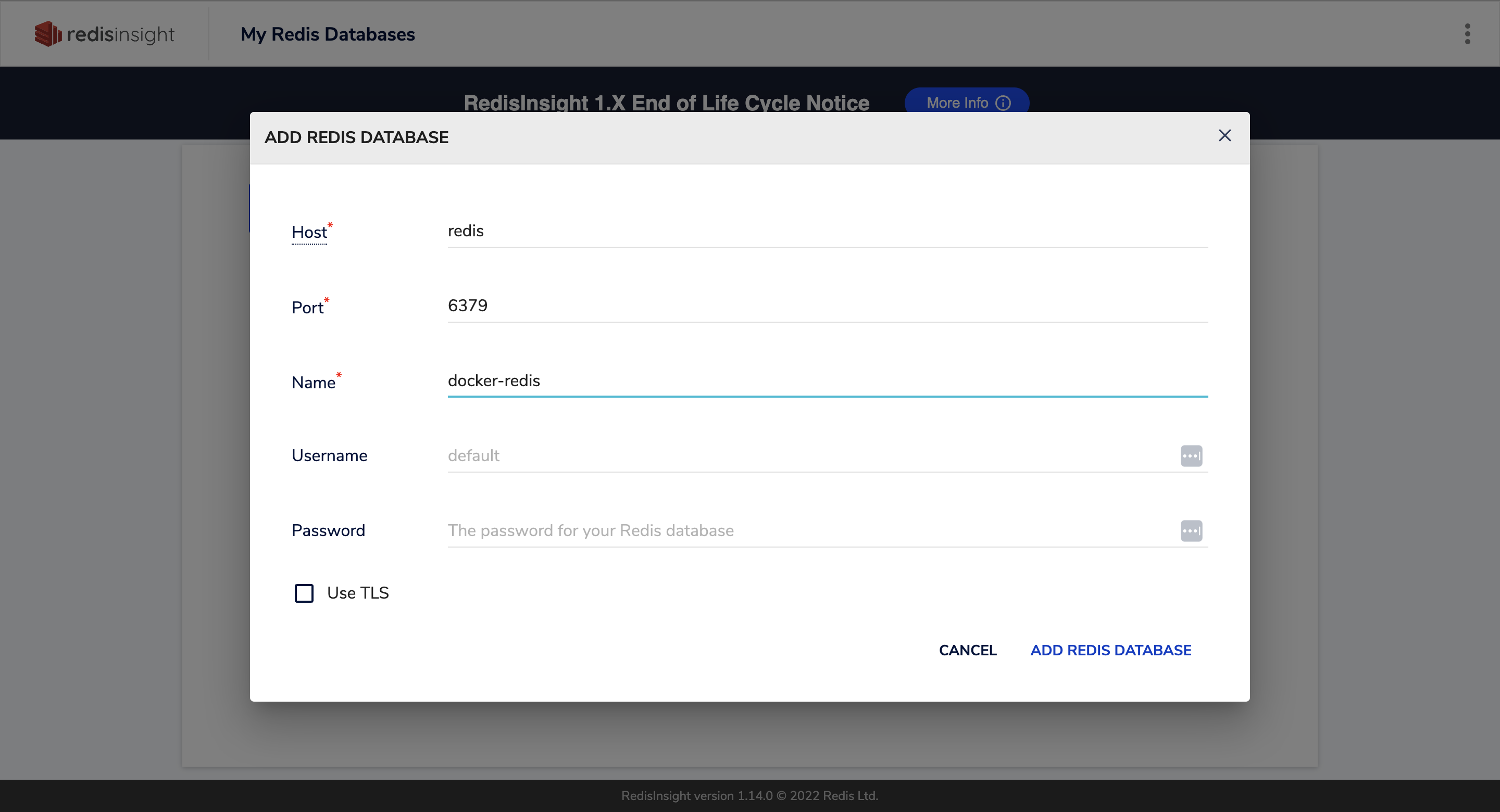 24 |
25 | - We have used `redis` as a `Host` because the `Redis Insight` container is also running on the docker, in the same network as the `redis` container.
26 |
27 | - So, to access a services in the same network, we use their name as the `Host`. So, that's why we used `redis` (name of the service for redis container in the `docker-compose.yml` file)
28 |
29 | - You are connected to the Redis database!
30 |
31 | # `Set` and `Get` a key in the Redis
32 |
33 | Now that you are connected to the Redis database through Redis Insight, let's set and get a key.
34 |
35 | After connecting to the redis. Refer to the following video as a guide:
36 |
37 | [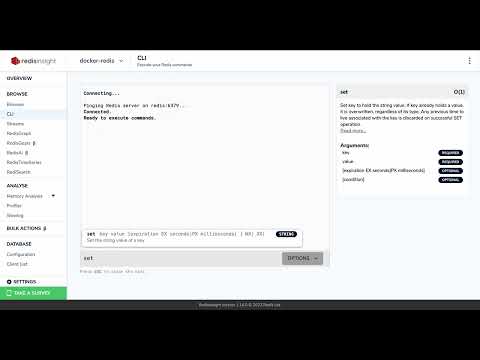](https://www.youtube.com/watch?v=Z4pAv2-NVSI)
38 |
39 | Now, you have a running redis instance!
40 |
--------------------------------------------------------------------------------
/postgresql/readme.md:
--------------------------------------------------------------------------------
1 | # Start local PostgreSQL
2 |
3 | ### When `docker-compose.yml` is in the root folder
4 |
5 | ```bash
6 | docker-compose up
7 | ```
8 |
9 | ### When `docker-compose.yml` is in the nested folders
10 |
11 | ```bash
12 | docker-compose -f ./postgresql/docker-compose.yml up
13 | ```
14 |
15 | # Access Adminer
16 |
17 | - Go to `http://localhost:8080` to access Adminer portal.
18 | - Enter respective credentials after selecting system as `PostgreSQL` and hit login
19 | - You are connected to postgresql GUI and good to go now!
20 |
21 | # Run commands inside the container
22 |
23 | Run the following command and hit enter to know version of the PostgreSQL:
24 |
25 | ```bash
26 | docker-compose -f postgresql/docker-compose.yml run db psql -U chaiaurcode -p 5432 -h db -d chaiDB -c "SELECT version();"
27 | ```
28 |
29 | - `-f postgresql/docker-compose.yml`: points to the file which we want to run docker compose on. If we have `docker-compose.yml` in root folder we don't need to pass this flag.
30 |
31 | - `run db`: Runs a one-time command in the `db` service defined in the Docker Compose file.
32 |
33 | - `psql`: **Initiates the PostgreSQL command-line client.**
34 |
35 | - `-U chaiaurcode`: Specifies the PostgreSQL username as `chaiaurcode`.
36 |
37 | - `-p 5432`: Specifies the port number (5432) on which the PostgreSQL server is running. If the port is `5432` then this flag is optional.
38 |
39 | - `-h db`: Specifies the host as `db` where the PostgreSQL server is located.
40 |
41 | - `-d chaiDB`: Specifies the name of the PostgreSQL database as `chaiDB`.
42 |
43 | - `-c "SELECT version();"`: Executes the SQL command `SELECT version();` on the specified database.
44 |
45 | Running this command will prompt you to enter the password. Enter `POSTGRES_PASSWORD` env var value from docker compose file. And, you are good to go!
46 |
47 | Output after correct password:
48 |
49 | ```bash
50 | version
51 | ---------------------------------------------------------------------------------------------------------------------------
52 | PostgreSQL 16.1 (Debian 16.1-1.pgdg120+1) on aarch64-unknown-linux-gnu, compiled by gcc (Debian 12.2.0-14) 12.2.0, 64-bit
53 | (1 row)
54 |
55 | ```
56 |
57 | Now, you can run postgresql related commands here.
58 |
--------------------------------------------------------------------------------
/mysql/readme.md:
--------------------------------------------------------------------------------
1 | # Start local MySQL
2 |
3 | ### When `docker-compose.yml` is in the root folder
4 |
5 | ```bash
6 | docker-compose up
7 | ```
8 |
9 | ### When `docker-compose.yml` is in the nested folders
10 |
11 | ```bash
12 | docker-compose -f ./mysql/docker-compose.yml up
13 | ```
14 |
15 | # Access Adminer
16 |
17 | - Go to `http://localhost:8080` to access Adminer portal.
18 | - Enter respective credentials after selecting system as `MySQL` and hit login
19 | - You are connected to mysql GUI and good to go now!
20 |
21 | # Access MySQL monitor
22 |
23 | To access MySQL monitor and execute sql queries through terminal run the following command and hit enter:
24 |
25 | ```bash
26 | docker-compose -f mysql/docker-compose.yml run db mysql -u chai -p --host=db
27 | ```
28 |
29 | - `-f mysql/docker-compose.yml`: points to the file which we want to run docker compose on. If we have `docker-compose.yml` in root folder we don't need to pass this flag.
30 |
31 | - `run`: This command is used to run a one-time command for a service defined in the `docker-compose.yml` file. In this case, the service being run is named `db`
32 |
33 | - `mysql`: This is the command that will be run within the container. In this case, it's starting the MySQL client.
34 |
35 | - `-u chai`: Specifies the MySQL user as `chai` This is the username that will be used when connecting to the MySQL server.
36 |
37 | - `-p`: Prompts for the MySQL user's password. **This flag indicates that the user's password will be entered interactively after running the command.**
38 |
39 | - `--host=db`: Specifies the host where the MySQL server is running. In this case, it's set to `db`, **which is likely the name of the service defined in the `docker-compose.yml` file**.
40 |
41 | Running this command will prompt you to enter the password. Enter `MYSQL_PASSWORD` env var value from docker compose file. And, you are good to go!
42 |
43 | ```bash
44 | Welcome to the MySQL monitor. Commands end with ; or \g.
45 | Your MySQL connection id is 14
46 | Server version: 8.1.0 MySQL Community Server - GPL
47 |
48 | Copyright (c) 2000, 2023, Oracle and/or its affiliates.
49 |
50 | Oracle is a registered trademark of Oracle Corporation and/or its
51 | affiliates. Other names may be trademarks of their respective
52 | owners.
53 |
54 | Type 'help;' or '\h' for help. Type '\c' to clear the current input statement.
55 |
56 | mysql>
57 | ```
58 |
59 | # List all the databases
60 |
61 | Run the following query to list all databases:
62 |
63 | ```bash
64 | mysql> SHOW DATABASES;
65 | ```
66 |
67 | Output:
68 |
69 | ```bash
70 | mysql> SHOW DATABASES;
71 | +--------------------+
72 | | Database |
73 | +--------------------+
74 | | chaiDB |
75 | | information_schema |
76 | | performance_schema |
77 | +--------------------+
78 | 3 rows in set (0.07 sec)
79 | ```
80 |
81 | Now, you can run mysql related commands here
82 |
--------------------------------------------------------------------------------
/mongodb/readme.md:
--------------------------------------------------------------------------------
1 | # Start local mongodb
2 |
3 | ### When `docker-compose.yml` is in the root folder
4 |
5 | ```bash
6 | docker-compose up
7 | ```
8 |
9 | ### When `docker-compose.yml` is in the nested folders
10 |
11 | ```bash
12 | docker-compose -f ./mongodb/docker-compose.yml up
13 | ```
14 |
15 | # Connection string
16 |
17 | ```bash
18 | mongodb://:@localhost:27017
19 | ```
20 |
21 | # Connect using MongoDB Compass GUI client
22 |
23 | - Download [MongoDB Compass](https://www.mongodb.com/products/tools/compass)
24 | - Enter the above connection string with correct `username` and `password` and hit connect
25 | - That's it you are good to go now!
26 |
27 | # Access the mongo shell via docker
28 |
29 | **Run the following command to enable mongo shell:**
30 |
31 | ```
32 | docker-compose -f mongodb/docker-compose.yml run mongo mongosh --host mongo
33 | ```
34 |
35 | - `-f mongodb/docker-compose.yml` points to the file which we want to run docker compose on. If we have `docker-compose.yml` in root folder we don't need to pass this flag
36 | - `run` will run the command that we enter
37 | - `mongo` is the container name that we have entered in docker compose file. This is the container in which we want to `run` the command
38 | - `mongosh --host mongo` is the command that we want to `run`, to enter into the mongo shell
39 | - we entered `--host mongo` because we cannot connect to `localhost:27017` inside the docker environment we need to enter host as the container name
40 |
41 | After running this you will see the following output:
42 |
43 | ```bash
44 | Current Mongosh Log ID: 65916b5cc7606344bcb75c39
45 | Connecting to: mongodb://mongo:27017/?directConnection=true&appName=mongosh+1.10.1
46 | Using MongoDB: 6.0.8
47 | Using Mongosh: 1.10.1
48 |
49 | For mongosh info see: https://docs.mongodb.com/mongodb-shell/
50 |
51 | test>
52 | ```
53 |
54 | Enter following command to list out dbs:
55 |
56 | ```bash
57 | test> show dbs
58 | ```
59 |
60 | We get following error:
61 |
62 | ```bash
63 | test> show dbs
64 | MongoServerError: command listDatabases requires authentication
65 | ```
66 |
67 | This means we haven't logged in to the mongo shell and we don't have permissions to do these tasks. Let's see how we can enter inside the mongo shell with permissions.
68 |
69 | Run the following command to quit the mongo shell:
70 |
71 | ```bash
72 | test> quit
73 | ```
74 |
75 | # Access mongo shell with permissions
76 |
77 | ```bash
78 | docker-compose -f mongodb/docker-compose.yml run mongo mongosh -u root -p example --host mongo
79 | ```
80 |
81 | - `-u root` this is the username that we have provided in the compose file with `MONGO_INITDB_ROOT_USERNAME: root` env var
82 | - `-p example` this is the password that we have provided in the compose file with `MONGO_INITDB_ROOT_PASSWORD: example` env var
83 |
84 | After running this you will see the following output:
85 |
86 | ```bash
87 | Current Mongosh Log ID: 65916c87334d0c4c484182d6
88 | Connecting to: mongodb://@mongo:27017/?directConnection=true&appName=mongosh+1.10.1
89 | Using MongoDB: 6.0.8
90 | Using Mongosh: 1.10.1
91 |
92 | For mongosh info see: https://docs.mongodb.com/mongodb-shell/
93 |
94 | ------
95 | The server generated these startup warnings when booting
96 | 2023-12-31T13:14:21.738+00:00: vm.max_map_count is too low
97 | ------
98 |
99 | test>
100 | ```
101 |
102 | Now, run `show dbs` and you will get the list of dbs as follows:
103 |
104 | ```bash
105 | test> show dbs
106 | admin 100.00 KiB
107 | config 108.00 KiB
108 | local 72.00 KiB
109 | ```
110 |
111 | Now, you can run mongodb related commands here
112 |
--------------------------------------------------------------------------------
24 |
25 | - We have used `redis` as a `Host` because the `Redis Insight` container is also running on the docker, in the same network as the `redis` container.
26 |
27 | - So, to access a services in the same network, we use their name as the `Host`. So, that's why we used `redis` (name of the service for redis container in the `docker-compose.yml` file)
28 |
29 | - You are connected to the Redis database!
30 |
31 | # `Set` and `Get` a key in the Redis
32 |
33 | Now that you are connected to the Redis database through Redis Insight, let's set and get a key.
34 |
35 | After connecting to the redis. Refer to the following video as a guide:
36 |
37 | [](https://www.youtube.com/watch?v=Z4pAv2-NVSI)
38 |
39 | Now, you have a running redis instance!
40 |
--------------------------------------------------------------------------------
/postgresql/readme.md:
--------------------------------------------------------------------------------
1 | # Start local PostgreSQL
2 |
3 | ### When `docker-compose.yml` is in the root folder
4 |
5 | ```bash
6 | docker-compose up
7 | ```
8 |
9 | ### When `docker-compose.yml` is in the nested folders
10 |
11 | ```bash
12 | docker-compose -f ./postgresql/docker-compose.yml up
13 | ```
14 |
15 | # Access Adminer
16 |
17 | - Go to `http://localhost:8080` to access Adminer portal.
18 | - Enter respective credentials after selecting system as `PostgreSQL` and hit login
19 | - You are connected to postgresql GUI and good to go now!
20 |
21 | # Run commands inside the container
22 |
23 | Run the following command and hit enter to know version of the PostgreSQL:
24 |
25 | ```bash
26 | docker-compose -f postgresql/docker-compose.yml run db psql -U chaiaurcode -p 5432 -h db -d chaiDB -c "SELECT version();"
27 | ```
28 |
29 | - `-f postgresql/docker-compose.yml`: points to the file which we want to run docker compose on. If we have `docker-compose.yml` in root folder we don't need to pass this flag.
30 |
31 | - `run db`: Runs a one-time command in the `db` service defined in the Docker Compose file.
32 |
33 | - `psql`: **Initiates the PostgreSQL command-line client.**
34 |
35 | - `-U chaiaurcode`: Specifies the PostgreSQL username as `chaiaurcode`.
36 |
37 | - `-p 5432`: Specifies the port number (5432) on which the PostgreSQL server is running. If the port is `5432` then this flag is optional.
38 |
39 | - `-h db`: Specifies the host as `db` where the PostgreSQL server is located.
40 |
41 | - `-d chaiDB`: Specifies the name of the PostgreSQL database as `chaiDB`.
42 |
43 | - `-c "SELECT version();"`: Executes the SQL command `SELECT version();` on the specified database.
44 |
45 | Running this command will prompt you to enter the password. Enter `POSTGRES_PASSWORD` env var value from docker compose file. And, you are good to go!
46 |
47 | Output after correct password:
48 |
49 | ```bash
50 | version
51 | ---------------------------------------------------------------------------------------------------------------------------
52 | PostgreSQL 16.1 (Debian 16.1-1.pgdg120+1) on aarch64-unknown-linux-gnu, compiled by gcc (Debian 12.2.0-14) 12.2.0, 64-bit
53 | (1 row)
54 |
55 | ```
56 |
57 | Now, you can run postgresql related commands here.
58 |
--------------------------------------------------------------------------------
/mysql/readme.md:
--------------------------------------------------------------------------------
1 | # Start local MySQL
2 |
3 | ### When `docker-compose.yml` is in the root folder
4 |
5 | ```bash
6 | docker-compose up
7 | ```
8 |
9 | ### When `docker-compose.yml` is in the nested folders
10 |
11 | ```bash
12 | docker-compose -f ./mysql/docker-compose.yml up
13 | ```
14 |
15 | # Access Adminer
16 |
17 | - Go to `http://localhost:8080` to access Adminer portal.
18 | - Enter respective credentials after selecting system as `MySQL` and hit login
19 | - You are connected to mysql GUI and good to go now!
20 |
21 | # Access MySQL monitor
22 |
23 | To access MySQL monitor and execute sql queries through terminal run the following command and hit enter:
24 |
25 | ```bash
26 | docker-compose -f mysql/docker-compose.yml run db mysql -u chai -p --host=db
27 | ```
28 |
29 | - `-f mysql/docker-compose.yml`: points to the file which we want to run docker compose on. If we have `docker-compose.yml` in root folder we don't need to pass this flag.
30 |
31 | - `run`: This command is used to run a one-time command for a service defined in the `docker-compose.yml` file. In this case, the service being run is named `db`
32 |
33 | - `mysql`: This is the command that will be run within the container. In this case, it's starting the MySQL client.
34 |
35 | - `-u chai`: Specifies the MySQL user as `chai` This is the username that will be used when connecting to the MySQL server.
36 |
37 | - `-p`: Prompts for the MySQL user's password. **This flag indicates that the user's password will be entered interactively after running the command.**
38 |
39 | - `--host=db`: Specifies the host where the MySQL server is running. In this case, it's set to `db`, **which is likely the name of the service defined in the `docker-compose.yml` file**.
40 |
41 | Running this command will prompt you to enter the password. Enter `MYSQL_PASSWORD` env var value from docker compose file. And, you are good to go!
42 |
43 | ```bash
44 | Welcome to the MySQL monitor. Commands end with ; or \g.
45 | Your MySQL connection id is 14
46 | Server version: 8.1.0 MySQL Community Server - GPL
47 |
48 | Copyright (c) 2000, 2023, Oracle and/or its affiliates.
49 |
50 | Oracle is a registered trademark of Oracle Corporation and/or its
51 | affiliates. Other names may be trademarks of their respective
52 | owners.
53 |
54 | Type 'help;' or '\h' for help. Type '\c' to clear the current input statement.
55 |
56 | mysql>
57 | ```
58 |
59 | # List all the databases
60 |
61 | Run the following query to list all databases:
62 |
63 | ```bash
64 | mysql> SHOW DATABASES;
65 | ```
66 |
67 | Output:
68 |
69 | ```bash
70 | mysql> SHOW DATABASES;
71 | +--------------------+
72 | | Database |
73 | +--------------------+
74 | | chaiDB |
75 | | information_schema |
76 | | performance_schema |
77 | +--------------------+
78 | 3 rows in set (0.07 sec)
79 | ```
80 |
81 | Now, you can run mysql related commands here
82 |
--------------------------------------------------------------------------------
/mongodb/readme.md:
--------------------------------------------------------------------------------
1 | # Start local mongodb
2 |
3 | ### When `docker-compose.yml` is in the root folder
4 |
5 | ```bash
6 | docker-compose up
7 | ```
8 |
9 | ### When `docker-compose.yml` is in the nested folders
10 |
11 | ```bash
12 | docker-compose -f ./mongodb/docker-compose.yml up
13 | ```
14 |
15 | # Connection string
16 |
17 | ```bash
18 | mongodb://:@localhost:27017
19 | ```
20 |
21 | # Connect using MongoDB Compass GUI client
22 |
23 | - Download [MongoDB Compass](https://www.mongodb.com/products/tools/compass)
24 | - Enter the above connection string with correct `username` and `password` and hit connect
25 | - That's it you are good to go now!
26 |
27 | # Access the mongo shell via docker
28 |
29 | **Run the following command to enable mongo shell:**
30 |
31 | ```
32 | docker-compose -f mongodb/docker-compose.yml run mongo mongosh --host mongo
33 | ```
34 |
35 | - `-f mongodb/docker-compose.yml` points to the file which we want to run docker compose on. If we have `docker-compose.yml` in root folder we don't need to pass this flag
36 | - `run` will run the command that we enter
37 | - `mongo` is the container name that we have entered in docker compose file. This is the container in which we want to `run` the command
38 | - `mongosh --host mongo` is the command that we want to `run`, to enter into the mongo shell
39 | - we entered `--host mongo` because we cannot connect to `localhost:27017` inside the docker environment we need to enter host as the container name
40 |
41 | After running this you will see the following output:
42 |
43 | ```bash
44 | Current Mongosh Log ID: 65916b5cc7606344bcb75c39
45 | Connecting to: mongodb://mongo:27017/?directConnection=true&appName=mongosh+1.10.1
46 | Using MongoDB: 6.0.8
47 | Using Mongosh: 1.10.1
48 |
49 | For mongosh info see: https://docs.mongodb.com/mongodb-shell/
50 |
51 | test>
52 | ```
53 |
54 | Enter following command to list out dbs:
55 |
56 | ```bash
57 | test> show dbs
58 | ```
59 |
60 | We get following error:
61 |
62 | ```bash
63 | test> show dbs
64 | MongoServerError: command listDatabases requires authentication
65 | ```
66 |
67 | This means we haven't logged in to the mongo shell and we don't have permissions to do these tasks. Let's see how we can enter inside the mongo shell with permissions.
68 |
69 | Run the following command to quit the mongo shell:
70 |
71 | ```bash
72 | test> quit
73 | ```
74 |
75 | # Access mongo shell with permissions
76 |
77 | ```bash
78 | docker-compose -f mongodb/docker-compose.yml run mongo mongosh -u root -p example --host mongo
79 | ```
80 |
81 | - `-u root` this is the username that we have provided in the compose file with `MONGO_INITDB_ROOT_USERNAME: root` env var
82 | - `-p example` this is the password that we have provided in the compose file with `MONGO_INITDB_ROOT_PASSWORD: example` env var
83 |
84 | After running this you will see the following output:
85 |
86 | ```bash
87 | Current Mongosh Log ID: 65916c87334d0c4c484182d6
88 | Connecting to: mongodb://@mongo:27017/?directConnection=true&appName=mongosh+1.10.1
89 | Using MongoDB: 6.0.8
90 | Using Mongosh: 1.10.1
91 |
92 | For mongosh info see: https://docs.mongodb.com/mongodb-shell/
93 |
94 | ------
95 | The server generated these startup warnings when booting
96 | 2023-12-31T13:14:21.738+00:00: vm.max_map_count is too low
97 | ------
98 |
99 | test>
100 | ```
101 |
102 | Now, run `show dbs` and you will get the list of dbs as follows:
103 |
104 | ```bash
105 | test> show dbs
106 | admin 100.00 KiB
107 | config 108.00 KiB
108 | local 72.00 KiB
109 | ```
110 |
111 | Now, you can run mongodb related commands here
112 |
--------------------------------------------------------------------------------