tag, move to next empty line after `` element and press
23 | `Cmd + Option + .` to generate
at that position.
24 |
25 | ```html
26 |
27 |
28 |
29 | - First list item
30 |
- Second list item
31 |
- Third list item
32 |
33 |
34 | ```
35 |
--------------------------------------------------------------------------------
/LICENSE:
--------------------------------------------------------------------------------
1 | The MIT License (MIT)
2 |
3 | Copyright (c) 2015 Jai Pandya
4 |
5 | Permission is hereby granted, free of charge, to any person obtaining a copy
6 | of this software and associated documentation files (the "Software"), to deal
7 | in the Software without restriction, including without limitation the rights
8 | to use, copy, modify, merge, publish, distribute, sublicense, and/or sell
9 | copies of the Software, and to permit persons to whom the Software is
10 | furnished to do so, subject to the following conditions:
11 |
12 | The above copyright notice and this permission notice shall be included in all
13 | copies or substantial portions of the Software.
14 |
15 | THE SOFTWARE IS PROVIDED "AS IS", WITHOUT WARRANTY OF ANY KIND, EXPRESS OR
16 | IMPLIED, INCLUDING BUT NOT LIMITED TO THE WARRANTIES OF MERCHANTABILITY,
17 | FITNESS FOR A PARTICULAR PURPOSE AND NONINFRINGEMENT. IN NO EVENT SHALL THE
18 | AUTHORS OR COPYRIGHT HOLDERS BE LIABLE FOR ANY CLAIM, DAMAGES OR OTHER
19 | LIABILITY, WHETHER IN AN ACTION OF CONTRACT, TORT OR OTHERWISE, ARISING FROM,
20 | OUT OF OR IN CONNECTION WITH THE SOFTWARE OR THE USE OR OTHER DEALINGS IN THE
21 | SOFTWARE.
22 |
23 |
--------------------------------------------------------------------------------
/tutorial/chapter_2_9.md:
--------------------------------------------------------------------------------
1 | Sorting lines
2 | ==============
3 |
4 | You have shown lovely progress till now. You have sorted a block of text
5 | two times in unit 4 and then 8. Second time, it took less time time than
6 | the first one. What if I tell you that you can sort lines in Sublime Text
7 | with just one keystroke?
8 |
9 | `F5` to the rescue.
10 |
11 | Unlike other text transformation commands, this one uses function keys to
12 | do the magic. To remember, correlate `5` with the shape of `S` in `S`orting.
13 |
14 |
15 | Exercise
16 | ---------
17 |
18 | Let's do the same exercise again using this shortcut now.
19 |
20 | 1. First, drag select the block. Use `F5` directly to sort all these lines.
21 | (which is `fn + F5` on Macbook keyboard)
22 | 2. Now delete the lines using `delete line` shortcut you learned in unit 4 of
23 | this module.
24 |
25 | ```
26 |
27 | 6. This is line number six
28 | 1. This is line number one
29 | 6. This is line number six
30 | 5. This is line number five
31 | 4. This is line number four
32 | 3. This is line number three
33 | 2. This is line number two
34 | 2. This is line number two
35 | 3. This is line number three
36 |
37 | ```
38 |
--------------------------------------------------------------------------------
/tutorial/chapter_5_5.md:
--------------------------------------------------------------------------------
1 | Find in project
2 | ================
3 |
4 | If I had an option to keep only two shortcuts in Sublime Text, then I would
5 | opt for `Goto anything` and `Find in project`. That is just to give you an
6 | idea, how frequently you are going to use this shortcut.
7 |
8 | This is equivalent to `grep` command of the shell world.
9 |
10 | * Shortcut - `Cmd + Shift + F`
11 |
12 | Let us search for some terms project wide and come back to this chapter then.
13 |
14 |
15 | Exercise
16 | ---------
17 |
18 | 1. Press `Cmd + Shift + F` to open `Find in project` panel.
19 | 2. In the `Find` field type `class Foo` and press Return.
20 | (Quick tip here: `Cmd + E` and `Cmd + Shift + E` for add select to find /
21 | replace shortcuts work here as well)
22 | 3. You get a list of matched terms in a new tab. If found, the search term
23 | will be highlighted. Double clicking on a line with highlighted search term
24 | will automatically open the file and take us to the corresponding line
25 | number.
26 | 4. Try this with 4-5 different search terms and make yourself comfortable with
27 | this command.
28 | 5. When you are done playing around with this, move to next module.
29 |
--------------------------------------------------------------------------------
/tutorial/chapter_2_5.md:
--------------------------------------------------------------------------------
1 | Soft Undo / Redo
2 | =================
3 |
4 | Shortcuts for `undo` and `redo` commands are `Cmd + Z` and `Cmd + Shift + Z`
5 | which is a standard on Mac. But here, we are talking about 'soft' undo and redo
6 | actions.
7 |
8 | Sublime has the ability to track your cursor position in the history. So, when
9 | you move your cursor from one position to another, or select something, Sublime
10 | can easily undo these 'soft' actions as well.
11 |
12 | Shortcuts for soft undo and redo are:
13 |
14 | * Soft undo - `Cmd + U`
15 | * Soft redo - `Cmd + Shift + U`
16 |
17 |
18 | Exercise
19 | ---------
20 |
21 | Move your cursor using your mouse from one position to another, delete some
22 | words, select some area, then again delete some words. Once you are done with
23 | that, use soft undo with `Cmd + U` shortcut to delete all this. Then try redoing
24 | it with `Cmd + Shift + U` and then undo that action again and come in the
25 | original position.
26 |
27 |
28 | Revision
29 | ---------
30 |
31 | * Delete to beginning of the line - `Cmd + Delete`
32 | * Delete to end of the line - `Ctrl + K`
33 | * Delete word back - `Option + Delete`
34 | * Delete a line - `Ctrl + Shift + K`
35 | * Cut a line - `Cmd + X`
36 |
--------------------------------------------------------------------------------
/sublime_tutor.py:
--------------------------------------------------------------------------------
1 | # coding: utf-8
2 | """The main entry point for the sublime tutor plugin, defines the commands
3 | that will be used by menu, command palette etc."""
4 | import os
5 | import sys
6 | import logging
7 |
8 | import sublime
9 | import sublime_plugin
10 |
11 |
12 | class SublimeTutorCommand(sublime_plugin.WindowCommand):
13 | """Defines the sublime tutor command that is fired from menu"""
14 | def run(self):
15 | """ This method is automatically called when sublime_tutor
16 | command is executed"""
17 | import subprocess
18 |
19 | executable_path = sublime.executable_path()
20 |
21 | if sublime.platform() == 'osx':
22 | app_path = executable_path[:executable_path.rfind(".app/")+5]
23 | executable_path = app_path+"Contents/SharedSupport/bin/subl"
24 |
25 | plugin_dir = os.path.dirname(os.path.realpath(__file__))
26 | tutorial_dir = os.path.join(plugin_dir, 'tutorial')
27 | chapter_1 = os.path.join(plugin_dir, 'tutorial', 'README.md')
28 |
29 | subprocess.Popen([
30 | executable_path, tutorial_dir, chapter_1, '--project',
31 | tutorial_dir + '/sublimetutor.sublime-project'
32 | ], cwd=plugin_dir)
33 |
--------------------------------------------------------------------------------
/tutorial/chapter_2_14.md:
--------------------------------------------------------------------------------
1 | Wrap lines at ruler
2 | ====================
3 |
4 | You can use this shortcut to wrap them at a defined ruler position. You can use
5 | settings override to define ruler position. (settings override is introduced in
6 | the last module of this course)
7 |
8 | * Wrap lines at ruler position - `Cmd + Option + Q`
9 |
10 | This shortcut was mighty useful when I was writing this series of tutorial. I
11 | generally like to wrap paragraphs at 80 characters ruler limit. So I write
12 | paragraphs with long sentences and later apply this shortcut to wrap them at
13 | column 80.
14 |
15 |
16 | Exercise
17 | ---------
18 |
19 | Given below is a very long line without any new line characters. Select the
20 | block first. Use `Cmd + Option + Q` on this block automatically to get it
21 | wrapped.
22 |
23 | ```
24 |
25 | Lorem ipsum dolor sit amet, consectetur adipiscing elit. Aenean posuere a dolor vel faucibus. Nunc tempus rhoncus est. Pellentesque pharetra ex eget quam egestas eleifend eu at neque. Etiam tempus erat eget neque rhoncus posuere. Curabitur nec pulvinar erat, id suscipit magna. Proin eu massa fringilla, blandit libero vitae, tempus ipsum. Aliquam pharetra sed lorem a ullamcorper. Suspendisse non egestas augue, vel tincidunt felis.
26 |
27 | ```
28 |
--------------------------------------------------------------------------------
/tutorial/chapter_2_3.md:
--------------------------------------------------------------------------------
1 | Delete to end / beginning of the line
2 | ======================================
3 |
4 | * Delete to beginning of the line - `Cmd + Delete`
5 | * Delete to end of the line - `Ctrl + K`
6 |
7 |
8 | Exercise
9 | ---------
10 |
11 | I made some deliberate typos when I was writing some sentences given below.
12 | Use your new found knowledge in this unit to delete the typos in those
13 | sentences.
14 |
15 | ```
16 |
17 | lajsd ;kjasdf klj90okasjdfThis sentence needs some cleanup.
18 | lasdnThis one as well.
19 | ljsad kjhsadf asdlkfjasd lkjasd fAnd this one falls in a similar bucket.
20 |
21 | ```
22 |
23 | ```
24 |
25 | This sentence needs some cleanup.jasdf;kjsadfuq43r asldkjf asdf lkjadf
26 | This one as well.lasdn
27 | And this one falls in a similar bucket.ljsad kjhsadf asdlkfjasd lkjasd f
28 |
29 | ```
30 |
31 | Create a new file with `Cmd + N`, copy and paste the contents of this file and
32 | then delete all the lines one by one using the shortcuts you learned in this
33 | chapter. (select all, copy and paste have usual system level shortcuts)
34 |
35 |
36 | Revision
37 | ---------
38 |
39 | * Delete word back - `Option + Delete`
40 | * Delete word forward - `fn + Option + Delete`
41 | * Insert line after - `Cmd + Return`
42 | * Insert line before - `Cmd + Shift + Return`
43 |
--------------------------------------------------------------------------------
/tutorial/chapter_4_3.md:
--------------------------------------------------------------------------------
1 | Goto beginning of a line
2 | ==========================
3 |
4 | This is one of the most frequently used commands, I would suggest you to master
5 | it and put it in your muscle memory.
6 |
7 | * Shortcut - `Ctrl + A / Cmd + left`
8 |
9 | There are two shortcuts for this command. You can use anyone of them. I
10 | personally like the first flavor more because both the keys in `Ctrl + A` are
11 | easily in my reach while arrow keys tend to be slightly far.
12 |
13 |
14 | Goto end of a line
15 | ===================
16 |
17 | This is exact opposite of the command above. This also happens to be one of the
18 | most frequently used commands.
19 |
20 | * Shortcut - `Ctrl + E / Cmd + right`
21 |
22 | As the case with `Goto beginning of a line` command, this command also has two
23 | shortcuts, you are free to memorize any of them.
24 |
25 |
26 | Exercise
27 | ---------
28 |
29 | 1. You have a few statements written below
30 | 2. Put your cursor on each of the sentences
31 | 3. Move your cursor to the beginning (`Ctrl + A`) of that sentence
32 | 4. Move your cursor to the end (`Ctrl + E`) of that sentence
33 | 5. Move to the next line and repeat
34 |
35 | ```
36 |
37 | 1. This is first line
38 | 2. This is second line
39 | 3. This is third line
40 | 4. This is fourth line
41 | 5. This is fifth line
42 | 6. This is sixth line
43 | 7. This is seventh line
44 | 8. This is eighth line
45 | 9. This is ninth line
46 | 10. This is tenth line
47 |
48 | ```
49 |
--------------------------------------------------------------------------------
/tutorial/chapter_2_1.md:
--------------------------------------------------------------------------------
1 | Insert line before / after
2 | ===========================
3 |
4 | You can directly add a line above or below your cursor position
5 | and move your cursor directly to that location.
6 |
7 | * Insert line before - `Cmd + Shift + Return`
8 | * Insert line after - `Cmd + Return`
9 |
10 |
11 | Exercise
12 | ---------
13 |
14 | 1. Place your cursor anywhere on the line marked `<==` in the first block below
15 | 2. Insert a line before and after using the shortcut `Cmd + Shift + Return` and
16 | `Cmd + Return` consecutively
17 | 3. Do the same thing with other blocks as well.
18 | 3. Each block should now look as the block below:
19 |
20 | ```
21 |
22 | This is first line
23 |
24 | I have been sandwiched between the two above and below <==
25 |
26 | This is last line
27 |
28 | ```
29 |
30 |
31 | First block
32 | ------------
33 |
34 | ```
35 |
36 | This is first line
37 | I have been sandwiched between the two above and below <==
38 | This is last line
39 |
40 | ```
41 |
42 |
43 | Second block
44 | -------------
45 |
46 | ```
47 |
48 | This is first line
49 | I have been sandwiched between the two above and below <==
50 | This is last line
51 |
52 | ```
53 |
54 |
55 | Third block
56 | ------------
57 |
58 | ```
59 |
60 | This is first line
61 | I have been sandwiched between the two above and below <==
62 | This is last line
63 |
64 | ```
65 |
66 |
67 | Now proceed to next chapter with the familiar `Goto Anything` shortcut. The
68 | filename is chapter_2_2.md
69 |
--------------------------------------------------------------------------------
/tutorial/chapter_2_8.md:
--------------------------------------------------------------------------------
1 | Bubble the line up / down
2 | ==========================
3 |
4 | If you remember from chapter 2.4 exercise 2, in order to sort the lines you
5 | had to cut the lines first and then paste the line back. If all you wanted
6 | to do was to move the complete line above or below, you could use this
7 | handy shortcut that Sublime Text provides.
8 |
9 | * Bubble the line up - `Ctrl + Cmd + up`
10 | * Bubble the line down - `Ctrl + Cmd + down`
11 |
12 |
13 | Exercise
14 | ---------
15 |
16 | Let's do the same exercise again using these shortcuts now.
17 |
18 | 1. First sort the block given below using the newly learned shortcut
19 | in this unit (`Ctrl + Cmd + up`, `Ctrl + Cmd + down`)
20 | 2. Now delete the lines using the shortcut to delete line you learned in unit 4
21 | of this module. Let's see if you still remember that or not?
22 |
23 | ```
24 |
25 | 6. This is line number six
26 | 1. This is line number one
27 | 6. This is line number six
28 | 5. This is line number five
29 | 4. This is line number four
30 | 3. This is line number three
31 | 2. This is line number two
32 | 2. This is line number two
33 | 3. This is line number three
34 |
35 | ```
36 |
37 |
38 | Revision
39 | ---------
40 |
41 | Toggle the case of all the words given below. If the existing case is lower
42 | then make it upper, if the existing case is upper, then make it lower.
43 |
44 | ```
45 |
46 | TOGGLE
47 | case
48 | OF
49 | all
50 | the
51 | WORDS
52 | of
53 | this
54 | BLOCK
55 |
56 | ```
57 |
--------------------------------------------------------------------------------
/tutorial/chapter_2_11.md:
--------------------------------------------------------------------------------
1 | Indent / Unindent
2 | ==================
3 |
4 | * Indent - `Cmd + ]`
5 | * Unindent - `Cmd + [`
6 |
7 | These shortcuts indent / unindent the selected lines. If no line is selected
8 | then the current line is moved.
9 |
10 |
11 | Exercise
12 | ---------
13 |
14 | There are multiple lines in the block given below. Each line is indented at a
15 | different level. Use the shortcut learned above so that all the lines start at
16 | column number 4 (four spaces)
17 |
18 | There are two ways to do it.
19 |
20 | 1. Indent every line individually except for 8,9,10.
21 | 2. For 8,9,10 select all three and then use `Cmd + [` five times to indent it at
22 | column 4.
23 |
24 | Another way would be quicker.
25 |
26 | 1. Select the whole block
27 | 2. Now use unindent command (`Cmd + [`) until all statements are indented at
28 | first column. Now indent (`Cmd + ]`) twice to move the whole block to
29 | column 4.
30 |
31 | ```
32 |
33 | 1 first line first level
34 | 2 second line second level
35 | 3 third line third level
36 | 4 fourth line fourth level
37 | 5 fifth line fifth level
38 | 6 sixth line sixth level
39 | 7 seventh line seventh level
40 | 8 eighth line eighth level
41 | 9 ninth line eighth level
42 | 10 tenth line eighth level
43 |
44 | ```
45 | Tip: If you like another alternative here, you could use `tab` key for indenting
46 | and `shift` + `tab` unindenting. I leave the choice to you.
47 |
--------------------------------------------------------------------------------
/tutorial/chapter_3_2.md:
--------------------------------------------------------------------------------
1 | Column Selection
2 | =================
3 |
4 | If you want to have multiple cursors in a column, then `Cmd + click`
5 | could become cumbersome pretty soon. For this, there is a more convenient
6 | method that Sublime Text provides.
7 |
8 | * Column selection using mouse - `Option + click and drag`
9 | * Keyboard shortcut - `Ctrl + Shift + up|down`
10 |
11 | On the current version of Mac OSX, this keyboard shortcut is already bound to
12 | mission control. In my case, I don't use mission control a lot, so I have
13 | switched the key bindings for mission control off. If you also want to do the
14 | same, go to `Preferences -> Keyboard -> Shortcuts -> Mission Control` and
15 | uncheck `Mission Control` shortcut. Alternatively, you could also change the
16 | key-binding for column selection in Sublime Text to something else.
17 |
18 |
19 | Exercise
20 | ---------
21 |
22 | Following on from the exercise in unit 1, do the same thing again but this
23 | time using column selection keyboard shortcut. In the list given below add an
24 | asterisk followed by space (`* `) in the beginning of each item. Put your
25 | cursor at the beginning of the word `tab`. Then press `Ctrl + Shift + down`.
26 | This will put you into column selection mode, and keep selecting more rows on
27 | column 1 as you keep pressing the `down` arrow key. Once the first column of
28 | every item is selected, start typing `* ` (asterisk followed by space).
29 |
30 | ```
31 |
32 | tab
33 | caps lock
34 | shift
35 | control
36 | command
37 | option
38 | space
39 |
40 | ```
41 |
--------------------------------------------------------------------------------
/messages/install.txt:
--------------------------------------------------------------------------------
1 | _______. __ __ .______ __ __ .___ ___. _______
2 | / || | | | | _ \ | | | | | \/ | | ____|
3 | | (----`| | | | | |_) | | | | | | \ / | | |__
4 | \ \ | | | | | _ < | | | | | |\/| | | __|
5 | .----) | | `--' | | |_) | | `----.| | | | | | | |____
6 | |_______/ .___________.________ |.___________.|________|.________|
7 | | | | | | | |/ __ \ | _ \
8 | `---| |----| | | | `---| |----| | | | | |_) |
9 | | | | | | | | | | | | | | /
10 | | | | `--' | | | | `--' | | |\ \----.
11 | |__| \______/ |__| \______/ | _| `._____|
12 |
13 |
14 | I always believed that the best way to learn anything is by doing it. On the
15 | path of learning Sublime, I realized that this being an editor, there is a
16 | possibility of a tutor which could teach all the features inside Sublime itself
17 |
18 | You can start using Sublime Tutor by opening it from the help menu above or you
19 | can alternatively use the shortcut: `Ctrl + Option + K`
20 |
21 | The tutor was tested on a Mac for Sublime Text 3. I'm in the process of testing
22 | / porting it for other platforms meanwhile.
23 |
24 | If you have questions, please feel free to reach me at hello@jai.im. I run
25 | a small software consultancy company Mutables (https://www.mutables.co). In
26 | case you have an interesting project and you are looking for a helping hand,
27 | feel free to reach us.
28 |
--------------------------------------------------------------------------------
/tutorial/chapter_2_15.md:
--------------------------------------------------------------------------------
1 | Transpose Letter
2 | =================
3 |
4 | Over here Sublime follows the default functionality of OSX to transpose letters
5 | of a word. On top of this you can also transpose words, but we'll keep that for
6 | later once you get introduced to multiple selection. Let's practice transposing
7 | letters for now.
8 |
9 | * Transpose - `Ctrl + T`
10 |
11 |
12 | Exercise
13 | ---------
14 |
15 | Given below are a few words which are spelled incorrectly, use the transpose
16 | shortcut described above to fix the issues.
17 |
18 | For example, in the first word `transpoes` which should actually be `transpose`
19 | place your cursor between the letters `e` and `s` and use the shortcut
20 | `Ctrl + T`
21 |
22 | ```
23 |
24 | 1. transpoes
25 | 2. exercies
26 | 3. shortctu
27 | 4. edscribed
28 | 5. usblime
29 |
30 | ```
31 |
32 |
33 | Shortcuts you learned in this module
34 | -------------------------------------
35 |
36 | * Insert line before - `Cmd + Shift + Return`
37 | * Insert line after - `Cmd + Return`
38 | * Delete to beginning of the line - `Cmd + Delete`
39 | * Delete to end of the line - `Ctrl + K`
40 | * Delete a line - `Ctrl + Shift + K`
41 | * Cut a line - `Cmd + X`
42 | * Soft undo - `Cmd + U`
43 | * Soft redo - `Cmd + Shift + U`
44 | * Lower case - `Cmd + K, Cmd + L`
45 | * Upper case - `Cmd + K, Cmd + U`
46 | * Join two lines - `Cmd + J`
47 | * Bubble the line up - `Ctrl + Cmd + up`
48 | * Bubble the line down - `Ctrl + Cmd + down`
49 | * Sort lines - `F5`
50 | * Duplicate a line - `Cmd + Shift + D`
51 | * Indent - `Cmd + ]`
52 | * Unindent - `Cmd + [`
53 | * Toggle comments - `Cmd + /`
54 | * Close an HTML tag - `Cmd + Option + .`
55 | * Wrap lines at ruler position - `Cmd + Option + Q`
56 | * Transpose - `Ctrl + T`
57 |
--------------------------------------------------------------------------------
/tutorial/chapter_2_12.md:
--------------------------------------------------------------------------------
1 | Comment / Uncomment
2 | ====================
3 |
4 | Commenting is an important feature of almost every programming language. These
5 | are the parts of the language that are targeted for a human and the compiler /
6 | interpreter ignores them. Sublime Text provides a shortcut to mark lines as
7 | comments.
8 |
9 | For different programming languages comment construct could be different. e.g.
10 | for `html` it is `` while for JavaScript it is `//` or `/* */`
11 |
12 | * Toggle comments - `Cmd + /`
13 |
14 |
15 | Exercise
16 | ---------
17 |
18 | In the block given below, some of the lines are wrapped in JavasScript comments
19 | `//`. Use the toggle comments keyboard shortcut learned above to uncomment
20 | those lines.
21 |
22 |
23 | ```Javascript
24 |
25 | function Person(){
26 |
27 | this.age = 0;
28 | // console.log(this.age);
29 |
30 | setInterval(() => {
31 | // console.log(this.age);
32 | this.age++;
33 | }, 1000);
34 | }
35 |
36 | var p = new Person();
37 |
38 | ```
39 |
40 |
41 | Sublime Text would wrap and unwrap given text in comment block depending upon
42 | the type of file used.
43 |
44 | Try changing the syntax from `Markdown` to `JavaScript` or `Ruby` by clicking
45 | clicking at the lower right corner of Sublime Text. Play with this command a
46 | bit then.
47 |
48 | Another way of changing the language is through command palette. (Formal intro
49 | will follow later in the last module). Press `Ctrl + Shift + P` and type
50 | `syntax ruby` to select Ruby language from the list of languages.
51 |
52 | While writing programs and code, commenting shortcut frequently comes in handy
53 | when you want to debug a section of the program. Comment out the lines of code
54 | that you suspect, run the program again, possibly some clue lies there.
55 |
--------------------------------------------------------------------------------
/tutorial/code/chapter_1.rb:
--------------------------------------------------------------------------------
1 | # encoding: UTF-8
2 | # If you followed the instructions from chapter 1 of this tutorial correctly,
3 | # you have reached here. That means you have successfully executed Goto
4 | # Anything command.
5 |
6 | # There are a couple of modifiers to Goto Anything command that we are going to
7 | # try out in this unit.
8 |
9 | # Goto Symbol
10 | # ============
11 | #
12 | # 1. Press `Cmd + R` to get a list of symbols in the current file
13 | # 2. Type `F` to filter the class definition from the list of symbols
14 | # 3. Press `Return` to go to `Foo` class
15 | # 4. Rename the class name from `Foo` to `Bar` (`Foo` is already selected)
16 | # 5. Now press `Cmd + R` again and go to the definition of `bar1`
17 | # 6. Rename the method name from `bar1` to `bar_1`
18 | # 7. Now press `Cmd + R` again and go to the definition of `bar2`
19 | # 8. Rename the method name from `bar2` to `bar_2`
20 |
21 | class Foo
22 | def bar1
23 | p "bar1"
24 | end
25 |
26 | def bar2
27 | p "bar2"
28 | end
29 | end
30 |
31 | # Goto Line number
32 | # ==================
33 | #
34 | # 1. `Ctrl + G` gives you a goto line number palette
35 | # 2. Type the number `23` and press `Return` to reach this line
36 | # 3. Now change the quoted word to `bar_1`
37 | # 4. Type the number `27` and press `Return` to reach this line
38 | # 5. Now change the quoted word to `bar_2`
39 | # 6. When you are done with all the changes, press `Cmd + Z` multiple
40 | # times to get back to the original state. We plan to use them again
41 | # later in this tutorial.
42 |
43 |
44 | # Move to next chapter
45 | # ---------------------
46 | #
47 | # 1. Press `Cmd + P` to get the Goto Anything palette
48 | # 2. Type `c2.md` and press `Return` to reach the second chapter
49 | # in the series of this tutorial
50 |
51 | # Shortcuts under your belt
52 | # -------------------------
53 | # 1. Goto Anywhere - `Cmd + T`
54 | # 2. Goto Anything - `Cmd + P`
55 | # 3. Goto Symbol - `Cmd + R`
56 | # 4. Goto Line number - `Ctrl + G`
57 |
--------------------------------------------------------------------------------
/tutorial/chapter_5_1.md:
--------------------------------------------------------------------------------
1 | Find...
2 | ========
3 |
4 | The most basic way of finding a word in Sublime Text is just `double clicking`
5 | it. It selects the word which was double clicked and all other occurrences of
6 | this word are highlighted. Once you click somewhere else, you exit the search
7 | mode as well.
8 |
9 | For more advanced cases, we would like to open the `Find...` panel.
10 |
11 |
12 | * Find - `Cmd + F`
13 | * Find next - `Cmd + G`
14 | * Find previous - `Cmd + Shift + G`
15 | * Find all - `Alt + Return` (when find panel is open)
16 |
17 |
18 | Exercise
19 | ---------
20 |
21 | 1. Press `Cmd + F` to open the find panel
22 | 2. Search for the term `phone` in this document
23 | 3. Cycle through all the occurrences using `Cmd + G`, press this multiple times
24 | until you get comfortable with this command.
25 | 4. Cycle in the opposite order using `Cmd + Shift + G`, press this
26 | multiple times until you get comfortable with this command.
27 | 5. Now press `Alt + Return` to find all the instances of `phone` and enter
28 | `multiple selection` mode described in earlier module.
29 | 6. Press `Esc` to exit the multiple selection mode.
30 | 7. Press `Cmd + G` or `Cmd + Shift + G` and notice that you can still search for
31 | the term you entered in the search box. This doesn't show the find panel
32 | again.
33 |
34 | ```
35 |
36 | phone
37 | windows
38 | iOS
39 | OSX
40 | linux
41 | ubuntu
42 | phone
43 | ubuntu
44 | iOS
45 | phone
46 | windows
47 |
48 | ```
49 |
50 |
51 | Use selection for find
52 | -----------------------
53 |
54 | * Shortcut - `Cmd + E`
55 |
56 | This commands puts the selection or the word on which the cursor is pointing
57 | into the find buffer. So next time when you open find panel, or press `Cmd + G`
58 | this search term is used for finding stuff.
59 |
60 |
61 | Exercise
62 | ---------
63 |
64 | In the text block given above, put your cursor on the word `ubuntu` and then
65 | press `Cmd + G`, you'll notice that it now finds `ubuntu` word on subsequent
66 | hits.
67 |
--------------------------------------------------------------------------------
/tutorial/chapter_5_4.md:
--------------------------------------------------------------------------------
1 | Quick find
2 | ===========
3 |
4 | What if you don't want to open the search panel up but want to search for the
5 | currently selected term in the document with just one keystroke. These cases
6 | happen to be quite common in software development. This command does exactly
7 | that.
8 |
9 | * Shortcut - `Cmd + Option + G`
10 |
11 | Select a term or put your cursor on a word and press `Cmd + Option + G` to find
12 | other occurrences of it in the document.
13 |
14 |
15 | Exercise
16 | ---------
17 |
18 | 1. In the list given below, put your cursor on the term `phone` and then use
19 | the shortcut `Cmd + Option + G` to cycle through all other occurrences of
20 | this word.
21 | 2. Do the same with all other terms (windows, iOS, OSX...) in the list.
22 |
23 | ```
24 |
25 | phone
26 | windows
27 | iOS
28 | OSX
29 | linux
30 | ubuntu
31 | phone
32 | ubuntu
33 | iOS
34 | phone
35 | windows
36 |
37 | ```
38 |
39 |
40 | Quick find previous
41 | ====================
42 |
43 | While quick find command executes in top to bottom order, quick find previous
44 | command does exactly the same thing but in the opposite order.
45 |
46 | * Shortcut - `Cmd + Option + Shift + G`
47 |
48 |
49 | Exercise
50 | ---------
51 |
52 | 1. In the list given above, use the quick find previous shortcut
53 | (`Cmd + Option + Shift + G`) to cycle through other occurrences of a term in
54 | the opposite order.
55 | 2. Do this for each term.
56 |
57 |
58 | Quick find all
59 | ====================
60 |
61 | The above two commands are good for cycle through all the occurrences one by
62 | by one. What if you want all commands selected (multiple cursor mode) for the
63 | selected search term?
64 |
65 | Quick find all command will help us achieve that.
66 |
67 | * Shortcut - `Cmd + Ctrl + G`
68 |
69 |
70 | Exercise
71 | ---------
72 |
73 | 1. In the list given above, use the quick find all shortcut (`Cmd + Ctrl + G`)
74 | to select all occurrences of a search term at the same time
75 | 2. Do this for each term.
76 |
--------------------------------------------------------------------------------
/tutorial/chapter_2_2.md:
--------------------------------------------------------------------------------
1 | Delete word back / forward
2 | ===========================
3 |
4 | * Delete the word backward - `Option + Delete`
5 |
6 | If the cursor is in the middle of a word, it deletes the word from the cursor
7 | position to the beginning of this word. If the cursor is placed at the word
8 | beginning or whitespace, then it deletes the previous word.
9 |
10 |
11 | * Delete the word forward - `fn + Option + Delete`
12 |
13 | If the cursor is in the middle of a word, it deletes the word from the cursor
14 | position to the end of this word. If the cursor is placed at the word end or
15 | whitespace, then it deletes the next word.
16 |
17 |
18 | Exercise 1
19 | -----------
20 |
21 | The block given below has some words which are spelled incorrectly. Place your
22 | cursor inside those words so that you can use the two shortcuts you learned
23 | to correct those spellings.
24 |
25 | ```
26 |
27 | tttThere areee some words iiiin this blblblock which are writtennnn
28 | incorrectly. Correct tttthem using deleteee word back / forwardddd shortcutssss.
29 |
30 | ```
31 |
32 |
33 | Exercise 2
34 | -----------
35 |
36 | The block below has some words that need to be deleted. Move your cursor to the
37 | end of the word that needs to be deleted and use `Option + Delete` shortcut to
38 | remove that word.
39 |
40 | ```
41 |
42 | There are a some words fun that don't belong paper in this sentence.
43 |
44 | ```
45 |
46 |
47 | Revision
48 | ---------
49 |
50 | You studied a couple of shortcuts to insert a line before and after. Place your
51 | cursor on the line with `<==` below. Use the shortcut to add line before and
52 | then add a line after.
53 |
54 | ```
55 |
56 | This line should have a line's gap with the second line
57 | The line where you need to place your cursor <==
58 | This line should have a line's gap with the previous line
59 |
60 | ```
61 |
62 | * Goto Anywhere - `Cmd + T`
63 | * Goto Anything - `Cmd + P`
64 | * Goto Symbol - `Cmd + R`
65 | * Goto Line number - `Ctrl + G`
66 |
67 | Goto next chapter now.
68 |
--------------------------------------------------------------------------------
/tutorial/chapter_2_4.md:
--------------------------------------------------------------------------------
1 | Delete / Cut a line
2 | ====================
3 |
4 | In the previous chapter you learned how to delete a line from the cursor
5 | location in forward or backward direction. What if you want to delete the whole
6 | line? This unit introduces you to a couple of shortcuts that you can use for
7 | the same purpose.
8 |
9 | * Delete a line - `Ctrl + Shift + K`
10 | * Cut a line - `Cmd + X`
11 | If you put the cursor on any line and press `Cmd + X` then it would cut the
12 | whole line and put it in the clipboard. You can later paste it using
13 | `Cmd + V` as usual.
14 |
15 |
16 | Exercise 1
17 | -----------
18 |
19 | There are some lines written below, some of them are repeated. You need to make
20 | sure that all the lines appear only once. Use the command `Ctrl + Shift + K` to
21 | delete those lines.
22 |
23 | ```
24 |
25 | 1. This is line number one
26 | 2. This is line number two
27 | 2. This is line number two
28 | 3. This is line number three
29 | 3. This is line number three
30 | 4. This is line number four
31 | 5. This is line number five
32 | 6. This is line number six
33 | 6. This is line number six
34 |
35 | ```
36 |
37 |
38 | Exercise 2
39 | -----------
40 |
41 | There are six unique lines written below, you need to sort them and make sure
42 | all their duplicates are deleted. So in the end the remaining list should have
43 | just 6 items. To do this, use `Cmd + X` to cut a line including its line break,
44 | `Cmd + V` to paste that line back. Once they are sorted, delete the lines which
45 | are not required using `Ctrl + Shift + K`.
46 |
47 | ```
48 |
49 | 6. This is line number six
50 | 1. This is line number one
51 | 6. This is line number six
52 | 5. This is line number five
53 | 4. This is line number four
54 | 3. This is line number three
55 | 2. This is line number two
56 | 2. This is line number two
57 | 3. This is line number three
58 |
59 | ```
60 |
61 |
62 | Revision
63 | ---------
64 |
65 | * Delete to beginning of the line - `Cmd + Delete`
66 | * Delete to end of the line - `Ctrl + K`
67 | * Delete word back - `Option + Delete`
68 | * Delete word forward - `fn + Option + Delete`
69 |
--------------------------------------------------------------------------------
/tutorial/chapter_3_4.md:
--------------------------------------------------------------------------------
1 | Select word with multiple occurrences
2 | ======================================
3 |
4 | * Select word once - `Cmd + D`
5 | * Select occurrences of this word - Press `Cmd + D` multiple times for each
6 | occurrence
7 |
8 | If you want to quickly select all the occurrences of a word, this shortcut
9 | could come in handy. Put the cursor on the word that needs to be selected,
10 | now press `Cmd + D` as many times as it appears in the document. This puts us
11 | in multiple cursor mode and we do some editing operations on the selected
12 | occurrences.
13 |
14 |
15 | Exercise
16 | ---------
17 |
18 | In the block given below, select all the occurrences of the word `phone`
19 | and change it to `android`.
20 |
21 | 1. Place your cursor on the word `phone`.
22 | 2. Press `Cmd + D` as many times as it appears in the list.
23 | 3. Once all of them are selected, delete them and replace with `android`.
24 |
25 | ```
26 |
27 | phone
28 | windows
29 | iOS
30 | OSX
31 | linux
32 | ubuntu
33 | phone
34 | ubuntu
35 | iOS
36 | phone
37 | windows
38 |
39 | ```
40 |
41 |
42 | Quick skip word
43 | ----------------
44 |
45 | While you use `Cmd + D` to select multiple occurrences of a word, if there is a
46 | word that you don't want to select, use `Cmd + K followed by Cmd + D` to skip
47 | the word under cursor.
48 |
49 |
50 | Exercise
51 | ---------
52 |
53 | In the block given below, select all the occurrences of the word `phone`
54 | and change it to `android`.
55 |
56 | 1. Place your cursor on the word `phone`.
57 | 2. Select the word with the mouse so that `phone` is now highlighted.
58 | 3. Press `Cmd + D` as many times as it appears in the list.
59 | 3. When 'phone' in 'iphone' gets selected, skip it using `Cmd + K, Cmd + D`.
60 | 4. Once all of them are selected, delete them and replace with `android`.
61 |
62 | ```
63 |
64 | phone
65 | windows
66 | iOS
67 | OSX
68 | iphone
69 | linux
70 | ubuntu
71 | phone
72 | iphone
73 | ubuntu
74 | iOS
75 | phone
76 | windows
77 |
78 | ```
79 |
80 | Pro Tip: To mitigate the need to use the skip shortcut, select the initial
81 | word using the `Cmd + D` shortcut. This switches the matching from fuzzy
82 | matching to word boundary matching and so `iphone` will not be matched.
83 |
--------------------------------------------------------------------------------
/tutorial/chapter_5_2.md:
--------------------------------------------------------------------------------
1 | Incremental find
2 | =================
3 |
4 | I would rather skip this chapter as I personally believe it only adds to
5 | confusion and the `Find...` panel can be better used in place of this. But
6 | I'm covering this here only to make sure that you don't get confused between
7 | the two.
8 |
9 | Let's learn the shortcuts first:
10 |
11 | * incremental find - `Cmd + I` (pressing the first time, opens the find panel)
12 | * Incremental find - `Cmd + I` (pressing again would find next)
13 | * Incremental find previous - `Cmd + Shift + I`
14 | * Incremental find all - `Option + Return` (when the find panel is open)
15 |
16 | These commands work exactly as `Find...` except for just one difference. When
17 | we find something using `incremental find`, pressing Return directly
18 | takes us to the screen where this word is selected while in the case of
19 | regular find `Esc` key plays that role.
20 |
21 | I'm not recommending to practice it. Though, if you wish you have the
22 | following exercise.
23 |
24 |
25 | Exercise
26 | ---------
27 |
28 | 1. Press `Cmd + I` to open the incremental find panel
29 | 2. Search for the term `phone` in this document
30 | 3. Press Return to exit the incremental find. If found, the search
31 | term will be preselected in the document.
32 | 4. Press `Cmd + I` and type `phone` again.
33 | 3. Cycle through all the occurrences using `Cmd + I`, press this multiple times
34 | until you get comfortable with this command.
35 | 4. Cycle in the opposite order using `Cmd + Shift + I`, press this multiple
36 | times until you get comfortable with this command.
37 | 5. Now press `Option + Return` to find all the instances of `phone` and enter
38 | `multiple selection` mode described in earlier module.
39 | 6. Press `Esc` to exit the multiple selection mode.
40 |
41 | ```
42 |
43 | phone
44 | windows
45 | iOS
46 | OSX
47 | linux
48 | ubuntu
49 | phone
50 | ubuntu
51 | iOS
52 | phone
53 | windows
54 |
55 | ```
56 |
57 | p.s. I have opinioins on the usage of this shortcut, you would have noticed.
58 | I would rather suggest you use the regular `Find...` that you learned in the
59 | previous chapter. `Cmd + E` and `Cmd + G` could be some of the most
60 | frequently used shortcuts on my keyboard.
61 |
--------------------------------------------------------------------------------
/tutorial/chapter_5_3.md:
--------------------------------------------------------------------------------
1 | Replace
2 | ========
3 |
4 | Find is incomplete without replace and vice versa.
5 |
6 | There would always be cases when you would want to search for a specific term
7 | and get it replaced with some other term. In such cases, this shortcut would
8 | come in handy.
9 |
10 | * Replace panel - `Cmd + Option + F`
11 | * Replace next - `Cmd + Option + E`
12 | * Replace all - `Ctrl + Option + Return` (Only when replace panel is open)
13 |
14 |
15 | Exercise
16 | ---------
17 |
18 | You have a long string with 10 underscores below. Use find and replaces panel
19 | to replace it with an empty string.
20 |
21 | 1. Type `Cmd + Option + F` to open find and replace terminal
22 | 2. In the find field type 10 underscores
23 | 3. Make sure that the replace field is empty
24 | 4. Press `Cmd + Option + E` to replace this string and move to the next one.
25 | 5. Repeat until you replace all three string with empty strings.
26 | 6. Press `Esc` when it is done
27 | 7. Undo everything that you did (`Cmd + Z`)
28 | 8. Type `Cmd + Option + F` to open find and replace terminal
29 | 9. In the find field type 10 underscores
30 | 10. Make sure that the replace field is empty
31 | 11. Now press `Ctrl + Option + Return` to replace all the instances with empty
32 | string.
33 | 12. Press `Cmd + Z` multiple times to go back to the original state.
34 |
35 |
36 | ```
37 |
38 | __________
39 |
40 | __________
41 |
42 | __________
43 |
44 | ~~~~~~~~~~
45 |
46 | ```
47 |
48 |
49 | Use selection for replace
50 | --------------------------
51 |
52 | In the last unit you learned about a similar command for find (`Cmd + E`)
53 | which puts the selected term in the find panel for subsequent searches.
54 |
55 | In a similar way, this command puts the selected term in the replace field.
56 |
57 | * Shortcut - `Cmd + Shift + E`
58 |
59 | Let's try this in practice now.
60 |
61 |
62 | Exercise
63 | ---------
64 |
65 | 1. In the exercise block above, place your cursor anywhere on the first line
66 | that contains a series of `underscore` characters.
67 | 2. Now first press `Cmd + E` so 10 underscores take the place of find term.
68 | 3. Now go to the fourth line which has series of `tilda` characters in it.
69 | 4. Press `Cmd + Shift + E`, this copies the series of tilda characters in the
70 | replace field of replace panel.
71 | 5. Now press `Cmd + Option + E` four times, this should replace all three
72 | strings with the series of tilda.
73 |
--------------------------------------------------------------------------------
/tutorial/chapter_3_1.md:
--------------------------------------------------------------------------------
1 | Multiple cursors
2 | ===================
3 |
4 | Sublime Text provides you a way put your cursor in multiple text blocks at the
5 | same time. Use `Cmd` key with left mouse button and click at multiple places in
6 | the document to put your cursor at all those places. Now, when you type
7 | something, the text is appended at all the cursor positions.
8 |
9 | * Multiple cursors - `Cmd key with left mouse button`
10 |
11 |
12 | Exercise
13 | ---------
14 |
15 | In the list given below add an asterisk followed by space (`* `) in the
16 | beginning of each item. Use `Cmd + click` method for it. Keep `Cmd` key
17 | pressed and click at the beginning of each list item to place your cursor there.
18 | When it is done, type `* `
19 |
20 | ```
21 |
22 | tab
23 | caps lock
24 | shift
25 | control
26 | command
27 | option
28 | space
29 |
30 | ```
31 |
32 |
33 | Multiple selection
34 | ===================
35 |
36 | Extending the same discussion around `multiple cursor`, you can extend this
37 | trick to select text at multiple places. Press `Cmd` key and then drag select
38 | multiple blocks of text in the document. Once you are in multiple selection
39 | mode, you can also use the usual `Shift + (up|down|left|right)`
40 | shortcuts to select blocks of text
41 |
42 |
43 | Exercise
44 | ---------
45 |
46 | In the list given below, drag select the items with `<==` marked on them.
47 | Now delete them and replace with three tildas `~~~`
48 |
49 | ```
50 |
51 | tab
52 | caps lock <==
53 | shift
54 | control <==
55 | command
56 | option
57 | space <==
58 |
59 | ```
60 |
61 |
62 | Transposing with multiple selection
63 | ====================================
64 |
65 | In the last chapter, we saw how to transpose letters. Which is quite handy.
66 | The superpowers of Sublime Text come out in open when you learn to transpose
67 | words, or blocks of text. It is like magic!
68 |
69 |
70 | Exercise
71 | ---------
72 |
73 | In the JavaScript block given below, horse and pigeon have been accidentally
74 | placed away from their blocks. You could use the transpose selections
75 | shortcut that you just learnt, to fix this problem.
76 |
77 | Just like what you did in the previous exercise, use `Cmd` key to drag select
78 | the two words `horse` and `pigeon` first. Once both the words are select and
79 | you can cursor at the end of both words (affirming multiple selection mode),
80 | Use the transpose shortcut (`Ctrl + T`) to fix the issue.
81 |
82 |
83 | ```js
84 |
85 | let birds = ['parrot', 'owl', 'hummingbird', 'woodpecker', 'horse']
86 | let animals = ['cat', 'dog', 'lion', 'elephant', 'pigeon']
87 |
88 | ```
89 |
--------------------------------------------------------------------------------
/tutorial/contents.md:
--------------------------------------------------------------------------------
1 | Contents
2 | =========
3 |
4 | 1. Goto Anything (Navigation)
5 | ------------------------------
6 |
7 | 1. Goto Anything: `Cmd + P`
8 | 2. Goto Symbol: `Cmd + R`
9 | 3. Goto Line: `Ctrl + G`
10 |
11 | 2. Editing text
12 | ----------------
13 |
14 | 1. Insert line before / after - `Cmd + Return` / `Cmd + Shift + Return`
15 | 2. Delete word backward / forward - `Option + Delete` / `fn + Option + Delete`
16 | 3. Delete to beginning / end - `Cmd + Delete` / `Ctrl + K`
17 | 4. Delete / Cut a line - `Ctrl + Shift + K` / `Cmd + X`
18 | 5. Soft Undo / Redo - `Cmd + U` / `Cmd + Shift + U`
19 | 6. Upper / lower case - `Cmd + K, Cmd + U` / `Cmd + K, Cmd + L`
20 | 7. Joining Lines - `Cmd + J`
21 | 8. Bubble the line up / down - `Ctrl + Cmd + up` / `Ctrl + Cmd + down`
22 | 9. Sort lines - `F5`
23 | 10. Duplicating a line - `Cmd + Shift + D`
24 | 11. Indent - Unindent - `Cmd + ]`, `Cmd + [`
25 | 12. Commenting a line - `Cmd + /`
26 | 13. Close HTML tag - `Cmd + Option + .`
27 | 14. Wrap line at ruler - `Option + Cmd + Q`
28 | 15. Transpose - `Ctrl + T`
29 |
30 | 3. Selection
31 | -------------
32 |
33 | 1. Multiple selection
34 | 2. Column Selection
35 | http://stackoverflow.com/a/23893819/410367
36 | `Ctrl + Shift + up` / `Ctrl + Shift + down` / `Esc` to exit mul. selection
37 | 3. Split block of selection into multiple lines - `Cmd + Shift + L`
38 | 4. Select word with multiple occurrences - `Cmd + D`
39 | Quick skip - `Cmd + K, Cmd + D`
40 | 5. Selecting a line - `Cmd + L`
41 | 6. Expand selection to brackets - `Ctrl + Shift + M`
42 | 7. Expand selection to indentation - `Cmd + Shift + J`
43 | 8. Expand selection to scope - `Cmd + Shift + Space`
44 |
45 | 4. Navigation
46 | --------------
47 |
48 | 1. Goto symbol in project - `Cmd + Shift + R`
49 | 2. Goto definition - `Option + Cmd + down`
50 | 3. Goto beginning / end of a line - `Ctrl + A` / `Ctrl + E`
51 | 4. Goto matching bracket - `Ctrl + M`
52 | 5. Move back / forward in history - `Ctrl + -` / `Ctrl + Shift + -`
53 | 6. Code fold / unfold - `Option + Cmd + [` / `Option + Cmd + ]`
54 |
55 | 5. Find
56 | --------
57 |
58 | 1. Find - `Cmd + F`
59 | Find next - `Cmd + G`
60 | Find previous - `Cmd + Shift + G`
61 | Find all - `Option + Return` (while find panel is open)
62 | Add selection to find - `Cmd + E`
63 | 2. Incremental find - `Cmd + I`
64 | Incremental find previous - `Cmd + Shift + I`
65 | Find all with incremental find - `Option + Return` (while panel is open)
66 | 3. Replace panel - `Cmd + Option + F`
67 | Replace next - `Cmd + Option + E`
68 | Replace all - `Ctrl + Option + Return`
69 | Add selection to replace - `Cmd + Shift + E`
70 | 4. Quick find - `Option + Cmd + G`
71 | Quick find previous - `Option + Cmd + Shift + G`
72 | Quick find all - `Ctrl + Cmd + G`
73 | 5. Find in project - `Cmd + Shift + F`
74 |
75 | 6. Others
76 | ----------
77 |
78 | 1. Opening User settings - `Cmd + ,`
79 | 2. Python Console - `Ctrl + Backticks`
80 | 3. Command Palette - `Cmd + Shift + P`
81 |
--------------------------------------------------------------------------------
/tutorial/chapter_6.md:
--------------------------------------------------------------------------------
1 | Other commands
2 | ===============
3 |
4 | There are two other frequently used commands which are specific to Sublime Text
5 | setting and its Python console.
6 |
7 |
8 | Sublime Text Settings
9 | ======================
10 |
11 | * Shortcut - `Cmd + ,`
12 |
13 | This gives you Sublime Text settings. It is a json file where you can
14 | override the default Sublime Text settings. `Preferences -> Settings`
15 |
16 |
17 | Exercise
18 | ---------
19 |
20 | Try this command by typing `Cmd + ,` and add the key value pair given below on
21 | on the top level:
22 |
23 | ```json
24 | "spell_check": true
25 | ```
26 |
27 | This will enable spell check in this document. Try typing something now, if the
28 | word is incorrect then it will put a red underline below the word.
29 |
30 |
31 | Python Console
32 | ===============
33 |
34 | If you want to play around with Sublime Text APIs or want to see the logs
35 | spit out by running a command, this is where you would want to go.
36 |
37 | * Shortcut - 'Ctrl + ` (Backticks)'
38 |
39 |
40 | Exercise
41 | ---------
42 |
43 | To see all the command that gets executed when you press a shortcut or select
44 | a menu item, do the following.
45 |
46 | 1. Open the Python console - `Ctrl + Backticks`
47 | 2. Type `sublime.log_commands(True)` in the input box and press enter
48 | 3. Now whatever you do, Sublime will spit out the command name in the output
49 | box.
50 | 4. When you want to switch this functionality off, type
51 | `sublime.log_commands(False)` in the input box and press enter.
52 |
53 |
54 | Command Palette
55 | ================
56 |
57 | This is a frequently visited place for all the advanced users of Sublime Text
58 | You get a list of commands which come baked by default from Sublime HQ, as
59 | well as commands added by plugins.
60 |
61 | * Shortcut - `Cmd + Shift + P`
62 |
63 |
64 | Exercise
65 | ---------
66 |
67 | If you haven't seen it yet, there is a command entry for Sublime Tutor there.
68 |
69 | 1. Press the shortcut for the command palette: `Cmd + Shift + P`
70 | 2. Enter `Sublime Tutor` words in the command palette.
71 | 3. Select the first command you get there.
72 |
73 | You can spend some time gazing through the commands listed there and feel free
74 | to play with them.
75 |
76 |
77 | Conclusion
78 | ===========
79 |
80 | Congratulations! This concludes the course for you. You spent hours with Sublime
81 | Tutor, learning new features and shortcuts supported by Sublime Text. I hope you
82 | had a good experience navigating through the course and it would result in an
83 | increased productivity next time when you use Sublime Text for any work.
84 |
85 | From here, I would recommend you to practice all the shortcuts as much as
86 | possible. Take a print-out of a good sublime text cheat sheet and keep it with
87 | you while working.
88 |
89 | Also, Sublime Text Unofficial Documentation is a great resource for learning
90 | all the features in detail and advanced features.
91 |
92 | If you have queries, suggestions or feedback, please send them to me at my email
93 | ID: hello@jai.im
94 |
95 | I wish you all the best on your journey with Sublime Text.
96 |
--------------------------------------------------------------------------------
/tutorial/README.md:
--------------------------------------------------------------------------------
1 | Sublime Tutor
2 | ==============
3 |
4 |
5 | _______. __ __ .______ __ __ .___ ___. _______
6 | / || | | | | _ \ | | | | | \/ | | ____|
7 | | (----`| | | | | |_) | | | | | | \ / | | |__
8 | \ \ | | | | | _ < | | | | | |\/| | | __|
9 | .----) | | `--' | | |_) | | `----.| | | | | | | |____
10 | |_______/ .___________.________ |.___________.|________|.________|
11 | | | | | | | |/ __ \ | _ \
12 | `---| |----| | | | `---| |----| | | | | |_) |
13 | | | | | | | | | | | | | | /
14 | | | | `--' | | | | `--' | | |\ \----.
15 | |__| \______/ |__| \______/ | _| `._____|
16 | FOR SUBLIME TEXT 3
17 |
18 |
19 | Sublime Text 3 is a powerful and easy to use text editor. An ultra simple user
20 | interface beautifully hides all the complexity behind. You can start using the
21 | editor without knowing any details, which is great for beginners.
22 |
23 | When I started using Sublime Text, I was a migrant from the world of TextMate
24 | and Vim. While a lot of keyboard shortcuts and features were similar to
25 | TextMate, some looked alien as well. Earlier, when I was learning Vim, I had
26 | found vimtutor to be of great help. In my early days with Sublime, I was
27 | looking for a similar solution which could interactively teach new shortcuts
28 | inside the editor itself.
29 |
30 | This tutorial is inspired from classic vimtutor. You will get to learn
31 | some handy shortcuts to work with Sublime Text 3. By the end of this tutorial,
32 | you would be familiar with ST's most important and frequently used shortcuts
33 | and features.
34 |
35 | The tutorial uses spaced repetition technique to make sure that your newly
36 | acquired skills are well persisted.
37 |
38 |
39 | Symbols Used in this guide
40 | ---------------------------
41 |
42 | Cmd – the Command Key symbol
43 | Ctrl - the Control Key symbol
44 | Option – the Option Key symbol
45 | Shift – the Shift Key symbol
46 | Esc – the Escape Key symbol
47 | Return – the Return symbol
48 | Delete – the Delete / Backspace symbol
49 |
50 |
51 | Getting Started
52 | ----------------
53 |
54 | You can use `Ctrl + Option + K` keyboard shortcut anytime to open sublime tutor.
55 | Another option is to go to `Help > Sublime Tutor` menu option to open this.
56 |
57 | Tip: Invoke Sublime Text 3 from OSX command line:
58 |
59 | Make a symlink to `subl`. Assuming you've placed Sublime Text in `Applications`
60 | folder on Mac, and that you have ~/bin directory in your `PATH`, you can run:
61 |
62 | $ ln -s "/Applications/Sublime Text.app/Contents/SharedSupport/bin/subl" /usr/local/bin/sublime
63 |
64 | Now you can use `sublime` command in your terminal to open Sublime Text 3. If
65 | you put a `.` after the command, it will open the current directory in Sublime.
66 |
67 | $ sublime
68 |
69 | or
70 |
71 | $ sublime .
72 |
73 |
74 | Navigate to the first chapter
75 | ------------------------------
76 |
77 | The first feature you'll learn is 'Goto anything' shortcut. Use `Cmd + P` and
78 | then type `1`, this would give you a list of files matched. Select
79 | the first option (`1.md`) using `Down` arrow key followed by `Return`.
80 |
81 | When you press `Down` arrow key, Sublime show you a preview of the contents of
82 | the file. You can exit it anytime by pressing `Esc` key on you keyboard.
83 |
84 | Tip:
85 |
86 | If you want to see contents of this tutorial, you can open contents.md anytime.
87 |
--------------------------------------------------------------------------------
/README.md:
--------------------------------------------------------------------------------
1 | Sublime Tutor
2 | ==============
3 |
4 | 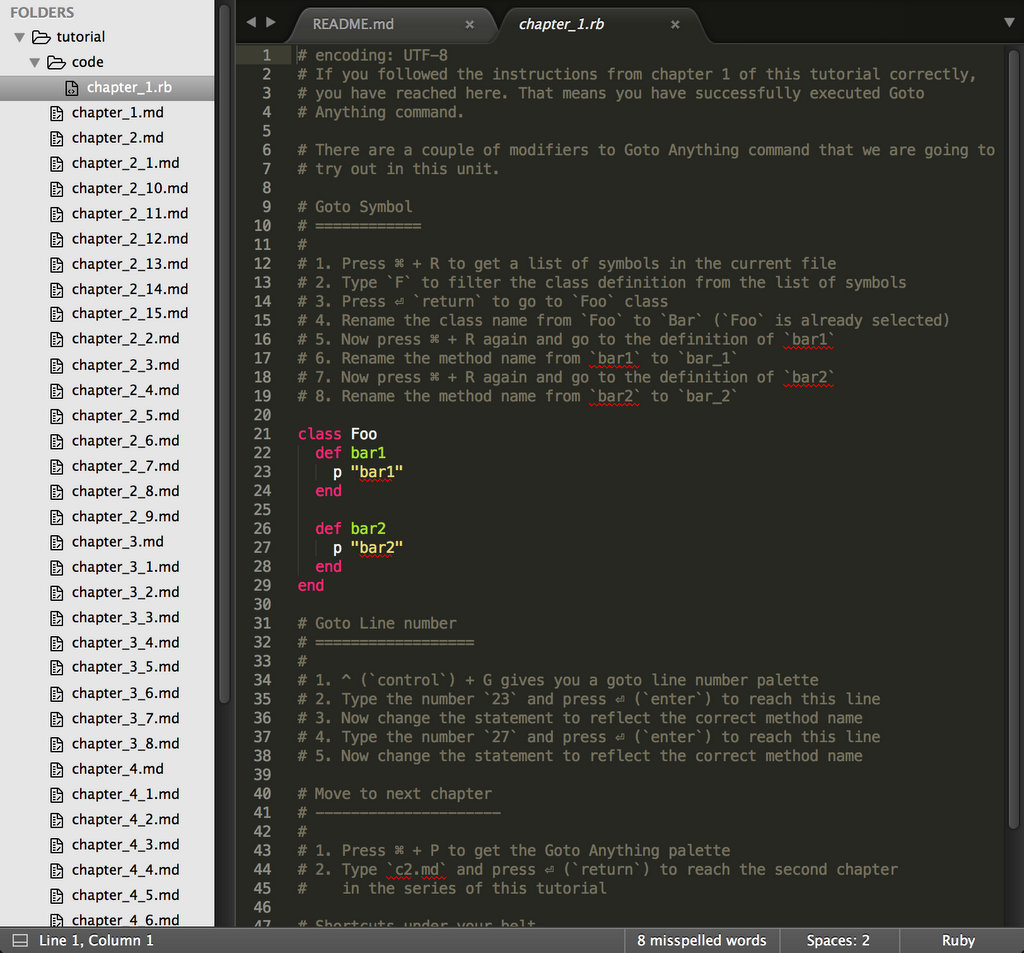
5 |
6 | _______. __ __ .______ __ __ .___ ___. _______
7 | / || | | | | _ \ | | | | | \/ | | ____|
8 | | (----`| | | | | |_) | | | | | | \ / | | |__
9 | \ \ | | | | | _ < | | | | | |\/| | | __|
10 | .----) | | `--' | | |_) | | `----.| | | | | | | |____
11 | |_______/ .___________.________ |.___________.|________|.________|
12 | | | | | | | |/ __ \ | _ \
13 | `---| |----| | | | `---| |----| | | | | |_) |
14 | | | | | | | | | | | | | | /
15 | | | | `--' | | | | `--' | | |\ \----.
16 | |__| \______/ |__| \______/ | _| `._____|
17 | FOR SUBLIME TEXT 3
18 |
19 | Sublime Text 3 is a powerful and easy to use text editor. An ultra simple user
20 | interface beautifully hides all the complexity behind. You can start using the
21 | editor without knowing any details, which is great for beginners.
22 |
23 | When I started using Sublime Text, I was a migrant from the world of TextMate
24 | and Vim. While a lot of keyboard shortcuts and features were similar to
25 | TextMate, some looked alien as well. Earlier, when I was learning Vim, I had
26 | found vimtutor to be of great help. In my early days with Sublime, I was
27 | looking for a similar solution which could interactively teach new shortcuts
28 | inside the editor itself.
29 |
30 | This tutorial is inspired from classic vimtutor. You will get to learn
31 | some handy shortcuts to work with Sublime Text 3. By the end of this tutorial,
32 | you would be familiar with ST's most important and frequently used shortcuts
33 | and features.
34 |
35 | The tutorial uses spaced repetition technique to make sure that your newly
36 | acquired skills are well persisted.
37 |
38 |
39 | Requirements
40 | -------------
41 |
42 | You have Sublime Text 3 installed on your system. If not, you can download it
43 | from here: https://www.sublimetext.com/3. In case if you are on version 2, you
44 | can clone this GIT repository on your system and follow the instructions in
45 | `tutorial` directory inside. Some shortcuts and features discussed would be
46 | ST3 only, but you'd know about it then.
47 |
48 | Having said that, there is no reason that you should be using Sublime Text 2. A
49 | lot of improvements have been made since the version 2 and the latest version
50 | is stable enough to do most of the things. Unless, your life depends on a plugin
51 | that is only supported by ST2. I can't help you then.
52 |
53 |
54 | Installation
55 | -------------
56 |
57 | Via [Package Control](https://Sublime.wbond.net/):
58 |
59 | 1. Install [Package Control](https://Sublime.wbond.net/) if already not installed:
60 | https://packagecontrol.io/installation#st3
61 | 2. Press
Cmd+
Shift+
P to bring command palette
62 | in front
63 | 3. Type `Install Package` and press enter.
64 | 4. Search for `Sublime Tutor` and press enter to install the plugin.
65 |
66 | ### Manual Installation:
67 |
68 | 1. Make sure you have [git][1] already installed.
69 | 2. `cd` into the `Packages` directory of Sublime Text 3. On Mac, it usually
70 | resides at the following path: `~/Library/Application Support/Sublime Text 3
71 | /Packages/`. Alternatively you can open in via a menu item:
72 | `Preferences > Browse Packages...`
73 | 3. Once you are inside Packages directory, clone this repository:
74 | `git clone git@github.com:jaipandya/SublimeTutor.git`. Alternatively download and
75 | extract the latest release for your platform here:
76 | https://github.com/jaipandya/SublimeTutor/releases
77 | 4. Restart Sublime Text
78 |
79 |
80 | Getting Started
81 | ----------------
82 |
83 | If you haven't already, install Sublime Tutor using the installation steps
84 | given above.
85 |
86 | Once Sublime Tutor is installed, press
Ctrl+
Option+
K
87 | keyboard shortcut to open this file in Sublime Text. Another option is to go to
88 | `Help > Sublime Tutor` menu option to open this.
89 |
90 | Via Command Palette:
91 |
92 | 1.
Cmd+
Shift+
P to get the command palette in
93 | front.
94 | 2. Type `Sublime Tutor`, select the first command that comes up to start the
95 | interactive guide.
96 |
97 |
98 | Symbols Used in this guide
99 | ---------------------------
100 |
101 | * `Cmd` –
Command Key
102 | * `Ctrl` -
Control Key
103 | * `Option` –
Option Key
104 | * `Shift` –
Shift Key
105 | * `Esc` –
Escape Key
106 | * `Return` –
Return Key
107 | * `Delete` –
Delete /
Backspace Key
108 |
109 | [1]: https://git-scm.com/ "Git is a version control system"
110 |
111 |
112 | Contributing
113 | -------------
114 |
115 | 1. **Give feedback** -
116 | If you went through the course and think a particular thing can be done in
117 | a different way, you want a feature covered, or there was something that you
118 | specially liked, please let me know via a
119 | [tweet](https://twitter.com/jaipandya/) or
120 | [email](mailto:hello@jai.im?Subject=Feedback%20On%20Sublime%20Tutor)
121 | 2. **Issues** -
122 | Found an issue? Typo, error or a topic needs more details, please create an
123 | issue by going to https://github.com/jaipandya/sublimetutor/issues
124 | 2. **Pull request** -
125 | Are you comfortable with git? If you know solution to any of the issues
126 | listed above, fork the repository, make your changes and create a PR with
127 | your changes. Refer to the branches section below while making these changes.
128 |
129 | ### Branches
130 |
131 | All osx platform related changes go in the `master` branch of this repository
132 | while all windows / linux related changes go in `win/linux` branch.
133 |
--------------------------------------------------------------------------------