├── .gitignore
├── screenshots
└── cmdlet1.png
├── clean-system-local.ps1
├── PSReadLine-Commands.txt
├── git-clone-continuous.ps1
├── network-tools-install-modules.ps1
├── git-clone-list.ps1
├── remove-all-print-jobs.ps1
├── get-cmdlets-list.ps1
├── silent-chrome-install.ps1
├── ping-server.ps1
├── list-top-ten-processes.ps1
├── setup-print-server.ps1
├── get-module-commands.ps1
├── IIS-restart-all-apppools.ps1
├── docs
└── index.html
├── git-pull.ps1
├── AD-get-server-status.ps1
├── git-init.ps1
├── list-tables-mysql.ps1
├── setup-file-server.ps1
├── monitor-webpage.ps1
├── download-web-files.ps1
├── list-tables-sqlserver.ps1
├── readme.md
├── iis-tools.ps1
├── nodejs-forever-start-apps.ps1
├── create-startup-executable.ps1
├── create-startup-powershell-script.ps1
├── list-gce.ps1
├── file-search.ps1
├── file-watcher.ps1
├── create-cmdlets-js.ps1
├── PowerShellHelp
├── PowershellHelp.ps1
├── PowershellHelp.resx
└── PowershellHelp.designer.ps1
├── create-csv-from-mysql-table.ps1
├── AD-passwords-expiring-csv.ps1
├── AD-computers-html-report.ps1
├── aws-cloudwatch-custom-metrics-config.ps1
├── network-tools.ps1
├── transfer-365-user.ps1
├── IIS-delete-website.ps1
├── create-csv-from-sqlserver-table.ps1
├── ssh-stop-web.ps1
├── ssh-apt-upgrade-ubuntu.ps1
├── ssh-start-web.ps1
├── ssh-restart-web.ps1
├── hyperv-backup-vm.ps1
├── ssh-new-db-mongodb.ps1
├── AD-passwords-expiring-soon-email.ps1
├── setup-domain-controller.ps1
├── ssh-new-db-mysql.ps1
├── Powershell-Cmdlet-Explorer
├── Powershell-Cmdlet-Explorer.ps1
└── Powershell-Cmdlet-Explorer.designer.ps1
├── copy-everything.ps1
├── wsus-critical-report.ps1
├── AD-computers-network-html-report.ps1
├── azure-upload-vhd.ps1
├── send-email.ps1
├── plex-manufacturing-cloud.ps1
├── system-info-local-json.ps1
├── aws-cloudwatch-custom-metrics.ps1
├── test-server.ps1
├── system-info-html-report-local.ps1
├── flancy-sys-info-ws.ps1
├── server-system-info-website.ps1
└── Report-Functions.ps1
/.gitignore:
--------------------------------------------------------------------------------
1 | debug.log
2 | .vs
3 | staging-scripts
4 | PowerShellHelp
--------------------------------------------------------------------------------
/screenshots/cmdlet1.png:
--------------------------------------------------------------------------------
https://raw.githubusercontent.com/jrussellfreelance/powershell-scripts/HEAD/screenshots/cmdlet1.png
--------------------------------------------------------------------------------
/clean-system-local.ps1:
--------------------------------------------------------------------------------
1 | # This script is super simple, it calls a couple clean up utilties.
2 | # Call disk cleaner
3 | cleanmgr.exe /dC
4 | # Call disk defrag
5 | defrag.exe /C
--------------------------------------------------------------------------------
/PSReadLine-Commands.txt:
--------------------------------------------------------------------------------
1 | PSConsoleHostReadLine
2 | Get-PSReadLineKeyHandler
3 | Get-PSReadLineOption
4 | Remove-PSReadLineKeyHandler
5 | Set-PSReadLineKeyHandler
6 | Set-PSReadLineOption
7 |
--------------------------------------------------------------------------------
/git-clone-continuous.ps1:
--------------------------------------------------------------------------------
1 | # This script contiuously prompts for a git repo and downloads it
2 | while (1) {
3 | $repo = Read-Host "Please enter the git repo url"
4 | git clone $repo
5 | }
--------------------------------------------------------------------------------
/network-tools-install-modules.ps1:
--------------------------------------------------------------------------------
1 | # These are the three modules required by the network-tools utility.
2 | Install-Module SimpleMenu
3 | Install-Module AssetInventory
4 | Install-Module PowerShellCookbook
5 | Install-Module HostUtilities
--------------------------------------------------------------------------------
/git-clone-list.ps1:
--------------------------------------------------------------------------------
1 | # This script clones a list of repos from a text file
2 | # repos.txt should just be a list of .git URLs, separated by a carriage return
3 | $repos = Get-Content "$PSScriptRoot\repos.txt"
4 | foreach ($repo in $repos) {
5 | git clone $repo
6 | }
--------------------------------------------------------------------------------
/remove-all-print-jobs.ps1:
--------------------------------------------------------------------------------
1 | # This script removes all jobs from all printers
2 | $printers = Get-Printer
3 | foreach ($printer in $printers) {
4 | $printjobs = Get-PrintJob -PrinterObject $printer
5 | foreach ($printjob in $printjobs) {
6 | Remove-PrintJob -InputObject $printjob
7 | }
8 | }
9 |
--------------------------------------------------------------------------------
/get-cmdlets-list.ps1:
--------------------------------------------------------------------------------
1 | # This is a SUPER simple script (one could barely call it that) that outputs the list of cmdlets on the current machine
2 | $commands = Get-Command
3 | # Loop through each command and add the name to a text file
4 | foreach ($command in $commands) {
5 | Add-Content "$PSScriptRoot\cmdlets.txt" $command.Name
6 | }
--------------------------------------------------------------------------------
/silent-chrome-install.ps1:
--------------------------------------------------------------------------------
1 | ### Silently installs latest google chrome ###
2 | $Path = $env:TEMP;
3 | $Installer = "chrome_installer.exe"
4 | Invoke-WebRequest "http://dl.google.com/chrome/install/latest/chrome_installer.exe" -OutFile $Path\$Installer
5 | Start-Process -FilePath $Path\$Installer -Args "/silent /install" -Verb RunAs -Wait
6 | Remove-Item $Path\$Installer
--------------------------------------------------------------------------------
/ping-server.ps1:
--------------------------------------------------------------------------------
1 | # This script pings a server or IP every interval. This is useful for servers that "go to sleep" (for lack of a better term) when they aren't receiving any activity.
2 | param(
3 | [Parameter(Mandatory=$true)]
4 | $server,
5 | [Parameter(Mandatory=$true)]
6 | $intervalSeconds
7 | )
8 | while (1) {
9 | ping $server
10 | Start-Sleep -Seconds $intervalSeconds
11 | }
--------------------------------------------------------------------------------
/list-top-ten-processes.ps1:
--------------------------------------------------------------------------------
1 | # This is a super simple script that lists the top 10 running processes by memory consumption.
2 | # Get process list, sort by memory, and select top 10
3 | $top10proc = Get-Process | Sort-Object WorkingSet -Descending | Select-Object Name -First 10
4 | # List out top processes
5 | Write-Host "Top 10 Running Processes by Memory:"
6 | foreach ($proc in $top10proc) {
7 | Write-Host $proc.Name
8 | }
--------------------------------------------------------------------------------
/setup-print-server.ps1:
--------------------------------------------------------------------------------
1 | # This script installs the necessary Windows features for setting up a print server.
2 | # Since this is a brand new server/virtual machine, we need to set the Powershell execution policy
3 | Set-ExecutionPolicy -ExecutionPolicy RemoteSigned -Force
4 | # Install features
5 | Install-WindowsFeature Print-Services
6 | Install-WindowsFeature Print-Server
7 | Install-WindowsFeature Print-Scan-Server
8 | Install-WindowsFeature Print-LPD-Service
--------------------------------------------------------------------------------
/get-module-commands.ps1:
--------------------------------------------------------------------------------
1 | # This script creates a text file with a list of commands for the module specified. It's nice for having a reference of commands for a certain module.
2 | # Grab the module name
3 | $module = Read-Host "Please enter the module name"
4 | # Retrieve commands just for that module
5 | $commands = Get-Command -Module $module
6 | # Loop through commands and add each to file
7 | foreach ($command in $commands) {
8 | Add-Content "$PSScriptRoot/$module-Commands.txt" $command.Name
9 | }
10 |
--------------------------------------------------------------------------------
/IIS-restart-all-apppools.ps1:
--------------------------------------------------------------------------------
1 | # This script remotely restarts all the web app pools on the specified web server
2 | param(
3 | [Parameter(Mandatory=$true)]$webserver
4 | )
5 | # Invoke command on remote web server
6 | Invoke-Command -ComputerName $webserver -ScriptBlock {
7 | Import-Module WebAdministration
8 | # Get list of app pools
9 | $apppools = Get-ChildItem IIS:\AppPools
10 | # Loop through list and restart each one
11 | foreach ($pool in $apppools) {
12 | Restart-WebAppPool -Name $pool.Name
13 | }
14 | }
--------------------------------------------------------------------------------
/docs/index.html:
--------------------------------------------------------------------------------
1 |
2 |
3 |
4 |
5 |
6 |
7 |
8 |
9 |
10 |
11 |
16 |
17 |
18 |
19 |
--------------------------------------------------------------------------------
/git-pull.ps1:
--------------------------------------------------------------------------------
1 | # This script pulls updates from git for every folder in a directory.
2 | # This can be useful if you made changes to several apps and want to retrieve the updates for all apps by just running one script.
3 | # You can also schedule in in Task Scheduler to periodically grab updates
4 | param([Parameter(Mandatory=$true)]$rootFolder)
5 | $folders = Get-ChildItem $rootFolder
6 | foreach ($folder in $folders) {
7 | $foldername = $folder.Name
8 | # Set the current location as the current folder
9 | Set-Location "$rootFolder\$foldername"
10 | # Call git to pull updates
11 | git pull
12 | }
--------------------------------------------------------------------------------
/AD-get-server-status.ps1:
--------------------------------------------------------------------------------
1 | # This script checks to see if a AD computer is live. It is nice for cleaning up old environments and cleaning up old AD entries.
2 | # NOTE: test-server.ps1 is included in this directory, and it is required for this script to work.
3 | . "$PSScriptRoot\test-server.ps1"
4 | $servers = Get-ADComputer -Filter *
5 |
6 | foreach($server in $servers) {
7 | Write-Host "Testing "$server.DNSHostName
8 | $results = Test-Server -ComputerName $server.DNSHostName
9 | if ($results.Ping) {
10 | Add-Content "$PSScriptRoot\connectedservers.txt" $server.DNSHostName
11 | } else {
12 | Add-Content "$PSScriptRoot\failedservers.txt" $server.DNSHostName
13 | }
14 | }
--------------------------------------------------------------------------------
/git-init.ps1:
--------------------------------------------------------------------------------
1 | # This script initializes a git repository in the folder specified, adds the files, makes the first commit, adds the remote repository, and pushes the repository.
2 | # All you have to do is pass in the full path to the folder and the url of the repository
3 | param(
4 | [Parameter(Mandatory=$true)]$path,
5 | [Parameter(Mandatory=$true)]$url
6 | )
7 | # Set the current working directory to the folder path
8 | Set-Location $path
9 | # Initialize an empty git repo
10 | git init
11 | # Add files
12 | git add .
13 | # Make your first commit
14 | git commit -am "First commit!"
15 | # Add remote origin
16 | git remote add origin $url
17 | # Push repository
18 | git push -u origin master
--------------------------------------------------------------------------------
/list-tables-mysql.ps1:
--------------------------------------------------------------------------------
1 | # This script lists all of the tables in a MySQL database and exports the list as a CSV
2 | # Install-Module InvokeQuery
3 | # Run the above command if you do not have this module
4 | param(
5 | [Parameter(Mandatory=$true)]$server,
6 | [Parameter(Mandatory=$true)]$database,
7 | [Parameter(Mandatory=$true)]$dbuser,
8 | [Parameter(Mandatory=$true)]$dbpass
9 | )
10 | $csvfilepath = "$PSScriptRoot\mysql_tables.csv"
11 | $result = Invoke-MySqlQuery -ConnectionString "server=$server; database=$database; user=$dbuser; password=$dbpass; pooling = false; convert zero datetime=True" -Sql "SHOW TABLES" -CommandTimeout 10000
12 | $result | Export-Csv $csvfilepath -NoTypeInformation
--------------------------------------------------------------------------------
/setup-file-server.ps1:
--------------------------------------------------------------------------------
1 | # This script installs the necessary Windows features for setting up a file server.
2 | # Since this is a brand new server/virtual machine, we need to set the Powershell execution policy
3 | Set-ExecutionPolicy -ExecutionPolicy RemoteSigned -Force
4 | # Install features
5 | Install-WindowsFeature File-Services
6 | Install-WindowsFeature FS-FileServer
7 | Install-WindowsFeature FS-BranchCache
8 | Install-WindowsFeature FS-Data-Deduplication
9 | Install-WindowsFeature FS-DFS-Namespace
10 | Install-WindowsFeature FS-DFS-Replication
11 | Install-WindowsFeature FS-Resource-Manager
12 | Install-WindowsFeature FS-VSS-Agent
13 | Install-WindowsFeature FS-iSCSITarget-Server
14 | Install-WindowsFeature iSCSITarget-VSS-VDS
15 | Install-WindowsFeature FS-NFS-Service
16 | Install-WindowsFeature FS-SyncShareService
--------------------------------------------------------------------------------
/monitor-webpage.ps1:
--------------------------------------------------------------------------------
1 | param([Parameter(Mandatory=$true)]$url)
2 | . $PSScriptRoot\send-email.ps1
3 | # This script checks every hour to see if a website returns a 200 status code. If it doesn't, the script sends an email.
4 | $interval = 3600 # You can change the interval, by default set as 1 hour
5 | while (1) {
6 | $request = Invoke-WebRequest -Uri $url
7 | if ($request.StatusCode -ne 200) {
8 | $subject = "Your Website is Down"
9 | $from = "downdetector@domain.com" # Replace this with the desired from address
10 | $to = @() # Specify the email recipient(s)
11 | $cc = @()
12 | $bcc = @()
13 | $body = "
$url is down.
"
14 | $priority = "High"
15 | $attachments = @()
16 | Send-Email($subject, $body, $from, $to, $cc, $bcc, $priority, $attachments)
17 | }
18 | Start-Sleep -Seconds $interval
19 | }
--------------------------------------------------------------------------------
/download-web-files.ps1:
--------------------------------------------------------------------------------
1 | # This script allows you to download all the files listed on a website's directory listing.
2 | # First, you must copy the list of files from your web browser into a CSV named files.csv , and it must have a header row that says "name". Then put that csv in the same directory as the script.
3 | param(
4 | [Parameter(Mandatory=$true)]
5 | $url
6 | )
7 | # Import the CSV of file names
8 | $files = Import-Csv "$PSScriptRoot\files.csv"
9 | # Create a directory to store downloaded files in
10 | New-Item -ItemType Directory -Path "$PSScriptRoot\DownloadedFiles"
11 | # Loop through each file and download it
12 | foreach ($file in $files) {
13 | $filename = $file.name
14 | Write-Host "Downloading $filename..."
15 | $client = New-Object System.Net.WebClient
16 | $client.DownloadFile("$url/$filename", "$PSScriptRoot\DownloadedFiles\$filename")
17 | }
--------------------------------------------------------------------------------
/list-tables-sqlserver.ps1:
--------------------------------------------------------------------------------
1 | # This script lists all of the tables in a SQL Server database and exports the list as a CSV
2 | # Install-Module InvokeQuery
3 | # Run the above command if you do not have this module
4 | param(
5 | [Parameter(Mandatory=$true)]$server,
6 | [Parameter(Mandatory=$true)]$database,
7 | [Parameter(Mandatory=$true)]$username,
8 | [Parameter(Mandatory=$true)]$password
9 | )
10 | $secpasswd = ConvertTo-SecureString $password -AsPlainText -Force
11 | $creds = New-Object System.Management.Automation.PSCredential ($username, $secpasswd)
12 | $csvfilepath = "$PSScriptRoot\sqlserver_tables.csv"
13 | $result = Invoke-SqlServerQuery -Credential $creds -ConnectionTimeout 10000 -Database $database -Server $server -Sql "SELECT TABLE_NAME FROM $database.INFORMATION_SCHEMA.TABLES WHERE TABLE_TYPE = 'BASE TABLE'" -CommandTimeout 10000
14 | $result | Export-Csv $csvfilepath -NoTypeInformation
--------------------------------------------------------------------------------
/readme.md:
--------------------------------------------------------------------------------
1 | ## My PowerShell Scripts
2 | As requested, here is a list of all the scripts I could make generic, and that aren't exclusive to where I work. If you open up a script, I explain what it does in the comments. Also, in general I need to add in some more error checking and verification of success, because normally I am so used to being the only person who uses the script, so I know what not to do.
3 |
4 | *Powershell-Cmdlet-Explorer* lists all installed modules, and by clicking on a module, you can see the cmdlets for that module. When you click on a cmdlet, you can see the help information for it.
5 |
6 | Screenshot:
7 | 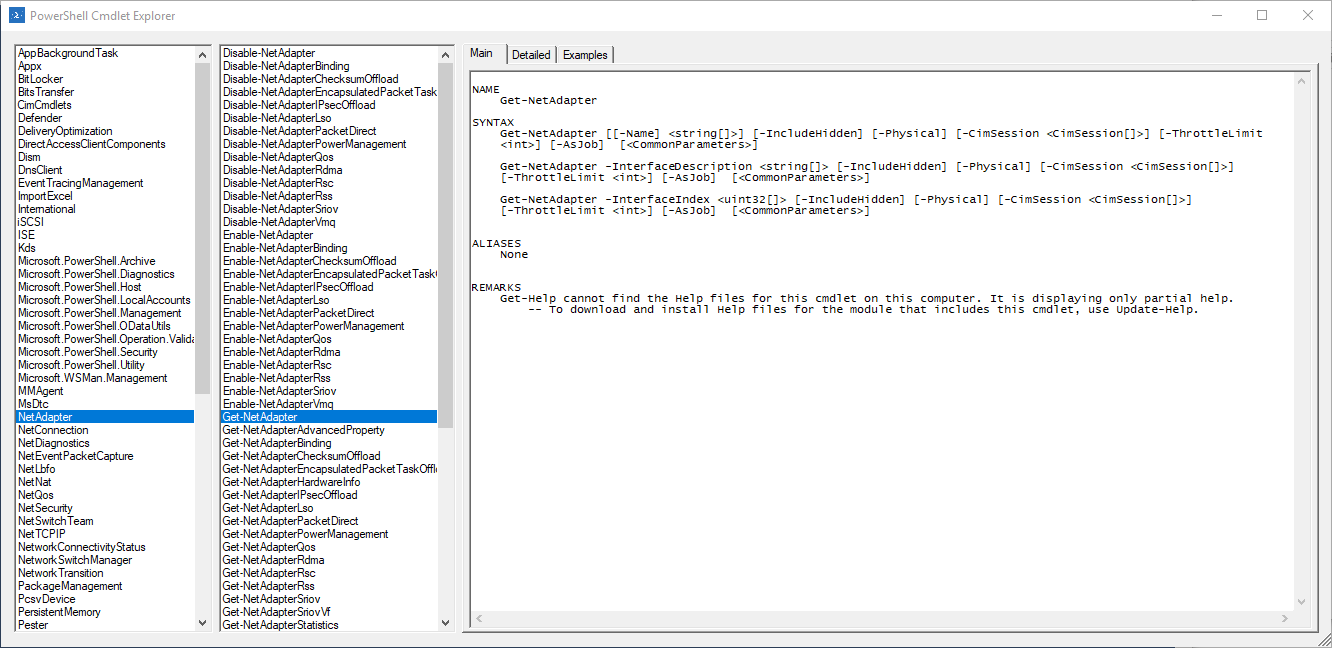
8 |
9 | You can check each script's file for a description of what it does.
10 |
11 | That's it! If you have any tips on how to improve these scripts, let me know!
12 |
--------------------------------------------------------------------------------
/iis-tools.ps1:
--------------------------------------------------------------------------------
1 | # This script is a quickIIS tool providing restart website and app pool functionality. I plan to add to it as time goes on.
2 | # It uses the SimpleMenu module which can be installed from the Powershell Gallery.
3 | $items = @()
4 | $restart = New-SMMenuItem -Title "Restart App Pool" -Action {
5 | Do {
6 | $apppool = Read-Host "Please enter the name of the app pool"
7 | }
8 | While ($apppool -eq "")
9 | Restart-WebAppPool -Name $apppool -Verbose
10 | }
11 | $items += $restart
12 | $restartWeb = New-SMMenuItem -Title "Restart Website" -Action {
13 | Do {
14 | $website = Read-Host "Please enter the name of the website"
15 | }
16 | While ($website -eq "")
17 | Stop-Website -Name $website -Verbose
18 | Start-Website -Name $website -Verbose
19 | }
20 | $items += $restartWeb
21 |
22 | $menu = New-SMMenu -Title "IIS Tools" -Items $items
23 |
24 | Invoke-SMMenu -Menu $menu
--------------------------------------------------------------------------------
/nodejs-forever-start-apps.ps1:
--------------------------------------------------------------------------------
1 | # This script loops through every folder in a directory and starts all the Node.js apps inside them.
2 | # This script is dependent on every one of your Node.js entry point files having the same name, like in this case, server.js
3 | # You also need to have forever or PM2 installed to use lines 12 or 14.
4 | param([Parameter(Mandatory=$true)]$webroot)
5 | # Get list of folders
6 | $folders = Get-ChildItem $webroot
7 | # Loop through folders
8 | foreach ($folder in $folders) {
9 | $foldername = $folder.Name
10 | # Set the current location as the current folder
11 | Set-Location "$webroot\$foldername"
12 | # Start the Node.js app with forever
13 | forever start server.js
14 | # If you use PM2, you can still use the script, just replace the line above with:
15 | # pm2 start server.js
16 | # Or if you want to start the app the old fashioned way
17 | # node server.js
18 | }
--------------------------------------------------------------------------------
/create-startup-executable.ps1:
--------------------------------------------------------------------------------
1 | # This script can be used to quickly schedule an executable to be run on start up. In it I assume some basic settings for the sake of simplicity.
2 | param(
3 | [Parameter(Mandatory=$true)]
4 | $name,
5 | [Parameter(Mandatory=$true)]
6 | $exec,
7 | [Parameter(Mandatory=$true)]
8 | $user,
9 | [Parameter(Mandatory=$true)]
10 | $desc
11 | )
12 | # Create action object
13 | $action = New-ScheduledTaskAction -Execute $exec
14 | # Create trigger object
15 | $trigger = New-ScheduledTaskTrigger -AtStartup
16 | # Create settings object
17 | $settings = New-ScheduledTaskSettingsSet
18 | # Create principal object
19 | $principal = New-ScheduledTaskPrincipal -UserId $user -RunLevel Highest -LogonType ServiceAccount
20 | # Create task object
21 | $task = New-ScheduledTask -Action $action -Description $desc -Principal $principal -Settings $settings -Trigger $trigger
22 | # Register the task
23 | Register-ScheduledTask $name -InputObject $task
--------------------------------------------------------------------------------
/create-startup-powershell-script.ps1:
--------------------------------------------------------------------------------
1 | # This script can be used to quickly schedule a powershell script to be run on start up. In it I assume some basic settings for the sake of simplicity.
2 | param(
3 | [Parameter(Mandatory=$true)]
4 | $name,
5 | [Parameter(Mandatory=$true)]
6 | $script,
7 | [Parameter(Mandatory=$true)]
8 | $user,
9 | [Parameter(Mandatory=$true)]
10 | $desc
11 | )
12 | # Create action object
13 | $action = New-ScheduledTaskAction -Execute "powershell.exe" -Argument "-file $script"
14 | # Create trigger object
15 | $trigger = New-ScheduledTaskTrigger -AtStartup
16 | # Create settings object
17 | $settings = New-ScheduledTaskSettingsSet
18 | # Create principal object
19 | $principal = New-ScheduledTaskPrincipal -UserId $user -RunLevel Highest -LogonType ServiceAccount
20 | # Create task object
21 | $task = New-ScheduledTask -Action $action -Description $desc -Principal $principal -Settings $settings -Trigger $trigger
22 | # Register the task
23 | Register-ScheduledTask $name -InputObject $task
--------------------------------------------------------------------------------
/list-gce.ps1:
--------------------------------------------------------------------------------
1 | # This script is a simple menu for listing resources in Google Cloud Platform. In order for this script to work, you must have the GoogleCloud and the SimpleMenu modules installed.
2 | $items = @()
3 | # List VM instances
4 | $gceinstance = New-SMMenuItem -Title "Instances" -Action {
5 | Get-GceInstance | Format-Table
6 | }
7 | $items += $gceinstance
8 | # List VM snapshots
9 | $gcesnapshot = New-SMMenuItem -Title "Snapshots" -Action {
10 | Get-GceSnapshot | Format-Table
11 | }
12 | $items += $gcesnapshot
13 | # List buckets
14 | $gcsbucket = New-SMMenuItem -Title "Buckets" -Action {
15 | Get-GcsBucket | Format-Table
16 | }
17 | $items += $gcsbucket
18 | # List VM disks
19 | $gcedisk = New-SMMenuItem -Title "Disks" -Action {
20 | Get-GceDisk | Format-Table
21 | }
22 | $items += $gcedisk
23 | # List networks
24 | $gcenetwork = New-SMMenuItem -Title "Networks" -Action {
25 | Get-GceNetwork | Format-Table
26 | }
27 | $items += $gcenetwork
28 |
29 | $menu = New-SMMenu -Title "Google Cloud Resources" -Items $items
30 |
31 | Invoke-SMMenu -Menu $menu
--------------------------------------------------------------------------------
/file-search.ps1:
--------------------------------------------------------------------------------
1 | # This script serves as a quick Powershell replacement to the search functionality in Windows.
2 | # After you pass in a root folder and a search term, the script will list all files and folders matching that phrase.
3 | param(
4 | [Parameter(Mandatory=$true)]
5 | $path,
6 | [Parameter(Mandatory=$true)]
7 | $term
8 | )
9 | # Recursive search function
10 | Write-Host "Results:"
11 | function Search-Folder($FilePath, $SearchTerm) {
12 | # Get children
13 | $children = Get-ChildItem -Path $FilePath
14 | # For each child, see if it matches the search term, and if it is a folder, search it too.
15 | foreach ($child in $children) {
16 | $name = $child.Name
17 | if ($name -match $SearchTerm) {
18 | Write-Host "$FilePath\$name"
19 | }
20 | $isdir = Test-Path -Path "$FilePath\$name" -PathType Container
21 | if ($isdir) {
22 | Search-Folder -FilePath "$FilePath\$name" -SearchTerm $SearchTerm
23 | }
24 | }
25 | }
26 | # Call the search function
27 | Search-Folder -FilePath $path -SearchTerm $term
--------------------------------------------------------------------------------
/file-watcher.ps1:
--------------------------------------------------------------------------------
1 | # This script watches for a file creation, then executes a powershell script, passing in the created filename. It is meant to be run in task scheduler, and should always be running.
2 | $folder = "" # Specify the full path of the folder you want to watch
3 | $filter = "*" # Specify the file filter (example: *.txt)
4 |
5 | # In the following line, you can change 'IncludeSubdirectories to $true if required.
6 | $fsw = New-Object IO.FileSystemWatcher $folder, $filter -Property @{IncludeSubdirectories = $false;NotifyFilter = [IO.NotifyFilters]'FileName, LastWrite'}
7 |
8 | # Start file watch
9 | Register-ObjectEvent $fsw Created -SourceIdentifier FileWatcher -Action {
10 | $filename = $Event.SourceEventArgs.Name
11 | New-BurntToastNotification -Text "$filename has been created..." -AppLogo $null -Silent
12 | $changeType = $Event.SourceEventArgs.ChangeType
13 | $timeStamp = $Event.TimeGenerated
14 | $app="powershell.exe"
15 | $path="C:\path\to\script.ps1"
16 | $appargs="-file $path -filename $filename"
17 | [Diagnostics.Process]::Start($app,$appargs)
18 | }
19 |
--------------------------------------------------------------------------------
/create-cmdlets-js.ps1:
--------------------------------------------------------------------------------
1 | # This script grabs the list of Powershell cmdlets and converts them into a JSON array inside a JavaScript file. In the process it also creates a text file containing the list of cmdlets.
2 | # Useful for if you need to use a list of Powershell cmdlets inside your web app.
3 | # Get the list of Powershell commands.
4 | $commands = Get-Command
5 | # Loop through each command and add the name to a text file
6 | foreach ($command in $commands) {
7 | Add-Content "$PSScriptRoot\cmdlets.txt" $command.Name
8 | }
9 | # Get the content of the newly created text file
10 | $cmdlets = Get-Content "$PSScriptRoot\cmdlets.txt"
11 | # Add the first part of the javascript array to the javascript file
12 | Add-Content "$PSScriptRoot\cmdlets.js" "var cmdlets = ["
13 | # Loop through each line in the cmdlets text file
14 | foreach($line in $cmdlets) {
15 | # Add quotes and a comma
16 | $newline = '"' + $line + '",'
17 | # Add the line to the new javascript file
18 | Add-Content "$PSScriptRoot\cmdlets.js" $newline
19 | }
20 | # Add the array closing tag to the javascript file
21 | Add-Content "$PSScriptRoot\cmdlets.js" "];"
--------------------------------------------------------------------------------
/PowerShellHelp/PowershellHelp.ps1:
--------------------------------------------------------------------------------
1 | $commandsList_SelectedIndexChanged = {
2 | [System.Windows.Forms.Cursor]::Current = [System.Windows.Forms.Cursors]::WaitCursor
3 | $selected = $commandsList.SelectedIndex
4 | $cmd = $commandsList.Items[$selected].ToString()
5 | $helpBox.Text = Get-Help $cmd | Out-String
6 | $detailedHelp.Text = Get-Help $cmd -Detailed | Out-String
7 | $examplesBox.Text = Get-Help $cmd -Examples | Out-String
8 | [System.Windows.Forms.Cursor]::Current = [System.Windows.Forms.Cursors]::Default
9 | }
10 |
11 | $MainForm_Load = {
12 |
13 | [System.Windows.Forms.Cursor]::Current = [System.Windows.Forms.Cursors]::WaitCursor
14 | $commands = Get-Command | Sort-Object Name
15 | foreach ($command in $commands) {
16 | $commandsList.Items.Add($command)
17 | }
18 | [System.Windows.Forms.Cursor]::Current = [System.Windows.Forms.Cursors]::Default
19 | $searchBox_TextChanged = {
20 | $commandsList.Items.Clear()
21 | foreach ($item in $commands) {
22 | if ($searchBox.Text -match $item) {
23 | $commandsList.Items.Add($item)
24 | }
25 | }
26 | }
27 | }
28 |
29 | . (Join-Path $PSScriptRoot 'PowershellHelp.designer.ps1')
30 |
31 | $MainForm.ShowDialog()
--------------------------------------------------------------------------------
/create-csv-from-mysql-table.ps1:
--------------------------------------------------------------------------------
1 | # Install-Module InvokeQuery
2 | # Run the above command if you do not have this module
3 | param(
4 | [Parameter(Mandatory=$true)]
5 | $server,
6 | [Parameter(Mandatory=$true)]
7 | $database,
8 | [Parameter(Mandatory=$true)]
9 | $dbuser,
10 | [Parameter(Mandatory=$true)]
11 | $dbpass,
12 | [Parameter(Mandatory=$true)]
13 | $query
14 | )
15 | if (($server -eq "") -or ($server -eq $null)) {
16 | Write-Host "Please specify a server"
17 | }
18 | elif (($database -eq "") -or ($database -eq $null)) {
19 | Write-Host "Please specify a database"
20 | }
21 | elif (($dbuser -eq "") -or ($dbuser -eq $null)) {
22 | Write-Host "Please specify a database user"
23 | }
24 | elif (($dbpass -eq "") -or ($dbpass -eq $null)) {
25 | Write-Host "Please specify a database user password"
26 | }
27 | elif (($query -eq "") -or ($query -eq $null)) {
28 | Write-Host "Please specify a query"
29 | }
30 | else {
31 | $csvfilepath = "$PSScriptRoot\mysql_table.csv"
32 | $result = Invoke-MySqlQuery -ConnectionString "server=$server; database=$database; user=$dbuser; password=$dbpass; pooling = false; convert zero datetime=True" -Sql $query -CommandTimeout 10000
33 | $result | Export-Csv $csvfilepath -NoTypeInformation
34 | }
--------------------------------------------------------------------------------
/AD-passwords-expiring-csv.ps1:
--------------------------------------------------------------------------------
1 | # This script exports a csv with passwords expiring that week
2 | # Declare expiring soon group variable
3 | Import-Module ActiveDirectory
4 | $expiring = @()
5 | # Grab AD Users that are enabled, and select the properties we need
6 | $users = Get-ADUser -Filter {Enabled -eq $true -and PasswordNeverExpires -eq $false} -Properties "DisplayName", "mail", "PasswordLastSet"
7 | # Get max password age
8 | $max = (Get-ADDefaultDomainPasswordPolicy).MaxPasswordAge.Days
9 | # Loop through every user
10 | foreach ($user in $users) {
11 | # Get the current date
12 | $now = Get-Date
13 | # Create normal date out of msDS-UserPwasswordExpiryTimeComputed property
14 | $expiredate = $user.PasswordLastSet.AddDays($max)
15 | # Create a timespan from the expire date and today's date
16 | $diff = New-TimeSpan $now $expiredate
17 | # If the timespan is less than seven and greater than zero, add the user to the expiring list.
18 | if ($diff.Days -le 7 -and $diff.Days -ge 0) {
19 | $entry = [PSCustomObject]@{
20 | Name = $user.DisplayName
21 | Email = $user.mail
22 | ExpireDate = $expiredate
23 | }
24 | $expiring += $entry
25 | }
26 | }
27 | # Export the list of expiring passwords to a csv
28 | $expiring | Export-Csv -Path "$PSScriptRoot\expiring_soon.csv" -NoTypeInformation
--------------------------------------------------------------------------------
/AD-computers-html-report.ps1:
--------------------------------------------------------------------------------
1 | # This script retrieves all the computers listed in Active Directory and creates an html report.
2 | $reportPath = $PSScriptRoot + "\ActiveDirectoryComputers.html"
3 | # Grab list of computers in Active Directory
4 | $servers = Get-ADComputer -Filter *
5 | # Convert list to HTML
6 | $serversHtml = $servers | Select-Object DNSHostName,Enabled,Name,ObjectClass,ObjectGUID,SamAccountName | ConvertTo-Html -Fragment -PreContent "
Active Directory Computers
"
7 |
8 | # Create HTML file
9 | $head = @"
10 | AD Computer List
11 |
45 | "@
46 |
47 | # Convert everything to HTML and output to file
48 | ConvertTo-Html -Head $head -Body $serversHtml | Out-File $reportPath
--------------------------------------------------------------------------------
/aws-cloudwatch-custom-metrics-config.ps1:
--------------------------------------------------------------------------------
1 | ### This script configures a server for usage with AWS custom CloudWatch metrics. It creates scheduled tasks to run the custom metrics script on a schedule. ###
2 | # Specify path to cloudwatch custom metric script
3 | $path = "C:\path\to\script.ps1"
4 | # Set Execution Policy
5 | Set-ExecutionPolicy -ExecutionPolicy RemoteSigned -Force
6 | # Install AWS Powershell Module
7 | Install-Module AWSPowershell -Force
8 | # Create scheduled task for custom CloudWatch metrics
9 | $action = New-ScheduledTaskAction -Execute 'Powershell.exe' -Argument "-File `"$path`""
10 | $trigger = New-ScheduledTaskTrigger -Once -At (Get-Date) -RepetitionInterval (New-TimeSpan -Minutes 30)
11 | Register-ScheduledTask -Action $action -Trigger $trigger -TaskName "AWSCloudWatch" -Description "Task that reports custom CloudWatch metrics"
12 | # Start AWSCloudWatch task
13 | Start-ScheduledTask -TaskName "AWSCloudWatch"
14 | # Create scheduled task for starting AWSCloudWatch task on startup
15 | $action = New-ScheduledTaskAction -Execute 'Powershell.exe' -Argument '-Command "Start-ScheduledTask -TaskName AWSCloudWatch'
16 | $trigger = New-ScheduledTaskTrigger -AtStartup
17 | Register-ScheduledTask -Action $action -Trigger $trigger -TaskName "AWSCloudWatchInit" -Description "Starts indefinite repetition of AWSCloudWatch task"
--------------------------------------------------------------------------------
/network-tools.ps1:
--------------------------------------------------------------------------------
1 | # This script is a simple menu of quick network tools. However, you must first install the modules in network-tools-install-modules.ps1
2 | $items = @()
3 | # Ping host
4 | $ping = New-SMMenuItem -Title "Ping-Host" -Action {
5 | Do {
6 | $hostname = Read-Host "Please enter the host you want to ping"
7 | }
8 | While ($hostname -eq "")
9 | Ping-Host -ComputerName $host
10 | }
11 | $items += $ping
12 | # Test Url
13 | $test = New-SMMenuItem -Title "Test-Uri" -Action {
14 | Do {
15 | $url = Read-Host "Please enter the url you want to test"
16 | }
17 | While ($url -eq "")
18 | Test-Uri -Uri $url
19 | }
20 | $items += $test
21 | # Scan Ports
22 | $scan = New-SMMenuItem -Title "Start-PortScan" -Action {
23 | Do {
24 | $hostname = Read-Host "Please enter the host you want to scan"
25 | }
26 | While ($hostname -eq "")
27 | Start-PortScan -ComputerName $host
28 | }
29 | $items += $scan
30 | # Invoke Web Request
31 | $invoke = New-SMMenuItem -Title "Invoke-WebRequest" -Action {
32 | Do {
33 | $url = Read-Host "Please enter the url you want to visit"
34 | }
35 | While ($url -eq "")
36 | Invoke-WebRequest -Uri $url
37 | }
38 | $items += $invoke
39 |
40 | $menu = New-SMMenu -Title "Network Tools" -Items $items
41 |
42 | Invoke-SMMenu -Menu $menu
--------------------------------------------------------------------------------
/transfer-365-user.ps1:
--------------------------------------------------------------------------------
1 | # This script ties an Office 365 user to a new Actice Directory domain user
2 | # NOTE: This script operates based on the fact that the name of the new AD user and the old AD user are the same.
3 | # NOTE: DirSync must be disabled in order for this script to work
4 | Import-Module MSOnline
5 | # Get admin credentials
6 | $UserCredential = Get-Credential
7 | $DomainCredential = Get-Credential
8 | # Connect to Office 365
9 | Connect-MsolService -Credential $UserCredential
10 | # Grab the AD user to be transferred and the domain controller name or IP
11 | Do {
12 | $destinationPath = Read-Host "AD Domain Username"
13 | }
14 | While ($destinationPath -eq "")
15 | Do {
16 | $server = Read-Host "Domain Controller IP or Hostname"
17 | }
18 | While ($server -eq "")
19 | # Grab the AD user and their GUID
20 | $aduser = Get-ADUser -Identity $user -Server $server -Credential $DomainCredential
21 | $guid = [guid]$aduser.ObjectGUID
22 | $name = $aduser.Name
23 | # Convert the GUID to the ImmutableID
24 | $ImmutableID = [System.Convert]::ToBase64String($guid.ToByteArray())
25 | # Set the 365's users immutable ID to null
26 | Get-MsolUser -SearchString $name | Set-MsolUser -ImmutableId $null
27 | # Set the 354 users immutable ID to the new one
28 | Get-MsolUser -SearchString $name | Set-MsolUser -ImmutableId $ImmutableID
--------------------------------------------------------------------------------
/IIS-delete-website.ps1:
--------------------------------------------------------------------------------
1 | # This script will go and delete the IIS website that you specify, along with the corresponding app pool and DNS entry.
2 | # It is meant to be run from your local computer, so you don't have to log in to your web server and domain controller to delete the website, all you have to do is run the script.
3 | param(
4 | [Parameter(Mandatory=$true)]$webserver,
5 | [Parameter(Mandatory=$true)]$dnsserver
6 | )
7 |
8 | $sites = Invoke-Command -ComputerName $webserver -ScriptBlock {
9 | $websites = Get-Website
10 | return $websites
11 | }
12 | Write-Host $sites
13 | $todelete = Read-Host "Please type the name of the website you would like to delete (see list above)"
14 |
15 | foreach ($site in $sites) {
16 | if ($todelete -eq $sites.Name) {
17 | Delete-Website($todelete)
18 | }
19 | }
20 | function Delete-Website($name, $webserver, $dnsserver) {
21 | $url = Invoke-Command -ComputerName $webserver -ArgumentList $todelete -ScriptBlock {
22 | param($name)
23 | $url = (Get-Website -Name $name).Bindings.Collection[0].BindingInformation.Split(":")[1]
24 | $apppool = (Get-Website -Name $name).applicationPool
25 | Remove-Website -Name $name
26 | Remove-WebAppPool -Name $apppool
27 | return $url
28 | }
29 |
30 | if (($url -ne "") -and ($url -ne $null)) {
31 | Remove-DnsServerZone -ComputerName $dnsserver -Name $url
32 | }
33 | }
--------------------------------------------------------------------------------
/create-csv-from-sqlserver-table.ps1:
--------------------------------------------------------------------------------
1 | # Install-Module InvokeQuery
2 | # Run the above command if you do not have this module
3 | param(
4 | [Parameter(Mandatory=$true)]$server,
5 | [Parameter(Mandatory=$true)]$database,
6 | [Parameter(Mandatory=$true)]$query,
7 | [Parameter(Mandatory=$true)]$username,
8 | [Parameter(Mandatory=$true)]$password
9 | )
10 | if (($server -eq "") -or ($server -eq $null)) {
11 | Write-Host "Please specify a server"
12 | }
13 | elif (($database -eq "") -or ($database -eq $null)) {
14 | Write-Host "Please specify a database"
15 | }
16 | elif (($username -eq "") -or ($username -eq $null)) {
17 | Write-Host "Please specify a database user"
18 | }
19 | elif (($password -eq "") -or ($password -eq $null)) {
20 | Write-Host "Please specify a database user password"
21 | }
22 | elif (($query -eq "") -or ($query -eq $null)) {
23 | Write-Host "Please specify a query"
24 | }
25 | else {
26 | $secpasswd = ConvertTo-SecureString $password -AsPlainText -Force
27 | $creds = New-Object System.Management.Automation.PSCredential ($username, $secpasswd)
28 | $csvfilepath = "$PSScriptRoot\sqlserver_table.csv"
29 | $result = Invoke-SqlServerQuery -Credential $creds -ConnectionTimeout 10000 -Database $database -Server $server -Sql $query -CommandTimeout 10000
30 | $result | Export-Csv $csvfilepath -NoTypeInformation
31 | }
--------------------------------------------------------------------------------
/ssh-stop-web.ps1:
--------------------------------------------------------------------------------
1 | # This script stops the nginx and php-fpm services on the specified server
2 | param(
3 | [Parameter(Mandatory=$true)]$server,
4 | [Parameter(Mandatory=$true)]$username,
5 | [Parameter(Mandatory=$true)]$password
6 | )
7 | # Create credential object based on parameters
8 | $secpasswd = ConvertTo-SecureString $password -AsPlainText -Force
9 | $creds = New-Object System.Management.Automation.PSCredential ($username, $secpasswd)
10 | # Create SSH session
11 | $session = New-SSHSession -ComputerName $server -Credential $creds
12 | # Convert entered password to secure string
13 | $secPass = ConvertTo-SecureString $creds.Password -AsPlainText -Force
14 | # Start Shell Stream
15 | $stream = $session.Session.CreateShellStream("PS-SSH", 0, 0, 0, 0, 1000)
16 | # Stop nginx and php-fpm
17 | $result = Invoke-SSHStreamExpectSecureAction -ShellStream $stream -Command "sudo systemctl stop php7.0-fpm" -ExpectString "[sudo] password for $($user):" -SecureAction $creds.Password
18 | Start-Sleep -Seconds 1
19 | $return = $stream.Read()
20 | Write-Host $return
21 | $result = Invoke-SSHStreamExpectSecureAction -ShellStream $stream -Command "sudo systemctl stop nginx" -ExpectString "[sudo] password for $($user):" -SecureAction $creds.Password
22 | Start-Sleep -Seconds 1
23 | $return = $stream.Read()
24 | Write-Host $return
25 | Remove-SSHSession -SessionId 0
26 | # Finished
--------------------------------------------------------------------------------
/ssh-apt-upgrade-ubuntu.ps1:
--------------------------------------------------------------------------------
1 | # This script performs a software update on a Ubuntu or Debian server
2 | param(
3 | [Parameter(Mandatory=$true)]
4 | $server,
5 | [Parameter(Mandatory=$true)]
6 | $username,
7 | [Parameter(Mandatory=$true)]
8 | $password
9 | )
10 | # Create credential object based on parameters
11 | $secpasswd = ConvertTo-SecureString $password -AsPlainText -Force
12 | $creds = New-Object System.Management.Automation.PSCredential ($username, $secpasswd)
13 | $user = $creds.UserName
14 | # Create SSH session
15 | $session = New-SSHSession -ComputerName $server -Credential $creds
16 | # Start Shell Stream
17 | $stream = $session.Session.CreateShellStream("PS-SSH", 0, 0, 0, 0, 1000)
18 | # Run apt=get update
19 | $result = Invoke-SSHStreamExpectSecureAction -ShellStream $stream -Command "apt-get update" -ExpectString "[sudo] password for $($user):" -SecureAction $creds.Password
20 | # Wait 30 seconds for apt-get update to run
21 | Start-Sleep -Seconds 30
22 | $return = $stream.Read()
23 | Write-Host $return
24 | # Run apt-get upgrade
25 | $result = Invoke-SSHStreamExpectSecureAction -ShellStream $stream -Command "apt-get upgrade" -ExpectString "[sudo] password for $($user):" -SecureAction $creds.Password
26 | # Wait 2 minutes for apt-get upgrade to run
27 | Start-Sleep -Seconds 120
28 | $return = $stream.Read()
29 | Write-Host $return
30 | Remove-SSHSession -SessionId 0
--------------------------------------------------------------------------------
/ssh-start-web.ps1:
--------------------------------------------------------------------------------
1 | # This script starts the nginx and php-fpm services on the specified server
2 | param(
3 | [Parameter(Mandatory=$true)]$server,
4 | [Parameter(Mandatory=$true)]$username,
5 | [Parameter(Mandatory=$true)]$password
6 | )
7 | # Create credential object based on parameters
8 | $secpasswd = ConvertTo-SecureString $password -AsPlainText -Force
9 | $creds = New-Object System.Management.Automation.PSCredential ($username, $secpasswd)
10 | # Create SSH session
11 | $session = New-SSHSession -ComputerName $server -Credential $creds
12 | # Convert entered password to secure string
13 | $secPass = ConvertTo-SecureString $creds.Password -AsPlainText -Force
14 | # Start Shell Stream
15 | $stream = $session.Session.CreateShellStream("PS-SSH", 0, 0, 0, 0, 1000)
16 | # Start nginx and php-fpm
17 | $result = Invoke-SSHStreamExpectSecureAction -ShellStream $stream -Command "sudo systemctl atart php7.0-fpm" -ExpectString "[sudo] password for $($user):" -SecureAction $creds.Password
18 | Start-Sleep -Seconds 1
19 | $return = $stream.Read()
20 | Write-Host $return
21 | $result = Invoke-SSHStreamExpectSecureAction -ShellStream $stream -Command "sudo systemctl atart nginx" -ExpectString "[sudo] password for $($user):" -SecureAction $creds.Password
22 | Start-Sleep -Seconds 1
23 | $return = $stream.Read()
24 | Write-Host $return
25 | Remove-SSHSession -SessionId 0
26 | # Finished
--------------------------------------------------------------------------------
/ssh-restart-web.ps1:
--------------------------------------------------------------------------------
1 | # This script restarts the nginx and php-fpm services on the specified server
2 | param(
3 | [Parameter(Mandatory=$true)]$server,
4 | [Parameter(Mandatory=$true)]$username,
5 | [Parameter(Mandatory=$true)]$password
6 | )
7 | # Create credential object based on parameters
8 | $secpasswd = ConvertTo-SecureString $password -AsPlainText -Force
9 | $creds = New-Object System.Management.Automation.PSCredential ($username, $secpasswd)
10 | # Create SSH session
11 | $session = New-SSHSession -ComputerName $server -Credential $creds
12 | # Convert entered password to secure string
13 | $secPass = ConvertTo-SecureString $creds.Password -AsPlainText -Force
14 | # Start Shell Stream
15 | $stream = $session.Session.CreateShellStream("PS-SSH", 0, 0, 0, 0, 1000)
16 | # Restart nginx and php-fpm
17 | $result = Invoke-SSHStreamExpectSecureAction -ShellStream $stream -Command "sudo systemctl restart php7.0-fpm" -ExpectString "[sudo] password for $($user):" -SecureAction $creds.Password
18 | Start-Sleep -Seconds 1
19 | $return = $stream.Read()
20 | Write-Host $return
21 | $result = Invoke-SSHStreamExpectSecureAction -ShellStream $stream -Command "sudo systemctl restart nginx" -ExpectString "[sudo] password for $($user):" -SecureAction $creds.Password
22 | Start-Sleep -Seconds 1
23 | $return = $stream.Read()
24 | Write-Host $return
25 | Remove-SSHSession -SessionId 0
26 | # Finished
--------------------------------------------------------------------------------
/hyperv-backup-vm.ps1:
--------------------------------------------------------------------------------
1 | # This script requires some configuration before use. It is was designed to be scheduled in task scheduler.
2 | # This scripts retrieves all virtual machines and exports them to a predefined location every day. It then removes all but the last 7 days of backups.
3 | # You need to set the $backuppath variable to wherever your want to store your VM exports.
4 |
5 | Import-Module Hyper-V
6 | # Enter the full path for the backup folder
7 | $backuppath = "" # Example: "\\backupserver\fileshare\HyperVBackups"
8 | # Get all Hyper-V VMs
9 | $vms = Get-VM
10 | # Grab the current date
11 | $today = Get-Date -Format MM-dd-yy
12 |
13 | foreach ($vm in $vms) {
14 | $vmname = $vm.Name
15 | Write-Host "Backing up $vmname..."
16 | # Create the folders for the backup
17 | New-Item -ItemType Directory -Path "$backuppath\$vmname" # We run this in case it is a new VM. Normally it will fail if the VM folder already exists, which is fine
18 | New-Item -ItemType Directory -Path "$backuppath\$vmname\$today"
19 | # Export the VM
20 | Export-VM -VM $vm -Path "$backuppath\$vmname\$today"
21 | New-BurntToastNotification -Text "$vmname has been exported." -AppLogo $null -Silent
22 | # Remove any backups older than the past 7 days
23 | Get-ChildItem "$backuppath\$vmname" | Sort-Object -Property CreationTime -Descending | Select-Object -Skip 7 | Remove-Item -Recurse
24 | }
--------------------------------------------------------------------------------
/ssh-new-db-mongodb.ps1:
--------------------------------------------------------------------------------
1 | # This script creates a new MongoDB database on the Linux host
2 | param(
3 | [Parameter(Mandatory=$true)]
4 | $server,
5 | [Parameter(Mandatory=$true)]
6 | $username,
7 | [Parameter(Mandatory=$true)]
8 | $password,
9 | [Parameter(Mandatory=$true)]
10 | $NEWDB,
11 | [Parameter(Mandatory=$true)]
12 | $NEWUSER,
13 | [Parameter(Mandatory=$true)]
14 | $NEWPWD
15 | )
16 | # Create credential object based on parameters
17 | $secpasswd = ConvertTo-SecureString $password -AsPlainText -Force
18 | $creds = New-Object System.Management.Automation.PSCredential ($username, $secpasswd)
19 | $user = $creds.UserName
20 | # Create SSH session
21 | $session = New-SSHSession -ComputerName $server -Credential $creds
22 | # Start Shell Stream
23 | $stream = $session.Session.CreateShellStream("PS-SSH", 0, 0, 0, 0, 1000)
24 | # Create database
25 | $result = Invoke-SSHStreamExpectSecureAction -ShellStream $stream -Command @"
26 | sudo mongo <Critical Updates"
25 | # Create HTML file
26 | $head = @"
27 | Critical Updates
28 |
59 | "@
60 |
61 |
62 | # Convert everything to HTML and output to file
63 | ConvertTo-Html -Head $head -Body $updatesHtml | Out-File $reportPath
--------------------------------------------------------------------------------
/AD-computers-network-html-report.ps1:
--------------------------------------------------------------------------------
1 | # This script retrieves all the computers listed in Active Directory, tests their network settings, and creates an html report.
2 | # NOTE: test-server.ps1 is included in this directory, and it is required for this script to work.
3 | . "$PSScriptRoot\test-server.ps1"
4 |
5 | $reportPath = $PSScriptRoot + "\ActiveDirectoryComputersNetwork.html"
6 | # Grab list of computers in Active Directory
7 | $servers = Get-ADComputer -Filter *
8 |
9 | $serversNet = @()
10 |
11 | foreach ($server in $servers) {
12 | Write-Host "Testing "$server.DNSHostName
13 | $results = Test-Server -ComputerName $server.DNSHostName
14 | $serversNet += $results
15 | }
16 |
17 | $serversHtml = $serversNet | ConvertTo-Html -Fragment -PreContent "
AD Computers - Network Status
"
18 |
19 | # Create HTML file
20 | $head = @"
21 | AD Computer List
22 |
56 |
57 |
68 | "@
69 |
70 | $searchbar = @"
71 |
72 | "@
73 |
74 | # Convert everything to HTML and output to file
75 | ConvertTo-Html -Head $head -Body "$searchbar$serversHtml" | Out-File $reportPath
--------------------------------------------------------------------------------
/azure-upload-vhd.ps1:
--------------------------------------------------------------------------------
1 | # This script uploads a vhd to Azure
2 | # Login to Azure
3 | Login-AzureRmAccount
4 | # Ask whether it is a .vhd or .vhdx. If it is a .vhdx, it needs to be converted, because Azure doesn't support .vhdx
5 | Do {
6 | $vhdcheck = Read-Host "Is your virtual drive .vhd or .vhdx? (vhd/vhdx)"
7 | }
8 | While (($vhdcheck -ne "vhd") -and ($vhdcheck -ne "vhdx"))
9 | # If it is a vhd, enter the path of the vhd
10 | if ($vhdcheck -eq "vhd") {
11 | Do {
12 | $destinationPath = Read-Host "Please enter absolute path to VHD (i.e. C:\test.vhd)"
13 | }
14 | While ($pathToVhd -eq "")
15 | # If it is a vhdx, enter the path of the vhdx and the path for the converted vhd, and convert it
16 | } else {
17 | Do {
18 | $pathToVhd = Read-Host "Please enter absolute path to VHDX (i.e. C:\test.vhdx)"
19 | }
20 | While ($pathToVhd -eq "")
21 | Do {
22 | $destinationPath = Read-Host "Please enter absolute path for the converted VHD"
23 | }
24 | While ($destinationPath -eq "")
25 | Write-Host "Converting vhdx to vhd..."
26 | Convert-VHD -Path $pathToVhd -DestinationPath $destinationPath
27 | New-BurntToastNotification -Text "VHDX converted to VHD" -AppLogo $null -Silent
28 | }
29 | # Specify the Azure resource group
30 | Do {
31 | $resourcegroup = Read-Host "Please enter the Azure resource group for the VM"
32 | }
33 | While ($resourcegroup = "")
34 | # Specify the new name of the vhd uploaded to Azure
35 | Do {
36 | $vhdname = Read-Host "Please enter the new name of the VHD in Azure"
37 | }
38 | While ($vhdname = "")
39 | # Specify the url of the blob storage for your Azure subscription
40 | Do {
41 | $url = Read-Host "Please enter the blob storage url in Azure for your subscription (i.e. https://test.blob.core.windows.net/testvhd/)"
42 | }
43 | While ($url = "")
44 | # Create full vhd url
45 | $vhdurl = "$url$vhdname"
46 | # Specify your subscription type
47 | Do {
48 | $subscription = Read-Host "Please enter your subscription type (i.e. Pay-As-You-Go)"
49 | }
50 | While ($subscription = "")
51 | # Get the Azure subscription data
52 | Write-Host "Retrieving Azure subscription..."
53 | Get-AzureRmSubscription –SubscriptionName $subscription | Select-AzureRmSubscription
54 | # Upload the vhd to Azure
55 | Write-Host "Uploading VHD to Azure..."
56 | Add-AzureRmVhd -ResourceGroupName $resourcegroup -LocalFilePath $destinationPath -Destination $vhdurl -OverWrite
57 | New-BurntToastNotification -Text "VHD has been uploaded to Azure" -AppLogo $null -Silent
--------------------------------------------------------------------------------
/send-email.ps1:
--------------------------------------------------------------------------------
1 | # This script provides a send-email function that allows you to use it in other scripts to send emails.
2 | # It needs some configuration before use.
3 | # Example usage:
4 | # $from = "person@someplace.com"
5 | # $to = @("person1@someplace.com", person2@someplace.com")
6 | # $cc = @("person3@someplace.com")
7 | # $bcc = @()
8 | # $subject = "An Email Subject"
9 | # $body = "