├── image_watermark_remover.py
└── README.md
/image_watermark_remover.py:
--------------------------------------------------------------------------------
1 |
2 | # Image Watermark Remover
3 |
4 | # imported necessary library
5 | import tkinter
6 | from tkinter import *
7 | import tkinter as tk
8 | import tkinter.messagebox as mbox
9 | from tkinter import ttk
10 | from tkinter import filedialog
11 | from PIL import ImageTk, Image
12 | import cv2
13 |
14 |
15 |
16 | # Main Window & Configuration
17 | window = tk.Tk() # created a tkinter gui window frame
18 | window.title("Image Watermark Remover") # title given is "DICTIONARY"
19 | window.geometry('1000x700')
20 |
21 | # top label
22 | start1 = tk.Label(text = "Image Watermark Remover", font=("Arial", 50), fg="magenta") # same way bg
23 | start1.place(x = 80, y = 10)
24 |
25 | def start_fun():
26 | window.destroy()
27 |
28 | # start button created
29 | startb = Button(window, text="START",command=start_fun,font=("Arial", 25), bg = "orange", fg = "blue", borderwidth=3, relief="raised")
30 | startb.place(x =120 , y =580 )
31 |
32 | # image on the main window
33 | path = "Images/front.jpg"
34 | # Creates a Tkinter-compatible photo image, which can be used everywhere Tkinter expects an image object.
35 | img1 = ImageTk.PhotoImage(Image.open(path))
36 | # The Label widget is a standard Tkinter widget used to display a text or image on the screen.
37 | panel = tk.Label(window, image = img1)
38 | panel.place(x = 150, y =120)
39 |
40 | # function created for exiting
41 | def exit_win():
42 | if mbox.askokcancel("Exit", "Do you want to exit?"):
43 | window.destroy()
44 |
45 | # exit button created
46 | exitb = Button(window, text="EXIT",command=exit_win,font=("Arial", 25), bg = "red", fg = "blue", borderwidth=3, relief="raised")
47 | exitb.place(x =750 , y =580 )
48 | window.protocol("WM_DELETE_WINDOW", exit_win)
49 | window.mainloop()
50 |
51 | click1 = False
52 | point1 = (0, 0)
53 | def click(event, x, y, flags, params):
54 | global click1, point1,img
55 | if event == cv2.EVENT_LBUTTONDOWN:
56 | # if mousedown, store the x,y position of the mous
57 | click1 = True
58 | point1 = (x, y)
59 | elif event == cv2.EVENT_MOUSEMOVE and click1:
60 | # when dragging pressed, draw rectangle in image
61 | img_copy = img.copy()
62 | cv2.rectangle(img_copy, point1, (x, y), (0, 0, 255), 2)
63 | cv2.imshow("Image", img_copy)
64 | elif event == cv2.EVENT_LBUTTONUP:
65 | # on mouseUp, create subimage
66 | click1 = False
67 | sub_img = img[point1[1]:y, point1[0]:x]
68 | cv2.imshow("Snipped Image", sub_img)
69 |
70 |
71 | # Main Window & Configuration
72 | window1 = tk.Tk() # created a tkinter gui window frame
73 | window1.title("Image Watermark Remover") # title given is "DICTIONARY"
74 | window1.geometry('1000x700')
75 |
76 | # top label
77 | start1 = tk.Label(text = "Image Watermark Remover", font=("Arial", 50), fg="magenta") # same way bg
78 | start1.place(x = 80, y = 10)
79 |
80 | # image on the main window
81 | path = "Images/second.jpg"
82 | # Creates a Tkinter-compatible photo image, which can be used everywhere Tkinter expects an image object.
83 | img1 = ImageTk.PhotoImage(Image.open(path))
84 | # The Label widget is a standard Tkinter widget used to display a text or image on the screen.
85 | panel = tk.Label(window1, image = img1)
86 | panel.place(x = 380, y = 100)
87 |
88 | # top label
89 | sec1 = tk.Label(text = "Select any image with\nWater Mark & Remove it...", font=("Arial", 40), fg="green") # same way bg
90 | sec1.place(x = 200, y = 350)
91 |
92 | def open_img():
93 | global img
94 | filename = filedialog.askopenfilename(title="Select file")
95 |
96 | img = cv2.imread(filename, 1)
97 | cv2.imshow("Image With Water Mark", img)
98 |
99 | img1 = cv2.imread(filename)
100 | _, thresh = cv2.threshold(img1, 150, 255, cv2.THRESH_BINARY)
101 | cv2.imshow('Image Without Water Mark', thresh)
102 | cv2.waitKey(0)
103 | cv2.destroyAllWindows()
104 |
105 | # Select Button
106 | selectb=Button(window1, text="SELECT",command=open_img, font=("Arial", 25), bg = "light green", fg = "blue")
107 | selectb.place(x=150, y = 550)
108 |
109 | def exit_win1():
110 | if mbox.askokcancel("Exit", "Do you want to exit?"):
111 | window1.destroy()
112 |
113 | # exit Button
114 | exitb=Button(window1, text="EXIT",command=exit_win1, font=("Arial", 25), bg = "red", fg = "blue")
115 | exitb.place(x=700, y = 550)
116 |
117 | window1.protocol("WM_DELETE_WINDOW", exit_win1)
118 | window1.mainloop()
119 |
120 | # videoGUI(window1)
--------------------------------------------------------------------------------
/README.md:
--------------------------------------------------------------------------------
1 | ## ✔ IMAGE WATERMARK REMOVER
2 | - An Image Watermark Remover is an application created in python with tkinter gui and OpenCv library.
3 | - In this application user can select any image with watermark in it and will be able to remove the watermark from that selected image.
4 | - Also user will be shown both the image with watermark and the image without watermark as an output.
5 | - User can also save that snipped image any where on local system by using save command.
6 | - For implementing this used OpenCv library.
7 |
8 |
9 |  10 |
10 |  11 |
11 |  12 |
12 |  13 |
13 |
14 |
15 |  16 |
16 |  17 |
17 |  18 |
18 |  19 |
19 |
20 |
21 |  22 |
22 |  23 |
23 |  24 |
24 |  25 |
25 |
26 |
27 |  28 |
28 |  29 |
29 |  30 |
30 |  31 |
31 |  32 |
32 |  33 |
33 |
34 |
35 |  36 |
36 |
37 |
38 | ****
39 |
40 | ### 📌REQUIREMENTS :
41 | - python 3
42 | - cv2 module
43 | - tkinter module
44 | - filedialog from tkinter
45 | - messagebox
46 | - from PIL import Image, ImageTk
47 |
48 | ****
49 |
50 | ### 📌HOW TO Use it :
51 | - User just need to download the file, and run the image_watermark_remover.py, on local system.
52 | - After running a GUI window appears, where user can start the application of removing watermark by clicking on the START button.
53 | - After that a new GUI window will open, in which user will have buttons like SELECT and EXIT.
54 | - User can select any image file with watermark in it from the local system, using SELECT button.
55 | - After that user will be able to see both the image with watermark and image without watermark as an output.
56 | - User can also save that image without watermark any where on local system by using save command.
57 |
58 | ### 📌Purpose :
59 | - This scripts helps user to easily remove the water mark present in the image.
60 |
61 | ### 📌Compilation Steps :
62 | - Install tkinter, PIL, cv2
63 | - After that download the code file, and run image_watermark_remover.py on local system.
64 | - Then the script will start running and user can explore it by selecting any image with watermark in it and removing it.
65 |
66 | ****
67 |
68 | ### 📌SCREENSHOTS :
69 |
70 |
71 | 
72 | 
73 | 
74 | 
75 | 
76 | 
77 |
78 |
79 | ****
80 |
81 | ### 🌟Stargazers Over Time:
82 | [](https://github.com/akash-rajak/Image-Watermark-Remover/stargazers)
83 | [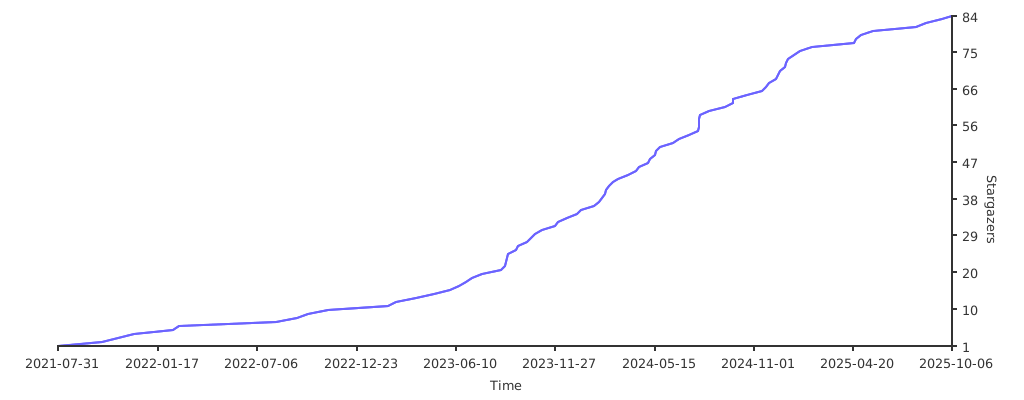](https://starchart.cc/akash-rajak/Image-Watermark-Remover)
84 |
85 | ****
86 |
87 | ### 🌟Forkers Over Time:
88 | [](https://github.com/akash-rajak/Image-Watermark-Remover/network/members)
89 |
90 | ****
91 |
92 | ### 📌Contributors:
93 |
94 |  95 |
96 |
--------------------------------------------------------------------------------
95 |
96 |
--------------------------------------------------------------------------------