├── LICENSE
├── changelog.md
├── README.md
└── tips.md
/LICENSE:
--------------------------------------------------------------------------------
1 | MIT License
2 |
3 | Copyright (c) 2020 Roman Perepelitsa
4 |
5 | Permission is hereby granted, free of charge, to any person obtaining a copy
6 | of this software and associated documentation files (the "Software"), to deal
7 | in the Software without restriction, including without limitation the rights
8 | to use, copy, modify, merge, publish, distribute, sublicense, and/or sell
9 | copies of the Software, and to permit persons to whom the Software is
10 | furnished to do so, subject to the following conditions:
11 |
12 | The above copyright notice and this permission notice shall be included in all
13 | copies or substantial portions of the Software.
14 |
15 | THE SOFTWARE IS PROVIDED "AS IS", WITHOUT WARRANTY OF ANY KIND, EXPRESS OR
16 | IMPLIED, INCLUDING BUT NOT LIMITED TO THE WARRANTIES OF MERCHANTABILITY,
17 | FITNESS FOR A PARTICULAR PURPOSE AND NONINFRINGEMENT. IN NO EVENT SHALL THE
18 | AUTHORS OR COPYRIGHT HOLDERS BE LIABLE FOR ANY CLAIM, DAMAGES OR OTHER
19 | LIABILITY, WHETHER IN AN ACTION OF CONTRACT, TORT OR OTHERWISE, ARISING FROM,
20 | OUT OF OR IN CONNECTION WITH THE SOFTWARE OR THE USE OR OTHER DEALINGS IN THE
21 | SOFTWARE.
22 |
--------------------------------------------------------------------------------
/changelog.md:
--------------------------------------------------------------------------------
1 | ## v4 => v5
2 |
3 | - The default `fzf` key bindings for Tab/Shift+Tab and
4 | Ctrl+R/Ctrl+S have been changed to Up/Down in
5 | default layout and Down/Up in reversed layout. It is recommended to remove
6 | the following lines from `~/.zshrc` if you have them:
7 | ```zsh
8 | # When fzf menu opens on TAB, another TAB moves the cursor down ('tab:down')
9 | # or accepts the selection and triggers another TAB-completion ('tab:repeat')?
10 | zstyle ':z4h:fzf-complete' fzf-bindings 'tab:down'
11 | # When fzf menu opens on Alt+Down, TAB moves the cursor down ('tab:down')
12 | # or accepts the selection and triggers another Alt+Down ('tab:repeat')?
13 | zstyle ':z4h:cd-down' fzf-bindings 'tab:down'
14 | ```
15 | - FreeBSD is no longer supported.
16 | - `zstyle ':z4h:...' passthrough` has been replaced with `zstyle ':z4h:...' enable` that has the
17 | opposite meaning. The default value is `no`. If your `~/.zshrc` mentions `passthrough`, you need
18 | to change those styles. Here's how it looks in the default `.zshrc` now:
19 | ```zsh
20 | # Enable ('yes') or disable ('no') automatic teleportation of z4h over
21 | # ssh when connecting to these hosts.
22 | zstyle ':z4h:ssh:example-hostname1' enable 'yes'
23 | zstyle ':z4h:ssh:*.example-hostname2' enable 'no'
24 | # The default value if none of the overrides above match the hostname.
25 | zstyle ':z4h:ssh:*' enable 'no'
26 | ```
27 | - Function `ssh` has been moved from `.zshrc` to z4h proper. If your `.zshrc` defines it, you need
28 | to remove it.
29 | - When connecting over ssh to a host for which `zstyle ':z4h:ssh:...' enable` is set to 'no', `TERM`
30 | value of `tmux-256color` gets replaced with `screen-256color`. This can be customized with
31 | `zstyle ':z4h:ssh:...' term`.
32 | - New option to disable preview in `z4h-fzf-history`:
33 | ```zsh
34 | zstyle :z4h:fzf-history fzf-preview no
35 | ```
36 | - iTerm2 integration can no longer be enabled by sourcing `~/.iterm2_shell_integration.zsh`.
37 | Instead, you need to put this line in `~/.zshrc`:
38 | ```zsh
39 | zstyle ':z4h:' iterm2-integration 'yes'
40 | ```
41 | - The following bindings have been changed:
42 | - Ctrl+P/Up: `z4h-up-local-history` => `z4h-up-substring-local`
43 | - Ctrl+N/Down: `z4h-down-local-history` => `z4h-down-substring-local`
44 | - The following widgets have been renamed:
45 | - `z4h-up-local-history` => `z4h-up-prefix-local`
46 | - `z4h-down-local-history` => `z4h-down-prefix-local`
47 | - `z4h-up-global-history` => `z4h-up-prefix-global`
48 | - `z4h-down-global-history` => `z4h-down-prefix-global`
49 | - It's now possible to automatically start `tmux` when zsh4humans is initializing.
50 | ```zsh
51 | zstyle :z4h: start-tmux [arg]...
52 | ```
53 | Where `[arg]...` is either `integrated` (the default), `no`, `command [flag]...`, or
54 | `system`. The latter is equivalent to `command tmux -u`.
55 | - Widgets the perform recursive directory traversal (`z4h-cd-down` and `z4h-fzf-complete`) now
56 | use [bfs](https://github.com/tavianator/bfs) instead of `find` if it's installed. You can get
57 | the original behavior with the following declaration:
58 | ```zsh
59 | zstyle ':z4h:(cd-down|fzf-complete)' find-command command find
60 | ```
61 | You can also use a custom function in place of `command find` if you want to transform command
62 | line arguments.
63 | - `z4h-fzf-history` (Ctrl+R) now uses `BUFFER` instead of `LBUFFER` for the initial
64 | query. This makes a difference only when the widget is invoked when the cursor is not at the very
65 | end of the command line.
66 | - All `z4h-kill-*` and `z4h-backward-kill-*` widgets now add the killed region to the kill ring.
67 | - `z4h install` now allows specifying the branch explicitly: `z4h install user/repo@branch`.
68 | - If `brew` is installed, zsh4humans now automatically installs `homebrew/command-not-found`.
69 | - `command_not_found_handler` now uses `homebrew/command-not-found` if it's available.
70 | - Auto-update is now disabled by default. It is recommended to use `z4h update` to update
71 | manually.
72 | - Recursive file completions can now be disabled:
73 | ```zsh
74 | zstyle ':z4h:fzf-complete' recurse-dirs 'no'
75 | ```
76 | - It's now possible to contract prompt on Ctrl+D when using Transient Prompt.
77 | ```zsh
78 | z4h bindkey z4h-eof Ctrl+D
79 | setopt ignore_eof
80 | ```
81 | - There is now builtin integration with [direnv](https://github.com/direnv/direnv). It is much
82 | faster than the stock one and works well with all z4h features. Specifically:
83 |
84 | - If there is `.envrc` in the current or ancestor directory when starting
85 | zsh, it gets ingested before instant prompt.
86 | - Messages from direnv are displayed not only if you execute `cd foo`
87 | but also when you change the current directory with one of the
88 | specialized z4h widgets (`z4h-cd-up`, `z4h-cd-back`, etc.).
89 | - "Loading" and "unloading" notifications from direnv can be suppressed.
90 |
91 | Note that powerlevel10k has a prompt segment for direnv. It shows an icon
92 | if some `.envrc` has been loaded and not yet unloaded. If you are using direnv,
93 | you'll probably want to use this segment. If the icon is enough, consider
94 | suppressing "loading" and "unloading" notifications from direnv.
95 |
96 | Enable direnv integration:
97 | ```zsh
98 | zstyle ':z4h:direnv' enable 'yes'
99 | ```
100 |
101 | Disable "loading" and "unloading" notifications from direnv:
102 | ```zsh
103 | zstyle ':z4h:direnv:success' notify 'no'
104 | ```
105 |
106 | If you enable direnv integration in this way, the stock integration won't
107 | do anything useful. zsh4humans will dismantle it as soon as it sees it. It's
108 | highly recommended to remove stock integration calls from your zshrc to avoid
109 | wasting time on zsh startup and tripping over direnv quirks. The stock
110 | integration calls usually look like this:
111 |
112 | ```zsh
113 | eval "$(direnv export zsh)"
114 | eval "$(direnv hook zsh)"
115 | ```
116 |
117 | Or perhaps like this:
118 |
119 | ```zsh
120 | emulate zsh -c "$(direnv export zsh)"
121 | emulate zsh -c "$(direnv hook zsh)"
122 | ```
123 | - New zle widget: `z4h-quote-prev-zword`.
124 |
--------------------------------------------------------------------------------
/README.md:
--------------------------------------------------------------------------------
1 | # Zsh for Humans
2 |
3 | - **THE PROJECT HAS VERY LIMITED SUPPORT**
4 | - **NO NEW FEATURES ARE IN THE WORKS**
5 | - **MOST BUGS WILL GO UNFIXED**
6 |
7 | A turnkey configuration for Zsh that aims to work really well out of the box. It combines the best
8 | Zsh plugins into a coherent whole that feels like a finished product rather than a DIY starter kit.
9 |
10 | If you want a great shell that just works, this project is for you.
11 |
12 | ## Table of contents
13 |
14 | * 1. [Features](#features)
15 | * 2. [Installation](#installation)
16 | * 3. [Try it in Docker](#try-it-in-docker)
17 | * 4. [Caveats](#caveats)
18 | * 5. [Usage](#usage)
19 | * 5.1. [Accepting autosuggestions](#accepting-autosuggestions)
20 | * 5.2. [Completing commands](#completing-commands)
21 | * 5.3. [Searching command history](#searching-command-history)
22 | * 5.4. [Interactive search with `fzf`](#interactive-search-with-fzf)
23 | * 5.5. [SSH](#ssh)
24 | * 6. [Customization](#customization)
25 | * 6.1. [Customizing prompt](#customizing-prompt)
26 | * 6.2. [Customizing appearance](#customizing-appearance)
27 | * 6.3. [Additional Zsh startup files](#additional-zsh-startup-files)
28 | * 7. [Updating](#updating)
29 | * 8. [Uninstalling](#uninstalling)
30 | * 9. [Advanced configuration tips](#advanced-configuration-tips)
31 |
32 | ## Features
33 |
34 | - Powerful POSIX-based shell preconfigured to work great out of the box.
35 | - Easy-to-use installation wizard. Does not require `git`, `zsh` or `sudo`.
36 | - [Syntax highlighting](https://github.com/zsh-users/zsh-syntax-highlighting) for the command line.
37 | - [Autosuggestions](https://github.com/zsh-users/zsh-autosuggestions) for commands based on command
38 | history.
39 | - [Command prompt](https://github.com/romkatv/powerlevel10k) configurable through a builtin
40 | configuration wizard.
41 | - Command completions and history searchable with [fzf](https://github.com/junegunn/fzf).
42 | - [Super fast](https://github.com/romkatv/zsh-bench). No lag when you open a new tab in the terminal
43 | or run a command.
44 | - The complete shell environment can be automatically teleported to the remote host when connecting
45 | over `ssh`. This does not require `git`, `zsh` or `sudo` on the remote host.
46 | - Command history can be shared across different hosts. For example, history from `ssh foo`
47 | can be made available within `ssh bar` and/or on the local machine.
48 |
49 | ## Installation
50 |
51 | Run this command in bash, zsh, or sh:
52 |
53 | ```shell
54 | if command -v curl >/dev/null 2>&1; then
55 | sh -c "$(curl -fsSL https://raw.githubusercontent.com/romkatv/zsh4humans/v5/install)"
56 | else
57 | sh -c "$(wget -O- https://raw.githubusercontent.com/romkatv/zsh4humans/v5/install)"
58 | fi
59 | ```
60 |
61 | The installer backs up the existing Zsh startup files, creates new ones, installs everything
62 | necessary for Zsh for Humans, starts a new shell, and configures it as login shell. It asks for
63 | confirmation on every step so that you are always in control. Installation requires `curl` or
64 | `wget`. It does not require `git`, `zsh`, `sudo` or anything else.
65 |
66 |
67 | Recording of the installation process
68 |
69 | 
71 |
72 |
73 |
74 | ## Try it in Docker
75 |
76 | Try Zsh for Humans in a Docker container. You can safely install additional software and make any
77 | changes to the file system. Once you exit Zsh, the image is deleted.
78 |
79 | - **Alpine Linux**: starts quickly; install additional software with `apk add `
80 | ```zsh
81 | docker run -e TERM -e COLORTERM -e LC_ALL=C.UTF-8 -w /root -it --detach-keys="ctrl-^,ctrl-@" --rm alpine sh -uec '
82 | apk add zsh curl tmux
83 | sh -c "$(curl -fsSL https://raw.githubusercontent.com/romkatv/zsh4humans/v5/install)"'
84 | ```
85 | - **Ubuntu**: install additional software with `apt install `:
86 | ```zsh
87 | docker run -e TERM -e COLORTERM -w /root -it --detach-keys="ctrl-^,ctrl-@" --rm ubuntu sh -uec '
88 | apt-get update
89 | apt-get install -y zsh curl tmux
90 | sh -c "$(curl -fsSL https://raw.githubusercontent.com/romkatv/zsh4humans/v5/install)"'
91 | ```
92 |
93 | ## Caveats
94 |
95 | Zsh for Humans is not a good choice for users who prefer vi bindings in their shell.
96 |
97 | Zsh for Humans has very little documentation. There is no list of configuration options it
98 | recognizes and no description of what those options do.
99 |
100 | ## Usage
101 |
102 | If you've used Zsh, Bash or Fish before, Zsh for Humans should feel familiar. For the most part
103 | everything works as you would expect.
104 |
105 | ### Accepting autosuggestions
106 |
107 | All key bindings that move the cursor can accept *command autosuggestions*. For example, moving the
108 | cursor one word to the right will accept that word from the autosuggestion. The whole autosuggestion
109 | can be accepted without moving the cursor with Alt+M/Option+M.
110 |
111 | Autosuggestions in Zsh for Humans are provided by [zsh-autosuggestions](
112 | https://github.com/zsh-users/zsh-autosuggestions). See its homepage for more information.
113 |
114 | ### Completing commands
115 |
116 | When completing with Tab, suggestions come from *completion functions*. For most
117 | commands completion functions are provided by Zsh proper. Additional completion functions are
118 | contributed by [zsh-completions](https://github.com/zsh-users/zsh-completions). See its homepage
119 | for the list of commands it supports.
120 |
121 | Ambiguous completions automatically start [fzf](#interactive-search-with-fzf). Accept the desired
122 | completion with Enter. You can also select more than one completion with
123 | Ctrl+Space or all of them with Ctrl+A.
124 |
125 | ### Searching command history
126 |
127 | Up and Down keys fetch commands from history that contain what you've already
128 | typed on the command line. For example, if you press Up after typing `grep`, you'll see
129 | the last executed command that contains `grep`.
130 |
131 | Ctrl+R starts [fzf](#interactive-search-with-fzf) to search over history.
132 |
133 | ### Interactive search with `fzf`
134 |
135 | Several UI elements in Zsh for Humans use [fzf](https://github.com/junegunn/fzf) to quickly select
136 | an item from a potentially large list of candidates. You can type multiple search terms delimited by
137 | spaces. For example:
138 |
139 | ```text
140 | ^music .mp3$ sbtrkt !fire
141 | ```
142 |
143 | | Token | Match type | Description |
144 | | --------- | ----------------- | ------------------------------------ |
145 | | `wild` | substring | Items with the substring `wild` |
146 | | `^music` | prefix | Items that start with `music` |
147 | | `.mp3$` | suffix | Items that end with `.mp3` |
148 | | `!wild` | inverse substring | Items without the substring `wild` |
149 | | `!^music` | inverse prefix | Items that do not start with `music` |
150 | | `!.mp3$` | inverse suffix | Items that do not end with `.mp3` |
151 |
152 | A single bar (`|`) acts as an OR operator. For example, the following query matches entries that
153 | start with `core` and end with either `go`, `rb`, or `py`.
154 |
155 | ```text
156 | ^core go$ | rb$ | py$
157 | ```
158 |
159 | See [fzf](https://github.com/junegunn/fzf) homepage for more information.
160 |
161 | ### SSH
162 |
163 | [](https://asciinema.org/a/542763)
164 |
165 | When you connect to a remote host over SSH, your local Zsh for Humans environment can be teleported
166 | over to it. The first login to a remote host may take some time. After that it's as fast as normal
167 | `ssh`.
168 |
169 | Search for "ssh" in your `~/.zshrc` for information on how to enable and configure SSH
170 | teleportation.
171 |
172 | ## Customization
173 |
174 | You can (and should) edit `~/.zshrc` to customize your shell. It's a very good idea to read through
175 | the whole file to see which customization options are in there and to flip some of them to your
176 | liking.
177 |
178 | When adding your customizations, put them next to the existing lines that do similar things. The
179 | default `~/.zshrc` contains the following types of customizations that should serve as examples:
180 |
181 | - Export environment variables.
182 | - Extend `PATH`.
183 | - Define aliases.
184 | - Add flags to existing aliases.
185 | - Define functions.
186 | - Source additional local files.
187 | - Load Oh My Zsh plugins.
188 | - Clone and load external Zsh plugins.
189 | - Set shell options.
190 | - Autoload functions.
191 | - Change key bindings.
192 |
193 | ### Customizing prompt
194 |
195 | Prompt in Zsh for Humans is provided by [Powerlevel10k](https://github.com/romkatv/powerlevel10k).
196 | Run `p10k configure` to access its interactive configuration wizard. Further customization can be
197 | done by editing `~/.p10k*.zsh` files. There can be more than one configuration file to account for
198 | terminals with limited capabilities. Most users will ever only see `~/.p10k.zsh`. When in doubt,
199 | consult `$POWERLEVEL9K_CONFIG_FILE`. This parameter is set by Zsh for Humans and it always points
200 | to the Powerlevel10k config file currently in use.
201 |
202 | See [Powerlevel10k](https://github.com/romkatv/powerlevel10k) homepage for more information.
203 |
204 | ### Customizing appearance
205 |
206 | Different parts of Zsh for Humans UI are rendered by different projects.
207 |
208 | 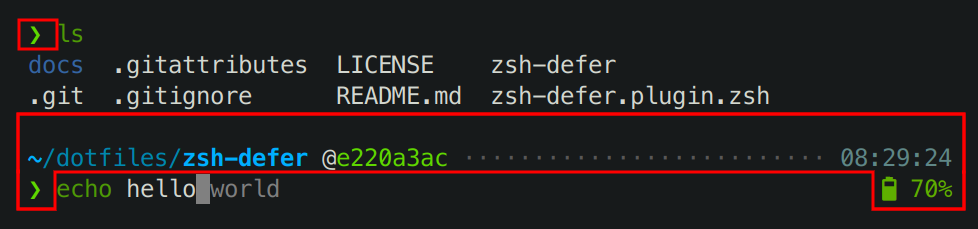
209 |
210 | Everything within the highlighted areas on the screenshot is *prompt*. It is produced by
211 | [Powerlevel10k](https://github.com/romkatv/powerlevel10k). See
212 | [Customizing prompt](#customizing-prompt).
213 |
214 | The listing of files produced by `ls` command is colored by `ls` itself. Different commands have
215 | different ways of customizing their output, and even different version of `ls` have different flags
216 | and environment variables related to colors. Zsh for Humans enables colored output for common
217 | commands such as `ls` and `grep`. For further customization consult documentation of the respective
218 | command.
219 |
220 | `echo hello` is the current command being typed. Syntax highlighting for it is provided by
221 | [zsh-syntax-highlighting](https://github.com/zsh-users/zsh-syntax-highlighting). See its homepage
222 | for documentation on how to customize it.
223 |
224 | After `echo hello` you can see `world` in grey. This is not a part of the command, so pressing
225 | Enter will print only `hello` but not `world`. The latter is an autosuggestion provided
226 | by [zsh-autosuggestions](https://github.com/zsh-users/zsh-autosuggestions) that you can
227 | [accept](#accepting-autosuggestions) in part or in full. It comes from command history and it's a
228 | great productivity booster. See [zsh-autosuggestions](
229 | https://github.com/zsh-users/zsh-autosuggestions) homepage for more information.
230 |
231 | Last but not least, your terminal has a say about the appearance of *everything* that runs within
232 | it. The base colors, numbered from 0 to 15, can look differently in different terminals and even
233 | in the same terminal with different settings. Most modern terminals support *themes*,
234 | *color palettes* or *color schemes* that allow you to quickly change base colors. If colors in your
235 | terminal look unpleasant, try a different theme. Note that colors with codes above 15, as well as
236 | colors specified as RGB triplets, don't get affected by terminal themes. They look the same
237 | everywhere.
238 |
239 | ### Additional Zsh startup files
240 |
241 | When you start Zsh, it automatically sources `~/.zshenv` and `~/.zshrc`. The former bootstraps Zsh
242 | for Humans, the latter is your personal config. It is strongly recommended to keep all shell
243 | customization and configuration (including exported environment variables such as `PATH`) in
244 | `~/.zshrc` or in files sourced from `~/.zshrc`. If you are certain that you must export some
245 | environment variables in `~/.zshenv`, do it where indicated by comments.
246 |
247 | Zsh supports several additional startup files with complex rules governing when each file is
248 | sourced. The additional startup files are `~/.zprofile`, `~/.zlogin` and `~/.zlogout`. **Do not
249 | create these files** unless you are absolutely certain you need them.
250 |
251 | ## Updating
252 |
253 | Run `z4h update` to update Zsh for Humans. There is no update mechanism for `~/.zshrc` itself.
254 |
255 | ## Uninstalling
256 |
257 | 1. Delete or replace `~/.zshenv` and `~/.zshrc`. If you had these files prior to the installation of
258 | Zsh for Humans and have replied in the affirmative when asked by the installer whether you want
259 | them backed up, you can find them in `~/zsh-backup`.
260 | 2. Restart your terminal. **Restarting zsh is not enough.**
261 | 3. Delete Zsh for Humans cache:
262 | ```zsh
263 | rm -rf -- "${XDG_CACHE_HOME:-$HOME/.cache}/zsh4humans/v5"
264 | ```
265 |
266 | ## Advanced configuration tips
267 |
268 | See [this document](tips.md).
269 |
--------------------------------------------------------------------------------
/tips.md:
--------------------------------------------------------------------------------
1 | # Advanced configuration tips
2 |
3 | The default configuration in Zsh for Humans is intentionally conservative. It's
4 | meant to be non-surprising for new users and robust. Experienced Zsh users are
5 | encouraged to customize their config to unlock the full potential of their
6 | shell.
7 |
8 | * 1. [tmux](#tmux)
9 | * 2. [Prompt at bottom](#prompt-at-bottom)
10 | * 3. [Autosuggestions](#autosuggestions)
11 | * 4. [Shell integration](#shell-integration)
12 | * 5. [Prompt](#prompt)
13 | * 6. [Terminal title](#terminal-title)
14 | * 7. [SSH](#ssh)
15 | * 7.1. [Extra dotfiles](#extra-dotfiles)
16 | * 7.2. [Better hostname reporting](#better-hostname-reporting)
17 | * 7.3. [Persistent and shared command history](#persistent-and-shared-command-history)
18 | * 7.4. [Unattended teleportation](#unattended-teleportation)
19 | * 8. [Current directory](#current-directory)
20 | * 9. [Completions](#completions)
21 | * 10. [fzf](#fzf)
22 | * 11. [Word-based widgets](#word-based-widgets)
23 | * 12. [Oh My Zsh](#oh-my-zsh)
24 | * 13. [Backup and restore](#backup-and-restore)
25 | * 14. [vi mode](#vi-mode)
26 | * 15. [Managing dotfiles](#managing-dotfiles)
27 | * 15.1. [Alternative `ZDOTDIR`](#alternative-zdotdir)
28 | * 16. [Privileged shell](#privileged-shell)
29 | * 17. [Homebrew](#homebrew)
30 |
31 | ## tmux
32 |
33 | If you choose *No* when asked by the installer whether `zsh` should always run
34 | in `tmux`, you'll have the following snippet in `~/.zshrc`:
35 |
36 | ```zsh
37 | # Don't start tmux.
38 | zstyle ':z4h:' start-tmux no
39 | ```
40 |
41 | Several features in Zsh for Humans require knowing the content of the terminal
42 | screen, and with the above option this condition won't be satisfied. If you
43 | remove this `zstyle` line, Zsh for Humans will automatically start a
44 | stripped-down version of `tmux` (referred to as "integrated tmux" in the source
45 | code and discussions) that should enable the extra features with no other
46 | visible effects. This used to be the default in Zsh for Humans for a long time
47 | but eventually it's been changed because there are corner cases where integrated
48 | tmux can cause issues. Try removing this line and see if everything still works.
49 |
50 | If your terminal has a feature that allows it to open a new tab or window in
51 | the same directory as the current tab, and it doesn't work, add the following
52 | option:
53 |
54 | ```zsh
55 | zstyle ':z4h:' propagate-cwd yes
56 | ```
57 |
58 | If terminal title breaks, see [Terminal Title](#terminal-title).
59 |
60 | If vertically resizing the terminal window breaks scrollback, add this option:
61 |
62 | ```zsh
63 | zstyle ':z4h:' term-vresize top
64 | ```
65 |
66 | If mouse wheel scrolling stops working in some applications, enable mouse
67 | support for them explicitly. For example:
68 |
69 | ```zsh
70 | alias nano='nano --mouse'
71 | ```
72 |
73 | ## Prompt at bottom
74 |
75 | Having prompt always in the same location allows you to find it quicker and to
76 | position your terminal window so that looking at prompt is most comfortable.
77 |
78 | Add the following option to `~/.zshrc` to place prompt at the bottom when Zsh
79 | starts and upon pressing Ctrl+L:
80 |
81 | ```zsh
82 | # Move prompt to the bottom when zsh starts and on Ctrl+L.
83 | zstyle ':z4h:' prompt-at-bottom 'yes'
84 | ```
85 |
86 | This feature requires that [`start-tmux` is not set to `no`](#tmux).
87 |
88 | If you have a habit of running `clear` instead of pressing Ctrl+L,
89 | you can add this alias:
90 |
91 | ```zsh
92 | alias clear=z4h-clear-screen-soft-bottom
93 | ```
94 |
95 | Note that having prompt always at the *top* is [impossible](
96 | https://github.com/romkatv/powerlevel10k-media/issues/2#issuecomment-725277867).
97 |
98 | ## Autosuggestions
99 |
100 | Most key shortcuts that move the cursor behave consistently in the presence of
101 | autosuggestions. The only exceptions are `forward-char`, `vi-forward-char` and
102 | `end-of-line`. These widgets accept the full autosuggestion instead of just one
103 | character or one line. This can be fixed with the following options:
104 |
105 | ```zsh
106 | zstyle ':z4h:autosuggestions' forward-char partial-accept
107 | zstyle ':z4h:autosuggestions' end-of-line partial-accept
108 | ```
109 |
110 | ## Shell integration
111 |
112 | Add the following option to `~/.zshrc`:
113 |
114 | ```zsh
115 | # Mark up shell's output with semantic information.
116 | zstyle ':z4h:' term-shell-integration 'yes'
117 | ```
118 |
119 | This enables extra features in terminals that understand [OSC 133](
120 | https://iterm2.com/documentation-escape-codes.html#:~:text=FTCS_PROMPT-,OSC%20133%20%3B,-A%20ST)
121 | ([iTerm2](https://iterm2.com/documentation-shell-integration.html),
122 | [kitty](https://sw.kovidgoyal.net/kitty/shell-integration/), and perhaps
123 | others). It also fixes [horrific mess when resizing terminal window](
124 | https://github.com/romkatv/powerlevel10k#horrific-mess-when-resizing-terminal-window),
125 | provided that you've enabled [integrated tmux](#tmux).
126 |
127 | In iTerm2 you'll see blue triangles to the left of every prompt. This can be
128 | [disabled](
129 | https://stackoverflow.com/questions/41123922/iterm2-hide-marks/41661660#41661660)
130 | in iTerm2 preferences.
131 |
132 | ## Prompt
133 |
134 | Prompt can be configured with `p10k configure`. Some options work very well
135 | together: try two-line prompt, sparse (adds an empty line before prompt), and
136 | transient prompt. If you are optimizing for productivity, use *Lean* style and
137 | choose *Few* icons rather than *Many*. The extra icons from *Many* are
138 | decorative. See: [What is the best prompt style in the configuration wizard](
139 | https://github.com/romkatv/powerlevel10k#what-is-the-best-prompt-style-in-the-configuration-wizard).
140 |
141 |
142 | Add the following option to `~/.zshrc` to make transient prompt work
143 | consistently when closing an SSH connection:
144 |
145 | ```zsh
146 | z4h bindkey z4h-eof Ctrl+D
147 | setopt ignore_eof
148 | ```
149 |
150 | This preserves the default zsh behavior on Ctrl+D. You can bind `z4h-exit`
151 | instead of `z4h-eof` if you want Ctrl+D to always exit the shell.
152 |
153 | If you are using a two-line prompt with an empty line before it, add this for
154 | smoother rendering:
155 |
156 | ```zsh
157 | POSTEDIT=$'\n\n\e[2A'
158 | ```
159 |
160 | If you are using a one-line prompt with an empty line, or a two-line prompt
161 | without an empty line, add this instead:
162 |
163 | ```zsh
164 | POSTEDIT=$'\n\e[A'
165 | ```
166 |
167 | You can bind `Enter` to `z4h-accept-line` to insert a newline instead of
168 | displaying the secondary prompt (a.k.a. `PS2`) when the currently typed
169 | command is incomplete.
170 |
171 | ```zsh
172 | z4h bindkey z4h-accept-line Enter
173 | ```
174 |
175 | ## Terminal title
176 |
177 | Some terminals by default do not allow shell to set tab and window title. This
178 | can be changed in the terminal preferences.
179 |
180 | Terminal title can be customized with `:z4h:term-title` style. Here are the
181 | defaults:
182 |
183 | ```zsh
184 | zstyle ':z4h:term-title:ssh' preexec '%n@%m: ${1//\%/%%}'
185 | zstyle ':z4h:term-title:ssh' precmd '%n@%m: %~'
186 | zstyle ':z4h:term-title:local' preexec '${1//\%/%%}'
187 | zstyle ':z4h:term-title:local' precmd '%~'
188 | ```
189 |
190 | `:z4h:term-title:ssh` is applied when connected over SSH while
191 | `:z4h:term-title:local` is applied to local shells.
192 |
193 | `preexec` title is set before executing a command: `$1` is the unexpanded
194 | command line, `$2` is the same command line after alias expansion.
195 |
196 | `precmd` title is set after executing a command. There are no positional
197 | arguments.
198 |
199 | All values undergo prompt expansion.
200 |
201 | Tip: Add `%*` to `preexec` to display the time when the command started
202 | executing.
203 |
204 | Tip: Replace `%m` with `${${${Z4H_SSH##*:}//\%/%%}:-%m}`. This makes a
205 | difference when using [SSH teleportation](#SSH): the title will show the
206 | hostname as you typed it on the command line when connecting rather than
207 | the hostname reported by the remote machine.
208 |
209 | ## SSH
210 |
211 | [](https://asciinema.org/a/542763)
212 |
213 | When you connect to a remote host over SSH, your local Zsh for Humans
214 | environment can be teleported over to it. The first login to a remote host may
215 | take some time. After that it's as fast as normal `ssh`.
216 |
217 | SSH teleportation can be enable per host. By default it's disabled for all
218 | hosts. You can use either a blacklist approach:
219 |
220 | ```zsh
221 | # Enable SSH teleportation by default.
222 | zstyle ':z4h:ssh:*' enable yes
223 |
224 | # Disable SSH teleportation for specific hosts.
225 | zstyle ':z4h:ssh:example-hostname1' enable no
226 | zstyle ':z4h:ssh:*.example-hostname2' enable no
227 | ```
228 |
229 | Or a whitelist approach:
230 |
231 | ```zsh
232 | # Disable SSH teleportation by default.
233 | zstyle ':z4h:ssh:*' enable no
234 |
235 | # Enable SSH teleportation for specific hosts.
236 | zstyle ':z4h:ssh:example-hostname1' enable yes
237 | zstyle ':z4h:ssh:*.example-hostname2' enable yes
238 | ```
239 |
240 | ### Extra dotfiles
241 |
242 | If your shell environment requires extra files other than zsh rc files (which
243 | are teleported by default), add them to `send-extra-files`:
244 |
245 | ```zsh
246 | zstyle ':z4h:ssh:*' send-extra-files '~/.nanorc' '~/.env.zsh'
247 | ```
248 |
249 | You can add directories here as well. Don't add anything heavy as it'll slow
250 | down SSH connection.
251 |
252 | *NOTE*: Remote files and directories get silently overwritten when teleporting.
253 |
254 | *NOTE*: If a file doesn't exist locally, it'll be silently deleted on the remote
255 | host when teleporting.
256 |
257 | ### Better hostname reporting
258 |
259 | When connected over SSH, by default prompt and terminal title will display the
260 | hostname as reported by the remote machine. Sometimes it's not the same as
261 | what you've passed to `ssh` on the command line and usually you would want to
262 | see the latter. To achieve this, use `${${${Z4H_SSH##*:}//\%/%%}:-%m}` instead
263 | of `%m` in configuration options. For example, here's how you can configure
264 | terminal title:
265 |
266 | ```zsh
267 | zstyle ':z4h:term-title:ssh' preexec '%n@'${${${Z4H_SSH##*:}//\%/%%}:-%m}': ${1//\%/%%}'
268 | zstyle ':z4h:term-title:ssh' precmd '%n@'${${${Z4H_SSH##*:}//\%/%%}:-%m}': %~'
269 | ```
270 |
271 | And here's prompt:
272 |
273 | ```zsh
274 | typeset -g POWERLEVEL9K_CONTEXT_TEMPLATE=%n@${${${Z4H_SSH##*:}//\%/%%}:-%m}
275 | ```
276 |
277 | The latter should go in `~/.p10k.zsh`. You might already have some `CONTEXT`
278 | templates in there. Customize them as needed.
279 |
280 | ### SSH config
281 |
282 | For better user experience with SSH add the following stanza to `~/.ssh/config`:
283 |
284 | ```text
285 | Host *
286 | ServerAliveInterval 60
287 | ConnectTimeout 10
288 | AddKeysToAgent yes
289 | EscapeChar `
290 | ControlMaster auto
291 | ControlPersist 72000
292 | ControlPath ~/.ssh/s/%C
293 | ```
294 |
295 | See `man ssh_config` for the meaning of these options and adjust them
296 | accordingly.
297 |
298 | Make sure that `~/.ssh/s` is an existing directory with `0700` mode.
299 |
300 | The above config remaps `EscapeChar` from the default tilde to backtick because
301 | you often start zsh commands with tilde (and it's annoying that nothing shows
302 | up) but you never start commands with backtick.
303 |
304 | If your OS doesn't start SSH agent automatically, add this to `~/.zshrc`:
305 |
306 | ```zsh
307 | zstyle ':z4h:ssh-agent:' start yes
308 | zstyle ':z4h:ssh-agent:' extra-args -t 20h
309 | ```
310 |
311 | It's a good idea to list all hosts that you SSH to in `~/.ssh/config`. Like
312 | this:
313 |
314 | ```text
315 | Host pihole
316 | HostName 192.168.1.42
317 | User pi
318 | Host blog
319 | HostName 10.100.1.2
320 | User admin
321 | ```
322 |
323 | If you do this, you can [configure](#completions) `ssh` and similar commands to
324 | complete hostnames nicely.
325 |
326 | ### Persistent and shared command history
327 |
328 | Zsh for Humans can pull command history from remote hosts when you close an SSH
329 | connection. It can also send command history to the remote host when connecting.
330 | This allows you to retain command history from remote hosts even when they get
331 | wiped. It also allows you to share command history between hosts. The mechanism
332 | is very flexible but not easy to configure. Here's something to get you started.
333 |
334 | ```zsh
335 | # This function is invoked by zsh4humans on every ssh command after
336 | # the instructions from ssh-related zstyles have been applied. It allows
337 | # us to configure ssh teleportation in ways that cannot be done with
338 | # zstyles.
339 | #
340 | # Within this function we have readonly access to the following parameters:
341 | #
342 | # - z4h_ssh_client local hostname
343 | # - z4h_ssh_host remote hostname as it was specified on the command line
344 | #
345 | # We also have read & write access to these:
346 | #
347 | # - z4h_ssh_enable 1 to use ssh teleportation, 0 for plain ssh
348 | # - z4h_ssh_send_files list of files to send to the remote; keys are local
349 | # file names, values are remote file names
350 | # - z4h_ssh_retrieve_files the same as z4h_ssh_send_files but for pulling
351 | # files from remote to local
352 | # - z4h_retrieve_history list of local files into which remote $HISTFILE
353 | # should be merged at the end of the connection
354 | # - z4h_ssh_command command to use instead of `ssh`
355 | function z4h-ssh-configure() {
356 | emulate -L zsh
357 |
358 | # Bail out if ssh teleportation is disabled. We could also
359 | # override this parameter here if we wanted to.
360 | (( z4h_ssh_enable )) || return 0
361 |
362 | # Figure out what kind of machine we are about to connect to.
363 | local machine_tag
364 | case $z4h_ssh_host in
365 | ec2-*) machine_tag=ec2;;
366 | *) machine_tag=$z4h_ssh_host;;
367 | esac
368 |
369 | # This is where we are locally keeping command history
370 | # retrieved from machines of this kind.
371 | local local_hist=$ZDOTDIR/.zsh/history/retrieved_from_$machine_tag
372 |
373 | # This is where our $local_hist ends up on the remote machine when
374 | # we connect to it. Command history from files with names like this
375 | # is explicitly loaded by our zshrc (see below). All new commands
376 | # on the remote machine will still be written to the regular $HISTFILE.
377 | local remote_hist='"$ZDOTDIR"/.zsh/history/received_from_'${(q)z4h_ssh_client}
378 |
379 | # At the start of the SSH connection, send $local_hist over and
380 | # store it as $remote_hist.
381 | z4h_ssh_send_files[$local_hist]=$remote_hist
382 |
383 | # At the end of the SSH connection, retrieve $HISTFILE from the
384 | # remote machine and merge it with $local_hist.
385 | z4h_retrieve_history+=($local_hist)
386 | }
387 |
388 | # Load command history that was sent to this machine over ssh.
389 | () {
390 | emulate -L zsh -o extended_glob
391 | local hist
392 | for hist in $ZDOTDIR/.zsh/history/received_from_*(NOm); do
393 | fc -RI $hist
394 | done
395 | }
396 | ```
397 |
398 | You'll need to add this block to `~/.zshrc` below `z4h init`. Before trying it
399 | out you'll probably want to modify the logic that computes `machine_tag` based
400 | on `$z4h_ssh_host` although you can also use it as is -- there is a reasonable
401 | fallback.
402 |
403 | If you are defining `z4h-ssh-configure`, you don't actually need to use
404 | ssh-specific zstyles but you still can if you want to. The function is invoked
405 | after zstyles are applied, so you can observe and/or override their effect
406 | within `z4h-ssh-configure`. For example, `z4h_ssh_enable` within the function is
407 | set to 0 or 1 according to the value of `zstyle :z4h:ssh:$hostname enable`. The
408 | implementation of `z4h-ssh-configure` posted above bails out if `z4h_ssh_enable`
409 | is zero, so it doesn't do anything unless you enable SSH teleportation via
410 | `zstyle` for the target host. You could instead set `z4h_ssh_enable` in the
411 | function itself based on `$z4h_ssh_host` or anything else.
412 |
413 | You can add the following line at the top of `z4h-ssh-configure` to see the
414 | initial values of all ssh parameters that Zsh for Humans lets you read/write.
415 |
416 | ```zsh
417 | typeset -pm 'z4h_ssh_*'
418 | ```
419 |
420 | You'll notice that there are a few more parameters than what is documented in
421 | the comments above `z4h-ssh-configure`. Those are low-level blocks of code that
422 | get executed on the remote host. You probably shouldn't touch them.
423 |
424 | ### Unattended teleportation
425 |
426 | You can teleport Zsh for Humans to a remote host with a script like this:
427 |
428 | ```zsh
429 | #!/usr/bin/env -S zsh -i
430 |
431 | emulate -L zsh -o no_ignore_eof
432 |
433 | ssh -t hostname <<` -- you'll see the history. You can also hit Alt+Left
466 | (Shift+Left on macOS) to go back in `dirstack`. This is useful if you
467 | want to create a new terminal tab and `cd` into the last directory you've
468 | visited, or to go back after a `cd`. Alt+Left/Alt+Right
469 | (Shift+Left/Shift+Right on macOS) work like Back/Forward
470 | buttons in a web browser.
471 |
472 | Alt+Up (Shift+Up on macOS) goes to the parent directory
473 | and Alt+Down (Shift+Down on macOS) goes to a subdirectory.
474 | Since there are many subdirectories, the latter asks you to choose.
475 |
476 | There is also Alt+R for fzf over directory history. This is the
477 | closest thing to [autojump](https://github.com/wting/autojump),
478 | [z](https://github.com/rupa/z) and similar tools.
479 |
480 | You might want to configure things a bit differently:
481 |
482 | ```zsh
483 | zstyle ':z4h:fzf-dir-history' fzf-bindings tab:repeat
484 | zstyle ':z4h:cd-down' fzf-bindings tab:repeat
485 |
486 | z4h bindkey z4h-fzf-dir-history Alt+Down
487 | ```
488 |
489 | This rebinds Alt+Down to `z4h-fzf-dir-history` -- the widget that you
490 | can invoke via Alt+R by default. You'll no longer have a binding for
491 | `z4h-cd-down` but that's OK because you can get the same behavior with
492 | Alt+Down Tab.
493 |
494 | The two `zstyle` lines rebind Tab in two fzf-based widgets from
495 | the default `up` to `repeat`. The latter causes the selection to get accepted
496 | (like pressing Enter) and immediately opens fzf once again. When you
497 | invoke `z4h-fzf-dir-history`, the first entry is always the current directory,
498 | so `repeat` on that will repopulate fzf with subdirectories of the current
499 | directory -- just like `z4h-cd-down`. You can press Tab on other
500 | entries, too, if you need to go into their subdirectories.
501 |
502 | ## Completions
503 |
504 | Enable recursive file completions:
505 |
506 | ```zsh
507 | # Recursively traverse directories when TAB-completing files.
508 | zstyle ':z4h:fzf-complete' recurse-dirs yes
509 | ```
510 |
511 | This takes a bit of getting used to but once you do, it's a massive time saver.
512 |
513 | Rebind Tab in fzf from `up` to `repeat`:
514 |
515 | ```zsh
516 | zstyle ':z4h:fzf-complete' fzf-bindings tab:repeat
517 | ```
518 |
519 | Now Tab in fzf will accept the selection (like pressing
520 | Enter) and immediately open fzf once again if the current word isn't
521 | fully specified yet. It's very useful when TAB-completing file arguments.
522 | Instead of waiting in fzf for all files and directories to be traversed
523 | (assuming you've enabled [recursive file completions](#completions)), you can
524 | accept a directory with Tab to narrow down the search.
525 |
526 | You can undo and redo completions the same way as any other command line
527 | changes. You can find their bindings in your `~/.zshrc` and might want to rebind
528 | them to something else.
529 |
530 | Tip: Use Tab to expand and verify globs and undo the expansion before
531 | executing the command. For example, you can type `rm **/*.orig`, press
532 | Tab to expand the glob, check that it looks good, press
533 | Ctrl+/ to undo the expansion and execute the command. (It's a good
534 | idea execute commands with glob arguments in order to have them this way in
535 | history. This allows you to re-execute them even when the set of `**/*.orig`
536 | files changes.)
537 |
538 | Try flipping `setup no_auto_menu` to `setopt auto_menu` and see if you like it.
539 | This will automatically press Tab for the second time when the first
540 | Tab inserts an unambiguous prefix.
541 |
542 | If all hosts you SSH to are listed in `~/.ssh/config` (good idea), add this to
543 | improve completions for `ssh` and similar commands:
544 |
545 | ```zsh
546 | zstyle ':completion:*:ssh:argument-1:' tag-order hosts users
547 | zstyle ':completion:*:scp:argument-rest:' tag-order hosts files users
548 | zstyle ':completion:*:(ssh|scp|rdp):*:hosts' hosts
549 | ```
550 |
551 | ## fzf
552 |
553 | Familiarize yourself with [fzf query syntax](
554 | https://github.com/romkatv/zsh4humans#interactive-search-with-fzf).
555 |
556 | The highlight color can be changed (from the default poisonous pink) with the
557 | following option:
558 |
559 | ```zsh
560 | zstyle ':z4h:*' fzf-flags --color=hl:5,hl+:5
561 | ```
562 |
563 | Replace `5` with the color of your choice. Here's a handy one-liner to print
564 | the color table:
565 |
566 | ```zsh
567 | for i in {0..255}; do print -Pn "%K{$i} %k%F{$i}${(l:3::0:)i}%f " ${${(M)$((i%6)):#3}:+$'\n'}; done #colors
568 | ```
569 |
570 | That `#colors` at the end is technically a comment but you can use it as a tag.
571 | Next time you need to find this command, press Ctrl+R and type
572 | `#colors`. Tagging commands in this way is a good habit.
573 |
574 | ## Word-based widgets
575 |
576 | You can bind `*-zword` widgets that operate on whole shell arguments. For
577 | example, `ls '/foo/bar baz'` has two zwords: `ls` and `'/foo/bar baz'`. These
578 | widgets are `z4h-forward-zword`, `z4h-backward-zword`, `z4h-kill-zword` and
579 | `z4h-backward-kill-zword`. There are `word` variants of all these widgets, too.
580 | They behave the same as word-based navigation in Visual Studio Code.
581 |
582 | ## Oh My Zsh
583 |
584 | The default `~/.zshrc` has several references to `ohmyzsh`. They don't do
585 | anything useful. Their only purpose is to show how you can load third-party
586 | plugins. If you don't intend to load plugins from Oh My Zsh, remove all lines
587 | with `ohmyzsh` in them from `~/.zshrc`. This will speed up bootstrapping of Zsh
588 | for Humans when SSH teleporting to a host for the first time.
589 |
590 | If you want to load plugins from Oh My Zsh, check what you get from them. The
591 | vast majority of Oh My Zsh plugins don't do anything useful on top of Zsh for
592 | Humans. If you are loading a plugin for the aliases it provides, it's almost
593 | always a better idea to copy the specific aliases to your `~/.zshrc` instead of
594 | loading the plugin.
595 |
596 | ## Backup and restore
597 |
598 | It's highly recommended to [store your dotfiles in a git repository](
599 | #managing-dotfiles). As far as Zsh for Humans goes, you'll need to store these
600 | files:
601 |
602 | - `~/.zshenv`
603 | - `~/.zshrc`
604 | - `~/.p10k*.zsh` (there can be more than one).
605 |
606 | You don't need to run Zsh for Humans installer on a new machine. Simply
607 | copy/restore these files and Zsh for Humans will bootstrap itself. If you don't
608 | have zsh on the machine, you can bootstrap Zsh for Humans from any Bourne-based
609 | shell with the following command:
610 |
611 | ```sh
612 | Z4H_BOOTSTRAPPING=1 . ~/.zshenv
613 | ```
614 |
615 | ## vi mode
616 |
617 | The installer refuses to do anything if you select *vi* when asked about your
618 | preferred keymap. If you don't mind manually defining a few bindings, you can
619 | use Zsh for Humans in vi mode.
620 |
621 | 1. Select *emacs* when asked by the installer about your preferred keymap.
622 | 2. Add `bindkey -v` below `z4h init` in `~/.zshrc`.
623 | 3. Add your own bindings with `bindkey` or `z4h bindkey` below `bindkey -v`.
624 |
625 | ## Managing dotfiles
626 |
627 | It's highly recommended to store your dotfiles in a git repository. This allows
628 | you to restore your shell environment when your development machine dies. It
629 | also lets you synchronize dotfiles across different development machines. If you
630 | aren't using [SSH teleportation](#SSH), you can also use git to pull dotfiles
631 | onto remote hosts. With SSH teleportation this is automatic.
632 |
633 | There are many tools out there that help you with dotfiles management. Choose
634 | what you like. As an option, here's what the author of Zsh for Humans uses.
635 |
636 | > I have two git repos where I store my stuff: [dotfiles-public](
637 | > https://github.com/romkatv/dotfiles-public) and dotfiles-private. Both are
638 | > overlaid over `$HOME` (that is, their worktree is `$HOME`), so I can version
639 | > any file without moving or symlinking it. I sync dotfiles between my dev
640 | > machines (a desktop and two laptops) with [sync-dotfiles](
641 | > https://github.com/romkatv/dotfiles-public/blob/master/dotfiles/functions/sync-dotfiles),
642 | > which I run manually. This function synchronizes both repos.
643 | >
644 | > I store command history in dotfiles-private. There is a separate file per
645 | > combination of local and remote machine (there is no remote machine for
646 | > commands executed locally). The point of this separation is twofold. The first
647 | > reason is that it gives local history priority: when I hit Ctrl+R
648 | > on machine *A*, commands that I ran on machine *A* are displayed before the
649 | > commands from other machines (assuming I'm sharing history from other machines
650 | > with *A*). The second reason is that it avoids merge conflicts because every
651 | > history file is modified only on one machine.
652 | >
653 | > There are a few more important bits to my dotfiles management:
654 | >
655 | > - [my_git_repo](
656 | > https://github.com/romkatv/dotfiles-public/blob/8784b2702621002172ecbe91abe27d5c62d95efb/.p10k.zsh#L45-L52)
657 | > prompt segment.
658 | > - [toggle-dotfiles](
659 | > https://github.com/romkatv/dotfiles-public/blob/master/dotfiles/functions/toggle-dotfiles)
660 | > zle widget.
661 | > - A [keybinding](
662 | > https://github.com/romkatv/dotfiles-public/blob/8334d8932eabddaf4569de4c3e617b2e911851b4/.zshrc#L115-L118)
663 | > for `toggle-dotfiles`.
664 | >
665 | > When I press Ctrl+P once, I get `public` showing up in prompt and
666 | > git status in prompt corresponds to dotfiles-public repo. All `git` commands
667 | > also target this repo. So if I'm in `~/foo/bar` and want to add `./baz` to
668 | > dotfiles-public, I hit Ctrl+P and type `git add baz`, `git commit`,
669 | > etc. If I hit Ctrl+P another time, it activates dotfiles-private.
670 | > Another Ctrl+P gets me to normal state.
671 |
672 | ### Alternative `ZDOTDIR`
673 |
674 | By default zsh startup files are stored in the home directory. If you want to
675 | store them in `~/.config/zsh` instead, use [this script](
676 | https://gist.github.com/romkatv/ecce772ce46b36262dc2e702ea15df9f) to migrate.
677 | Note that `~/.zshenv` will still exist. Without it zsh won't know where to look
678 | for startup files.
679 |
680 | ## Privileged shell
681 |
682 | You can open a privileged shell with `sudo -Es`. This will start zsh as `root`
683 | with your regular rc files and `$HOME` will point to your regular home
684 | directory.
685 |
686 | ## Homebrew
687 |
688 | When referencing files and directories managed by [Homebrew](https://brew.sh/),
689 | you can rely on `HOMEBREW_PREFIX` being automatically set. This is much faster
690 | than invoking `brew --prefix`. For example, here's how you can load
691 | [asdf](https://github.com/asdf-vm/asdf):
692 |
693 | ```zsh
694 | z4h source -- ${HOMEBREW_PREFIX:+$HOMEBREW_PREFIX/opt/asdf/libexec/asdf.sh}
695 | ```
696 |
697 | This line won't do anything unless `asdf` has been installed with `brew`.
698 |
--------------------------------------------------------------------------------