├── img
├── README.md
├── 2.png
├── 3.png
├── 4.png
├── 5.png
├── 6.png
├── 7.png
├── 8.png
├── 9.png
├── 10.png
├── 11.png
├── 12.png
├── 13.png
├── 14.png
├── 15.png
├── full.jpg
├── AccelDSC.jpg
├── download.png
├── Skysafari_3.png
├── Skysafari_4.png
├── components.jpg
├── connected_1.jpg
├── connected_2.jpg
├── full_close.jpg
├── solderless.jpg
├── AccelCircuit.jpg
├── Alt_encoder_1.jpg
├── Alt_encoder_2.jpg
├── Alt_encoder_3.jpg
├── solderless_lg.jpg
├── webConfig_sm.png
├── 12V_power_supply.jpg
├── Circuit_ESP32S.png
├── Sketch_too_big.png
├── battery_options.jpg
├── pushover_api_key.png
├── pushover_new_app.png
├── WiFi_NoInternet_C.png
├── keyes_screw_shield.jpg
└── pushover_user_key.png
├── dobDSC-back.jpg
├── dobDSC-front.jpg
├── dobDSC-upclose.jpg
├── README.md
├── README.es.md
├── DobsonianDSC
├── WebConfig_DSC.h
├── DobsonianDSC.ino
└── WebConfig_DSC.cpp
├── docs
├── Solderless.md
├── Solderless.es.md
├── ArduinoIDE.md
├── ArduinoIDE.es.md
├── UploadConfigure.md
└── UploadConfigure.es.md
├── AccelDSC
└── AccelDSC.ino
└── LICENSE
/img/README.md:
--------------------------------------------------------------------------------
1 | Images folder
2 |
--------------------------------------------------------------------------------
/img/2.png:
--------------------------------------------------------------------------------
https://raw.githubusercontent.com/vlaate/DobsonianDSC/HEAD/img/2.png
--------------------------------------------------------------------------------
/img/3.png:
--------------------------------------------------------------------------------
https://raw.githubusercontent.com/vlaate/DobsonianDSC/HEAD/img/3.png
--------------------------------------------------------------------------------
/img/4.png:
--------------------------------------------------------------------------------
https://raw.githubusercontent.com/vlaate/DobsonianDSC/HEAD/img/4.png
--------------------------------------------------------------------------------
/img/5.png:
--------------------------------------------------------------------------------
https://raw.githubusercontent.com/vlaate/DobsonianDSC/HEAD/img/5.png
--------------------------------------------------------------------------------
/img/6.png:
--------------------------------------------------------------------------------
https://raw.githubusercontent.com/vlaate/DobsonianDSC/HEAD/img/6.png
--------------------------------------------------------------------------------
/img/7.png:
--------------------------------------------------------------------------------
https://raw.githubusercontent.com/vlaate/DobsonianDSC/HEAD/img/7.png
--------------------------------------------------------------------------------
/img/8.png:
--------------------------------------------------------------------------------
https://raw.githubusercontent.com/vlaate/DobsonianDSC/HEAD/img/8.png
--------------------------------------------------------------------------------
/img/9.png:
--------------------------------------------------------------------------------
https://raw.githubusercontent.com/vlaate/DobsonianDSC/HEAD/img/9.png
--------------------------------------------------------------------------------
/img/10.png:
--------------------------------------------------------------------------------
https://raw.githubusercontent.com/vlaate/DobsonianDSC/HEAD/img/10.png
--------------------------------------------------------------------------------
/img/11.png:
--------------------------------------------------------------------------------
https://raw.githubusercontent.com/vlaate/DobsonianDSC/HEAD/img/11.png
--------------------------------------------------------------------------------
/img/12.png:
--------------------------------------------------------------------------------
https://raw.githubusercontent.com/vlaate/DobsonianDSC/HEAD/img/12.png
--------------------------------------------------------------------------------
/img/13.png:
--------------------------------------------------------------------------------
https://raw.githubusercontent.com/vlaate/DobsonianDSC/HEAD/img/13.png
--------------------------------------------------------------------------------
/img/14.png:
--------------------------------------------------------------------------------
https://raw.githubusercontent.com/vlaate/DobsonianDSC/HEAD/img/14.png
--------------------------------------------------------------------------------
/img/15.png:
--------------------------------------------------------------------------------
https://raw.githubusercontent.com/vlaate/DobsonianDSC/HEAD/img/15.png
--------------------------------------------------------------------------------
/img/full.jpg:
--------------------------------------------------------------------------------
https://raw.githubusercontent.com/vlaate/DobsonianDSC/HEAD/img/full.jpg
--------------------------------------------------------------------------------
/dobDSC-back.jpg:
--------------------------------------------------------------------------------
https://raw.githubusercontent.com/vlaate/DobsonianDSC/HEAD/dobDSC-back.jpg
--------------------------------------------------------------------------------
/dobDSC-front.jpg:
--------------------------------------------------------------------------------
https://raw.githubusercontent.com/vlaate/DobsonianDSC/HEAD/dobDSC-front.jpg
--------------------------------------------------------------------------------
/img/AccelDSC.jpg:
--------------------------------------------------------------------------------
https://raw.githubusercontent.com/vlaate/DobsonianDSC/HEAD/img/AccelDSC.jpg
--------------------------------------------------------------------------------
/img/download.png:
--------------------------------------------------------------------------------
https://raw.githubusercontent.com/vlaate/DobsonianDSC/HEAD/img/download.png
--------------------------------------------------------------------------------
/dobDSC-upclose.jpg:
--------------------------------------------------------------------------------
https://raw.githubusercontent.com/vlaate/DobsonianDSC/HEAD/dobDSC-upclose.jpg
--------------------------------------------------------------------------------
/img/Skysafari_3.png:
--------------------------------------------------------------------------------
https://raw.githubusercontent.com/vlaate/DobsonianDSC/HEAD/img/Skysafari_3.png
--------------------------------------------------------------------------------
/img/Skysafari_4.png:
--------------------------------------------------------------------------------
https://raw.githubusercontent.com/vlaate/DobsonianDSC/HEAD/img/Skysafari_4.png
--------------------------------------------------------------------------------
/img/components.jpg:
--------------------------------------------------------------------------------
https://raw.githubusercontent.com/vlaate/DobsonianDSC/HEAD/img/components.jpg
--------------------------------------------------------------------------------
/img/connected_1.jpg:
--------------------------------------------------------------------------------
https://raw.githubusercontent.com/vlaate/DobsonianDSC/HEAD/img/connected_1.jpg
--------------------------------------------------------------------------------
/img/connected_2.jpg:
--------------------------------------------------------------------------------
https://raw.githubusercontent.com/vlaate/DobsonianDSC/HEAD/img/connected_2.jpg
--------------------------------------------------------------------------------
/img/full_close.jpg:
--------------------------------------------------------------------------------
https://raw.githubusercontent.com/vlaate/DobsonianDSC/HEAD/img/full_close.jpg
--------------------------------------------------------------------------------
/img/solderless.jpg:
--------------------------------------------------------------------------------
https://raw.githubusercontent.com/vlaate/DobsonianDSC/HEAD/img/solderless.jpg
--------------------------------------------------------------------------------
/img/AccelCircuit.jpg:
--------------------------------------------------------------------------------
https://raw.githubusercontent.com/vlaate/DobsonianDSC/HEAD/img/AccelCircuit.jpg
--------------------------------------------------------------------------------
/img/Alt_encoder_1.jpg:
--------------------------------------------------------------------------------
https://raw.githubusercontent.com/vlaate/DobsonianDSC/HEAD/img/Alt_encoder_1.jpg
--------------------------------------------------------------------------------
/img/Alt_encoder_2.jpg:
--------------------------------------------------------------------------------
https://raw.githubusercontent.com/vlaate/DobsonianDSC/HEAD/img/Alt_encoder_2.jpg
--------------------------------------------------------------------------------
/img/Alt_encoder_3.jpg:
--------------------------------------------------------------------------------
https://raw.githubusercontent.com/vlaate/DobsonianDSC/HEAD/img/Alt_encoder_3.jpg
--------------------------------------------------------------------------------
/img/solderless_lg.jpg:
--------------------------------------------------------------------------------
https://raw.githubusercontent.com/vlaate/DobsonianDSC/HEAD/img/solderless_lg.jpg
--------------------------------------------------------------------------------
/img/webConfig_sm.png:
--------------------------------------------------------------------------------
https://raw.githubusercontent.com/vlaate/DobsonianDSC/HEAD/img/webConfig_sm.png
--------------------------------------------------------------------------------
/img/12V_power_supply.jpg:
--------------------------------------------------------------------------------
https://raw.githubusercontent.com/vlaate/DobsonianDSC/HEAD/img/12V_power_supply.jpg
--------------------------------------------------------------------------------
/img/Circuit_ESP32S.png:
--------------------------------------------------------------------------------
https://raw.githubusercontent.com/vlaate/DobsonianDSC/HEAD/img/Circuit_ESP32S.png
--------------------------------------------------------------------------------
/img/Sketch_too_big.png:
--------------------------------------------------------------------------------
https://raw.githubusercontent.com/vlaate/DobsonianDSC/HEAD/img/Sketch_too_big.png
--------------------------------------------------------------------------------
/img/battery_options.jpg:
--------------------------------------------------------------------------------
https://raw.githubusercontent.com/vlaate/DobsonianDSC/HEAD/img/battery_options.jpg
--------------------------------------------------------------------------------
/img/pushover_api_key.png:
--------------------------------------------------------------------------------
https://raw.githubusercontent.com/vlaate/DobsonianDSC/HEAD/img/pushover_api_key.png
--------------------------------------------------------------------------------
/img/pushover_new_app.png:
--------------------------------------------------------------------------------
https://raw.githubusercontent.com/vlaate/DobsonianDSC/HEAD/img/pushover_new_app.png
--------------------------------------------------------------------------------
/img/WiFi_NoInternet_C.png:
--------------------------------------------------------------------------------
https://raw.githubusercontent.com/vlaate/DobsonianDSC/HEAD/img/WiFi_NoInternet_C.png
--------------------------------------------------------------------------------
/img/keyes_screw_shield.jpg:
--------------------------------------------------------------------------------
https://raw.githubusercontent.com/vlaate/DobsonianDSC/HEAD/img/keyes_screw_shield.jpg
--------------------------------------------------------------------------------
/img/pushover_user_key.png:
--------------------------------------------------------------------------------
https://raw.githubusercontent.com/vlaate/DobsonianDSC/HEAD/img/pushover_user_key.png
--------------------------------------------------------------------------------
/README.md:
--------------------------------------------------------------------------------
1 | # DobsonianDSC
2 | [[English]](https://github.com/vlaate/DobsonianDSC)
3 | [[Español]](https://github.com/vlaate/DobsonianDSC/blob/master/README.es.md)
4 |
5 | Amateur astronomers want to know where their telescope is pointing at. For this reason, many commercial telescopes (like the Orion IntelliScope) come equipped with "push to" features, often based on high precision optical rotary encoders attached to the telescope mount, and a hand control device with a database of coordinates of thousands of stars and other sky objects.
6 |
7 | There are also commercial Digital Setting Circles, which are kits sold for telescope owners to adapt to their existing telescope, in order to give it "push to" features, costing a few hundred dollars.
8 |
9 | The mobile app [SkySafari](https://skysafariastronomy.com/) comes with a celestial database that is often more up-to-date, and it's user interface (a visual representation of the night sky) can be considered superior to what text lines on a push-to hand controller allow.
10 |
11 | This project is an open source implementation of Digital Setting Circles for dobsonian telescopes. By using two inexpensive optical encoders and an ESP32 microcontroller it enables amateur astronomers to connect their dobsonian telescope to the SkySafari app.
12 |
13 | Particular emphasis has been placed on making sure anybody can build the circuit regardless of their experience (or lack thereof) with electronics or arduino, including a step-by-step guide for a very simple implementation that requires no soldering.
14 |
15 | This DSC achieves the following:
16 |
17 | * Absolute minimum number of components, making it simple and inexpensive. (The bill of materials is under **$40**)
18 | * Easy to build, no soldering required.
19 | * Wireless communication with the SkySafari app, No need for a wired handheld control.
20 | * Ability to connect to an external WiFi (to maintain access to the internet while using the DSC)
21 | * Web configuration page for easily configuring everything: WiFi settings/password, encoder resolutions, flipping encoder pins, notification API/keys, device name.
22 | * Bluetooth support.
23 |
24 | This is what it looks like installed on a small tabletop dobsonian:
25 |
26 | 
27 |
28 |
29 | ## Documentation
30 |
31 | * This [Arduino IDE guide](https://github.com/vlaate/DobsonianDSC/blob/master/docs/ArduinoIDE.md) will provide beginner-friendly step by step instructions on how to install and configure the Arduino IDE on your computer, including the board managers and libraries required by the DSC, so that you can upload this software to an ESP-32 microcontroller.
32 | * This [Upload and Configuration guide](https://github.com/vlaate/DobsonianDSC/blob/master/docs/UploadConfigure.md) provides step by step instructions on how to upload the DSC software to the ESP32 microcontroller, how to configure the DSC using it's web configuration interface, and how to connect the SkySafari app to it.
33 | * The [Circuit Building Guide](https://github.com/vlaate/DobsonianDSC/blob/master/docs/Solderless.md) contains the circuit schematics, the parts list and a step-by-step instructions on how to assemble a beginner-friendly **solderless** implementation of the circuit.
34 | * You can ask questions or provide feedback in the [CloudyNights forums](https://www.cloudynights.com/topic/589521-37-dobsonian-dsc-for-diy-makers/).
35 | * Useful information on how to attach altitude encoders to dobsonians can be found [here](https://www.cloudynights.com/topic/772803-how-to-attach-altitude-encoders-to-dobsonians/)
36 |
37 | ## Pictures
38 |
39 | 
40 | 
41 | 
42 | 
43 | 
44 |
45 |
46 |
--------------------------------------------------------------------------------
/README.es.md:
--------------------------------------------------------------------------------
1 | # Apuntador Digital para Telescopios Dobsonianos (ADT)
2 | [[English]](https://github.com/vlaate/DobsonianDSC)
3 | [[Español]](https://github.com/vlaate/DobsonianDSC/blob/master/README.es.md)
4 |
5 | Los astrónomos aficionados desean saber hacia dónde está apuntando su telescopio. Por ésta razón, algunos telescopios comerciales como el Orion IntelliScope vienen equipados con funcionalidades tipo “push-to”, basadas en encoders ópticos de alta precisión conectados a la montura del telescopio, y un dispositivo electrónico o control de mano que tiene una base de datos con las coordenadas de miles de objetos celestes.
6 |
7 | También existen apps para Android y para iOS como [SkySafari](https://skysafariastronomy.com/), que contienen bases de datos celestes incluso mejores, y que ofrecen una interfaz de usuario muy superior a los controles de mano que vienen con los telescopios push-to.
8 |
9 | Éste proyecto es una implementación de código libre “open source” de un Apuntador Digital para Telescopio, que mediante dos encoders ópticos de bajo costo y un microcontrolador ESP32 permite conectar un telescopio dobsoniano con la app SkySafari, y así poder ver fácilmente hacia dónde está apuntando el telescopio.
10 |
11 | En el diseño del apuntador digital, se puso mucho énfasis en lograr que cualquier astrónomo aficionado pueda construir el circuito incluso si no tiene experiencia alguna con electrónica ni con Arduino. Para ello, el proyecto ofrece guías paso-a-paso ilustradas que indican desde cómo instalar y configurar Arduino hasta como ensamblar de una forma muy sencilla los componentes sin tener que soldar, de manera que incluso personas que no tengan un cautín (o no sepan cómo usarlo) puedan construir el ADT para su telescopio.
12 |
13 | El ADT logra lo siguiente:
14 |
15 | * Un mínimo absoluto de componentes electrónicos, haciéndolo sencillo y de bajo costo (las partes cuestan menos de **USD $40**).
16 | * Fácil de construir, no necesita soldadura ni herramientas especiales.
17 | * Comunicación inalámbrica con apps como SkySafari Plus/Pro.
18 | * Capacidad de conectarse a un WiFi externo/existente (para poder seguir conectado a internet mientras se usa el ADT vía WiFi).
19 | * Soporta conexión Bluetooth.
20 | * Página Web de configuración, para fácilmente ajustar todo: password WiFi, resoluciones de los encoders, reversar dirección de encoders, notificación, nombre del dispositivo.
21 |
22 | Así se ve cuando está instalado en un pequeño dobsoniano de sobremesa:
23 |
24 | 
25 |
26 | ## Documentación
27 |
28 | * La [Guía de Arduino para Principiantes](https://github.com/vlaate/DobsonianDSC/blob/master/docs/ArduinoIDE.es.md) explica de manera ilustrada y paso a paso cómo instalar y configurar Arduino en su computador, incluyendo las placas y librerías necesarias para que pueda cargar el software de éste ADT en un microcontrolador ESP-32.
29 | * La [Guía para Cargar y Configurar el ADT](https://github.com/vlaate/DobsonianDSC/blob/master/docs/UploadConfigure.es.md) provee instrucciones paso a paso para cargar el software ADT en un microcontrolador ESP32 microcontroller, para configurarlo, y para conectarse con la app SkySafari.
30 | * La [Guía de construcción del Circuito](https://github.com/vlaate/DobsonianDSC/blob/master/docs/Solderless.es.md) contiene la lista de partes, diagrama esquemático e instrucciones paso a paso para ensamblar el circuito del ADT de manera sencilla, sin necesitar soldadura ni herramientas especiales.
31 | * Si tiene problemas o comentarios, puede escribirnos en el foro de [CloudyNights](https://www.cloudynights.com/topic/589521-37-dobsonian-dsc-for-diy-makers/).
32 | * [Aquí](https://www.cloudynights.com/topic/772803-how-to-attach-altitude-encoders-to-dobsonians/) puede encontrar información útil sobre cómo montar mecánicamente encoders en algunos tipos de dobsonianos.
33 |
34 | ## Fotos
35 |
36 | 
37 | 
38 | 
39 | 
40 | 
41 |
--------------------------------------------------------------------------------
/DobsonianDSC/WebConfig_DSC.h:
--------------------------------------------------------------------------------
1 | /*
2 | Original file: WebConfig.h version 1.4
3 | Author Gerald Lechner lechge@gmail.com https://github.com/GerLech
4 | Licensed under the GNU Lesser General Public License v3.0
5 |
6 | This library builds a web page with a smart phone friendly form to edit
7 | a free definable number of configuration parameters. The submitted data will be stored in the SPIFFS
8 | The library works with ESP8266 and ESP32
9 |
10 | It has been modified by Vladimir Atehortúa to customize the HTML styles for
11 | astronomy/night use (dark background with red colors) for the Digital Setting Circles project
12 | which is released under the compatible GPLv3
13 |
14 | This program is free software: you can redistribute it and/or modify
15 | it under the terms of the version 3 GNU General Public License as
16 | published by the Free Software Foundation.
17 | This program is distributed in the hope that it will be useful,
18 | but WITHOUT ANY WARRANTY; without even the implied warranty of
19 | MERCHANTABILITY or FITNESS FOR A PARTICULAR PURPOSE. See the
20 | GNU General Public License for more details.
21 | You should have received a copy of the GNU General Public License along with this program.
22 | If not, see
23 | */
24 |
25 | #ifndef WebConfig_h
26 | #define WebConfig_h
27 |
28 | #include
29 | #if defined(ESP32)
30 | #include
31 | #else
32 | #include
33 | #endif
34 |
35 | //maximum number of parameters
36 | #define MAXVALUES 20
37 |
38 | //maximum number of options per parameters
39 | #define MAXOPTIONS 15
40 |
41 | //character limits
42 | #define NAMELENGTH 20
43 | #define LABELLENGTH 40
44 |
45 | //name for the config file
46 | #define CONFFILE "/WebConf.conf"
47 |
48 | #define INPUTTEXT 0
49 | #define INPUTPASSWORD 1
50 | #define INPUTNUMBER 2
51 | #define INPUTDATE 3
52 | #define INPUTTIME 4
53 | #define INPUTRANGE 5
54 | #define INPUTCHECKBOX 6
55 | #define INPUTRADIO 7
56 | #define INPUTSELECT 8
57 | #define INPUTCOLOR 9
58 | #define INPUTFLOAT 10
59 | #define INPUTTEXTAREA 11
60 | #define INPUTMULTICHECK 12
61 | //number of types
62 | #define INPUTTYPES 13
63 |
64 | #define BTN_CONFIG 0
65 | #define BTN_DONE 1
66 | #define BTN_CANCEL 2
67 | #define BTN_DELETE 4
68 | //data structure to hold the parameter Description
69 | typedef //Struktur eines Datenpakets
70 | struct {
71 | char name[NAMELENGTH];
72 | char label[LABELLENGTH];
73 | uint8_t type;
74 | int min;
75 | int max;
76 | uint8_t optionCnt;
77 | String options[MAXOPTIONS];
78 | String labels[MAXOPTIONS];
79 | } DESCRIPTION;
80 |
81 | class WebConfig {
82 | public:
83 | WebConfig();
84 | //load form descriptions
85 | void setDescription(String parameter);
86 | //Add extra descriptions
87 | void addDescription(String parameter);
88 | //function to respond a HTTP request for the form use the filename
89 | //to save.
90 | #if defined(ESP32)
91 | void handleFormRequest(WebServer * server, const char * filename);
92 | //function to respond a HTTP request for the form use the default file
93 | //to save and restart ESP after saving the new config
94 | void handleFormRequest(WebServer * server);
95 | //get the index for a value by parameter name
96 | #else
97 | void handleFormRequest(ESP8266WebServer * server, const char * filename);
98 | //function to respond a HTTP request for the form use the default file
99 | //to save and restart ESP after saving the new config
100 | void handleFormRequest(ESP8266WebServer * server);
101 | //get the index for a value by parameter name
102 | #endif
103 | int16_t getIndex(const char * name);
104 | //read configuration from file
105 | boolean readConfig(const char * filename);
106 | //read configuration from default file
107 | boolean readConfig();
108 | //write configuration to file
109 | boolean writeConfig(const char * filename);
110 | //write configuration to default file
111 | boolean writeConfig();
112 | //delete configuration file
113 | boolean deleteConfig(const char * filename);
114 | //delete default configutation file
115 | boolean deleteConfig();
116 | //get a parameter value by its name
117 | const String getString(const char * name);
118 | const char * getValue(const char * name);
119 | int getInt(const char * name);
120 | float getFloat(const char * name);
121 | boolean getBool(const char * name);
122 | //get the accesspoint name
123 | const char * getApName();
124 | //get the number of parameters
125 | uint8_t getCount();
126 | //get the name of a parameter
127 | String getName(uint8_t index);
128 | //Get results as a JSON string
129 | String getResults();
130 | //Ser values from a JSON string
131 | void setValues(String json);
132 | //set the value for a parameter
133 | void setValue(const char*name,String value);
134 | //set the label for a parameter
135 | void setLabel(const char * name, const char* label);
136 | //remove all options
137 | void clearOptions(uint8_t index);
138 | void clearOptions(const char * name);
139 | //add a new option
140 | void addOption(uint8_t index, String option);
141 | void addOption(uint8_t index, String option, String label);
142 | //modify an option
143 | void setOption(uint8_t index, uint8_t option_index, String option, String label);
144 | void setOption(char * name, uint8_t option_index, String option, String label);
145 | //get the options count
146 | uint8_t getOptionCount(uint8_t index);
147 | uint8_t getOptionCount(char * name);
148 | //set form type to doen cancel
149 | void setButtons(uint8_t buttons);
150 | //register onSave callback
151 | void registerOnSave(void (*callback)(String results));
152 | //register onSave callback
153 | void registerOnDone(void (*callback)(String results));
154 | //register onSave callback
155 | void registerOnCancel(void (*callback)());
156 | //register onSave callback
157 | void registerOnDelete(void (*callback)(String name));
158 |
159 | //values for the parameter
160 | String values[MAXVALUES];
161 | private:
162 | char _buf[2000];
163 | uint8_t _count;
164 | String _apName;
165 | uint8_t _buttons = BTN_CONFIG;
166 | DESCRIPTION _description[MAXVALUES];
167 | void (*_onSave)(String results) = NULL;
168 | void (*_onDone)(String results) = NULL;
169 | void (*_onCancel)() = NULL;
170 | void (*_onDelete)(String name) = NULL;
171 | };
172 |
173 | #endif
174 |
--------------------------------------------------------------------------------
/docs/Solderless.md:
--------------------------------------------------------------------------------
1 | # Building the DSC Circuit
2 |
3 | There are many ways to build the electronic circuit for this telescope DSC.
4 |
5 | This guide will focus on a very simple and solderless way to assemble the components, so that even people who don't own a soldering iron (or don't know how to use one) can build the DSC for their telescope.
6 |
7 | It is highly recommended that before you start building this circuit, you first upload the software to the ESP32 microcontroller as detailed in the [Upload and Configuration guide](https://github.com/vlaate/DobsonianDSC/blob/master/docs/UploadConfigure.md).
8 |
9 | ## Parts List
10 |
11 | There are very few components involved in this dual encoder DSC:
12 |
13 | 
14 |
15 | * Two optical encoders with NPN open-collector outputs (discussed in more detail further below).
16 | * One "30 pin" ESP32 development board ([aliexpress](https://www.aliexpress.com/item/32800930387.html), [amazon](https://www.amazon.com/dp/B079PVCF2G)).
17 | * One keyes screw shield v2 ([keyestudio.com](https://www.keyestudio.com/), [aliexpress](https://www.aliexpress.com/item/2030646961.html)).
18 | * A set of 10 Dupont Cables 10cm long, either male-to-female or female-to-female ([aliexpress](https://www.aliexpress.com/item/32798042976.html)).
19 |
20 | Before you go on assembling the circuit, make sure you have already uploaded the software to the ESP-32.
21 |
22 |
23 | ## The Circuit
24 |
25 | The circuit for this DSC is very simple. The logical view tells you it's basically about connecting the 4 wires from each encoder to the ESP32 microcontroller:
26 |
27 | 
28 |
29 | To make those connections easily and without needing to use a soldering iron, we'll use the *"keyes screw shield v2"* which is a small module that offers screw terminals and adapts them to dupont connectors:
30 |
31 | 
32 |
33 | The following diagram explains how the wiring should go from the ESP32 to this "screw terminal shield", and also shows which "green screw" terminals corresponds to which "black dupont" connectors:
34 |
35 | 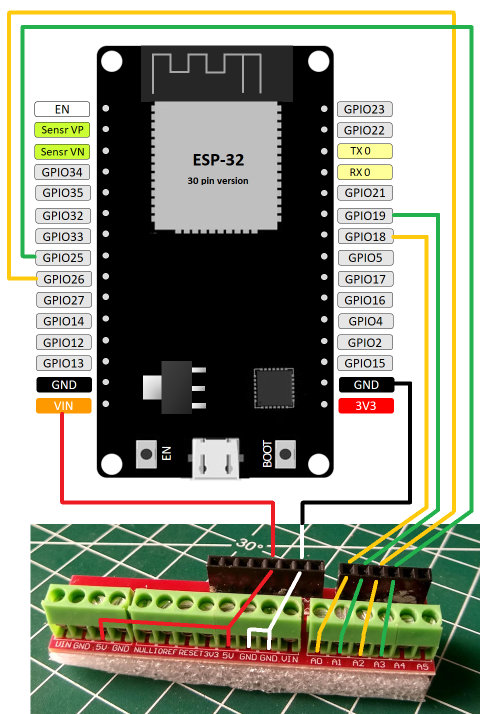
36 |
37 | * Note that there 4 screw terminals labeled "**GND**", you can use any of them to connect the black GND wires from the optical encoders.
38 | * Note that there are 2 screw terminals labeled "**5V**", you can use any of them to connect the red 5V wires from the optical encoders.
39 | * The **A (Yellow)** and a **B (Green)** wires from the Azimuth encoder should go into the green screw terminals labeled **A0**, **A1**.
40 | * The **A (Yellow)** and a **B (Green)** wires from the Altitude encoder should go into the green screw terminals labeled **A2**, **A3**.
41 |
42 | After plugging the encoder wires into the appropriate screw terminals (green), you can use dupont cables to connect the dupont terminals (black) to the corresponding pins of the ESP-32, like this:
43 |
44 | 
45 |
46 | Make sure you are using the correct pins of the ESP-32:
47 | * The red 5V dupont connection should go to the ESP32 pin labeled **VIN**.
48 | * The black GND dupont connection should go to the ESP32 pin labeled **GND**.
49 | * The A and B connections from the A0 and A1 screw terminals should go to the ESP32 pins labeled **D18** and **D19**.
50 | * The A and B connections from the A2 and A3 screw terminals should go to the ESP32 pins labeled **D25** and **D26**.
51 |
52 | And that's it! If the connections are correct and the ESP32 was already programmed with the software, then the circuit is complete.
53 |
54 |
55 | ## About Encoders
56 |
57 | The resolution of your DSC will depend upon the resolution of the optical encoders you choose, and the gear ratio with which you affix those encoders to your telescope's axis.
58 |
59 | For encoders attached *directly* to the telescope axis (without any gear reduction), Encoders with resolutions of **2000 p/r** to **2500 p/r** are recommended. This will provide between 8.000 to 10.000 steps in a full circle, or between 2.2 and 2.7 arcminutes per step.
60 |
61 | For encoders connected to the telescope via some sort of gear reduction (such as GT2 gears and belt) the cheaper **600 p/r** encoders are sufficient, and for example attached through GT2 gears at a 4,25 gear ratio (85 teeth big gear to 20 teeth small gear) they will provide (600 * 4 * 4,25 = 10.200) 10.200 steps per full circle, or 2.1 arcminutes per step.
62 |
63 | Example with GT2 pulleys:
64 |
65 | 
66 |
67 | In order to make this circuit as simple as possible, the optical encoders to be used **must** have **"NPN open-collector outputs"**. Encoders with other type of outputs (for example: *"Line Driver output"*) are not suited for this simple circuit and will require additional hardware such as level shifters.
68 |
69 | The most common encoder useable for this DSC project is the *Signswise / BQLZR* 600 p/r and it's generic clones. It's recommended to look for the mention of *"NPN open-collector"* in the vendor's page when dealing with generic ones. ([aliexpress](https://www.aliexpress.com/item/32669741048.html)).
70 |
71 | There seems to be a [source](https://www.aliexpress.com/item/32961497880.html) for higher resolution OMRON E6B2-CWZ6C encoders (of up to 2500 p/r) but I've not personally tested them. Note that only the CWZ6C family is NPN open-collector, other references (CWZ5B, CWZ3E, CWZ1X) are not. ([datasheet](http://www.ia.omron.com/data_pdf/cat/e6b2-c_ds_e_6_1_csm491.pdf)).
72 |
73 | If you are going to use GT2 gears, remember that the shaft width is 6mm for the Signswise, BQLZR and OMRON E6B2.
74 |
75 | A 3D printable bracket for the Signswise encoders can be found [here](https://www.cloudynights.com/topic/589521-37-dobsonian-dsc-for-diy-makers/page-5#entry8724826)
76 |
77 | If you know of other suitable encoders, you can let us know at the [CloudyNights forum](https://www.cloudynights.com/topic/589521-37-dobsonian-dsc-for-diy-makers/)
78 |
79 |
80 | ## About Different versions of the ESP-32
81 |
82 | The ESP32 microcontroller comes in different versions. This guide features the one with 30 pins / GPIOs, but there are versions with 38 pins, versions in the UNO form factor and in the Wemos Mini form factor, among others. Any version of the ESP32 can be used, but the pinouts illustrated in this guide are for the 30 pin version, so a beginer might be better off using exactly the 30 pin development board.
83 |
84 |
85 | ## About Battery Power
86 |
87 | The ESP32 boards typically come with a micro-USB connector, so USB power banks are the easiest solution to power the DSC.
88 |
89 | In order to use power sources with a DC barrel plug, such as the popular Talentcell 12V rechargeable batteries, or a 9V rechargeable with a plug adapter, there's a small module that can be used:
90 |
91 | 
92 |
93 | That little [blue module](https://www.aliexpress.com/item/32806774850.html) can take any voltage from 7V to 12V and output 5V (and more than enough mA for the ESP32 and two encoders). so you can use it to power the DSC by connecting the "VIN" pin from the ESP32 and the red "5V" cable from the screw shield to the "5V OUT" pins of the blue module, and also the black GND cable from the screw shield plus the GND pin of the ESP32 to the GND pin of the blue module.
94 |
95 | It's not actually efficient because to drop the voltage to 5V, some energy must be wasted into heat, but it can be convenient, specially if you don't already own an USB power bank.
96 |
--------------------------------------------------------------------------------
/docs/Solderless.es.md:
--------------------------------------------------------------------------------
1 | # Construyendo el Circuito del Apuntador Digital
2 | [[English]](https://github.com/vlaate/DobsonianDSC/blob/master/docs/Solderless.md)
3 | [[Español]](https://github.com/vlaate/DobsonianDSC/blob/master/docs/Solderless.es.md)
4 |
5 | Hay muchas formas de construir el circuito electrónico para éste proyecto de Apuntador Digital para Telescopio.
6 |
7 | La presente guía plantea una forma muy sencilla de ensamblar los componentes sin tener que soldar, de manera que incluso personas que no tengan un cautín (o no sepan cómo usarlo) puedan construir el ADT para su telescopio.
8 |
9 | Es necesario que antes de comenzar a ensamblar éste circuito, usted ya haya cargado el código del proyecto al microcontrolador ESP32 tal como se detalla en la [Guía de Carga y Configuración](https://github.com/vlaate/DobsonianDSC/blob/master/docs/UploadConfigure.es.md).
10 |
11 | ## Lista de Partes
12 |
13 | Éste proyecto de apuntador digital requiere muy pocos componentes:
14 |
15 | 
16 |
17 | * Dos encoders ópticos tipo NPN open-collector (explicados en detalle más adelante).
18 | * Un microcontrolador ESP32 de "30 pines" ([aliexpress](https://www.aliexpress.com/item/32800930387.html), [amazon](https://www.amazon.com/dp/B079PVCF2G)).
19 | * Un módulo “keyes screw shield v2” ([keyestudio.com](https://www.keyestudio.com/products/keyes-screw-shield-v2-stud-terminal-expansion-board-double-support), [aliexpress](https://www.aliexpress.com/item/2030646961.html)).
20 | * Un juego de 10 cables Dupont de 10cm de largo, bien sea macho-hembra ó hembra-hembra ([aliexpress](https://www.aliexpress.com/item/32798042976.html)).
21 |
22 | Antes de comenzar a ensamblar el circuito, asegúrese de haber cargado primero el código del proyecto al dispositivo ESP-32.
23 |
24 | ## El Circuito
25 |
26 | El circuito de éste apuntador digital es muy sencillo. El diagrama lógico muestra que básicamente se trata de conectar los 4 cables de cada Encoder al microcontrolador ESP32:
27 |
28 | 
29 |
30 | Para lograr éstas conexiones de manera fácil y sin tener que usar un cautín ni soldadura, usaremos el módulo *"keyes screw shield v2"* que es un pequeño módulo que ofrece terminales atornillables y los adapta a conectores tipo dupont:
31 |
32 | 
33 |
34 | El siguiente diagrama explica cómo sería el cableado desde el ESP32 hacia éste módulo "keyes screw shield", y también muestra cuales de los terminales atornillables verdes corresponden (vienen preconectados con) cuales de los terminales dupont negros:
35 |
36 | 
37 |
38 | * Observe que hay 4 terminales atornillables verdes marcados como "**GND**", usted puede usar cualquiera de éstos para conectar los cables negros GND de los Encoders ópticos.
39 | * Observe que hay 2 terminales atornillables verdes marcados "**5V**", usted puede usar cualquiera de éstos para conectar los cables rojos 5V de los Encoders ópticos.
40 | * Los cables **A (Amarillo)** y **B (Verde)** del Encoder azimutal deben conectarse en los terminales verdes marcados como **A0** y **A1**.
41 | * Los cables **A (Amarillo)** y **B (Verde)** del Encoder altitudinal deben conectarse a los terminales verdes marcados como **A2** y **A3**.
42 |
43 | Después de conectar los cables de ambos Encoders a los terminales verdes atornillables correctos, use los cables dupont para conectar los terminales negros dupont con los pines correspondientes del ESP-32. Las conexiones se ven así:
44 |
45 | 
46 |
47 | Asegúrese de usar los pines correctos del ESP-32:
48 | * El cable rojo 5V debe conectarse al pin del ESP32 etiquetado como **VIN**.
49 | * El cable negro GND debe conectarse al pin del ESP32 etiquetado como **GND**.
50 | * Las conexiones A y B que vienen de los terminales A0 y A1 deben conectarse a los pines del ESP32 etiquetados como **D18** y **D19**.
51 | * Las conexiones A y B que vienen de los terminales A2 y A3 deben conectarse a los pines del ESP32 etiquetados como **D25** y **D26**.
52 |
53 | Y eso es todo! Si las conexiones están correctas y el ESP32 ya está programado con el software, entonces el circuito está completo.
54 |
55 |
56 | ## Acerca de los Encoders Ópticos
57 |
58 | La resolución del Apuntador Digital para Telescopio depende de la resolución de los encoders ópticos que utilice, y de la proporción de transmisión con la cual usted conecte los encoders a los ejes del telescopio.
59 |
60 | Para encoders conectados *directamente* al telescopio (sin usar engranajes ni reducción), se recomienda usar encoders con resoluciones de **2000 p/r** a **2500 p/r**. Ésto permitiría resoluciones de entre 8.000 a 10.000 pasos en 360 grados, es decir entre 2.2 a 2.7 minutos de arco por paso del encoder.
61 |
62 | Para encoders conectados al telescopio mediante algún tipo de transmisión o reducción (por ejemplo poleas tipo GT2) los encoders económicos de **600 p/r** son suficientes, y por ejemplo usando poleas GT2 a una relación de transmisión de 4,25 (una polea grande de 85 dientes conectada a una polea pequeña de 20 dientes) se lograría una resolución de (600 * 4 * 4,25 = 10.200) 10.200 pasos por 360 grados, es decir de 2.1 minutos de arco por paso.
63 |
64 | Ejemplo con poleas GT2:
65 |
66 | 
67 |
68 | Para lograr que el circuito sea lo más sencillo posible, los encoders ópticos a usar **deben** tener salidas tipo **"NPN open-collector"**. Encoders con otro tipo de salidas (por ejemplo: *"Line Driver output"*) no sirven con éste sencillo circuito, pues requerirían hardware adicional.
69 |
70 | El tipo de Encoder más común utilizable en éste proyecto de apuntador digital es el *Signswise / BQLZR* 600 p/r y sus clones genéricos. Se recomienda buscar que la página del vendedor mencione *"NPN open-collector"* cuando compre los genéricos. ([aliexpress](https://www.aliexpress.com/item/32669741048.html)).
71 |
72 | Parece existir un [vendedor](https://www.aliexpress.com/item/32961497880.html) de Encoders de alta resolución OMRON E6B2-CWZ6C (que dan hasta 2500 p/r) pero no los he probado personalmente. Recuerde que únicamente la familia CWZ6C es “NPN open-collector”, otras familias de la marca OMRON (ej: CWZ5B, CWZ3E, CWZ1X) no servirían. ([datasheet](http://www.ia.omron.com/data_pdf/cat/e6b2-c_ds_e_6_1_csm491.pdf)).
73 |
74 | Si usted va a usar poleas GT2 (las de las impresoras 3D) como transmisión, para las poleas pequeña recuerde que el eje de los Encoders tiene un ancho de 6mm, tanto para los Signswise, BQLZR como para los OMRON E6B2.
75 |
76 | [Aquí](https://www.cloudynights.com/topic/589521-37-dobsonian-dsc-for-diy-makers/page-5#entry8724826) puede encontrar un diseño de sujetador para los encoders Signswise para crearlo con una impresora 3D. También puede hacer uno sencillo con madera de balso.
77 |
78 | Si conoce otros encoders tipo NPN open-collector que puedan funcionar con el proyecto, puede hacernos saber en los foros de [CloudyNights forum](https://www.cloudynights.com/topic/589521-37-dobsonian-dsc-for-diy-makers/)
79 |
80 | ## Acerca de diferentes versiones del ESP-32
81 |
82 | El microcontrolador ESP32 viene en diferentes versiones. La presente guía se basa en la versión de 30 pines / GPIOs, pero hay versiones con 38 pines, y versiones en otros formatos como el tipo UNO o el tipo Wemos Mini. Cualquier versión del ESP32 puede usarse para construir el proyecto, pero los diagramas y pines ilustrados en ésta guía son para la versión de 30 pines, por lo que para un principiante sería mejor usar esa placa de desarrollo ESP32 específicamente.
83 |
84 | ## Fuente de Energía
85 |
86 | Las placas ESP32 generalmente vienen con un conector micro-USB, de manera que un banco de poder USB (de los usados para recargar teléfonos celulares) sería la solución mas sencilla para darle energía al apuntador digital.
87 |
88 | Si desea usar otras fuentes de energía de los que tienen un conector DC tipo “plug”, como las populares baterías recargables Talentcell de 12V, or una pila de 9V recargable con adaptador plug, hay un pequeño módulo que se puede usar:
89 |
90 | 
91 |
92 | Ese pequeño [módulo azul](https://www.aliexpress.com/item/32806774850.html) puede recibir voltajes entre 7V a 12V y entregar 5V regulados con suficiente corriente para energizar el proyecto. Para usarlo, conecte los pines "5V OUT" del módulo con el pin "VIN" del ESP32 y con el cable rojo "5V" del terminal atornillable. También conecte los pines “GND” del módulo azul con el pin “GND” del ESP32 y con el cable negro GND del terminal atornillable.
93 |
94 | No es una forma eficiente de darle energía al proyecto ya que para bajar el voltaje a 5V, se desperdicia algo de energía en forma de calor, pero puede ser una solución conveniente para quienes no tienen un banco USB, pero si tienen una batería portátil de 12V.
95 |
96 |
--------------------------------------------------------------------------------
/docs/ArduinoIDE.md:
--------------------------------------------------------------------------------
1 | # Arduino IDE Beginners Guide
2 | [[English]](https://github.com/vlaate/DobsonianDSC/blob/master/docs/ArduinoIDE.md)
3 | [[Español]](https://github.com/vlaate/DobsonianDSC/blob/master/docs/ArduinoIDE.es.md)
4 |
5 | The purpose of this guide is to help someone who wants to build the [Telescope DSC project](https://github.com/vlaate/DobsonianDSC), but who has never had any experience with Arduino, microcontrollers, or anything similar. As such, this guide is for the absolute beginner, and
6 | it will provide step by step instructions on how to install and configure the Arduino IDE on your computer, connect your microcontroller, and validate that things are working as intended.
7 |
8 | ### 1. Download the Arduino IDE Software
9 |
10 | Go to https://www.arduino.cc/en/software and download the Arduino IDE for your operating system. As of 2021 I recommend using the Version 1.8.15 or later.
11 |
12 | ### 2. Install
13 |
14 | Launch the downloaded installer, make sure all the components are selected (they are by default, even the "USB driver") and let it complete installation:
15 |
16 | 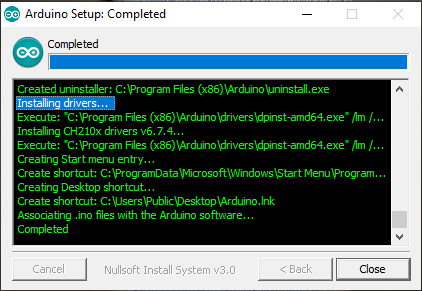
17 |
18 | ### 3. Launch IDE
19 |
20 | Now that you have installed the Arduino IDE (Integrated Development Environment) you'll see a new Arduino icon on your computer. Use it to Launch the Arduino Integrated Development Environment.
21 |
22 | 
23 |
24 | This is the software used to compile the arduino programs and upload them (via USB) to your ESP32 microcontroller.
25 |
26 | ### 4. Add Board Manager URLs
27 |
28 | For the Arduino IDE to be able to work with ESP32 and similar microcontrollers, it needs to download their "board manager".
29 |
30 | To do this, in the top menu of the Arduino IDE select "File" -> "Preferences":
31 |
32 | 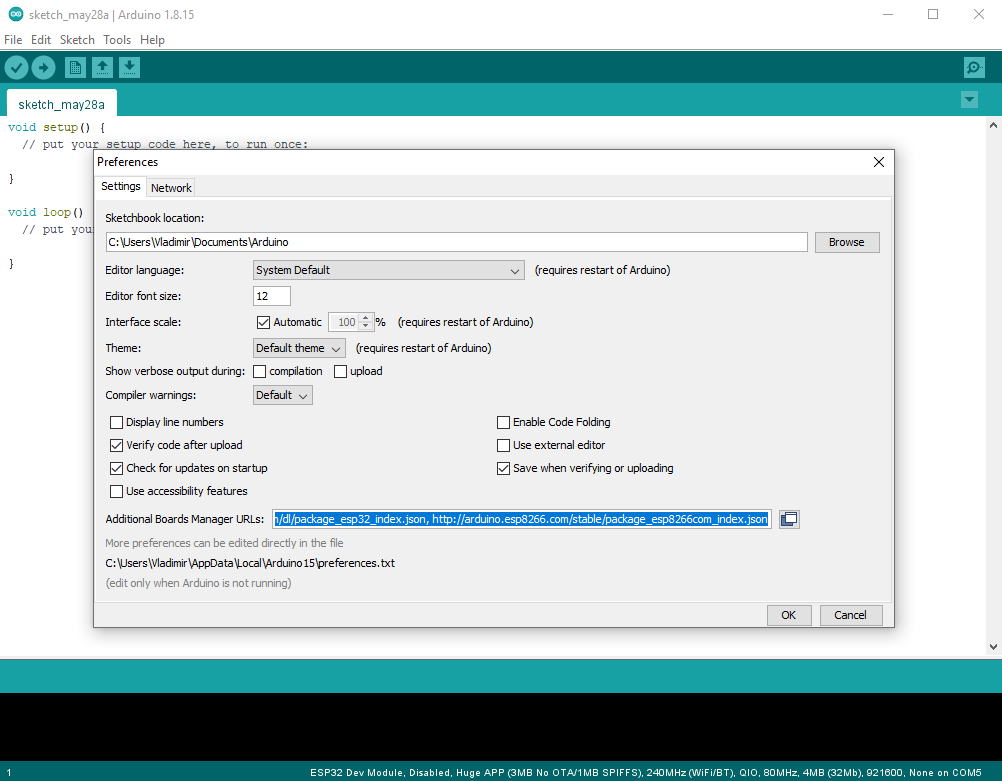
33 |
34 | In the emerging window there's a setting called "Additional Boards Manager URLs".
35 |
36 | Put the following value in it:
37 |
38 | ```
39 | https://dl.espressif.com/dl/package_esp32_index.json, http://arduino.esp8266.com/stable/package_esp8266com_index.json
40 | ```
41 |
42 | ### 5. Install Board Managers
43 |
44 | Click "OK" to close the preferences window, and back at the arduino top menu, select "Tools" -> "Board: XXX" -> "Boards Manager"
45 |
46 | The boards manager window pops up. The text field is a search field. Type "ESP32" on it, and wait for the list of boards to update. When a board called "esp32 by Espressif Systems" shows up, click on it's "Install" button:
47 |
48 | 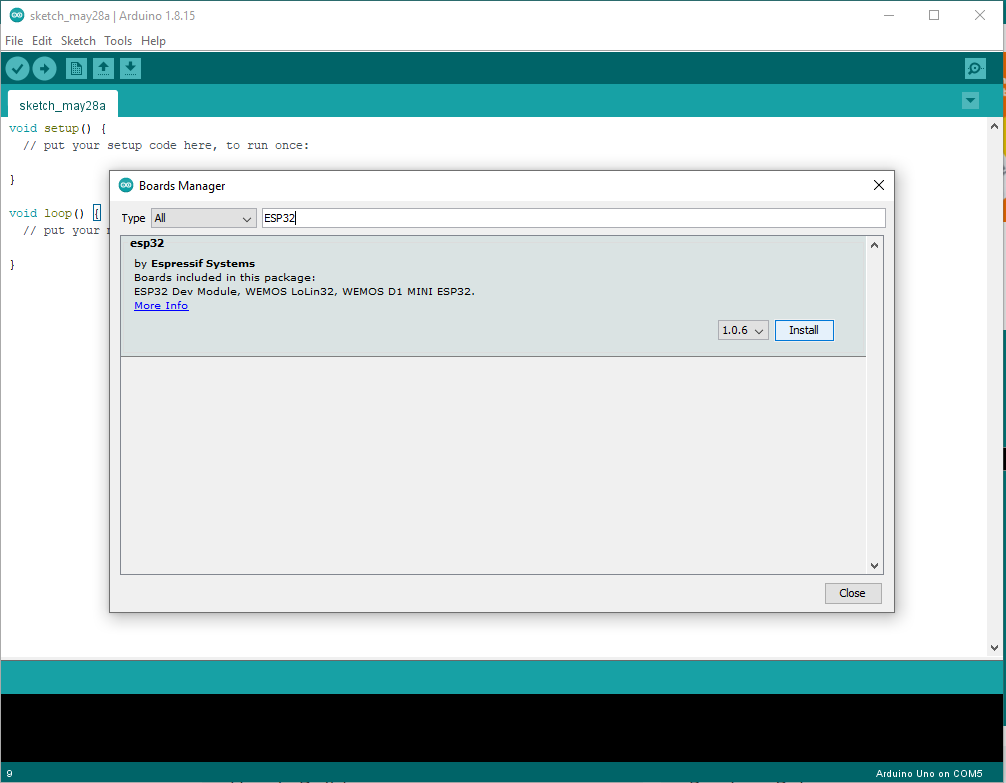
49 |
50 | Once it's done installing, click the "Close" button.
51 |
52 | ### 6. Install Libraries
53 |
54 | The Telescope DSC project depends on a couple of open source libraries. To install them, do the following:
55 |
56 | In the top menu, select "Tools" -> "Manage Libraries"
57 |
58 | The library manager window pops up. The text field is a search field. Type "ESP32Encoder" on it, and wait for the list of libraries to update. When a library called *"ESP32Encoder by Kevin Harrington"* shows up, click on it's "Install" button.
59 |
60 | 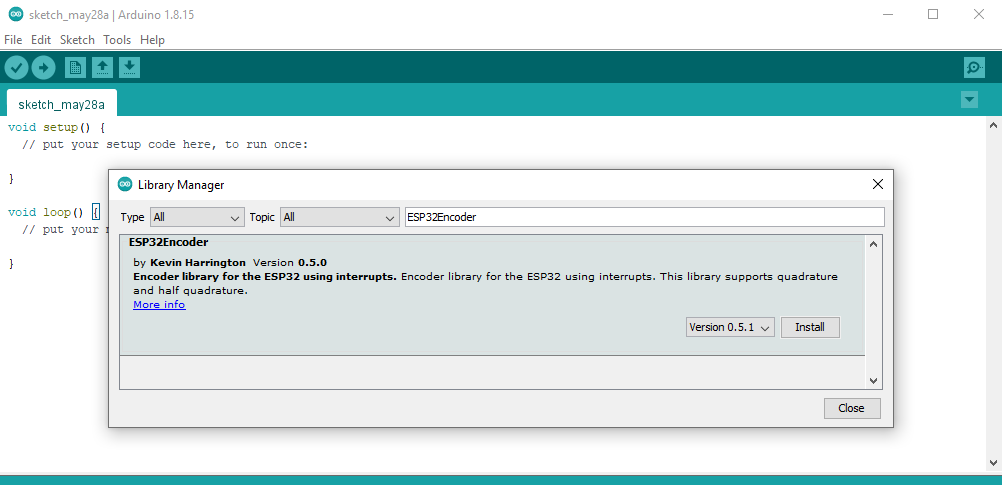
61 |
62 | After the encoder library is installed, change the search field to "ArduinoJson" and look for a library called *"ArduinoJson by Benoit Blanchon"* and Install it too. When finished, close the library manager window.
63 |
64 | ### 7. Select Board
65 |
66 | Now that your Arduino IDE is ready to compile programs for the ESP32 family of microcontrollers, it's time to configure it for your particular microcontroller.
67 |
68 | In the top arduino menu, select "Tools" -> "Board: XXX" -> "ESP32 Arduino"
69 |
70 | You will see a long list of ESP32 boards supported by the IDE. If you are going to use the ESP-32S Development Board that is recommended for the Telescope DSC project, then choose "ESP32 Dev Module".
71 |
72 | 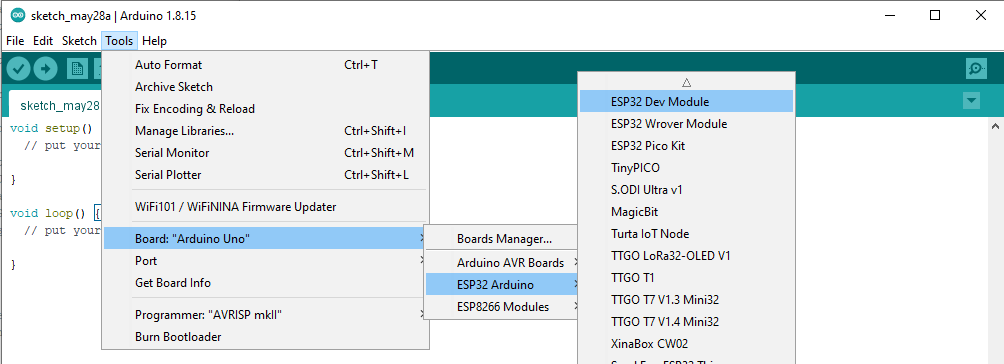
73 |
74 | ### 8. Configure Memory Partition Scheme
75 |
76 | The telescope DSC project takes a lot of memory (mostly because bluetooth libraries are big).
77 | In order to prevent a compilation error saying *"Sketch too big"*, you need to assign more of the microcontroller's memory to the app (and less to the filesystem).
78 |
79 | So, in the top arduino IDE menu select "Tools" -> "Partition Scheme: XX" -> *"Huge App 3MB no OTA/1MB SPIFFS"*. This will prevent you from getting the error detailed above (orange text):
80 |
81 | 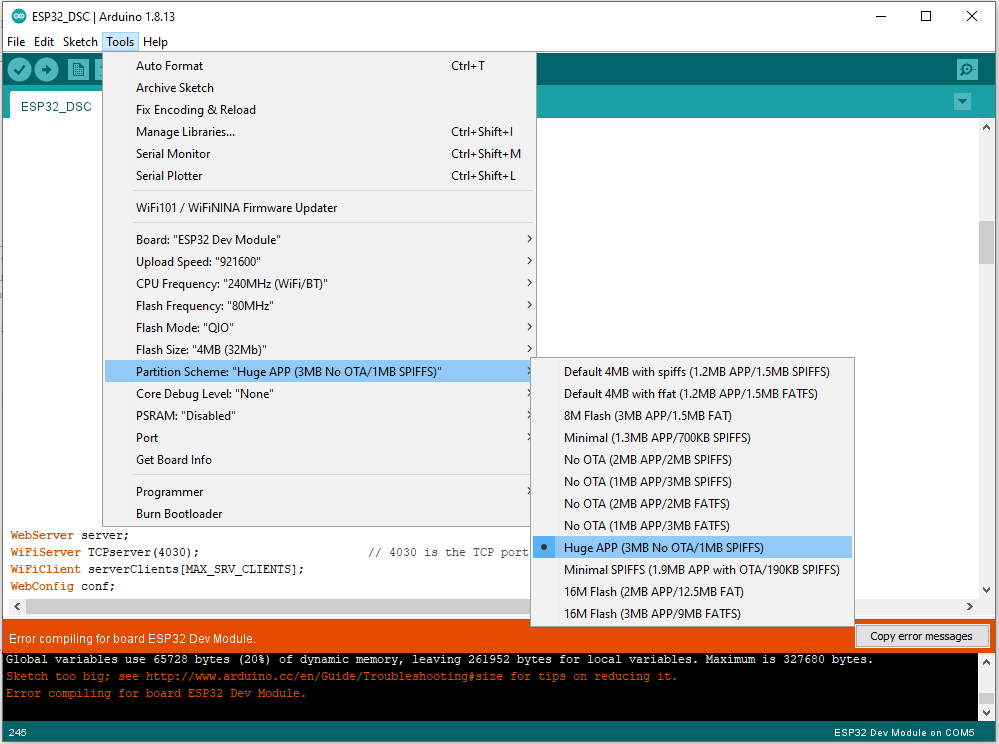
82 |
83 | **Note:** Part of the reason why I recommended you to select the "ESP32 Dev Module" in a previous step was that a few other boards don't allow you to change partition scheme (for example the NodeMCU32-S does not allow it). If you decide to use a different board such as WROOM or a Wemos D1 ESP32, etc, look for Partition Scheme settings called "Huge App" or similar.
84 |
85 | ### 9. Connect the Microcontroller
86 |
87 | Now it's time to tell your IDE how to communicate with your microcontroller device. Plug your USB cable to your ESP32 microcontroller, and plug the other end to your computer.
88 |
89 | Under normal circumstances, the needed drivers should already be bundled with your operating system and automatically installed upon connecting the ESP board to the PC. If you are using an old OS, or run into problems, check the guide from Espressiff (the ESP manufacturer) which contains links for drivers:
90 |
91 | https://docs.espressif.com/projects/esp-idf/en/latest/esp32/get-started/establish-serial-connection.html
92 |
93 | ### 10. Identify COM Port
94 |
95 | Once the USB driver for the microcontroller ins properly installed, it's time to check that you can
96 | connect to it properly.
97 |
98 | In the Arduino IDE top menu, select "Tools" -> "Port: XX"
99 |
100 | You will see a list of serial ports (COM1, COM5, etc). You are supposed to choose the one that was assigned to your ESP32 microcontroller:
101 |
102 | 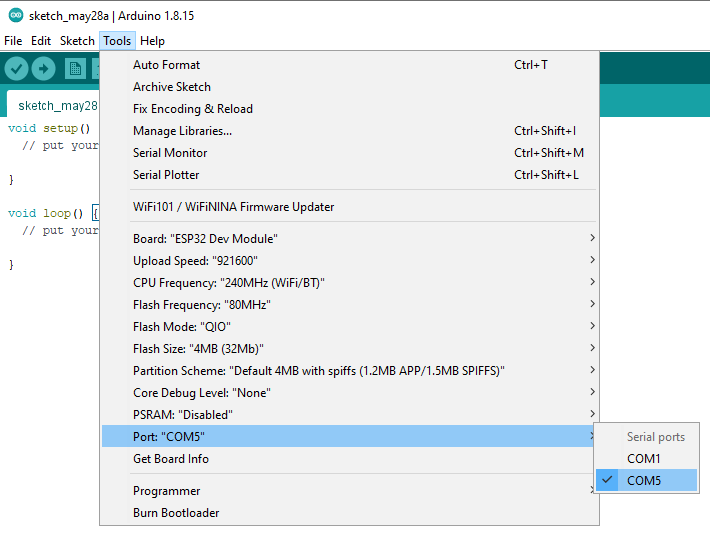
103 |
104 | **¿How do I know which COM port is the one assigned to my USB-connected microcontroller?**
105 |
106 | A simple way is: While the USB cable is still connected, take note of all the names on the ports list. Then click with your mouse somewhere else on the IDE so that the menu (and the list of com ports) is no longer visible. Then Unplug the USB cable. Then select "Tools" -> "Port: XX" again to view the list. Whichever name dissappeared from the list after unplugging the USB cable, that's the COM port that corresponds to your ESP32 microcontroller.
107 |
108 | ### 11. Validate USB Connection
109 |
110 | Make sure your USB cable is plugged to both your ESP32 microcontroller and your computer.
111 |
112 | Then in the Arduino IDE top menu, select "Tools" -> "Get Board Info"
113 |
114 | You should see a small pop-up window that contains either the serial number of your microcontroller board, or the message *"SN: upload any sketch to obtain it"*:
115 |
116 | 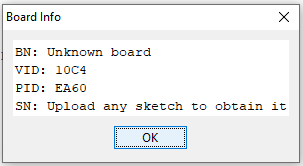
117 |
118 | If you get a similar message to this, all is OK. If you get a small message on the green bar saying "can't obtain info", try with a different COM port.
119 |
120 | ### 12. Creating a Test Sketch
121 |
122 | Now we will use a very simple program ("sketch" in Arduino parlance) to verify that things are working properly.
123 |
124 | In the Arduino IDE, select "File" - > "New"
125 |
126 | In the new IDE window, paste the following sketch:
127 |
128 | ``` C
129 | /** Simple Echo sketch to validate serial communication */
130 | # define BUFFER_SIZE 80
131 | char buf[BUFFER_SIZE];
132 |
133 | int readLineFromSerial(char *buffer)
134 | {
135 | static int pos = 0;
136 | int rpos;
137 | int character = Serial.read();
138 |
139 | if (character > 0) {
140 | switch (character) {
141 | case '\r':
142 | break;
143 | case '\n':
144 | rpos = pos;
145 | pos = 0;
146 | return rpos;
147 | default:
148 | if (pos < BUFFER_SIZE - 1) {
149 | buffer[pos++] = character;
150 | buffer[pos] = 0;
151 | }
152 | }
153 | }
154 | return 0;
155 | }
156 |
157 | void setup() {
158 | Serial.begin(115200);
159 | Serial.println("Waiting for user message");
160 | }
161 |
162 | void loop()
163 | {
164 | if (readLineFromSerial(buf) > 0)
165 | {
166 | Serial.print("Recieved: ");
167 | Serial.println(buf);
168 | Serial.println("\nWaiting for user message");
169 | }
170 | }
171 | ```
172 |
173 |
174 | Now select "File" -> "Save" and proceed to save the sketch somewhere in your computer.
175 |
176 | ### 13. Uploading the Sketch
177 |
178 | Next step is to "upload" the sketch to the ESP32 microcontroller via the USB vable. To do this, you can either select "Sketch" -> "Upload" or click on the round icon with an arrow pointing right:
179 |
180 | 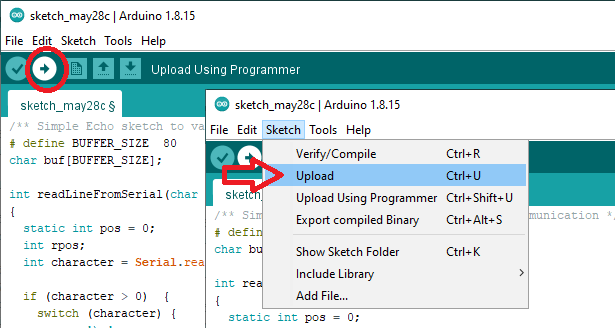
181 |
182 | When you do this, the bottom part of the IDE (black background with orange text) will show a lot of messages from the compiling and uploading process. For this screenshot I enlarged the messages section, but it's normally just 3 lines tall:
183 |
184 | 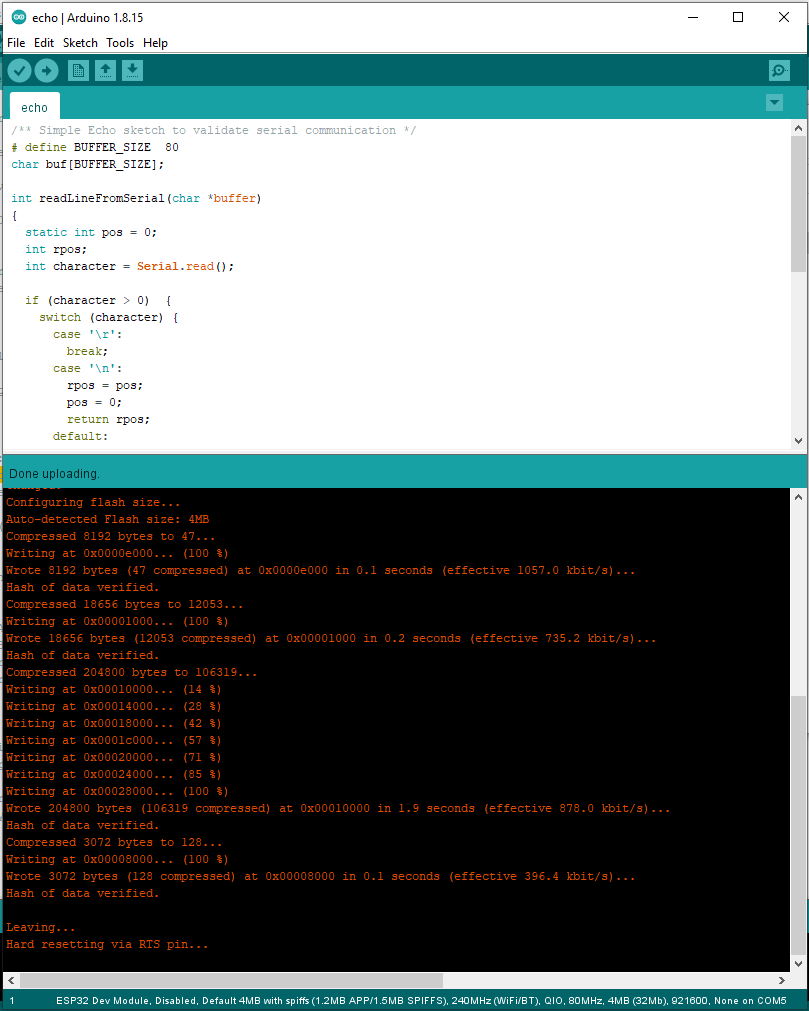
185 |
186 | If instead of the above messages you see the message: *"Connecting.....------...."* followed by **"Failed to connect to ESP32: Timed out waiting for packet header"**, this is solved by trying again (click "Sketch" -> "Upload") and as soon as you see the *"Connecting..."* message, hold down the physical button labeled "BOOT/FLASH" on the ESP32 board for a few seconds.
187 |
188 | The indicator that the upload has completed successfully, is that the little green bar will contain the message "Done uploading." as seen on the above screenshot.
189 |
190 | If you get this message then all is well: the program has been compiled and uploaded to your ESP microcontroller. In fact, it's proably already being executed in the device.
191 |
192 |
193 | ### 14. Validating the ESP32 microcontroller works
194 |
195 | What the sketch you uploaded does, is recieve messages and respond with an echo. This will enable us to validate that the hardware is properly working, including the ESP32 microcontroller itself, and the USB connection to it.
196 |
197 | To test this, select "Tools" -> Serial Monitor".
198 |
199 | A small window shows up. At the bottom-right of the window, there is a combo-box. Use it to select "115200" which is the communication speed out test sketch expects to use:
200 |
201 | 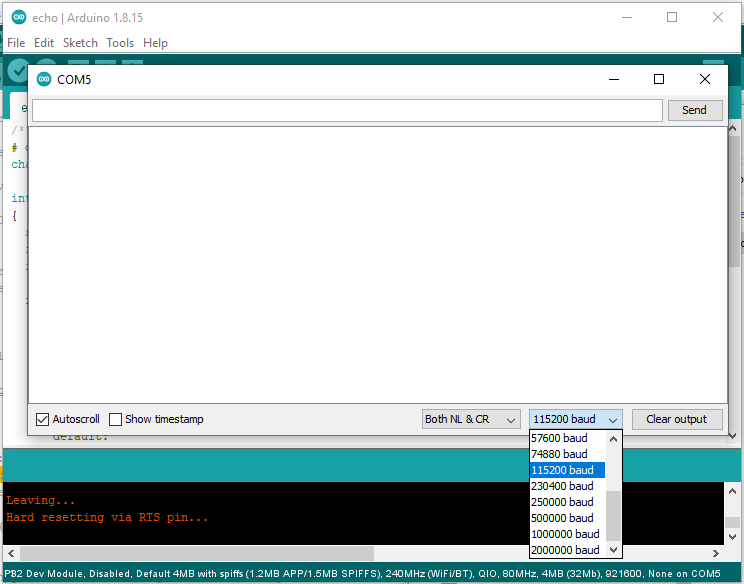
202 |
203 | Now in the top of the serial monitor window, there's a text box. Type something into it (for example "Hello") and click the "Send" button.
204 |
205 | You should see a reply from the microcontroller containing whatever text you sent, like this:
206 |
207 | 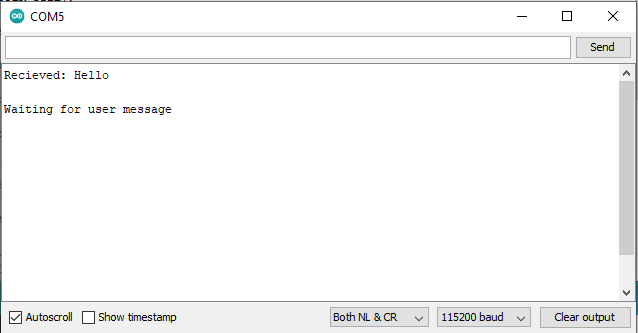
208 |
209 | You can type and send more messages, and the ESP32 should reply. This is evidence that the ESP32 board and the USB connection are working properly.
210 |
211 | And that's it! If you got this far and things worked as described in the steps, then you've successfully set up your computer to program an ESP32 microcontroller, and you're ready for the [next guide](https://github.com/vlaate/DobsonianDSC/blob/master/docs/UploadConfigure.md).
212 |
--------------------------------------------------------------------------------
/docs/ArduinoIDE.es.md:
--------------------------------------------------------------------------------
1 | # Guía de Arduino para Principiantes
2 | [[English]](https://github.com/vlaate/DobsonianDSC/blob/master/docs/ArduinoIDE.md)
3 | [[Español]](https://github.com/vlaate/DobsonianDSC/blob/master/docs/ArduinoIDE.es.md)
4 |
5 |
6 | El propósito de esta guía es ayudar a astrónomos aficionados que quieran construir el [proyecto de Apuntador Digital para Telescopio](https://github.com/vlaate/DobsonianDSC), pero que nunca hayan tenido experiencia previa con Arduino ni microcontroladores.
7 |
8 | Como tal, ésta guía es para novatos y ofrece instrucciones paso a paso desde cómo instalar y configurar el IDE de Arduino en su computadora, hasta cómo conectar su microcontrolador, cargarle un programa y verificar que funcione correctamente.
9 |
10 | ### 1. Descargar el Entorno de Desarrollo Arduino
11 |
12 | Visite https://www.arduino.cc/en/software y descargue el software de desarrollo (IDE) Arduino para su sistema operativo. A la fecha (2021) recomiendo usar la versión 1.8.15 or superior.
13 |
14 | ### 2. Instalar Arduino
15 |
16 | Ejecute el instalador que ha descargado, asegúrese de que todos los componentes de Arduino estén seleccionados para ser instalados (incluso el "USB driver") y espere a que se complete la instalación:
17 |
18 | 
19 |
20 | ### 3. Abrir el IDE Arduino
21 |
22 | Ahora que ya tiene instalado el Entorno de Desarrollo Arduino (Arduino IDE) podrá encontrar un nuevo ícono de Arduino en su computador. Úselo para ejecutar el IDE Arduino.
23 |
24 | 
25 |
26 | Éste es el software que utilizará para compilar programas tipo Arduino y cargarlos (vía USB) a su microcontrolador ESP32.
27 |
28 | ### 4. Agregar URLs de Placas
29 |
30 | Para que el IDE Arduino pueda funcionar con microcontroladores ESP32 y similares, necesita primero descargar su “manejador de placas” (board manager).
31 |
32 | Para hacer esto, en el menú principal del IDE Arduino seleccione "File" -> "Preferences":
33 |
34 | 
35 |
36 | En la ventana emergente hay una configuración llamada “Additional Boards Manager URLs".
37 |
38 | Copie y pegue el siguiente valor en esa opción:
39 |
40 |
41 | ```
42 | https://dl.espressif.com/dl/package_esp32_index.json, http://arduino.esp8266.com/stable/package_esp8266com_index.json
43 | ```
44 |
45 | ### 5. Instalar Manejadores de Placas
46 |
47 | Haga click en "OK" para cerrar la ventana de preferencias, y de regreso en el menú principal de Arduino, seleccione "Tools" -> "Board: XXX" -> "Boards Manager"
48 |
49 | Aparecerá la ventana emergente del manejador de placas. El campo de texto es un campo de búsqueda, escriba "ESP32" en ese campo y espere a que la lista de placas se actualice. Cuando aparezca una placa llamada *"esp32 by Espressif Systems"*, haga click en el botón "Install" a su derecha:
50 |
51 | 
52 |
53 | Una vez termina de instalar, haga click en el botón "Close".
54 |
55 | ### 6. Instalar Librerías
56 |
57 | El proyecto de Apuntador Digital para Telescopio (ADT) necesita un par de librerías de código abierto. Para instalarlas, haga lo siguiente:
58 |
59 | En el menú principal, seleccione "Tools" -> "Manage Libraries"
60 |
61 | Aparecerá la ventana del manejador de librerías. El campo de texto es para hacer búsquedas, escriba "ESP32Encoder" allí y espere a que la lista de librerías se actualice. Cuando aparezca una librería llamada *"ESP32Encoder by Kevin Harrington"* haga click en su botón "Install".
62 |
63 | 
64 |
65 | Una vez la librería ESP32Encoder esté instalada, cambie el texto de búsqueda por "ArduinoJson" y espere a que aparezca una librería llamada *"ArduinoJson by Benoit Blanchon"* y haga click en su botón “Install” para instalarla de la misma manera que la anterior. Una vez haya finalizado instalando ambas librerías, cierre la ventana del manejador de librerías.
66 |
67 | ### 7. Seleccionar Placa
68 |
69 | Ahora que su IDE Arduino está lista para compilar programas para la familia de microcontroladores ESP32, es hora de configurarla para el microcontrolador específico que vamos a usar para el proyecto.
70 |
71 | En el menú principal del IDE, seleccione "Tools" -> "Board: XXX" -> "ESP32 Arduino"
72 |
73 | Aparecerá una lista larga de placas ESP32 boards soportadas por el entorno de desarrollo. Se recomienda elegir "ESP32 Dev Module".
74 |
75 | 
76 |
77 | ### 8. Configurar el Particionamiento de Memoria
78 |
79 | El proyecto de Apuntador Digital para Telescopio ocupa bastante memoria (principalmente debido a que las librerías Bluetooth son muy grandes).
80 | Para evitar que le aparezca un error de compilación diciendo *"Sketch too big"*, es necesario asignar una porción mayor de la memoria del microcontrolador a la aplicación.
81 |
82 | Para ello, seleccione en el menú principal del IDE la opción "Tools" -> "Partition Scheme: XX" -> *"Huge App 3MB no OTA/1MB SPIFFS"*. Con ésto se evita que al compilar se aparezca el siguiente error (ver texto en naranja):
83 |
84 | 
85 |
86 | **Nota:** Parte de la razón por la cual recomiendo seleccionar la placa "ESP32 Dev Module" en un paso anterior, es porque otras placas no permiten cambiar el particionamiento de memoria (por ejemplo la placa NodeMCU32-S no lo permite). Si usted decide usar una placa distinta como la Wemos D1 ESP32 o similar, busque opciones de particionamiento con un nombre parecido a "Huge App".
87 |
88 | ### 9. Conectar el Microcontrolador
89 |
90 | Ahora es necesario enseñarle al IDE Arduino cómo comunicarse con su microcontrolador. Conecte un extremo del cable USB a su to microcontrolador ESP32, y el otro extremo a su computador.
91 |
92 | En circunstancias normales, los drivers necesarios ya deberían venir con su sistema operativo e instalarse automáticamente con sólo conectar el ESP32 vía USB al computador. Si su computador tiene un sistema operativo antiguo, revise la guía de Espressiff (el fabricante del ESP32) la cual contiene enlaces a diferentes drivers:
93 |
94 | https://docs.espressif.com/projects/esp-idf/en/latest/esp32/get-started/establish-serial-connection.html
95 |
96 | ### 10. Identificar el Puerto Serial COM
97 |
98 | Una vez el driver USB para el microcontrolador esté instalado, es hora de verificar que el IDE se pueda conectar correctamente al dispositivo.
99 |
100 | En el menú principal del IDE, seleccione "Tools" -> "Port: XX"
101 |
102 | Verá que aparece una lista de puertos seriales (ejemplo: COM1, COM5, etc). Se supone que usted debe elegir el puerto serial COM que su computador le asignó al microcontrolador ESP32:
103 |
104 | 
105 |
106 | **¿Cómo averiguo cual de los puertos COM de la lista es el que está asignado al microcontrolador que está conectado por USB??**
107 |
108 | Una forma sencilla de averiguarlo es: Mientras el cable USB todavía está conectado, tome nota de todos los nombres en la lista de puertos COM. Entonces haga click con el ratón en algún otro lugar del IDE para que el menú (y la lista de puertos COM) se oculte. Entonces desconecte el cable USB, y vuelva a seleccionar "Tools" -> "Port: XX" en el menú, para volver a ver la lista de puertos COM. El nombre que haya desaparecido de la lista después de desconectar el cable USB, ese es el puerto serial COM que corresponde a su microcontrolador ESP32.
109 |
110 | ### 11. Valide la conexión USB
111 |
112 | Asegúrese de que el cable USB cable está conectado tanto al ESP32 como al computador.
113 |
114 | Entonces, en el menú principal del IDE Arduino, seleccione "Tools" -> "Get Board Info".
115 |
116 | Debería ver aparecer una pequeña ventana emergente que contiene el número serial del microcontrolador ó el mensaje *"SN: upload any sketch to obtain it"*:
117 |
118 | 
119 |
120 | Si usted obtiene un mensaje similar a éste, significa que todo está bien. Si usted obtiene un pequeño mensaje en la barra verde del IDE Arduino diciendo "can't obtain info", intente con un puerto serial COM diferente.
121 |
122 | ### 12. Creando un programa de prueba
123 |
124 | Ahora vamos a usar un programa sencillo para verificar que el microcontrolador esté funcionando correctamente.
125 |
126 | En el IDE Arduino, seleccione "File" - > "New"
127 |
128 | En la nueva ventana del IDE que aparece, copie y pegue el siguiente contenido:
129 |
130 | ``` C
131 | /** Programa Eco sencillo para validar enlace serial */
132 | # define BUFFER_SIZE 80
133 | char buf[BUFFER_SIZE];
134 |
135 | int readLineFromSerial(char *buffer)
136 | {
137 | static int pos = 0;
138 | int rpos;
139 | int character = Serial.read();
140 |
141 | if (character > 0) {
142 | switch (character) {
143 | case '\r':
144 | break;
145 | case '\n':
146 | rpos = pos;
147 | pos = 0;
148 | return rpos;
149 | default:
150 | if (pos < BUFFER_SIZE - 1) {
151 | buffer[pos++] = character;
152 | buffer[pos] = 0;
153 | }
154 | }
155 | }
156 | return 0;
157 | }
158 |
159 | void setup() {
160 | Serial.begin(115200);
161 | Serial.println("Esperando mensaje");
162 | }
163 |
164 | void loop()
165 | {
166 | if (readLineFromSerial(buf) > 0)
167 | {
168 | Serial.print("Recibido: ");
169 | Serial.println(buf);
170 | Serial.println("\nEsperando Mensaje");
171 | }
172 | }
173 | ```
174 |
175 |
176 | Ahora seleccione en el menú la opción "File" -> "Save" y proceda a grabar el programa en algún lugar de su computador.
177 |
178 | ### 13. Cargando el Programa
179 |
180 | El siguiente paso es “cargar” el programa al microcontrolador ESP32 usando el cable USB. Para hacer ésto, usted puede seleccionar en el menú "Sketch" -> "Upload" ó hacer click en el ícono redondo que tiene una flecha apuntando a la derecha:
181 |
182 | 
183 |
184 | Al hacer ésto, la parte de abajo del IDE (fondo negro con texto naranja) empezará a mostrar una gran cantidad de mensajes mientras se compila y se carga el programa. Para ésta foto agrandé la sección de mensajes del IDE:
185 |
186 | 
187 |
188 | Si en lugar de los mensajes anteriores, el mensaje que le aparece dice: *"Connecting.....------...."* seguido de **"Failed to connect to ESP32: Timed out waiting for packet header"**, ésto se resuelve intentando de nuevo (haga click en "Sketch" -> "Upload") y tan pronto aparezca el mensaje que dice **"Connecting..."** presiona el botón físico del ESP32 que está marcado como "BOOT" y manténgalo presionado durante varios segundos.
189 |
190 | La señal de que la carga ha sido exitosa es que en la barra verde del IDE aparece el mensaje "Done uploading." como se ve en la foto de arriba.
191 |
192 | Si usted obtiene ese mensaje significa que todo funcionó y que el programa quedó compilado y cargado en el microcontrolador. De hecho, probablemente ya se está ejecutando en el pequeño dispositivo.
193 |
194 | ### 14. Validando que el microcontrolador ESP32 funcione
195 |
196 | Lo que hace el programa ejemplo que hemos cargado al ESP32 es recibir mensajes y responder con un “eco”. Ésto nos permitirá validar que el hardware esté funcionando correctamente, incluyendo la conexión serial vía USB.
197 |
198 | Para validarlo, seleccione en el menú "Tools" -> Serial Monitor".
199 |
200 | Aparecerá una pequeña ventana, que en su parte inferior derecha tiene un combo de selección. Úselo para seleccionar "115200" que es la velocidad de comunicación que el programa de prueba espera usar:
201 |
202 | 
203 |
204 | Ahora, puede ver que en la parte superior de la ventana hay un campo de texto. Escriba algo allí (cualquier cosa, por ejemplo “Hola”) y haga click en el botón "Send".
205 |
206 | Debería ver una respuesta del microcontrolador, que contiene el mismo texto que usted le envió, por ejemplo:
207 |
208 | 
209 |
210 | Usted puede escribir y enviar más mensajes, y el ESP32 debería responder. Esto es evidencia de que el programa quedó correctamente cargado en la placa ESP32 y de que la conexión serial vía USB funciona correctamente.
211 |
212 | Y eso es todo! Si llegó hasta éste punto y todo funcionó como se describe en ésta guía, entonces su computador ya está listo para programar microcontroladores ESP32 y usted está listo para la [siguiente guía](https://github.com/vlaate/DobsonianDSC/blob/master/docs/UploadConfigure.md).
213 |
214 |
--------------------------------------------------------------------------------
/AccelDSC/AccelDSC.ino:
--------------------------------------------------------------------------------
1 | /*
2 | Digital Setting Circles for Dobsonian Telescopes -Accelerometer version-
3 | For dual encoder version check https://github.com/vlaate/DobsonianDSC
4 |
5 | This is a simple adapter to connect an inexpensive incremental optical encoder
6 | and an accelerometer+compass (LSM303DLHC) via WiFi to the SkySafari Android/iOS app,
7 | in order to provide "Push To" style features to dobsonian style telescope mounts
8 | including tabletops.
9 |
10 | Copyright (c) 2017 Vladimir Atehortua. All rights reserved.
11 | This program is free software: you can redistribute it and/or modify
12 | it under the terms of the version 3 GNU General Public License as
13 | published by the Free Software Foundation.
14 | This program is distributed in the hope that it will be useful,
15 | but WITHOUT ANY WARRANTY; without even the implied warranty of
16 | MERCHANTABILITY or FITNESS FOR A PARTICULAR PURPOSE. See the
17 | GNU General Public License for more details.
18 | You should have received a copy of the GNU General Public License along with this program.
19 | If not, see
20 | */
21 |
22 | /**
23 | Hardware used:
24 | NodeMCU ESP8266 development board (version 12E) I used the HiLetgo model https://www.amazon.com/gp/product/B010O1G1ES
25 | LSM303DLHC sensor module, I used this one: https://www.aliexpress.com/item/1956617486.html
26 | ESP8266 pinout:
27 | SDA = GPIO2 = PIN_D4 (use 3.3K pullup to 3V3)
28 | SCL = GPIO0 = PIN_D3 (use 3.3K pullup to 3V3)
29 | Encoder_A = GPIO4 = PIN_D2
30 | Encoder_B = GPIO5 = PIN_D1
31 | VIN = Encoder VCC = 5V power source
32 | LSM303 pinout:
33 | SDA, SCL and GND: matching the ESP8266
34 | VCC = 3V3 pin on the ESP8266
35 | The sensor is meant to be placed sideways (with the Z axis horizontal, on the left side of the telescope OTA)
36 | */
37 |
38 | #include // Install this on Arduino IDE: "Encoder Library by Paul Stoffregen" (I used version 1.4.1), https://www.pjrc.com/teensy/td_libs_Encoder.html
39 | #include // built in library from Arduino IDE
40 | #include // Install this on Arudino IDE: "LSM303 Library by Pololu" (I used version 3.0.1), https://github.com/pololu/lsm303-arduino
41 | #include // built in library from Arduino IDE
42 | #define RADIAN_TO_STEPS 1623.3804f // ratio to convert from radians to encoder steps, using a "full circle" of 10200 steps as the Skysafari setting for basic encoder
43 | #define STEPS_IN_FULL_CIRCLE 10200 // number of steps in a full circle, should match the skysafari setting for basic encoder
44 | #define EMA_WEIGHT 0.05f // weight coefficient for new values vs old values used in the exponential moving average smoothing algorithm
45 |
46 | // To give sufficient CPU time to the TCP Server, a time delta between measurements is enforced:
47 | #define MEASUREMENT_PERIOD 50 // how many milliseconds must have elapsed since last measurement in order to take a new one
48 |
49 | long last_measurement = 0; // millisecond timestamp of last measurement, to measure only every XXX milliseconds
50 |
51 | WiFiServer server(4030); // 4030 is the default port Skysafari uses for WiFi connection to telescopes
52 | WiFiClient remoteClient; // represents the connection to the remote app (Skysafari)
53 | #define WiFi_Access_Point_Name "TelescopeDSC" // Name of the WiFi access point this device will create for your tablet/phone to connect to.
54 |
55 | long oldPosition = -999;
56 |
57 | /** Extends the Pololu LSM303 driver class, to add calibration of accelerometer data, and provide both altitude and azimuth readings after smoothing and in optical encoder style.
58 | */
59 | class IMU : public LSM303
60 | {
61 | // Calibration of accelerometer: These are the minimum and maximum values measured for X, Y and Z:
62 | LSM303::vector acc_min = (LSM303::vector) {-16649, -16448, -16654};
63 | LSM303::vector acc_max = (LSM303::vector) {+16108, +16568, +15599};
64 |
65 | // measurements are stored here after calling calculatePosition();
66 | public : float azimuthReading; // multiply this by 180 / PI to get degrees
67 | public : float altitudeReading; // multiply this by 180 / PI to get degrees
68 |
69 | public : float smoothAzimuthReading; // value is already converted from radians to steps, and smoothing alorithm applied
70 | public : float smoothAltitudeReading; // value is already converted from radians to steps, and smoothing alorithm applied
71 |
72 | vector East = {0, 0, 0};
73 |
74 | public : void calculatePosition()
75 | {
76 | vector zAxis = (vector) {0, 0, 1}; // the heading will be measured relative to Z axis, make sure to place your sensor in a vertical position (Z axis pointing to the horizon)
77 |
78 | // get raw accelerometer data:
79 | vector acc_reading = {a.x, a.y, a.z};
80 |
81 | // calibrate accelerometer bias and scale using measured maximums and minimums, and apply smoothing algorithm to reduce outlier values:
82 | acc_reading.x = acc_reading.x * (1 - EMA_WEIGHT) + EMA_WEIGHT * (32767.0 * ((float)a.x - (float)acc_min.x) / ((float)acc_max.x - (float)acc_min.x) - 16383.5);
83 | acc_reading.y = acc_reading.y * (1 - EMA_WEIGHT) + EMA_WEIGHT * (32767.0 * ((float)a.y - (float)acc_min.y) / ((float)acc_max.y - (float)acc_min.y) - 16383.5);
84 | acc_reading.z = acc_reading.z * (1 - EMA_WEIGHT) + EMA_WEIGHT * (32767.0 * ((float)a.z - (float)acc_min.z) / ((float)acc_max.z - (float)acc_min.z) - 16383.5);
85 |
86 | // calculate the altitude as an angle from 0º to 90º, see equation #26 from https://cache.freescale.com/files/sensors/doc/app_note/AN3461.pdf
87 | altitudeReading = -1 * atan2(acc_reading.y, sqrt(acc_reading.x * acc_reading.x + acc_reading.z * acc_reading.z));
88 |
89 | // now adapt the 0º to 90º reading to the 0º to 360º style encoder output expected by Skysafari:
90 | if (acc_reading.x > 0 && acc_reading.y < 0)
91 | {
92 | // first quadrant
93 | }
94 | else if (acc_reading.x < 0 && acc_reading.y < 0)
95 | {
96 | // second quadrant
97 | altitudeReading = PI - altitudeReading;
98 | }
99 | else if (acc_reading.x < 0 && acc_reading.y > 0)
100 | {
101 | // third quadrant
102 | altitudeReading = PI - altitudeReading;
103 | }
104 | else if (acc_reading.x > 0 && acc_reading.y > 0)
105 | {
106 | altitudeReading = 2 * PI + altitudeReading;
107 | // 4th quadrant
108 | }
109 |
110 | float newAltitudeReading = altitudeReading * RADIAN_TO_STEPS;
111 |
112 | /* Final smoothing algotithm: */
113 | // When the new readings are less than 0.5 degrees off from the old readings, use 0.05 * EMA_WEIGHT as the alpha, for a highly smoothed result
114 | if (abs(newAltitudeReading - smoothAltitudeReading) < STEPS_IN_FULL_CIRCLE / 720)
115 | {
116 | smoothAltitudeReading = newAltitudeReading * EMA_WEIGHT * 0.05 + ((1 - EMA_WEIGHT * 0.05) * smoothAltitudeReading);
117 | }
118 | else // When the new readings are more than 0.5 degrees off from the old readings, the regular EMA_WEIGHT as the alpha, fast, responsive user experience
119 | {
120 | smoothAltitudeReading = newAltitudeReading * EMA_WEIGHT + ((1 - EMA_WEIGHT) * smoothAltitudeReading);
121 | }
122 |
123 | // if values exceed the encoder scale, fix them (for example: 32002 becomes 00002)
124 | if (smoothAzimuthReading > STEPS_IN_FULL_CIRCLE)
125 | {
126 | smoothAzimuthReading -= STEPS_IN_FULL_CIRCLE;
127 | }
128 | if (smoothAltitudeReading > STEPS_IN_FULL_CIRCLE)
129 | {
130 | smoothAltitudeReading -= STEPS_IN_FULL_CIRCLE;
131 | }
132 | }
133 | };
134 |
135 | IMU imu;
136 | Encoder myEnc(4, 5);
137 |
138 | void setup()
139 | {
140 | Serial.begin(57600);
141 | Serial.println("\nESP266 boot");
142 |
143 | Wire.begin(2, 0); // connect D3(GPIO_0) to sensor's SCL, connect D4(GPIO_2) to sensor's SDA
144 | // i2cscan(); // uncomment this if you are having I2C problems (quality of solder contacts, lack of pull-up resistors)
145 |
146 | WiFi.mode(WIFI_AP);
147 | IPAddress ip(1, 2, 3, 4); // The "telescope IP address" that Skysafari should connect to is 1.2.3.4 which is easy to remember.
148 | IPAddress gateway(1, 2, 3, 1);
149 | IPAddress subnet(255, 255, 255, 0);
150 | WiFi.softAPConfig(ip, gateway, subnet);
151 | WiFi.softAP(WiFi_Access_Point_Name);
152 |
153 | IPAddress myIP = WiFi.softAPIP();
154 |
155 | // Apply compass calibration values:
156 | imu.m_min = (LSM303::vector) {-336, -368, -239};
157 | imu.m_max = (LSM303::vector) {+363, +316, +367};
158 | imu.init();
159 | imu.enableDefault();
160 |
161 | Serial.println("IMU ok!");
162 | // tcp listener to receive incoming connections from Skysafari:
163 | server.begin();
164 | server.setNoDelay(true);
165 | i2cscan();
166 | }
167 |
168 | long before, after;
169 | void loop()
170 | {
171 | #ifdef TIMEPROFILE
172 | after = millis();
173 | if (after - before > 0)
174 | {
175 | Serial.print("TIME: ");
176 | Serial.println((after - before));
177 | }
178 | #endif
179 | attendTcpRequests(); // gets priority to prevent timeouts on Skysafari. Measured AVG execution time = 18ms
180 | yield();
181 |
182 | if (millis() - last_measurement > MEASUREMENT_PERIOD) // only take new measurements if enough time has elapsed.
183 | {
184 | // Serial.println("reading IMU");
185 | imu.read();
186 | // Serial.println("IMU read");
187 | imu.calculatePosition();
188 | last_measurement = millis();
189 | }
190 |
191 | #ifdef TIMEPROFILE
192 | before = millis();
193 | #endif
194 | yield(); // altough ESP8266 is supposed to do its work background TCP/wiFi after each loop, yieldig here can't hurt
195 | }
196 |
197 | void readEncoder()
198 | {
199 | long newPosition = myEnc.read();
200 | if (newPosition != oldPosition)
201 | {
202 | oldPosition = newPosition;
203 | Serial.println(newPosition);
204 | }
205 | }
206 |
207 | void attendTcpRequests()
208 | {
209 | // check for new or lost connections:
210 | if (server.hasClient())
211 | {
212 | Serial.println("hasClient!");
213 | if (!remoteClient || !remoteClient.connected())
214 | {
215 | if (remoteClient)
216 | {
217 | Serial.print("Client Disconnected\n");
218 | remoteClient.stop();
219 | }
220 | remoteClient = server.available();
221 | //Serial.print("Inbound connection from: ");
222 | //Serial.println(remoteClient.remoteIP());
223 | // remoteClient.flush();
224 | remoteClient.setNoDelay(true);
225 | }
226 | }
227 |
228 | // when we have a new incoming connection from Skysafari:
229 | while (remoteClient.available())
230 | {
231 | byte skySafariCommand = remoteClient.read();
232 |
233 | if (skySafariCommand == 81) // 81 is ascii for Q, which is the only command skysafari sends to "basic encoders"
234 | {
235 | char encoderResponse[20];
236 | //int iAzimuthReading = imu.smoothAzimuthReading;
237 | long iAzimuthReading = myEnc.read();
238 | int iAltitudeReading = imu.smoothAltitudeReading;
239 | sprintf(encoderResponse, "%i\t%i\t\n", iAzimuthReading, iAltitudeReading);
240 | // Serial.println(encoderResponse);
241 |
242 | remoteClient.println(encoderResponse);
243 | }
244 | else if (skySafariCommand == 72) // 'H' - request for encoder resolution, e.g. 10000-10000\n
245 | {
246 | char response[20];
247 | // Resolution on both axis is equal
248 | snprintf(response, 20, "%u-%u", STEPS_IN_FULL_CIRCLE, STEPS_IN_FULL_CIRCLE);
249 | // Serial.println(response);
250 |
251 | remoteClient.println(response);
252 | }
253 | else
254 | {
255 | Serial.print("*****");
256 | Serial.println(skySafariCommand);
257 | }
258 | }
259 | }
260 |
261 |
262 | void i2cscan()
263 | {
264 | byte error, address;
265 | int nDevices;
266 |
267 | Serial.println("Scanning for I2C devices");
268 |
269 | nDevices = 0;
270 | for (address = 1; address < 127; address++ )
271 | {
272 | digitalWrite(1, LOW);
273 | // The i2c_scanner uses the return value of the Write.endTransmisstion to see if a device did acknowledge to the address.
274 | Wire.beginTransmission(address);
275 | error = Wire.endTransmission();
276 |
277 | if (error == 0)
278 | {
279 | digitalWrite(1, HIGH);
280 | Serial.print("I2C device found at address 0x");
281 | if (address < 16) { Serial.print("0"); }
282 | Serial.print(address, HEX);
283 | Serial.println(" !");
284 |
285 | delay(5000);
286 |
287 | nDevices++;
288 | }
289 | else if (error == 4)
290 | {
291 | Serial.print("Unknown error at address 0x");
292 | if (address < 16) {Serial.print("0");}
293 | Serial.println(address, HEX);
294 | }
295 | }
296 | if (nDevices == 0)
297 | {
298 | Serial.println("No I2C devices found\n");
299 | delay(1000);
300 | }
301 | else
302 | Serial.println("done");
303 | }
304 |
--------------------------------------------------------------------------------
/docs/UploadConfigure.md:
--------------------------------------------------------------------------------
1 | # Uploading and Configuring the DSC Software
2 |
3 | This guide will show you how to upload the DSC software to an ESP-32 microcontroller, and how to configure it for use.
4 |
5 | It is recommended that you complete reading the [Arduino IDE Beginners Guide](https://github.com/vlaate/DobsonianDSC/blob/master/docs/ArduinoIDE.md) to properly setup your develompent environment before following this guide.
6 |
7 | ## Downloading the DSC code
8 |
9 | Once you have set up your computer with the Arduino IDE+board managers+libraries, use that computer's web browser to open the project GitHub page: [https://github.com/vlaate/DobsonianDSC](https://github.com/vlaate/DobsonianDSC)
10 |
11 | In the web page you'll see a green button called "Code". If you click on it, you will see a menu with an option called "Download ZIP". Click on it!
12 |
13 | 
14 |
15 | Your computer will download a compressed file called "DobsonianDSC-master.zip". You need to extract the contents of this file to somewhere you want in your computer. On windows this can be easily done by right-clicking the file and selecting "Extract All".
16 |
17 | After doing this, you should see a folder called "DobsonianDSC-master" in the location you chose to expand the zip file's contents.
18 |
19 | In the extracted contents, locate the following file:
20 |
21 | ```
22 | DobsonianDSC-master\DobsonianDSC\DobsonianDSC.ino
23 | ```
24 |
25 | Double click on the file to open it. The Arduino IDE should launch, making the contents of the file visible.
26 |
27 | Plug your USB cable to your ESP32 microcontroller, and plug the other end to your computer. Make sure that your Arduino IDE is still properly configured, as was indicated in the [Arduino IDE Guide](https://github.com/vlaate/DobsonianDSC/blob/master/docs/ArduinoIDE.md#9-connect-the-microcontroller).
28 |
29 | Follow the steps indicated in [step 13 of the Arduino guide](https://github.com/vlaate/DobsonianDSC/blob/master/docs/ArduinoIDE.md#13-uploading-the-sketch) to upload the code to the ESP32 board. It will take a while.
30 |
31 |
32 | To validate that the upload was correct, you need to use a WiFi device (laptop, tablet or smartphone) to check the list of WiFi networks around you.
33 |
34 | On the list you should see a new network called "Telescope_DSC". Connect to it.
35 |
36 | Because this is the internal WiFi network of your DSC, it does not have a true connection to the internet. Be aware that some tablets and smartphones, after connecting to a WiFi network that lacks internet connection, will emit a warning like this:
37 |
38 | 
39 |
40 | Make sure to check out these notifications and to tell the device to stay connected to this wifi. Otherwise some phones/tablets disconnect automatically after a few seconds.
41 |
42 | Once you have connected to the DSC's internal WiFi, point your web browser to http://192.168.4.1
43 |
44 | You should see the Web Configuration page:
45 |
46 | 
47 |
48 | ## Configuring the DSC
49 |
50 | In order to change the configuration of the DSC, you need to edit the appropriate fields in the web configuration page, and hit the "Save" button which will store them in permanent memory. For any changes to take effect immediately, you need to hit the "Restart" button, which will reboot the ESP-32.
51 |
52 | ### Encoders and Resolutions
53 |
54 | The fields called *"Azimuth Steps"* and *"Altitude Steps"* can be used to let the DSC know the resolution of it's axis (calculated from encoder resolution and gear ratio), so that it can provide such information to apps like [SkySafari](https://skysafariastronomy.com/). This is quite convenient but optional, since you can also manually configure the resolution information directly in the apps.
55 |
56 | **Flip Azimuth**: Sometimes it happens that after building the DSC electronic circuit and installing the encoders in your telescope, you find out that moving the telescope clockwise in azimuth shows up in skysafari as movement in the opposite direction. To reverse the direction of the Azimuth encoder you could swap the connections of the A and B cables from the Azimuth encoder, but to avoid having to make changes to the hardware, you can just check this *"Flip Azimuth"* option to reverse the direction of the Azimuth encoder if you need to.
57 |
58 | **Flip Altitude**: As with altitude, if you happen to need to reverse the direction of the Altitude encoder, instead of swapping it's A and B cables you can just check this option.
59 |
60 | ### Bluetooth
61 |
62 | The field called *"Bluetooth device Name"* lets you select the name your DSC will use when exposing it's bluetooth interface. Bluetooth is a very convenient way of connecting to the DSC, not just because it's wireless but also because it lets your smarphone/tablet stay connected to the internet.
63 |
64 | After you give your DSC a Bluetooth name, click the *"Save"* button, and later the *"Restart"* button. It may take a while, but you should be able to pair your smartphone or tablet device with it.
65 |
66 | **Note for Android users:** One thing that can be confusing about bluetooth on Android is that after pairing a device, a "connect" button might appear in the bluetooth menu but using it does not seem to do anything. It turns out that the Bluetooth connection needs to be requested by an App (such as Skysafari), and just clicking on "connect" will do nothing unless there is an app requesting bluetooth services. So, after pairing the DSC via bluetooth, to test it with an android device you should use Skysafari or a similar app.
67 |
68 | **Note for iOS users:** It is known that SkySafari on many iOS devices cannot connect to serial devices via Bluetooth. For those phones/tablets the only option is to use WiFi.
69 |
70 | ### Configuring an External WiFi
71 |
72 | When connecting to the DSC via WiFi, we often want to keep having access to the internet in the tablet/smartphone used to connect to it. One way to do this is to make your DSC connect to your existing WiFi, which could be your home's network, or a tethering HotSpot that you open with your smartphone when outside.
73 |
74 | If you fill out the fields labeled *"WiFi SSID Name"* and *"WiFi Password"* and click "Save", where's what will happen:
75 |
76 | Any time the DSC turns on, it will check if there's a value stored for those two fields. When there are no stored values (like when the DSC is brand new), it will launch it's own WiFi called "Telescope-DSC" and take the default IP address (192.168.4.1).
77 |
78 | When there are stored values for WiFi name and password, the DSC will attept to connect to it. If it succeeds then all is well: you can connect to the DSC and to the internet using that WiFi network. If it fails to connect (for example: wrong password, or DSC is used on the field, far away from that WiFi network) then it will resort back to launching its own "Telescope-DSC" WiFi and take the 192.168.4.1 IP.
79 |
80 | #### What's my IP?
81 |
82 | One caveat of having your telescope DSC connect to a home network or other existing WiFi, is that the home's router will assign it a dynamic IP address, and you need a way to figure out this IP address so that you can connect to the DSC.
83 |
84 | To help with that, this DSC software has an optional feature: After it successfully connects to a WiFi that has Internet access, it can send a notification to your smartphone telling you which IP address it was given.
85 | This optional feature depends on an app called PushOver which is available for both Andoid and iOS. It's not free but it's inexpensive (and there's a 30 day trial).
86 |
87 | If you want to use this feature, you'll need to install the PushOver app, create a PushOver account, and login to https://pushover.net/ to do the following steps:
88 |
89 | When logged in to pushover.net, copy your *"user key"* from the top right of the screen:
90 |
91 | 
92 |
93 | ... and paste it on the DSC web configuration page, to the field labeled *"Notification User Key"*.
94 |
95 | Then in the pushover website, select the option to *"Create an Application/API Token"*:
96 |
97 | 
98 |
99 | ... fill the form (essentially: give the app a name, such as "My Telescope") and click on *"Create Application"*. This will give you a new screen containing an API key for your DSC:
100 |
101 | 
102 |
103 | Copy that API key, and paste it on the DSC web configuration page, to the field labeled *"Notification API Key"*.
104 |
105 | If the values are correct, and the PushOver app is properly setup in your smartphone, then everytime the DSC is powered on and connects to an external WiFi, it will send you an notification to your mobile telling you it's IP address, which you will need to use to connect apps like SkySafari to the DSC, and also to acess the web configuration page.
106 |
107 | ## Connecting with SkySafari
108 |
109 | The DSC is meant to be used with astronomy apps that support the "Basic Encoding System" protocol (a.k.a Intelliscope/BBox/Sky Wizard protocol). This guide will assume you are using [SkySafari](https://skysafariastronomy.com/).
110 |
111 | **Note**: only Skysafari Plus and SkySafari Pro support connecting to telescopes, the vanilla "non Plus/Pro" version does not.
112 |
113 | First, you need to make sure that your DSC is powered on and that you can connect to it's web configuration page.
114 |
115 | In SkySafari, tap on the *"Settings"* icon and look for a section called *"Telescope"*. This contains an item called *"Setup"*:
116 |
117 | 
118 |
119 | For the *Scope Type*, select *"Basic Encoder System"*, and for the *Mount Type* select *"Alt-Az Push to"*
120 |
121 | Here you should either indicate the values of the encoder steps per revolution, or (if you have configured them in the DSC's web configuration page) check the *"Get Automatically"* box so that SkySafari gets this data directly from the DSC.
122 |
123 | 
124 |
125 | You should select either *"Connect via Bluetooth"* or *"Connect via WiFi"*.
126 |
127 | If you select Bluetooth, make sure that Bluetooth is activated in your Smartphone/Tablet and that you have previously paired it with your DSC.
128 |
129 | If you select WiFi, SkySafari will ask you to provide the IP address of the DSC, which is *192.168.4.1* if you are using the DSC's internal WiFi, or is a dynamic IP address if you are using a home/existing WiFi network. Note that the *Port Number* should always be 4030.
130 |
131 | Finally, you can close the Settings menu and in SkySafari's main screen select "Scope" and "Connect". After a second or two, you should hear a "ding" sound, indicating that SkySafari has succesffully connected to the telescope.
132 |
133 | If you don't get the success "ding", check that you can still connect to the web configuration interface. As long as you can browse the web configuration page, you should be able to connect with SkySafari.
134 |
135 | If you haven't yet built the circuit for the DSC, now is the right time to check the [Guide for Building the Circuit](https://github.com/vlaate/DobsonianDSC/blob/master/docs/Solderless.md).
136 |
137 | ### Alignment Tips
138 |
139 | It's often recommended that you first use a bubble level to properly level the base of your dobsonian, to get more accuracy from the DSC.
140 |
141 | Once SkySafari successfully connects to your DSC, it will initially assume that the telescope is pointing due north. You need to do the *Star Alignment* in order to get the DSC and SkySafari to properly display where your telescope is aimed at.
142 |
143 | What you need to do is point the telescope at a known star, and center the star in the field of view of the eyepiece. In Skysafari, search and select the same star, and tap *"Align"*. Now the SkySafari screen should be showing where your telescope is aimed at, as you move it.
144 |
145 | SkySafari now also lets you perform a second alignment with another star (hopefully one that's far away from the first star). This is called 2-star alignment, and it reduces the need to level the telescope mount base, and improves accuracy.
146 |
147 | To do this, just repeat the alignment process with a second star, choosing *"Align"* rather than *"Restart Alignment"* when asked by SkySafari. Doing this second star alignment will allow SkySafari to have a better model of the mount and more accurately display where your telescope is pointed at.
148 |
149 | **Note:** Although it seems that you can align on more stars, SkySafari only remembers the two most recent alignments.
150 |
151 | The first time you do this process, you might discover at this point that when moving the telescope in one direction, SkySafari shows it moving in the opposite direction. To fix this, go to the DSC's web configuration page, and change the **Flip Azimuth** and **Flip Altitude** options to reverse the direction of either encoder.
152 |
--------------------------------------------------------------------------------
/DobsonianDSC/DobsonianDSC.ino:
--------------------------------------------------------------------------------
1 | /*
2 | Dual Encoder Digital Setting Circles for ESP32 microcontrollers
3 |
4 | This is a simple adapter to connect two inexpensive incremental optical encoders
5 | via WiFi and/or BlueTooth to astronomy apps such as SkySafari,
6 | in order to provide "Push To" style features to dobsonian style telescope mounts.
7 |
8 | Copyright (c) 2017-2021 Vladimir Atehortúa. All rights reserved.
9 |
10 | This program is free software: you can redistribute it and/or modify
11 | it under the terms of the version 3 GNU General Public License as
12 | published by the Free Software Foundation.
13 | This program is distributed in the hope that it will be useful,
14 | but WITHOUT ANY WARRANTY; without even the implied warranty of
15 | MERCHANTABILITY or FITNESS FOR A PARTICULAR PURPOSE. See the
16 | GNU General Public License for more details.
17 | You should have received a copy of the GNU General Public License along with this program.
18 | If not, see
19 | */
20 |
21 | /**
22 | Hardware used:
23 | ESP-32S Development Board, I used a generic one: https://www.aliexpress.com/item/32800930387.html?
24 | Two Optical Encoders with NPN (a.k.a. "N channel") "Open Collector" (a.k.a. "open drain") output, I used some 600 p/r generic ones: https://www.aliexpress.com/item/32669741048.html
25 | Dupont cables or other suitable connectors.
26 | Power supply (could be a 5V USB power bank)
27 |
28 | ESP32 pinout:
29 | IMPORTANT: Only encoders with NPN Open collector outputs can be connected directly to the pins of the ESP32. Other encoders might require level shifters.
30 | AZ_Encoder_A = GPIO18 = D18 (or change it in the #define code below)
31 | AZ_Encoder_B = GPIO19 = D19 (or change it in the #define code below)
32 | ALT_Encoder_A = GPIO25 = D25 (or change it in the #define code below)
33 | ALT_Encoder_B = GPIO26 = D26 (or change it in the #define code below)
34 | VIN = Encoder VCC (and if you don't use a USB power bank, this would also connect to your 5V power source)
35 | GND = Encoder GND
36 | */
37 |
38 | /**
39 | Required Additional Board Managers for the Arduino IDE (File->Preferences):
40 | https://dl.espressif.com/dl/package_esp32_index.json
41 |
42 | Required libraries for the Arduino IDE (Tools -> Manage Libraries):
43 | ESP32Encoder by Kevin Harrington, see https://github.com/madhephaestus/ESP32Encoder
44 | ArduinoJson by Benoit Blanchon, see https://arduinojson.org/
45 | */
46 |
47 | #include
48 | #include
49 | #include
50 | #include
51 | #include
52 | #include "WebConfig_DSC.h"
53 | #include "BluetoothSerial.h"
54 | #if !defined(CONFIG_BT_ENABLED) || !defined(CONFIG_BLUEDROID_ENABLED)
55 | #error Bluetooth is not enabled! Please run `make menuconfig` to and enable it
56 | #endif
57 |
58 | #define MAX_SRV_CLIENTS 3 // How many clients can connect simultaneously to the DSC.
59 |
60 | // Choose which pins of the ESP32 to use for the Azimuth Encoder
61 | ESP32Encoder AZencoder;
62 | #define PIN_AZ_A 18 // Important: Not all encoders can be connected directly to the pins of the ESP32, read more about this in the project's github page
63 | #define PIN_AZ_B 19
64 |
65 | // Choose which pins of the ESP32 to use for the Altitude Encoder
66 | ESP32Encoder ALTencoder;
67 | #define PIN_ALT_A 25
68 | #define PIN_ALT_B 26
69 |
70 | BluetoothSerial SerialBT;
71 |
72 | String params = "["
73 | "{"
74 | "'name':'ssid',"
75 | "'label':'WiFi SSID Name',"
76 | "'type':" + String(INPUTTEXT) + ","
77 | "'default':''"
78 | "},"
79 | "{"
80 | "'name':'pwd',"
81 | "'label':'WiFi Password',"
82 | "'type':" + String(INPUTPASSWORD) + ","
83 | "'default':''"
84 | "},"
85 | "{"
86 | "'name':'btname',"
87 | "'label':'Bluetooth device Name',"
88 | "'type':" + String(INPUTTEXT) + ","
89 | "'default':'Telescope'"
90 | "},"
91 | "{"
92 | "'name':'azsteps',"
93 | "'label':'Azimuth Steps',"
94 | "'type':" + String(INPUTNUMBER) + ","
95 | "'min':1,'max':10000000,"
96 | "'default':'10000'"
97 | "},"
98 | "{"
99 | "'name':'alsteps',"
100 | "'label':'Altitude Steps',"
101 | "'type':" + String(INPUTNUMBER) + ","
102 | "'min':1,'max':10000000,"
103 | "'default':'10000'"
104 | "},"
105 | "{"
106 | "'name':'flpaz',"
107 | "'label':'Flip Azimuth',"
108 | "'type':" + String(INPUTCHECKBOX) + ","
109 | "'default':'1'"
110 | "},"
111 | "{"
112 | "'name':'flpalt',"
113 | "'label':'Flip Altitude',"
114 | "'type':" + String(INPUTCHECKBOX) + ","
115 | "'default':'1'"
116 | "},"
117 | "{"
118 | "'name':'apikey',"
119 | "'label':'Notification API Key (optional)',"
120 | "'type':" + String(INPUTTEXT) + ","
121 | "'max':35,"
122 | "'default':''"
123 | "},"
124 | "{"
125 | "'name':'userkey',"
126 | "'label':'Notification User Key (optional)',"
127 | "'type':" + String(INPUTTEXT) + ","
128 | "'max':35,"
129 | "'default':''"
130 | "}"
131 | "]";
132 |
133 | WebServer server;
134 | WiFiServer TCPserver(4030); // 4030 is the TCP port Skysafari usually expects for "Basic Encoder Systems"
135 | WiFiClient serverClients[MAX_SRV_CLIENTS];
136 | WebConfig conf;
137 |
138 | boolean initWiFi() {
139 | boolean connected = false;
140 | WiFi.mode(WIFI_STA);
141 | Serial.print("Connecting to ");
142 | Serial.print(conf.values[0]);
143 | Serial.println(" SSID");
144 | if (conf.values[0] != "") {
145 | WiFi.begin(conf.values[0].c_str(), conf.values[1].c_str());
146 | uint8_t cnt = 0;
147 | while ((WiFi.status() != WL_CONNECTED) && (cnt < 20)) {
148 | delay(500);
149 | Serial.print(".");
150 | cnt++;
151 | }
152 | Serial.println();
153 | if (WiFi.status() == WL_CONNECTED) {
154 | Serial.print("IP Adress:");
155 | Serial.println(WiFi.localIP());
156 | connected = true;
157 | // We can use the Pushover service to send a notification to your smartphone, an easy way to obtain the IP address that was assigned to the device:
158 | if (conf.getValue("apikey") != "" && conf.getValue("userkey") != "")
159 | {
160 | HTTPClient http;
161 | http.begin("https://api.pushover.net/1/messages.json");
162 | http.addHeader("Content-Type", "application/x-www-form-urlencoded");
163 | char _header[300];
164 | sprintf(_header, "token=%s&user=%s&message=Telescope-DSC connected to SSID:[%s] IP Address: [%s]", conf.getValue("apikey"), conf.getValue("userkey"), WiFi.SSID(), WiFi.localIP().toString().c_str());
165 | int httpResponseCode = http.POST(_header);
166 | http.end();
167 | }
168 | }
169 | }
170 | if (!connected) { // if unable to connect to an external WiFi, let's launch our own passwordless WiFi SSID:
171 | WiFi.mode(WIFI_AP);
172 | WiFi.softAP("Telescope_DSC", "", 1);
173 | }
174 | return connected;
175 | }
176 |
177 | // method that handles the clicks on "SAVE" and "RESET" buttons on the web config form
178 | void handleRoot() {
179 | conf.handleFormRequest(&server);
180 | if (server.hasArg("SAVE"))
181 | {
182 | uint8_t cnt = conf.getCount();
183 | for (uint8_t i = 0; i < cnt; i++)
184 | {
185 | Serial.print(conf.getName(i));
186 | Serial.print(" = ");
187 | Serial.println(conf.values[i]);
188 | }
189 | }
190 | }
191 |
192 | /**
193 | Configure encoders using the ESP32Encoder library by Kevin Harrington.
194 | This uses the ESP32's hardware pulse counters, not polling nor interrupts!
195 | In my tests, two encoders can get simultaneous quadrature pulses at 20Khz without missing a step.
196 | */
197 | void setupEncoders()
198 | {
199 | // It's very important to enable pull up resistors in order to work with the NPN open collector outputs:
200 | ESP32Encoder::useInternalWeakPullResistors = UP;
201 |
202 | // flip the pins used by Altitude encoder if the web configuration says so:
203 | if (conf.getBool("flpalt"))
204 | {
205 | ALTencoder.attachFullQuad(PIN_ALT_A, PIN_ALT_B);
206 | }
207 | else
208 | {
209 | ALTencoder.attachFullQuad(PIN_ALT_B, PIN_ALT_A);
210 | }
211 | ALTencoder.setFilter(0); // filters are only needed for cheap mechanical/switch encoders such as the Keyes KY-040, not by the 600p/s encoders
212 |
213 | // flip the pins used by Azimuth encoder if the web configuration says so:
214 | if (conf.getBool("flpaz"))
215 | {
216 | AZencoder.attachFullQuad(PIN_AZ_B, PIN_AZ_A);
217 | }
218 | else
219 | {
220 | AZencoder.attachFullQuad(PIN_AZ_A, PIN_AZ_B);
221 | }
222 | AZencoder.setFilter(0); // filters are only needed for cheap mechanical/switch encoders such as the Keyes KY-040, not by the 600p/s encoders
223 |
224 | // set starting count value after attaching
225 | ALTencoder.clearCount();
226 | AZencoder.clearCount();
227 | }
228 |
229 | void attendTcpRequests() // handle connections from SkySafari and similar software via TCP on port 4030
230 | {
231 | uint8_t i;
232 | // check for new clients trying to connect
233 | if (TCPserver.hasClient()) {
234 | for (i = 0; i < MAX_SRV_CLIENTS; i++) {
235 | // find a free or disconnected spot:
236 | if (!serverClients[i] || !serverClients[i].connected()) {
237 | if (serverClients[i]) {
238 | serverClients[i].stop();
239 | }
240 | serverClients[i] = TCPserver.available();
241 | // the new client has connected
242 | break;
243 | }
244 | }
245 | // when there are no free/disconnected spots, reject the new client:
246 | if (i == MAX_SRV_CLIENTS) {
247 | WiFiClient serverClient = TCPserver.available();
248 | serverClient.stop();
249 | }
250 | }
251 |
252 | // check what the client sends for "Basic Encoder protocol" commands:
253 | for (i = 0; i < MAX_SRV_CLIENTS; i++)
254 | {
255 | if (serverClients[i] && serverClients[i].connected())
256 | {
257 | if (serverClients[i].available())
258 | {
259 | char character = serverClients[i].read(); // read the first character received, usually the command
260 | char response[30];
261 | switch (character)
262 | {
263 | case 'Q': // the Query command, sent by SkySafari and others as the "Basic Encoder protocol" to query for encoder values.
264 | sprintf(response, "%lld\t%lld\t\n", AZencoder.getCount(), ALTencoder.getCount());
265 | serverClients[i].println(response);
266 | break;
267 | case 'H': // 'H' - request for encoder resolution, e.g. 10000-10000\n
268 | snprintf(response, 20, "%u-%u", conf.getInt("azsteps"), conf.getInt("alsteps"));
269 | serverClients[i].println(response);
270 | break;
271 | }
272 | }
273 | }
274 | }
275 | }
276 |
277 | void attendBTRequests() // handle connections from SkySafari and similar software via BlueTooth
278 | {
279 | if (SerialBT.available()) {
280 | //WiFi.disconnect();
281 | //WiFi.mode(WIFI_OFF);
282 |
283 | char character = SerialBT.read();
284 | while (SerialBT.available())
285 | {
286 | SerialBT.read(); // flushing the buffer was necessary with Skysafari 5 Plus because it sent an initial "long" command.
287 | }
288 | Serial.print("BT: ");
289 | Serial.println(character);
290 | char response[30];
291 | switch (character)
292 | {
293 | case 'Q': // the Query command, sent by SkySafari and others as the "Basic Encoder protocol" to query for encoder values.
294 | sprintf(response, "%lld\t%lld\t\n", AZencoder.getCount(), ALTencoder.getCount());
295 | Serial.print(response);
296 | SerialBT.println(response);
297 | break;
298 | case 'H': // 'H' - request for encoder resolution, e.g. 10000-10000\n
299 | snprintf(response, 20, "%u-%u\n", conf.getInt("azsteps"), conf.getInt("alsteps"));
300 | Serial.print(response);
301 | SerialBT.println(response);
302 | break;
303 | default: SerialBT.print("\n");
304 | }
305 | }
306 | }
307 |
308 | /**
309 | * Arduino main setup method
310 | */
311 | void setup() {
312 | Serial.begin(115200);
313 | Serial.println(params);
314 | conf.setDescription(params);
315 | conf.readConfig();
316 | initWiFi();
317 | char dns[30];
318 | sprintf(dns, "%s.local", conf.getApName());
319 | if (MDNS.begin(dns))
320 | {
321 | Serial.println("DNS active");
322 | }
323 | server.on("/", handleRoot);
324 | server.begin(80); // starts web server for configuration page
325 |
326 | TCPserver.begin(); // starts TCP server for skysafari via WiFi
327 |
328 | setupEncoders();
329 |
330 | if (conf.getValue("btname") != "") // starts Bluetooth service only if a name has been configured for our device
331 | {
332 | SerialBT.begin(conf.getValue("btname"));
333 | Serial.println("BT started");
334 | }
335 | }
336 |
337 | void loop()
338 | {
339 | server.handleClient();
340 | attendBTRequests();
341 | attendTcpRequests();
342 | }
343 |
--------------------------------------------------------------------------------
/docs/UploadConfigure.es.md:
--------------------------------------------------------------------------------
1 | # Cargando y Configurando el Apuntador Digital
2 | [[English]](https://github.com/vlaate/DobsonianDSC/blob/master/docs/UploadConfigure.md)
3 | [[Español]](https://github.com/vlaate/DobsonianDSC/blob/master/docs/UploadConfigure.es.md)
4 |
5 | La presente guía le mostrará cómo cargar el código del apuntador a un microcontrolador ESP32, cómo configurarlo y cómo conectar la aplicación móvil SkySafari Plus/Pro al apuntador.
6 |
7 | Se recomienda que antes de seguir ésta guía, usted primero complete los pasos de la [Guía de Arduino para Principiantes](https://github.com/vlaate/DobsonianDSC/blob/master/docs/ArduinoIDE.es.md) en la cual se indica cómo configurar correctamente Arduino en su computador incluyendo las placas y librerías que el proyecto necesita.
8 |
9 | ## Descargando el Código del Apuntador
10 |
11 | Una vez usted haya terminado la configuración del IDE Arduino (y las placas y librerías del proyecto) en su computador, abra en el navegador del computador la página GitHub del proyecto: [https://github.com/vlaate/DobsonianDSC](https://github.com/vlaate/DobsonianDSC)
12 |
13 | En la página encontrará un botón verde llamado "Code" o “Código”. Si hace click en éste, verá un menú con una opción llamada "Download ZIP" o “Descargar ZIP”. Haga click en ese botón!
14 |
15 | 
16 |
17 | Su computador descargará un archivo comprimido llamado *"DobsonianDSC-master.zip"*. Usted necesita extraer los contenidos de ese archivo y grabarlos en el lugar que desee en su computador. En Windows ésto se logra haciendo click derecho en el archivo y seleccionando "Extract All" (“Extraer Todo”).
18 |
19 | Después de hacer ésto, usted debería tener una carpeta llamada "DobsonianDSC-master" en su computador, en la ubicación que eligió para descomprimir el archivo ZIP.
20 |
21 | En dicha carpeta, encuentre el siguiente archivo:
22 |
23 | ```
24 | DobsonianDSC-master\DobsonianDSC\DobsonianDSC.ino
25 | ```
26 |
27 | Haga doble click en dicho archivo para abrirlo. Ello debería lanzar el IDE Arduino, haciendo visibles los contenidos del archivo.
28 |
29 | Conecte el cable USB a su microcontrolador ESP32, y el otro extremo a su computador. Asegúrese de que su IDE Arduino esté apropiadamente configurada como se indicó en el [paso #9 de la Guía de Arduino para Principiantes](https://github.com/vlaate/DobsonianDSC/blob/master/docs/ArduinoIDE.es.md#9-conectar-el-microcontrolador).
30 |
31 | Siga los pasos indicados en el [paso #13 de la Guía de Arduino](https://github.com/vlaate/DobsonianDSC/blob/master/docs/ArduinoIDE.es.md#13-cargando-el-programa) para cargar el código al dispositivo ESP32. Ésto tomará varios minutos.
32 |
33 | Una vez cargado el programa en el ESP32, para validar que funcione correctamente es necesario usar un dispositivo WiFi (computador portátil, tableta o celular) para revisar la lista de redes WiFi a su alrededor.
34 |
35 | En la lista debería aparecer una nueva red llamada "Telescope_DSC". Conéctese a esa red.
36 |
37 | Como ésta es la red WiFi interna creada por el Apuntador Digital, es una red que no tiene verdadera conexión a Internet. Tenga presente que algunas tabletas y celulares al conectarse a una red WiFi que no tiene internet, pueden emitir advertencias como la siguiente:
38 |
39 | 
40 |
41 | Asegúrese de revisar esas notificaciones y de decirle al celular/tableta que siga conectado a éste WiFi. De no hacerlo, algunos celulares/tabletas se desconectan automáticamente después de unos segundos.
42 |
43 | Una vez usted se ha conectado al WiFi interno del dispositivo, apunte su navegador hacia http://192.168.4.1
44 |
45 | Eso debería abrirle la página web de configuración del Apuntador Digital:
46 |
47 | 
48 |
49 | ## Configurando el Apuntador Digital
50 |
51 | Para cambiar la configuración del ADT, usted necesita editar los campos apropiados en la página web de configuración, y presionar el botón "Save" par que queden grabados permanentemente. Para que los cambios tengan efecto inmediato, es necesario presionar el botón "Restart", el cual hará que el ESP-32 se reinicie.
52 |
53 | ### Encoders y Resoluciones
54 |
55 | Los campos llamados *"Azimuth Steps"* y *"Altitude Steps"* pueden ser usados para permitirle al ADT saber la resolución de los ejes del telescopio (derivada de los Encoders y de la relación de transmisión), de manera que el dispositivo pueda darle dicha información a apps como [SkySafari](https://skysafariastronomy.com/).
56 |
57 | **Flip Azimuth**: Algunas veces pasa que al ensamblar el ADT e instalar los encoders en el telescopio, uno encuentra que al mover horizontalmente el telescopio en el sentido de las manecillas del reloj, la pantalla de SkySafari muestra el movimiento pero en la dirección opuesta. Para reversar la dirección del Encoder Azimutal sin tener que hacer cambios físicos al circuito, simplemente use ésta opción de *"Flip Azimuth"*.
58 |
59 | **Flip Altitude**: De igual manera, si usted necesita reversar la dirección de movimiento del Encoder de Altitud, puede simplemente usar ésta opción.
60 |
61 | ### Bluetooth
62 |
63 | El campo llamado *"Bluetooth device Name"* le permite definir el nombre que su ADT usará para exponer su interfaz bluetooth. Bluetooth es un mecanismo muy conveniente para conectarse al ADT sin usar cables, que además permite que su celular/tableta siga conectada a internet.
64 |
65 | Después de darle un nombre Bluetooth a su dispositivo, haga click en el botón *"Save"*, y luego en el botón *"Restart"*. Puede tomar un par de minutos, pero con eso ya debería poder emparejar su teléfono o tableta con el dispositivo ADT.
66 |
67 | **Nota para usuarios Android:** Algo que puede ser confuso al usar bluetooth en Android es que después de emparejar un dispositivo, puede aparecer un botón de “conectar” en el menú bluetooth, pero usar ese botón no parece hacer nada. Lo que ocurre es que la conexión Bluetooth debe ser solicitada por una App (como SkySafari), y el sólo hacer click en "conectar" no es suficiente. Entonces, después de emparejar su ADT por bluetooth, para probarlo en un celular o tableta Android es necesario usar una app como SkySafari.
68 |
69 | **Nota para usuarios iOS:** Es conocido que en iOS no es posible conectar SkySafari con dispositivos seriales a través de Bluetooth. En esos teléfonos/tabletas la única forma de conectarse con el ADT es usando WiFi.
70 |
71 | ### Configurando un WiFi externo
72 |
73 | Cuando se usa una conexión WiFi para conectarse al ADT, puede ocurrir que queramos mantener una conexión a internet en la tableta o teléfono usado para conectarnos al ADT. Una forma de lograrlo es hacer que el ADT se conecte a una red WiFi existente, que puede ser la red de nuestra casa o un HotSpot (tethering) que abrimos en el celular.
74 |
75 | En la página web de configuración, si llenamos los campos llamados *"WiFi SSID Name"* y *"WiFi Password"* y hacemos click en "Save", lo que ocurre es lo siguiente:
76 |
77 | Cada vez que el ADT es encendido, revisará si hay algún valor asignado para éstos dos campos. Cuando no existen valores (por ejemplo cuando el ADT está nuevo), el dispositivo lanzará su propia red WiFi llamada "Telescope-DSC" y tomará la dirección IP por defecto (192.168.4.1).
78 |
79 | Cuando por el contrario, si habían valores almacenados para los dos campos en cuestión, el ADT intentará conectarse a esa red. Si lo logra, todo estará bien: usted puede conectarse al ADT y al internet al mismo tiempo usando esa red WiFi. Si el ADT no logra conectarse a esa red WiFi (por ejemplo: la contraseña es incorrecta, o el ADT se usa muy lejos de esa red) entonces el ADT recurrirá por defecto a lanzar su propia red WiFi llamada "Telescope-DSC" y tomar la IP 192.168.4.1.
80 |
81 | #### Cual es mi dirección IP?
82 |
83 | Una complicación de hacer que el ADT se conecte a una red WiFi existente, es que esa red le asignará una dirección IP dinámica, y usted necesita una forma de averiguar esa dirección IP para poderse conectar al ADT.
84 |
85 | Como ayuda, éste sistema ADT tiene una funcionalidad opcional: Después de conectarse exitosamente a una red WiFi que tiene acceso a internet, el dispositivo puede enviarte una notificación a tu celular diciéndote la dirección IP que le asignaron.
86 |
87 | Ésta funcionalidad opcional depende de una app llamada PushOver, la cual está disponible tanto para Android como para iOS. No es gratuita, pero es poco costosa (y tiene un período de prueba de 30 días).
88 |
89 | Si desea usar ésta funcionalidad, necesitará instalar la app PushOver en su celular, crear una cuenta PushOver, y autenticarse en https://pushover.net/ para realizar los siguientes pasos:
90 |
91 | Estando autenticado en pushover.net, copie su *"user key"* de la parte superior derecha de la pantalla:
92 |
93 | 
94 |
95 | ... y pegue ese valor en la página web de configuración del ADT, en el campo llamado *"Notification User Key"*.
96 |
97 | Luego, en la página de pushover, seleccione la opción de *"Create an Application/API Token"*:
98 |
99 | 
100 |
101 | ... llene el formulario (esencialmente: darle un nombre y descripción, como "Mi Telescopio") y haga click en *"Create Application"*. Ésto abrirá una nueva pantalla que contiene el *API key* para usar:
102 |
103 | 
104 |
105 | Copie ese *API key*, y péguelo en la página web de configuración del ADT, en el campo llamado *"Notification API Key"*.
106 |
107 | Si los valores son correctos, y la app de PushOver está correctamente instalada en su celular, entonces cada vez que el DSC sea encendido y se conecte a un WiFi externo, el dispositivo le enviará una notificación a su celular indicando la dirección IP que le asignó la red, que es la dirección IP que necesitará usar para conectar SkySafari y para abrir la página web de configuración del ADT.
108 |
109 | ## Conectando SkySafari
110 |
111 | El ADT está concebido para ser usado con aplicaciones de astronomía que soportan el protocolo "Basic Encoding System" (también llamado protocolo Intelliscope/BBox/Sky Wizard). La presente guía recomienda usar [SkySafari](https://skysafariastronomy.com/) y muestra los ejemplos con esa app.
112 |
113 | **Nota**: Sólo las versiones **SkySafari Plus** y **SkySafari Pro** soportan conectarse al ADT. La versión sencilla (que no es “Plus” ni “Pro”) no sirve para el proyecto.
114 |
115 | Primero, usted necesita asegurarse de que su ADT esté encendido y de que puede conectarse a la página web de configuración (usando su navegador web).
116 |
117 | En SkySafari, seleccione el ícono de *"Settings"* y busque la sección llamada *"Telescope"*. Ésta contiene un ítem llamado *"Setup"*:
118 |
119 | 
120 |
121 | Para el campo *Scope Type*, seleccione *"Basic Encoder System"*, y para el campo *Mount Type* seleccione *"Alt-Az Push to"*
122 |
123 | Aquí es necesario indicar los valores de “encoder steps per revolution” que es la resolución de cada eje del telescopio. También puede seleccionar *"Get Automatically"* si ya los cargó en la página web de configuración del ADT.
124 |
125 | 
126 |
127 | Es necesario indicarle a SkySafari si la conexión con el ADT debe ser por Bluetooth o por WiFi:
128 |
129 | Si selecciona Bluetooth, asegúrese de que el celular/tableta si tenga activado el bluetooth, y de que previamente haya sido emparejado con el ADT.
130 |
131 | Si selecciona WiFi, SkySafari le pedirá indicar la dirección IP del ADT, la cual es *192.168.4.1* si está usando el WiFi interno del ADT, ó es una dirección IP dinámica si está usando una red WiFi ya existente. Recuerde que el número de puerto (*Port Number*) siempre deberá ser 4030.
132 |
133 | Finalmente, puede cerrar el menú de Settings para regresar a la pantalla principal de SkySafari (que tiene un mapa del cielo). En esa pantalla, seleccione el botón "Scope" y luego el botón "Connect". Luego de un par de segundos debería escuchar un agudo "ding", sonido que indica que SkySafari se ha conectado exitosamente al telescopio.
134 |
135 | Si en lugar de escuchar el exitoso "ding" aparece un mensaje de error, verifique que aún pueda abrir la página web de configuración del ADT en el mismo celular/tableta y revise la configuración.
136 |
137 | Habiendo cargado y configurado el microcontrolador ESP32 con el sistema ADT, ahora es el momento oportuno para seguir la [Guía para Armar el Circuito del ADT](https://github.com/vlaate/DobsonianDSC/blob/master/docs/Solderless.es.md).
138 |
139 | ### Recomendaciones de Alineación
140 |
141 | Siempre que vaya a usar el ADT, se recomienda usar un nivel (de los que tienen una burbuja en un líquido brillante) para nivelar horizontalmente la base del telescopio dobsoniano y así obtener mayor precisión del ADT.
142 |
143 | Cuando abra SkySafari y lo conecte exitosamente al ADT, la app no sabrá inicialmente a dónde está apuntando el telescopio. Es necesario realizar un proceso de Alineación (*Star Alignment*) para poder que la pantalla de SkySafari presente correctamente hacia dónde está apuntando el telescopio.
144 |
145 | Para hacer esa alineación, lo que hay que hacer es apuntar el telescopio hacia una estrella conocida y centrar la estrella en el campo visual del ocular. Entonces, en SkySafari busque y seleccione la misma estrella y presione el botón *"Align"*. Con eso, la pantalla de SkySafari debería mostrar correctamente hacia dónde está apuntando el telescopio, a medida que usted lo mueve.
146 |
147 | SkySafari ahora también permite realizar una segunda alineación con una segunda estrella (ojalá una que esté en otra parte alejada del cielo). Esto se llama *“2-star alignment”*, y reduce la necesidad de nivelar la base del telescopio antes de usarlo y aumenta la precisión del ADT.
148 |
149 | Para hacer la segunda alineación, simplemente repita el proceso con una segunda estrella conocida, asegurándose de presionar *"Align"* (no *"Restart Alignment"*) cuando SkySafari lo pregunte. Hacer éste segundo alineamiento le permite a SkySafari tener un mejor modelo matemático del telescopio y así presentar un despliegue más preciso de su posición.
150 |
151 | **Nota:** Aunque pareciera que puede hacerse la alineación con más estrellas, en realidad SkySafari sólo recuerda las últimas dos estrellas usadas para la alineación.
152 |
153 | La primera vez que usted realice éste proceso, podría ocurrir que encuentra que al mover el telescopio en una dirección, SkySafari muestra el movimiento en la dirección opuesta. Para corregir ésto, abra la página web de configuración del ADT y cambie las opciones **Flip Azimuth** y/o **Flip Altitude** para reversar la dirección del encoder que necesite corregir.
154 |
--------------------------------------------------------------------------------
/DobsonianDSC/WebConfig_DSC.cpp:
--------------------------------------------------------------------------------
1 | /*
2 |
3 | Original file: WebConfig.cpp version 1.4
4 | Author Gerald Lechner lechge@gmail.com https://github.com/GerLech
5 | Licensed under the GNU Lesser General Public License v3.0
6 |
7 | This library builds a web page with a smart phone friendly form to edit
8 | a free definable number of configuration parameters. The submitted data will bestored in the SPIFFS
9 | The library works with ESP8266 and ESP32
10 |
11 | It has been modified by Vladimir Atehortúa to customize the HTML styles for
12 | astronomy/night use (dark background with red colors) for the Digital Setting Circles project
13 | which is released under the compatible GPLv3
14 |
15 | This program is free software: you can redistribute it and/or modify
16 | it under the terms of the version 3 GNU General Public License as
17 | published by the Free Software Foundation.
18 | This program is distributed in the hope that it will be useful,
19 | but WITHOUT ANY WARRANTY; without even the implied warranty of
20 | MERCHANTABILITY or FITNESS FOR A PARTICULAR PURPOSE. See the
21 | GNU General Public License for more details.
22 | You should have received a copy of the GNU General Public License along with this program.
23 | If not, see
24 | */
25 |
26 | #include "WebConfig_DSC.h"
27 | #include
28 | #if defined(ESP32)
29 | #include "SPIFFS.h"
30 | #include
31 | #else
32 | #include
33 | #endif
34 | #include
35 | #include
36 |
37 | const char * inputtypes[] = {"text","password","number","date","time","range","check","radio","select","color","float"};
38 |
39 | //HTML templates
40 | //Template for header and begin of form
41 | const char HTML_START[] PROGMEM =
42 | "\n"
43 | "\n"
44 | "\n"
45 | "\n"
46 | "\n"
47 | "Telescope-DSC\n"
48 | "\n"
87 | "\n"
88 | "\n"
89 | "\n"
90 | "