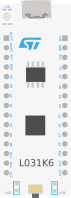
├── .stackblitzrc ├── static ├── img │ ├── favicon.ico │ ├── wokwi-book.jpg │ ├── favicon-white.png │ ├── social-thumbnail.png │ ├── logo.svg │ └── logo-white.svg └── _redirects ├── docs ├── vscode │ ├── images │ │ ├── build.png │ │ ├── diagram.png │ │ ├── component.png │ │ ├── offline-mode.png │ │ ├── pio-library.png │ │ ├── vs-micropython-01.png │ │ ├── vs-micropython-02.png │ │ └── vs-micropython-03.png │ ├── offline-mode.md │ ├── diagram-editor.md │ └── debugging.md ├── guides │ ├── debugger-debug.png │ ├── esp32-wifi-wireshark.png │ ├── logic-analyzer-i2c-decoder.png │ ├── logic-analyzer-pulseview-1.png │ ├── logic-analyzer-pulseview-2.png │ ├── custom-chips-as-wasm-vscode-dev-container.png │ ├── custom-chips-as-wasm-vscode-remote-container-button.png │ ├── micropython.md │ ├── debugger.md │ ├── circuitpython.md │ └── libraries.md ├── chips-api │ ├── chips-console.png │ ├── framebuffer.md │ ├── analog.md │ ├── time.md │ ├── attributes.md │ ├── uart.md │ ├── i2c.md │ ├── spi.md │ └── gpio.md ├── diagram-format-connections.gif ├── parts │ ├── wokwi-ky-040-timing.png │ ├── wokwi-microsd-card-upload.png │ ├── wokwi-text.md │ ├── wokwi-pushbutton-6mm.md │ ├── wokwi-arduino-nano.md │ ├── board-grove-oled-sh1107.md │ ├── wokwi-74hc165.svg │ ├── wokwi-74hc595.svg │ ├── wokwi-nlsf595.svg │ ├── board-franzininho-wifi.md │ ├── wokwi-nokia-5110-screen.md │ ├── wokwi-rgb-led.md │ ├── wokwi-7segment-diagram.svg │ ├── wokwi-dip-switch-8.md │ ├── wokwi-7segment-digits.svg │ ├── wokwi-lcd2004.md │ ├── wokwi-ir-receiver.md │ ├── wokwi-attiny85.svg │ ├── wokwi-ssd1306.md │ ├── wokwi-resistor.md │ ├── wokwi-max7219-matrix-chain-4.svg │ ├── wokwi-relay-module.md │ ├── wokwi-tm1637-7segment.md │ ├── wokwi-ntc-temperature-sensor.md │ ├── wokwi-dht22.md │ ├── wokwi-slide-potentiometer.md │ ├── wokwi-a4988.svg │ ├── wokwi-ks2e-m-dc5.md │ ├── wokwi-max7219-matrix.svg │ ├── wokwi-led-bar-graph.md │ ├── wokwi-nlsf595.md │ ├── wokwi-pir-motion-sensor.md │ ├── wokwi-buzzer.md │ ├── wokwi-ds1307.md │ ├── board-ssd1306.md │ ├── wokwi-servo.md │ ├── wokwi-gas-sensor.md │ ├── wokwi-slide-switch.md │ ├── wokwi-ir-remote.md │ ├── wokwi-pushbutton-diagram.svg │ ├── wokwi-franzininho.md │ ├── wokwi-hc-sr04.md │ ├── wokwi-slide-switch-diagram.svg │ ├── wokwi-74hc595.md │ ├── wokwi-hx711.md │ ├── board-st-nucleo-c031c6.md │ ├── wokwi-max7219-matrix.md │ ├── wokwi-ky-040-diagram.svg │ ├── wokwi-potentiometer.md │ ├── wokwi-biaxial-stepper.md │ ├── wokwi-ili9341.md │ ├── wokwi-stepper-motor.md │ ├── wokwi-microsd-card.md │ ├── board-st-nucleo-l031k6.md │ ├── wokwi-led.md │ ├── wokwi-logic-analyzer.md │ └── wokwi-a4988.md ├── wokwi-ci │ ├── cli-installation.md │ ├── mcp-support.md │ ├── cli-usage.md │ └── github-actions.md ├── gdb-debugging.md ├── contributing │ ├── translating.md │ └── docs.md ├── welcome.md ├── faq.md └── keyboard-shortcuts.md ├── babel.config.js ├── wrangler.toml ├── prettier.config.js ├── workers ├── README.md └── auto-locale.js ├── .gitpod.yml ├── .gitignore ├── i18n └── en │ ├── docusaurus-theme-classic │ ├── navbar.json │ └── footer.json │ └── docusaurus-plugin-content-docs │ └── current.json ├── src ├── theme │ ├── SiteMetadata │ │ └── index.js │ └── NotFound │ │ ├── index.js │ │ └── Content │ │ └── index.js ├── components │ ├── LEDBullet.tsx │ └── LED.tsx └── css │ └── custom.css ├── .github └── workflows │ └── build.yml ├── scripts └── thumb-urls.js ├── LICENSE ├── README.md ├── package.json ├── sidebars.js └── docusaurus.config.js /.stackblitzrc: -------------------------------------------------------------------------------- 1 | { 2 | "installDependencies": true, 3 | "startCommand": "npm start" 4 | } 5 | -------------------------------------------------------------------------------- /static/img/favicon.ico: -------------------------------------------------------------------------------- https://raw.githubusercontent.com/wokwi/wokwi-docs/HEAD/static/img/favicon.ico -------------------------------------------------------------------------------- /static/img/wokwi-book.jpg: -------------------------------------------------------------------------------- https://raw.githubusercontent.com/wokwi/wokwi-docs/HEAD/static/img/wokwi-book.jpg -------------------------------------------------------------------------------- /docs/vscode/images/build.png: -------------------------------------------------------------------------------- https://raw.githubusercontent.com/wokwi/wokwi-docs/HEAD/docs/vscode/images/build.png -------------------------------------------------------------------------------- /static/img/favicon-white.png: -------------------------------------------------------------------------------- https://raw.githubusercontent.com/wokwi/wokwi-docs/HEAD/static/img/favicon-white.png -------------------------------------------------------------------------------- /docs/guides/debugger-debug.png: -------------------------------------------------------------------------------- https://raw.githubusercontent.com/wokwi/wokwi-docs/HEAD/docs/guides/debugger-debug.png -------------------------------------------------------------------------------- /docs/vscode/images/diagram.png: -------------------------------------------------------------------------------- https://raw.githubusercontent.com/wokwi/wokwi-docs/HEAD/docs/vscode/images/diagram.png -------------------------------------------------------------------------------- /babel.config.js: -------------------------------------------------------------------------------- 1 | module.exports = { 2 | presets: [require.resolve('@docusaurus/core/lib/babel/preset')], 3 | }; 4 | -------------------------------------------------------------------------------- /docs/chips-api/chips-console.png: -------------------------------------------------------------------------------- https://raw.githubusercontent.com/wokwi/wokwi-docs/HEAD/docs/chips-api/chips-console.png -------------------------------------------------------------------------------- /docs/vscode/images/component.png: -------------------------------------------------------------------------------- https://raw.githubusercontent.com/wokwi/wokwi-docs/HEAD/docs/vscode/images/component.png -------------------------------------------------------------------------------- /static/img/social-thumbnail.png: -------------------------------------------------------------------------------- https://raw.githubusercontent.com/wokwi/wokwi-docs/HEAD/static/img/social-thumbnail.png -------------------------------------------------------------------------------- /docs/diagram-format-connections.gif: -------------------------------------------------------------------------------- https://raw.githubusercontent.com/wokwi/wokwi-docs/HEAD/docs/diagram-format-connections.gif -------------------------------------------------------------------------------- /docs/parts/wokwi-ky-040-timing.png: -------------------------------------------------------------------------------- https://raw.githubusercontent.com/wokwi/wokwi-docs/HEAD/docs/parts/wokwi-ky-040-timing.png -------------------------------------------------------------------------------- /docs/vscode/images/offline-mode.png: -------------------------------------------------------------------------------- https://raw.githubusercontent.com/wokwi/wokwi-docs/HEAD/docs/vscode/images/offline-mode.png -------------------------------------------------------------------------------- /docs/vscode/images/pio-library.png: -------------------------------------------------------------------------------- https://raw.githubusercontent.com/wokwi/wokwi-docs/HEAD/docs/vscode/images/pio-library.png -------------------------------------------------------------------------------- /docs/guides/esp32-wifi-wireshark.png: -------------------------------------------------------------------------------- https://raw.githubusercontent.com/wokwi/wokwi-docs/HEAD/docs/guides/esp32-wifi-wireshark.png -------------------------------------------------------------------------------- /docs/parts/wokwi-microsd-card-upload.png: -------------------------------------------------------------------------------- https://raw.githubusercontent.com/wokwi/wokwi-docs/HEAD/docs/parts/wokwi-microsd-card-upload.png -------------------------------------------------------------------------------- /docs/vscode/images/vs-micropython-01.png: -------------------------------------------------------------------------------- https://raw.githubusercontent.com/wokwi/wokwi-docs/HEAD/docs/vscode/images/vs-micropython-01.png -------------------------------------------------------------------------------- /docs/vscode/images/vs-micropython-02.png: -------------------------------------------------------------------------------- https://raw.githubusercontent.com/wokwi/wokwi-docs/HEAD/docs/vscode/images/vs-micropython-02.png -------------------------------------------------------------------------------- /docs/vscode/images/vs-micropython-03.png: -------------------------------------------------------------------------------- https://raw.githubusercontent.com/wokwi/wokwi-docs/HEAD/docs/vscode/images/vs-micropython-03.png -------------------------------------------------------------------------------- /docs/guides/logic-analyzer-i2c-decoder.png: -------------------------------------------------------------------------------- https://raw.githubusercontent.com/wokwi/wokwi-docs/HEAD/docs/guides/logic-analyzer-i2c-decoder.png -------------------------------------------------------------------------------- /docs/guides/logic-analyzer-pulseview-1.png: -------------------------------------------------------------------------------- https://raw.githubusercontent.com/wokwi/wokwi-docs/HEAD/docs/guides/logic-analyzer-pulseview-1.png -------------------------------------------------------------------------------- /docs/guides/logic-analyzer-pulseview-2.png: -------------------------------------------------------------------------------- https://raw.githubusercontent.com/wokwi/wokwi-docs/HEAD/docs/guides/logic-analyzer-pulseview-2.png -------------------------------------------------------------------------------- /static/_redirects: -------------------------------------------------------------------------------- 1 | /getting-started/wokwi-club https://wokwi.com/pricing?ref=docs_club_redirect 301 2 | /translating /contributing/translating 301 3 | -------------------------------------------------------------------------------- /wrangler.toml: -------------------------------------------------------------------------------- 1 | name = "wokwi-docs" 2 | compatibility_date = "2025-05-05" 3 | 4 | [assets] 5 | directory = "./build" 6 | not_found_handling = "404-page" 7 | -------------------------------------------------------------------------------- /docs/guides/custom-chips-as-wasm-vscode-dev-container.png: -------------------------------------------------------------------------------- https://raw.githubusercontent.com/wokwi/wokwi-docs/HEAD/docs/guides/custom-chips-as-wasm-vscode-dev-container.png -------------------------------------------------------------------------------- /prettier.config.js: -------------------------------------------------------------------------------- 1 | module.exports = { 2 | printWidth: 100, 3 | singleQuote: true, 4 | tabWidth: 2, 5 | trailingComma: 'all', 6 | endOfLine: 'auto', 7 | }; 8 | -------------------------------------------------------------------------------- /docs/guides/custom-chips-as-wasm-vscode-remote-container-button.png: -------------------------------------------------------------------------------- https://raw.githubusercontent.com/wokwi/wokwi-docs/HEAD/docs/guides/custom-chips-as-wasm-vscode-remote-container-button.png -------------------------------------------------------------------------------- /workers/README.md: -------------------------------------------------------------------------------- 1 | # Cloudflare Workers Scripts 2 | 3 | - [auto-locale](auto-locale.js) - Automatically redirect users to their native language documentation, if available, based on the Accept-Language header sent from their browser. 4 | -------------------------------------------------------------------------------- /.gitpod.yml: -------------------------------------------------------------------------------- 1 | tasks: 2 | - init: npm install 3 | command: npm start 4 | 5 | vscode: 6 | extensions: 7 | - esbenp.prettier-vscode@5.1.3:t532ajsImUSrA9N8Bd7jQw== 8 | 9 | ports: 10 | - port: 3000 11 | onOpen: open-preview 12 | -------------------------------------------------------------------------------- /.gitignore: -------------------------------------------------------------------------------- 1 | # Dependencies 2 | /node_modules 3 | 4 | # Production 5 | /build 6 | 7 | # Generated files 8 | .docusaurus 9 | .cache-loader 10 | 11 | # Misc 12 | .DS_Store 13 | .env.local 14 | .env.development.local 15 | .env.test.local 16 | .env.production.local 17 | .vscode 18 | 19 | npm-debug.log* 20 | -------------------------------------------------------------------------------- /docs/parts/wokwi-text.md: -------------------------------------------------------------------------------- 1 | --- 2 | title: wokwi-text Reference 3 | sidebar_label: wokwi-text 4 | --- 5 | 6 | A simple text element. 7 | 8 | ## Attributes 9 | 10 | | Name | Description | Default value | 11 | | ---- | ------------------------------------------ | ------------- | 12 | | text | The text to display (multi-line supported) | "" | 13 | -------------------------------------------------------------------------------- /docs/parts/wokwi-pushbutton-6mm.md: -------------------------------------------------------------------------------- 1 | --- 2 | title: wokwi-pushbutton-6mm Reference 3 | sidebar_label: wokwi-pushbutton-6mm 4 | --- 5 | 6 | 6mm Tactile Switch Button (momentary push button). 7 | 8 | 9 |
10 |
11 | 12 | The function and pin-out of the 6mm pushbutton are same as [wokwi-pushbutton](wokwi-pushbutton). Check out the [wokwi-pushbutton docs](wokwi-pushbutton) for more information. 13 | -------------------------------------------------------------------------------- /i18n/en/docusaurus-theme-classic/navbar.json: -------------------------------------------------------------------------------- 1 | { 2 | "title": { 3 | "message": "Wokwi", 4 | "description": "The title in the navbar" 5 | }, 6 | "item.label.Docs": { 7 | "message": "Docs", 8 | "description": "Navbar item with label Docs" 9 | }, 10 | "item.label.Blog": { 11 | "message": "Blog", 12 | "description": "Navbar item with label Blog" 13 | }, 14 | "item.label.Simulator": { 15 | "message": "Simulator", 16 | "description": "Navbar item with label Simulator" 17 | } 18 | } 19 | -------------------------------------------------------------------------------- /src/theme/SiteMetadata/index.js: -------------------------------------------------------------------------------- 1 | import React from 'react'; 2 | import SiteMetadata from '@theme-original/SiteMetadata'; 3 | import Head from '@docusaurus/Head'; 4 | 5 | export default function SiteMetadataWrapper(props) { 6 | return ( 7 | <> 8 | 9 | 10 | 11 | 12 | 13 | 14 | ); 15 | } 16 | -------------------------------------------------------------------------------- /src/theme/NotFound/index.js: -------------------------------------------------------------------------------- 1 | import React from 'react'; 2 | import {translate} from '@docusaurus/Translate'; 3 | import {PageMetadata} from '@docusaurus/theme-common'; 4 | import Layout from '@theme/Layout'; 5 | import NotFoundContent from '@theme/NotFound/Content'; 6 | export default function Index() { 7 | const title = translate({ 8 | id: 'theme.NotFound.title', 9 | message: 'Page Not Found', 10 | }); 11 | return ( 12 | <> 13 | 14 | 15 | 16 | 17 | 18 | ); 19 | } 20 | -------------------------------------------------------------------------------- /docs/parts/wokwi-arduino-nano.md: -------------------------------------------------------------------------------- 1 | --- 2 | title: wokwi-arduino-nano Reference 3 | sidebar_label: wokwi-arduino-nano 4 | --- 5 | 6 | The Arduino Nano is very similar to the [Arduino Uno](wokwi-arduino-uno), but in a smaller form factor. It carries the same ATmega328p chip, which has 32K bytes of Flash program memory, 2k bytes of SRAM and 1K bytes of EEPROM. 7 | 8 | 9 | 10 | For more information, see the [wokwi-arduino-uno reference](wokwi-arduino-uno). 11 | 12 | ## Differences from the Arduino Uno 13 | 14 | The Arduino Nano includes two extra analog pins: A6 and A7. These pins can only be used for Analog input. They can't be used as digital GPIO pins. 15 | -------------------------------------------------------------------------------- /i18n/en/docusaurus-plugin-content-docs/current.json: -------------------------------------------------------------------------------- 1 | { 2 | "version.label": { 3 | "message": "Next", 4 | "description": "The label for version current" 5 | }, 6 | "sidebar.main.category.Getting Started": { 7 | "message": "Getting Started", 8 | "description": "The label for category Getting Started in sidebar main" 9 | }, 10 | "sidebar.main.category.Guides": { 11 | "message": "Guides", 12 | "description": "The label for category Guides in sidebar main" 13 | }, 14 | "sidebar.main.category.Diagram Reference": { 15 | "message": "Diagram Reference", 16 | "description": "The label for category Diagram Reference in sidebar main" 17 | } 18 | } 19 | -------------------------------------------------------------------------------- /.github/workflows/build.yml: -------------------------------------------------------------------------------- 1 | name: Build 2 | 3 | on: 4 | push: 5 | branches: 6 | - main 7 | pull_request: 8 | branches: 9 | - main 10 | 11 | jobs: 12 | build: 13 | runs-on: ubuntu-latest 14 | 15 | strategy: 16 | matrix: 17 | node-version: [22] 18 | 19 | steps: 20 | - name: Checkout code 21 | uses: actions/checkout@v4 22 | 23 | - name: Use Node.js ${{ matrix.node-version }} 24 | uses: actions/setup-node@v4 25 | with: 26 | node-version: ${{ matrix.node-version }} 27 | cache: 'npm' 28 | 29 | - name: Install dependencies 30 | run: npm ci 31 | 32 | - name: Build project 33 | run: npm run build 34 | -------------------------------------------------------------------------------- /docs/parts/board-grove-oled-sh1107.md: -------------------------------------------------------------------------------- 1 | --- 2 | title: board-grove-oled-sh1107 Reference 3 | sidebar_label: board-grove-oled-sh1107 4 | --- 5 | 6 | Monochrome display with 128*128 resolution 7 | 8 | ![board-grove-oled-sh1107](https://raw.githubusercontent.com/wokwi/wokwi-boards/main/boards/grove-oled-sh1107/board.svg) 9 | 10 | ## Pin names 11 | 12 | | # | Name | Description | 13 | | --- | ---- | --------------- | 14 | | 1 | SCL | I2C Clock | 15 | | 2 | SDA | I2C Data | 16 | | 3 | VCC | Power | 17 | | 4 | GND | Ground | 18 | 19 | \* Only the I2C interface is supported. The SPI interface is not simulated. 20 | 21 | ## Simulator examples 22 | 23 | - [SH1107_OLED_Clock](https://wokwi.com/projects/398405932489759745) 24 | -------------------------------------------------------------------------------- /scripts/thumb-urls.js: -------------------------------------------------------------------------------- 1 | const fs = require('fs'); 2 | const glob = require('glob'); 3 | const path = require('path'); 4 | 5 | const buildDir = path.join(__dirname, '../build'); 6 | const files = glob.sync(path.join(buildDir, '**/*.html')); 7 | 8 | for (const file of files) { 9 | const urlPathname = path 10 | .relative(buildDir, file) 11 | .split(path.sep) 12 | .join('/') 13 | .replace(/\/index.html$/, ''); 14 | if (urlPathname.endsWith('/search')) { 15 | continue; 16 | } 17 | const html = fs.readFileSync(file, { encoding: 'utf-8' }); 18 | fs.writeFileSync( 19 | file, 20 | html.replace( 21 | /https:\/\/docs.wokwi.com(\/[^/]+)?\/img\/wokwi-book\.jpg/g, 22 | `https://thumbs.wokwi.com/docs/${urlPathname}/thumbnail.png`, 23 | ), 24 | ); 25 | } 26 | -------------------------------------------------------------------------------- /docs/parts/wokwi-74hc165.svg: -------------------------------------------------------------------------------- 1 | 2 | 3 | 4 | 5 | 6 | 7 | 8 | 9 | 10 | 11 | 12 | 13 | 14 | 74HC165 15 | 16 | 17 | -------------------------------------------------------------------------------- /docs/parts/wokwi-74hc595.svg: -------------------------------------------------------------------------------- 1 | 2 | 3 | 4 | 5 | 6 | 7 | 8 | 9 | 10 | 11 | 12 | 13 | 14 | 74HC595 15 | 16 | 17 | -------------------------------------------------------------------------------- /docs/parts/wokwi-nlsf595.svg: -------------------------------------------------------------------------------- 1 | 2 | 3 | 4 | 5 | 6 | 7 | 8 | 9 | 10 | 11 | 12 | 13 | 14 | NLSF595 15 | 16 | 17 | -------------------------------------------------------------------------------- /docs/parts/board-franzininho-wifi.md: -------------------------------------------------------------------------------- 1 | --- 2 | title: board-franzininho-wifi Reference 3 | sidebar_label: board-franzininho-wifi 4 | --- 5 | 6 | Open source ESP32-S2 development board created in Brazil. See the [ESP32 Guide](../guides/esp32) for more information. 7 | 8 | ![Franzininho WiFi](https://raw.githubusercontent.com/wokwi/wokwi-boards/main/boards/franzininho-wifi/board.svg) 9 | 10 | ## Board hardware 11 | 12 | The board includes three built-in LEDs: 13 | 14 | - Green power LED 15 | - Orange LED connected to pin 33 16 | - Blue LED connected to pin 21 17 | 18 | ## Simulator examples 19 | 20 | - [Franzininho WiFi LCD Clock (NTP) client](https://wokwi.com/projects/323796775459619410) 21 | - [Servo motor control](https://wokwi.com/projects/327061759288410708) 22 | - [LED RGB Mixer (using 3 potentiometers)](https://wokwi.com/projects/324682033130373716) 23 | - [CircuitPython blink example](https://wokwi.com/projects/313606939786347074) 24 | -------------------------------------------------------------------------------- /docs/parts/wokwi-nokia-5110-screen.md: -------------------------------------------------------------------------------- 1 | --- 2 | title: wokwi-nokia-5110-screen Reference 3 | sidebar_label: wokwi-nokia-5110-screen 4 | --- 5 | 6 | The Nokia 5110 is a basic graphic LCD screen for lots of applications. 7 | 8 | The monochrome display has an 84 x 48 pixel resolution. 9 | 10 | ![Nokia 5110 screen](wokwi-nokia-5110-screen.svg) 11 | 12 | ## Pin names 13 | 14 | | Name | Description | 15 | | ---- | ------------------- | 16 | | RST | Reset pin | 17 | | CE | Chip enable | 18 | | DC | Data/Command select | 19 | | DIN | Serial data input | 20 | | CLK | Serial clock input | 21 | | VCC | Supply voltage | 22 | | BL | Backlight control | 23 | | GND | Ground | 24 | 25 | 26 | ## Simulator examples 27 | The example below uses the Adafruit PCD8544 library to control the display. The library provides a simple interface for drawing text, shapes and bitmaps on the screen: 28 | 29 | - [Nokia 5110 example: Hello World](https://wokwi.com/projects/422590948073922561) 30 | -------------------------------------------------------------------------------- /docs/parts/wokwi-rgb-led.md: -------------------------------------------------------------------------------- 1 | --- 2 | title: wokwi-rgb-led Reference 3 | sidebar_label: wokwi-rgb-led 4 | --- 5 | 6 | 5mm Red, Green and Blue (RGB) LED. 7 | 8 | 9 | 10 | ## Pin names 11 | 12 | | Name | Description | 13 | | ---- | ------------ | 14 | | R | Red LED | 15 | | G | Green LED | 16 | | B | Blue LED | 17 | | COM | Common pin\* | 18 | 19 | \* By default, the common pin is the anode (positive). You can change it by setting the "common" attribute to "cathode". 20 | 21 | ## Attributes 22 | 23 | | Name | Description | Default value | 24 | | ------ | ----------------------------------------- | ------------- | 25 | | common | The common pin type: "cathode" or "anode" | "anode" | 26 | 27 | ## Simulator examples 28 | 29 | - [RGB LED with 3 linear sliders - common cathode](https://wokwi.com/projects/306455554559050306) 30 | - [RGB LED with 3 linear sliders - common anode](https://wokwi.com/projects/435392523281372161) 31 | - [Soft pulsating RGB LED](https://wokwi.com/projects/306461175146611264) 32 | -------------------------------------------------------------------------------- /docs/vscode/offline-mode.md: -------------------------------------------------------------------------------- 1 | --- 2 | title: Running Wokwi Offline 3 | sidebar_label: Offline Mode 4 | description: Running the simulation offline or in restricted network environments. 5 | keywords: [ internet, network, offline] 6 | --- 7 | 8 | Wokwi for VS Code requires an internet connection to run. If you need to use Wokwi for VS Code in an environment without internet access, you can subscribe to the [Pro plan](https://wokwi.com/pricing). 9 | 10 | When running in offline mode, the title of the simulator tab will be "Wokwi Simulator (Offline)", and the simulator will display the date when the simulation engine was last updated: 11 | 12 | ![Wokwi Simulator (Offline)](./images/offline-mode.png) 13 | 14 | To update the simulator engine, go online and start the simulator. The simulator will automatically update the engine to the latest version, and will use it the next time you run the simulator in offline mode. 15 | 16 | ## Offline installation 17 | 18 | If you need to install Wokwi for VS Code on a machine that does not have internet access, we can prepare a custom installation package for you. Please contact us to get a quote. 19 | -------------------------------------------------------------------------------- /LICENSE: -------------------------------------------------------------------------------- 1 | The MIT License (MIT) 2 | 3 | Copyright (c) 2021-2024 CodeMagic LTD 4 | 5 | Permission is hereby granted, free of charge, to any person obtaining a copy 6 | of this software and associated documentation files (the "Software"), to deal 7 | in the Software without restriction, including without limitation the rights 8 | to use, copy, modify, merge, publish, distribute, sublicense, and/or sell 9 | copies of the Software, and to permit persons to whom the Software is 10 | furnished to do so, subject to the following conditions: 11 | 12 | The above copyright notice and this permission notice shall be included in 13 | all copies or substantial portions of the Software. 14 | 15 | THE SOFTWARE IS PROVIDED "AS IS", WITHOUT WARRANTY OF ANY KIND, EXPRESS OR 16 | IMPLIED, INCLUDING BUT NOT LIMITED TO THE WARRANTIES OF MERCHANTABILITY, 17 | FITNESS FOR A PARTICULAR PURPOSE AND NONINFRINGEMENT. IN NO EVENT SHALL THE 18 | AUTHORS OR COPYRIGHT HOLDERS BE LIABLE FOR ANY CLAIM, DAMAGES OR OTHER 19 | LIABILITY, WHETHER IN AN ACTION OF CONTRACT, TORT OR OTHERWISE, ARISING FROM, 20 | OUT OF OR IN CONNECTION WITH THE SOFTWARE OR THE USE OR OTHER DEALINGS IN 21 | THE SOFTWARE. 22 | -------------------------------------------------------------------------------- /README.md: -------------------------------------------------------------------------------- 1 | # wokwi-docs 2 | 3 | View online: https://docs.wokwi.com 4 | 5 | ## Online Development 6 | 7 | You can open a development environment in your browser, without having to install anything on your computer. The development environment lets you quickly preview your changes, and even commit them to GitHub and create a pull request. 8 | 9 | * [Open online dev environment on StackBlitz](https://stackblitz.io/github/wokwi/wokwi-docs) 10 | * [Open online dev environment on Gitpod](https://gitpod.io/#https://github.com/wokwi/wokwi-docs) - requires a GitHub login 11 | 12 | ## Local Development 13 | 14 | You'll need [node.js](https://nodejs.org/) and npm. 15 | Clone this repo to your computer, then install the dependencies: 16 | 17 | ```console 18 | npm install 19 | ``` 20 | 21 | Start the local development server: 22 | 23 | ```console 24 | npm start 25 | ``` 26 | 27 | This will also open up a browser window with the docs site. Most changes are reflected live without having to restart the server. 28 | 29 | ## License 30 | 31 | This work is licensed under a [Creative Commons Attribution 4.0 International License](https://creativecommons.org/licenses/by/4.0/). 32 | -------------------------------------------------------------------------------- /docs/parts/wokwi-7segment-diagram.svg: -------------------------------------------------------------------------------- 1 | 2 | 3 | 4 | 5 | 6 | 7 | A 8 | B 9 | C 10 | D 11 | E 12 | G 13 | F 14 | DP 15 | 16 | 17 | -------------------------------------------------------------------------------- /docs/parts/wokwi-dip-switch-8.md: -------------------------------------------------------------------------------- 1 | --- 2 | title: wokwi-dip-switch-8 Reference 3 | sidebar_label: wokwi-dip-switch-8 4 | --- 5 | 6 | Set of 8 electrical switches in a single package 7 | 8 | 9 | 10 | ## Pin names 11 | 12 | | Name | Description | 13 | | ---- | -------------------------- | 14 | | 1a | First contact of switch 1 | 15 | | 1b | Second contact of switch 1 | 16 | | 2a | First contact of switch 2 | 17 | | 2b | Second contact of switch 2 | 18 | | … | … | 19 | | 8a | First contact of switch 8 | 20 | | 8b | Second contact of switch 8 | 21 | 22 | ## Keyboard operation 23 | 24 | You can use the keyboard to toggle the swithches while the simulation is running. Click on the DIP switch to select it, then toggle the switches by pressing the keys "1" to "8". 25 | 26 | Firefox users: if the keyboard shortcuts don't work for you, please make sure that the "Search for text when you start typing" setting is disabled. 27 | 28 | ## Simulator examples 29 | 30 | - [DIP Switch + LED Bar example](https://wokwi.com/projects/314167394611233344) 31 | - [Arduino PIND register example](https://wokwi.com/projects/314168546236039745) 32 | -------------------------------------------------------------------------------- /docs/parts/wokwi-7segment-digits.svg: -------------------------------------------------------------------------------- 1 | 2 | 3 | 4 | 5 | 6 | 7 | 8 | 9 | 10 | 11 | DIG1 DIG2 DIG3 DIG4 12 | 13 | 14 | -------------------------------------------------------------------------------- /docs/parts/wokwi-lcd2004.md: -------------------------------------------------------------------------------- 1 | --- 2 | title: wokwi-lcd2004 Reference 3 | sidebar_label: wokwi-lcd2004 4 | --- 5 | 6 | An LCD display with 4 lines, 20 characters per line. 7 | 8 | 9 | 10 | This part has the same pins and attributes as the wokwi-lcd1602. 11 | 12 | For **complete information and code examples**, please see the [wokwi-lcd1602 reference](wokwi-lcd1602). 13 | 14 | ### Examples 15 | 16 | | Result | Attrs | 17 | | --------------------------------------------------------------------- | -------------------------------------------- | 18 | | | `{ }` | 19 | | | `{ "pins": "i2c" }` | 20 | | | `{ "background": "blue", "color": "white" }` | 21 | 22 | ## Simulator examples 23 | 24 | - [LCD2004 Tiny Pacman on Wokwi](https://wokwi.com/projects/294590769009787402) 25 | -------------------------------------------------------------------------------- /docs/parts/wokwi-ir-receiver.md: -------------------------------------------------------------------------------- 1 | --- 2 | title: wokwi-ir-receiver Reference 3 | sidebar_label: wokwi-ir-receiver 4 | --- 5 | 6 | 38KHz infrared receiver 7 | 8 | 9 | 10 | ## Pin names 11 | 12 | | Name | Description | 13 | | ---- | ---------------- | 14 | | GND | Ground | 15 | | VCC | Positive voltage | 16 | | DAT | Digital output | 17 | 18 | ## Using the receiver 19 | 20 | The receiver can be used in two ways: 21 | 22 | 1. Use the [IR Remote](wokwi-ir-remote) to send infrared commands. 23 | 2. Click on the receiver (while the simulation is running) to send arbitrary [NEC-encoded IR signals](https://exploreembedded.com/wiki/NEC_IR_Remote_Control_Interface_with_8051#NEC_Protocol). The user interface lets you specify both the address and the command fields on the NEC message. 24 | 25 | To read the commands from your Arduino Code, you can use the [IRRemote](https://github.com/Arduino-IRremote/Arduino-IRremote) or [IRMP](https://github.com/ukw100/IRMP) libraries. 26 | 27 | ## Simulator examples 28 | 29 | - [IRRemote + LCD Display](https://wokwi.com/projects/298934082074575369) 30 | - [IRRemote + LCD Display with updated IRRemote API](https://wokwi.com/projects/408236279940409345) 31 | -------------------------------------------------------------------------------- /docs/parts/wokwi-attiny85.svg: -------------------------------------------------------------------------------- 1 | 2 | 3 | 4 | 5 | 6 | 7 | 8 | 9 | 10 | 11 | 12 | 13 | 14 | 15 | 16 | ATTINY8520PU 17 | 18 | 19 | 20 | -------------------------------------------------------------------------------- /docs/parts/wokwi-ssd1306.md: -------------------------------------------------------------------------------- 1 | --- 2 | title: wokwi-ssd1306 Reference 3 | sidebar_label: wokwi-ssd1306 4 | --- 5 | 6 | Monochrome 128x64 OLED display with I2C interface 7 | 8 | 9 | 10 | Note: this part has been deprecated. Please use [board-ssd1306](./board-ssd1306) instead. 11 | 12 | ## Pin names 13 | 14 | | Name | Description | Arduino Uno pin | 15 | | ----------- | --------------------- | --------------- | 16 | | DATA | I2C data line (SDA) | A4 | 17 | | CLK | I2C clock line (SCL) | A5 | 18 | | DC, RST, CS | Unused\* | - | 19 | | 3V3 | 3.3V regulated output | - | 20 | | GND | Ground | GND | 21 | | VIN | Supply voltage | 5V | 22 | 23 | \* DC, RST and CS are for SPI mode. The SSD1306 simulation only supports I2C mode, so these pins are not functional. 24 | 25 | The default I2C address of the SSD1306 module is 0x3c (60). 26 | 27 | ## Attributes 28 | 29 | | Name | Description | Default value | 30 | | ---------- | -------------------------- | ------------- | 31 | | i2cAddress | I2C address of the display | "0x3c" | 32 | 33 | ## Simulator examples 34 | 35 | See [board-ssd1306](board-ssd1306#simulator-examples). 36 | -------------------------------------------------------------------------------- /package.json: -------------------------------------------------------------------------------- 1 | { 2 | "name": "wokwi-docs", 3 | "version": "0.0.0", 4 | "private": true, 5 | "scripts": { 6 | "docusaurus": "docusaurus", 7 | "start": "docusaurus start", 8 | "build": "docusaurus build && node scripts/thumb-urls.js", 9 | "swizzle": "docusaurus swizzle", 10 | "deploy": "docusaurus deploy", 11 | "serve": "docusaurus serve", 12 | "clear": "docusaurus clear" 13 | }, 14 | "dependencies": { 15 | "@algolia/client-search": "^4.22.0", 16 | "@docusaurus/core": "^3.6.1", 17 | "@docusaurus/preset-classic": "^3.6.1", 18 | "@mdx-js/react": "^3.0.0", 19 | "clsx": "^1.1.1", 20 | "glob": "^11.0.3", 21 | "react": "^18.2.0", 22 | "react-dom": "^18.2.0" 23 | }, 24 | "devDependencies": { 25 | "@types/react": "^18.2.47", 26 | "husky": "^5.1.1", 27 | "prettier": "^2.2.1", 28 | "pretty-quick": "^3.1.0" 29 | }, 30 | "engines": { 31 | "node": ">=18.0" 32 | }, 33 | "husky": { 34 | "hooks": { 35 | "pre-commit": "pretty-quick --staged" 36 | } 37 | }, 38 | "browserslist": { 39 | "production": [ 40 | ">0.5%", 41 | "not dead", 42 | "not op_mini all" 43 | ], 44 | "development": [ 45 | "last 1 chrome version", 46 | "last 1 firefox version", 47 | "last 1 safari version" 48 | ] 49 | } 50 | } 51 | -------------------------------------------------------------------------------- /docs/wokwi-ci/cli-installation.md: -------------------------------------------------------------------------------- 1 | --- 2 | title: Wokwi CLI Installation 3 | sidebar_label: CLI Installation 4 | description: Install the CLI to run and automate Wokwi simulations from your terminal. 5 | keywords: [CLI, terminal, CI, Powershell, wokwi-cli] 6 | --- 7 | 8 | The CLI allows you to run Wokwi simulations from your terminal, and integrate them with your CI system. We recommend using the [Wokwi for VS Code](../vscode/getting-started) extension for local development, and the CLI for running your tests on CI. 9 | 10 | Both the CLI and the VS Code extension use the same project configuration files ([wokwi.toml](../vscode/project-config) and [diagram.json](../diagram-format)), so you can use the VS Code extension to create and test your project, and then use the CLI to run it on CI. 11 | 12 | To install the Wokwi CLI, run the following command: 13 | 14 | ```bash 15 | curl -L https://wokwi.com/ci/install.sh | sh 16 | ``` 17 | 18 | On Windows, you can use the following command in PowerShell: 19 | 20 | ```powershell 21 | iwr https://wokwi.com/ci/install.ps1 -useb | iex 22 | ``` 23 | 24 | Alternatively, you can download the CLI directly from the [GitHub Releases page](https://github.com/wokwi/wokwi-cli/releases/latest). Rename the file to `wokwi-cli` (or `wokwi-cli.exe` on Windows), make it executable (`chmod +x wokwi-cli` on Linux/Mac), and move it to a directory in your PATH (e.g. `/usr/local/bin` on Linux/Mac). 25 | -------------------------------------------------------------------------------- /docs/chips-api/framebuffer.md: -------------------------------------------------------------------------------- 1 | --- 2 | title: Framebuffer API 3 | sidebar_label: Framebuffer API 4 | --- 5 | 6 | # Framebuffer API 7 | 8 | Use the framebuffer API to implement displays (LCD, OLED, e-paper, etc.). The display size is defined in the `.chip.json` file. The framebuffer uses 32 bits per pixel. The pixels are stored in the RGBA format. The total size of the buffer is `pixel_width * pixel_height * 4` bytes. 9 | 10 | ### buffer_t framebuffer_init(uint32_t *pixel_width, uint32_t *pixel_height) 11 | 12 | Returns the framebuffer for the current chip, and the pixel dimensions (width/height) of the frame buffer. 13 | 14 | :::warning 15 | 16 | Note: `framebuffer_init` can only be called from `chip_init()`. Do not call it at a later time. 17 | 18 | ::: 19 | 20 | ### void buffer_write(buffer_t buffer, uint32_t offset, void \*data, uint32_t data_len) 21 | 22 | Copies `data_len` bytes from `data` into the frame buffer, at the given `offset`. 23 | 24 | ### void buffer_read(buffer_t buffer, uint32_t offset, void \*data, uint32_t data_len) 25 | 26 | Copies `data_len` bytes at the given `offset` of the frame buffer into `data`. 27 | 28 | ## Simulator examples 29 | 30 | - [Basic Framebuffer Chip Example](https://wokwi.com/projects/330503863007183442) 31 | - [SSD1306 I2C OLED Display](https://wokwi.com/projects/371050937178768385) 32 | - [IL9163 128x128 Color LCD Display Driver](https://wokwi.com/projects/333332561949360723) 33 | -------------------------------------------------------------------------------- /docs/parts/wokwi-resistor.md: -------------------------------------------------------------------------------- 1 | --- 2 | title: wokwi-resistor Reference 3 | sidebar_label: wokwi-resistor 4 | --- 5 | 6 | A resistor. 7 | 8 | 9 | 10 | :::warning 11 | Wokwi only has a very basic analog circuit simulation. You won't be able to use resistors together with 12 | analog components (e.g. potentiometer or NTC temperature sensor). You can still use the resistors as external 13 | pull-up/pull-down resistors. 14 | ::: 15 | 16 | ## Pin names 17 | 18 | | Pin | Description | 19 | | --- | ----------- | 20 | | 1 | First pin | 21 | | 2 | Second pin | 22 | 23 | ## Attributes 24 | 25 | | Name | Description | Default value | 26 | | ----- | ------------------- | ------------- | 27 | | value | Resistance, in ohms | "1000" | 28 | 29 | ### Examples 30 | 31 | | Result | Attrs | 32 | | ----------------------------------- | ------------------------- | 33 | | | `{ "value": "1" }` | 34 | | | `{ "value": "220" }` | 35 | | | `{ "value": "10000000" }` | 36 | 37 | Check out the [resistor showcase by Koepel](https://wokwi.com/projects/300936732038136328) for more examples. 38 | 39 | ## Simulator examples 40 | 41 | - [External pull-down resistor](https://wokwi.com/projects/302214836102627848) - How to use a resistor as a pull-down for a button 42 | -------------------------------------------------------------------------------- /docs/vscode/diagram-editor.md: -------------------------------------------------------------------------------- 1 | --- 2 | title: Diagram Editor in VS Code 3 | sidebar_label: Diagram Editor 4 | description: Use the visual diagram editor in Wokwi for VS Code to open and edit diagrams, and run the simulation. 5 | keywords: [VS Code, diagram editor, visual editor, diagram.json, simulation] 6 | --- 7 | 8 | # Diagram Editor in VS Code 9 | 10 | The visual diagram editor in Wokwi for VS Code allows you to edit the diagram of your simulation project. It is available in the [Hobby+ and Pro plans](https://wokwi.com/pricing). 11 | 12 | ## Opening the diagram editor 13 | 14 | To open the diagram editor, click on a diagram.json file in the Explorer view. The diagram will open in a new tab. The diagram editor also works for files matching the `diagram.*.json` pattern, such as `diagram.esp32.json`. This is useful if you have multiple target boards in your project, and want to maintain a diagram for each target board. 15 | 16 | If you are using the Community or the Hobby plan, you will be able to view the diagram, but not edit it in the diagram editor. You can still edit the diagram.json file in the text editor. 17 | 18 | ## Editing the diagram as text 19 | 20 | Some advanced features are only available if you modify the diagram in the text editor. You can open the text editor by right clicking on the diagram.json tab, selecting "Reopen Editor With..." and then selecting "Text Editor". 21 | 22 | ## Running the simulation 23 | 24 | You can run the simulation by pressing the green play button in the top left corner of the editor. Wokwi will open a new tab and start the simulation. 25 | -------------------------------------------------------------------------------- /i18n/en/docusaurus-theme-classic/footer.json: -------------------------------------------------------------------------------- 1 | { 2 | "link.title.Docs": { 3 | "message": "Docs", 4 | "description": "The title of the footer links column with title=Docs in the footer" 5 | }, 6 | "link.title.Community": { 7 | "message": "Community", 8 | "description": "The title of the footer links column with title=Community in the footer" 9 | }, 10 | "link.title.More": { 11 | "message": "More", 12 | "description": "The title of the footer links column with title=More in the footer" 13 | }, 14 | "link.item.label.Welcome": { 15 | "message": "Welcome", 16 | "description": "The label of footer link with label=Welcome linking to /" 17 | }, 18 | "link.item.label.diagram.json": { 19 | "message": "diagram.json", 20 | "description": "The label of footer link with label=diagram.json linking to /diagram-format" 21 | }, 22 | "link.item.label.Discord": { 23 | "message": "Discord", 24 | "description": "The label of footer link with label=Discord linking to https://wokwi.com/discord" 25 | }, 26 | "link.item.label.Twitter": { 27 | "message": "Twitter", 28 | "description": "The label of footer link with label=Twitter linking to https://twitter.com/WokwiMakes" 29 | }, 30 | "link.item.label.Blog": { 31 | "message": "Blog", 32 | "description": "The label of footer link with label=Blog linking to https://blog.wokwi.com" 33 | }, 34 | "link.item.label.GitHub": { 35 | "message": "GitHub", 36 | "description": "The label of footer link with label=GitHub linking to https://github.com/wokwi/wokwi-docs" 37 | } 38 | } 39 | -------------------------------------------------------------------------------- /docs/parts/wokwi-max7219-matrix-chain-4.svg: -------------------------------------------------------------------------------- 1 | 2 | 3 | 4 | 5 | 6 | 7 | 12 | 17 | 18 | 19 | 20 | 21 | 22 | 23 | 24 | 25 | 26 | 27 | 28 | 29 | 30 | 31 | 32 | 33 | 34 | -------------------------------------------------------------------------------- /docs/parts/wokwi-relay-module.md: -------------------------------------------------------------------------------- 1 | --- 2 | title: Relay Module Reference 3 | sidebar_label: wokwi-relay-module 4 | --- 5 | 6 | Electrically operated switch 7 | 8 | ![Relay-Module](wokwi-relay-module.svg) 9 | 10 | ## Pin names 11 | 12 | | Name | Description | 13 | | ---- | ------------------------------------------- | 14 | | VCC | Supply voltage | 15 | | GND | Ground | 16 | | IN | Control signal (e.g. from micro-controller) | 17 | | NC | Normally closed | 18 | | COM | Common pin | 19 | | NO | Normally open | 20 | 21 | ## Attributes 22 | 23 | | Name | Description | Default value | 24 | | ---------- | ----------------------------------------- | ------------- | 25 | | transistor | "npn" (active-high) or "pnp" (active-low) | "npn" | 26 | 27 | ## Operation 28 | 29 | The relay is an electronic switch. 30 | 31 | When the `IN` pin is high / disconnected, `COM` is connected to `NC` (NC means normally closed). 32 | 33 | When the `IN` pin is low, `COM` is connected to `NO` (NO means normally open). 34 | 35 | Setting the "transistor" attribute to "pnp" inverts the logic: when `IN` is high, `COM` is connected to `NO`, and when `IN` is low / disconnected, `COM` is connected to `NC`. 36 | 37 | ## Simulator Examples 38 | 39 | - [One relay module controlling two LEDs](https://wokwi.com/projects/347308007359513172) 40 | - [Arduino Uno controlling four relay modules](https://wokwi.com/projects/398166790321189889) 41 | -------------------------------------------------------------------------------- /docs/parts/wokwi-tm1637-7segment.md: -------------------------------------------------------------------------------- 1 | --- 2 | title: wokwi-tm1637-7segment Reference 3 | sidebar_label: wokwi-tm1637-7segment 4 | --- 5 | 6 | Seven segment LED display module with TM1637 4-wire interface 7 | 8 | ![Wokwi TM1637 Seven Segment](wokwi-tm1637-7segment.svg) 9 | 10 | ## Pin names 11 | 12 | | Name | Description | 13 | | ---- | -------------- | 14 | | CLK | Clock input | 15 | | DIO | Data input \* | 16 | | VCC | Supply voltage | 17 | | GND | Ground | 18 | 19 | \* The DIO pin is also used for acknowledging the data received from the microcontroller, by pulling it down at a specific clock cycle. 20 | 21 | ## Attributes 22 | 23 | | Name | Description | Default value | 24 | | ----- | ----------------------------- | ------------- | 25 | | color | The color of the segment LEDs | "red" | 26 | 27 | ## Using the 7-segment display 28 | 29 | This variant of the seven segment display uses the TM1637 chip. You'll only need 2 microcontroller pins to communicate with it. 30 | 31 | The TM1637 communication protocol is non-standard. It resembles the I2C protocol, but it is simpler and incompatible with I2C. Luckily, you can use a library and not worry about the implementation of the protocol. Here are some TM1637 libraries you can use on Arduino: RT1637_RT(https://github.com/RobTillaart/TM1637_RT), Grove 4-Digit Display. 32 | 33 | ## Simulator examples 34 | 35 | - [TM1637 Counter](https://wokwi.com/projects/339227323398095442) 36 | - [Three TM1637 displays](https://wokwi.com/projects/356661328560439297) 37 | - [TM1637 Thermometer (MicroPython on Pi Pico)](https://wokwi.com/projects/339373435833549395) 38 | -------------------------------------------------------------------------------- /docs/guides/micropython.md: -------------------------------------------------------------------------------- 1 | --- 2 | title: MicroPython on Wokwi 3 | sidebar_label: MicroPython 4 | description: Create and run MicroPython projects in Wokwi using the Raspberry Pi Pico simulator. 5 | keywords: [MicroPython, Wokwi, Raspberry Pi Pico, main.py, REPL, flash filesystem, MicroPython simulation] 6 | --- 7 | 8 | You can create and run MicroPython projects on Wokwi. Start from the [Raspberry Pi Pico MicroPython project template](https://wokwi.com/projects/new/micropython-pi-pico). 9 | 10 | ## Project structure 11 | 12 | All MicroPython projects must include a `main.py` file. MicroPython will automatically load and execute the code from `main.py` when you start the simulation. 13 | 14 | Wokwi copies all the project files into the Pico's flash filesystem. This means your project 15 | can include additional Python modules and you can import them from `main.py` or from the interactive 16 | REPL. Your project can also include custom data inside text files. 17 | 18 | You can get a list of all the files in the flash filesystem by running: 19 | 20 | ```python 21 | import os 22 | print(os.listdir('/')) 23 | ``` 24 | 25 | # MicroPython REPL 26 | 27 | When the code in `main.py` terminates (or you interrupt it with Ctrl+C), you'll get into the MicroPython REPL. The REPL is an interactive prompt where you can type python commands and see the results immediately. Type `help()` for MicroPython API cheat sheet. To paste code into the REPL type Ctrl+E and enter paste mode. 28 | 29 | ## Project examples 30 | 31 | - [Blink with MicroPython](https://wokwi.com/projects/300504213470839309) 32 | - [MicroPython 7-Segment Display](https://wokwi.com/projects/300210834979684872) 33 | -------------------------------------------------------------------------------- /docs/parts/wokwi-ntc-temperature-sensor.md: -------------------------------------------------------------------------------- 1 | --- 2 | title: wokwi-ntc-temperature-sensor Reference 3 | sidebar_label: wokwi-ntc-temperature-sensor 4 | --- 5 | 6 | Analog temperature sensor: NTC (negative temperature coefficient) thermistor. 7 | 8 | 9 | 10 | ## Pin names 11 | 12 | | Name | Description | 13 | | ---- | ---------------------- | 14 | | VCC | Positive power supply | 15 | | OUT | Output signal (analog) | 16 | | GND | Ground | 17 | 18 | ## Attributes 19 | 20 | | Name | Description | Default value | 21 | | ----------- | -------------------------------------- | ------------- | 22 | | temperature | Initial temperature value (celsius) | "24" | 23 | | beta | The beta coefficient of the thermistor | "3950" | 24 | 25 | ## Reading the temperature 26 | 27 | The temperature sensor module includes a 10K NTC thermistor in series with a 10K resistor. 28 | 29 | This setup produces a voltage that depends on the temperature. You can read this voltage by 30 | connecting the OUT pin of the thermistor to an analog input pin and then using the 31 | `analogRead()` function. 32 | 33 | Use the following code to convert the return value of `analogRead()` into a temperature value (in celsius): 34 | 35 | ```cpp 36 | const float BETA = 3950; // should match the Beta Coefficient of the thermistor 37 | int analogValue = analogRead(A0); 38 | float celsius = 1 / (log(1 / (1023. / analogValue - 1)) / BETA + 1.0 / 298.15) - 273.15; 39 | ``` 40 | 41 | ## Simulator examples 42 | 43 | - [NTC Thermistor Basic Example](https://wokwi.com/projects/299330254810382858) 44 | -------------------------------------------------------------------------------- /src/components/LEDBullet.tsx: -------------------------------------------------------------------------------- 1 | import React from 'react'; 2 | import { useEffect, useState } from 'react'; 3 | import { LED } from './LED'; 4 | 5 | declare global { 6 | namespace JSX { 7 | interface IntrinsicElements { 8 | 'wokwi-led': any; 9 | } 10 | } 11 | } 12 | 13 | interface ILEDBulletProps { 14 | title: string; 15 | color: string; 16 | children: React.ReactNode; 17 | } 18 | 19 | export function LEDBullet({ title, color, children }: ILEDBulletProps) { 20 | const [brightness, setBrightness] = useState(0); 21 | const [targetBrightness, setTargetBrightness] = useState(0); 22 | 23 | useEffect(() => { 24 | if (brightness == targetBrightness) { 25 | return; 26 | } 27 | 28 | const timer = setTimeout(() => { 29 | if (targetBrightness > brightness) { 30 | setBrightness(Math.min(brightness + 0.05, targetBrightness)); 31 | } else { 32 | setBrightness(Math.max(brightness - 0.05, targetBrightness)); 33 | } 34 | }, 10); 35 | 36 | return () => clearTimeout(timer); 37 | }, [brightness, targetBrightness]); 38 | 39 | const mouseOver = () => { 40 | setTargetBrightness(1); 41 | }; 42 | const mouseOut = () => { 43 | setTargetBrightness(0); 44 | }; 45 | 46 | return ( 47 |

48 | 53 | 54 |

{title}.

{children} 55 | 56 |

57 | ); 58 | } 59 | -------------------------------------------------------------------------------- /docs/parts/wokwi-dht22.md: -------------------------------------------------------------------------------- 1 | --- 2 | title: wokwi-dht22 Reference 3 | sidebar_label: wokwi-dht22 4 | --- 5 | 6 | Digital Humidity and Temperature sensor. 7 | 8 | 9 | 10 | ## Pin names 11 | 12 | | Name | Description | 13 | | ---- | ------------------------------- | 14 | | VCC | Positive voltage | 15 | | SDA | Digital data pin (input/output) | 16 | | NC | Not connected | 17 | | GND | Ground | 18 | 19 | ## Attributes 20 | 21 | | Name | Description | Default value | 22 | | ----------- | -------------------------------------------- | ------------- | 23 | | temperature | Initial temperature value (celsius) | "24" | 24 | | humidity | Initial relative humidity value (percentage) | "40" | 25 | 26 | ## Controlling the temperature 27 | 28 | You can change the temperature and humidity values while the simulation is running. 29 | Click on the DHT22 sensor and a small popup window will open. Use the temperature and 30 | humidity sliders to change the values. Click "Hide" to close the popup window. 31 | 32 | :::warning 33 | If you are trying to read this sensor from the ESP32, use the "DHT sensor library for ESPx" library. Other DHT22 libraries may not work reliably on the ESP32. You can use this [example project](https://wokwi.com/projects/322410731508073042) as a starting point. 34 | ::: 35 | 36 | ## Simulator examples 37 | 38 | - [DHTlib example](https://wokwi.com/projects/344892337559700051) 39 | - [DHT-sensor-library examples](https://wokwi.com/projects/344892587898831442) 40 | - [DHT22 on the ESP32](https://wokwi.com/projects/322410731508073042) 41 | -------------------------------------------------------------------------------- /docs/parts/wokwi-slide-potentiometer.md: -------------------------------------------------------------------------------- 1 | --- 2 | title: wokwi-slide-potentiometer Reference 3 | sidebar_label: wokwi-slide-potentiometer 4 | --- 5 | 6 | Sliding variable resistor (linear potentiometer) 7 | 8 | 9 | 10 | The function and pin-out of the slide potentiometer are same as [wokwi-potentiometer](wokwi-potentiometer). Check out the [wokwi-potentiometer docs](wokwi-potentiometer) for more information. 11 | 12 | ## Attributes 13 | 14 | | Name | Description | Default value | 15 | | ------------ | -------------------------------------------------------------------------------------------------------------------------- | ------------- | 16 | | value | Initial value of the potentiometer, between 0 and 1023 | "0" | 17 | | travelLength | Travel length of the tip (mm). Controls the width of the potentiometer.
Common values: "15", "20", "30", "45", "60", "100" | "30" | 18 | 19 | ### Examples 20 | 21 | | Result | Attrs | 22 | | ------------------------------------------------ | --------------------------- | 23 | | | `{ "travelLength": "15" }` | 24 | | | `{ "travelLength": "60" }` | 25 | | | `{ "travelLength": "100" }` | 26 | 27 | ## Simulator examples 28 | 29 | - [Slide potentiometer + Servo](https://wokwi.com/projects/297604176384360973) - Control a [servo](wokwi-servo) with a slide potentiometer 30 | -------------------------------------------------------------------------------- /docs/parts/wokwi-a4988.svg: -------------------------------------------------------------------------------- 1 | 2 | 3 | 4 | 5 | 6 | 7 | 8 | 9 | 10 | 11 | 12 | 13 | 14 | 15 | 16 | 17 | 18 | 19 | 20 | 21 | 22 | 23 | 24 | 25 | 26 | 27 | 28 | 29 | 30 | A4988 31 | 32 | 33 | -------------------------------------------------------------------------------- /docs/parts/wokwi-ks2e-m-dc5.md: -------------------------------------------------------------------------------- 1 | --- 2 | title: ks2e-m-dc5 Relay Reference 3 | sidebar_label: wokwi-ks2e-m-dc5 (relay) 4 | --- 5 | 6 | Double Pole Double Throw (DPDT) Relay 7 | 8 | 9 | 10 | ## Pin names 11 | 12 | | Name | Description | 13 | | ----- | ----------------------------------------------------- | 14 | | COIL1 | First terminal of the coil | 15 | | COIL2 | Second terminal of the coil | 16 | | P1 | First pole | 17 | | NC1 | Normally closed - connected to P1 when coil unpowered | 18 | | NO1 | Normally open - connected to P1 when coil powered | 19 | | P2 | Second pole | 20 | | NC2 | Normally closed - connected to P2 when coil unpowered | 21 | | NO2 | Normally open - connected to P2 when coil powered | 22 | 23 | ## Operation 24 | 25 | The relay is an electronic switch with two states: coil unpowered, and coil powered. By default, the coil is unpowered. You can power the coil by applying voltage between the pins COIL1 and COIL2. 26 | 27 | When the coil is unpowered, P1 is connected to NC1, and P2 is connected to NC2 (NC means normally closed/connected). 28 | 29 | When the coil is powered, P1 is connected to NO1, and P2 is connected to NO2 (NO means normally open/disconnected). 30 | 31 | The following diagram summarizes the states of the relay: 32 | 33 | ![Relay connections diagram](wokwi-ks2e-m-dc5-diagram.svg) 34 | 35 | ## Simulator Examples 36 | 37 | - [One relay controlling two LEDs](https://wokwi.com/projects/322846360729551444) 38 | - [Relay Flip-Flop](https://wokwi.com/projects/322802227591774802) - Single bit memory element using three relays 39 | -------------------------------------------------------------------------------- /docs/parts/wokwi-max7219-matrix.svg: -------------------------------------------------------------------------------- 1 | 2 | 19 | 20 | 21 | 22 | 23 | 24 | 29 | 34 | 35 | 36 | 37 | 38 | 39 | 40 | 41 | 42 | 43 | 44 | 45 | 46 | 47 | 48 | -------------------------------------------------------------------------------- /docs/wokwi-ci/mcp-support.md: -------------------------------------------------------------------------------- 1 | --- 2 | title: Model Context Protocola (MCP) support 3 | sidebar_label: MCP support 4 | description: Integrate AI agents like Copilot, Claude, Cursor, Gemini, and ChatGPT with Wokwi using the Model Context Protocol (MCP). This guide covers configuring the Wokwi MCP server, enabling real-time simulation, automated testing, and virtual hardware interaction. 5 | keywords: [MCP, Model Context Protocol, AI integration, Copilot, Claude, ChatGPT, Gemini, Cursor, automated testing, serial console] 6 | --- 7 | 8 | 9 | # MCP Support 10 | 11 | The Model Context Protocol (MCP) is an open standard that allows AI agents—such as Copilot, Claude Code, Cursor, Gemini, ChatGPT and others to securely interact with external tools and services. For Wokwi users, MCP enables seamless integration between AI assistants and embedded simulation. 12 | 13 | ## Wokwi MCP Server 14 | 15 | The Wokwi CLI includes an experimental MCP server that allows AI agents to interact with Wokwi's simulation and testing capabilities. This enables AI agents to: 16 | 17 | - Simulate complex embedded systems 18 | - Run automated tests on embedded projects 19 | - Monitor the serial console output and logs 20 | - Interact with the virtual hardware in real-time 21 | 22 | ## Configuration 23 | 24 | To configure your AI agent to use the Wokwi MCP server, add the following to your agent's MCP configuration: 25 | 26 | ```json 27 | { 28 | "servers": { 29 | "Wokwi": { 30 | "type": "stdio", 31 | "command": "wokwi-cli", 32 | "args": ["mcp"], 33 | "env": { 34 | "WOKWI_CLI_TOKEN": "${input:wokwi-cli-token}" 35 | } 36 | } 37 | } 38 | } 39 | ``` 40 | 41 | ### Authentication 42 | 43 | You will need a valid Wokwi CLI token to use the MCP server. You can generate a token in the [Wokwi CI Dashboard](https://wokwi.com/dashboard/ci). 44 | -------------------------------------------------------------------------------- /static/img/logo.svg: -------------------------------------------------------------------------------- 1 | 2 | 3 | -------------------------------------------------------------------------------- /docs/parts/wokwi-led-bar-graph.md: -------------------------------------------------------------------------------- 1 | --- 2 | title: wokwi-led-bar-graph Reference 3 | sidebar_label: wokwi-led-bar-graph 4 | --- 5 | 6 | 10-segment LED Bar Graph. 7 | 8 | 9 | 10 | ## Pin names 11 | 12 | | Name | Description | 13 | | ------ | ---------------------------------------------- | 14 | | A**n** | Anode (positive pin) of LED **n** (n = 1…10) | 15 | | C**n** | Cathode (negative pin) of LED **n** (n = 1…10) | 16 | 17 | e.g. A1 is the anode of the top LED, and C1 is the cathode of the top LED. 18 | 19 | ## Attributes 20 | 21 | | Name | Description | Default value | 22 | | ----- | ------------------------------------------------------------------------ | ------------- | 23 | | color | The color of the LED body, or one of the special values "GYR" / "BCYR"\* | "red" | 24 | 25 | \* GYR means Green-Yellow-Red. BCYR means Cyan-Blue-Yellow-Red 26 | 27 | ### Examples 28 | 29 | | Result | Attrs | 30 | | ----------------------------------------------------------------------- | ------------------------ | 31 | | | `{ "color": "yellow" }` | 32 | | | `{ "color": "#9EFF3C" }` | 33 | | | `{ "color": "GYR"}` | 34 | | | `{ "color": "BCYR"}` | 35 | 36 | ## Simulator examples 37 | 38 | - [Arduino LED Graph Bar](https://wokwi.com/projects/309829489359061570) - Move the potentiometer knob to control the LEDs 39 | - [Raspberry Pi Pico Binary Counter](https://wokwi.com/projects/309828467927548481) 40 | -------------------------------------------------------------------------------- /docs/parts/wokwi-nlsf595.md: -------------------------------------------------------------------------------- 1 | --- 2 | title: wokwi-nlsf595 Reference 3 | sidebar_label: wokwi-nlsf595 4 | --- 5 | 6 | Serial (SPI) Tri-Color LED Driver 7 | 8 | ![NLSF595](wokwi-nlsf595.svg) 9 | 10 | Use the NLSF595 shift register to connect power-hungry RGB LEDs to your microcontroller. A single unit can control two RGB LEDs, and a chain of two units can control up to five RGB LEDs. 11 | 12 | ## Pin names 13 | 14 | | Pin | Description | 15 | | ----- | ------------------------------------------------------ | 16 | | SI | Serial input | 17 | | SCK | Serial clock | 18 | | RCK | Storage (latch) pin | 19 | | OE | Output enable, active low. Connect to GND if not used. | 20 | | QA…QH | Parallel output | 21 | | SQH | Serial output\* | 22 | | SCLR | Reset (clear), active low. Connect to VCC if not used | 23 | | GND | Ground | 24 | | VCC | Supply voltage | 25 | 26 | \* Use the Q7S to chain multiple NLSF595 units together. Connect SQH to the SI pin of the next NLSF595 chip in chain. 27 | 28 | ## Using the NLSF595 29 | 30 | You will need to connect at least 3 pins to your microcontroller: SI, SCK, and RCK. 31 | 32 | The OE pin can be used to disable the output of the shift register. If you need that functionality, 33 | connect it to your microcontroller. Otherwise, connect it to the ground to permanently enable the output. 34 | 35 | The output pins of the shift register, QA through QH, are usually connected to the input pins of common-anode [RGB LEDs](wokwi-rgb-led). 36 | 37 | ## Simulator examples 38 | 39 | - [NLSF595 LED Driver with 2 RGB LEDs](https://wokwi.com/projects/315085666329297472) 40 | -------------------------------------------------------------------------------- /src/css/custom.css: -------------------------------------------------------------------------------- 1 | /* stylelint-disable docusaurus/copyright-header */ 2 | /** 3 | * Any CSS included here will be global. The classic template 4 | * bundles Infima by default. Infima is a CSS framework designed to 5 | * work well for content-centric websites. 6 | */ 7 | 8 | /* You can override the default Infima variables here. */ 9 | :root { 10 | --ifm-color-primary: #25c2a0; 11 | --ifm-color-primary-dark: rgb(33, 175, 144); 12 | --ifm-color-primary-darker: rgb(31, 165, 136); 13 | --ifm-color-primary-darkest: rgb(26, 136, 112); 14 | --ifm-color-primary-light: rgb(70, 203, 174); 15 | --ifm-color-primary-lighter: rgb(102, 212, 189); 16 | --ifm-color-primary-lightest: rgb(146, 224, 208); 17 | --ifm-code-font-size: 95%; 18 | } 19 | 20 | figure { 21 | margin-top: 56px; 22 | } 23 | 24 | figure > img { 25 | display: block; 26 | } 27 | 28 | figcaption { 29 | text-align: center; 30 | margin-top: 10px; 31 | color: rgb(117, 117, 117); 32 | line-height: 20px; 33 | font-size: 14px; 34 | } 35 | 36 | .docusaurus-highlight-code-line { 37 | background-color: rgb(72, 77, 91); 38 | display: block; 39 | margin: 0 calc(-1 * var(--ifm-pre-padding)); 40 | padding: 0 var(--ifm-pre-padding); 41 | } 42 | 43 | .simulator-link { 44 | font-weight: bold; 45 | color: orange; 46 | } 47 | 48 | html .svg-font-table { 49 | fill: currentColor; 50 | max-width: 100%; 51 | height: auto; 52 | } 53 | 54 | html[data-theme='light'] .svg-font-table #symbols { 55 | fill: rgb(0, 0, 255); 56 | } 57 | 58 | html[data-theme='dark'] .svg-font-table #symbols { 59 | fill: seagreen; 60 | } 61 | 62 | wokwi-analog-joystick[disabled] { 63 | display: inline-block; 64 | position: relative; 65 | } 66 | 67 | wokwi-analog-joystick[disabled]:before { 68 | position: absolute; 69 | content: ' '; 70 | top: 0; 71 | right: 0; 72 | left: 0; 73 | bottom: 0; 74 | } 75 | 76 | .led-bullet { 77 | display: flex; 78 | } 79 | 80 | .led-bullet span p { 81 | display: inline; 82 | margin: 0; 83 | } 84 | -------------------------------------------------------------------------------- /docs/parts/wokwi-pir-motion-sensor.md: -------------------------------------------------------------------------------- 1 | --- 2 | title: wokwi-pir-motion-sensor Reference 3 | sidebar_label: wokwi-pir-motion-sensor 4 | --- 5 | 6 | Passive Infrared (PIR) motion sensor. 7 | 8 | 9 | 10 | ## Pin names 11 | 12 | | Name | Description | 13 | | ---- | ---------------- | 14 | | GND | Ground | 15 | | OUT | Output (digital) | 16 | | VCC | Supply voltage | 17 | 18 | ## Attributes 19 | 20 | | Name | Description | Default value | 21 | | ----------- | --------------------------------------------------------------------------- | ------------- | 22 | | delayTime | The number of seconds OUT pin will stay high | "5" | 23 | | inhibitTime | The number of seconds the sensor will ignore motion when OUT returns to low | "1.2" | 24 | | retrigger | Set to "0" to disable retriggering | "" | 25 | 26 | ## Using the sensor 27 | 28 | To trigger the PIR motion sensor: 29 | 30 | 1. Select the sensor by clicking on it (while the simulation is running). 31 | 2. A small popup window will open. Click on "Simulate Motion". 32 | 33 | Triggering the sensor will drive the OUT pin high for 5 seconds (delay time), 34 | and then go low again. The sensor will ignore any further input for the 35 | next 1.2 seconds (inhibit time), and then start sensing for motion again. 36 | 37 | You can adjust the high duration of the OUT pin by setting the delayTime 38 | attribute (on a physical sensor you use a potentiometer to set the delay). 39 | 40 | The default setting of the sensor is to retrigger: the sensor keeps checking 41 | for motion while the OUT pin is high. It will extend the delay time every 42 | time another motion event is detected. You can disable this behavior by 43 | setting the "retrigger" attribute to "0". 44 | 45 | ## Simulator examples 46 | 47 | - [PIR sensor example (from AdaFruit)](https://wokwi.com/projects/299284655047180808) 48 | -------------------------------------------------------------------------------- /docs/parts/wokwi-buzzer.md: -------------------------------------------------------------------------------- 1 | --- 2 | title: wokwi-buzzer Reference 3 | sidebar_label: wokwi-buzzer 4 | --- 5 | 6 | A piezoelectric buzzer 7 | 8 | 9 | 10 | ## Pin names 11 | 12 | | Name | Description | 13 | | ---- | ----------- | 14 | | 1 | Negative(Black) pin | 15 | | 2 | Positive(Red) pin | 16 | 17 | ## Attributes 18 | 19 | | Name | Description | Default value | 20 | | ------ | -------------------------------------------------------- | ------------- | 21 | | mode | Buzzer operation mode: "smooth" or "accurate" | "smooth" | 22 | | volume | Volume (loudness) of the sound, between "0.01" and "1.0" | "1.0" | 23 | 24 | ### Operation modes 25 | 26 | The buzzer can operate in two modes: "smooth" (the default) and "accurate". 27 | 28 | "smooth" sounds better and is suitable for simple, single-frequency tones. Use it 29 | when playing a melody or playing tones with Arduino's `tone()` function. Complex and 30 | polyphonic sounds may not play correctly (or not play at all) in "smooth mode" 31 | 32 | Use the "accurate" mode when you need to play complex sounds. It will accurately play 33 | the sound you feed in. However, it'll add audible click noises to your sound. These noises 34 | are due to fluctuations in the simulation speed - it's not always able to provide the complete 35 | sound buffer in real time. 36 | 37 | ## Arduino example 38 | 39 | Connect pin 1 of the buzzer to Arduino GND pin, and pin 2 of the buzzer to Arduino pin 8. Then use the `tone()` function to play a sound: 40 | 41 | ```cpp 42 | tone(8, 262, 250); // Plays 262Hz tone for 0.250 seconds 43 | ``` 44 | 45 | ## Simulator examples 46 | 47 | - [Simon game](https://wokwi.com/projects/344891334169985618) - A memory game with 4 push buttons 48 | - [Diatonic piano](https://wokwi.com/projects/291958456169005577) - An 8-note piano, use keys 1-8 to press the buttons and play the notes. 49 | - [Alarm clock](https://wokwi.com/projects/297787059514376717) - Uses the buzzer to play the alarm sound 50 | -------------------------------------------------------------------------------- /docs/chips-api/analog.md: -------------------------------------------------------------------------------- 1 | --- 2 | title: Analog API 3 | sidebar_label: Analog API 4 | --- 5 | 6 | # Analog API 7 | 8 | ### float pin_adc_read(pin_t pin) 9 | 10 | Measures the current voltage on the given pin, and returns it. The pin must be set to `ANALOG` mode, otherwise the return value of this function is undefined. Note that Wokwi is a digital simulator with basic analog support, so there is currently very limited analog simulation. Some parts which support analog output include the [potentiometer](../parts/wokwi-slide-potentiometer), [NTC temperature sensor](../parts/wokwi-ntc-temperature-sensor), [photoresistor](../parts/wokwi-photoresistor-sensor), and [analog joystick](../parts/wokwi-analog-joystick). 11 | 12 | ### void pin_dac_write(pin_t pin, float voltage) 13 | 14 | Sets the analog voltage on the given pin. Currently, the reference voltage for all the virtual ADCs is 5 volts (regardless of the MCU), so setting the voltage to 0 will return the minimum value, and setting the voltage to 5 will return the maximum value (that is 1023 on Arduino). This may change in the future. 15 | 16 | This method can be called before setting the pin to `ANALOG` mode, but the voltage will only update once the pin mode is set to `ANALOG`. 17 | 18 | ## Simulator examples 19 | 20 | - [Analog API chip example](https://wokwi.com/projects/330112801381024338) -- Simulates a 0-5V/0-ADC_MAX voltage source. One float attribute and one analog output. 21 | - [Dual Op-Amp chip example](https://wokwi.com/projects/409320061010147329) -- Simulates a dual Op-Amp with 4 analog inputs, 2 analog outputs, 2 float attributes. 22 | - [R-C filter](https://wokwi.com/projects/409325290405496833) -- Simulates a low-pass R-C filter with 1 analog input, one analog output, and 4 attributes. 23 | - [Signal generator and Scope](https://wokwi.com/projects/359331973918199809) -- Simulates a signal generator with 5 attribute inputs and 1 analog output, and a scope with 4 digital inputs, 4 analog inputs and 4 attribute inputs. Chip code for both in Wokwi tabs. ([Scope github](https://github.com/Dlloydev/Wokwi-Chip-Scope)) 24 | -------------------------------------------------------------------------------- /docs/parts/wokwi-ds1307.md: -------------------------------------------------------------------------------- 1 | --- 2 | title: wokwi-ds1307 Reference 3 | sidebar_label: wokwi-ds1307 4 | --- 5 | 6 | RTC (Real Time Clock) module with I2C interface and 56 bytes of NV SRAM. 7 | 8 | 9 | 10 | ## Pin names 11 | 12 | | Name | Description | 13 | |------|------------------------------------------------------| 14 | | GND | Ground | 15 | | 5V | Positive voltage (5V) | 16 | | SDA | I2C data line | 17 | | SCL | I2C clock line | 18 | | SQW | Square wave output. Not available in the simulation. | 19 | 20 | The I2C address of the DS1307 is 0x68. 21 | 22 | ## Attributes 23 | 24 | | Name | Description | Default value | 25 | |------------|----------------------------------------------------------------------|---------------| 26 | | `initTime` | Initial time of the RTC: "0", "now", or a valid ISO 8601 date string | "now" | 27 | 28 | ## Simulation Behavior 29 | 30 | The simulated DS1307 is automatically initialized to the current system time when starting the simulation. It 31 | then keeps counting the time. You can override the initial time by setting the `initTime` attribute to a different 32 | value. The value can be either a valid ISO 8601 date string (e.g. "2019-11-19T11:41:56Z"), or one of the following 33 | special values: 34 | 35 | - "0" - Set the initial time to "2000-01-01T00:00:00Z" 36 | - "now" - Set the initial time to the current system time 37 | 38 | Note that "Z" at the end of the date string indicates that the time is in UTC, and not in the local time zone. 39 | If you omit the "Z", the time will be interpreted as local time. 40 | 41 | The code running in the simulation can update the date/time of the DS1307, and the DS1307 will keep track 42 | of the updated time. 43 | 44 | ## Simulator examples 45 | 46 | - [Reading current date/time using RTClib](https://wokwi.com/projects/305979285237137984) 47 | - [Alarm clock](https://wokwi.com/projects/297787059514376717) 48 | -------------------------------------------------------------------------------- /docs/parts/board-ssd1306.md: -------------------------------------------------------------------------------- 1 | --- 2 | title: board-ssd1306 Reference 3 | sidebar_label: board-ssd1306 4 | --- 5 | 6 | Monochrome 128x64 OLED display with I2C interface 7 | 8 | ![SSD1306](https://raw.githubusercontent.com/wokwi/wokwi-boards/main/boards/ssd1306/board.svg) 9 | 10 | The default I2C address of the SSD1306 module is 0x3c (60). Some modules have a different address (0x3d), you can change the address by editing diagram.json and setting the `i2cAddress` attribute to "0x3d". 11 | 12 | ## Pin names 13 | 14 | | Name | Description | Arduino Uno pin | 15 | | ---- | -------------- | --------------- | 16 | | GND | Ground | GND | 17 | | VCC | Supply voltage | 5V | 18 | | SCL | I2C clock line | A5 | 19 | | SDA | I2C data line | A4 | 20 | 21 | ## Attributes 22 | 23 | | Name | Description | Default value | 24 | | ---------- | -------------------------- | ------------- | 25 | | i2cAddress | I2C address of the display | "0x3c" | 26 | 27 | ## Using in Arduino 28 | 29 | You can choose between several SSD1306 Arduino libraries: 30 | 31 | - [Adafruit SSD1306](https://wokwi.com/projects/344892392214626898) 32 | - [ssd1306](https://wokwi.com/projects/344894074741850707) 33 | - [lcdgfx](https://github.com/lexus2k/lcdgfx) 34 | - [U8glib](https://github.com/olikraus/u8glib) 35 | - [U8g2](https://github.com/olikraus/u8g2) (also U8x8) 36 | - [SSD1306Ascii](https://github.com/greiman/SSD1306Ascii) 37 | - [Tiny4kOLED](https://www.arduino.cc/reference/en/libraries/tiny4koled/) - for ATtiny85 users 38 | 39 | All the above libraries are available on Wokwi. 40 | 41 | ## Simulator examples 42 | 43 | - [SSD1306 Snake Game](https://wokwi.com/projects/296135008348799496) (using Adafruit SSD1306) 44 | - [ATtiny85 Digital Temperature + Humidity on SSD1306](https://wokwi.com/projects/292900020514980360) 45 | - [U8glib Progress Bar](https://wokwi.com/projects/300867986768527882) 46 | - [SSD1306Ascii Fonts](https://wokwi.com/projects/291197274604700168) 47 | - [Adafruit SSD1306 Showcase](https://wokwi.com/projects/344892392214626898) 48 | - [U8g2 Menu](https://wokwi.com/projects/291572875238834696) 49 | -------------------------------------------------------------------------------- /docs/parts/wokwi-servo.md: -------------------------------------------------------------------------------- 1 | --- 2 | title: wokwi-servo Reference 3 | sidebar_label: wokwi-servo 4 | --- 5 | 6 | A standard Micro Servo Motor. 7 | 8 | 9 | 10 | ## Range of motion 11 | 12 | The servo is able to sweep from 0 degrees to 180 degrees, with hard stops at both ends. 13 | 14 | | | | | 15 | | :-------------: | :------------------------: | :-------------------------: | 16 | | 0 degrees | 90 degrees | 180 degrees | 17 | 18 | ## Pin names 19 | 20 | | Name | Description | 21 | | ---- | --------------------- | 22 | | PWM | Servo control signal | 23 | | V+ | Positive voltage (5V) | 24 | | GND | Ground | 25 | 26 | ## Attributes 27 | 28 | | Name | Description | Default value | 29 | | --------- | ---------------------------------------- | ------------- | 30 | | horn | Horn type: "single", "double" or "cross" | "single" | 31 | | hornColor | The color of the servo's horn | "#ccc" | 32 | 33 | ### Examples 34 | 35 | | Result | Attrs | 36 | | -------------------------------- | ---------------------------- | 37 | | | `{ "horn": "single" }` | 38 | | | `{ "hornColor": "#000088" }` | 39 | | | `{ "horn": "double" }` | 40 | | | `{ "horn": "cross" }` | 41 | 42 | ## Simulator examples 43 | 44 | - [Sweep](https://wokwi.com/projects/344891730528567891) 45 | - [ESP32 Servo Sweep](https://wokwi.com/projects/323706614646309460) 46 | - [Knob](https://wokwi.com/projects/344892191015961170) 47 | - [Arduino Nano controlling 1 servo with two pushbuttons](https://wokwi.com/projects/328312829780165204) 48 | - [Arduino Uno controlling 5 servos](https://wokwi.com/projects/305087394119418434) 49 | - [Arduino Mega animating 32 servos](https://wokwi.com/projects/305336312628511297) 50 | 51 | ## Tutorials 52 | 53 | - [Exploring servo motors using the Wokwi Logic Analyzer](https://blog.wokwi.com/learn-servo-motor-using-wokwi-logic-analyzer) 54 | -------------------------------------------------------------------------------- /workers/auto-locale.js: -------------------------------------------------------------------------------- 1 | /* 2 | Automatically redirect users to their native language documentation, if available, based on the Accept-Language header 3 | sent from their browser. Runs on Cloudflare Workers. 4 | 5 | Copyright (C) 2021, Uri Shaked. 6 | Released under the terms of the MIT license. 7 | */ 8 | /* SPDX-License-Identifier: MIT */ 9 | 10 | const docsUrl = 'https://docs.wokwi.com'; 11 | 12 | /** 13 | * @param {Request} request 14 | */ 15 | function getLanguages(request) { 16 | const acceptLanguage = request.headers.get('Accept-Language'); 17 | const result = []; 18 | for (const item of (acceptLanguage ?? '').split(',')) { 19 | const [lang, rest] = item.split(';'); 20 | const quality = (rest ?? '').startsWith('q=') ? parseFloat(rest.substr(2)) : 1; 21 | result.push({ lang, quality }); 22 | } 23 | return result; 24 | } 25 | 26 | /** 27 | * @param {ReturnType} langs 28 | * @param {string[]} supportedLangs 29 | * @param {string} defaultLang 30 | */ 31 | function pickLanguage(langs, supportedLangs, defaultLang) { 32 | langs = [...langs].sort((a, b) => b.quality - a.quality); 33 | for (const { lang, quality } of langs) { 34 | if (supportedLangs.includes(lang.toLowerCase())) { 35 | return { lang, quality }; 36 | } 37 | } 38 | return { lang: defaultLang, quality: 0 }; 39 | } 40 | 41 | addEventListener('fetch', (event) => { 42 | event.respondWith(handleRequest(event.request).catch((err) => new Response({ status: 500 }))); 43 | }); 44 | 45 | /** 46 | * @param {Request} request 47 | * @returns {Promise} 48 | */ 49 | async function handleRequest(request) { 50 | const { pathname } = new URL(request.url); 51 | const referer = request.headers.get('Referer'); 52 | const secFetchSite = request.headers.get('Sec-Fetch-Site'); 53 | const { lang } = pickLanguage(getLanguages(request), ['pt-br', 'pt', 'en'], 'en'); 54 | 55 | if (secFetchSite !== 'same-origin' && (!referer || !referer.startsWith(docsUrl))) { 56 | if ( 57 | lang.startsWith('pt') && 58 | !pathname.startsWith('/pt-BR/') && 59 | !pathname.startsWith('/assets/') 60 | ) { 61 | return Response.redirect(`${docsUrl}/pt-BR${pathname}`); 62 | } 63 | } 64 | 65 | return fetch(request); 66 | } 67 | -------------------------------------------------------------------------------- /docs/parts/wokwi-gas-sensor.md: -------------------------------------------------------------------------------- 1 | --- 2 | title: wokwi-gas-sensor Reference 3 | sidebar_label: wokwi-gas-sensor 4 | --- 5 | 6 | MQ2 Gas Sensor module 7 | 8 | 9 | 10 | ## Pin names 11 | 12 | | Name | Description | 13 | | ---- | --------------------- | 14 | | VCC | Positive power supply | 15 | | GND | Ground | 16 | | DO | Digital output | 17 | | AO | Analog output | 18 | 19 | ## Attributes 20 | 21 | | Name | Description | Default value | 22 | | --------- | ------------------------------------------------ | ------------- | 23 | | ppm | Initial gas concentration (in parts per million) | "400" | 24 | | threshold | Digital output threshold voltage | "4.4" | 25 | 26 | ## Operation 27 | 28 | The MQ2 Gas Sensor is a semiconductor sensor that can detect the presence of various combustible gases including LPG, Propane, Hydrogen, Methane, and Carbon Monoxide. The sensor has both analog and digital outputs: 29 | 30 | - The analog output (AO) provides a continuous voltage reading that corresponds to the gas concentration (ppm). Higher gas concentration results in higher voltage output. 31 | - The digital output (DO) acts as a threshold detector - it goes LOW when gas concentration exceeds the threshold set by the potentiometer. 32 | 33 | To use the MQ2 sensor: 34 | 35 | 1. Connect VCC to 5V power supply 36 | 2. Connect GND to ground 37 | 3. For analog readings: 38 | - Connect AO to an analog input pin 39 | - Read the analog value to get relative gas concentration 40 | 4. For threshold detection: 41 | - Connect DO to a digital input pin 42 | - The pin will read LOW when gas concentration exceeds threshold 43 | - Adjust threshold using the `threshold` attribute 44 | 45 | Note: In real hardware, the sensor needs a pre-heating time of about 20-30 seconds before taking readings. The simulator provides readings immediately. 46 | 47 | 48 | ### Digital output 49 | 50 | The digital output (DO) pin will read LOW when gas concentration exceeds the threshold. The threshold is set by the `threshold` attribute. The default threshold is 4.4V. 51 | 52 | 53 | ## Simulator examples 54 | 55 | - [MQ2 Gas Sensor Digital Example](https://wokwi.com/projects/424318978955716609) 56 | -------------------------------------------------------------------------------- /docs/parts/wokwi-slide-switch.md: -------------------------------------------------------------------------------- 1 | --- 2 | title: wokwi-slide-switch Reference 3 | sidebar_label: wokwi-slide-switch 4 | --- 5 | 6 | Standard Single Pole Double Throw (SPDT) slide switch. 7 | 8 | 9 | 10 | ## Pin names 11 | 12 | | Name | Description | 13 | | ---- | --------------- | 14 | | 1 | Left terminal | 15 | | 2 | Common terminal | 16 | | 3 | Right terminal | 17 | 18 | The slide switch has three pins. Pin 2 (in the middle) is the common pin. Depending on the position 19 | of the switch's handle, it's connected to either pin 1 or 3: 20 | 21 | | Handle position | Description | 22 | | --------------- | --------------------- | 23 | | Left | Shorting pins 1 and 2 | 24 | | Right | Shorting pins 3 and 2 | 25 | 26 | The following diagram illustrates the connections inside the slide switch. You can see the gray sliding 27 | contact that moves together with the handle and creates a connection between pin 2 and either pin 1 or 3: 28 | 29 | ![Slide switch connection diagram](wokwi-slide-switch-diagram.svg) 30 | 31 | ## Attributes 32 | 33 | | Name | Description | Default value | 34 | | ------ | -------------------------------------------------------------------- | ------------- | 35 | | value | Initial position of the slide switch:
"" for left, "1" for right | "" | 36 | | bounce | Set to "0" to disable bouncing | "" | 37 | 38 | ### Bouncing 39 | 40 | When you move a physical slide switch, the circuit opens and closes tens or hundreds of times. 41 | This phenomenon is called [Bouncing](wokwi-pushbutton#bouncing). 42 | 43 | Wokwi simulates switch bouncing by default. You can disable the bouncing simulation for individual switches by setting their "bounce" attr to "0": 44 | 45 | `{ "bounce": "0" }` 46 | 47 | ## Simulator examples 48 | 49 | - [Slide Switch and LED](https://wokwi.com/projects/288276100805558797) - Using a slide switch to toggle an LED 50 | - [Slide Switch and 2 LEDs](https://wokwi.com/projects/288278249939665421) - A slide switch toggles between 2 LEDs 51 | - [Digital Pin Output Switching](https://wokwi.com/projects/292033853022798344) - A slide switch redirects the output of a digital pin to one of two LEDs 52 | -------------------------------------------------------------------------------- /docs/parts/wokwi-ir-remote.md: -------------------------------------------------------------------------------- 1 | --- 2 | title: wokwi-ir-remote Reference 3 | sidebar_label: wokwi-ir-remote 4 | --- 5 | 6 | 38KHz infrared remote with 20 function keys. Use together with the [IR Receiver module](wokwi-ir-receiver). 7 | 8 | 9 | 10 | ## Function keys 11 | 12 | The keys send infrared messages encoded using the [NEC frame format](https://exploreembedded.com/wiki/NEC_IR_Remote_Control_Interface_with_8051#NEC_Protocol). Each key sends a different command value (see the table below), and the address field is always 0. 13 | 14 | Each key has a keyboard shortcut that actives the key while the remote is in focus. 15 | 16 | The following table lists the NEC command, NEC encoded value and keyboard shortcut 17 | for each of the keys: 18 | 19 | | Key | Command | NEC encoded | Keyboard Shortcut | 20 | | -------- | ------- | ----------- | ----------------- | 21 | | Power | 162 | 0xFFA25D | O | 22 | | Menu | 226 | 0xFFE21D | M | 23 | | Test | 34 | 0xFF22DD | T | 24 | | Plus | 2 | 0xFF02FD | + | 25 | | Back | 194 | 0xFFC23D | B | 26 | | Previous | 224 | 0xFFE01F | Left arrow key | 27 | | Play | 168 | 0xFFA857 | P | 28 | | Next | 144 | 0xFF906F | Right arrow key | 29 | | 0 | 104 | 0xFF6897 | 0 | 30 | | Minus | 152 | 0xFF9867 | - (minus) | 31 | | C | 176 | 0xFFB04F | C | 32 | | 1 | 48 | 0xFF30CF | 1 | 33 | | 2 | 24 | 0xFF18E7 | 2 | 34 | | 3 | 122 | 0xFF7A85 | 3 | 35 | | 4 | 16 | 0xFF10EF | 4 | 36 | | 5 | 56 | 0xFF38C7 | 5 | 37 | | 6 | 90 | 0xFF5AA5 | 6 | 38 | | 7 | 66 | 0xFF42BD | 7 | 39 | | 8 | 74 | 0xFF4AB5 | 8 | 40 | | 9 | 82 | 0xFF52AD | 9 | 41 | 42 | ## Simulator examples 43 | 44 | - [IRRemote + LCD Display](https://wokwi.com/projects/298934082074575369) 45 | - [IRRemote + LCD Display with updated IRRemote API](https://wokwi.com/projects/408236279940409345) 46 | -------------------------------------------------------------------------------- /docs/chips-api/time.md: -------------------------------------------------------------------------------- 1 | --- 2 | title: Time simulation API 3 | sidebar_label: Time API 4 | --- 5 | 6 | # Time simulation 7 | 8 | ### uint64_t get_sim_nanos() 9 | 10 | Returns the current simulator (virtual) time in nanoseconds. 11 | 12 | :::tip 13 | You can get the current time in microseconds by calling `get_sim_nanos() / 1000`, or in milliseconds by calling `get_sim_nanos() / 1000000`. 14 | ::: 15 | 16 | ### timer_t timer_init(timer_config_t \*config) 17 | 18 | Initializes a new timer. Returns the identifier of the timer. Call `timer_start()` to start the timer, and define the `chip_timer_event()` callback to response to timer events. 19 | 20 | The `timer_config_t` struct contains the following fields: 21 | 22 | | Field | Type | Description | 23 | | ----------- | -------- | -------------------------------------------------------------- | 24 | | `callback` | callback | Called when the timer fires | 25 | | `user_data` | `void *` | Data that will be passed in the first argument to the callback | 26 | 27 | The signature for the callback function is as follows: 28 | 29 | ```cpp 30 | void chip_timer_callback(void *user_data) { 31 | /* Called when the timer fires */ 32 | } 33 | ``` 34 | 35 | :::warning 36 | 37 | Note: `timer_init()` can only be called from `chip_init()`. Do not call it at a later time. 38 | 39 | ::: 40 | 41 | ### void timer_start(timer_t timer_id, uint32_t micros, bool repeat) 42 | 43 | Schedules the timer given by `timer_id`. The `micros` argument determines how many microseconds will pass until the timer will call `chip_timer_event()`. If `repeat` is `false`, the timer event will be called once (one-shot timer). If repeat is `true`, the timer event will keep getting called every `micros` microseconds, until you call `timer_stop()` or reconfigure the timer with `timer_start`. 44 | 45 | ### void timer_start_ns(timer_t timer_id, uint64_t nanos, bool repeat) 46 | 47 | Similar to `timer_start`, but specifies the duration of the timer in nanoseconds instead of microseconds. Prefer `timer_start()` when possible, in order to improve performance. 48 | 49 | ### void timer_stop(timer_t timer_id) 50 | 51 | Stops the given timer. If the timer hasn't fired yet, it won't fire until you call `timer_start()` again. 52 | -------------------------------------------------------------------------------- /docs/wokwi-ci/cli-usage.md: -------------------------------------------------------------------------------- 1 | --- 2 | title: Wokwi CLI Usage 3 | sidebar_label: CLI Usage 4 | description: Wokwi CLI command reference 5 | keywords: [ reference, Wokwi, CLI, API, CI Dashboard, serial monitor] 6 | --- 7 | 8 | Create an API token on the [Wokwi CI Dashboard](https://wokwi.com/dashboard/ci). Set the `WOKWI_CLI_TOKEN` environment variable to the token value. 9 | 10 | If you haven't set up your project for Wokwi yet, you can use the `init` command to configure your project for Wokwi. Run the following command in your project's root directory: 11 | 12 | ```bash 13 | wokwi-cli init 14 | ``` 15 | 16 | This command will ask you a few questions and will automatically generate [wokwi.toml](../vscode/project-config) and [diagram.json](../diagram-format) files for your project. 17 | 18 | To run the simulation, use the following command: 19 | 20 | ```bash 21 | wokwi-cli 22 | ``` 23 | 24 | The CLI will start the simulation and display the serial output. It will automatically exit after 30 seconds. 25 | 26 | ## CLI Options 27 | 28 | You can use the following options to customize the CLI behavior: 29 | 30 | ### Configuration 31 | 32 | - `--elf ` - ELF file to simulate (default: read from wokwi.toml) 33 | - `--diagram-file ` - Path to the diagram.json file, relative to project root (default: diagram.json) 34 | - `--interactive` - Redirect stdin to the simulated serial port 35 | - `--serial-log-file ` - Save the serial monitor output to the given file 36 | - `--timeout ` - Timeout in simulation milliseconds (default: 30000) 37 | - `--timeout-exit-code ` - Process exit code when timeout is reached (default: 42) 38 | 39 | ### Automation 40 | 41 | - `--expect-text ` - Expect the given text in the output 42 | - `--fail-text ` - Fail if the given text is found in the output 43 | - `--scenario ` - Path to an [automation scenario](./automation-scenarios) file, relative to project root 44 | - `--screenshot-part ` - Take a screenshot of the given part id (from diagram.json) 45 | - `--screenshot-time ` - Time in simulation milliseconds to take the screenshot 46 | - `--screenshot-file ` - File name to save the screenshot to (default: screenshot.png) 47 | 48 | ### General 49 | 50 | - `--help`, `-h` - Prints help information and exit 51 | - `--quiet`, `-q` - Quiet: do not print version or status messages 52 | -------------------------------------------------------------------------------- /docs/chips-api/attributes.md: -------------------------------------------------------------------------------- 1 | --- 2 | title: Attributes 3 | sidebar_label: Attributes 4 | --- 5 | 6 | # Attributes 7 | 8 | Attributes are input parameters that the user can set in `diagram.json`. You can also define a [`controls` section](./chip-json#controls) in the `.chip.json` file to let the user edit these parameters interactively during the simulation. This is particularly useful for sensor inputs (e.g. temperature, humidity, etc.). 9 | 10 | ### Naming 11 | 12 | When naming your attributes, please follow the following conventions: 13 | 14 | - Use `camelCase` for attribute names 15 | - Use American English spelling (e.g. `color` and not `colour`) 16 | 17 | ### uint32_t attr_init(const char \*name, uint32_t default_value) 18 | 19 | Defines a new integer attribute with the given name. The `default_value` will be used when the user does not define a value for the attribute in `diagram.json` (under the `attrs` section of the custom chip `part`). 20 | 21 | The function returns a handle to the attribute, which can be accessed using `attr_read()`. 22 | 23 | :::warning 24 | 25 | Note: `attr_init` can only be called from `chip_init()`. Do not call it at a later time. 26 | 27 | ::: 28 | 29 | ### uint32_t attr_init_float(const char \*name, float default_value) 30 | 31 | Defines a new floating point attribute with the given name. See `attr_init()` for more info. 32 | 33 | :::warning 34 | 35 | Note: `attr_init_float` can only be called from `chip_init()`. Do not call it at a later time. 36 | 37 | ::: 38 | 39 | ### uint32_t attr_read(uint32_t attr) 40 | 41 | Returns the current value of the attribute. `attr` should be a valid attribute handle, previously returned by `attr_init()`. 42 | 43 | ### float attr_read_float(uint32_t attr) 44 | 45 | Returns the current value of the attribute. `attr` should be a valid attribute handle, previously returned by `attr_init_float()`. 46 | 47 | ### Simulator Examples 48 | 49 | - [Analog API chip example](https://wokwi.com/projects/330112801381024338) -- Simulates a 0-5V/0-ADC_MAX voltage source. One float attribute and one analog output. 50 | - [PWM with Scope](https://wokwi.com/projects/354488725362438145) ([github](https://github.com/Dlloydev/Wokwi-Chip-PWM)) -- simulates a PWM input with 1 digital output and three attributes 51 | - [Scope with PWM](https://wokwi.com/projects/354488725362438145) ([Scope with muliple inputs](https://wokwi.com/projects/359330496025635841)) ([github](https://github.com/Dlloydev/Wokwi-Chip-Scope)) -- Simulates a 4-channel oscilloscope with 4 digital inputs, 4 analog inputs and 4 attributes 52 | -------------------------------------------------------------------------------- /docs/guides/debugger.md: -------------------------------------------------------------------------------- 1 | --- 2 | title: Interactive debugger 3 | sidebar_label: Interactive debugger 4 | description: Use Wokwi's built-in interactive debugger to step through code, set breakpoints, inspect variables, and explore call stacks. 5 | keywords: [Wokwi debugger, interactive debugger, Arduino debug, step through, breakpoints] 6 | --- 7 | 8 | 9 | # Interactive debugger 10 | 11 | Wokwi has a built-in debugger that allows you to step through your code, inspect variables, and set breakpoints. The debugger is currently in beta, and is available for AVR microcontrollers: Arduino Uno, Arduino Nano, Arduino Mega, and the ATtiny85. 12 | 13 | If you wish to debug other microcontrollers, such as the ESP32 or the Raspberry Pi Pico, you can use [Wokwi for VSCode](../vscode/getting-started), which has [integrated debugger support](../vscode/debugging). 14 | 15 | ## Using the debugger 16 | 17 | To start debugging your code, click the menu button in the simulator toolbar, and select **Debug**: 18 | 19 | ![Debug button](./debugger-debug.png) 20 | 21 | You can set breakpoints by clicking on the left margin of the code editor. The debugger will pause the execution when the program reaches the breakpoint. 22 | 23 | When running in debug mode, you will see the debug toolbar above the code editor. The toolbar contains the following buttons: 24 | 25 | - **Continue** - Continue running the program. If the program is paused at a breakpoint, the debugger will continue running until the next breakpoint. 26 | 27 | - **Step over** - Step over the current line of code. If the current line is a function call, the debugger will step over the function call and stop at the next line of code. 28 | 29 | - **Step into** - Step into the current line of code. If the current line is a function call, the debugger will step into the function and stop at the first line of the function. 30 | 31 | - **Step out** - Step out of the current function. 32 | 33 | ## Debugging panes 34 | 35 | The debugging panes appear when you pause the program (either manually, or at a breakpoint). You'll find the panes below the diagram, next to the [Serial Monitor](./serial-monitor) pane. 36 | 37 | ### Call stack 38 | 39 | The call stack shows the current function call stack. The top of the stack is the currently executing function. The bottom of the stack is the main function. 40 | 41 | ### Variables 42 | 43 | The variables pane shows the current values of the variables in the current scope. The variables are grouped by scope: local variables and global variables (which also include register values). 44 | -------------------------------------------------------------------------------- /src/theme/NotFound/Content/index.js: -------------------------------------------------------------------------------- 1 | import React from 'react'; 2 | import clsx from 'clsx'; 3 | import Translate from '@docusaurus/Translate'; 4 | import Heading from '@theme/Heading'; 5 | import Link from '@docusaurus/Link'; 6 | 7 | import WokwiCat from '/static/img/wokwi-cat.svg'; 8 | 9 | export default function NotFoundContent({className}) { 10 | return ( 11 |
12 |
13 |
14 | 15 | 18 | 404 :( 19 | 20 | 21 |

22 | 25 | Sorry, the page doesn't exist or has moved. 26 | 27 |   28 | 34 | 37 | homepage 38 | 39 | 40 | ) 41 | }}> 42 | Let's go back to the homepage. 43 | 44 |

45 |

46 | Arduino, 51 | ESP32: ESP32, 52 | STM32: STM32, 53 | Pico: Pico, 54 | wokwiWebsite: wokwi.com 55 | }}> 56 | 57 |

58 | 59 |
60 | 61 |
62 | 63 |
64 |
65 |
66 | ); 67 | } 68 | -------------------------------------------------------------------------------- /docs/parts/wokwi-pushbutton-diagram.svg: -------------------------------------------------------------------------------- 1 | 2 | 3 | 4 | 5 | 6 | 7 | 8 | 9 | 10 | 11 | 12 | 13 | 14 | 15 | 16 | 17 | 18 | 19 | 20 | 21 | 22 | 23 | 24 | 25 | 26 | 27 | 28 | 1.l 29 | 2.l 30 | 1.r 31 | 2.r 32 | 33 | 34 | -------------------------------------------------------------------------------- /docs/wokwi-ci/github-actions.md: -------------------------------------------------------------------------------- 1 | --- 2 | title: Using Wokwi in GitHub Actions 3 | sidebar_label: Github Actions 4 | description: Integrate Wokwi CI with GitHub Actions to automatically test your embedded firmware on every commit. 5 | keywords: [GitHub Actions, embedded testing, firmware automation, CI/CD, automation scenarios, CI workflows, embedded projects, continuous integration] 6 | --- 7 | 8 | You can use Wokwi CI with GitHub Actions to run your tests on every commit. You need to have a workflow that builds your project's firmware. Add the following step to your workflow: 9 | 10 | ```yaml 11 | - name: Test with Wokwi 12 | uses: wokwi/wokwi-ci-action@v1 13 | with: 14 | token: ${{ secrets.WOKWI_CLI_TOKEN }} 15 | path: / # directory with wokwi.toml, relative to repo's root 16 | expect_text: 'Hello, world!' # optional 17 | ``` 18 | 19 | For a complete list of options, check out the [action's README](https://github.com/wokwi/wokwi-ci-action?tab=readme-ov-file#usage). 20 | 21 | ## CLI tokens 22 | 23 | You also need to set up the `WOKWI_CLI_TOKEN` secret in your repository settings. You can create an API token on the [Wokwi CI Dashboard](https://wokwi.com/dashboard/ci). 24 | 25 | ## Examples 26 | 27 | The following projects are set up to run on Wokwi CI. You can use them as a reference for your own projects. Check out the `.github/workflows` directory for the complete GitHub Action configuration in each example. 28 | 29 | - [ESP32 WiFi + FreeRTOS Tasks](https://github.com/wokwi/esp32-idf-hello-wifi) 30 | - [STM32 Nucleo64 C031C6 with STM32 HAL](https://github.com/wokwi/stm32-hello-wokwi) 31 | - [Raspberry Pi Pico SDK](https://github.com/wokwi/pico-sdk-blink) - Includes an [automation scenario](https://github.com/wokwi/pico-sdk-blink/blob/main/blink.test.yaml) that verifies the LED blinking pattern. 32 | - [PlatformIO Pushbutton Counter](https://github.com/wokwi/platform-io-esp32-counter-ci) - Includes an [automation scenario](https://github.com/wokwi/platform-io-esp32-counter-ci/blob/main/button.test.yaml) that pushes the button and checks the serial output. 33 | - [ESP32-C6 LP I2C (Low Power)](https://github.com/wokwi/esp32c6-i2c-lp) - Includes an [automation scenario](https://github.com/wokwi/esp32c6-i2c-lp/blob/main/lp.test.yaml) that interacts with an I2C device. 34 | - [Embedded Wizard Breakout Game](https://github.com/wokwi/esp-wrover-kit-embedded-wizard-wokwi) - Example of taking a screenshot of the simulated LCD display. 35 | 36 | ## Additional resources 37 | 38 | - [Using PlatformIO CI and Wokwi in GitHub Actions](https://blog.leon0399.ru/wokwi-platformio-github-actions?showSharer=true) - Blog post by Leonid Meleshin 39 | -------------------------------------------------------------------------------- /docs/gdb-debugging.md: -------------------------------------------------------------------------------- 1 | --- 2 | title: GDB Debugging (Advanced) 3 | sidebar_label: GDB Debugging 4 | description: Use GDB to debug Arduino and Raspberry Pi Pico code directly in the Wokwi simulator. This guide describes how to launch a web-based GDB session, step through code, set breakpoints and inspect variables. 5 | keywords: [GDB, debugging, Arduino, Raspberry Pi Pico, web gdb, gdb commands, breakpoint, gdb cheatsheet, sketch.ino, step-through debugging, avr debugging] 6 | --- 7 | 8 | GDB is a powerful source code debugger. You can use it to debug your Arduino and Raspberry Pi Pico code in Wokwi. 9 | 10 | ## Running GDB in Wokwi 11 | 12 | To start a GDB session, go into the code editor and press **F1**. In the prompt that opens, type "GDB", 13 | and select **"Start Web GDB Session (debug build)"**. 14 | 15 | This will open a new browser tab with the GDB prompt. If this is the first time you are using this 16 | feature, it may take up to 30 seconds for GDB to fully load. 17 | 18 | ## Debugging Session Example 19 | 20 | When GDB is ready, you'll get the following prompt: 21 | 22 | ``` 23 | 0x00000000 in __vectors () 24 | (gdb) 25 | ``` 26 | 27 | At this point you can type GDB commands. For instance, suppose you want to run your program 28 | line-by-line, starting from `setup()`. First, type `tbreak setup` and `c` to start the program 29 | and run it until the beginning of `setup()`: 30 | 31 | ``` 32 | (gdb) tbreak setup 33 | Temporary breakpoint 1 at 0x2ca: file sketch.ino, line 28. 34 | (gdb) c 35 | Continuing. 36 | 37 | Temporary breakpoint 1, setup () at sketch.ino:28 38 | 28 pinMode(LED_BUILTIN, OUTPUT); 39 | (gdb) 40 | ``` 41 | 42 | At this point, type `layout src` to show the source code of your program, and type 43 | `next` to execute the next line of source code. You can then type `next` repeatedly 44 | to go over the code line by line. 45 | 46 | If you want to print the value of some variable, use the `print` command. For example, 47 | if you have a variable called `ledIndex`, type `print ledIndex` to print the value 48 | of that variable. 49 | 50 | ## Learn more 51 | 52 | Take a look at the [AVR GDB Cheatsheet](https://blog.wokwi.com/gdb-avr-arduino-cheatsheet/) to see 53 | many more examples of useful GDB commands. It takes time to learn about all the different GDB features 54 | and to use them efficiently, but it can get very powerful even with just a few basic commands. 55 | 56 | If you want to learn how we got GDB to work in the browser, take a look at [Running GDB in the Browser](https://blog.wokwi.com/running-gdb-in-the-browser/). You don't need to know this in order to use GDB - it's just the gory details that let you take a look under the hood. 57 | -------------------------------------------------------------------------------- /docs/chips-api/uart.md: -------------------------------------------------------------------------------- 1 | --- 2 | title: UART API 3 | sidebar_label: UART API 4 | --- 5 | 6 | # UART API 7 | 8 | To create an UART device, first call `uart_init`, passing in an `uart_config_t` struct. This struct defines the RX/TX pins, the baud rate, and the `rx`/`write_done` callbacks. 9 | 10 | ### uart_dev_t uart_init (const uart_config_t \*config) 11 | 12 | Initializes UART device. The `config` argument defines the pins, configuration, and callbacks for the UART device. It contains the following fields: 13 | 14 | | Field | Type | Description | 15 | | ------------ | ---------- | --------------------------------------------------------------- | 16 | | `rx` | `pin_t` | The RX pin (or `NO_PIN` to disable RX) | 17 | | `tx` | `pin_t` | The TX pin (or `NO_PIN` to disable TX) | 18 | | `baud_rate` | `uint32_t` | The baud rate (e.g. 115200) | 19 | | `rx_data` | callback | Called for each byte received on the RX pin | 20 | | `write_done` | callback | Called when data transmission on the TX pin has finished | 21 | | `user_data` | `void *` | Data that will be passed in the first argument of the callbacks | 22 | 23 | Both of the callbacks (`rx_data`, `write_done`) are optional. They all use the `user_data` pointer as their first argument. 24 | 25 | Example: 26 | 27 | ```cpp 28 | static void on_uart_rx_data(void *user_data, uint8_t byte) { 29 | // `byte` is the byte received on the "RX" pin 30 | } 31 | 32 | static uint8_t on_uart_write_done(void *user_data) { 33 | // You can write the chunk of data to transmit here (by calling uart_write). 34 | } 35 | 36 | // ... 37 | 38 | const uart_config_t uart1 = { 39 | .tx = pin_init("TX", INPUT_PULLUP), 40 | .rx = pin_init("RX", INPUT), 41 | .baud_rate = 115200, 42 | .rx_data = on_uart_rx_data, 43 | .write_done = on_uart_write_done, 44 | .user_data = chip, 45 | }; 46 | ``` 47 | 48 | ### bool uart_write (uart_dev_t uart, uint8_t \*buffer, uint32_t count) 49 | 50 | Write `count` bytes from the memory pointed to by `buffer` to the given `uart` device. 51 | Returns `true` on success, or `false` if the UART device is already busy transmitting data from a previous `uart_write` call (and the new data won't be transmitted). 52 | 53 | The data starts transmitting after `uart_write` returns. Once Wokwi finishes transmitting the data, the `write_done` callback is called (from the `uart_config_t` structure that you passed to `uart_init`). 54 | 55 | ## Simulator examples 56 | 57 | - [UART ROT13 Chip Example](https://wokwi.com/projects/333638144389808723) 58 | -------------------------------------------------------------------------------- /docs/contributing/translating.md: -------------------------------------------------------------------------------- 1 | --- 2 | title: Translating Wokwi 3 | sidebar_label: Translating 4 | description: Contribute translations for Wokwi so even more people can enjoy using it! 5 | --- 6 | 7 | This page explains how you can contribute translations to Wokwi. 8 | 9 | ## Translating the user interface 10 | 11 | To translate the user interface into a new language, download the current version of the [English strings file](https://wokwi.com/api/i18n/en.json). The translation file is a text file in the standard JSON format. It can be edited by any text editor, as well as many translation tools. 12 | 13 | If you wish to contribute translations to one of the existing language, you can download the translation file for the specific language from the list on [this issue](https://github.com/wokwi/wokwi-features/issues/221), and work your way from there. 14 | 15 | When you are ready to submit your translations, please [open an issue](https://github.com/wokwi/wokwi-features/issues/new?assignees=&labels=enhancement&template=translation.md&title=) and attach the file. GitHub doesn't support directly attaching JSON files, so you can either copy the content of the file into your new issue, or zip it and attach the Zip file. 16 | 17 | Not all the texts are currently available for translation, but we're adding new texts all the time. You can subscribe to [this issue](https://github.com/wokwi/wokwi-features/issues/221) to get a notification whenever new texts are available for translation. 18 | 19 | ### Existing translations 20 | 21 | - [Arabic](https://wokwi.com/projects/new/esp32?lang=ar) 22 | - [Chinese (simplified)](https://wokwi.com/projects/new/esp32?lang=zh) 23 | - [Chinese (traditional)](https://wokwi.com/projects/new/esp32?lang=zh-Hant) 24 | - [Czech](https://wokwi.com/projects/new/esp32?lang=cs) 25 | - [Dutch](https://wokwi.com/projects/new/esp32?lang=nl) 26 | - [Finnish](https://wokwi.com/projects/new/esp32?lang=fi) 27 | - [French](https://wokwi.com/projects/new/esp32?lang=fr) 28 | - [German](https://wokwi.com/projects/new/esp32?lang=de) 29 | - [Hungarian](https://wokwi.com/projects/new/esp32?lang=hu) 30 | - [Italian](https://wokwi.com/projects/new/esp32?lang=it) 31 | - [Norwegian](https://wokwi.com/projects/new/esp32?lang=nb-NO) 32 | - [Polish](https://wokwi.com/projects/new/esp32?lang=pl) 33 | - [Portuguese](https://wokwi.com/projects/new/esp32?lang=pt-BR) 34 | - [Russian](https://wokwi.com/projects/new/esp32?lang=ru) 35 | - [Slovenian](https://wokwi.com/projects/new/esp32?lang=sl) 36 | - [Spanish (spain)](https://wokwi.com/projects/new/esp32?lang=es-ES) 37 | - [Turkish](https://wokwi.com/projects/new/esp32?lang=tr) 38 | - [Ukrainian](https://wokwi.com/projects/new/esp32?lang=uk) 39 | - [Vietnamese](https://wokwi.com/projects/new/esp32?lang=vi) 40 | -------------------------------------------------------------------------------- /docs/parts/wokwi-franzininho.md: -------------------------------------------------------------------------------- 1 | --- 2 | title: wokwi-franzininho Reference 3 | sidebar_label: wokwi-franzininho 4 | --- 5 | 6 | A small ATtiny85-based development board, popular in Brazil. 7 | 8 | 9 | 10 | ## About the Franzininho 11 | 12 | The Franzininho DIY in an open-source, Arduino-compatible board designed in Brazil. It's based 13 | on the ATtiny85 chip, so please consult the [ATtiny85 documentation](wokwi-attiny85) for technical 14 | information. 15 | 16 | The yellow LED (LED1) is connected to pin PB1 of the ATtiny85 chip. You can learn more about 17 | the board and the people behind it in the [Franzininho homepage](https://franzininho.com.br/) (Portuguese). 18 | 19 | ## Pin names 20 | 21 | | Pin | ATtiny85 Pin | Functions | Analog Channel | PWM | 22 | | --- | ------------ | --------------------- | -------------- | --- | 23 | | 0 | PB0 | SPI:MOSI, I2C:SDA | | Yes | 24 | | 1 | PB1 | SPI:MISO, LED1 | | Yes | 25 | | 2 | PB2 | SPI:SCK, I2C:SCL | A1 | - | 26 | | 3 | PB3 | | A3 | - | 27 | | 4 | PB5 | Reset | A0 | - | 28 | | 5 | PB4 | | A2 | Yes | 29 | | VCC | VCC | Positive voltage (5V) | | - | 30 | | GND | GND | Ground | | - | 31 | 32 | ### On board LEDs 33 | 34 | The board includes two 3mm LEDs: 35 | 36 | | LED | Color | Function | 37 | | ---- | ------ | ---------------------------------------------------- | 38 | | ON | Green | Power LED. Always on while the simulation is running | 39 | | LED1 | Yellow | Connected to pin PB1 | 40 | 41 | ## Simulator examples 42 | 43 | - [Franzininho Blink](https://wokwi.com/projects/301693553069785610) 44 | - [Franzininho Clock](https://wokwi.com/projects/301738586036765194), using two [74HC595 shift registers](wokwi-74hc595) and [DS1307 RTC](wokwi-ds1307) 45 | - [Franzininho Analog Temperature Sensor](https://wokwi.com/projects/301751077214093834), using [NTC thermistor](wokwi-ntc-temperature-sensor) and [SSD1306](wokwi-ssd1306) 46 | - [Franzininho Digital Humidity and Temperature](https://wokwi.com/projects/301745949656482317), using [DHT22](wokwi-dht22) and [SSD1306](wokwi-ssd1306) 47 | - [Ultrasonic Sensor](https://wokwi.com/projects/302020345098928648), using [74HC595](wokwi-74hc595) and HC-SR04 48 | - [Servo Motor control](https://wokwi.com/projects/302291615188255242), using [Motor Micro Servo](wokwi-servo) and [LCD1602](wokwi-lcd1602) 49 | - [External pulse counter](https://wokwi.com/projects/302199144424931848) 50 | -------------------------------------------------------------------------------- /docs/guides/circuitpython.md: -------------------------------------------------------------------------------- 1 | --- 2 | title: CircuitPython on Wokwi 3 | sidebar_label: CircuitPython 4 | description: Simulate CircuitPython on Wokwi using the Raspberry Pi Pico. This guide covers project setup, using Adafruit libraries, and exploring the CircuitPython REPL. 5 | keywords: [CircuitPython, Wokwi, Raspberry Pi Pico, CircuitPython simulation, CircuitPython REPL, Adafruit CircuitPython, embedded Python, Wokwi tutorial] 6 | --- 7 | 8 | You can simulate CircuitPython on Wokwi using the [Raspberry Pi Pico board](../parts/wokwi-pi-pico). To start a new simulation project, open the [Raspberry Pi Pico CircuitPython project template](https://wokwi.com/projects/new/circuitpython-pi-pico). 9 | 10 | ## Project structure 11 | 12 | CircuitPython projects must include a `code.py` file. The code in this file will execute when you start the simulation. 13 | 14 | Wokwi copies all the project files into the Pico's flash file system. This means your project can include additional Python modules and you can import them from `code.py` or from the interactive REPL. Your project can also include custom data inside text files. 15 | 16 | You can get a list of all the files in the flash filesystem by running: 17 | 18 | ```python 19 | import os 20 | print(os.listdir('/')) 21 | ``` 22 | 23 | ## Using libraries 24 | 25 | You can use any library from the [Adafruit CircuitPython Bundle](https://github.com/adafruit/Adafruit_CircuitPython_Bundle). Create a "requirements.txt" file in your project, and write the names of the libraries that you use, one per line. Lines that start with "#" are comments. 26 | 27 | For example, if you want to install both [adafruit_display_text](https://circuitpython.readthedocs.io/projects/display_text/en/latest/) and [adafruit_dht](https://circuitpython.readthedocs.io/projects/dht/en/latest/), create a "requirements.txt" file with the following content: 28 | 29 | ``` 30 | # requirements.txt example 31 | adafruit_display_text 32 | adafruit_dht 33 | ``` 34 | 35 | When you start the simulation, Wokwi downloads all the libraries and their dependencies. It copies them into the "lib" folder in the flash filesystem. You can call `os.listdir('/lib')` to get a list of all the libraries installed. For a complete code example, see [CircuitPython Library List](https://wokwi.com/projects/309475039016649280). 36 | 37 | # CircuitPython REPL 38 | 39 | When the code in `code.py` terminates (or you interrupt it with Ctrl+C), you'll get into the CircuitPython REPL. The REPL is an interactive prompt where you can type python commands and see the results immediately. To paste code into the REPL type Ctrl+E and enter paste mode. 40 | 41 | ## Project examples 42 | 43 | - [Blink with CircuitPython](https://wokwi.com/projects/309474946192507458) 44 | - [CircuitPython SSD1306 Example](https://wokwi.com/projects/309427357921313345) 45 | -------------------------------------------------------------------------------- /docs/contributing/docs.md: -------------------------------------------------------------------------------- 1 | --- 2 | title: Contributing to Wokwi 3 | sidebar_label: Documentation 4 | Description: We welcome contributors to submit corrections, fixes and examples to any of our documentation pages. 5 | --- 6 | 7 | We warmly welcome community contributions, suggestions, examples, fixes and constructive feedback for our documentation. Every piece of feedback we get helps to make the documentation better, easier to understand and more suited to the needs of our users - so don't hold back! We have tried to make it as easy and painless as possible to contribute - check out the following sections for more details. 8 | 9 | ## Reporting errors 10 | 11 | If you spot an error (please try and verify first), a broken link or missing word, you can simply [file an issue](https://github.com/wokwi/wokwi-docs/issues/new) on the GitHub repository where the docs are generated. Please try to include as much detail as possible, definitely including a link to the page(s) affected. 12 | 13 | ## Making quick fixes 14 | 15 | If you know your way around a Markdown file, or the fix you want to make is pretty straightforward, you will find that the bottom of every page has a link called 'Edit this page'. This redirects to GitHub's web-based editor where you can make the changes you want to see and immediately submit a pull request. The changes will get reviewed by the team as soon as possible. 16 | 17 | ## Larger submissions 18 | 19 | To prevent wasted effort, if you have a larger submission in mind (like adding examples or complete new pages) please get in touch with someone from the team first. You can either raise an issue (as above) to discuss the new material, or better still, pop in to our discord channel and chat to the team and other users there: [Join us on Discord](https://wokwi.com/discord) 20 | 21 | ## Style guide 22 | 23 | Consistency in documentation is important for many reasons, but mostly for ensuring clarity and usability. It just adds to the cognitive load of people reading docs if language and terms are inconsistent and information is structured in different ways on each new page. We'd like to strive for a light-touch but unambiguous style where it comes to documentation. If you want to contribute, especially larger documents, check out the [style guide](https://github.com/wokwi/wokwi-docs/blob/main/style-guide.md) in the Github repository. 24 | 25 | ## Translations 26 | 27 | We want as many people as possible to be able to access Wokwi and its documentation in a language they are comfortable with. As part of this ambition, we've already implemented some localizations for the user interface and have begun work on translating the documentation too. If you want to help, check out the [translations page](/contributing/translating). 28 | 29 | We’re excited to see what you’ll contribute. Thanks for helping make Wokwi better for everyone! 30 | -------------------------------------------------------------------------------- /docs/parts/wokwi-hc-sr04.md: -------------------------------------------------------------------------------- 1 | --- 2 | title: wokwi-hc-sr04 Reference 3 | sidebar_label: wokwi-hc-sr04 4 | --- 5 | 6 | HC-SR04 Ultrasonic Distance Sensor 7 | 8 | 9 | 10 | ## Pin names 11 | 12 | | Name | Description | 13 | | ---- | ------------------------------------------------- | 14 | | VCC | Voltage supply (5V) | 15 | | TRIG | Pulse to start the measurement | 16 | | ECHO | Measure the high pulse length to get the distance | 17 | | GND | Ground | 18 | 19 | ## Attributes 20 | 21 | | Name | Description | Default value | 22 | | -------- | -------------------------------------- | ------------- | 23 | | distance | Initial distance value, in centimeters | "400" | 24 | 25 | ## Operation 26 | 27 | To start a new distance measurement set the TRIG pin to high for 10uS or more. Then wait until the ECHO pin goes high, 28 | and count the time it stays high (pulse length). The length of the ECHO high pulse is proportional to the distance. Use 29 | the following table to convert the ECHO pulse length in microseconds into centimeters / inches: 30 | 31 | | Unit | Distance | 32 | | ----------- | ----------------- | 33 | | Centimeters | PulseMicros / 58 | 34 | | Inches | PulseMicros / 148 | 35 | 36 | ### Setting the distance 37 | 38 | To change the distance while the simulation is running, click on the HC-SR04 drawing in the diagram and use the slider 39 | to set the distance value. You can choose any value between 2cm and 400cm. 40 | 41 | ## Arduino code example 42 | 43 | ```cpp 44 | #define PIN_TRIG 3 45 | #define PIN_ECHO 2 46 | 47 | void setup() { 48 | Serial.begin(115200); 49 | pinMode(PIN_TRIG, OUTPUT); 50 | pinMode(PIN_ECHO, INPUT); 51 | } 52 | 53 | void loop() { 54 | // Start a new measurement: 55 | digitalWrite(PIN_TRIG, HIGH); 56 | delayMicroseconds(10); 57 | digitalWrite(PIN_TRIG, LOW); 58 | 59 | // Read the result: 60 | int duration = pulseIn(PIN_ECHO, HIGH); 61 | Serial.print("Distance in CM: "); 62 | Serial.println(duration / 58); 63 | Serial.print("Distance in inches: "); 64 | Serial.println(duration / 148); 65 | 66 | delay(1000); 67 | } 68 | ``` 69 | 70 | Try [this example on Wokwi](https://wokwi.com/projects/304444938977804866) 71 | 72 | ## Simulator examples 73 | 74 | - [Distance sensor and LED](https://wokwi.com/projects/290056311044833800) 75 | - [Display distance on LCD screen](https://wokwi.com/projects/290043622233997832) 76 | - [Seven segment distance display](https://wokwi.com/projects/295030553275532810) 77 | - [Franzininho ultrasonic sensor](https://wokwi.com/projects/302020345098928648) 78 | - [Parking sensor](https://wokwi.com/projects/290964046833779209) 79 | - [Multiple Sensor Array](https://wokwi.com/projects/412101524873288705) 80 | -------------------------------------------------------------------------------- /docs/parts/wokwi-slide-switch-diagram.svg: -------------------------------------------------------------------------------- 1 | 2 | 3 | 4 | Left 5 | Position 6 | 7 | 8 | 9 | 10 | 11 | 12 | 13 | 14 | 15 | 16 | 17 | 18 | 19 | 1 20 | 2 21 | 3 22 | 23 | 24 | Right 25 | Position 26 | 27 | 28 | 29 | 30 | 31 | 32 | 33 | 34 | 35 | 36 | 37 | 38 | 1 39 | 2 40 | 3 41 | 42 | 43 | 44 | -------------------------------------------------------------------------------- /docs/guides/libraries.md: -------------------------------------------------------------------------------- 1 | --- 2 | title: Arduino Libraries 3 | sidebar_label: Libraries 4 | description: Add built-in, third-party, and custom Arduino libraries to your Wokwi projects using the Library Manager and the libraries.txt file. 5 | keywords: [Arduino libraries, Library Manager, libraries.txt, custom libraries, upload library, Arduino Library Manager, Arduino includes] 6 | --- 7 | 8 | To include a library, go to the code editor and type `#` on an empty line. You'll see a autocomplete dropdown with `#include` suggestions for popular libraries. 9 | 10 | By default, Wokwi compiles your code with the standard built-in Arduino libraries, such as Wire.h and SPI.h. 11 | 12 | ## Adding third party libraries 13 | 14 | To add third-party libraries to your project, go to the "Library Manager" tab in the code editor, and press the blue "+" button. Type some text in the search box to search for a library (e.g. "FastLED"), and then click on one of the library names in the list to add it. 15 | 16 | You can use this method to install any Arduino library from the Arduino Library Manager. 17 | 18 | ### Uploading custom libraries 19 | 20 | [Paying users](https://wokwi.com/pricing?refs=docs_libman) can upload any Arduino library by selecting a folder from their computer. To upload a custom library, click on the blue "+" button in the Arduino library manager and then click on "Upload a Library". 21 | 22 | The selected folder should contain the source code for the library (.h and .c/.cpp files). After selecting a folder, Wokwi will zip its contents and upload it to the Wokwi build server. You will be able to see the library in the Library Mananger as a .zip file. 23 | 24 | Anyone who opens the project will be able to download the library from the Library manager. Any user who creates a copy of the project will be able to use the library in the copied project. 25 | 26 | ## The libraries.txt file 27 | 28 | When you add libraries through the built-in "Library Manager", it will create a "libraries.txt" file in your project. It is a simple text file that lists all of libraries installed in your project, one library per line. Lines that start with "#" are comments. 29 | 30 | Normally, you don't need to edit this file yourself - the "Library Manager" does this for you. But you can find this file useful if you want to install a specific version of a library. To select a specific version, add "@" after the library name, followed by the version that you want to install. 31 | 32 | For example, the following file will install the latest versions of Servo and FastLED, as well as version 2.3.0 of MySensors: 33 | 34 | ``` 35 | # Sample libraries.txt file: 36 | Servo 37 | FastLED 38 | 39 | # Install a specific version of a library: 40 | MySensors@2.3.0 41 | ``` 42 | 43 | Custom libraries have the following format: the library name, followed by a the text "@wokwi:", and a unique identifier of the library's zip file on Wokwi's servers. You can copy custom libraries to a different project by copying the relevant lines from libraries.txt into the other project. 44 | -------------------------------------------------------------------------------- /docs/parts/wokwi-74hc595.md: -------------------------------------------------------------------------------- 1 | --- 2 | title: wokwi-74hc595 Reference 3 | sidebar_label: wokwi-74hc595 4 | --- 5 | 6 | 8-bit Serial-In Parallel-Out (SIPO) Shift Register 7 | 8 | ![74HC595](wokwi-74hc595.svg) 9 | 10 | Use the 74HC595 shift register to expand the number of _output_ pins on your microcontroller. For input shift register (e.g. reading multiple buttons with a single input pin), please see the [wokwi-74hc165](wokwi-74hc165). 11 | 12 | ## Pin names 13 | 14 | | Pin | Description | 15 | | ----- | ------------------------------------------------------ | 16 | | DS | Serial input | 17 | | SHCP | Serial clock | 18 | | STCP | Storage (latch) pin | 19 | | OE | Output enable, active low. Connect to GND if not used. | 20 | | Q0…Q7 | Parallel output | 21 | | Q7S | Serial output\* | 22 | | MR | Reset (clear), active low. Connect to VCC if not used | 23 | | GND | Ground | 24 | | VCC | Supply voltage | 25 | 26 | \* Use the Q7S to chain multiple 74HC595 units together. Connect Q7S to the DS pin of the next 74HC595 chip in chain. 27 | 28 | ## Connecting to Arduino 29 | 30 | You will need to connect at least 3 pins to your microcontroller: DS, SHCP, and STCP. 31 | 32 | The OE pin can be used to disable the output of the shift register. If you need that functionality, 33 | connect it to your microcontroller. Otherwise, connect it to the ground to permanently enable the output. 34 | 35 | The output pins of the shift register, Q0 through Q7, are usually connected to [LEDs](wokwi-led) or a 7-segment display. 36 | 37 | The following code example assumes that you connected DS to Arduino pin 2, SHCP to Arduino pin 3, and 38 | STCP to Arduino pin 4. It outputs an 8-bit pattern that inverts two times a second: 39 | 40 | ```cpp 41 | const int dataPin = 2; /* DS */ 42 | const int clockPin = 3; /* SHCP */ 43 | const int latchPin = 4; /* STCP */ 44 | 45 | void setup() { 46 | pinMode(dataPin, OUTPUT); 47 | pinMode(clockPin, OUTPUT); 48 | pinMode(latchPin, OUTPUT); 49 | } 50 | 51 | int pattern = 0b10101010; 52 | void loop() { 53 | digitalWrite(latchPin, LOW); 54 | shiftOut(dataPin, clockPin, LSBFIRST, pattern); 55 | digitalWrite(latchPin, HIGH); 56 | delay(500); 57 | pattern = ~pattern; // Invert the pattern 58 | } 59 | ``` 60 | 61 | You can also [run this example on Wokwi](https://wokwi.com/projects/301192672203244042). 62 | 63 | ## Simulator examples 64 | 65 | - [75HC595 shift register with 8 LEDs](https://wokwi.com/projects/301188813482361352) 66 | - [Arduino 16-LED shift register blink](https://wokwi.com/projects/301213976182653448) 67 | - [ATtiny85 75HC595 clock](https://wokwi.com/projects/301366580039647753) 68 | - [8-digit seven-segment hex counter](https://wokwi.com/projects/301304715310793225) 69 | -------------------------------------------------------------------------------- /docs/parts/wokwi-hx711.md: -------------------------------------------------------------------------------- 1 | --- 2 | title: wokwi-hx711 Reference 3 | sidebar_label: wokwi-hx711 4 | --- 5 | 6 | HX711 Load Cell Amplifier 7 | 8 | 9 | 10 | ## Pin names 11 | 12 | | Name | Description | 13 | | ---- | ------------------- | 14 | | VCC | Voltage supply (5V) | 15 | | DT | Serial data | 16 | | SCK | Serial clock | 17 | | GND | Ground | 18 | 19 | _note that `E+`/`E-`/`A+`/`A-`/`B+`/`B-` pins are non-interactive and rendered based on attributes_ 20 | 21 | 22 | 23 | ## Attributes 24 | 25 | | Name | Description | Default value | 26 | | ---- | ------------------------------------------ | ------------- | 27 | | type | Either "50kg" (default), "5kg", or "gauge" | "50kg" | 28 | 29 | ### Examples 30 | 31 | | Result | Attrs | 32 | | ---------------------------- | --------------------- | 33 | | | `{ "type": "5kg" }` | 34 | | | `{ "type": "50kg" }` | 35 | | | `{ "type": "gauge" }` | 36 | 37 | ## Operation 38 | 39 | The HX711 amplifier allows you to easily read load cells and evaluate changes in resistance. A Wheatstone bridge is used to connect load cells to the IC, which is in turn connected to the microcontroller via `VCC`, `DT`, `SCK`, and `GND`. Use `begin()` to initialize the scale and `set_scale()` and `tare()` to calibrate it. `power_down()` and `power_up()` can be used to bring the ADC into and out of low power mode. `get_value()` and `get_units()` are used to read the ADC minus tare and divided, passing an optional integer value to obtain that number of values, averaged. Refer to the [`HX711` Arduino library](https://github.com/bogde/HX711#features) for more details on features and calibration. 40 | 41 | Note that this chip does not implement channel B or gain settings of 32/64/128. The raw readings are from `0-2100` for the `"type":"5kg"` type, 42 | and `0-21000` for the `"type":"50kg"`. 43 | 44 | ## Arduino code example 45 | 46 | ```cpp 47 | #include "HX711.h" 48 | 49 | HX711 scale; 50 | 51 | void setup() { 52 | Serial.begin(9600); 53 | Serial.println("Initializing the scale"); 54 | scale.begin(A1, A0); 55 | } 56 | 57 | void loop() { 58 | Serial.println(scale.get_units(), 1); 59 | delay(1000); 60 | } 61 | ``` 62 | 63 | Try [this example on Wokwi](https://wokwi.com/projects/345134808605655636) 64 | 65 | ## Automation controls 66 | 67 | The HX711 can be controlled using [Automation Scenarios](../wokwi-ci/automation-scenarios). It exposes the following controls: 68 | 69 | | Control | Type | Description | 70 | | ------- | ----- | --------------------------------------- | 71 | | load | float | Set the load value of the scale (in kg) | 72 | 73 | ## Simulator examples 74 | 75 | - [HX711 demo](https://wokwi.com/projects/344192176616374868) 76 | - [Digital scale](https://wokwi.com/projects/336613701830312531) 77 | - [HX711_ADC Calibration demo](https://wokwi.com/projects/407626388355231745) 78 | -------------------------------------------------------------------------------- /static/img/logo-white.svg: -------------------------------------------------------------------------------- 1 | 2 | 14 | 16 | 35 | 39 | 43 | 44 | -------------------------------------------------------------------------------- /docs/parts/board-st-nucleo-c031c6.md: -------------------------------------------------------------------------------- 1 | --- 2 | title: STM32 Nucleo64 C031C6 3 | sidebar_label: board-st-nucleo-c031c6 4 | --- 5 | 6 | A Nucleo-64 development board with STM32C031C6 MCU: ARM Cortex-M0+ processor, 32 KB Flash, 12 KB RAM running at 48 MHz. 7 | 8 | ![board-st-nucleo-c031c6](https://raw.githubusercontent.com/wokwi/wokwi-boards/main/boards/st-nucleo-c031c6/board.svg) 9 | 10 | ### Onboard LED 11 | 12 | The Nucleo-C031C6 has an onboard user LED (LD4), attached to GPIO pin PA5 (D13). The LED is lit when the pin is driven high. 13 | 14 | You can also use the `LED_BUILTIN` constant to reference the LED in your Arduino code: 15 | 16 | ```cpp 17 | pinMode(LED_BUILTIN, OUTPUT); 18 | digitalWrite(LED_BUILTIN, HIGH); 19 | ``` 20 | 21 | See [Blink](https://wokwi.com/projects/365916265388374017) for a complete code example. 22 | 23 | ## Simulation features 24 | 25 | This table summarizes the current status of the STM32C031C6 MCU simulation features: 26 | 27 | | Feature | Status | Notes | 28 | | -------------- | ------ | ----------------------------------------------- | 29 | | Processor core | ✔️ | Cortex M0+ core | 30 | | SysTick timer | ✔️ | | 31 | | GPIO | ✔️ | | 32 | | USART | ✔️ | | 33 | | I2C | ✔️ | Master mode only | 34 | | SPI | ✔️ | Master mode only | 35 | | ADC | ✔️ | Used by analogRead() | 36 | | STM32 timers | ❌ | TIM1/3/14/16/17 | 37 | | CRC | ✔️ | 32, 16, and 8 bits (7 bits not supported) | 38 | | DBG | ❌ | | 39 | | DMA | ❌ | | 40 | | EXTI | ✔️ | | 41 | | IWDG | ❌ | | 42 | | PWR | ❌ | | 43 | | RCC | 🟡 | | 44 | | RTC | ❌ | | 45 | | SYSCFG | ❌ | | 46 | | WWDG | 🟡 | Implemented, not tested yet | 47 | | GDB Debugging | ✔️ | See the [GDB Debugging guide](../gdb-debugging) | 48 | 49 | Legend: 50 | ✔️ Simulated 51 | 🟡 Partial implementation/work in progress 52 | ❌ Not implemented 53 | 54 | ## Simulator examples 55 | 56 | - [Nucleo-C031C6 STM32 HAL Example](https://wokwi.com/projects/365551778332549121) 57 | - [Nucleo-C031C6 and I2C LCD1602](https://wokwi.com/projects/365421666018061313) 58 | - [Nucleo-C031C6 and ILI9341 SPI LCD Display](https://wokwi.com/projects/365549388158011393) 59 | - [GPIO Interrupts on Nucleo-C031C6](https://wokwi.com/projects/367083026043051009) 60 | -------------------------------------------------------------------------------- /docs/parts/wokwi-max7219-matrix.md: -------------------------------------------------------------------------------- 1 | --- 2 | title: wokwi-max7219-matrix Dot Matrix Reference 3 | sidebar_label: wokwi-max7219-matrix 4 | --- 5 | 6 | import DotMatrix from './wokwi-max7219-matrix.svg'; 7 | import DotMatrixChain4 from './wokwi-max7219-matrix-chain-4.svg'; 8 | 9 | 8x8 LED Dot Matrix with MAX7219 Controller 10 | 11 | ![MAX7219 LED Dot Matrix](wokwi-max7219-matrix.svg) 12 | 13 | ## Pin names 14 | 15 | | Name | Description | 16 | | ---- | -------------- | 17 | | VCC | Voltage supply | 18 | | GND | Ground | 19 | | DIN | Data input | 20 | | CS | Chip Select | 21 | | CLK | Clock input | 22 | | DOUT | Data output | 23 | 24 | ## Attributes 25 | 26 | | Name | Description | Default value | 27 | | ------ | -------------------------------------------- | ------------- | 28 | | chain | How many units to chain together | "1" | 29 | | color | LED color (when lit) | "red" | 30 | | layout | Matrix connection layout: "parola" or "fc16" | "parola" | 31 | 32 | ### Chaining 33 | 34 | Each dot matrix units is an 8x8 LED matrix. All the LEDs in the matrix have the same color. You can make the display wider by setting the "chain" attribute. For example, setting "chain" to 4 will chain four dot matrix units horizontally, resulting in 32x8 matrix (four times 8x8 matrix). 35 | 36 | If you want to chain units in a custom way (e.g. select a different pixel color for each unit, chain them vertically, etc), connect the DOUT pin of one unit to the DIN pin of the next unit. You also need to connect the CLK / CS pins of the units together. See [32x32 LED Matrix Tunnel](https://wokwi.com/projects/318864638990090834) for an example. 37 | 38 | ### Matrix layout 39 | 40 | There are several type of matrix layout, based on the commonly available modules. You can set the "layout" property to choose the desired pixel layout: 41 | 42 | - "parola" - See the [Parola documentation](https://majicdesigns.github.io/MD_MAX72XX/page_parola.html) for information about the layout of these modules 43 | - "fc16" - The FC-16 modules are available from EBay and AliExpress. They usually come in a chain of four 8x8 matrices, so they have 32x8 pixels in total. 44 | 45 | Choosing the wrong layout will cause your text / drawing to be rotated and / or mirrored. 46 | 47 | ### Examples 48 | 49 | | Result | Attrs | 50 | | ------------------------------------------------ | ---------------------- | 51 | | | `{ "color": "green" }` | 52 | | | `{ "chain": "4" }` | 53 | 54 | ## Simulator examples 55 | 56 | - [Dot Matrix Clock](https://wokwi.com/projects/289186888566178317) 57 | - [Etch A Sketch game](https://wokwi.com/projects/296234816685212169) 58 | - [Electronic Dice (on ATtiny85)](https://wokwi.com/projects/291779699024069128) 59 | - [Arduino QR Code Generator](https://wokwi.com/projects/318641692720759379) 60 | - [32x32 LED Matrix Tunnel](https://wokwi.com/projects/318864638990090834) 61 | - [MD_Parola Scrolling Message](https://wokwi.com/projects/344893846000239186) 62 | -------------------------------------------------------------------------------- /docs/parts/wokwi-ky-040-diagram.svg: -------------------------------------------------------------------------------- 1 | 2 | 3 | 4 | 5 | 6 | 7 | 8 | 9 | 10 | 11 | 12 | 13 | 14 | 15 | 16 | 17 | 18 | 19 | 20 | A 21 | B 22 | C 23 | S1 24 | S2 25 | 26 | 27 | 28 | 29 | 30 | 31 | 32 | 33 | 34 | 35 | CLK 36 | DT 37 | VCC 38 | SW 39 | GND 40 | 41 | 42 | 43 | 44 | 45 | 46 | 47 | 48 | -------------------------------------------------------------------------------- /docs/chips-api/i2c.md: -------------------------------------------------------------------------------- 1 | --- 2 | title: I2C Device API 3 | sidebar_label: I2C API 4 | --- 5 | 6 | # I2C Device API 7 | 8 | To create an I2C device, first call `i2c_init`, passing in an `i2c_config_t` struct. This struct defines the SCL/SDA pins, the I2C device address, and the `connect`/`read`/`write`/`disconnect` callbacks. 9 | 10 | ### i2c_dev_t i2c_init(i2c_config_t \*config) 11 | 12 | Initializes an I2C device. The `config` argument defines the pins, address, and callbacks for the I2C device. It contains the following fields: 13 | 14 | | Field | Type | Description | 15 | | ------------ | ---------- | -------------------------------------------------------------------------------------------------- | 16 | | `address` | `uint32_t` | Listen for requests matching the given I2C address (7-bit). To listen for all requests, set to `0` | 17 | | `sda` | `pin_t` | The SDA pin | 18 | | `scl` | `pin_t` | The SCL pin | 19 | | `connect` | callback | Called when the chip is addressed on the I2C bus | 20 | | `read` | callback | Called when the microcontroller wants to read a byte of data from your chip | 21 | | `write` | callback | Called when the microcontroller writes a byte to your chip | 22 | | `disconnect` | callback | Called when the microcontroller disconnects from your chip | 23 | | `user_data` | `void *` | Data that will be passed in the first argument of the callbacks | 24 | 25 | All the callbacks (`connect`, `read`, `write`, `disconnect`) are optional. They all use the `user_data` pointer as their first argument. 26 | 27 | :::warning 28 | 29 | Note: `i2c_init` can only be called from `chip_init()`. Do not call it at a later time. 30 | 31 | ::: 32 | 33 | Example: 34 | 35 | ```cpp 36 | bool on_i2c_connect(void *user_data, uint32_t address, bool read) { 37 | // `address` parameter contains the 7-bit address that was received on the I2C bus. 38 | // `read` indicates whether this is a read request (true) or write request (false). 39 | return true; // true means ACK, false NACK 40 | } 41 | 42 | uint8_t on_i2c_read(void *user_data) { 43 | return 0; // The byte to be returned to the microcontroller 44 | } 45 | 46 | bool on_i2c_write(void *user_data, uint8_t data) { 47 | // `data` is the byte received from the microcontroller 48 | return true; // true means ACK, false NACK 49 | } 50 | 51 | void on_i2c_disconnect(void *user_data) { 52 | // This method is optional. Useful if you need to know when the I2C transaction has concluded. 53 | } 54 | 55 | static const i2c_config_t i2c1 { 56 | .address = 0x22, 57 | .scl = pin_init("SCL", INPUT_PULLUP), 58 | .sda = pin_init("SDA", INPUT_PULLUP), 59 | .connect = on_i2c_connect, 60 | .read = on_i2c_read, 61 | .write = on_i2c_write, 62 | .disconnect = on_i2c_disconnect, 63 | .user_data = chip, 64 | }; 65 | ``` 66 | -------------------------------------------------------------------------------- /docs/parts/wokwi-potentiometer.md: -------------------------------------------------------------------------------- 1 | --- 2 | title: wokwi-potentiometer Reference 3 | sidebar_label: wokwi-potentiometer 4 | --- 5 | 6 | Knob-controlled variable resistor (linear potentiometer) 7 | 8 | 9 | 10 | The information below also applies to the [slide potentiometer](wokwi-slide-potentiometer). 11 | 12 | ## Pin names 13 | 14 | | Name | Description | 15 | |------|----------------------------------------| 16 | | GND | Ground | 17 | | SIG | Output, connect to an analog input pin | 18 | | VCC | Supply voltage | 19 | 20 | Note: Wokwi does **not** support full analog simulation, so you will get the same 21 | results even if you don't connect the GND/VCC pins. 22 | 23 | This may change in the future, so it's a good idea to connect GND/VCC anyway. 24 | 25 | ## Attributes 26 | 27 | | Name | Description | Default value | 28 | |-------|--------------------------------------------------------|---------------| 29 | | value | Initial value of the potentiometer, between 0 and 1023 | "0" | 30 | 31 | ## Using the Potentiometer in Arduino 32 | 33 | Connect the SIG pin to one of Arduino's analog input pins (A0, A1, …). Then use the `analogRead()` function to read the current value of the potentiometer. 34 | 35 | The following code example assumes that the potentiometer is connected to A0. 36 | It will read and print the current value of the potentiometer every 100 milliseconds: 37 | 38 | ```cpp 39 | void setup() { 40 | Serial.begin(115200); 41 | pinMode(A0, INPUT); 42 | } 43 | 44 | void loop() { 45 | int value = analogRead(A0); 46 | Serial.println(value); 47 | delay(100); 48 | } 49 | ``` 50 | 51 | You can [run the example on Wokwi](https://wokwi.com/projects/298685457758159369). Observe how the plotter graph changes as you move the potentiometer's knob. 52 | 53 | ## Keyboard control 54 | 55 | You can control the potentiometer with the keyboard: 56 | 57 | - Left / Right - fine movement 58 | - Page Up / Page Down - coarse movement 59 | - Home / End - move to the start (0) or the end (1023) of the range 60 | 61 | You'll need to click on the potentiometer before using these keyboard shortcuts. 62 | 63 | ## Automation controls 64 | 65 | The potentiometer can be controlled using [Automation Scenarios](../wokwi-ci/automation-scenarios). It exposes the following controls: 66 | 67 | | Control | Type | Description | 68 | |----------|-------|--------------------------------------------------------------------| 69 | | position | float | Moves the potentiometer to the given position, between 0.0 and 1.0 | 70 | 71 | The following example set the potentiometer to the middle position: 72 | 73 | ```yaml 74 | - set-control: 75 | part-id: pot1 76 | control: position 77 | value: 0.5 78 | ``` 79 | 80 | ## Simulator examples 81 | 82 | - [Knob](https://wokwi.com/projects/344892191015961170) - Control a [servo](wokwi-servo) with a potentiometer 83 | - [Plot](https://wokwi.com/projects/298685457758159369) - Plot potentiometer values in the Serial Plotter 84 | - [Block shooter](https://wokwi.com/projects/291960996581343753) - Breakout style game 85 | -------------------------------------------------------------------------------- /docs/parts/wokwi-biaxial-stepper.md: -------------------------------------------------------------------------------- 1 | --- 2 | title: wokwi-biaxial-stepper Reference 3 | sidebar_label: wokwi-biaxial-stepper 4 | --- 5 | 6 | A concentric biaxial stepper motor, containing two stepper motors packaged in a single enclosure. 7 | 8 | 9 | 10 | ## Pin names 11 | 12 | | Name | Description | 13 | | ---- | ------------------------------------------ | 14 | | A1- | Outer shaft motor's coil A negative signal | 15 | | A1+ | Outer shaft motor's coil A positive signal | 16 | | B1+ | Outer shaft motor's coil B positive signal | 17 | | B1- | Outer shaft motor's coil B negative signal | 18 | | A2- | Inner shaft motor's coil A negative signal | 19 | | A2+ | Inner shaft motor's coil A positive signal | 20 | | B2+ | Inner shaft motor's coil B positive signal | 21 | | B2- | Inner shaft motor's coil B negative signal | 22 | 23 | ## Attributes 24 | 25 | | Name | Description | Default value | 26 | | --------------- | ------------------------------------------------------------------ | ------------- | 27 | | outerHandLength | The length of the outer shaft's hand, between "20" and "70" | "30" | 28 | | outerHandColor | The color of the outer shaft's hand | "gold" | 29 | | outerHandShape | The shape of the outer shaft's hand: "plain", "arrow", or "ornate" | "plain" | 30 | | innerHandLength | The length of the inner shaft's hand, between "20" and "70" | "30" | 31 | | innerHandColor | The color of the inner shaft's hand | "silver" | 32 | | innerHandShape | The shape of the inner shaft's hand: "plain", "arrow", or "ornate" | "plain" | 33 | 34 | ### Examples 35 | 36 | | Result | Attrs | 37 | | -------------------------------------------------------------------------------------------------------------------------------------- | ------------------------------------------------------------------------------------- | 38 | | | `{ "innerHandLength": "40", "innerHandShape": "arrow" }` | 39 | | | `{ "innerHandColor": "red", "innerHandShape": "ornate", "outerHandShape": "ornate" }` | 40 | 41 | ## Using the biaxial stepper motor 42 | 43 | The biaxial stepper motor is made of two individual stepper motors. Check out the [wokwi-stepper-motor](./wokwi-stepper-motor#using-the-stepper-motor) and [wokwi-a4988](./wokwi-a4988) documentation for more information about using stepper motors and their simulation behavior. 44 | 45 | ## Simulator examples 46 | 47 | - [Arduino Uno driving a Biaxial Stepper Motor](https://wokwi.com/projects/344254821712265811) 48 | - [Biaxial Motor with two A4988 drivers](https://wokwi.com/projects/345206751024382546) 49 | -------------------------------------------------------------------------------- /docs/welcome.md: -------------------------------------------------------------------------------- 1 | --- 2 | slug: / 3 | title: Welcome to Wokwi! 4 | --- 5 | 6 | import { LEDBullet } from '@site/src/components/LEDBullet' 7 | import Admonition from '@theme/Admonition'; 8 | 9 | Wokwi is an online Electronics simulator. You can use it to simulate Arduino, ESP32, STM32, and many other popular boards, parts and sensors. 10 | 11 | Here are some quick examples of things you can make with Wokwi: 12 | 13 | - [Arduino Uno "Hello World"](https://wokwi.com/projects/322062421191557714) 14 | - [Blink an LED on ESP32](https://wokwi.com/projects/305566932847821378) 15 | - [Monitor the weather on ATtiny85](https://wokwi.com/projects/292900020514980360) 16 | - [Control 32 Servos with Arduino Mega](https://wokwi.com/projects/305336312628511297) 17 | - [Animate an LED Matrix with FastLED](https://wokwi.com/projects/320579687608746578) 18 | - [7 Segment Counter with MicroPython on Pi Pico](https://wokwi.com/projects/300210834979684872) 19 | 20 | ## Why Wokwi? 21 | 22 | 23 | No waiting for components, or downloading large software. Your browser has everything you need to start coding your next IoT project in seconds. 24 | 25 | 26 | 27 | You can't destroy the virtual hardware. Trust us, we tried. So don't worry about frying your precious components. And unlike real hardware, you can always undo. 28 | 29 | 30 | 31 | Sharing a link to your Wokwi project is all you need. 32 | 33 | 34 | 35 | Separate hardware and software issues. 36 | 37 | 38 | 39 | No need to scavenge parts from old projects. Use as many parts as you need, without worrying about project price and stock. 40 | 41 | 42 | 43 | A place for you to share your projects, ask for help, and get inspiration.
44 | Wokwi Discord Community 45 |
46 | 47 | ## Unique Features 48 | 49 | - [WiFi simulation](guides/esp32-wifi) - Connect your simulated project to the internet. You can use MQTT, HTTP, NTP, and many other network protocols. 50 | - [Virtual Logic Analyzer](guides/logic-analyzer) - Capture digital signals in your simulation (e.g. UART, I2C, SPI) and analyze them on your computer. 51 | - [Advanced debugging with GDB](gdb-debugging) - Powerful Arduino and Raspberry Pi Pico debugger for advanced users. 52 | - [SD card simulation](parts/wokwi-microsd-card) - Store and retrieve files and directories from your code. [Paying users](https://wokwi.com/pricing?ref=docs_sdcard) can also upload binary files (such as images) 53 | - [Chips API](chips-api/getting-started) - Create your own custom chips and parts, and share them with the community. 54 | - [Visual Studio Code integration](vscode/getting-started) - Simulate your embedded projects directly from VS Code. 55 | 56 | ## How much does it cost? 57 | 58 | Wokwi is free for personal use. For commercial users and professionals, please check out our paid plans in the [pricing page](https://wokwi.com/pricing?ref=docs_welcome). 59 | -------------------------------------------------------------------------------- /docs/parts/wokwi-ili9341.md: -------------------------------------------------------------------------------- 1 | --- 2 | title: wokwi-ili9341 Reference 3 | sidebar_label: wokwi-ili9341 4 | --- 5 | 6 | Full color 240x320 2.8" LCD-TFT display with SPI interface 7 | 8 | 9 | 10 | ## Pin names 11 | 12 | | # | Name | Description | Arduino Uno pin | 13 | | --- | ---- | --------------------- | --------------- | 14 | | 1 | VCC | Supply voltage | 5V | 15 | | 2 | GND | Ground | GND | 16 | | 3 | CS | Chip select | 10† | 17 | | 4 | RST | Reset\* | - | 18 | | 5 | D/C | Data/command pin | 9† | 19 | | 6 | MOSI | SPI data (MCU → LCD) | 11 | 20 | | 7 | SCK | SPI clock | 13 | 21 | | 8 | LED | Backlight LED\* | 5V | 22 | | 9 | MISO | SPI data (LCD → MCU)‡ | 12 | 23 | 24 | \* The RST and backlight (LED) pins are not available in the simulation. 25 | † You connect CS and D/C to any digital Arduino pin. The pin numbers here are just an example. 26 | ‡ You can leave MISO disconnected, unless you need to read data back from the LCD. 27 | 28 | ## Attributes 29 | 30 | | Name | Description | Default value | 31 | |----------------|-------------------------------------------------------------------------------------------------|---------------| 32 | | flipHorizontal | Set to "1" to flip the display horizontally | "" | 33 | | flipVertical | Set to "1" to flip the display vertically | "" | 34 | | swapXY | Set to "1" to change the orientation of the display (some LCD panels have the X/Y axes swapped) | "" | 35 | 36 | ## Using in Arduino 37 | 38 | You can use the _Adafruit_ILI9341_ library or the _lcdgfx_ library to interface with the LCD display. The following code example shows basic usage with _Adafruit_ILI9341_. It works with the pin connections from the table above: 39 | 40 | ```cpp 41 | #include "SPI.h" 42 | #include "Adafruit_GFX.h" 43 | #include "Adafruit_ILI9341.h" 44 | 45 | #define TFT_DC 9 46 | #define TFT_CS 10 47 | Adafruit_ILI9341 tft = Adafruit_ILI9341(TFT_CS, TFT_DC); 48 | 49 | void setup() { 50 | tft.begin(); 51 | 52 | tft.setCursor(26, 120); 53 | tft.setTextColor(ILI9341_RED); 54 | tft.setTextSize(3); 55 | tft.println("Hello, TFT!"); 56 | 57 | tft.setCursor(20, 160); 58 | tft.setTextColor(ILI9341_GREEN); 59 | tft.setTextSize(2); 60 | tft.println("I can has colors?"); 61 | } 62 | 63 | void loop() { } 64 | ``` 65 | 66 | [Run this example on Wokwi](https://wokwi.com/projects/308024602434470466) 67 | 68 | ## Simulator examples 69 | 70 | - [Adafruit ILI9341 GFX Example](https://wokwi.com/projects/307567201804616256) 71 | - [Fingerprint Pattern](https://wokwi.com/projects/307567963154678338) 72 | - [Mandelbrot Set](https://wokwi.com/projects/307567275170333248) 73 | - [Neon Ribbons](https://wokwi.com/projects/307577144545903170) 74 | - [Wokwi Logo over Plamsa](https://wokwi.com/projects/307664460274729536) 75 | - [Lode Runner with lcdgfx](https://wokwi.com/projects/308022099088245312) 76 | -------------------------------------------------------------------------------- /docs/faq.md: -------------------------------------------------------------------------------- 1 | --- 2 | slug: /faq 3 | title: Frequently Asked Questions 4 | --- 5 | 6 | ## What does Wokwi mean? 7 | 8 | When choosing the name for Wokwi, we were looking for a short word that would be easy to pronounce and didn't have any meaning yet. We came up with a list of possible names, and picked the one we liked the most, Wokwi. Here are some of the names that didn't make it: Duvav, Hajuu, Chipine, Zeprr. 9 | 10 | ## How do I find a project I saved previously? 11 | 12 | If you haven't signed in to Wokwi, use the same device & browser that saved the project and visit [https://wokwi.com/dashboard/projects](https://wokwi.com/dashboard/projects). If you sign in to Wokwi before saving projects, that same URL will show all projects that you have saved on any device/browser. You can also navigate to your saved projects by clicking on your profile picture and selecting "My Projects" from the menu. 13 | 14 | ## How do I change or cancel my subscription? 15 | 16 | You can manage your subscription, including updating or canceling it, by visiting the [Subscriptions page](https://wokwi.com/dashboard/subscriptions). 17 | 18 | ## The simulation is slow, how can I make it faster? 19 | 20 | There are many factors that can affect the simulation speed. Here are some tips that can help you get better performance: 21 | 22 | - Chrome is usually faster than Firefox. 23 | - For ESP32 / Pi Pico code, adding a `delay(10);` call at the beginning of `loop()` can help, as the simulator will have less work to do while the microcontroller is sleeping. 24 | 25 | ## How can I use Wokwi offline? 26 | 27 | Wokwi offers an offline mode through the Wokwi for VS Code extension. To set it up and learn more, visit the official guide here: [Wokwi Offline Mode Documentation](https://docs.wokwi.com/vscode/offline-mode). 28 | 29 | ## How does Wokwi work? 30 | 31 | Wokwi compiles your code into a binary firmware, and then executes the binary firmware one instruction at a time, as a real microcontroller would. If you want to learn about the internals, check out the following resources: 32 | 33 | - [Raspberry Pi Pico and RP2040 Deep Dive](https://www.youtube.com/watch?v=Duel_Oaases&list=PL_tws4AXg7auiZHZsL-qfrXoMiUONBB0U&index=2) - This 5 hours course will give you good understanding of the RP2040 architecture, and how it works. 34 | - [Live-coding Raspberry Pi Pico Simulator from Scratch](https://www.youtube.com/watch?v=POCUbWhBXVA&list=PLLomdjsHtJTxT-vdJHwa3z62dFXZnzYBm&index=1&t=0s) - 70 hours long live-coding series where you'll see how we built the Pi Pico simulator, along with explanations about the architecture and design decisions. 35 | - [AVR8js: Simulate Arduino in JavaScript](https://blog.wokwi.com/avr8js-simulate-arduino-in-javascript/) - Blog post covering the basics of the Arduino simulation engine. 36 | - [Let's Code Arduino Simulator from Scratch](https://www.youtube.com/watch?v=fArqj-USmjA) - Create a simple Arduino simulator app using Wokwi's [AVR8js](https://github.com/wokwi/avr8js) open-source AVR simulation engine (16 minutes). 37 | - [Reversing the ESP32 WiFi](https://www.youtube.com/watch?v=XmaT8bMssyQ) - Learn how we prepared the ground for the ESP32 WiFi simulation by reverse engineering the WiFi hardware (32 minutes). 38 | 39 | ## How can I update the payment method for my subscription? 40 | 41 | Go to [https://wokwi.com/dashboard/subscriptions](https://wokwi.com/dashboard/subscriptions) and click on "Change" next to the payment method. 42 | -------------------------------------------------------------------------------- /docs/parts/wokwi-stepper-motor.md: -------------------------------------------------------------------------------- 1 | --- 2 | title: wokwi-stepper-motor Reference 3 | sidebar_label: wokwi-stepper-motor 4 | --- 5 | 6 | A bipolar stepper motor 7 | 8 | 9 | 10 | ## Pin names 11 | 12 | | Name | Description | 13 | | ---- | ---------------------- | 14 | | A- | Coil A negative signal | 15 | | A+ | Coil A positive signal | 16 | | B+ | Coil B positive signal | 17 | | B- | Coil B negative signal | 18 | 19 | ## Attributes 20 | 21 | | Name | Description | Default value | 22 | | --------- | -------------------------------------------------------------------------------------------------------- | ------------- | 23 | | arrow | Displays an arrow to indicate the position of the stepper. Set to the color of the arrow, e.g. "orange" | "" | 24 | | display | What number to display on the stepper? Valid values "steps", "angle" (in degrees), "none" | "steps" | 25 | | gearRatio | The gear ratio of the motor. set to "1:1" for 200 steps/revolution, "2:1" for 400 steps/revolution, etc. | "1:1" | 26 | | size | The NEMA standard size of the motor. Valid values: "8", "11", "14", "17", "23", "34" | "23" | 27 | 28 | ### Examples 29 | 30 | | Result | Attrs | 31 | | --------------------------------------------------------------------- | ------------------------ | 32 | | | `{ "size": "17" }` | 33 | | | `{ "display": "steps" }` | 34 | | | `{ "display": "angle" }` | 35 | | | `{ "display": "none" }` | 36 | | | `{ "arrow": "orange" }` | 37 | 38 | ## Using the stepper motor 39 | 40 | When using a stepper motor you need a driver chip that can supply large amounts of current to the motor's coils. Wokwi supports the common [A4988 driver board](wokwi-a4988). You can also wire the stepper motor directly to your microcontroller. Wokwi uses a digital simulation engine, so the coil current is not taken into account. 41 | 42 | You can use a variety of Arduino libraries to control the stepper motor: Stepper, AccelStepper, etc. 43 | 44 | ### Simulation Behavior 45 | 46 | The stepper motor moves 1.8 degrees per step (200 steps per revolution). The motor also supports half-stepping (0.9 degrees per step / 400 steps per revolution). You can even use smaller microsteps (e.g. 1/4 or 1/8 step), but the simulated motor only displays the angle in half-step resolution. For more information, check out the [A4988 microstepping configuration table](wokwi-a4988#microstepping-configuration). 47 | 48 | ## Simulator examples 49 | 50 | - [Stepper motor using the Arduino Stepper library](https://wokwi.com/projects/327324886912467538) 51 | - [Direct control of the motor (no library)](https://wokwi.com/projects/327360139702043220) 52 | - [Advanced control with the AccelStepper library and potentiometer](https://wokwi.com/projects/327381547863769683) 53 | - [Manually control the stepper motor using switches and relays](https://wokwi.com/projects/327424914940232274) 54 | -------------------------------------------------------------------------------- /docs/parts/wokwi-microsd-card.md: -------------------------------------------------------------------------------- 1 | --- 2 | title: wokwi-microsd-card Reference 3 | sidebar_label: wokwi-microsd-card 4 | --- 5 | 6 | microSD card with SPI interface 7 | 8 | 9 | 10 | ## Pin names 11 | 12 | | Name | Description | 13 | | ---- | ---------------------- | 14 | | CD | Card detect \* | 15 | | DO | SPI data output (MISO) | 16 | | GND | Ground | 17 | | SCK | SPI clock | 18 | | VCC | Voltage supply | 19 | | DI | SPI data input (MOSI) | 20 | | CS | Chip select | 21 | 22 | \* The CD pin is connected to ground when there's no card in the socket. In the simulator, there's always a card in the socket, so this pin is always disconnected. 23 | 24 | ## Filesystem 25 | 26 | When you start the simulation, Wokwi creates a FAT16 file system and attaches it to the microSD card. By default, Wokwi copies all your project files into the microSD card. 27 | 28 | ### Uploading binary files 29 | 30 | [Paying users](https://wokwi.com/pricing?ref=docs_sdcard) can upload custom binary files (e.g. bitmaps, sounds, etc.) to the microSD card's filesystem. After adding a microSD card to your project, you'll see a new "SD Card" tab next to the other tabs in the code editor. Click on the "Upload Files" buttons and select any files you wish to upload. 31 | 32 | You can also upload a complete folder tree (useful if you have a physical SD card attached to your computer and you want to upload all the data from it, as-as). Click on the small arrow next to the "Upload Files" button and select "Upload complete folder". Then select the folder with the files you want to upload. 33 | 34 | 35 | 36 | Wokwi stores the uploaded files for you, alongside with your project. Anyone who opens your project and starts the simulation will have to wait for all the micro SD card files to download before the simulation starts. 37 | 38 | Example: [microSD Card project with a custom bitmap file](https://wokwi.com/projects/319810932695892564) 39 | 40 | ## Arduino code example 41 | 42 | The example below uses the popular _SdFat_ Arduino library. It prints a list of all the files in the card. The code assumes the following connections: 43 | 44 | | SD card pin | Arduino Uno pin | 45 | | ----------- | --------------- | 46 | | SCK | 13 | 47 | | DO | 12 | 48 | | DI | 11 | 49 | | CS | 10 | 50 | 51 | ```cpp 52 | #include "SdFat.h" 53 | 54 | #define SPI_SPEED SD_SCK_MHZ(4) 55 | #define CS_PIN 10 56 | 57 | SdFat sd; 58 | 59 | void setup() { 60 | Serial.begin(115200); 61 | if (!sd.begin(CS_PIN, SPI_SPEED)) { 62 | if (sd.card()->errorCode()) { 63 | Serial.println("SD initialization failed."); 64 | } else if (sd.vol()->fatType() == 0) { 65 | Serial.println("Can't find a valid FAT16/FAT32 partition."); 66 | } else { 67 | Serial.println("Can't determine error type"); 68 | } 69 | return; 70 | } 71 | 72 | Serial.println("Files on card:"); 73 | Serial.println(" Size Name"); 74 | 75 | sd.ls(LS_R | LS_SIZE); 76 | } 77 | 78 | void loop() { 79 | } 80 | ``` 81 | 82 | [Run this example on Wokwi](https://wokwi.com/projects/310692660849410626) 83 | 84 | ## Simulator examples 85 | 86 | - [SD library example](https://wokwi.com/projects/310542489623724609) 87 | - [SdFat library example](https://wokwi.com/projects/310692660849410626) 88 | -------------------------------------------------------------------------------- /docs/parts/board-st-nucleo-l031k6.md: -------------------------------------------------------------------------------- 1 | --- 2 | title: STM32 Nucleo32 L031K6 3 | sidebar_label: board-st-nucleo-l031k6 4 | --- 5 | 6 | A Nucleo-32 development board with STM32L031K6 MCU: ARM Cortex-M0+ processor, 32 KB Flash, 8 KB RAM, 1 KB EEPROM running at 32 MHz. 7 | 8 | ![board-st-nucleo-l031k6](https://raw.githubusercontent.com/wokwi/wokwi-boards/main/boards/st-nucleo-l031k6/board.svg) 9 | 10 | ### Onboard LED 11 | 12 | The Nucleo-L031K6 has an onboard user LED (LD3), attached to GPIO pin PB3 (D13). The LED is lit when the pin is driven high. 13 | 14 | You can also use the `LED_BUILTIN` constant to reference the LED in your Arduino code: 15 | 16 | ```cpp 17 | pinMode(LED_BUILTIN, OUTPUT); 18 | digitalWrite(LED_BUILTIN, HIGH); 19 | ``` 20 | 21 | See [Blink](https://wokwi.com/projects/367243685392886785) for a complete code example. 22 | 23 | ## Simulation features 24 | 25 | This table summarizes the current status of the STM32L031K6 MCU simulation features: 26 | 27 | | Feature | Status | Notes | 28 | | -------------- | ------ | ----------------------------------------------- | 29 | | Processor core | ✔️ | Cortex M0+ core | 30 | | SysTick timer | ✔️ | | 31 | | EERPOM | ✔️ | | 32 | | GPIO | ✔️ | | 33 | | USART | ✔️ | | 34 | | I2C | ✔️ | Master mode only | 35 | | SPI | ✔️ | Master mode only | 36 | | ADC | ✔️ | Used by analogRead() | 37 | | STM32 timers | ❌ | TIM2/21/22 | 38 | | Comparator | ❌ | | 39 | | CRC | ✔️ | 32, 16, and 8 bits (7 bits not supported) | 40 | | DBG | ❌ | | 41 | | DMA | ❌ | | 42 | | EXTI | ✔️ | | 43 | | IWDG | ❌ | | 44 | | LPTIM | ❌ | Low power timer | 45 | | LPUART | ❌ | Low power USART | 46 | | PWR | ❌ | | 47 | | RCC | ✔️ | | 48 | | RTC | ❌ | | 49 | | SYSCFG | 🟡 | Only EXTICRn registers | 50 | | WWDG | 🟡 | Implemented, not tested yet | 51 | | GDB Debugging | ✔️ | See the [GDB Debugging guide](../gdb-debugging) | 52 | 53 | Legend: 54 | ✔️ Simulated 55 | 🟡 Partial implementation/work in progress 56 | ❌ Not implemented 57 | 58 | ## Simulator examples 59 | 60 | - [Nucleo-L031K6 STM32 HAL Example](https://wokwi.com/projects/367244067477216257) 61 | - [Nucleo-L031K6 and I2C LCD1602](https://wokwi.com/projects/367245102561225729) 62 | - [Nucleo-L031K6 and ILI9341 SPI LCD Display](https://wokwi.com/projects/367245384072432641) 63 | - [GPIO Interrupts on Nucleo-L031K6](https://wokwi.com/projects/367245698833985537) 64 | -------------------------------------------------------------------------------- /sidebars.js: -------------------------------------------------------------------------------- 1 | module.exports = { 2 | main: { 3 | 'Getting Started': ['welcome', 'getting-started/supported-hardware', 'faq'], 4 | Guides: [ 5 | 'guides/diagram-editor', 6 | 'keyboard-shortcuts', 7 | 'guides/debugger', 8 | 'gdb-debugging', 9 | 'guides/serial-monitor', 10 | 'guides/logic-analyzer', 11 | 'guides/libraries', 12 | 'guides/micropython', 13 | 'guides/circuitpython', 14 | 'guides/esp32', 15 | 'guides/esp32-wifi', 16 | 'guides/custom-chips-to-wasm' 17 | ], 18 | 'Diagram Reference': [ 19 | 'diagram-format', 20 | 'parts/board-franzininho-wifi', 21 | 'parts/board-grove-oled-sh1107', 22 | 'parts/board-ssd1306', 23 | 'parts/board-st-nucleo-c031c6', 24 | 'parts/board-st-nucleo-l031k6', 25 | 'parts/wokwi-74hc165', 26 | 'parts/wokwi-74hc595', 27 | 'parts/wokwi-7segment', 28 | 'parts/wokwi-a4988', 29 | 'parts/wokwi-analog-joystick', 30 | 'parts/wokwi-arduino-mega', 31 | 'parts/wokwi-arduino-nano', 32 | 'parts/wokwi-arduino-uno', 33 | 'parts/wokwi-attiny85', 34 | 'parts/wokwi-biaxial-stepper', 35 | 'parts/wokwi-buzzer', 36 | 'parts/wokwi-dht22', 37 | 'parts/wokwi-dip-switch-8', 38 | 'parts/wokwi-ds1307', 39 | 'parts/wokwi-franzininho', 40 | 'parts/wokwi-gas-sensor', 41 | 'parts/wokwi-hc-sr04', 42 | 'parts/wokwi-hx711', 43 | 'parts/wokwi-ili9341', 44 | 'parts/wokwi-ir-receiver', 45 | 'parts/wokwi-ir-remote', 46 | 'parts/wokwi-ks2e-m-dc5', 47 | 'parts/wokwi-ky-040', 48 | 'parts/wokwi-lcd1602', 49 | 'parts/wokwi-lcd2004', 50 | 'parts/wokwi-led', 51 | 'parts/wokwi-led-bar-graph', 52 | 'parts/wokwi-logic-analyzer', 53 | 'parts/wokwi-max7219-matrix', 54 | 'parts/wokwi-membrane-keypad', 55 | 'parts/wokwi-microsd-card', 56 | 'parts/wokwi-mpu6050', 57 | 'parts/wokwi-nlsf595', 58 | 'parts/wokwi-nokia-5110-screen', 59 | 'parts/wokwi-ntc-temperature-sensor', 60 | 'parts/wokwi-photoresistor-sensor', 61 | 'parts/wokwi-pi-pico', 62 | 'parts/wokwi-pir-motion-sensor', 63 | 'parts/wokwi-potentiometer', 64 | 'parts/wokwi-pushbutton', 65 | 'parts/wokwi-pushbutton-6mm', 66 | 'parts/wokwi-relay-module', 67 | 'parts/wokwi-resistor', 68 | 'parts/wokwi-rgb-led', 69 | 'parts/wokwi-servo', 70 | 'parts/wokwi-slide-potentiometer', 71 | 'parts/wokwi-slide-switch', 72 | 'parts/wokwi-stepper-motor', 73 | 'parts/wokwi-text', 74 | 'parts/wokwi-tm1637-7segment', 75 | 'parts/wokwi-tv', 76 | ], 77 | 'Chips API': [ 78 | 'chips-api/getting-started', 79 | 'chips-api/tutorial-7seg', 80 | 'chips-api/chip-json', 81 | 'chips-api/gpio', 82 | 'chips-api/analog', 83 | 'chips-api/time', 84 | 'chips-api/uart', 85 | 'chips-api/i2c', 86 | 'chips-api/spi', 87 | 'chips-api/attributes', 88 | 'chips-api/framebuffer', 89 | ], 90 | 'VS Code Extension': [ 91 | 'vscode/getting-started', 92 | 'vscode/project-config', 93 | 'vscode/diagram-editor', 94 | 'vscode/debugging', 95 | 'vscode/offline-mode', 96 | 'vscode/migrating', 97 | 'vscode/vscode-micropython', 98 | ], 99 | 'Wokwi CI': [ 100 | 'wokwi-ci/getting-started', 101 | 'wokwi-ci/cli-installation', 102 | 'wokwi-ci/cli-usage', 103 | 'wokwi-ci/github-actions', 104 | 'wokwi-ci/automation-scenarios', 105 | 'wokwi-ci/mcp-support', 106 | ], 107 | 'Contributing': [ 108 | 'contributing/docs', 109 | 'contributing/translating', 110 | ] 111 | }, 112 | }; 113 | -------------------------------------------------------------------------------- /docs/chips-api/spi.md: -------------------------------------------------------------------------------- 1 | --- 2 | title: SPI Device API 3 | sidebar_label: SPI API 4 | --- 5 | 6 | # SPI Device API 7 | 8 | To create an SPI device, first call `spi_init`, passing in an `spi_config_t` struct. This struct defines the clock and MOSI/MISO pins, the SPI mode, and the `done` callback. 9 | 10 | ### spi_dev_t spi_init(spi_config_t \*config) 11 | 12 | Initializes an SPI device interface. The `config` argument defines the pins, mode, and callbacks for the SPI device. It contains the following fields: 13 | 14 | | Field | Type | Description | 15 | | ----------- | ---------- | --------------------------------------------------------------------- | 16 | | `sck` | `pin_t` | The clock pin | 17 | | `mosi` | `pin_t` | The MOSI data pin (or `NO_PIN` to disable MOSI) | 18 | | `miso` | `pin_t` | The MISO data pin (or `NO_PIN` to disable MISO) | 19 | | `mode` | `uint32_t` | SPI mode: `0`, `1`, `2`, or `3` (default: `0`) | 20 | | `done` | `callback` | Called when an SPI transaction finishes (see below) | 21 | | `user_data` | `void *` | Data that will be passed in the first argument of the `done` callback | 22 | 23 | The API does not support a CS/SS pin: it is up to the user to select/deselect the SPI interface by calling `spi_start()` and `spi_stop()`. 24 | 25 | :::warning 26 | 27 | Note: `spi_init` can only be called from `chip_init()`. Do not call it at a later time. 28 | 29 | ::: 30 | 31 | Example: 32 | 33 | ```cpp 34 | const spi_config_t spi1 = { 35 | .sck = pin_init("SCK", INPUT), 36 | .mosi = pin_init("MOSI", INPUT), 37 | .miso = pin_init("MISO", INPUT), 38 | .mode = 0, 39 | .done = chip_spi_done, // See the example below 40 | .user_data = chip, 41 | }; 42 | ``` 43 | 44 | ### void spi_start(spi_dev_t spi, uint8_t \*buffer, uint32_t count) 45 | 46 | Starts an SPI transaction, sending and receiving `count` bytes to/from the given `buffer`. 47 | 48 | You will usually listen for the CS (chip select) pin with `pin_watch`. Call `spi_start()` when the CS pin goes low, and `spi_stop()` when the CS pin goes high. 49 | 50 | When creating a device that transfers large amounts of data (e.g. an LCD display), it's recommended to use a large buffer size (few kilobytes). The simulator can use the larger buffer to optimize DMA-controlled SPI transfer and speed up the simulation. 51 | 52 | For simple devices that transfer small amounts of data, you can use a single-byte buffer, and process each byte as it arrives in the `done` callback. 53 | 54 | ### void spi_stop(spi_dev_t spi) 55 | 56 | Stops the SPI interface. Usually, you'd call this method when the CS pin goes high. 57 | 58 | ### The `done` callback 59 | 60 | The signature for the `done` callback is as follows: 61 | 62 | ```cpp 63 | static void chip_spi_done(void *user_data, uint8_t *buffer, uint32_t count) { 64 | // 1. process the received data (optional) 65 | // 2. if the CS pin is still low, schedule the next SPI transaction using `spi_start` 66 | } 67 | ``` 68 | 69 | The `done` callback runs when an SPI transaction finishes: either when the buffer provided to `spi_start` is full, or when `spi_stop` was called. The `buffer` contains the data received (it is the same buffer given to `spi_start`), and `count` is the number of bytes that have been transferred (or `0` if `spi_stop` was called before a complete byte has been transferred). 70 | 71 | Your `done` callback should check the status of the CS pin, and if it is still low, it should call `spi_start()` again to receive the next chunk of data from the microcontroller. 72 | 73 | ## Simulator examples 74 | 75 | - [SPI ROT13 Chip Example](https://wokwi.com/projects/330669951756010068) 76 | -------------------------------------------------------------------------------- /docs/chips-api/gpio.md: -------------------------------------------------------------------------------- 1 | --- 2 | title: GPIO pins API 3 | sidebar_label: GPIO API 4 | --- 5 | 6 | # GPIO pins API 7 | 8 | Chips interact with the simulator using digital pins. The pins are defined in a JSON file, called `{chip-name}.chip.json` (replace `{chip-name}` with the actual name of the chip). For instance, the following JSON file defines a chip with 4 pins (`IN`, `OUT`, `VCC`, `GND`): 9 | 10 | ```json 11 | { 12 | "name": "Inverter", 13 | "author": "Uri Shaked", 14 | "pins": ["OUT", "IN", "VCC", "GND"] 15 | } 16 | ``` 17 | 18 | The GPIO pins API allows your chip implementation code to interact with the GPIO pins: 19 | 20 | ### pin_t pin_init(const char \*name, uint32_t mode) 21 | 22 | Initializes the given pin, and returns a pin identifier for use with the other pin methods. The `mode` parameters configure the initial state of the pin. The following values are available: 23 | 24 | - `INPUT` - configures the pin as a digital input 25 | - `INPUT_PULLUP` - configures the pin as a digital input, and attaches a pull-up register to the pin. 26 | - `INPUT_PULLDOWN` - configures the pin as a digital input, and attaches a pull-down register to the pin. 27 | - `OUTPUT` - configures the pin as a digital output 28 | - `OUTPUT_LOW` - configures the pin as a digital output, sets the value of the pin to LOW 29 | - `OUTPUT_HIGH` - configures the pin as a digital output, sets the value of the pin to HIGH 30 | - `ANALOG` - configures the pin as an analog pin. See the [Analog API](analog) section for more detail. 31 | 32 | :::warning 33 | 34 | Note: `pin_init()` can only be called from `chip_init()`. Do not call it at a later time. You can use `pin_mode()` to change the mode of a pin at any time. 35 | 36 | ::: 37 | 38 | ### void pin_mode(pin_t pin, uint32_t mode) 39 | 40 | Configures the given `pin` as digital input or output. The valid values for `mode` are the same as `pin_init()`: `INPUT`, `INPUT_PULLUP`, `INPUT_PULLDOWN`, `OUTPUT`, `OUTPUT_LOW`, `OUTPUT_HIGH`, and `ANALOG`. 41 | 42 | ### void pin_write(pin_t pin, uint32_t value) 43 | 44 | Set the output value for a digital pin. Use the `LOW` and `HIGH` constants for `value`. 45 | 46 | ### uint32_t pin_read(pin_t pin) 47 | 48 | Reads the current digital value of the pin, returns either `LOW` or `HIGH`. 49 | 50 | ### bool pin_watch(pin_t pin, pin_watch_config_t \*config) 51 | 52 | Listens for changes in the digital value of the given pin. The config structure contains the following fields: 53 | 54 | | Field | Type | Description | 55 | | ------------ | ---------- | -------------------------------------------------------------------- | 56 | | `edge` | `uint32_t` | What pin value changes we listen for (`RISING`, `FALLING` or `BOTH`) | 57 | | `pin_change` | callback | Called when the pin value changes (see below) | 58 | | `user_data` | `void *` | Data that will be passed in the first argument to `pin_change` | 59 | 60 | The valid values for edge are: 61 | 62 | - `BOTH` - Listen for any value change 63 | - `FALLING` - Listen for `HIGH` to `LOW` changes 64 | - `RISING` - Listen for `LOW` to `HIGH` changes 65 | 66 | You can only have one watch for a pin at any given time. The function returns `true` if the watch was successfully set, or `false` in case there is already a watch defined for this pin (and thus the new watch was not set). 67 | 68 | The `pin_change` callback signature is as follows: 69 | 70 | ```cpp 71 | void chip_pin_change(void *user_data, pin_t pin, uint32_t value) { 72 | // value will either be HIGH or LOW 73 | } 74 | ``` 75 | 76 | Usage example: 77 | 78 | ```cpp 79 | const pin_watch_config_t watch_config = { 80 | .edge = FALLING, 81 | .pin_change = chip_pin_change, 82 | .user_data = chip, 83 | }; 84 | pin_watch(pin, &watch_config); 85 | ``` 86 | 87 | ### void pin_watch_stop(pin_t pin) 88 | 89 | Stops watching for changes on the given pin. 90 | -------------------------------------------------------------------------------- /docs/parts/wokwi-led.md: -------------------------------------------------------------------------------- 1 | --- 2 | title: wokwi-led Reference 3 | sidebar_label: wokwi-led 4 | --- 5 | 6 | Standard 5mm LED. 7 | 8 | 9 | 10 | ## Pin names 11 | 12 | | Name | Description | 13 | | ---- | ---------------------- | 14 | | A | Anode (positive pin) | 15 | | C | Cathode (negative pin) | 16 | 17 | ## Attributes 18 | 19 | | Name | Description | Default value | 20 | | ---------- | ------------------------------- | -------------------- | 21 | | color | The color of the LED body | "red" | 22 | | lightColor | The color of the light | depends on the color | 23 | | label | Text that appears below the led | | 24 | | gamma | Gamma correction factor | "2.8" | 25 | | flip | Flips the led horizontally | "" | 26 | | fps | The framerate of the LED | "80" | 27 | 28 | Note: To rotate LEDs, click on them and press "R", or set the ["rotate" property](../diagram-format#parts). 29 | 30 | ### Examples 31 | 32 | | Result | Attrs | 33 | | --------------------------------------------------------- | --------------------------------------------- | 34 | | | `{ "color": "green" }` | 35 | | | `{ "color": "#FFFF00" }` | 36 | | | `{ "label": "Status" }` | 37 | | | `{ "color": "white"}` | 38 | | | `{ "color": "white", "lightColor": "orange"}` | 39 | | | `{ "color": "red", "flip": "1"}` | 40 | 41 | ### Gamma correction 42 | 43 | The LED automatically applies gamma correction. This means that even a very short burst of current will result 44 | in some visible light, similar to how physical LEDs work, so you get more accurate simulation in the following cases: 45 | 46 | 1. Using `analogWrite()` with very small values (short duty cycle), 47 | 2. LED scanning techniques such as [Charlieplexing](https://goodarduinocode.com/guides/charlieplexing). 48 | 49 | You can disable the gamma correction by setting the "gamma" attribute to "1.0". You can also choose a different 50 | gamma factor by setting this attribute to the desired value. The default gamma correction factor is 2.8. 51 | 52 | The [Gamma Correction Demo project](https://wokwi.com/projects/304762988710068800) shows the behavior of different gamma values: the LED on the left has the default gamma factor of 2.8, while the LED on the right has a gamma factor of 1.0. You can see how lower values of `analogWrite()` look much brighter on the left LED. 53 | 54 | For more information about _gamma correction_, including some code examples, check out this [great guide from Adafruit](https://learn.adafruit.com/led-tricks-gamma-correction). 55 | 56 | ### FPS 57 | 58 | The `fps` attribute controls the framerate of the LED, that is how often the LED brightness is updated. The default value is 80. 59 | 60 | If you are using PWM (`analogWrite()`) and noticing flickering, try setting a smaller the `fps` value. 61 | 62 | In case you are experiencing LED light ghosting, you can try increasing the `fps` value. For example, this [rotating cube](https://wokwi.com/projects/355020415991153665) uses an `fps` value of 10000 to update the LEDs at a higher rate and avoid ghosting of the rotating cube. 63 | 64 | ## Simulator examples 65 | 66 | - [Blink](https://wokwi.com/projects/344891652101374548) - Arduino's standard Blink sketch 67 | - [Fade](https://wokwi.com/projects/313268562698437186) - Using analogWrite() + gamma correction 68 | -------------------------------------------------------------------------------- /docs/parts/wokwi-logic-analyzer.md: -------------------------------------------------------------------------------- 1 | --- 2 | title: wokwi-logic-analyzer Reference 3 | sidebar_label: wokwi-logic-analyzer 4 | --- 5 | 6 | 8-Channel Digital Logic Analyzer 7 | 8 | ![Logic Analyzer](wokwi-logic-analyzer.svg) 9 | 10 | ## Pin names 11 | 12 | Pins D0 to D7 are connected to the input channels of the logic analyzer. There's also a GND pin, which should be connected to the digital ground. 13 | 14 | ## Attributes 15 | 16 | | Name | Description | Default value | 17 | | ------------ | ------------------------------------------------------ | ------------------------- | 18 | | bufferSize | Maximum number of samples to collect | "1000000" | 19 | | channelNames | Comma-separated list of channel names for the VCD file | "D0,D1,D2,D3,D4,D5,D6,D7" | 20 | | filename | Name of the recording file, without the extension | "wokwi-logic" | 21 | | triggerMode | Trigger mode: "off", "level" or "edge" | "off" | 22 | | triggerLevel | "high" or "low" | "high" | 23 | | triggerPin | "D0" … "D7" | "D7" | 24 | 25 | ### Sample buffer 26 | 27 | The logic analyzer uses a buffer to store the recorded pin data. Each pin level change (e.g. low to high) occupies one slot in the buffer. The simulator allocates 28 | the memory for the buffer in advance, to ensure fast simulation. 29 | 30 | You can choose the size of the buffer by setting the `bufferSize` attribute. Each slot in the buffer uses 9 bytes of RAM. Thus, the default buffer size of 1 million samples will use about 9 MB of RAM. Allocating a large buffer may strain your browser. 31 | 32 | The logic analyzer displays the number of samples captured while the simulation is running. You can use this number to estimate the required buffer size. 33 | 34 | ### Trigger 35 | 36 | The trigger controls when the logic analyzer starts recording data. By default, the trigger is off, so the logic analyzer captures all the data. You can configure the trigger using three attributes `triggerMode`, `triggerPin` and `triggerEdge`. 37 | 38 | The following table summarizes the available trigger modes: 39 | 40 | | triggerMode | Description | Behavior | 41 | | ----------- | --------------- | ------------------------------------------------------- | 42 | | "off" | Disable trigger | All data is recorded | 43 | | "edge" | Edge trigger | Start recording when `triggerPin` equals `triggerLevel` | 44 | | "level" | Level trigger | Record only while `triggerPin` equals `triggerLevel` | 45 | 46 | The "edge" mode starts recording when the `triggerPin` changes to `triggerLevel`, and continues recording until the simulation terminates. For example, if you set `triggerPin` to "D7" and `triggerLevel` to "high" (their default values), the logic analyzer will start recording when pin D7 goes high. 47 | 48 | The "level" mode is more versatile: just like the "edge" mode, it starts recording when the `triggerPin` changes to `triggerLevel`, but it will pause the recording as soon as `triggerPin` changes again. 49 | 50 | For usage examples, check out the [Using the Trigger section](../guides/logic-analyzer#using-the-trigger) in the Logic Analyzer Guide. 51 | 52 | ## Viewing the data 53 | 54 | When you stop the simulation, the logic analyzer downloads a file with the recorded samples to your computer. The recording file uses the standard [Value Change Dump (VCD)](https://en.wikipedia.org/wiki/Value_change_dump) format. The file is called "wokwi-logic.vcd" by default, but you can configure the name using the `filename` attribute. 55 | 56 | To learn how to view the data, please visit our [Logic Analyzer Guide](../guides/logic-analyzer#using-the-logic-analyzer). 57 | 58 | ## Simulator examples 59 | 60 | - [Logic Analyzer recording I2C protocol signals](https://wokwi.com/projects/325933824665977428) 61 | -------------------------------------------------------------------------------- /docs/vscode/debugging.md: -------------------------------------------------------------------------------- 1 | --- 2 | title: Debugging your code 3 | sidebar_label: Debugging 4 | description: Configure and use the VS Code debugger to debug code running in the Wokwi simulator, with support for AVR, ESP32, ESP-IDF, and PlatformIO projects. 5 | keywords: [debugger, GDB, VS Code, ESP32, ESP-IDF, AVR, PlatformIO, launch.json, Visual Studio Code] 6 | --- 7 | 8 | You can debug your code while it is running in the simulation using the VS Code debugger. To set up the debugger, follow these steps: 9 | 10 | ## Configure Wokwi 11 | 12 | Add the following line to the `[wokwi]` section of your `wokwi.toml` configuration file: 13 | 14 | ```toml 15 | gdbServerPort=3333 16 | ``` 17 | 18 | ## Configure VS Code 19 | 20 | Create a launch configuration file for VS Code at `.vscode/launch.json`. Here's a template you can use: 21 | 22 | ```json 23 | { 24 | "version": "0.2.0", 25 | "configurations": [ 26 | { 27 | "name": "Wokwi GDB", 28 | "type": "cppdbg", 29 | "request": "launch", 30 | "program": "${workspaceFolder}/build/your-firmware.elf", 31 | "cwd": "${workspaceFolder}", 32 | "MIMode": "gdb", 33 | "miDebuggerPath": "/usr/local/bin/xtensa-esp32-elf-gdb", 34 | "miDebuggerServerAddress": "localhost:3333" 35 | } 36 | ] 37 | } 38 | ``` 39 | 40 | The `type` describes the VS Code extension used here. In this case `cppdbg`. Therefore the following extension must be installed: https://marketplace.visualstudio.com/items?itemName=ms-vscode.cpptools 41 | 42 | Replace the `program` path with the path to your firmware's ELF file, and the `miDebuggerPath` with the path to a GDB executable that supports your project's architecture (e.g. for AVR projects, use `avr-gdb`). 43 | 44 | ### ESP-IDF projects 45 | 46 | For ESP-IDF projects, you can set the `miDebuggerPath` to `"${command:espIdf.getToolchainGdb}"`, and the debugger will automatically use the correct GDB executable (this requires the [ESP-IDF extension](https://marketplace.visualstudio.com/items?itemName=espressif.esp-idf-extension) to be installed). For a complete example, check out the [ESP32 Hello WiFi debug configuration](https://github.com/wokwi/esp32-idf-hello-wifi/blob/main/.vscode/launch.json). 47 | 48 | ### PlatformIO projects 49 | 50 | PlatformIO provides a precompiled version of GDB that you can use. For example, the debug an ESP32 project, you can set the `miDebuggerPath` to `"${userHome}/.platformio/packages/toolchain-xtensa-esp32/bin/xtensa-esp32-elf-gdb.exe"` on Windows, or `"${userHome}/.platformio/packages/toolchain-xtensa-esp32/bin/xtensa-esp32-elf-gdb"` on macOS and Linux. 51 | 52 | ### Arduino (AVR) projects 53 | 54 | For Arduino projects, you need to use a recent version of GDB. The version that comes with the Arduino IDE (7.8) is too old, and will fail with an error: "ERROR: Unable to start debugging. Failed to find thread 1 for break event". 55 | 56 | You can download a recent version of avr-gdb from [here](https://blog.zakkemble.net/avr-gcc-builds/) (Windows/Linux) or [here](https://github.com/osx-cross/homebrew-avr) (macOS, using Homebrew). 57 | 58 | ## Start the debugger 59 | 60 | Before starting the simulator, build your software for the target to simulate. 61 | 62 | :::info 63 | [Building the "debug" configuration](https://docs.platformio.org/en/latest/projectconf/build_configurations.html#build-configurations) can simplify the analysis of the program execution while debugging. 64 | ::: 65 | 66 | Start the Wokwi simulator by pressing **F1** and then selecting "**Wokwi: Start Simulator and Wait for Debugger**". The simulator will load, but the program will be paused, waiting for the debugger to connect. Then press **F5** to start the debugger. 67 | 68 | :::warning 69 | You need to start Wokwi before starting the debugger. If you start the debugger first, it will fail to connect to the simulator. 70 | ::: 71 | 72 | ## Troubleshooting 73 | 74 | If you get an error message saying "Remote 'g' packet reply is too long", you are probably using a GDB version that is incompatible with the microcontroller architecture (e.g. using avr-gdb with an ESP32 project). Make sure you are using the correct GDB version for your project's microcontroller. 75 | -------------------------------------------------------------------------------- /docusaurus.config.js: -------------------------------------------------------------------------------- 1 | import { execSync } from 'child_process'; 2 | 3 | function getCommitSha() { 4 | try { 5 | return execSync('git rev-parse --short HEAD').toString().trim(); 6 | } catch (e) { 7 | return 'unknown'; 8 | } 9 | } 10 | 11 | module.exports = { 12 | title: 'Wokwi Docs', 13 | tagline: 'Online Arduino & Electronics Simulator', 14 | url: 'https://docs.wokwi.com', 15 | baseUrl: '/', 16 | trailingSlash: false, 17 | onBrokenLinks: 'throw', 18 | favicon: 'img/favicon-auto.svg', 19 | organizationName: 'wokwi', 20 | projectName: 'wokwi-docs', 21 | scripts: [ 22 | { 23 | src: 'https://unpkg.com/@wokwi/elements@1.6.0/dist/wokwi-elements.bundle.js', 24 | async: true, 25 | }, 26 | ], 27 | themeConfig: { 28 | image: 'img/wokwi-book.jpg', 29 | metadata: [ 30 | { property: 'og:image:width', content: '1200' }, 31 | { property: 'og:image:height', content: '630' }, 32 | ], 33 | navbar: { 34 | title: 'Wokwi', 35 | logo: { 36 | alt: 'Wokwi Logo', 37 | src: 'img/logo.svg', 38 | srcDark: 'img/logo-white.svg', 39 | href: 'https://wokwi.com', 40 | }, 41 | items: [ 42 | { 43 | to: '/', 44 | activeBasePath: '/', 45 | label: 'Docs', 46 | position: 'left', 47 | }, 48 | { 49 | href: 'https://blog.wokwi.com', 50 | label: 'Blog', 51 | position: 'right', 52 | }, 53 | { 54 | href: 'https://wokwi.com', 55 | label: 'Simulator', 56 | className: 'simulator-link', 57 | position: 'right', 58 | }, 59 | ], 60 | }, 61 | footer: { 62 | style: 'dark', 63 | links: [ 64 | { 65 | title: 'Docs', 66 | items: [ 67 | { 68 | label: 'Welcome', 69 | to: '/', 70 | }, 71 | { 72 | label: 'diagram.json', 73 | to: '/diagram-format', 74 | }, 75 | ], 76 | }, 77 | { 78 | title: 'Community', 79 | items: [ 80 | { 81 | label: 'Discord', 82 | href: 'https://wokwi.com/discord', 83 | }, 84 | { 85 | label: 'Twitter', 86 | href: 'https://twitter.com/WokwiMakes', 87 | }, 88 | ], 89 | }, 90 | { 91 | title: 'More', 92 | items: [ 93 | { 94 | label: 'Blog', 95 | href: 'https://blog.wokwi.com', 96 | }, 97 | { 98 | label: 'GitHub', 99 | href: 'https://github.com/wokwi/wokwi-docs', 100 | }, 101 | ], 102 | }, 103 | ], 104 | copyright: ` 105 | Copyright © 2021-${new Date().getFullYear()} CodeMagic LTD. 106 | Built with Docusaurus at ${new Date().toISOString()}, commit sha ${getCommitSha()}. 107 | `, 108 | }, 109 | algolia: { 110 | appId: 'VNOAE1ADJ6', 111 | apiKey: 'cf8c02a00fa23ba42725ac0fc3a10a3d', 112 | indexName: 'wokwi', 113 | }, 114 | prism: { 115 | additionalLanguages: ['rust'], 116 | }, 117 | }, 118 | presets: [ 119 | [ 120 | '@docusaurus/preset-classic', 121 | { 122 | docs: { 123 | sidebarPath: require.resolve('./sidebars.js'), 124 | routeBasePath: '/', 125 | // Please change this to your repo. 126 | editUrl: 'https://github.com/wokwi/wokwi-docs/edit/main/', 127 | }, 128 | theme: { 129 | customCss: require.resolve('./src/css/custom.css'), 130 | }, 131 | gtag: { 132 | trackingID: 'G-PHBY8B943B', 133 | anonymizeIP: true, 134 | }, 135 | }, 136 | ], 137 | ], 138 | i18n: { 139 | defaultLocale: 'en', 140 | locales: ['en'], 141 | localeConfigs: { 142 | en: { 143 | label: 'English', 144 | }, 145 | }, 146 | }, 147 | }; 148 | -------------------------------------------------------------------------------- /docs/keyboard-shortcuts.md: -------------------------------------------------------------------------------- 1 | --- 2 | title: Editor Keyboard Shortcuts 3 | sidebar_label: Keyboard Shortcuts 4 | --- 5 | 6 | ## General shortcuts 7 | 8 | | Description | Windows / Linux | Mac | 9 | |---------------------------------|--------------------------------------------------|--------------------------------------------| 10 | | Start simulation | Ctrl + Enter | + Enter | 11 | | Save project | Ctrl + S | + S | 12 | | Auto format code | Alt + Shift + F | + + F | 13 | | Trigger auto complete | Ctrl + Space | + Space | 14 | | Show list of available commands | F1 | F1 | 15 | | Jump to next error in file | F8 | F8 | 16 | | Jump to previous error in file | Shift + F8 | + F8 | 17 | 18 | ## Basic editing keys 19 | 20 | | Description | Windows / Linux | Mac | 21 | |----------------------------|--------------------------------|-----------------------------| 22 | | Indent line\* | Ctrl + ] | + ] | 23 | | Outdent line\* | Ctrl + [ | + [ | 24 | | Comment / uncomment line\* | Ctrl + / | + / | 25 | | Find in file | Ctrl + F | + F | 26 | | Replace | Ctrl + H | + H | 27 | 28 | \* if you have selected some text, this will operate on the selection instead of the current line 29 | 30 | ## Power editing keys 31 | 32 | These keyboard shortcuts enable powerful editing operations, such as managing 33 | multiple cursors / selections. 34 | 35 | | Description | Windows / Linux | Mac | 36 | |-----------------------------------------|------------------------------------------------------|------------------------------------------------| 37 | | Select word at cursor / next occurrence | Ctrl + D | + D | 38 | | Select all occurrences | Ctrl + Shift + L | + + L | 39 | | Duplicate line\* above | Alt + Shift + Up | + + Up | 40 | | Duplicate line\* below | Alt + Shift + Down | + + Down | 41 | | Move current line\* up | Alt + Up | + Up | 42 | | Move current line\* down | Alt + Down | + Down | 43 | | Add cursor above | Ctrl + Alt + Up | + + Up | 44 | | Add cursor below | Ctrl + Alt + Down | + + Down | 45 | | Expand selection | Alt + Shift + Right | + + Right | 46 | | Shrink selection | Alt + Shift + Left | + + Left | 47 | 48 | \* if you selected some text, this will operate on the selection instead of the current line 49 | -------------------------------------------------------------------------------- /docs/parts/wokwi-a4988.md: -------------------------------------------------------------------------------- 1 | --- 2 | title: wokwi-a4988 Reference 3 | sidebar_label: wokwi-a4988 4 | --- 5 | 6 | A4988 Stepper Motor driver, for use with [wokwi-stepper-motor](./wokwi-stepper-motor) 7 | 8 | ![Wokwi A4988](wokwi-a4988.svg) 9 | 10 | ## Pin names 11 | 12 | | Name | Description | Default \* | 13 | | ------ | ------------------------------------------------ | ---------- | 14 | | ENABLE | Enable pin, active low (pulled down) | Low (0) | 15 | | MS1 | Microstep select pin 1 | Low (0) | 16 | | MS2 | Microstep select pin 2 | Low (0) | 17 | | MS3 | Microstep select pin 3 | Low (0) | 18 | | RESET | Reset pin, active low (floating) | | 19 | | SLEEP | Sleep pin, active low (pulled up) | High (1) | 20 | | STEP | Step input, connect to microcontroller | | 21 | | DIR | Direction input: 0=counterclockwise, 1=clockwise | | 22 | | GND | Ground | | 23 | | VDD | Logic power supply | | 24 | | 1B | Connect to motor's B- | | 25 | | 1A | Connect to motor's B+ | | 26 | | 2A | Connect to motor's A+ | | 27 | | 2B | Connect to motor's A- | | 28 | | VMOT | Motor power supply, not used in the simulation | | 29 | 30 | \* Digital pins with a default value of Low (0) are pulled-down, and pins with a default value of High (1) are pulled up. Pins without a default value are floating. 31 | 32 | ### Microstepping configuration 33 | 34 | Standard stepper motors have 200 steps per revolution (the steps are spaces 1.8 degrees apart). The stepper driver supports microstepping: turning the motor less than one step for every pulse. Microstepping allows finer control of the motor movement. 35 | 36 | Use the MS1/MS2/MS3 pins to select the microstepping configuration for the stepper driver: 37 | 38 | | MS1 | MS2 | MS3 | Operation mode | Degrees | Microsteps/revolution | 39 | | --- | --- | --- | ------------------- | ------- | --------------------- | 40 | | 0 | 0 | 0 | Full step (default) | 1.8 | 200 | 41 | | 1 | 0 | 0 | Half step | 0.9 | 400 | 42 | | 0 | 1 | 0 | 1/4 step\* | 0.45 | 800 | 43 | | 1 | 1 | 0 | 1/8 step\* | 0.225 | 1600 | 44 | | 1 | 1 | 1 | 1/16 step\* | 0.1125 | 3200 | 45 | 46 | \* These mode are not fully supported by [wokwi-stepper-motor](./wokwi-stepper-motor). When using these modes, the number of steps per revolution will still be correct, but the motor angle will only update every half step. For instance, if you use 1/8 step mode, the motor will move half a step (0.9 degrees) every four STEP pin pulses. 47 | 48 | ## Using the A4988 Stepper Driver 49 | 50 | Connect the stepper motor pins to the 1B/1A/2A/2B pins of the driver. The RESET pin has to be HIGH, so you can connect it to the adjacent SLEEP pin (which is pulled HIGH by default). Alternatively, you can enable/disable the stepper motor driver from your code by connecting the RESET/SLEEP pins to your microcontroller. 51 | 52 | Use the STEP pin to move the stepper motor. Every HIGH pulse on this pin will move the motor one step (or microstep, depending on the MS1/MS2/MS3 pins). When the DIR pin is HIGH, the stepper motor will move clockwise. When the DIR pin is LOW, the motor will move counterclockwise. 53 | 54 | For example, if DIR, MS1 and MS3 are LOW, and MS2 is HIGH (1/4 step mode), then pulsing the STEP pin will move the motor 1/4 step (0.45 degrees) counterclockwise. 55 | 56 | ## Simulator Examples 57 | 58 | - [A4988 control using a button + switch](https://wokwi.com/projects/327823888123691604) - press the green button to move the motor one step, and move the switch to change the direction. 59 | - [4-Motor GCODE controller](https://wokwi.com/projects/327761195587076690) - Type "G00 X10 Y25" to move the first motor 10 steps, and the second one 25 steps. 60 | -------------------------------------------------------------------------------- /src/components/LED.tsx: -------------------------------------------------------------------------------- 1 | import React from 'react'; 2 | 3 | export interface ILEDProps { 4 | color?: string; 5 | brightness?: number; 6 | style?: React.CSSProperties; 7 | } 8 | 9 | const lightColors: { [key: string]: string } = { 10 | red: '#ff8080', 11 | green: '#80ff80', 12 | blue: '#8080ff', 13 | yellow: '#ffff80', 14 | orange: '#ffcf80', 15 | purple: 'pink', 16 | white: '#ffffff', 17 | }; 18 | 19 | export function LED({ color = 'red', brightness = 0, style }: ILEDProps) { 20 | const opacity = brightness ? 0.3 + brightness * 0.7 : 0; 21 | const lightOn = brightness > Number.EPSILON; 22 | 23 | return ( 24 | 25 | 26 | 27 | 28 | 29 | 30 | 31 | 35 | 39 | 44 | 49 | 53 | 57 | 58 | 62 | 67 | 68 | 72 | 73 | {lightOn && ( 74 | 75 | 83 | 84 | 85 | 86 | )} 87 | 88 | ); 89 | } 90 | --------------------------------------------------------------------------------