├── sd-webui-ar_xhox-UI.png
├── .gitignore
├── javascript
├── button_titles.js
└── sd-webui-ar.js
├── style.css
├── README.md
└── scripts
└── sd-webui-ar.py
/sd-webui-ar_xhox-UI.png:
--------------------------------------------------------------------------------
https://raw.githubusercontent.com/xhoxye/sd-webui-ar_xhox/HEAD/sd-webui-ar_xhox-UI.png
--------------------------------------------------------------------------------
/.gitignore:
--------------------------------------------------------------------------------
1 | **/.DS_Store
2 |
3 | **/*.swp
4 | **/.mypy_cache
5 |
6 | *.py[cod]
7 | aspect_ratios.txt
8 | resolutions.txt
9 |
--------------------------------------------------------------------------------
/javascript/button_titles.js:
--------------------------------------------------------------------------------
1 | // Do not put custom titles here. This file is overwritten each time the WebUI is started.
2 | ar_button_titles = {}
3 |
--------------------------------------------------------------------------------
/style.css:
--------------------------------------------------------------------------------
1 | #txt2img_container_aspect_ratio,
2 | #img2img_container_aspect_ratio {
3 | gap: 5px !important;
4 | margin-top: 3px;
5 | margin-bottom: 3px;
6 | }
7 |
8 | #txt2img_row_aspect_ratio,
9 | #txt2img_row_resolutions,
10 | #img2img_row_aspect_ratio,
11 | #img2img_row_resolutions {
12 | gap: 8px;
13 | }
14 |
15 | #txt2img_row_aspect_ratio button,
16 | #txt2img_row_resolutions button,
17 | #img2img_row_aspect_ratio button,
18 | #img2img_row_resolutions button {
19 | gap: 10px !important;
20 | max-width: unset !important;
21 | min-width: var(150px); /* 请替换 为您想要的最小宽度值 */
22 | font-size: var(0.8em); /* 请替换 为您想要的字体大小 */
23 | white-space: nowrap; /* 禁止换行 */
24 | overflow: hidden; /* 隐藏溢出内容 */
25 | text-overflow: ellipsis; /* 超出部分用省略号显示 */
26 | }
27 |
28 | button#arc_show_calculator_button,
29 | button#arc_hide_calculator_button,
30 | #arc_empty_space {
31 | max-width: 45px !important;
32 | min-width: unset !important;
33 | padding: var(--size-0-5) var(--size-2) !important;
34 | }
35 |
--------------------------------------------------------------------------------
/javascript/sd-webui-ar.js:
--------------------------------------------------------------------------------
1 | if ("undefined" === typeof ar_button_titles) {
2 | ar_button_titles = {};
3 | }
4 |
5 | ar_button_titles["Calc"] = "Show or hide the aspect ratio calculator";
6 | ar_button_titles["\u{21c5}"] = "Swap width and height values";
7 | ar_button_titles["\u2B07\ufe0f"] = "Get dimensions from txt2img/img2img sliders";
8 | ar_button_titles["\u{1f5bc}"] = "Get dimensions from image on current img2img tab";
9 | ar_button_titles["Calculate Height"] = "Calculate new height based on source aspect ratio";
10 | ar_button_titles["Calculate Width"] = "Calculate new width based on source aspect ratio";
11 | ar_button_titles["Apply"] = "Apply calculated width and height to txt2img/img2img sliders";
12 |
13 | onUiUpdate(function(){
14 | gradioApp().querySelectorAll('#txt2img_container_aspect_ratio button, #img2img_container_aspect_ratio button').forEach(function(elem){
15 | tooltip = ar_button_titles[elem.textContent];
16 | if(tooltip){
17 | elem.title = tooltip;
18 | }
19 | })
20 | })
21 |
--------------------------------------------------------------------------------
/README.md:
--------------------------------------------------------------------------------
1 | # Stable Diffusion WebUI 分辨率选择器-xhox
2 | # Stable Diffusion WebUI Aspect Ratio Resolutions selector
3 |
4 | 为 [lllyasviel/stable-diffusion-webui-forge](https://github.com/lllyasviel/stable-diffusion-webui-forge.git)、[AUTOMATIC1111/stable-diffusion-webui](https://github.com/AUTOMATIC1111/stable-diffusion-webui.git) 添加图片分辨率选择按钮。
5 |
6 | Extension for [lllyasviel/stable-diffusion-webui-forge](https://github.com/lllyasviel/stable-diffusion-webui-forge.git), [AUTOMATIC1111/stable-diffusion-webui](https://github.com/AUTOMATIC1111/stable-diffusion-webui.git) adding image aspect ratio resolutions selector buttons.
7 |
8 | ## 更新 Updates
9 |
10 | - 11/02/2024 :添加常用的 SDXL 官方、SD1.5 和自定义分辨率,隐藏删除比例按钮。
11 | - 11/02/2024 :Add common resolutions, hide Delete aspect ratio button.
12 | - 20/02/2023 :warning: this update will remove your local config files (`aspect_ratios.txt` and `resolutions.txt`) and it will create new default ones. These can be then modified freely and preserved in the future. For more info read [here](https://github.com/alemelis/sd-webui-ar/issues/9).
13 |
14 | ## 安装 Install
15 |
16 | Browse to the `Extensions` tab -> go to `Install from URL` -> paste in `https://github.com/xhoxye/sd-webui-ar_xhox` -> click `Install`
17 |
18 |
19 | 安装之后的UI界面效果如下:
20 | Here's how the UI looks like after installing this extension
21 |
22 |  23 |
24 | ## 使用 Usage
25 |
26 | - 点击你想要设置的分辨率按钮
27 | - Click on the resolutions button you want to set
28 |
29 | ### 自定义 Configuration
30 |
31 | Aspect ratios can be defined in the `/sd-webui-ar_xhox/Custom_resolutions.txt` file. For example,
32 |
33 | ```
34 | #1024*1024 # 1:1 SDXL square. This line is an example of the format. 这一行是格式示例。
35 | 640*480
36 | 480*640
37 | 1280*720
38 | 720*1280
39 | 1920*1080
40 | 1080*1920
41 | ```
42 |
43 | Note the `#` marking the line as a comment, i.e. the extension is not reading that line. To use a custom value, un-comment the relative line by removing the starting `#`.
44 |
45 | The format to be used is `width*height # optional comment`. As before, lines starting with `#` will be ignored.
46 |
47 | ## 分辨率比例缩放计算器面板 Calculator Panel
48 | Use the calculator to determine new width or height values based on the aspect ratio of source dimensions.
49 | - Click `Calc` to show or hide the aspect ratio calculator
50 | - Set the source dimensions:
51 | - Enter manually, or
52 | - Click ⬇️ to get source dimentions from txt2img/img2img sliders, or
53 | - Click 🖼️ to get source dimensions from input image component on the current tab
54 | - Click ⇅ to swap the width and height, if desired
55 | - Set the desired width or height, then click either `Calculate Height` or `Calculate Width` to calculate the missing value
56 | - Click `Apply` to send the values to the txt2txt/img2img sliders
57 | ---
58 |
23 |
24 | ## 使用 Usage
25 |
26 | - 点击你想要设置的分辨率按钮
27 | - Click on the resolutions button you want to set
28 |
29 | ### 自定义 Configuration
30 |
31 | Aspect ratios can be defined in the `/sd-webui-ar_xhox/Custom_resolutions.txt` file. For example,
32 |
33 | ```
34 | #1024*1024 # 1:1 SDXL square. This line is an example of the format. 这一行是格式示例。
35 | 640*480
36 | 480*640
37 | 1280*720
38 | 720*1280
39 | 1920*1080
40 | 1080*1920
41 | ```
42 |
43 | Note the `#` marking the line as a comment, i.e. the extension is not reading that line. To use a custom value, un-comment the relative line by removing the starting `#`.
44 |
45 | The format to be used is `width*height # optional comment`. As before, lines starting with `#` will be ignored.
46 |
47 | ## 分辨率比例缩放计算器面板 Calculator Panel
48 | Use the calculator to determine new width or height values based on the aspect ratio of source dimensions.
49 | - Click `Calc` to show or hide the aspect ratio calculator
50 | - Set the source dimensions:
51 | - Enter manually, or
52 | - Click ⬇️ to get source dimentions from txt2img/img2img sliders, or
53 | - Click 🖼️ to get source dimensions from input image component on the current tab
54 | - Click ⇅ to swap the width and height, if desired
55 | - Set the desired width or height, then click either `Calculate Height` or `Calculate Width` to calculate the missing value
56 | - Click `Apply` to send the values to the txt2txt/img2img sliders
57 | ---
58 | 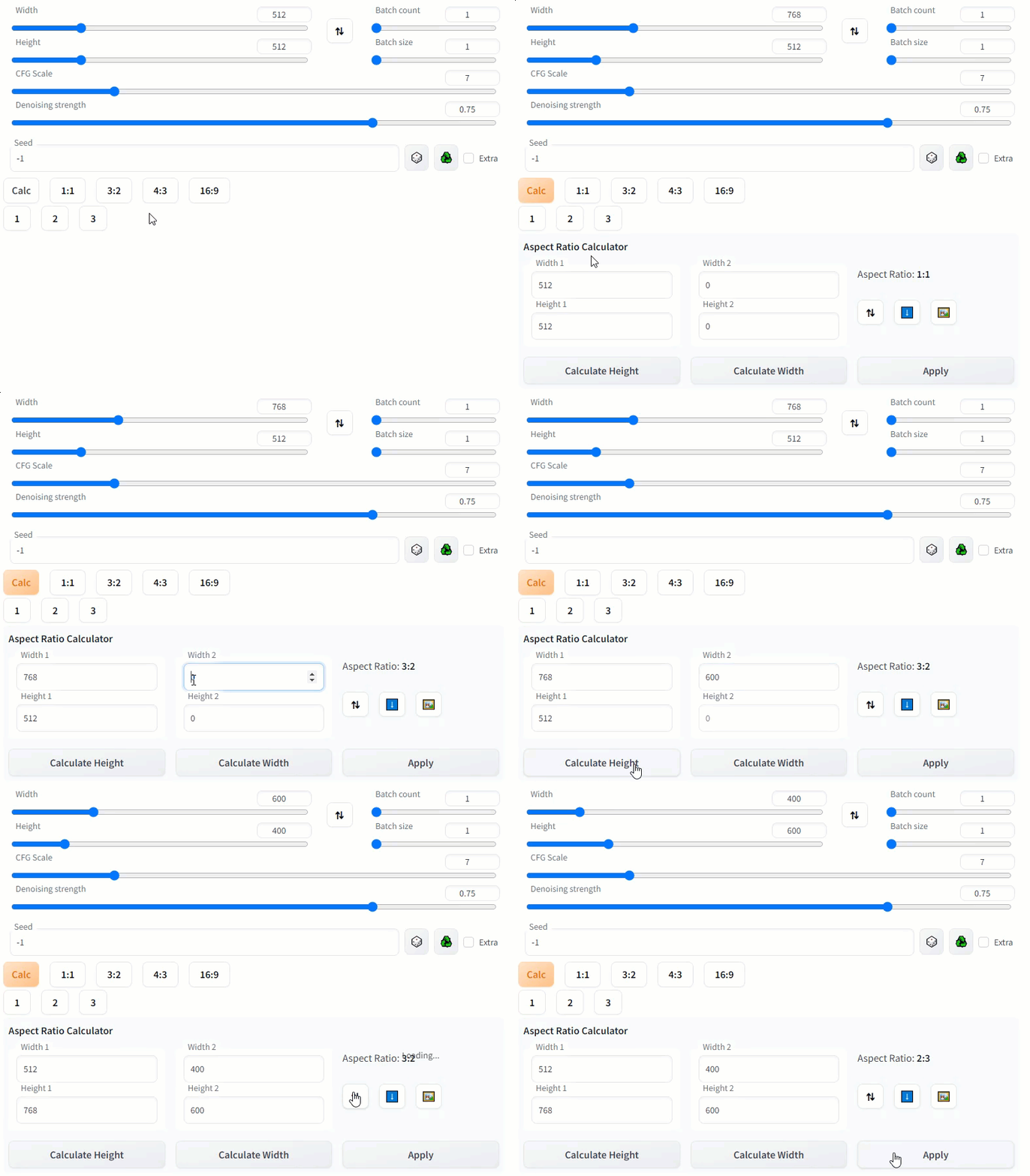 59 |
--------------------------------------------------------------------------------
/scripts/sd-webui-ar.py:
--------------------------------------------------------------------------------
1 | import contextlib
2 | from pathlib import Path
3 |
4 | import gradio as gr
5 |
6 | import modules.scripts as scripts
7 | from modules.ui_components import ToolButton # 导入ToolButton 系统组件样式
8 |
9 | from math import gcd
10 |
11 | aspect_ratios_dir = scripts.basedir()
12 |
13 | calculator_symbol = "\U0001F5A9" # 计算器符号
14 | switch_values_symbol = "\U000021C5" # 交换符号
15 | get_dimensions_symbol = "\u2B07\ufe0f" # 获取尺寸符号
16 | get_image_dimensions_symbol = "\U0001F5BC" # 获取图片尺寸符号
17 |
18 |
19 | class ResButton(ToolButton):
20 | def __init__(self, res=(512, 512), **kwargs):
21 | super().__init__(**kwargs)
22 |
23 | self.w, self.h = res
24 |
25 | def reset(self):
26 | return [self.w, self.h]
27 |
28 |
29 | class ARButton(ToolButton):
30 | def __init__(self, ar=1.0, **kwargs):
31 | super().__init__(**kwargs)
32 |
33 | self.ar = ar
34 |
35 | def apply(self, w, h): # 是一个类方法,接受两个参数w和h,表示宽度和高度。根据self.ar的值,函数会根据不同的条件对宽度和高度进行调整。
36 | if self.ar > 1.0: # fix height, change width 固定高度,改变宽度。函数会根据self.ar计算出新的宽度w,并计算出新的高度h。
37 | h = 512
38 | w = self.ar * h
39 | elif self.ar < 1.0: # fix width, change height 固定宽度,改变高度。函数会根据self.ar计算出新的高度h,并计算出新的宽度w。
40 | w = 512
41 | h = w / self.ar
42 | else: # set minimum dimension to both 设置两个值的最小尺寸。函数会找到w和h中的最小值,然后将w和h都设置为该最小值。
43 | min_dim = min([w, h])
44 | w, h = min_dim, min_dim
45 |
46 | return list(map(round, [w, h])) # 函数会将调整后的宽度和高度都四舍五入到最接近的整数,并以列表的形式返回。
47 |
48 | def reset(self, w, h): # 用于更新UI界面上的宽高数值滑块。是一个类方法,接受两个参数w和h。它返回一个列表,列表中包含两个元素,这两个元素都是self.res的值。
49 | return [self.res, self.res]
50 |
51 |
52 | def parse_aspect_ratios_file(filename): # 该函数用于解析预设的宽高比例文件。
53 | labels, values, comments = [], [], [] # 定义三个空列表:labels、values和comments。这些列表将用于存储标签、值和注释。
54 | file = Path(aspect_ratios_dir, filename)
55 |
56 | # 首先,函数会检查文件是否存在,如果不存在则返回三个空列表。
57 | if not file.exists():
58 | return labels, values, comments # 返回三个空列表:显示的标签,值,注解
59 |
60 | # 如果文件存在,函数会打开文件并读取所有行。
61 | with open(file, "r", encoding="utf-8") as f:
62 | lines = f.readlines()
63 |
64 | if not lines:
65 | return labels, values, comments # 返回三个空列表:显示的标签、值和注解。
66 |
67 | # 排除以 "#" 开头的注释行和不包含逗号的行。
68 | for line in lines:
69 | if line.startswith("#"): # 如果行以#开头,则使用continue语句跳过该行;
70 | continue
71 |
72 | if ',' not in line: # 如果行不包含逗号,则同样使用continue语句跳过该行。
73 | continue
74 |
75 | # 对于每行,函数会尝试将其拆分为标签和值,并将注解保存在变量 comment 中。
76 | try:
77 | label, value = line.strip().split(",")
78 | comment = ""
79 | if "#" in value: # 如果值中包含 "#" 符号,则将值和注释拆分为两个部分。
80 | value, comment = value.split("#")
81 | # 如果拆分失败,则跳过该行并打印错误信息。该函数是一个异常处理语句,用于处理在读取宽高比例文件时可能出现的ValueError异常。
82 | except ValueError:
83 | print(f"skipping badly formatted line in aspect ratios file: {line}") # 跳过格式错误的宽高比例文件行,错误信息中会包含出现异常的行号和内容。
84 | continue
85 | # 将标签、值和注解添加到相应的列表中。
86 | labels.append(label)
87 | values.append(eval(value))
88 | comments.append(comment)
89 |
90 | return labels, values, comments # 返回三个列表:显示的标签、值和注解。
91 |
92 |
93 | def parse_resolutions_file(filename, resolution_type):
94 | # 该函数的功能是解析一个分辨率文件,将文件中的每一行解析为一个分辨率,并将解析结果存储在三个列表中:labels(标签)、values(分辨率)和comments(注释)。函数的输入参数是一个文件名,函数返回一个包含解析结果的元组。
95 | labels, values, comments = [], [], [] # 定义三个空列表:labels、values和comments。这些列表将用于存储标签、值和注释。
96 | #file = Path(aspect_ratios_dir, filename)
97 | file = Path(aspect_ratios_dir, resolution_type + "_resolutions.txt")
98 |
99 | if not file.exists():
100 | return labels, values, comments # 函数首先检查文件是否存在,如果不存在则返回空的labels、values和comments列表。
101 |
102 | with open(file, "r", encoding="utf-8") as f: # 然后,函数打开文件并逐行读取文件内容。
103 | lines = f.readlines()
104 |
105 | if not lines:
106 | return labels, values, comments # 如果文件为空,则返回空的labels、values和comments列表。
107 |
108 | for line in lines:
109 | if line.startswith("#"): # 对于每一行,函数首先检查是否以"#"开头,如果是则跳过该行。
110 | continue
111 |
112 | if '*' not in line: # 然后,函数检查该行是否包含*号,如果不包含则跳过该行。
113 | continue
114 |
115 | try:
116 | comment = "" # 在这里定义comment为空字符串
117 | width, height = line.strip().split("*") # 尝试将该行按照井号分割为宽高两个部分:width, height。
118 | if "#" in width: # 如果#在前半部分,跳过
119 | print(f"skipping line with '#' in the first part in resolutions file: {line}")
120 | continue
121 | if "#" in height: # 如果#在后半部分,继续分割
122 | height, comment = height.split("#")
123 | # label, comment = line.strip().split("#") # 尝试将该行按照井号分割为两个部分:label和comment。
124 | # width, height = label.strip().split("*") # 然后,将label按照星号分割为两个部分:width和height。
125 |
126 | except ValueError:
127 | print(f"skipping badly formatted line in resolutions file: {line}") # 如果分割失败,则打印错误信息并跳过该行。跳过格式错误的分辨率文件行
128 | continue
129 |
130 | resolution = (width, height) # 如果分割成功,则将label添加到labels列表中,将resolution添加到values列表中,将comment添加到comments列表中。
131 |
132 | # label = f"{width}x{height}"
133 | label = add_ratio(width, height)
134 |
135 | labels.append(label)
136 | values.append(resolution)
137 | comments.append(comment)
138 |
139 | return labels, values, comments # 最后,函数返回包含解析结果的元组。
140 |
141 |
142 | # TODO: write a generic function handling both cases 待办事项:编写一个通用的函数,处理分别写入多个文件的情况
143 |
144 | # 这个函数暂时没用到,是以前的功能遗留代码
145 | def write_aspect_ratios_file(filename): # 该函数的功能是将多个宽高比信息的列表写入到指定的文件中。函数接受一个参数filename,表示要写入的文件名。
146 | # 定义了一个列表aspect_ratios,其中包含了常用SD1.5宽高比例的信息。
147 | aspect_ratios = [
148 | "1:1, 1.0 # 1:1 ratio based on minimum dimension\n",
149 | "2:3, 2/3 # \n",
150 | "3:2, 3/2 # Set width based on 3:2 ratio to height\n",
151 | "3:4, 3/4 # \n",
152 | "4:3, 4/3 # Set width based on 4:3 ratio to height\n",
153 | "16:9, 16/9 # Set width based on 16:9 ratio to height",
154 | ]
155 | with open(filename, "w", encoding="utf-8") as f: # 使用with open语句打开指定的文件,并以utf-8编码写入aspect_ratios列表中的内容。
156 | f.writelines(aspect_ratios) # 最后,使用f.writelines(aspect_ratios)将列表中的内容写入文件中。
157 |
158 |
159 | def write_resolutions_file(filename, resolution_type): # 该函数的功能是将一个包含多个分辨率的列表写入到指定的文件中。
160 | # 定义一个名为resolutions的列表,其中包含了多个字符串元素。每个字符串代表一种图像分辨率配置,
161 | if resolution_type == "SD15":
162 | resolutions = [
163 | # ... SD1.5 分辨率的列表 ...
164 | "#1024*1024 # 1:1 square SDXL方形。这一行是格式示例,以下列表不建议修改,推荐修改使用自定义分辨率的文件",
165 | "512*512",
166 | "512*768",
167 | "768*512",
168 | "768*1024",
169 | "1024*768",
170 | "1024*1024",
171 | ]
172 | elif resolution_type == "Custom":
173 | resolutions = [
174 | # ... 自定义分辨率的列表 ...
175 | "#1024*1024 # 1:1 square SDXL方形。这一行是格式示例,推荐修改使用",
176 | "640*480",
177 | "480*640",
178 | "1280*720",
179 | "720*1280",
180 | "1920*1080",
181 | "1080*1920",
182 | ]
183 | elif resolution_type == "SDXL":
184 | resolutions = [
185 | # ... SDXL分辨率的列表 ...
186 | "#1024*1024 # 1:1 square SDXL方形。这一行是格式示例,以下列表不建议修改,推荐修改使用自定义分辨率的文件",
187 | "704*1408",
188 | "704*1344",
189 | "768*1344",
190 | "768*1280",
191 | "832*1216",
192 | "832*1152",
193 | "896*1152",
194 | "896*1088",
195 | "960*1088",
196 | "960*1024",
197 | "1024*960",
198 | "1088*960",
199 | "1088*896",
200 | "1152*896",
201 | "1152*832",
202 | "1216*832",
203 | "1280*768",
204 | "1344*768",
205 | "1344*704",
206 | "1408*704",
207 | "1472*704",
208 | "1536*640",
209 | "1600*640",
210 | "1664*576",
211 | ]
212 | else:
213 | raise ValueError("Unsupported resolution type")
214 |
215 | filename = Path(aspect_ratios_dir, f"{resolution_type}_resolutions.txt") # 根据 resolution_type 生成对应的文件名
216 | with open(filename, "w", encoding="utf-8") as f:
217 | for res in resolutions:
218 | f.write("%s\n" % res)
219 | #with open(filename, "w", encoding="utf-8") as f: # 使用with open语句打开指定的文件,并以utf-8编码写入resolutions列表中的内容。
220 | #f.writelines(resolutions) #调用文件对象f的writelines()方法,将resolutions列表中的所有字符串依次写入到已打开的文件中。
221 |
222 |
223 | def write_js_titles_file(button_titles):
224 | filename = Path(aspect_ratios_dir, "javascript", "button_titles.js")
225 | content = [
226 | "// Do not put custom titles here. This file is overwritten each time the WebUI is started.\n" # 不要在这里添加自定义标题。每次启动WebUI时,都会覆盖此文件
227 | ]
228 | content.append("ar_button_titles = {\n")
229 | counter = 0
230 | while counter < len(button_titles[0]):
231 | content.append(
232 | f' "{button_titles[0][counter]}" : "{button_titles[1][counter]}",\n'
233 | )
234 | counter = counter + 1
235 | content.append("}")
236 |
237 | with open(filename, "w", encoding="utf-8") as f:
238 | f.writelines(content)
239 |
240 | def add_ratio(width, height):
241 | a, b = int(width), int(height)
242 | g = gcd(a, b)
243 | c, d = 1, 1
244 | if g < 8:
245 | if (a, b) == (768, 1366):
246 | c, d = 9, 16
247 | elif (a, b) == (915, 1144):
248 | c, d = 4, 5
249 | elif (a, b) == (1182, 886):
250 | c, d = 4, 3
251 | elif (a, b) == (1366, 768):
252 | c, d = 16, 9
253 | elif (a, b) == (1564, 670):
254 | c, d = 21, 9
255 | else:
256 | c, d = a // g, b // g
257 | return f'{a}x{b} | {c}:{d}'
258 |
259 | def get_reduced_ratio(n, d): # 该函数的功能是根据给定的两个整数n和d,计算并返回一个缩放比例。用在尺寸计算器显示比例
260 | n, d = list(map(int, (n, d))) # 首先,将n和d转换为整数类型。
261 |
262 | if n == d:
263 | return "1:1"
264 |
265 | if n < d:
266 | div = gcd(d, n) # 计算n和d的最大公约数,并将其赋值给变量div。
267 | else:
268 | div = gcd(n, d) # 如果n大于等于d,则计算d和n的最大公约数,并将其赋值给变量div。
269 |
270 | w = int(n) // div # w是n除以div的整数商
271 | h = int(d) // div # h是d除以div的整数商。
272 |
273 | if w == 8 and h == 5: # 如果w等于8且h等于5,则将w的值修改为16,h的值修改为10。
274 | w = 16
275 | h = 10
276 |
277 | return f"{w}:{h}" # 最后,将w和h的值以字符串的形式返回,格式为"w:h"。
278 |
279 |
280 | def solve_aspect_ratio(w, h, n, d): # 用于计算缩放后的宽高比数值
281 | # 根据输入的参数,如果宽度不为0且不为None,则返回宽度除以(n / d)的值,四舍五入到最接近的整数。
282 | if w != 0 and w:
283 | return round(w / (n / d))
284 | # 如果高度不为0且不为None,则返回高度乘以(n / d)的值,四舍五入到最接近的整数。
285 | elif h != 0 and h:
286 | return round(h * (n / d))
287 | # 如果宽度和高度都为0或None,则返回0。
288 | else:
289 | return 0
290 |
291 |
292 | class AspectRatioScript(scripts.Script): # 定义这个插件脚本的类
293 | def read_aspect_ratios(self):
294 | ar_file = Path(aspect_ratios_dir, "aspect_ratios.txt") # 读取一个名为"aspect_ratios.txt"的比例文件
295 |
296 | if not ar_file.exists():
297 | write_aspect_ratios_file(ar_file) # 如果文件不存在,则会调用write_aspect_ratios_file函数创建该文件。
298 |
299 | (
300 | self.aspect_ratio_labels,
301 | aspect_ratios,
302 | self.aspect_ratio_comments,
303 | ) = parse_aspect_ratios_file("aspect_ratios.txt") # 调用 parse_aspect_ratios_file 函数将其解析为三个变量:self.aspect_ratio_labels、aspect_ratios和self.aspect_ratio_comments。
304 |
305 | self.aspect_ratios = list(map(float, aspect_ratios)) # 将aspect_ratios列表中的每个元素转换为浮点数
306 |
307 | #待办事项:
308 |
309 | # TODO: check for duplicates 检查重复值
310 |
311 | # TODO: check for invalid values 检查无效值
312 |
313 | # TODO: use comments as tooltips 鼠标悬浮提示
314 |
315 | # see https://github.com/alemelis/sd-webui-ar/issues/5
316 |
317 | def read_resolutions(self, resolution_type):
318 | res_file = Path(aspect_ratios_dir, f"{resolution_type}_resolutions.txt") # # 根据 resolution_type 读取对应的分辨率文件,并将其解析为三个变量:res_labels、res和res_comments
319 |
320 | if not res_file.exists():
321 | write_resolutions_file(res_file, resolution_type) # 如果文件不存在,则会调用 write_resolutions_file 函数创建该文件。
322 |
323 | self.res_labels, res, self.res_comments = parse_resolutions_file( # 调用 parse_resolutions_file 函数将其解析为三个变量:res_labels、res和res_comments
324 | f"{resolution_type}_resolutions.txt", resolution_type
325 | )
326 | self.res = [list(map(int, r)) for r in res] # 将 res 列表中的每个元素转换为整数列表。
327 |
328 | def title(self):
329 | return "Aspect Ratio picker-xhox"
330 |
331 | def show(self, is_img2img):
332 | return scripts.AlwaysVisible
333 |
334 | def ui(self, is_img2img):
335 | with gr.Accordion(open=True, label=self.title()): #可折叠面板,用于显示插件脚本的标题,折叠默认打开
336 |
337 | with gr.Column(
338 | elem_id=f'{"img" if is_img2img else "txt"}2img_container_aspect_ratio'
339 | ):
340 |
341 | with gr.Accordion(open=False, label='常用SD1.5宽高比例', visible=False): # 常用SD1.5宽高比例 标题,可折叠面板,准备删除
342 | self.read_aspect_ratios() #读取宽高比例文件
343 |
344 | with gr.Row(
345 | elem_id=f'{"img" if is_img2img else "txt"}2img_row_aspect_ratio'
346 | ):
347 | # Aspect Ratio buttons 宽高比例按钮。创建了一个ARButton的列表,其中每个按钮代表一个不同的宽高比例。
348 | btns = [
349 | ARButton(ar=ar, value=label)
350 | for ar, label in zip(
351 | self.aspect_ratios,
352 | self.aspect_ratio_labels,
353 | )
354 | ]
355 |
356 | with contextlib.suppress(AttributeError): # 使用contextlib.suppress来捕获可能发生的AttributeError异常
357 | # 遍历ARButton列表,根据is_img2img的值设置不同的分辨率,并为每个按钮添加点击事件,当按钮被点击时,会调用apply函数,并传递输入和输出的分辨率。
358 | for b in btns:
359 | if is_img2img:
360 | resolution = [self.i2i_w, self.i2i_h]
361 | else:
362 | resolution = [self.t2i_w, self.t2i_h]
363 |
364 | b.click(
365 | b.apply,
366 | inputs=resolution,
367 | outputs=resolution,
368 | )
369 |
370 | arc_title_heading = gr.Markdown(value="SD1.5 resolutions") # SD1.5 常用分辨率 标题
371 | self.read_resolutions(resolution_type="SD15") # 读取SD1.5分辨率文件
372 | for i in range(0, len(self.res), 6):
373 | with gr.Row(elem_id=f'{"img" if is_img2img else "txt"}2img_row_resolutions'):
374 |
375 | # Resolution buttons 分辨率按钮
376 | btns = [
377 | ResButton(res=res, value=label)
378 | for res, label in zip(self.res[i:i+6], self.res_labels[i:i+6])
379 | ]
380 | with contextlib.suppress(AttributeError): # 使用contextlib.suppress来抑制可能发生的AttributeError异常,并且遍历按钮列表。
381 | # 对于每个按钮,根据条件设置分辨率(resolution),然后调用按钮的click方法,传入一个回调函数(b.reset)和输出分辨率(outputs)。
382 | for b in btns:
383 | if is_img2img:
384 | resolution = [self.i2i_w, self.i2i_h]
385 | else:
386 | resolution = [self.t2i_w, self.t2i_h]
387 |
388 | b.click(
389 | b.reset,
390 | outputs=resolution,
391 | )
392 |
393 |
394 | arc_title_heading = gr.Markdown(value="SDXL base resolutions") # SDXL 官方分辨率 标题
395 | self.read_resolutions(resolution_type="SDXL") #读取SDXL分辨率文件
396 |
397 | # 该函数是一个for循环,用于遍历一个列表(self.res)中的元素,并且每次遍历6个元素。在每次遍历中,使用gr.Row创建一个行元素,并且根据条件设置行元素的id。然后,根据条件创建一组按钮(btns),每个按钮都包含一个分辨率(res)和一个标签(label)。
398 | for i in range(0, len(self.res), 6):
399 | with gr.Row(elem_id=f'{"img" if is_img2img else "txt"}2img_row_resolutions'):
400 |
401 | # Resolution buttons 分辨率按钮
402 | btns = [
403 | ResButton(res=res, value=label)
404 | for res, label in zip(self.res[i:i+6], self.res_labels[i:i+6])
405 | ]
406 | with contextlib.suppress(AttributeError): # 使用contextlib.suppress来抑制可能发生的AttributeError异常,并且遍历按钮列表。
407 | # 对于每个按钮,根据条件设置分辨率(resolution),然后调用按钮的click方法,传入一个回调函数(b.reset)和输出分辨率(outputs)。
408 | for b in btns:
409 | if is_img2img:
410 | resolution = [self.i2i_w, self.i2i_h]
411 | else:
412 | resolution = [self.t2i_w, self.t2i_h]
413 |
414 | b.click(
415 | b.reset,
416 | outputs=resolution,
417 | )
418 |
419 | with gr.Accordion(open=False, label='Custom resolutions'): # 自定义分辨率 标题,可折叠面板,默认折叠
420 | self.read_resolutions(resolution_type="Custom") # 读取自定义分辨率文件
421 | for i in range(0, len(self.res), 6):
422 | with gr.Row(elem_id=f'{"img" if is_img2img else "txt"}2img_row_resolutions'):
423 |
424 | # Resolution buttons 分辨率按钮
425 | btns = [
426 | ResButton(res=res, value=label)
427 | for res, label in zip(self.res[i:i+6], self.res_labels[i:i+6])
428 | ]
429 | with contextlib.suppress(AttributeError): # 使用contextlib.suppress来抑制可能发生的AttributeError异常,并且遍历按钮列表。
430 | # 对于每个按钮,根据条件设置分辨率(resolution),然后调用按钮的click方法,传入一个回调函数(b.reset)和输出分辨率(outputs)。
431 | for b in btns:
432 | if is_img2img:
433 | resolution = [self.i2i_w, self.i2i_h]
434 | else:
435 | resolution = [self.t2i_w, self.t2i_h]
436 |
437 | b.click(
438 | b.reset,
439 | outputs=resolution,
440 | )
441 |
442 | # 移除按钮的定义
443 | # Toggle calculator display button 切换显示计算器的按钮
444 | # arc_hide_calculator = gr.Button(
445 | # value="Calc",
446 | # visible=True,
447 | # variant="primary",
448 | # elem_id="arc_hide_calculator_button",
449 | # )
450 | # arc_show_calculator = gr.Button(
451 | # value="Calc",
452 | # visible=False,
453 | # variant="secondary",
454 | # elem_id="arc_show_calculator_button",
455 | # )
456 |
457 | # Write button_titles.js with labels and comments read from aspect ratios and resolutions files 编写一个名为button_titles.js的文件,其中的标签和注释是从宽高比和分辨率文件中读取的
458 | button_titles = [self.aspect_ratio_labels + self.res_labels]
459 | button_titles.append(self.aspect_ratio_comments + self.res_comments)
460 | write_js_titles_file(button_titles)
461 |
462 | # dummy components needed for JS function JS函数所需的虚拟组件
463 | dummy_text1 = gr.Text(visible=False)
464 | dummy_text2 = gr.Text(visible=False)
465 | dummy_text3 = gr.Text(visible=False)
466 | dummy_text4 = gr.Text(visible=False)
467 |
468 | # Aspect Ratio Calculator 宽高比计算器
469 | with gr.Column(
470 | visible=True, variant="panel", elem_id="arc_panel"
471 | ) as arc_panel:
472 | arc_title_heading = gr.Markdown(value=" Aspect Ratio Calculator") # 宽高比计算器标题
473 | with gr.Row():
474 | with gr.Column(min_width=150):
475 | arc_width1 = gr.Number(label="Width 1")
476 | arc_height1 = gr.Number(label="Height 1")
477 |
478 | with gr.Column(min_width=150):
479 | arc_desired_width = gr.Number(label="Width 2")
480 | arc_desired_height = gr.Number(label="Height 2")
481 |
482 | with gr.Column(min_width=150):
483 | arc_ar_display = gr.Markdown(value="Aspect Ratio:")
484 | with gr.Row(
485 | elem_id=f'{"img" if is_img2img else "txt"}2img_arc_tool_buttons'
486 | ):
487 | # Switch resolution values button 交换分辨率宽与高值按钮
488 | arc_swap = ToolButton(value=switch_values_symbol)
489 | arc_swap.click(
490 | lambda w, h, w2, h2: (h, w, h2, w2),
491 | inputs=[
492 | arc_width1,
493 | arc_height1,
494 | arc_desired_width,
495 | arc_desired_height,
496 | ],
497 | outputs=[
498 | arc_width1,
499 | arc_height1,
500 | arc_desired_width,
501 | arc_desired_height,
502 | ],
503 | )
504 |
505 | with contextlib.suppress(AttributeError):
506 | # For img2img tab 图生图标签页生效
507 | if is_img2img:
508 | # Get slider dimensions button 获取滑块尺寸按钮
509 | resolution = [self.i2i_w, self.i2i_h]
510 | arc_get_img2img_dim = ToolButton(
511 | value=get_dimensions_symbol
512 | )
513 | arc_get_img2img_dim.click(
514 | lambda w, h: (w, h),
515 | inputs=resolution,
516 | outputs=[arc_width1, arc_height1],
517 | )
518 |
519 | # Javascript function to select image element from current img2img tab JavaScript函数,用于从当前img2img选项卡中选择图像元素
520 | current_tab_image = """
521 | function current_tab_image(...args) {
522 | const tab_index = get_img2img_tab_index();
523 | // Get current tab's image (on Batch tab, use image from img2img tab)
524 | if (tab_index == 5) {
525 | image = args[0];
526 | } else {
527 | image = args[tab_index];
528 | }
529 | // On Inpaint tab, select just the image and drop the mask
530 | if (tab_index == 2 && image !== null) {
531 | image = image["image"];
532 | }
533 | return [image, null, null, null, null];
534 | }
535 |
536 | """
537 |
538 | # Get image dimensions 获取图像尺寸
539 | def get_dims(
540 | img: list,
541 | dummy_text1,
542 | dummy_text2,
543 | dummy_text3,
544 | dummy_text4,
545 | ):
546 | if img:
547 | width = img.size[0]
548 | height = img.size[1]
549 | return width, height
550 | else:
551 | return 0, 0
552 |
553 | # Get image dimensions button 获取图像尺寸按钮
554 | arc_get_image_dim = ToolButton(
555 | value=get_image_dimensions_symbol
556 | )
557 | arc_get_image_dim.click(
558 | fn=get_dims,
559 | inputs=self.image,
560 | outputs=[arc_width1, arc_height1],
561 | _js=current_tab_image,
562 | )
563 |
564 | else:
565 | # For txt2img tab 文生图标签页生效
566 | # Get slider dimensions button 获取滑块尺寸按钮
567 | resolution = [self.t2i_w, self.t2i_h]
568 | arc_get_txt2img_dim = ToolButton(
569 | value=get_dimensions_symbol
570 | )
571 | arc_get_txt2img_dim.click(
572 | lambda w, h: (w, h),
573 | inputs=resolution,
574 | outputs=[arc_width1, arc_height1],
575 | )
576 |
577 | # Update aspect ratio display on change 使用 change事件 更新比例显示
578 | arc_width1.change(
579 | lambda w, h: (f"Aspect Ratio: **{get_reduced_ratio(w,h)}**"),
580 | inputs=[arc_width1, arc_height1],
581 | outputs=[arc_ar_display],
582 | )
583 | arc_height1.change(
584 | lambda w, h: (f"Aspect Ratio: **{get_reduced_ratio(w,h)}**"),
585 | inputs=[arc_width1, arc_height1],
586 | outputs=[arc_ar_display],
587 | )
588 |
589 | with gr.Row():
590 | # Calculate and Apply buttons 计算和应用按钮
591 | arc_calc_height = gr.Button(value="Calculate Height",scale=1)
592 | arc_calc_height.click(
593 | lambda w2, w1, h1: (solve_aspect_ratio(w2, 0, w1, h1)),
594 | inputs=[arc_desired_width, arc_width1, arc_height1],
595 | outputs=[arc_desired_height],
596 | )
597 | arc_calc_width = gr.Button(value="Calculate Width", scale=1)
598 | arc_calc_width.click(
599 | lambda h2, w1, h1: (solve_aspect_ratio(0, h2, w1, h1)),
600 | inputs=[arc_desired_height, arc_width1, arc_height1],
601 | outputs=[arc_desired_width],
602 | )
603 | arc_apply_params = gr.Button(value="Apply")
604 | with contextlib.suppress(AttributeError):
605 | if is_img2img:
606 | resolution = [self.i2i_w, self.i2i_h]
607 | else:
608 | resolution = [self.t2i_w, self.t2i_h]
609 |
610 | arc_apply_params.click(
611 | lambda w2, h2: (w2, h2),
612 | inputs=[arc_desired_width, arc_desired_height],
613 | outputs=resolution,
614 | )
615 |
616 | # 移除按钮的定义
617 | # Show calculator pane (and reset number input values) 显示计算器面板(以及重置数字输入值),点击事件
618 | # arc_show_calculator.click(
619 | # lambda: [
620 | # gr.update(visible=True),
621 | # gr.update(visible=False),
622 | # gr.update(visible=True),
623 | # gr.update(value=512),
624 | # gr.update(value=512),
625 | # gr.update(value=0),
626 | # gr.update(value=0),
627 | # gr.update(value="Aspect Ratio: **1:1**"),
628 | # ],
629 | # None,
630 | # [
631 | # arc_panel,
632 | # arc_show_calculator,
633 | # arc_hide_calculator,
634 | # arc_width1,
635 | # arc_height1,
636 | # arc_desired_width,
637 | # arc_desired_height,
638 | # arc_ar_display,
639 | # ],
640 | # )
641 | # Hide calculator pane 隐藏计算器面板
642 | # arc_hide_calculator.click(
643 | # lambda: [
644 | # gr.update(visible=False),
645 | # gr.update(visible=True),
646 | # gr.update(visible=False),
647 | # ],
648 | # None,
649 | # [arc_panel, arc_show_calculator, arc_hide_calculator],
650 | # )
651 |
652 | # https://github.com/AUTOMATIC1111/stable-diffusion-webui/pull/7456#issuecomment-1414465888
653 | def after_component(self, component, **kwargs):
654 | if kwargs.get("elem_id") == "txt2img_width":
655 | self.t2i_w = component
656 | if kwargs.get("elem_id") == "txt2img_height":
657 | self.t2i_h = component
658 |
659 | if kwargs.get("elem_id") == "img2img_width":
660 | self.i2i_w = component
661 | if kwargs.get("elem_id") == "img2img_height":
662 | self.i2i_h = component
663 |
664 | if kwargs.get("elem_id") == "img2img_image":
665 | self.image = [component]
666 | if kwargs.get("elem_id") == "img2img_sketch":
667 | self.image.append(component)
668 | if kwargs.get("elem_id") == "img2maskimg":
669 | self.image.append(component)
670 | if kwargs.get("elem_id") == "inpaint_sketch":
671 | self.image.append(component)
672 | if kwargs.get("elem_id") == "img_inpaint_base":
673 | self.image.append(component)
674 |
--------------------------------------------------------------------------------
59 |
--------------------------------------------------------------------------------
/scripts/sd-webui-ar.py:
--------------------------------------------------------------------------------
1 | import contextlib
2 | from pathlib import Path
3 |
4 | import gradio as gr
5 |
6 | import modules.scripts as scripts
7 | from modules.ui_components import ToolButton # 导入ToolButton 系统组件样式
8 |
9 | from math import gcd
10 |
11 | aspect_ratios_dir = scripts.basedir()
12 |
13 | calculator_symbol = "\U0001F5A9" # 计算器符号
14 | switch_values_symbol = "\U000021C5" # 交换符号
15 | get_dimensions_symbol = "\u2B07\ufe0f" # 获取尺寸符号
16 | get_image_dimensions_symbol = "\U0001F5BC" # 获取图片尺寸符号
17 |
18 |
19 | class ResButton(ToolButton):
20 | def __init__(self, res=(512, 512), **kwargs):
21 | super().__init__(**kwargs)
22 |
23 | self.w, self.h = res
24 |
25 | def reset(self):
26 | return [self.w, self.h]
27 |
28 |
29 | class ARButton(ToolButton):
30 | def __init__(self, ar=1.0, **kwargs):
31 | super().__init__(**kwargs)
32 |
33 | self.ar = ar
34 |
35 | def apply(self, w, h): # 是一个类方法,接受两个参数w和h,表示宽度和高度。根据self.ar的值,函数会根据不同的条件对宽度和高度进行调整。
36 | if self.ar > 1.0: # fix height, change width 固定高度,改变宽度。函数会根据self.ar计算出新的宽度w,并计算出新的高度h。
37 | h = 512
38 | w = self.ar * h
39 | elif self.ar < 1.0: # fix width, change height 固定宽度,改变高度。函数会根据self.ar计算出新的高度h,并计算出新的宽度w。
40 | w = 512
41 | h = w / self.ar
42 | else: # set minimum dimension to both 设置两个值的最小尺寸。函数会找到w和h中的最小值,然后将w和h都设置为该最小值。
43 | min_dim = min([w, h])
44 | w, h = min_dim, min_dim
45 |
46 | return list(map(round, [w, h])) # 函数会将调整后的宽度和高度都四舍五入到最接近的整数,并以列表的形式返回。
47 |
48 | def reset(self, w, h): # 用于更新UI界面上的宽高数值滑块。是一个类方法,接受两个参数w和h。它返回一个列表,列表中包含两个元素,这两个元素都是self.res的值。
49 | return [self.res, self.res]
50 |
51 |
52 | def parse_aspect_ratios_file(filename): # 该函数用于解析预设的宽高比例文件。
53 | labels, values, comments = [], [], [] # 定义三个空列表:labels、values和comments。这些列表将用于存储标签、值和注释。
54 | file = Path(aspect_ratios_dir, filename)
55 |
56 | # 首先,函数会检查文件是否存在,如果不存在则返回三个空列表。
57 | if not file.exists():
58 | return labels, values, comments # 返回三个空列表:显示的标签,值,注解
59 |
60 | # 如果文件存在,函数会打开文件并读取所有行。
61 | with open(file, "r", encoding="utf-8") as f:
62 | lines = f.readlines()
63 |
64 | if not lines:
65 | return labels, values, comments # 返回三个空列表:显示的标签、值和注解。
66 |
67 | # 排除以 "#" 开头的注释行和不包含逗号的行。
68 | for line in lines:
69 | if line.startswith("#"): # 如果行以#开头,则使用continue语句跳过该行;
70 | continue
71 |
72 | if ',' not in line: # 如果行不包含逗号,则同样使用continue语句跳过该行。
73 | continue
74 |
75 | # 对于每行,函数会尝试将其拆分为标签和值,并将注解保存在变量 comment 中。
76 | try:
77 | label, value = line.strip().split(",")
78 | comment = ""
79 | if "#" in value: # 如果值中包含 "#" 符号,则将值和注释拆分为两个部分。
80 | value, comment = value.split("#")
81 | # 如果拆分失败,则跳过该行并打印错误信息。该函数是一个异常处理语句,用于处理在读取宽高比例文件时可能出现的ValueError异常。
82 | except ValueError:
83 | print(f"skipping badly formatted line in aspect ratios file: {line}") # 跳过格式错误的宽高比例文件行,错误信息中会包含出现异常的行号和内容。
84 | continue
85 | # 将标签、值和注解添加到相应的列表中。
86 | labels.append(label)
87 | values.append(eval(value))
88 | comments.append(comment)
89 |
90 | return labels, values, comments # 返回三个列表:显示的标签、值和注解。
91 |
92 |
93 | def parse_resolutions_file(filename, resolution_type):
94 | # 该函数的功能是解析一个分辨率文件,将文件中的每一行解析为一个分辨率,并将解析结果存储在三个列表中:labels(标签)、values(分辨率)和comments(注释)。函数的输入参数是一个文件名,函数返回一个包含解析结果的元组。
95 | labels, values, comments = [], [], [] # 定义三个空列表:labels、values和comments。这些列表将用于存储标签、值和注释。
96 | #file = Path(aspect_ratios_dir, filename)
97 | file = Path(aspect_ratios_dir, resolution_type + "_resolutions.txt")
98 |
99 | if not file.exists():
100 | return labels, values, comments # 函数首先检查文件是否存在,如果不存在则返回空的labels、values和comments列表。
101 |
102 | with open(file, "r", encoding="utf-8") as f: # 然后,函数打开文件并逐行读取文件内容。
103 | lines = f.readlines()
104 |
105 | if not lines:
106 | return labels, values, comments # 如果文件为空,则返回空的labels、values和comments列表。
107 |
108 | for line in lines:
109 | if line.startswith("#"): # 对于每一行,函数首先检查是否以"#"开头,如果是则跳过该行。
110 | continue
111 |
112 | if '*' not in line: # 然后,函数检查该行是否包含*号,如果不包含则跳过该行。
113 | continue
114 |
115 | try:
116 | comment = "" # 在这里定义comment为空字符串
117 | width, height = line.strip().split("*") # 尝试将该行按照井号分割为宽高两个部分:width, height。
118 | if "#" in width: # 如果#在前半部分,跳过
119 | print(f"skipping line with '#' in the first part in resolutions file: {line}")
120 | continue
121 | if "#" in height: # 如果#在后半部分,继续分割
122 | height, comment = height.split("#")
123 | # label, comment = line.strip().split("#") # 尝试将该行按照井号分割为两个部分:label和comment。
124 | # width, height = label.strip().split("*") # 然后,将label按照星号分割为两个部分:width和height。
125 |
126 | except ValueError:
127 | print(f"skipping badly formatted line in resolutions file: {line}") # 如果分割失败,则打印错误信息并跳过该行。跳过格式错误的分辨率文件行
128 | continue
129 |
130 | resolution = (width, height) # 如果分割成功,则将label添加到labels列表中,将resolution添加到values列表中,将comment添加到comments列表中。
131 |
132 | # label = f"{width}x{height}"
133 | label = add_ratio(width, height)
134 |
135 | labels.append(label)
136 | values.append(resolution)
137 | comments.append(comment)
138 |
139 | return labels, values, comments # 最后,函数返回包含解析结果的元组。
140 |
141 |
142 | # TODO: write a generic function handling both cases 待办事项:编写一个通用的函数,处理分别写入多个文件的情况
143 |
144 | # 这个函数暂时没用到,是以前的功能遗留代码
145 | def write_aspect_ratios_file(filename): # 该函数的功能是将多个宽高比信息的列表写入到指定的文件中。函数接受一个参数filename,表示要写入的文件名。
146 | # 定义了一个列表aspect_ratios,其中包含了常用SD1.5宽高比例的信息。
147 | aspect_ratios = [
148 | "1:1, 1.0 # 1:1 ratio based on minimum dimension\n",
149 | "2:3, 2/3 # \n",
150 | "3:2, 3/2 # Set width based on 3:2 ratio to height\n",
151 | "3:4, 3/4 # \n",
152 | "4:3, 4/3 # Set width based on 4:3 ratio to height\n",
153 | "16:9, 16/9 # Set width based on 16:9 ratio to height",
154 | ]
155 | with open(filename, "w", encoding="utf-8") as f: # 使用with open语句打开指定的文件,并以utf-8编码写入aspect_ratios列表中的内容。
156 | f.writelines(aspect_ratios) # 最后,使用f.writelines(aspect_ratios)将列表中的内容写入文件中。
157 |
158 |
159 | def write_resolutions_file(filename, resolution_type): # 该函数的功能是将一个包含多个分辨率的列表写入到指定的文件中。
160 | # 定义一个名为resolutions的列表,其中包含了多个字符串元素。每个字符串代表一种图像分辨率配置,
161 | if resolution_type == "SD15":
162 | resolutions = [
163 | # ... SD1.5 分辨率的列表 ...
164 | "#1024*1024 # 1:1 square SDXL方形。这一行是格式示例,以下列表不建议修改,推荐修改使用自定义分辨率的文件",
165 | "512*512",
166 | "512*768",
167 | "768*512",
168 | "768*1024",
169 | "1024*768",
170 | "1024*1024",
171 | ]
172 | elif resolution_type == "Custom":
173 | resolutions = [
174 | # ... 自定义分辨率的列表 ...
175 | "#1024*1024 # 1:1 square SDXL方形。这一行是格式示例,推荐修改使用",
176 | "640*480",
177 | "480*640",
178 | "1280*720",
179 | "720*1280",
180 | "1920*1080",
181 | "1080*1920",
182 | ]
183 | elif resolution_type == "SDXL":
184 | resolutions = [
185 | # ... SDXL分辨率的列表 ...
186 | "#1024*1024 # 1:1 square SDXL方形。这一行是格式示例,以下列表不建议修改,推荐修改使用自定义分辨率的文件",
187 | "704*1408",
188 | "704*1344",
189 | "768*1344",
190 | "768*1280",
191 | "832*1216",
192 | "832*1152",
193 | "896*1152",
194 | "896*1088",
195 | "960*1088",
196 | "960*1024",
197 | "1024*960",
198 | "1088*960",
199 | "1088*896",
200 | "1152*896",
201 | "1152*832",
202 | "1216*832",
203 | "1280*768",
204 | "1344*768",
205 | "1344*704",
206 | "1408*704",
207 | "1472*704",
208 | "1536*640",
209 | "1600*640",
210 | "1664*576",
211 | ]
212 | else:
213 | raise ValueError("Unsupported resolution type")
214 |
215 | filename = Path(aspect_ratios_dir, f"{resolution_type}_resolutions.txt") # 根据 resolution_type 生成对应的文件名
216 | with open(filename, "w", encoding="utf-8") as f:
217 | for res in resolutions:
218 | f.write("%s\n" % res)
219 | #with open(filename, "w", encoding="utf-8") as f: # 使用with open语句打开指定的文件,并以utf-8编码写入resolutions列表中的内容。
220 | #f.writelines(resolutions) #调用文件对象f的writelines()方法,将resolutions列表中的所有字符串依次写入到已打开的文件中。
221 |
222 |
223 | def write_js_titles_file(button_titles):
224 | filename = Path(aspect_ratios_dir, "javascript", "button_titles.js")
225 | content = [
226 | "// Do not put custom titles here. This file is overwritten each time the WebUI is started.\n" # 不要在这里添加自定义标题。每次启动WebUI时,都会覆盖此文件
227 | ]
228 | content.append("ar_button_titles = {\n")
229 | counter = 0
230 | while counter < len(button_titles[0]):
231 | content.append(
232 | f' "{button_titles[0][counter]}" : "{button_titles[1][counter]}",\n'
233 | )
234 | counter = counter + 1
235 | content.append("}")
236 |
237 | with open(filename, "w", encoding="utf-8") as f:
238 | f.writelines(content)
239 |
240 | def add_ratio(width, height):
241 | a, b = int(width), int(height)
242 | g = gcd(a, b)
243 | c, d = 1, 1
244 | if g < 8:
245 | if (a, b) == (768, 1366):
246 | c, d = 9, 16
247 | elif (a, b) == (915, 1144):
248 | c, d = 4, 5
249 | elif (a, b) == (1182, 886):
250 | c, d = 4, 3
251 | elif (a, b) == (1366, 768):
252 | c, d = 16, 9
253 | elif (a, b) == (1564, 670):
254 | c, d = 21, 9
255 | else:
256 | c, d = a // g, b // g
257 | return f'{a}x{b} | {c}:{d}'
258 |
259 | def get_reduced_ratio(n, d): # 该函数的功能是根据给定的两个整数n和d,计算并返回一个缩放比例。用在尺寸计算器显示比例
260 | n, d = list(map(int, (n, d))) # 首先,将n和d转换为整数类型。
261 |
262 | if n == d:
263 | return "1:1"
264 |
265 | if n < d:
266 | div = gcd(d, n) # 计算n和d的最大公约数,并将其赋值给变量div。
267 | else:
268 | div = gcd(n, d) # 如果n大于等于d,则计算d和n的最大公约数,并将其赋值给变量div。
269 |
270 | w = int(n) // div # w是n除以div的整数商
271 | h = int(d) // div # h是d除以div的整数商。
272 |
273 | if w == 8 and h == 5: # 如果w等于8且h等于5,则将w的值修改为16,h的值修改为10。
274 | w = 16
275 | h = 10
276 |
277 | return f"{w}:{h}" # 最后,将w和h的值以字符串的形式返回,格式为"w:h"。
278 |
279 |
280 | def solve_aspect_ratio(w, h, n, d): # 用于计算缩放后的宽高比数值
281 | # 根据输入的参数,如果宽度不为0且不为None,则返回宽度除以(n / d)的值,四舍五入到最接近的整数。
282 | if w != 0 and w:
283 | return round(w / (n / d))
284 | # 如果高度不为0且不为None,则返回高度乘以(n / d)的值,四舍五入到最接近的整数。
285 | elif h != 0 and h:
286 | return round(h * (n / d))
287 | # 如果宽度和高度都为0或None,则返回0。
288 | else:
289 | return 0
290 |
291 |
292 | class AspectRatioScript(scripts.Script): # 定义这个插件脚本的类
293 | def read_aspect_ratios(self):
294 | ar_file = Path(aspect_ratios_dir, "aspect_ratios.txt") # 读取一个名为"aspect_ratios.txt"的比例文件
295 |
296 | if not ar_file.exists():
297 | write_aspect_ratios_file(ar_file) # 如果文件不存在,则会调用write_aspect_ratios_file函数创建该文件。
298 |
299 | (
300 | self.aspect_ratio_labels,
301 | aspect_ratios,
302 | self.aspect_ratio_comments,
303 | ) = parse_aspect_ratios_file("aspect_ratios.txt") # 调用 parse_aspect_ratios_file 函数将其解析为三个变量:self.aspect_ratio_labels、aspect_ratios和self.aspect_ratio_comments。
304 |
305 | self.aspect_ratios = list(map(float, aspect_ratios)) # 将aspect_ratios列表中的每个元素转换为浮点数
306 |
307 | #待办事项:
308 |
309 | # TODO: check for duplicates 检查重复值
310 |
311 | # TODO: check for invalid values 检查无效值
312 |
313 | # TODO: use comments as tooltips 鼠标悬浮提示
314 |
315 | # see https://github.com/alemelis/sd-webui-ar/issues/5
316 |
317 | def read_resolutions(self, resolution_type):
318 | res_file = Path(aspect_ratios_dir, f"{resolution_type}_resolutions.txt") # # 根据 resolution_type 读取对应的分辨率文件,并将其解析为三个变量:res_labels、res和res_comments
319 |
320 | if not res_file.exists():
321 | write_resolutions_file(res_file, resolution_type) # 如果文件不存在,则会调用 write_resolutions_file 函数创建该文件。
322 |
323 | self.res_labels, res, self.res_comments = parse_resolutions_file( # 调用 parse_resolutions_file 函数将其解析为三个变量:res_labels、res和res_comments
324 | f"{resolution_type}_resolutions.txt", resolution_type
325 | )
326 | self.res = [list(map(int, r)) for r in res] # 将 res 列表中的每个元素转换为整数列表。
327 |
328 | def title(self):
329 | return "Aspect Ratio picker-xhox"
330 |
331 | def show(self, is_img2img):
332 | return scripts.AlwaysVisible
333 |
334 | def ui(self, is_img2img):
335 | with gr.Accordion(open=True, label=self.title()): #可折叠面板,用于显示插件脚本的标题,折叠默认打开
336 |
337 | with gr.Column(
338 | elem_id=f'{"img" if is_img2img else "txt"}2img_container_aspect_ratio'
339 | ):
340 |
341 | with gr.Accordion(open=False, label='常用SD1.5宽高比例', visible=False): # 常用SD1.5宽高比例 标题,可折叠面板,准备删除
342 | self.read_aspect_ratios() #读取宽高比例文件
343 |
344 | with gr.Row(
345 | elem_id=f'{"img" if is_img2img else "txt"}2img_row_aspect_ratio'
346 | ):
347 | # Aspect Ratio buttons 宽高比例按钮。创建了一个ARButton的列表,其中每个按钮代表一个不同的宽高比例。
348 | btns = [
349 | ARButton(ar=ar, value=label)
350 | for ar, label in zip(
351 | self.aspect_ratios,
352 | self.aspect_ratio_labels,
353 | )
354 | ]
355 |
356 | with contextlib.suppress(AttributeError): # 使用contextlib.suppress来捕获可能发生的AttributeError异常
357 | # 遍历ARButton列表,根据is_img2img的值设置不同的分辨率,并为每个按钮添加点击事件,当按钮被点击时,会调用apply函数,并传递输入和输出的分辨率。
358 | for b in btns:
359 | if is_img2img:
360 | resolution = [self.i2i_w, self.i2i_h]
361 | else:
362 | resolution = [self.t2i_w, self.t2i_h]
363 |
364 | b.click(
365 | b.apply,
366 | inputs=resolution,
367 | outputs=resolution,
368 | )
369 |
370 | arc_title_heading = gr.Markdown(value="SD1.5 resolutions") # SD1.5 常用分辨率 标题
371 | self.read_resolutions(resolution_type="SD15") # 读取SD1.5分辨率文件
372 | for i in range(0, len(self.res), 6):
373 | with gr.Row(elem_id=f'{"img" if is_img2img else "txt"}2img_row_resolutions'):
374 |
375 | # Resolution buttons 分辨率按钮
376 | btns = [
377 | ResButton(res=res, value=label)
378 | for res, label in zip(self.res[i:i+6], self.res_labels[i:i+6])
379 | ]
380 | with contextlib.suppress(AttributeError): # 使用contextlib.suppress来抑制可能发生的AttributeError异常,并且遍历按钮列表。
381 | # 对于每个按钮,根据条件设置分辨率(resolution),然后调用按钮的click方法,传入一个回调函数(b.reset)和输出分辨率(outputs)。
382 | for b in btns:
383 | if is_img2img:
384 | resolution = [self.i2i_w, self.i2i_h]
385 | else:
386 | resolution = [self.t2i_w, self.t2i_h]
387 |
388 | b.click(
389 | b.reset,
390 | outputs=resolution,
391 | )
392 |
393 |
394 | arc_title_heading = gr.Markdown(value="SDXL base resolutions") # SDXL 官方分辨率 标题
395 | self.read_resolutions(resolution_type="SDXL") #读取SDXL分辨率文件
396 |
397 | # 该函数是一个for循环,用于遍历一个列表(self.res)中的元素,并且每次遍历6个元素。在每次遍历中,使用gr.Row创建一个行元素,并且根据条件设置行元素的id。然后,根据条件创建一组按钮(btns),每个按钮都包含一个分辨率(res)和一个标签(label)。
398 | for i in range(0, len(self.res), 6):
399 | with gr.Row(elem_id=f'{"img" if is_img2img else "txt"}2img_row_resolutions'):
400 |
401 | # Resolution buttons 分辨率按钮
402 | btns = [
403 | ResButton(res=res, value=label)
404 | for res, label in zip(self.res[i:i+6], self.res_labels[i:i+6])
405 | ]
406 | with contextlib.suppress(AttributeError): # 使用contextlib.suppress来抑制可能发生的AttributeError异常,并且遍历按钮列表。
407 | # 对于每个按钮,根据条件设置分辨率(resolution),然后调用按钮的click方法,传入一个回调函数(b.reset)和输出分辨率(outputs)。
408 | for b in btns:
409 | if is_img2img:
410 | resolution = [self.i2i_w, self.i2i_h]
411 | else:
412 | resolution = [self.t2i_w, self.t2i_h]
413 |
414 | b.click(
415 | b.reset,
416 | outputs=resolution,
417 | )
418 |
419 | with gr.Accordion(open=False, label='Custom resolutions'): # 自定义分辨率 标题,可折叠面板,默认折叠
420 | self.read_resolutions(resolution_type="Custom") # 读取自定义分辨率文件
421 | for i in range(0, len(self.res), 6):
422 | with gr.Row(elem_id=f'{"img" if is_img2img else "txt"}2img_row_resolutions'):
423 |
424 | # Resolution buttons 分辨率按钮
425 | btns = [
426 | ResButton(res=res, value=label)
427 | for res, label in zip(self.res[i:i+6], self.res_labels[i:i+6])
428 | ]
429 | with contextlib.suppress(AttributeError): # 使用contextlib.suppress来抑制可能发生的AttributeError异常,并且遍历按钮列表。
430 | # 对于每个按钮,根据条件设置分辨率(resolution),然后调用按钮的click方法,传入一个回调函数(b.reset)和输出分辨率(outputs)。
431 | for b in btns:
432 | if is_img2img:
433 | resolution = [self.i2i_w, self.i2i_h]
434 | else:
435 | resolution = [self.t2i_w, self.t2i_h]
436 |
437 | b.click(
438 | b.reset,
439 | outputs=resolution,
440 | )
441 |
442 | # 移除按钮的定义
443 | # Toggle calculator display button 切换显示计算器的按钮
444 | # arc_hide_calculator = gr.Button(
445 | # value="Calc",
446 | # visible=True,
447 | # variant="primary",
448 | # elem_id="arc_hide_calculator_button",
449 | # )
450 | # arc_show_calculator = gr.Button(
451 | # value="Calc",
452 | # visible=False,
453 | # variant="secondary",
454 | # elem_id="arc_show_calculator_button",
455 | # )
456 |
457 | # Write button_titles.js with labels and comments read from aspect ratios and resolutions files 编写一个名为button_titles.js的文件,其中的标签和注释是从宽高比和分辨率文件中读取的
458 | button_titles = [self.aspect_ratio_labels + self.res_labels]
459 | button_titles.append(self.aspect_ratio_comments + self.res_comments)
460 | write_js_titles_file(button_titles)
461 |
462 | # dummy components needed for JS function JS函数所需的虚拟组件
463 | dummy_text1 = gr.Text(visible=False)
464 | dummy_text2 = gr.Text(visible=False)
465 | dummy_text3 = gr.Text(visible=False)
466 | dummy_text4 = gr.Text(visible=False)
467 |
468 | # Aspect Ratio Calculator 宽高比计算器
469 | with gr.Column(
470 | visible=True, variant="panel", elem_id="arc_panel"
471 | ) as arc_panel:
472 | arc_title_heading = gr.Markdown(value=" Aspect Ratio Calculator") # 宽高比计算器标题
473 | with gr.Row():
474 | with gr.Column(min_width=150):
475 | arc_width1 = gr.Number(label="Width 1")
476 | arc_height1 = gr.Number(label="Height 1")
477 |
478 | with gr.Column(min_width=150):
479 | arc_desired_width = gr.Number(label="Width 2")
480 | arc_desired_height = gr.Number(label="Height 2")
481 |
482 | with gr.Column(min_width=150):
483 | arc_ar_display = gr.Markdown(value="Aspect Ratio:")
484 | with gr.Row(
485 | elem_id=f'{"img" if is_img2img else "txt"}2img_arc_tool_buttons'
486 | ):
487 | # Switch resolution values button 交换分辨率宽与高值按钮
488 | arc_swap = ToolButton(value=switch_values_symbol)
489 | arc_swap.click(
490 | lambda w, h, w2, h2: (h, w, h2, w2),
491 | inputs=[
492 | arc_width1,
493 | arc_height1,
494 | arc_desired_width,
495 | arc_desired_height,
496 | ],
497 | outputs=[
498 | arc_width1,
499 | arc_height1,
500 | arc_desired_width,
501 | arc_desired_height,
502 | ],
503 | )
504 |
505 | with contextlib.suppress(AttributeError):
506 | # For img2img tab 图生图标签页生效
507 | if is_img2img:
508 | # Get slider dimensions button 获取滑块尺寸按钮
509 | resolution = [self.i2i_w, self.i2i_h]
510 | arc_get_img2img_dim = ToolButton(
511 | value=get_dimensions_symbol
512 | )
513 | arc_get_img2img_dim.click(
514 | lambda w, h: (w, h),
515 | inputs=resolution,
516 | outputs=[arc_width1, arc_height1],
517 | )
518 |
519 | # Javascript function to select image element from current img2img tab JavaScript函数,用于从当前img2img选项卡中选择图像元素
520 | current_tab_image = """
521 | function current_tab_image(...args) {
522 | const tab_index = get_img2img_tab_index();
523 | // Get current tab's image (on Batch tab, use image from img2img tab)
524 | if (tab_index == 5) {
525 | image = args[0];
526 | } else {
527 | image = args[tab_index];
528 | }
529 | // On Inpaint tab, select just the image and drop the mask
530 | if (tab_index == 2 && image !== null) {
531 | image = image["image"];
532 | }
533 | return [image, null, null, null, null];
534 | }
535 |
536 | """
537 |
538 | # Get image dimensions 获取图像尺寸
539 | def get_dims(
540 | img: list,
541 | dummy_text1,
542 | dummy_text2,
543 | dummy_text3,
544 | dummy_text4,
545 | ):
546 | if img:
547 | width = img.size[0]
548 | height = img.size[1]
549 | return width, height
550 | else:
551 | return 0, 0
552 |
553 | # Get image dimensions button 获取图像尺寸按钮
554 | arc_get_image_dim = ToolButton(
555 | value=get_image_dimensions_symbol
556 | )
557 | arc_get_image_dim.click(
558 | fn=get_dims,
559 | inputs=self.image,
560 | outputs=[arc_width1, arc_height1],
561 | _js=current_tab_image,
562 | )
563 |
564 | else:
565 | # For txt2img tab 文生图标签页生效
566 | # Get slider dimensions button 获取滑块尺寸按钮
567 | resolution = [self.t2i_w, self.t2i_h]
568 | arc_get_txt2img_dim = ToolButton(
569 | value=get_dimensions_symbol
570 | )
571 | arc_get_txt2img_dim.click(
572 | lambda w, h: (w, h),
573 | inputs=resolution,
574 | outputs=[arc_width1, arc_height1],
575 | )
576 |
577 | # Update aspect ratio display on change 使用 change事件 更新比例显示
578 | arc_width1.change(
579 | lambda w, h: (f"Aspect Ratio: **{get_reduced_ratio(w,h)}**"),
580 | inputs=[arc_width1, arc_height1],
581 | outputs=[arc_ar_display],
582 | )
583 | arc_height1.change(
584 | lambda w, h: (f"Aspect Ratio: **{get_reduced_ratio(w,h)}**"),
585 | inputs=[arc_width1, arc_height1],
586 | outputs=[arc_ar_display],
587 | )
588 |
589 | with gr.Row():
590 | # Calculate and Apply buttons 计算和应用按钮
591 | arc_calc_height = gr.Button(value="Calculate Height",scale=1)
592 | arc_calc_height.click(
593 | lambda w2, w1, h1: (solve_aspect_ratio(w2, 0, w1, h1)),
594 | inputs=[arc_desired_width, arc_width1, arc_height1],
595 | outputs=[arc_desired_height],
596 | )
597 | arc_calc_width = gr.Button(value="Calculate Width", scale=1)
598 | arc_calc_width.click(
599 | lambda h2, w1, h1: (solve_aspect_ratio(0, h2, w1, h1)),
600 | inputs=[arc_desired_height, arc_width1, arc_height1],
601 | outputs=[arc_desired_width],
602 | )
603 | arc_apply_params = gr.Button(value="Apply")
604 | with contextlib.suppress(AttributeError):
605 | if is_img2img:
606 | resolution = [self.i2i_w, self.i2i_h]
607 | else:
608 | resolution = [self.t2i_w, self.t2i_h]
609 |
610 | arc_apply_params.click(
611 | lambda w2, h2: (w2, h2),
612 | inputs=[arc_desired_width, arc_desired_height],
613 | outputs=resolution,
614 | )
615 |
616 | # 移除按钮的定义
617 | # Show calculator pane (and reset number input values) 显示计算器面板(以及重置数字输入值),点击事件
618 | # arc_show_calculator.click(
619 | # lambda: [
620 | # gr.update(visible=True),
621 | # gr.update(visible=False),
622 | # gr.update(visible=True),
623 | # gr.update(value=512),
624 | # gr.update(value=512),
625 | # gr.update(value=0),
626 | # gr.update(value=0),
627 | # gr.update(value="Aspect Ratio: **1:1**"),
628 | # ],
629 | # None,
630 | # [
631 | # arc_panel,
632 | # arc_show_calculator,
633 | # arc_hide_calculator,
634 | # arc_width1,
635 | # arc_height1,
636 | # arc_desired_width,
637 | # arc_desired_height,
638 | # arc_ar_display,
639 | # ],
640 | # )
641 | # Hide calculator pane 隐藏计算器面板
642 | # arc_hide_calculator.click(
643 | # lambda: [
644 | # gr.update(visible=False),
645 | # gr.update(visible=True),
646 | # gr.update(visible=False),
647 | # ],
648 | # None,
649 | # [arc_panel, arc_show_calculator, arc_hide_calculator],
650 | # )
651 |
652 | # https://github.com/AUTOMATIC1111/stable-diffusion-webui/pull/7456#issuecomment-1414465888
653 | def after_component(self, component, **kwargs):
654 | if kwargs.get("elem_id") == "txt2img_width":
655 | self.t2i_w = component
656 | if kwargs.get("elem_id") == "txt2img_height":
657 | self.t2i_h = component
658 |
659 | if kwargs.get("elem_id") == "img2img_width":
660 | self.i2i_w = component
661 | if kwargs.get("elem_id") == "img2img_height":
662 | self.i2i_h = component
663 |
664 | if kwargs.get("elem_id") == "img2img_image":
665 | self.image = [component]
666 | if kwargs.get("elem_id") == "img2img_sketch":
667 | self.image.append(component)
668 | if kwargs.get("elem_id") == "img2maskimg":
669 | self.image.append(component)
670 | if kwargs.get("elem_id") == "inpaint_sketch":
671 | self.image.append(component)
672 | if kwargs.get("elem_id") == "img_inpaint_base":
673 | self.image.append(component)
674 |
--------------------------------------------------------------------------------